Smart Slides GPT Plugin
Smart Slides
Make Slides in a flash
How to use Smart Slides
Smart Slides GPT Plugin
How to Use Teachable Machine
Introduction to the presentation
Smart Slides GPT Plugin
• Overview of what Teachable Machine is, its purpose, and who it's for.
Introduction to Teachable Machine
Smart Slides GPT Plugin
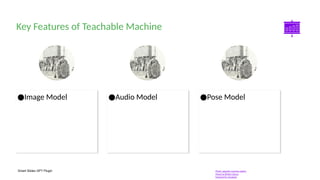
●Pose Model
●Audio Model
●Image Model
Key Features of Teachable Machine
Photo: gigantic machine sketch
Photo by British Library
Powered by Unsplash
Smart Slides GPT Plugin
• Benefits and applications of
Teachable Machine in various fields.
Why Use Teachable Machine?
Photo: black snow motocycle
Photo by Harley-Davidson
Powered by Unsplash
Smart Slides GPT Plugin
How Teachable Machine Works
Step-by-step breakdown of the workflow from data
collection to model export.
Smart Slides GPT Plugin
Getting Started: Accessing
the Tool
• Instructions on how to access
Teachable Machine.
Photo: a close-up of a lipstick
Photo by Muhammad Tayyab
Powered by Unsplash
Smart Slides GPT Plugin
• Explanation of
different project
types available in
Teachable Machine.
Step 1: Choosing a
Project Type
Photo: gray adjustable wrench and gray pipe wrench
Photo by Matt Artz
Powered by Unsplash
Smart Slides GPT Plugin
• How to collect and import data for
training models.
Step 2: Collecting and
Importing Data
Photo: a group of plastic cups sitting on top of a machine
Photo by National Cancer Institute
Powered by Unsplash
Smart Slides GPT Plugin
• Explanation of the
training process and
customization
options.
Step 3: Training Your Model
Smart Slides GPT Plugin
• How to evaluate
model performance
and adjust settings.
Step 4: Evaluating Your Model
Smart Slides GPT Plugin
• Instructions on exporting the trained
model for use.
Step 5: Exporting and Using
Your Model
Photo: assorted-type hand tool lot
Photo by Ashim D’Silva
Powered by Unsplash
Smart Slides GPT Plugin
10
Photo: cars parked in front of building
Photo by Jakob Rosen
Powered by Unsplash
A brief walkthrough of a live demo (hypothetical or link to a demo
video).
Live Demo: Training a Simple Model
Smart Slides GPT Plugin
●Filler content
●Filler content
●Tips and best
practices for
improving model
accuracy.
Tips for Improving Model Accuracy
Smart Slides GPT Plugin
●Filler content
●Filler content
●Filler content
●Common issues
and how to
resolve them.
Common Challenges and Troubleshooting
Smart Slides GPT Plugin
●Examples of Teachable Machine in action across
different industries.
Practical Applications: Examples
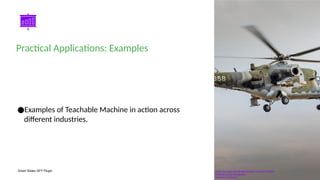
Photo: low angle photography of brown and gray helicopter
Photo by Curioso Photography
Powered by Unsplash
Smart Slides GPT Plugin
• Overview of
advanced features for
more experienced
users.
Advanced Features
and Customization
Photo: gray steel scissors
Photo by Matt Artz
Powered by Unsplash
Smart Slides GPT Plugin
●How to integrate with platforms like TensorFlow.js.
Integrating Teachable Machine with Other
Tools
Photo: open wrench
Photo by Matt Artz
Powered by Unsplash
Smart Slides GPT Plugin
• Links to tutorials, documentation, and community forums.
Resources for Further Learning
Smart Slides GPT Plugin
Conclusion: Why You Should Start Using Teachable
Machine Today
Recap and call to action.
Smart Slides GPT Plugin
• Invite questions and thank the audience.
Q&A / Thank You
Smart Slides GPT Plugin
• Learn more about how to use this plugin by visiting
https://smartslides.crisp.help/en/article/how-to-use-smart-slides-
1w14fiw/
• Example Prompts:
• Make me a 5 slide presentation about the history of the united states
and include charts with images of mountains and rivers
• Make me a 5 slide tourist presentation about Norway and lofoten
islands with varied layouts and images of the northern lights using
• Create a presentation with 5 slides about Sydney with images of Bondi
Beach and the Opera House use font size 46 for headings and 36 for
content. Use this color #FF5A5F (red) and inlude lots of image slides
Thanks for using Smart Slides

how to use teachable machine google tool.pptx

  • 1.
    Smart Slides GPTPlugin Smart Slides Make Slides in a flash How to use Smart Slides
  • 2.
    Smart Slides GPTPlugin How to Use Teachable Machine Introduction to the presentation
  • 3.
    Smart Slides GPTPlugin • Overview of what Teachable Machine is, its purpose, and who it's for. Introduction to Teachable Machine
  • 4.
    Smart Slides GPTPlugin ●Pose Model ●Audio Model ●Image Model Key Features of Teachable Machine Photo: gigantic machine sketch Photo by British Library Powered by Unsplash
  • 5.
    Smart Slides GPTPlugin • Benefits and applications of Teachable Machine in various fields. Why Use Teachable Machine? Photo: black snow motocycle Photo by Harley-Davidson Powered by Unsplash
  • 6.
    Smart Slides GPTPlugin How Teachable Machine Works Step-by-step breakdown of the workflow from data collection to model export.
  • 7.
    Smart Slides GPTPlugin Getting Started: Accessing the Tool • Instructions on how to access Teachable Machine. Photo: a close-up of a lipstick Photo by Muhammad Tayyab Powered by Unsplash
  • 8.
    Smart Slides GPTPlugin • Explanation of different project types available in Teachable Machine. Step 1: Choosing a Project Type Photo: gray adjustable wrench and gray pipe wrench Photo by Matt Artz Powered by Unsplash
  • 9.
    Smart Slides GPTPlugin • How to collect and import data for training models. Step 2: Collecting and Importing Data Photo: a group of plastic cups sitting on top of a machine Photo by National Cancer Institute Powered by Unsplash
  • 10.
    Smart Slides GPTPlugin • Explanation of the training process and customization options. Step 3: Training Your Model
  • 11.
    Smart Slides GPTPlugin • How to evaluate model performance and adjust settings. Step 4: Evaluating Your Model
  • 12.
    Smart Slides GPTPlugin • Instructions on exporting the trained model for use. Step 5: Exporting and Using Your Model Photo: assorted-type hand tool lot Photo by Ashim D’Silva Powered by Unsplash
  • 13.
    Smart Slides GPTPlugin 10 Photo: cars parked in front of building Photo by Jakob Rosen Powered by Unsplash A brief walkthrough of a live demo (hypothetical or link to a demo video). Live Demo: Training a Simple Model
  • 14.
    Smart Slides GPTPlugin ●Filler content ●Filler content ●Tips and best practices for improving model accuracy. Tips for Improving Model Accuracy
  • 15.
    Smart Slides GPTPlugin ●Filler content ●Filler content ●Filler content ●Common issues and how to resolve them. Common Challenges and Troubleshooting
  • 16.
    Smart Slides GPTPlugin ●Examples of Teachable Machine in action across different industries. Practical Applications: Examples Photo: low angle photography of brown and gray helicopter Photo by Curioso Photography Powered by Unsplash
  • 17.
    Smart Slides GPTPlugin • Overview of advanced features for more experienced users. Advanced Features and Customization Photo: gray steel scissors Photo by Matt Artz Powered by Unsplash
  • 18.
    Smart Slides GPTPlugin ●How to integrate with platforms like TensorFlow.js. Integrating Teachable Machine with Other Tools Photo: open wrench Photo by Matt Artz Powered by Unsplash
  • 19.
    Smart Slides GPTPlugin • Links to tutorials, documentation, and community forums. Resources for Further Learning
  • 20.
    Smart Slides GPTPlugin Conclusion: Why You Should Start Using Teachable Machine Today Recap and call to action.
  • 21.
    Smart Slides GPTPlugin • Invite questions and thank the audience. Q&A / Thank You
  • 22.
    Smart Slides GPTPlugin • Learn more about how to use this plugin by visiting https://smartslides.crisp.help/en/article/how-to-use-smart-slides- 1w14fiw/ • Example Prompts: • Make me a 5 slide presentation about the history of the united states and include charts with images of mountains and rivers • Make me a 5 slide tourist presentation about Norway and lofoten islands with varied layouts and images of the northern lights using • Create a presentation with 5 slides about Sydney with images of Bondi Beach and the Opera House use font size 46 for headings and 36 for content. Use this color #FF5A5F (red) and inlude lots of image slides Thanks for using Smart Slides