How to upload assignment and
other material on LMS
Prepared by-
Dr Ramandeep
Assistant Professor
Department of Commerce
GCW Sirsa (Haryana)
9416942404
Steps to upload assignment and other material on LMS
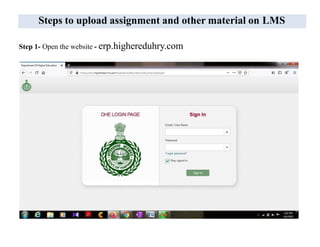
Step 1- Open the website - erp.highereduhry.com
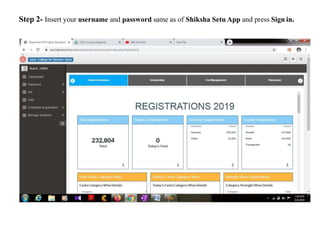
Step 2- Insert your username and password same as of Shiksha Setu App and press Sign in.
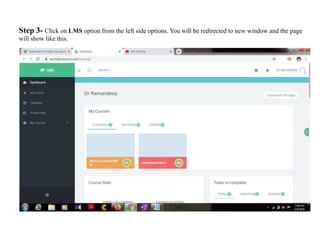
Step 3- Click on LMS option from the left side options. You will be redirected to new window and the page
will show like this.
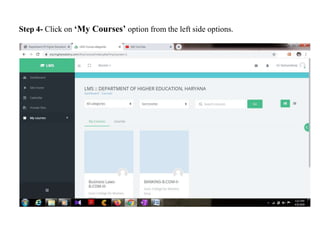
Step 4- Click on ‘My Courses’ option from the left side options.
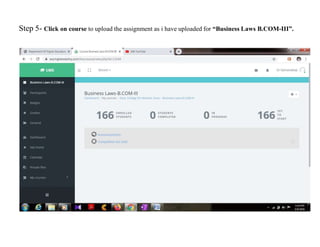
Step 5- Click on course to upload the assignment as i have uploaded for “Business Laws B.COM-III”.
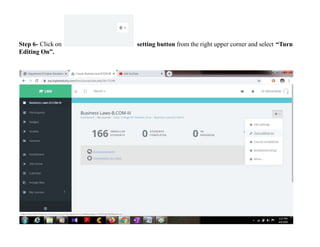
setting button from the right upper corner and select “TurnStep 6- Click on
Editing On”.
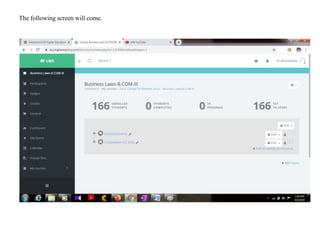
The following screen will come.
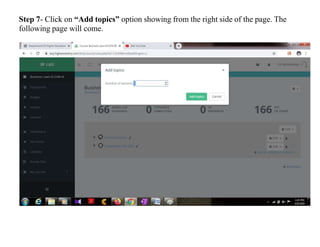
Step 7- Click on “Add topics” option showing from the right side of the page. The
following page will come.
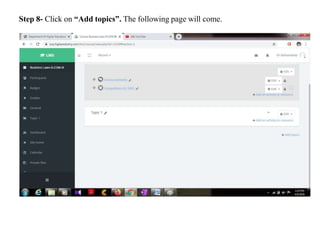
Step 8- Click on “Add topics”. The following page will come.
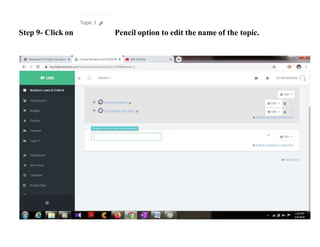
Step 9- Click on Pencil option to edit the name of the topic.
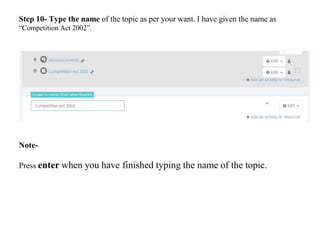
Step 10- Type the name of the topic as per your want. I have given the name as
“Competition Act 2002”.
Note-
Press enter when you have finished typing the name of the topic.
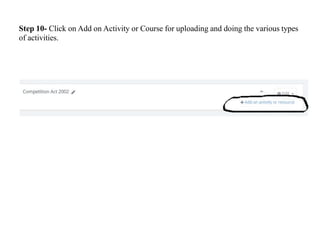
Step 10- Click on Add on Activity or Course for uploading and doing the various types
of activities.
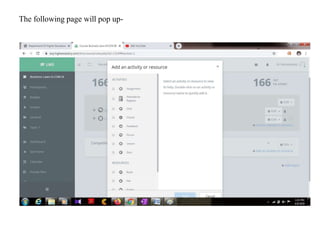
The following page will pop up-
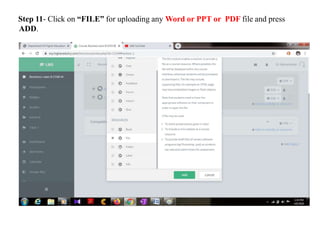
Step 11- Click on “FILE” for uploading any Word or PPT or PDF file and press
ADD.
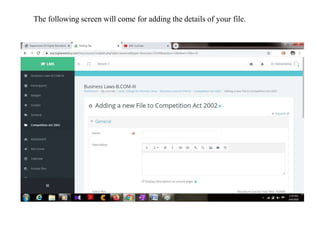
The following screen will come for adding the details of your file.
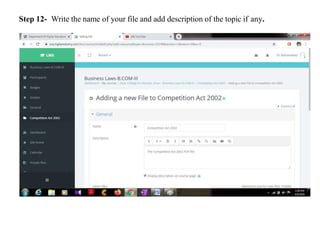
Step 12- Write the name of your file and add description of the topic if any.
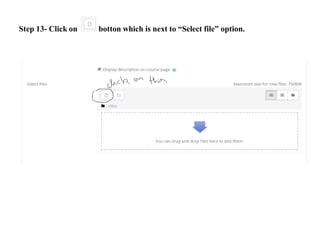
Step 13- Click on botton which is next to “Select file” option.
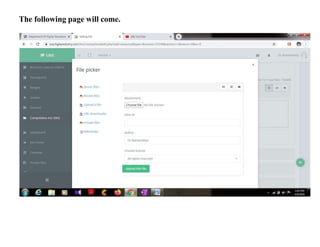
The following page will come.
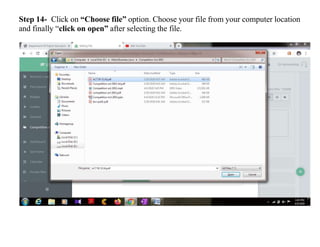
Step 14- Click on “Choose file” option. Choose your file from your computer location
and finally “click on open” after selecting the file.
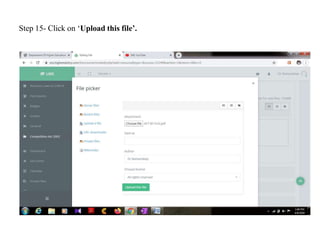
Step 15- Click on ‘Upload this file’.
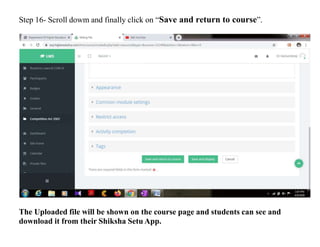
Step 16- Scroll dowm and finally click on “Save and return to course”.
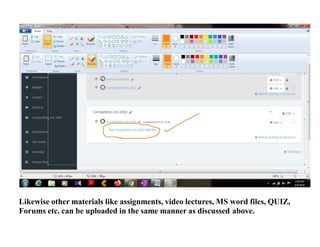
The Uploaded file will be shown on the course page and students can see and
download it from their Shiksha Setu App.
Likewise other materials like assignments, video lectures, MS word files, QUIZ,
Forums etc. can be uploaded in the same manner as discussed above.
How to upload assignment on LMS for Students

How to upload assignment on LMS for Students

  • 1.
    How to uploadassignment and other material on LMS Prepared by- Dr Ramandeep Assistant Professor Department of Commerce GCW Sirsa (Haryana) 9416942404
  • 2.
    Steps to uploadassignment and other material on LMS Step 1- Open the website - erp.highereduhry.com
  • 3.
    Step 2- Insertyour username and password same as of Shiksha Setu App and press Sign in.
  • 4.
    Step 3- Clickon LMS option from the left side options. You will be redirected to new window and the page will show like this.
  • 5.
    Step 4- Clickon ‘My Courses’ option from the left side options.
  • 6.
    Step 5- Clickon course to upload the assignment as i have uploaded for “Business Laws B.COM-III”.
  • 7.
    setting button fromthe right upper corner and select “TurnStep 6- Click on Editing On”.
  • 8.
  • 9.
    Step 7- Clickon “Add topics” option showing from the right side of the page. The following page will come.
  • 10.
    Step 8- Clickon “Add topics”. The following page will come.
  • 11.
    Step 9- Clickon Pencil option to edit the name of the topic.
  • 12.
    Step 10- Typethe name of the topic as per your want. I have given the name as “Competition Act 2002”. Note- Press enter when you have finished typing the name of the topic.
  • 13.
    Step 10- Clickon Add on Activity or Course for uploading and doing the various types of activities.
  • 14.
    The following pagewill pop up-
  • 15.
    Step 11- Clickon “FILE” for uploading any Word or PPT or PDF file and press ADD.
  • 16.
    The following screenwill come for adding the details of your file.
  • 17.
    Step 12- Writethe name of your file and add description of the topic if any.
  • 18.
    Step 13- Clickon botton which is next to “Select file” option.
  • 19.
  • 20.
    Step 14- Clickon “Choose file” option. Choose your file from your computer location and finally “click on open” after selecting the file.
  • 21.
    Step 15- Clickon ‘Upload this file’.
  • 22.
    Step 16- Scrolldowm and finally click on “Save and return to course”. The Uploaded file will be shown on the course page and students can see and download it from their Shiksha Setu App.
  • 23.
    Likewise other materialslike assignments, video lectures, MS word files, QUIZ, Forums etc. can be uploaded in the same manner as discussed above.