HOW TO USE
THINGLINK CORPORATE
FEATURES
Whats inside…
1. Account Management - Slide 3
2. Image Creation - Slide 10
3. Creating Image Channels - Slide 21
4. Video Creation - Slide 27
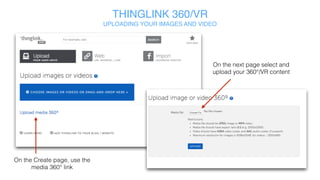
5. 360/VR Creation - Slide 33
6. Accessing Analytics - Slide 37
7. Contact Us - Slide 41
ACCOUNT MANAGEMENT
HOW TO
Hosting (if needed)
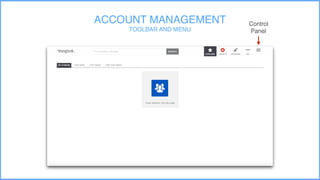
Control
Panel
ACCOUNT MANAGEMENT
TOOLBAR AND MENU
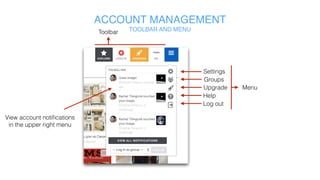
Toolbar
ACCOUNT MANAGEMENT
TOOLBAR AND MENU
Settings
Groups
Upgrade
Help
Log out
Menu
View account notifications
in the upper right menu
Hosting (if needed)
ACCOUNT MANAGEMENT
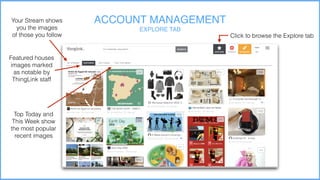
EXPLORE TAB
Click to browse the Explore tab
Your Stream shows
you the images
of those you follow
Featured houses
images marked
as notable by
ThingLink staff
Top Today and
This Week show
the most popular
recent images
ACCOUNT MANAGEMENT
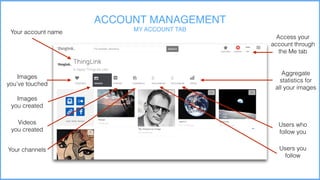
MY ACCOUNT TABYour account name
Images
you’ve touched
Images
you created
Videos
you created
Your channels Users you
follow
Users who
follow you
Aggregate
statistics for
all your images
Access your
account through
the Me tab
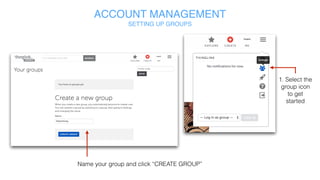
1. Select the
group icon
to get
started
Name your group and click “CREATE GROUP”
ACCOUNT MANAGEMENT
SETTING UP GROUPS
ACCOUNT MANAGEMENT
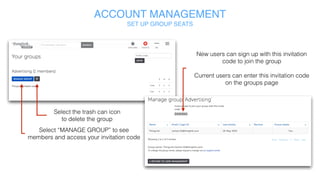
SET UP GROUP SEATS
Select “MANAGE GROUP” to see
members and access your invitation code
Select the trash can icon
to delete the group
New users can sign up with this invitation
code to join the group
Current users can enter this invitation code
on the groups page
IMAGE CREATION
HOW TO
Hosting (if needed)
IMAGE CREATION
UPLOADING
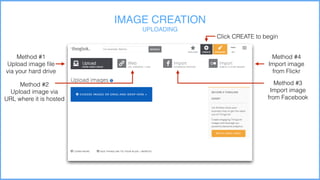
Click CREATE to begin
Method #1
Upload image file
via your hard drive
Method #2
Upload image via
URL where it is hosted
Method #3
Import image
from Facebook
Method #4
Import image
from Flickr
Hosting (if needed)
IMAGE CREATION
TAGGING
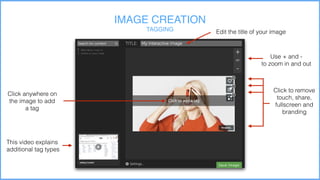
Click anywhere on
the image to add
a tag
Edit the title of your image
Click to remove
touch, share,
fullscreen and
branding
Use + and -
to zoom in and out
This video explains
additional tag types
IMAGE CREATION
TAG CUSTOMIZATION
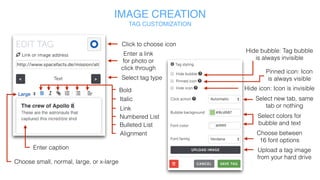
Link
Click to
choose icon
Upload or change
tag image
Enter a link for
photo or click
through
Select tag type
Bold
Italic
Numbered List
Bulleted List
Alignment
Enter caption
Font Size
Custom tag layout
Custom tag button text
Upload audio file
IMAGE CREATION
TAG CUSTOMIZATION
Hide bubble: Tag bubble is always invisible
Pinned icon: Icon is always visible
Hide icon: Icon is invisible
Select new tab, same tab or nothing
Choose between 16 font options
Select colors for bubble and text
Save tagDelete tag
IMAGE CREATION
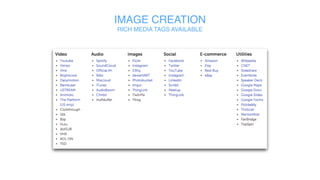
RICH MEDIA TAGS AVAILABLE
IMAGE CREATION
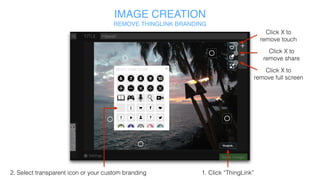
REMOVE THINGLINK BRANDING
1. Click “ThingLink”2. Select transparent icon or your custom branding
Click X to
remove touch
Click X to
remove share
Click X to
remove full screen
IMAGE CREATION
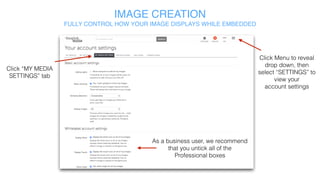
FULLY CONTROL HOW YOUR IMAGE DISPLAYS WHILE EMBEDDED
Click “MY MEDIA
SETTINGS” tab
Click Menu to reveal
drop down, then
select “SETTINGS” to
view your
account settings
As a business user, we recommend
that you untick all of the
Professional boxes
IMAGE CREATION
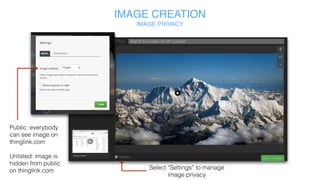
IMAGE PRIVACY
Select “Settings” to manage
image privacy
Public: everybody
can see image on
thinglink.com
Unlisted: image is
hidden from public
on thinglink.com
IMAGE CREATION
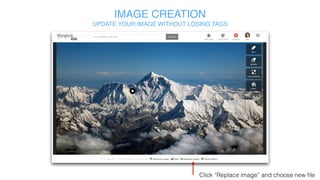
UPDATE YOUR IMAGE WITHOUT LOSING TAGS
Click “Replace image” and choose new file
IMAGE CREATION
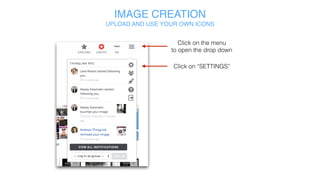
UPLOAD AND USE YOUR OWN ICONS
Click on the menu
to open the drop down
Click on “SETTINGS”
IMAGE CREATION
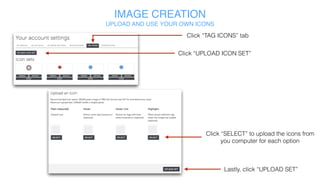
UPLOAD AND USE YOUR OWN ICONS
Click “UPLOAD ICON SET”
Click “TAG ICONS” tab
Click “SELECT” to upload the icons from
you computer for each option
Lastly, click “UPLOAD SET”
HOW TOCREATE IMAGE
CHANNELS
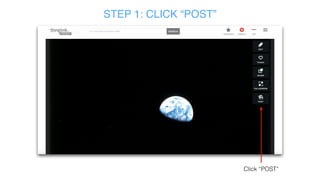
STEP 1: CLICK “POST”
Click “POST”
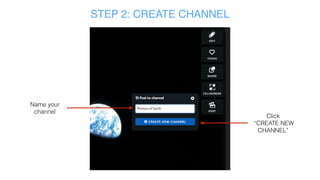
STEP 2: CREATE CHANNEL
Name your
channel
Click
“CREATE NEW
CHANNEL”
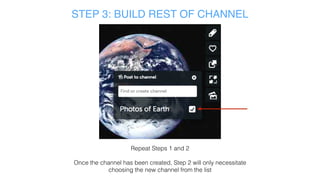
STEP 3: BUILD REST OF CHANNEL
Repeat Steps 1 and 2
Once the channel has been created, Step 2 will only necessitate
choosing the new channel from the list
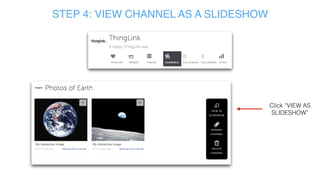
STEP 4: VIEW CHANNEL AS A SLIDESHOW
Click “VIEW AS
SLIDESHOW”
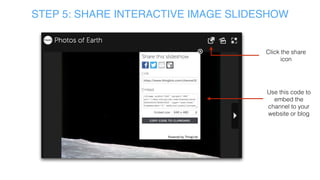
STEP 5: SHARE INTERACTIVE IMAGE SLIDESHOW
Click the share
icon
Use this code to
embed the
channel to your
website or blog
HOW TO
USE THINGLINK VIDEO
THINGLINK VIDEO
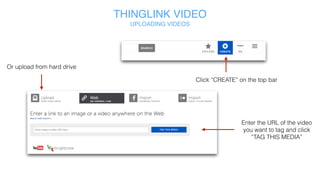
UPLOADING VIDEOS
Click “CREATE” on the top bar
Enter the URL of the video
you want to tag and click
“TAG THIS MEDIA”
Or upload from hard drive
THINGLINK VIDEO
ADDING TAGS
1. Choose a time in the video to add your tag
2. Click “ADD
NEW TAG”
THINGLINK VIDEO
ADDING TAGS
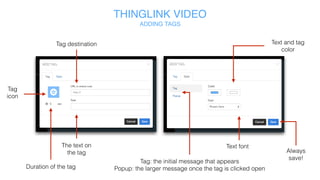
Text font
Text and tag
color
The text on
the tag
Duration of the tag
Tag
icon
Tag destination
Tag: the initial message that appears
Popup: the larger message once the tag is clicked open
Always
save!
THINGLINK VIDEO
ADDING TAGS
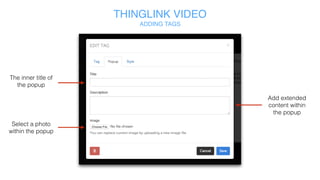
Add extended
content within
the popup
Select a photo
within the popup
The inner title of
the popup
THINGLINK VIDEO
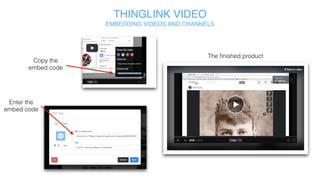
EMBEDDING VIDEOS AND CHANNELS
Copy the
embed code
Enter the
embed code
The finished product
HOW TO
USE THINGLINK 360/VR
THINGLINK 360/VR
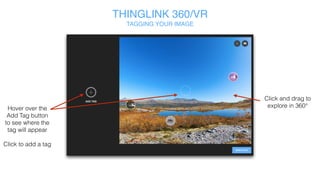
TAGGING YOUR IMAGE
Click and drag
to explore in
360°
Hover over the
Add Tag button
to see where the
tag will appear
Click to add a
tag
THINGLINK 360/VR
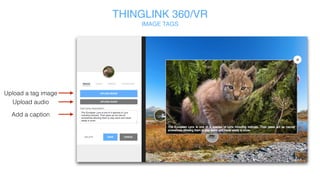
IMAGE TAGS
Upload image
Upload audio
Add a caption
THINGLINK 360/VR
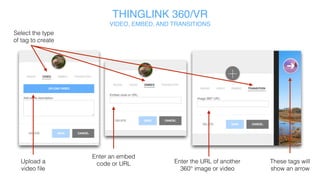
VIDEO, EMBED, AND TRANSITION
Select tag type
Upload video file Paste embed
code or URL
Paste Thinglink URL of
another 360° image
Transition tags
show an arrow
ACCESSING ANALYTICS
HOW TO
ACCESSING ANALYTICS
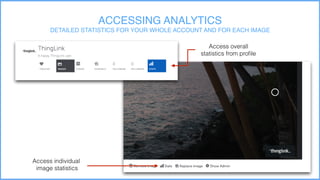
DETAILED STATISTICS FOR YOUR WHOLE ACCOUNT AND FOR EACH IMAGE
Access individual
image statistics
Access overall
statistics from profile
ACCESSING ANALYTICS
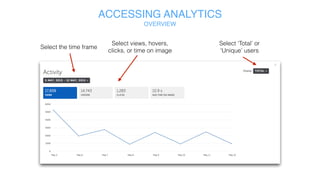
OVERVIEW
Select the time frame
Select views, hovers,
clicks, or time on image
Select ‘Total’ or
‘Unique’ users
ACCESSING ANALYTICS
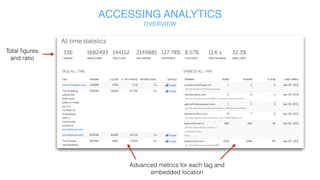
OVERVIEW
Total figures
and ratio
Advanced metrics for each tag and embedded
location
CONTACT US
Technical support
support@thinglink.com
Sales inquiry
sales@thinglink.com
Blog for news & inspiration
http://blog.thinglink.com/marketing

How To ThingLink Corporate Features

Editor's Notes

  • #2 The purpose of this presentation is to get us thinking about potential products we can introduce to support SaaS revenue growth to the extent that makes it interesting for investors.