
TTG - Torino Technologies Group - How to start a turn-by-turn navigation to a destination from your Windows Phone app
How to start a turn-by-turn navigation to a
destination from your Windows Phone app
Enzo Contini
Email: enzo.contini@telecomitalia.it
Blog: http://enzocontini.wordpress.com
Enzo Contini TILAB 1
TTG - Torino Technologies Group - How to start a turn-by-turn navigation to a destination from your Windows Phone app
Agenda
► Introduction to new Geolocation, Maps namespaces and new Tasks for Maps
(quick review)
► How to start a turn-by-turn navigation to a destination from your Windows
Phone app
► Demos
► References (online examples and presentations)
► Go back to introduction to see more in details (if there is time!)
► Q&A
Enzo Contini TILAB 2
TTG - Torino Technologies Group - How to start a turn-by-turn navigation to a destination from your Windows Phone app
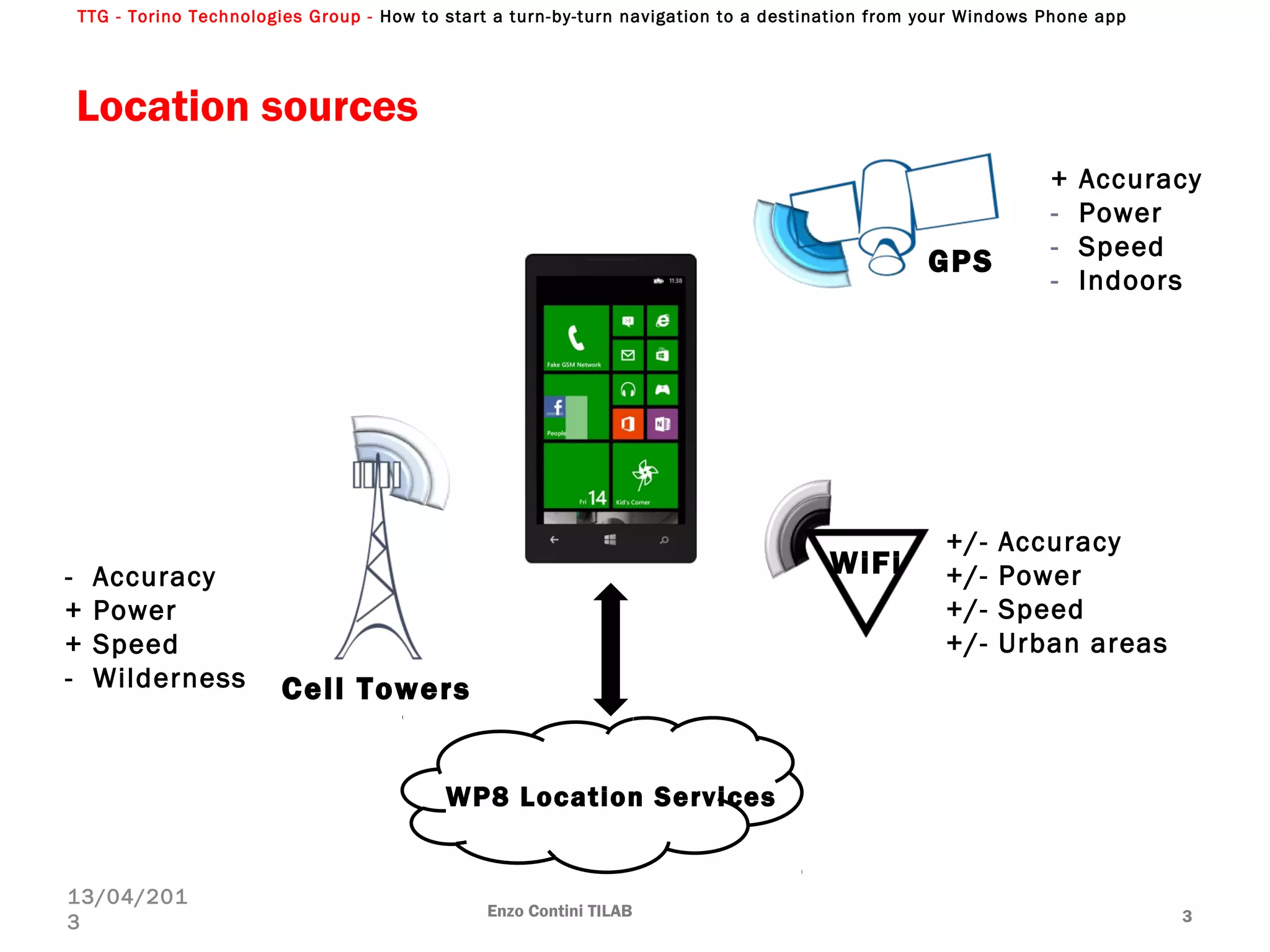
Location sources
Enzo Contini TILAB 3
13/04/201
3
WP8 Location Services
+ Accuracy
- Power
- Speed
- Indoors
- Accuracy
+ Power
+ Speed
- Wilderness
+/- Accuracy
+/- Power
+/- Speed
+/- Urban areas
GPS
Cell Towers
WiFi
TTG - Torino Technologies Group - How to start a turn-by-turn navigation to a destination from your Windows Phone app
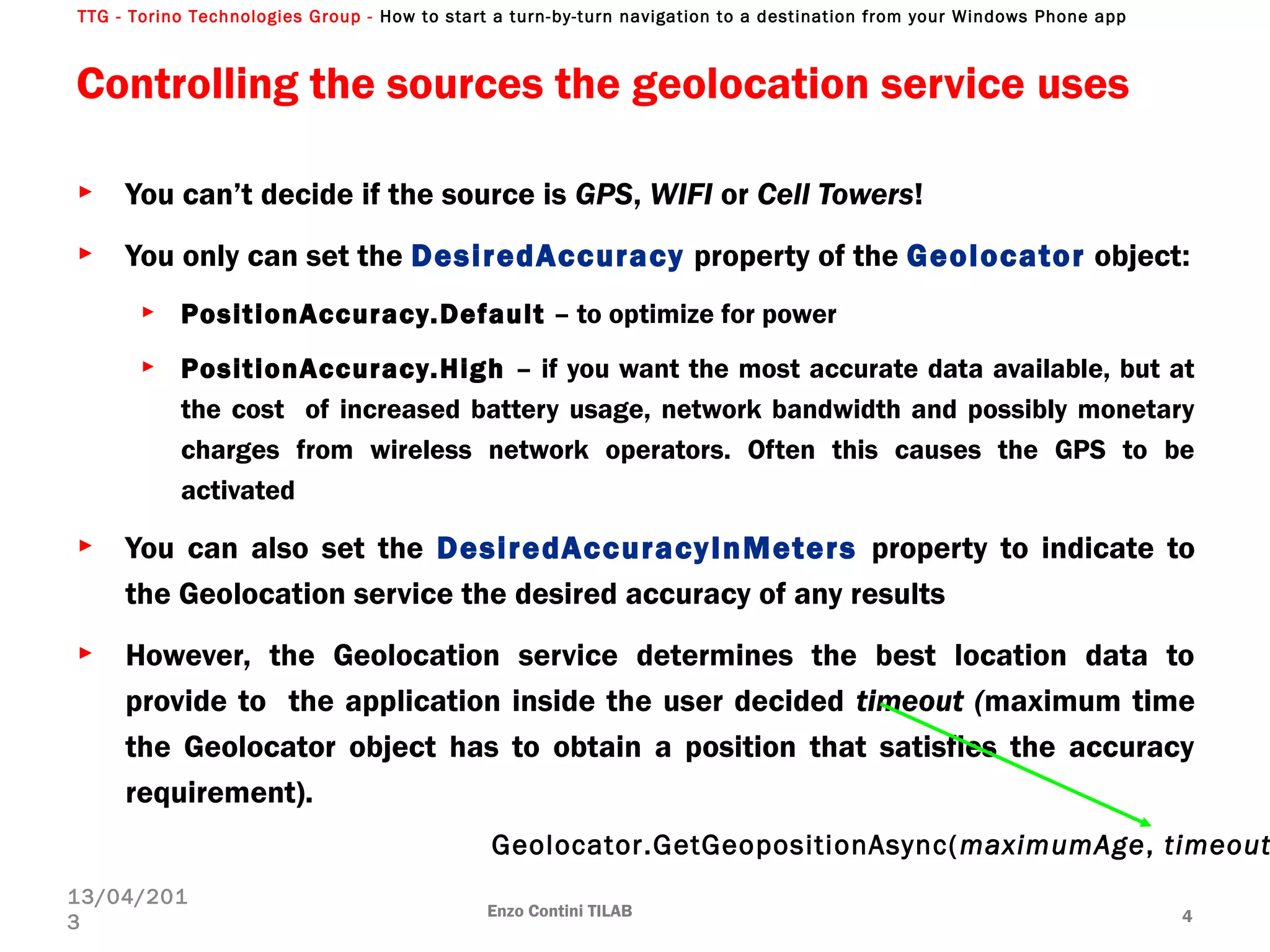
Controlling the sources the geolocation service uses
► You can’t decide if the source is GPS, WIFI or Cell Towers!
► You only can set the DesiredAccuracy property of the Geolocator object:
► PositionAccuracy.Default – to optimize for power
► PositionAccuracy.High – if you want the most accurate data available, but at
the cost of increased battery usage, network bandwidth and possibly monetary
charges from wireless network operators. Often this causes the GPS to be
activated
► You can also set the DesiredAccuracyInMeters property to indicate to
the Geolocation service the desired accuracy of any results
► However, the Geolocation service determines the best location data to
provide to the application inside the user decided timeout (maximum time
the Geolocator object has to obtain a position that satisfies the accuracy
requirement).
Enzo Contini TILAB 4
13/04/201
3
Geolocator.GetGeopositionAsync(maximumAge, timeout
TTG - Torino Technologies Group - How to start a turn-by-turn navigation to a destination from your Windows Phone app
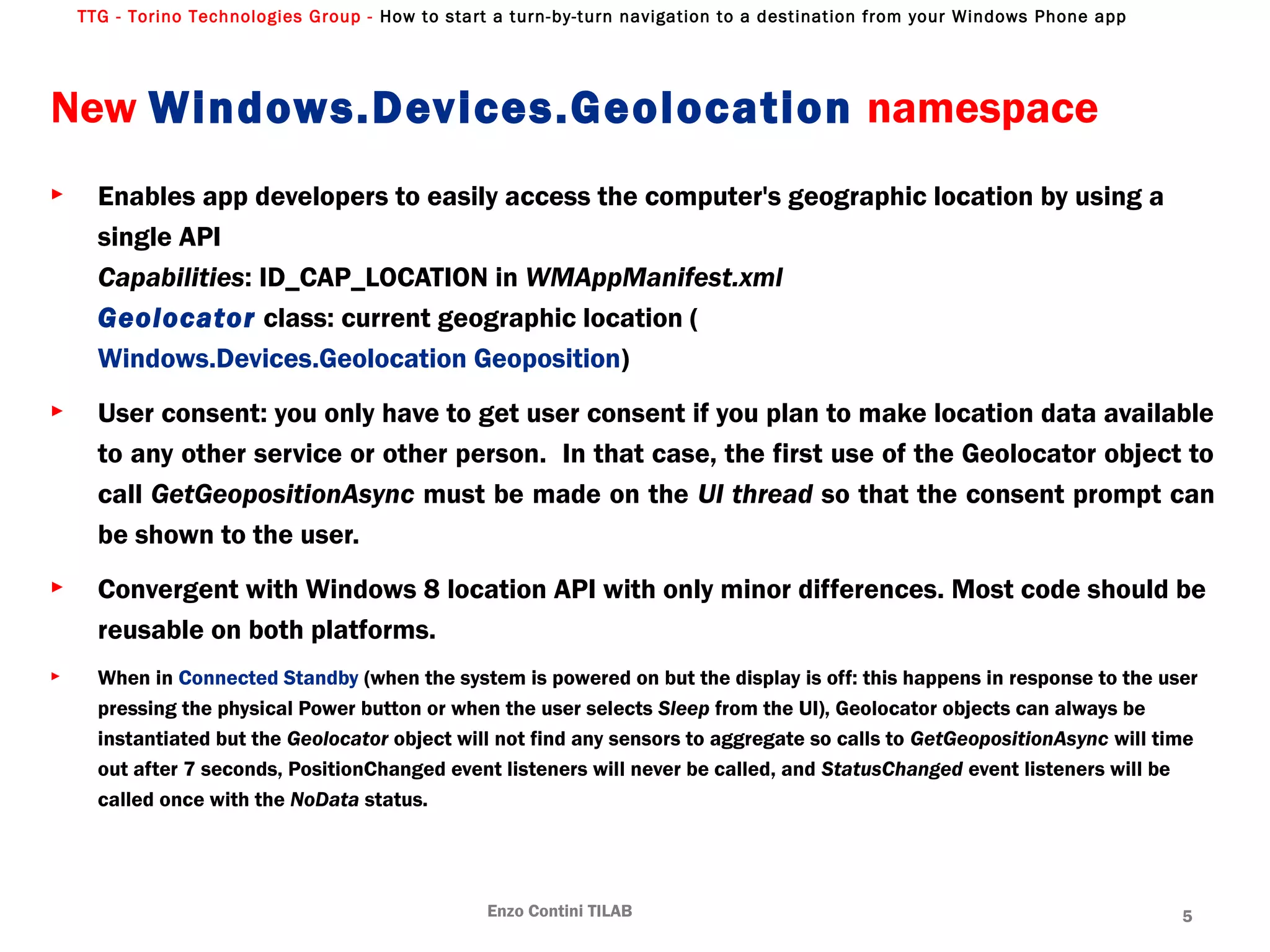
New Windows.Devices.Geolocation namespace
► Enables app developers to easily access the computer's geographic location by using a
single API
Capabilities: ID_CAP_LOCATION in WMAppManifest.xml
Geolocator class: current geographic location (
Windows.Devices.Geolocation Geoposition)
► User consent: you only have to get user consent if you plan to make location data available
to any other service or other person. In that case, the first use of the Geolocator object to
call GetGeopositionAsync must be made on the UI thread so that the consent prompt can
be shown to the user.
► Convergent with Windows 8 location API with only minor differences. Most code should be
reusable on both platforms.
► When in Connected Standby (when the system is powered on but the display is off: this happens in response to the user
pressing the physical Power button or when the user selects Sleep from the UI), Geolocator objects can always be
instantiated but the Geolocator object will not find any sensors to aggregate so calls to GetGeopositionAsync will time
out after 7 seconds, PositionChanged event listeners will never be called, and StatusChanged event listeners will be
called once with the NoData status.
Enzo Contini TILAB 5
TTG - Torino Technologies Group - How to start a turn-by-turn navigation to a destination from your Windows Phone app
System.Device.Location.GeoCoordinateWatcher
.NET Location API from Windows Phone OS 7.1 is still supported:
System.Device.Location.GeoCoordinateWatcher and related classes
Enzo Contini TILAB 6
13/04/201
3
private void TrackLocation_Click(object sender, RoutedEventArgs e) {
if (!tracking) {
geolocator = new Geolocator();
geolocator.DesiredAccuracy = PositionAccuracy.High;
geolocator.MovementThreshold = 100; // The units are meters.
geolocator.PositionChanged += geolocator_PositionChanged;
tracking = true;
TrackLocationButton.Content = "stop tracking";
} else {
geolocator.PositionChanged -= geolocator_PositionChanged;
geolocator = null;
tracking = false;
TrackLocationButton.Content = "track location";
StatusTextBlock.Text = "stopped";
}
}
void geolocator_PositionChanged(Geolocator sender, PositionChangedEventArgs args)
{
Dispatcher.BeginInvoke(() => {
LatitudeTextBlock.Text = args.Position.Coordinate.Latitude.ToString("0.00");
LongitudeTextBlock.Text = args.Position.Coordinate.Longitude.ToString("0.00");
});
}
TTG - Torino Technologies Group - How to start a turn-by-turn navigation to a destination from your Windows Phone app
BE CAREFUL
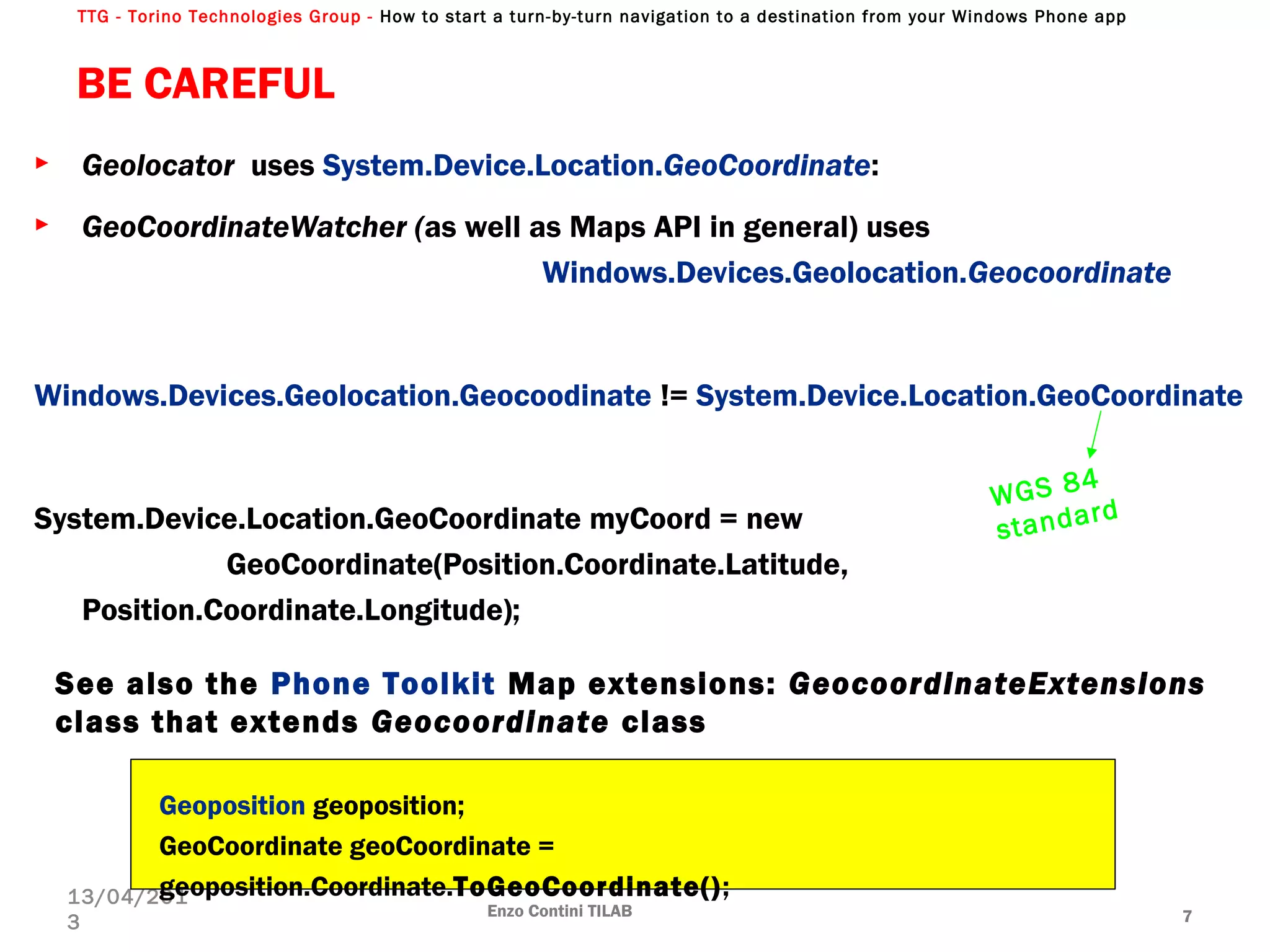
► Geolocator uses System.Device.Location.GeoCoordinate:
► GeoCoordinateWatcher (as well as Maps API in general) uses
Windows.Devices.Geolocation.Geocoordinate
Windows.Devices.Geolocation.Geocoodinate != System.Device.Location.GeoCoordinate
System.Device.Location.GeoCoordinate myCoord = new
GeoCoordinate(Position.Coordinate.Latitude,
Position.Coordinate.Longitude);
Enzo Contini TILAB 7
13/04/201
3
WGS 84
standard
Geoposition geoposition;
GeoCoordinate geoCoordinate =
geoposition.Coordinate.ToGeoCoordinate();
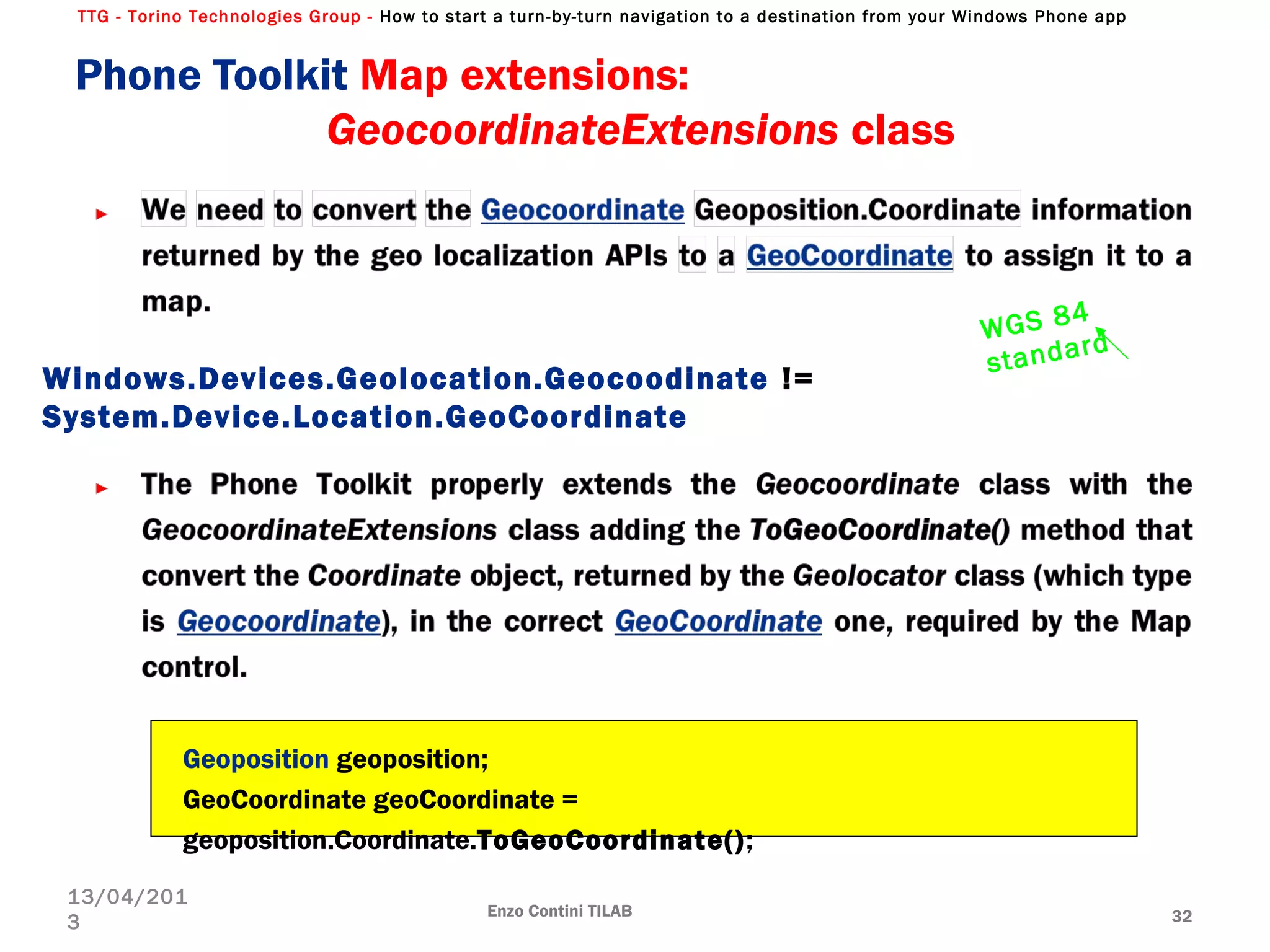
See also the Phone Toolkit Map extensions: GeocoordinateExtensions
class that extends Geocoordinate class
TTG - Torino Technologies Group - How to start a turn-by-turn navigation to a destination from your Windows Phone app
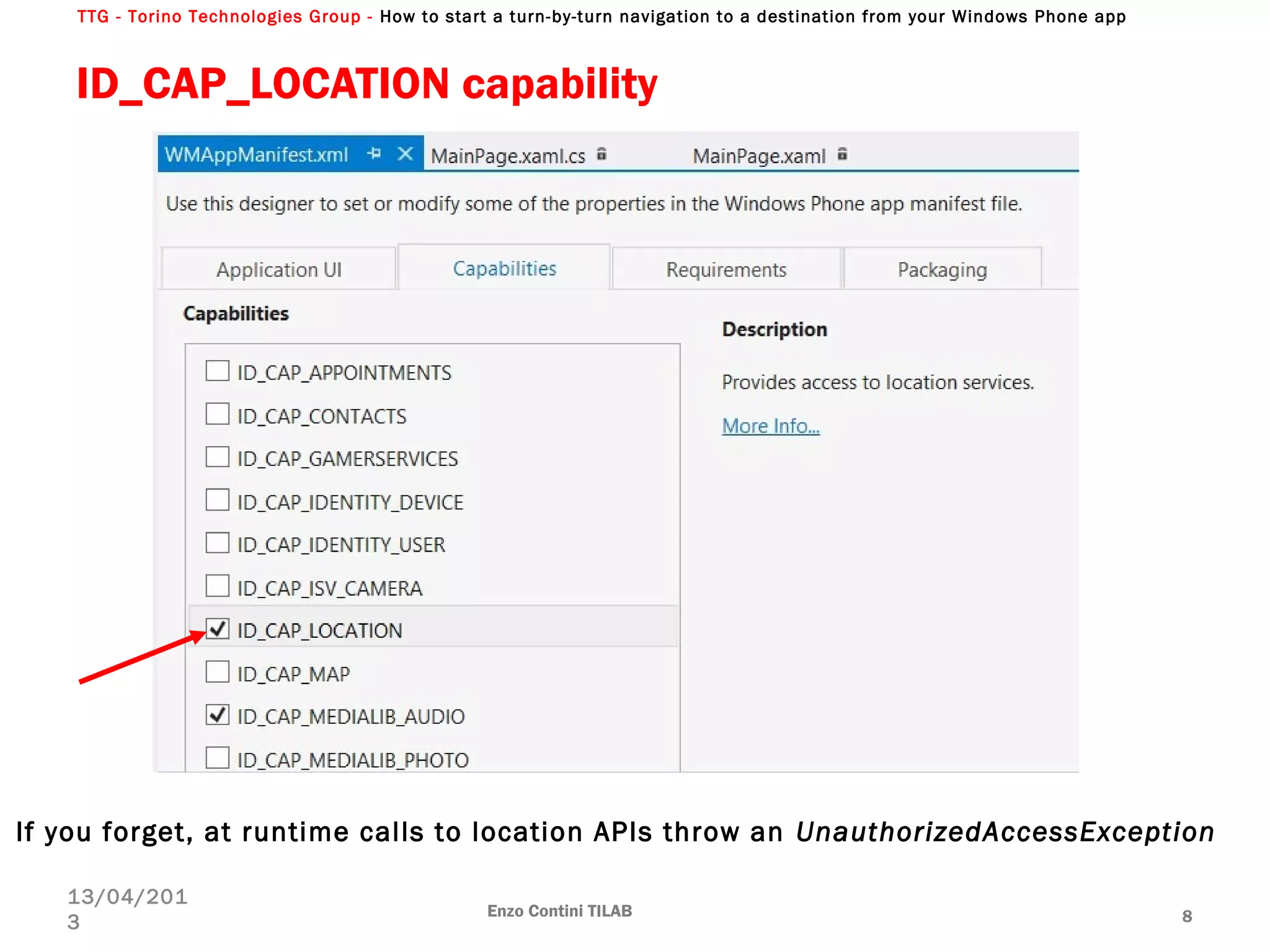
ID_CAP_LOCATION capability
Enzo Contini TILAB 8
13/04/201
3
If you forget, at runtime calls to location APIs throw an UnauthorizedAccessException
TTG - Torino Technologies Group - How to start a turn-by-turn navigation to a destination from your Windows Phone app
Geolocator (summary)
Enzo Contini TILAB 9
13/04/201
3
Windows.Devices.Geolocation.Geolocator
PositionChanged [Tracking] GetGeopositionAsync(maxAge, Timeout)
[one shot]
Geoposition
Geocoordinate Coordinate CivicAddress = NULL
Accuracy
Latitude
Longitude
PositionSource
Speed
TimeStamp
Cellular
GPS
WIFI
ReportInterval
MovementThreshold
DesiredAccuracy
DesiredAccuracyInMeters
TTG - Torino Technologies Group - How to start a turn-by-turn navigation to a destination from your Windows Phone app
Geoposition properties
► The obtained Geoposition has the following 2 properties:
► Geocoordinate Coordinate [Latitude /Longitude /Altitude , Accuracy , PositionSource ,
Speed , Timestamp etc…]
► CivicAddress CivicAddress [City , Country] always NULL in WP8. If you want the address
you need to call ReverseGeocodeQuery maps service (from a GeoCoodinate).
again … BE CAREFUL:
Windows.Devices.Geolocation.Geocoodinate != System.Device.Location.GeoCoordinate
therefore ()
GetReverseLocation(new GeoCoordinate(myCurrentGeoposition.Coordinate.Latitude,
myCurrentGeoPosition.Coordinate.Longitude));
See also the Phone Toolkit Map extensions: GeocoordinateExtensions class that extends
Geocoordinate class
Enzo Contini TILAB 10
13/04/201
3
Geoposition geoposition;
GeoCoordinate geoCoordinate =
geoposition.Coordinate.ToGeoCoordinate();
WGS 84
standard
TTG - Torino Technologies Group - How to start a turn-by-turn navigation to a destination from your Windows Phone app
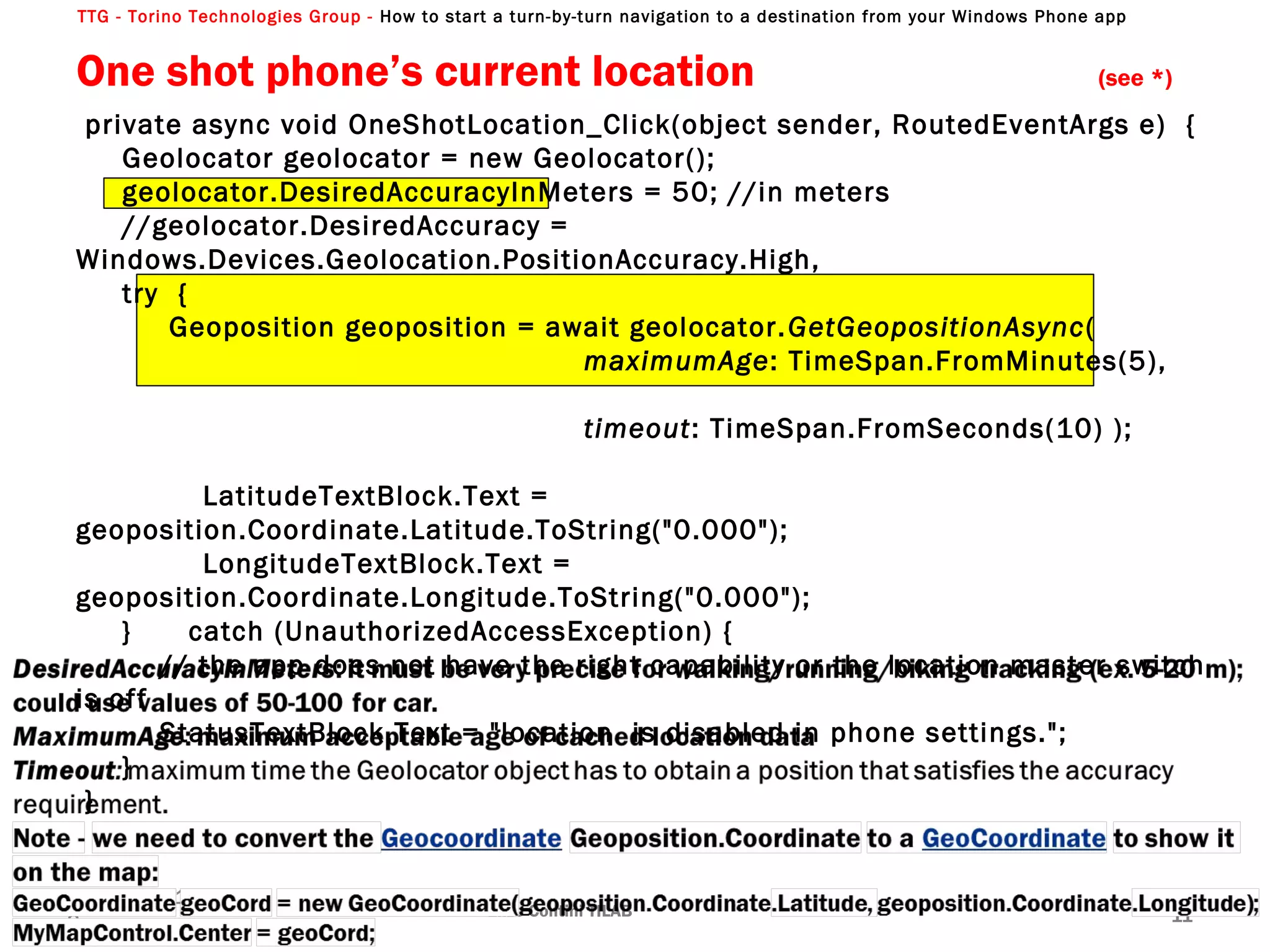
private async void OneShotLocation_Click(object sender, RoutedEventArgs e) {
Geolocator geolocator = new Geolocator();
geolocator.DesiredAccuracyInMeters = 50; //in meters
//geolocator.DesiredAccuracy =
Windows.Devices.Geolocation.PositionAccuracy.High,
try {
Geoposition geoposition = await geolocator.GetGeopositionAsync(
maximumAge: TimeSpan.FromMinutes(5),
timeout: TimeSpan.FromSeconds(10) );
LatitudeTextBlock.Text =
geoposition.Coordinate.Latitude.ToString("0.000");
LongitudeTextBlock.Text =
geoposition.Coordinate.Longitude.ToString("0.000");
} catch (UnauthorizedAccessException) {
// the app does not have the right capability or the location master switch
is off
StatusTextBlock.Text = "location is disabled in phone settings.";
}
}
One shot phone’s current location (see *)
Enzo Contini TILAB 11
13/04/201
3
TTG - Torino Technologies Group - How to start a turn-by-turn navigation to a destination from your Windows Phone app
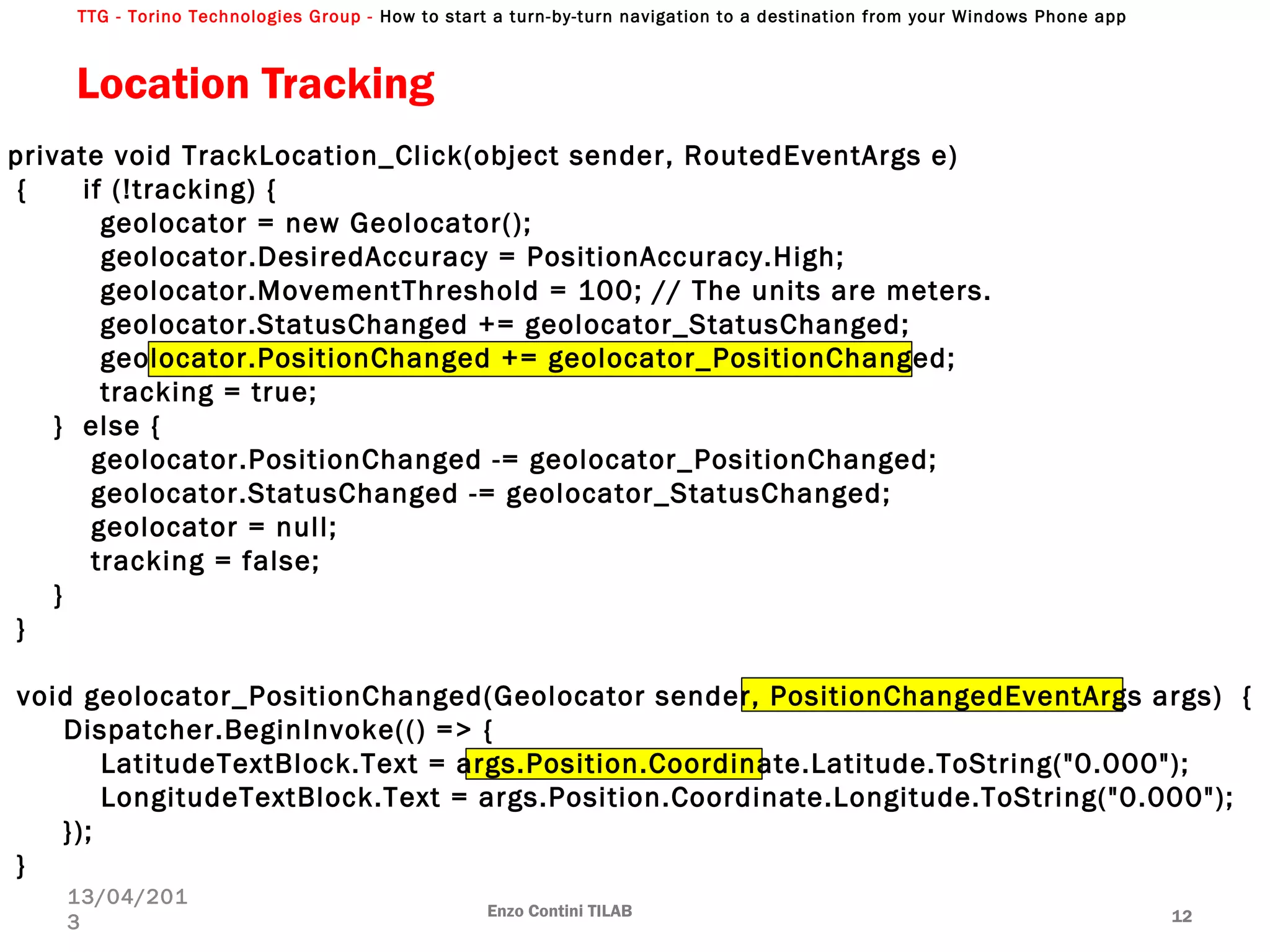
Location Tracking
Enzo Contini TILAB 12
13/04/201
3
private void TrackLocation_Click(object sender, RoutedEventArgs e)
{ if (!tracking) {
geolocator = new Geolocator();
geolocator.DesiredAccuracy = PositionAccuracy.High;
geolocator.MovementThreshold = 100; // The units are meters.
geolocator.StatusChanged += geolocator_StatusChanged;
geolocator.PositionChanged += geolocator_PositionChanged;
tracking = true;
} else {
geolocator.PositionChanged -= geolocator_PositionChanged;
geolocator.StatusChanged -= geolocator_StatusChanged;
geolocator = null;
tracking = false;
}
}
void geolocator_PositionChanged(Geolocator sender, PositionChangedEventArgs args) {
Dispatcher.BeginInvoke(() => {
LatitudeTextBlock.Text = args.Position.Coordinate.Latitude.ToString("0.000");
LongitudeTextBlock.Text = args.Position.Coordinate.Longitude.ToString("0.000");
});
}
TTG - Torino Technologies Group - How to start a turn-by-turn navigation to a destination from your Windows Phone app
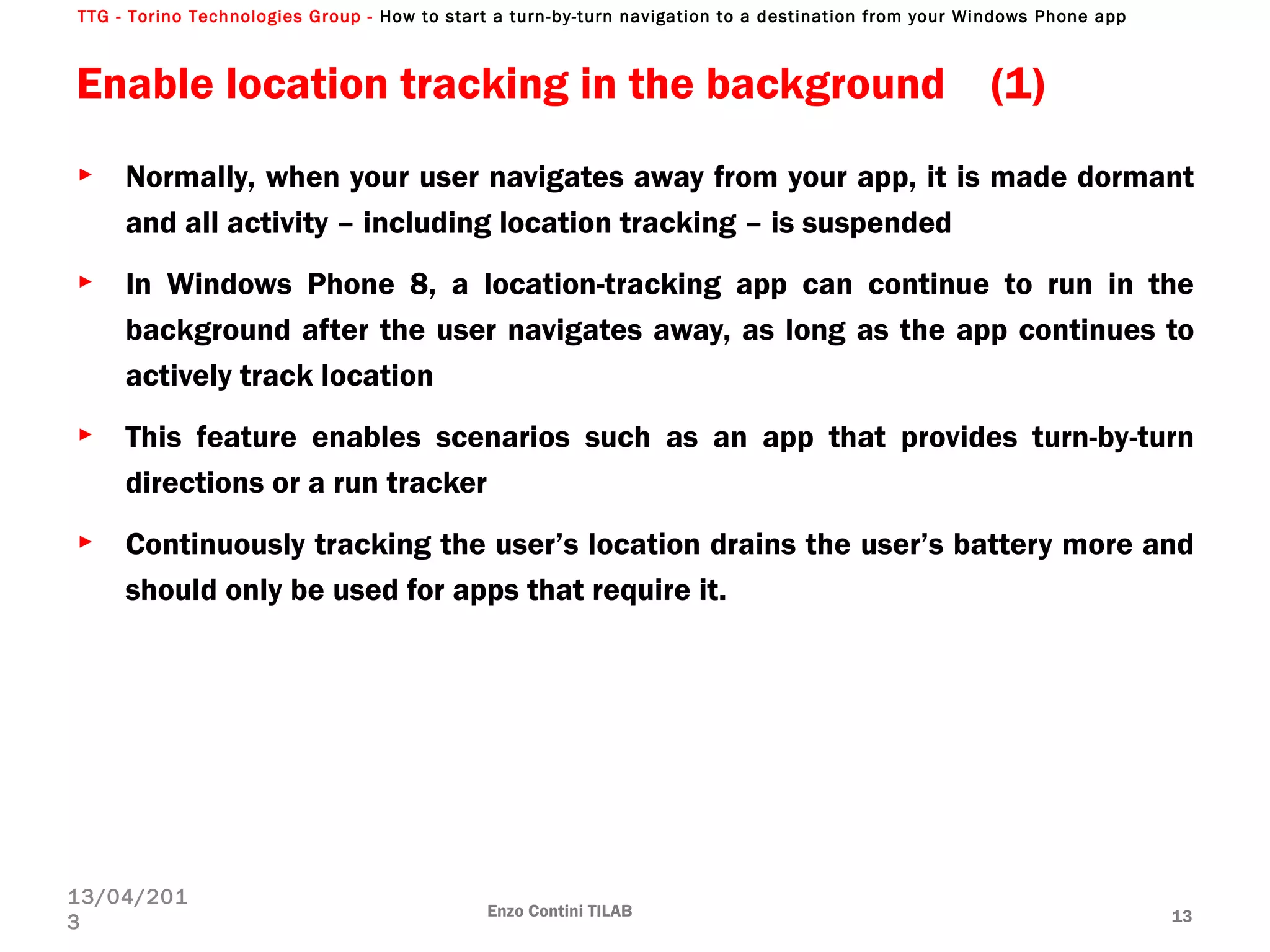
Enable location tracking in the background (1)
► Normally, when your user navigates away from your app, it is made dormant
and all activity – including location tracking – is suspended
► In Windows Phone 8, a location-tracking app can continue to run in the
background after the user navigates away, as long as the app continues to
actively track location
► This feature enables scenarios such as an app that provides turn-by-turn
directions or a run tracker
► Continuously tracking the user’s location drains the user’s battery more and
should only be used for apps that require it.
Enzo Contini TILAB 13
13/04/201
3
TTG - Torino Technologies Group - How to start a turn-by-turn navigation to a destination from your Windows Phone app
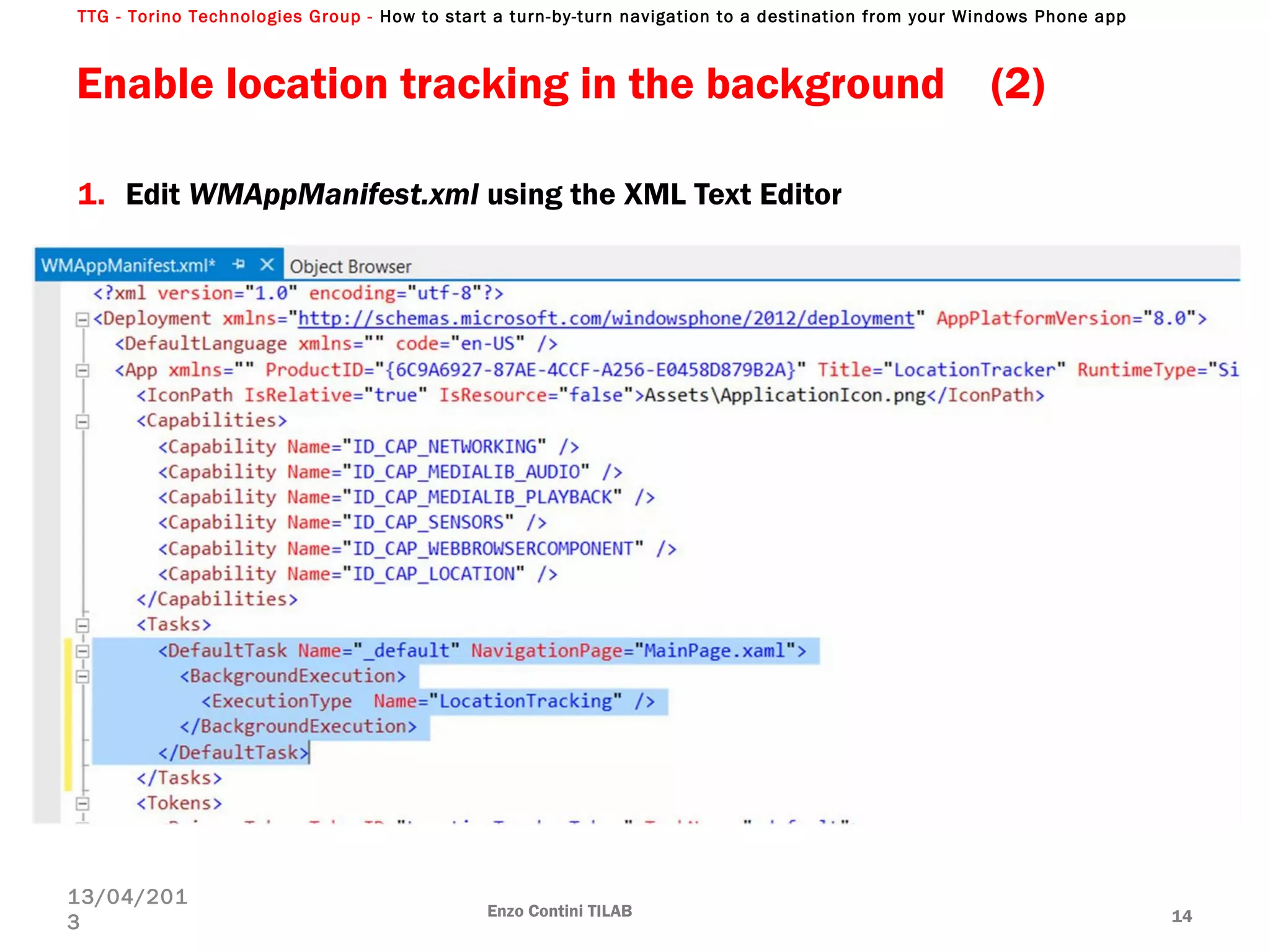
Enable location tracking in the background (2)
1. Edit WMAppManifest.xml using the XML Text Editor
Enzo Contini TILAB 14
13/04/201
3
TTG - Torino Technologies Group - How to start a turn-by-turn navigation to a destination from your Windows Phone app
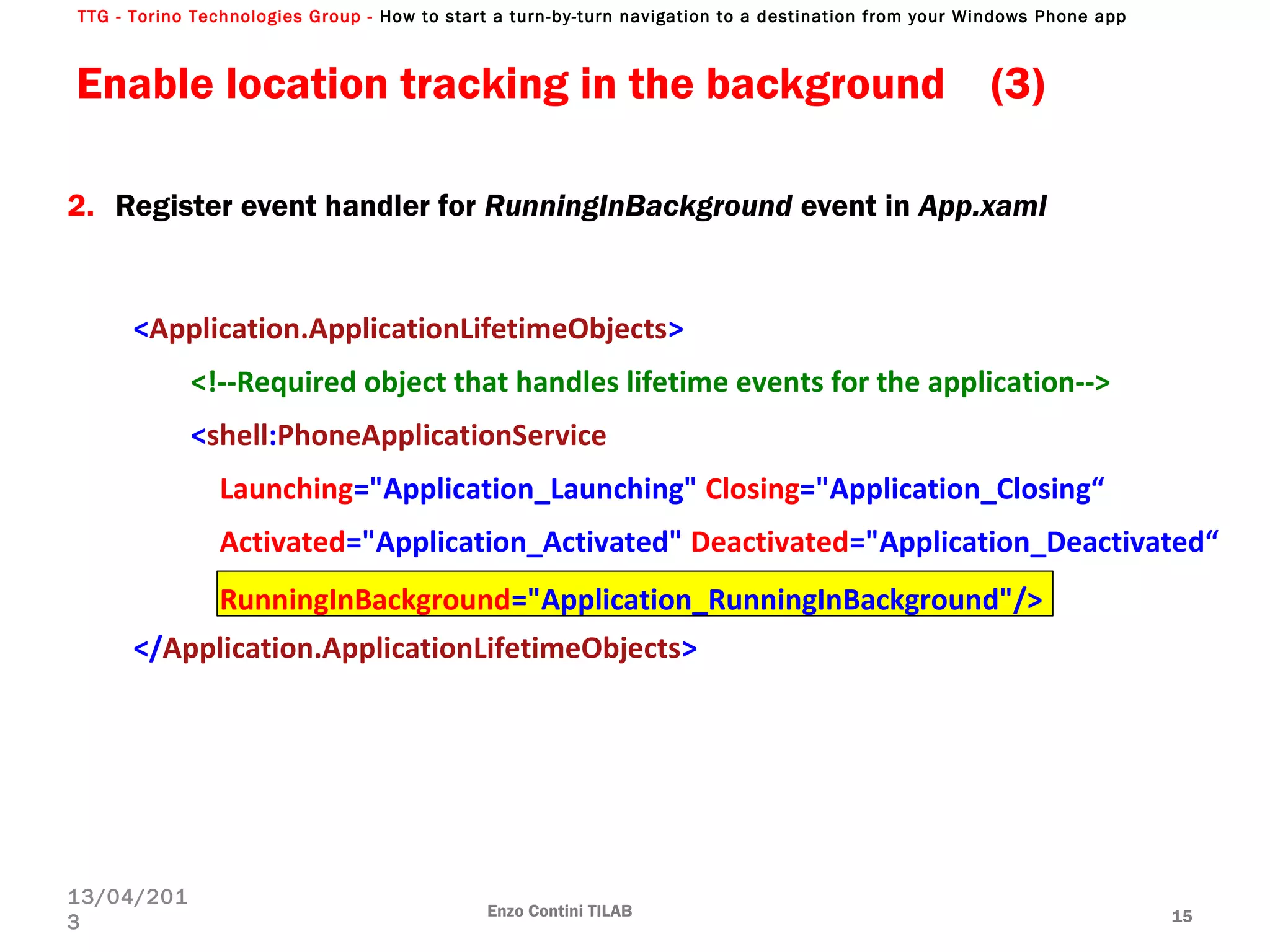
2. Register event handler for RunningInBackground event in App.xaml
<Application.ApplicationLifetimeObjects>
<!--Required object that handles lifetime events for the application-->
<shell:PhoneApplicationService
Launching="Application_Launching" Closing="Application_Closing“
Activated="Application_Activated" Deactivated="Application_Deactivated“
RunningInBackground="Application_RunningInBackground"/>
</Application.ApplicationLifetimeObjects>
Enable location tracking in the background (3)
Enzo Contini TILAB 15
13/04/201
3
TTG - Torino Technologies Group - How to start a turn-by-turn navigation to a destination from your Windows Phone app
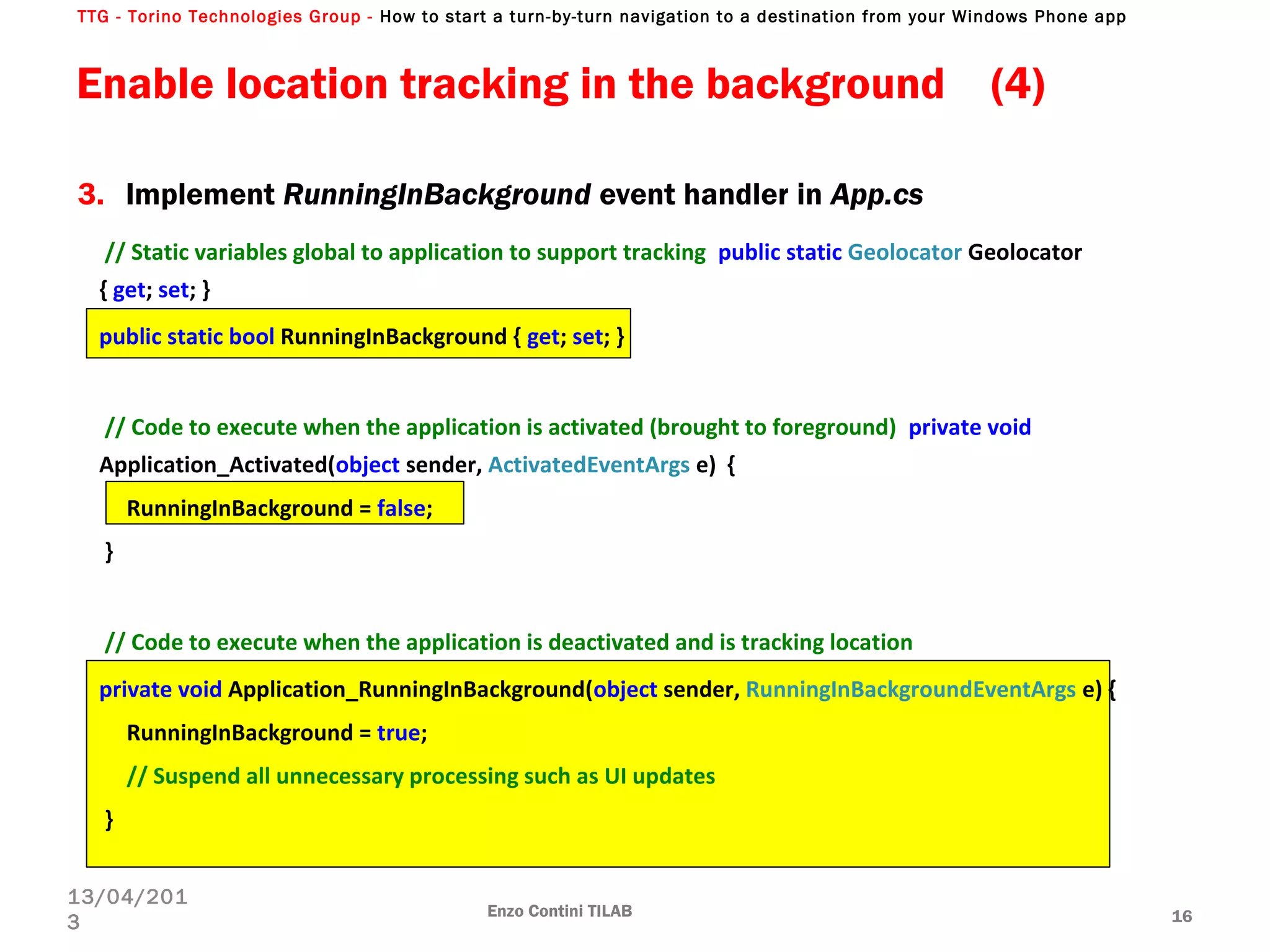
// Static variables global to application to support tracking public static Geolocator Geolocator
{ get; set; }
public static bool RunningInBackground { get; set; }
// Code to execute when the application is activated (brought to foreground) private void
Application_Activated(object sender, ActivatedEventArgs e) {
RunningInBackground = false;
}
// Code to execute when the application is deactivated and is tracking location
private void Application_RunningInBackground(object sender, RunningInBackgroundEventArgs e) {
RunningInBackground = true;
// Suspend all unnecessary processing such as UI updates
}
Enable location tracking in the background (4)
Enzo Contini TILAB 16
13/04/201
3
3. Implement RunningInBackground event handler in App.cs
TTG - Torino Technologies Group - How to start a turn-by-turn navigation to a destination from your Windows Phone app
Enzo Contini TILAB 17
13/04/201
3
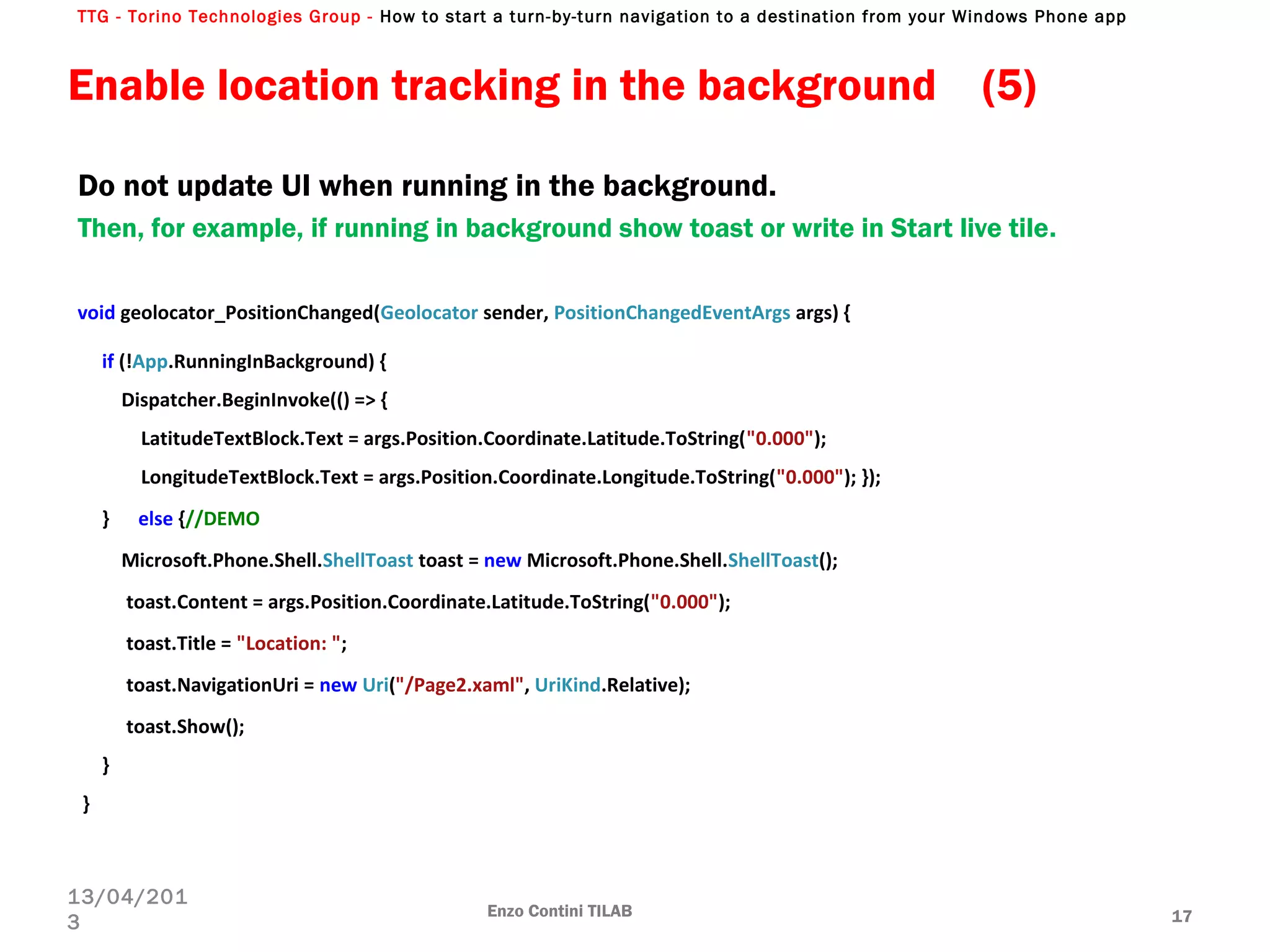
void geolocator_PositionChanged(Geolocator sender, PositionChangedEventArgs args) {
if (!App.RunningInBackground) {
Dispatcher.BeginInvoke(() => {
LatitudeTextBlock.Text = args.Position.Coordinate.Latitude.ToString("0.000");
LongitudeTextBlock.Text = args.Position.Coordinate.Longitude.ToString("0.000"); });
} else {//DEMO
Microsoft.Phone.Shell.ShellToast toast = new Microsoft.Phone.Shell.ShellToast();
toast.Content = args.Position.Coordinate.Latitude.ToString("0.000");
toast.Title = "Location: ";
toast.NavigationUri = new Uri("/Page2.xaml", UriKind.Relative);
toast.Show();
}
}
Enable location tracking in the background (5)
Do not update UI when running in the background.
Then, for example, if running in background show toast or write in Start live tile.
TTG - Torino Technologies Group - How to start a turn-by-turn navigation to a destination from your Windows Phone app
Location on emulator
Enzo Contini TILAB 18
13/04/201
3
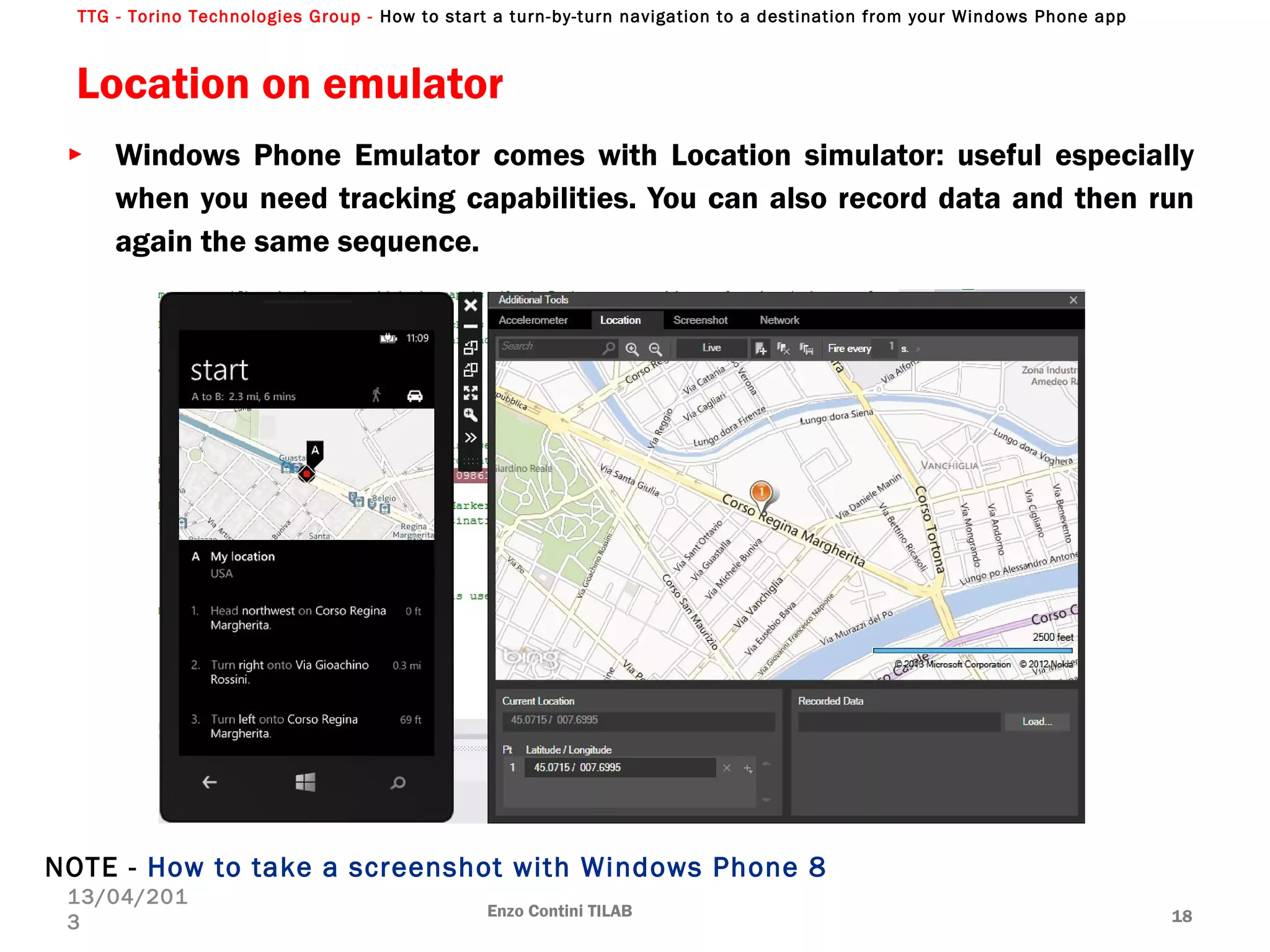
► Windows Phone Emulator comes with Location simulator: useful especially
when you need tracking capabilities. You can also record data and then run
again the same sequence.
NOTE - How to take a screenshot with Windows Phone 8
TTG - Torino Technologies Group - How to start a turn-by-turn navigation to a destination from your Windows Phone app
New Maps namespaces
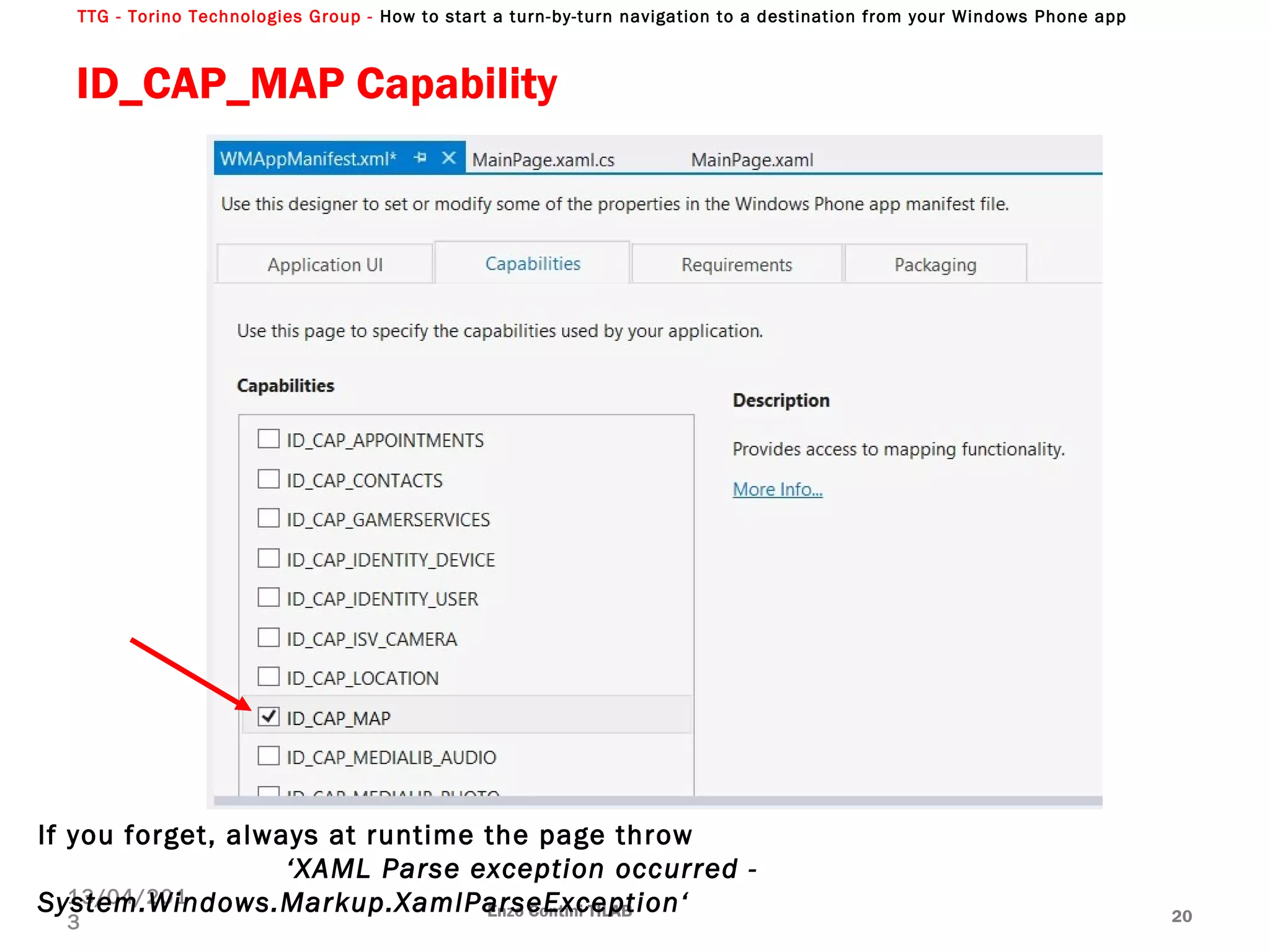
► Microsoft.Phone.Maps : contains core classes of the map control
Capabilities: ID_CAP_MAP in WMAppManifest.xml
► Microsoft.Phone.Maps.Controls: contains the most commonly used
public classes of the map control for Windows Phone
[Map, MapRoute, MapLayer, GeoCoordinateCollection, etc…]
► Microsoft.Phone.Maps.Services : contains classes that provide
location services to map control
► GeocodeQuery: from a text [address/building name] to potential geocoordinates
and other geolocation data (IList<MapLocation>)
► ReverseGeocodeQuery: given a location, what do I find there? From a location (
System.Device.Location.GeoCoordinate) to potential geolocation data (IList<
MapLocation>) as address
► RouteQuery : used to calculate the route between any two or more geographical
locations. The query result could be used to draw a route on the map and/or to
calculate the distance from source to destination.
Enzo Contini TILAB 19
13/04/201
3
TTG - Torino Technologies Group - How to start a turn-by-turn navigation to a destination from your Windows Phone app
ID_CAP_MAP Capability
Enzo Contini TILAB 20
13/04/201
3
If you forget, always at runtime the page throw
‘XAML Parse exception occurred -
System.Windows.Markup.XamlParseException‘
TTG - Torino Technologies Group - How to start a turn-by-turn navigation to a destination from your Windows Phone app
Map Control ()
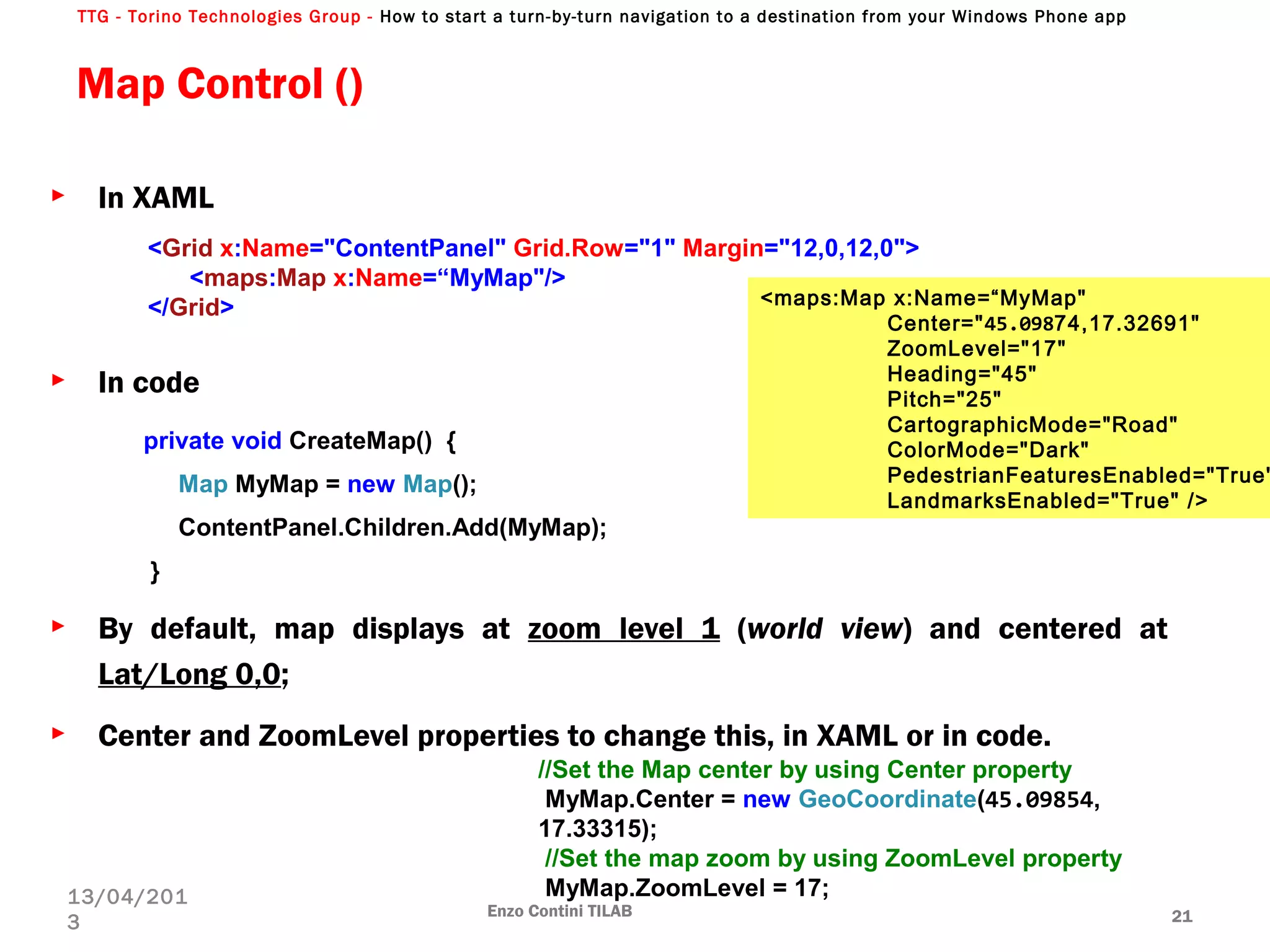
► In XAML
► In code
► By default, map displays at zoom level 1 (world view) and centered at
Lat/Long 0,0;
► Center and ZoomLevel properties to change this, in XAML or in code.
Enzo Contini TILAB 21
13/04/201
3
<Grid x:Name="ContentPanel" Grid.Row="1" Margin="12,0,12,0">
<maps:Map x:Name=“MyMap"/>
</Grid>
private void CreateMap() {
Map MyMap = new Map();
ContentPanel.Children.Add(MyMap);
}
//Set the Map center by using Center property
MyMap.Center = new GeoCoordinate(45.09854,
17.33315);
//Set the map zoom by using ZoomLevel property
MyMap.ZoomLevel = 17;
<maps:Map x:Name=“MyMap"
Center="45.09874,17.32691"
ZoomLevel="17"
Heading="45"
Pitch="25"
CartographicMode="Road"
ColorMode="Dark"
PedestrianFeaturesEnabled="True"
LandmarksEnabled="True" />
TTG - Torino Technologies Group - How to start a turn-by-turn navigation to a destination from your Windows Phone app
Map Control: map views (1)
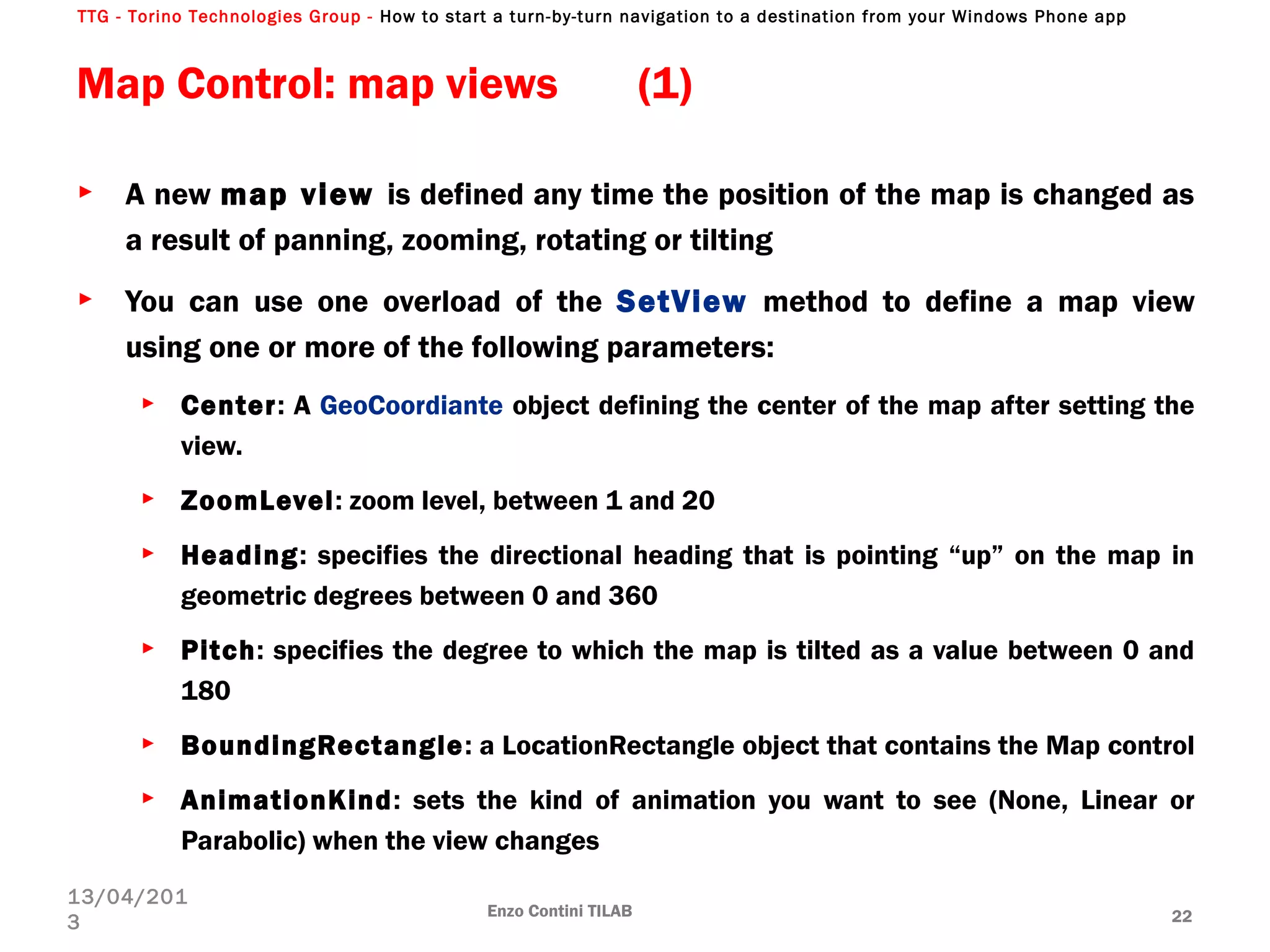
► A new map view is defined any time the position of the map is changed as
a result of panning, zooming, rotating or tilting
► You can use one overload of the SetView method to define a map view
using one or more of the following parameters:
► Center: A GeoCoordiante object defining the center of the map after setting the
view.
► ZoomLevel: zoom level, between 1 and 20
► Heading: specifies the directional heading that is pointing “up” on the map in
geometric degrees between 0 and 360
► Pitch: specifies the degree to which the map is tilted as a value between 0 and
180
► BoundingRectangle: a LocationRectangle object that contains the Map control
► AnimationKind: sets the kind of animation you want to see (None, Linear or
Parabolic) when the view changes
Enzo Contini TILAB 22
13/04/201
3
TTG - Torino Technologies Group - How to start a turn-by-turn navigation to a destination from your Windows Phone app
Map Control: map views (2)
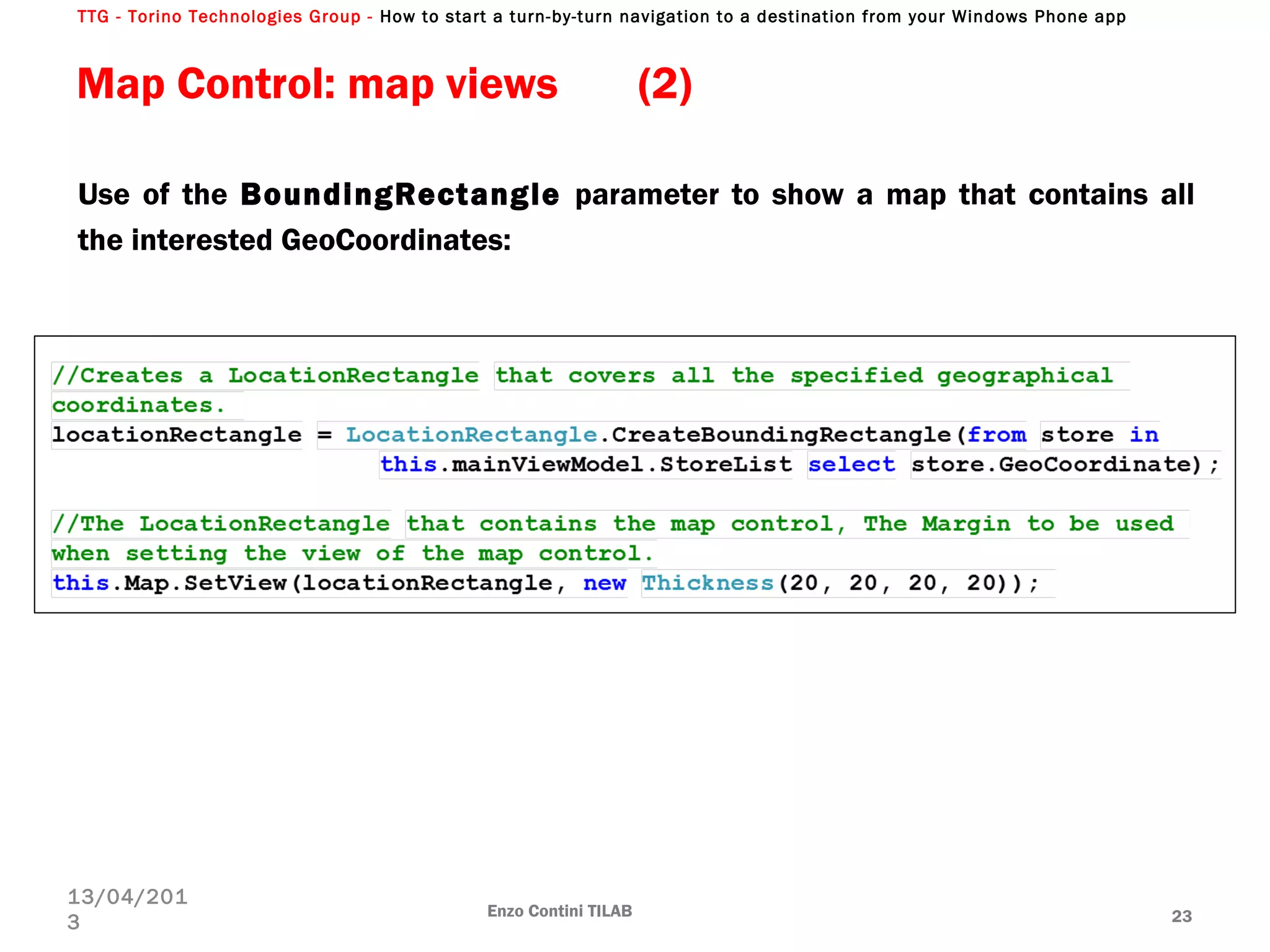
Use of the BoundingRectangle parameter to show a map that contains all
the interested GeoCoordinates:
Enzo Contini TILAB 23
13/04/201
3
TTG - Torino Technologies Group - How to start a turn-by-turn navigation to a destination from your Windows Phone app
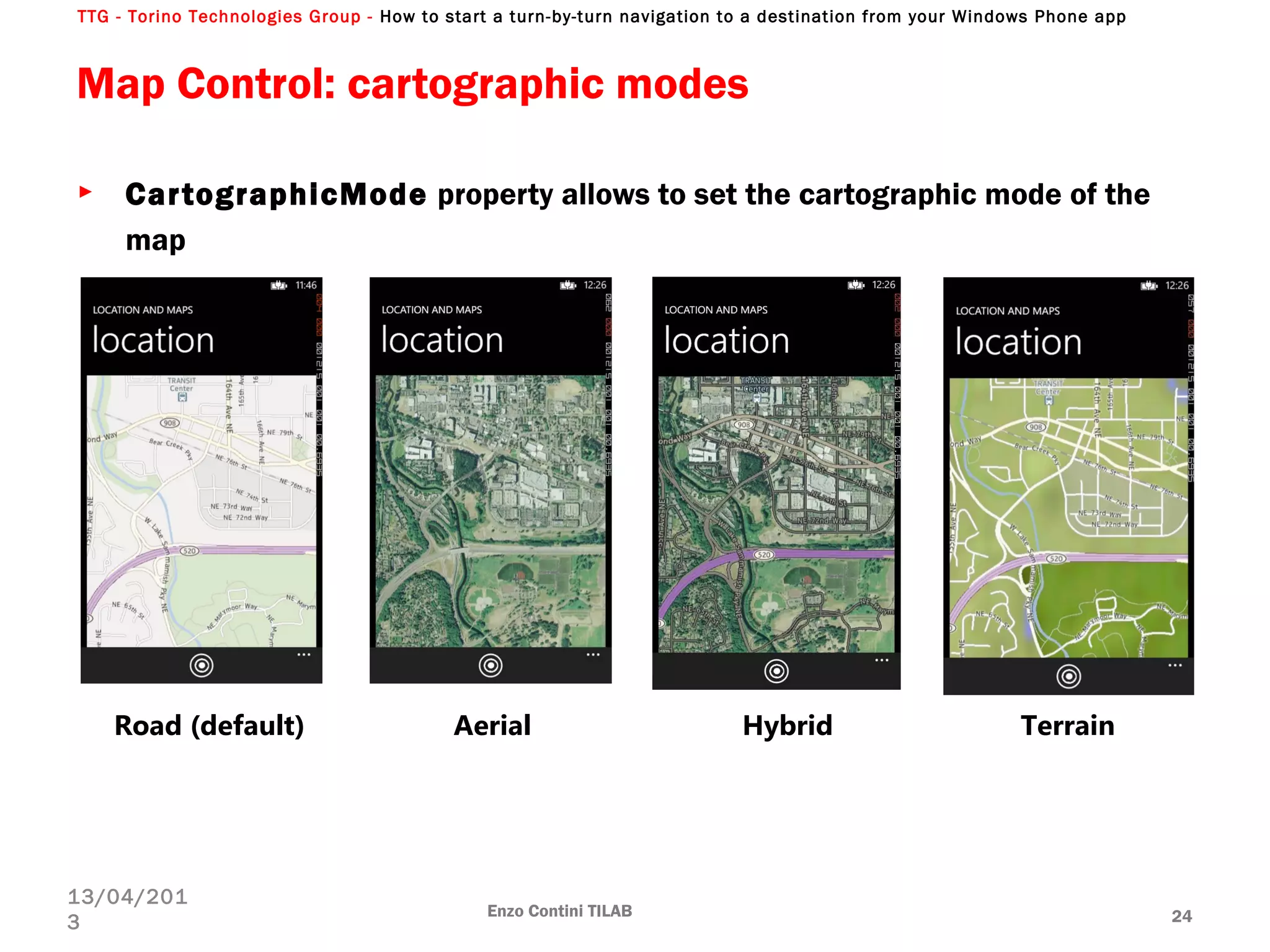
Map Control: cartographic modes
► CartographicMode property allows to set the cartographic mode of the
map
Enzo Contini TILAB 24
13/04/201
3
Road (default) Aerial Hybrid Terrain
TTG - Torino Technologies Group - How to start a turn-by-turn navigation to a destination from your Windows Phone app
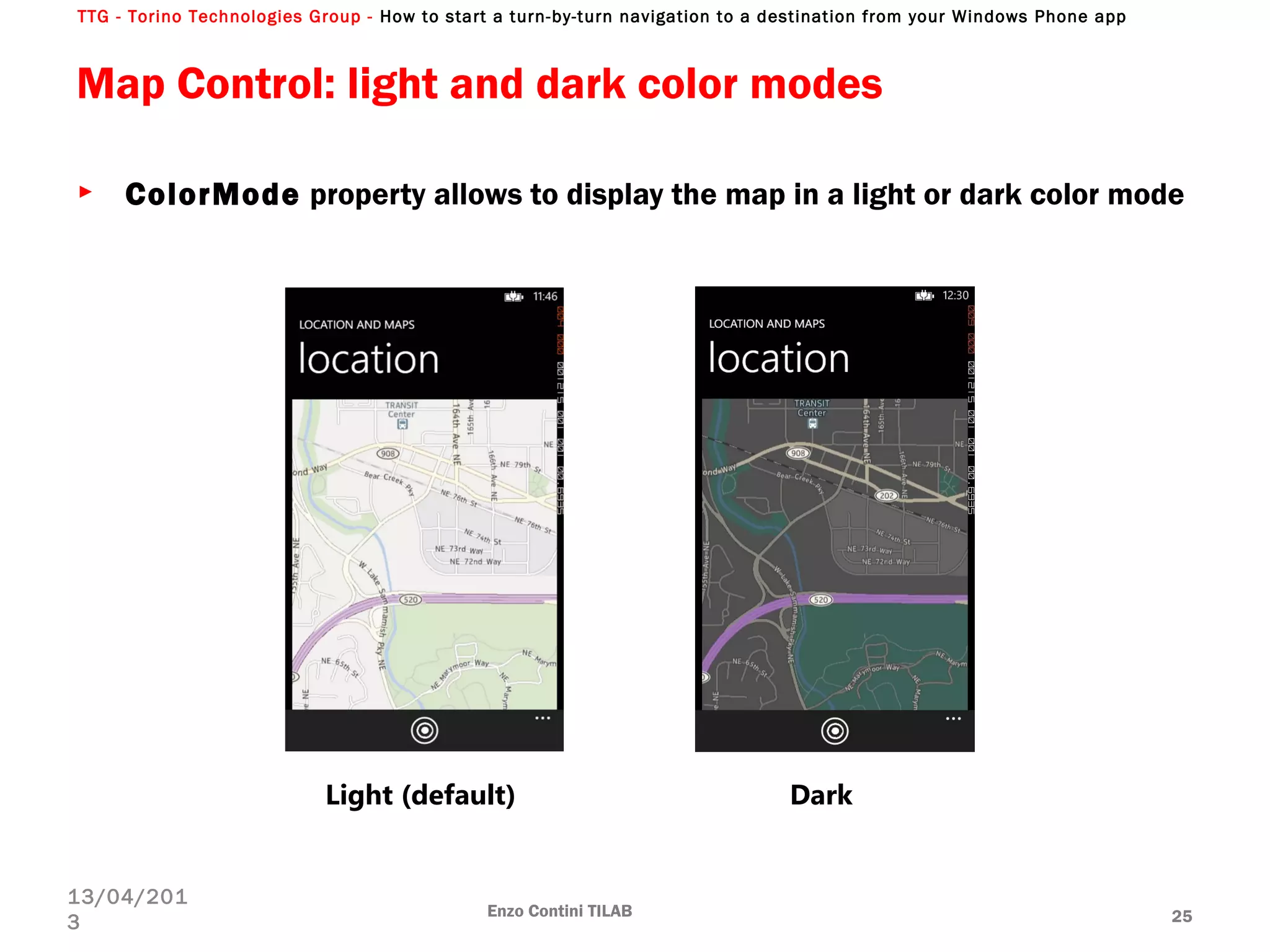
Map Control: light and dark color modes
► ColorMode property allows to display the map in a light or dark color mode
Enzo Contini TILAB 25
13/04/201
3
Light (default) Dark
TTG - Torino Technologies Group - How to start a turn-by-turn navigation to a destination from your Windows Phone app
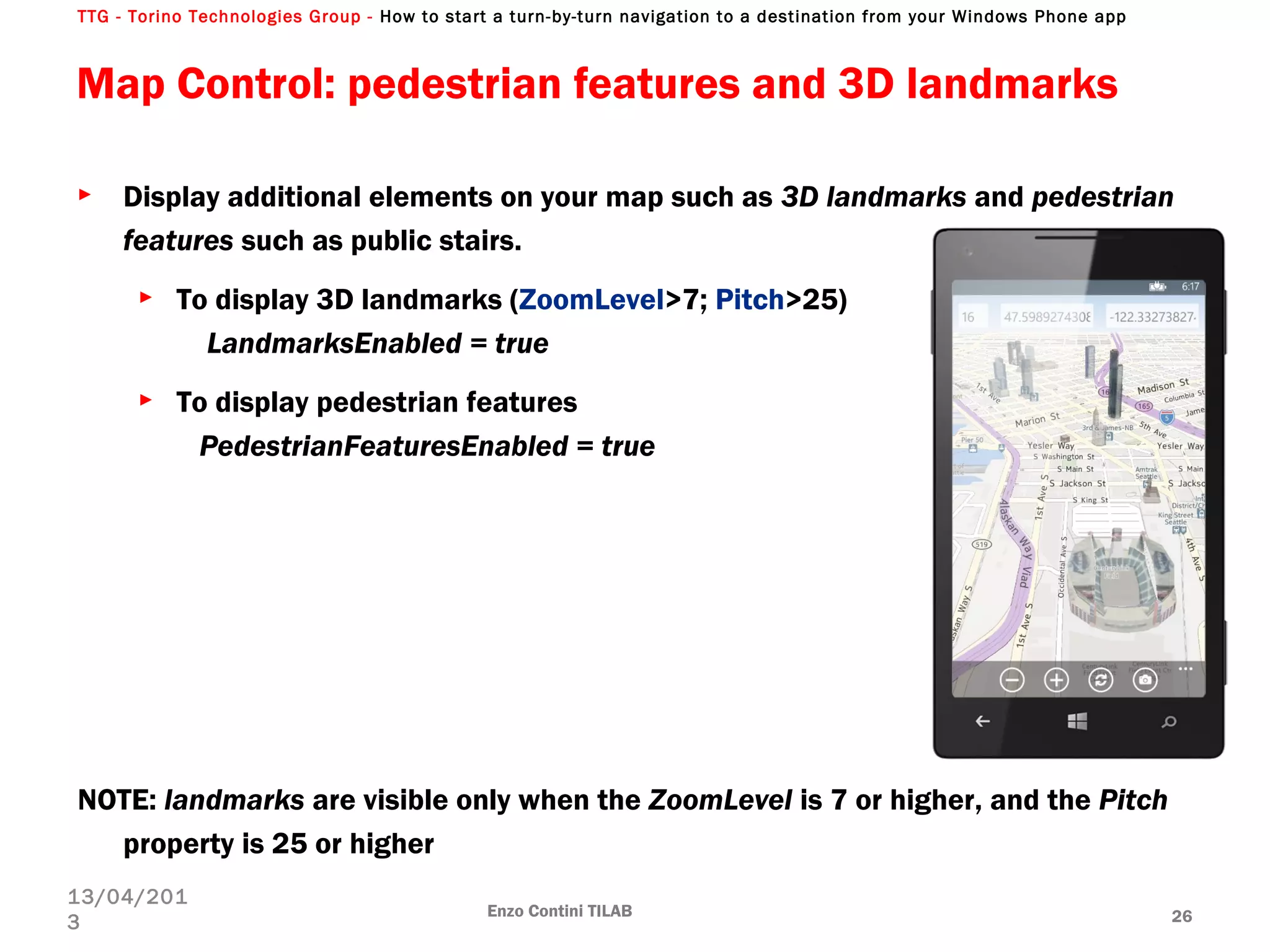
► Display additional elements on your map such as 3D landmarks and pedestrian
features such as public stairs.
► To display 3D landmarks (ZoomLevel>7; Pitch>25)
LandmarksEnabled = true
► To display pedestrian features
PedestrianFeaturesEnabled = true
NOTE: landmarks are visible only when the ZoomLevel is 7 or higher, and the Pitch
property is 25 or higher
Map Control: pedestrian features and 3D landmarks
Enzo Contini TILAB 26
13/04/201
3
TTG - Torino Technologies Group - How to start a turn-by-turn navigation to a destination from your Windows Phone app
ConvertViewportPointToGeoCoordinate Map method
Enzo Contini TILAB 27
13/04/201
3
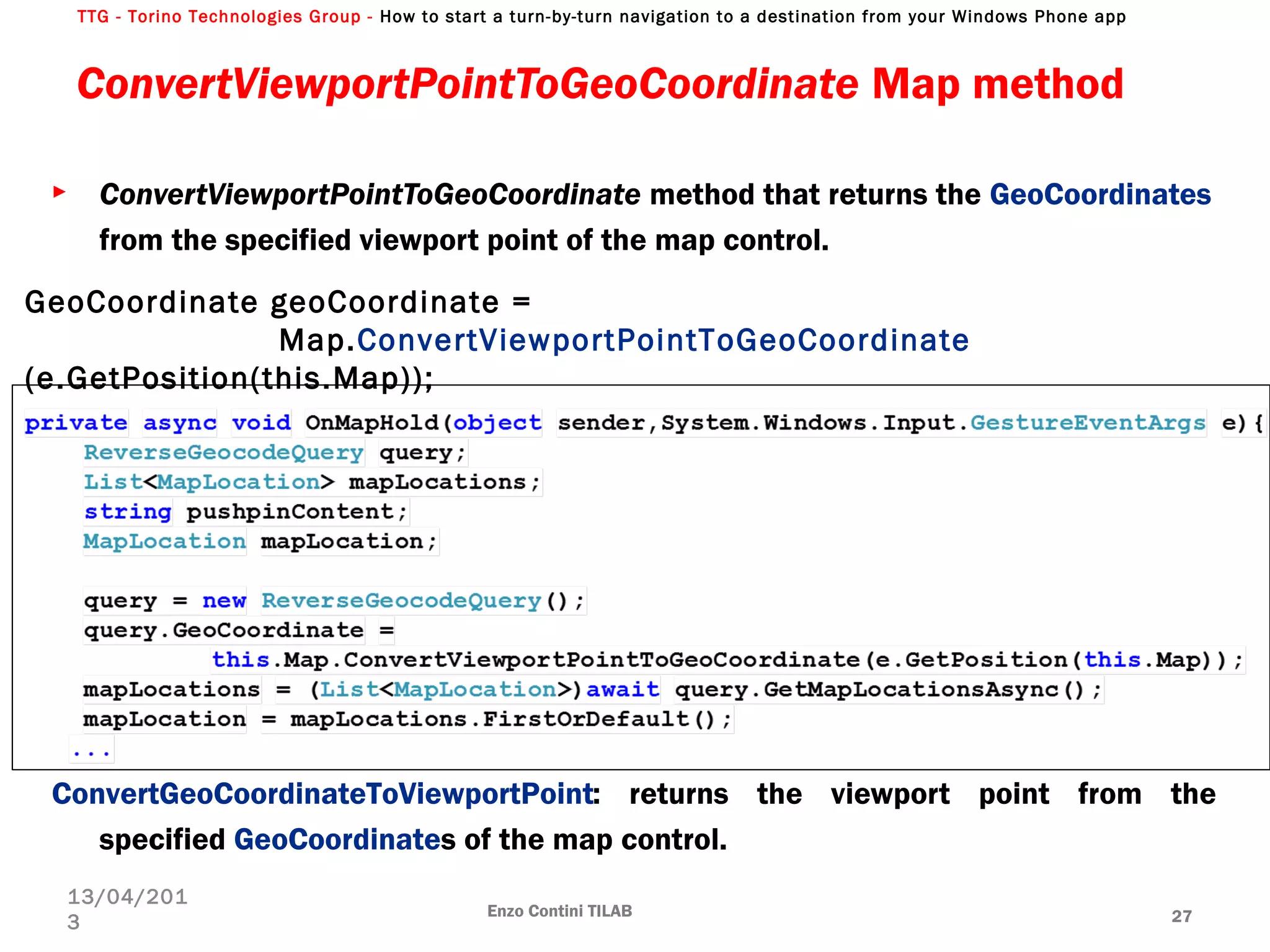
► ConvertViewportPointToGeoCoordinate method that returns the GeoCoordinates
from the specified viewport point of the map control.
ConvertGeoCoordinateToViewportPoint: returns the viewport point from the
specified GeoCoordinates of the map control.
GeoCoordinate geoCoordinate =
Map.ConvertViewportPointToGeoCoordinate
(e.GetPosition(this.Map));
TTG - Torino Technologies Group - How to start a turn-by-turn navigation to a destination from your Windows Phone app
Enzo Contini TILAB 28
13/04/201
3
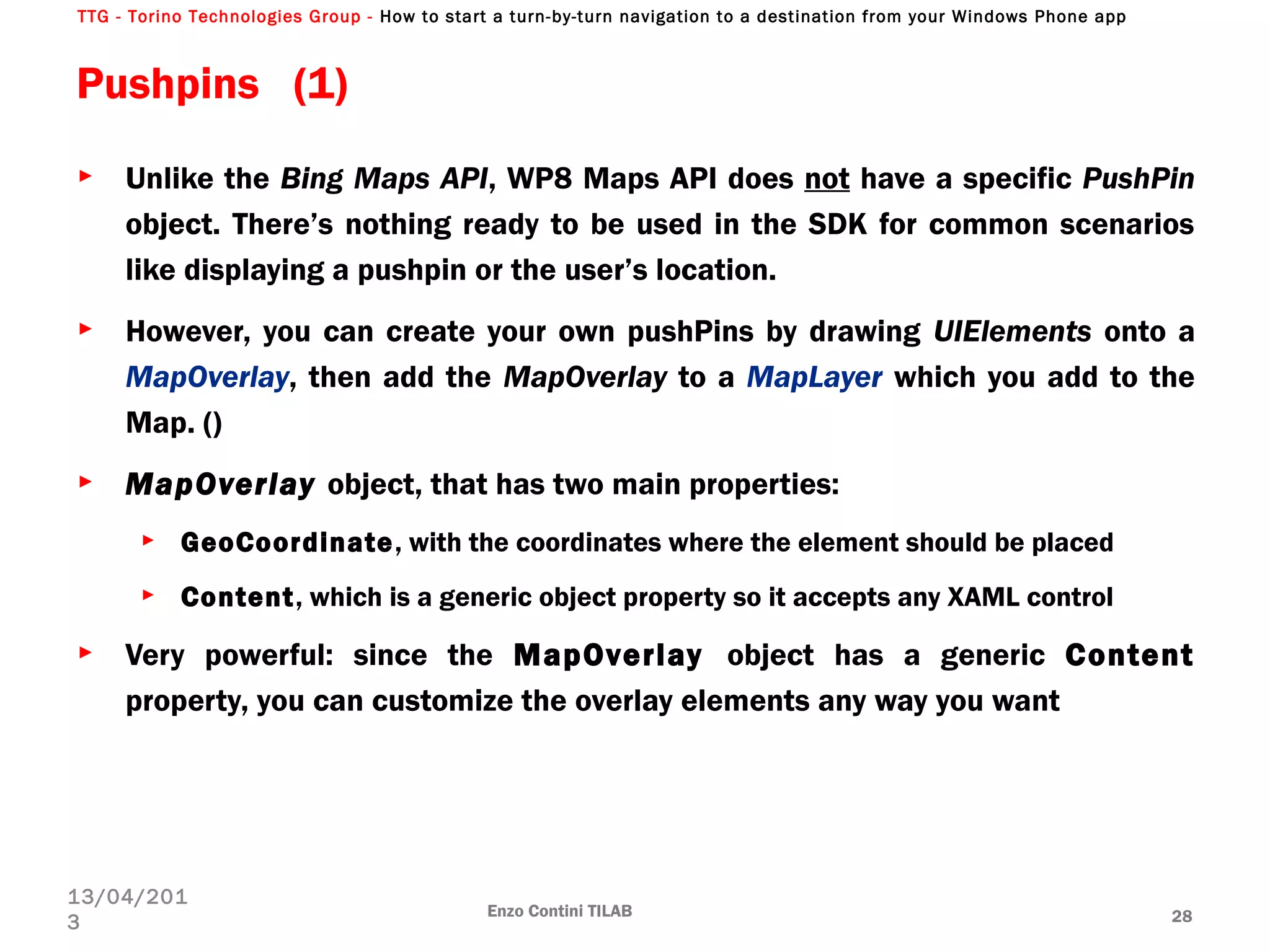
► Unlike the Bing Maps API, WP8 Maps API does not have a specific PushPin
object. There’s nothing ready to be used in the SDK for common scenarios
like displaying a pushpin or the user’s location.
► However, you can create your own pushPins by drawing UIElements onto a
MapOverlay, then add the MapOverlay to a MapLayer which you add to the
Map. ()
► MapOverlay object, that has two main properties:
► GeoCoordinate, with the coordinates where the element should be placed
► Content, which is a generic object property so it accepts any XAML control
► Very powerful: since the MapOverlay object has a generic Content
property, you can customize the overlay elements any way you want
Pushpins (1)
TTG - Torino Technologies Group - How to start a turn-by-turn navigation to a destination from your Windows Phone app
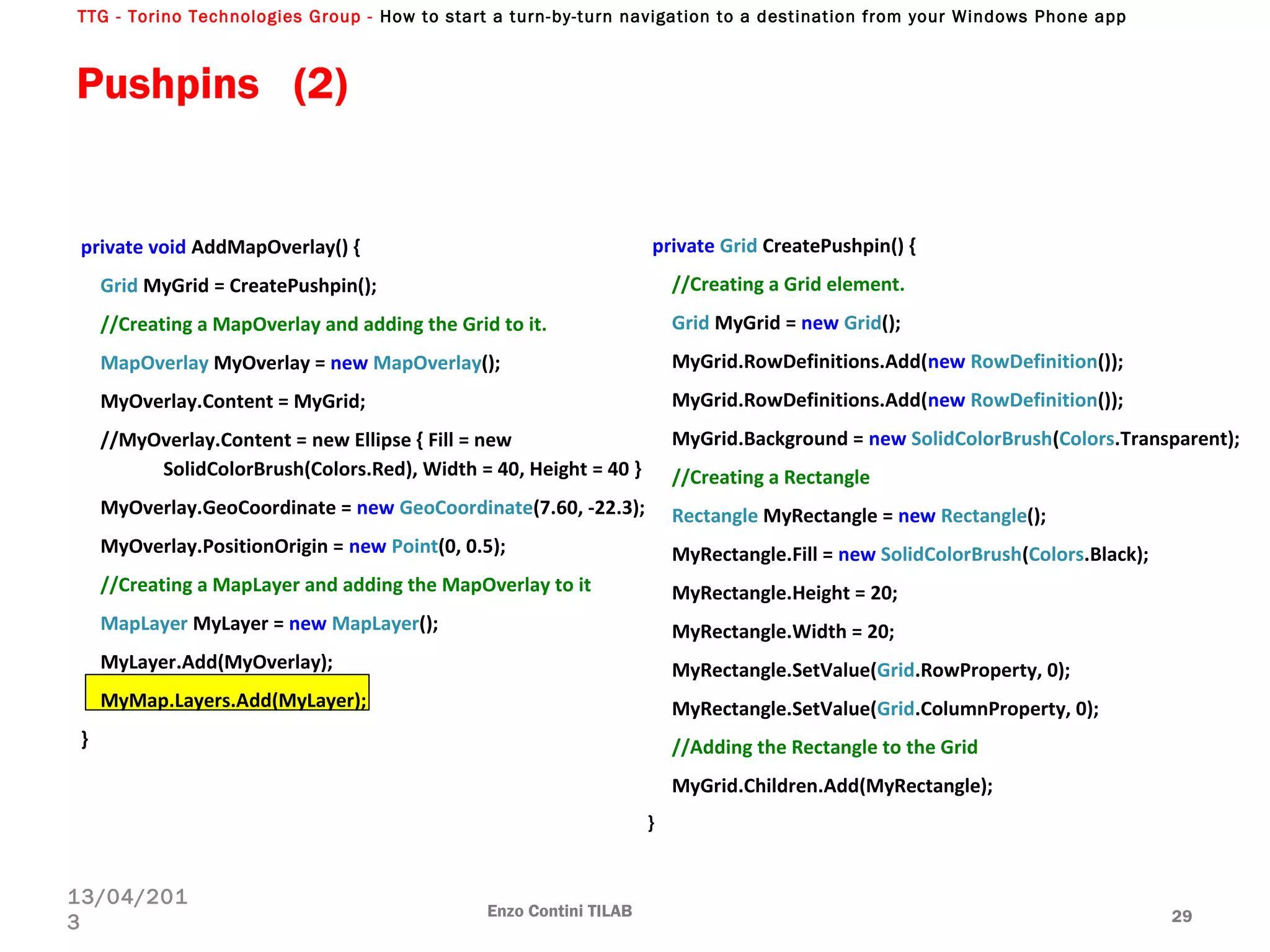
private void AddMapOverlay() {
Grid MyGrid = CreatePushpin();
//Creating a MapOverlay and adding the Grid to it.
MapOverlay MyOverlay = new MapOverlay();
MyOverlay.Content = MyGrid;
//MyOverlay.Content = new Ellipse { Fill = new
SolidColorBrush(Colors.Red), Width = 40, Height = 40 }
MyOverlay.GeoCoordinate = new GeoCoordinate(7.60, -22.3);
MyOverlay.PositionOrigin = new Point(0, 0.5);
//Creating a MapLayer and adding the MapOverlay to it
MapLayer MyLayer = new MapLayer();
MyLayer.Add(MyOverlay);
MyMap.Layers.Add(MyLayer);
}
Enzo Contini TILAB 29
13/04/201
3
private Grid CreatePushpin() {
//Creating a Grid element.
Grid MyGrid = new Grid();
MyGrid.RowDefinitions.Add(new RowDefinition());
MyGrid.Background = new SolidColorBrush(Colors.Transparent);
//Creating a Rectangle
Rectangle MyRectangle = new Rectangle();
MyRectangle.Fill = new SolidColorBrush(Colors.Black);
MyRectangle.Height = 20;
MyRectangle.Width = 20;
MyRectangle.SetValue(Grid.RowProperty, 0);
MyRectangle.SetValue(Grid.ColumnProperty, 0);
//Adding the Rectangle to the Grid
MyGrid.Children.Add(MyRectangle);
}
Pushpins (2)
TTG - Torino Technologies Group - How to start a turn-by-turn navigation to a destination from your Windows Phone app
Phone Toolkit Map extensions (1) (see MapsSample in PhoneToolkitSample.WP8)
UserLocationMarker and Pushpin controls
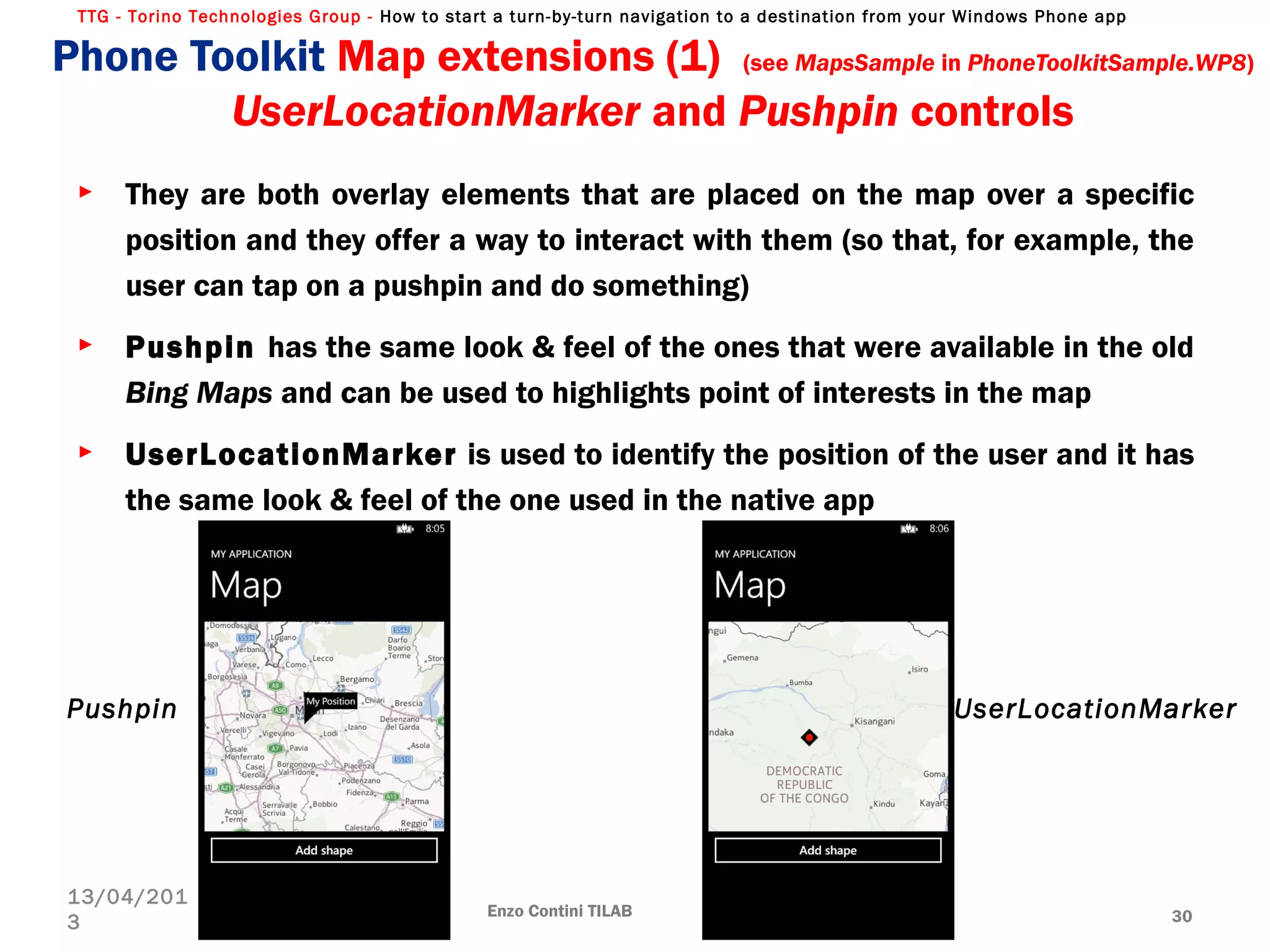
► They are both overlay elements that are placed on the map over a specific
position and they offer a way to interact with them (so that, for example, the
user can tap on a pushpin and do something)
► Pushpin has the same look & feel of the ones that were available in the old
Bing Maps and can be used to highlights point of interests in the map
► UserLocationMarker is used to identify the position of the user and it has
the same look & feel of the one used in the native app
Enzo Contini TILAB 30
13/04/201
3
Pushpin UserLocationMarker
TTG - Torino Technologies Group - How to start a turn-by-turn navigation to a destination from your Windows Phone app
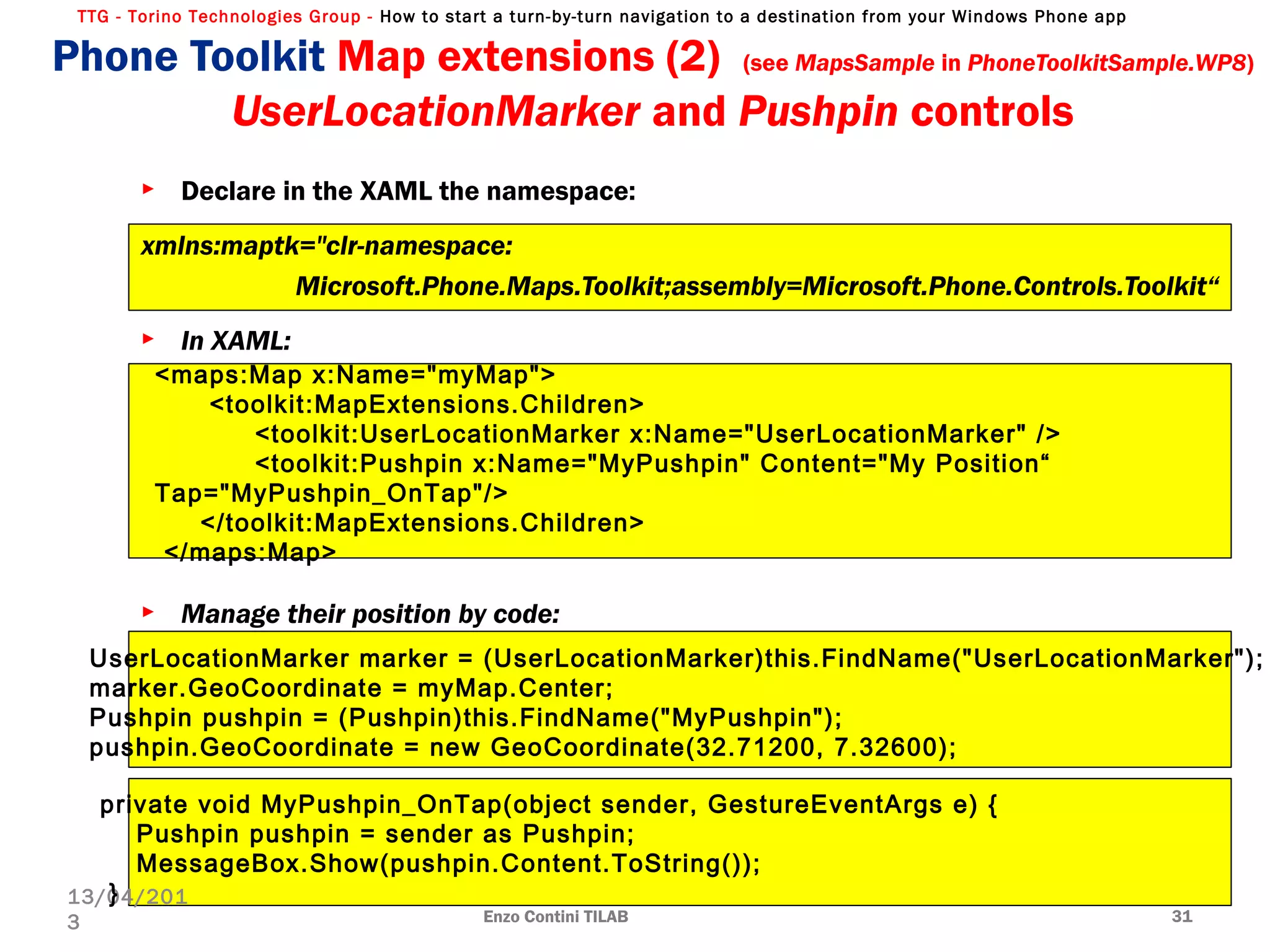
► Declare in the XAML the namespace:
xmlns:maptk="clr-namespace:
Microsoft.Phone.Maps.Toolkit;assembly=Microsoft.Phone.Controls.Toolkit“
► In XAML:
► Manage their position by code:
Enzo Contini TILAB 31
13/04/201
3
<maps:Map x:Name="myMap">
<toolkit:MapExtensions.Children>
<toolkit:UserLocationMarker x:Name="UserLocationMarker" />
<toolkit:Pushpin x:Name="MyPushpin" Content="My Position“
Tap="MyPushpin_OnTap"/>
</toolkit:MapExtensions.Children>
</maps:Map>
UserLocationMarker marker = (UserLocationMarker)this.FindName("UserLocationMarker");
marker.GeoCoordinate = myMap.Center;
Pushpin pushpin = (Pushpin)this.FindName("MyPushpin");
pushpin.GeoCoordinate = new GeoCoordinate(32.71200, 7.32600);
private void MyPushpin_OnTap(object sender, GestureEventArgs e) {
Pushpin pushpin = sender as Pushpin;
MessageBox.Show(pushpin.Content.ToString());
}
Phone Toolkit Map extensions (2) (see MapsSample in PhoneToolkitSample.WP8)
UserLocationMarker and Pushpin controls
TTG - Torino Technologies Group - How to start a turn-by-turn navigation to a destination from your Windows Phone app
Phone Toolkit Map extensions:
GeocoordinateExtensions class
Enzo Contini TILAB 32
13/04/201
3
Geoposition geoposition;
GeoCoordinate geoCoordinate =
geoposition.Coordinate.ToGeoCoordinate();
Windows.Devices.Geolocation.Geocoodinate !=
System.Device.Location.GeoCoordinate
WGS 84
standard
TTG - Torino Technologies Group - How to start a turn-by-turn navigation to a destination from your Windows Phone app
Enzo Contini TILAB 33
13/04/201
3
GeocodeQuery & ReverseGeocodeQuery (summary)
GeocodeQuery
GeocodeQuery_QueryCompl
eted
ReverseGeocodeQuery_QueryCompl
eted
IList<MapLocation>
LocationRectangle
BoundingBox
GeoCoordinate
Information LocationInformation
SearchTerm [descriptive text]
GeoCoordinate [current / new GeoCoordinate(0,0)]
ReverseGeocodeQuery
new GeoCoordinate(Lat, Long)
MapAddress Address
Description
Name
Altitude
Latitude
Longitude
Speed
HorizontalAccuracy
VerticalAccuracy
Street
HouseNumber
City
…
TTG - Torino Technologies Group - How to start a turn-by-turn navigation to a destination from your Windows Phone app
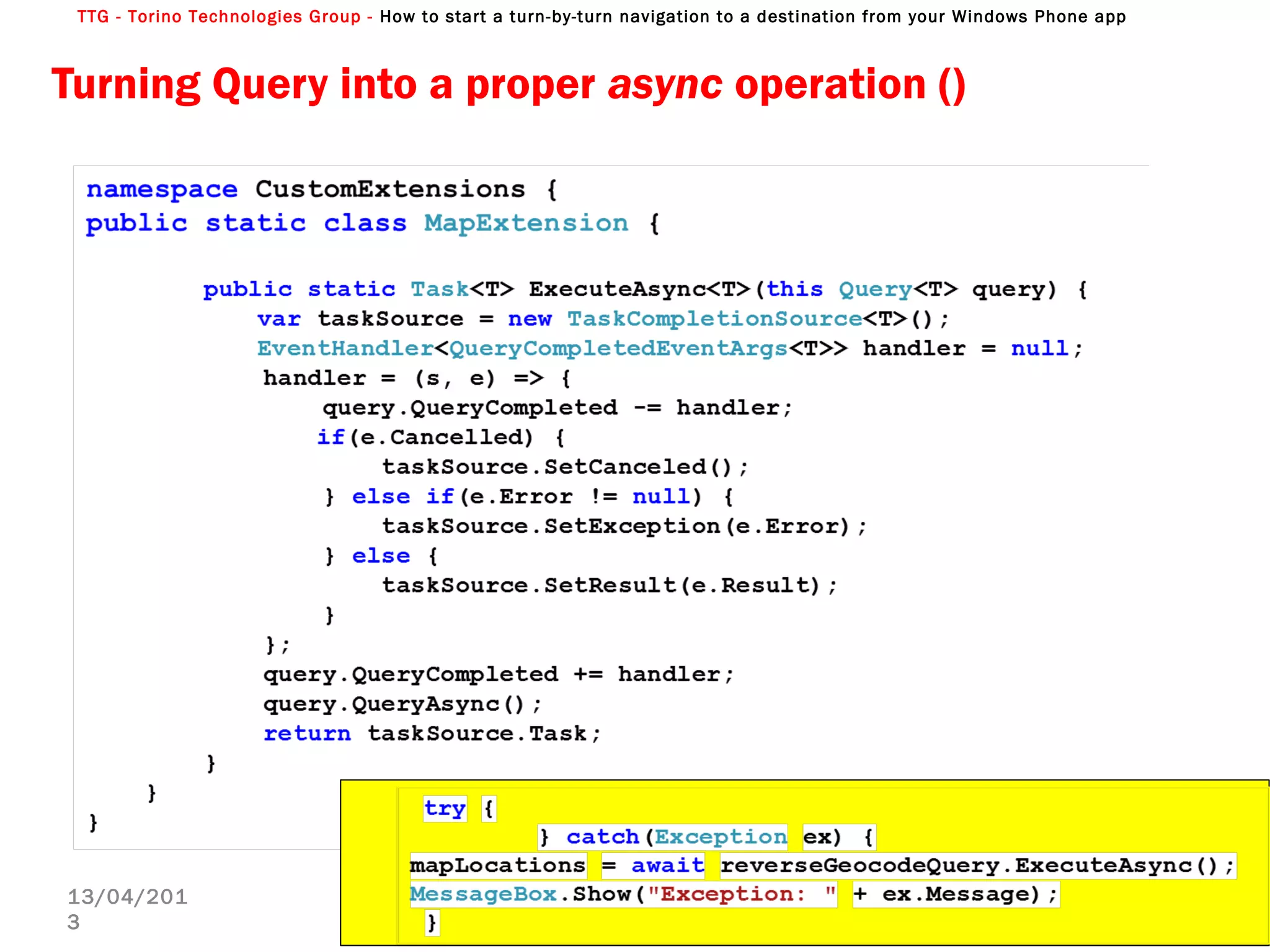
Turning Query into a proper async operation ()
Enzo Contini TILAB 34
13/04/201
3
TTG - Torino Technologies Group - How to start a turn-by-turn navigation to a destination from your Windows Phone app
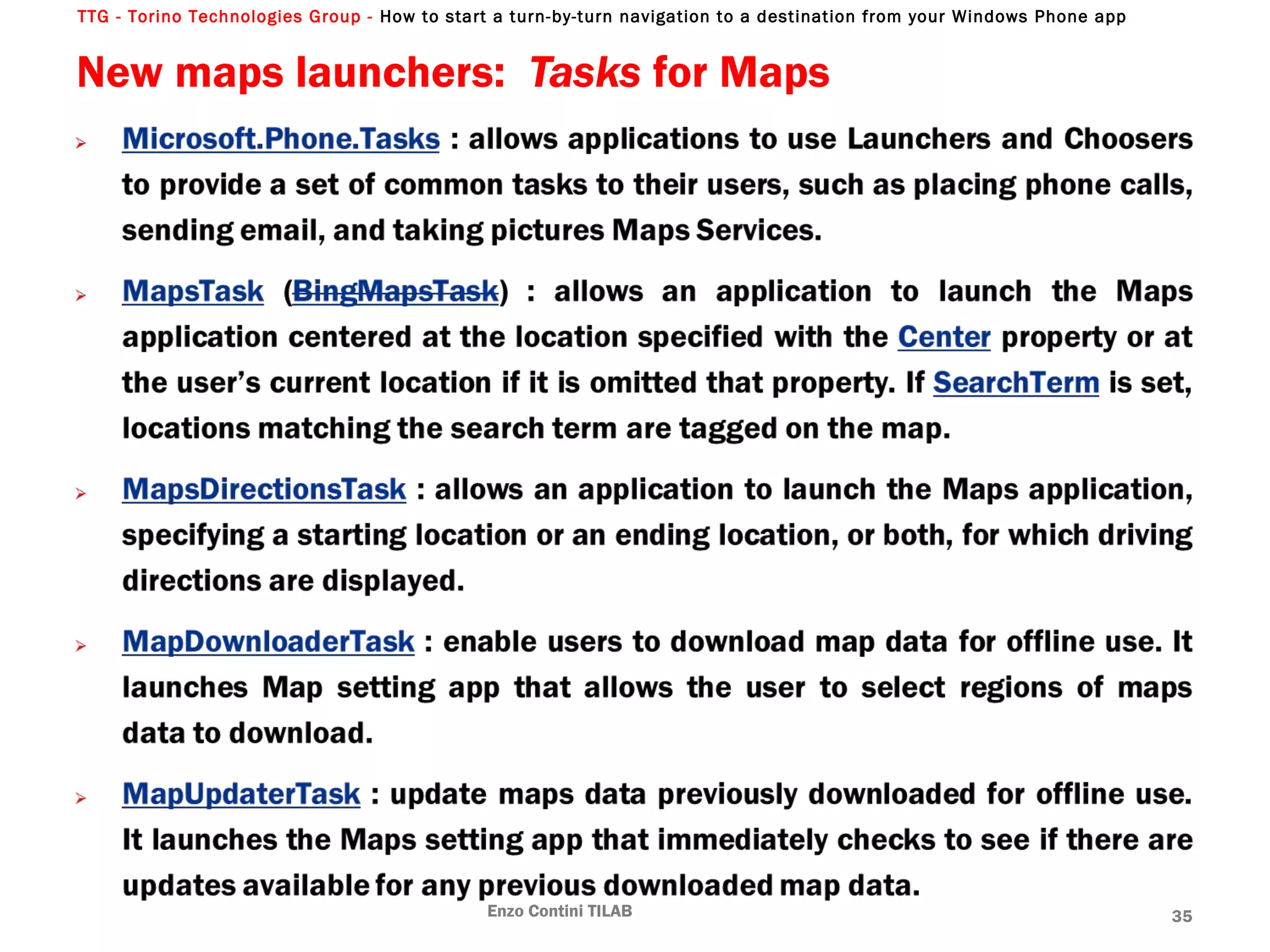
New maps launchers: Tasks for Maps
Enzo Contini TILAB 35
TTG - Torino Technologies Group - How to start a turn-by-turn navigation to a destination from your Windows Phone app
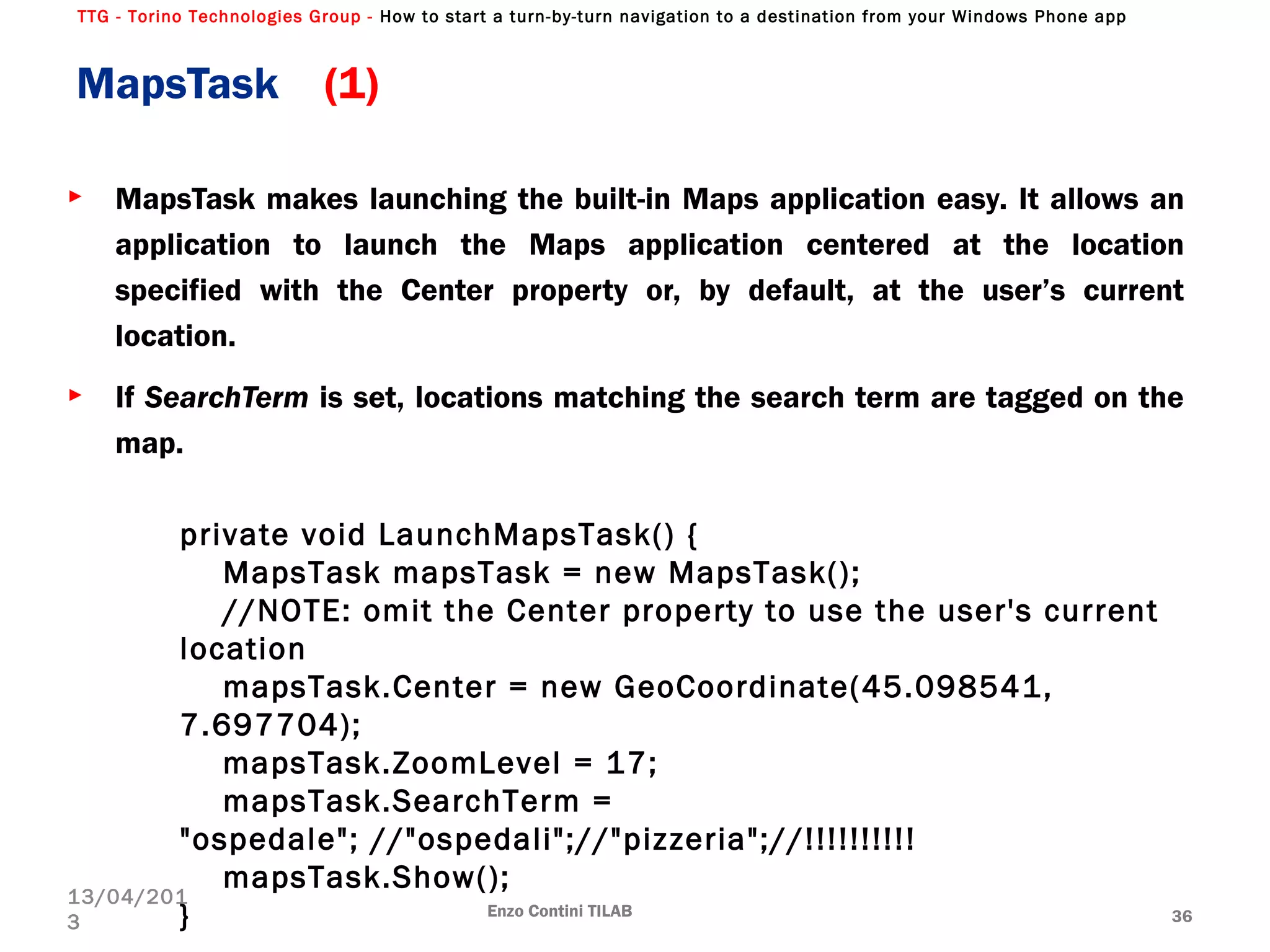
► MapsTask makes launching the built-in Maps application easy. It allows an
application to launch the Maps application centered at the location
specified with the Center property or, by default, at the user’s current
location.
► If SearchTerm is set, locations matching the search term are tagged on the
map.
MapsTask (1)
Enzo Contini TILAB 36
13/04/201
3
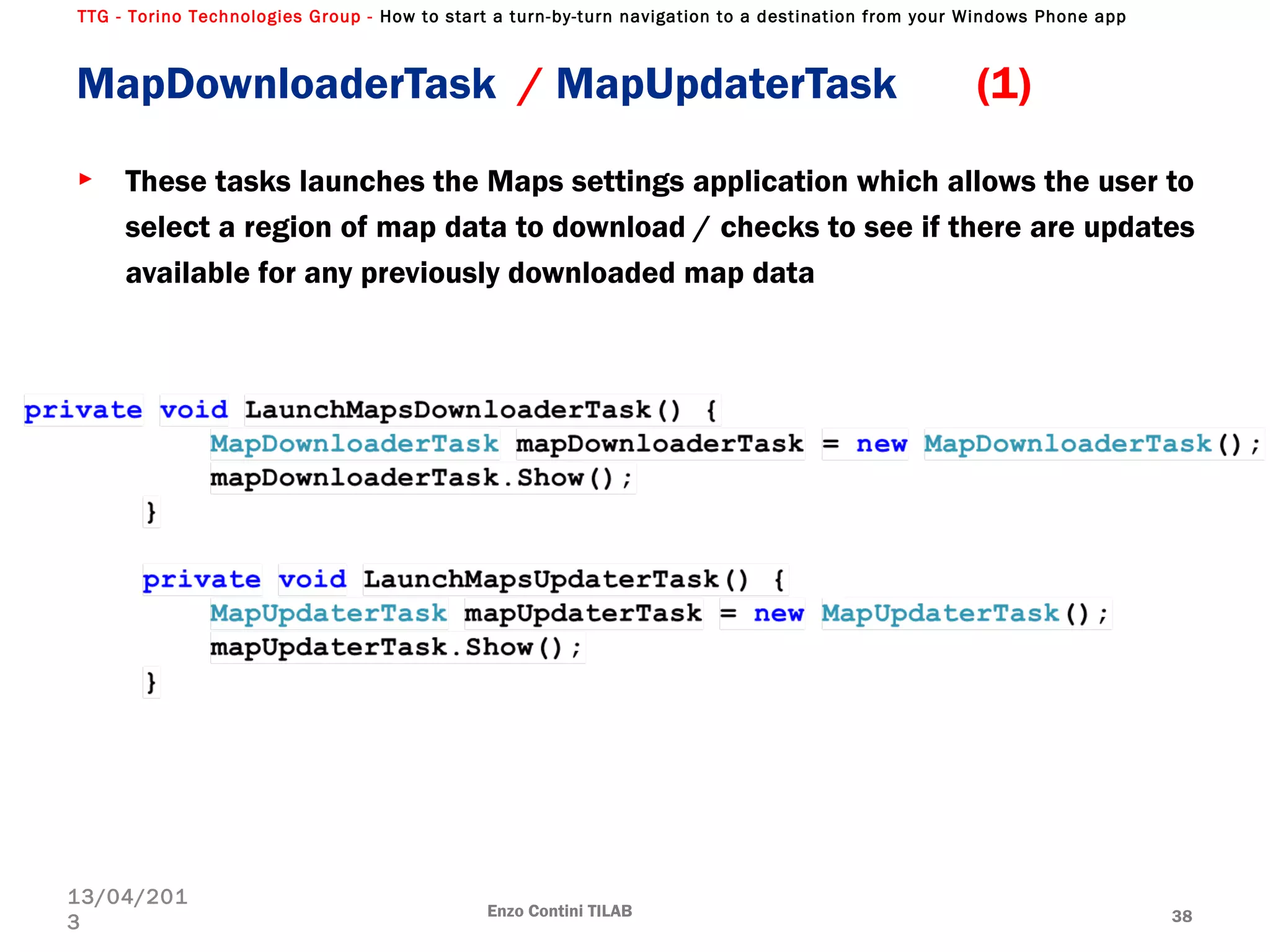
private void LaunchMapsTask() {
MapsTask mapsTask = new MapsTask();
//NOTE: omit the Center property to use the user's current
location
mapsTask.Center = new GeoCoordinate(45.098541,
7.697704);
mapsTask.ZoomLevel = 17;
mapsTask.SearchTerm =
"ospedale"; //"ospedali";//"pizzeria";//!!!!!!!!!!
mapsTask.Show();
}
TTG - Torino Technologies Group - How to start a turn-by-turn navigation to a destination from your Windows Phone app
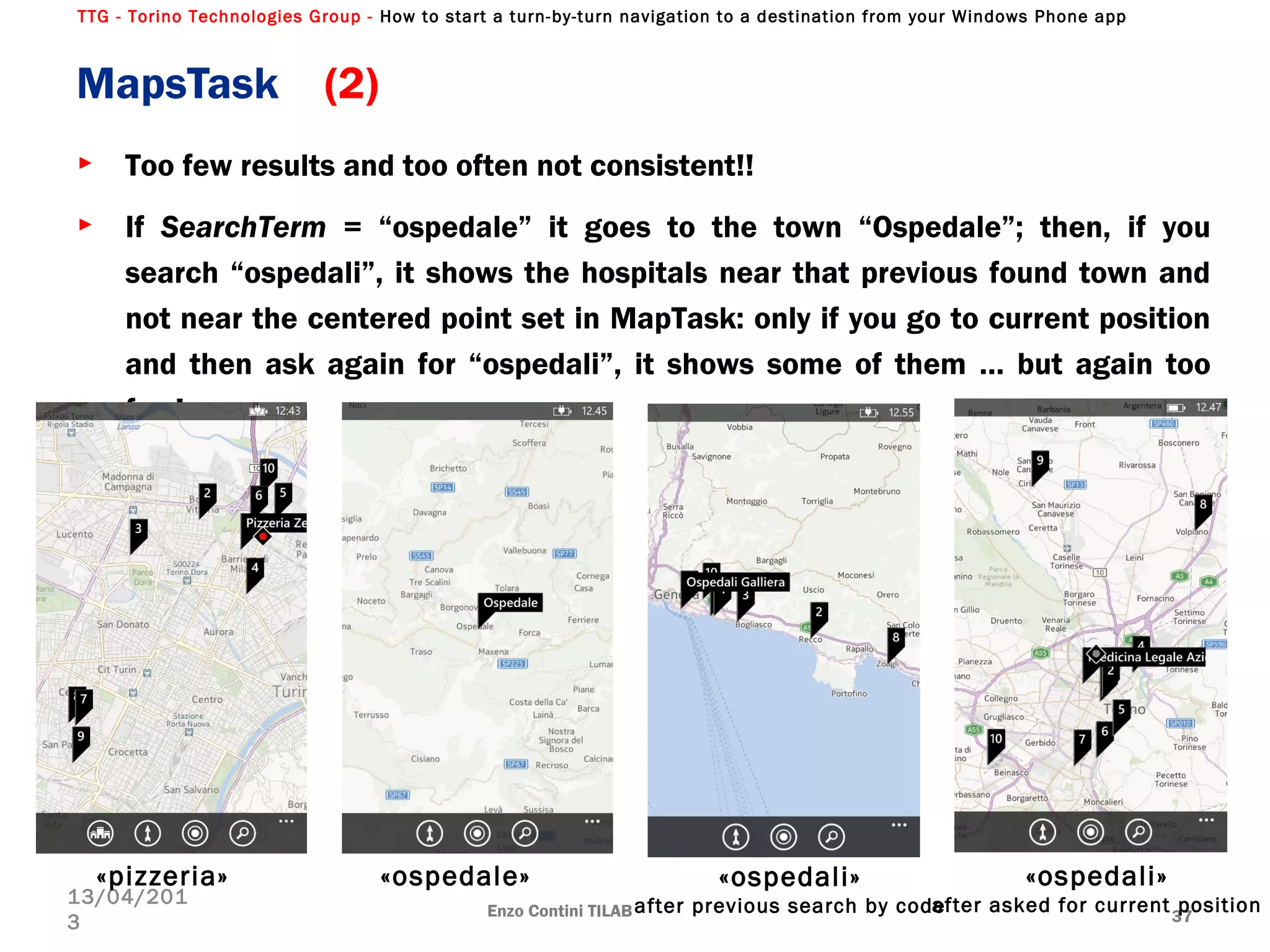
► Too few results and too often not consistent!!
► If SearchTerm = “ospedale” it goes to the town “Ospedale”; then, if you
search “ospedali”, it shows the hospitals near that previous found town and
not near the centered point set in MapTask: only if you go to current position
and then ask again for “ospedali”, it shows some of them … but again too
few!
MapsTask (2)
Enzo Contini TILAB 37
13/04/201
3
«pizzeria» «ospedali»
after previous search by code
«ospedale» «ospedali»
after asked for current position
TTG - Torino Technologies Group - How to start a turn-by-turn navigation to a destination from your Windows Phone app
MapDownloaderTask / MapUpdaterTask (1)
► These tasks launches the Maps settings application which allows the user to
select a region of map data to download / checks to see if there are updates
available for any previously downloaded map data
Enzo Contini TILAB 38
13/04/201
3
TTG - Torino Technologies Group - How to start a turn-by-turn navigation to a destination from your Windows Phone app
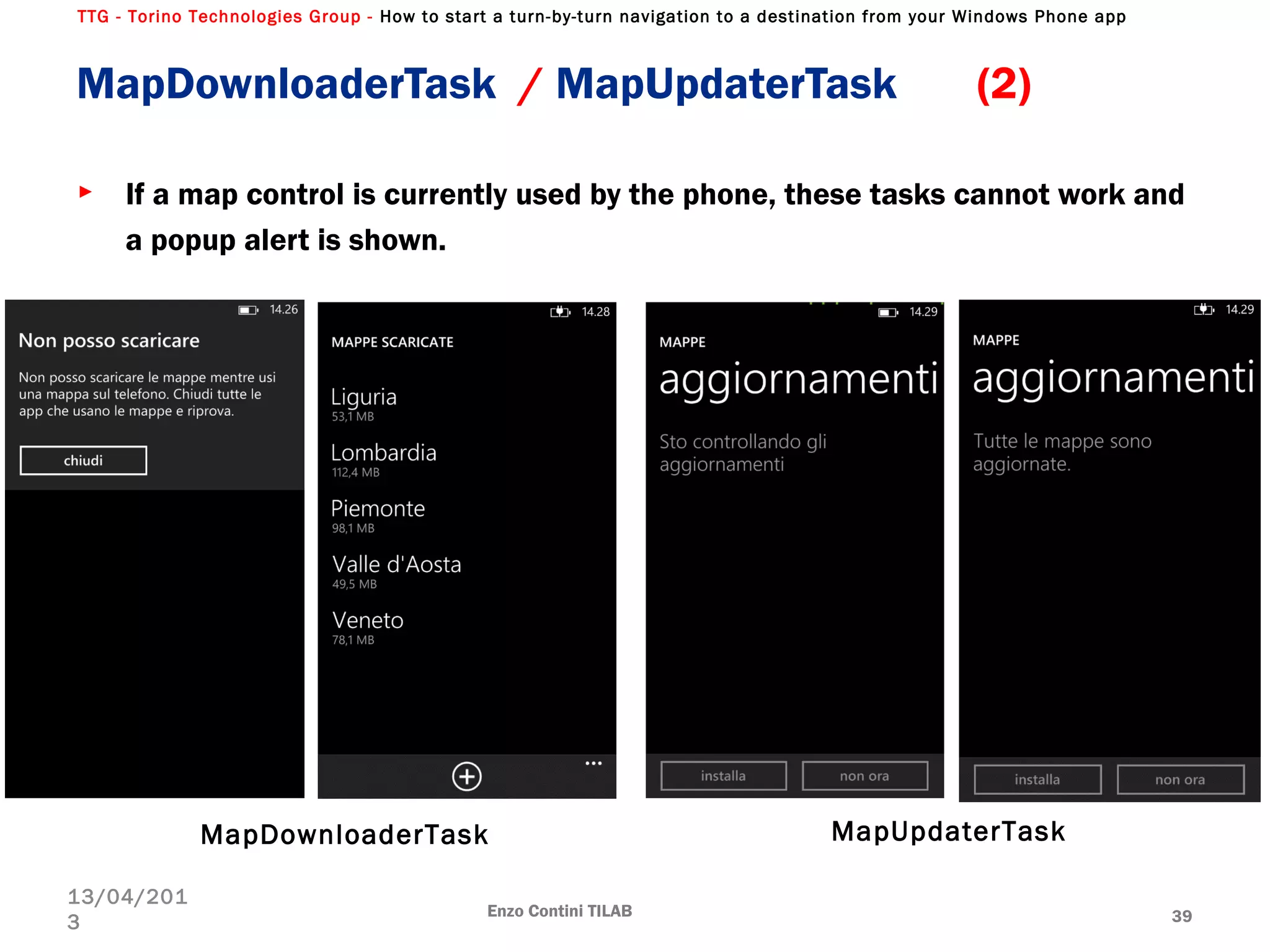
► If a map control is currently used by the phone, these tasks cannot work and
a popup alert is shown.
Enzo Contini TILAB 39
13/04/201
3
MapDownloaderTask / MapUpdaterTask (2)
MapDownloaderTask MapUpdaterTask
TTG - Torino Technologies Group - How to start a turn-by-turn navigation to a destination from your Windows Phone app
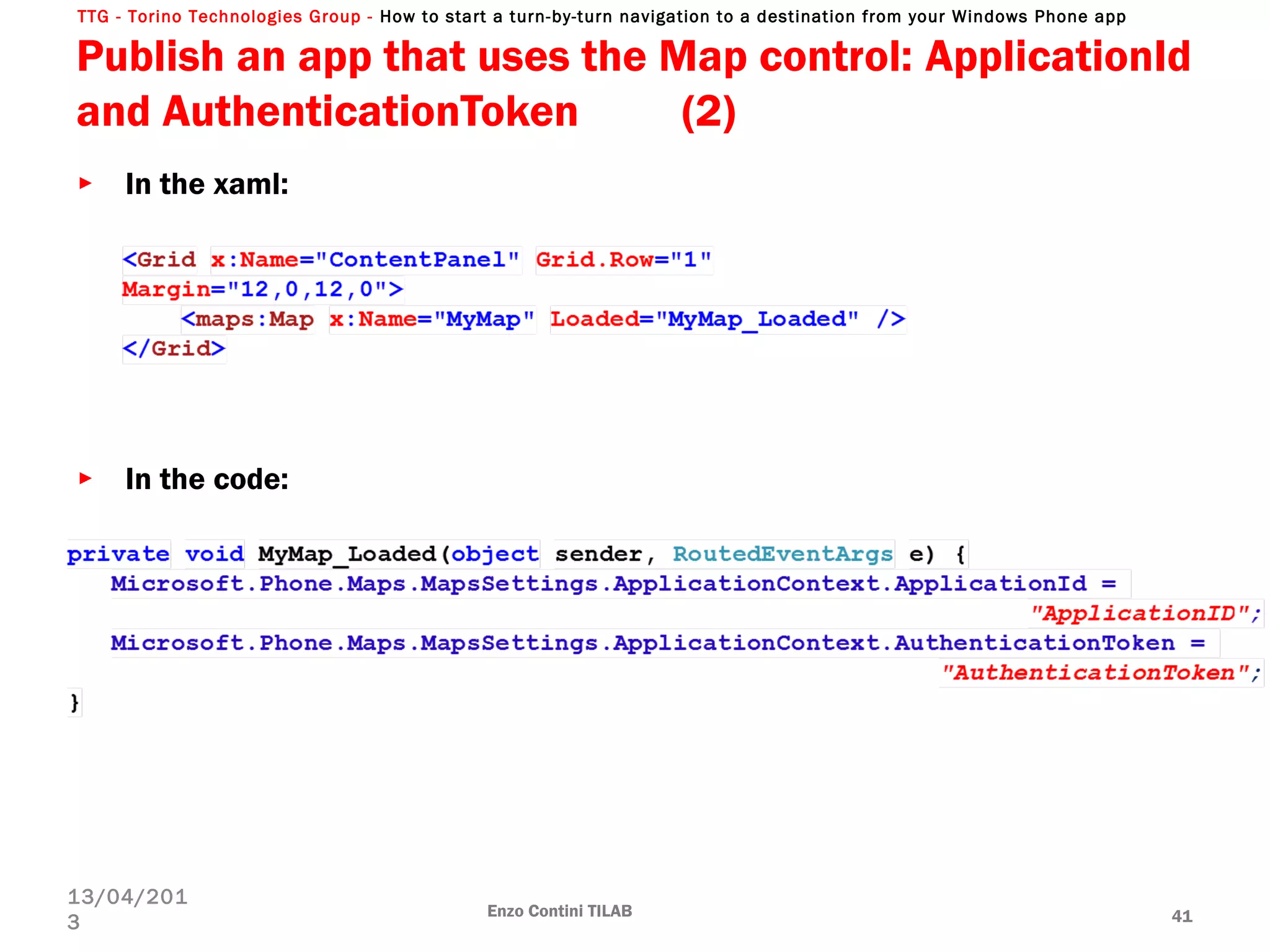
Publish an app that uses the Map control: ApplicationId
and AuthenticationToken (1)
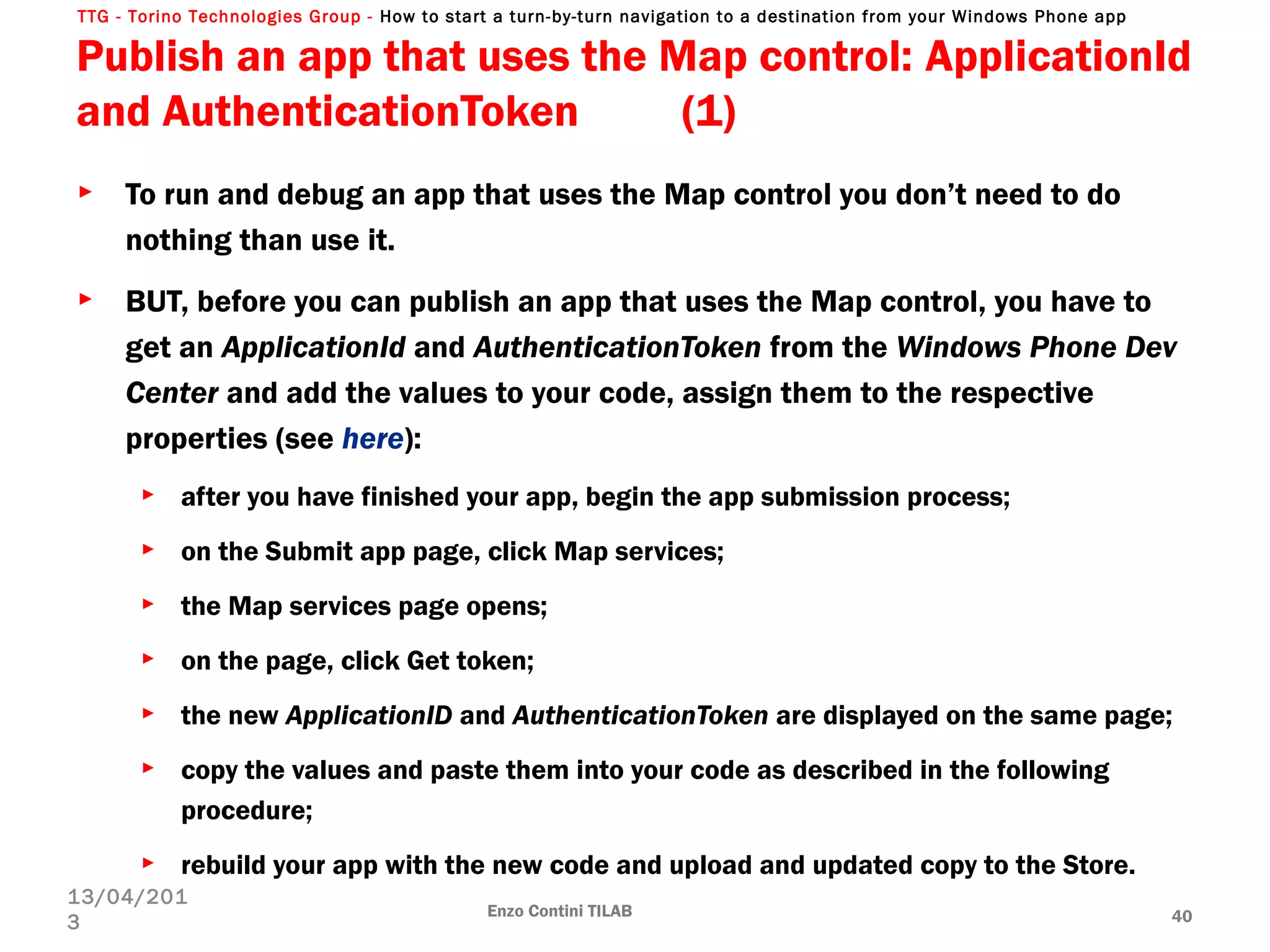
► To run and debug an app that uses the Map control you don’t need to do
nothing than use it.
► BUT, before you can publish an app that uses the Map control, you have to
get an ApplicationId and AuthenticationToken from the Windows Phone Dev
Center and add the values to your code, assign them to the respective
properties (see here):
► after you have finished your app, begin the app submission process;
► on the Submit app page, click Map services;
► the Map services page opens;
► on the page, click Get token;
► the new ApplicationID and AuthenticationToken are displayed on the same page;
► copy the values and paste them into your code as described in the following
procedure;
► rebuild your app with the new code and upload and updated copy to the Store.
Enzo Contini TILAB 40
13/04/201
3
TTG - Torino Technologies Group - How to start a turn-by-turn navigation to a destination from your Windows Phone app
Publish an app that uses the Map control: ApplicationId
and AuthenticationToken (2)
Enzo Contini TILAB 41
13/04/201
3
► In the xaml:
► In the code:
TTG - Torino Technologies Group - How to start a turn-by-turn navigation to a destination from your Windows Phone app
Start a turn-by-turn navigation to a destination
from your Windows Phone app
Sometime it is useful to insert in your WP8 app the capability to start a navigation
to a destination that can be derived, for example, from the address of a
someone/some place or from the geocoordinate of a point in a map.
There are several ways to do that and here I’ll try to describe the following ones:
►Coding the navigation functions inside your app (RouteQuery class +
GeocodeQuery class) .
►Using the MapsDirectionsTask  class.
►Launching a navigator app with a Launcher that uses a specific navigation Uri.
Enzo Contini TILAB 42
13/04/201
3
TTG - Torino Technologies Group - How to start a turn-by-turn navigation to a destination from your Windows Phone app
A) Coding the navigation functions inside your
app (1)
► This can be done mainly using 
► the GeocodeQuery class (to find a possible list of Geocoordinate  from a
descriptive search term like an address, a building name, or any other phrase
indicating a place on Earth),
► the RouteQuery class (to get all the route points to reach the destination
[according to the required mode of travel and optimizations])
► the SpeechSynthesizer class to have a text-to-speech reading of each Route
 turning point [the list of maneuvers associated with each route RouteLeg of every
Route.Legs, that is the property  of the legs associated with the route].
► All the three mentioned classes are async ones, in order not to stop the user
interaction with the UI; in particular, the first two comes from the new
Microsoft.Phone.Maps.Services.
► A code example that implements this kind of solution can be found in the
Nokia Developer site: Map with directions in Windows Phone 8 project.
Enzo Contini TILAB 43
13/04/201
3
TTG - Torino Technologies Group - How to start a turn-by-turn navigation to a destination from your Windows Phone app
A) Coding the navigation functions inside your
app (2)
Enzo Contini TILAB 44
13/04/201
3
You can see a blu circle for the
starting point, a red one for the end
point and a green one for the actual
Route turning point with the maneuver
written below (it is the text read by the
SpeechSynthesizer).
However if you run that example, you will notice that the user experience is not
comparable with that provided with commercial navigators and the synthesized
voice, that can be acceptable for an input request, is not appropriate for giving
driving instructions.
Most of the work needed to have a basic navigator is already done, even thought
the text-to-speech of each instruction should be based on the actual position of
the user [using the Geolocator class and in particular its
GetGeopositionAsync(TimeSpan, TimeSpan) method and a listener to its
PositionChanged event].
TTG - Torino Technologies Group - How to start a turn-by-turn navigation to a destination from your Windows Phone app
B) Using the MapsDirectionsTask class (1)
► MapsDirectionsTask  class is very powerful and allows to launch the Maps
application, specifying a starting location and/or an ending location, for
which driving directions are displayed and possibly launch an external
navigator app.
Very often the starting position is the user’s current position: in that case the
Start property must not be set because user’s current position is its default
value (therefore there is no need to use the Geolocator class and its
GetGeopositionAsync(TimeSpan, TimeSpan) method to find out user’s
current position, because that Task already does everything for us).
► A code example that implements this kind of solution can be found
among the Nokia Developer examples: LaunchDirectionsTask project
(inside a Zip archive).
Enzo Contini TILAB 45
13/04/201
3
TTG - Torino Technologies Group - How to start a turn-by-turn navigation to a destination from your Windows Phone app
Enzo Contini TILAB 46
13/04/201
3
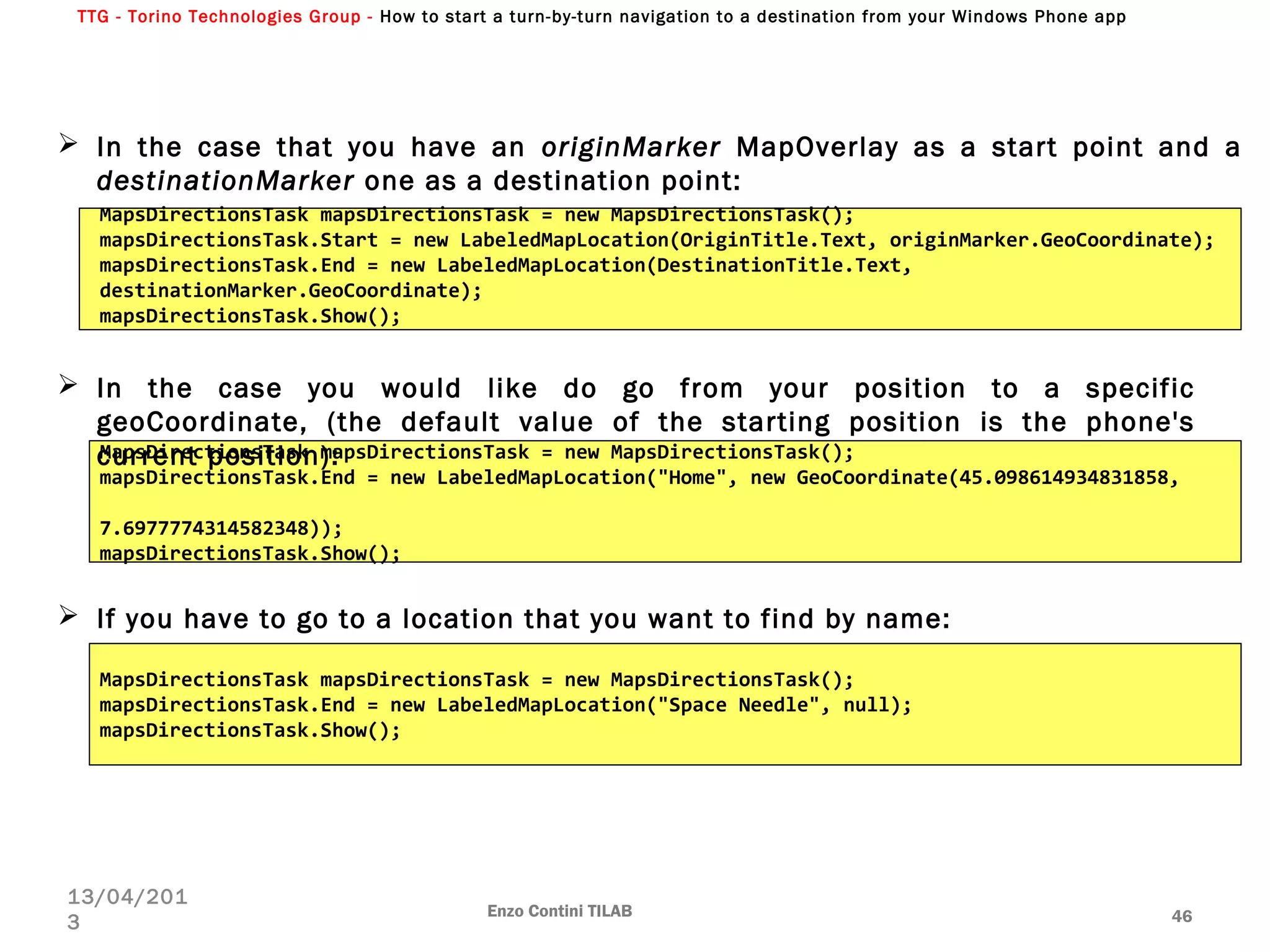
MapsDirectionsTask mapsDirectionsTask = new MapsDirectionsTask();
mapsDirectionsTask.Start = new LabeledMapLocation(OriginTitle.Text, originMarker.GeoCoordinate);
mapsDirectionsTask.End = new LabeledMapLocation(DestinationTitle.Text,
destinationMarker.GeoCoordinate);
mapsDirectionsTask.Show();
 In the case that you have an originMarker MapOverlay as a start point and a
destinationMarker one as a destination point:
 In the case you would like do go from your position to a specific
geoCoordinate, (the default value of the starting position is the phone's
current position):MapsDirectionsTask mapsDirectionsTask = new MapsDirectionsTask();
mapsDirectionsTask.End = new LabeledMapLocation("Home", new GeoCoordinate(45.098614934831858,
7.6977774314582348));
mapsDirectionsTask.Show();
 If you have to go to a location that you want to find by name:
MapsDirectionsTask mapsDirectionsTask = new MapsDirectionsTask();
mapsDirectionsTask.End = new LabeledMapLocation("Space Needle", null);
mapsDirectionsTask.Show();
TTG - Torino Technologies Group - How to start a turn-by-turn navigation to a destination from your Windows Phone app
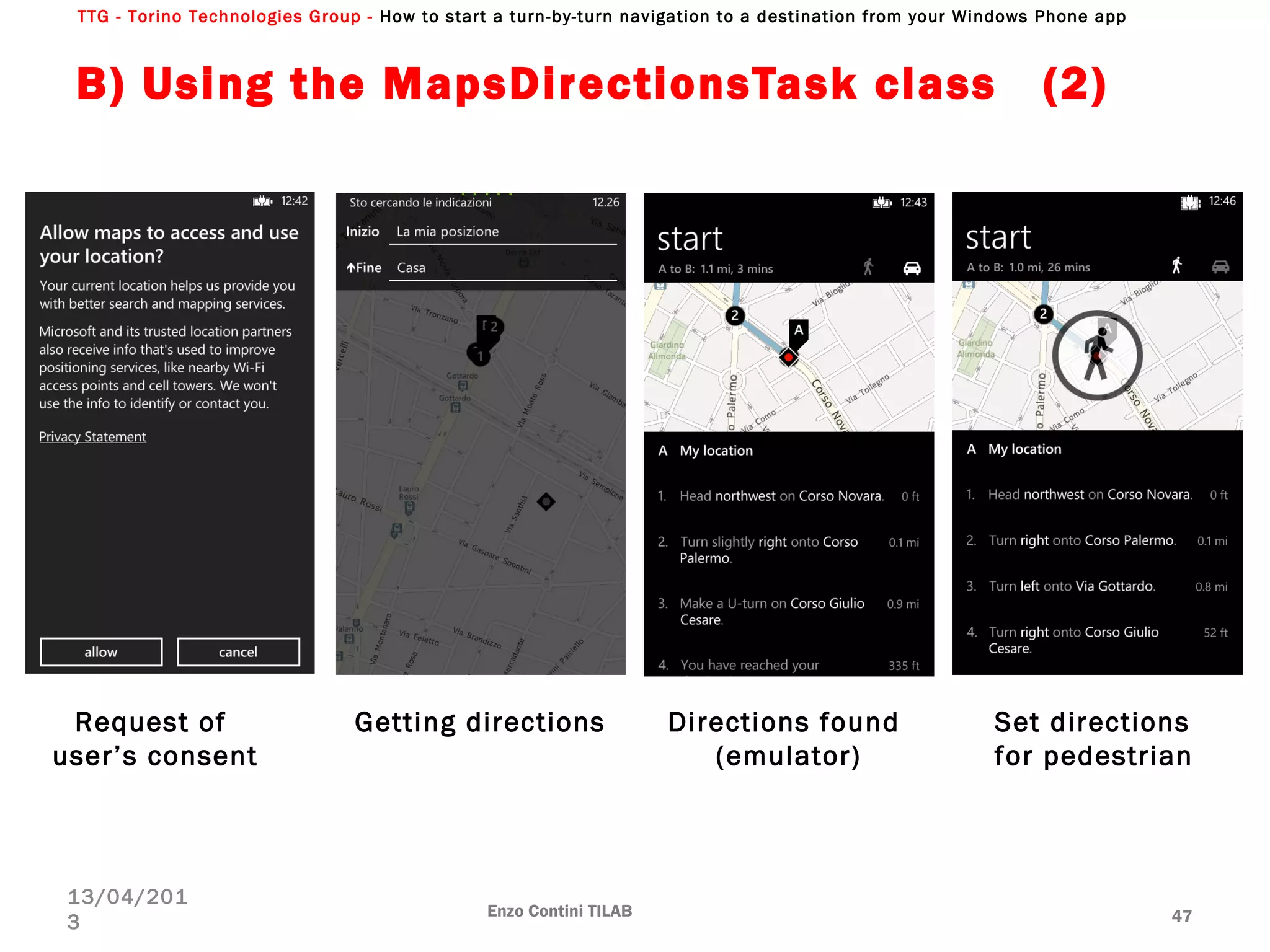
B) Using the MapsDirectionsTask class (2)
Enzo Contini TILAB 47
13/04/201
3
Request of
user’s consent
Getting directions Directions found
(emulator)
Set directions
for pedestrian
TTG - Torino Technologies Group - How to start a turn-by-turn navigation to a destination from your Windows Phone app
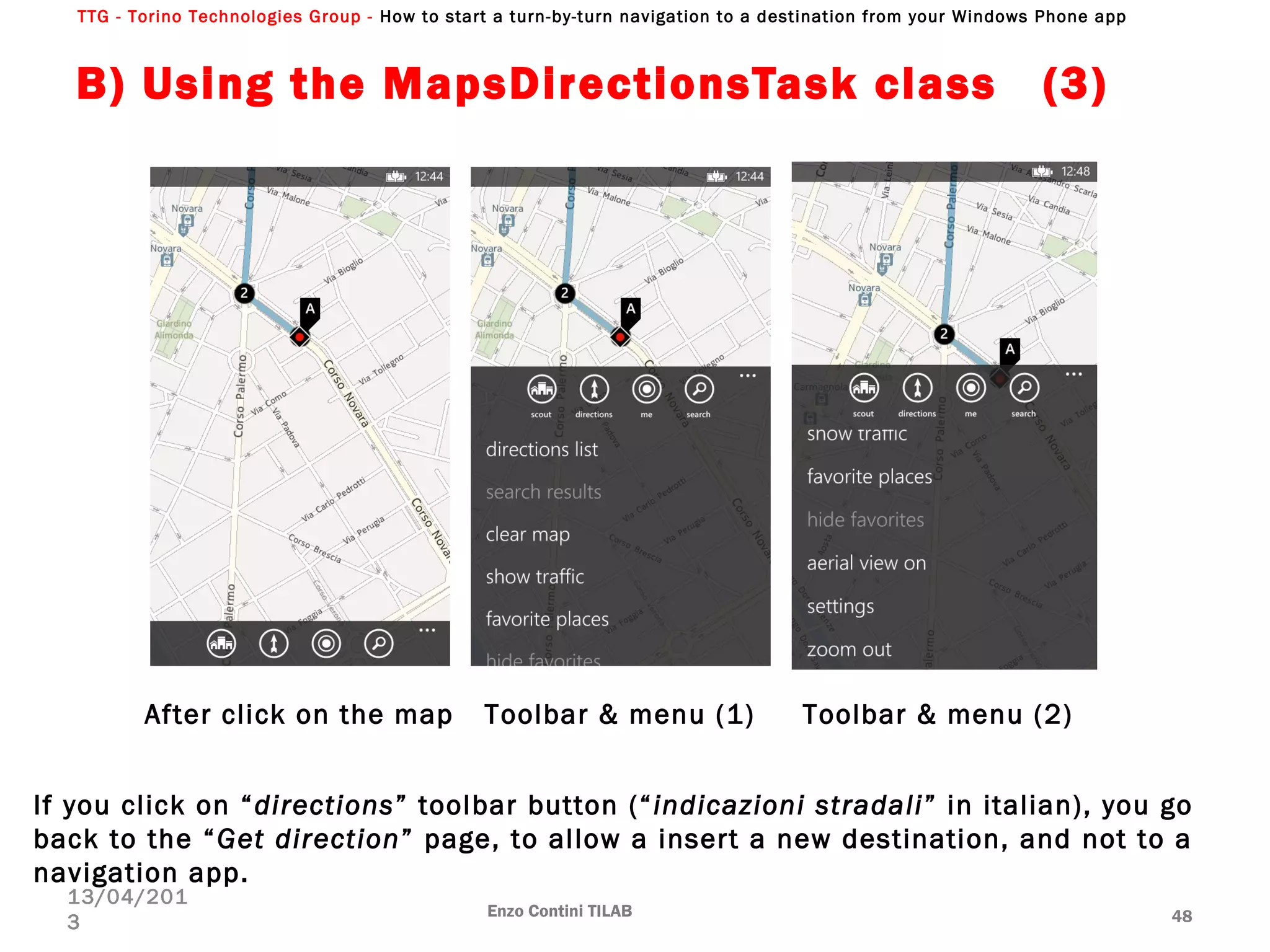
B) Using the MapsDirectionsTask class (3)
Enzo Contini TILAB 48
13/04/201
3
After click on the map Toolbar & menu (1) Toolbar & menu (2)
If you click on “directions” toolbar button (“indicazioni stradali” in italian), you go
back to the “Get direction” page, to allow a insert a new destination, and not to a
navigation app.
TTG - Torino Technologies Group - How to start a turn-by-turn navigation to a destination from your Windows Phone app
B) Using the MapsDirectionsTask class (4)
Enzo Contini TILAB 49
13/04/201
3
But if you use a real phone and not the emulator, you can see, in the “Direction
found“ page, a “by car“/”by foot” toolbar button (“In macchina“/”a piedi” in italian)
[depending if it was chosen the car or the pedestrian view], that allows the user to
launch, just from here, an external navigation app toward the chosen destination.
TTG - Torino Technologies Group - How to start a turn-by-turn navigation to a destination from your Windows Phone app
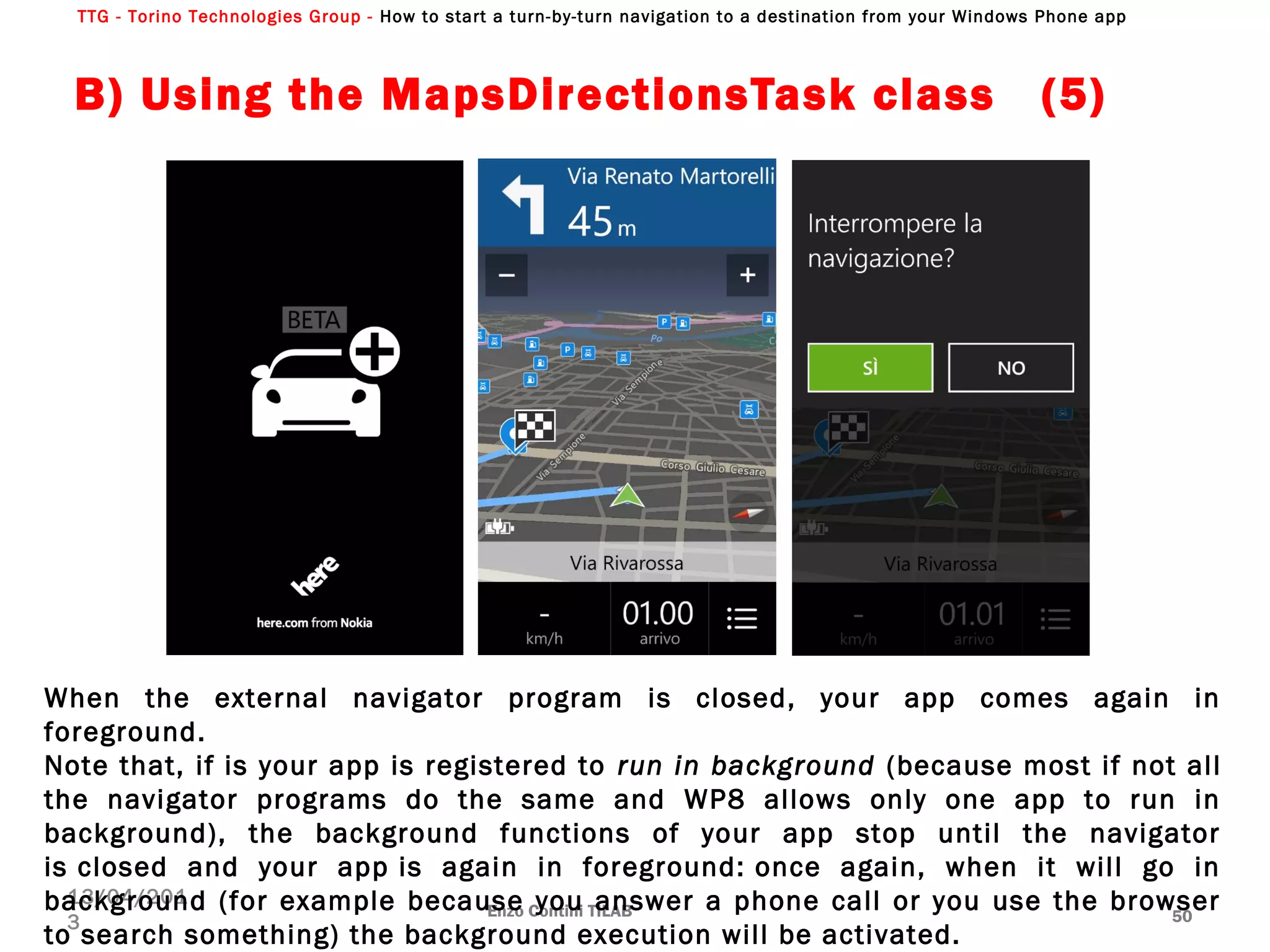
B) Using the MapsDirectionsTask class (5)
Enzo Contini TILAB 50
13/04/201
3
When the external navigator program is closed, your app comes again in
foreground.
Note that, if is your app is registered to run in background (because most if not all
the navigator programs do the same and WP8 allows only one app to run in
background), the background functions of your app stop until the navigator
is closed and your app is again in foreground: once again, when it will go in
background (for example because you answer a phone call or you use the browser
to search something) the background execution will be activated.
TTG - Torino Technologies Group - How to start a turn-by-turn navigation to a destination from your Windows Phone app
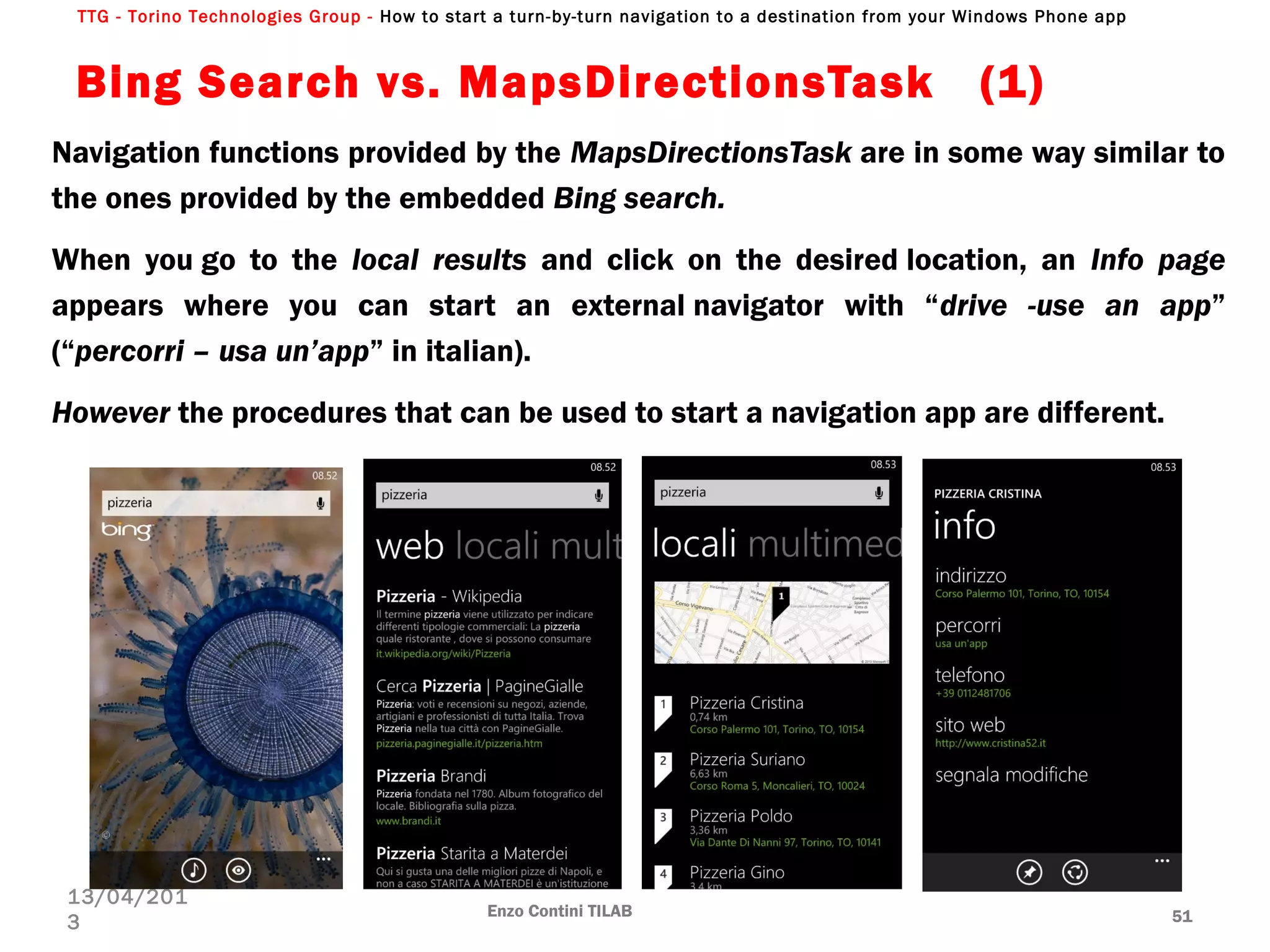
Bing Search vs. MapsDirectionsTask  (1)
Navigation functions provided by the MapsDirectionsTask are in some way similar to
the ones provided by the embedded Bing search.
When you go to the local results and click on the desired location, an Info page
appears where you can start an external navigator with “drive -use an app”
(“percorri – usa un’app” in italian).
However the procedures that can be used to start a navigation app are different.
Enzo Contini TILAB 51
13/04/201
3
TTG - Torino Technologies Group - How to start a turn-by-turn navigation to a destination from your Windows Phone app
Bing Search vs. MapsDirectionsTask  (2)
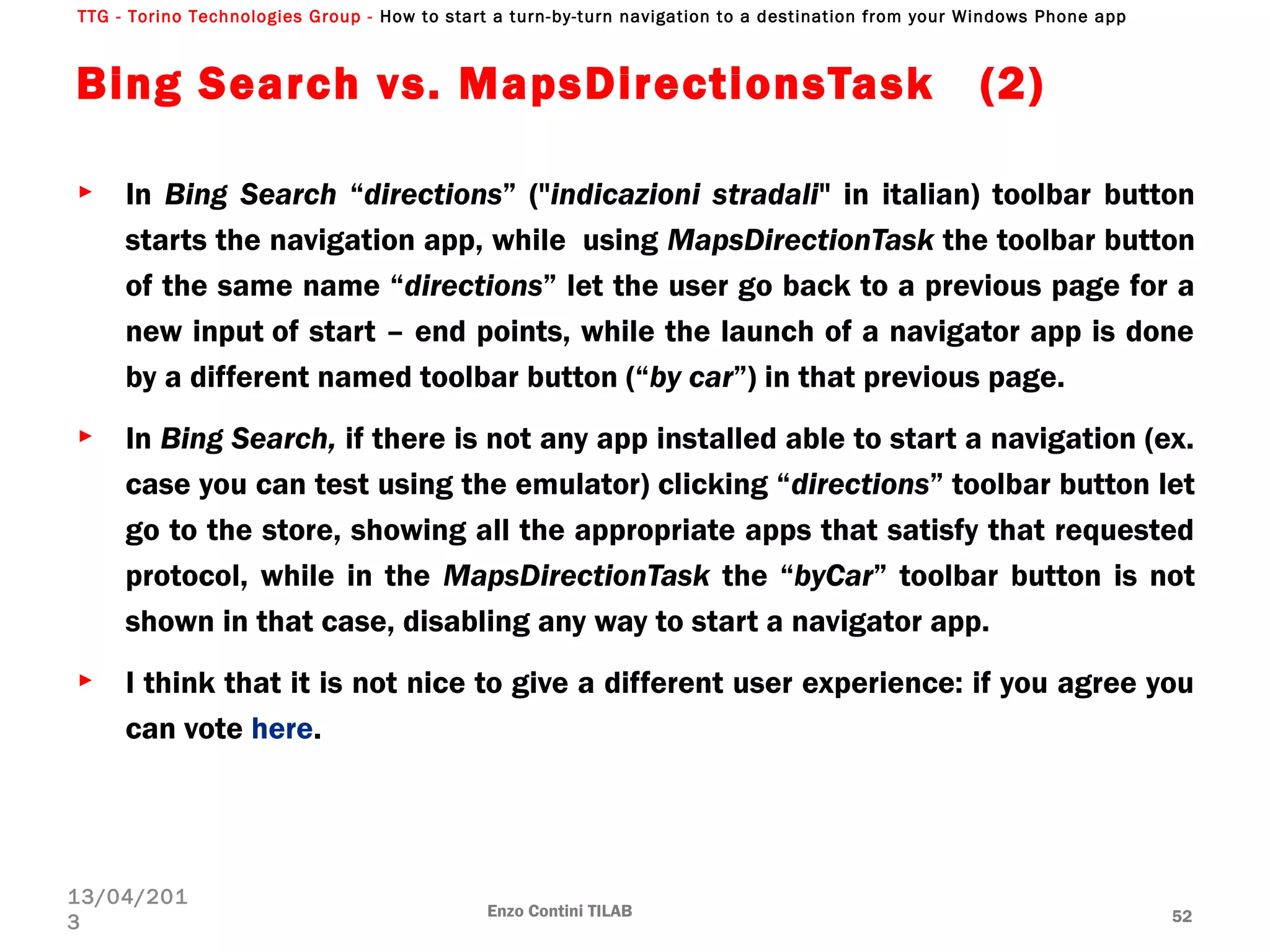
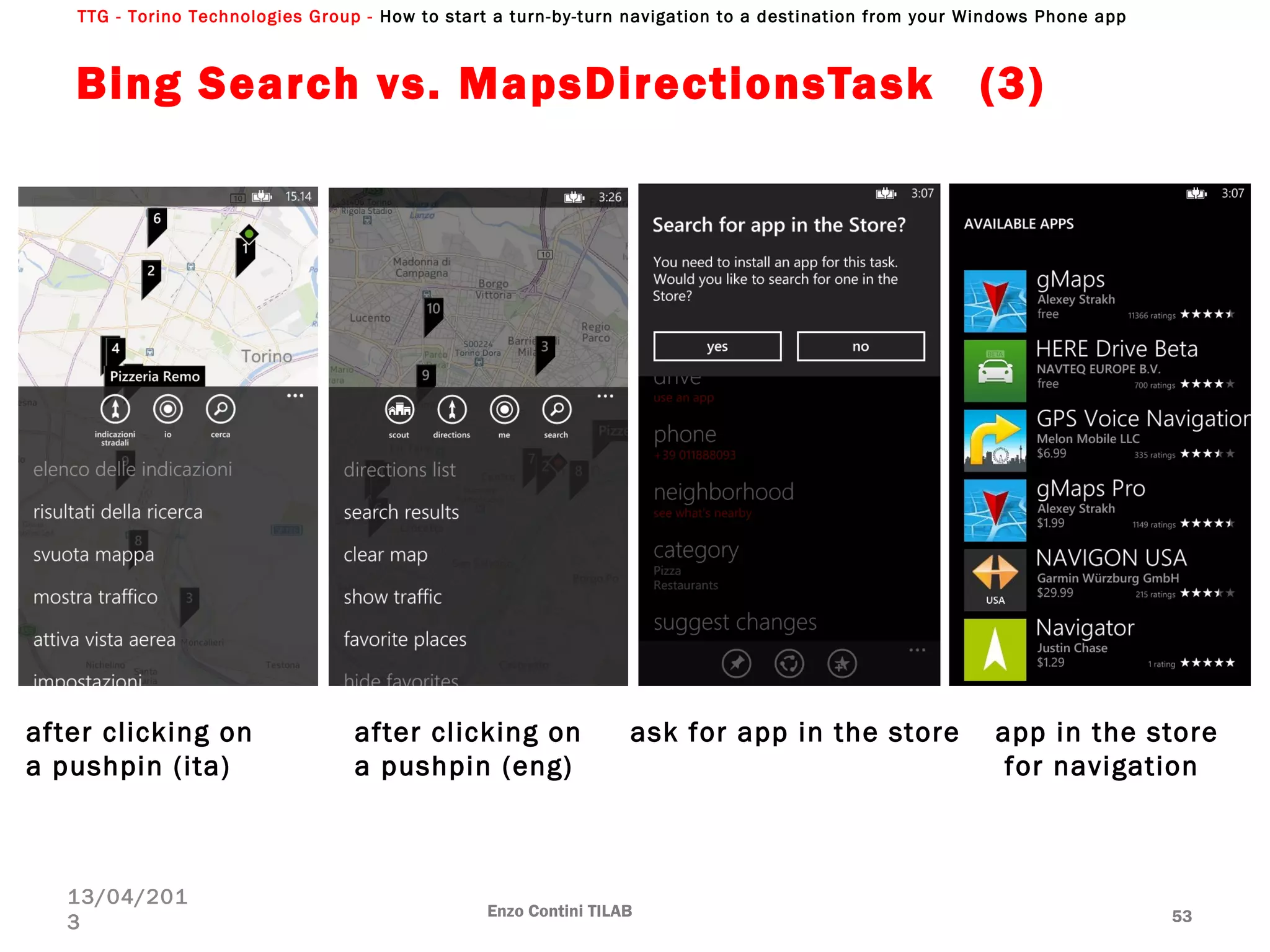
► In Bing Search “directions” ("indicazioni stradali" in italian) toolbar button
starts the navigation app, while  using MapsDirectionTask the toolbar button
of the same name “directions” let the user go back to a previous page for a
new input of start – end points, while the launch of a navigator app is done
by a different named toolbar button (“by car”) in that previous page.
► In Bing Search, if there is not any app installed able to start a navigation (ex.
case you can test using the emulator) clicking “directions” toolbar button let
go to the store, showing all the appropriate apps that satisfy that requested
protocol, while in the MapsDirectionTask the “byCar” toolbar button is not
shown in that case, disabling any way to start a navigator app.
► I think that it is not nice to give a different user experience: if you agree you
can vote here.
Enzo Contini TILAB 52
13/04/201
3
TTG - Torino Technologies Group - How to start a turn-by-turn navigation to a destination from your Windows Phone app
Bing Search vs. MapsDirectionsTask  (3)
Enzo Contini TILAB 53
13/04/201
3
after clicking on
a pushpin (ita)
after clicking on
a pushpin (eng)
ask for app in the store app in the store
for navigation
TTG - Torino Technologies Group - How to start a turn-by-turn navigation to a destination from your Windows Phone app
C) Use a Launcher with a specific navigation
URI (1)
► Sometime you need to start a professional navigator as soon as possible and
the method described before can be useful only when probably it’s enough
for the user to have the route shown as a layer on the map and only
sometimes he will need to ask for a turn-by-turn navigation.
► So if you want to directly launch an other app that offer a navigation service,
an app-to-app communication can be used: a navigator app can be launched
with a Launcher that uses a specific navigation Uri.
► If you knows the protocol name and the way possible parameters are passed, you
can directly call a specific store app. For example, Nokia Maps can be launched
as follows (at least now - NOKIA said that  the “explore-maps://v1.0/…” app2app custom
protocol is NOT SUPPORTED for 3rd party apps):
string launchNokiaMaps = "explore-maps://v1.0/?latlon=45.098541,7.697704&zoom=16";
     await Windows.System.Launcher.LaunchUriAsync(new Uri(launchNokiaMaps));
► Use the new “ms-*” app2app custom protocols and in particular the navigation
protocol and the ms-drive-to and ms-walk-to URI schemes (even thought they do not
appear in the Reserved file and URI associations for Windows Phone 8 (???))
Enzo Contini TILAB 54
13/04/201
3
 
TTG - Torino Technologies Group - How to start a turn-by-turn navigation to a destination from your Windows Phone app
C) Use a Launcher with a specific navigation
URI (2)
► A code example that implements this kind of solution can be found
among the MSDN samples: Navigation URI scheme sample.
► It shows how you can use the navigation protocol both to write an app that
requests driving/walking directions, and to write an other app that provides
driving/walking directions.
Enzo Contini TILAB 55
13/04/201
3
TTG - Torino Technologies Group - How to start a turn-by-turn navigation to a destination from your Windows Phone app
Enzo Contini TILAB 56
13/04/201
3
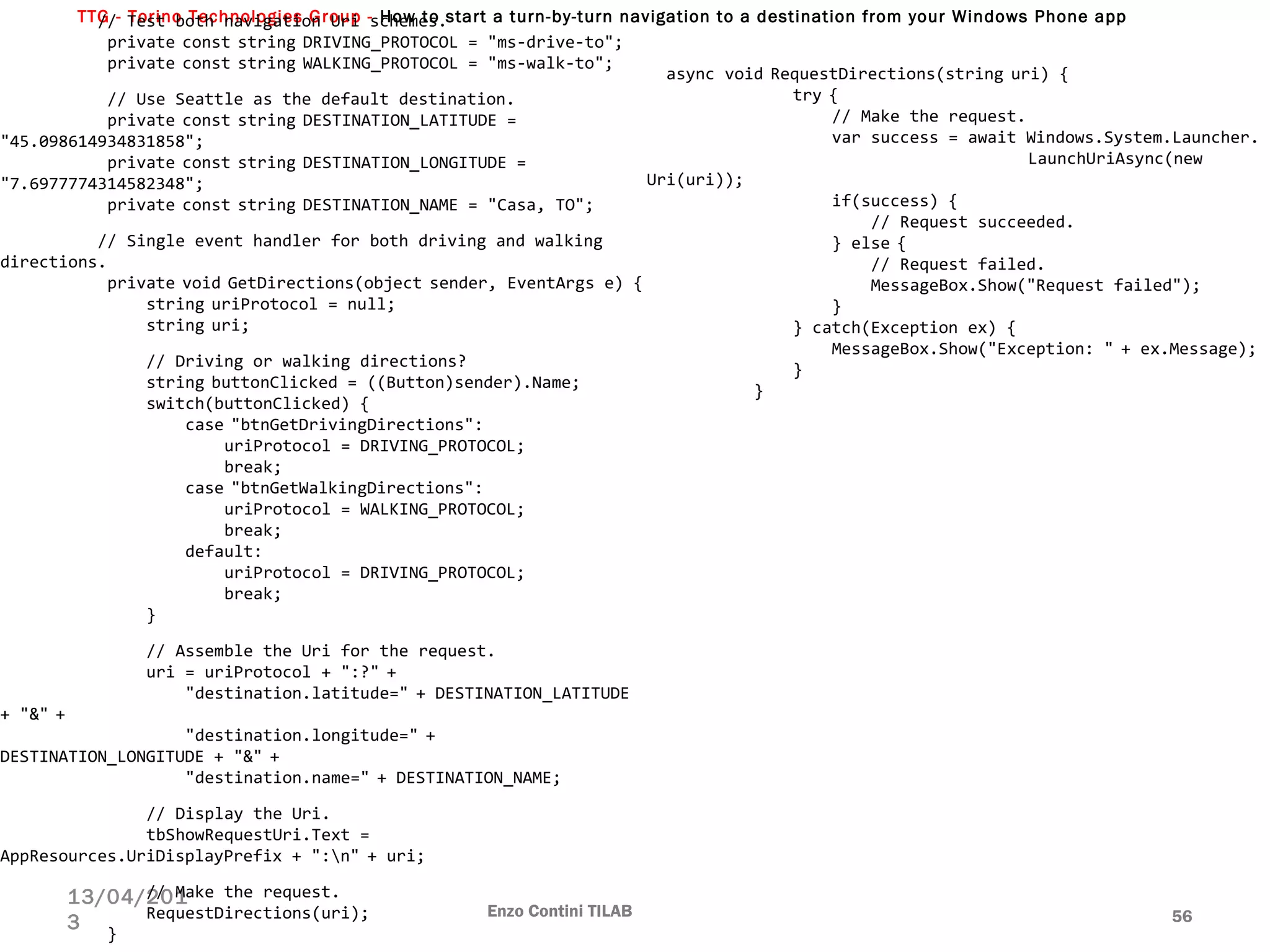
          // Test both navigation Uri schemes.
           private const string DRIVING_PROTOCOL = "ms-drive-to";
           private const string WALKING_PROTOCOL = "ms-walk-to";
 
           // Use Seattle as the default destination.
           private const string DESTINATION_LATITUDE = 
"45.098614934831858";
           private const string DESTINATION_LONGITUDE = 
"7.6977774314582348";
           private const string DESTINATION_NAME = "Casa, TO";
 
          // Single event handler for both driving and walking 
directions.
           private void GetDirections(object sender, EventArgs e) {
               string uriProtocol = null;
               string uri;
 
               // Driving or walking directions?
               string buttonClicked = ((Button)sender).Name;
               switch(buttonClicked) {
                   case "btnGetDrivingDirections":
                       uriProtocol = DRIVING_PROTOCOL;
                       break;
                   case "btnGetWalkingDirections":
                       uriProtocol = WALKING_PROTOCOL;
                       break;
                   default:
                       uriProtocol = DRIVING_PROTOCOL;
                       break;
               }
 
               // Assemble the Uri for the request.
               uri = uriProtocol + ":?" +
                   "destination.latitude=" + DESTINATION_LATITUDE 
+ "&" +
                   "destination.longitude=" + 
DESTINATION_LONGITUDE + "&" +
                   "destination.name=" + DESTINATION_NAME;
 
               // Display the Uri.
               tbShowRequestUri.Text = 
AppResources.UriDisplayPrefix + ":n" + uri;
 
               // Make the request.
               RequestDirections(uri);
           }
  async void RequestDirections(string uri) {
               try {
                   // Make the request.
                   var success = await Windows.System.Launcher.
LaunchUriAsync(new 
Uri(uri));
                   if(success) {
                       // Request succeeded.
                   } else {
                       // Request failed.
                       MessageBox.Show("Request failed");
                   }
               } catch(Exception ex) {
                   MessageBox.Show("Exception: " + ex.Message);
               }
           }
TTG - Torino Technologies Group - How to start a turn-by-turn navigation to a destination from your Windows Phone app
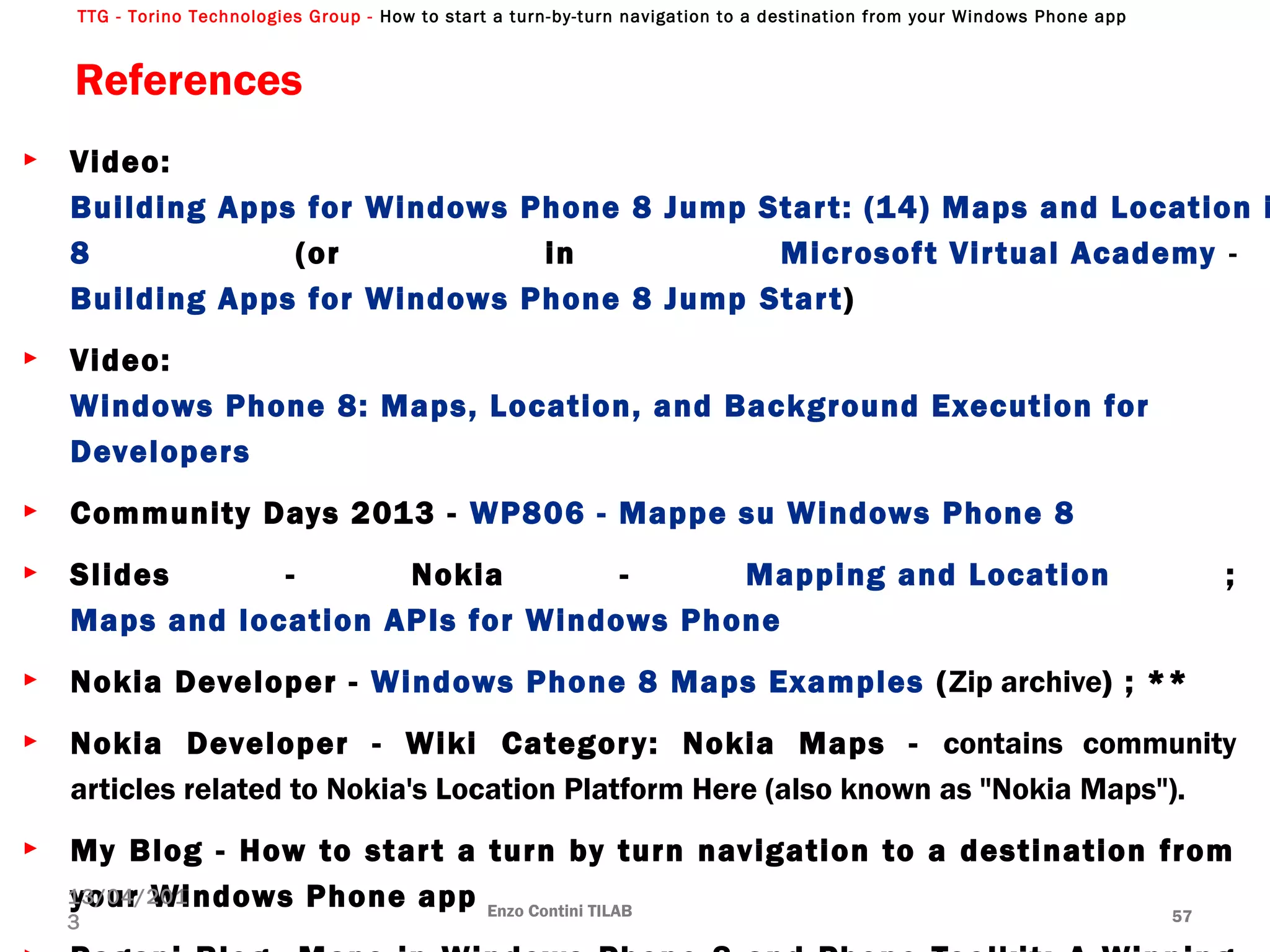
References
► Video:
Building Apps for Windows Phone 8 Jump Start: (14) Maps and Location i
8 (or in Microsoft Virtual Academy -
Building Apps for Windows Phone 8 Jump Start)
► Video:
Windows Phone 8: Maps, Location, and Background Execution for 
Developers
► Community Days 2013 - WP806 - Mappe su Windows Phone 8
► Slides - Nokia - Mapping and Location ;
Maps and location APIs for Windows Phone
► Nokia Developer - Windows Phone 8 Maps Examples (Zip archive) ; **
► Nokia Developer - Wiki Category: Nokia Maps - contains community
articles related to Nokia's Location Platform Here (also known as "Nokia Maps").
► My Blog - How to start a turn by turn navigation to a destination from
your Windows Phone app Enzo Contini TILAB 57
13/04/201
3

How to start a turn-by-turn navigation to a destination from your Windows Phone app

  • 1.
    TTG - TorinoTechnologies Group - How to start a turn-by-turn navigation to a destination from your Windows Phone app How to start a turn-by-turn navigation to a destination from your Windows Phone app Enzo Contini Email: enzo.contini@telecomitalia.it Blog: http://enzocontini.wordpress.com Enzo Contini TILAB 1
  • 2.
    TTG - TorinoTechnologies Group - How to start a turn-by-turn navigation to a destination from your Windows Phone app Agenda ► Introduction to new Geolocation, Maps namespaces and new Tasks for Maps (quick review) ► How to start a turn-by-turn navigation to a destination from your Windows Phone app ► Demos ► References (online examples and presentations) ► Go back to introduction to see more in details (if there is time!) ► Q&A Enzo Contini TILAB 2
  • 3.
    TTG - TorinoTechnologies Group - How to start a turn-by-turn navigation to a destination from your Windows Phone app Location sources Enzo Contini TILAB 3 13/04/201 3 WP8 Location Services + Accuracy - Power - Speed - Indoors - Accuracy + Power + Speed - Wilderness +/- Accuracy +/- Power +/- Speed +/- Urban areas GPS Cell Towers WiFi
  • 4.
    TTG - TorinoTechnologies Group - How to start a turn-by-turn navigation to a destination from your Windows Phone app Controlling the sources the geolocation service uses ► You can’t decide if the source is GPS, WIFI or Cell Towers! ► You only can set the DesiredAccuracy property of the Geolocator object: ► PositionAccuracy.Default – to optimize for power ► PositionAccuracy.High – if you want the most accurate data available, but at the cost of increased battery usage, network bandwidth and possibly monetary charges from wireless network operators. Often this causes the GPS to be activated ► You can also set the DesiredAccuracyInMeters property to indicate to the Geolocation service the desired accuracy of any results ► However, the Geolocation service determines the best location data to provide to the application inside the user decided timeout (maximum time the Geolocator object has to obtain a position that satisfies the accuracy requirement). Enzo Contini TILAB 4 13/04/201 3 Geolocator.GetGeopositionAsync(maximumAge, timeout
  • 5.
    TTG - TorinoTechnologies Group - How to start a turn-by-turn navigation to a destination from your Windows Phone app New Windows.Devices.Geolocation namespace ► Enables app developers to easily access the computer's geographic location by using a single API Capabilities: ID_CAP_LOCATION in WMAppManifest.xml Geolocator class: current geographic location ( Windows.Devices.Geolocation Geoposition) ► User consent: you only have to get user consent if you plan to make location data available to any other service or other person. In that case, the first use of the Geolocator object to call GetGeopositionAsync must be made on the UI thread so that the consent prompt can be shown to the user. ► Convergent with Windows 8 location API with only minor differences. Most code should be reusable on both platforms. ► When in Connected Standby (when the system is powered on but the display is off: this happens in response to the user pressing the physical Power button or when the user selects Sleep from the UI), Geolocator objects can always be instantiated but the Geolocator object will not find any sensors to aggregate so calls to GetGeopositionAsync will time out after 7 seconds, PositionChanged event listeners will never be called, and StatusChanged event listeners will be called once with the NoData status. Enzo Contini TILAB 5
  • 6.
    TTG - TorinoTechnologies Group - How to start a turn-by-turn navigation to a destination from your Windows Phone app System.Device.Location.GeoCoordinateWatcher .NET Location API from Windows Phone OS 7.1 is still supported: System.Device.Location.GeoCoordinateWatcher and related classes Enzo Contini TILAB 6 13/04/201 3 private void TrackLocation_Click(object sender, RoutedEventArgs e) { if (!tracking) { geolocator = new Geolocator(); geolocator.DesiredAccuracy = PositionAccuracy.High; geolocator.MovementThreshold = 100; // The units are meters. geolocator.PositionChanged += geolocator_PositionChanged; tracking = true; TrackLocationButton.Content = "stop tracking"; } else { geolocator.PositionChanged -= geolocator_PositionChanged; geolocator = null; tracking = false; TrackLocationButton.Content = "track location"; StatusTextBlock.Text = "stopped"; } } void geolocator_PositionChanged(Geolocator sender, PositionChangedEventArgs args) { Dispatcher.BeginInvoke(() => { LatitudeTextBlock.Text = args.Position.Coordinate.Latitude.ToString("0.00"); LongitudeTextBlock.Text = args.Position.Coordinate.Longitude.ToString("0.00"); }); }
  • 7.
    TTG - TorinoTechnologies Group - How to start a turn-by-turn navigation to a destination from your Windows Phone app BE CAREFUL ► Geolocator uses System.Device.Location.GeoCoordinate: ► GeoCoordinateWatcher (as well as Maps API in general) uses Windows.Devices.Geolocation.Geocoordinate Windows.Devices.Geolocation.Geocoodinate != System.Device.Location.GeoCoordinate System.Device.Location.GeoCoordinate myCoord = new GeoCoordinate(Position.Coordinate.Latitude, Position.Coordinate.Longitude); Enzo Contini TILAB 7 13/04/201 3 WGS 84 standard Geoposition geoposition; GeoCoordinate geoCoordinate = geoposition.Coordinate.ToGeoCoordinate(); See also the Phone Toolkit Map extensions: GeocoordinateExtensions class that extends Geocoordinate class
  • 8.
    TTG - TorinoTechnologies Group - How to start a turn-by-turn navigation to a destination from your Windows Phone app ID_CAP_LOCATION capability Enzo Contini TILAB 8 13/04/201 3 If you forget, at runtime calls to location APIs throw an UnauthorizedAccessException
  • 9.
    TTG - TorinoTechnologies Group - How to start a turn-by-turn navigation to a destination from your Windows Phone app Geolocator (summary) Enzo Contini TILAB 9 13/04/201 3 Windows.Devices.Geolocation.Geolocator PositionChanged [Tracking] GetGeopositionAsync(maxAge, Timeout) [one shot] Geoposition Geocoordinate Coordinate CivicAddress = NULL Accuracy Latitude Longitude PositionSource Speed TimeStamp Cellular GPS WIFI ReportInterval MovementThreshold DesiredAccuracy DesiredAccuracyInMeters
  • 10.
    TTG - TorinoTechnologies Group - How to start a turn-by-turn navigation to a destination from your Windows Phone app Geoposition properties ► The obtained Geoposition has the following 2 properties: ► Geocoordinate Coordinate [Latitude /Longitude /Altitude , Accuracy , PositionSource , Speed , Timestamp etc…] ► CivicAddress CivicAddress [City , Country] always NULL in WP8. If you want the address you need to call ReverseGeocodeQuery maps service (from a GeoCoodinate). again … BE CAREFUL: Windows.Devices.Geolocation.Geocoodinate != System.Device.Location.GeoCoordinate therefore () GetReverseLocation(new GeoCoordinate(myCurrentGeoposition.Coordinate.Latitude, myCurrentGeoPosition.Coordinate.Longitude)); See also the Phone Toolkit Map extensions: GeocoordinateExtensions class that extends Geocoordinate class Enzo Contini TILAB 10 13/04/201 3 Geoposition geoposition; GeoCoordinate geoCoordinate = geoposition.Coordinate.ToGeoCoordinate(); WGS 84 standard
  • 11.
    TTG - TorinoTechnologies Group - How to start a turn-by-turn navigation to a destination from your Windows Phone app private async void OneShotLocation_Click(object sender, RoutedEventArgs e) { Geolocator geolocator = new Geolocator(); geolocator.DesiredAccuracyInMeters = 50; //in meters //geolocator.DesiredAccuracy = Windows.Devices.Geolocation.PositionAccuracy.High, try { Geoposition geoposition = await geolocator.GetGeopositionAsync( maximumAge: TimeSpan.FromMinutes(5), timeout: TimeSpan.FromSeconds(10) ); LatitudeTextBlock.Text = geoposition.Coordinate.Latitude.ToString("0.000"); LongitudeTextBlock.Text = geoposition.Coordinate.Longitude.ToString("0.000"); } catch (UnauthorizedAccessException) { // the app does not have the right capability or the location master switch is off StatusTextBlock.Text = "location is disabled in phone settings."; } } One shot phone’s current location (see *) Enzo Contini TILAB 11 13/04/201 3
  • 12.
    TTG - TorinoTechnologies Group - How to start a turn-by-turn navigation to a destination from your Windows Phone app Location Tracking Enzo Contini TILAB 12 13/04/201 3 private void TrackLocation_Click(object sender, RoutedEventArgs e) { if (!tracking) { geolocator = new Geolocator(); geolocator.DesiredAccuracy = PositionAccuracy.High; geolocator.MovementThreshold = 100; // The units are meters. geolocator.StatusChanged += geolocator_StatusChanged; geolocator.PositionChanged += geolocator_PositionChanged; tracking = true; } else { geolocator.PositionChanged -= geolocator_PositionChanged; geolocator.StatusChanged -= geolocator_StatusChanged; geolocator = null; tracking = false; } } void geolocator_PositionChanged(Geolocator sender, PositionChangedEventArgs args) { Dispatcher.BeginInvoke(() => { LatitudeTextBlock.Text = args.Position.Coordinate.Latitude.ToString("0.000"); LongitudeTextBlock.Text = args.Position.Coordinate.Longitude.ToString("0.000"); }); }
  • 13.
    TTG - TorinoTechnologies Group - How to start a turn-by-turn navigation to a destination from your Windows Phone app Enable location tracking in the background (1) ► Normally, when your user navigates away from your app, it is made dormant and all activity – including location tracking – is suspended ► In Windows Phone 8, a location-tracking app can continue to run in the background after the user navigates away, as long as the app continues to actively track location ► This feature enables scenarios such as an app that provides turn-by-turn directions or a run tracker ► Continuously tracking the user’s location drains the user’s battery more and should only be used for apps that require it. Enzo Contini TILAB 13 13/04/201 3
  • 14.
    TTG - TorinoTechnologies Group - How to start a turn-by-turn navigation to a destination from your Windows Phone app Enable location tracking in the background (2) 1. Edit WMAppManifest.xml using the XML Text Editor Enzo Contini TILAB 14 13/04/201 3
  • 15.
    TTG - TorinoTechnologies Group - How to start a turn-by-turn navigation to a destination from your Windows Phone app 2. Register event handler for RunningInBackground event in App.xaml <Application.ApplicationLifetimeObjects> <!--Required object that handles lifetime events for the application--> <shell:PhoneApplicationService Launching="Application_Launching" Closing="Application_Closing“ Activated="Application_Activated" Deactivated="Application_Deactivated“ RunningInBackground="Application_RunningInBackground"/> </Application.ApplicationLifetimeObjects> Enable location tracking in the background (3) Enzo Contini TILAB 15 13/04/201 3
  • 16.
    TTG - TorinoTechnologies Group - How to start a turn-by-turn navigation to a destination from your Windows Phone app // Static variables global to application to support tracking public static Geolocator Geolocator { get; set; } public static bool RunningInBackground { get; set; } // Code to execute when the application is activated (brought to foreground) private void Application_Activated(object sender, ActivatedEventArgs e) { RunningInBackground = false; } // Code to execute when the application is deactivated and is tracking location private void Application_RunningInBackground(object sender, RunningInBackgroundEventArgs e) { RunningInBackground = true; // Suspend all unnecessary processing such as UI updates } Enable location tracking in the background (4) Enzo Contini TILAB 16 13/04/201 3 3. Implement RunningInBackground event handler in App.cs
  • 17.
    TTG - TorinoTechnologies Group - How to start a turn-by-turn navigation to a destination from your Windows Phone app Enzo Contini TILAB 17 13/04/201 3 void geolocator_PositionChanged(Geolocator sender, PositionChangedEventArgs args) { if (!App.RunningInBackground) { Dispatcher.BeginInvoke(() => { LatitudeTextBlock.Text = args.Position.Coordinate.Latitude.ToString("0.000"); LongitudeTextBlock.Text = args.Position.Coordinate.Longitude.ToString("0.000"); }); } else {//DEMO Microsoft.Phone.Shell.ShellToast toast = new Microsoft.Phone.Shell.ShellToast(); toast.Content = args.Position.Coordinate.Latitude.ToString("0.000"); toast.Title = "Location: "; toast.NavigationUri = new Uri("/Page2.xaml", UriKind.Relative); toast.Show(); } } Enable location tracking in the background (5) Do not update UI when running in the background. Then, for example, if running in background show toast or write in Start live tile.
  • 18.
    TTG - TorinoTechnologies Group - How to start a turn-by-turn navigation to a destination from your Windows Phone app Location on emulator Enzo Contini TILAB 18 13/04/201 3 ► Windows Phone Emulator comes with Location simulator: useful especially when you need tracking capabilities. You can also record data and then run again the same sequence. NOTE - How to take a screenshot with Windows Phone 8
  • 19.
    TTG - TorinoTechnologies Group - How to start a turn-by-turn navigation to a destination from your Windows Phone app New Maps namespaces ► Microsoft.Phone.Maps : contains core classes of the map control Capabilities: ID_CAP_MAP in WMAppManifest.xml ► Microsoft.Phone.Maps.Controls: contains the most commonly used public classes of the map control for Windows Phone [Map, MapRoute, MapLayer, GeoCoordinateCollection, etc…] ► Microsoft.Phone.Maps.Services : contains classes that provide location services to map control ► GeocodeQuery: from a text [address/building name] to potential geocoordinates and other geolocation data (IList<MapLocation>) ► ReverseGeocodeQuery: given a location, what do I find there? From a location ( System.Device.Location.GeoCoordinate) to potential geolocation data (IList< MapLocation>) as address ► RouteQuery : used to calculate the route between any two or more geographical locations. The query result could be used to draw a route on the map and/or to calculate the distance from source to destination. Enzo Contini TILAB 19 13/04/201 3
  • 20.
    TTG - TorinoTechnologies Group - How to start a turn-by-turn navigation to a destination from your Windows Phone app ID_CAP_MAP Capability Enzo Contini TILAB 20 13/04/201 3 If you forget, always at runtime the page throw ‘XAML Parse exception occurred - System.Windows.Markup.XamlParseException‘
  • 21.
    TTG - TorinoTechnologies Group - How to start a turn-by-turn navigation to a destination from your Windows Phone app Map Control () ► In XAML ► In code ► By default, map displays at zoom level 1 (world view) and centered at Lat/Long 0,0; ► Center and ZoomLevel properties to change this, in XAML or in code. Enzo Contini TILAB 21 13/04/201 3 <Grid x:Name="ContentPanel" Grid.Row="1" Margin="12,0,12,0"> <maps:Map x:Name=“MyMap"/> </Grid> private void CreateMap() { Map MyMap = new Map(); ContentPanel.Children.Add(MyMap); } //Set the Map center by using Center property MyMap.Center = new GeoCoordinate(45.09854, 17.33315); //Set the map zoom by using ZoomLevel property MyMap.ZoomLevel = 17; <maps:Map x:Name=“MyMap" Center="45.09874,17.32691" ZoomLevel="17" Heading="45" Pitch="25" CartographicMode="Road" ColorMode="Dark" PedestrianFeaturesEnabled="True" LandmarksEnabled="True" />
  • 22.
    TTG - TorinoTechnologies Group - How to start a turn-by-turn navigation to a destination from your Windows Phone app Map Control: map views (1) ► A new map view is defined any time the position of the map is changed as a result of panning, zooming, rotating or tilting ► You can use one overload of the SetView method to define a map view using one or more of the following parameters: ► Center: A GeoCoordiante object defining the center of the map after setting the view. ► ZoomLevel: zoom level, between 1 and 20 ► Heading: specifies the directional heading that is pointing “up” on the map in geometric degrees between 0 and 360 ► Pitch: specifies the degree to which the map is tilted as a value between 0 and 180 ► BoundingRectangle: a LocationRectangle object that contains the Map control ► AnimationKind: sets the kind of animation you want to see (None, Linear or Parabolic) when the view changes Enzo Contini TILAB 22 13/04/201 3
  • 23.
    TTG - TorinoTechnologies Group - How to start a turn-by-turn navigation to a destination from your Windows Phone app Map Control: map views (2) Use of the BoundingRectangle parameter to show a map that contains all the interested GeoCoordinates: Enzo Contini TILAB 23 13/04/201 3
  • 24.
    TTG - TorinoTechnologies Group - How to start a turn-by-turn navigation to a destination from your Windows Phone app Map Control: cartographic modes ► CartographicMode property allows to set the cartographic mode of the map Enzo Contini TILAB 24 13/04/201 3 Road (default) Aerial Hybrid Terrain
  • 25.
    TTG - TorinoTechnologies Group - How to start a turn-by-turn navigation to a destination from your Windows Phone app Map Control: light and dark color modes ► ColorMode property allows to display the map in a light or dark color mode Enzo Contini TILAB 25 13/04/201 3 Light (default) Dark
  • 26.
    TTG - TorinoTechnologies Group - How to start a turn-by-turn navigation to a destination from your Windows Phone app ► Display additional elements on your map such as 3D landmarks and pedestrian features such as public stairs. ► To display 3D landmarks (ZoomLevel>7; Pitch>25) LandmarksEnabled = true ► To display pedestrian features PedestrianFeaturesEnabled = true NOTE: landmarks are visible only when the ZoomLevel is 7 or higher, and the Pitch property is 25 or higher Map Control: pedestrian features and 3D landmarks Enzo Contini TILAB 26 13/04/201 3
  • 27.
    TTG - TorinoTechnologies Group - How to start a turn-by-turn navigation to a destination from your Windows Phone app ConvertViewportPointToGeoCoordinate Map method Enzo Contini TILAB 27 13/04/201 3 ► ConvertViewportPointToGeoCoordinate method that returns the GeoCoordinates from the specified viewport point of the map control. ConvertGeoCoordinateToViewportPoint: returns the viewport point from the specified GeoCoordinates of the map control. GeoCoordinate geoCoordinate = Map.ConvertViewportPointToGeoCoordinate (e.GetPosition(this.Map));
  • 28.
    TTG - TorinoTechnologies Group - How to start a turn-by-turn navigation to a destination from your Windows Phone app Enzo Contini TILAB 28 13/04/201 3 ► Unlike the Bing Maps API, WP8 Maps API does not have a specific PushPin object. There’s nothing ready to be used in the SDK for common scenarios like displaying a pushpin or the user’s location. ► However, you can create your own pushPins by drawing UIElements onto a MapOverlay, then add the MapOverlay to a MapLayer which you add to the Map. () ► MapOverlay object, that has two main properties: ► GeoCoordinate, with the coordinates where the element should be placed ► Content, which is a generic object property so it accepts any XAML control ► Very powerful: since the MapOverlay object has a generic Content property, you can customize the overlay elements any way you want Pushpins (1)
  • 29.
    TTG - TorinoTechnologies Group - How to start a turn-by-turn navigation to a destination from your Windows Phone app private void AddMapOverlay() { Grid MyGrid = CreatePushpin(); //Creating a MapOverlay and adding the Grid to it. MapOverlay MyOverlay = new MapOverlay(); MyOverlay.Content = MyGrid; //MyOverlay.Content = new Ellipse { Fill = new SolidColorBrush(Colors.Red), Width = 40, Height = 40 } MyOverlay.GeoCoordinate = new GeoCoordinate(7.60, -22.3); MyOverlay.PositionOrigin = new Point(0, 0.5); //Creating a MapLayer and adding the MapOverlay to it MapLayer MyLayer = new MapLayer(); MyLayer.Add(MyOverlay); MyMap.Layers.Add(MyLayer); } Enzo Contini TILAB 29 13/04/201 3 private Grid CreatePushpin() { //Creating a Grid element. Grid MyGrid = new Grid(); MyGrid.RowDefinitions.Add(new RowDefinition()); MyGrid.RowDefinitions.Add(new RowDefinition()); MyGrid.Background = new SolidColorBrush(Colors.Transparent); //Creating a Rectangle Rectangle MyRectangle = new Rectangle(); MyRectangle.Fill = new SolidColorBrush(Colors.Black); MyRectangle.Height = 20; MyRectangle.Width = 20; MyRectangle.SetValue(Grid.RowProperty, 0); MyRectangle.SetValue(Grid.ColumnProperty, 0); //Adding the Rectangle to the Grid MyGrid.Children.Add(MyRectangle); } Pushpins (2)
  • 30.
    TTG - TorinoTechnologies Group - How to start a turn-by-turn navigation to a destination from your Windows Phone app Phone Toolkit Map extensions (1) (see MapsSample in PhoneToolkitSample.WP8) UserLocationMarker and Pushpin controls ► They are both overlay elements that are placed on the map over a specific position and they offer a way to interact with them (so that, for example, the user can tap on a pushpin and do something) ► Pushpin has the same look & feel of the ones that were available in the old Bing Maps and can be used to highlights point of interests in the map ► UserLocationMarker is used to identify the position of the user and it has the same look & feel of the one used in the native app Enzo Contini TILAB 30 13/04/201 3 Pushpin UserLocationMarker
  • 31.
    TTG - TorinoTechnologies Group - How to start a turn-by-turn navigation to a destination from your Windows Phone app ► Declare in the XAML the namespace: xmlns:maptk="clr-namespace: Microsoft.Phone.Maps.Toolkit;assembly=Microsoft.Phone.Controls.Toolkit“ ► In XAML: ► Manage their position by code: Enzo Contini TILAB 31 13/04/201 3 <maps:Map x:Name="myMap"> <toolkit:MapExtensions.Children> <toolkit:UserLocationMarker x:Name="UserLocationMarker" /> <toolkit:Pushpin x:Name="MyPushpin" Content="My Position“ Tap="MyPushpin_OnTap"/> </toolkit:MapExtensions.Children> </maps:Map> UserLocationMarker marker = (UserLocationMarker)this.FindName("UserLocationMarker"); marker.GeoCoordinate = myMap.Center; Pushpin pushpin = (Pushpin)this.FindName("MyPushpin"); pushpin.GeoCoordinate = new GeoCoordinate(32.71200, 7.32600); private void MyPushpin_OnTap(object sender, GestureEventArgs e) { Pushpin pushpin = sender as Pushpin; MessageBox.Show(pushpin.Content.ToString()); } Phone Toolkit Map extensions (2) (see MapsSample in PhoneToolkitSample.WP8) UserLocationMarker and Pushpin controls
  • 32.
    TTG - TorinoTechnologies Group - How to start a turn-by-turn navigation to a destination from your Windows Phone app Phone Toolkit Map extensions: GeocoordinateExtensions class Enzo Contini TILAB 32 13/04/201 3 Geoposition geoposition; GeoCoordinate geoCoordinate = geoposition.Coordinate.ToGeoCoordinate(); Windows.Devices.Geolocation.Geocoodinate != System.Device.Location.GeoCoordinate WGS 84 standard
  • 33.
    TTG - TorinoTechnologies Group - How to start a turn-by-turn navigation to a destination from your Windows Phone app Enzo Contini TILAB 33 13/04/201 3 GeocodeQuery & ReverseGeocodeQuery (summary) GeocodeQuery GeocodeQuery_QueryCompl eted ReverseGeocodeQuery_QueryCompl eted IList<MapLocation> LocationRectangle BoundingBox GeoCoordinate Information LocationInformation SearchTerm [descriptive text] GeoCoordinate [current / new GeoCoordinate(0,0)] ReverseGeocodeQuery new GeoCoordinate(Lat, Long) MapAddress Address Description Name Altitude Latitude Longitude Speed HorizontalAccuracy VerticalAccuracy Street HouseNumber City …
  • 34.
    TTG - TorinoTechnologies Group - How to start a turn-by-turn navigation to a destination from your Windows Phone app Turning Query into a proper async operation () Enzo Contini TILAB 34 13/04/201 3
  • 35.
    TTG - TorinoTechnologies Group - How to start a turn-by-turn navigation to a destination from your Windows Phone app New maps launchers: Tasks for Maps Enzo Contini TILAB 35
  • 36.
    TTG - TorinoTechnologies Group - How to start a turn-by-turn navigation to a destination from your Windows Phone app ► MapsTask makes launching the built-in Maps application easy. It allows an application to launch the Maps application centered at the location specified with the Center property or, by default, at the user’s current location. ► If SearchTerm is set, locations matching the search term are tagged on the map. MapsTask (1) Enzo Contini TILAB 36 13/04/201 3 private void LaunchMapsTask() { MapsTask mapsTask = new MapsTask(); //NOTE: omit the Center property to use the user's current location mapsTask.Center = new GeoCoordinate(45.098541, 7.697704); mapsTask.ZoomLevel = 17; mapsTask.SearchTerm = "ospedale"; //"ospedali";//"pizzeria";//!!!!!!!!!! mapsTask.Show(); }
  • 37.
    TTG - TorinoTechnologies Group - How to start a turn-by-turn navigation to a destination from your Windows Phone app ► Too few results and too often not consistent!! ► If SearchTerm = “ospedale” it goes to the town “Ospedale”; then, if you search “ospedali”, it shows the hospitals near that previous found town and not near the centered point set in MapTask: only if you go to current position and then ask again for “ospedali”, it shows some of them … but again too few! MapsTask (2) Enzo Contini TILAB 37 13/04/201 3 «pizzeria» «ospedali» after previous search by code «ospedale» «ospedali» after asked for current position
  • 38.
    TTG - TorinoTechnologies Group - How to start a turn-by-turn navigation to a destination from your Windows Phone app MapDownloaderTask / MapUpdaterTask (1) ► These tasks launches the Maps settings application which allows the user to select a region of map data to download / checks to see if there are updates available for any previously downloaded map data Enzo Contini TILAB 38 13/04/201 3
  • 39.
    TTG - TorinoTechnologies Group - How to start a turn-by-turn navigation to a destination from your Windows Phone app ► If a map control is currently used by the phone, these tasks cannot work and a popup alert is shown. Enzo Contini TILAB 39 13/04/201 3 MapDownloaderTask / MapUpdaterTask (2) MapDownloaderTask MapUpdaterTask
  • 40.
    TTG - TorinoTechnologies Group - How to start a turn-by-turn navigation to a destination from your Windows Phone app Publish an app that uses the Map control: ApplicationId and AuthenticationToken (1) ► To run and debug an app that uses the Map control you don’t need to do nothing than use it. ► BUT, before you can publish an app that uses the Map control, you have to get an ApplicationId and AuthenticationToken from the Windows Phone Dev Center and add the values to your code, assign them to the respective properties (see here): ► after you have finished your app, begin the app submission process; ► on the Submit app page, click Map services; ► the Map services page opens; ► on the page, click Get token; ► the new ApplicationID and AuthenticationToken are displayed on the same page; ► copy the values and paste them into your code as described in the following procedure; ► rebuild your app with the new code and upload and updated copy to the Store. Enzo Contini TILAB 40 13/04/201 3
  • 41.
    TTG - TorinoTechnologies Group - How to start a turn-by-turn navigation to a destination from your Windows Phone app Publish an app that uses the Map control: ApplicationId and AuthenticationToken (2) Enzo Contini TILAB 41 13/04/201 3 ► In the xaml: ► In the code:
  • 42.
    TTG - TorinoTechnologies Group - How to start a turn-by-turn navigation to a destination from your Windows Phone app Start a turn-by-turn navigation to a destination from your Windows Phone app Sometime it is useful to insert in your WP8 app the capability to start a navigation to a destination that can be derived, for example, from the address of a someone/some place or from the geocoordinate of a point in a map. There are several ways to do that and here I’ll try to describe the following ones: ►Coding the navigation functions inside your app (RouteQuery class + GeocodeQuery class) . ►Using the MapsDirectionsTask  class. ►Launching a navigator app with a Launcher that uses a specific navigation Uri. Enzo Contini TILAB 42 13/04/201 3
  • 43.
    TTG - TorinoTechnologies Group - How to start a turn-by-turn navigation to a destination from your Windows Phone app A) Coding the navigation functions inside your app (1) ► This can be done mainly using  ► the GeocodeQuery class (to find a possible list of Geocoordinate  from a descriptive search term like an address, a building name, or any other phrase indicating a place on Earth), ► the RouteQuery class (to get all the route points to reach the destination [according to the required mode of travel and optimizations]) ► the SpeechSynthesizer class to have a text-to-speech reading of each Route  turning point [the list of maneuvers associated with each route RouteLeg of every Route.Legs, that is the property  of the legs associated with the route]. ► All the three mentioned classes are async ones, in order not to stop the user interaction with the UI; in particular, the first two comes from the new Microsoft.Phone.Maps.Services. ► A code example that implements this kind of solution can be found in the Nokia Developer site: Map with directions in Windows Phone 8 project. Enzo Contini TILAB 43 13/04/201 3
  • 44.
    TTG - TorinoTechnologies Group - How to start a turn-by-turn navigation to a destination from your Windows Phone app A) Coding the navigation functions inside your app (2) Enzo Contini TILAB 44 13/04/201 3 You can see a blu circle for the starting point, a red one for the end point and a green one for the actual Route turning point with the maneuver written below (it is the text read by the SpeechSynthesizer). However if you run that example, you will notice that the user experience is not comparable with that provided with commercial navigators and the synthesized voice, that can be acceptable for an input request, is not appropriate for giving driving instructions. Most of the work needed to have a basic navigator is already done, even thought the text-to-speech of each instruction should be based on the actual position of the user [using the Geolocator class and in particular its GetGeopositionAsync(TimeSpan, TimeSpan) method and a listener to its PositionChanged event].
  • 45.
    TTG - TorinoTechnologies Group - How to start a turn-by-turn navigation to a destination from your Windows Phone app B) Using the MapsDirectionsTask class (1) ► MapsDirectionsTask  class is very powerful and allows to launch the Maps application, specifying a starting location and/or an ending location, for which driving directions are displayed and possibly launch an external navigator app. Very often the starting position is the user’s current position: in that case the Start property must not be set because user’s current position is its default value (therefore there is no need to use the Geolocator class and its GetGeopositionAsync(TimeSpan, TimeSpan) method to find out user’s current position, because that Task already does everything for us). ► A code example that implements this kind of solution can be found among the Nokia Developer examples: LaunchDirectionsTask project (inside a Zip archive). Enzo Contini TILAB 45 13/04/201 3
  • 46.
    TTG - TorinoTechnologies Group - How to start a turn-by-turn navigation to a destination from your Windows Phone app Enzo Contini TILAB 46 13/04/201 3 MapsDirectionsTask mapsDirectionsTask = new MapsDirectionsTask(); mapsDirectionsTask.Start = new LabeledMapLocation(OriginTitle.Text, originMarker.GeoCoordinate); mapsDirectionsTask.End = new LabeledMapLocation(DestinationTitle.Text, destinationMarker.GeoCoordinate); mapsDirectionsTask.Show();  In the case that you have an originMarker MapOverlay as a start point and a destinationMarker one as a destination point:  In the case you would like do go from your position to a specific geoCoordinate, (the default value of the starting position is the phone's current position):MapsDirectionsTask mapsDirectionsTask = new MapsDirectionsTask(); mapsDirectionsTask.End = new LabeledMapLocation("Home", new GeoCoordinate(45.098614934831858, 7.6977774314582348)); mapsDirectionsTask.Show();  If you have to go to a location that you want to find by name: MapsDirectionsTask mapsDirectionsTask = new MapsDirectionsTask(); mapsDirectionsTask.End = new LabeledMapLocation("Space Needle", null); mapsDirectionsTask.Show();
  • 47.
    TTG - TorinoTechnologies Group - How to start a turn-by-turn navigation to a destination from your Windows Phone app B) Using the MapsDirectionsTask class (2) Enzo Contini TILAB 47 13/04/201 3 Request of user’s consent Getting directions Directions found (emulator) Set directions for pedestrian
  • 48.
    TTG - TorinoTechnologies Group - How to start a turn-by-turn navigation to a destination from your Windows Phone app B) Using the MapsDirectionsTask class (3) Enzo Contini TILAB 48 13/04/201 3 After click on the map Toolbar & menu (1) Toolbar & menu (2) If you click on “directions” toolbar button (“indicazioni stradali” in italian), you go back to the “Get direction” page, to allow a insert a new destination, and not to a navigation app.
  • 49.
    TTG - TorinoTechnologies Group - How to start a turn-by-turn navigation to a destination from your Windows Phone app B) Using the MapsDirectionsTask class (4) Enzo Contini TILAB 49 13/04/201 3 But if you use a real phone and not the emulator, you can see, in the “Direction found“ page, a “by car“/”by foot” toolbar button (“In macchina“/”a piedi” in italian) [depending if it was chosen the car or the pedestrian view], that allows the user to launch, just from here, an external navigation app toward the chosen destination.
  • 50.
    TTG - TorinoTechnologies Group - How to start a turn-by-turn navigation to a destination from your Windows Phone app B) Using the MapsDirectionsTask class (5) Enzo Contini TILAB 50 13/04/201 3 When the external navigator program is closed, your app comes again in foreground. Note that, if is your app is registered to run in background (because most if not all the navigator programs do the same and WP8 allows only one app to run in background), the background functions of your app stop until the navigator is closed and your app is again in foreground: once again, when it will go in background (for example because you answer a phone call or you use the browser to search something) the background execution will be activated.
  • 51.
    TTG - TorinoTechnologies Group - How to start a turn-by-turn navigation to a destination from your Windows Phone app Bing Search vs. MapsDirectionsTask  (1) Navigation functions provided by the MapsDirectionsTask are in some way similar to the ones provided by the embedded Bing search. When you go to the local results and click on the desired location, an Info page appears where you can start an external navigator with “drive -use an app” (“percorri – usa un’app” in italian). However the procedures that can be used to start a navigation app are different. Enzo Contini TILAB 51 13/04/201 3
  • 52.
    TTG - TorinoTechnologies Group - How to start a turn-by-turn navigation to a destination from your Windows Phone app Bing Search vs. MapsDirectionsTask  (2) ► In Bing Search “directions” ("indicazioni stradali" in italian) toolbar button starts the navigation app, while  using MapsDirectionTask the toolbar button of the same name “directions” let the user go back to a previous page for a new input of start – end points, while the launch of a navigator app is done by a different named toolbar button (“by car”) in that previous page. ► In Bing Search, if there is not any app installed able to start a navigation (ex. case you can test using the emulator) clicking “directions” toolbar button let go to the store, showing all the appropriate apps that satisfy that requested protocol, while in the MapsDirectionTask the “byCar” toolbar button is not shown in that case, disabling any way to start a navigator app. ► I think that it is not nice to give a different user experience: if you agree you can vote here. Enzo Contini TILAB 52 13/04/201 3
  • 53.
    TTG - TorinoTechnologies Group - How to start a turn-by-turn navigation to a destination from your Windows Phone app Bing Search vs. MapsDirectionsTask  (3) Enzo Contini TILAB 53 13/04/201 3 after clicking on a pushpin (ita) after clicking on a pushpin (eng) ask for app in the store app in the store for navigation
  • 54.
    TTG - TorinoTechnologies Group - How to start a turn-by-turn navigation to a destination from your Windows Phone app C) Use a Launcher with a specific navigation URI (1) ► Sometime you need to start a professional navigator as soon as possible and the method described before can be useful only when probably it’s enough for the user to have the route shown as a layer on the map and only sometimes he will need to ask for a turn-by-turn navigation. ► So if you want to directly launch an other app that offer a navigation service, an app-to-app communication can be used: a navigator app can be launched with a Launcher that uses a specific navigation Uri. ► If you knows the protocol name and the way possible parameters are passed, you can directly call a specific store app. For example, Nokia Maps can be launched as follows (at least now - NOKIA said that  the “explore-maps://v1.0/…” app2app custom protocol is NOT SUPPORTED for 3rd party apps): string launchNokiaMaps = "explore-maps://v1.0/?latlon=45.098541,7.697704&zoom=16";      await Windows.System.Launcher.LaunchUriAsync(new Uri(launchNokiaMaps)); ► Use the new “ms-*” app2app custom protocols and in particular the navigation protocol and the ms-drive-to and ms-walk-to URI schemes (even thought they do not appear in the Reserved file and URI associations for Windows Phone 8 (???)) Enzo Contini TILAB 54 13/04/201 3  
  • 55.
    TTG - TorinoTechnologies Group - How to start a turn-by-turn navigation to a destination from your Windows Phone app C) Use a Launcher with a specific navigation URI (2) ► A code example that implements this kind of solution can be found among the MSDN samples: Navigation URI scheme sample. ► It shows how you can use the navigation protocol both to write an app that requests driving/walking directions, and to write an other app that provides driving/walking directions. Enzo Contini TILAB 55 13/04/201 3
  • 56.
    TTG - TorinoTechnologies Group - How to start a turn-by-turn navigation to a destination from your Windows Phone app Enzo Contini TILAB 56 13/04/201 3           // Test both navigation Uri schemes.            private const string DRIVING_PROTOCOL = "ms-drive-to";            private const string WALKING_PROTOCOL = "ms-walk-to";              // Use Seattle as the default destination.            private const string DESTINATION_LATITUDE =  "45.098614934831858";            private const string DESTINATION_LONGITUDE =  "7.6977774314582348";            private const string DESTINATION_NAME = "Casa, TO";             // Single event handler for both driving and walking  directions.            private void GetDirections(object sender, EventArgs e) {                string uriProtocol = null;                string uri;                  // Driving or walking directions?                string buttonClicked = ((Button)sender).Name;                switch(buttonClicked) {                    case "btnGetDrivingDirections":                        uriProtocol = DRIVING_PROTOCOL;                        break;                    case "btnGetWalkingDirections":                        uriProtocol = WALKING_PROTOCOL;                        break;                    default:                        uriProtocol = DRIVING_PROTOCOL;                        break;                }                  // Assemble the Uri for the request.                uri = uriProtocol + ":?" +                    "destination.latitude=" + DESTINATION_LATITUDE  + "&" +                    "destination.longitude=" +  DESTINATION_LONGITUDE + "&" +                    "destination.name=" + DESTINATION_NAME;                  // Display the Uri.                tbShowRequestUri.Text =  AppResources.UriDisplayPrefix + ":n" + uri;                  // Make the request.                RequestDirections(uri);            }   async void RequestDirections(string uri) {                try {                    // Make the request.                    var success = await Windows.System.Launcher. LaunchUriAsync(new  Uri(uri));                    if(success) {                        // Request succeeded.                    } else {                        // Request failed.                        MessageBox.Show("Request failed");                    }                } catch(Exception ex) {                    MessageBox.Show("Exception: " + ex.Message);                }            }
  • 57.
    TTG - TorinoTechnologies Group - How to start a turn-by-turn navigation to a destination from your Windows Phone app References ► Video: Building Apps for Windows Phone 8 Jump Start: (14) Maps and Location i 8 (or in Microsoft Virtual Academy - Building Apps for Windows Phone 8 Jump Start) ► Video: Windows Phone 8: Maps, Location, and Background Execution for  Developers ► Community Days 2013 - WP806 - Mappe su Windows Phone 8 ► Slides - Nokia - Mapping and Location ; Maps and location APIs for Windows Phone ► Nokia Developer - Windows Phone 8 Maps Examples (Zip archive) ; ** ► Nokia Developer - Wiki Category: Nokia Maps - contains community articles related to Nokia's Location Platform Here (also known as "Nokia Maps"). ► My Blog - How to start a turn by turn navigation to a destination from your Windows Phone app Enzo Contini TILAB 57 13/04/201 3