A Firewall is to stop threats BEFORE they enter
    your computer


    •
     Windows Vista / 7 / 8 users activate it inside the
    Control Panel (Windows Firewall)
    •
     If using older Windows (like xp) – download
    Microsoft Security Essentials (free) or a free
    personal firewall from COMODO.com


Job Seeker's Defense Against Spammers – Sept 2012 – Chuck Thomas
Then you need an anti-virus product to kill the
   intruders that get thru the firewall. These products
                   have free versions:
   ●
       Microsoft Security Essentials (includes a firewall)
                              ●
                                  AVG
                             ●
                                 Avast
          A FULL anti-virus scan weekly overnight.


Job Seeker's Defense Against Spammers – Sept 2012 – Chuck Thomas
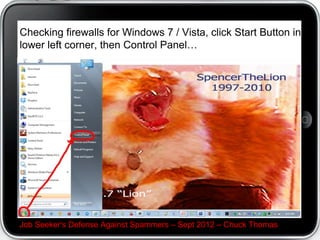
Checking firewalls for Windows 7 / Vista, click Start Button in
lower left corner, then Control Panel…


Job Seeker's Defense Against Spammers – Sept 2012 – Chuck Thomas
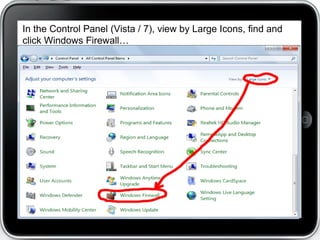
In the Control Panel (Vista / 7), view by Large Icons, find and
click Windows Firewall…
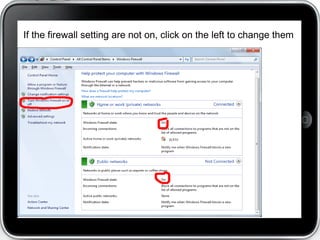
If the firewall setting are not on, click on the left to change them


    Job Seeker's Defense Against Spammers – September 7, 2012
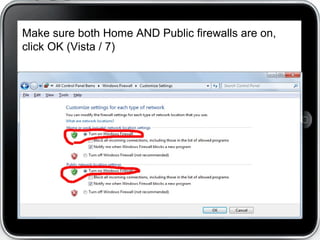
Make sure both Home AND Public firewalls are on,
click OK (Vista / 7)


   Job Seeker's Defense Against Spammers – September 7, 2012
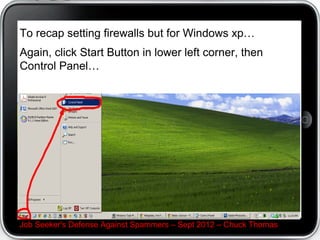
To recap setting firewalls but for Windows xp…
Again, click Start Button in lower left corner, then
Control Panel…


Job Seeker's Defense Against Spammers – Sept 2012 – Chuck Thomas
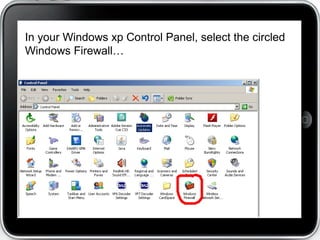
In your Windows xp Control Panel, select the circled
Windows Firewall…
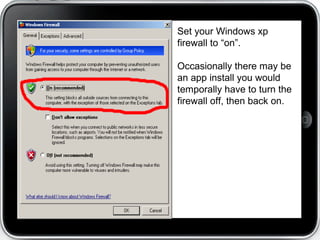
Set your Windows xp
firewall to “on”.

Occasionally there may be
an app install you would
temporally have to turn the
firewall off, then back on.
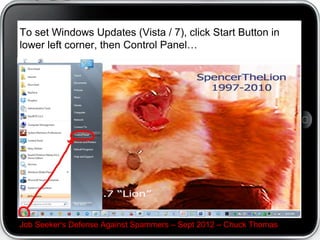
To set Windows Updates (Vista / 7), click Start Button in
lower left corner, then Control Panel…


Job Seeker's Defense Against Spammers – Sept 2012 – Chuck Thomas
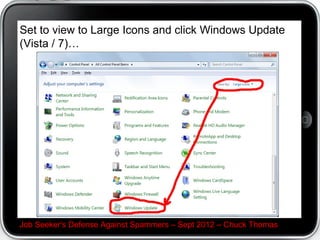
Set to view to Large Icons and click Windows Update
(Vista / 7)…


Job Seeker's Defense Against Spammers – Sept 2012 – Chuck Thomas
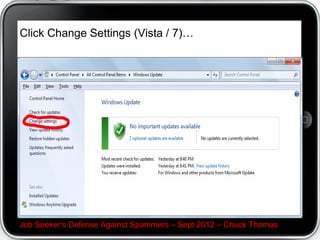
Click Change Settings (Vista / 7)…


Job Seeker's Defense Against Spammers – Sept 2012 – Chuck Thomas
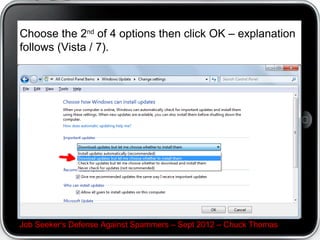
Choose the 2nd of 4 options then click OK – explanation
follows (Vista / 7).


Job Seeker's Defense Against Spammers – Sept 2012 – Chuck Thomas
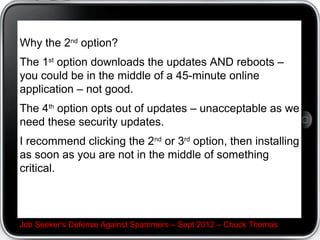
Why the 2nd option?
The 1st option downloads the updates AND reboots –
you could be in the middle of a 45-minute online
application – not good.
The 4th option opts out of updates – unacceptable as we
need these security updates.
I recommend clicking the 2nd or 3rd option, then installing
as soon as you are not in the middle of something
critical.


Job Seeker's Defense Against Spammers – Sept 2012 – Chuck Thomas
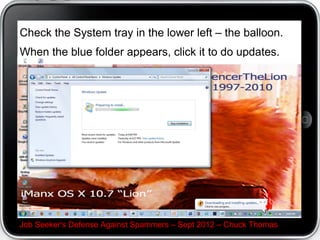
Check the System tray in the lower left – the balloon.
When the blue folder appears, click it to do updates.


Job Seeker's Defense Against Spammers – Sept 2012 – Chuck Thomas
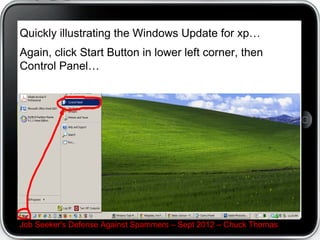
Quickly illustrating the Windows Update for xp…
Again, click Start Button in lower left corner, then
Control Panel…


Job Seeker's Defense Against Spammers – Sept 2012 – Chuck Thomas
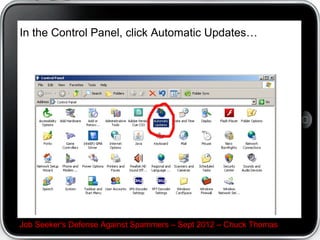
In the Control Panel, click Automatic Updates…


Job Seeker's Defense Against Spammers – Sept 2012 – Chuck Thomas
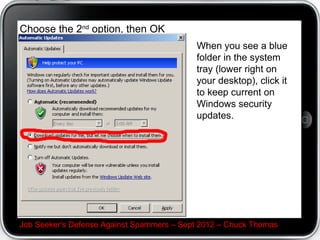
Choose the 2nd option, then OK
                                           When you see a blue
                                           folder in the system
                                           tray (lower right on
                                           your desktop), click it
                                           to keep current on
                                           Windows security
                                           updates.


Job Seeker's Defense Against Spammers – Sept 2012 – Chuck Thomas
Trivia: Microsoft typically does their updates the 2 nd
Tuesday of the month after 3pm Dallas time.
It’s known as “Patch Tuesday”


Job Seeker's Defense Against Spammers – Sept 2012 – Chuck Thomas

How to set your windows updates and firewall

  • 1.
    A Firewall isto stop threats BEFORE they enter your computer • Windows Vista / 7 / 8 users activate it inside the Control Panel (Windows Firewall) • If using older Windows (like xp) – download Microsoft Security Essentials (free) or a free personal firewall from COMODO.com Job Seeker's Defense Against Spammers – Sept 2012 – Chuck Thomas
  • 2.
    Then you needan anti-virus product to kill the intruders that get thru the firewall. These products have free versions: ● Microsoft Security Essentials (includes a firewall) ● AVG ● Avast A FULL anti-virus scan weekly overnight. Job Seeker's Defense Against Spammers – Sept 2012 – Chuck Thomas
  • 3.
    Checking firewalls forWindows 7 / Vista, click Start Button in lower left corner, then Control Panel… Job Seeker's Defense Against Spammers – Sept 2012 – Chuck Thomas
  • 4.
    In the ControlPanel (Vista / 7), view by Large Icons, find and click Windows Firewall…
  • 5.
    If the firewallsetting are not on, click on the left to change them Job Seeker's Defense Against Spammers – September 7, 2012
  • 6.
    Make sure bothHome AND Public firewalls are on, click OK (Vista / 7) Job Seeker's Defense Against Spammers – September 7, 2012
  • 7.
    To recap settingfirewalls but for Windows xp… Again, click Start Button in lower left corner, then Control Panel… Job Seeker's Defense Against Spammers – Sept 2012 – Chuck Thomas
  • 8.
    In your Windowsxp Control Panel, select the circled Windows Firewall…
  • 9.
    Set your Windowsxp firewall to “on”. Occasionally there may be an app install you would temporally have to turn the firewall off, then back on.
  • 10.
    To set WindowsUpdates (Vista / 7), click Start Button in lower left corner, then Control Panel… Job Seeker's Defense Against Spammers – Sept 2012 – Chuck Thomas
  • 11.
    Set to viewto Large Icons and click Windows Update (Vista / 7)… Job Seeker's Defense Against Spammers – Sept 2012 – Chuck Thomas
  • 12.
    Click Change Settings(Vista / 7)… Job Seeker's Defense Against Spammers – Sept 2012 – Chuck Thomas
  • 13.
    Choose the 2ndof 4 options then click OK – explanation follows (Vista / 7). Job Seeker's Defense Against Spammers – Sept 2012 – Chuck Thomas
  • 14.
    Why the 2ndoption? The 1st option downloads the updates AND reboots – you could be in the middle of a 45-minute online application – not good. The 4th option opts out of updates – unacceptable as we need these security updates. I recommend clicking the 2nd or 3rd option, then installing as soon as you are not in the middle of something critical. Job Seeker's Defense Against Spammers – Sept 2012 – Chuck Thomas
  • 15.
    Check the Systemtray in the lower left – the balloon. When the blue folder appears, click it to do updates. Job Seeker's Defense Against Spammers – Sept 2012 – Chuck Thomas
  • 16.
    Quickly illustrating theWindows Update for xp… Again, click Start Button in lower left corner, then Control Panel… Job Seeker's Defense Against Spammers – Sept 2012 – Chuck Thomas
  • 17.
    In the ControlPanel, click Automatic Updates… Job Seeker's Defense Against Spammers – Sept 2012 – Chuck Thomas
  • 18.
    Choose the 2ndoption, then OK When you see a blue folder in the system tray (lower right on your desktop), click it to keep current on Windows security updates. Job Seeker's Defense Against Spammers – Sept 2012 – Chuck Thomas
  • 19.
    Trivia: Microsoft typicallydoes their updates the 2 nd Tuesday of the month after 3pm Dallas time. It’s known as “Patch Tuesday” Job Seeker's Defense Against Spammers – Sept 2012 – Chuck Thomas

Editor's Notes