HOW TO SET PATH IN JAVA
IF YOU ARE SAVING THE JAVA SOURCE FILE INSIDE THE JDK/BIN
DIRECTORY, PATH IS NOT REQUIRED TO BE SET BECAUSE ALL THE TOOLS
WILL BE AVAILABLE IN THE CURRENT DIRECTORY.
http://www.javatraininginjaipur.online/
• But If you are having your java file outside the jdk/bin folder, it is necessary to set path of
JDK.
• There are 2 ways to set java path:
• temporary
• permanent
•
• 1) How to set Temporary Path of JDK in Windows
• To set the temporary path of JDK, you need to follow following steps:
• Open command prompt
• copy the path of jdk/bin directory
• write in command prompt: set path=copied_path
•
http://www.javatraininginjaipur.online/
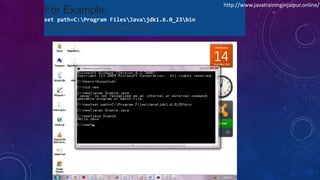
For Example:
set path=C:Program FilesJavajdk1.6.0_23bin
Let’s see it in the figure given below:
http://www.javatraininginjaipur.online/
• 2) How to set Permanent Path of JDK in Windows
• For setting the permanent path of JDK, you need to follow these steps:
• Go to MyComputer properties -> advanced tab -> environment variables -> new tab of user variable ->
write path in variable name -> write path of bin folder in variable value -> ok -> ok -> ok
For Example:
1)Go to MyComputer properties
http://www.javatraininginjaipur.online/
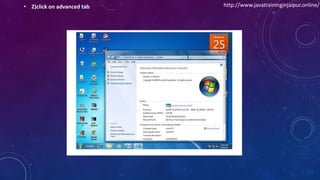
• 2)click on advanced tab http://www.javatraininginjaipur.online/
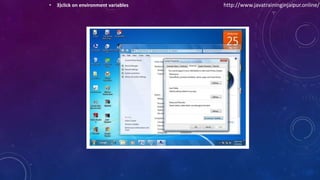
• 3)click on environment variables http://www.javatraininginjaipur.online/
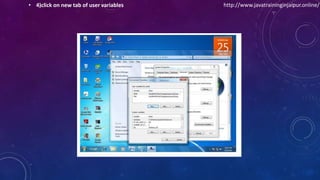
• 4)click on new tab of user variables http://www.javatraininginjaipur.online/
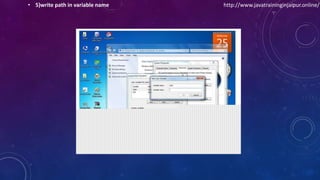
• 5)write path in variable name http://www.javatraininginjaipur.online/
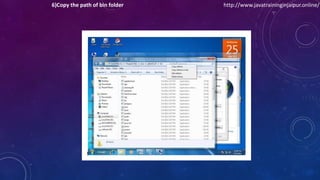
6)Copy the path of bin folder http://www.javatraininginjaipur.online/
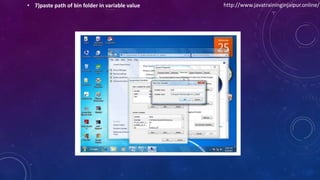
• 7)paste path of bin folder in variable value http://www.javatraininginjaipur.online/
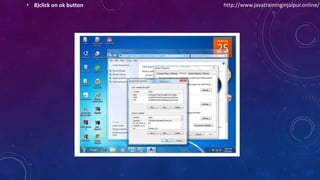
• 8)click on ok button http://www.javatraininginjaipur.online/

HOW TO SET PATH IN JAVA

  • 1.
    HOW TO SETPATH IN JAVA IF YOU ARE SAVING THE JAVA SOURCE FILE INSIDE THE JDK/BIN DIRECTORY, PATH IS NOT REQUIRED TO BE SET BECAUSE ALL THE TOOLS WILL BE AVAILABLE IN THE CURRENT DIRECTORY. http://www.javatraininginjaipur.online/
  • 2.
    • But Ifyou are having your java file outside the jdk/bin folder, it is necessary to set path of JDK. • There are 2 ways to set java path: • temporary • permanent • • 1) How to set Temporary Path of JDK in Windows • To set the temporary path of JDK, you need to follow following steps: • Open command prompt • copy the path of jdk/bin directory • write in command prompt: set path=copied_path • http://www.javatraininginjaipur.online/
  • 3.
    For Example: set path=C:ProgramFilesJavajdk1.6.0_23bin Let’s see it in the figure given below: http://www.javatraininginjaipur.online/
  • 4.
    • 2) Howto set Permanent Path of JDK in Windows • For setting the permanent path of JDK, you need to follow these steps: • Go to MyComputer properties -> advanced tab -> environment variables -> new tab of user variable -> write path in variable name -> write path of bin folder in variable value -> ok -> ok -> ok For Example: 1)Go to MyComputer properties http://www.javatraininginjaipur.online/
  • 5.
    • 2)click onadvanced tab http://www.javatraininginjaipur.online/
  • 6.
    • 3)click onenvironment variables http://www.javatraininginjaipur.online/
  • 7.
    • 4)click onnew tab of user variables http://www.javatraininginjaipur.online/
  • 8.
    • 5)write pathin variable name http://www.javatraininginjaipur.online/
  • 9.
    6)Copy the pathof bin folder http://www.javatraininginjaipur.online/
  • 10.
    • 7)paste pathof bin folder in variable value http://www.javatraininginjaipur.online/
  • 11.
    • 8)click onok button http://www.javatraininginjaipur.online/