How to Manage Your
Company Budget Using Odoo
17 Accounting
Enterprise
Introduction
Enterprise
Effective budget management is vital for a company's success. Odoo
17 streamlines financial management with tools for transactions,
invoicing, and budgeting. Set up budgets for departments, projects, or
cost centers, define goals, allocate resources, and set spending limits.
Budget management
Enterprise
One of the key advantages of using Odoo 17 Accounting is the ability to
track expenses in real time. Real-time expense tracking provides
instant financial insights, helping to prevent budget overruns.
Steps
Enterprise
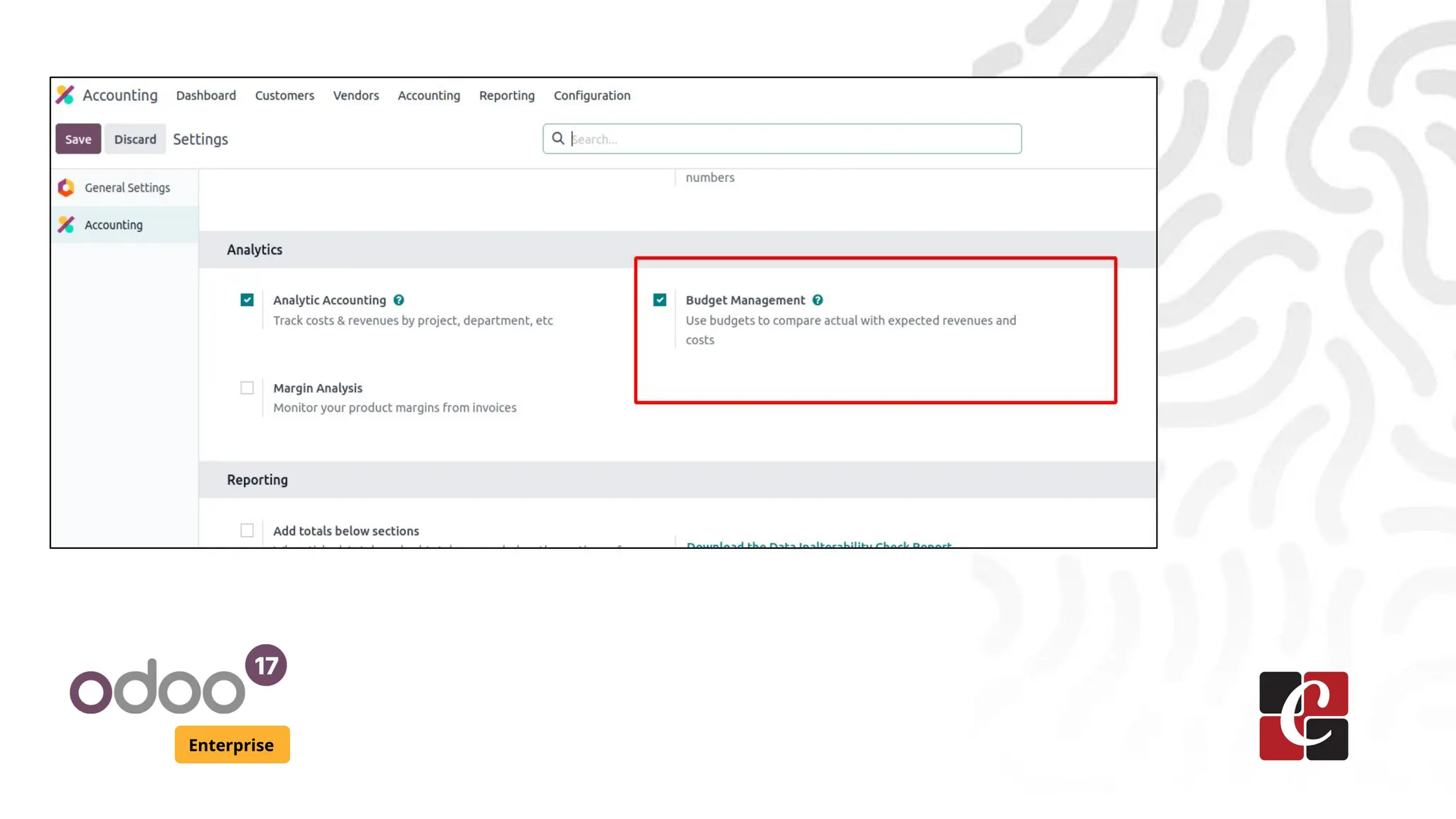
To set up budget management in Odoo, start by activating it in the
Accounting module's Configuration Settings. Navigate to the Accounting
module from the main dashboard. In the Settings menu, find and
activate the Budget Management option.
Enterprise
Budgets
Enterprise
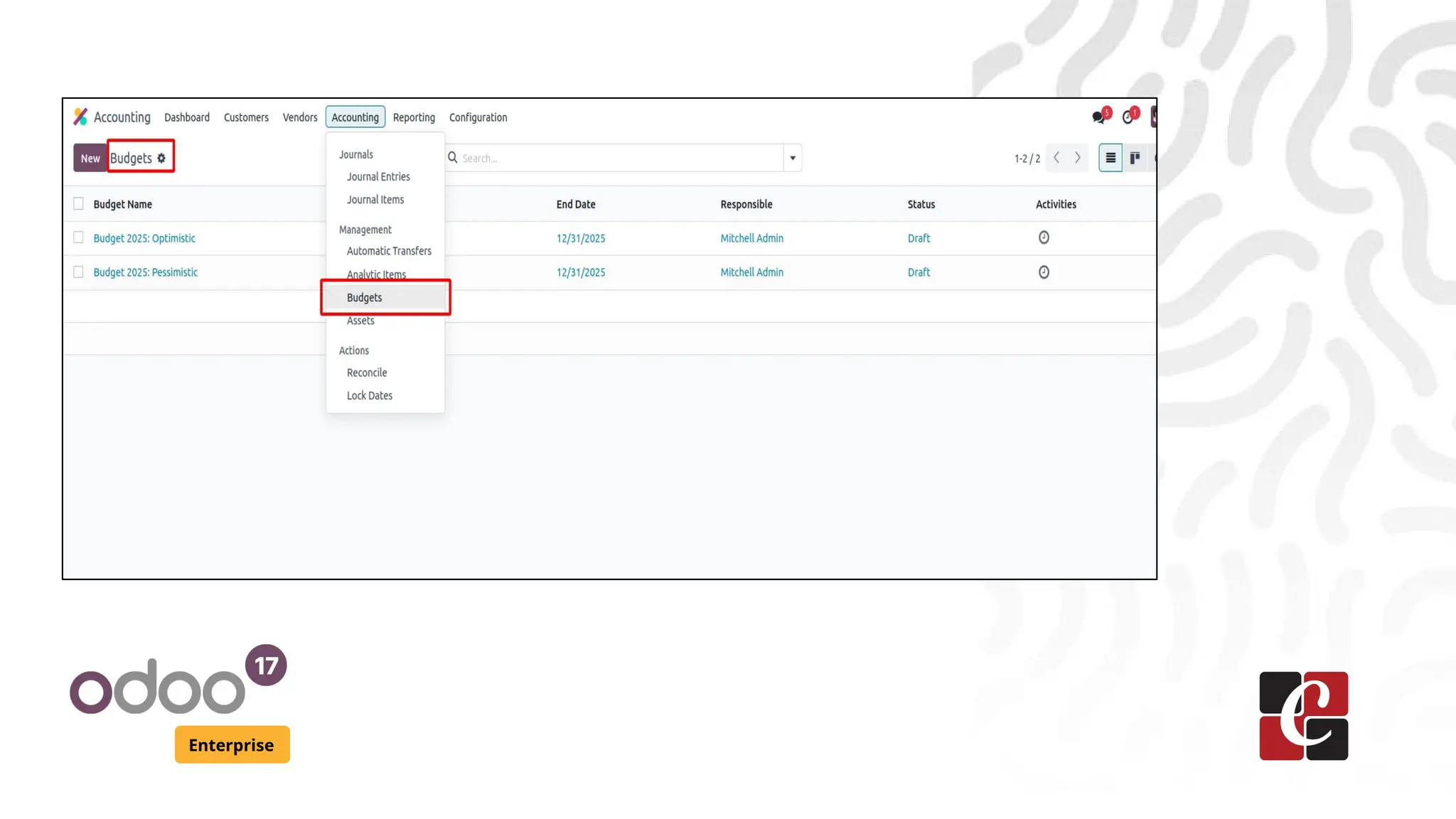
Activating the Budget Management option will automatically enable the
Analytic Accounting feature. Once activated, navigate to the Budgets
menu within the Accounting module to view the pre-configured budgets
in your database.
Enterprise
Budget Configuration
Enterprise
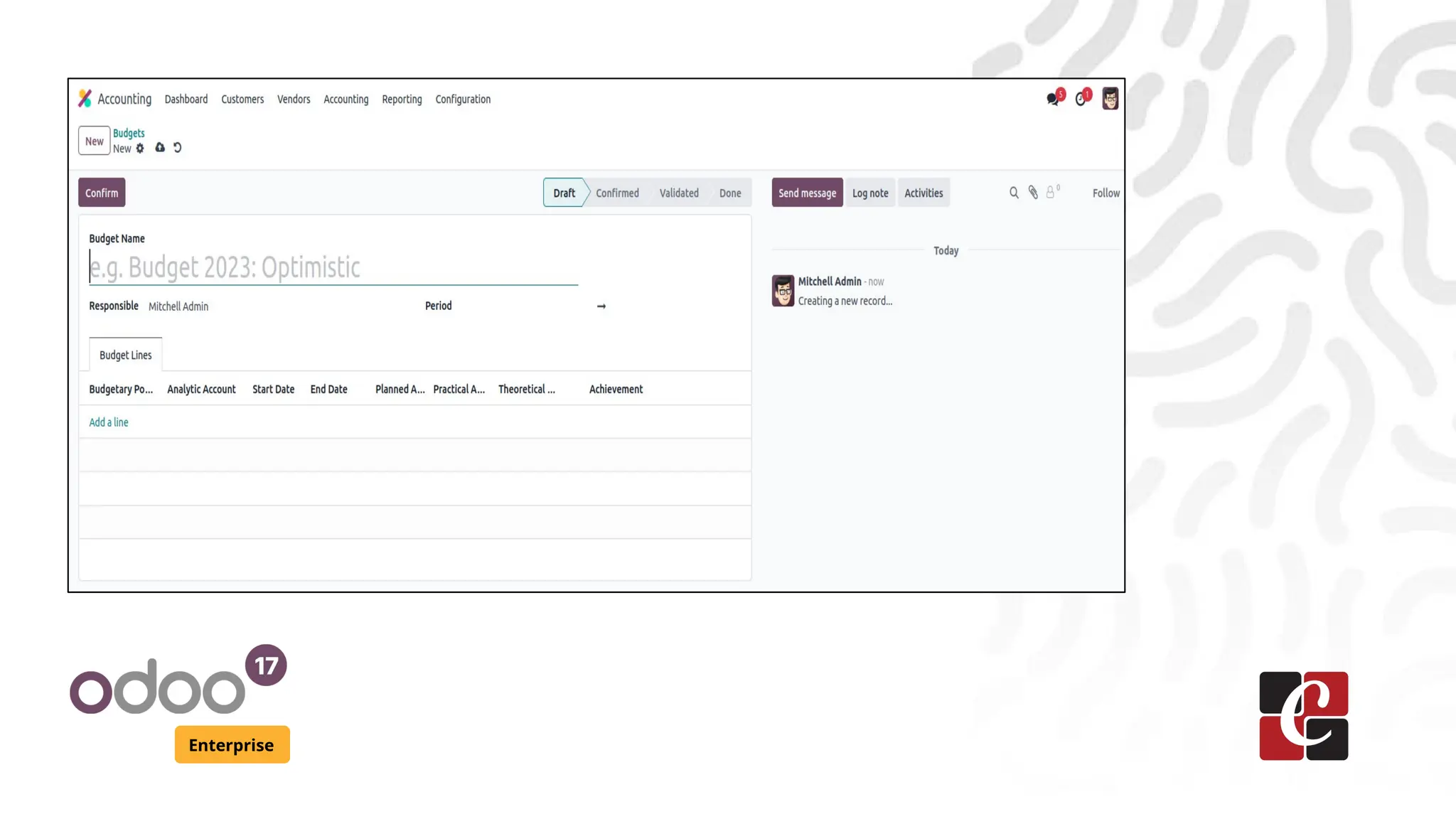
Click the "New" button to start the budget configuration process. This
will open a new wizard where you can create a budget for your
company.
Enterprise
Budget
Enterprise
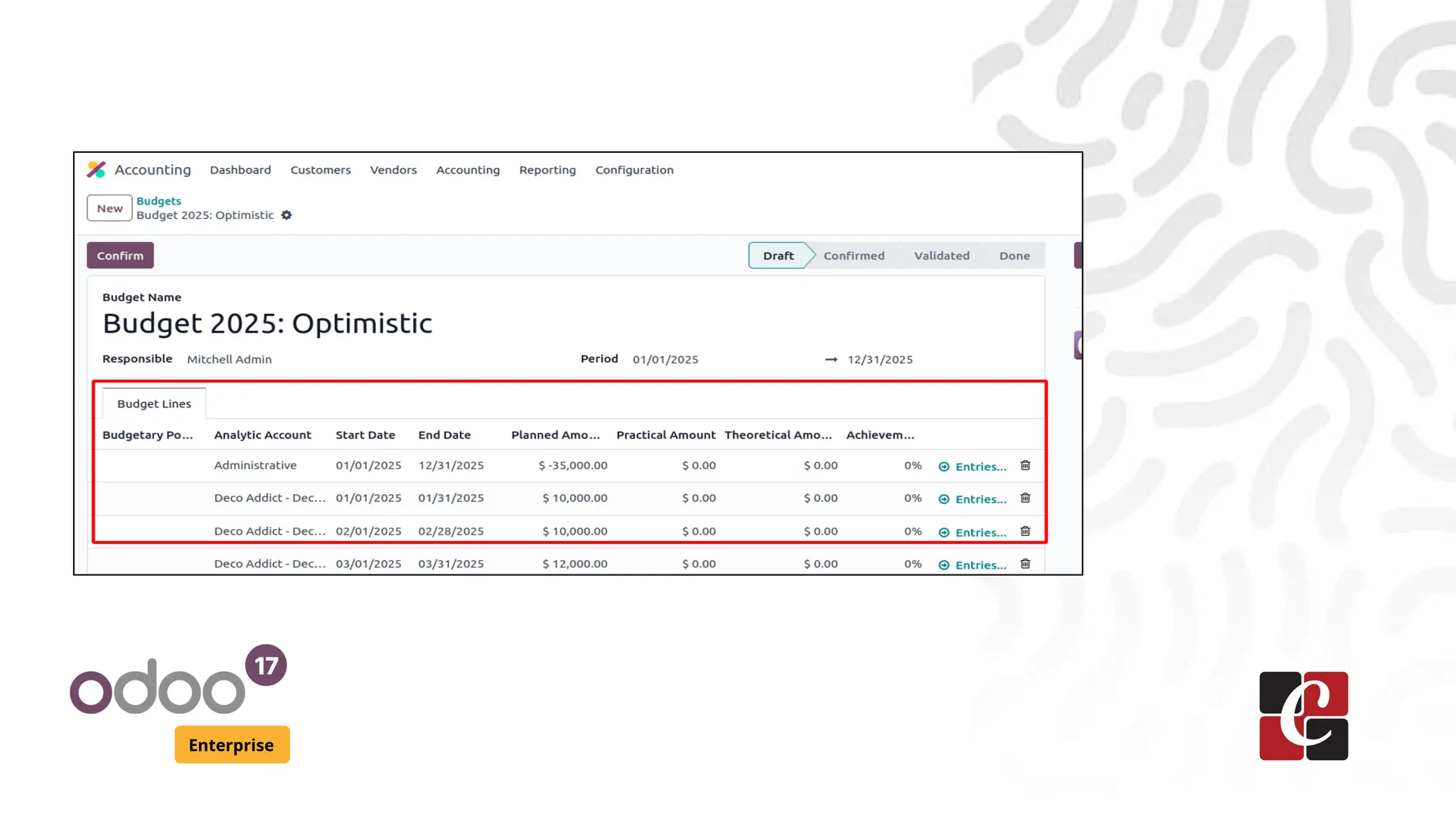
Give your budget a descriptive name to identify its purpose or related
department. Specify the period, which could be a fiscal year, project
duration, or any relevant timeframe. Enter the name of the responsible
person and the company in the respective fields.
Enterprise
Budgetary Positions
Enterprise
● Use the "Add a Line" button to add Budgetary Positions under
Budget Lines.
● These positions consist of accounts for managing expenses and
revenue. Allocate budget amounts for each account in the
Planned Amount field.
Budget management,
Enterprise
● In budget management, the Planned Amount is the allocated
budget, while the Practical Amount shows actual expenditures or
income.
● The Theoretical Amount represents projected figures. The
Achievement metric indicates if actual results meet the planned
budget.
● The system also displays Journal Entries, providing a detailed
view of related transactions for thorough financial tracking and
analysis.
Example
Enterprise
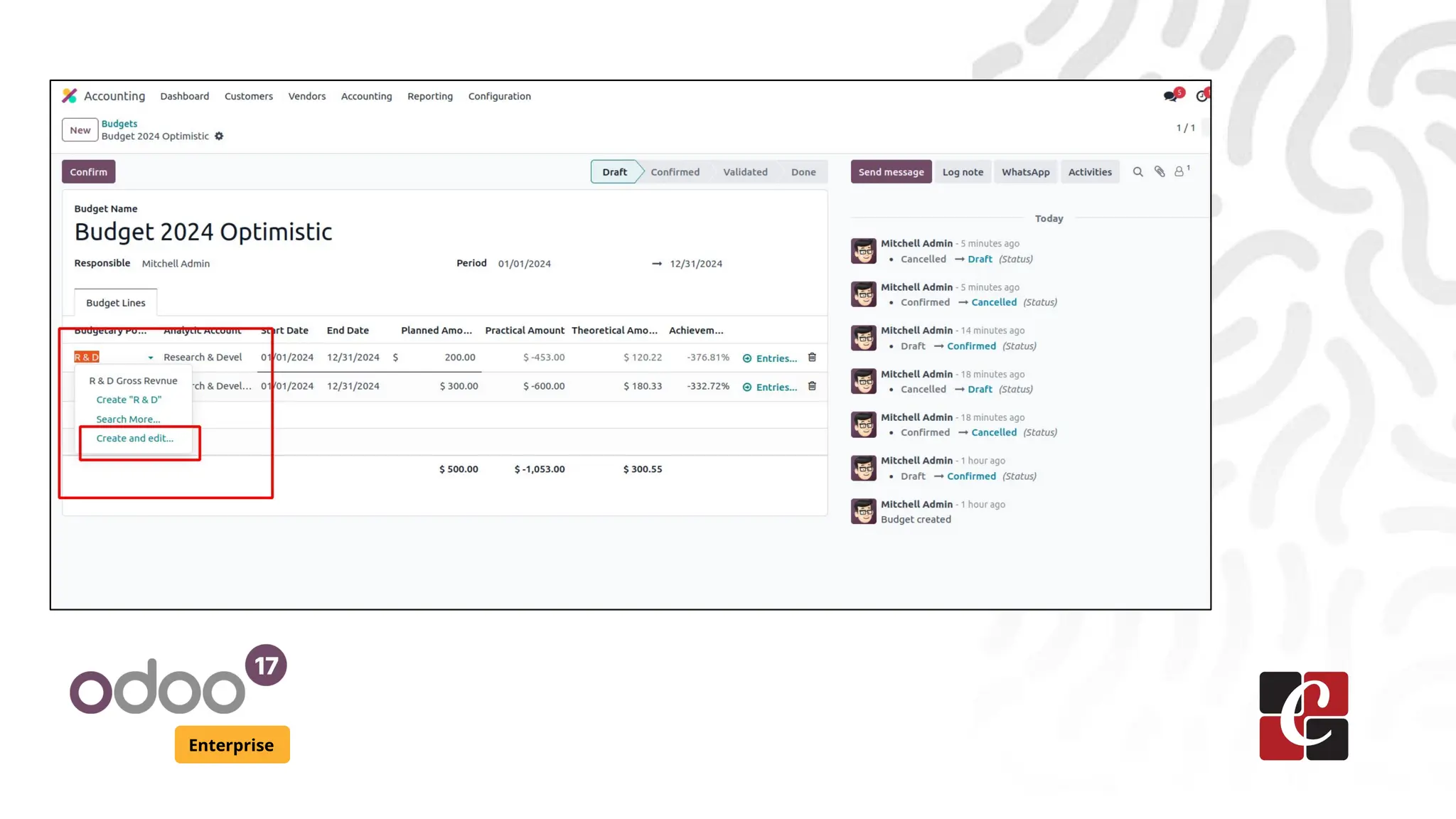
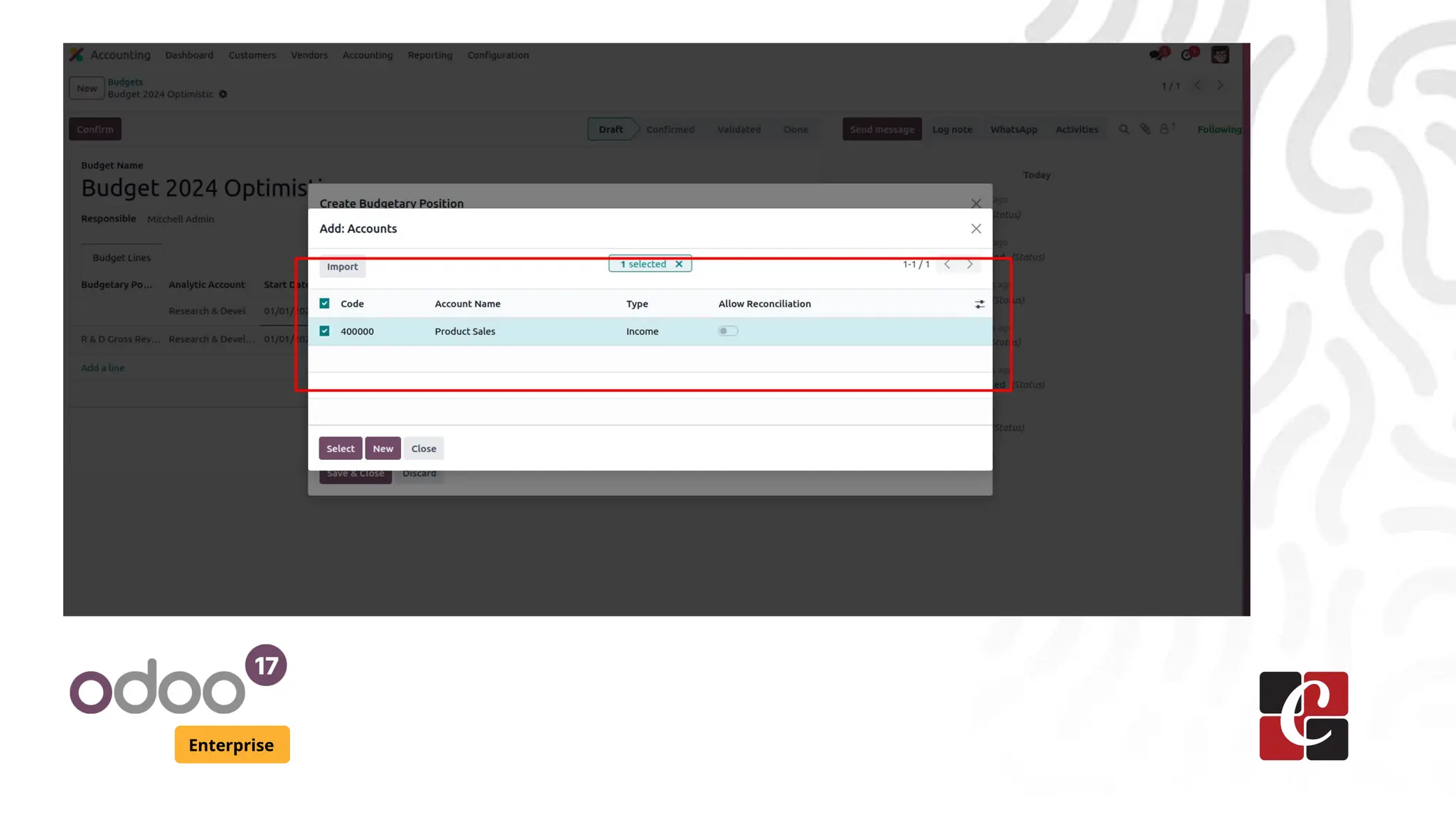
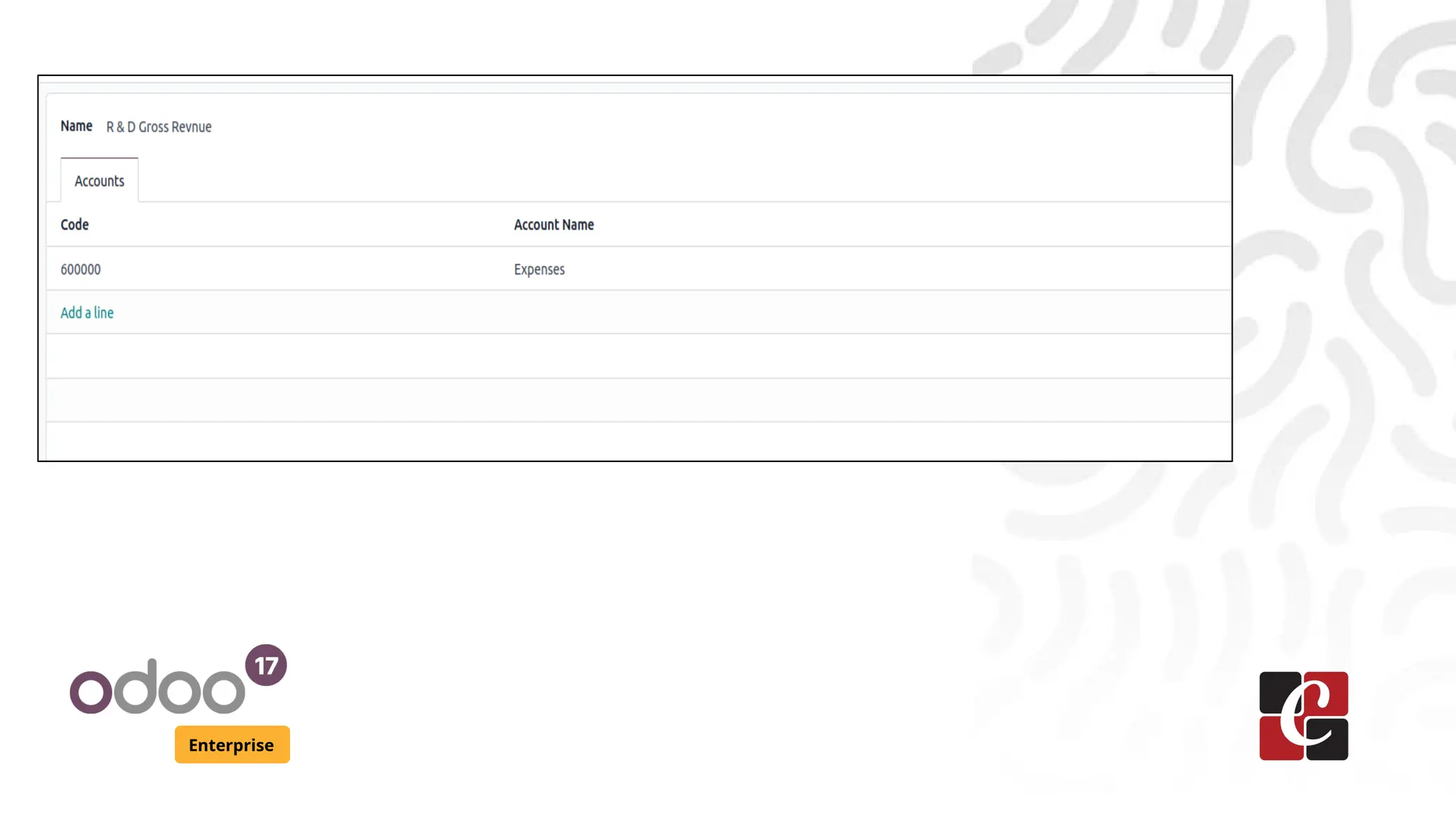
Also when creating a new budgetary position make sure to add the
accounts related to it also . Here for our first budgetary (R&D )position
we are going to add our product sales account and for our second
budgetary position (R & D Gross Revenue) add expense account .
Enterprise
Enterprise
Enterprise
Steps
Enterprise
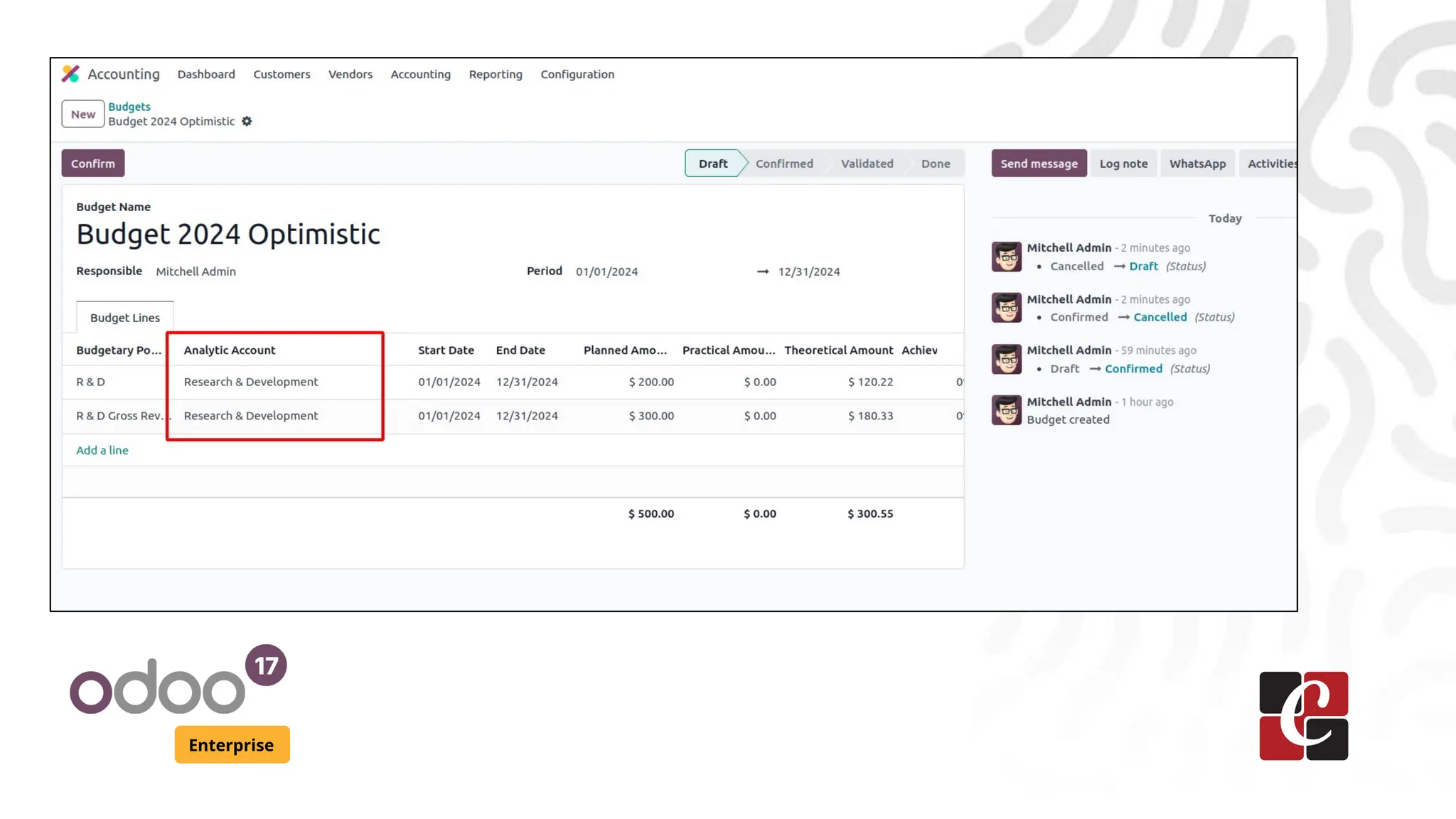
Also make sure to choose a analytic account for the budget lines as
well
Enterprise
Enterprise
Explanation
Enterprise
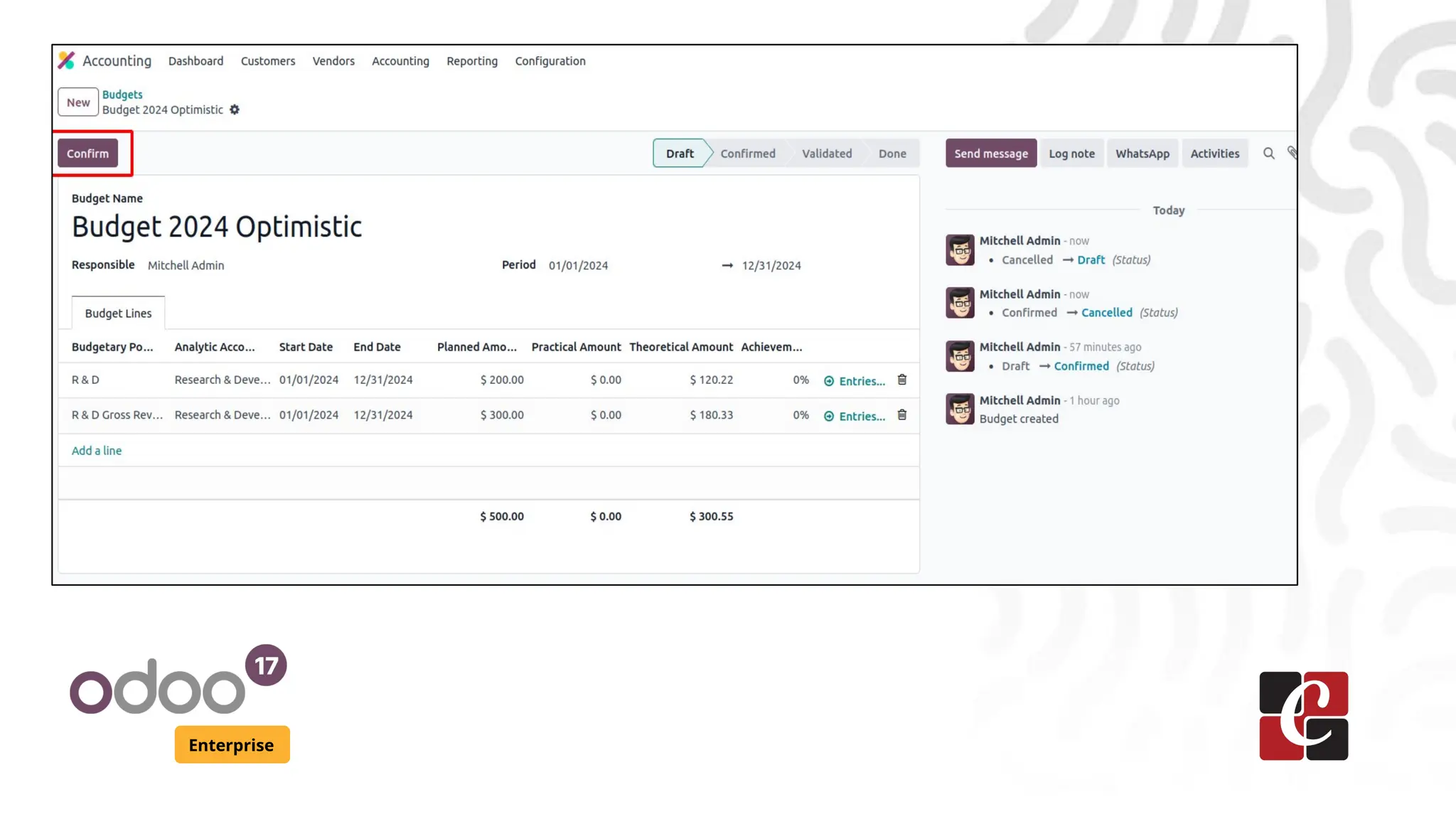
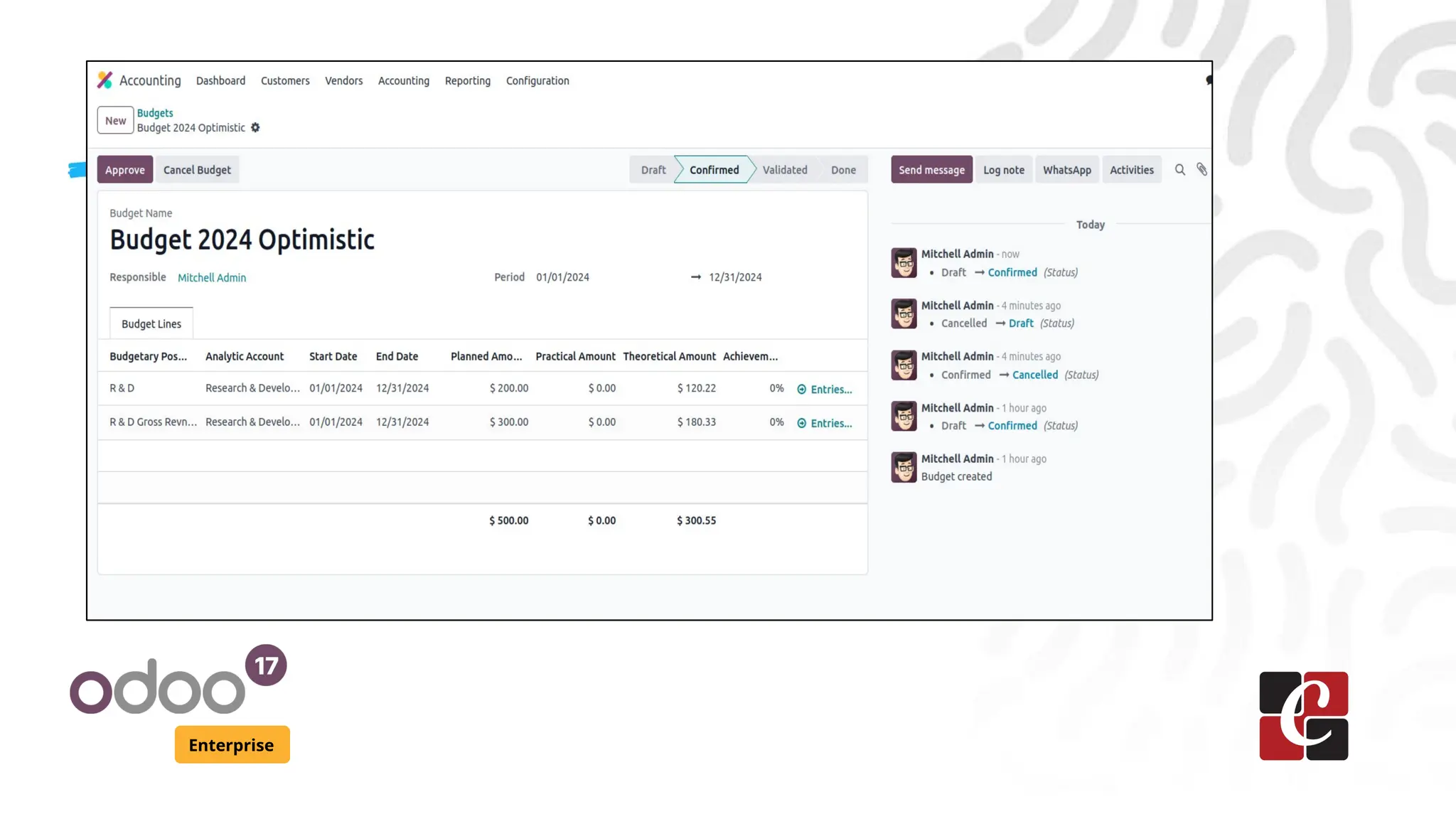
After configuring the budget details, save it. To activate the budget, click
the "Confirm" button. This ensures the budget is ready for use and
enforcement.
Enterprise
Steps
Enterprise
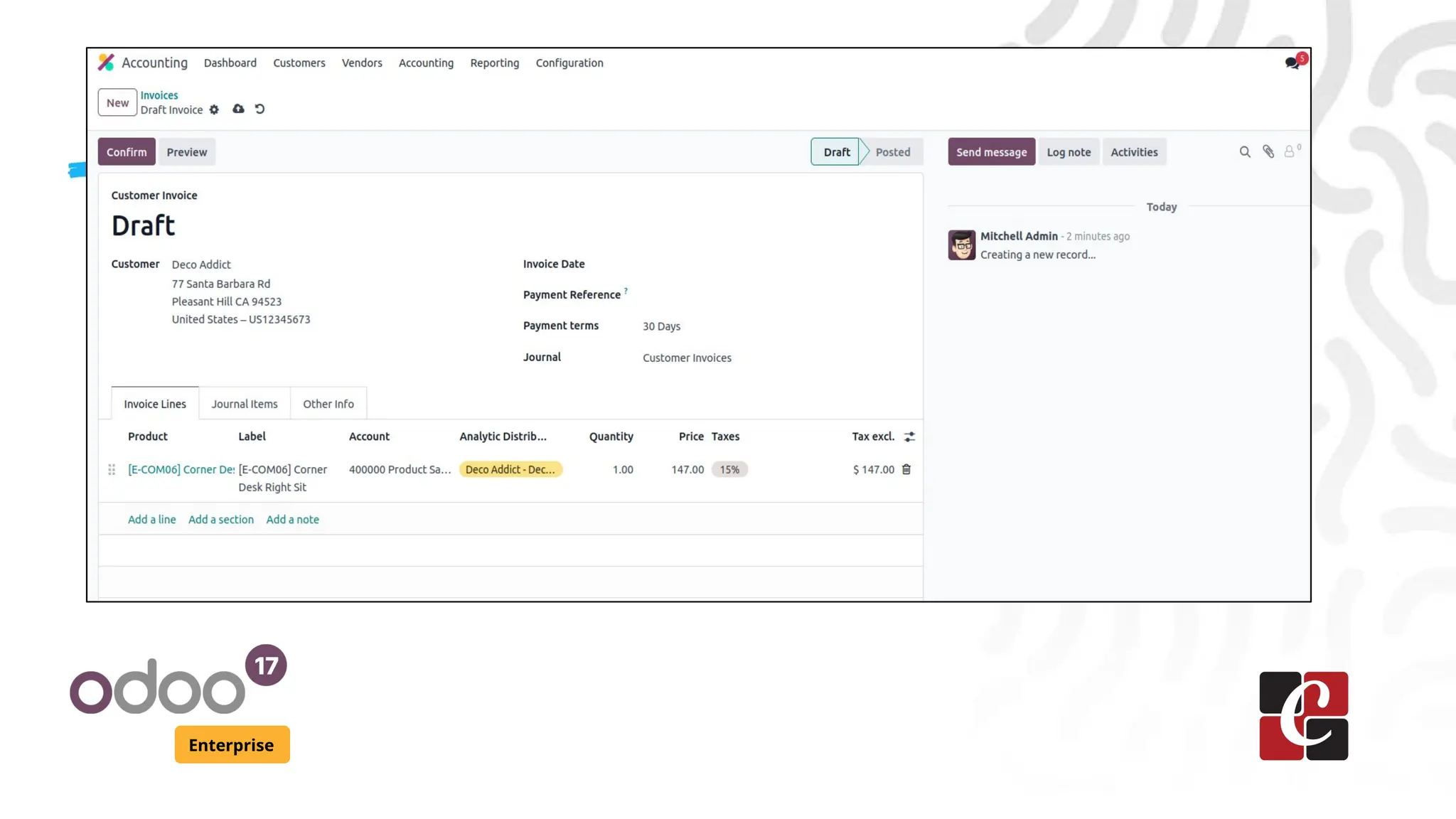
● To compute the budget, create an operational entry linked to the
configured accounts.
● As an example, let us create a new customer invoice and see
how it affects the newly created budget.
Enterprise
Steps
Enterprise
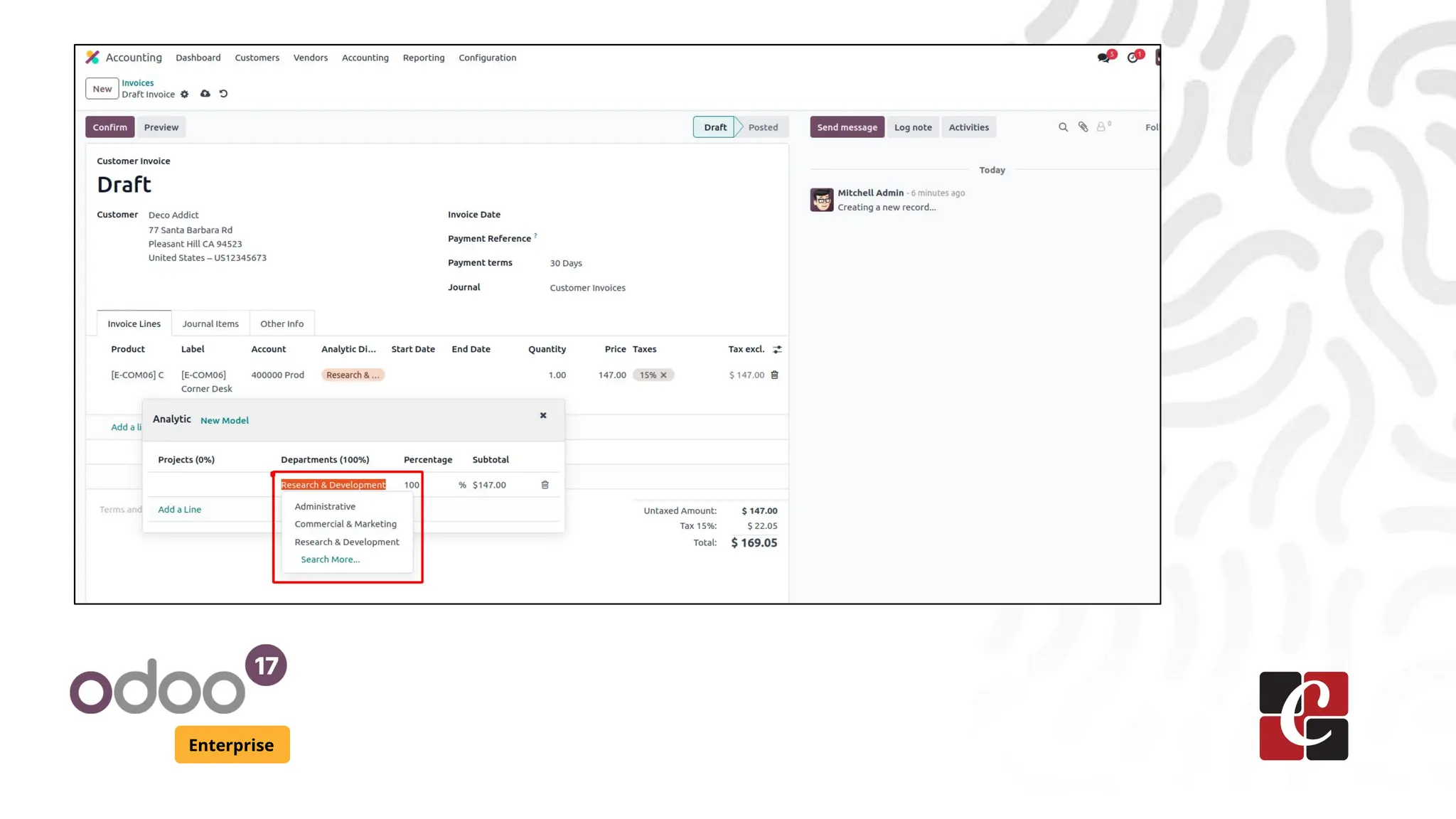
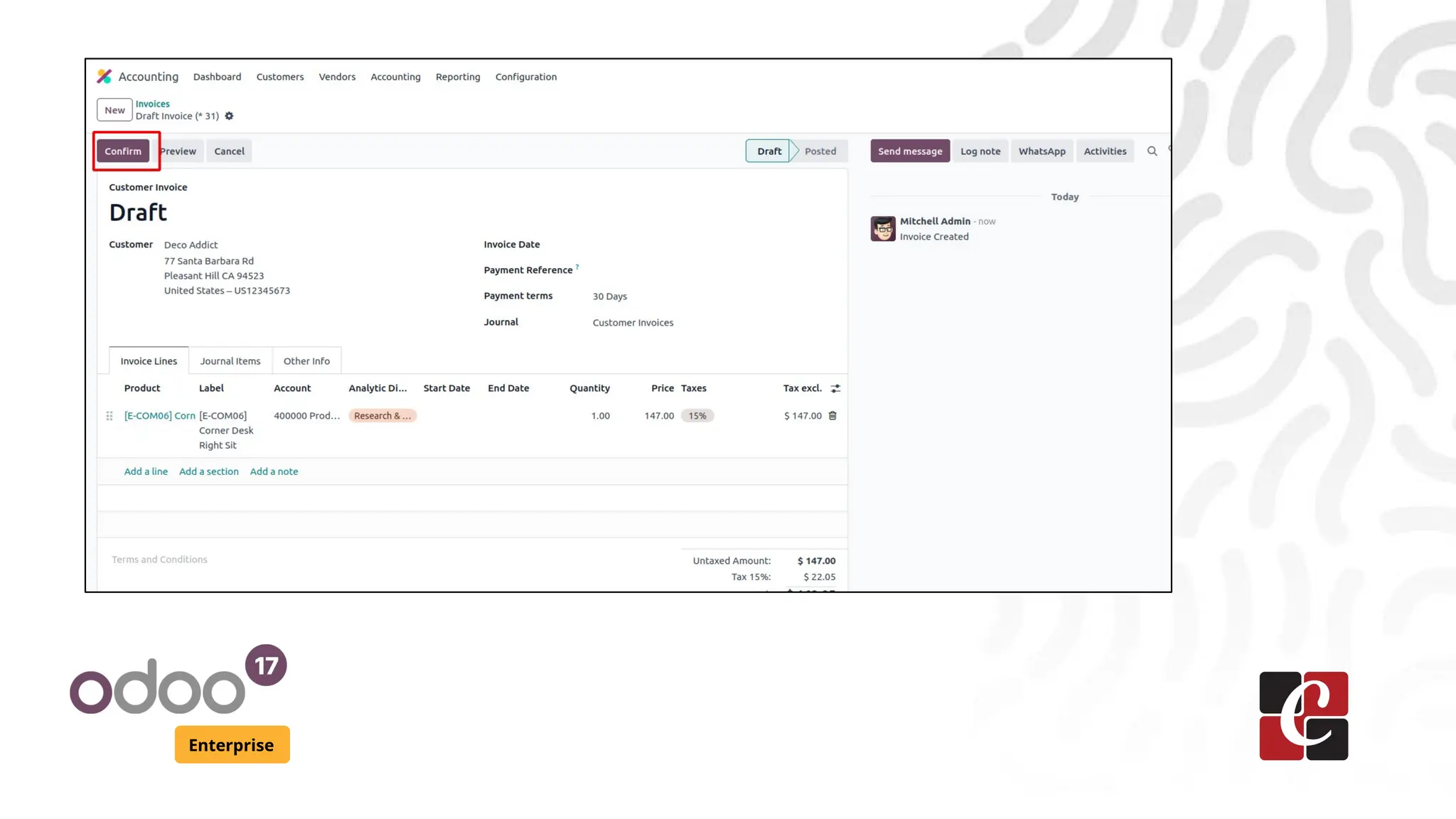
Make sure to do add the analytic distribution in this case Research and
Develop from department in analytic distribution field .Upon confirming
the invoice, the invoiced amount will be reflected in the practical amount
of the budget. This update will also be shown in the achievement metric
and journal entries.
Enterprise
Enterprise
Confirm Invoice
Enterprise
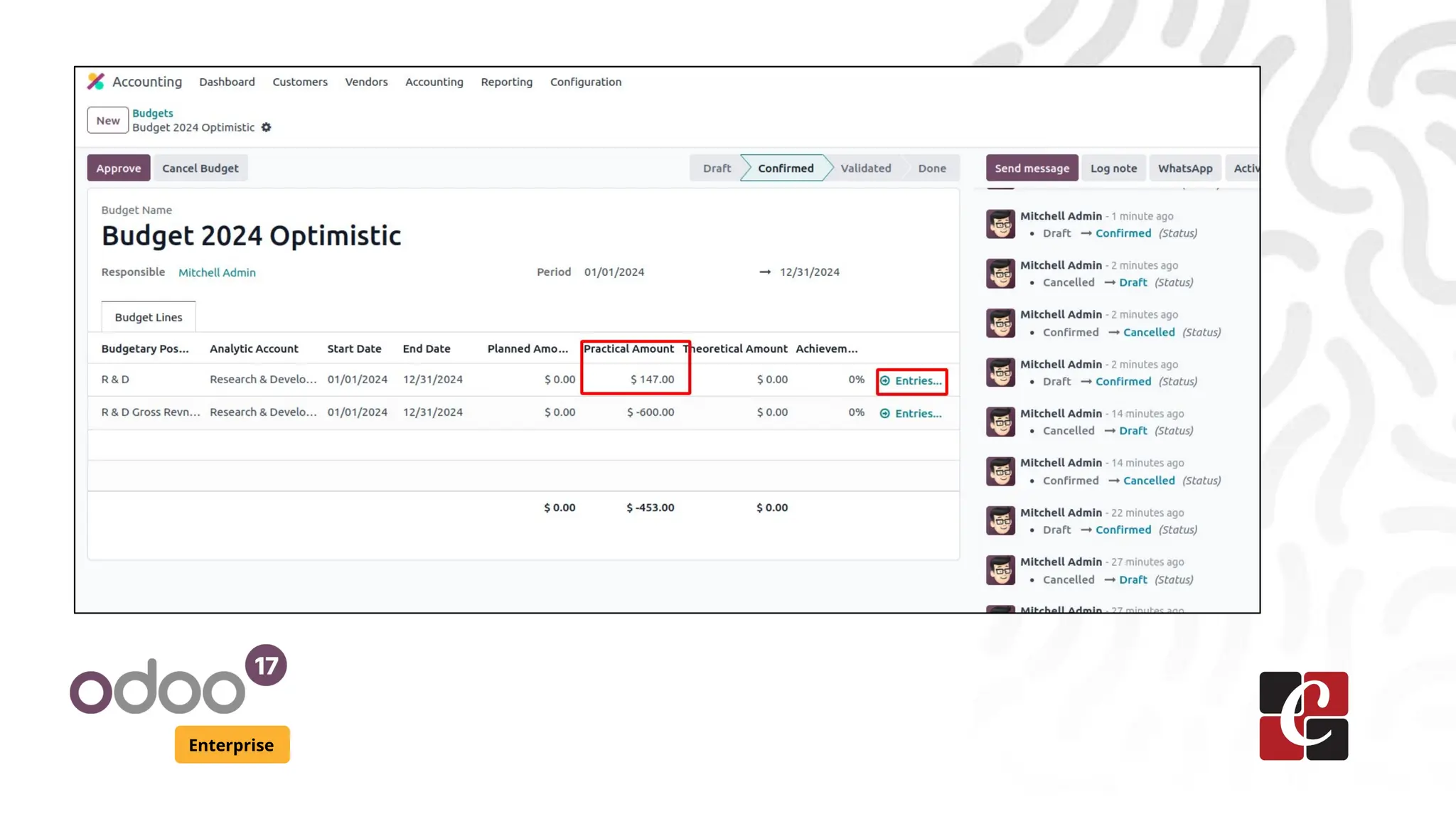
Click ‘Confirm’ to confirm the invoice. Upon confirming the invoice, the
invoiced amount will be reflected in the practical amount of the budget.
This update will also be shown in the achievement metric and journal
entries.
Enterprise
Enterprise
Bill
Enterprise
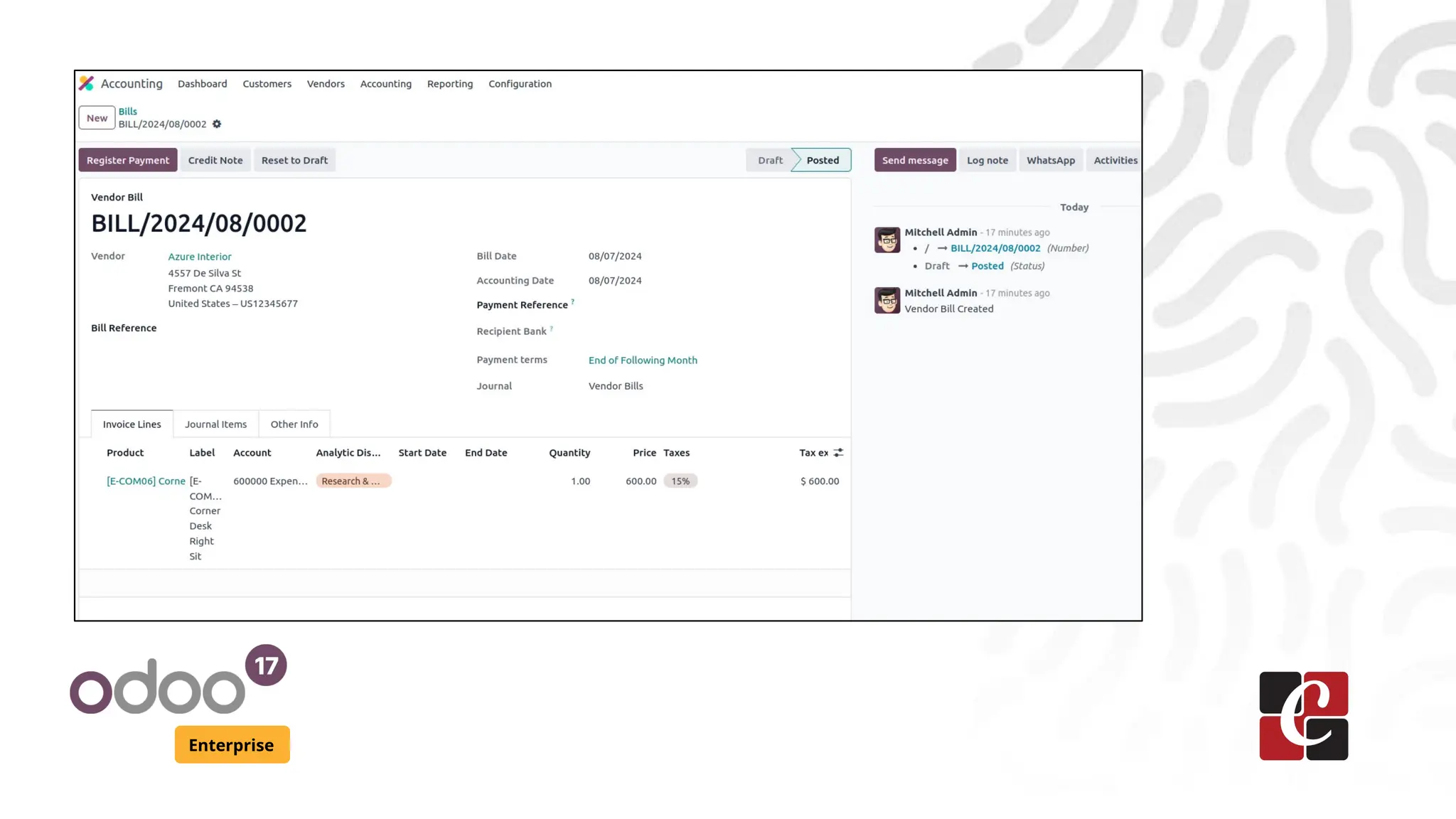
Similarly, When generating a vendor bill, the corresponding reflection
should be visible in the cost line section.
Enterprise
Enterprise
Explanation
Enterprise
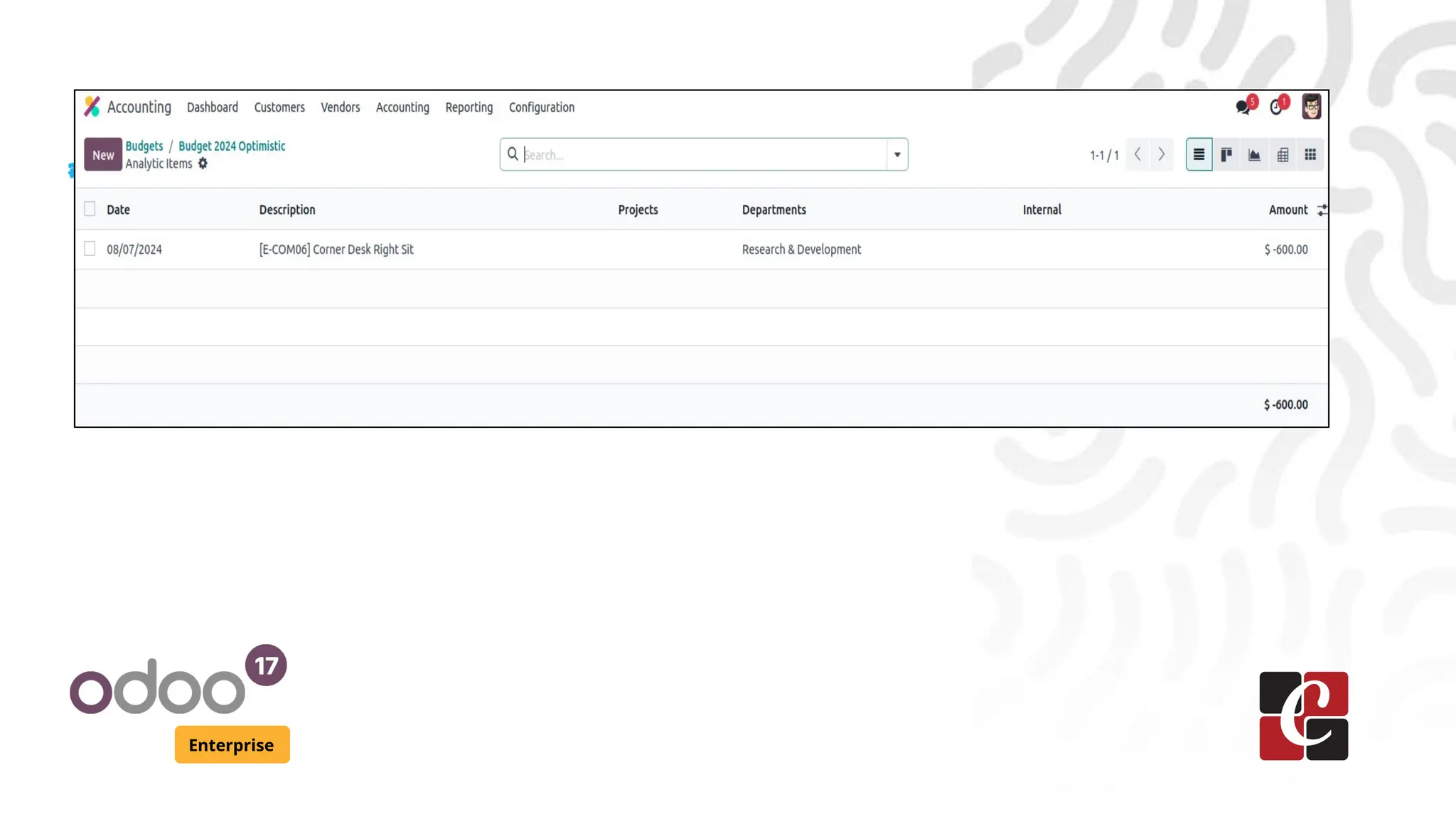
As you can see in the slide above, the Practical Amount is updated as a
negative amount.
Enterprise
Steps
Enterprise
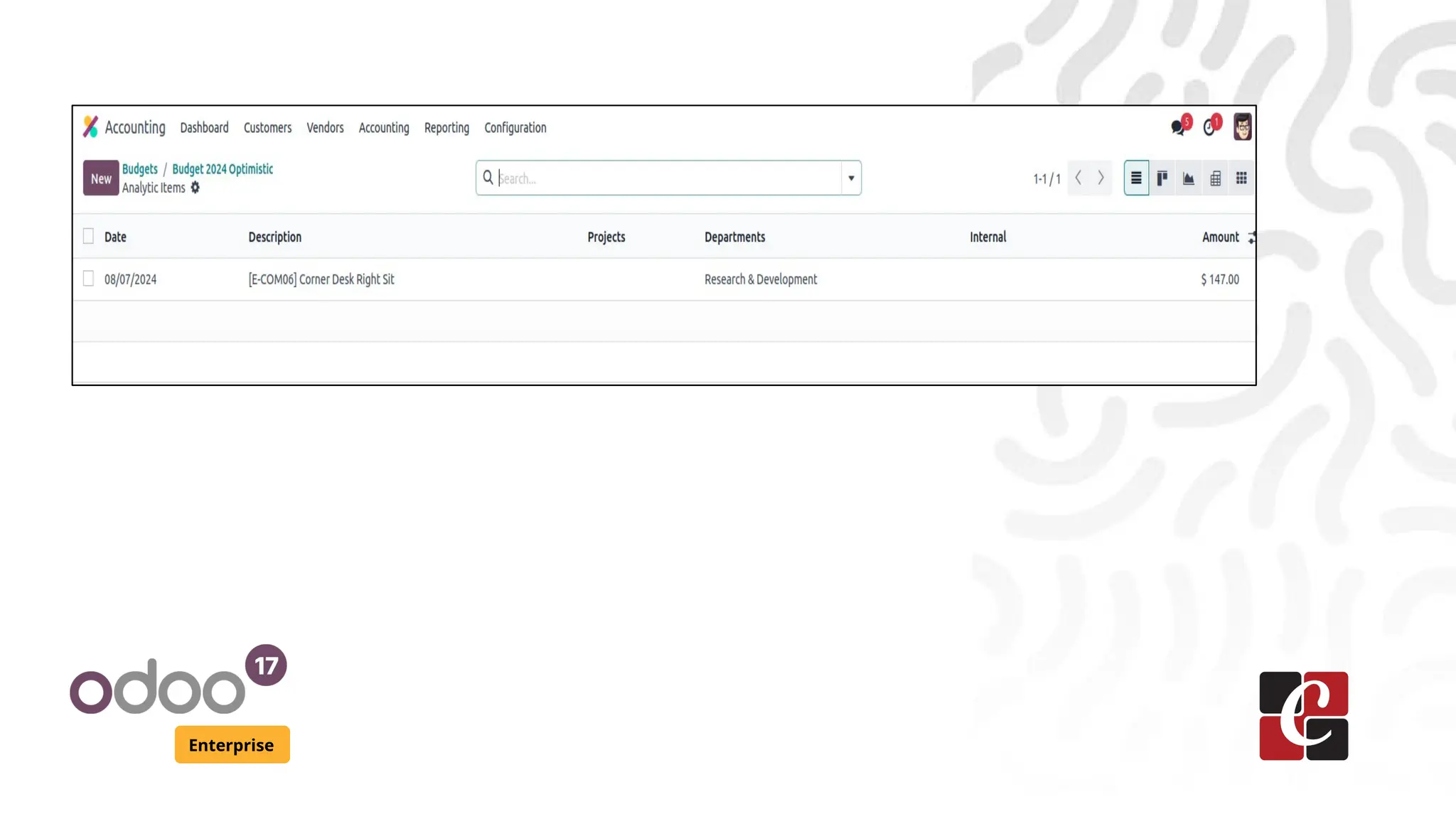
Click "Entries" to view all journal entries related to a specific budget
account line.
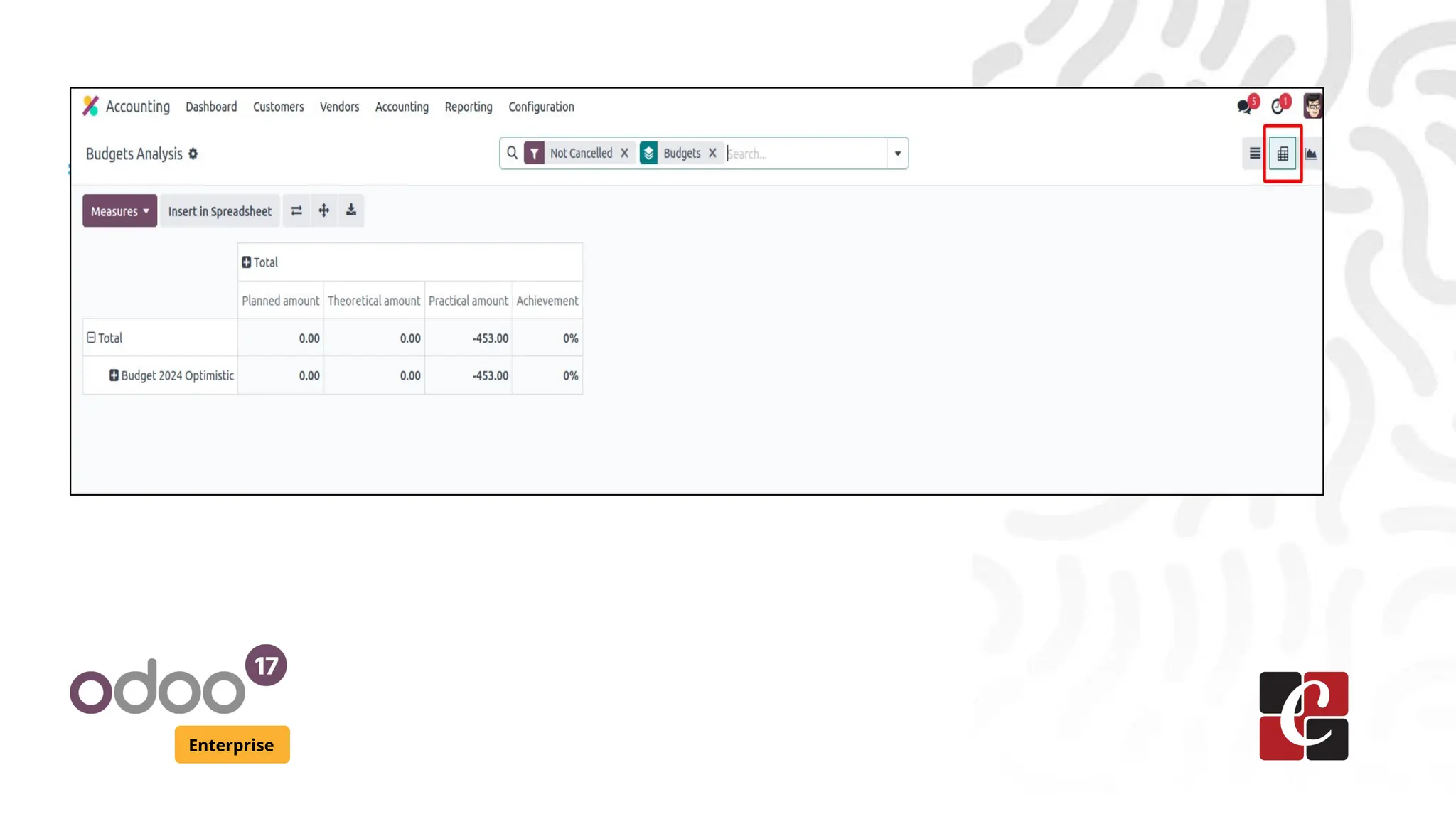
Regularly monitor budget performance through the Budget Analysis
option in the Reporting menu, and use Odoo 17's reporting tools to
generate budget vs. actual reports.
Here we click on the pivot view icon on the right to switch to pivot for
more information .
Reports
Enterprise
Analyze these reports to make informed decisions and adjust your
financial plans. They provide a comprehensive overview, summarizing
budgeted amounts versus actual expenses and revenue for a specified
period.
Enterprise
Reports
Enterprise
To enhance user convenience, the report offers grouping and filtering
options for efficient data retrieval. These tools help users quickly find
specific information and reduce complexities in budget management.
Conclusion
Enterprise
Effective budget management is key to financial success. Odoo 17
Accounting streamlines processes, tracks expenses in real time, and
supports informed decision-making. Use Odoo 17 to elevate your
company's budget management and drive growth.
For More Info.
Check our company website for related blogs
and Odoo book.
Check our YouTube channel for
functional and technical videos in Odoo.
Enterprise
www.cybrosys.com

How to Manage Your Company Budget Using Odoo 17 Accounting

  • 1.
    How to ManageYour Company Budget Using Odoo 17 Accounting Enterprise
  • 2.
    Introduction Enterprise Effective budget managementis vital for a company's success. Odoo 17 streamlines financial management with tools for transactions, invoicing, and budgeting. Set up budgets for departments, projects, or cost centers, define goals, allocate resources, and set spending limits.
  • 3.
    Budget management Enterprise One ofthe key advantages of using Odoo 17 Accounting is the ability to track expenses in real time. Real-time expense tracking provides instant financial insights, helping to prevent budget overruns.
  • 4.
    Steps Enterprise To set upbudget management in Odoo, start by activating it in the Accounting module's Configuration Settings. Navigate to the Accounting module from the main dashboard. In the Settings menu, find and activate the Budget Management option.
  • 5.
  • 6.
    Budgets Enterprise Activating the BudgetManagement option will automatically enable the Analytic Accounting feature. Once activated, navigate to the Budgets menu within the Accounting module to view the pre-configured budgets in your database.
  • 7.
  • 8.
    Budget Configuration Enterprise Click the"New" button to start the budget configuration process. This will open a new wizard where you can create a budget for your company.
  • 9.
  • 10.
    Budget Enterprise Give your budgeta descriptive name to identify its purpose or related department. Specify the period, which could be a fiscal year, project duration, or any relevant timeframe. Enter the name of the responsible person and the company in the respective fields.
  • 11.
  • 12.
    Budgetary Positions Enterprise ● Usethe "Add a Line" button to add Budgetary Positions under Budget Lines. ● These positions consist of accounts for managing expenses and revenue. Allocate budget amounts for each account in the Planned Amount field.
  • 13.
    Budget management, Enterprise ● Inbudget management, the Planned Amount is the allocated budget, while the Practical Amount shows actual expenditures or income. ● The Theoretical Amount represents projected figures. The Achievement metric indicates if actual results meet the planned budget. ● The system also displays Journal Entries, providing a detailed view of related transactions for thorough financial tracking and analysis.
  • 14.
    Example Enterprise Also when creatinga new budgetary position make sure to add the accounts related to it also . Here for our first budgetary (R&D )position we are going to add our product sales account and for our second budgetary position (R & D Gross Revenue) add expense account .
  • 15.
  • 16.
  • 17.
  • 18.
    Steps Enterprise Also make sureto choose a analytic account for the budget lines as well
  • 19.
  • 20.
  • 21.
    Explanation Enterprise After configuring thebudget details, save it. To activate the budget, click the "Confirm" button. This ensures the budget is ready for use and enforcement.
  • 22.
  • 23.
    Steps Enterprise ● To computethe budget, create an operational entry linked to the configured accounts. ● As an example, let us create a new customer invoice and see how it affects the newly created budget.
  • 24.
  • 25.
    Steps Enterprise Make sure todo add the analytic distribution in this case Research and Develop from department in analytic distribution field .Upon confirming the invoice, the invoiced amount will be reflected in the practical amount of the budget. This update will also be shown in the achievement metric and journal entries.
  • 26.
  • 27.
  • 28.
    Confirm Invoice Enterprise Click ‘Confirm’to confirm the invoice. Upon confirming the invoice, the invoiced amount will be reflected in the practical amount of the budget. This update will also be shown in the achievement metric and journal entries.
  • 29.
  • 30.
  • 31.
    Bill Enterprise Similarly, When generatinga vendor bill, the corresponding reflection should be visible in the cost line section.
  • 32.
  • 33.
  • 34.
    Explanation Enterprise As you cansee in the slide above, the Practical Amount is updated as a negative amount.
  • 35.
  • 36.
    Steps Enterprise Click "Entries" toview all journal entries related to a specific budget account line. Regularly monitor budget performance through the Budget Analysis option in the Reporting menu, and use Odoo 17's reporting tools to generate budget vs. actual reports. Here we click on the pivot view icon on the right to switch to pivot for more information .
  • 37.
    Reports Enterprise Analyze these reportsto make informed decisions and adjust your financial plans. They provide a comprehensive overview, summarizing budgeted amounts versus actual expenses and revenue for a specified period.
  • 38.
  • 39.
    Reports Enterprise To enhance userconvenience, the report offers grouping and filtering options for efficient data retrieval. These tools help users quickly find specific information and reduce complexities in budget management.
  • 40.
    Conclusion Enterprise Effective budget managementis key to financial success. Odoo 17 Accounting streamlines processes, tracks expenses in real time, and supports informed decision-making. Use Odoo 17 to elevate your company's budget management and drive growth.
  • 41.
    For More Info. Checkour company website for related blogs and Odoo book. Check our YouTube channel for functional and technical videos in Odoo. Enterprise www.cybrosys.com