How to Manage Access Rights & User
Types in Odoo 18
Enterprise
Enterprise
Introduction
In this slide, we’ll discuss on how to manage Access Rights &
User Types in Odoo 18. Managing access rights and user types is
essential for maintaining security and control in Odoo 18. It
enables businesses to define specific roles and permissions for
users, ensuring they access only what is necessary for their
tasks. Odoo provides a flexible framework for configuring access
rights through groups, models, and rules.
Enterprise
Enterprise
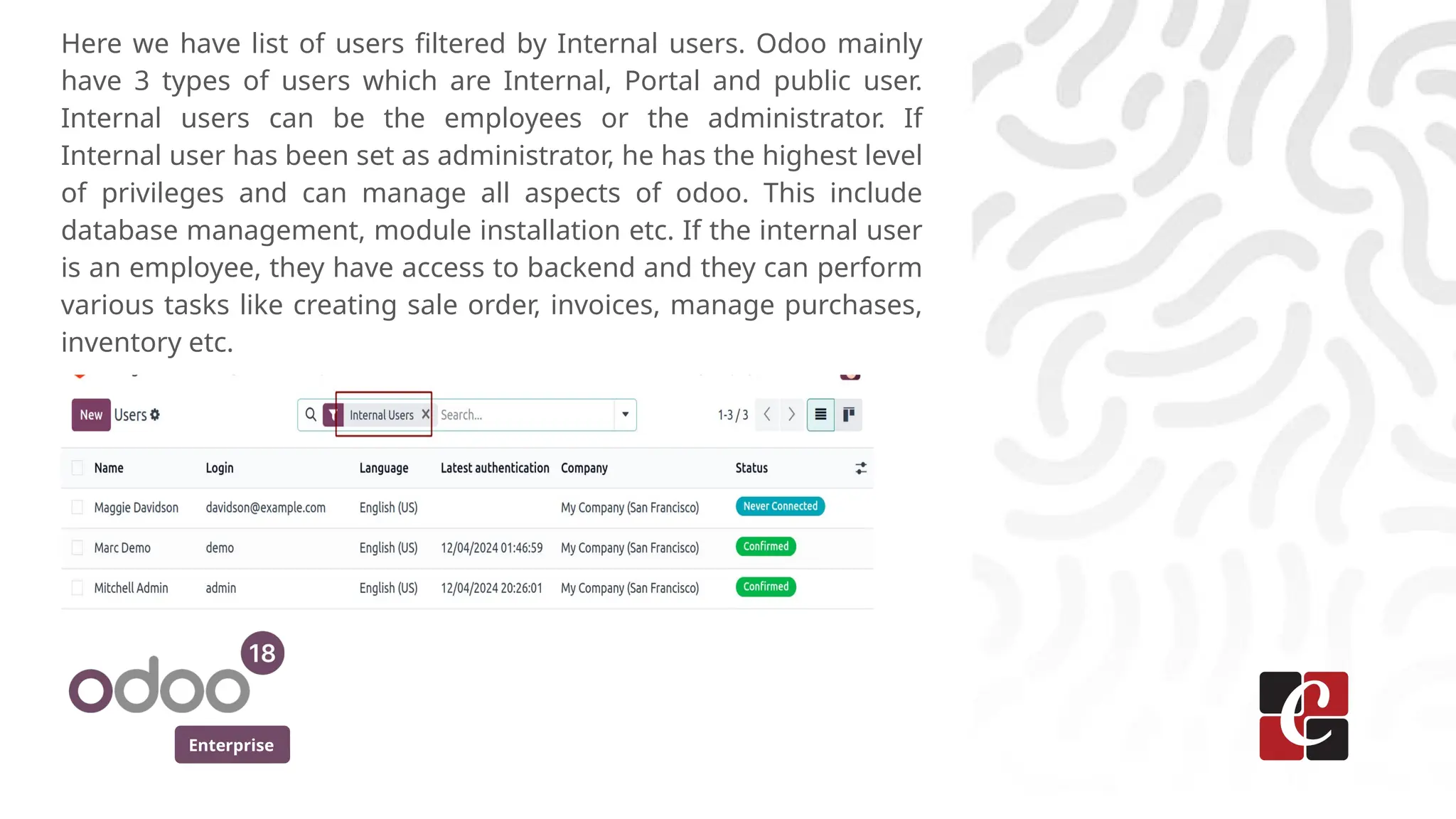
Here we have list of users filtered by Internal users. Odoo mainly
have 3 types of users which are Internal, Portal and public user.
Internal users can be the employees or the administrator. If
Internal user has been set as administrator, he has the highest level
of privileges and can manage all aspects of odoo. This include
database management, module installation etc. If the internal user
is an employee, they have access to backend and they can perform
various tasks like creating sale order, invoices, manage purchases,
inventory etc.
Enterprise
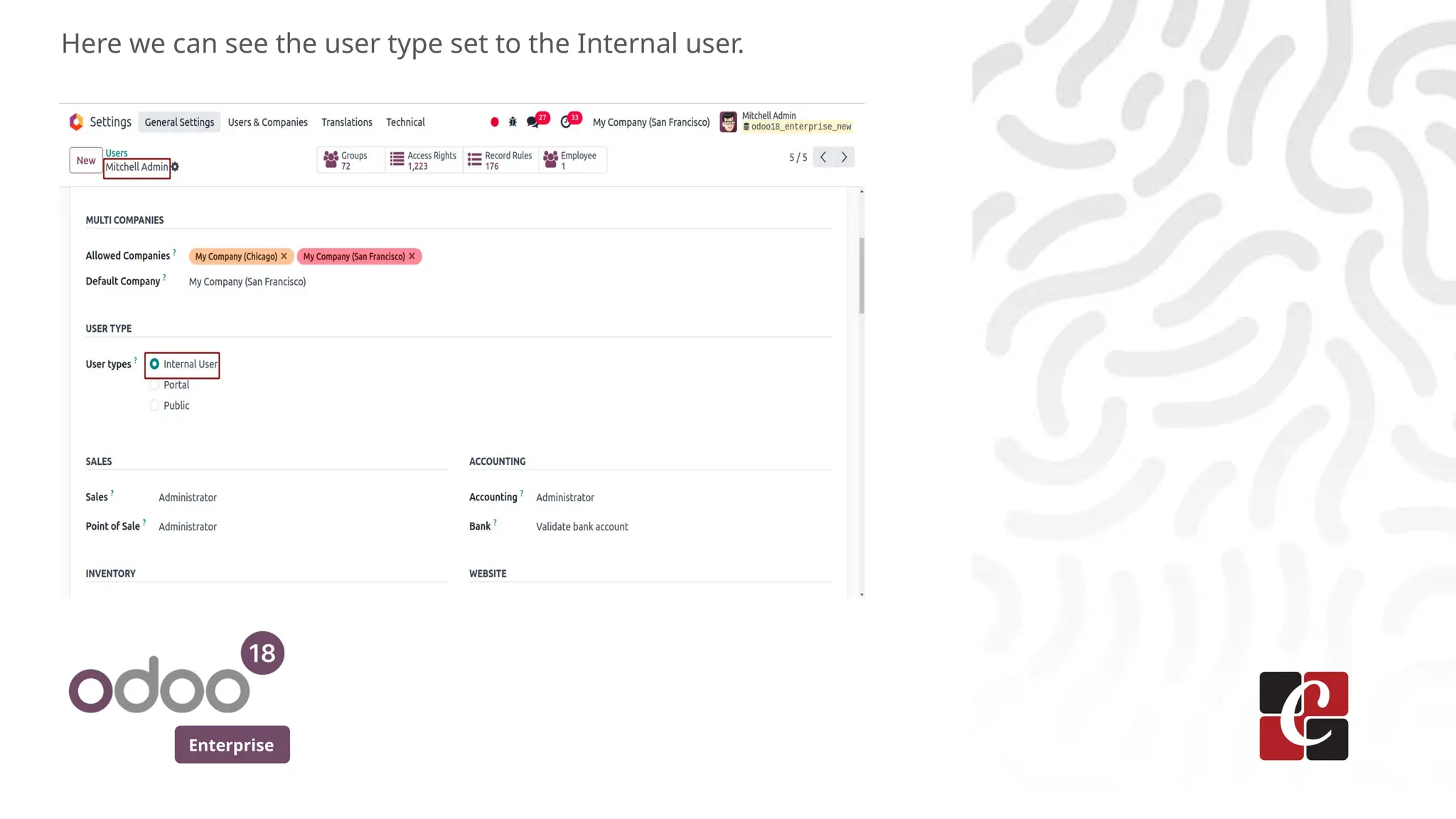
Here we can see the user type set to the Internal user.
Enterprise
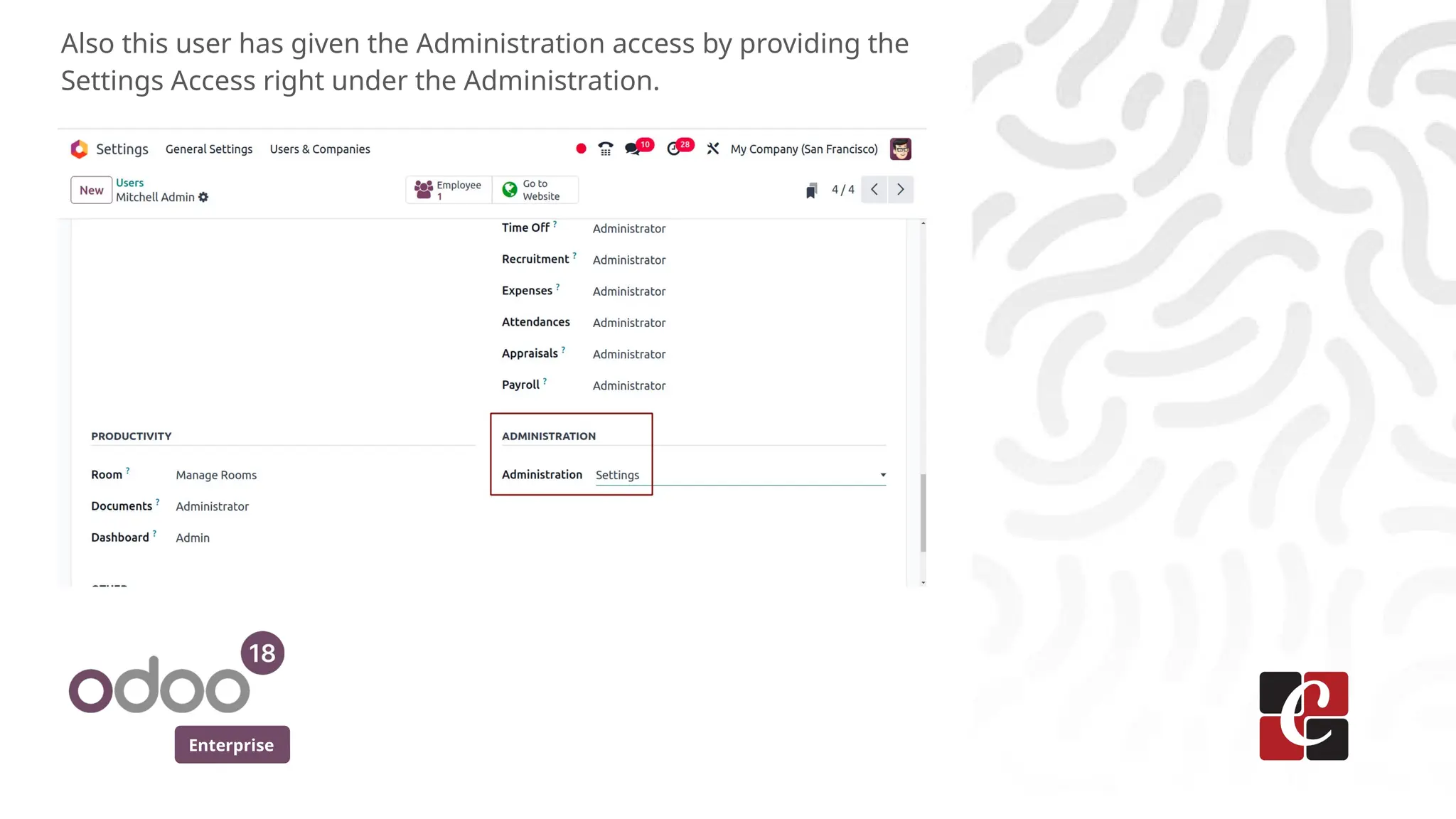
Also this user has given the Administration access by providing the
Settings Access right under the Administration.
Enterprise
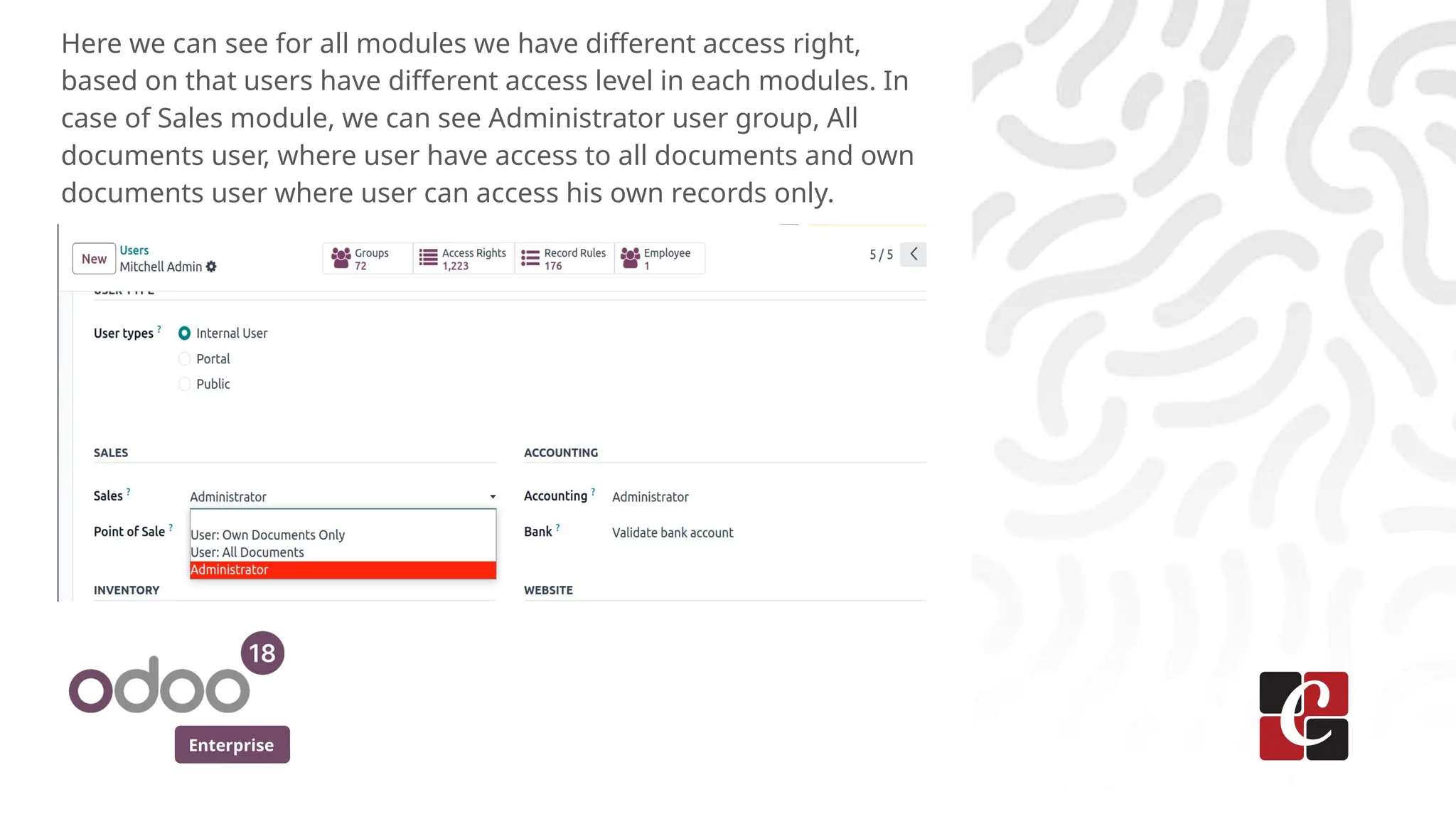
Here we can see for all modules we have different access right,
based on that users have different access level in each modules. In
case of Sales module, we can see Administrator user group, All
documents user, where user have access to all documents and own
documents user where user can access his own records only.
Enterprise
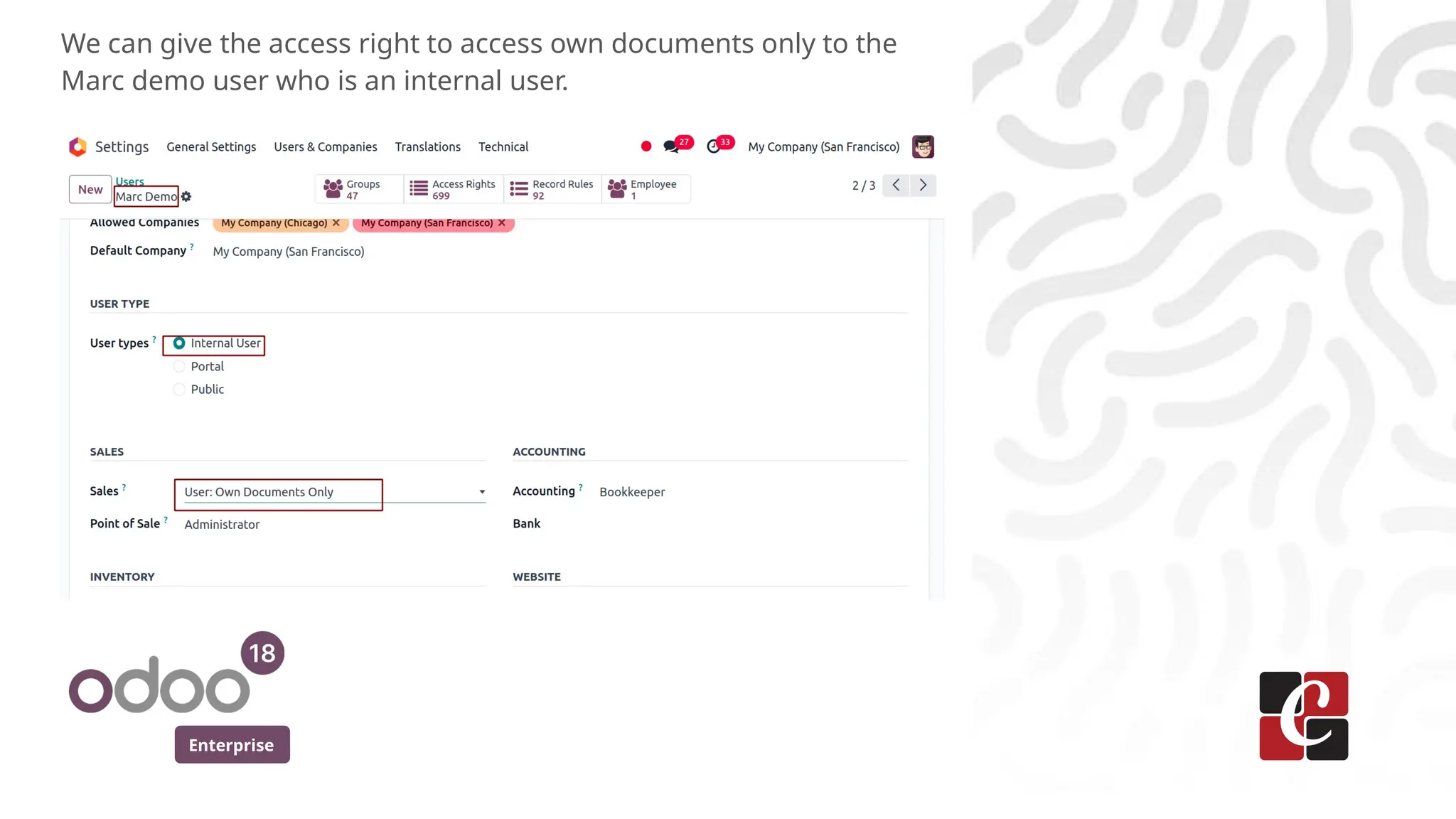
We can give the access right to access own documents only to the
Marc demo user who is an internal user.
Enterprise
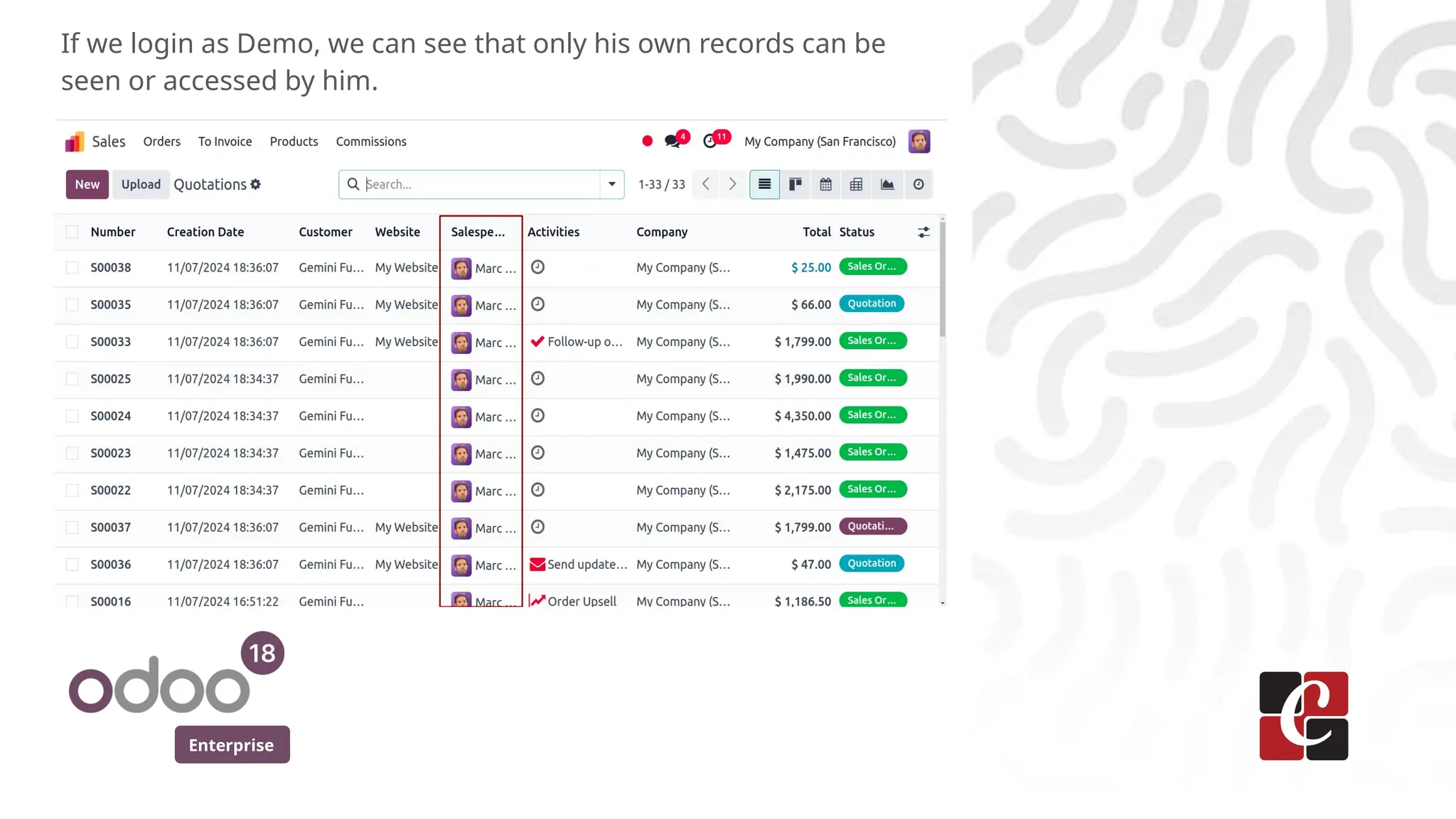
If we login as Demo, we can see that only his own records can be
seen or accessed by him.
Enterprise
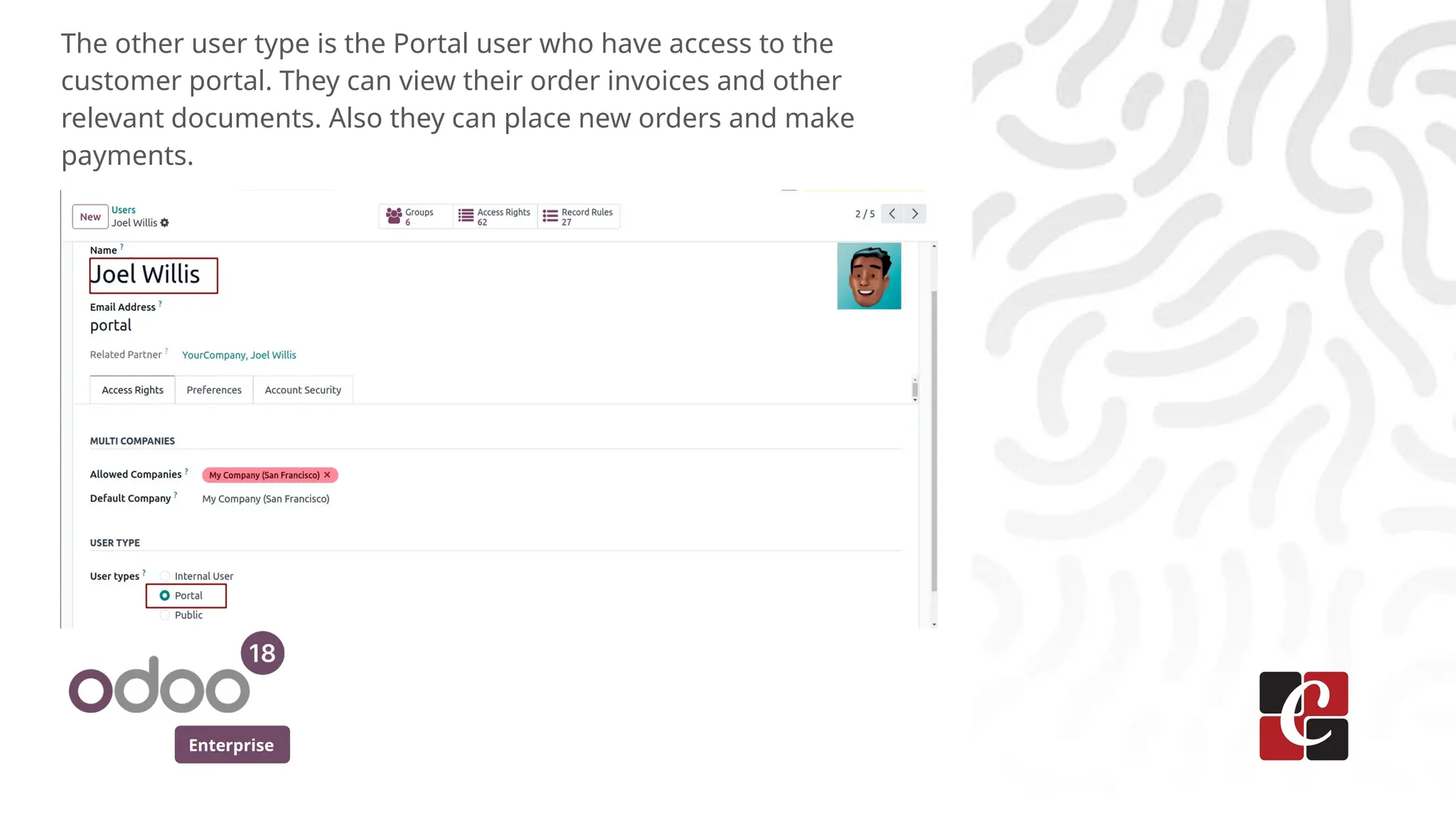
The other user type is the Portal user who have access to the
customer portal. They can view their order invoices and other
relevant documents. Also they can place new orders and make
payments.
Enterprise
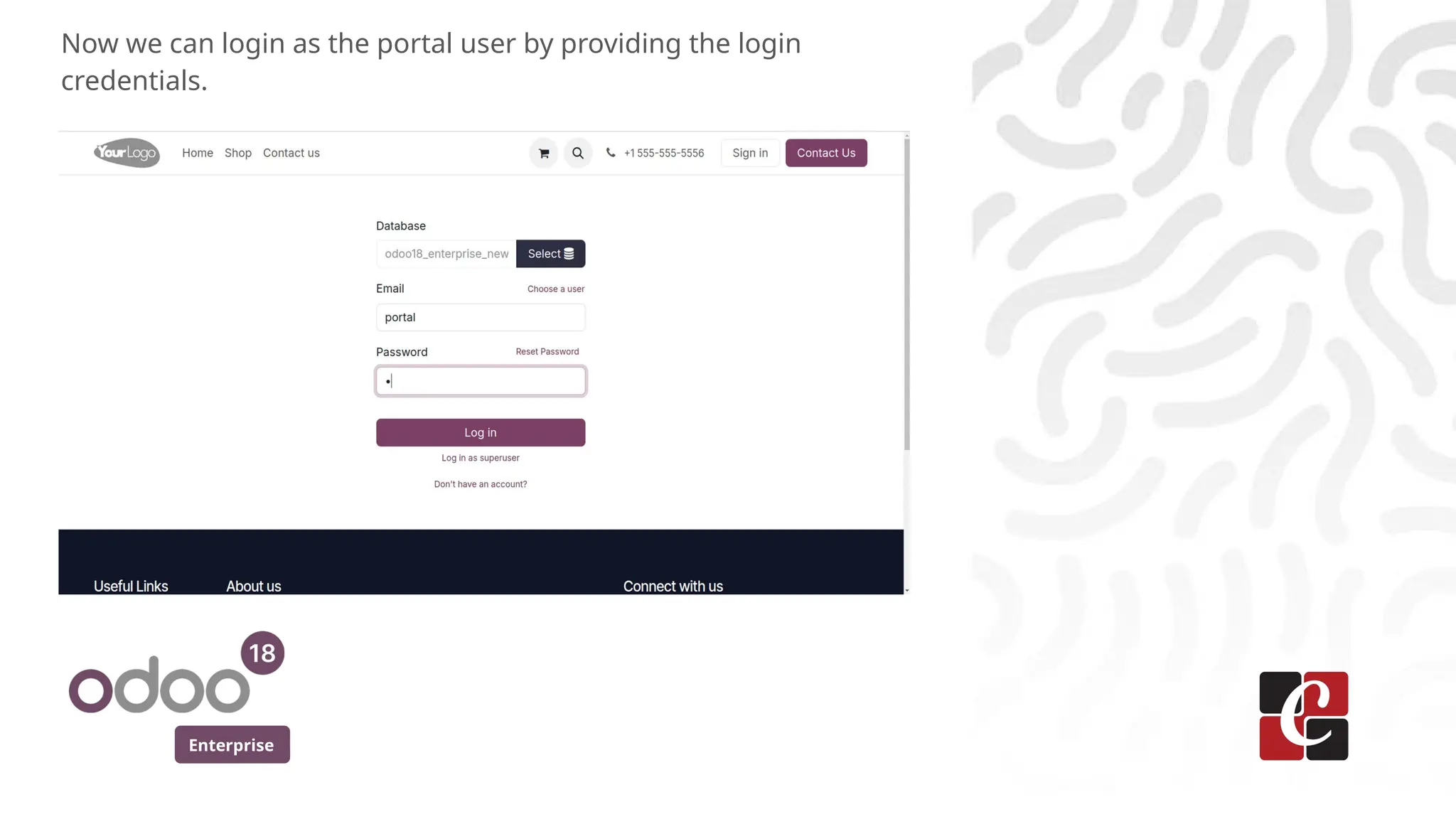
Now we can login as the portal user by providing the login
credentials.
Enterprise
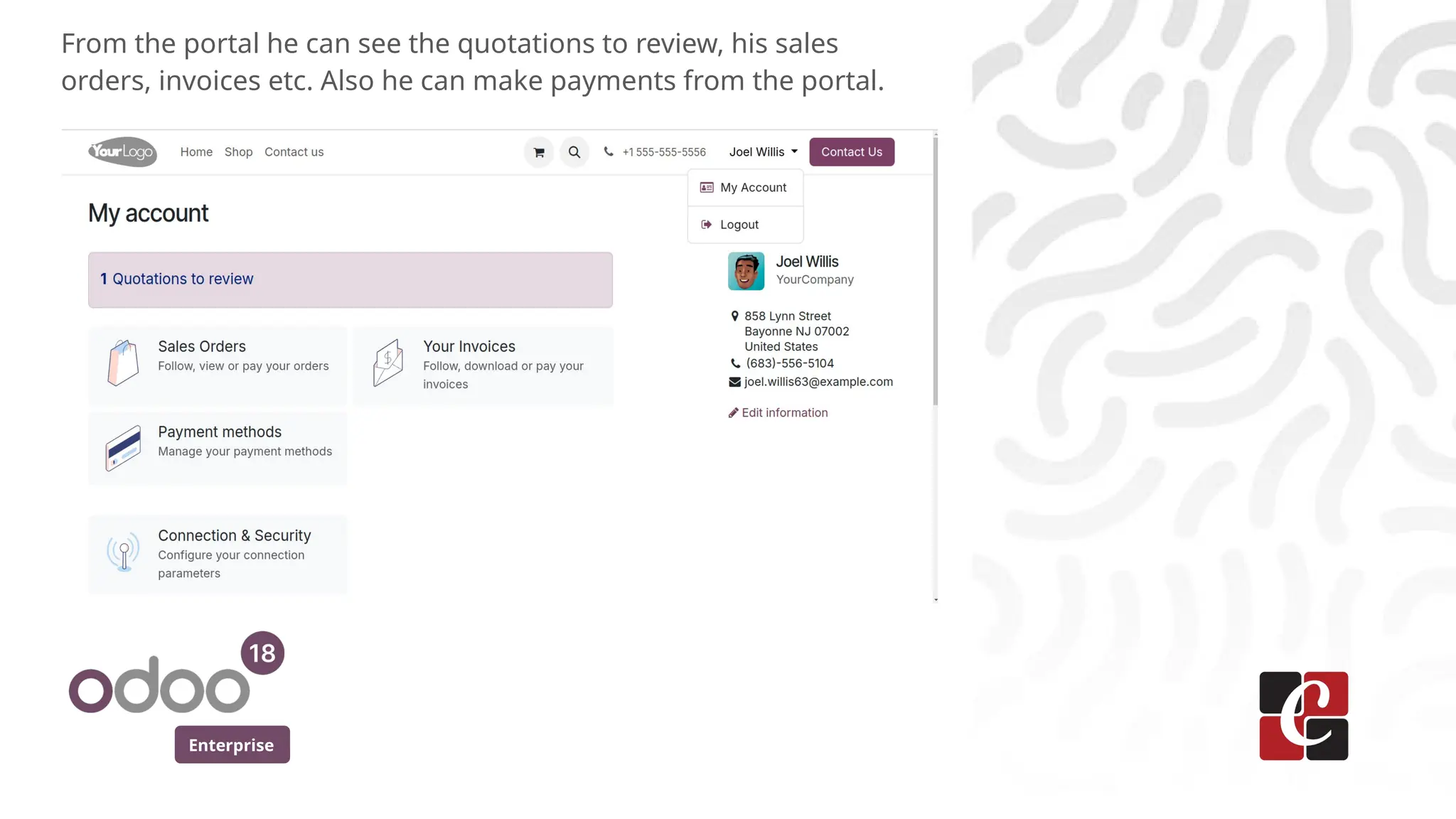
From the portal he can see the quotations to review, his sales
orders, invoices etc. Also he can make payments from the portal.
Enterprise
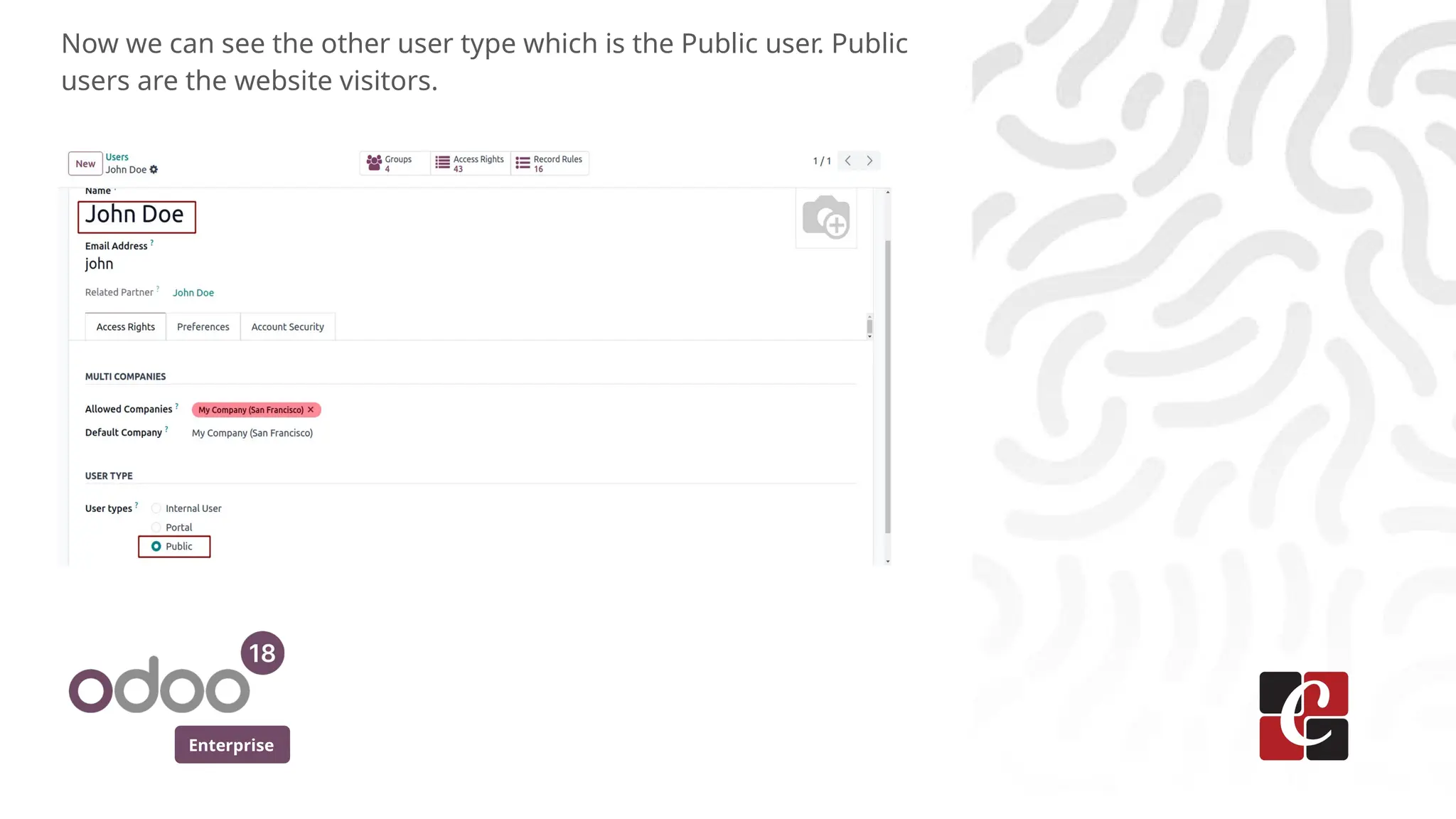
Now we can see the other user type which is the Public user. Public
users are the website visitors.
Enterprise
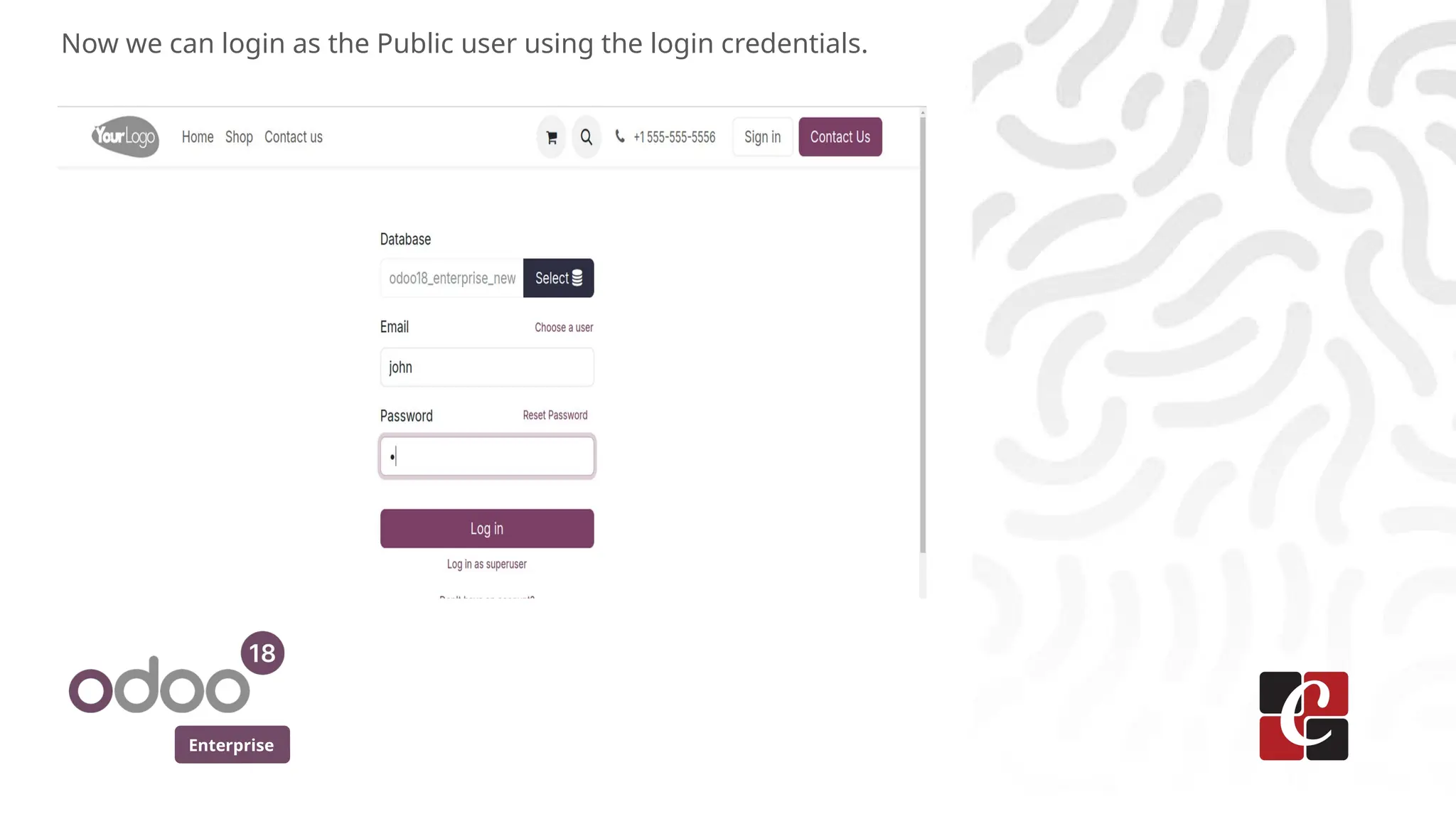
Now we can login as the Public user using the login credentials.
Enterprise
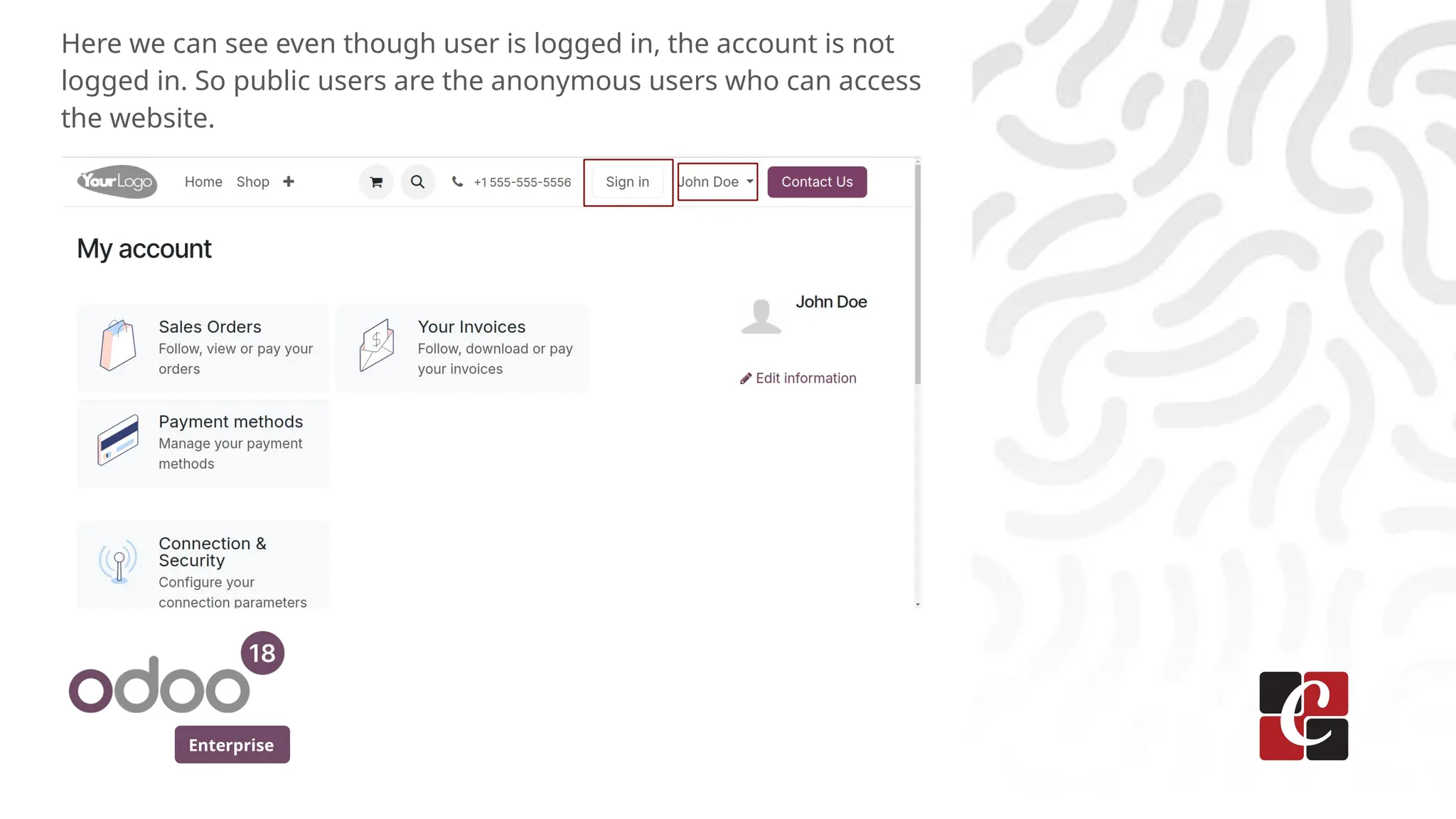
Here we can see even though user is logged in, the account is not
logged in. So public users are the anonymous users who can access
the website.
For More Info.
Check our company website for related blogs
and Odoo book.
Check our YouTube channel for
functional and technical videos in Odoo.
Enterprise
www.cybrosys.com

How to Manage Access Rights & User Types in Odoo 18

  • 1.
    How to ManageAccess Rights & User Types in Odoo 18 Enterprise
  • 2.
    Enterprise Introduction In this slide,we’ll discuss on how to manage Access Rights & User Types in Odoo 18. Managing access rights and user types is essential for maintaining security and control in Odoo 18. It enables businesses to define specific roles and permissions for users, ensuring they access only what is necessary for their tasks. Odoo provides a flexible framework for configuring access rights through groups, models, and rules.
  • 3.
  • 4.
    Enterprise Here we havelist of users filtered by Internal users. Odoo mainly have 3 types of users which are Internal, Portal and public user. Internal users can be the employees or the administrator. If Internal user has been set as administrator, he has the highest level of privileges and can manage all aspects of odoo. This include database management, module installation etc. If the internal user is an employee, they have access to backend and they can perform various tasks like creating sale order, invoices, manage purchases, inventory etc.
  • 5.
    Enterprise Here we cansee the user type set to the Internal user.
  • 6.
    Enterprise Also this userhas given the Administration access by providing the Settings Access right under the Administration.
  • 7.
    Enterprise Here we cansee for all modules we have different access right, based on that users have different access level in each modules. In case of Sales module, we can see Administrator user group, All documents user, where user have access to all documents and own documents user where user can access his own records only.
  • 8.
    Enterprise We can givethe access right to access own documents only to the Marc demo user who is an internal user.
  • 9.
    Enterprise If we loginas Demo, we can see that only his own records can be seen or accessed by him.
  • 10.
    Enterprise The other usertype is the Portal user who have access to the customer portal. They can view their order invoices and other relevant documents. Also they can place new orders and make payments.
  • 11.
    Enterprise Now we canlogin as the portal user by providing the login credentials.
  • 12.
    Enterprise From the portalhe can see the quotations to review, his sales orders, invoices etc. Also he can make payments from the portal.
  • 13.
    Enterprise Now we cansee the other user type which is the Public user. Public users are the website visitors.
  • 14.
    Enterprise Now we canlogin as the Public user using the login credentials.
  • 15.
    Enterprise Here we cansee even though user is logged in, the account is not logged in. So public users are the anonymous users who can access the website.
  • 16.
    For More Info. Checkour company website for related blogs and Odoo book. Check our YouTube channel for functional and technical videos in Odoo. Enterprise www.cybrosys.com