Instructions on Linking your Presentations  By Coach Williams
Slideshare.net First go to  www.slideshare.net Create your own Username and Password DO NOT FORGET YOUR USERNAME AND PASSWORD WRITE IT DOWN SOMEWHERE
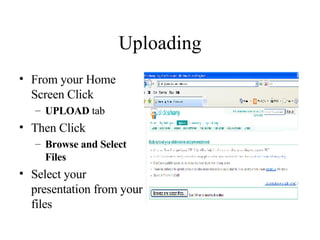
Uploading From your Home Screen Click  UPLOAD  tab Then Click Browse and Select Files Select your presentation from your files
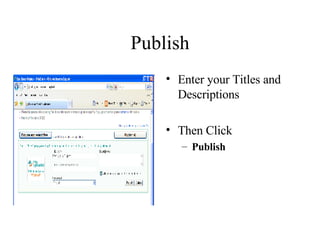
Publish Enter your Titles and Descriptions Then Click  Publish
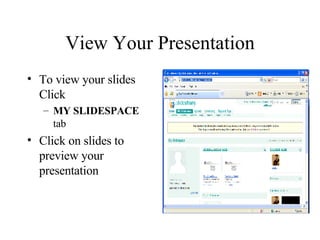
View Your Presentation To view your slides Click MY SLIDESPACE  tab  Click on slides to preview your presentation
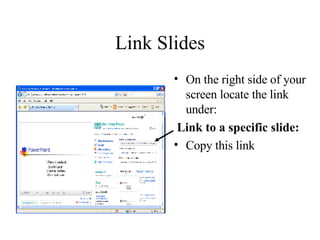
Link Slides On the right side of your screen locate the link under: Link to a specific slide: Copy this link
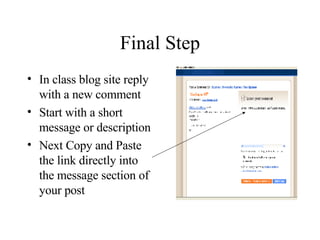
Final Step In class blog site reply with a new comment Start with a short message or description Next Copy and Paste the link directly into the message section of your post

How to link your PPT

  • 1.
    Instructions on Linkingyour Presentations By Coach Williams
  • 2.
    Slideshare.net First goto www.slideshare.net Create your own Username and Password DO NOT FORGET YOUR USERNAME AND PASSWORD WRITE IT DOWN SOMEWHERE
  • 3.
    Uploading From yourHome Screen Click UPLOAD tab Then Click Browse and Select Files Select your presentation from your files
  • 4.
    Publish Enter yourTitles and Descriptions Then Click Publish
  • 5.
    View Your PresentationTo view your slides Click MY SLIDESPACE tab Click on slides to preview your presentation
  • 6.
    Link Slides Onthe right side of your screen locate the link under: Link to a specific slide: Copy this link
  • 7.
    Final Step Inclass blog site reply with a new comment Start with a short message or description Next Copy and Paste the link directly into the message section of your post