www.tmasolutions.com
How to design for Colorblind User
Sourse: Smashing Magazine
Content
2
Are you Color blind ?
What Is Color Blindness?
10 Tips for Designing for Color Blind Users
Tooling
Examples
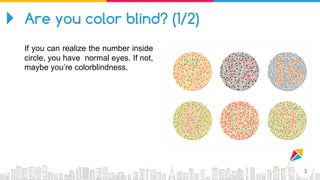
Are you color blind? (1/2)
3
If you can realize the number inside
circle, you have normal eyes. If not,
maybe you’re colorblindness.
4
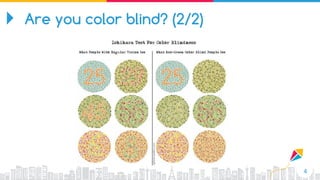
Are you color blind? (2/2)
5
“ There are many types of color blindness but it
comes down to not seeing color clearly, getting
colors mixed up, or not being able to differentiate
between certain colors.”
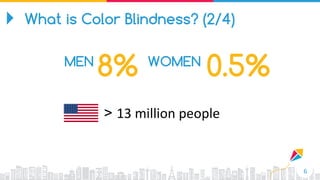
What is Color Blindness? (1/4)
6
MEN WOMEN
8% 0.5%
> 13 million people
What is Color Blindness? (2/4)
7
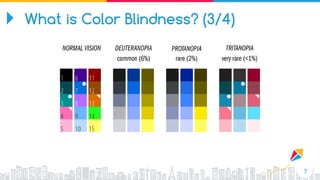
What is Color Blindness? (3/4)
8
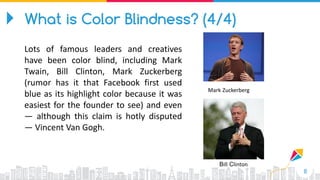
Mark Zuckerberg
Bill Clinton
What is Color Blindness? (4/4)
Lots of famous leaders and creatives
have been color blind, including Mark
Twain, Bill Clinton, Mark Zuckerberg
(rumor has it that Facebook first used
blue as its highlight color because it was
easiest for the founder to see) and even
— although this claim is hotly disputed
— Vincent Van Gogh.
9
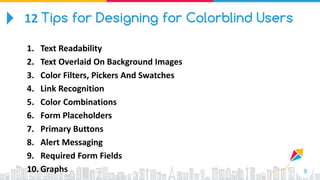
1. Text Readability
2. Text Overlaid On Background Images
3. Color Filters, Pickers And Swatches
4. Link Recognition
5. Color Combinations
6. Form Placeholders
7. Primary Buttons
8. Alert Messaging
9. Required Form Fields
10. Graphs
12 Tips for Designing for Colorblind Users
10
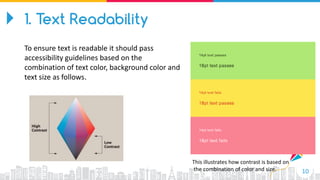
This illustrates how contrast is based on
the combination of color and size.
1. Text Readability
To ensure text is readable it should pass
accessibility guidelines based on the
combination of text color, background color and
text size as follows.
11
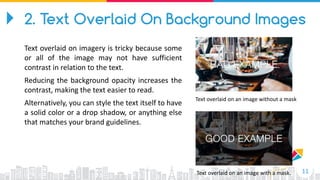
Text overlaid on an image without a mask
Text overlaid on an image with a mask.
2. Text Overlaid On Background Images
Text overlaid on imagery is tricky because some
or all of the image may not have sufficient
contrast in relation to the text.
Reducing the background opacity increases the
contrast, making the text easier to read.
Alternatively, you can style the text itself to have
a solid color or a drop shadow, or anything else
that matches your brand guidelines.
12
3. Color Filters, Pickers & Swatches (1/2)
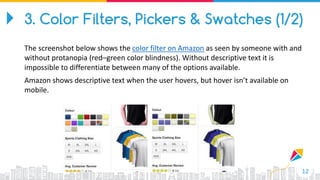
The screenshot below shows the color filter on Amazon as seen by someone with and
without protanopia (red–green color blindness). Without descriptive text it is
impossible to differentiate between many of the options available.
Amazon shows descriptive text when the user hovers, but hover isn’t available on
mobile.
13
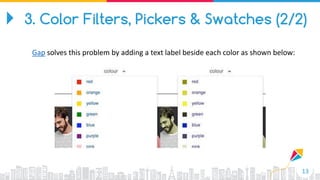
Gap solves this problem by adding a text label beside each color as shown below:
3. Color Filters, Pickers & Swatches (2/2)
14
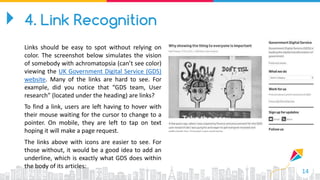
4. Link Recognition
Links should be easy to spot without relying on
color. The screenshot below simulates the vision
of somebody with achromatopsia (can’t see color)
viewing the UK Government Digital Service (GDS)
website. Many of the links are hard to see. For
example, did you notice that “GDS team, User
research” (located under the heading) are links?
To find a link, users are left having to hover with
their mouse waiting for the cursor to change to a
pointer. On mobile, they are left to tap on text
hoping it will make a page request.
The links above with icons are easier to see. For
those without, it would be a good idea to add an
underline, which is exactly what GDS does within
the body of its articles:
15
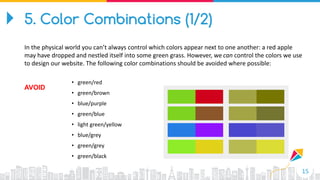
• green/red
• green/brown
• blue/purple
• green/blue
• light green/yellow
• blue/grey
• green/grey
• green/black
AVOID
5. Color Combinations (1/2)
In the physical world you can’t always control which colors appear next to one another: a red apple
may have dropped and nestled itself into some green grass. However, we can control the colors we use
to design our website. The following color combinations should be avoided where possible:
16
5. Color Combinations (2/2)
17Apple’s registration form uses a placeholder without a label Made.com uses labels with good contrast
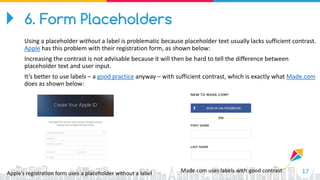
6. Form Placeholders
Using a placeholder without a label is problematic because placeholder text usually lacks sufficient contrast.
Apple has this problem with their registration form, as shown below:
Increasing the contrast is not advisable because it will then be hard to tell the difference between
placeholder text and user input.
It’s better to use labels – a good practice anyway – with sufficient contrast, which is exactly what Made.com
does as shown below:
18
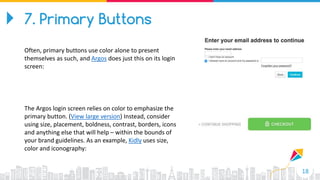
7. Primary Buttons
Often, primary buttons use color alone to present
themselves as such, and Argos does just this on its login
screen:
The Argos login screen relies on color to emphasize the
primary button. (View large version) Instead, consider
using size, placement, boldness, contrast, borders, icons
and anything else that will help – within the bounds of
your brand guidelines. As an example, Kidly uses size,
color and iconography:
19
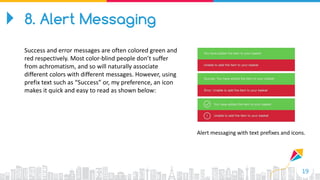
Alert messaging with text prefixes and icons.
8. Alert Messaging
Success and error messages are often colored green and
red respectively. Most color-blind people don’t suffer
from achromatism, and so will naturally associate
different colors with different messages. However, using
prefix text such as “Success” or, my preference, an icon
makes it quick and easy to read as shown below:
20
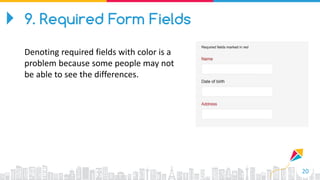
9. Required Form Fields
Denoting required fields with color is a
problem because some people may not
be able to see the differences.
21
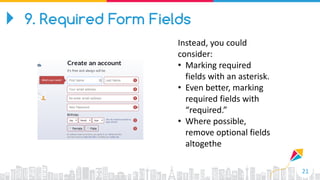
Instead, you could
consider:
• Marking required
fields with an asterisk.
• Even better, marking
required fields with
“required.”
• Where possible,
remove optional fields
altogethe
9. Required Form Fields
22
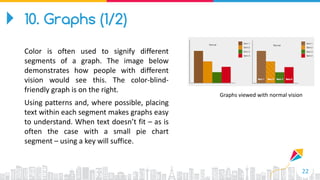
Graphs viewed with normal vision
10. Graphs (1/2)
Color is often used to signify different
segments of a graph. The image below
demonstrates how people with different
vision would see this. The color-blind-
friendly graph is on the right.
Using patterns and, where possible, placing
text within each segment makes graphs easy
to understand. When text doesn’t fit – as is
often the case with a small pie chart
segment – using a key will suffice.
23
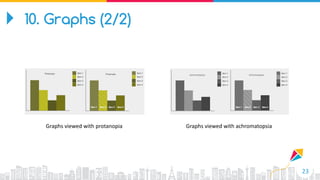
Graphs viewed with protanopia Graphs viewed with achromatopsia
10. Graphs (2/2)
24
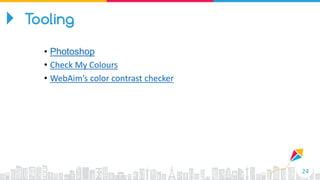
• Photoshop
• Check My Colours
• WebAim’s color contrast checker
Tooling
25
Tooling - Photoshop
26
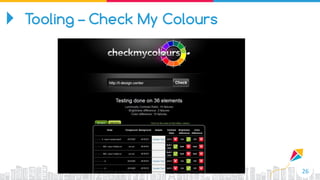
Tooling – Check My Colours
27
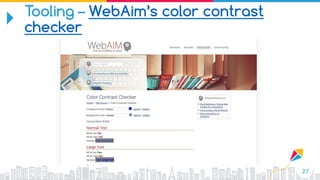
Tooling – WebAim’s color contrast
checker
Examples
28
Examples
29
Examples
30
Examples
31
THANK YOU!
Tel:
:
Fax:
Email:

How to design for Colorblind User ?

  • 1.
    www.tmasolutions.com How to designfor Colorblind User Sourse: Smashing Magazine
  • 2.
    Content 2 Are you Colorblind ? What Is Color Blindness? 10 Tips for Designing for Color Blind Users Tooling Examples
  • 3.
    Are you colorblind? (1/2) 3 If you can realize the number inside circle, you have normal eyes. If not, maybe you’re colorblindness.
  • 4.
    4 Are you colorblind? (2/2)
  • 5.
    5 “ There aremany types of color blindness but it comes down to not seeing color clearly, getting colors mixed up, or not being able to differentiate between certain colors.” What is Color Blindness? (1/4)
  • 6.
    6 MEN WOMEN 8% 0.5% >13 million people What is Color Blindness? (2/4)
  • 7.
    7 What is ColorBlindness? (3/4)
  • 8.
    8 Mark Zuckerberg Bill Clinton Whatis Color Blindness? (4/4) Lots of famous leaders and creatives have been color blind, including Mark Twain, Bill Clinton, Mark Zuckerberg (rumor has it that Facebook first used blue as its highlight color because it was easiest for the founder to see) and even — although this claim is hotly disputed — Vincent Van Gogh.
  • 9.
    9 1. Text Readability 2.Text Overlaid On Background Images 3. Color Filters, Pickers And Swatches 4. Link Recognition 5. Color Combinations 6. Form Placeholders 7. Primary Buttons 8. Alert Messaging 9. Required Form Fields 10. Graphs 12 Tips for Designing for Colorblind Users
  • 10.
    10 This illustrates howcontrast is based on the combination of color and size. 1. Text Readability To ensure text is readable it should pass accessibility guidelines based on the combination of text color, background color and text size as follows.
  • 11.
    11 Text overlaid onan image without a mask Text overlaid on an image with a mask. 2. Text Overlaid On Background Images Text overlaid on imagery is tricky because some or all of the image may not have sufficient contrast in relation to the text. Reducing the background opacity increases the contrast, making the text easier to read. Alternatively, you can style the text itself to have a solid color or a drop shadow, or anything else that matches your brand guidelines.
  • 12.
    12 3. Color Filters,Pickers & Swatches (1/2) The screenshot below shows the color filter on Amazon as seen by someone with and without protanopia (red–green color blindness). Without descriptive text it is impossible to differentiate between many of the options available. Amazon shows descriptive text when the user hovers, but hover isn’t available on mobile.
  • 13.
    13 Gap solves thisproblem by adding a text label beside each color as shown below: 3. Color Filters, Pickers & Swatches (2/2)
  • 14.
    14 4. Link Recognition Linksshould be easy to spot without relying on color. The screenshot below simulates the vision of somebody with achromatopsia (can’t see color) viewing the UK Government Digital Service (GDS) website. Many of the links are hard to see. For example, did you notice that “GDS team, User research” (located under the heading) are links? To find a link, users are left having to hover with their mouse waiting for the cursor to change to a pointer. On mobile, they are left to tap on text hoping it will make a page request. The links above with icons are easier to see. For those without, it would be a good idea to add an underline, which is exactly what GDS does within the body of its articles:
  • 15.
    15 • green/red • green/brown •blue/purple • green/blue • light green/yellow • blue/grey • green/grey • green/black AVOID 5. Color Combinations (1/2) In the physical world you can’t always control which colors appear next to one another: a red apple may have dropped and nestled itself into some green grass. However, we can control the colors we use to design our website. The following color combinations should be avoided where possible:
  • 16.
  • 17.
    17Apple’s registration formuses a placeholder without a label Made.com uses labels with good contrast 6. Form Placeholders Using a placeholder without a label is problematic because placeholder text usually lacks sufficient contrast. Apple has this problem with their registration form, as shown below: Increasing the contrast is not advisable because it will then be hard to tell the difference between placeholder text and user input. It’s better to use labels – a good practice anyway – with sufficient contrast, which is exactly what Made.com does as shown below:
  • 18.
    18 7. Primary Buttons Often,primary buttons use color alone to present themselves as such, and Argos does just this on its login screen: The Argos login screen relies on color to emphasize the primary button. (View large version) Instead, consider using size, placement, boldness, contrast, borders, icons and anything else that will help – within the bounds of your brand guidelines. As an example, Kidly uses size, color and iconography:
  • 19.
    19 Alert messaging withtext prefixes and icons. 8. Alert Messaging Success and error messages are often colored green and red respectively. Most color-blind people don’t suffer from achromatism, and so will naturally associate different colors with different messages. However, using prefix text such as “Success” or, my preference, an icon makes it quick and easy to read as shown below:
  • 20.
    20 9. Required FormFields Denoting required fields with color is a problem because some people may not be able to see the differences.
  • 21.
    21 Instead, you could consider: •Marking required fields with an asterisk. • Even better, marking required fields with “required.” • Where possible, remove optional fields altogethe 9. Required Form Fields
  • 22.
    22 Graphs viewed withnormal vision 10. Graphs (1/2) Color is often used to signify different segments of a graph. The image below demonstrates how people with different vision would see this. The color-blind- friendly graph is on the right. Using patterns and, where possible, placing text within each segment makes graphs easy to understand. When text doesn’t fit – as is often the case with a small pie chart segment – using a key will suffice.
  • 23.
    23 Graphs viewed withprotanopia Graphs viewed with achromatopsia 10. Graphs (2/2)
  • 24.
    24 • Photoshop • CheckMy Colours • WebAim’s color contrast checker Tooling
  • 25.
  • 26.
  • 27.
    27 Tooling – WebAim’scolor contrast checker
  • 28.
  • 29.
  • 30.
  • 31.
  • 32.