RFQs and Quotation
Overview
A request for quotation (RFQ) is sent to a supplier to request pricing and other information for an item
or items. A quotation is the supplier's response to that RFQ. Some examples of how you send an RFQ to
a supplier include creating an RFQ in the RFQs window and sending it by facsimile, making a phone call,
or using Oracle iSupplier Portal. One way a supplier can send a quotation, whether or not in response to
an RFQ, is through the Purchasing Documents Open Interface.

If you don't receive quotations electronically from your supplier, you can create the quotation manually
using the Quotations window, or copy the quotation from an RFQ.


Creating an RFQ
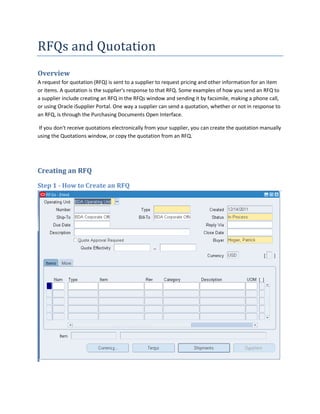
Step 1 - How to Create an RFQ
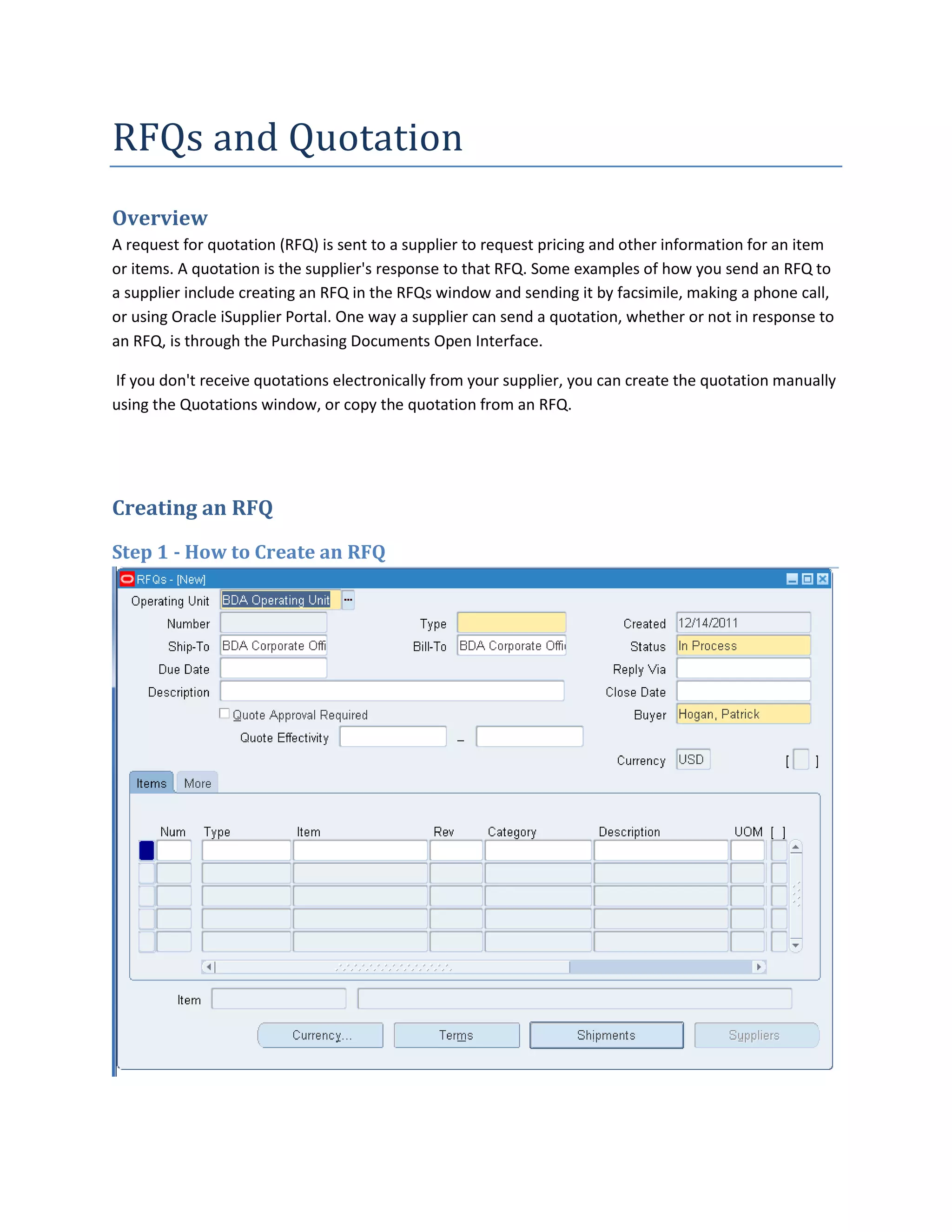
Step 2 - Select RFQ Type


Step 3 - Enter a Close Date
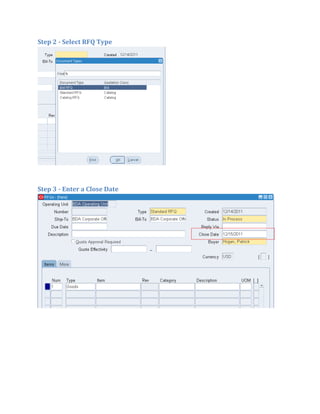
Step 4 - Enter the items to be bid on


Step 5 - Enter a target price and Supplier Number
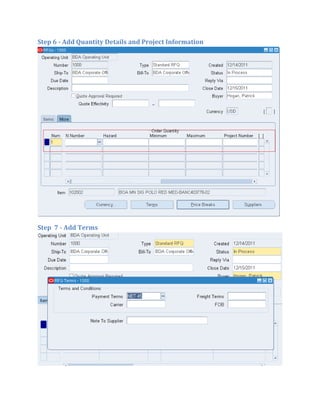
Step 6 - Add Quantity Details and Project Information


Step 7 - Add Terms
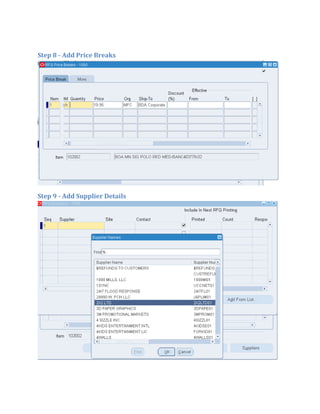
Step 8 - Add Price Breaks


Step 9 - Add Supplier Details
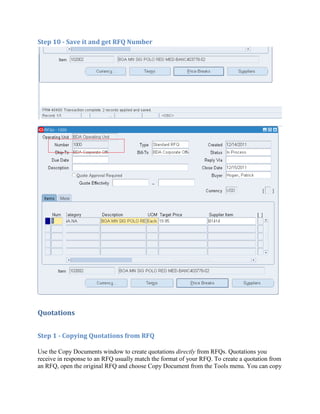
Step 10 - Save it and get RFQ Number


Quotations


Step 1 - Copying Quotations from RFQ

Use the Copy Documents window to create quotations directly from RFQs. Quotations you
receive in response to an RFQ usually match the format of your RFQ. To create a quotation from
an RFQ, open the original RFQ and choose Copy Document from the Tools menu. You can copy
the complete RFQ or part of it to your quotation. You can then edit the quotation to provide
detailed quotation line information.

Project and task information, if any, is carried from an RFQ when you copy a quotation from it.

To copy a quotation from an RFQ:

   1.  In the RFQs window, open the RFQ you want to copy.
   2.  Navigate to the Copy Document window
   3.  Enter the copy-from Action: Entire RFQ, RFQ Header Only, or RFQ Header and Lines.
   4.  Enter a quotation Number if you are using manual quotation number entry. Otherwise,
       Purchasing assigns a number for you when you save your work
   5. Enter the document Type. This is one of the document names defined for RFQs. The list
       of values lists the Document Type (Document Name) and Quotation Class from the
       Document Types window.
   6. Enter the name of the active Supplier. The list of values displays the supplier name, Hold
       Status, 1099 Number, and VAT Registration Number.
   7. Enter the Supplier Site.
   8. Enter the name of the Contact for this site
   9. Select Copy Attachments if you want to include the RFQ attachments on the quotation.
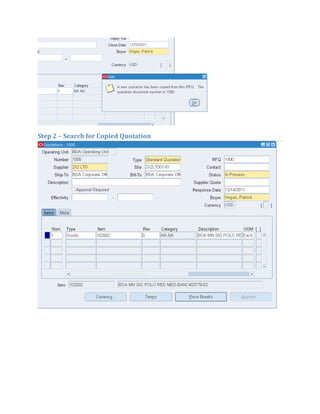
   10. Select the OK button to copy the RFQ. Purchasing displays a confirmation message and
       opens the new quotation in the Quotations window.

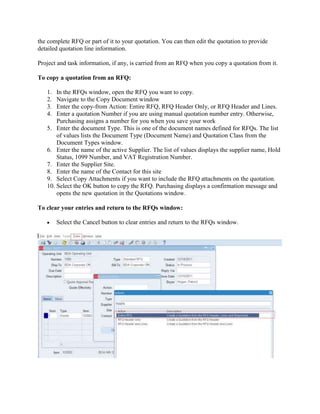
To clear your entries and return to the RFQs window:

        Select the Cancel button to clear entries and return to the RFQs window.
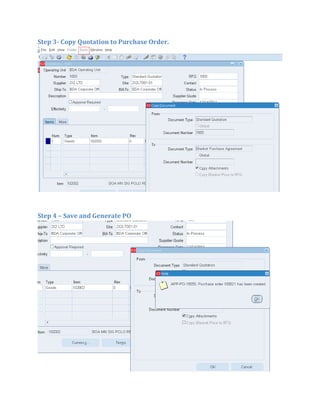
Step 2 – Search for Copied Quotation
Step 3- Copy Quotation to Purchase Order.


Step 4 – Save and Generate PO
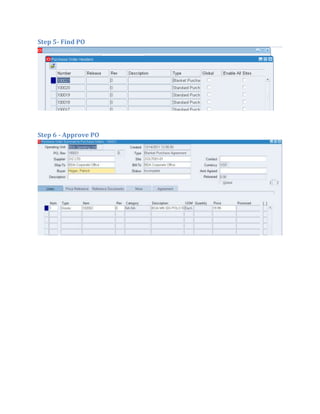
Step 5- Find PO


Step 6 - Approve PO
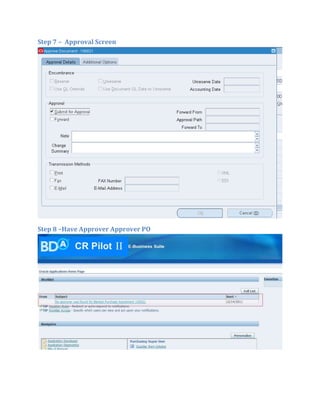
Step 7 – Approval Screen


Step 8 –Have Approver Approver PO
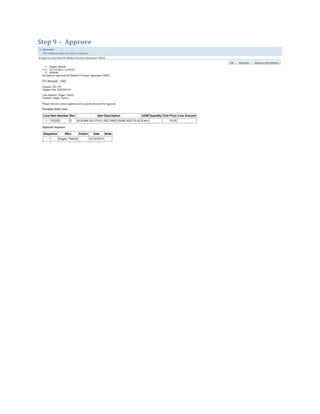
Step 9 – Approve

How to create an RFQ

  • 1.
    RFQs and Quotation Overview Arequest for quotation (RFQ) is sent to a supplier to request pricing and other information for an item or items. A quotation is the supplier's response to that RFQ. Some examples of how you send an RFQ to a supplier include creating an RFQ in the RFQs window and sending it by facsimile, making a phone call, or using Oracle iSupplier Portal. One way a supplier can send a quotation, whether or not in response to an RFQ, is through the Purchasing Documents Open Interface. If you don't receive quotations electronically from your supplier, you can create the quotation manually using the Quotations window, or copy the quotation from an RFQ. Creating an RFQ Step 1 - How to Create an RFQ
  • 2.
    Step 2 -Select RFQ Type Step 3 - Enter a Close Date
  • 3.
    Step 4 -Enter the items to be bid on Step 5 - Enter a target price and Supplier Number
  • 4.
    Step 6 -Add Quantity Details and Project Information Step 7 - Add Terms
  • 5.
    Step 8 -Add Price Breaks Step 9 - Add Supplier Details
  • 6.
    Step 10 -Save it and get RFQ Number Quotations Step 1 - Copying Quotations from RFQ Use the Copy Documents window to create quotations directly from RFQs. Quotations you receive in response to an RFQ usually match the format of your RFQ. To create a quotation from an RFQ, open the original RFQ and choose Copy Document from the Tools menu. You can copy
  • 7.
    the complete RFQor part of it to your quotation. You can then edit the quotation to provide detailed quotation line information. Project and task information, if any, is carried from an RFQ when you copy a quotation from it. To copy a quotation from an RFQ: 1. In the RFQs window, open the RFQ you want to copy. 2. Navigate to the Copy Document window 3. Enter the copy-from Action: Entire RFQ, RFQ Header Only, or RFQ Header and Lines. 4. Enter a quotation Number if you are using manual quotation number entry. Otherwise, Purchasing assigns a number for you when you save your work 5. Enter the document Type. This is one of the document names defined for RFQs. The list of values lists the Document Type (Document Name) and Quotation Class from the Document Types window. 6. Enter the name of the active Supplier. The list of values displays the supplier name, Hold Status, 1099 Number, and VAT Registration Number. 7. Enter the Supplier Site. 8. Enter the name of the Contact for this site 9. Select Copy Attachments if you want to include the RFQ attachments on the quotation. 10. Select the OK button to copy the RFQ. Purchasing displays a confirmation message and opens the new quotation in the Quotations window. To clear your entries and return to the RFQs window: Select the Cancel button to clear entries and return to the RFQs window.
  • 9.
    Step 2 –Search for Copied Quotation
  • 10.
    Step 3- CopyQuotation to Purchase Order. Step 4 – Save and Generate PO
  • 11.
    Step 5- FindPO Step 6 - Approve PO
  • 12.
    Step 7 –Approval Screen Step 8 –Have Approver Approver PO
  • 13.
    Step 9 –Approve