How to Add“Addins” onSharePointOnlineorprojectOnline
Thisarticle isabout adding“Addins”on SharePointOnline orprojectOnline,indaytoday taskor
monthlytaskwithSharePointonline we needtoaddsome of add-insonSharePointonline or Project
online.
Whenwe wentto add the same add inswithMS supportblogsite,we foundsome difficultytodothisas
there wasnot screenshotsor details.
Today I am writingthisabouthowto addSharePointorProjectonline add-inswithscreenshots:
 Loginto the SharePointorProjectonline site withauthorizeduseraccountandpassword.
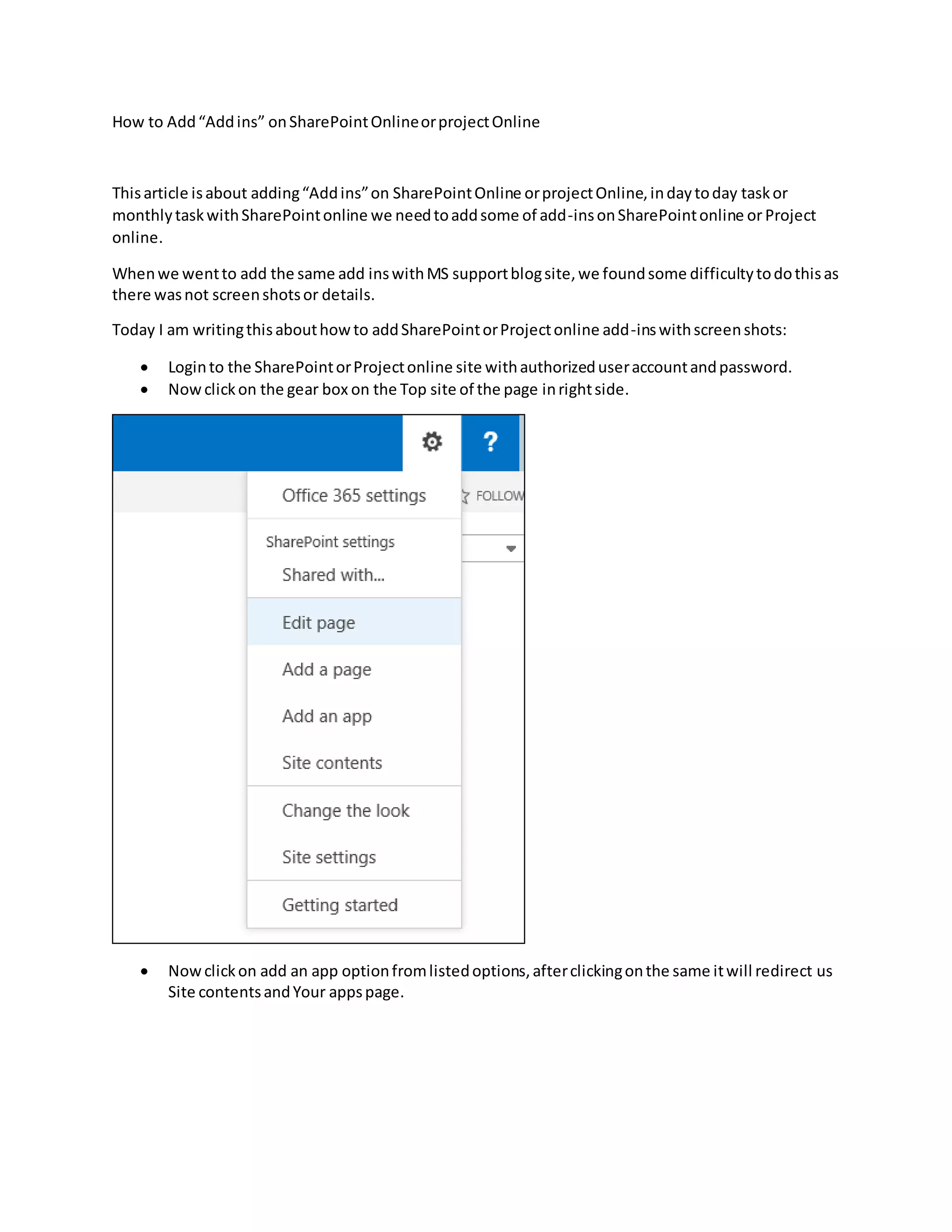
 Nowclickon the gear box on the Top site of the page inrightside.
 Nowclickon add an app optionfromlistedoptions,afterclickingonthe same itwill redirect us
Site contentsandYour appspage.
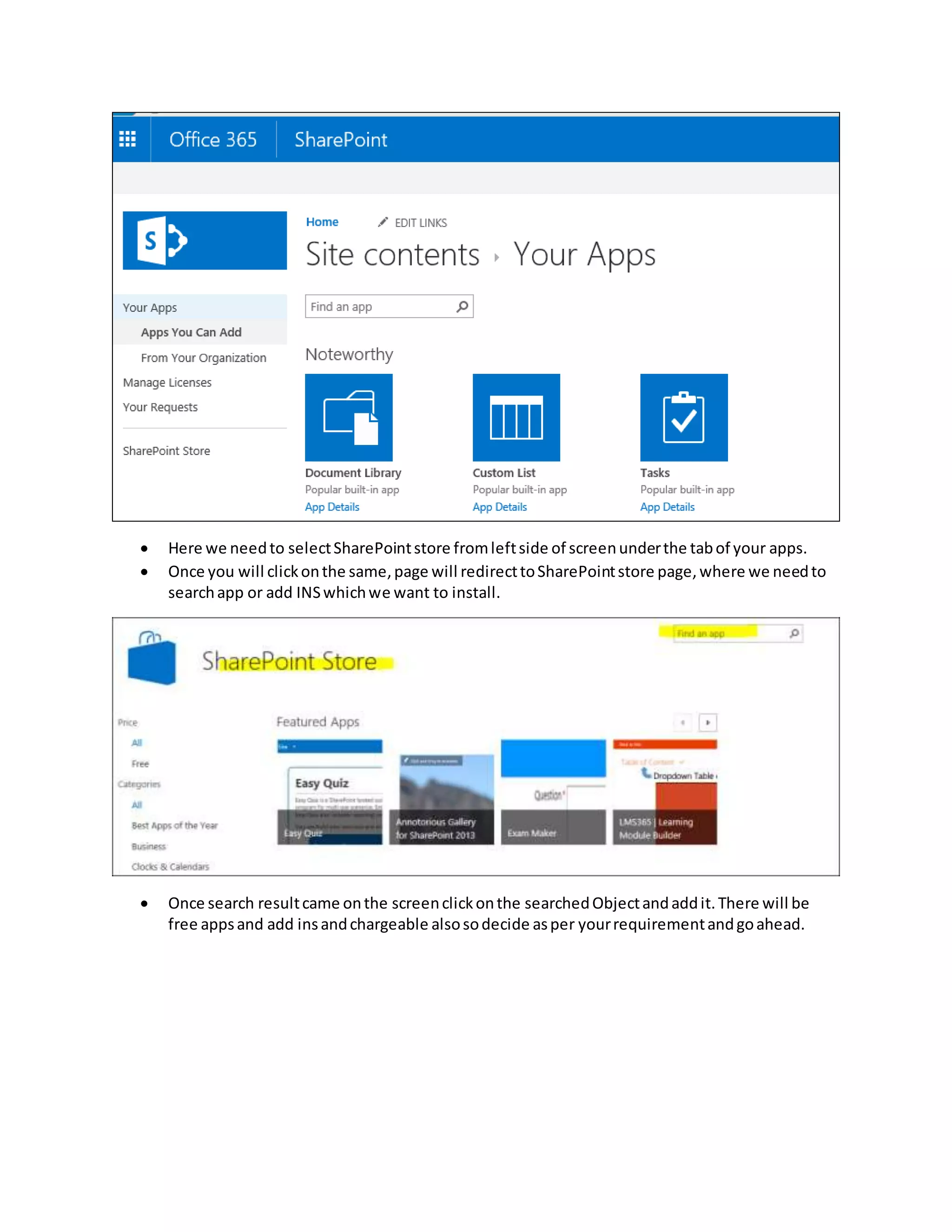
 Here we needto selectSharePointstore fromleftside of screenunderthe tabof your apps.
 Once you will clickonthe same,page will redirecttoSharePointstore page,where we needto
searchapp or add INSwhichwe want to install.
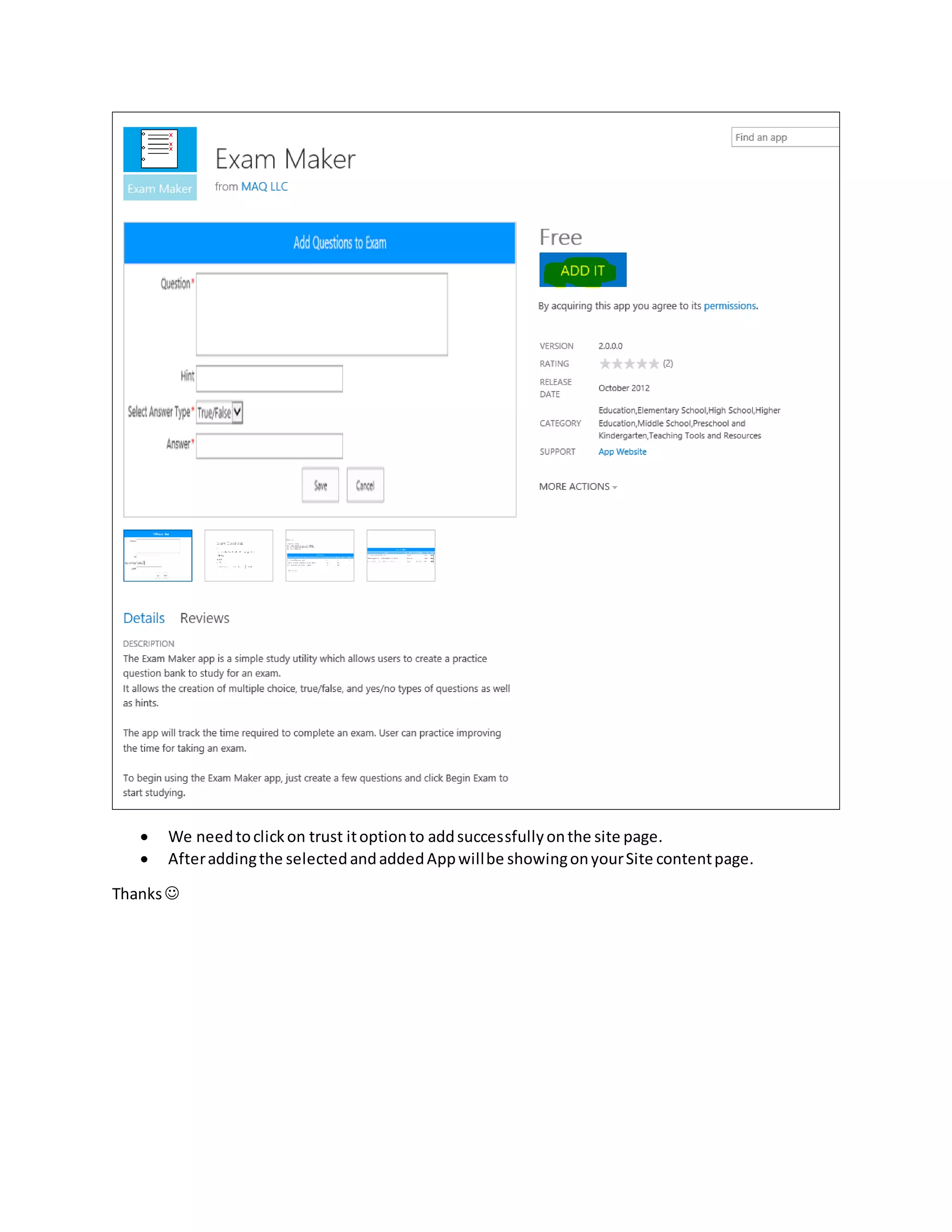
 Once search resultcame onthe screenclickonthe searchedObjectandaddit.There will be
free appsand add insandchargeable alsosodecide asper yourrequirementandgoahead.
 We needtoclickon trust itoptionto addsuccessfullyonthe site page.
 Afteraddingthe selectedandaddedAppwillbe showingonyourSite contentpage.
Thanks

How to add “add ins” on share point online or project online

  • 1.
    How to Add“Addins”onSharePointOnlineorprojectOnline Thisarticle isabout adding“Addins”on SharePointOnline orprojectOnline,indaytoday taskor monthlytaskwithSharePointonline we needtoaddsome of add-insonSharePointonline or Project online. Whenwe wentto add the same add inswithMS supportblogsite,we foundsome difficultytodothisas there wasnot screenshotsor details. Today I am writingthisabouthowto addSharePointorProjectonline add-inswithscreenshots:  Loginto the SharePointorProjectonline site withauthorizeduseraccountandpassword.  Nowclickon the gear box on the Top site of the page inrightside.  Nowclickon add an app optionfromlistedoptions,afterclickingonthe same itwill redirect us Site contentsandYour appspage.
  • 2.
     Here weneedto selectSharePointstore fromleftside of screenunderthe tabof your apps.  Once you will clickonthe same,page will redirecttoSharePointstore page,where we needto searchapp or add INSwhichwe want to install.  Once search resultcame onthe screenclickonthe searchedObjectandaddit.There will be free appsand add insandchargeable alsosodecide asper yourrequirementandgoahead.
  • 3.
     We needtoclickontrust itoptionto addsuccessfullyonthe site page.  Afteraddingthe selectedandaddedAppwillbe showingonyourSite contentpage. Thanks