HCQS | GUIDE FOR IPHONE 6 FRONT
PANEL ASSEMBLY REPLACEMENT
TOOL:
P2 Pentalobe Screwdriver iPhone iSclack
Small Suction Cup
Plastic Opening Tools
Tweezers
Phillips Screwdriver
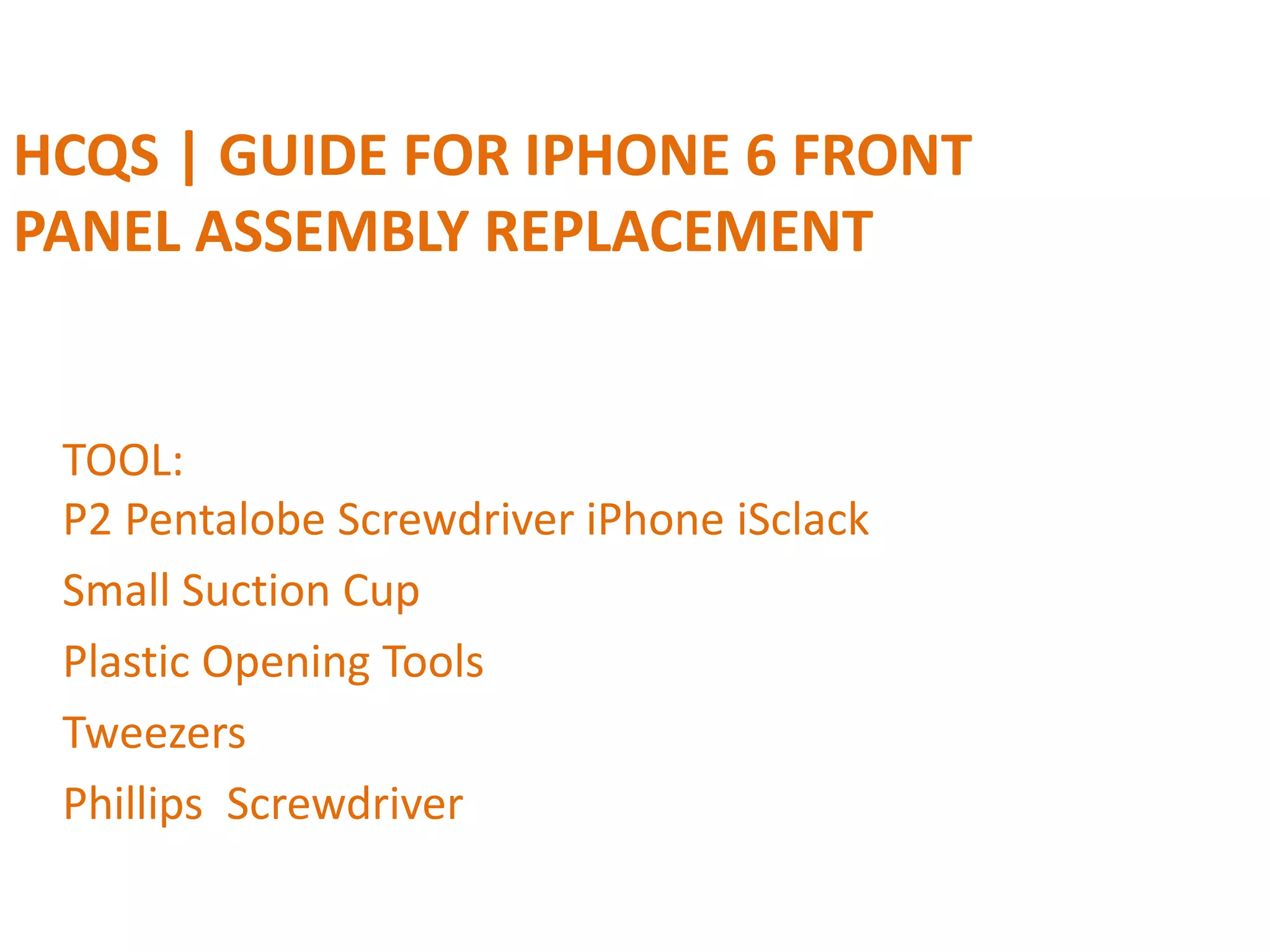
Step 1 — Pentalobe Screws
Power off your iPhone before beginning disassembly.
Remove the two 3.6 mm Pentalobe screws next to the Lightning
connector.
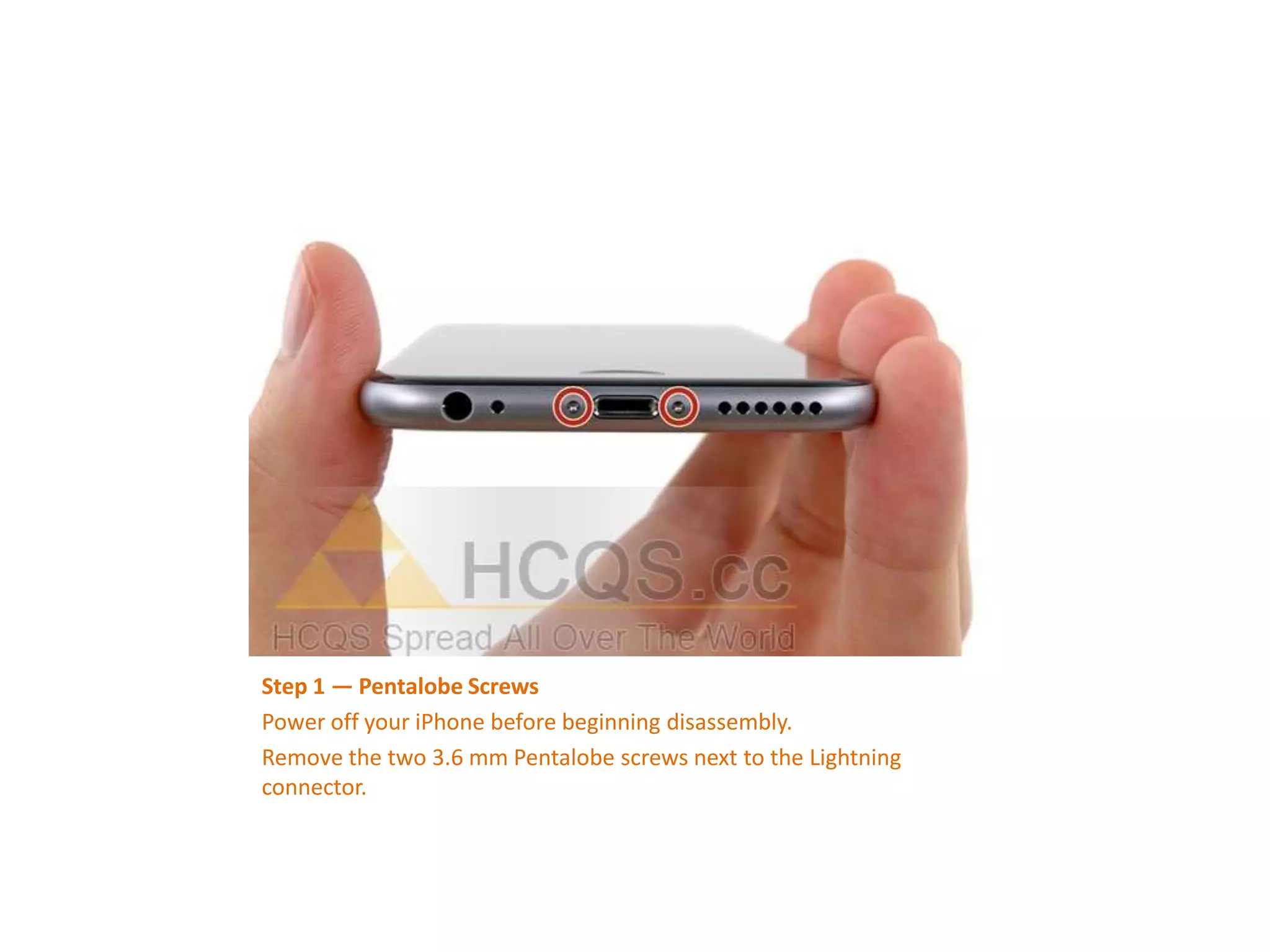
Step 2 — iSclack Opening Procedure
The next three steps demonstrate using the iSclack, a great tool for safely
opening the iPhone 6 that we recommend for anyone doing more than
one repair. If you aren't using the iSclack, skip to Step 5.
If the plastic depth gauge is attached at the center of the iSclack, remove
it now—it's not needed for larger phones like the iPhone 6.
Close the handle on the iSclack, opening the suction-cup jaws.
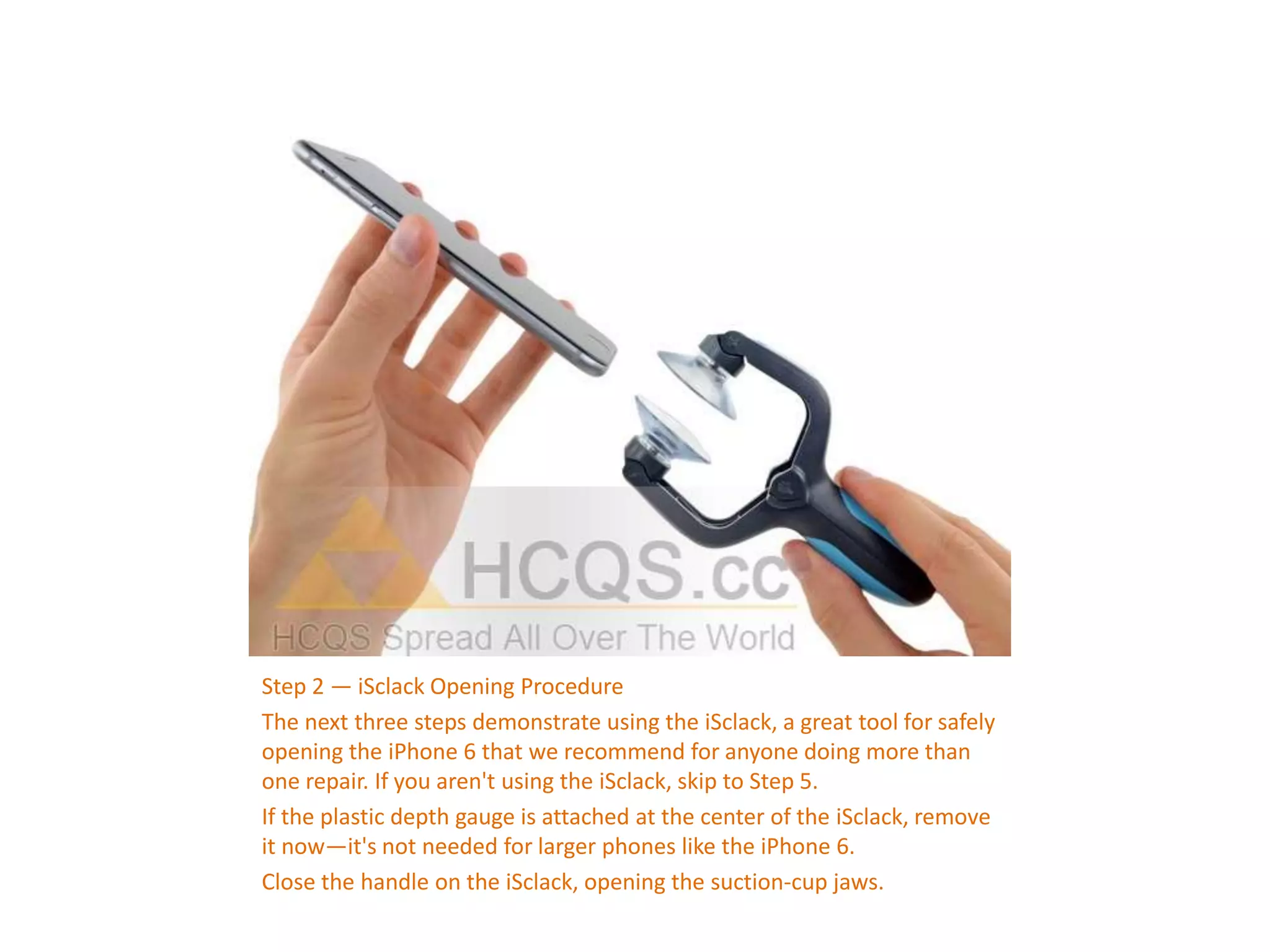
Step 3
Place the bottom of your iPhone in between the suction cups.
Position the iSclack's upper suction cup against the display, just above
(but not covering) the home button.
Open the handles to close the jaws of the iSclack. Center the suction
cups and press them firmly onto the top and bottom of the iPhone.
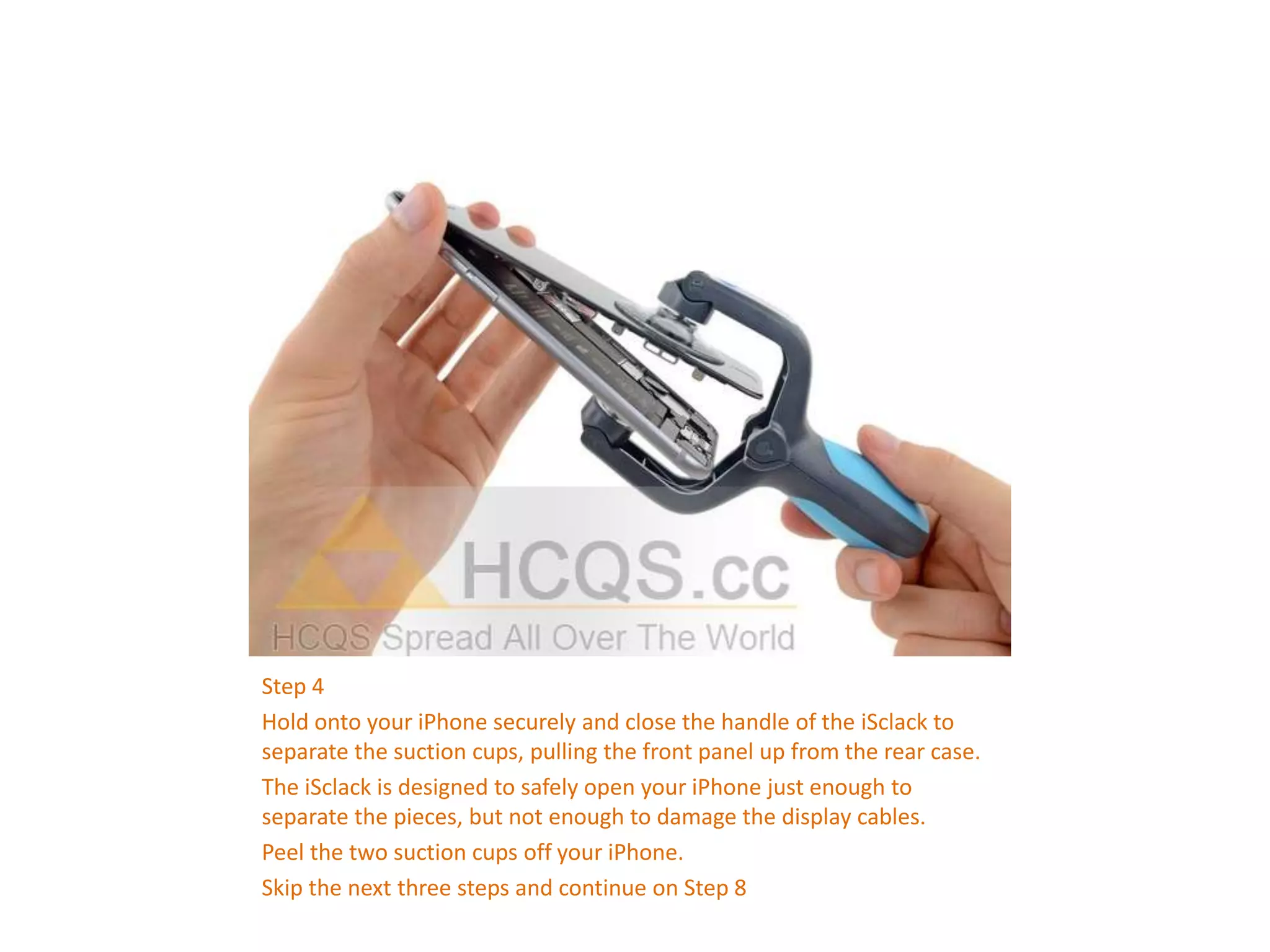
Step 4
Hold onto your iPhone securely and close the handle of the iSclack to
separate the suction cups, pulling the front panel up from the rear case.
The iSclack is designed to safely open your iPhone just enough to
separate the pieces, but not enough to damage the display cables.
Peel the two suction cups off your iPhone.
Skip the next three steps and continue on Step 8
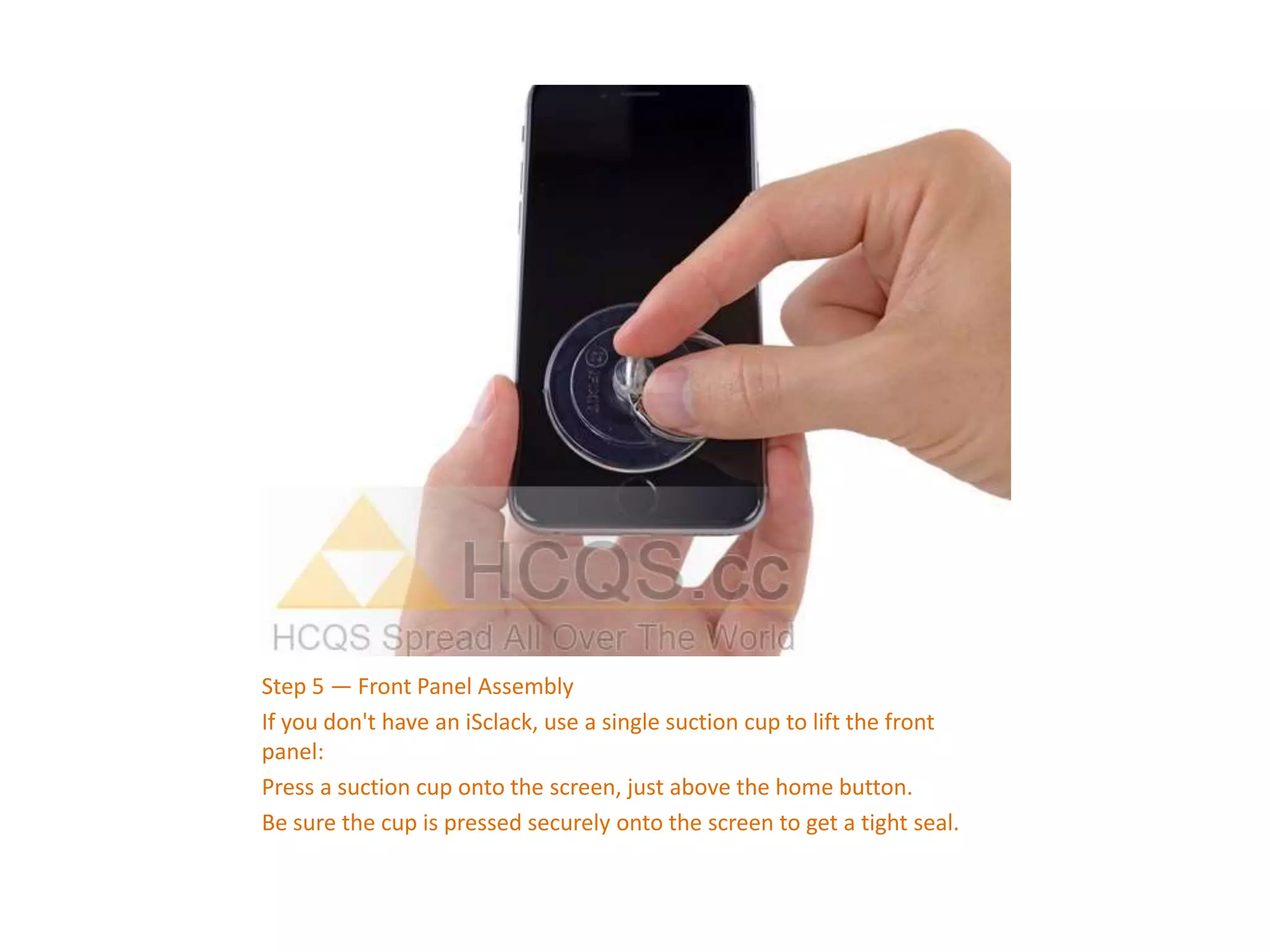
Step 5 — Front Panel Assembly
If you don't have an iSclack, use a single suction cup to lift the front
panel:
Press a suction cup onto the screen, just above the home button.
Be sure the cup is pressed securely onto the screen to get a tight seal.
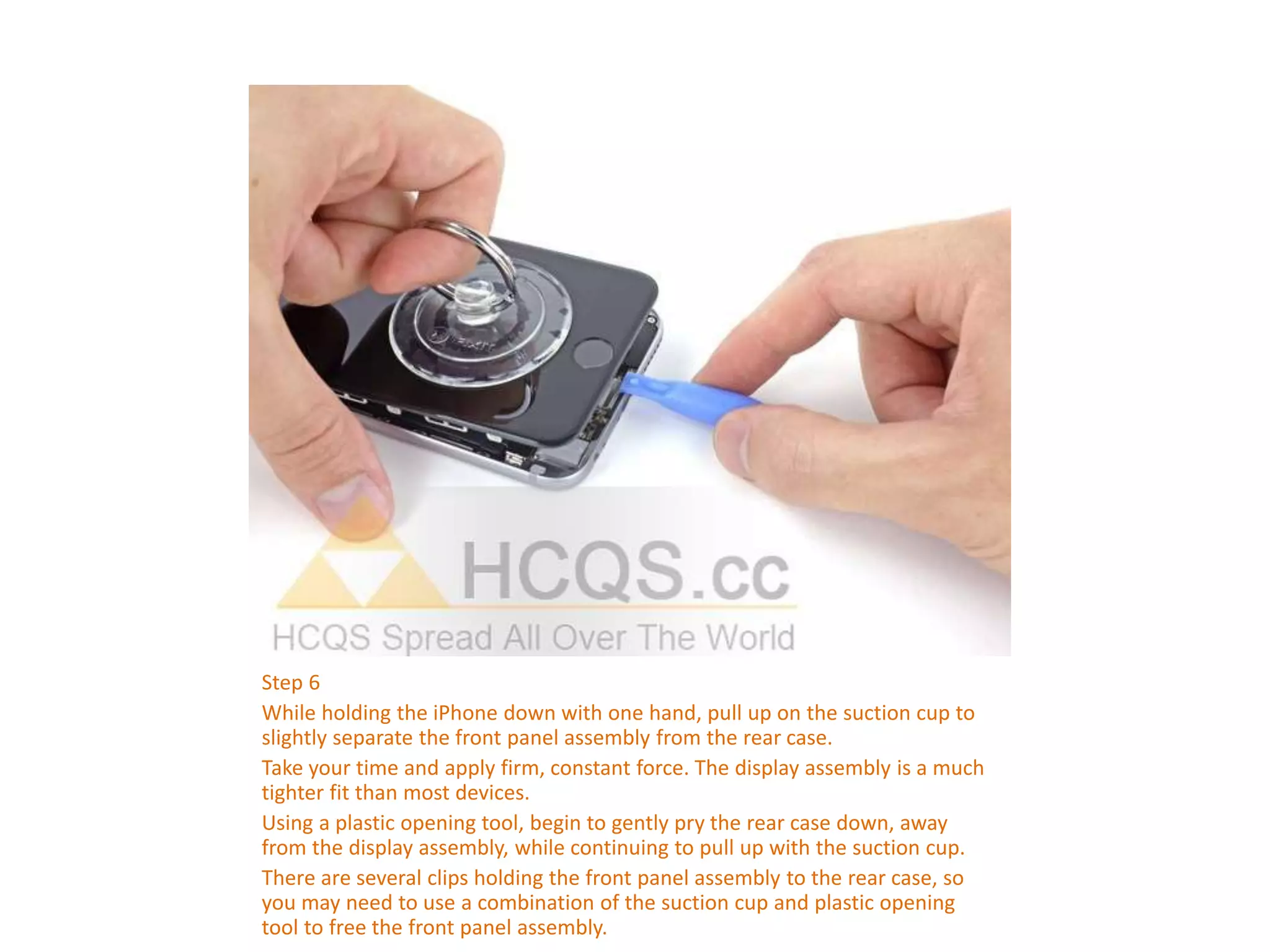
Step 6
While holding the iPhone down with one hand, pull up on the suction cup to
slightly separate the front panel assembly from the rear case.
Take your time and apply firm, constant force. The display assembly is a much
tighter fit than most devices.
Using a plastic opening tool, begin to gently pry the rear case down, away
from the display assembly, while continuing to pull up with the suction cup.
There are several clips holding the front panel assembly to the rear case, so
you may need to use a combination of the suction cup and plastic opening
tool to free the front panel assembly.
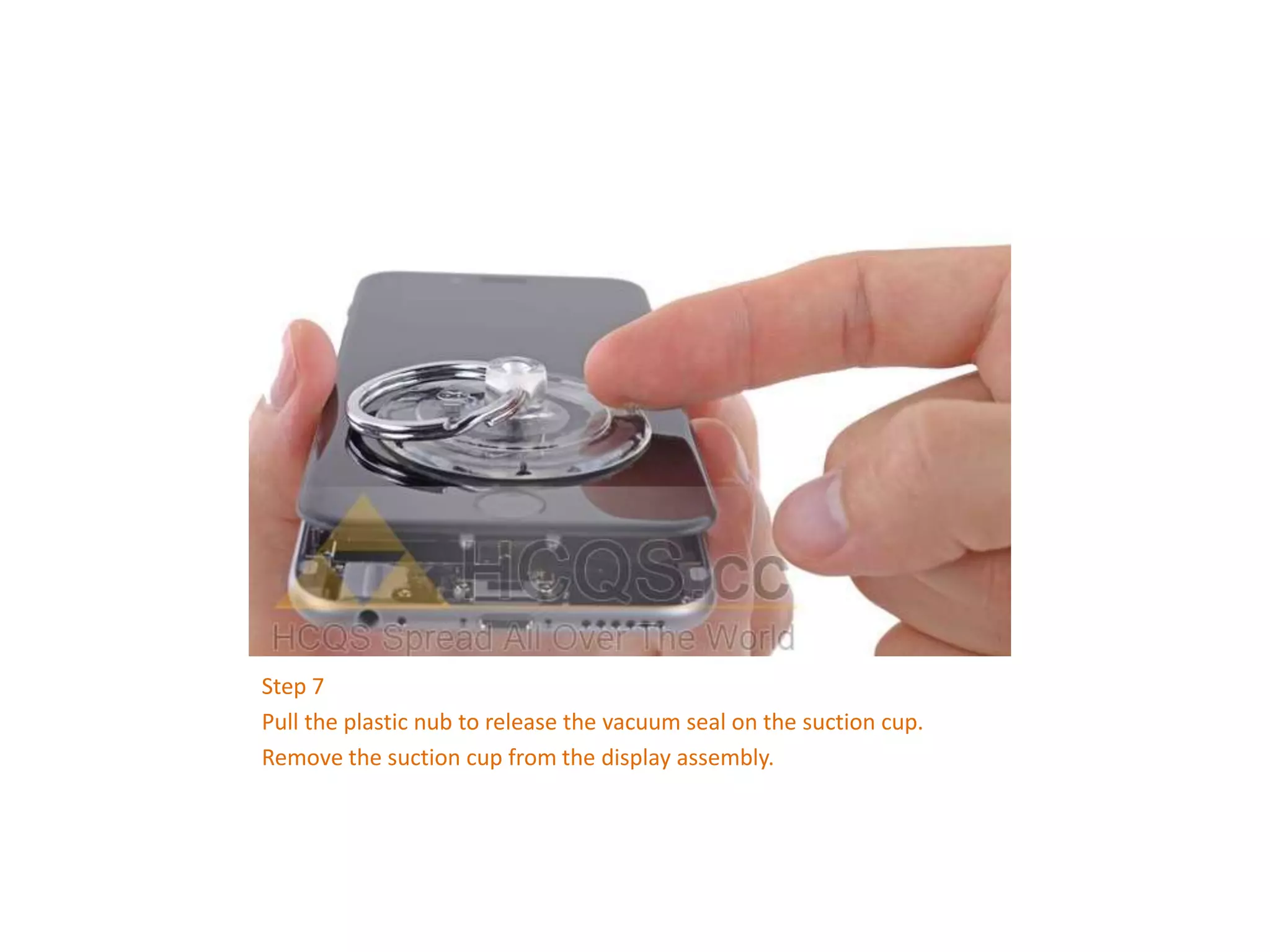
Step 7
Pull the plastic nub to release the vacuum seal on the suction cup.
Remove the suction cup from the display assembly.
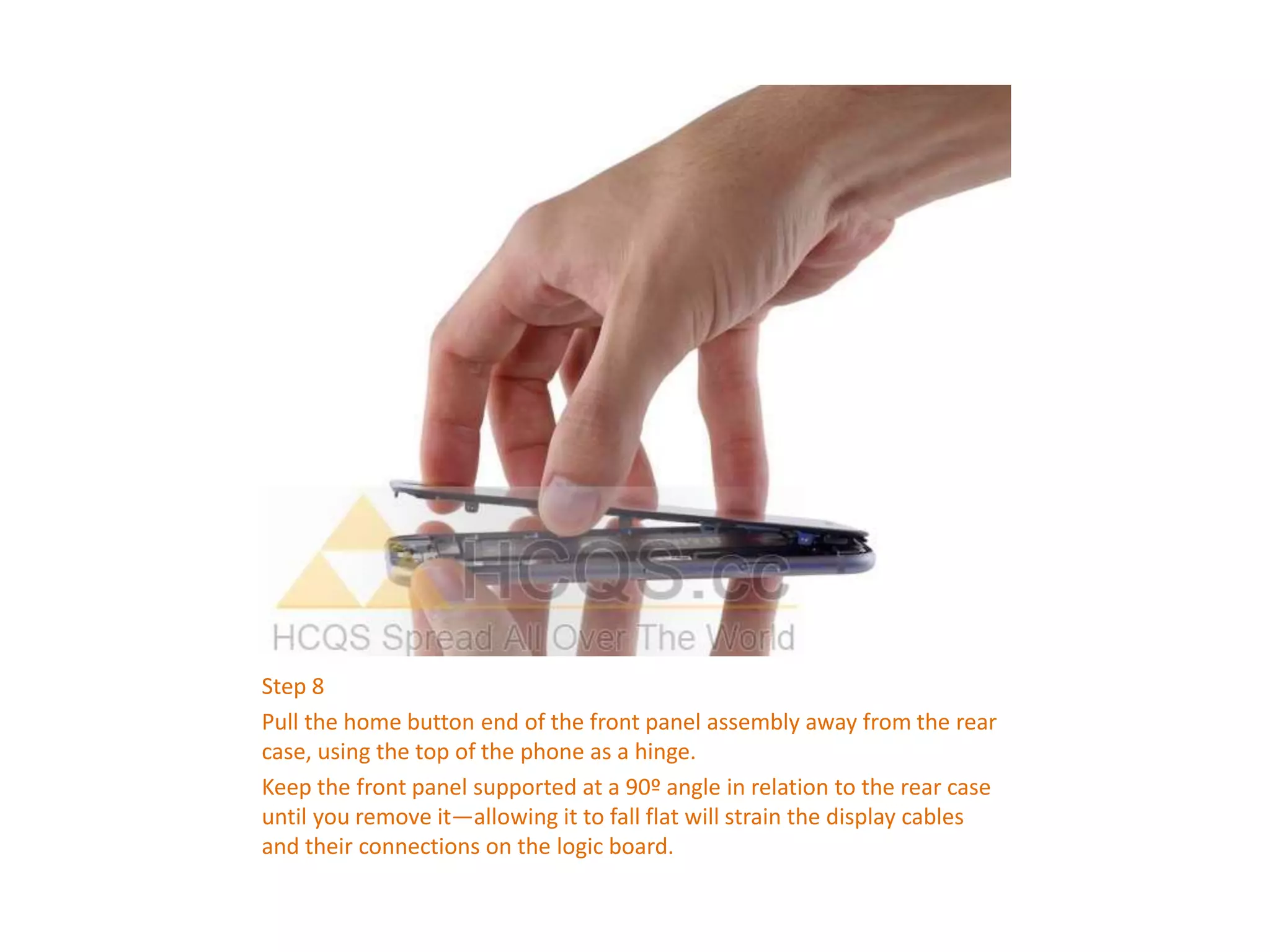
Step 8
Pull the home button end of the front panel assembly away from the rear
case, using the top of the phone as a hinge.
Keep the front panel supported at a 90º angle in relation to the rear case
until you remove it—allowing it to fall flat will strain the display cables
and their connections on the logic board.
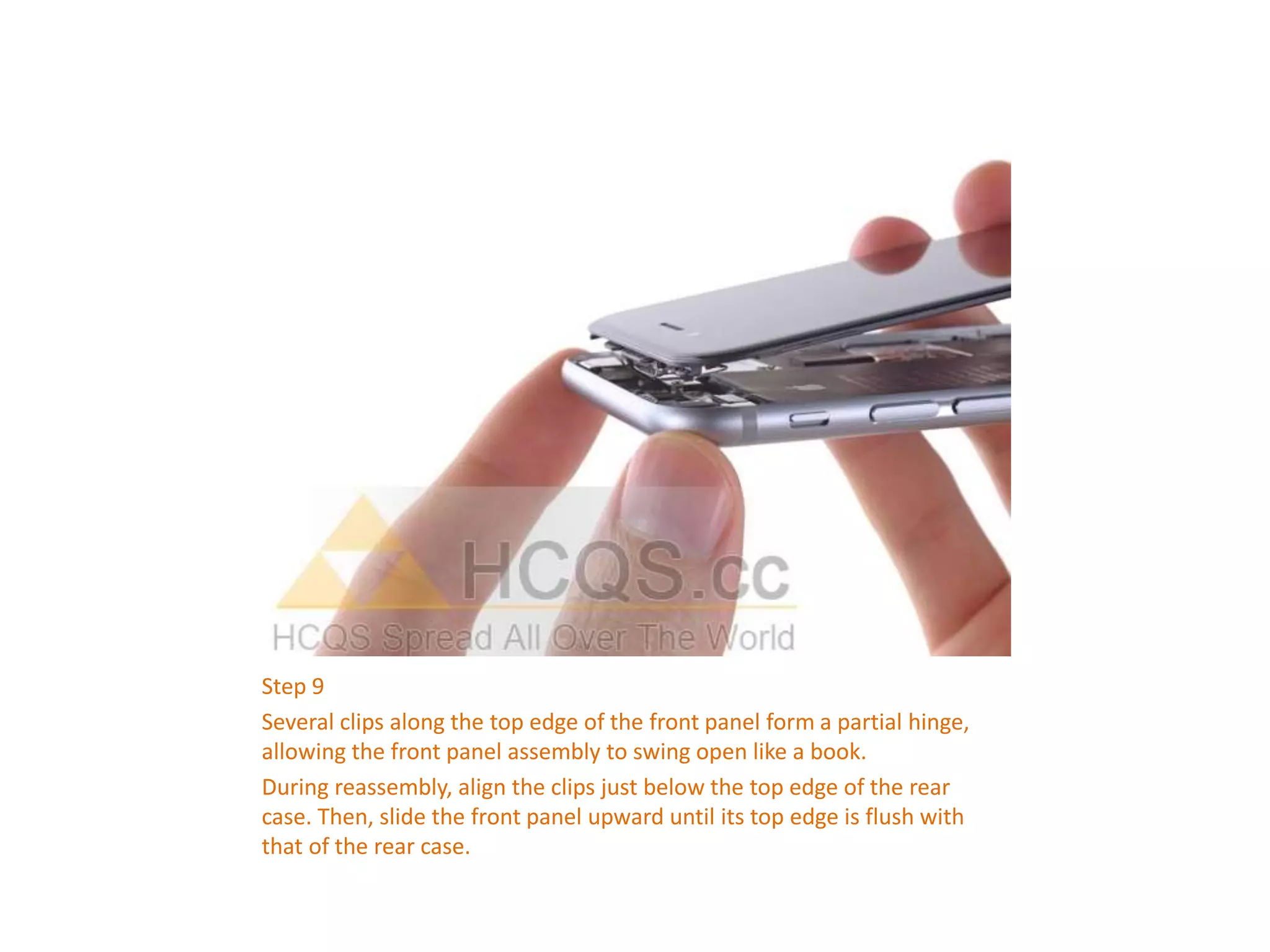
Step 9
Several clips along the top edge of the front panel form a partial hinge,
allowing the front panel assembly to swing open like a book.
During reassembly, align the clips just below the top edge of the rear
case. Then, slide the front panel upward until its top edge is flush with
that of the rear case.
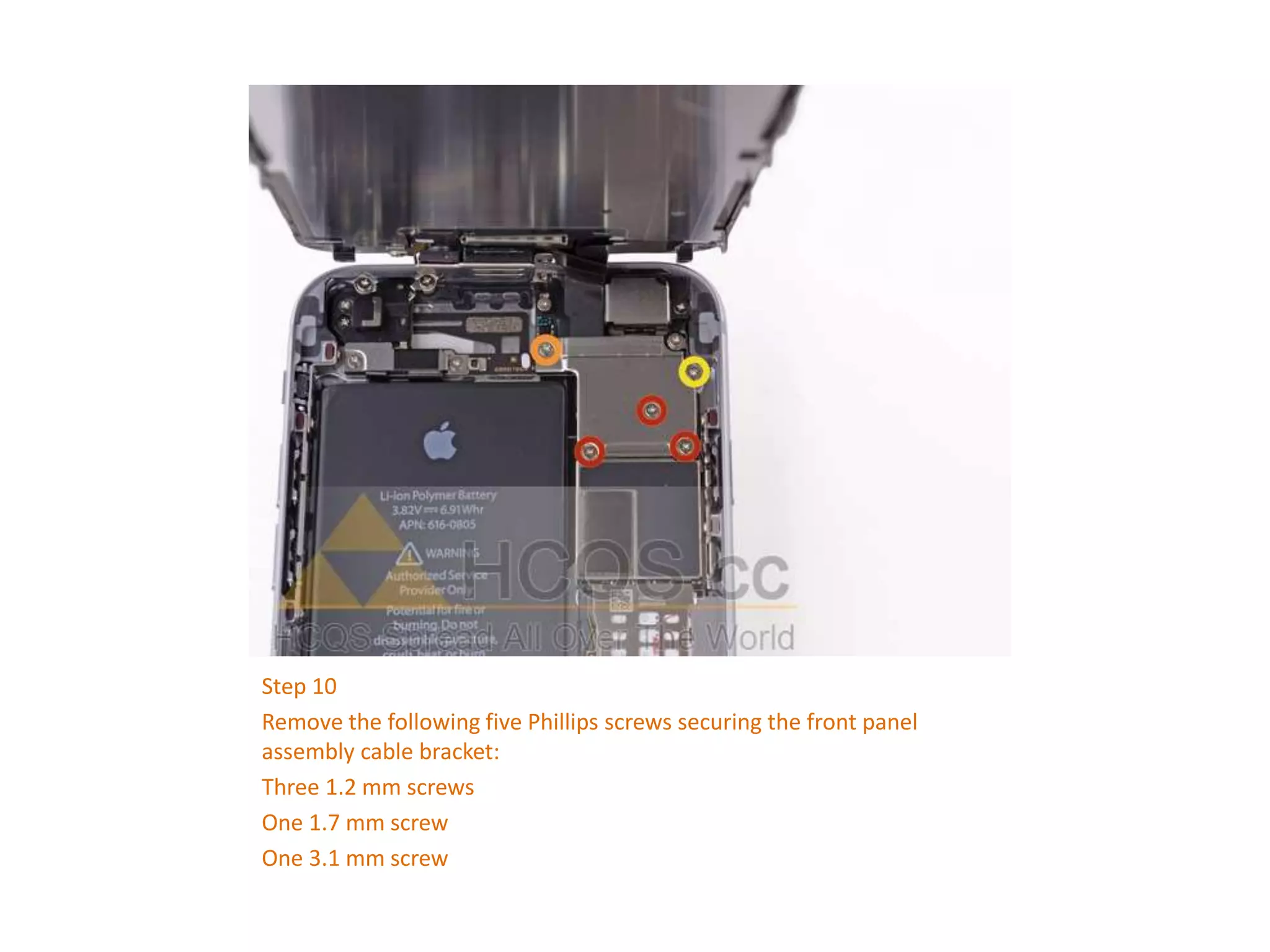
Step 10
Remove the following five Phillips screws securing the front panel
assembly cable bracket:
Three 1.2 mm screws
One 1.7 mm screw
One 3.1 mm screw
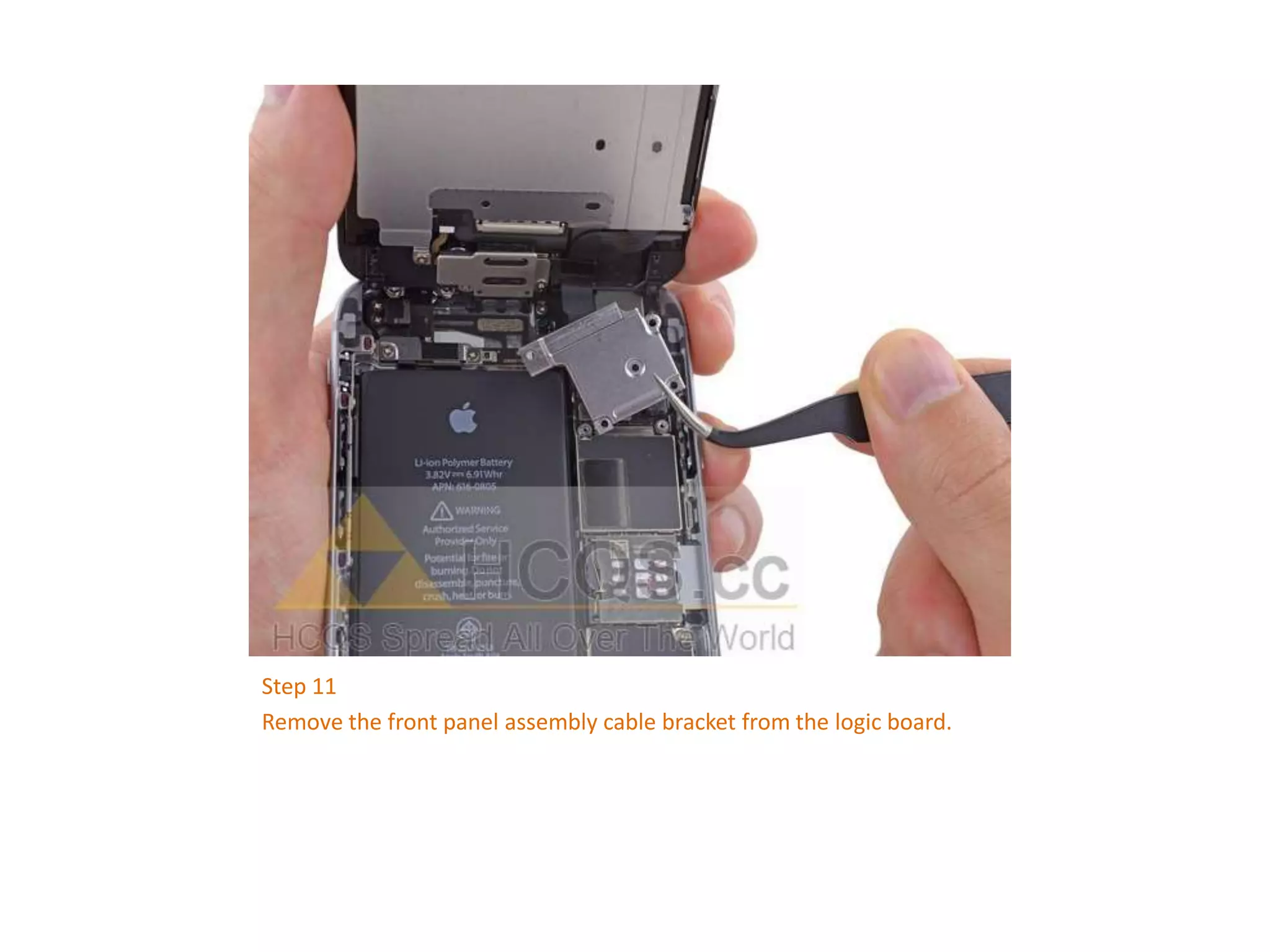
Step 11
Remove the front panel assembly cable bracket from the logic board.
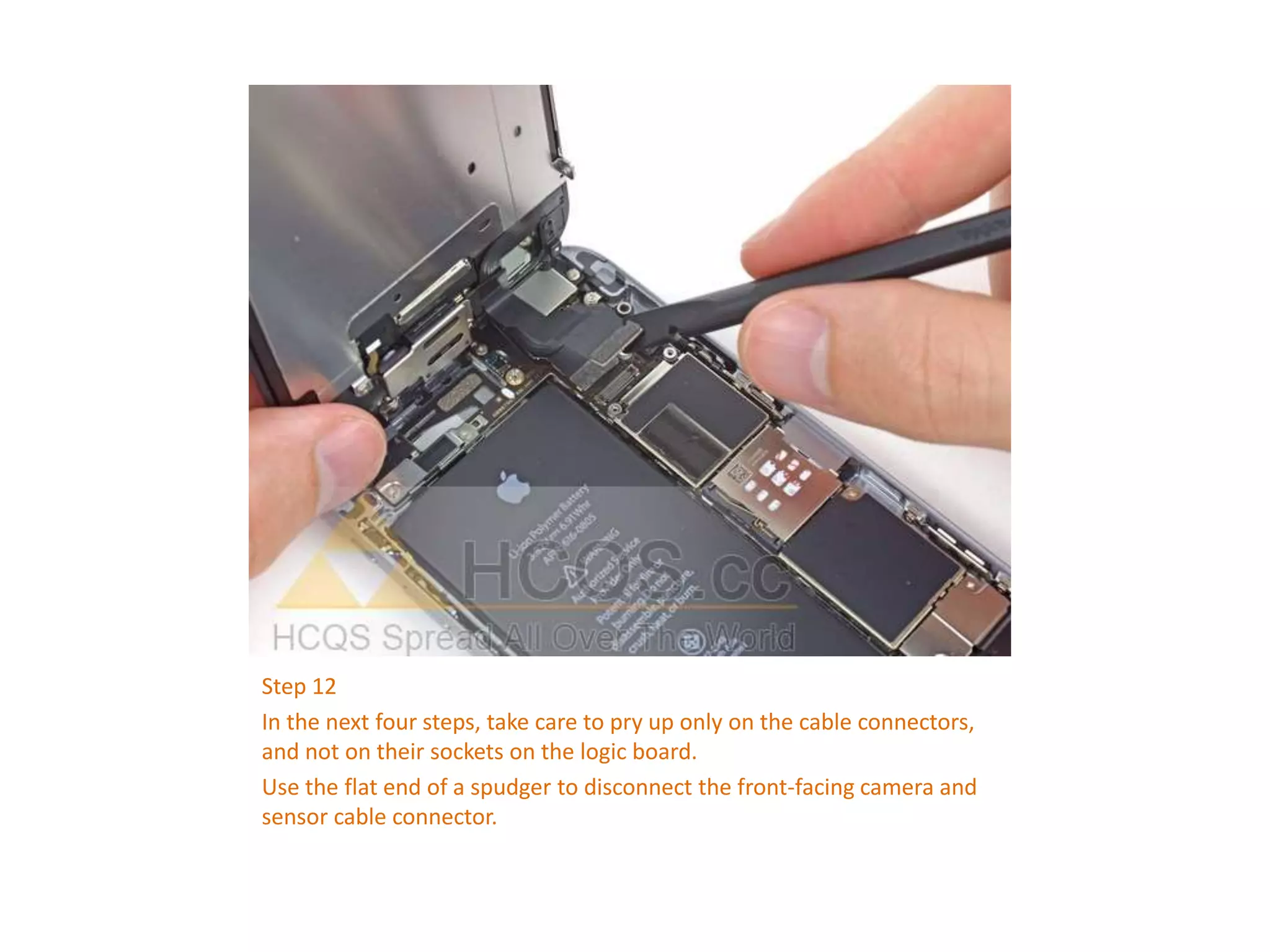
Step 12
In the next four steps, take care to pry up only on the cable connectors,
and not on their sockets on the logic board.
Use the flat end of a spudger to disconnect the front-facing camera and
sensor cable connector.
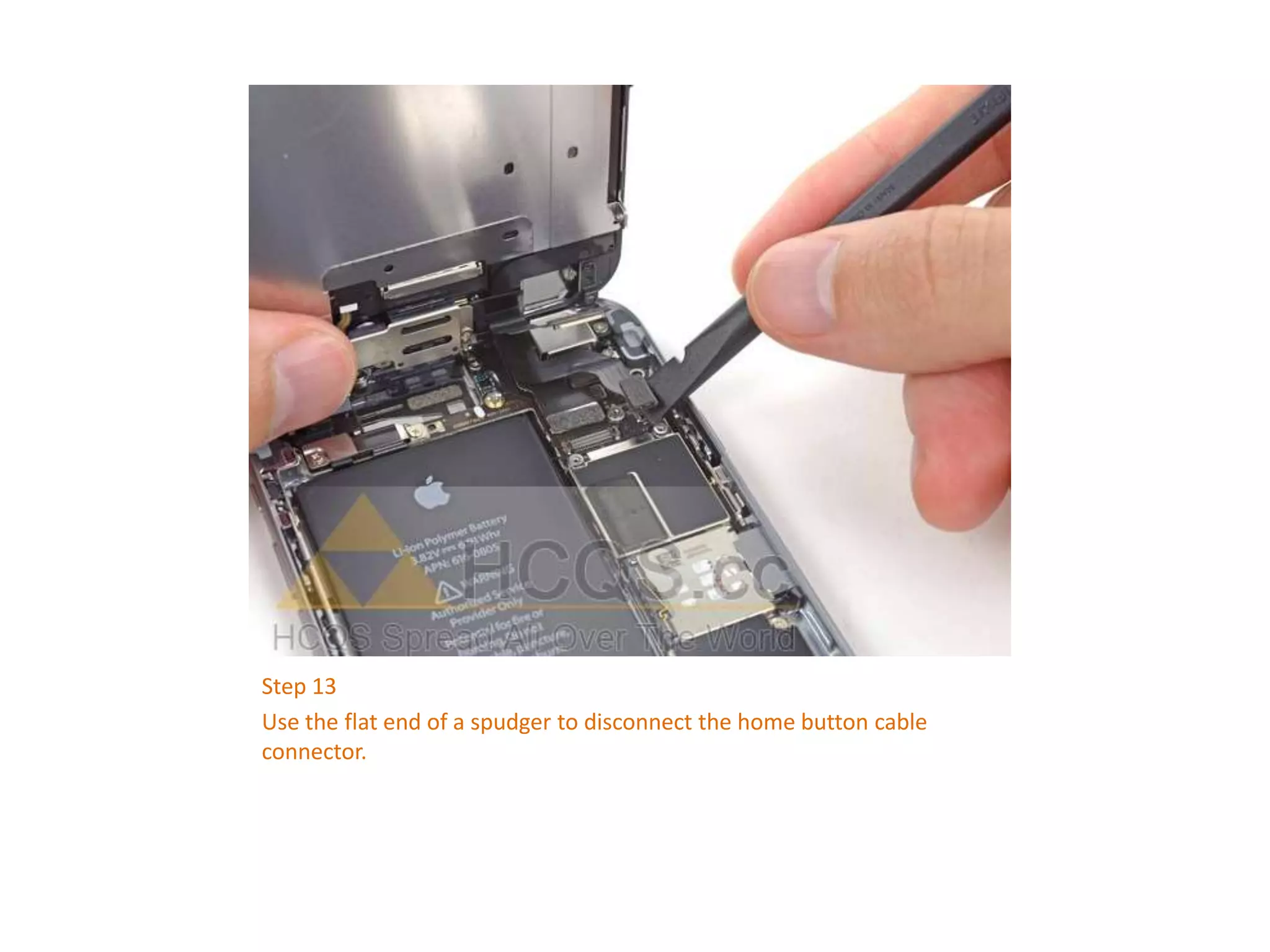
Step 13
Use the flat end of a spudger to disconnect the home button cable
connector.
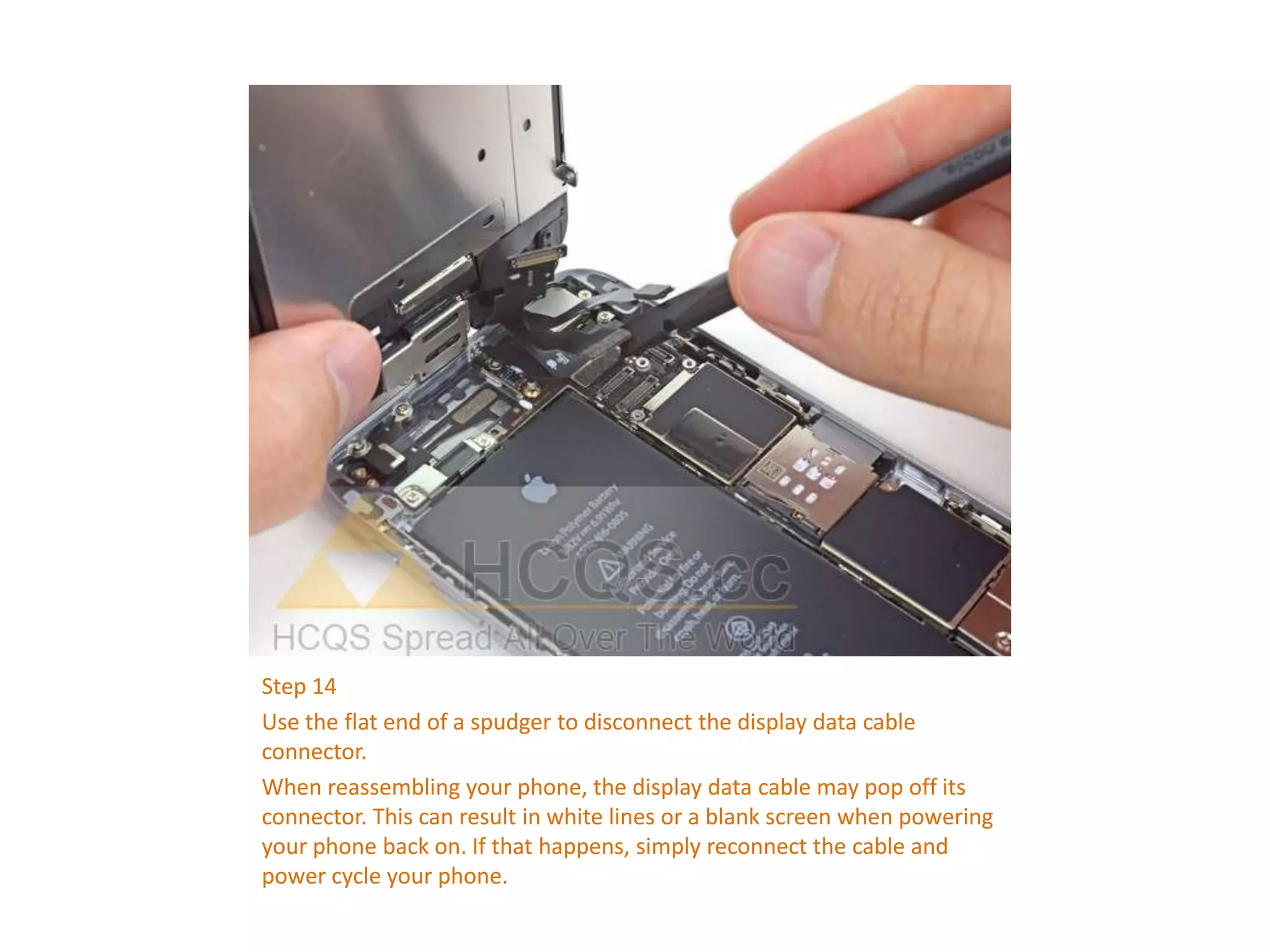
Step 14
Use the flat end of a spudger to disconnect the display data cable
connector.
When reassembling your phone, the display data cable may pop off its
connector. This can result in white lines or a blank screen when powering
your phone back on. If that happens, simply reconnect the cable and
power cycle your phone.
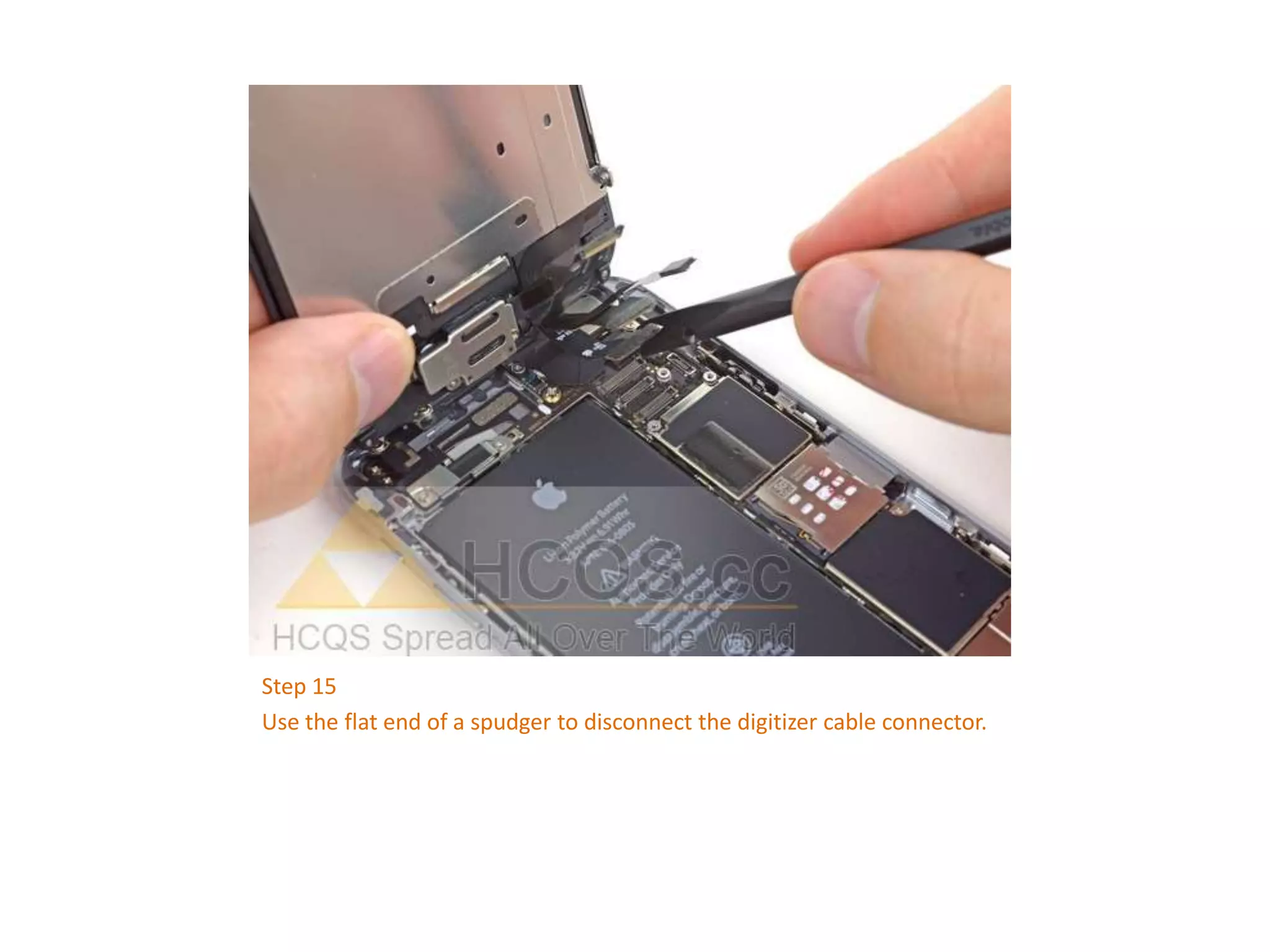
Step 15
Use the flat end of a spudger to disconnect the digitizer cable connector.
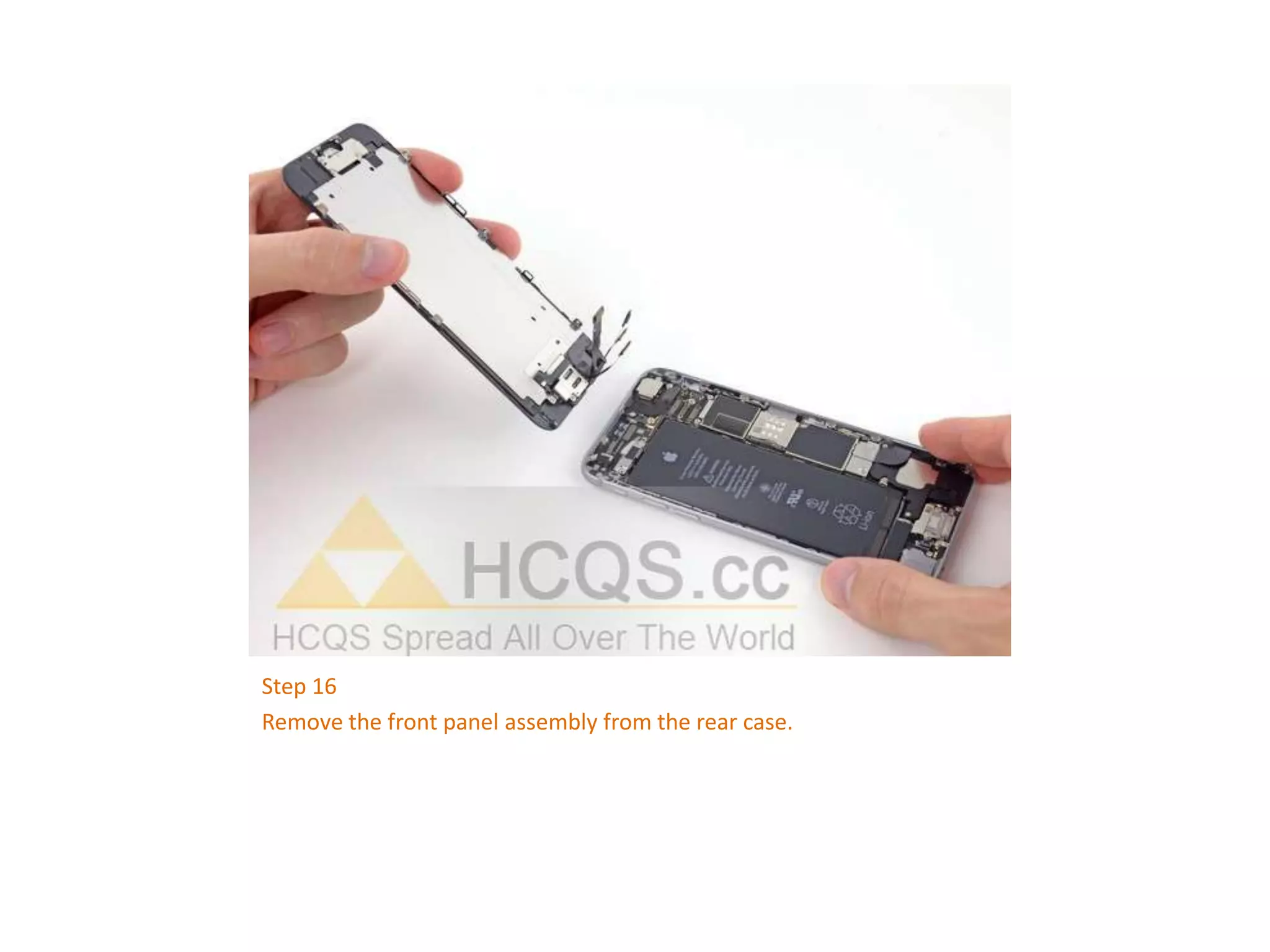
Step 16
Remove the front panel assembly from the rear case.
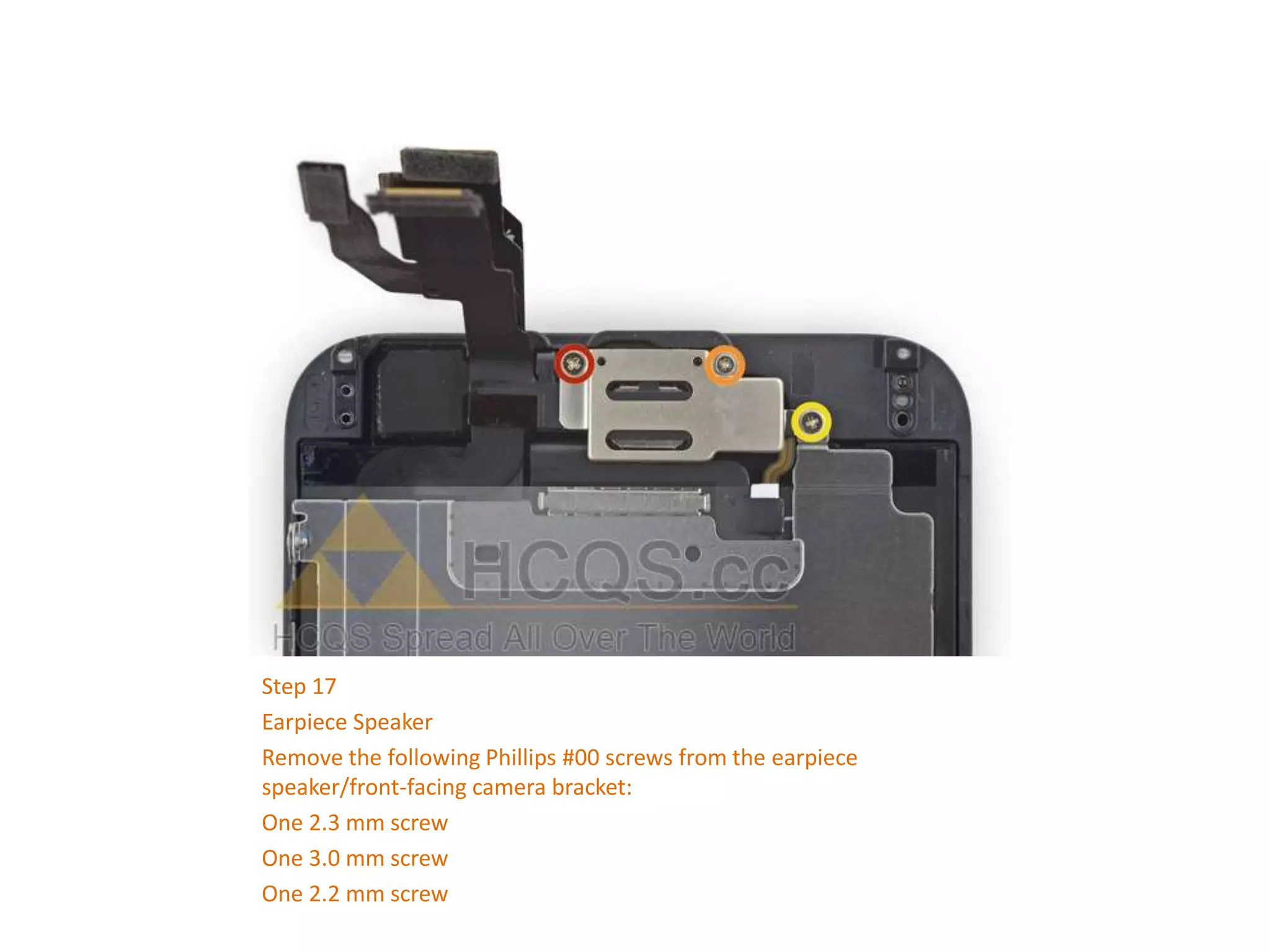
Step 17
Earpiece Speaker
Remove the following Phillips #00 screws from the earpiece
speaker/front-facing camera bracket:
One 2.3 mm screw
One 3.0 mm screw
One 2.2 mm screw
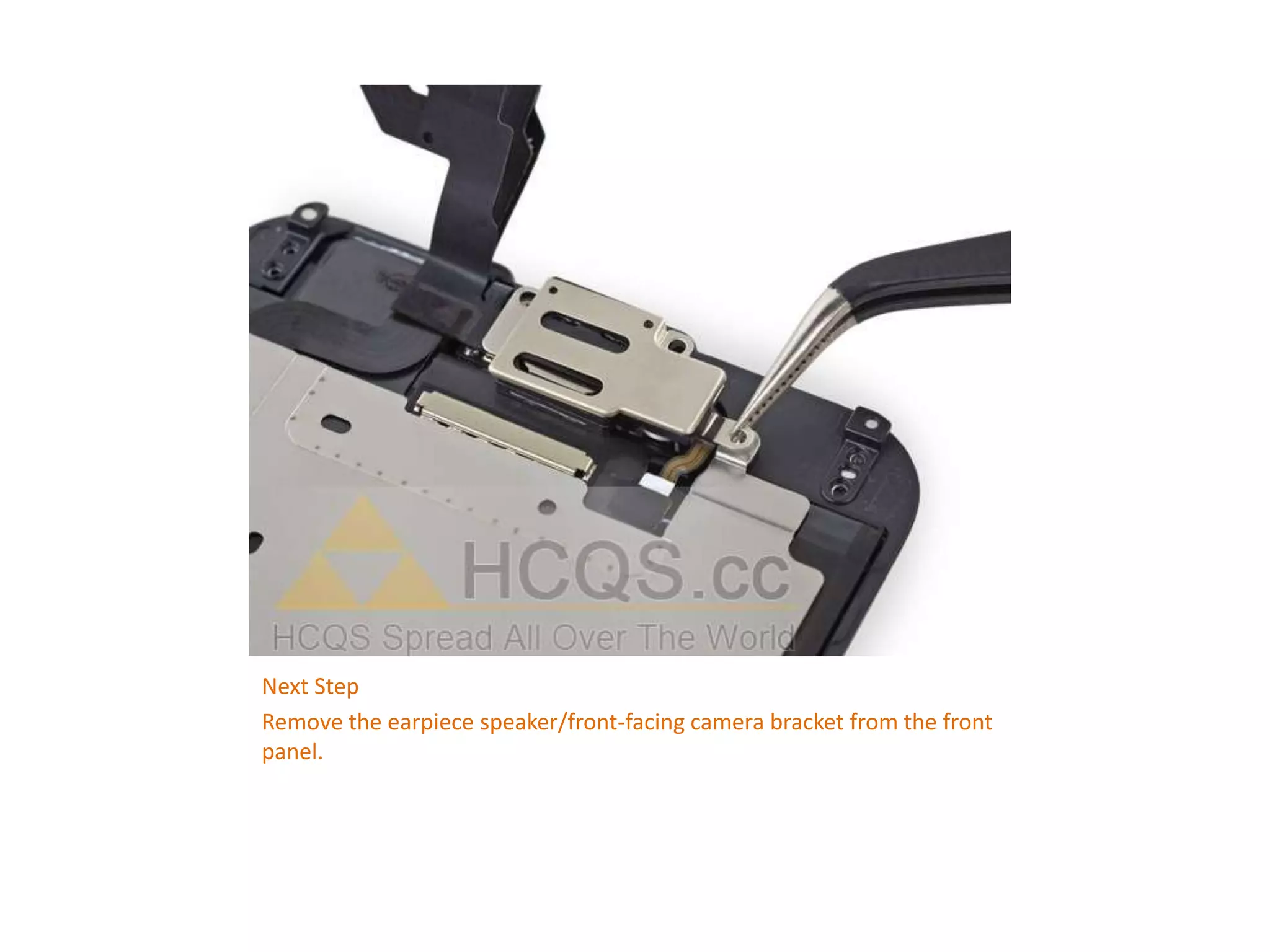
Next Step
Remove the earpiece speaker/front-facing camera bracket from the front
panel.
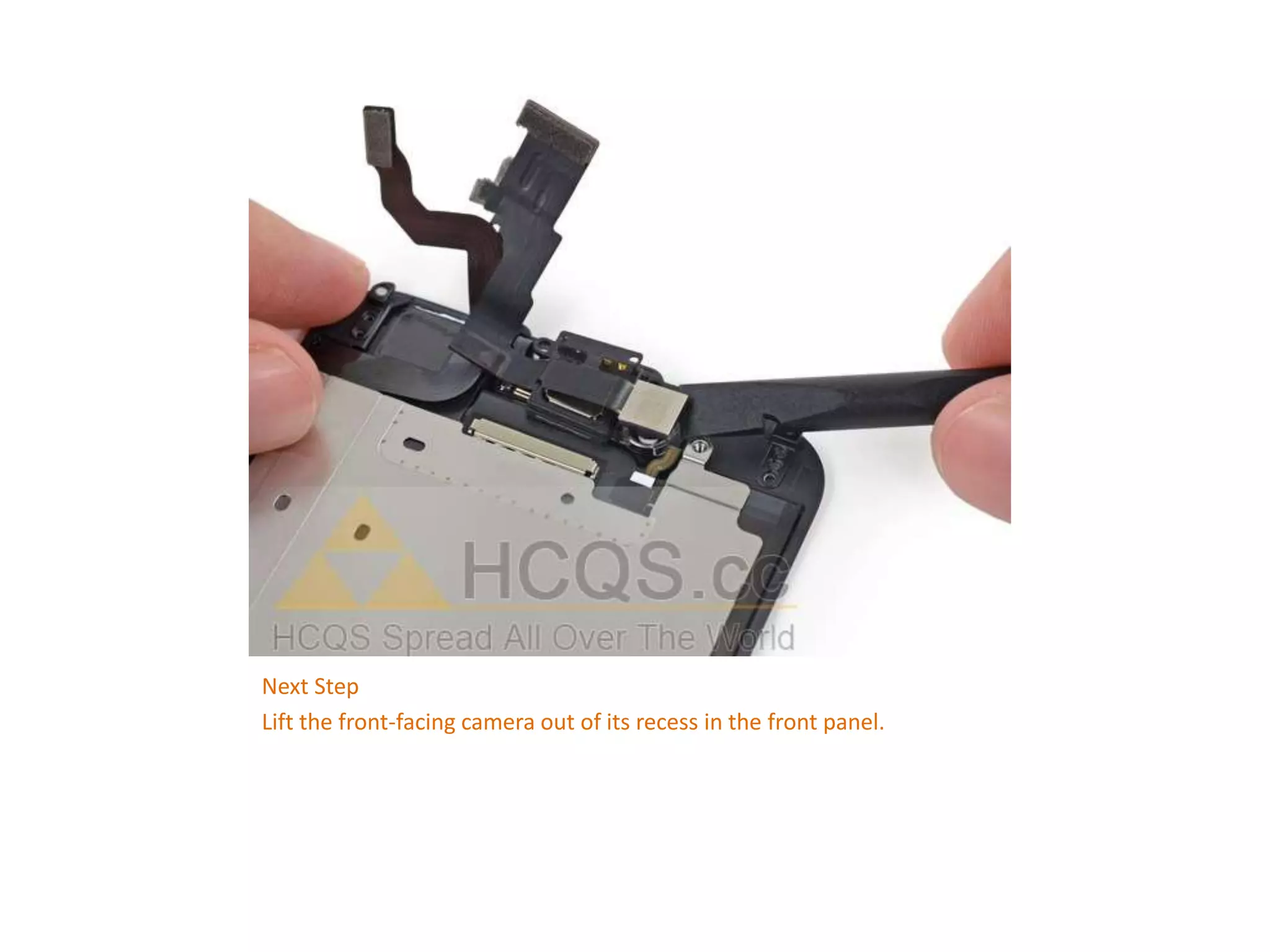
Next Step
Lift the front-facing camera out of its recess in the front panel.
Next Step
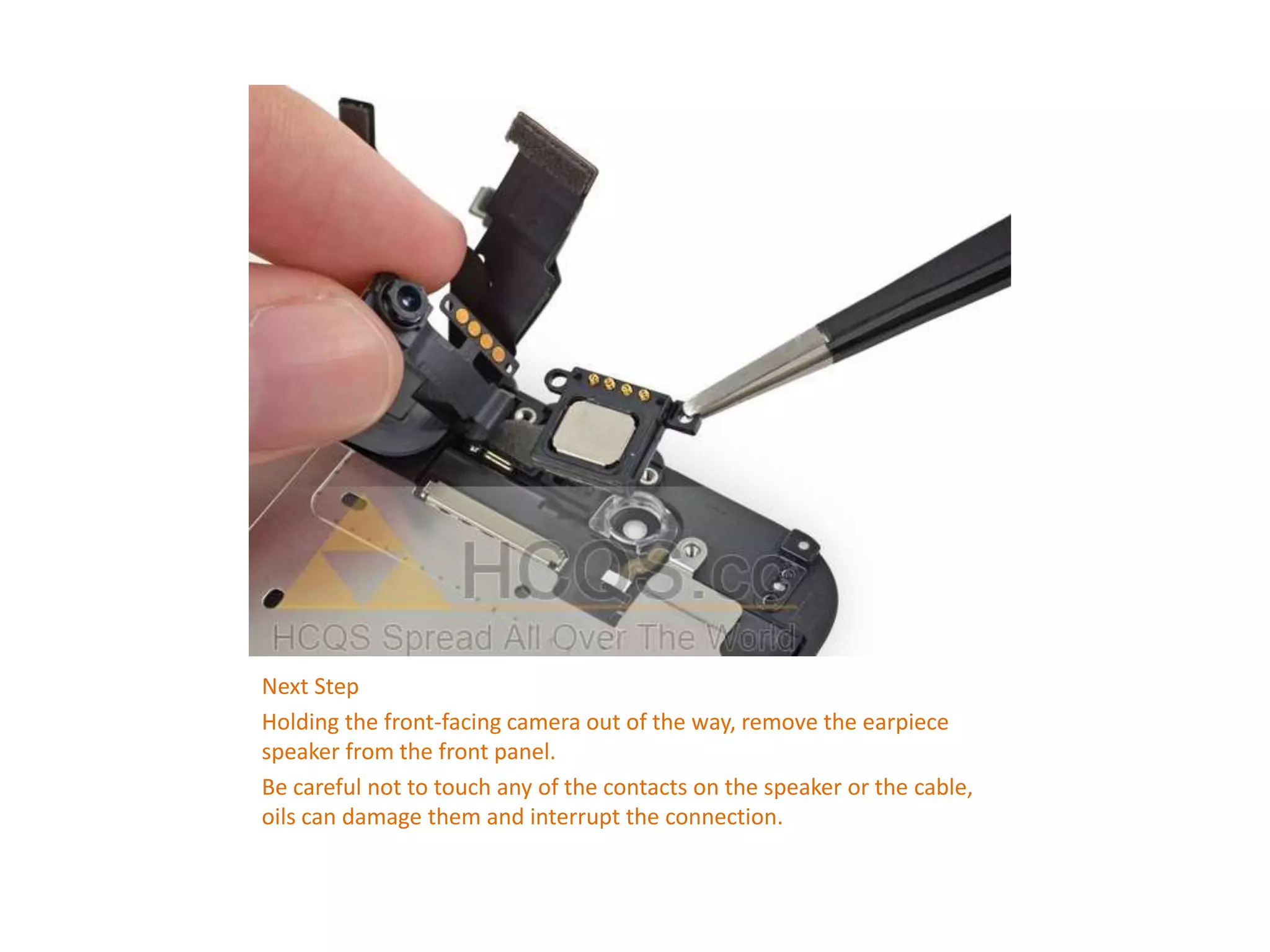
Holding the front-facing camera out of the way, remove the earpiece
speaker from the front panel.
Be careful not to touch any of the contacts on the speaker or the cable,
oils can damage them and interrupt the connection.
To reassemble your device, follow
these instructions in reverse order.
HCQS 100% ORIGINAL iphone 6 ear
speaker, ear speaker felx iphone 6

HCQS | Replacing iPhone 6 Earpiece Speaker Guide

  • 1.
    HCQS | GUIDEFOR IPHONE 6 FRONT PANEL ASSEMBLY REPLACEMENT TOOL: P2 Pentalobe Screwdriver iPhone iSclack Small Suction Cup Plastic Opening Tools Tweezers Phillips Screwdriver
  • 2.
    Step 1 —Pentalobe Screws Power off your iPhone before beginning disassembly. Remove the two 3.6 mm Pentalobe screws next to the Lightning connector.
  • 3.
    Step 2 —iSclack Opening Procedure The next three steps demonstrate using the iSclack, a great tool for safely opening the iPhone 6 that we recommend for anyone doing more than one repair. If you aren't using the iSclack, skip to Step 5. If the plastic depth gauge is attached at the center of the iSclack, remove it now—it's not needed for larger phones like the iPhone 6. Close the handle on the iSclack, opening the suction-cup jaws.
  • 4.
    Step 3 Place thebottom of your iPhone in between the suction cups. Position the iSclack's upper suction cup against the display, just above (but not covering) the home button. Open the handles to close the jaws of the iSclack. Center the suction cups and press them firmly onto the top and bottom of the iPhone.
  • 5.
    Step 4 Hold ontoyour iPhone securely and close the handle of the iSclack to separate the suction cups, pulling the front panel up from the rear case. The iSclack is designed to safely open your iPhone just enough to separate the pieces, but not enough to damage the display cables. Peel the two suction cups off your iPhone. Skip the next three steps and continue on Step 8
  • 6.
    Step 5 —Front Panel Assembly If you don't have an iSclack, use a single suction cup to lift the front panel: Press a suction cup onto the screen, just above the home button. Be sure the cup is pressed securely onto the screen to get a tight seal.
  • 7.
    Step 6 While holdingthe iPhone down with one hand, pull up on the suction cup to slightly separate the front panel assembly from the rear case. Take your time and apply firm, constant force. The display assembly is a much tighter fit than most devices. Using a plastic opening tool, begin to gently pry the rear case down, away from the display assembly, while continuing to pull up with the suction cup. There are several clips holding the front panel assembly to the rear case, so you may need to use a combination of the suction cup and plastic opening tool to free the front panel assembly.
  • 8.
    Step 7 Pull theplastic nub to release the vacuum seal on the suction cup. Remove the suction cup from the display assembly.
  • 9.
    Step 8 Pull thehome button end of the front panel assembly away from the rear case, using the top of the phone as a hinge. Keep the front panel supported at a 90º angle in relation to the rear case until you remove it—allowing it to fall flat will strain the display cables and their connections on the logic board.
  • 10.
    Step 9 Several clipsalong the top edge of the front panel form a partial hinge, allowing the front panel assembly to swing open like a book. During reassembly, align the clips just below the top edge of the rear case. Then, slide the front panel upward until its top edge is flush with that of the rear case.
  • 11.
    Step 10 Remove thefollowing five Phillips screws securing the front panel assembly cable bracket: Three 1.2 mm screws One 1.7 mm screw One 3.1 mm screw
  • 12.
    Step 11 Remove thefront panel assembly cable bracket from the logic board.
  • 13.
    Step 12 In thenext four steps, take care to pry up only on the cable connectors, and not on their sockets on the logic board. Use the flat end of a spudger to disconnect the front-facing camera and sensor cable connector.
  • 14.
    Step 13 Use theflat end of a spudger to disconnect the home button cable connector.
  • 15.
    Step 14 Use theflat end of a spudger to disconnect the display data cable connector. When reassembling your phone, the display data cable may pop off its connector. This can result in white lines or a blank screen when powering your phone back on. If that happens, simply reconnect the cable and power cycle your phone.
  • 16.
    Step 15 Use theflat end of a spudger to disconnect the digitizer cable connector.
  • 17.
    Step 16 Remove thefront panel assembly from the rear case.
  • 18.
    Step 17 Earpiece Speaker Removethe following Phillips #00 screws from the earpiece speaker/front-facing camera bracket: One 2.3 mm screw One 3.0 mm screw One 2.2 mm screw
  • 19.
    Next Step Remove theearpiece speaker/front-facing camera bracket from the front panel.
  • 20.
    Next Step Lift thefront-facing camera out of its recess in the front panel.
  • 21.
    Next Step Holding thefront-facing camera out of the way, remove the earpiece speaker from the front panel. Be careful not to touch any of the contacts on the speaker or the cable, oils can damage them and interrupt the connection.
  • 22.
    To reassemble yourdevice, follow these instructions in reverse order. HCQS 100% ORIGINAL iphone 6 ear speaker, ear speaker felx iphone 6