Chrome
DevToolsby Juan Obando
0
About me
Juan Obando
Software Engineer
from Universidad
del Valle
Experience
PHP, Ruby
MySQL, PostgreSQL
Git
HTML, CSS, JavaScript
Server administration: Linux &
Windows
Interests
https://github.com/juanchopx2/chrome-devtools-slides.git
AgendaBasic tips and tricks
Using the Console API
Network timeline
Mobile emulation
Terminal on DevTools
Basic tips and
tricks
Use Chrome Canary!
Useful Settings
Disable cache
Log XMLHttpRequests
Color format as authored
Enable DevTools experiments: 
#enable-devtools-experiments
Ctrl (⌘ for Mac) + Shift + C to inspect
Drag and drop elements
Force element state
“Break on...” and breaking points
Using the
Console API
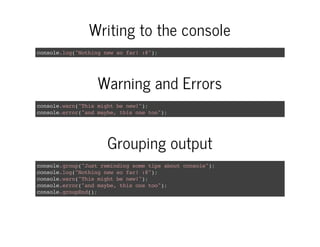
Writing to the console
console.log("Nothingnewsofar!:@");
Warning and Errors
console.warn("Thismightbenew!");
console.error("andmaybe,thisonetoo");
Grouping output
console.group("Justremindingsometipsaboutconsole");
console.log("Nothingnewsofar!:@");
console.warn("Thismightbenew!");
console.error("andmaybe,thisonetoo");
console.groupEnd();
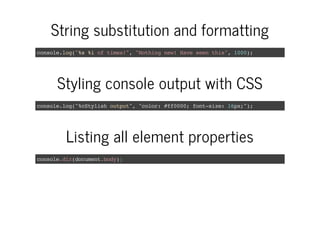
String substitution and formatting
console.log("%s%ioftimes!","Nothingnew!Haveseenthis",1000);
Styling console output with CSS
console.log("%cStylishoutput","color:#ff0000;font-size:16px;");
Listing all element properties
console.dir(document.body);
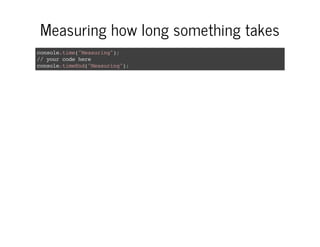
Measuring how long something takes
console.time("Measuring");
//yourcodehere
console.timeEnd("Measuring");
Network timeline
Size/Content column
Time/Lantency column
Initiator column
HAR format: HTTP Archive Format
Mobile emulation
Terminal on
DevTools
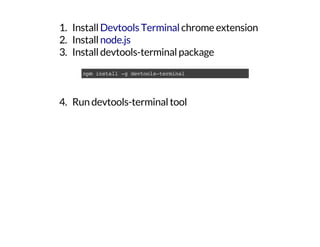
1. Install chrome extension
2. Install
3. Install devtools-terminal package
4. Run devtools-terminal tool
Devtools Terminal
node.js
npminstall-gdevtools-terminal
Questions?
Thank you!
Chrome DevTools 101

Chrome DevTools 101