By
-T Suresh
History Of Google
              
 History (7 years Ago) of Google:
   Google are everywhere these days. The number one
    search engine(Google), a suite of hugely powerful
    mail(Gmail) and business
    applications(Domains), shopping, maps…
   3 year ago they seemed to move from the Software as
    a Service model to something rather different, with the
    release of their browser, and their operating
    system, Chrome
   Richard Cohen
History Of Google Chrome
                             
 History (3 years Ago) of Google Chrome:
   Written in: c++, Assembly, Python and Java Script
   OS: Linux, MAC OS and Windows
   Languages support: around 50
   First Release on Sept 2nd, 2008
      Sept 2008: Windows
      Jan 2009: Mac OS and Linux
      May 25th 2010: Stable release for all the 3 platforms
   Present Release: 17.0(Beta)
History Chrome OS
              
 History (3 yr Ago) of Google Chrome OS:
     Written in: c, c++
     OS: Linux, MAC OS and Windows
     First Release on July 7, 2009
     Cr-48 Prototype Hardware
     At a December 7, 2010 press briefing, Google
      announced the Cr-48 laptop
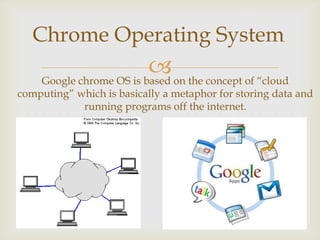
Chrome Operating System
                           on the concept of “cloud
     Google chrome OS is based
computing” which is basically a metaphor for storing data and
            running programs off the internet.
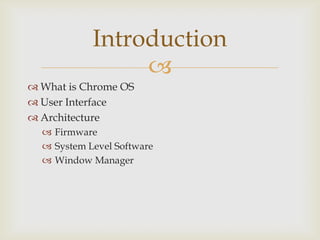
Introduction
                 
 What is Chrome OS
 User Interface
 Architecture
   Firmware
   System Level Software
   Window Manager
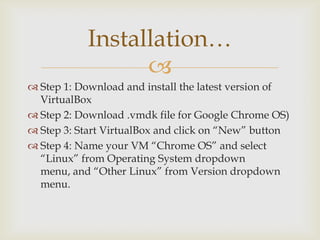
Installation…
                 
 Step 1: Download and install the latest version of
  VirtualBox
 Step 2: Download .vmdk file for Google Chrome OS)
 Step 3: Start VirtualBox and click on “New” button
 Step 4: Name your VM “Chrome OS” and select
  “Linux” from Operating System dropdown
  menu, and “Other Linux” from Version dropdown
  menu.
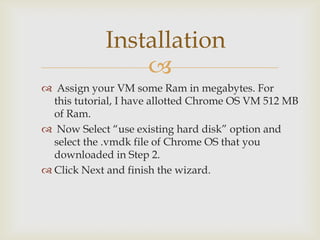
Installation
                
 Assign your VM some Ram in megabytes. For
  this tutorial, I have allotted Chrome OS VM 512 MB
  of Ram.
 Now Select “use existing hard disk” option and
  select the .vmdk file of Chrome OS that you
  downloaded in Step 2.
 Click Next and finish the wizard.
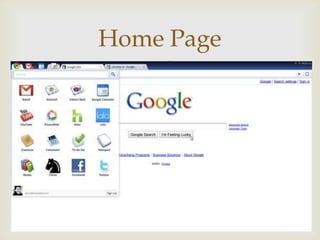
Home Page
   
Benefits how the OS works
Here are some tips on understanding
              and what its benefits are.
                       
  Store Everything on the Internet
  Instant on
  No Frequent Hardware Updates
  Simplicity
  Can Still Store Things Locally
Features….
                 
 How's it different from Windows 7?
   Booting Speed
   Apps
   The Cloud
   Licensing and Security
 Do you actually save any data locally?
Features….
                          
 So, what's the advantage
    Speed
    Security
 Will you be able to work offline?
    HTML 5 Local Storage abilities
 What's the Chrome OS interface like?
    Chrome Browser
Features….
                 
 Will you be able to run any program?
 What kind of computers will run Google Chrome
  OS?
 Can you try Chrome OS out any sooner?
Questions
   
Thank You
   
      T Suresh

Google chrome

  • 1.
  • 2.
    History Of Google   History (7 years Ago) of Google:  Google are everywhere these days. The number one search engine(Google), a suite of hugely powerful mail(Gmail) and business applications(Domains), shopping, maps…  3 year ago they seemed to move from the Software as a Service model to something rather different, with the release of their browser, and their operating system, Chrome  Richard Cohen
  • 3.
    History Of GoogleChrome   History (3 years Ago) of Google Chrome:  Written in: c++, Assembly, Python and Java Script  OS: Linux, MAC OS and Windows  Languages support: around 50  First Release on Sept 2nd, 2008  Sept 2008: Windows  Jan 2009: Mac OS and Linux  May 25th 2010: Stable release for all the 3 platforms  Present Release: 17.0(Beta)
  • 4.
    History Chrome OS   History (3 yr Ago) of Google Chrome OS:  Written in: c, c++  OS: Linux, MAC OS and Windows  First Release on July 7, 2009  Cr-48 Prototype Hardware  At a December 7, 2010 press briefing, Google announced the Cr-48 laptop
  • 5.
    Chrome Operating System  on the concept of “cloud Google chrome OS is based computing” which is basically a metaphor for storing data and running programs off the internet.
  • 6.
    Introduction   What is Chrome OS  User Interface  Architecture  Firmware  System Level Software  Window Manager
  • 7.
    Installation…   Step 1: Download and install the latest version of VirtualBox  Step 2: Download .vmdk file for Google Chrome OS)  Step 3: Start VirtualBox and click on “New” button  Step 4: Name your VM “Chrome OS” and select “Linux” from Operating System dropdown menu, and “Other Linux” from Version dropdown menu.
  • 8.
    Installation   Assign your VM some Ram in megabytes. For this tutorial, I have allotted Chrome OS VM 512 MB of Ram.  Now Select “use existing hard disk” option and select the .vmdk file of Chrome OS that you downloaded in Step 2.  Click Next and finish the wizard.
  • 9.
  • 10.
    Benefits how theOS works Here are some tips on understanding and what its benefits are.   Store Everything on the Internet  Instant on  No Frequent Hardware Updates  Simplicity  Can Still Store Things Locally
  • 11.
    Features….   How's it different from Windows 7?  Booting Speed  Apps  The Cloud  Licensing and Security  Do you actually save any data locally?
  • 12.
    Features….   So, what's the advantage  Speed  Security  Will you be able to work offline?  HTML 5 Local Storage abilities  What's the Chrome OS interface like?  Chrome Browser
  • 13.
    Features….   Will you be able to run any program?  What kind of computers will run Google Chrome OS?  Can you try Chrome OS out any sooner?
  • 14.
  • 15.
    Thank You  T Suresh

Editor's Notes

  • #4 Eric schmidt – Chief Executive OfficerCo-Founders Sergey Brin and Larry Page - hired Firefox Employees
  • #5 At a November 19, 2009 news conference, SundharPichai Previewed Chrome OS booted in 7 seconds