Global Community Development Programme (GCDP) ManagementHow to use MyAIESEC.net to manage our Global Community Development Programme
Table of ContentsPlease make sure you have the right permissions in MyAIESEC.net before you start. This tutorial is aimed at Presidents and EB’s of national or local committees, Exchange Responsible and EPs. Please replace the information with your respective GN, Country or LC whenever  applicable in the examples shown in the tutorial.Becoming part of the GCDP as an EPUsing the GCDP Menu as an EPBecoming a GCDP Form ManagerManaging Exchange through the Team Member and Team Leader MenusPromoting ExchangesManaging Projects
1. Becoming Part of the GCDP as an EP
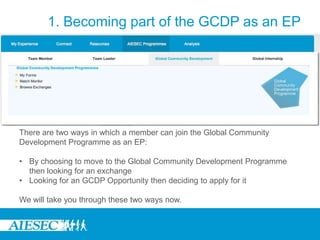
1. Becoming part of the GCDP as an EPThere are two ways in which a member can join the Global Community Development Programme as an EP: By choosing to move to the Global Community Development Programme then looking for an exchange
Looking for an GCDP Opportunity then deciding to apply for itWe will take you through these two ways now.
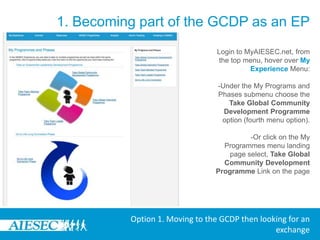
1. Becoming part of the GCDP as an EPLogin to MyAIESEC.net, from the top menu, hover over My Experience Menu:-Under the My Programs and Phases submenu choose the Take Global Community Development Programme option (fourth menu option).-Or click on the My Programmes menu landing page select, Take Global Community Development Programme Link on the pageOption 1. Moving to the GCDP then looking for an exchange
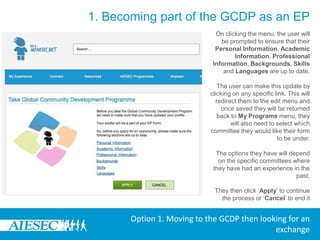
1. Becoming part of the GCDP as an EPOn clicking the menu, the user will be prompted to ensure that their Personal Information, Academic Information, Professional Information, Backgrounds, Skills and Languages are up to date. The user can make this update by clicking on any specific link. This will redirect them to the edit menu and once saved they will be returned back to My Programs menu, they will also need to select which committee they would like their form to be under. The options they have will depend on the specific committees where they have had an experience in the past. They then click ‘Apply’ to continue the process or ‘Cancel’ to end itOption 1. Moving to the GCDP then looking for an exchange
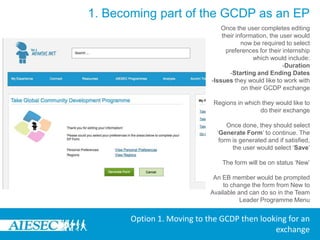
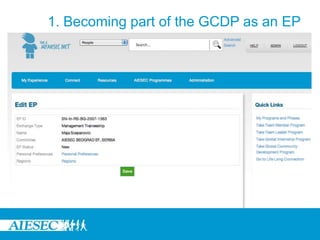
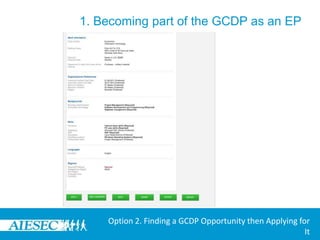
1. Becoming part of the GCDP as an EPOnce the user completes editing their information, the user would now be required to selectpreferences for their internship which would include:-Duration-Starting and Ending Dates-Issues they would like to work with on their GCDP exchangeRegions in which they would like to do their exchangeOnce done, they should select ‘Generate Form’ to continue. The form is generated and if satisfied, the user would select ‘Save’The form will be on status ‘New’An EB member would be prompted to change the form from New to Available and can do so in the Team Leader Programme MenuOption 1. Moving to the GCDP then looking for an exchange
1. Becoming part of the GCDP as an EP
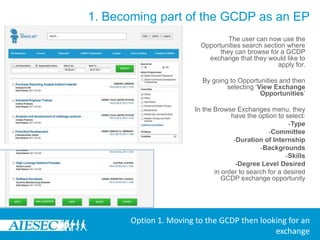
1. Becoming part of the GCDP as an EPThe user can now use the Opportunities search section where they can browse for a GCDP exchange that they would like to apply for.By going to Opportunities and then selecting ‘View Exchange Opportunities’In the Browse Exchanges menu, they have the option to select:-Type-Committee -Duration of Internship-Backgrounds-Skills-Degree Level Desiredin order to search for a desired GCDP exchange opportunityOption 1. Moving to the GCDP then looking for an exchange
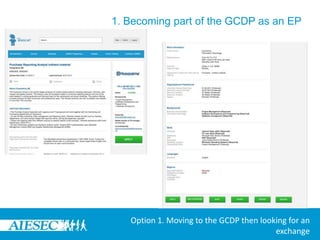
1. Becoming part of the GCDP as an EPIf a user finds an opportunity that they are interested in, on viewing it, if they want to apply, they would need to select it and click on the ‘Apply’ Tab. (User would be apply to apply if their form has been changed from ‘New’ to ‘Available’ or else will be prompted to get this change done)If a user doesn’t find something they want to apply for immediately, they will be considered to have started the Global Community Development Programme and this Programme will be in ‘New’ or ‘Available’ status depending on whether this change was made or not.Option 1. Moving to the GCDP then looking for an exchange
1. Becoming part of the GCDP as an EPOption 1. Moving to the GCDP then looking for an exchange
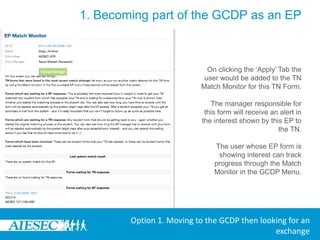
1. Becoming part of the GCDP as an EPOn clicking the ‘Apply’ Tab the user would be added to the TN Match Monitor for this TN Form.The manager responsible for this form will receive an alert in the interest shown by this EP to the TN.The user whose EP form is showing interest can track progress through the Match Monitor in the GCDP Menu.  Option 1. Moving to the GCDP then looking for an exchange
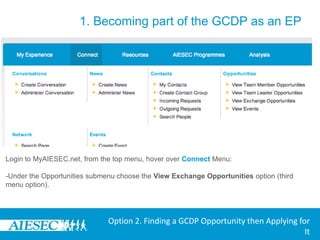
1. Becoming part of the GCDP as an EPLogin to MyAIESEC.net, from the top menu, hover over Connect Menu:-Under the Opportunities submenu choose the View Exchange Opportunities option (third menu option).Option 2. Finding a GCDP Opportunity then Applying for It
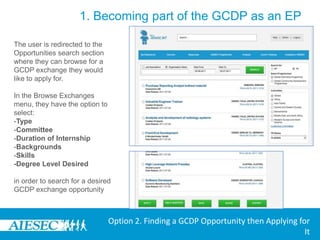
1. Becoming part of the GCDP as an EPThe user is redirected to the Opportunities search section where they can browse for a GCDP exchange they would like to apply for.In the Browse Exchanges menu, they have the option to select:-Type-Committee -Duration of Internship-Backgrounds-Skills-Degree Level Desiredin order to search for a desired GCDP exchange opportunityOption 2. Finding a GCDP Opportunity then Applying for It
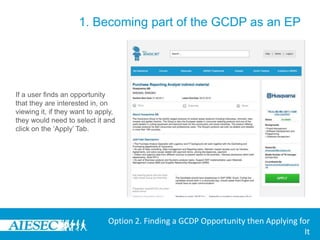
1. Becoming part of the GCDP as an EPIf a user finds an opportunity that they are interested in, on viewing it, if they want to apply, they would need to select it and click on the ‘Apply’ Tab. Option 2. Finding a GCDP Opportunity then Applying for It
1. Becoming part of the GCDP as an EPOption 2. Finding a GCDP Opportunity then Applying for It
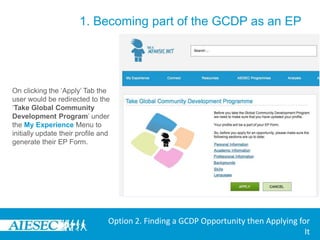
1. Becoming part of the GCDP as an EPOn clicking the ‘Apply’ Tab the user would be redirected to the ‘Take Global Community Development Program’ under the My Experience Menu to initially update their profile and generate their EP Form.Option 2. Finding a GCDP Opportunity then Applying for It
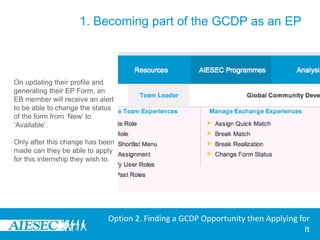
1. Becoming part of the GCDP as an EPOn updating their profile and generating their EP Form, an EB member will receive an alert to be able to change the status of the form from ‘New’ to ‘Available’.Only after this change has been made can they be able to apply for this internship they wish to.Option 2. Finding a GCDP Opportunity then Applying for It
2. Using the GCDP Menu as an EP
2. Using the GCDP Menu as an EPOn becoming part of the GCDP programme, the GCDP menu enables EPs to be able to manage their own exchange experience through giving them the ability to do the following:-Manage and update their EP Forms and save TN Forms of interests through the ‘My Forms’ Menu-Track the progress of their matching through the ‘Match Monitor’-Search for and apply for various opportunities through ‘Browse Exchanges’
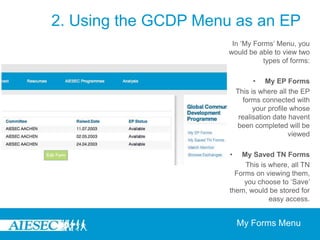
2. Using the GCDP Menu as an EPIn ‘My Forms’ Menu, you would be able to view two types of forms:My EP FormsThis is where all the EP forms connected with your profile whose realisation date havent been completed will be viewedMy Saved TN FormsThis is where, all TN Forms on viewing them, you choose to ‘Save’ them, would be stored for easy access.  My Forms Menu
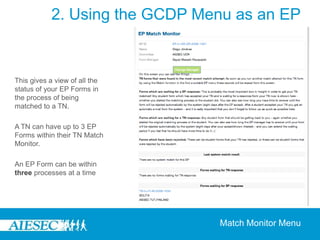
2. Using the GCDP Menu as an EPThis gives a view of all the status of your EP Forms in the process of being matched to a TN. A TN can have up to 3 EP Forms within their TN Match Monitor.An EP Form can be within three processes at a time  Match Monitor Menu
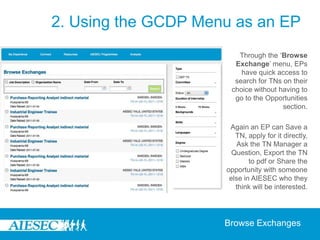
2. Using the GCDP Menu as an EPThrough the ‘Browse Exchange’ menu, EPs have quick access to search for TNs on their choice without having to go to the Opportunities section.Again an EP can Save a TN, apply for it directly, Ask the TN Manager a Question, Export the TN to pdfor Share the opportunity with someone else in AIESEC who they think will be interested. Browse Exchanges
3. Becoming a GCDP Form Manager
3. Becoming a GCDP Form ManagerEvery form has an EP or TN Manager.EPs can decide to manage their own forms or appoint someone else to manage their form, the EP Manager.All TN Forms need to be managed by someone as the companies cannot manage these themselves.Appointed EP Managers and TN Managers should be taking part in the Team Member or Team Leader Programmes.Below you will find the ways in which an EP Manager and a TN Manager can be appointed.
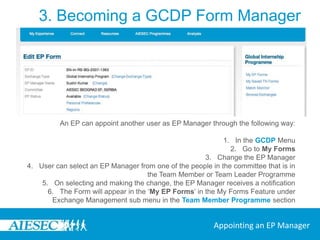
3. Becoming a GCDP Form ManagerAn EP can appoint another user as EP Manager through the following way:In the GCDP MenuGo to My FormsChange the EP ManagerUser can select an EP Manager from one of the people in the committee that is in the Team Member or Team Leader ProgrammeOn selecting and making the change, the EP Manager receives a notificationThe Form will appear in the ‘My EP Forms’ in the My Forms Feature under Exchange Management sub menu in the Team Member Programme sectionAppointing an EP Manager
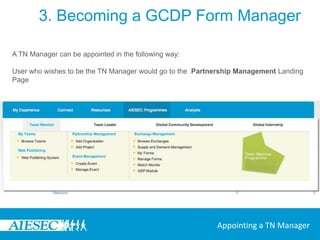
3. Becoming a GCDP Form ManagerA TN Manager can be appointed in the following way:User who wishes to be the TN Manager would go to the  Partnership Management Landing PageAppointing a TN Manager
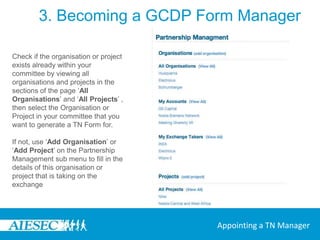
3. Becoming a GCDP Form ManagerCheck if the organisation or project exists already within your committee by viewing all organisations and projects in the sections of the page ‘All Organisations’ and ‘All Projects’ , then select the Organisation or Project in your committee that you want to generate a TN Form for.If not, use ‘Add Organisation’ or ‘Add Project’ on the Partnership Management sub menu to fill in the details of this organisation or project that is taking on the exchangeAppointing a TN Manager
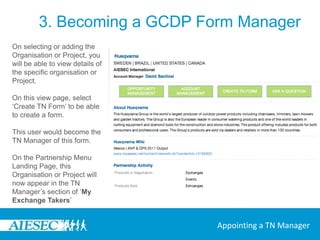
3. Becoming a GCDP Form ManagerOn selecting or adding the Organisationor Project, you will be able to view details of the specific organisationor Project.On this view page, select ‘Create TN Form’ to be able to create a form.This user would become the TN Manager of this form.On the Partnership Menu Landing Page, this Organisation or Project will now appear in the TN Manager’s section of ‘My Exchange Takers’Appointing a TN Manager
4. Managing Exchange through the Team Member and Team Leader Menus
4. Managing Exchange through the Team Leader and Team Member MenusIn order for TN and EP Managers to manage the exchange process, the Exchange Management Menu found in the Team Member Programme enables them to do so. It contains:Browse Exchanges: for the Managers to easily search and match their forms to suitable choicesSupply and Demand Management: to constantly understand the pipeline and need in the networkMy Forms: A place for the managers to keep track of all the EP and TN Forms they are managingManage Forms: To be able to make the necessary changesMatch Monitor: to track matches andGEP Module: If managing Global Exchange Partners along with AIESEC International
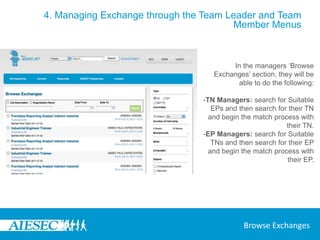
4. Managing Exchange through the Team Leader and Team Member MenusIn the managers ‘Browse Exchanges’ section, they will be able to do the following:-TN Managers: search for Suitable EPs and then search for their TN and begin the match process with their TN.-EP Managers: search for Suitable TNs and then search for their EP and begin the match process with their EP.Browse Exchanges
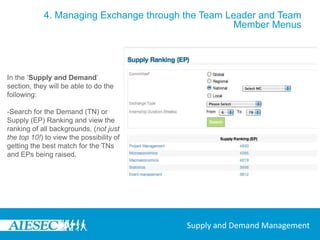
4. Managing Exchange through the Team Leader and Team Member MenusIn the ‘Supply and Demand’ section, they will be able to do the following:-Search for the Demand (TN) or Supply (EP) Ranking and view the ranking of all backgrounds, (not just the top 10!) to view the possibility of getting the best match for the TNs and EPs being raised.Supply and Demand Management
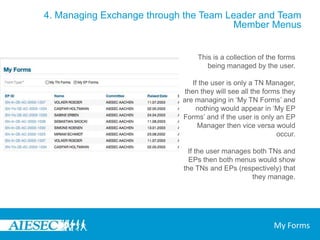
4. Managing Exchange through the Team Leader and Team Member MenusThis is a collection of the forms being managed by the user.If the user is only a TN Manager, then they will see all the forms they are managing in ‘My TN Forms’ and nothing would appear in ‘My EP Forms’ and if the user is only an EP Manager then vice versa would occur.If the user manages both TNs and EPs then both menus would show the TNs and EPs (respectively) that they manage.My Forms
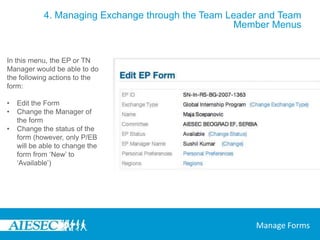
4. Managing Exchange through the Team Leader and Team Member MenusIn this menu, the EP or TN Manager would be able to do the following actions to the form:Edit the Form
Change the Manager of the form
Change the status of the form (however, only P/EB will be able to change the form from ‘New’ to ‘Available’)Manage Forms
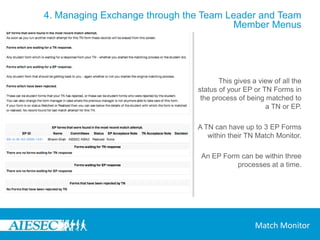
4. Managing Exchange through the Team Leader and Team Member MenusThis gives a view of all the status of your EP or TN Forms in the process of being matched to a TN or EP. A TN can have up to 3 EP Forms within their TN Match Monitor.An EP Form can be within three processes at a time.  Match Monitor
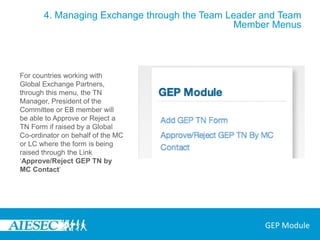
4. Managing Exchange through the Team Leader and Team Member MenusFor countries working with Global Exchange Partners, through this menu, the TN Manager, President of the Committee or EB member will be able to Approve or Reject a TN Form if raised by a Global Co-ordinator on behalf of the MC or LC where the form is being raised through the Link ‘Approve/Reject GEP TN by MC Contact’GEP Module
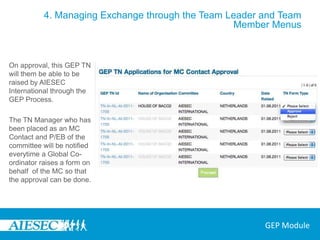
4. Managing Exchange through the Team Leader and Team Member MenusOn approval, this GEP TN will them be able to be raised by AIESEC International through the GEP Process.The TN Manager who has been placed as an MC Contact and P/EB of the committee will be notified everytime a Global Co-ordinator raises a form on behalf  of the MC so that the approval can be done.GEP Module
5. Promoting Exchanges
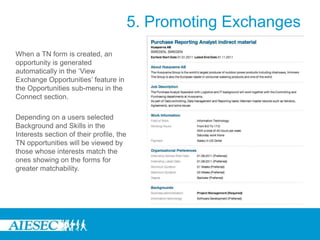
5. Promoting ExchangesWhen a TN form is created, an opportunity is generated automatically in the ‘View Exchange Opportunities’ feature in the Opportunities sub-menu in the Connect section.Depending on a users selected Background and Skills in the Interests section of their profile, the TN opportunities will be viewed by those whose interests match the ones showing on the forms for greater matchability.
6. Managing Projects
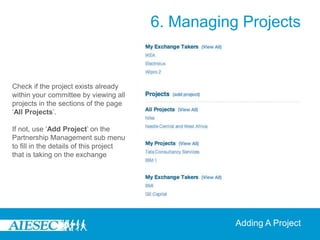
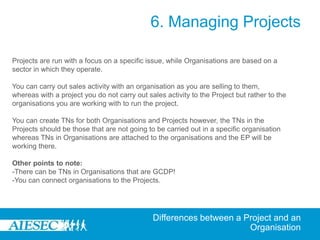
6. Managing ProjectsIn the Partnership Management Sub-menu, a user can be able to add not only Organisations but Projects being run by their entities.These will be viewed in a manner such that users can be able to view the Projects in their committee and the Project Managers and TN Managers connected to these projects can be able to track and manage exchanges done through these projects.

Global community development_programme_management

  • 1.
    Global Community DevelopmentProgramme (GCDP) ManagementHow to use MyAIESEC.net to manage our Global Community Development Programme
  • 2.
    Table of ContentsPleasemake sure you have the right permissions in MyAIESEC.net before you start. This tutorial is aimed at Presidents and EB’s of national or local committees, Exchange Responsible and EPs. Please replace the information with your respective GN, Country or LC whenever applicable in the examples shown in the tutorial.Becoming part of the GCDP as an EPUsing the GCDP Menu as an EPBecoming a GCDP Form ManagerManaging Exchange through the Team Member and Team Leader MenusPromoting ExchangesManaging Projects
  • 3.
    1. Becoming Partof the GCDP as an EP
  • 4.
    1. Becoming partof the GCDP as an EPThere are two ways in which a member can join the Global Community Development Programme as an EP: By choosing to move to the Global Community Development Programme then looking for an exchange
  • 5.
    Looking for anGCDP Opportunity then deciding to apply for itWe will take you through these two ways now.
  • 6.
    1. Becoming partof the GCDP as an EPLogin to MyAIESEC.net, from the top menu, hover over My Experience Menu:-Under the My Programs and Phases submenu choose the Take Global Community Development Programme option (fourth menu option).-Or click on the My Programmes menu landing page select, Take Global Community Development Programme Link on the pageOption 1. Moving to the GCDP then looking for an exchange
  • 7.
    1. Becoming partof the GCDP as an EPOn clicking the menu, the user will be prompted to ensure that their Personal Information, Academic Information, Professional Information, Backgrounds, Skills and Languages are up to date. The user can make this update by clicking on any specific link. This will redirect them to the edit menu and once saved they will be returned back to My Programs menu, they will also need to select which committee they would like their form to be under. The options they have will depend on the specific committees where they have had an experience in the past. They then click ‘Apply’ to continue the process or ‘Cancel’ to end itOption 1. Moving to the GCDP then looking for an exchange
  • 8.
    1. Becoming partof the GCDP as an EPOnce the user completes editing their information, the user would now be required to selectpreferences for their internship which would include:-Duration-Starting and Ending Dates-Issues they would like to work with on their GCDP exchangeRegions in which they would like to do their exchangeOnce done, they should select ‘Generate Form’ to continue. The form is generated and if satisfied, the user would select ‘Save’The form will be on status ‘New’An EB member would be prompted to change the form from New to Available and can do so in the Team Leader Programme MenuOption 1. Moving to the GCDP then looking for an exchange
  • 9.
    1. Becoming partof the GCDP as an EP
  • 10.
    1. Becoming partof the GCDP as an EPThe user can now use the Opportunities search section where they can browse for a GCDP exchange that they would like to apply for.By going to Opportunities and then selecting ‘View Exchange Opportunities’In the Browse Exchanges menu, they have the option to select:-Type-Committee -Duration of Internship-Backgrounds-Skills-Degree Level Desiredin order to search for a desired GCDP exchange opportunityOption 1. Moving to the GCDP then looking for an exchange
  • 11.
    1. Becoming partof the GCDP as an EPIf a user finds an opportunity that they are interested in, on viewing it, if they want to apply, they would need to select it and click on the ‘Apply’ Tab. (User would be apply to apply if their form has been changed from ‘New’ to ‘Available’ or else will be prompted to get this change done)If a user doesn’t find something they want to apply for immediately, they will be considered to have started the Global Community Development Programme and this Programme will be in ‘New’ or ‘Available’ status depending on whether this change was made or not.Option 1. Moving to the GCDP then looking for an exchange
  • 12.
    1. Becoming partof the GCDP as an EPOption 1. Moving to the GCDP then looking for an exchange
  • 13.
    1. Becoming partof the GCDP as an EPOn clicking the ‘Apply’ Tab the user would be added to the TN Match Monitor for this TN Form.The manager responsible for this form will receive an alert in the interest shown by this EP to the TN.The user whose EP form is showing interest can track progress through the Match Monitor in the GCDP Menu. Option 1. Moving to the GCDP then looking for an exchange
  • 14.
    1. Becoming partof the GCDP as an EPLogin to MyAIESEC.net, from the top menu, hover over Connect Menu:-Under the Opportunities submenu choose the View Exchange Opportunities option (third menu option).Option 2. Finding a GCDP Opportunity then Applying for It
  • 15.
    1. Becoming partof the GCDP as an EPThe user is redirected to the Opportunities search section where they can browse for a GCDP exchange they would like to apply for.In the Browse Exchanges menu, they have the option to select:-Type-Committee -Duration of Internship-Backgrounds-Skills-Degree Level Desiredin order to search for a desired GCDP exchange opportunityOption 2. Finding a GCDP Opportunity then Applying for It
  • 16.
    1. Becoming partof the GCDP as an EPIf a user finds an opportunity that they are interested in, on viewing it, if they want to apply, they would need to select it and click on the ‘Apply’ Tab. Option 2. Finding a GCDP Opportunity then Applying for It
  • 17.
    1. Becoming partof the GCDP as an EPOption 2. Finding a GCDP Opportunity then Applying for It
  • 18.
    1. Becoming partof the GCDP as an EPOn clicking the ‘Apply’ Tab the user would be redirected to the ‘Take Global Community Development Program’ under the My Experience Menu to initially update their profile and generate their EP Form.Option 2. Finding a GCDP Opportunity then Applying for It
  • 19.
    1. Becoming partof the GCDP as an EPOn updating their profile and generating their EP Form, an EB member will receive an alert to be able to change the status of the form from ‘New’ to ‘Available’.Only after this change has been made can they be able to apply for this internship they wish to.Option 2. Finding a GCDP Opportunity then Applying for It
  • 20.
    2. Using theGCDP Menu as an EP
  • 21.
    2. Using theGCDP Menu as an EPOn becoming part of the GCDP programme, the GCDP menu enables EPs to be able to manage their own exchange experience through giving them the ability to do the following:-Manage and update their EP Forms and save TN Forms of interests through the ‘My Forms’ Menu-Track the progress of their matching through the ‘Match Monitor’-Search for and apply for various opportunities through ‘Browse Exchanges’
  • 22.
    2. Using theGCDP Menu as an EPIn ‘My Forms’ Menu, you would be able to view two types of forms:My EP FormsThis is where all the EP forms connected with your profile whose realisation date havent been completed will be viewedMy Saved TN FormsThis is where, all TN Forms on viewing them, you choose to ‘Save’ them, would be stored for easy access. My Forms Menu
  • 23.
    2. Using theGCDP Menu as an EPThis gives a view of all the status of your EP Forms in the process of being matched to a TN. A TN can have up to 3 EP Forms within their TN Match Monitor.An EP Form can be within three processes at a time Match Monitor Menu
  • 24.
    2. Using theGCDP Menu as an EPThrough the ‘Browse Exchange’ menu, EPs have quick access to search for TNs on their choice without having to go to the Opportunities section.Again an EP can Save a TN, apply for it directly, Ask the TN Manager a Question, Export the TN to pdfor Share the opportunity with someone else in AIESEC who they think will be interested. Browse Exchanges
  • 25.
    3. Becoming aGCDP Form Manager
  • 26.
    3. Becoming aGCDP Form ManagerEvery form has an EP or TN Manager.EPs can decide to manage their own forms or appoint someone else to manage their form, the EP Manager.All TN Forms need to be managed by someone as the companies cannot manage these themselves.Appointed EP Managers and TN Managers should be taking part in the Team Member or Team Leader Programmes.Below you will find the ways in which an EP Manager and a TN Manager can be appointed.
  • 27.
    3. Becoming aGCDP Form ManagerAn EP can appoint another user as EP Manager through the following way:In the GCDP MenuGo to My FormsChange the EP ManagerUser can select an EP Manager from one of the people in the committee that is in the Team Member or Team Leader ProgrammeOn selecting and making the change, the EP Manager receives a notificationThe Form will appear in the ‘My EP Forms’ in the My Forms Feature under Exchange Management sub menu in the Team Member Programme sectionAppointing an EP Manager
  • 28.
    3. Becoming aGCDP Form ManagerA TN Manager can be appointed in the following way:User who wishes to be the TN Manager would go to the Partnership Management Landing PageAppointing a TN Manager
  • 29.
    3. Becoming aGCDP Form ManagerCheck if the organisation or project exists already within your committee by viewing all organisations and projects in the sections of the page ‘All Organisations’ and ‘All Projects’ , then select the Organisation or Project in your committee that you want to generate a TN Form for.If not, use ‘Add Organisation’ or ‘Add Project’ on the Partnership Management sub menu to fill in the details of this organisation or project that is taking on the exchangeAppointing a TN Manager
  • 30.
    3. Becoming aGCDP Form ManagerOn selecting or adding the Organisationor Project, you will be able to view details of the specific organisationor Project.On this view page, select ‘Create TN Form’ to be able to create a form.This user would become the TN Manager of this form.On the Partnership Menu Landing Page, this Organisation or Project will now appear in the TN Manager’s section of ‘My Exchange Takers’Appointing a TN Manager
  • 31.
    4. Managing Exchangethrough the Team Member and Team Leader Menus
  • 32.
    4. Managing Exchangethrough the Team Leader and Team Member MenusIn order for TN and EP Managers to manage the exchange process, the Exchange Management Menu found in the Team Member Programme enables them to do so. It contains:Browse Exchanges: for the Managers to easily search and match their forms to suitable choicesSupply and Demand Management: to constantly understand the pipeline and need in the networkMy Forms: A place for the managers to keep track of all the EP and TN Forms they are managingManage Forms: To be able to make the necessary changesMatch Monitor: to track matches andGEP Module: If managing Global Exchange Partners along with AIESEC International
  • 33.
    4. Managing Exchangethrough the Team Leader and Team Member MenusIn the managers ‘Browse Exchanges’ section, they will be able to do the following:-TN Managers: search for Suitable EPs and then search for their TN and begin the match process with their TN.-EP Managers: search for Suitable TNs and then search for their EP and begin the match process with their EP.Browse Exchanges
  • 34.
    4. Managing Exchangethrough the Team Leader and Team Member MenusIn the ‘Supply and Demand’ section, they will be able to do the following:-Search for the Demand (TN) or Supply (EP) Ranking and view the ranking of all backgrounds, (not just the top 10!) to view the possibility of getting the best match for the TNs and EPs being raised.Supply and Demand Management
  • 35.
    4. Managing Exchangethrough the Team Leader and Team Member MenusThis is a collection of the forms being managed by the user.If the user is only a TN Manager, then they will see all the forms they are managing in ‘My TN Forms’ and nothing would appear in ‘My EP Forms’ and if the user is only an EP Manager then vice versa would occur.If the user manages both TNs and EPs then both menus would show the TNs and EPs (respectively) that they manage.My Forms
  • 36.
    4. Managing Exchangethrough the Team Leader and Team Member MenusIn this menu, the EP or TN Manager would be able to do the following actions to the form:Edit the Form
  • 37.
  • 38.
    Change the statusof the form (however, only P/EB will be able to change the form from ‘New’ to ‘Available’)Manage Forms
  • 39.
    4. Managing Exchangethrough the Team Leader and Team Member MenusThis gives a view of all the status of your EP or TN Forms in the process of being matched to a TN or EP. A TN can have up to 3 EP Forms within their TN Match Monitor.An EP Form can be within three processes at a time. Match Monitor
  • 40.
    4. Managing Exchangethrough the Team Leader and Team Member MenusFor countries working with Global Exchange Partners, through this menu, the TN Manager, President of the Committee or EB member will be able to Approve or Reject a TN Form if raised by a Global Co-ordinator on behalf of the MC or LC where the form is being raised through the Link ‘Approve/Reject GEP TN by MC Contact’GEP Module
  • 41.
    4. Managing Exchangethrough the Team Leader and Team Member MenusOn approval, this GEP TN will them be able to be raised by AIESEC International through the GEP Process.The TN Manager who has been placed as an MC Contact and P/EB of the committee will be notified everytime a Global Co-ordinator raises a form on behalf of the MC so that the approval can be done.GEP Module
  • 42.
  • 43.
    5. Promoting ExchangesWhena TN form is created, an opportunity is generated automatically in the ‘View Exchange Opportunities’ feature in the Opportunities sub-menu in the Connect section.Depending on a users selected Background and Skills in the Interests section of their profile, the TN opportunities will be viewed by those whose interests match the ones showing on the forms for greater matchability.
  • 44.
  • 45.
    6. Managing ProjectsInthe Partnership Management Sub-menu, a user can be able to add not only Organisations but Projects being run by their entities.These will be viewed in a manner such that users can be able to view the Projects in their committee and the Project Managers and TN Managers connected to these projects can be able to track and manage exchanges done through these projects.

Editor's Notes

  • #7 Explain the reason why this specific information needs to be updated
  • #8 Explain the reason why this specific information needs to be updated
  • #9 Image of an EP Form
  • #12 Image of a GCDP TN Form with the apply section
  • #13 Get an image of the TN Match Monitor with the content inside
  • #17 Image for View GCDP Opportunity
  • #44 Image for adding a project