LetsVenture
Making fundraising easy
Event: Share & Learn
Subject: Next Level Git
Date: Feb 2020
By: PARAG GUPTA
Team: MSE
© guptaparag1996@gmail.com
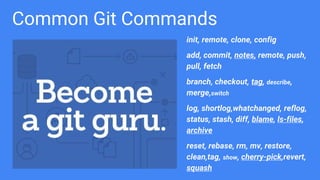
Common Git Commands
init, remote, clone, config
add, commit, notes, remote, push,
pull, fetch
branch, checkout, tag, describe,
merge,switch
log, shortlog,whatchanged, reflog,
status, stash, diff, blame, ls-files,
archive
reset, rebase, rm, mv, restore,
clean,tag, show, cherry-pick,revert,
squash
git ?, why git, repository,
Clone & fork
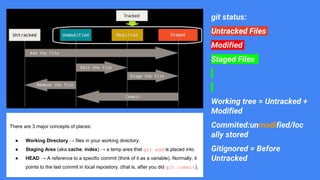
git status:
Untracked Files
Modified
Staged Files
Working tree = Untracked +
Modified
Commited:unmodified/loc
ally stored
Gitignored = Before
Untracked
There are 3 major concepts of places:
● Working Directory → files in your working directory.
● Staging Area (aka cache, index) → a temp area that git add is placed into.
● HEAD → A reference to a specific commit (think of it as a variable). Normally, it
points to the last commit in local repository. (that is, after you did git commit).
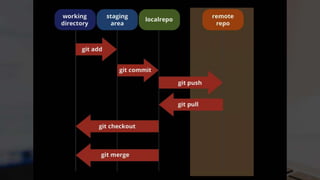
1. git init //Create local folder
2. git add <directory> , git add <file>,
git add . , git add --all or git add -A
// move file to staging area from WD
Config
git config credential.helper store or // you will be prompted to enter your
credentials
git config --global credential.helper "cache --timeout 7200"
//to enable credential caching
git config --global --unset credential.helper //unset credentials
git config –global user.name “[name]”
git config –global user.email “[email address]”
git config --list
git config --global alias.co checkout
git ls-files
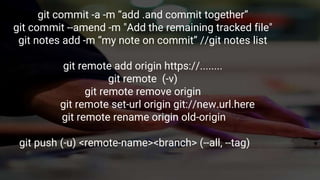
git commit -a -m “add .and commit together”
git commit --amend -m "Add the remaining tracked file"
git notes add -m “my note on commit” //git notes list
git remote add origin https://........
git remote (-v)
git remote remove origin
git remote set-url origin git://new.url.here
git remote rename origin old-origin
git push (-u) <remote-name><branch> (--all, --tag)
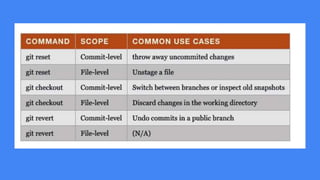
Undo Stage Changesgit reset [<mode>] [<commit>]
//unstage,without removing the changes
//resets the current branch head to <commit>
git reset HEAD^^^
git reset --soft HEAD~10 && git commit -m "squashed last 10 commit"
git clean -f // delete untracked files from harddisk, -n(dry run)
git clean -fd //-f -d empty folder
git rm --cached my-file.js
git rm <file> // delete from harddisk too
git mv file_oldname.txt file_newname.txt
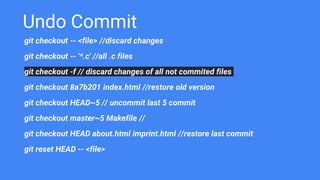
Undo Commit
git checkout -- <file> //discard changes
git checkout -- '*.c' //all .c files
git checkout -f // discard changes of all not commited files
git checkout 8a7b201 index.html //restore old version
git checkout HEAD~5 // uncommit last 5 commit
git checkout master~5 Makefile //
git checkout HEAD about.html imprint.html //restore last commit
git reset HEAD -- <file>
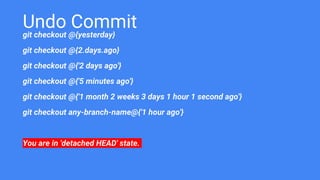
Undo Commit
git checkout @{yesterday}
git checkout @{2.days.ago}
git checkout @{'2 days ago'}
git checkout @{'5 minutes ago'}
git checkout @{'1 month 2 weeks 3 days 1 hour 1 second ago'}
git checkout any-branch-name@{'1 hour ago'}
You are in 'detached HEAD' state.
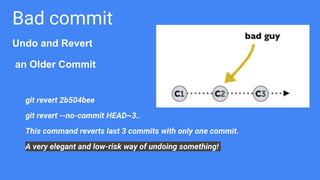
Bad commit
Undo and Revert
an Older Commit
git revert 2b504bee
git revert --no-commit HEAD~3..
This command reverts last 3 commits with only one commit.
A very elegant and low-risk way of undoing something!
B
R
A
N
C
H
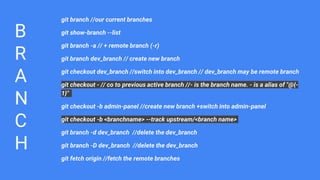
git branch //our current branches
git show-branch --list
git branch -a // + remote branch (-r)
git branch dev_branch // create new branch
git checkout dev_branch //switch into dev_branch // dev_branch may be remote branch
git checkout - // co to previous active branch //- is the branch name. - is a alias of "@{-
1}"
git checkout -b admin-panel //create new branch +switch into admin-panel
git checkout -b <branchname> --track upstream/<branch name>
git branch -d dev_branch //delete the dev_branch
git branch -D dev_branch //delete the dev_branch
git fetch origin //fetch the remote branches
Branch, Tag
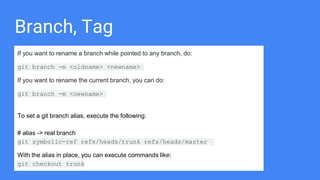
If you want to rename a branch while pointed to any branch, do:
git branch -m <oldname> <newname>
If you want to rename the current branch, you can do:
git branch -m <newname>
To set a git branch alias, execute the following:
# alias -> real branch
git symbolic-ref refs/heads/trunk refs/heads/master
With the alias in place, you can execute commands like:
git checkout trunk
Log
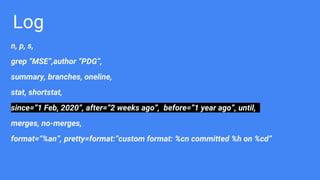
n, p, s,
grep “MSE”,author “PDG”,
summary, branches, oneline,
stat, shortstat,
since=”1 Feb, 2020”, after=”2 weeks ago”, before=”1 year ago”, until,
merges, no-merges,
format=“%an”, pretty=format:”custom format: %cn committed %h on %cd”
git log — foo.py bar.py
git log master..feature [all f commit not in m]
git shortlog -snec --no-merges
git whatchanged #Show logs with difference each commit introduces
git log --pretty=format:"%cn committed %h on %cd"
Diff, Blame, Archive
git diff
git diff --staged/--cached
git diff [source branch] [target branch}
git blame -- src/client/Managers/FilterData.js
git archive --output=./example_repo_archive.tar.gz --format=tar HEAD ./build
--remote=<repo>
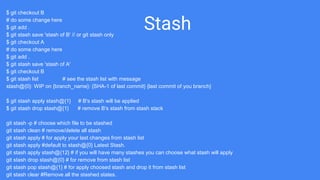
Stash
$ git checkout B
# do some change here
$ git add .
$ git stash save 'stash of B' // or git stash only
$ git checkout A
# do some change here
$ git add .
$ git stash save 'stash of A'
$ git checkout B
$ git stash list # see the stash list with message
stash@{0}: WIP on {branch_name}: {SHA-1 of last commit} {last commit of you branch}
$ git stash apply stash@{1} # B's stash will be applied
$ git stash drop stash@{1} # remove B's stash from stash stack
git stash -p # choose which file to be stashed
git stash clean # remove/delete all stash
git stash apply # for apply your last changes from stash list
git stash apply #default to stash@{0} Latest Stash.
git stash apply stash@{12} # if you will have many stashes you can choose what stash will apply
git stash drop stash@{0} # for remove from stash list
git stash pop stash@{1} # for apply choosed stash and drop it from stash list
git stash clear #Remove all the stashed states.
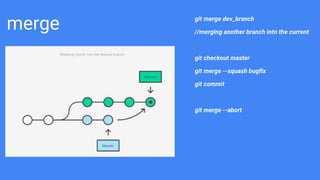
merge git merge dev_branch
//merging another branch into the current
git checkout master
git merge --squash bugfix
git commit
git merge --abort
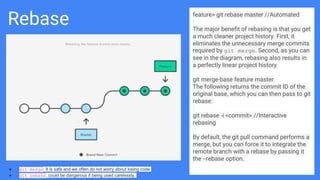
Rebase feature> git rebase master //Automated
The major benefit of rebasing is that you get
a much cleaner project history. First, it
eliminates the unnecessary merge commits
required by git merge. Second, as you can
see in the diagram, rebasing also results in
a perfectly linear project history
git merge-base feature master
The following returns the commit ID of the
original base, which you can then pass to git
rebase:
git rebase -i <commit> //Interactive
rebasing
By default, the git pull command performs a
merge, but you can force it to integrate the
remote branch with a rebase by passing it
the --rebase option.
● git merge: It is safe and we often do not worry about losing code
● git rebase: could be dangerous if being used carelessly.
Pull, Fetch and Push git pull = git fetch + git merge
update your local code with
changes from origin repos.
Note that the "push" command can
also be used to delete a remote
branch.
git push origin --delete feature
Good Practices:
Follow Forking Workflow: fork then clone.
Start a "git pull" only with a clean working copy
Never Amend Published Commits
Hey You, Yes You, You Know ?
Q: What is the .gitkeep file?
Q: What’s git cherry-pick? Cherry Pick A Range Of Commits
Operations
-f fetch
-b branch
-t --track
That's it, folks!
I hope you have enjoyed
this Git session and
learned the commands
and A few git tips you
didn't know!
Thank You :)
© guptaparag1996@gmail.com

Git

  • 1.
  • 2.
    Event: Share &Learn Subject: Next Level Git Date: Feb 2020 By: PARAG GUPTA Team: MSE © guptaparag1996@gmail.com
  • 3.
    Common Git Commands init,remote, clone, config add, commit, notes, remote, push, pull, fetch branch, checkout, tag, describe, merge,switch log, shortlog,whatchanged, reflog, status, stash, diff, blame, ls-files, archive reset, rebase, rm, mv, restore, clean,tag, show, cherry-pick,revert, squash
  • 4.
    git ?, whygit, repository, Clone & fork
  • 5.
    git status: Untracked Files Modified StagedFiles Working tree = Untracked + Modified Commited:unmodified/loc ally stored Gitignored = Before Untracked There are 3 major concepts of places: ● Working Directory → files in your working directory. ● Staging Area (aka cache, index) → a temp area that git add is placed into. ● HEAD → A reference to a specific commit (think of it as a variable). Normally, it points to the last commit in local repository. (that is, after you did git commit).
  • 7.
    1. git init//Create local folder 2. git add <directory> , git add <file>, git add . , git add --all or git add -A // move file to staging area from WD
  • 8.
    Config git config credential.helperstore or // you will be prompted to enter your credentials git config --global credential.helper "cache --timeout 7200" //to enable credential caching git config --global --unset credential.helper //unset credentials git config –global user.name “[name]” git config –global user.email “[email address]” git config --list git config --global alias.co checkout git ls-files
  • 9.
    git commit -a-m “add .and commit together” git commit --amend -m "Add the remaining tracked file" git notes add -m “my note on commit” //git notes list git remote add origin https://........ git remote (-v) git remote remove origin git remote set-url origin git://new.url.here git remote rename origin old-origin git push (-u) <remote-name><branch> (--all, --tag)
  • 10.
    Undo Stage Changesgitreset [<mode>] [<commit>] //unstage,without removing the changes //resets the current branch head to <commit> git reset HEAD^^^ git reset --soft HEAD~10 && git commit -m "squashed last 10 commit" git clean -f // delete untracked files from harddisk, -n(dry run) git clean -fd //-f -d empty folder git rm --cached my-file.js git rm <file> // delete from harddisk too git mv file_oldname.txt file_newname.txt
  • 11.
    Undo Commit git checkout-- <file> //discard changes git checkout -- '*.c' //all .c files git checkout -f // discard changes of all not commited files git checkout 8a7b201 index.html //restore old version git checkout HEAD~5 // uncommit last 5 commit git checkout master~5 Makefile // git checkout HEAD about.html imprint.html //restore last commit git reset HEAD -- <file>
  • 12.
    Undo Commit git checkout@{yesterday} git checkout @{2.days.ago} git checkout @{'2 days ago'} git checkout @{'5 minutes ago'} git checkout @{'1 month 2 weeks 3 days 1 hour 1 second ago'} git checkout any-branch-name@{'1 hour ago'} You are in 'detached HEAD' state.
  • 13.
    Bad commit Undo andRevert an Older Commit git revert 2b504bee git revert --no-commit HEAD~3.. This command reverts last 3 commits with only one commit. A very elegant and low-risk way of undoing something!
  • 16.
    B R A N C H git branch //ourcurrent branches git show-branch --list git branch -a // + remote branch (-r) git branch dev_branch // create new branch git checkout dev_branch //switch into dev_branch // dev_branch may be remote branch git checkout - // co to previous active branch //- is the branch name. - is a alias of "@{- 1}" git checkout -b admin-panel //create new branch +switch into admin-panel git checkout -b <branchname> --track upstream/<branch name> git branch -d dev_branch //delete the dev_branch git branch -D dev_branch //delete the dev_branch git fetch origin //fetch the remote branches
  • 17.
    Branch, Tag If youwant to rename a branch while pointed to any branch, do: git branch -m <oldname> <newname> If you want to rename the current branch, you can do: git branch -m <newname> To set a git branch alias, execute the following: # alias -> real branch git symbolic-ref refs/heads/trunk refs/heads/master With the alias in place, you can execute commands like: git checkout trunk
  • 18.
    Log n, p, s, grep“MSE”,author “PDG”, summary, branches, oneline, stat, shortstat, since=”1 Feb, 2020”, after=”2 weeks ago”, before=”1 year ago”, until, merges, no-merges, format=“%an”, pretty=format:”custom format: %cn committed %h on %cd”
  • 19.
    git log —foo.py bar.py git log master..feature [all f commit not in m] git shortlog -snec --no-merges git whatchanged #Show logs with difference each commit introduces git log --pretty=format:"%cn committed %h on %cd"
  • 20.
    Diff, Blame, Archive gitdiff git diff --staged/--cached git diff [source branch] [target branch} git blame -- src/client/Managers/FilterData.js git archive --output=./example_repo_archive.tar.gz --format=tar HEAD ./build --remote=<repo>
  • 21.
    Stash $ git checkoutB # do some change here $ git add . $ git stash save 'stash of B' // or git stash only $ git checkout A # do some change here $ git add . $ git stash save 'stash of A' $ git checkout B $ git stash list # see the stash list with message stash@{0}: WIP on {branch_name}: {SHA-1 of last commit} {last commit of you branch} $ git stash apply stash@{1} # B's stash will be applied $ git stash drop stash@{1} # remove B's stash from stash stack git stash -p # choose which file to be stashed git stash clean # remove/delete all stash git stash apply # for apply your last changes from stash list git stash apply #default to stash@{0} Latest Stash. git stash apply stash@{12} # if you will have many stashes you can choose what stash will apply git stash drop stash@{0} # for remove from stash list git stash pop stash@{1} # for apply choosed stash and drop it from stash list git stash clear #Remove all the stashed states.
  • 22.
    merge git mergedev_branch //merging another branch into the current git checkout master git merge --squash bugfix git commit git merge --abort
  • 23.
    Rebase feature> gitrebase master //Automated The major benefit of rebasing is that you get a much cleaner project history. First, it eliminates the unnecessary merge commits required by git merge. Second, as you can see in the diagram, rebasing also results in a perfectly linear project history git merge-base feature master The following returns the commit ID of the original base, which you can then pass to git rebase: git rebase -i <commit> //Interactive rebasing By default, the git pull command performs a merge, but you can force it to integrate the remote branch with a rebase by passing it the --rebase option. ● git merge: It is safe and we often do not worry about losing code ● git rebase: could be dangerous if being used carelessly.
  • 24.
    Pull, Fetch andPush git pull = git fetch + git merge update your local code with changes from origin repos. Note that the "push" command can also be used to delete a remote branch. git push origin --delete feature
  • 25.
    Good Practices: Follow ForkingWorkflow: fork then clone. Start a "git pull" only with a clean working copy Never Amend Published Commits
  • 26.
    Hey You, YesYou, You Know ? Q: What is the .gitkeep file? Q: What’s git cherry-pick? Cherry Pick A Range Of Commits
  • 27.
  • 28.
    That's it, folks! Ihope you have enjoyed this Git session and learned the commands and A few git tips you didn't know! Thank You :) © guptaparag1996@gmail.com

Editor's Notes

  • #4 Most people have no idea how dangerous life as a software developer can be: You can delete the wrong files, code into a completely wrong direction, or mess up the whole project with a single commit.
  • #5 A fork is just a request for GitHub to clone the project and registers it under your username; Forked Repo: personal public repository, Shared Central Repo,bare repo,all changes available, Using Github, server-side copy,server-side clones Cloned Repo: local Copied Repo,Using Git,
  • #7 git init -bare git init creates an empty Git repository or re-initializes an existing one. It basically creates a .git directory with subdirectories and template files. Staging is the practice of adding files for your next commit. It allows you to choose which files to commit next.
  • #8 Staging is the practice of adding files for your next commit. It allows you to choose which files to commit next.
  • #9 core.editor color.ui
  • #10 you should only use --amend on local commits that you haven’t yet pushed to a remote repository. The reason for this is that --amend rewrites the given commit, replacing it entirely with the fixed version. -u Creates an upstream tracking connection and is especially useful when publishing a local branch on a remote for the first time. i.e. provides default values for the push command:
  • #11  mode = { hard: "remove from tree,stage and wd", mixed: "remove from tree,stage", soft: "remove from tree only" }; -- is a special argument that tells Git that the arguments that follow it are paths; those before it are something else (command options, remote names, branch names, tag names etc.) –cached will only remove files from the index. Your files will still be there as untracked. With the git checkout command, we restored specific files. With the git reset command, on the other hand, we can restore our whole working copy! Or, to put it another way: this will reset your complete project to the state that was last committed. i.e. you can restore your complete project to an earlier revision.
  • #12 commit === check in checkout opposite of commit move HEAD back, for specific file In cases where not all of your changes in a certain file are bad, you might consider discarding just individual lines in a changed file. Use git reset
  • #13 commit === check in checkout opposite of commit move HEAD back, for specific file In cases where not all of your changes in a certain file are bad, you might consider discarding just individual lines in a changed file. Use git reset
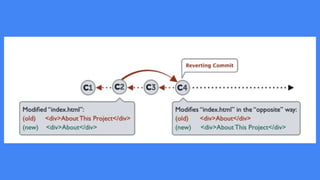
  • #14 Many times you only notice that you made a mistake much later after it has long been committed to the repository. The question then is: how can you get rid of this bad commit? The answer is: by using the git revert command.
  • #15 When using this command, you might be surprised at the result - because the bad commit has not been deleted! Instead of deleting the commit, Git has automatically created a new commit with changes that revert the effects of our “bad” commit.
  • #17 use branches to store various versions of your project, Git repository is a tree of commits /* The -d option is an alias for --delete, which only deletes the branch if it has already been fully merged in its upstream branch. You could also use -D, which is an alias for --delete --force, which deletes the branch "irrespective of its merged status." */
  • #18 Tagging is an additional mechanism used to create a snap shot of a Git repo. Tagging is traditionally used to create semantic version number identifier tags that correspond to software release cycles. The difference between tags and branches are that a branch always points to the top of a development line and will change when a new commit is pushed whereas a tag will not change. Thus tags are more useful to "tag" a specific version and the tag will then always stay on that version and usually not be changed.
  • #19 p: with code s: summary stat: insertion & deletion
  • #20 shortlog: group by author snec:summary sort email committer 'git log' shows each commit (sha, author, date, message) whereas 'git whatchanged' shows the commit plus files that changed.
  • #21 git blame only operates on individual files. git blame displays the last author that modified a line
  • #23 The first thing to understand about git rebase is that it solves the same problem as git merge. Both of these commands are designed to integrate changes from one branch into another branch—they just do it in very different ways. Ugly git history, it is hard to trace the individual commit
  • #24  The golden rule of git rebase is to never use it on public branches. Rebasing results in brand new commits Interactive rebasing ( -i ) allow you to alter commits pick (order), fixup (condense/squash in upper pick) avoid using git rebase after creating the pull request
  • #25  git fetch is the command that tells your local git to retrieve the latest meta-data info from the original (yet doesn’t do any file transfering. It’s more like just checking to see if there are any changes available). git pull on the other hand does that AND brings (copy) those changes from the remote repository.
  • #26 the Forking Workflow begins with an official public repository stored on a server. But when a new developer wants to start working on the project, they do not directly clone the official repository. you should not have any uncommitted local changes before you pull.
  • #27 You may know.gitignore very well. But what is .gitkeep? By default, Git doesn’t track empty directories. A file must exist within it. We can use the .gitkeep file to add empty directories into a git repo. git cherry-pick is a powerful command that enables arbitrary Git commits to be picked by reference and appended to the current working HEAD. Git maintains a list of checkpoints which can accessed using reflog. You can use reflog to undo merges, recover lost commits or branches and a lot more.