






Getting the most from
Windows Virtual
Desktop in Azure
Who am I
• 8.5 years at UKFast as Enterprise Windows engineer
• 2.5 years at ClearCloud as Chief Azure engineer
• SA
• Migrations
• DevOps
• Consultancy
• Twitter - @mbradl03/@ClearCloudUK
What we’ll cover today
• What is WVD?
• Previous alternatives
• Configuration
• Optimisation and boosting
performance
• Azure NetApp Files (ANF)
What is WVD?
What is WVD?
• PaaS offering for DaaS
• Multi-Session Windows 10
• Optimisations for O365
Previous
Alternatives
Previous Alternatives
- Windows Remote Desktop Services
- Citrix
- KVM
- FreeBSD
Previous Alternatives
Configuration of
WVD
WVD
Demo…
Optimising WVD
Optimising WVD
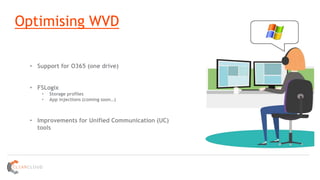
• Support for O365 (one drive)
• FSLogix
• Storage profiles
• App injections (coming soon…)
• Improvements for Unified Communication (UC)
tools
Optimising WVD
Optimising WVD
Azure NetApp
Files (ANF)
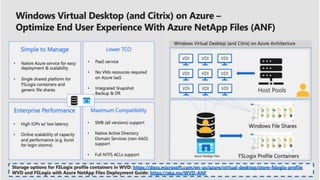
NetApp Files for Azure
• Enterprise grade file storage
3 Key Points
• Consider VDI – its simple and effective
• Make use of FSLogix
• For performace, Azure NetApp Files
The End…
Questions?

Getting the most from Windows Virtual Desktop in Azure

Editor's Notes

  • #2 Thanks Richard and Andy for organising. Talk about Windows Virtual Desktop in Azure. If anyone does have any questions during the talk then please do shout up…we’re here for a while so best not to leave it until the end. Does anyone here currently use a VDI environment for workloads….Citrix, RDS etc?
  • #3 Short talk about me
  • #4 - Today we’re going to go through what WVD is. Giving a general overview of the platform and how it works. I’ll then talk about alternatives that have been previously available as that will hep to show the benefit of using WVD, as opposed to other platforms. Things like Citrix or RDS environments and how WVD differs I’ll then go through the configuration options to show how simple it is to set up and give you an idea of the process involved. Then onto some of the things that you can do to optimise and boost performance. As you’d expect some will cost more but some can actually save money. Finally Azure NetApp Files. I’ve put this as a separate item….really it is about performance, but it is a larger area that I think demands a little more time on. By the end of the talk, you should have a good understanding as to what WVD is, the advantages is may have over other VDI platforms and how to boost performance to get the most from it.
  • #5 Good place to start, eh
  • #6 WVD is Azures PaaS offering for Desktop as a Service. G.A. as of September 2019 As it is from Microsoft, the underlying technology is based on Remote Desktop Services It is the ONLY multi-session Windows 10 environment. Other platforms offer either a multi-session Server OS, or desktop 1 to 1. Just with that one bit of information, if you currently run a VDI environment with desktop OS (Windows 7, 10 etc) then this is definitely worth considering. Multi-session means less VM, less licensing costs and lower storage costs. Product team have worked to optimise this for O365. I’ll talk more about this when I go through the performance optimisations.
  • #7 Before talking too much about Windows Virtual Desktop, its important to consider the other options to see how it compares
  • #8 If you currently run a VDI environment, you probably use one of the above systems. More than likely, RDS or Citrix. Who uses these? I’ll go through the architecture that RDS and Citrix have as they’re the most common and then compare that to WVD. Typically with RDS and Citrix, unless you’re a Citrix house, RDS will be used for a smaller number of end users. It can work out cheaper as you don’t pay Citrix licenses…but it doesn’t scale very well. Once you get to a couple of hundred end users, you may see the session hosts start to struggle. It doesn’t matter how many session hosts you have, all connections go through the gw and broker and normally it is the brokers that will be the bottle neck. After a couple of hundred users, Citrix will scale better and so larger environments will typically use this.
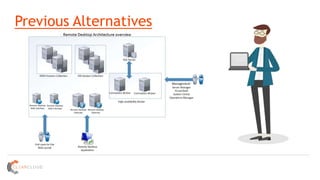
  • #9 Windows Remote Desktop Services. This is what a HA solution typically looks like – this will look familiar to those running RDS. Gateway servers are typically low spec….connection brokers need a bit more for the session data and then backends depend on the workload per user. With RDS, there are several bits of infrastructure that need to be managed, which can be time consuming. Servers all need to be licensed and patched….as does SQL.
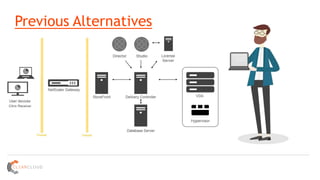
  • #10 Moving on from RDS, the above is what your Citrix environment may look like. Again, quite a few different things to manage. And Citrix also comes with additional costs for the Citrix licenses. NetScalers need licensing and end users also need to be licensed….this can be ~£10 month per user just for the user Citrix licenses. But this does scale better than RDS.
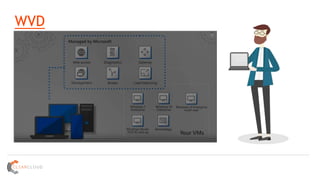
  • #11 All of the components on the previous 2 slides aren’t managed by you with WVD. No more server maintenance, no more Windows Updates, no more SQL patches.
  • #12 In Azure you do need Azure AD DS or use on prem domain…..for on prem, you need to use azure AD connect and set up some other options there for federation and pass through auth
  • #13 Build WVD: Auth the app against Azure AD: https://rdweb.wvd.microsoft.com/ The above registers an append gives it permission to Azure AD. Give user tenant creator group https://rdweb.wvd.microsoft.com/webclient/index.html
  • #14 Optimisation of WVD comes down to 2 main areas; performance and saving costs. We’ve already talked about how using WVD for Windows 10 can save money (multi-session means less OS’s to run, and therefore less storage costs). But there are a number of other ways to achieve both cost savings and improved performance.
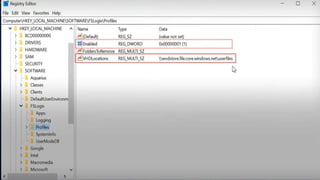
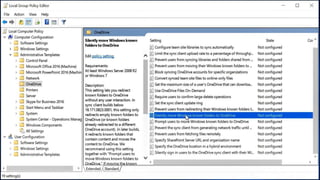
  • #15 Support for O365. As this is a Windows 10 environment, you get some Group Policy options that you do not get with a Server OS. One of these things is full integration with O365 – mainly OneDrive. For your user storage, you can connect the user profiles directly to their OneDrive accounts, which includes SSO if they use their domain user to connect to WVD. Without a 365 subscription, Microsoft gives you 5GB free storage with OneDrive…which is a good amount. Or 1TB with 365…the higher 365 license you have, the more you get. What this gives you is lower storage costs needed within the environment and a faster login time for users – having a link to OneDrive means that the servers don’t have to load that user profile data when the user logs on. So lower storage costs, quicker logon time and its far easier to scale backend servers. FSLogix. This is a company that Microsoft acquired and is used for non-persistent Windows computing environments and works really well with WVD. As FXLogix is for non-persistent Windows environmnets, in a nut shall what this does is abstracts a lot of things from the backend servers. Similar to how having OneDrive for user data helps with performance, costs and scalability FSLogix does the same. This technology can be used for a number of things and it is all readily available with PowerShell commands. FSLogix allows user profile disks to be stored in a remote location – in this case, it would be Azure storage (file or blob), which is cheaper then managed disks. But again, the profiles then aren’t’ stored locally on every single server. So it uses less space, as the content isn’t duplicated across all hosts and if you add new backend servers, the logon time for users there is not affected. UC tools – who has ever tried to use Teams or Skype over a VDI environment? It isn’t always ideal….data has to go from your local machine, up to the VDI server, then to the other persons VDI server and down to their machine. These steps all add latency. When using Teams in a WVD environment, it allows for a direct connection between end user machines – cutting out the VDI servers that each user is connected to. So rather than 3 hops for the data to get between users, it is now 1.
  • #16 User profiles. Using remote storage for profile disks really helps to scale the setup that you have
  • #17 User files to sync with OneDrive. So you can set up files to automatically backup to OneDrive also.
  • #19 We’ve talked about lowering costs and improving performance. But the two don’t always go together. It makes sense that you may need to pay more money to get better performance. Azure NetApp Files is Enterprise grade storage within Azure. Using Azure storage for user profiles and windows shares is a great way to scale and to keep costs low (lower than managed disks). But Azure storage isn’t really built for performance. So what do you do if your users require storage that can handle disk intensive operations. Data scientists or DBAs would commonly have this problem where they need faster disks with lower latency. You could pay a load of money and get managed disks on every host that has a local copy of their profile and work to make use of the IOPs. Or use Azure NetApp files – this is remote SMB storage that can give up to 4.5GB/s disk throughput.
  • #20 Summarise the talk.