Azure Virtual Desktop (AVD)
User Guide
Introduction
Revised by Status Date Comments Version
Song Haoxuan Draft 30-Nov-2020 First version 0.1
Song Haoxuan Final 11-Dec-2020 Final version 1.0
Michael Gooding Final 30-Jun-2021 Final version 2.0
Commonly used acronyms in this guide
• AVD: Azure Virtual Desktop, the BHP-approved Enterprise virtual desktop solution
• WVD: Windows Virtual Desktop, the former name for Azure Virtual Desktop
What is this guide about?
• This guide provides description of:
✓ What functions or features AVD is offering
✓ Common self-service scenarios and steps
✓ AVD best practices, common issues and resolution
✓ Help available to users
Who can use this guide?
• This guide can be used by the following BHP users:
✓ AVD end-users
✓ First line of support (e.g. Service Desk)
✓
Document Version
Table of Contents
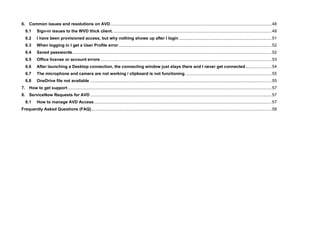
Azure Virtual Desktop (AVD).....................................................................................................................................................................1
Introduction................................................................................................................................................................................................2
Table of Contents.......................................................................................................................................................................................3
1. AVD User Pre-requisites .....................................................................................................................................................................5
2. Azure Virtual Desktop Overview.........................................................................................................................................................5
2.1 Overview........................................................................................................................................................................................5
2.2 Session Timeouts .........................................................................................................................................................................6
2.3 Applications ..................................................................................................................................................................................7
2.4 Local device redirection ...............................................................................................................................................................7
2.5 Personal Desktop Cost Optimisation ..........................................................................................................................................9
3. How to access AVD...........................................................................................................................................................................10
3.1 Using the Windows Desktop Client ...........................................................................................................................................10
3.2 Using a web browser ..................................................................................................................................................................17
3.3 Using an Android Device............................................................................................................................................................22
3.4 Using an iOS device....................................................................................................................................................................27
3.5 Using a macOS device................................................................................................................................................................32
4. Office 365 Applications.....................................................................................................................................................................41
5. Common tips, tricks on AVD ............................................................................................................................................................41
5.1 How to change passwords on AVD ...........................................................................................................................................41
5.2 How to Sign-Out..........................................................................................................................................................................42
5.3 Collaboration Apps – Webex, Zoom, Teams etc.......................................................................................................................46
5.4 Feeling slow? Check latency......................................................................................................................................................46
5.5 D: drive – temporary storage on Personal AVD model.............................................................................................................48
5.6 C: drive not available on Pooled model.....................................................................................................................................48
6. Common issues and resolutions on AVD........................................................................................................................................48
6.1 Sign-in issues to the WVD thick client. .....................................................................................................................................48
6.2 I have been provisioned access, but why nothing shows up after I login ..............................................................................51
6.3 When logging in I get a User Profile error.................................................................................................................................52
6.4 Saved passwords........................................................................................................................................................................52
6.5 Office license or account errors ................................................................................................................................................53
6.6 After launching a Desktop connection, the connecting window just stays there and I never get connected......................54
6.7 The microphone and camera are not working / clipboard is not functioning.........................................................................55
6.8 OneDrive file not available .........................................................................................................................................................55
7. How to get support............................................................................................................................................................................57
8. ServiceNow Requests for AVD.........................................................................................................................................................57
8.1 How to manage AVD Access......................................................................................................................................................57
Frequently Asked Questions (FAQ)........................................................................................................................................................58
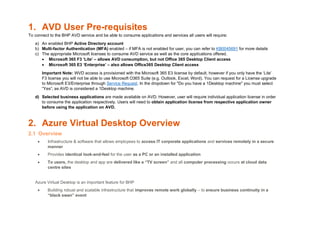
1. AVD User Pre-requisites
To connect to the BHP AVD service and be able to consume applications and services all users will require:
a) An enabled BHP Active Directory account
b) Multi-factor Authentication (MFA) enabled – if MFA is not enabled for user, you can refer to KB0045691 for more details
c) The appropriate Microsoft licenses to consume AVD service as well as the core applications offered.
• Microsoft 365 F3 ‘Lite’ – allows AVD consumption, but not Office 365 Desktop Client access
• Microsoft 365 E3 ‘Enterprise’ – also allows Office365 Desktop Client access
Important Note: WVD access is provisioned with the Microsoft 365 E3 license by default, however if you only have the ‘Lite’
F3 license you will not be able to use Microsoft O365 Suite (e.g. Outlook, Excel, Word). You can request for a License upgrade
to Microsoft E3/Enterprise through Service Request. In the dropdown for "Do you have a 1Desktop machine" you must select
“Yes”, as AVD is considered a 1Desktop machine.
d) Selected business applications are made available on AVD. However, user will require individual application license in order
to consume the application respectively. Users will need to obtain application license from respective application owner
before using the application on AVD.
2. Azure Virtual Desktop Overview
2.1 Overview
• Infrastructure & software that allows employees to access IT corporate applications and services remotely in a secure
manner
• Provides identical look-and-feel for the user as a PC or an installed application
• To users, the desktop and app are delivered like a “TV screen” and all computer processing occurs at cloud data
centre sites
Azure Virtual Desktop is an important feature for BHP
• Building robust and scalable infrastructure that improves remote work globally – to ensure business continuity in a
“black swan” event
• Protecting BHP users and enterprise data against loss and security vulnerabilities
• Improving mobility for BHP users in OT sites to use iPad/other tablets to access windows-based application
• Providing BHP external project staff a shortened lead time for onboarding/access setup
• Providing BHP a consistent desktop experience where physical desktop cannot be provisioned
• providing a Cloud Desktop service platform accelerating BHP journey to cloud
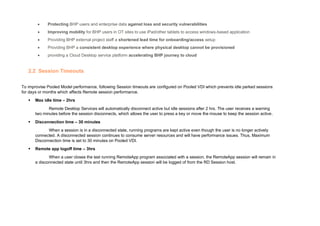
2.2 Session Timeouts
To improvise Pooled Model performance, following Session timeouts are configured on Pooled VDI which prevents idle parked sessions
for days or months which affects Remote session performance.
▪ Max idle time – 2hrs
Remote Desktop Services will automatically disconnect active but idle sessions after 2 hrs. The user receives a warning
two minutes before the session disconnects, which allows the user to press a key or move the mouse to keep the session active.
▪ Disconnection time – 30 minutes
When a session is in a disconnected state, running programs are kept active even though the user is no longer actively
connected. A disconnected session continues to consume server resources and will have performance issues. Thus, Maximum
Disconnection time is set to 30 minutes on Pooled VDI.
▪ Remote app logoff time – 3hrs
When a user closes the last running RemoteApp program associated with a session, the RemoteApp session will remain in
a disconnected state until 3hrs and then the RemoteApp session will be logged of from the RD Session host.
2.3 Applications
Application fulfilment criteria on Azure Virtual Desktop is as per broader BHP Application management process. All applications are to be
approved in GEAR and Packaged as per Enterprise Desktop standards.
On AVD Pooled model, any application meeting the criteria’s defined above will be managed and deployed by AVD Team. However, on
AVD Personal desktop model users can request the required application via support central.
Below are the support central catalogue links:
• New Application packaging/Version Upgrade - Application Packaging
• Request for an existing AVD approved application to be made available on a AVD Landscape - Manage My Azure Virtual Desktop
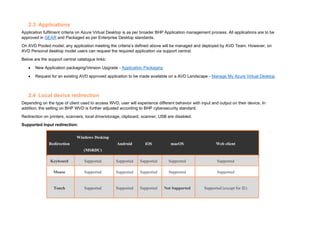
2.4 Local device redirection
Depending on the type of client used to access WVD, user will experience different behavior with input and output on their device. In
addition, the setting on BHP WVD is further adjusted according to BHP cybersecurity standard.
Redirection on printers, scanners, local drive/storage, clipboard, scanner, USB are disabled.
Supported Input redirection:
Redirection
Windows Desktop
(MSRDC)
Android iOS macOS Web client
Keyboard Supported Supported Supported Supported Supported
Mouse Supported Supported Supported Supported Supported
Touch Supported Supported Supported Not Supported Supported (except for IE)
Pen Supported Supported Supported Not Supported Not Supported
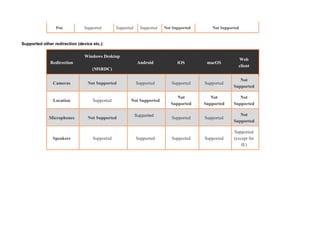
Supported other redirection (device etc.):
Redirection
Windows Desktop
(MSRDC)
Android iOS macOS
Web
client
Cameras Not Supported Supported Supported Supported
Not
Supported
Location Supported Not Supported
Not
Supported
Not
Supported
Not
Supported
Microphones Not Supported
Supported
Supported Supported
Not
Supported
Speakers Supported Supported Supported Supported
Supported
(except for
IE)
2.5 Personal Desktop Cost Optimisation
We would like to introduce recent power management improvements to your Personal WVD experience that will also allow you to
manage the running costs of your WVD.
A new feature called "Start on Connect" together with automation to shutdown VMs with no user logged in have been implemented.
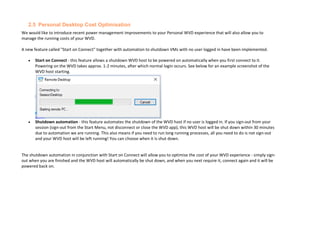
• Start on Connect - this feature allows a shutdown WVD host to be powered on automatically when you first connect to it.
Powering on the WVD takes approx. 1-2 minutes, after which normal login occurs. See below for an example screenshot of the
WVD host starting.
• Shutdown automation - this feature automates the shutdown of the WVD host if no user is logged in. If you sign-out from your
session (sign-out from the Start Menu, not disconnect or close the WVD app), this WVD host will be shut down within 30 minutes
due to automation we are running. This also means if you need to run long running processes, all you need to do is not sign-out
and your WVD host will be left running! You can choose when it is shut down.
The shutdown automation in conjunction with Start on Connect will allow you to optimise the cost of your WVD experience - simply sign-
out when you are finished and the WVD host will automatically be shut down, and when you next require it, connect again and it will be
powered back on.
3. How to access AVD
The sections below outline how to connect to AVD from various types of clients and devices. The recommendation for best performance
is to connect using the Windows Desktop Client from a Windows device. The web client is also an easily accessible option that can be
used from any device with a compatible web browser.
3.1 Using the Windows Desktop Client
For up-to-date instructions or changes please refer to the official Microsoft documentation @ Connect to Azure Virtual Desktop
Windows 10 or 7 - Azure | Microsoft Docs
Steps to Follow
1
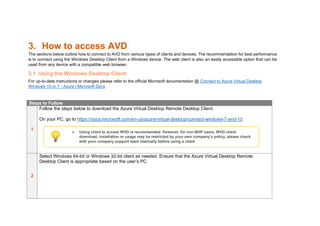
Follow the steps below to download the Azure Virtual Desktop Remote Desktop Client.
On your PC, go to https://docs.microsoft.com/en-us/azure/virtual-desktop/connect-windows-7-and-10
2
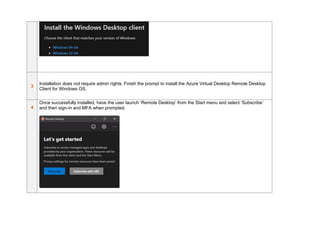
Select Windows 64-bit or Windows 32-bit client as needed. Ensure that the Azure Virtual Desktop Remote
Desktop Client is appropriate based on the user’s PC.
• Using client to access WVD is recommended. However, for non-BHP users, WVD client
download, installation or usage may be restricted by your own company’s policy, please check
with your company support team internally before using a client
3
Installation does not require admin rights. Finish the prompt to install the Azure Virtual Desktop Remote Desktop
Client for Windows OS.
4
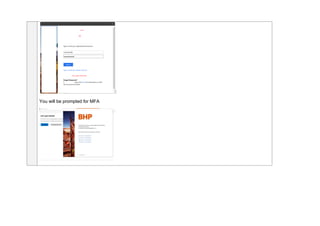
Once successfully installed, have the user launch ‘Remote Desktop’ from the Start menu and select ‘Subscribe’
and then sign-in and MFA when prompted.
You will be prompted for MFA
5
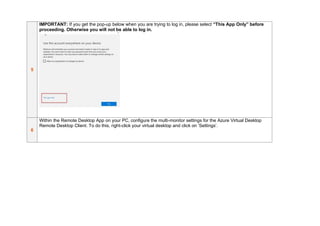
IMPORTANT: If you get the pop-up below when you are trying to log in, please select “This App Only” before
proceeding. Otherwise you will not be able to log in.
6
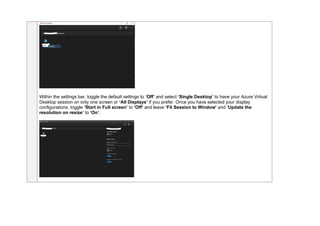
Within the Remote Desktop App on your PC, configure the multi-monitor settings for the Azure Virtual Desktop
Remote Desktop Client. To do this, right-click your virtual desktop and click on ‘Settings’.
Within the settings bar, toggle the default settings to ‘Off’ and select ‘Single Desktop’ to have your Azure Virtual
Desktop session on only one screen or ‘All Displays’ if you prefer. Once you have selected your display
configurations, toggle ‘Start in Full screen’ to ‘Off’ and leave ‘Fit Session to Window’ and ‘Update the
resolution on resize’ to ‘On’.
7
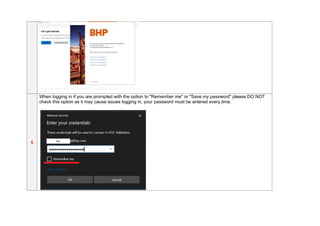
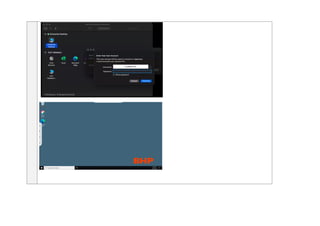
Double Click your Desktop or Remote App to launch it and log in using your BHP credentials
When logging in if you are prompted with the option to "Remember me" or "Save my password" please DO NOT
check this option as it may cause issues logging in, your password must be entered every time.
8
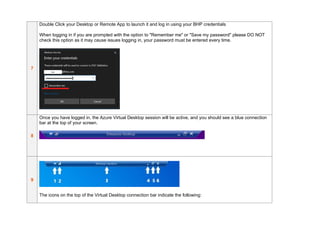
Once you have logged in, the Azure Virtual Desktop session will be active, and you should see a blue connection
bar at the top of your screen.
9
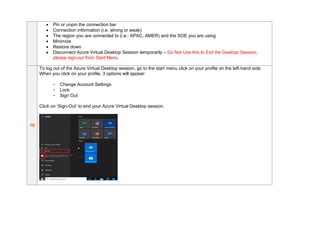
The icons on the top of the Virtual Desktop connection bar indicate the following:
• Pin or unpin the connection bar
• Connection information (i.e. strong or weak)
• The region you are connected to (i.e.: APAC, AMER) and the SOE you are using
• Minimize
• Restore down
• Disconnect Azure Virtual Desktop Session temporarily – Do Not Use this to Exit the Desktop Session,
please sign-out from Start Menu
10
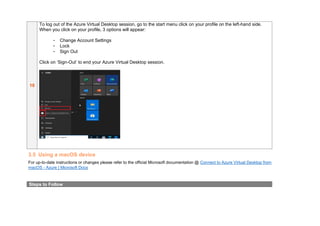
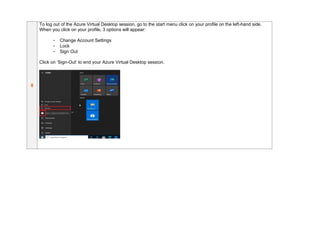
To log out of the Azure Virtual Desktop session, go to the start menu click on your profile on the left-hand side.
When you click on your profile, 3 options will appear:
- Change Account Settings
- Lock
- Sign Out
Click on ‘Sign-Out’ to end your Azure Virtual Desktop session.
3.2 Using a web browser
For up-to-date instructions or changes please refer to the official Microsoft documentation @ Connect to Azure Virtual Desktop with
the web client - Azure | Microsoft Docs
Steps to Follow
1
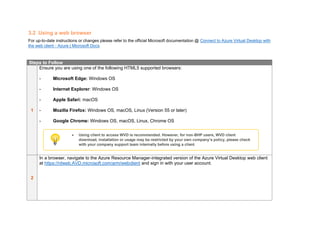
Ensure you are using one of the following HTML5 supported browsers:
- Microsoft Edge: Windows OS
- Internet Explorer: Windows OS
- Apple Safari: macOS
- Mozilla Firefox: Windows OS, macOS, Linux (Version 55 or later)
- Google Chrome: Windows OS, macOS, Linux, Chrome OS
2
In a browser, navigate to the Azure Resource Manager-integrated version of the Azure Virtual Desktop web client
at https://rdweb.AVD.microsoft.com/arm/webclient and sign in with your user account.
• Using client to access WVD is recommended. However, for non-BHP users, WVD client
download, installation or usage may be restricted by your own company’s policy, please check
with your company support team internally before using a client
3
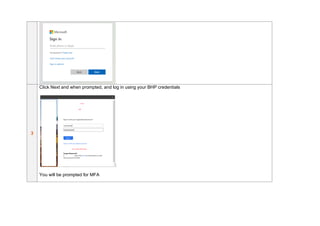
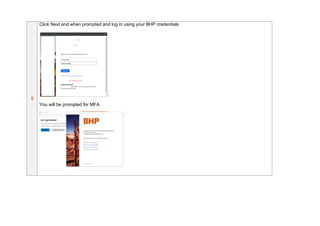
Click Next and when prompted, and log in using your BHP credentials
You will be prompted for MFA
4
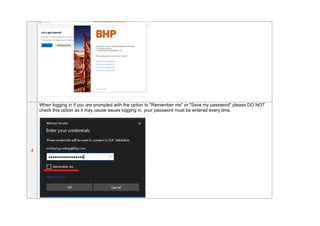
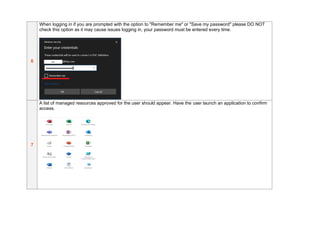
When logging in if you are prompted with the option to "Remember me" or "Save my password" please DO NOT
check this option as it may cause issues logging in, your password must be entered every time.
5
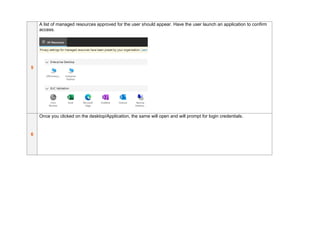
A list of managed resources approved for the user should appear. Have the user launch an application to confirm
access.
6
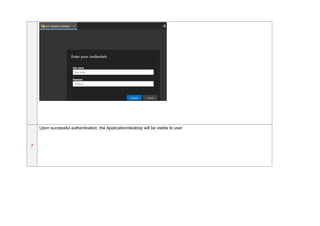
Once you clicked on the desktop/Application, the same will open and will prompt for login credentials.
7
Upon successful authentication, the Application/desktop will be visible to user
8
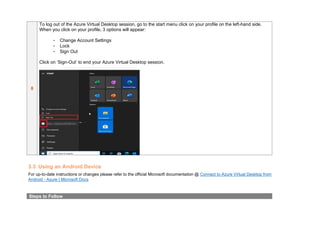
To log out of the Azure Virtual Desktop session, go to the start menu click on your profile on the left-hand side.
When you click on your profile, 3 options will appear:
- Change Account Settings
- Lock
- Sign Out
Click on ‘Sign-Out’ to end your Azure Virtual Desktop session.
3.3 Using an Android Device
For up-to-date instructions or changes please refer to the official Microsoft documentation @ Connect to Azure Virtual Desktop from
Android - Azure | Microsoft Docs
Steps to Follow
1
Follow the steps below to download the Azure Virtual Desktop Remote Desktop Client.
On your device, go to https://docs.microsoft.com/en-us/azure/virtual-desktop/connect-android
2
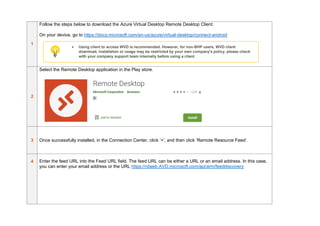
Select the Remote Desktop application in the Play store.
3 Once successfully installed, in the Connection Center, click ‘+’, and then click ‘Remote Resource Feed’.
4 Enter the feed URL into the Feed URL field. The feed URL can be either a URL or an email address. In this case,
you can enter your email address or the URL https://rdweb.AVD.microsoft.com/api/arm/feeddiscovery
• Using client to access WVD is recommended. However, for non-BHP users, WVD client
download, installation or usage may be restricted by your own company’s policy, please check
with your company support team internally before using a client
5
Click Next and when prompted and log in using your BHP credentials
You will be prompted for MFA
6
When logging in if you are prompted with the option to "Remember me" or "Save my password" please DO NOT
check this option as it may cause issues logging in, your password must be entered every time.
7
A list of managed resources approved for the user should appear. Have the user launch an application to confirm
access.
8
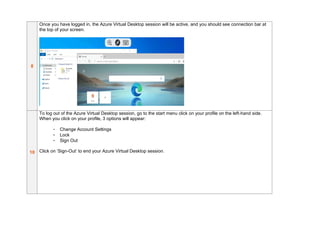
Once you have logged in, the Azure Virtual Desktop session will be active, and you should see connection bar at
the top of your screen.
10
To log out of the Azure Virtual Desktop session, go to the start menu click on your profile on the left-hand side.
When you click on your profile, 3 options will appear:
- Change Account Settings
- Lock
- Sign Out
Click on ‘Sign-Out’ to end your Azure Virtual Desktop session.
3.4 Using an iOS device
For up-to-date instructions or changes please refer to the official Microsoft documentation @ Connect to Azure Virtual Desktop from
iOS - Azure | Microsoft Docs
Steps to Follow
1
Follow the steps below to download the Azure Virtual Desktop Remote Desktop Client.
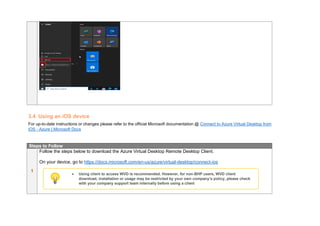
On your device, go to https://docs.microsoft.com/en-us/azure/virtual-desktop/connect-ios
• Using client to access WVD is recommended. However, for non-BHP users, WVD client
download, installation or usage may be restricted by your own company’s policy, please check
with your company support team internally before using a client
2
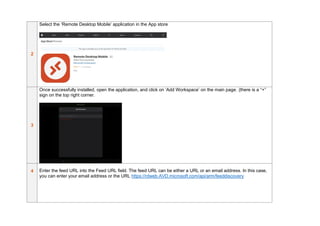
Select the ‘Remote Desktop Mobile’ application in the App store
3
Once successfully installed, open the application, and click on ‘Add Workspace’ on the main page. (there is a “+”
sign on the top right corner.
4 Enter the feed URL into the Feed URL field. The feed URL can be either a URL or an email address. In this case,
you can enter your email address or the URL https://rdweb.AVD.microsoft.com/api/arm/feeddiscovery
5
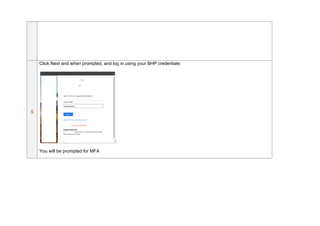
Click Next and when prompted, and log in using your BHP credentials
You will be prompted for MFA
6
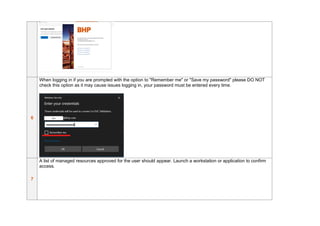
When logging in if you are prompted with the option to "Remember me" or "Save my password" please DO NOT
check this option as it may cause issues logging in, your password must be entered every time.
7
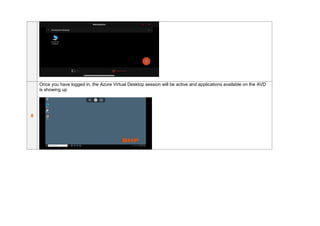
A list of managed resources approved for the user should appear. Launch a workstation or application to confirm
access.
8
Once you have logged in, the Azure Virtual Desktop session will be active and applications available on the AVD
is showing up
10
To log out of the Azure Virtual Desktop session, go to the start menu click on your profile on the left-hand side.
When you click on your profile, 3 options will appear:
- Change Account Settings
- Lock
- Sign Out
Click on ‘Sign-Out’ to end your Azure Virtual Desktop session.
3.5 Using a macOS device
For up-to-date instructions or changes please refer to the official Microsoft documentation @ Connect to Azure Virtual Desktop from
macOS - Azure | Microsoft Docs
Steps to Follow
1
Follow the steps below to download the Azure Virtual Desktop Remote Desktop Client.
On your device, go to https://docs.microsoft.com/en-us/azure/virtual-desktop/connect-macos
2
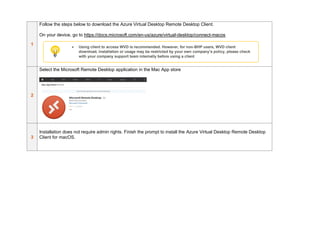
Select the Microsoft Remote Desktop application in the Mac App store
3
Installation does not require admin rights. Finish the prompt to install the Azure Virtual Desktop Remote Desktop
Client for macOS.
• Using client to access WVD is recommended. However, for non-BHP users, WVD client
download, installation or usage may be restricted by your own company’s policy, please check
with your company support team internally before using a client
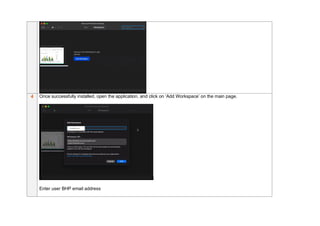
4 Once successfully installed, open the application, and click on ‘Add Workspace’ on the main page.
Enter user BHP email address
The feed URL should be automatically filled up after user email is entered. If not showing up, enter the feed URL
into the Feed URL field. You will use the URL https://rdweb.AVD.microsoft.com/api/arm/feeddiscovery.
5
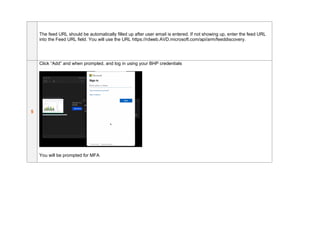
Click “Add” and when prompted, and log in using your BHP credentials
You will be prompted for MFA
6
When logging in if you are prompted with the option to "Remember me" or "Save my password" please DO NOT
check this option as it may cause issues logging in, your password must be entered every time.
7
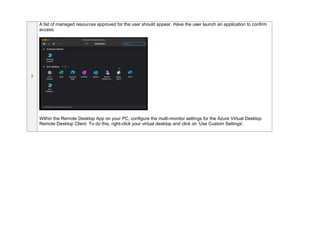
A list of managed resources approved for the user should appear. Have the user launch an application to confirm
access.
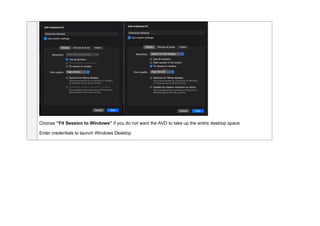
Within the Remote Desktop App on your PC, configure the multi-monitor settings for the Azure Virtual Desktop
Remote Desktop Client. To do this, right-click your virtual desktop and click on ‘Use Custom Settings’.
Choose “Fit Session to Windows” if you do not want the AVD to take up the entire desktop space
Enter credentials to launch Windows Desktop
8
To log out of the Azure Virtual Desktop session, go to the start menu click on your profile on the left-hand side.
When you click on your profile, 3 options will appear:
- Change Account Settings
- Lock
- Sign Out
Click on ‘Sign-Out’ to end your Azure Virtual Desktop session.
4. Office 365 Applications.
O365 Desktop Applications are only available to users having Microsoft E3 License. For all other users, it is strongly
recommended to use office online application.
If users require O365 Desktop application access, please raise a request Upgrade Microsoft user license profile with a
business justification and this catalogue will be approved by Software Asset Management team.
5. Common tips, tricks on AVD
5.1 How to change passwords on AVD
Steps to Follow
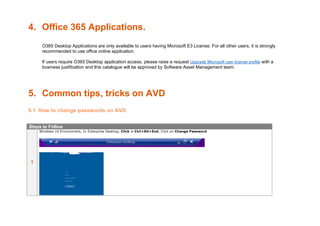
1
Windows 10 Environment, In Enterprise Desktop, Click > Ctrl+Alt+End, Click on Change Password
2
Enter current Password and confirm new Password, click Save
5.2 How to Sign-Out
Steps to Follow
1
Go to Start Menu
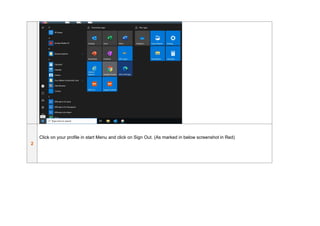
2
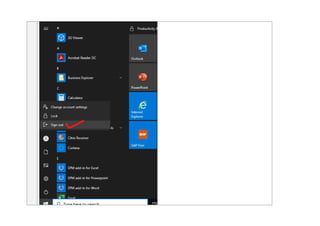
Click on your profile in start Menu and click on Sign Out. (As marked in below screenshot in Red)
5.3 Collaboration Apps – Webex, Zoom, Teams etc.
Webex Teams and Microsoft Teams are available on AVD. However, Camera and Microphone features are disabled on AVD as Webex
teams is not optimized for attending meetings or making calls. Furthermore, as a workaround, user can install Webex teams, MS Teams
on physical laptop and use BHP credential with MFA to attend meetings or calls.
In addition, as per BHP Cyber guidelines, users are not authorized to install Zoom on AVD machine, and it will be a non-compliance if
installed.
5.4 Feeling slow? Check latency
There are two ways to check the latency of your connection while using a full Desktop
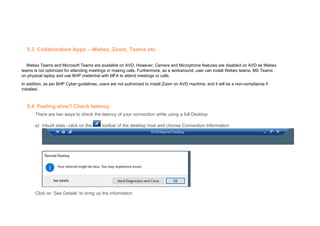
a) Inbuilt stats –click on the toolbar of the desktop host and choose Connection Information
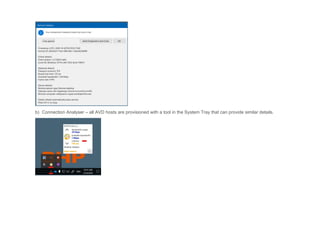
Click on ‘See Details’ to bring up the information
b) Connection Analyser – all AVD hosts are provisioned with a tool in the System Tray that can provide similar details.
5.5 D: drive – temporary storage on Personal AVD model
D:/ drive is temporary Azure storage and should not be used as it is erased when the VM is shutdown.
5.6 C: drive not available on Pooled model
On AVD Pooled model, users will not have access to C:drive as it is a non-persistent desktop. However, users can save all the data and
files in One drive.
6. Common issues and resolutions on AVD
6.1 Sign-in issues to the WVD thick client.
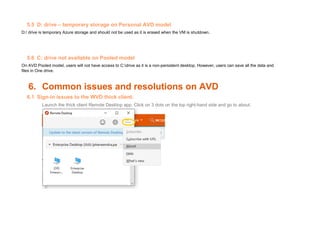
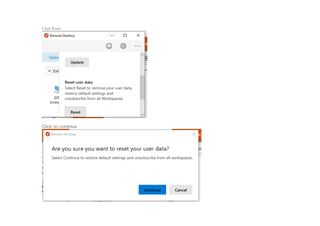
Launch the thick client Remote Desktop app. Click on 3 dots on the top right-hand side and go to about.
Click Reset
Click on continue
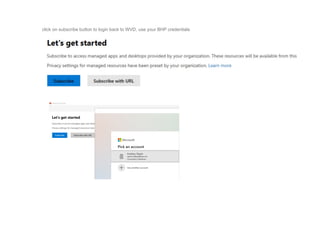
click on subscribe button to login back to WVD, use your BHP credentials
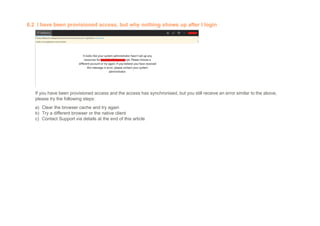
6.2 I have been provisioned access, but why nothing shows up after I login
If you have been provisioned access and the access has synchronised, but you still receive an error similar to the above,
please try the following steps:
a) Clear the browser cache and try again
b) Try a different browser or the native client
c) Contact Support via details at the end of this article
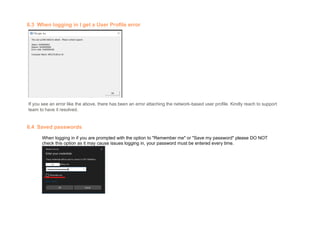
6.3 When logging in I get a User Profile error
If you see an error like the above, there has been an error attaching the network-based user profile. Kindly reach to support
team to have it resolved.
6.4 Saved passwords
When logging in if you are prompted with the option to "Remember me" or "Save my password" please DO NOT
check this option as it may cause issues logging in, your password must be entered every time.
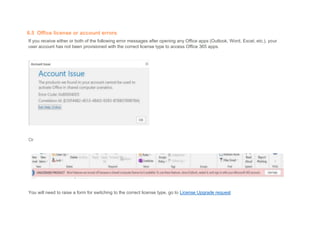
6.5 Office license or account errors
If you receive either or both of the following error messages after opening any Office apps (Outlook, Word, Excel, etc.), your
user account has not been provisioned with the correct license type to access Office 365 apps.
Or
You will need to raise a form for switching to the correct license type, go to License Upgrade request
Note: in the dropdown for "Do you have a 1Desktop machine" you must select yes, as AVD is considered a 1Desktop
machine.
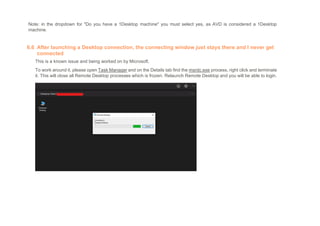
6.6 After launching a Desktop connection, the connecting window just stays there and I never get
connected
This is a known issue and being worked on by Microsoft.
To work around it, please open Task Manager and on the Details tab find the msrdc.exe process, right click and terminate
it. This will close all Remote Desktop processes which is frozen. Relaunch Remote Desktop and you will be able to login.
6.7 The microphone and camera are not working / clipboard is not functioning
This is an expected behaviour. Referring to the Azure Virtual Desktop - Home (bhpbilliton.com) input redirection on devices
varies depending on the type of AVD client used. It is recommended to download a thick client instead of using Web Client
to enjoy the full AVD experience.
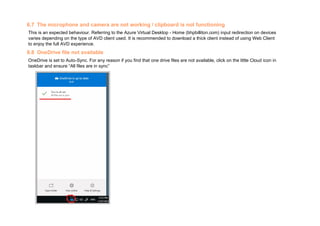
6.8 OneDrive file not available
OneDrive is set to Auto-Sync. For any reason if you find that one drive files are not available, click on the little Cloud icon in
taskbar and ensure “All files are in sync”
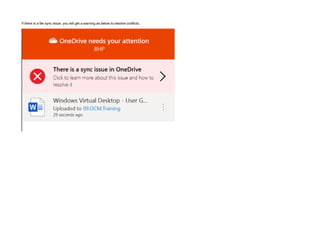
If there is a file sync issue, you will get a warning as below to resolve conflicts.
7. How to get support
Please raise an incident directly from Support Central that includes as much of the following details as possible to assist
with triage.
• Exact nature of the issue being experienced:
o Is it an issue connecting to AVD?
o Is the entire Azure Virtual Desktop session frozen?
o Is it an application within AVD that is having issues? Which application?
o Is it an issue accessing websites? Which websites?
• Are there any issues with the LOCAL machine (note: if the local machine is not a BHP device then it cannot be supported
by BHP)
• Capture details about the exact time of the issue (with the time zone noted)
• Provide an alternate contact method – telephone number or non BHP email
• Identify and record the Connection Information
o Click on your AVD connection bar (at the top of the screen within the Windows Virtual Desktop session) and
click on connection information as shown in section 4.4
• Include any relevant screenshots
8. ServiceNow Requests for AVD
8.1 How to manage AVD Access
You can request access to or remove access from AVD through the Support Central Service Request Manage My Azure
Virtual Desktop Service
Use this form to manage your Azure Virtual Desktop (WVD) landscape and other topics such as requesting advisory services:
• Manage WVD Access to existing landscape
1. Request user access
2. Remove user access
3. Request for an existing AVD approved application to be made available on a AVD Landscape
• Request Advisory Services
1. Request to on-board a project team or operation team for first time
2. Others
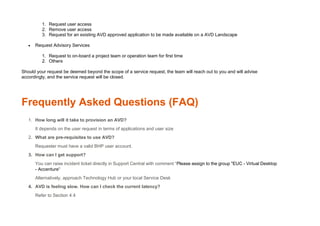
Should your request be deemed beyond the scope of a service request, the team will reach out to you and will advise
accordingly, and the service request will be closed.
Frequently Asked Questions (FAQ)
1. How long will it take to provision an AVD?
It depends on the user request in terms of applications and user size
2. What are pre-requisites to use AVD?
Requester must have a valid BHP user account.
3. How can I get support?
You can raise incident ticket directly in Support Central with comment “Please assign to the group "EUC - Virtual Desktop
- Accenture"
Alternatively, approach Technology Hub or your local Service Desk
4. AVD is feeling slow. How can I check the current latency?
Refer to Section 4.4
5. I have been provisioned access, but why nothing shows up after I login?
6. When trying to log in, I get a user profile error and I can’t login.
Refer to section 5.3
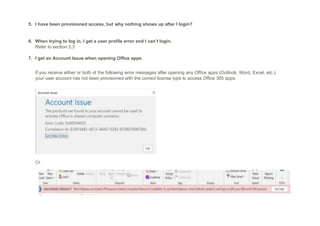
7. I get an Account Issue when opening Office apps
If you receive either or both of the following error messages after opening any Office apps (Outlook, Word, Excel, etc.),
your user account has not been provisioned with the correct license type to access Office 365 apps.
Or
You will need to raise a form for switching to the correct license type, go to License Upgrade request
Note: in the dropdown for "Do you have a 1Desktop machine" you must select yes, as AVD is considered a 1Desktop
machine.
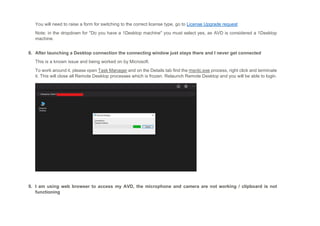
8. After launching a Desktop connection the connecting window just stays there and I never get connected
This is a known issue and being worked on by Microsoft.
To work around it, please open Task Manager and on the Details tab find the msrdc.exe process, right click and terminate
it. This will close all Remote Desktop processes which is frozen. Relaunch Remote Desktop and you will be able to login.
9. I am using web browser to access my AVD, the microphone and camera are not working / clipboard is not
functioning
This is an expected behaviour. Referring to the Azure Virtual Desktop - Home (bhpbilliton.com) input redirection on devices
varies depending on the type of AVD client used. It is recommended to download a thick client instead of using Web
Client to enjoy the full AVD experience.
Azure Virtual Desktop - User Guide_v1.2.pdf

  • 1.
    Azure Virtual Desktop(AVD) User Guide
  • 2.
    Introduction Revised by StatusDate Comments Version Song Haoxuan Draft 30-Nov-2020 First version 0.1 Song Haoxuan Final 11-Dec-2020 Final version 1.0 Michael Gooding Final 30-Jun-2021 Final version 2.0 Commonly used acronyms in this guide • AVD: Azure Virtual Desktop, the BHP-approved Enterprise virtual desktop solution • WVD: Windows Virtual Desktop, the former name for Azure Virtual Desktop What is this guide about? • This guide provides description of: ✓ What functions or features AVD is offering ✓ Common self-service scenarios and steps ✓ AVD best practices, common issues and resolution ✓ Help available to users Who can use this guide? • This guide can be used by the following BHP users: ✓ AVD end-users ✓ First line of support (e.g. Service Desk) ✓ Document Version
  • 3.
    Table of Contents AzureVirtual Desktop (AVD).....................................................................................................................................................................1 Introduction................................................................................................................................................................................................2 Table of Contents.......................................................................................................................................................................................3 1. AVD User Pre-requisites .....................................................................................................................................................................5 2. Azure Virtual Desktop Overview.........................................................................................................................................................5 2.1 Overview........................................................................................................................................................................................5 2.2 Session Timeouts .........................................................................................................................................................................6 2.3 Applications ..................................................................................................................................................................................7 2.4 Local device redirection ...............................................................................................................................................................7 2.5 Personal Desktop Cost Optimisation ..........................................................................................................................................9 3. How to access AVD...........................................................................................................................................................................10 3.1 Using the Windows Desktop Client ...........................................................................................................................................10 3.2 Using a web browser ..................................................................................................................................................................17 3.3 Using an Android Device............................................................................................................................................................22 3.4 Using an iOS device....................................................................................................................................................................27 3.5 Using a macOS device................................................................................................................................................................32 4. Office 365 Applications.....................................................................................................................................................................41 5. Common tips, tricks on AVD ............................................................................................................................................................41 5.1 How to change passwords on AVD ...........................................................................................................................................41 5.2 How to Sign-Out..........................................................................................................................................................................42 5.3 Collaboration Apps – Webex, Zoom, Teams etc.......................................................................................................................46 5.4 Feeling slow? Check latency......................................................................................................................................................46 5.5 D: drive – temporary storage on Personal AVD model.............................................................................................................48 5.6 C: drive not available on Pooled model.....................................................................................................................................48
  • 4.
    6. Common issuesand resolutions on AVD........................................................................................................................................48 6.1 Sign-in issues to the WVD thick client. .....................................................................................................................................48 6.2 I have been provisioned access, but why nothing shows up after I login ..............................................................................51 6.3 When logging in I get a User Profile error.................................................................................................................................52 6.4 Saved passwords........................................................................................................................................................................52 6.5 Office license or account errors ................................................................................................................................................53 6.6 After launching a Desktop connection, the connecting window just stays there and I never get connected......................54 6.7 The microphone and camera are not working / clipboard is not functioning.........................................................................55 6.8 OneDrive file not available .........................................................................................................................................................55 7. How to get support............................................................................................................................................................................57 8. ServiceNow Requests for AVD.........................................................................................................................................................57 8.1 How to manage AVD Access......................................................................................................................................................57 Frequently Asked Questions (FAQ)........................................................................................................................................................58
  • 5.
    1. AVD UserPre-requisites To connect to the BHP AVD service and be able to consume applications and services all users will require: a) An enabled BHP Active Directory account b) Multi-factor Authentication (MFA) enabled – if MFA is not enabled for user, you can refer to KB0045691 for more details c) The appropriate Microsoft licenses to consume AVD service as well as the core applications offered. • Microsoft 365 F3 ‘Lite’ – allows AVD consumption, but not Office 365 Desktop Client access • Microsoft 365 E3 ‘Enterprise’ – also allows Office365 Desktop Client access Important Note: WVD access is provisioned with the Microsoft 365 E3 license by default, however if you only have the ‘Lite’ F3 license you will not be able to use Microsoft O365 Suite (e.g. Outlook, Excel, Word). You can request for a License upgrade to Microsoft E3/Enterprise through Service Request. In the dropdown for "Do you have a 1Desktop machine" you must select “Yes”, as AVD is considered a 1Desktop machine. d) Selected business applications are made available on AVD. However, user will require individual application license in order to consume the application respectively. Users will need to obtain application license from respective application owner before using the application on AVD. 2. Azure Virtual Desktop Overview 2.1 Overview • Infrastructure & software that allows employees to access IT corporate applications and services remotely in a secure manner • Provides identical look-and-feel for the user as a PC or an installed application • To users, the desktop and app are delivered like a “TV screen” and all computer processing occurs at cloud data centre sites Azure Virtual Desktop is an important feature for BHP • Building robust and scalable infrastructure that improves remote work globally – to ensure business continuity in a “black swan” event
  • 6.
    • Protecting BHPusers and enterprise data against loss and security vulnerabilities • Improving mobility for BHP users in OT sites to use iPad/other tablets to access windows-based application • Providing BHP external project staff a shortened lead time for onboarding/access setup • Providing BHP a consistent desktop experience where physical desktop cannot be provisioned • providing a Cloud Desktop service platform accelerating BHP journey to cloud 2.2 Session Timeouts To improvise Pooled Model performance, following Session timeouts are configured on Pooled VDI which prevents idle parked sessions for days or months which affects Remote session performance. ▪ Max idle time – 2hrs Remote Desktop Services will automatically disconnect active but idle sessions after 2 hrs. The user receives a warning two minutes before the session disconnects, which allows the user to press a key or move the mouse to keep the session active. ▪ Disconnection time – 30 minutes When a session is in a disconnected state, running programs are kept active even though the user is no longer actively connected. A disconnected session continues to consume server resources and will have performance issues. Thus, Maximum Disconnection time is set to 30 minutes on Pooled VDI. ▪ Remote app logoff time – 3hrs When a user closes the last running RemoteApp program associated with a session, the RemoteApp session will remain in a disconnected state until 3hrs and then the RemoteApp session will be logged of from the RD Session host.
  • 7.
    2.3 Applications Application fulfilmentcriteria on Azure Virtual Desktop is as per broader BHP Application management process. All applications are to be approved in GEAR and Packaged as per Enterprise Desktop standards. On AVD Pooled model, any application meeting the criteria’s defined above will be managed and deployed by AVD Team. However, on AVD Personal desktop model users can request the required application via support central. Below are the support central catalogue links: • New Application packaging/Version Upgrade - Application Packaging • Request for an existing AVD approved application to be made available on a AVD Landscape - Manage My Azure Virtual Desktop 2.4 Local device redirection Depending on the type of client used to access WVD, user will experience different behavior with input and output on their device. In addition, the setting on BHP WVD is further adjusted according to BHP cybersecurity standard. Redirection on printers, scanners, local drive/storage, clipboard, scanner, USB are disabled. Supported Input redirection: Redirection Windows Desktop (MSRDC) Android iOS macOS Web client Keyboard Supported Supported Supported Supported Supported Mouse Supported Supported Supported Supported Supported Touch Supported Supported Supported Not Supported Supported (except for IE)
  • 8.
    Pen Supported SupportedSupported Not Supported Not Supported Supported other redirection (device etc.): Redirection Windows Desktop (MSRDC) Android iOS macOS Web client Cameras Not Supported Supported Supported Supported Not Supported Location Supported Not Supported Not Supported Not Supported Not Supported Microphones Not Supported Supported Supported Supported Not Supported Speakers Supported Supported Supported Supported Supported (except for IE)
  • 9.
    2.5 Personal DesktopCost Optimisation We would like to introduce recent power management improvements to your Personal WVD experience that will also allow you to manage the running costs of your WVD. A new feature called "Start on Connect" together with automation to shutdown VMs with no user logged in have been implemented. • Start on Connect - this feature allows a shutdown WVD host to be powered on automatically when you first connect to it. Powering on the WVD takes approx. 1-2 minutes, after which normal login occurs. See below for an example screenshot of the WVD host starting. • Shutdown automation - this feature automates the shutdown of the WVD host if no user is logged in. If you sign-out from your session (sign-out from the Start Menu, not disconnect or close the WVD app), this WVD host will be shut down within 30 minutes due to automation we are running. This also means if you need to run long running processes, all you need to do is not sign-out and your WVD host will be left running! You can choose when it is shut down. The shutdown automation in conjunction with Start on Connect will allow you to optimise the cost of your WVD experience - simply sign- out when you are finished and the WVD host will automatically be shut down, and when you next require it, connect again and it will be powered back on.
  • 10.
    3. How toaccess AVD The sections below outline how to connect to AVD from various types of clients and devices. The recommendation for best performance is to connect using the Windows Desktop Client from a Windows device. The web client is also an easily accessible option that can be used from any device with a compatible web browser. 3.1 Using the Windows Desktop Client For up-to-date instructions or changes please refer to the official Microsoft documentation @ Connect to Azure Virtual Desktop Windows 10 or 7 - Azure | Microsoft Docs Steps to Follow 1 Follow the steps below to download the Azure Virtual Desktop Remote Desktop Client. On your PC, go to https://docs.microsoft.com/en-us/azure/virtual-desktop/connect-windows-7-and-10 2 Select Windows 64-bit or Windows 32-bit client as needed. Ensure that the Azure Virtual Desktop Remote Desktop Client is appropriate based on the user’s PC. • Using client to access WVD is recommended. However, for non-BHP users, WVD client download, installation or usage may be restricted by your own company’s policy, please check with your company support team internally before using a client
  • 11.
    3 Installation does notrequire admin rights. Finish the prompt to install the Azure Virtual Desktop Remote Desktop Client for Windows OS. 4 Once successfully installed, have the user launch ‘Remote Desktop’ from the Start menu and select ‘Subscribe’ and then sign-in and MFA when prompted.
  • 12.
    You will beprompted for MFA
  • 13.
    5 IMPORTANT: If youget the pop-up below when you are trying to log in, please select “This App Only” before proceeding. Otherwise you will not be able to log in. 6 Within the Remote Desktop App on your PC, configure the multi-monitor settings for the Azure Virtual Desktop Remote Desktop Client. To do this, right-click your virtual desktop and click on ‘Settings’.
  • 14.
    Within the settingsbar, toggle the default settings to ‘Off’ and select ‘Single Desktop’ to have your Azure Virtual Desktop session on only one screen or ‘All Displays’ if you prefer. Once you have selected your display configurations, toggle ‘Start in Full screen’ to ‘Off’ and leave ‘Fit Session to Window’ and ‘Update the resolution on resize’ to ‘On’.
  • 15.
    7 Double Click yourDesktop or Remote App to launch it and log in using your BHP credentials When logging in if you are prompted with the option to "Remember me" or "Save my password" please DO NOT check this option as it may cause issues logging in, your password must be entered every time. 8 Once you have logged in, the Azure Virtual Desktop session will be active, and you should see a blue connection bar at the top of your screen. 9 The icons on the top of the Virtual Desktop connection bar indicate the following:
  • 16.
    • Pin orunpin the connection bar • Connection information (i.e. strong or weak) • The region you are connected to (i.e.: APAC, AMER) and the SOE you are using • Minimize • Restore down • Disconnect Azure Virtual Desktop Session temporarily – Do Not Use this to Exit the Desktop Session, please sign-out from Start Menu 10 To log out of the Azure Virtual Desktop session, go to the start menu click on your profile on the left-hand side. When you click on your profile, 3 options will appear: - Change Account Settings - Lock - Sign Out Click on ‘Sign-Out’ to end your Azure Virtual Desktop session.
  • 17.
    3.2 Using aweb browser For up-to-date instructions or changes please refer to the official Microsoft documentation @ Connect to Azure Virtual Desktop with the web client - Azure | Microsoft Docs Steps to Follow 1 Ensure you are using one of the following HTML5 supported browsers: - Microsoft Edge: Windows OS - Internet Explorer: Windows OS - Apple Safari: macOS - Mozilla Firefox: Windows OS, macOS, Linux (Version 55 or later) - Google Chrome: Windows OS, macOS, Linux, Chrome OS 2 In a browser, navigate to the Azure Resource Manager-integrated version of the Azure Virtual Desktop web client at https://rdweb.AVD.microsoft.com/arm/webclient and sign in with your user account. • Using client to access WVD is recommended. However, for non-BHP users, WVD client download, installation or usage may be restricted by your own company’s policy, please check with your company support team internally before using a client
  • 18.
    3 Click Next andwhen prompted, and log in using your BHP credentials You will be prompted for MFA
  • 19.
    4 When logging inif you are prompted with the option to "Remember me" or "Save my password" please DO NOT check this option as it may cause issues logging in, your password must be entered every time.
  • 20.
    5 A list ofmanaged resources approved for the user should appear. Have the user launch an application to confirm access. 6 Once you clicked on the desktop/Application, the same will open and will prompt for login credentials.
  • 21.
    7 Upon successful authentication,the Application/desktop will be visible to user
  • 22.
    8 To log outof the Azure Virtual Desktop session, go to the start menu click on your profile on the left-hand side. When you click on your profile, 3 options will appear: - Change Account Settings - Lock - Sign Out Click on ‘Sign-Out’ to end your Azure Virtual Desktop session. 3.3 Using an Android Device For up-to-date instructions or changes please refer to the official Microsoft documentation @ Connect to Azure Virtual Desktop from Android - Azure | Microsoft Docs Steps to Follow
  • 23.
    1 Follow the stepsbelow to download the Azure Virtual Desktop Remote Desktop Client. On your device, go to https://docs.microsoft.com/en-us/azure/virtual-desktop/connect-android 2 Select the Remote Desktop application in the Play store. 3 Once successfully installed, in the Connection Center, click ‘+’, and then click ‘Remote Resource Feed’. 4 Enter the feed URL into the Feed URL field. The feed URL can be either a URL or an email address. In this case, you can enter your email address or the URL https://rdweb.AVD.microsoft.com/api/arm/feeddiscovery • Using client to access WVD is recommended. However, for non-BHP users, WVD client download, installation or usage may be restricted by your own company’s policy, please check with your company support team internally before using a client
  • 24.
    5 Click Next andwhen prompted and log in using your BHP credentials You will be prompted for MFA
  • 25.
    6 When logging inif you are prompted with the option to "Remember me" or "Save my password" please DO NOT check this option as it may cause issues logging in, your password must be entered every time. 7 A list of managed resources approved for the user should appear. Have the user launch an application to confirm access.
  • 26.
    8 Once you havelogged in, the Azure Virtual Desktop session will be active, and you should see connection bar at the top of your screen. 10 To log out of the Azure Virtual Desktop session, go to the start menu click on your profile on the left-hand side. When you click on your profile, 3 options will appear: - Change Account Settings - Lock - Sign Out Click on ‘Sign-Out’ to end your Azure Virtual Desktop session.
  • 27.
    3.4 Using aniOS device For up-to-date instructions or changes please refer to the official Microsoft documentation @ Connect to Azure Virtual Desktop from iOS - Azure | Microsoft Docs Steps to Follow 1 Follow the steps below to download the Azure Virtual Desktop Remote Desktop Client. On your device, go to https://docs.microsoft.com/en-us/azure/virtual-desktop/connect-ios • Using client to access WVD is recommended. However, for non-BHP users, WVD client download, installation or usage may be restricted by your own company’s policy, please check with your company support team internally before using a client
  • 28.
    2 Select the ‘RemoteDesktop Mobile’ application in the App store 3 Once successfully installed, open the application, and click on ‘Add Workspace’ on the main page. (there is a “+” sign on the top right corner. 4 Enter the feed URL into the Feed URL field. The feed URL can be either a URL or an email address. In this case, you can enter your email address or the URL https://rdweb.AVD.microsoft.com/api/arm/feeddiscovery
  • 29.
    5 Click Next andwhen prompted, and log in using your BHP credentials You will be prompted for MFA
  • 30.
    6 When logging inif you are prompted with the option to "Remember me" or "Save my password" please DO NOT check this option as it may cause issues logging in, your password must be entered every time. 7 A list of managed resources approved for the user should appear. Launch a workstation or application to confirm access.
  • 31.
    8 Once you havelogged in, the Azure Virtual Desktop session will be active and applications available on the AVD is showing up
  • 32.
    10 To log outof the Azure Virtual Desktop session, go to the start menu click on your profile on the left-hand side. When you click on your profile, 3 options will appear: - Change Account Settings - Lock - Sign Out Click on ‘Sign-Out’ to end your Azure Virtual Desktop session. 3.5 Using a macOS device For up-to-date instructions or changes please refer to the official Microsoft documentation @ Connect to Azure Virtual Desktop from macOS - Azure | Microsoft Docs Steps to Follow
  • 33.
    1 Follow the stepsbelow to download the Azure Virtual Desktop Remote Desktop Client. On your device, go to https://docs.microsoft.com/en-us/azure/virtual-desktop/connect-macos 2 Select the Microsoft Remote Desktop application in the Mac App store 3 Installation does not require admin rights. Finish the prompt to install the Azure Virtual Desktop Remote Desktop Client for macOS. • Using client to access WVD is recommended. However, for non-BHP users, WVD client download, installation or usage may be restricted by your own company’s policy, please check with your company support team internally before using a client
  • 34.
    4 Once successfullyinstalled, open the application, and click on ‘Add Workspace’ on the main page. Enter user BHP email address
  • 35.
    The feed URLshould be automatically filled up after user email is entered. If not showing up, enter the feed URL into the Feed URL field. You will use the URL https://rdweb.AVD.microsoft.com/api/arm/feeddiscovery. 5 Click “Add” and when prompted, and log in using your BHP credentials You will be prompted for MFA
  • 36.
    6 When logging inif you are prompted with the option to "Remember me" or "Save my password" please DO NOT check this option as it may cause issues logging in, your password must be entered every time.
  • 37.
    7 A list ofmanaged resources approved for the user should appear. Have the user launch an application to confirm access. Within the Remote Desktop App on your PC, configure the multi-monitor settings for the Azure Virtual Desktop Remote Desktop Client. To do this, right-click your virtual desktop and click on ‘Use Custom Settings’.
  • 38.
    Choose “Fit Sessionto Windows” if you do not want the AVD to take up the entire desktop space Enter credentials to launch Windows Desktop
  • 40.
    8 To log outof the Azure Virtual Desktop session, go to the start menu click on your profile on the left-hand side. When you click on your profile, 3 options will appear: - Change Account Settings - Lock - Sign Out Click on ‘Sign-Out’ to end your Azure Virtual Desktop session.
  • 41.
    4. Office 365Applications. O365 Desktop Applications are only available to users having Microsoft E3 License. For all other users, it is strongly recommended to use office online application. If users require O365 Desktop application access, please raise a request Upgrade Microsoft user license profile with a business justification and this catalogue will be approved by Software Asset Management team. 5. Common tips, tricks on AVD 5.1 How to change passwords on AVD Steps to Follow 1 Windows 10 Environment, In Enterprise Desktop, Click > Ctrl+Alt+End, Click on Change Password
  • 42.
    2 Enter current Passwordand confirm new Password, click Save 5.2 How to Sign-Out Steps to Follow 1 Go to Start Menu
  • 43.
    2 Click on yourprofile in start Menu and click on Sign Out. (As marked in below screenshot in Red)
  • 46.
    5.3 Collaboration Apps– Webex, Zoom, Teams etc. Webex Teams and Microsoft Teams are available on AVD. However, Camera and Microphone features are disabled on AVD as Webex teams is not optimized for attending meetings or making calls. Furthermore, as a workaround, user can install Webex teams, MS Teams on physical laptop and use BHP credential with MFA to attend meetings or calls. In addition, as per BHP Cyber guidelines, users are not authorized to install Zoom on AVD machine, and it will be a non-compliance if installed. 5.4 Feeling slow? Check latency There are two ways to check the latency of your connection while using a full Desktop a) Inbuilt stats –click on the toolbar of the desktop host and choose Connection Information Click on ‘See Details’ to bring up the information
  • 47.
    b) Connection Analyser– all AVD hosts are provisioned with a tool in the System Tray that can provide similar details.
  • 48.
    5.5 D: drive– temporary storage on Personal AVD model D:/ drive is temporary Azure storage and should not be used as it is erased when the VM is shutdown. 5.6 C: drive not available on Pooled model On AVD Pooled model, users will not have access to C:drive as it is a non-persistent desktop. However, users can save all the data and files in One drive. 6. Common issues and resolutions on AVD 6.1 Sign-in issues to the WVD thick client. Launch the thick client Remote Desktop app. Click on 3 dots on the top right-hand side and go to about.
  • 49.
  • 50.
    click on subscribebutton to login back to WVD, use your BHP credentials
  • 51.
    6.2 I havebeen provisioned access, but why nothing shows up after I login If you have been provisioned access and the access has synchronised, but you still receive an error similar to the above, please try the following steps: a) Clear the browser cache and try again b) Try a different browser or the native client c) Contact Support via details at the end of this article
  • 52.
    6.3 When loggingin I get a User Profile error If you see an error like the above, there has been an error attaching the network-based user profile. Kindly reach to support team to have it resolved. 6.4 Saved passwords When logging in if you are prompted with the option to "Remember me" or "Save my password" please DO NOT check this option as it may cause issues logging in, your password must be entered every time.
  • 53.
    6.5 Office licenseor account errors If you receive either or both of the following error messages after opening any Office apps (Outlook, Word, Excel, etc.), your user account has not been provisioned with the correct license type to access Office 365 apps. Or You will need to raise a form for switching to the correct license type, go to License Upgrade request
  • 54.
    Note: in thedropdown for "Do you have a 1Desktop machine" you must select yes, as AVD is considered a 1Desktop machine. 6.6 After launching a Desktop connection, the connecting window just stays there and I never get connected This is a known issue and being worked on by Microsoft. To work around it, please open Task Manager and on the Details tab find the msrdc.exe process, right click and terminate it. This will close all Remote Desktop processes which is frozen. Relaunch Remote Desktop and you will be able to login.
  • 55.
    6.7 The microphoneand camera are not working / clipboard is not functioning This is an expected behaviour. Referring to the Azure Virtual Desktop - Home (bhpbilliton.com) input redirection on devices varies depending on the type of AVD client used. It is recommended to download a thick client instead of using Web Client to enjoy the full AVD experience. 6.8 OneDrive file not available OneDrive is set to Auto-Sync. For any reason if you find that one drive files are not available, click on the little Cloud icon in taskbar and ensure “All files are in sync”
  • 56.
    If there isa file sync issue, you will get a warning as below to resolve conflicts.
  • 57.
    7. How toget support Please raise an incident directly from Support Central that includes as much of the following details as possible to assist with triage. • Exact nature of the issue being experienced: o Is it an issue connecting to AVD? o Is the entire Azure Virtual Desktop session frozen? o Is it an application within AVD that is having issues? Which application? o Is it an issue accessing websites? Which websites? • Are there any issues with the LOCAL machine (note: if the local machine is not a BHP device then it cannot be supported by BHP) • Capture details about the exact time of the issue (with the time zone noted) • Provide an alternate contact method – telephone number or non BHP email • Identify and record the Connection Information o Click on your AVD connection bar (at the top of the screen within the Windows Virtual Desktop session) and click on connection information as shown in section 4.4 • Include any relevant screenshots 8. ServiceNow Requests for AVD 8.1 How to manage AVD Access You can request access to or remove access from AVD through the Support Central Service Request Manage My Azure Virtual Desktop Service Use this form to manage your Azure Virtual Desktop (WVD) landscape and other topics such as requesting advisory services: • Manage WVD Access to existing landscape
  • 58.
    1. Request useraccess 2. Remove user access 3. Request for an existing AVD approved application to be made available on a AVD Landscape • Request Advisory Services 1. Request to on-board a project team or operation team for first time 2. Others Should your request be deemed beyond the scope of a service request, the team will reach out to you and will advise accordingly, and the service request will be closed. Frequently Asked Questions (FAQ) 1. How long will it take to provision an AVD? It depends on the user request in terms of applications and user size 2. What are pre-requisites to use AVD? Requester must have a valid BHP user account. 3. How can I get support? You can raise incident ticket directly in Support Central with comment “Please assign to the group "EUC - Virtual Desktop - Accenture" Alternatively, approach Technology Hub or your local Service Desk 4. AVD is feeling slow. How can I check the current latency? Refer to Section 4.4
  • 59.
    5. I havebeen provisioned access, but why nothing shows up after I login? 6. When trying to log in, I get a user profile error and I can’t login. Refer to section 5.3 7. I get an Account Issue when opening Office apps If you receive either or both of the following error messages after opening any Office apps (Outlook, Word, Excel, etc.), your user account has not been provisioned with the correct license type to access Office 365 apps. Or
  • 60.
    You will needto raise a form for switching to the correct license type, go to License Upgrade request Note: in the dropdown for "Do you have a 1Desktop machine" you must select yes, as AVD is considered a 1Desktop machine. 8. After launching a Desktop connection the connecting window just stays there and I never get connected This is a known issue and being worked on by Microsoft. To work around it, please open Task Manager and on the Details tab find the msrdc.exe process, right click and terminate it. This will close all Remote Desktop processes which is frozen. Relaunch Remote Desktop and you will be able to login. 9. I am using web browser to access my AVD, the microphone and camera are not working / clipboard is not functioning
  • 61.
    This is anexpected behaviour. Referring to the Azure Virtual Desktop - Home (bhpbilliton.com) input redirection on devices varies depending on the type of AVD client used. It is recommended to download a thick client instead of using Web Client to enjoy the full AVD experience.