ITC	
  Express	
  New	
  User	
  Training	
  
Agenda	
  
1) 
2) 
3) 

4) 
5) 

6) 

2

Ge%ng	
  Started	
  
Your	
  Work	
  Stream(s)	
  
Working	
  a	
  case	
  
• 
Ac5onable	
  or	
  not?	
  
• 
Locking	
  &	
  Responding	
  
• 
Click	
  to	
  Support	
  
• 
Making	
  notes	
  
• 
Upda5ng	
  Case	
  &	
  Contact	
  Informa5on	
  
• 
Closing,	
  Archiving	
  
• 
Search	
  
• 
Historical	
  Posts	
  and	
  Cases	
  
• 
Facebook	
  Content	
  
Third	
  Party	
  Content	
  vs.	
  TwiCer	
  &	
  Facebook	
  
• 
Responding	
  to	
  forums,	
  blogs	
  &	
  Google+	
  
Managing	
  Cases	
  
• 
Open,	
  Pending	
  &	
  Wai5ng	
  
• 
My	
  Cases	
  
DMs,	
  PM’s,	
  Public	
  Posts	
  and	
  Re-­‐Tweets	
  
• 
Checking	
  status	
  
• 
Sending	
  posts	
  
• 
Re-­‐tweets	
  
Confiden5al	
  –	
  In	
  the	
  Chat	
  Communica5ons	
  Inc.
GeSng	
  Started	
  
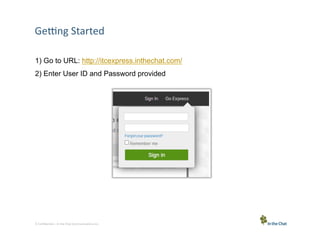
1) Go to URL: http://itcexpress.inthechat.com/
2) Enter User ID and Password provided

3 Confiden5al	
  –	
  In	
  the	
  Chat	
  Communica5ons	
  Inc.
Your	
  Work	
  Stream	
  
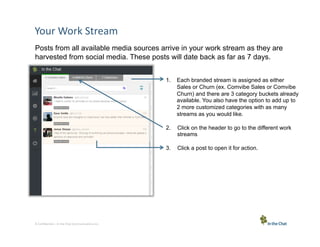
Posts from all available media sources arrive in your work stream as they are
harvested from social media. These posts will date back as far as 7 days.
1.  Each branded stream is assigned as either
Sales or Churn (ex. Comvibe Sales or Comvibe
Churn) and there are 3 category buckets already
available. You also have the option to add up to
2 more customized categories with as many
streams as you would like.
2. 
3. 

4 Confiden5al	
  –	
  In	
  the	
  Chat	
  Communica5ons	
  Inc.

Click on the header to go to the different work
streams
Click a post to open it for action.
Working	
  a	
  Case	
  
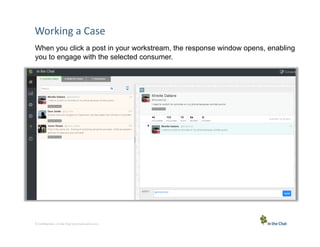
When you click a post in your workstream, the response window opens, enabling
you to engage with the selected consumer.

5 Confiden5al	
  –	
  In	
  the	
  Chat	
  Communica5ons	
  Inc.
Working	
  a	
  Case	
  –	
  Ac5onable	
  or	
  Not?	
  
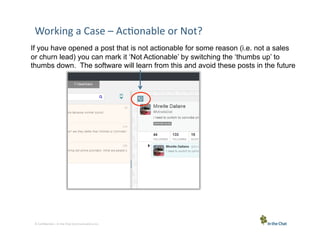
If you have opened a post that is not actionable for some reason (i.e. not a sales
or churn lead) you can mark it ‘Not Actionable’ by switching the ‘thumbs up’ to
thumbs down. The software will learn from this and avoid these posts in the future

6 Confiden5al	
  –	
  In	
  the	
  Chat	
  Communica5ons	
  Inc.
Working	
  a	
  Case	
  –	
  Ac5onable	
  or	
  Not?	
  
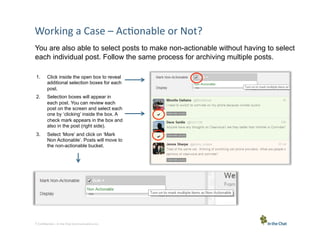
You are also able to select posts to make non-actionable without having to select
each individual post. Follow the same process for archiving multiple posts.
1. 

Click inside the open box to reveal
additional selection boxes for each
post.

2. 

Selection boxes will appear in
each post. You can review each
post on the screen and select each
one by ‘clicking’ inside the box. A
check mark appears in the box and
also in the post (right side).

3. 

Select ‘More’ and click on ‘Mark
Non Actionable’. Posts will move to
the non-actionable bucket.

7 Confiden5al	
  –	
  In	
  the	
  Chat	
  Communica5ons	
  Inc.
Responding	
  to	
  a	
  post	
  
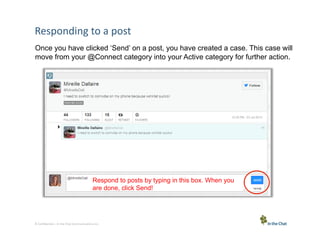
Once you have clicked ‘Send’ on a post, you have created a case. This case will
move from your @Connect category into your Active category for further action.

Respond to posts by typing in this box. When you
are done, click Send!

8 Confiden5al	
  –	
  In	
  the	
  Chat	
  Communica5ons	
  Inc.
Working	
  a	
  Case	
  –	
  Upda5ng	
  Case	
  Informa5on	
  
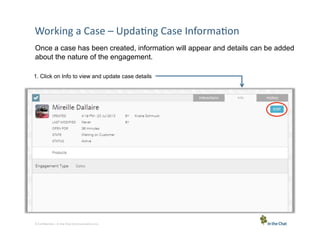
Once a case has been created, information will appear and details can be added
about the nature of the engagement.
1. Click on Info to view and update case details

9 Confiden5al	
  –	
  In	
  the	
  Chat	
  Communica5ons	
  Inc.
Working	
  a	
  Case	
  –	
  Upda5ng	
  Case	
  &	
  Contact	
  Info	
  
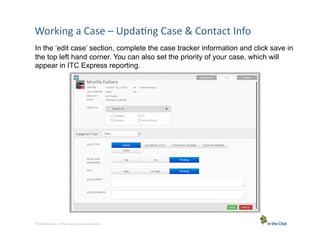
In the ‘edit case’ section, complete the case tracker information and click save in
the top left hand corner. You can also set the priority of your case, which will
appear in ITC Express reporting.

10 Confiden5al	
  –	
  In	
  the	
  Chat	
  Communica5ons	
  Inc.
Working	
  a	
  Case	
  –	
  Resolving	
  the	
  Case	
  
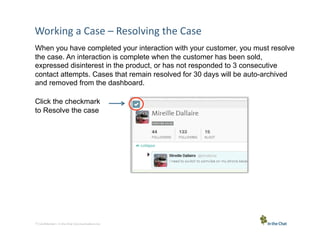
When you have completed your interaction with your customer, you must resolve
the case. An interaction is complete when the customer has been sold,
expressed disinterest in the product, or has not responded to 3 consecutive
contact attempts. Cases that remain resolved for 30 days will be auto-archived
and removed from the dashboard.
Click the checkmark
to Resolve the case

11 Confiden5al	
  –	
  In	
  the	
  Chat	
  Communica5ons	
  Inc.
Working	
  a	
  Case	
  –	
  Search	
  
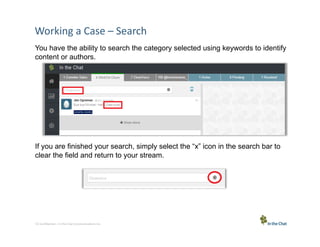
You have the ability to search the category selected using keywords to identify
content or authors.

If you are finished your search, simply select the “x” icon in the search bar to
clear the field and return to your stream.

12 Confiden5al	
  –	
  In	
  the	
  Chat	
  Communica5ons	
  Inc.
Working	
  a	
  Case	
  –	
  Historical	
  Posts	
  and	
  Cases	
  
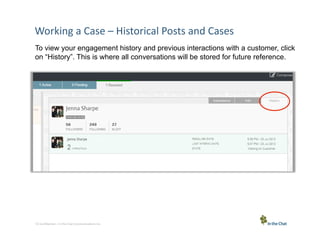
To view your engagement history and previous interactions with a customer, click
on “History”. This is where all conversations will be stored for future reference.

13 Confiden5al	
  –	
  In	
  the	
  Chat	
  Communica5ons	
  Inc.
Managing	
  Cases	
  
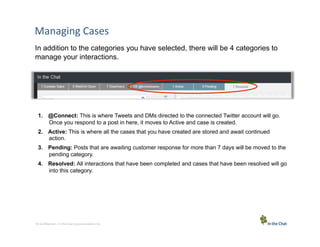
In addition to the categories you have selected, there will be 4 categories to
manage your interactions.

1.  @Connect: This is where Tweets and DMs directed to the connected Twitter account will go.
Once you respond to a post in here, it moves to Active and case is created.
2.  Active: This is where all the cases that you have created are stored and await continued
action.
3.  Pending: Posts that are awaiting customer response for more than 7 days will be moved to the
pending category.
4.  Resolved: All interactions that have been completed and cases that have been resolved will go
into this category.

14 Confiden5al	
  –	
  In	
  the	
  Chat	
  Communica5ons	
  Inc.
Direct	
  Messaging	
  
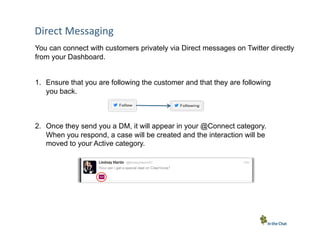
You can connect with customers privately via Direct messages on Twitter directly
from your Dashboard.
1.  Ensure that you are following the customer and that they are following
you back.

2.  Once they send you a DM, it will appear in your @Connect category.
When you respond, a case will be created and the interaction will be
moved to your Active category.

15 Confiden5al	
  –	
  In	
  the	
  Chat	
  Communica5ons	
  Inc.
Engagement	
  Op5ons	
  
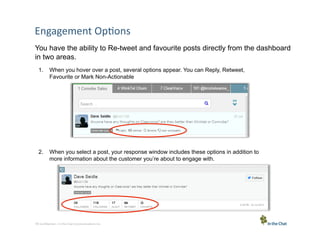
You have the ability to Re-tweet and favourite posts directly from the dashboard
in two areas.
1.  When you hover over a post, several options appear. You can Reply, Retweet,
Favourite or Mark Non-Actionable

2.  When you select a post, your response window includes these options in addition to
more information about the customer you’re about to engage with.

16 Confiden5al	
  –	
  In	
  the	
  Chat	
  Communica5ons	
  Inc.
It’s	
  that	
  Easy!	
  
Thank	
  You.	
  

Getting Started With ITC Express

  • 1.
    ITC  Express  New  User  Training  
  • 2.
    Agenda   1)  2)  3)  4)  5)  6)  2 Ge%ng  Started   Your  Work  Stream(s)   Working  a  case   •  Ac5onable  or  not?   •  Locking  &  Responding   •  Click  to  Support   •  Making  notes   •  Upda5ng  Case  &  Contact  Informa5on   •  Closing,  Archiving   •  Search   •  Historical  Posts  and  Cases   •  Facebook  Content   Third  Party  Content  vs.  TwiCer  &  Facebook   •  Responding  to  forums,  blogs  &  Google+   Managing  Cases   •  Open,  Pending  &  Wai5ng   •  My  Cases   DMs,  PM’s,  Public  Posts  and  Re-­‐Tweets   •  Checking  status   •  Sending  posts   •  Re-­‐tweets   Confiden5al  –  In  the  Chat  Communica5ons  Inc.
  • 3.
    GeSng  Started   1)Go to URL: http://itcexpress.inthechat.com/ 2) Enter User ID and Password provided 3 Confiden5al  –  In  the  Chat  Communica5ons  Inc.
  • 4.
    Your  Work  Stream   Posts from all available media sources arrive in your work stream as they are harvested from social media. These posts will date back as far as 7 days. 1.  Each branded stream is assigned as either Sales or Churn (ex. Comvibe Sales or Comvibe Churn) and there are 3 category buckets already available. You also have the option to add up to 2 more customized categories with as many streams as you would like. 2.  3.  4 Confiden5al  –  In  the  Chat  Communica5ons  Inc. Click on the header to go to the different work streams Click a post to open it for action.
  • 5.
    Working  a  Case   When you click a post in your workstream, the response window opens, enabling you to engage with the selected consumer. 5 Confiden5al  –  In  the  Chat  Communica5ons  Inc.
  • 6.
    Working  a  Case  –  Ac5onable  or  Not?   If you have opened a post that is not actionable for some reason (i.e. not a sales or churn lead) you can mark it ‘Not Actionable’ by switching the ‘thumbs up’ to thumbs down. The software will learn from this and avoid these posts in the future 6 Confiden5al  –  In  the  Chat  Communica5ons  Inc.
  • 7.
    Working  a  Case  –  Ac5onable  or  Not?   You are also able to select posts to make non-actionable without having to select each individual post. Follow the same process for archiving multiple posts. 1.  Click inside the open box to reveal additional selection boxes for each post. 2.  Selection boxes will appear in each post. You can review each post on the screen and select each one by ‘clicking’ inside the box. A check mark appears in the box and also in the post (right side). 3.  Select ‘More’ and click on ‘Mark Non Actionable’. Posts will move to the non-actionable bucket. 7 Confiden5al  –  In  the  Chat  Communica5ons  Inc.
  • 8.
    Responding  to  a  post   Once you have clicked ‘Send’ on a post, you have created a case. This case will move from your @Connect category into your Active category for further action. Respond to posts by typing in this box. When you are done, click Send! 8 Confiden5al  –  In  the  Chat  Communica5ons  Inc.
  • 9.
    Working  a  Case  –  Upda5ng  Case  Informa5on   Once a case has been created, information will appear and details can be added about the nature of the engagement. 1. Click on Info to view and update case details 9 Confiden5al  –  In  the  Chat  Communica5ons  Inc.
  • 10.
    Working  a  Case  –  Upda5ng  Case  &  Contact  Info   In the ‘edit case’ section, complete the case tracker information and click save in the top left hand corner. You can also set the priority of your case, which will appear in ITC Express reporting. 10 Confiden5al  –  In  the  Chat  Communica5ons  Inc.
  • 11.
    Working  a  Case  –  Resolving  the  Case   When you have completed your interaction with your customer, you must resolve the case. An interaction is complete when the customer has been sold, expressed disinterest in the product, or has not responded to 3 consecutive contact attempts. Cases that remain resolved for 30 days will be auto-archived and removed from the dashboard. Click the checkmark to Resolve the case 11 Confiden5al  –  In  the  Chat  Communica5ons  Inc.
  • 12.
    Working  a  Case  –  Search   You have the ability to search the category selected using keywords to identify content or authors. If you are finished your search, simply select the “x” icon in the search bar to clear the field and return to your stream. 12 Confiden5al  –  In  the  Chat  Communica5ons  Inc.
  • 13.
    Working  a  Case  –  Historical  Posts  and  Cases   To view your engagement history and previous interactions with a customer, click on “History”. This is where all conversations will be stored for future reference. 13 Confiden5al  –  In  the  Chat  Communica5ons  Inc.
  • 14.
    Managing  Cases   Inaddition to the categories you have selected, there will be 4 categories to manage your interactions. 1.  @Connect: This is where Tweets and DMs directed to the connected Twitter account will go. Once you respond to a post in here, it moves to Active and case is created. 2.  Active: This is where all the cases that you have created are stored and await continued action. 3.  Pending: Posts that are awaiting customer response for more than 7 days will be moved to the pending category. 4.  Resolved: All interactions that have been completed and cases that have been resolved will go into this category. 14 Confiden5al  –  In  the  Chat  Communica5ons  Inc.
  • 15.
    Direct  Messaging   Youcan connect with customers privately via Direct messages on Twitter directly from your Dashboard. 1.  Ensure that you are following the customer and that they are following you back. 2.  Once they send you a DM, it will appear in your @Connect category. When you respond, a case will be created and the interaction will be moved to your Active category. 15 Confiden5al  –  In  the  Chat  Communica5ons  Inc.
  • 16.
    Engagement  Op5ons   Youhave the ability to Re-tweet and favourite posts directly from the dashboard in two areas. 1.  When you hover over a post, several options appear. You can Reply, Retweet, Favourite or Mark Non-Actionable 2.  When you select a post, your response window includes these options in addition to more information about the customer you’re about to engage with. 16 Confiden5al  –  In  the  Chat  Communica5ons  Inc.
  • 17.
    It’s  that  Easy!   Thank  You.