Launching Convey:Insight for the First Time:
                                     Taking it “Out of the Box”


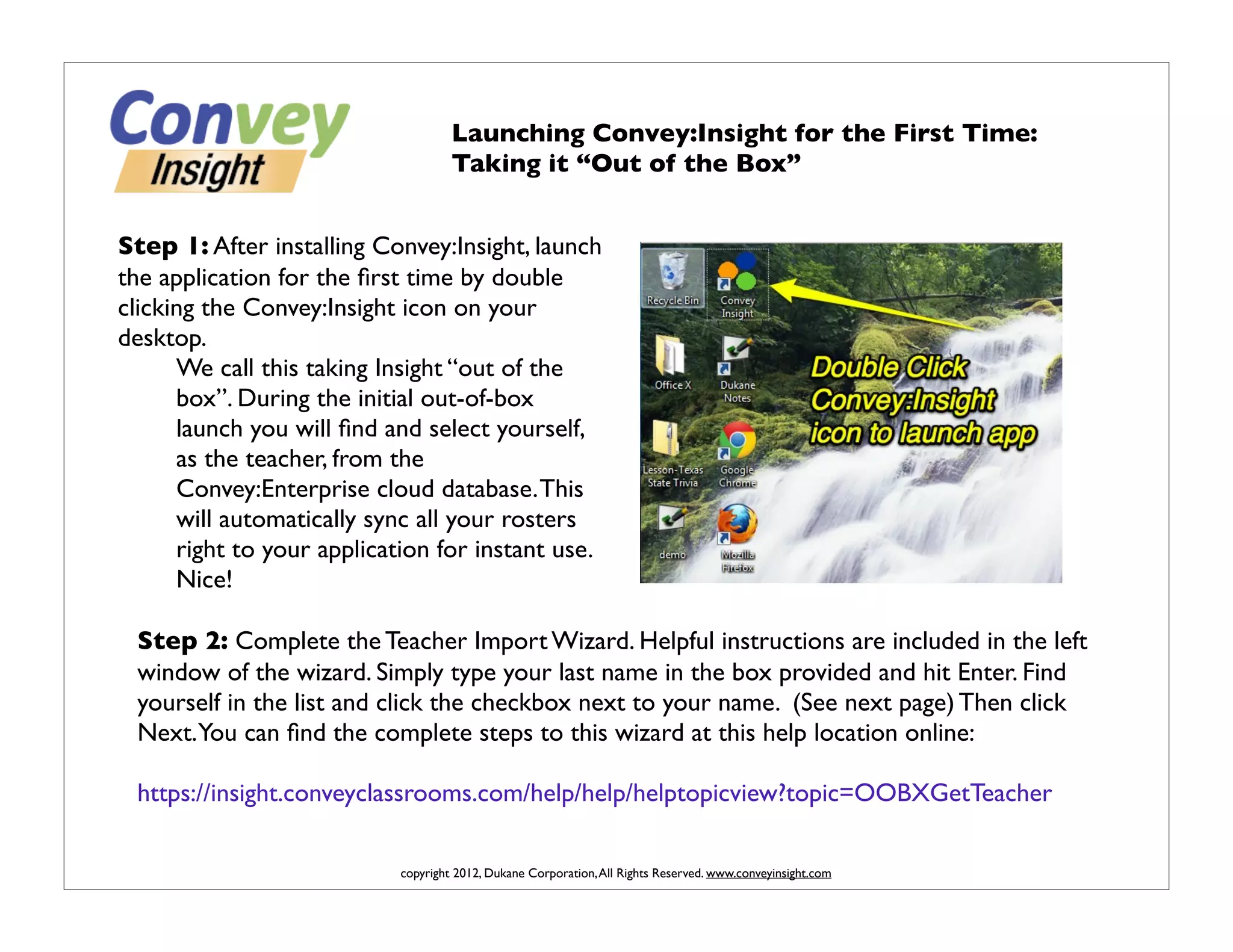
Step 1: After installing Convey:Insight, launch
the application for the first time by double
clicking the Convey:Insight icon on your
desktop.
      We call this taking Insight “out of the
      box”. During the initial out-of-box
      launch you will find and select yourself,
      as the teacher, from the
      Convey:Enterprise cloud database. This
      will automatically sync all your rosters
      right to your application for instant use.
      Nice!

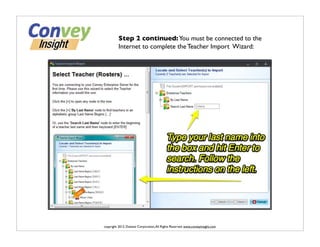
 Step 2: Complete the Teacher Import Wizard. Helpful instructions are included in the left
 window of the wizard. Simply type your last name in the box provided and hit Enter. Find
 yourself in the list and click the checkbox next to your name. (See next page) Then click
 Next.You can find the complete steps to this wizard at this help location online:

 https://insight.conveyclassrooms.com/help/help/helptopicview?topic=OOBXGetTeacher

                            copyright 2012, Dukane Corporation, All Rights Reserved. www.conveyinsight.com
Step 2 continued: You must be connected to the
          Internet to complete the Teacher Import Wizard:


copyright 2012, Dukane Corporation, All Rights Reserved. www.conveyinsight.com
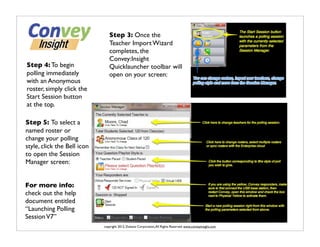
Step 3: Once the
                                Teacher Import Wizard
                                completes, the
                                Convey:Insight
Step 4: To begin                Quicklauncher toolbar will
polling immediately             open on your screen:
with an Anonymous
roster, simply click the
Start Session button
at the top.

Step 5: To select a
named roster or
change your polling
style, click the Bell icon
to open the Session
Manager screen:


For more info:
check out the help
document entitled
“Launching Polling
Session V7”
                             copyright 2012, Dukane Corporation, All Rights Reserved. www.conveyinsight.com

Getting started with convey

  • 1.
    Launching Convey:Insight forthe First Time: Taking it “Out of the Box” Step 1: After installing Convey:Insight, launch the application for the first time by double clicking the Convey:Insight icon on your desktop. We call this taking Insight “out of the box”. During the initial out-of-box launch you will find and select yourself, as the teacher, from the Convey:Enterprise cloud database. This will automatically sync all your rosters right to your application for instant use. Nice! Step 2: Complete the Teacher Import Wizard. Helpful instructions are included in the left window of the wizard. Simply type your last name in the box provided and hit Enter. Find yourself in the list and click the checkbox next to your name. (See next page) Then click Next.You can find the complete steps to this wizard at this help location online: https://insight.conveyclassrooms.com/help/help/helptopicview?topic=OOBXGetTeacher copyright 2012, Dukane Corporation, All Rights Reserved. www.conveyinsight.com
  • 2.
    Step 2 continued:You must be connected to the Internet to complete the Teacher Import Wizard: copyright 2012, Dukane Corporation, All Rights Reserved. www.conveyinsight.com
  • 3.
    Step 3: Oncethe Teacher Import Wizard completes, the Convey:Insight Step 4: To begin Quicklauncher toolbar will polling immediately open on your screen: with an Anonymous roster, simply click the Start Session button at the top. Step 5: To select a named roster or change your polling style, click the Bell icon to open the Session Manager screen: For more info: check out the help document entitled “Launching Polling Session V7” copyright 2012, Dukane Corporation, All Rights Reserved. www.conveyinsight.com