GETTING ACQUAINTED WITH SAGE 50
CHAPTER 02
CONDUTED BY:
P. Ayanthi Madumali
Course Outline
• The SAGE 50 environment
• The SAGE 50 Navigation centres
• Features of SAGE 50 Accounting 2015
• Using the Menu Bar
• Getting help wizards
• Using the keyboard
Sage 50
• Provides advanced analysis tools and 140+
customizable reports and financial statements
• It is ideal for people who want accuracy and
control, so they can achieve better business
results.
• It can be installed to the Single/Stand-Alone
Computer or a Network
Starting the Program
There are several ways to open Sage 50
01.From the Taskbar
• Select Start – Select Program – Select
Sage 50 Accounting 2013 - Click Sage 50
Accounting 2013 icon
02.From the Desktop
• Double-click Sage 50 Accounting 2013
icon
The Start Screen
Starting with Last-opened Company
• If you want to start with last open company when
you start the Sage 50 then you need to Click
Option – and check Start with last Opened
Company. If you uncheck this option, Sage 50
displays the start screen when launched
The Sage 50 Desktop
WindowTitle Bar
Menu Bar
Button Control Bar
Navigation
Bar
Navigation Centers
Business Status Center
The Menu Bar
At the top of the window is the menu bar. It consist of
11 menu buttons
File The File menu is used to set up and open companies
within Sage 50. It is the corridor for interfacing with
printers, previewing a form before it prints, backing
up and restoring, and importing or exporting
information. You also use it to archive your company
data, as well as verify company data and update
payroll tax tables.
Edit Use the Edit menu to work with information in
records, transactions, reports, or forms.
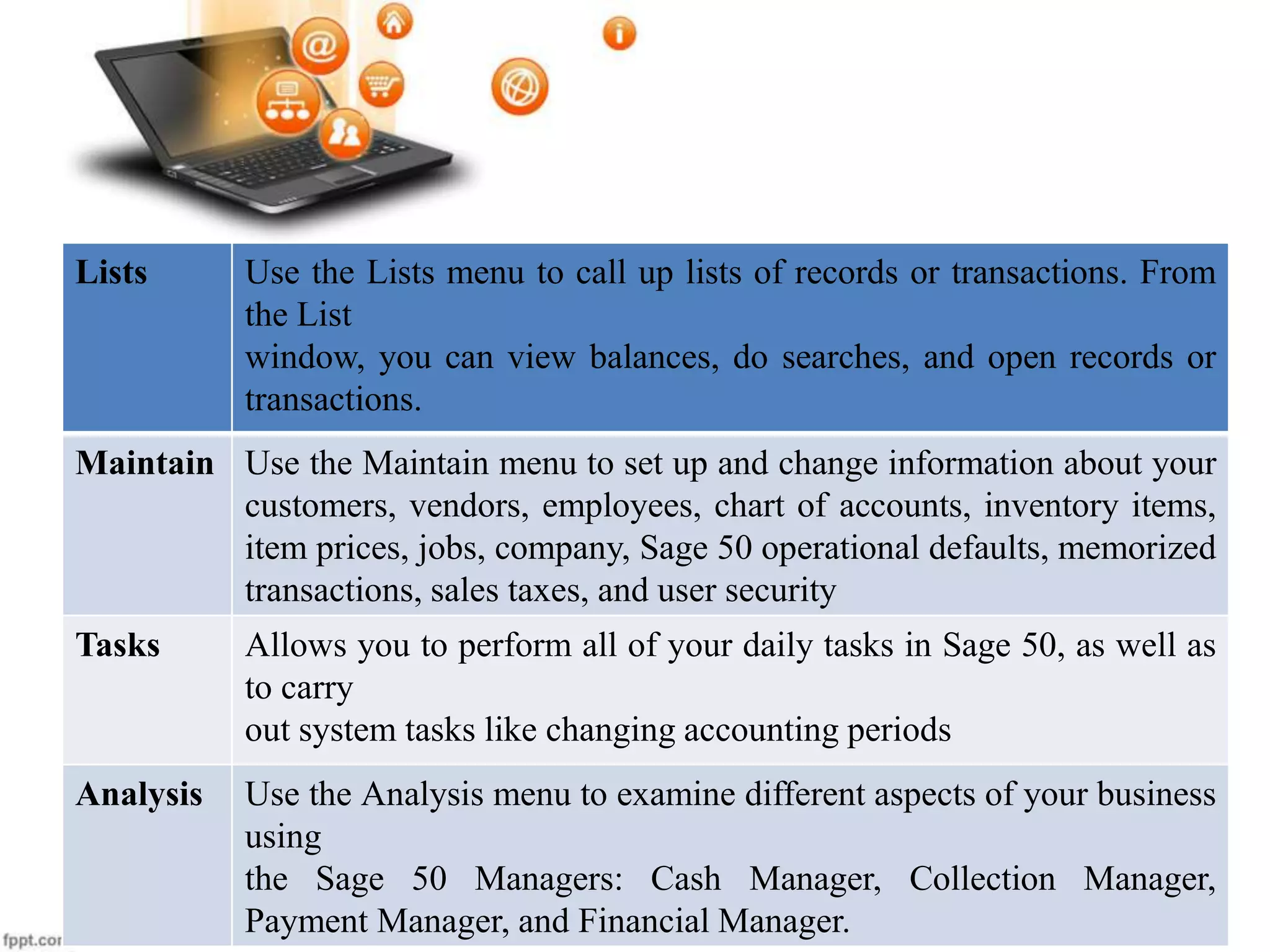
Lists Use the Lists menu to call up lists of records or transactions. From
the List
window, you can view balances, do searches, and open records or
transactions.
Maintain Use the Maintain menu to set up and change information about your
customers, vendors, employees, chart of accounts, inventory items,
item prices, jobs, company, Sage 50 operational defaults, memorized
transactions, sales taxes, and user security
Tasks Allows you to perform all of your daily tasks in Sage 50, as well as
to carry
out system tasks like changing accounting periods
Analysis Use the Analysis menu to examine different aspects of your business
using
the Sage 50 Managers: Cash Manager, Collection Manager,
Payment Manager, and Financial Manager.
Options Use the Lists menu to call up lists of records or transactions. From
the List
window, you can view balances, do searches, and open records or
transactions.
Reports
&
Forms
Use the Reports & Forms menu to print reports, forms, and financial
statements, as well as designing them. You can also create report
groups and customize report styles.
Services Use the Services menu to access and synchronize with various Sage
50 Web resources and manage or process downloaded Web
transactions.
Window Use the Windows menu to decide how you want your desktop to
look..
Help Use the Help menu to answer questions you may have on Sage 50
and to get information about Sage 50 products and services
Button Control Bar
A bar at the top of the Sage 50 Desktop help you to work
with the Navigation Centers and perform other tasks related
to Sage 50 operation
• Hide/ Show: This button acts like a toggle.
• Refresh: Click this to update the company data that currently
appears in the main Sage 50 window.
• System Date: Click this to change the Sage 50 system date.
• Accounting Period: Click this to change the current accounting
period in Sage 50.
• ‘This is the default page’: The Navigation Center you’re currently
working with will be the default center and will appear each time
you open a company.
Navigation Bar-
• The Navigation Bar is on the left side of
the Sage 50 Desktop. It has a series of
icons that represent individual
Navigation Centers . (provides entry to
the Navigation Centers.)
Navigation Centers-
Navigation Centers- provide useful, at glance information about areas of Sage
50.
• Business Status
• Customers & Sales
• Vendors & Purchases
• Inventory & Services
• Employees & Payroll
• Banking
• Systems
Each Navigation Center also provides a graphical representation of the flow of
tasks related to that area of Sage 50.
At the bottom of each center is a section called Sage 50 Solutions which will
take you to information about value-added features, such as Sage 50 Checks &
Forms
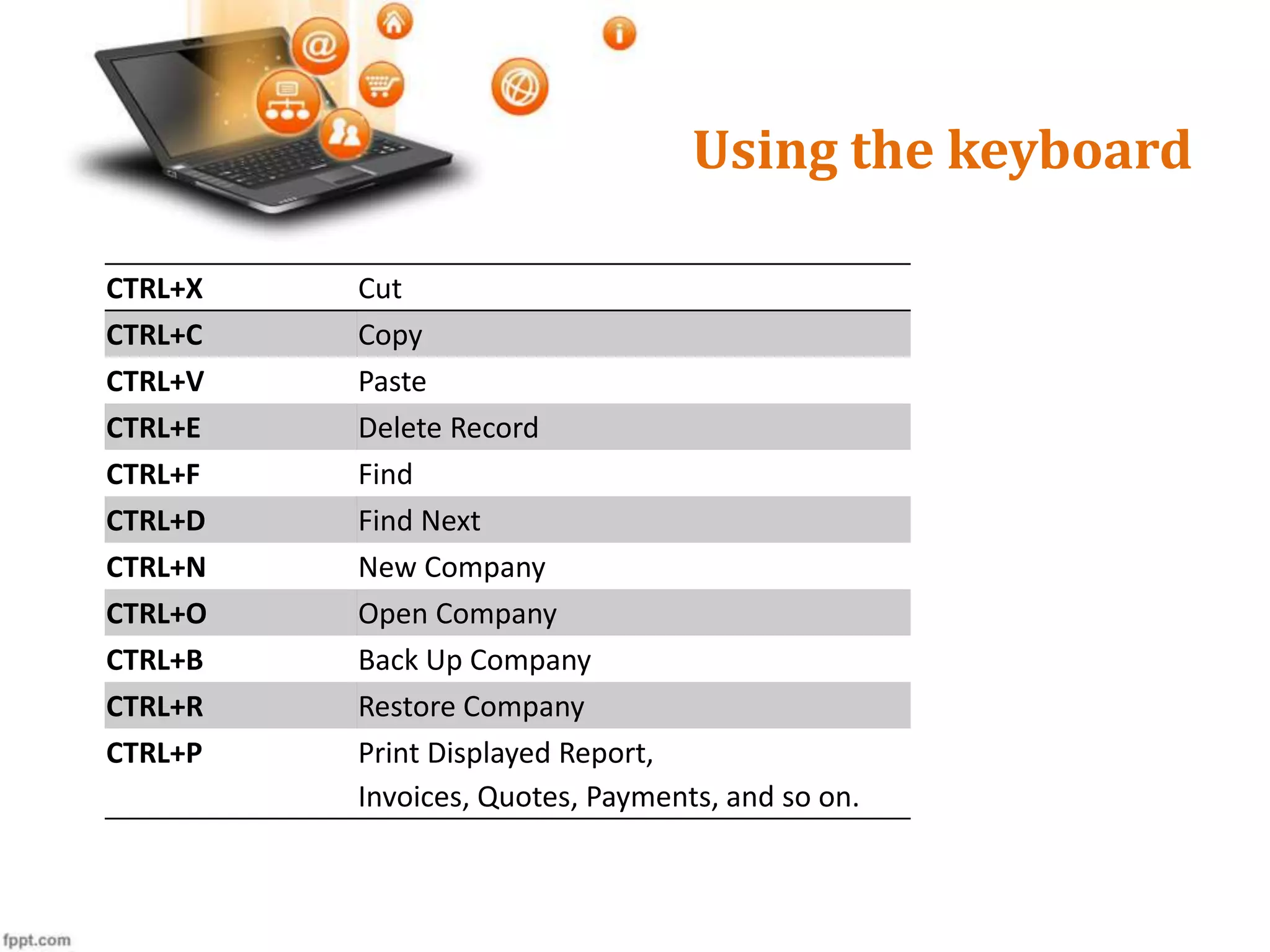
Using the keyboard
CTRL+X Cut
CTRL+C Copy
CTRL+V Paste
CTRL+E Delete Record
CTRL+F Find
CTRL+D Find Next
CTRL+N New Company
CTRL+O Open Company
CTRL+B Back Up Company
CTRL+R Restore Company
CTRL+P Print Displayed Report,
Invoices, Quotes, Payments, and so on.
Function Keys
• F1 – Displayed online help topic for the current
window.
• F3 – Find Transaction
• F5 – Save records & post transaction in certain
windows
• F7 – Check spelling
Thank You……..

GETTING ACQUAINTED WITH SAGE 50

  • 1.
    GETTING ACQUAINTED WITHSAGE 50 CHAPTER 02 CONDUTED BY: P. Ayanthi Madumali
  • 2.
    Course Outline • TheSAGE 50 environment • The SAGE 50 Navigation centres • Features of SAGE 50 Accounting 2015 • Using the Menu Bar • Getting help wizards • Using the keyboard
  • 3.
    Sage 50 • Providesadvanced analysis tools and 140+ customizable reports and financial statements • It is ideal for people who want accuracy and control, so they can achieve better business results. • It can be installed to the Single/Stand-Alone Computer or a Network
  • 4.
    Starting the Program Thereare several ways to open Sage 50 01.From the Taskbar • Select Start – Select Program – Select Sage 50 Accounting 2013 - Click Sage 50 Accounting 2013 icon 02.From the Desktop • Double-click Sage 50 Accounting 2013 icon
  • 5.
  • 6.
    Starting with Last-openedCompany • If you want to start with last open company when you start the Sage 50 then you need to Click Option – and check Start with last Opened Company. If you uncheck this option, Sage 50 displays the start screen when launched
  • 7.
    The Sage 50Desktop WindowTitle Bar Menu Bar Button Control Bar Navigation Bar Navigation Centers Business Status Center
  • 8.
    The Menu Bar Atthe top of the window is the menu bar. It consist of 11 menu buttons File The File menu is used to set up and open companies within Sage 50. It is the corridor for interfacing with printers, previewing a form before it prints, backing up and restoring, and importing or exporting information. You also use it to archive your company data, as well as verify company data and update payroll tax tables. Edit Use the Edit menu to work with information in records, transactions, reports, or forms.
  • 9.
    Lists Use theLists menu to call up lists of records or transactions. From the List window, you can view balances, do searches, and open records or transactions. Maintain Use the Maintain menu to set up and change information about your customers, vendors, employees, chart of accounts, inventory items, item prices, jobs, company, Sage 50 operational defaults, memorized transactions, sales taxes, and user security Tasks Allows you to perform all of your daily tasks in Sage 50, as well as to carry out system tasks like changing accounting periods Analysis Use the Analysis menu to examine different aspects of your business using the Sage 50 Managers: Cash Manager, Collection Manager, Payment Manager, and Financial Manager.
  • 10.
    Options Use theLists menu to call up lists of records or transactions. From the List window, you can view balances, do searches, and open records or transactions. Reports & Forms Use the Reports & Forms menu to print reports, forms, and financial statements, as well as designing them. You can also create report groups and customize report styles. Services Use the Services menu to access and synchronize with various Sage 50 Web resources and manage or process downloaded Web transactions. Window Use the Windows menu to decide how you want your desktop to look.. Help Use the Help menu to answer questions you may have on Sage 50 and to get information about Sage 50 products and services
  • 11.
    Button Control Bar Abar at the top of the Sage 50 Desktop help you to work with the Navigation Centers and perform other tasks related to Sage 50 operation • Hide/ Show: This button acts like a toggle. • Refresh: Click this to update the company data that currently appears in the main Sage 50 window. • System Date: Click this to change the Sage 50 system date. • Accounting Period: Click this to change the current accounting period in Sage 50. • ‘This is the default page’: The Navigation Center you’re currently working with will be the default center and will appear each time you open a company.
  • 12.
    Navigation Bar- • TheNavigation Bar is on the left side of the Sage 50 Desktop. It has a series of icons that represent individual Navigation Centers . (provides entry to the Navigation Centers.)
  • 13.
    Navigation Centers- Navigation Centers-provide useful, at glance information about areas of Sage 50. • Business Status • Customers & Sales • Vendors & Purchases • Inventory & Services • Employees & Payroll • Banking • Systems Each Navigation Center also provides a graphical representation of the flow of tasks related to that area of Sage 50. At the bottom of each center is a section called Sage 50 Solutions which will take you to information about value-added features, such as Sage 50 Checks & Forms
  • 14.
    Using the keyboard CTRL+XCut CTRL+C Copy CTRL+V Paste CTRL+E Delete Record CTRL+F Find CTRL+D Find Next CTRL+N New Company CTRL+O Open Company CTRL+B Back Up Company CTRL+R Restore Company CTRL+P Print Displayed Report, Invoices, Quotes, Payments, and so on.
  • 15.
    Function Keys • F1– Displayed online help topic for the current window. • F3 – Find Transaction • F5 – Save records & post transaction in certain windows • F7 – Check spelling
  • 16.