From AEON to AtoM:
Who are the ‘Archivally Intelligent’? 
•Expert users of archives can do research 
successfully within the systems and 
procedures of the archives.” (National 
Archives UK blog, 2012) 
•Understand archival concepts 
•Use catalogues and finding aids 
•When they visit different archives, or use different archives’ 
websites, they can pick up and adjust to variations in how things 
are done
Context Entities 
Record Entities 
Record Series [WAS] 
Item 
Document [SRO Piece] 
( ISAD/G) 
Function Entities 
Function 
Activity 
(ISDF) 
Agency Entities 
Organisation 
Agency/ Person [WAA] 
ISAAR (CPF) 
Archival Description 
Is hierarchical 
But also relational 
Basic description defined by 
International Standards 
ISAD (G) 
ISAAR/CPF
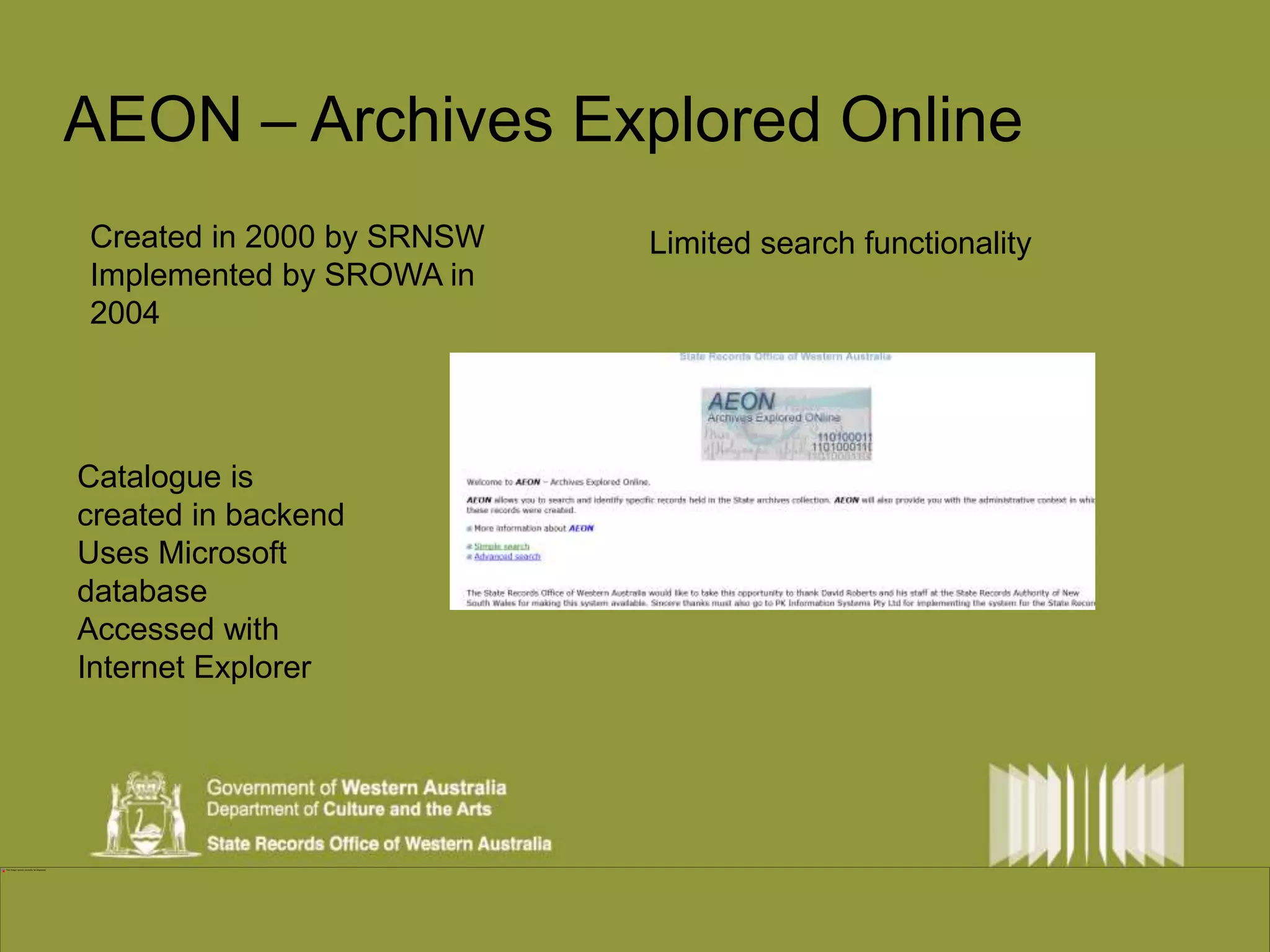
AEON – Archives Explored Online 
Created in 2000 by SRNSW 
Implemented by SROWA in 
2004 
Catalogue is 
created in backend 
Uses Microsoft 
database 
Accessed with 
Internet Explorer 
Limited search functionality
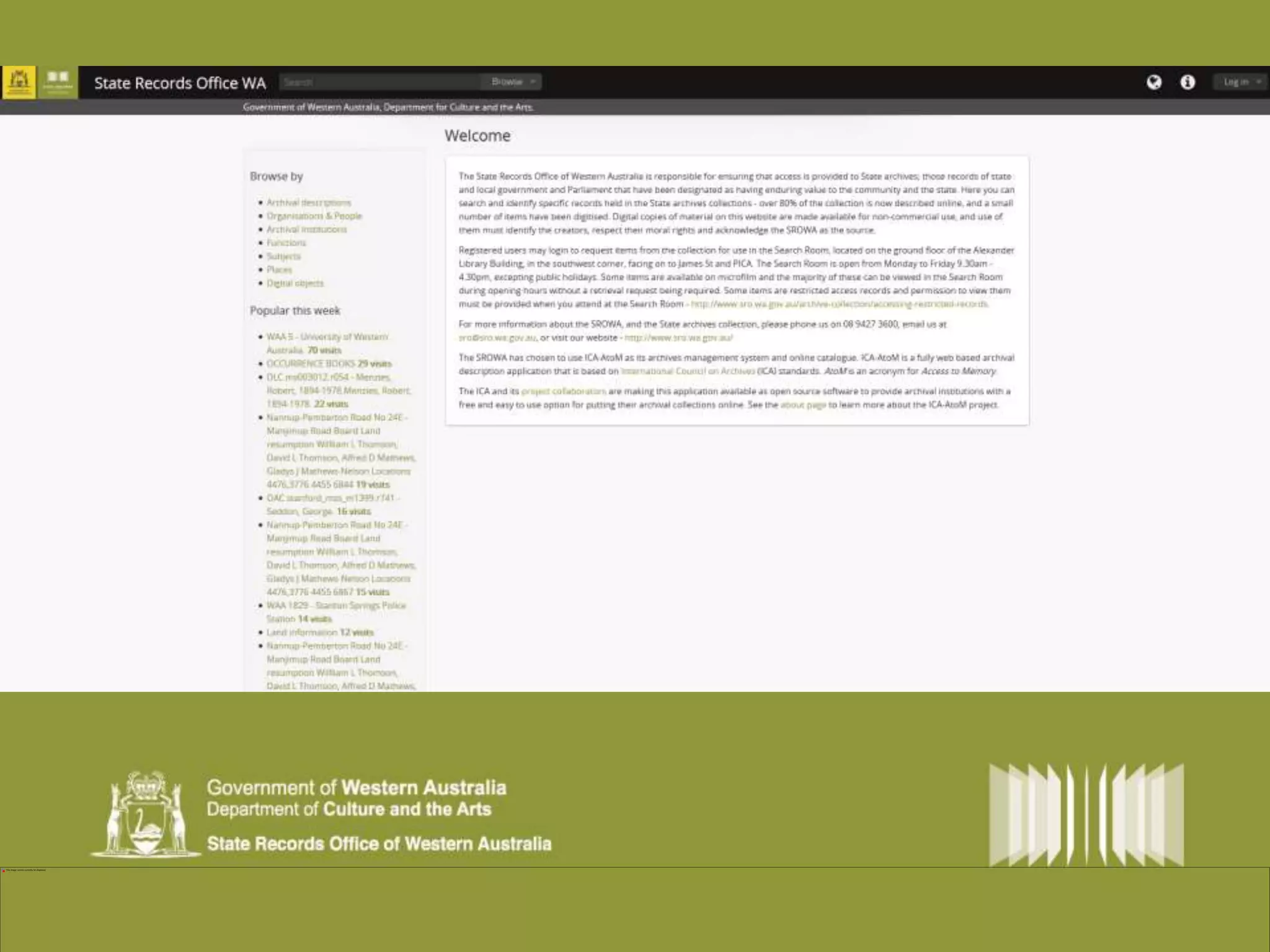
AtoM – Access to Memory 
Different look and feel - 
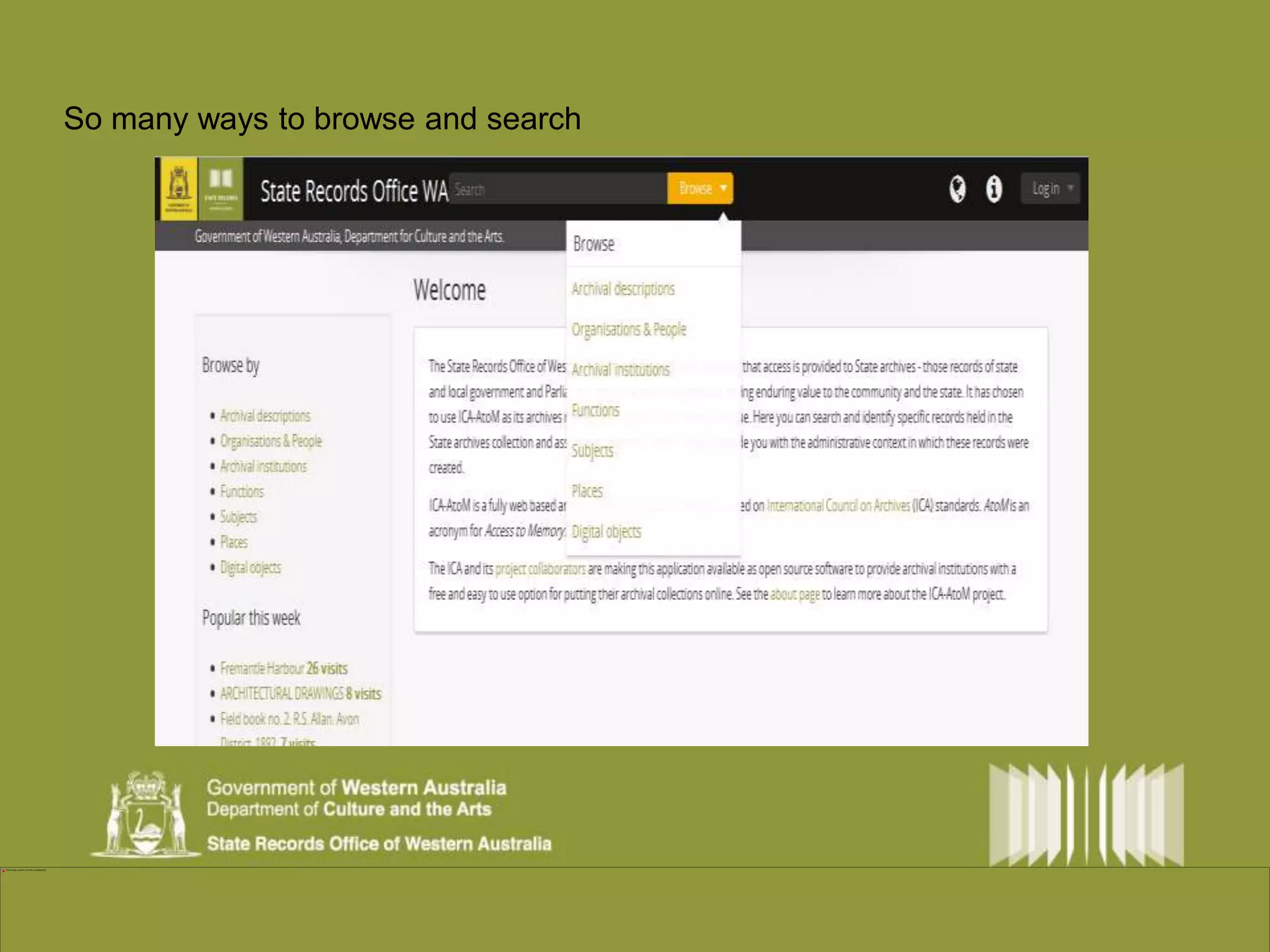
Search – many ways 
Digital objects 
(Pdf and other formats) 
Request items online 
Developed for the International Council 
on Archives 
Based on international standards for 
archives. 
Used by archives around the world, 
including
system to rule them all
So many ways to browse and search
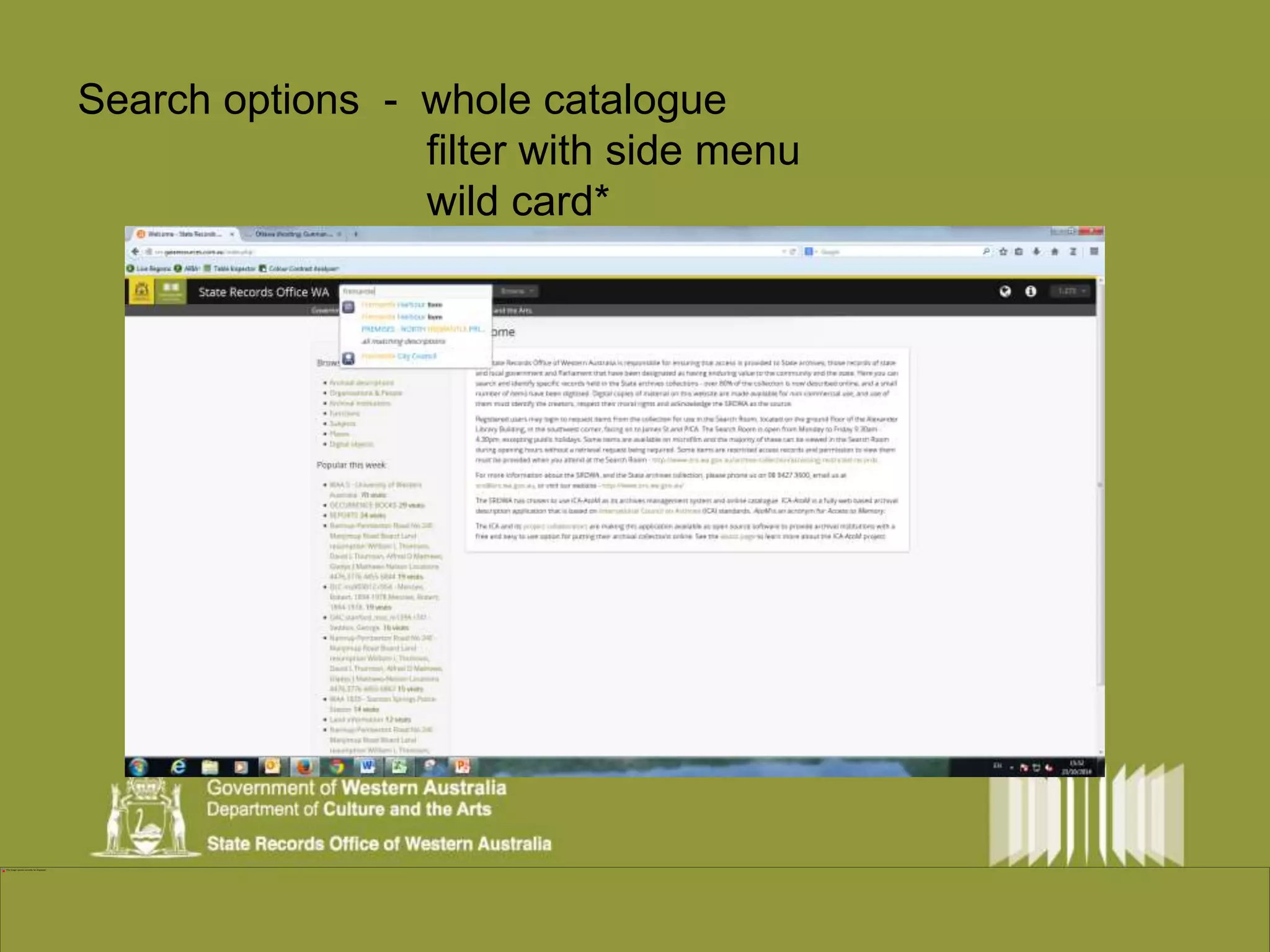
Search Search options - whole catalogue 
filter with side menu 
wild card*
Search strategies – Search boxview 
Phrase or specific 
searching “ “ 
e.g. north 
fremantle finds 
everything with 
north or fremantle, 
but add some 
quotes and you 
only get ‘north 
fremantle”. Also 
use for file 
numbers. 
E.g.”1900/0827” 
Wild Card search * 
e.g. premis* also 
finds premise and 
premises 
Can also use the * 
to find words which 
end in a phrase, or 
*phrase* 
Straight search – 
e.g. Fremantle. 
Choose from drop 
down, or press 
return. 
Will also find 
related files, which 
might have a place 
or other link. 
Filter by side menu. 
Use the side menu to further 
refine your search, e.g. choose 
Fremantle and then choose the 
creating agency.
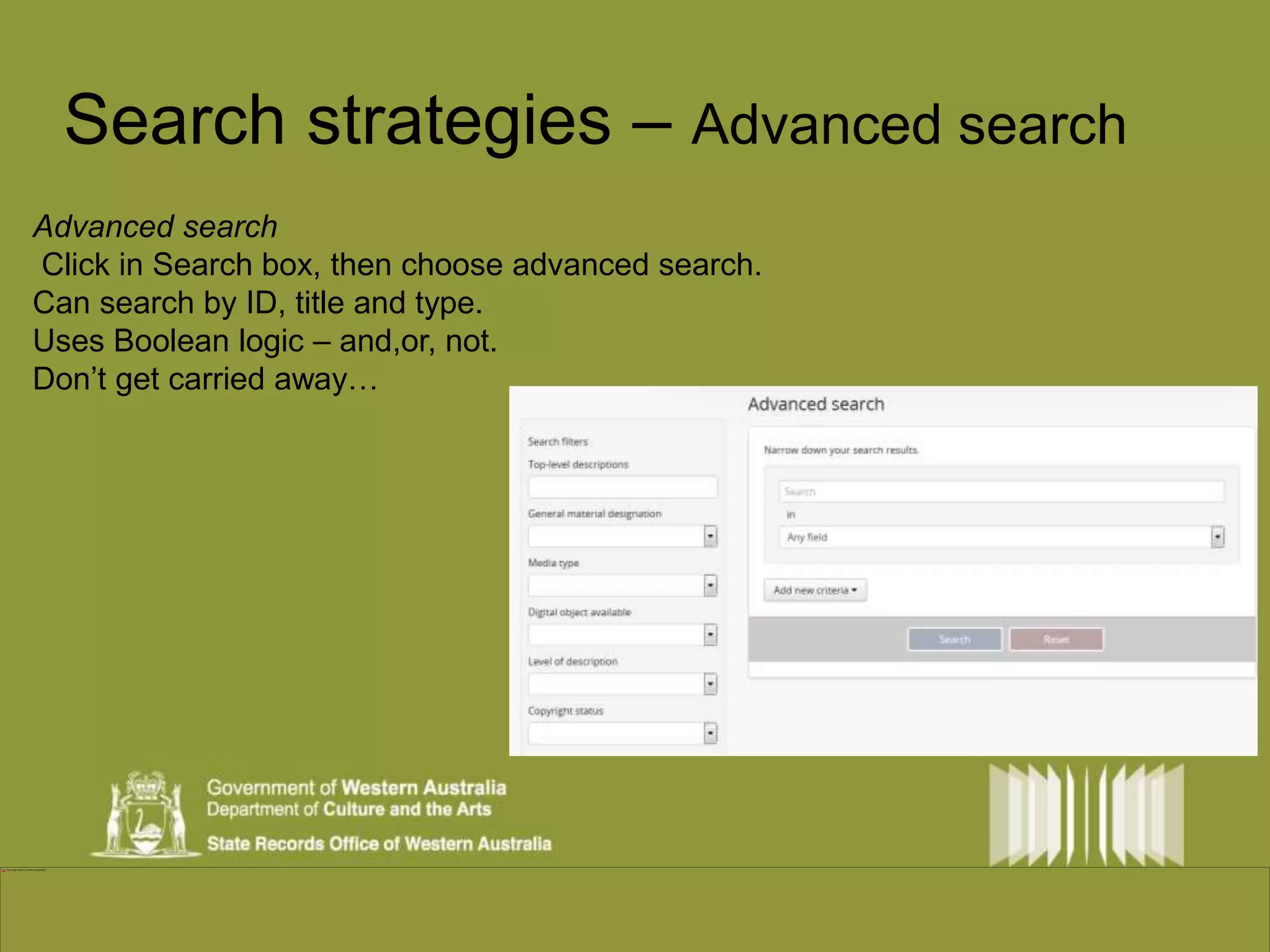
Search strategies – Advanced search 
Advanced search 
Click in Search box, then choose advanced search. 
Can search by ID, title and type. 
Uses Boolean logic – and,or, not. 
Don’t get carried away…
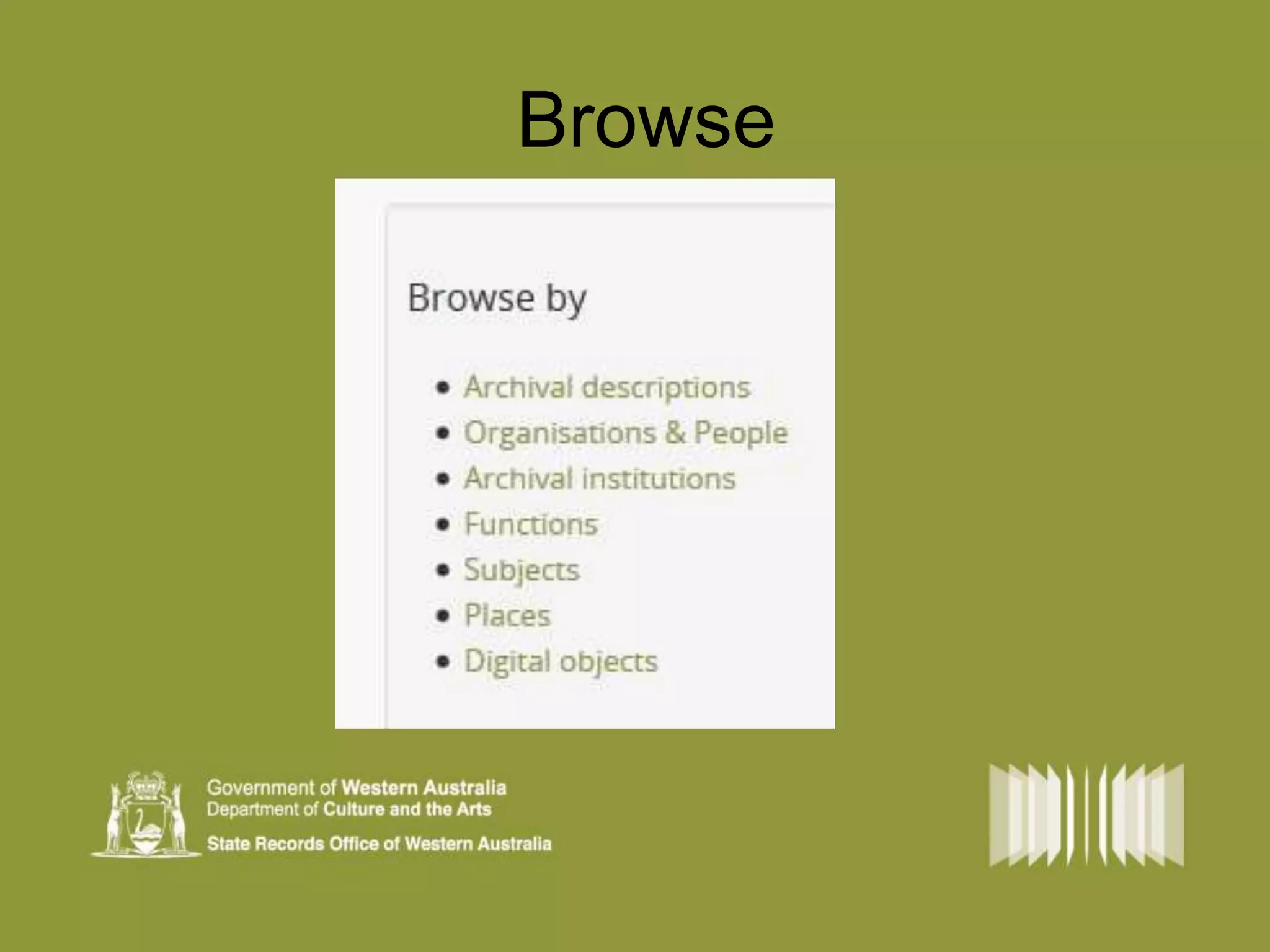
Browse
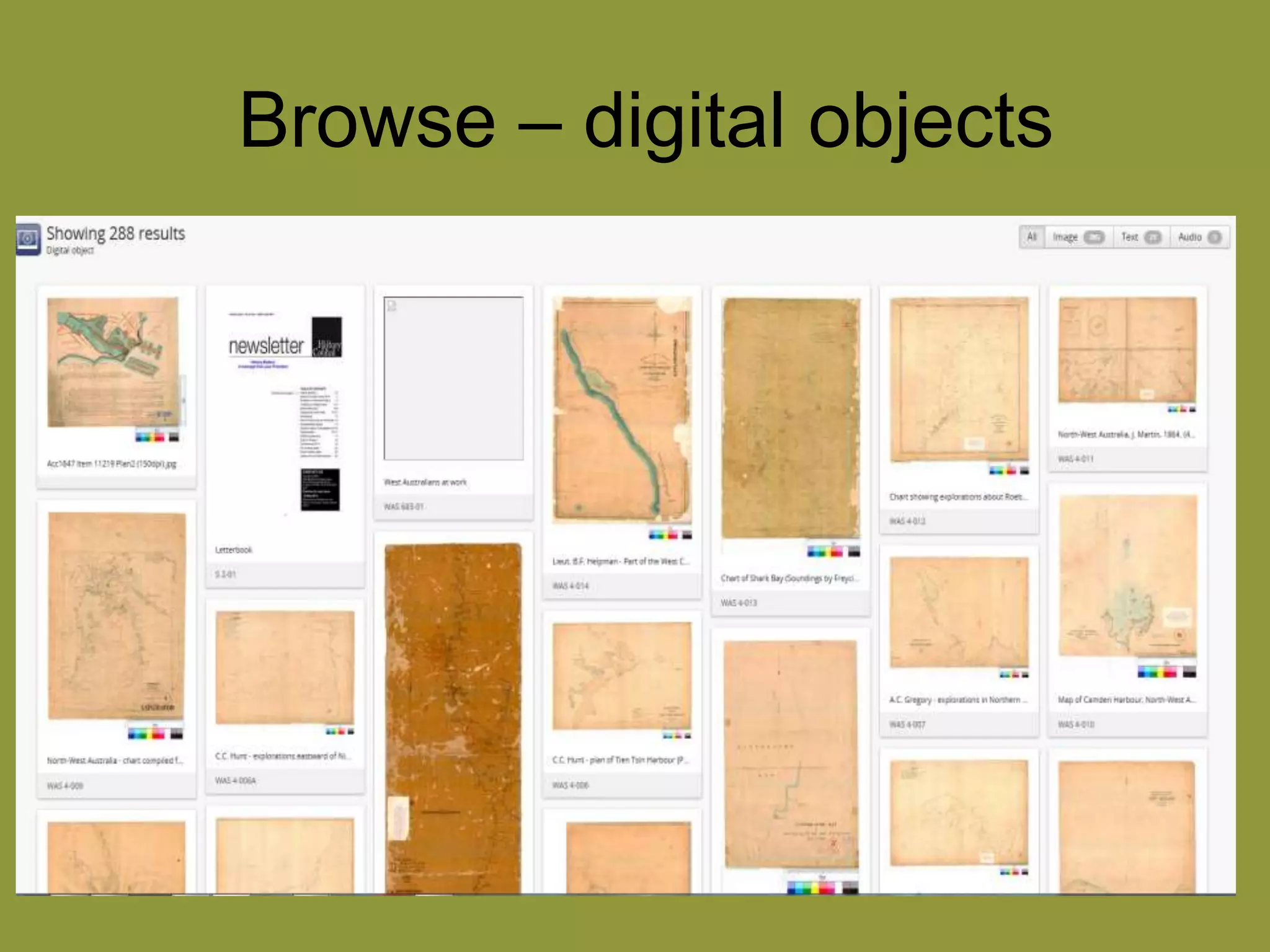
Browse – digital objects
Browse 
Archival description – 
series (a group of records housed together with a common purpose or 
information type, e.g. minutes or correspondence files) 
item (a file, folder, photograph album or map set, etc.) 
Organisations and people – 
State and local government agencies 
Some Ministerial Offices. 
But now we can add….
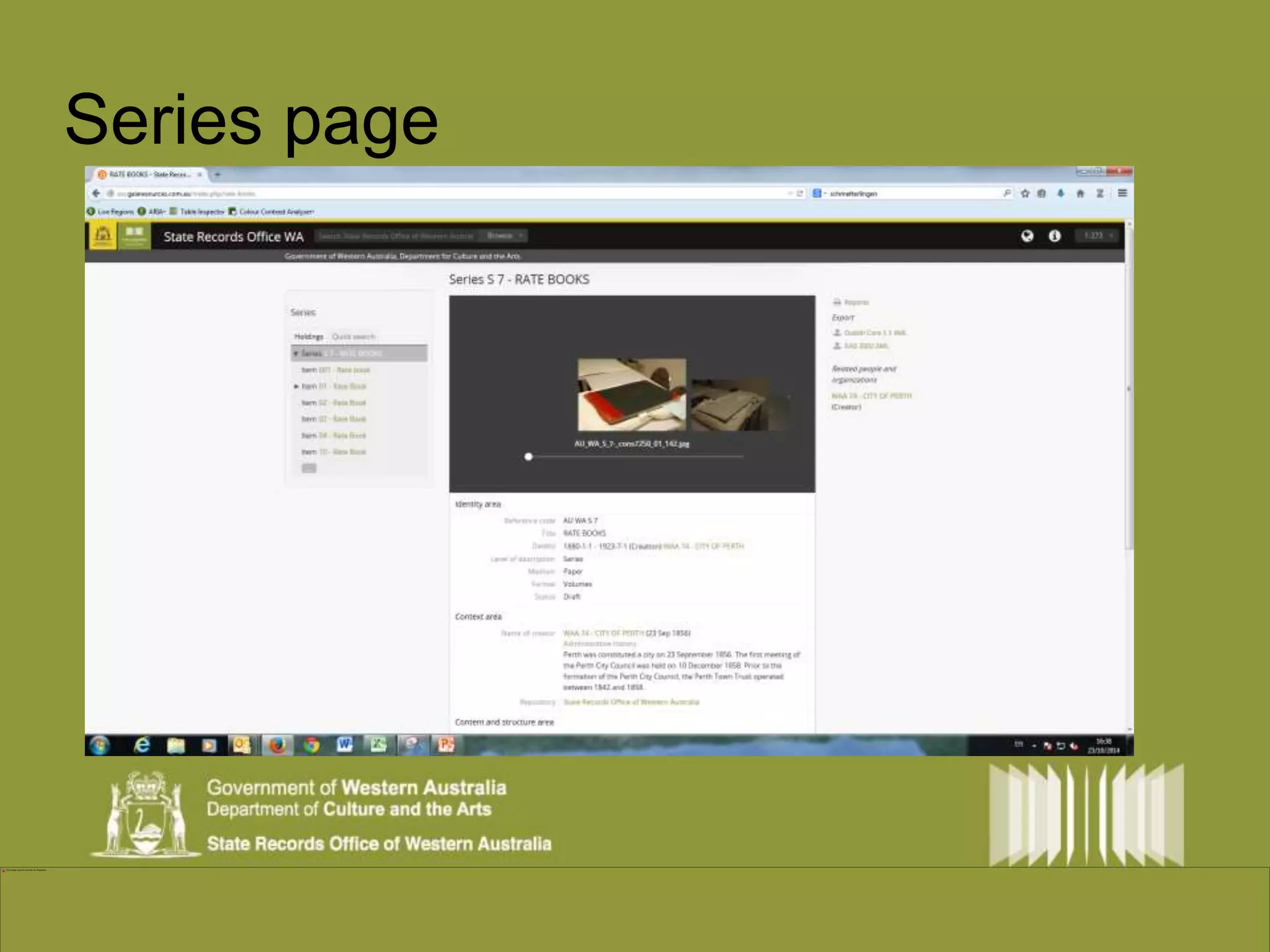
Series page
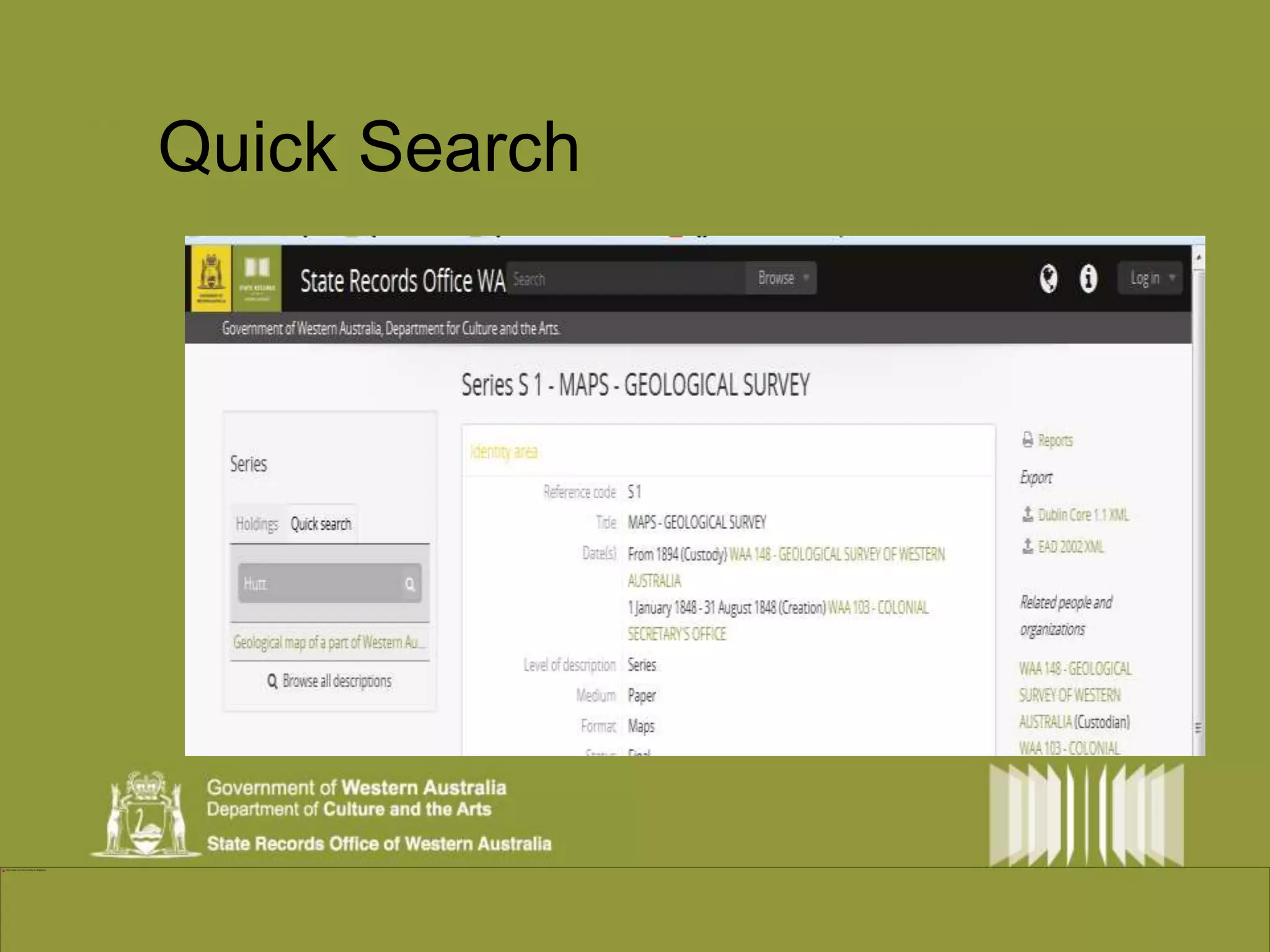
Search within Series Quick Search
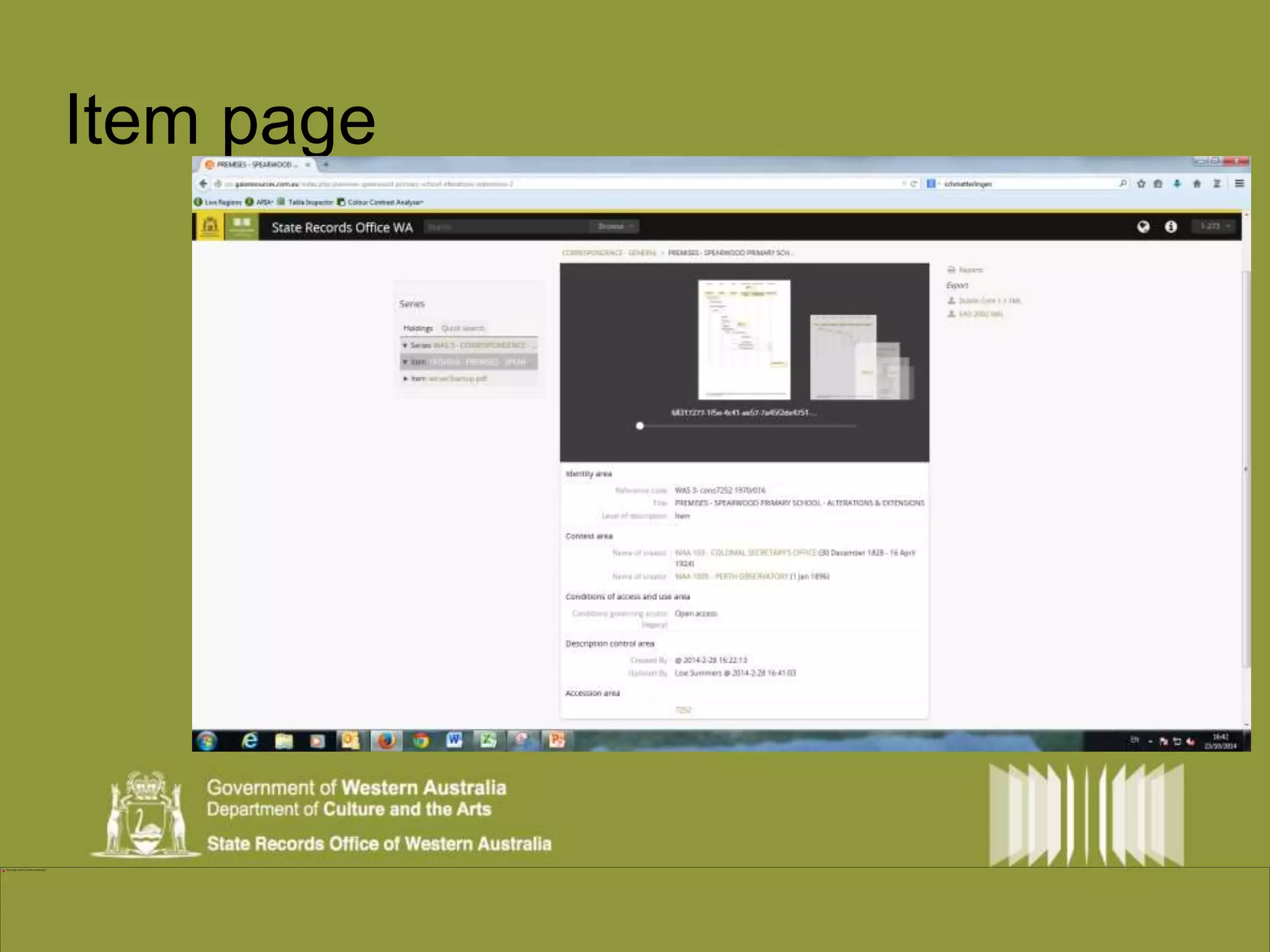
Item page
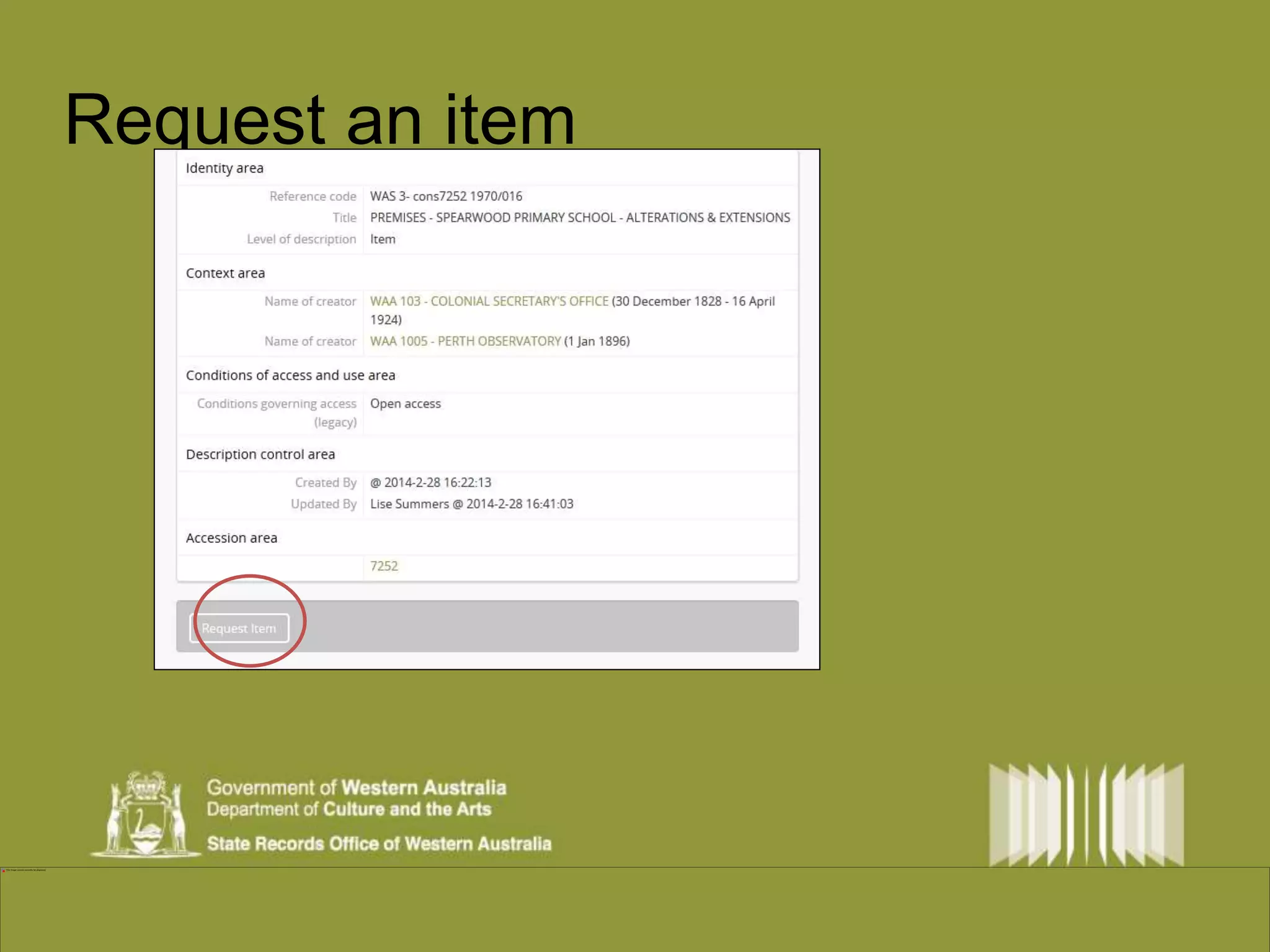
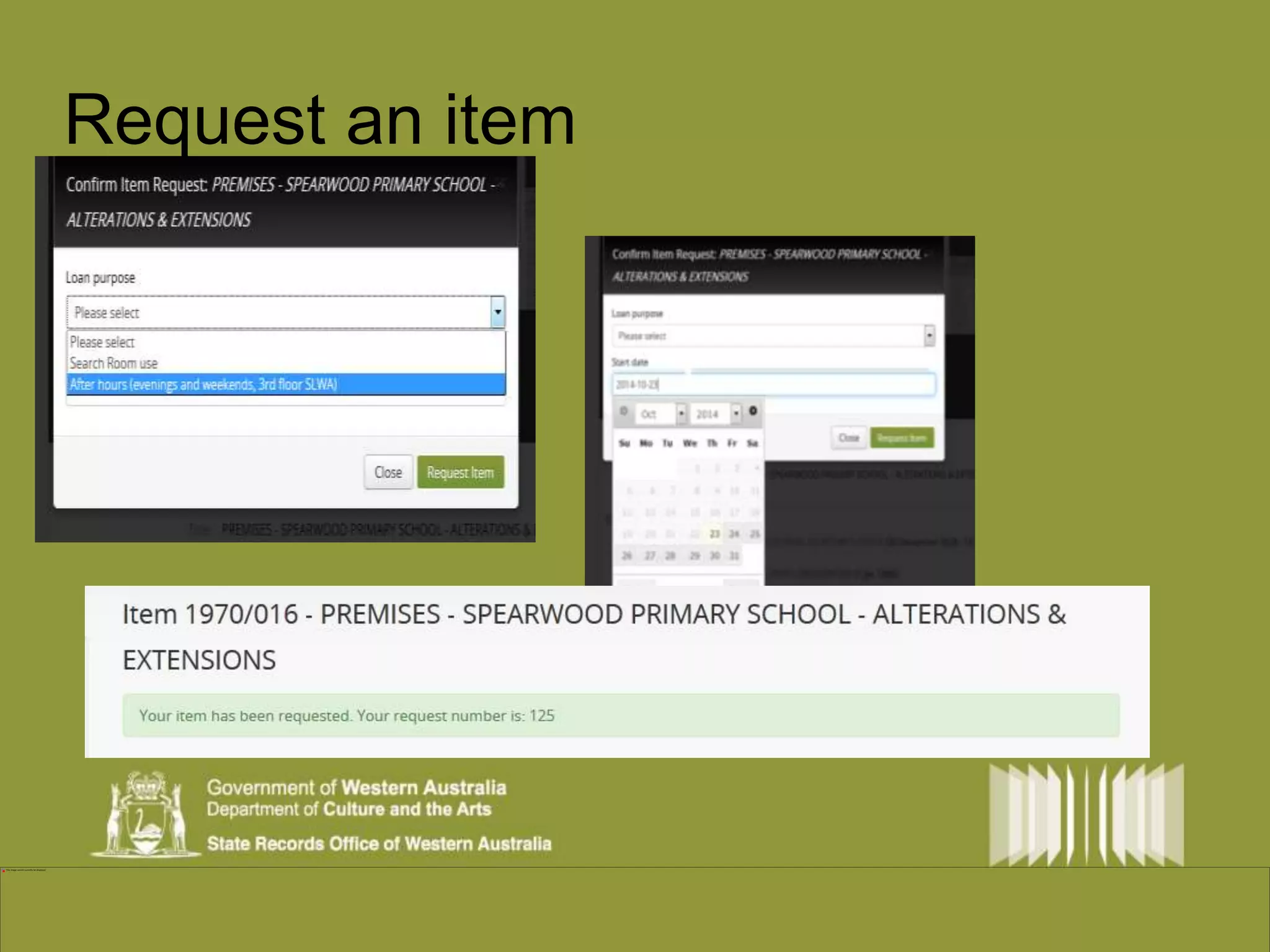
Request an item
Request an item
FAQs 
When will SRO go AtoMic? 
User acceptance testing to be completed 
Data migration from old system 
What happens to my old links? 
They will,unfortunately, be broken. But because you have archival 
intelligence, you should be able find items using series and item searches, and by 
retaining the standard reference formats for your items – Series, cons/acc, item. 
For more information – keep an eye on our blog, Facebook and Twitter feeds.

From AEON to AtoM

  • 1.
  • 2.
    Who are the‘Archivally Intelligent’? •Expert users of archives can do research successfully within the systems and procedures of the archives.” (National Archives UK blog, 2012) •Understand archival concepts •Use catalogues and finding aids •When they visit different archives, or use different archives’ websites, they can pick up and adjust to variations in how things are done
  • 3.
    Context Entities RecordEntities Record Series [WAS] Item Document [SRO Piece] ( ISAD/G) Function Entities Function Activity (ISDF) Agency Entities Organisation Agency/ Person [WAA] ISAAR (CPF) Archival Description Is hierarchical But also relational Basic description defined by International Standards ISAD (G) ISAAR/CPF
  • 4.
    AEON – ArchivesExplored Online Created in 2000 by SRNSW Implemented by SROWA in 2004 Catalogue is created in backend Uses Microsoft database Accessed with Internet Explorer Limited search functionality
  • 5.
    AtoM – Accessto Memory Different look and feel - Search – many ways Digital objects (Pdf and other formats) Request items online Developed for the International Council on Archives Based on international standards for archives. Used by archives around the world, including
  • 6.
  • 7.
    So many waysto browse and search
  • 8.
    Search Search options- whole catalogue filter with side menu wild card*
  • 9.
    Search strategies –Search boxview Phrase or specific searching “ “ e.g. north fremantle finds everything with north or fremantle, but add some quotes and you only get ‘north fremantle”. Also use for file numbers. E.g.”1900/0827” Wild Card search * e.g. premis* also finds premise and premises Can also use the * to find words which end in a phrase, or *phrase* Straight search – e.g. Fremantle. Choose from drop down, or press return. Will also find related files, which might have a place or other link. Filter by side menu. Use the side menu to further refine your search, e.g. choose Fremantle and then choose the creating agency.
  • 10.
    Search strategies –Advanced search Advanced search Click in Search box, then choose advanced search. Can search by ID, title and type. Uses Boolean logic – and,or, not. Don’t get carried away…
  • 11.
  • 12.
  • 13.
    Browse Archival description– series (a group of records housed together with a common purpose or information type, e.g. minutes or correspondence files) item (a file, folder, photograph album or map set, etc.) Organisations and people – State and local government agencies Some Ministerial Offices. But now we can add….
  • 14.
  • 15.
  • 16.
  • 17.
  • 18.
  • 19.
    FAQs When willSRO go AtoMic? User acceptance testing to be completed Data migration from old system What happens to my old links? They will,unfortunately, be broken. But because you have archival intelligence, you should be able find items using series and item searches, and by retaining the standard reference formats for your items – Series, cons/acc, item. For more information – keep an eye on our blog, Facebook and Twitter feeds.

Editor's Notes

  • #4 3
  • #7 AtoM Browse and Search trainer notes
  • #9 AtoM Browse and Search trainer notes
  • #10 AtoM Browse and Search trainer notes
  • #11 AtoM Browse and Search trainer notes