www.netzerotools.com


                1750 Three Phase Power Quality Recorder
                1750/B Three Phase Power Quality Recorder


                                                                                                            1750
                                                                                                           Power Recorder
                                                                                      Go To 1750 Products Page


                                                                                                Operators Manual


October 2006 Rev.3, 11/10
© 2006-2010 Fluke Corporation. All rights reserved. Specifications are subject to change without notice.
All product names are trademarks of their respective companies.


                                      www.netzerotools.com
www.netzerotools.com


                           LIMITED WARRANTY AND LIMITATION OF LIABILITY
Each Fluke product is warranted to be free from defects in material and workmanship under normal use and
service. The warranty period is one year and begins on the date of shipment. Parts, product repairs, and
services are warranted for 90 days. This warranty extends only to the original buyer or end-user customer of
a Fluke authorized reseller, and does not apply to fuses, disposable batteries, or to any product which, in
Fluke's opinion, has been misused, altered, neglected, contaminated, or damaged by accident or abnormal
conditions of operation or handling. Fluke warrants that software will operate substantially in accordance
with its functional specifications for 90 days and that it has been properly recorded on non-defective media.
Fluke does not warrant that software will be error free or operate without interruption.
Fluke authorized resellers shall extend this warranty on new and unused products to end-user customers
only but have no authority to extend a greater or different warranty on behalf of Fluke. Warranty support is
available only if product is purchased through a Fluke authorized sales outlet or Buyer has paid the
applicable international price. Fluke reserves the right to invoice Buyer for importation costs of
repair/replacement parts when product purchased in one country is submitted for repair in another country.
Fluke's warranty obligation is limited, at Fluke's option, to refund of the purchase price, free of charge repair,
or replacement of a defective product which is returned to a Fluke authorized service center within the
warranty period.
To obtain warranty service, contact your nearest Fluke authorized service center to obtain return
authorization information, then send the product to that service center, with a description of the difficulty,
postage and insurance prepaid (FOB Destination). Fluke assumes no risk for damage in transit. Following
warranty repair, the product will be returned to Buyer, transportation prepaid (FOB Destination). If Fluke
determines that failure was caused by neglect, misuse, contamination, alteration, accident, or abnormal
condition of operation or handling, including overvoltage failures caused by use outside the product’s
specified rating, or normal wear and tear of mechanical components, Fluke will provide an estimate of repair
costs and obtain authorization before commencing the work. Following repair, the product will be returned to
the Buyer transportation prepaid and the Buyer will be billed for the repair and return transportation charges
(FOB Shipping Point).
THIS WARRANTY IS BUYER'S SOLE AND EXCLUSIVE REMEDY AND IS IN LIEU OF ALL OTHER
WARRANTIES, EXPRESS OR IMPLIED, INCLUDING BUT NOT LIMITED TO ANY IMPLIED WARRANTY
OF MERCHANTABILITY OR FITNESS FOR A PARTICULAR PURPOSE. FLUKE SHALL NOT BE LIABLE
FOR ANY SPECIAL, INDIRECT, INCIDENTAL, OR CONSEQUENTIAL DAMAGES OR LOSSES,
INCLUDING LOSS OF DATA, ARISING FROM ANY CAUSE OR THEORY.
Since some countries or states do not allow limitation of the term of an implied warranty, or exclusion or
limitation of incidental or consequential damages, the limitations and exclusions of this warranty may not
apply to every buyer. If any provision of this Warranty is held invalid or unenforceable by a court or other
decision-maker of competent jurisdiction, such holding will not affect the validity or enforceability of any other
provision.
                         Fluke Corporation                  Fluke Europe B.V.
                         P.O. Box 9090                      P.O. Box 1186
                         Everett, WA 98206-9090             5602 BD Eindhoven
                         U.S.A.                             The Netherlands


11/99

To register your product online, visit register.fluke.com


                                 www.netzerotools.com
www.netzerotools.com


                                                            Table of Contents


                                                Title                                                                    Page

Introduction........................................................................................................     1
Contacting Fluke................................................................................................         2
Safety Information .............................................................................................         3
Accessories ........................................................................................................     4
Features..............................................................................................................   5
Applying the Front Panel Decal.........................................................................                  7
Charging the PDA Battery .................................................................................               9
Installing the Software .......................................................................................          9
   Installing Power View on the PDA ...............................................................                      9
   Language Selection .......................................................................................            10
   PC System Requirement for Power Analyze.................................................                              10
   Installing Power Analyze ..............................................................................               10
Installing the Power Recorder at a Facility........................................................                      11
   Work Flow.....................................................................................................        11
   Installing the Recorder ..................................................................................            12
   Connecting the Recorder to the Wiring.........................................................                        12
   Verifying Your Connection ...........................................................................                 13
   Finishing UP..................................................................................................        13
   Managing Recorded Data ..............................................................................                 14
Power Type Diagrams .......................................................................................              14
Communicating with the Recorder Using Power View.....................................                                    25
Navigating in Power View on the PDA.............................................................                         26
   Power View Menus .......................................................................................              26
   Icons on the Menu Bar ..................................................................................              27
Menu Tree..........................................................................................................      28
Home Screen......................................................................................................        29
Downloading Data and Erasing Memory ..........................................................                           31
Viewing Live Data.............................................................................................           35
   Scope Screen .................................................................................................        35
   Meter Screen..................................................................................................        36
   Phasor Screen ................................................................................................        36
   Harmonics Screen..........................................................................................            37
   Trend Screen..................................................................................................        37
   Viewing Phases .............................................................................................          38

                                                       i

                         www.netzerotools.com
www.netzerotools.com
1750
Operators Manual


            Setting Up the Recorder.....................................................................................        38
              Setting the Clock ...........................................................................................     40
              Probe Detect ..................................................................................................   40
              Setting the IP Address ...................................................................................        41
              Adding a Measurement Description ..............................................................                   41
              Configure Nominal Power Values.................................................................                   42
              Using Phase Swap .........................................................................................        42
              Setting the Volts and Current Ratio...............................................................                43
              Assign Recorder Name and Password...........................................................                      43
              Setting the Snapshot Period - Periodic Waveform Capture Setting ..............                                    44
              Change Display Language and Phase Identifier............................................                          45
              Working with Annotations ............................................................................             45
                  Using Image or Voice Annotations...........................................................                   47
                  Inserting Image or Voice Annotations ......................................................                   47
            Turn off the Recorder ........................................................................................      48
            Cleaning and Maintenance.................................................................................           48
            Regulatory Information for Wireless Communication ......................................                            49
            Specifications for the System: Recorder and Power Analyze Software ............                                     50
              General Specifications...................................................................................         50
              Input Specifications .......................................................................................      50
              Synchronization and Sampling......................................................................                50
              Voltage and Current Measurements ..............................................................                   50
              Voltage and Current Measurement Accuracy ...............................................                          51
              Transient Voltage (Impulse)..........................................................................             51
              Dip (Sag) and Swell Measurements ..............................................................                   51
              Power and PF Measurement ..........................................................................               51
              External Interface Specifications...................................................................              52
              Environmental and Safety Specifications......................................................                     52


                                                                ii

                                    www.netzerotools.com
www.netzerotools.com


                                                                                       List of Tables


Table                                                      Title                                                             Page

  1.    Symbols.................................................................................................................. 4
  2.    Standard Accessories ............................................................................................. 4
  3.    Input Terminals and Controls................................................................................. 6


                                                                 iii

                                    www.netzerotools.com
www.netzerotools.com
1750
Operators Manual


                            iv

                   www.netzerotools.com
www.netzerotools.com


                                                                                   List of Figures


Figure                                                      Title                                                                 Page

  1.     Fluke 1750 Power Recorder...................................................................................             5
  2.     Applying the Front Panel Decal .............................................................................             7
  3.     Connecting the Supplemental Ground Terminal....................................................                          8
  4.     One Phase Plus Neutral ..........................................................................................        15
  5.     One-Phase IT No Neutral.......................................................................................           16
  6.     One-Phase Split Phase............................................................................................        17
  7.     Three-Phase Wye ...................................................................................................      18
  8.     Three-Phase Delta ..................................................................................................     19
  9.     Three-Phase IT .......................................................................................................   20
  10.    Three-Phase High Leg............................................................................................         21
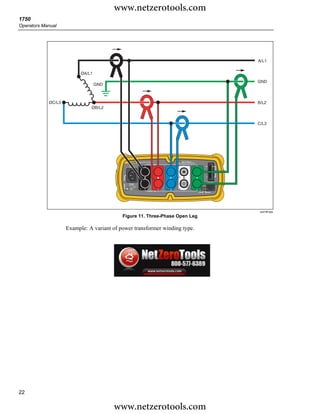
  11.    Three-Phase Open Leg ...........................................................................................         22
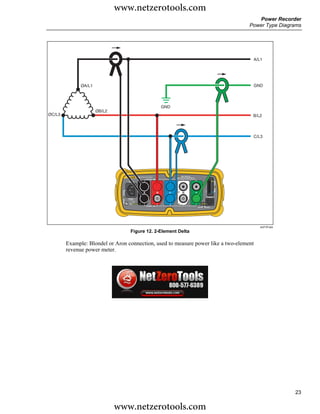
  12.    2-Element Delta .....................................................................................................    23
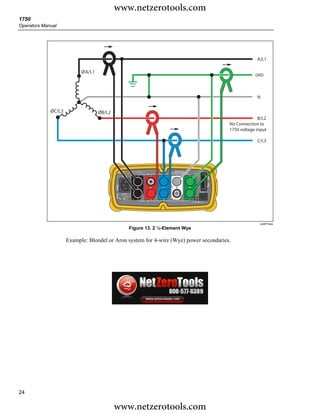
  13.    2 ½-Element Wye...................................................................................................       24
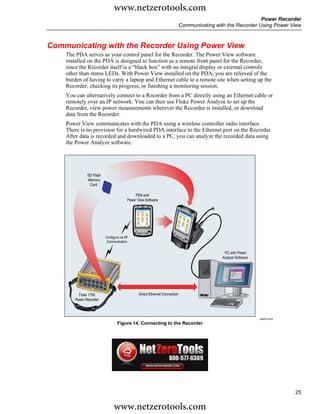
  14.    Connecting to the Recorder....................................................................................           25
  15.    Power View Menu Tree .........................................................................................           28


                                                                  v

                                     www.netzerotools.com
www.netzerotools.com
1750
Operators Manual


                            vi

                   www.netzerotools.com
www.netzerotools.com


                                                                 1750
                                                       Power Recorder


Introduction
    The Fluke 1750 Power Recorder is a comprehensive yet easy to use system for power
    quality investigations. The 1750 Power Recorder, referred to hereafter as simply “the
    Recorder or the Product,” consists of a power recorder instrument, a wireless handheld
    Personal Digital Assistant (PDA) for control and setup, and a powerful yet easy to use PC
    application, Power Analyze. Four 400 A current probes are provided as standard
    equipment (not included in Basic version). A wide range of flexible and clamp-on current
    probes are available from Fluke.
    Key features of the 1750 Power Recorder are:
    •   No PC needed for setup
        Using the included wireless-enabled Personal Digital Assistant (PDA) as a controller,
        you do not need a PC to configure the Recorder, troubleshoot connections, preview
        data, or download the recorded data. Downloaded data goes onto the SD memory
        card plugged into the 1750, not directly to the PDA. The range of the PDA with the
        wireless link is about 5 meters (16 feet) from the Recorder. This range is dependent
        on the electrical interference in the location.
    •   Simplified test lead connections to the power network
        Simply connect a voltage probe to a conductor on each phase that you want to record.
        On the current inputs, the Recorder automatically identifies what type of probe is
        connected. The Recorder then configures its measurement system appropriately for
        the model of current probe you are using.
    •   Connection diagrams for the supported power network configurations (delta, Wye,
        and others) appear on the handheld PDA controller. Once you make connections, you
        can view live readings and a phasor diagram on the PDA to confirm the connections.
        If a phase channel is wired incorrectly, you can swap the phase to another channel by
        changing an internal Recorder setting using the PDA, and then reconfirm correct
        readings.
    •   Internal Uninterruptible Power Supply (UPS)
        An internal NiMH (Nickel-Metal-Hydride) battery pack and charging system
        maintain data capture continuity through power interruptions of approximately
        5 minutes or less.


                                                                                                1

                        www.netzerotools.com
www.netzerotools.com
1750
Operators Manual


                          •   Automatic disturbance capture
                              The Recorder uses an automatic, self-learning threshold routine, which means you do
                              not have to set any event threshold limits before you start recording. You detect and
                              display power quality events (disturbances) using the Power Analyze software on a
                              PC after the event has been captured. You define thresholds for events after data is
                              stored on the PC. This is called the "event detector" in the software. It does not make
                              permanent changes to the data file, so you can experiment with different thresholds
                              after the fact without worrying about losing data.
                          With these features, there is little else required to set up and start recording the data to
                          conduct a power quality survey. Should you want to extensively analyze collected data,
                          the procedures described later in this manual review the transfer of data from the
                          Recorder to the PDA, and finally to a PC. Data may then be analyzed using Power
                          Analyze on a PC. Extensive online help is provided in the Power Analyze software on the
                          product CD shipped with the Recorder.

                   Contacting Fluke
                          To contact Fluke, call one of the following telephone numbers:
                          •   Technical Support USA: 1-800-44-FLUKE (1-800-443-5853)
                          •   Calibration/Repair USA: 1-888-99-FLUKE (1-888-993-5853)
                          •   Canada: 1-800-36-FLUKE (1-800-363-5853)
                          •   Europe: +31 402-675-200
                          •   Japan: +81-3-3434-0181
                          •   Singapore: +65-738-5655
                          •   Anywhere in the world: +1-425-446-5500
                          Or, visit Fluke's website at www.fluke.com
                                                               .
                    To register your product, visit http://register.fluke.com.
                    To view, print, or download the latest manual supplement, visit
                    http://us.fluke.com/usen/support/manuals.
                    To contact Technical Support: fpqsupport@fluke.com or 888-257-9897


       2


                                         www.netzerotools.com
www.netzerotools.com
                                                                                           Power Recorder
                                                                                          Safety Information


Safety Information
    See the Specifications section for a full agency compliance list. Table 1 lists symbols that
    appear on the Recorder and in this manual.

                                    XW Warning
      To prevent possible electrical shock, fire, or personal injury:
        •   Carefully read all instructions.
        •   Do not work alone.
        •   Do not use the Product around explosive gas, vapor, or in
            damp or wet environments.
        •   Use only insulated current probes, test leads, and adapters
            as supplied with the Product.
        •   Examine the case before you use the Product. Look for
            cracks or missing plastic. Carefully look at the insulation
            around the terminals.
        •   Remove all probes, test leads, and accessories that are not
            necessary for the measurement.
        •   Make sure the ground conductor in the mains power cord
            is connected to a protective earth ground. Disruption of the
            protective earth could put voltage on the chassis that could
            cause death.
        •   Only use probes, test leads, and accessories that have the
            same measurement category, voltage, and amperage
            ratings as the product.
        •   Do not use exposed metal BNC or banana plug connectors.
        •   Do not put metal objects into connectors.
        •   Do not operate the Product with covers removed or the
            case open. Hazardous voltage exposure is possible.
        •   There are no user-replaceable parts in the Product. Have
            an approved technician repair the Product.
        •   Use the Product only as specified, or the protection
            supplied by the Product can be compromised.


                                                                                                          3

                         www.netzerotools.com
www.netzerotools.com
1750
Operators Manual


                                                           Table 1. Symbols

             Symbol                      Meaning                       Symbol                     Meaning

                         Hazardous voltage. Risk of electrical                     Risk of danger. Important information.
               X         shock.
                                                                         W         See manual.

                         Conforms to requirements of European                      Do not dispose of this product as
               P         Union and European Free Trade                    ~        unsorted municipal waste. Contact Fluke
                         Association (EFTA).                                       or a qualified recycler for disposal.

                         Canadian Standards Association.
               )         [Note: Canadian and US.]
                                                                          J        Protective conductor terminal.

                         CAT III equipment is designed to
                                                                                   CAT IV equipment is designed to protect
                         protect against transients in equipment
                                                                                   against transients from the primary
                         in fixed-equipment installations, such
             CAT III                                                   CAT IV      supply level, such as an electricity meter
                         as distribution panels, feeders and
                                                                                   or an overhead or underground utility
                         short branch circuits, and lighting
                                                                                   service.
                         systems in large buildings.


            Accessories
                     Table 2 describes the standard accessories that ship with the Recorder.

                                                    Table 2. Standard Accessories

                                                   Description                                             Part Number

             Ethernet cable, 3 meters, yellow                                                                 2402854

             Colored plastic clips for test leads (32 clips, 8 colors, 4 clips each color)                    2157607

             Model TLS430, test lead set including cable and clips                                            2157713

             Secure Digital (SD) Memory Card for downloading data                                          Call for details

             Model 3140R, 400 A Clamps (4-not included with Basic version)                                    2277216

             AC power cord, 3 meters                                                                          2441360

             Personal Digital Assistant (PDA) with USB cable and accessories                                  2386780

             CD-ROM Manuals and Software                                                                      2386771

             1750 Getting Started Guide                                                                       2386767

             Sheet of Front Panel Decals                                                                      2436261

             Sets of international ac power plug adapters for the PDA charger                                 2583479

             International adapters for the Recorder power cord                                               2441372


4

                                              www.netzerotools.com
www.netzerotools.com
                                                                                                           Power Recorder
                                                                                                                  Features


    You can also order the following optional accessories. For more information about
    accessories, see Contacting Fluke earlier in this manual. An updated list is always
    available on www.fluke.com.
    •        Soft Carry Bag
    •        Hard Transit Case
    •        Security Cable
    •        Replacement Ethernet Cable Kit
    •        Various Current Probes
    •        Replacement Voltage Lead Set
    •        Clamp-on Current Transformers (3005R)
    •        Flexible Current Transformers (3110, 3210, 3310, 3312)
    •        Interface and Extension Cables
             3570 CT Cable

Features
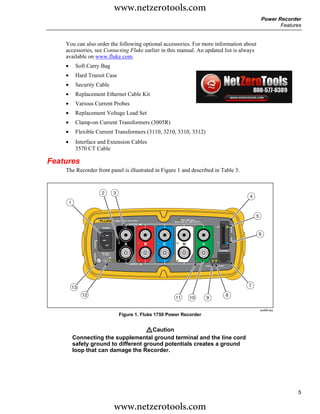
    The Recorder front panel is illustrated in Figure 1 and described in Table 3.


                        2           3
                                                                                                   4
        1

                                                                                                       5
                                    1750 POWER RECORDER
                                                VOLTAGE
                                                                                       SD
                        POWER


                                                                                                       6

                                            A             B   C        N
                                                                                        ETHERNET
                       100-240 V
                         47-63 Hz
                               ON


                                                CURRENT
                                                                                LINK    BUSY


            13                                                                                     7

                 12                                                                            8
                                                                  11       10   9

                                                                                                           azd09f.eps
                                        Figure 1. Fluke 1750 Power Recorder


                                        WCaution
            Connecting the supplemental ground terminal and the line cord
            safety ground to different ground potentials creates a ground
            loop that can damage the Recorder.


                                                                                                                        5

                                    www.netzerotools.com
www.netzerotools.com
1750
Operators Manual


                                               Table 3. Input Terminals and Controls

             Number                                               Description

                   A   Standard 120/240 V 50/60 Hz power input for Recorder power

                   B   Voltage indicator
                       Steady              Voltage is present, not overloaded
                       Blinking            Voltage overload (overload threshold 1100 V)
                   C   Five voltage measurement inputs

                   D   Removable Secure Digital (SD) memory card for transfer of large quantities of data. You can
                       remove the card from the Recorder, insert in the PDA and transfer data to the PC via the
                       “synchronize data” feature of the PDA. A USB SD card reader may also be used.

                   E   SD status indicator
                       Steady green        SD card inserted
                       Blinking            Busy - do not remove the card
                   F   Wireless Controller Status Indicator
                       Steady Blue         Wireless controller enabled but not communicating
                       Blinking            Wireless controller communicating
                       Off                 Inactive
                   G   Ethernet port. TCP/IP via Ethernet is used to connect the Recorder to a PC for downloading
                       recorded data, and for configuring the Recorder when not using the PDA. This is the
                       recommended method of data transfer due to its speed and reliability.

                   H   Busy Indicator

                       Blinking            Network is busy

                   I   Link indicator
                       Off                 No link
                       Steady              Link Present
                       Blinking            Communicating with PC
                   J   Current Measurement Terminals (5)

                   K   Current indicator
                       Steady              Current probe in normal range
                       Blinking            > 110% of probe range, use a higher range probe
                       Off                 Current insufficient to measure
                   L   Power LED
                       Steady green                AC input power normal, instrument is not booted or locked
                       Green/Orange blinking       Recording
                       Blinking red                Recorder running on UPS
                   M   Ground Terminal

                       Connecting the supplemental ground terminal and the line cord safety ground to different
                       ground potentials creates a ground loop that can damage the Recorder. To avoid this, use the
                       supplemental ground terminal only when no protective earth ground connection exists through
                       the line power cord. If there is any chance that a safety ground connection does exist through
                       the line power cord connection, make sure to connect the supplemental ground terminal only to
                       the ground system used by the ac receptacle that powers the Recorder. See Figure 3.


6

                                             www.netzerotools.com
www.netzerotools.com
                                                                                                                           Power Recorder
                                                                                                             Applying the Front Panel Decal


Applying the Front Panel Decal
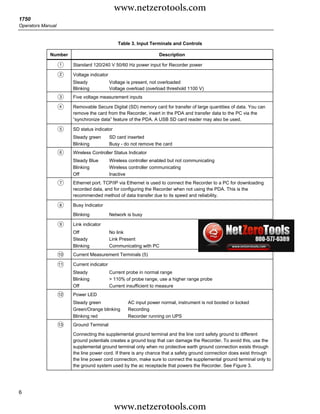
    Self-adhesive front panel decals are supplied with the 1750. The supplied decals
    correspond to the wiring color codes used in the USA, Europe and UK (new), Europe
    (old), UK, Canada, and China. Apply the decal appropriate for your local wiring codes
    around the current and voltage inputs as shown in Figure 2.


         EUROPE & UK (new std)                                       UK
                VOLTAGE                                                    VOLTAGE


            L1               L2          L3              N             L1            L2   L3          N


                CURRENT                                                    CURRENT


         EU (old std)                                                USA
                VOLTAGE                                                    VOLTAGE


            L1               L2          L3              N             A             B    C           N


                CURRENT                                                    CURRENT


         China                                                       Canada
                VOLTAGE                                                    VOLTAGE


            A                B           C               N             A             B    C           N


                CURRENT                                                    CURRENT


                                   1750 POWER RECORDER
                                               VOLTAGE
                                                                                                 SD
                          POWER


                                           A                 B   C             N
                                                                                                  ETHERNET
                      100-240 V
                       47-63Hz
                              ON


                                               CURRENT
                                                                                          LINK    BUSY


                                                                                                                         azd17f.eps
                                        Figure 2. Applying the Front Panel Decal


                                                                                                                                         7

                                        www.netzerotools.com
www.netzerotools.com
1750
Operators Manual


                                                       WCaution
                           Connecting the supplemental ground terminal and the line cord
                           safety ground to different ground potentials creates a ground
                           loop that can damage the Recorder.


                   See     Caution Above


                   Potential   Optional Protective
                   Ground       Chassis Ground
                    Loop       (See detail below)


                           Different Power System                                 Power Network Being Measured
                                                      Line Power Cord
                                                                                               ØB


                                                                                                           ØC


                                                                                                            N
                                 OK                                                           ØA
                                                                              Incorrect,
                                                                        Creates Ground Loop
                                   Correct,
                               No Ground Loop
                                                                                                    GND


                                                                                                                 azd11f.eps
                                        Figure 3. Connecting the Supplemental Ground Terminal


8

                                                     www.netzerotools.com
www.netzerotools.com
                                                                                            Power Recorder
                                                                                    Charging the PDA Battery


Charging the PDA Battery
        Your PDA is shipped with a discharged or partially charged, rechargeable battery. You
        should fully charge the battery before setting up the device, and recharge it regularly.
        Refer to your PDA user’s guide for detailed information about the battery.

                                     WCaution
          Do not leave important data on the PDA. If the battery
          discharges completely, you will lose all data not stored in File
          Store (ROM). Discharging the battery completely is similar to
          performing a hard reset. Refer to the PDA Users Manual for
          more information.

Installing the Software
        This section describes how to install Fluke Power View software on the PDA and Fluke
        Power Analyze software on your PC. Keep your product CD in case you need to reinstall
        this software in the future. You should periodically check the Fluke website:
        www.fluke.com to see if any 1750 firmware or application software updates are available
        for download. Fluke encourages you to register the Recorder. After your Recorder has
        been registered, you will receive email notifications of firmware and software update
        availability.

Installing Power View on the PDA
    1. Insert the CD that ships with your PDA. Follow the on-screen instructions to install the
        ActiveSync software for Windows XP (or Mobile Device Center for Windows Vista and
        Windows 7) that allows your PC to communicate with the PDA.
    2. Connect the PDA to your PC with the USB lead and establish communication between
       the PDA and your PC. Keep your product CD in case you need to reinstall this software
       in the future.
    3. Insert the CD that ships with your Recorder in the CD-ROM drive on your PC.
    4. A window appears that lists options on the CD. If the install software window does not
       automatically appear, do the following:
        a. Use Windows Explorer to locate the sw/FPV_Vx.yy.exe file on the CD. Replace x.yy
           with the current version number shipped on the CD.
        b. Double-click FPV_Vx.yy_Install.exe to launch the installation program.
    5. Select a language preference for the installation.
    6. Follow the on-screen prompts.
        Power View is installed in the Programs folder on the PDA.

    7. To start Power View, select Start, and then Programs on the PDA.

    8. Tap the Power View icon (      ) to start using the application.


                                                                                                          9

                             www.netzerotools.com
www.netzerotools.com
1750
Operators Manual


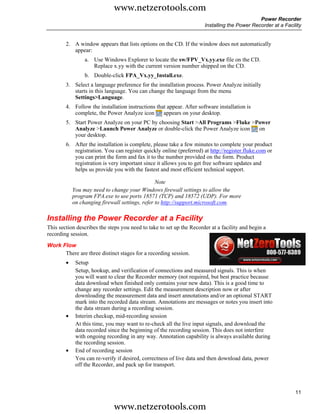
            Language Selection
                 Power View features a localized user interface for English, German, French, Spanish,
                 Chinese, and Italian. When Power View operates for the first time on a new PDA or after
                 a hard reset, it directly opens the language setup window. This window is also accessed
                 by Menu>1750 Setup>Language.
                    The Language window also provides the option to choose between the phase identifiers A,
                    B, C and L1, L2, L3.


                                                                                                      Azd110.bmp


            PC System Requirement for Power Analyze
                  • Windows 2000, Windows XP, Windows Vista 32/64bit, Windows 7 32/64bit.
                     Administrator privileges are required to install applications.
                  • PC with 500 MHz or faster processor.
                  • 256 MB RAM, 1 GB recommended (100 MB of available disk space, 10 GB
                     recommended).
                  • 1024 x 768 or higher resolution video.
                  • Keyboard and mouse.

            Installing Power Analyze
                    Before installing the software on your PC, make sure you have Internet Explorer version
                    6, or later, installed. Other recommended software:
                    •    Adobe Acrobat Reader
                    •    Microsoft Word 2000 or higher
                    •    Microsoft Excel 2000 or higher

                                                    WCaution
                        Do not remove the CD until after you have successfully
                        installed the software, rebooted the machine, and opened the
                        application.
                    1. Insert the CD into your CD-ROM drive.


10

                                        www.netzerotools.com
www.netzerotools.com
                                                                                              Power Recorder
                                                                      Installing the Power Recorder at a Facility


        2. A window appears that lists options on the CD. If the window does not automatically
           appear:
                 a. Use Windows Explorer to locate the sw/FPV_Vx.yy.exe file on the CD.
                    Replace x.yy with the current version number shipped on the CD.
                 b. Double-click FPA_Vx.yy_Install.exe.
        3. Select a language preference for the installation process. Power Analyze initially
           starts in this language. You can change the language from the menu
           Settings>Language.
        4. Follow the installation instructions that appear. After software installation is
           complete, the Power Analyze icon        appears on your desktop.
        5. Start Power Analyze on your PC by choosing Start >All Programs >Fluke >Power
           Analyze >Launch Power Analyze or double-click the Power Analyze icon    on
           your desktop.
        6. After the installation is complete, please take a few minutes to complete your product
           registration. You can register quickly online (preferred) at http://register.fluke.com or
           you can print the form and fax it to the number provided on the form. Product
           registration is very important since it allows you to get free software updates and
           helps us provide you with the fastest and most efficient technical support.

                                                 Note
            You may need to change your Windows firewall settings to allow the
            program FPA.exe to use ports 18571 (TCP) and 18572 (UDP). For more
            on changing firewall settings, refer to http://support.microsoft.com.

Installing the Power Recorder at a Facility
This section describes the steps you need to take to set up the Recorder at a facility and begin a
recording session.
Work Flow
      There are three distinct stages for a recording session.
        •    Setup
             Setup, hookup, and verification of connections and measured signals. This is when
             you will want to clear the Recorder memory (not required, but best practice because
             data download when finished only contains your new data). This is a good time to
             change any recorder settings. Edit the measurement description now or after
             downloading the measurement data and insert annotations and/or an optional START
             mark into the recorded data stream. Annotations are messages or notes you insert into
             the data stream during a recording session.
        •    Interim checkup, mid-recording session
             At this time, you may want to re-check all the live input signals, and download the
             data recorded since the beginning of the recording session. This does not interfere
             with ongoing recording in any way. Annotation capability is always available during
             the recording session.
        •    End of recording session
             You can re-verify if desired, correctness of live data and then download data, power
             off the Recorder, and pack up for transport.


                                                                                                              11

                             www.netzerotools.com
www.netzerotools.com
1750
Operators Manual


            Installing the Recorder
                1. Position the Recorder within 2 m (6 ft) of the monitoring location.
                   2. The Recorder can be set on the floor or a table, or attached and secured to a pole or other
                      mounting surface. The Recorder can be oriented vertically or horizontally.
                   3. Connect the Recorder to a 100 to 240 V ac power source, 50 or 60 Hz.
                   4. Plug the power cord into a properly-grounded wall outlet.

                                                  WCaution
                         To avoid damage to the Recorder:
                           •   Ground the chassis as appropriate according to your power
                               connection before you do anything else.
                           •   Connect the power cord to the Recorder using the appropriate
                               supplied adapter.
                           •   Connect the power cord to a properly grounded wall outlet.
                           •   Be sure to plug the power cord into the Recorder panel BEFORE
                               connecting it to an outlet.
                       After a minute, or two, all LEDs should flash ON, then OFF, and then each should turn
                       ON and OFF in sequence. The LEDs will then remain on if you make secure test lead
                       connections and there is sufficient voltage and current.

                   5. Turn on the PDA and tap the Power View icon          to launch Power View.
                       If a Recorder is within range and is not password protected, it should appear in the drop
                       down menu just below the main title bar on the PDA. You may need to select Browse for
                       recorder when first connecting. Select the recorder you want to browse to with the PDA
                       stylus. Upon selection, the Home screen for live data appears.
                       If more than one Recorder is within range, these will appear in the drop down menu list.
                   6. If you have previously established password protection for the Recorder, you must type
                      the correct password in the Password text box and click OK. (Password protection is
                      established for a specific Recorder using either the Setup Password menu in Power View
                      or the Power Analyze software).

            Connecting the Recorder to the Wiring
                 After you have set up the Recorder you are ready to connect the voltage leads and current
                 probe or flexi-probes to the power network being tested. Refer to the Power Type
                 diagrams provided on the PDA or in this manual.

                                                       XWWarning
                         To prevent possible electrical shock, Flexi-probes should not
                         be applied or removed from hazardous live conductors.
                       In most cases, you should install the current probes first. Because they are clamped
                       around wires, current probes are usually more secure than voltage probes. Examine the
                       conductors you are about to connect to and determine if you should attach the current
                       probes to the phase wires or busbars before you connect the voltage probes.
                       1. Select and attach the appropriate current probes to the Recorder.
                       2. Select and attach the appropriate voltage test leads and probes to the Recorder.

12

                                            www.netzerotools.com
www.netzerotools.com
                                                                                              Power Recorder
                                                                      Installing the Power Recorder at a Facility


                                               Note
            If your power connections require potential transformers (PTs) or current
            transformers (CTs), you can use the ratio settings in Power View to set the
            Recorder to display readings as they exist on the primary side of the PT and
            CT (for example, 12000 V).
        3. Connect the Recorder to the wiring by first connecting the measurement ground test
           lead to the distribution system ground, and then the neutral probe to neutral.
        4. Connect the ground current probe to the distribution system ground and the neutral
           current probe to neutral, with the arrow on the current probe pointing towards the
           load (away from the source) in each case.
        5. Connect the remaining current probes to the power network.
             •   The arrow on the current probe should point toward the load.
             •   Use the color-coding on the leads to help you connect the probes to the correct
                 phases, neutral and ground.
        6. Connect the remaining voltage probes.

                                               Note
            Make sure the voltage probes and current probes are paired correctly,
            Phase A (L1) voltage to Phase A (L1) current and so forth. Calculations are
            made in pairs and cannot be changed after data is recorded. The leads for
            the voltage probe and current probe of the same color should be attached
            to the same phase wire or busbar.
        7. Check the LED for each phase to make sure a connection is established.
             •   When a phase LED is ON or lighted, you know that the connection is active and
                 that voltage and current is within the normal range.
             •   When a phase LED is BLINKING, you are connected but the voltage or current
                 is exceeding the normal range or exceeding the range of the probe that you are
                 using.
             •   When a current LED is OFF or unlit, there is insufficient current present in the
                 line.

Verifying Your Connection
       Before you leave the Recorder to accumulate data at the facility, double-check the
       connections.
        •    Make sure the current probes are secured and completely closed around the
             conductors and that the voltage and current LEDs are steady-on.
        •    Use the PHASOR screen on the PDA or PC to verify that the voltage and current
             connections are correct. You can swap the connections using Power View if they are
             incorrect.

Finishing UP
       After making any corrections to the connections, recheck the PHASOR diagrams to
       confirm your connection. Make sure the nominal voltage, nominal line frequency, and
       power type (delta, wye, other) are correct before you leave the Recorder. It is a good
       practice to insert a Start Mark when you are finished with all settings so you can
       download data and ignore useless readings and events common at the beginning probe
       connecting activities. You can also use the “Erase Memory” function and measurement

                                                                                                              13

                              www.netzerotools.com
www.netzerotools.com
1750
Operators Manual


                   descriptions such as company, name, and measurement purpose. This can be done at this
                   point or after downloading the measurement data.

            Managing Recorded Data
                 Recorded data resides in the Recorder on an internal non-physically accessible flash
                 memory circuit. It is not transferred to an SD memory card in the Recorder’s SD memory
                 slot until you request a download action using the PDA or an attached PC. Downloading
                 to a PC running Fluke Power Analyze Software (included) using the Ethernet cable is
                 recommended and the fastest way to retrieve data from the Recorder.
                   It is never technically necessary to erase internal memory. When the Recorder has new
                   data to record, it does so automatically, overwriting the oldest data (circular memory).
                   You can erase internal memory for security reasons, or if you want to simplify what you
                   will be seeing in the download data screen. The start and end times will represent one
                   recording session when old data is erased.

                                                          Note
                       Data is not removed from internal Recorder memory until you erase it
                       using Power View software on the PDA or Power Analyze software on your
                       PC.

            Power Type Diagrams
                   The wiring illustrations included cover the standard power configurations that are
                   selectable in Power View or Power Analyze software. The diagrams are provided as an
                   aid in making the correct test lead connections. Power type diagrams are also included on
                   your PDA and can be referenced when you are setting up nominal power on the Recorder.
                   Available power type settings are:
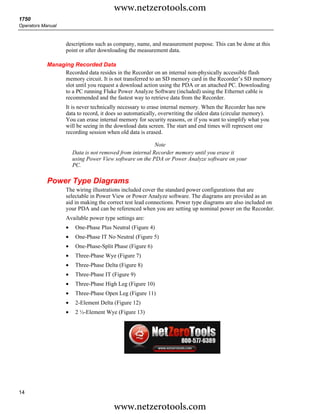
                   •    One-Phase Plus Neutral (Figure 4)
                   •    One-Phase IT No Neutral (Figure 5)
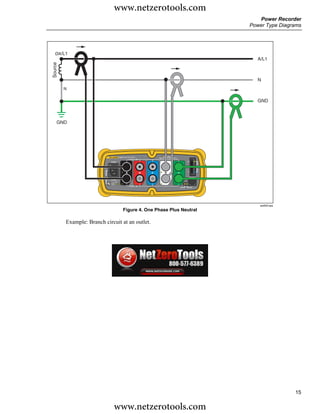
                   •    One-Phase-Split Phase (Figure 6)
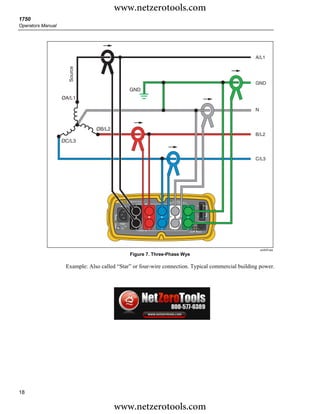
                   •    Three-Phase Wye (Figure 7)
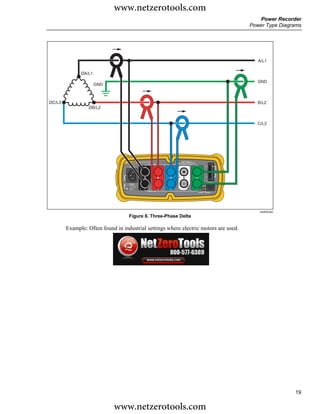
                   •    Three-Phase Delta (Figure 8)
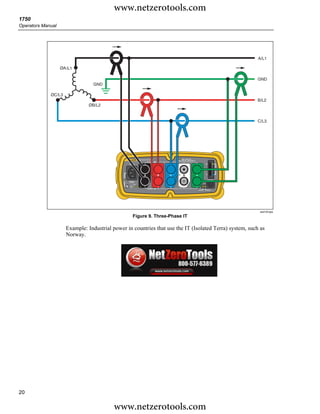
                   •    Three-Phase IT (Figure 9)
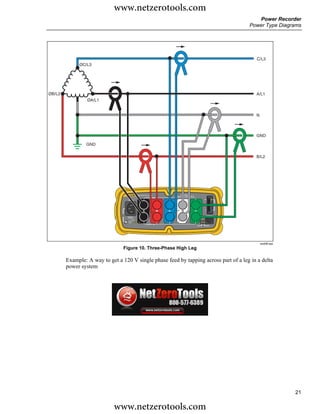
                   •    Three-Phase High Leg (Figure 10)
                   •    Three-Phase Open Leg (Figure 11)
                   •    2-Element Delta (Figure 12)
                   •    2 ½-Element Wye (Figure 13)


14

                                        www.netzerotools.com
www.netzerotools.com
                                                                                                Power Recorder
                                                                                             Power Type Diagrams


   ØA/L1
                                                                                                A/L1
Source


                                                                                                N
         N

                                                                                                GND


    GND


                                        1750 POWER RECORDER
                                                    VOLTAGE
                                                                                 SD
                             POWER


                                                A             B   C   N
                                                                                  ETHERNET
                            100-240 V
                              47-63Hz
                                   ON


                                                    CURRENT
                                                                          LINK    BUSY


                                                                                                 azd02f.eps
                                            Figure 4. One Phase Plus Neutral

         Example: Branch circuit at an outlet.


                                                                                                              15

                                 www.netzerotools.com
www.netzerotools.com
1750
Operators Manual


                                                                                                       A/L1


                                                                                                       GND


                    GND
                                                                                                       B/L2


                                                  1750 POWER RECORDER
                                                              VOLTAGE
                                                                                           SD
                                      POWER


                                                          A             B   C   N
                                                                                            ETHERNET
                                     100-240 V
                                       47-63 Hz
                                             ON


                                                              CURRENT
                                                                                    LINK    BUSY


                                                                                                         azd14f.eps
                                                     Figure 5. One-Phase IT No Neutral

                   Example: Used in Norway and in some hospitals. This would be the connection at a
                   branch circuit.


16

                                           www.netzerotools.com
www.netzerotools.com
                                                                                       Power Recorder
                                                                                    Power Type Diagrams


                                                                                      A/L1


                                                                                      N


                                                                                      GND


                                                                                      B/L2


                               1750 POWER RECORDER
                                           VOLTAGE
                                                                        SD
                   POWER


                                       A             B   C   N
                                                                         ETHERNET
                  100-240 V
                   47-63Hz
                          ON


                                           CURRENT
                                                                 LINK    BUSY


                                                                                          azd03f.eps
                                       Figure 6. One-Phase Split Phase

Example: A North American residential installation at the service entrance.


                                                                                                       17

                              www.netzerotools.com
www.netzerotools.com
1750
Operators Manual


                                                                                                            A/L1

                     Source

                                                                                                            GND
                                                        GND
                   ØA/L1

                                                                                                            N


                                ØB/L2
                                                                                                            B/L2
                   ØC/L3


                                                                                                            C/L3


                                                       1750 POWER RECORDER
                                                                   VOLTAGE
                                                                                                SD
                                           POWER


                                                               A             B   C   N
                                                                                                 ETHERNET
                                          100-240 V
                                           47-63Hz
                                                  ON


                                                                   CURRENT
                                                                                         LINK    BUSY


                                                                                                                azd04f.eps
                                                         Figure 7. Three-Phase Wye

                    Example: Also called “Star” or four-wire connection. Typical commercial building power.


18

                                        www.netzerotools.com
www.netzerotools.com
                                                                                                       Power Recorder
                                                                                                    Power Type Diagrams


                                                                                                       A/L1


              ØA/L1
                                                                                                       GND
                      GND


ØC/L3                                                                                                  B/L2
                 ØB/L2


                                                                                                       C/L3


                                               1750 POWER RECORDER
                                                           VOLTAGE
                                                                                        SD
                                    POWER


                                                       A             B   C   N
                                                                                         ETHERNET
                                   100-240 V
                                     47-63Hz
                                          ON


                                                           CURRENT
                                                                                 LINK    BUSY


                                                                                                        azd05f.eps
                                   Figure 8. Three-Phase Delta

        Example: Often found in industrial settings where electric motors are used.


                                                                                                                     19

                            www.netzerotools.com
www.netzerotools.com
1750
Operators Manual


                                                                                                                 A/L1

                   ØA /L1

                                                                                                                 GND
                                 GND

             ØC/L3
                                                                                                                 B/L2
                               ØB/L2


                                                                                                                 C/L3


                                                            1750 POWER RECORDER
                                                                        VOLTAGE
                                                                                                     SD
                                                 POWER


                                                                    A             B   C   N
                                                                                                      ETHERNET
                                                100-240 V
                                                  47-63Hz
                                                       ON


                                                                        CURRENT
                                                                                              LINK    BUSY


                                                                                                                  azd12f.eps
                                                      Figure 9. Three-Phase IT

                     Example: Industrial power in countries that use the IT (Isolated Terra) system, such as
                     Norway.


20

                                          www.netzerotools.com
www.netzerotools.com
                                                                                                       Power Recorder
                                                                                                    Power Type Diagrams


                                                                                                      C/L3
             ØC/L3


ØB/L2                                                                                                 A/L1
                 ØA/L1


                                                                                                      N


                                                                                                      GND

                GND

                                                                                                      B/L2


                                               1750 POWER RECORDER
                                                           VOLTAGE
                                                                                        SD
                                   POWER


                                                       A             B   C   N
                                                                                         ETHERNET
                                  100-240 V
                                    47-63 Hz
                                          ON


                                                           CURRENT
                                                                                 LINK    BUSY


                                                                                                          azd08f.eps
                                Figure 10. Three-Phase High Leg

        Example: A way to get a 120 V single phase feed by tapping across part of a leg in a delta
        power system


                                                                                                                       21

                            www.netzerotools.com
www.netzerotools.com
1750
Operators Manual


                                                                                                               A/L1


                          ØA/L1
                                                                                                               GND
                                  GND


            ØC/L3                                                                                              B/L2
                              ØB/L2


                                                                                                               C/L3


                                                          1750 POWER RECORDER
                                                                      VOLTAGE
                                                                                                   SD
                                              POWER


                                                                  A             B   C   N
                                                                                                    ETHERNET
                                             100-240 V
                                              47-63Hz
                                                     ON


                                                                      CURRENT
                                                                                            LINK    BUSY


                                                                                                                azd18f.eps
                                           Figure 11. Three-Phase Open Leg

                    Example: A variant of power transformer winding type.


22

                                        www.netzerotools.com
www.netzerotools.com
                                                                                                        Power Recorder
                                                                                                     Power Type Diagrams


                                                                                                      A/L1


              ØA/L1                                                                                   GND


                                                                        GND
                      ØB/L2
ØC/L3                                                                                                 B/L2


                                                                                                      C/L3


                                              1750 POWER RECORDER
                                                          VOLTAGE
                                                                                         SD
                                  POWER


                                                      A             B     C   N
                                                                                          ETHERNET
                                 100-240 V
                                  47-63Hz
                                         ON


                                                          CURRENT
                                                                                  LINK    BUSY


                                                                                                         azd13f.eps
                                     Figure 12. 2-Element Delta

        Example: Blondel or Aron connection, used to measure power like a two-element
        revenue power meter.


                                                                                                                      23

                              www.netzerotools.com
www.netzerotools.com
1750
Operators Manual


                                                                                                                                      A/L1

                           ØA/L1
                                                                                                                                     GND


                                                                                                                                      N

             ØC/L3                 ØB/L2
                                                                                                                                       B/L2
                                                                                                                         No Connection to
                                                                                                                         1750 voltage input

                                                                                                                                      C/L3


                                                         1750   P OWER RECORDE    R
                                                                        VOLT AG E
                                                                                                         SD
                                             P OWE R


                                                                    A                 B   C   N
                                                                                                              ETHERNET
                                            100-240 V
                                             47-63Hz
                                                    ON


                                                                        CURRENT
                                                                                                  LINK        B US Y


                                                                                                                                       azd07f.eps
                                                         Figure 13. 2 ½-Element Wye

                     Example: Blondel or Aron system for 4-wire (Wye) power secondaries.


24

                                           www.netzerotools.com
www.netzerotools.com
                                                                                                              Power Recorder
                                                                             Communicating with the Recorder Using Power View


Communicating with the Recorder Using Power View
    The PDA serves as your control panel for the Recorder. The Power View software
    installed on the PDA is designed to function as a remote front panel for the Recorder,
    since the Recorder itself is a “black box” with no integral display or external controls
    other than status LEDs. With Power View installed on the PDA, you are relieved of the
    burden of having to carry a laptop and Ethernet cable to a remote site when setting up the
    Recorder, checking its progress, or finishing a monitoring session.
    You can alternatively connect to a Recorder from a PC directly using an Ethernet cable or
    remotely over an IP network. You can then use Fluke Power Analyze to set up the
    Recorder, view power measurements wherever the Recorder is installed, or download
    data from the Recorder.
    Power View communicates with the PDA using a wireless controller radio interface.
    There is no provision for a hardwired PDA interface to the Ethernet port on the Recorder.
    After data is recorded and downloaded to a PC, you can analyze the recorded data using
    the Power Analyze software.


               SD Flash
               Memory
                Card

                                              PDA with
                                         Power View Software


                          Configure via RF
                          Communication


                                                                                               PC with Power
                                                                                              Analyze Software


          Fluke 1750                            Direct Ethernet Connection
        Power Recorder


                                                                                                                 azd01f.emf
                                  Figure 14. Connecting to the Recorder


                                                                                                                              25

                               www.netzerotools.com
www.netzerotools.com
1750
Operators Manual


            Navigating in Power View on the PDA
                   The Menu Bar on the bottom of the Power View screen allows you to quickly and easily
                   configure a Recorder, view live data, and transfer data to the Secure Data (SD) card for
                   viewing and analysis on your desktop computer using the companion Power Analyze
                   software.

            Power View Menus
                  Live
                   Brings up a list of the live detail views: Scope, Meter, Phasor, Harmonics, and Trend.
                   There are configurable detail views of each type of screen available by tapping the sector
                   of interest or the Live menu. Once a detail view is selected, navigation to all available
                   detail views is accomplished using the Live menu.
                   Menu
                   Brings up the Data memory management screens which are for download to the SD card
                   inserted in the Recorder and for erasing Recorder internal memory and erasing SD card
                   files.
                   1750 Setup
                   Brings up the setup screen that allows you to configure the Recorder and set recording
                   period information. Using this function, you can tap the appropriate icon to set the
                   following:
                   •   Clock
                   •   Probe Detect
                   •   IP Address
                   •   Measurement Description
                   •   Nominal Power
                   •   Phase Swap
                   •   Volts/Current Ratio
                   •   Recorder Name/Password
                   •   Snapshot Period
                   •   Language


26

                                         www.netzerotools.com
www.netzerotools.com
                                                                                            Power Recorder
                                                                        Navigating in Power View on the PDA


Icons on the Menu Bar
           and    are used to toggle between voltage and current wave forms. Tap either V or A
       and then Live>Home to see each parameter’s detailed data. The PHASOR screen always
       shows both V & A (volts and amps).      is replaced with   on the detail views, as
       voltage and current data can be viewed simultaneously.
       In all the detail live view screens, a line selection menu is available using the button at
       the bottom. This is a checkbox that is used to select the voltage and current channels you
       want to display.


       The Snapshot icon triggers the Recorder to capture high-resolution waveform data and
       save it in the recorded data stream. This waveform capture is identical to the snapshots
       taken automatically when you set the “snapshot period” in the 1750 Setup menu.


       This icon brings up the Annotate screen. Use the annotate menu to enter text or to insert a
       file name and load it into the recorded data stream in the Recorder. Annotations can be
       used to make notes, or to insert a file name of an image or audio file. You can enter
       multiple start and stop annotations. START and stop annotations are not paired and are
       not restricted to being used as literally “start” and “stop”. Annotations are often done at
       the start of a power recording session.


                                                                                                        27

                            www.netzerotools.com
www.netzerotools.com
1750
Operators Manual


            Menu Tree
                   The following figure provides an overview of the Power View menu structure that will be
                   helpful in navigating through the Power View application.


                             SD

                                                                                                 Fluke
                                                                                                 Power View
                      1750
                                           Password                                                                                                             Connecting
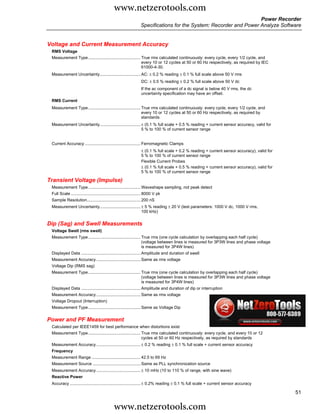
                                                                                                                  1750 Power Recorders
                                                                                                                                                            1750 Power Recorder
                                                                                                                          Found
                                                                                                                                                                 Not Found

                                     Incorrect Password


                                                                                                                                                                    1750
                                            Tools                          Live                                                   Menu

                                   1750 Internal Memory                  Scope                                                    Tools
                                                                          Meter
                                                                                                                            1750 Setup
                                     1750 SD Memo
                                                                         Phasor
                                                                        Harmonics                                                 Exit
                                     1750 Shutdown...                     Trend
                                                                          Home
                                     Erase 1750 Memory


                                                                                                                                  Setup
                                          Scope                          Scope


                                     If Memory is full                    Meter
                    Download             1750
                                    Memory Card Files
                                     Memory Card Full                    Phasor

                    Write to SD    Delete File      Cancel
                                                                        Harmonics                                       Snapshot Interval

                                         1750
                                    Memory Card Files                     Trend
                   SD Card Files    Return to Download

                                   Delete File      Cancel


                                    Erase 1750 Memory


                                                  Erase All


                                                                                    Check List

                                                                                       Data
                                                                                                                              Annotate
                                                                                     Memory                   Insert Start Mark          Insert Stop Mark

                                                                                     Settings                  Insert Text File             Insert File


                                                                                                                                                                             azd15f.eps
                                                              Figure 15. Power View Menu Tree


28

                                                    www.netzerotools.com
www.netzerotools.com
                                                                                    Power Recorder
                                                                                      Home Screen


Home Screen
    The Home screen is the top-level screen, accessed when you start Power View or when
    you tap Live and then Home on the Menu Bar.
    The Home screen contains a 1.5 cycle waveform screen, a digital meter screen, and a
    PHASOR screen. The parameters shown in this screen are not configurable. All phases
    are shown simultaneously, either all voltage or all current.


                                                                                   Azd111.bmp

    If no Recorders are within range, the following screen appears:


                                                                                   Azd112.bmp


                                                                                                29

                        www.netzerotools.com
www.netzerotools.com
1750
Operators Manual


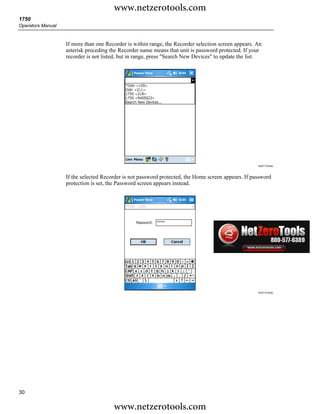
                   If more than one Recorder is within range, the Recorder selection screen appears. An
                   asterisk preceding the Recorder name means that unit is password protected. If your
                   recorder is not listed, but in range, press "Search New Devices" to update the list.


                                                                                                     Azd113.bmp


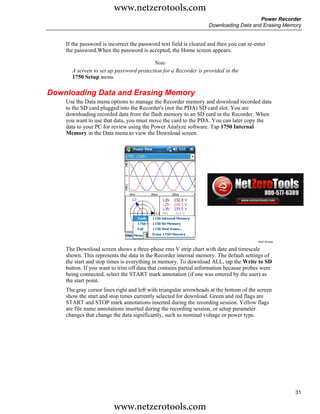
                   If the selected Recorder is not password protected, the Home screen appears. If password
                   protection is set, the Password screen appears instead.


                                                                                                     Azd114.bmp


30

                                       www.netzerotools.com
www.netzerotools.com
                                                                                       Power Recorder
                                                                   Downloading Data and Erasing Memory


    If the password is incorrect the password text field is cleared and then you can re-enter
    the password.When the password is accepted, the Home screen appears.

                                         Note
      A screen to set up password protection for a Recorder is provided in the
      1750 Setup menu.

Downloading Data and Erasing Memory
    Use the Data menu options to manage the Recorder memory and download recorded data
    to the SD card plugged into the Recorder's (not the PDA) SD card slot. You are
    downloading recorded data from the flash memory to an SD card in the Recorder. When
    you want to use that data, you must move the card to the PDA. You can later copy the
    data to your PC for review using the Power Analyze software. Tap 1750 Internal
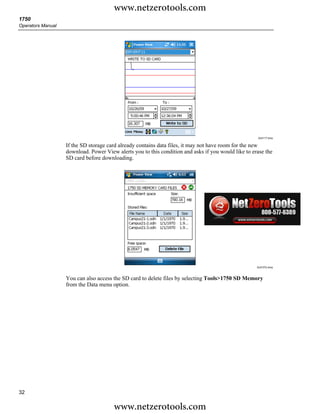
    Memory in the Data menu to view the Download screen.


                                                                                         Azd116.bmp


    The Download screen shows a three-phase rms V strip chart with date and timescale
    shown. This represents the data in the Recorder internal memory. The default settings of
    the start and stop times is everything in memory. To download ALL, tap the Write to SD
    button. If you want to trim off data that contains partial information because probes were
    being connected, select the START mark annotation (if one was entered by the user) as
    the start point.
    The gray cursor lines right and left with triangular arrowheads at the bottom of the screen
    show the start and stop times currently selected for download. Green and red flags are
    START and STOP mark annotations inserted during the recording session. Yellow flags
    are file name annotations inserted during the recording session, or setup parameter
    changes that change the data significantly, such as nominal voltage or power type.


                                                                                                      31

                         www.netzerotools.com
www.netzerotools.com
1750
Operators Manual


                                                                                                     Azd117.bmp


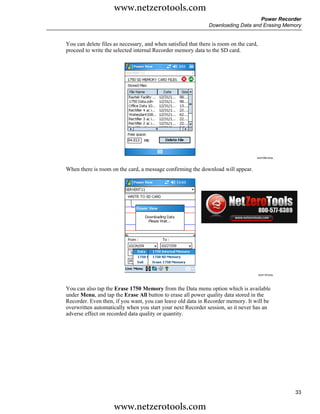
                   If the SD storage card already contains data files, it may not have room for the new
                   download. Power View alerts you to this condition and asks if you would like to erase the
                   SD card before downloading.


                                                                                                     Azd107s.bmp


                   You can also access the SD card to delete files by selecting Tools>1750 SD Memory
                   from the Data menu option.


32

                                       www.netzerotools.com
www.netzerotools.com
                                                                                   Power Recorder
                                                               Downloading Data and Erasing Memory


You can delete files as necessary, and when satisfied that there is room on the card,
proceed to write the selected internal Recorder memory data to the SD card.


                                                                                    Azd108s.bmp


When there is room on the card, a message confirming the download will appear.


                                                                                        Azd118.bmp


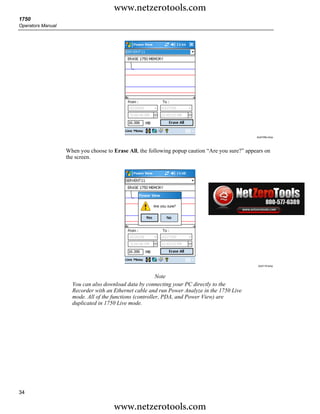
You can also tap the Erase 1750 Memory from the Data menu option which is available
under Menu, and tap the Erase All button to erase all power quality data stored in the
Recorder. Even then, if you want, you can leave old data in Recorder memory. It will be
overwritten automatically when you start your next Recorder session, so it never has an
adverse effect on recorded data quality or quantity.


                                                                                                     33

                     www.netzerotools.com
www.netzerotools.com
1750
Operators Manual


                                                                                                 Azd109s.bmp


                   When you choose to Erase All, the following popup caution “Are you sure?” appears on
                   the screen.


                                                                                                  Azd119.bmp


                                                          Note
                     You can also download data by connecting your PC directly to the
                     Recorder with an Ethernet cable and run Power Analyze in the 1750 Live
                     mode. All of the functions (controller, PDA, and Power View) are
                     duplicated in 1750 Live mode.


34

                                      www.netzerotools.com
www.netzerotools.com
                                                                                           Power Recorder
                                                                                           Viewing Live Data


Viewing Live Data
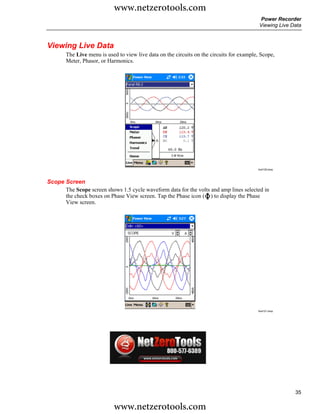
       The Live menu is used to view live data on the circuits on the circuits for example, Scope,
       Meter, Phasor, or Harmonics.


                                                                                          Azd120.bmp


Scope Screen
      The Scope screen shows 1.5 cycle waveform data for the volts and amp lines selected in
      the check boxes on Phase View screen. Tap the Phase icon ( ) to display the Phase
      View screen.


                                                                                          Azd121.bmp


                                                                                                         35

                           www.netzerotools.com
www.netzerotools.com
1750
Operators Manual


            Meter Screen
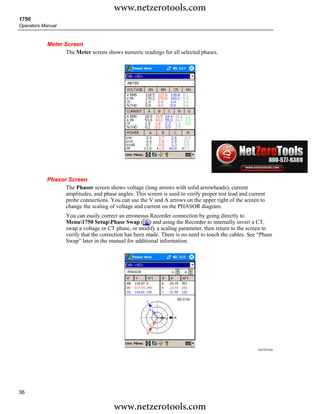
                   The Meter screen shows numeric readings for all selected phases.


                                                                                                       Azd122.bmp


            Phasor Screen
                  The Phasor screen shows voltage (long arrows with solid arrowheads), current
                  amplitudes, and phase angles. This screen is used to verify proper test lead and current
                  probe connections. You can use the V and A arrows on the upper right of the screen to
                  change the scaling of voltage and current on the PHASOR diagram.
                    You can easily correct an erroneous Recorder connection by going directly to
                    Menu1750 SetupPhase Swap ( ) and using the Recorder to internally invert a CT,
                    swap a voltage or CT phase, or modify a scaling parameter, then return to the screen to
                    verify that the correction has been made. There is no need to touch the cables. See “Phase
                    Swap” later in the manual for additional information.


                                                                                                       Azd123.bmp


36

                                        www.netzerotools.com
www.netzerotools.com
                                                                                              Power Recorder
                                                                                              Viewing Live Data


Harmonics Screen
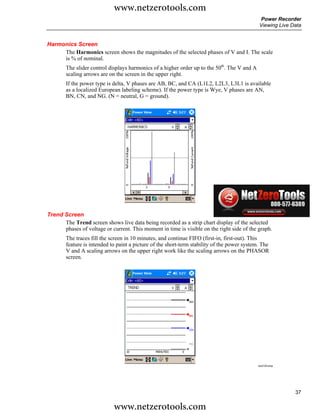
     The Harmonics screen shows the magnitudes of the selected phases of V and I. The scale
     is % of nominal.
        The slider control displays harmonics of a higher order up to the 50th. The V and A
        scaling arrows are on the screen in the upper right.
        If the power type is delta, V phases are AB, BC, and CA (L1L2, L2L3, L3L1 is available
        as a localized European labeling scheme). If the power type is Wye, V phases are AN,
        BN, CN, and NG. (N = neutral, G = ground).


                                                                                              Azd124.bmp


Trend Screen
      The Trend screen shows live data being recorded as a strip chart display of the selected
      phases of voltage or current. This moment in time is visible on the right side of the graph.
        The traces fill the screen in 10 minutes, and continue FIFO (first-in, first-out). This
        feature is intended to paint a picture of the short-term stability of the power system. The
        V and A scaling arrows on the upper right work like the scaling arrows on the PHASOR
        screen.


                                                                                              Azd125.bmp


                                                                                                            37

                             www.netzerotools.com
www.netzerotools.com
1750
Operators Manual


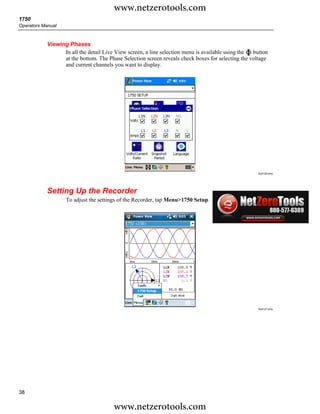
            Viewing Phases
                  In all the detail Live View screen, a line selection menu is available using the button
                  at the bottom. The Phase Selection screen reveals check boxes for selecting the voltage
                  and current channels you want to display.


                                                                                                    Azd126.bmp


            Setting Up the Recorder
                   To adjust the settings of the Recorder, tap Menu>1750 Setup.


                                                                                                    Azd127.bmp


38

                                        www.netzerotools.com
www.netzerotools.com
                                                                                    Power Recorder
                                                                             Setting Up the Recorder


The Setup screen shows setup options.


                                                                                   azd140.bmp


From the Setup screen, you can adjust either the recording period information or the
Recorder settings. Tap an icon on the Setup screen to view or configure:
•   Clock
•   Probe Detect
•   IP Address
•   Measurement Description
•   Nominal Power
•   Phase Swap
•   Volts/Current Ratio
•   Recorder Name/Password
•   Snapshot Period
•   Language


                                                                                                 39

                      www.netzerotools.com
www.netzerotools.com
1750
Operators Manual


            Setting the Clock
                   Use this feature to set the PDA clock or clock to synchronize the Recorder with the PDA
                   clock.


                                                                                                     Azd128.bpm


            Probe Detect
                  This screen shows the types of probes attached to the Recorder current inputs. Current
                  probes are automatically detected.


                                                                                                     azd129.bmp


40

                                        www.netzerotools.com
www.netzerotools.com
                                                                                             Power Recorder
                                                                                      Setting Up the Recorder


Setting the IP Address
       Select Obtain Address Automatically unless your company's IT department has specific
       requirements that require assigned IP addresses.


                                                                                            Azd130.bmp


Adding a Measurement Description
      Click on the arrow and select one of the six available captions from the list box and enter
      the text in the text field below. The number of characters is limited to 50. Click on Insert
      to apply the changes.
        You may change or delete the caption. The maximum possible length for caption text is
        20 characters.
        To apply changes, click on Apply.
        Click OK to close the window and send the measurement description to the device.


                                                                                            azd141.bmp


                                                                                                          41

                             www.netzerotools.com
www.netzerotools.com
1750
Operators Manual


            Configure Nominal Power Values
                  This window contains the setup for Power Config, Nominal Voltage, and Frequency. It is
                  important to correctly configure these values before the measurement as some
                  calculations are based on these settings and cannot be recalculated after the measurement
                  has been performed. Click on the 3-phase delta icon to display the wiring diagram of the
                  selected topology. The list box of nominal voltage levels contains commonly used
                  voltage levels. Different voltage levels may be entered if required.


                                                                                                     Azd131.bmp


            Using Phase Swap
                  Rather than having to change the physical connections to the power system, use the Phase
                  Swap feature to make a software-selectable correction without physically switching the
                  cable. You can select from the following:
                  • Swap any voltage input
                  • Swap any current input
                  • Invert any current input clamp
                   The screen shows check boxes to invert any current probe. Current probes are directional,
                   and selecting “invert” has the effect of removing the probe and turning it around.
                   If the power type is delta, V phases are AB, BC, and CA (L1L2, L2L3, L3L1 is available
                   as an optional setting). If the power type is Wye, V phases are AN, BN, CN, and NG. (N
                   = neutral, G = ground).


42

                                        www.netzerotools.com
www.netzerotools.com
                                                                                               Power Recorder
                                                                                        Setting Up the Recorder


                                                                                              Azd133.bmp


Setting the Volts and Current Ratio
       Use this menu to add a ratio factor to the voltage or current input on each phase.
       Changing the first “1” in each case if there is a potential transformer in series with the
       voltage connection such as when you want to monitor a medium-voltage network using
       PTs and CTs to scale the voltage and current to a convenient level for measuring
       instruments.
        The current ratio applies a ratio to the current input in order to show the current present
        on a medium-voltage network. This feature is intended to be used for sensing low levels
        of current to represent the much higher levels on the primary side at a substation or
        step-down transformer that has built-in metering current transformers.


                                                                                              Azd134.bmp


Assign Recorder Name and Password
      Use this feature to assign a name identifier to the Recorder and to establish a password
      for the Recorder. This naming feature is designed to help you keep track of which
      Recorder is in use. The Recorder name is later associated with the data file that you
      download from the Recorder.


                                                                                                            43

                             www.netzerotools.com
www.netzerotools.com
1750
Operators Manual


                                                                                                     Azd132.bmp


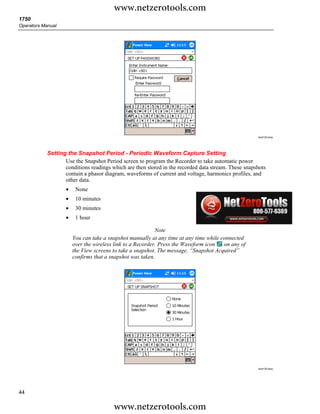
            Setting the Snapshot Period - Periodic Waveform Capture Setting
                   Use the Snapshot Period screen to program the Recorder to take automatic power
                   conditions readings which are then stored in the recorded data stream. These snapshots
                   contain a phasor diagram, waveforms of current and voltage, harmonics profiles, and
                   other data.
                    •    None
                    •    10 minutes
                    •    30 minutes
                    •    1 hour

                                                            Note
                        You can take a snapshot manually at any time at any time while connected
                        over the wireless link to a Recorder. Press the Waveform icon   on any of
                        the View screens to take a snapshot. The message, “Snapshot Acquired”
                        confirms that a snapshot was taken.


                                                                                                     Azd135.bmp


44

                                         www.netzerotools.com
www.netzerotools.com
                                                                                           Power Recorder
                                                                                    Setting Up the Recorder


                                                                                         Azd139.bmp


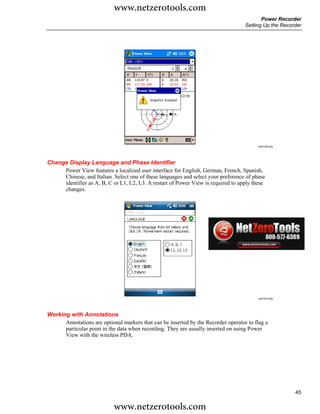
Change Display Language and Phase Identifier
     Power View features a localized user interface for English, German, French, Spanish,
     Chinese, and Italian. Select one of these languages and select your preference of phase
     identifier as A, B, C or L1, L2, L3. A restart of Power View is required to apply these
     changes.


                                                                                          azd142.bmp


Working with Annotations
      Annotations are optional markers that can be inserted by the Recorder operator to flag a
      particular point in the data when recording. They are usually inserted on using Power
      View with the wireless PDA.


                                                                                                        45

                            www.netzerotools.com
www.netzerotools.com
1750
Operators Manual


                                                                                                              Azd137.bmp


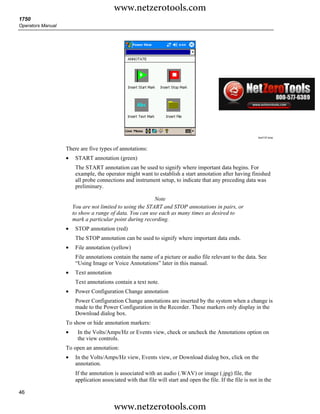
                   There are five types of annotations:
                   •    START annotation (green)
                        The START annotation can be used to signify where important data begins. For
                        example, the operator might want to establish a start annotation after having finished
                        all probe connections and instrument setup, to indicate that any preceding data was
                        preliminary.

                                                           Note
                       You are not limited to using the START and STOP annotations in pairs, or
                       to show a range of data. You can use each as many times as desired to
                       mark a particular point during recording.
                   •    STOP annotation (red)
                        The STOP annotation can be used to signify where important data ends.
                   •    File annotation (yellow)
                        File annotations contain the name of a picture or audio file relevant to the data. See
                        “Using Image or Voice Annotations” later in this manual.
                   •    Text annotation
                        Text annotations contain a text note.
                   •    Power Configuration Change annotation
                        Power Configuration Change annotations are inserted by the system when a change is
                        made to the Power Configuration in the Recorder. These markers only display in the
                        Download dialog box.
                   To show or hide annotation markers:
                   •     In the Volts/Amps/Hz or Events view, check or uncheck the Annotations option on
                         the view controls.
                   To open an annotation:
                   •    In the Volts/Amps/Hz view, Events view, or Download dialog box, click on the
                        annotation.
                        If the annotation is associated with an audio (.WAV) or image (.jpg) file, the
                        application associated with that file will start and open the file. If the file is not in the

46

                                          www.netzerotools.com
www.netzerotools.com
                                                                                                Power Recorder
                                                                                         Setting Up the Recorder


             default directory My DocumentsFlukePQ, a dialog box opens so that you can
             navigate to the file.
                                                 Note
            If clicking on an annotation marker does not seem to do anything, the Zoom
            box is probably selected in the graph toolbar, instead of the Select tool.
            Click the Select tool and then select the annotation.
        To see overlapping annotations:
        Sometimes annotations are so close to each other that they actually overlap on the
        Volts/Amps/Hz reference graph. When this is the case, if you click on overlapping
        annotations, a menu opens and you can select either Open, to open the annotation now on
        top, or Select Next Overlapping Annotation, to bring the next one to the top.
        •    To open the annotation now on top, choose Open.
        •    To bring the next annotation to the top, choose Select Next Overlapping Annotation.
             To then open that annotation, click on it again and choose Open.

                                                Note
            To see overlapping annotations more clearly on the Volts/Amps/Hz
            reference graph, move the selection cursors so that they just surround the
            area that contains the overlapping illustrations. The Detail graph adjusts
            as the cursors move, zooming in to show the area between the selection
            cursors. You can now see the annotations separately.

Using Image or Voice Annotations
       While you are monitoring data with a Recorder, you may find it helpful to take a picture
       that relates to the power quality data you are recording, or to record verbal comments as
       you observe the conditions or review the data being measured. You can then associate the
       image or recording with the data being recorded by adding annotations that reference
       them.
        The PDA includes a microphone for recording notes which are saved as .WAV files, and
        an optional camera accessory is available on the PDA which will capture images as .jpg
        files.
        You can associate both images and audio files with the data being gathered in the
        Recorder by inserting annotations and specifying the name of a .WAV or .jpg file. After
        you download data from the Recorder, you can then move the image and audio files to
        the PC along with the recorded data (.odn) file.

                                                Note
            You can also associate other types of files with the annotation. For example,
            if you had a .MPG file with a movie, or a .DOC file with associated
            information. You can enter any file name using this annotation method.

Inserting Image or Voice Annotations
        1. Set up the Recorder and begin monitoring.
        2. Using your PDA-cam (not available in standard PDA supplied) or another camera,
           take a picture of what you want to capture.
        3. Click the Annotate icon to display the Annotate screen.
        4. Move the image or audio file to a location that will make it easier to Transfer it to a
           PC later, when you download and move the recorded data file to your PC. Place the
                                                                                                             47

                              www.netzerotools.com
www.netzerotools.com
1750
Operators Manual


                          file into the synchronization folder on your PDA, so that it will be automatically
                          transferred into the sync folder on the PC the next time you dock the PDA.

            Turn off the Recorder
                      The Recorder always has the UPS enabled to allow a 5-minute pass through time on a
                      voltage interruption. When you pack the Recorder for transport, you have the option to
                      shut down the Recorder and disable the UPS before unplugging the power cord.
                      To turn off the Recorder:
                      1. Select Menu>Tools>1750 Shut down...
                      2. Confirm the warning message.
                      3. Wait until the Power LED is solid green.
                          The power cord can be safely unplugged.


                                                                                                           azd143.bmp


            Cleaning and Maintenance
                   The Recorder contains no user serviceable parts. Contact an Authorized Fluke Service Center
                   for repair. Periodically wipe the case with a damp cloth and mild detergent. Do not use
                   abrasives or solvents.


48

                                           www.netzerotools.com
www.netzerotools.com
                                                                                         Power Recorder
                                                       Regulatory Information for Wireless Communication


Regulatory Information for Wireless Communication
                                       W Caution
           •   Any changes or modifications to the wireless 2.4 GHz
               radio not expressly approved by Fluke Corporation
               could void the user's authority to operate the equipment.

           •   The distance between the Recorder and the human body
               must be ≥20 cm (7.9 inches) during wireless
               communication.

           •   FCC ID: T68FLK1750 or QOQWT 11 (see rear decal on
               Fluke 1750 for the appropriate ID).
    This device complies with Part 15 of the FCC Rules. Operation is subject to the following
    two conditions: (1) this device may not cause interference, and (2) this device must
    accept any interference, including interference that may cause undesired operation of the
    device.
    Class A digital device: A digital device that is marketed for use in a commercial,
    industrial or business environment, exclusive of a device which is marketed for use by
    the general public or is intended to be used in the home.
    Class B digital device: A digital device that is marketed for use in a residential
    environment notwithstanding use in commercial, business and industrial environments.
    Examples of such devices include, but are not limited to, personal computers, calculators,
    and similar electronic devices that are marketed for use by the general public.
    The Fluke 1750 Power Recorder (wireless host) has been tested and found to comply
    with the limits for a Class A digital device, pursuant to Part 15 of the FCC Rules. These
    limits are designed to provide reasonable protection against harmful interference when
    the equipment is operated in a commercial environment. This equipment generates, uses,
    and can radiate radio frequency energy and, if not installed and used in accordance with
    the instruction manual, may cause harmful interference to radio communications.
    Operation of this equipment in a residential area is likely to cause harmful interference in
    which case the user will be required to correct the interference at his own expense.
    In addition, the internal limited modular radio has been tested and found to comply with
    the limits for a Class B digital device, pursuant to Part 15 of the FCC Rules. These limits
    are designed to provide reasonable protection against harmful interference in a residential
    installation. This equipment generates, uses and can radiate radio frequency energy and,
    if not installed and used in accordance with the instructions, may cause harmful
    interference to radio communications. However, there is no guarantee that interference
    will not occur in a particular installation. If this equipment does cause harmful
    interference to radio or television reception, which can be determined by turning the
    equipment off and on, the user is encouraged to try to correct the interference by one or
    more of the following measures:
    •   Reorient or relocate the receiving antenna.
    •   Increase the separation between the equipment and receiver.
    •   Connect the equipment into an outlet on a circuit different from that to which the
        receiver is connected.
    •   Consult the dealer or an experienced radio/TV technician for help.
    The term “IC:” before the radio certification number only signifies that Industry of
    Canada technical specifications were met.
                                                                                                     49

                         www.netzerotools.com
www.netzerotools.com
1750
Operators Manual


            Specifications for the System: Recorder and Power Analyze
            Software
            General Specifications
              Power Quality Measurement Standards
              Conformance..................................................... IEC 61000-2-4:2002 Class 1, IEC 61000-4-30, IEEE519, IEEE1159,
                                                                               IEEE1459, IEC 61557-12:2008, and EN50160
              Clock/Calendar.................................................. Leap years, 24-hour clock
              Real-time Clock Accuracy................................ Not more than ± 1 s/day
              Internal Memory Capacity for Data ................. At least 2 GB
              Maximum Recording Period ............................ At least 31 days
              Measurement Time Control ............................. Automatic
              Maximum Number of Events ........................... Limited only by the size of the internal memory.
              Power Requirements ........................................ 100 to 240 V rms ± 10 %, 47-63 Hz, 40 W
              Operating Time During Interruptions
              (internal UPS operation) ..................................... 5 minutes per interruption, 60 minutes total operating time without
                                                                             recharging
              Dimensions ....................................................... 215 x 310 x 35 mm (8.5 x 12.2 x 3.5 inch)
              Mass (Weight) ................................................... 6.3 kg (14 lbs)


            Input Specifications
              Measurement Types ......................................... One Phase Plus Neutral, One Phase IT No Neutral, One Phase Split
                                                                          Phase, Three Phase Wye, Three Phase Delta, Three Phase IT, Three
                                                                          Phase High Leg, Three Phase Open Leg, 2 Element Delta, 2 ½
                                                                          Element Wye
              Input Channels .................................................. Voltage: 5 channels, AC/DC Current: 5 channels
              Voltage Channels.............................................. Input resistance: 2 MΩ
                                                                            Input capacitance: <20 pF
              Current Channels.............................................. Self-identifying probes
                                                                            Types available: current clamps, Flexi-CTs
              Measuring Method ............................................ Simultaneous digital sampling of voltage and current. Digital PLL
                                                                            synchronized sampling, internal frequency reference used during
                                                                            voltage drops.


            Synchronization and Sampling
              PLL-Synchronization Source........................... The PLL synchronizes to the A-N/L1-N voltage for wye power types,
                                                                    and to the A-B/L1-L2 voltage for delta power types. All listed power
                                                                    types can be characterized as either wye or delta.
              PLL Lock Range................................................ 42.5 to 69 Hz
              Sampling Frequency ........................................ Voltage and current: 256 samples/cycle
                                                                            Inter-harmonics per IEC61000-4-7: 2560 points / 10 cycles (50 Hz),
                                                                            3072 points/12 cycles (60 Hz)
                                                                            Transient Voltage: 5 MHz
              A/D Resolution .................................................. Voltage and current: 24 bits
                                                                            Transient voltage: 14 bits


            Voltage and Current Measurements
              Voltage Measurement Range........................... AC voltage: 1000 V rms ± 10 % Overrange
                                                                            DC voltage: ± 1000 V + 10 % Overrange
              Voltage Crest Factor......................................... 3 or less
              Voltage Input Impedance ................................. 2 MΩ
              Current Measurement Range........................... Depends on current probe used
              Current Crest Factor......................................... 4 or less
              Current Input Characteristics .......................... 2 V rms = full scale, 1 MΩ Input Impedance for ferro CTs, low
                                                                       impedance for Flexi-CTs

50

                                                         www.netzerotools.com
www.netzerotools.com
                                                                                                                     Power Recorder
                                                                   Specifications for the System: Recorder and Power Analyze Software


Voltage and Current Measurement Accuracy
 RMS Voltage
 Measurement Type ............................................. True rms calculated continuously: every cycle, every 1/2 cycle, and
                                                                every 10 or 12 cycles at 50 or 60 Hz respectively, as required by IEC
                                                                61000-4-30.
 Measurement Uncertainty................................... AC: ± 0.2 % reading ± 0.1 % full scale above 50 V rms
                                                                   DC: ± 0.5 % reading ± 0.2 % full scale above 50 V dc
                                                                   If the ac component of a dc signal is below 40 V rms, the dc
                                                                   uncertainty specification may have an offset.
 RMS Current
 Measurement Type ............................................. True rms calculated continuously: every cycle, every 1/2 cycle, and
                                                                every 10 or 12 cycles at 50 or 60 Hz respectively, as required by
                                                                standards
 Measurement Uncertainty................................... ± (0.1 % full scale + 0.5 % reading + current sensor accuracy, valid for
                                                            5 % to 100 % of current sensor range


 Current Accuracy ................................................ Ferromagnetic Clamps
                                                                   ± (0.1 % full scale + 0.2 % reading + current sensor accuracy), valid for
                                                                   5 % to 100 % of current sensor range
                                                                   Flexible Current Probes
                                                                   ± (0.1 % full scale + 0.5 % reading + current sensor accuracy), valid for
                                                                   5 % to 100 % of current sensor range

Transient Voltage (Impulse)
 Measurement Type ............................................. Waveshape sampling, not peak detect
 Full Scale ............................................................ 8000 V pk
 Sample Resolution.............................................. 200 nS
 Measurement Uncertainty................................... ± 5 % reading ± 20 V (test parameters: 1000 V dc, 1000 V rms,
                                                            100 kHz)


Dip (Sag) and Swell Measurements
 Voltage Swell (rms swell)
 Measurement Type ............................................. True rms (one cycle calculation by overlapping each half cycle)
                                                                (voltage between lines is measured for 3P3W lines and phase voltage
                                                                is measured for 3P4W lines)
 Displayed Data ................................................... Amplitude and duration of swell
 Measurement Accuracy ...................................... Same as rms voltage
 Voltage Dip (RMS sag)
 Measurement Type ............................................. True rms (one cycle calculation by overlapping each half cycle)
                                                                (voltage between lines is measured for 3P3W lines and phase voltage
                                                                is measured for 3P4W lines)
 Displayed Data ................................................... Amplitude and duration of dip or interruption
 Measurement Accuracy ...................................... Same as rms voltage
 Voltage Dropout (Interruption)
 Measurement Type ............................................. Same as Voltage Dip


Power and PF Measurement
 Calculated per IEEE1459 for best performance when distortions exist
 Measurement Type ............................................. True rms calculated continuously: every cycle, and every 10 or 12
                                                                cycles at 50 or 60 Hz respectively, as required by standards
 Measurement Accuracy ...................................... ± 0.2 % reading ± 0.1 % full scale + current sensor accuracy
 Frequency
 Measurement Range .......................................... 42.5 to 69 Hz
 Measurement Source ......................................... Same as PLL synchronization source
 Measurement Accuracy ...................................... ± 10 mHz (10 to 110 % of range, with sine wave)
 Reactive Power
 Accuracy ............................................................. ± 0.2% reading ± 0.1 % full scale + current sensor accuracy

                                                                                                                                               51

                                               www.netzerotools.com
www.netzerotools.com
1750
Operators Manual


              Power Factor
              Measurement Range .......................................... -1.000 (leading) to 0.000 to +1.000 (lagging)
              Measurement Accuracy ...................................... ± 1 digit from the calculation of each measured value (± 3 digits for
                                                                          total)
              Displacement Power Factor
              Measurement Method ......................................... Calculated from the phase difference between voltage fundamental
                                                                           and current fundamental
              Measurement Range .......................................... -1.000 (leading) to 0.000 to + 1.000 (lagging)
              Measurement Accuracy ...................................... ± 0.5 % reading ± 2 % full scale ± 1 digit
              Voltage Unbalance and Phase Sequence
              Measurement Method ......................................... Positive sequence voltage divided by negative sequence voltage, per
                                                                           IEC 61000-4-30
              Harmonic Voltage and Current
              Analysis Window................................................. rectangular
              Analysis Order .................................................... 1st to 50th order
              Measurement Accuracy ...................................... Voltage / Current: 1st to 20th orders: ± 0.5 % reading ± 0.2 % full scale
                                                                          21st to 50th orders: ± 1 % reading ± 0.3 % full scale (current sensor
                                                                          accuracy must be included for current and power)
              Measurement Method ......................................... IEC 61000-4-7:2002
              Inter-harmonic Voltage and Current (Intermediate Harmonics)
              Analysis Window................................................. rectangular
              Analysis Orders .................................................. 0.5 to 49.5th order
              Measurement Method ......................................... IEC 61000-4-7:2002
              Voltage flicker
              Measurement Method ......................................... as per IEC 61000-4-15:2003: 10 min (Pst), 2 h (Plt)


            External Interface Specifications
              LAN Interface
              Connector ........................................................... RJ-45
              Speed and Type ................................................. 10/100 Base-T, auto MDIX
              Communications Protocol ................................... TCP/IP over Ethernet
              Wireless Controller Interface
              Connection.......................................................... wireless (2.4 GHz radio)
              Speed.................................................................. up to 700 kbit/second
              Communications Protocol ................................... Bluetooth SPP


            Environmental and Safety Specifications
              Operating Environment ....................................... indoors or in covered area outdoors, up to 2000 m altitude
              Storage Temperature and Humidity.................... -20 °C to 50 °C, 80 % rh max, non-condensing
              Operating Temperature and Humidity ................ 0 °C to 40 °C, 80 % rh max, non-condensing
              Maximum Rated Working Voltage
              Voltage Terminals ............................................... 1100 V rms
              Voltage Durability................................................ 5550 V rms ac for 1 minute, between voltage input terminals, voltage
                                                                                 input terminals and current probes, and voltage input terminals and
                                                                                 case (50/60 Hz, 1 mA sense current)
              Enclosure Protection........................................... IP30 (per EN 60529)
              Standards Conformance
              EMC .................................................................... IEC 61326-1:2006 Class A
                                                                                                               rd
                                                                                IEC 61000-3-2:2005, 3 Edition
                                                                                IEC 61000-3-3:2005, 1.2 Edition
                                                                                AS/NZS 4268:2008 (BT module only)
                                                                                ETSI EN300328 (V1.7.1:2006)
                                                                                                          nd
              Safety.................................................................. IEC 61010-1:2001, 2 Edition
                                                                                Voltage input unit: Contamination Level 2
                                                                                Overvoltage Category 1000 V CAT III, 600 V CAT IV (anticipated
                                                                                overvoltage: 8000 V)

52

                                                            www.netzerotools.com

Fluke 1750 Manual

  • 1.
    www.netzerotools.com 1750 Three Phase Power Quality Recorder 1750/B Three Phase Power Quality Recorder 1750 Power Recorder Go To 1750 Products Page Operators Manual October 2006 Rev.3, 11/10 © 2006-2010 Fluke Corporation. All rights reserved. Specifications are subject to change without notice. All product names are trademarks of their respective companies. www.netzerotools.com
  • 2.
    www.netzerotools.com LIMITED WARRANTY AND LIMITATION OF LIABILITY Each Fluke product is warranted to be free from defects in material and workmanship under normal use and service. The warranty period is one year and begins on the date of shipment. Parts, product repairs, and services are warranted for 90 days. This warranty extends only to the original buyer or end-user customer of a Fluke authorized reseller, and does not apply to fuses, disposable batteries, or to any product which, in Fluke's opinion, has been misused, altered, neglected, contaminated, or damaged by accident or abnormal conditions of operation or handling. Fluke warrants that software will operate substantially in accordance with its functional specifications for 90 days and that it has been properly recorded on non-defective media. Fluke does not warrant that software will be error free or operate without interruption. Fluke authorized resellers shall extend this warranty on new and unused products to end-user customers only but have no authority to extend a greater or different warranty on behalf of Fluke. Warranty support is available only if product is purchased through a Fluke authorized sales outlet or Buyer has paid the applicable international price. Fluke reserves the right to invoice Buyer for importation costs of repair/replacement parts when product purchased in one country is submitted for repair in another country. Fluke's warranty obligation is limited, at Fluke's option, to refund of the purchase price, free of charge repair, or replacement of a defective product which is returned to a Fluke authorized service center within the warranty period. To obtain warranty service, contact your nearest Fluke authorized service center to obtain return authorization information, then send the product to that service center, with a description of the difficulty, postage and insurance prepaid (FOB Destination). Fluke assumes no risk for damage in transit. Following warranty repair, the product will be returned to Buyer, transportation prepaid (FOB Destination). If Fluke determines that failure was caused by neglect, misuse, contamination, alteration, accident, or abnormal condition of operation or handling, including overvoltage failures caused by use outside the product’s specified rating, or normal wear and tear of mechanical components, Fluke will provide an estimate of repair costs and obtain authorization before commencing the work. Following repair, the product will be returned to the Buyer transportation prepaid and the Buyer will be billed for the repair and return transportation charges (FOB Shipping Point). THIS WARRANTY IS BUYER'S SOLE AND EXCLUSIVE REMEDY AND IS IN LIEU OF ALL OTHER WARRANTIES, EXPRESS OR IMPLIED, INCLUDING BUT NOT LIMITED TO ANY IMPLIED WARRANTY OF MERCHANTABILITY OR FITNESS FOR A PARTICULAR PURPOSE. FLUKE SHALL NOT BE LIABLE FOR ANY SPECIAL, INDIRECT, INCIDENTAL, OR CONSEQUENTIAL DAMAGES OR LOSSES, INCLUDING LOSS OF DATA, ARISING FROM ANY CAUSE OR THEORY. Since some countries or states do not allow limitation of the term of an implied warranty, or exclusion or limitation of incidental or consequential damages, the limitations and exclusions of this warranty may not apply to every buyer. If any provision of this Warranty is held invalid or unenforceable by a court or other decision-maker of competent jurisdiction, such holding will not affect the validity or enforceability of any other provision. Fluke Corporation Fluke Europe B.V. P.O. Box 9090 P.O. Box 1186 Everett, WA 98206-9090 5602 BD Eindhoven U.S.A. The Netherlands 11/99 To register your product online, visit register.fluke.com www.netzerotools.com
  • 3.
    www.netzerotools.com Table of Contents Title Page Introduction........................................................................................................ 1 Contacting Fluke................................................................................................ 2 Safety Information ............................................................................................. 3 Accessories ........................................................................................................ 4 Features.............................................................................................................. 5 Applying the Front Panel Decal......................................................................... 7 Charging the PDA Battery ................................................................................. 9 Installing the Software ....................................................................................... 9 Installing Power View on the PDA ............................................................... 9 Language Selection ....................................................................................... 10 PC System Requirement for Power Analyze................................................. 10 Installing Power Analyze .............................................................................. 10 Installing the Power Recorder at a Facility........................................................ 11 Work Flow..................................................................................................... 11 Installing the Recorder .................................................................................. 12 Connecting the Recorder to the Wiring......................................................... 12 Verifying Your Connection ........................................................................... 13 Finishing UP.................................................................................................. 13 Managing Recorded Data .............................................................................. 14 Power Type Diagrams ....................................................................................... 14 Communicating with the Recorder Using Power View..................................... 25 Navigating in Power View on the PDA............................................................. 26 Power View Menus ....................................................................................... 26 Icons on the Menu Bar .................................................................................. 27 Menu Tree.......................................................................................................... 28 Home Screen...................................................................................................... 29 Downloading Data and Erasing Memory .......................................................... 31 Viewing Live Data............................................................................................. 35 Scope Screen ................................................................................................. 35 Meter Screen.................................................................................................. 36 Phasor Screen ................................................................................................ 36 Harmonics Screen.......................................................................................... 37 Trend Screen.................................................................................................. 37 Viewing Phases ............................................................................................. 38 i www.netzerotools.com
  • 4.
    www.netzerotools.com 1750 Operators Manual Setting Up the Recorder..................................................................................... 38 Setting the Clock ........................................................................................... 40 Probe Detect .................................................................................................. 40 Setting the IP Address ................................................................................... 41 Adding a Measurement Description .............................................................. 41 Configure Nominal Power Values................................................................. 42 Using Phase Swap ......................................................................................... 42 Setting the Volts and Current Ratio............................................................... 43 Assign Recorder Name and Password........................................................... 43 Setting the Snapshot Period - Periodic Waveform Capture Setting .............. 44 Change Display Language and Phase Identifier............................................ 45 Working with Annotations ............................................................................ 45 Using Image or Voice Annotations........................................................... 47 Inserting Image or Voice Annotations ...................................................... 47 Turn off the Recorder ........................................................................................ 48 Cleaning and Maintenance................................................................................. 48 Regulatory Information for Wireless Communication ...................................... 49 Specifications for the System: Recorder and Power Analyze Software ............ 50 General Specifications................................................................................... 50 Input Specifications ....................................................................................... 50 Synchronization and Sampling...................................................................... 50 Voltage and Current Measurements .............................................................. 50 Voltage and Current Measurement Accuracy ............................................... 51 Transient Voltage (Impulse).......................................................................... 51 Dip (Sag) and Swell Measurements .............................................................. 51 Power and PF Measurement .......................................................................... 51 External Interface Specifications................................................................... 52 Environmental and Safety Specifications...................................................... 52 ii www.netzerotools.com
  • 5.
    www.netzerotools.com List of Tables Table Title Page 1. Symbols.................................................................................................................. 4 2. Standard Accessories ............................................................................................. 4 3. Input Terminals and Controls................................................................................. 6 iii www.netzerotools.com
  • 6.
  • 7.
    www.netzerotools.com List of Figures Figure Title Page 1. Fluke 1750 Power Recorder................................................................................... 5 2. Applying the Front Panel Decal ............................................................................. 7 3. Connecting the Supplemental Ground Terminal.................................................... 8 4. One Phase Plus Neutral .......................................................................................... 15 5. One-Phase IT No Neutral....................................................................................... 16 6. One-Phase Split Phase............................................................................................ 17 7. Three-Phase Wye ................................................................................................... 18 8. Three-Phase Delta .................................................................................................. 19 9. Three-Phase IT ....................................................................................................... 20 10. Three-Phase High Leg............................................................................................ 21 11. Three-Phase Open Leg ........................................................................................... 22 12. 2-Element Delta ..................................................................................................... 23 13. 2 ½-Element Wye................................................................................................... 24 14. Connecting to the Recorder.................................................................................... 25 15. Power View Menu Tree ......................................................................................... 28 v www.netzerotools.com
  • 8.
  • 9.
    www.netzerotools.com 1750 Power Recorder Introduction The Fluke 1750 Power Recorder is a comprehensive yet easy to use system for power quality investigations. The 1750 Power Recorder, referred to hereafter as simply “the Recorder or the Product,” consists of a power recorder instrument, a wireless handheld Personal Digital Assistant (PDA) for control and setup, and a powerful yet easy to use PC application, Power Analyze. Four 400 A current probes are provided as standard equipment (not included in Basic version). A wide range of flexible and clamp-on current probes are available from Fluke. Key features of the 1750 Power Recorder are: • No PC needed for setup Using the included wireless-enabled Personal Digital Assistant (PDA) as a controller, you do not need a PC to configure the Recorder, troubleshoot connections, preview data, or download the recorded data. Downloaded data goes onto the SD memory card plugged into the 1750, not directly to the PDA. The range of the PDA with the wireless link is about 5 meters (16 feet) from the Recorder. This range is dependent on the electrical interference in the location. • Simplified test lead connections to the power network Simply connect a voltage probe to a conductor on each phase that you want to record. On the current inputs, the Recorder automatically identifies what type of probe is connected. The Recorder then configures its measurement system appropriately for the model of current probe you are using. • Connection diagrams for the supported power network configurations (delta, Wye, and others) appear on the handheld PDA controller. Once you make connections, you can view live readings and a phasor diagram on the PDA to confirm the connections. If a phase channel is wired incorrectly, you can swap the phase to another channel by changing an internal Recorder setting using the PDA, and then reconfirm correct readings. • Internal Uninterruptible Power Supply (UPS) An internal NiMH (Nickel-Metal-Hydride) battery pack and charging system maintain data capture continuity through power interruptions of approximately 5 minutes or less. 1 www.netzerotools.com
  • 10.
    www.netzerotools.com 1750 Operators Manual • Automatic disturbance capture The Recorder uses an automatic, self-learning threshold routine, which means you do not have to set any event threshold limits before you start recording. You detect and display power quality events (disturbances) using the Power Analyze software on a PC after the event has been captured. You define thresholds for events after data is stored on the PC. This is called the "event detector" in the software. It does not make permanent changes to the data file, so you can experiment with different thresholds after the fact without worrying about losing data. With these features, there is little else required to set up and start recording the data to conduct a power quality survey. Should you want to extensively analyze collected data, the procedures described later in this manual review the transfer of data from the Recorder to the PDA, and finally to a PC. Data may then be analyzed using Power Analyze on a PC. Extensive online help is provided in the Power Analyze software on the product CD shipped with the Recorder. Contacting Fluke To contact Fluke, call one of the following telephone numbers: • Technical Support USA: 1-800-44-FLUKE (1-800-443-5853) • Calibration/Repair USA: 1-888-99-FLUKE (1-888-993-5853) • Canada: 1-800-36-FLUKE (1-800-363-5853) • Europe: +31 402-675-200 • Japan: +81-3-3434-0181 • Singapore: +65-738-5655 • Anywhere in the world: +1-425-446-5500 Or, visit Fluke's website at www.fluke.com . To register your product, visit http://register.fluke.com. To view, print, or download the latest manual supplement, visit http://us.fluke.com/usen/support/manuals. To contact Technical Support: fpqsupport@fluke.com or 888-257-9897 2 www.netzerotools.com
  • 11.
    www.netzerotools.com Power Recorder Safety Information Safety Information See the Specifications section for a full agency compliance list. Table 1 lists symbols that appear on the Recorder and in this manual. XW Warning To prevent possible electrical shock, fire, or personal injury: • Carefully read all instructions. • Do not work alone. • Do not use the Product around explosive gas, vapor, or in damp or wet environments. • Use only insulated current probes, test leads, and adapters as supplied with the Product. • Examine the case before you use the Product. Look for cracks or missing plastic. Carefully look at the insulation around the terminals. • Remove all probes, test leads, and accessories that are not necessary for the measurement. • Make sure the ground conductor in the mains power cord is connected to a protective earth ground. Disruption of the protective earth could put voltage on the chassis that could cause death. • Only use probes, test leads, and accessories that have the same measurement category, voltage, and amperage ratings as the product. • Do not use exposed metal BNC or banana plug connectors. • Do not put metal objects into connectors. • Do not operate the Product with covers removed or the case open. Hazardous voltage exposure is possible. • There are no user-replaceable parts in the Product. Have an approved technician repair the Product. • Use the Product only as specified, or the protection supplied by the Product can be compromised. 3 www.netzerotools.com
  • 12.
    www.netzerotools.com 1750 Operators Manual Table 1. Symbols Symbol Meaning Symbol Meaning Hazardous voltage. Risk of electrical Risk of danger. Important information. X shock. W See manual. Conforms to requirements of European Do not dispose of this product as P Union and European Free Trade ~ unsorted municipal waste. Contact Fluke Association (EFTA). or a qualified recycler for disposal. Canadian Standards Association. ) [Note: Canadian and US.] J Protective conductor terminal. CAT III equipment is designed to CAT IV equipment is designed to protect protect against transients in equipment against transients from the primary in fixed-equipment installations, such CAT III CAT IV supply level, such as an electricity meter as distribution panels, feeders and or an overhead or underground utility short branch circuits, and lighting service. systems in large buildings. Accessories Table 2 describes the standard accessories that ship with the Recorder. Table 2. Standard Accessories Description Part Number Ethernet cable, 3 meters, yellow 2402854 Colored plastic clips for test leads (32 clips, 8 colors, 4 clips each color) 2157607 Model TLS430, test lead set including cable and clips 2157713 Secure Digital (SD) Memory Card for downloading data Call for details Model 3140R, 400 A Clamps (4-not included with Basic version) 2277216 AC power cord, 3 meters 2441360 Personal Digital Assistant (PDA) with USB cable and accessories 2386780 CD-ROM Manuals and Software 2386771 1750 Getting Started Guide 2386767 Sheet of Front Panel Decals 2436261 Sets of international ac power plug adapters for the PDA charger 2583479 International adapters for the Recorder power cord 2441372 4 www.netzerotools.com
  • 13.
    www.netzerotools.com Power Recorder Features You can also order the following optional accessories. For more information about accessories, see Contacting Fluke earlier in this manual. An updated list is always available on www.fluke.com. • Soft Carry Bag • Hard Transit Case • Security Cable • Replacement Ethernet Cable Kit • Various Current Probes • Replacement Voltage Lead Set • Clamp-on Current Transformers (3005R) • Flexible Current Transformers (3110, 3210, 3310, 3312) • Interface and Extension Cables 3570 CT Cable Features The Recorder front panel is illustrated in Figure 1 and described in Table 3. 2 3 4 1 5 1750 POWER RECORDER VOLTAGE SD POWER 6 A B C N ETHERNET 100-240 V 47-63 Hz ON CURRENT LINK BUSY 13 7 12 8 11 10 9 azd09f.eps Figure 1. Fluke 1750 Power Recorder WCaution Connecting the supplemental ground terminal and the line cord safety ground to different ground potentials creates a ground loop that can damage the Recorder. 5 www.netzerotools.com
  • 14.
    www.netzerotools.com 1750 Operators Manual Table 3. Input Terminals and Controls Number Description A Standard 120/240 V 50/60 Hz power input for Recorder power B Voltage indicator Steady Voltage is present, not overloaded Blinking Voltage overload (overload threshold 1100 V) C Five voltage measurement inputs D Removable Secure Digital (SD) memory card for transfer of large quantities of data. You can remove the card from the Recorder, insert in the PDA and transfer data to the PC via the “synchronize data” feature of the PDA. A USB SD card reader may also be used. E SD status indicator Steady green SD card inserted Blinking Busy - do not remove the card F Wireless Controller Status Indicator Steady Blue Wireless controller enabled but not communicating Blinking Wireless controller communicating Off Inactive G Ethernet port. TCP/IP via Ethernet is used to connect the Recorder to a PC for downloading recorded data, and for configuring the Recorder when not using the PDA. This is the recommended method of data transfer due to its speed and reliability. H Busy Indicator Blinking Network is busy I Link indicator Off No link Steady Link Present Blinking Communicating with PC J Current Measurement Terminals (5) K Current indicator Steady Current probe in normal range Blinking > 110% of probe range, use a higher range probe Off Current insufficient to measure L Power LED Steady green AC input power normal, instrument is not booted or locked Green/Orange blinking Recording Blinking red Recorder running on UPS M Ground Terminal Connecting the supplemental ground terminal and the line cord safety ground to different ground potentials creates a ground loop that can damage the Recorder. To avoid this, use the supplemental ground terminal only when no protective earth ground connection exists through the line power cord. If there is any chance that a safety ground connection does exist through the line power cord connection, make sure to connect the supplemental ground terminal only to the ground system used by the ac receptacle that powers the Recorder. See Figure 3. 6 www.netzerotools.com
  • 15.
    www.netzerotools.com Power Recorder Applying the Front Panel Decal Applying the Front Panel Decal Self-adhesive front panel decals are supplied with the 1750. The supplied decals correspond to the wiring color codes used in the USA, Europe and UK (new), Europe (old), UK, Canada, and China. Apply the decal appropriate for your local wiring codes around the current and voltage inputs as shown in Figure 2. EUROPE & UK (new std) UK VOLTAGE VOLTAGE L1 L2 L3 N L1 L2 L3 N CURRENT CURRENT EU (old std) USA VOLTAGE VOLTAGE L1 L2 L3 N A B C N CURRENT CURRENT China Canada VOLTAGE VOLTAGE A B C N A B C N CURRENT CURRENT 1750 POWER RECORDER VOLTAGE SD POWER A B C N ETHERNET 100-240 V 47-63Hz ON CURRENT LINK BUSY azd17f.eps Figure 2. Applying the Front Panel Decal 7 www.netzerotools.com
  • 16.
    www.netzerotools.com 1750 Operators Manual WCaution Connecting the supplemental ground terminal and the line cord safety ground to different ground potentials creates a ground loop that can damage the Recorder. See Caution Above Potential Optional Protective Ground Chassis Ground Loop (See detail below) Different Power System Power Network Being Measured Line Power Cord ØB ØC N OK ØA Incorrect, Creates Ground Loop Correct, No Ground Loop GND azd11f.eps Figure 3. Connecting the Supplemental Ground Terminal 8 www.netzerotools.com
  • 17.
    www.netzerotools.com Power Recorder Charging the PDA Battery Charging the PDA Battery Your PDA is shipped with a discharged or partially charged, rechargeable battery. You should fully charge the battery before setting up the device, and recharge it regularly. Refer to your PDA user’s guide for detailed information about the battery. WCaution Do not leave important data on the PDA. If the battery discharges completely, you will lose all data not stored in File Store (ROM). Discharging the battery completely is similar to performing a hard reset. Refer to the PDA Users Manual for more information. Installing the Software This section describes how to install Fluke Power View software on the PDA and Fluke Power Analyze software on your PC. Keep your product CD in case you need to reinstall this software in the future. You should periodically check the Fluke website: www.fluke.com to see if any 1750 firmware or application software updates are available for download. Fluke encourages you to register the Recorder. After your Recorder has been registered, you will receive email notifications of firmware and software update availability. Installing Power View on the PDA 1. Insert the CD that ships with your PDA. Follow the on-screen instructions to install the ActiveSync software for Windows XP (or Mobile Device Center for Windows Vista and Windows 7) that allows your PC to communicate with the PDA. 2. Connect the PDA to your PC with the USB lead and establish communication between the PDA and your PC. Keep your product CD in case you need to reinstall this software in the future. 3. Insert the CD that ships with your Recorder in the CD-ROM drive on your PC. 4. A window appears that lists options on the CD. If the install software window does not automatically appear, do the following: a. Use Windows Explorer to locate the sw/FPV_Vx.yy.exe file on the CD. Replace x.yy with the current version number shipped on the CD. b. Double-click FPV_Vx.yy_Install.exe to launch the installation program. 5. Select a language preference for the installation. 6. Follow the on-screen prompts. Power View is installed in the Programs folder on the PDA. 7. To start Power View, select Start, and then Programs on the PDA. 8. Tap the Power View icon ( ) to start using the application. 9 www.netzerotools.com
  • 18.
    www.netzerotools.com 1750 Operators Manual Language Selection Power View features a localized user interface for English, German, French, Spanish, Chinese, and Italian. When Power View operates for the first time on a new PDA or after a hard reset, it directly opens the language setup window. This window is also accessed by Menu>1750 Setup>Language. The Language window also provides the option to choose between the phase identifiers A, B, C and L1, L2, L3. Azd110.bmp PC System Requirement for Power Analyze • Windows 2000, Windows XP, Windows Vista 32/64bit, Windows 7 32/64bit. Administrator privileges are required to install applications. • PC with 500 MHz or faster processor. • 256 MB RAM, 1 GB recommended (100 MB of available disk space, 10 GB recommended). • 1024 x 768 or higher resolution video. • Keyboard and mouse. Installing Power Analyze Before installing the software on your PC, make sure you have Internet Explorer version 6, or later, installed. Other recommended software: • Adobe Acrobat Reader • Microsoft Word 2000 or higher • Microsoft Excel 2000 or higher WCaution Do not remove the CD until after you have successfully installed the software, rebooted the machine, and opened the application. 1. Insert the CD into your CD-ROM drive. 10 www.netzerotools.com
  • 19.
    www.netzerotools.com Power Recorder Installing the Power Recorder at a Facility 2. A window appears that lists options on the CD. If the window does not automatically appear: a. Use Windows Explorer to locate the sw/FPV_Vx.yy.exe file on the CD. Replace x.yy with the current version number shipped on the CD. b. Double-click FPA_Vx.yy_Install.exe. 3. Select a language preference for the installation process. Power Analyze initially starts in this language. You can change the language from the menu Settings>Language. 4. Follow the installation instructions that appear. After software installation is complete, the Power Analyze icon appears on your desktop. 5. Start Power Analyze on your PC by choosing Start >All Programs >Fluke >Power Analyze >Launch Power Analyze or double-click the Power Analyze icon on your desktop. 6. After the installation is complete, please take a few minutes to complete your product registration. You can register quickly online (preferred) at http://register.fluke.com or you can print the form and fax it to the number provided on the form. Product registration is very important since it allows you to get free software updates and helps us provide you with the fastest and most efficient technical support. Note You may need to change your Windows firewall settings to allow the program FPA.exe to use ports 18571 (TCP) and 18572 (UDP). For more on changing firewall settings, refer to http://support.microsoft.com. Installing the Power Recorder at a Facility This section describes the steps you need to take to set up the Recorder at a facility and begin a recording session. Work Flow There are three distinct stages for a recording session. • Setup Setup, hookup, and verification of connections and measured signals. This is when you will want to clear the Recorder memory (not required, but best practice because data download when finished only contains your new data). This is a good time to change any recorder settings. Edit the measurement description now or after downloading the measurement data and insert annotations and/or an optional START mark into the recorded data stream. Annotations are messages or notes you insert into the data stream during a recording session. • Interim checkup, mid-recording session At this time, you may want to re-check all the live input signals, and download the data recorded since the beginning of the recording session. This does not interfere with ongoing recording in any way. Annotation capability is always available during the recording session. • End of recording session You can re-verify if desired, correctness of live data and then download data, power off the Recorder, and pack up for transport. 11 www.netzerotools.com
  • 20.
    www.netzerotools.com 1750 Operators Manual Installing the Recorder 1. Position the Recorder within 2 m (6 ft) of the monitoring location. 2. The Recorder can be set on the floor or a table, or attached and secured to a pole or other mounting surface. The Recorder can be oriented vertically or horizontally. 3. Connect the Recorder to a 100 to 240 V ac power source, 50 or 60 Hz. 4. Plug the power cord into a properly-grounded wall outlet. WCaution To avoid damage to the Recorder: • Ground the chassis as appropriate according to your power connection before you do anything else. • Connect the power cord to the Recorder using the appropriate supplied adapter. • Connect the power cord to a properly grounded wall outlet. • Be sure to plug the power cord into the Recorder panel BEFORE connecting it to an outlet. After a minute, or two, all LEDs should flash ON, then OFF, and then each should turn ON and OFF in sequence. The LEDs will then remain on if you make secure test lead connections and there is sufficient voltage and current. 5. Turn on the PDA and tap the Power View icon to launch Power View. If a Recorder is within range and is not password protected, it should appear in the drop down menu just below the main title bar on the PDA. You may need to select Browse for recorder when first connecting. Select the recorder you want to browse to with the PDA stylus. Upon selection, the Home screen for live data appears. If more than one Recorder is within range, these will appear in the drop down menu list. 6. If you have previously established password protection for the Recorder, you must type the correct password in the Password text box and click OK. (Password protection is established for a specific Recorder using either the Setup Password menu in Power View or the Power Analyze software). Connecting the Recorder to the Wiring After you have set up the Recorder you are ready to connect the voltage leads and current probe or flexi-probes to the power network being tested. Refer to the Power Type diagrams provided on the PDA or in this manual. XWWarning To prevent possible electrical shock, Flexi-probes should not be applied or removed from hazardous live conductors. In most cases, you should install the current probes first. Because they are clamped around wires, current probes are usually more secure than voltage probes. Examine the conductors you are about to connect to and determine if you should attach the current probes to the phase wires or busbars before you connect the voltage probes. 1. Select and attach the appropriate current probes to the Recorder. 2. Select and attach the appropriate voltage test leads and probes to the Recorder. 12 www.netzerotools.com
  • 21.
    www.netzerotools.com Power Recorder Installing the Power Recorder at a Facility Note If your power connections require potential transformers (PTs) or current transformers (CTs), you can use the ratio settings in Power View to set the Recorder to display readings as they exist on the primary side of the PT and CT (for example, 12000 V). 3. Connect the Recorder to the wiring by first connecting the measurement ground test lead to the distribution system ground, and then the neutral probe to neutral. 4. Connect the ground current probe to the distribution system ground and the neutral current probe to neutral, with the arrow on the current probe pointing towards the load (away from the source) in each case. 5. Connect the remaining current probes to the power network. • The arrow on the current probe should point toward the load. • Use the color-coding on the leads to help you connect the probes to the correct phases, neutral and ground. 6. Connect the remaining voltage probes. Note Make sure the voltage probes and current probes are paired correctly, Phase A (L1) voltage to Phase A (L1) current and so forth. Calculations are made in pairs and cannot be changed after data is recorded. The leads for the voltage probe and current probe of the same color should be attached to the same phase wire or busbar. 7. Check the LED for each phase to make sure a connection is established. • When a phase LED is ON or lighted, you know that the connection is active and that voltage and current is within the normal range. • When a phase LED is BLINKING, you are connected but the voltage or current is exceeding the normal range or exceeding the range of the probe that you are using. • When a current LED is OFF or unlit, there is insufficient current present in the line. Verifying Your Connection Before you leave the Recorder to accumulate data at the facility, double-check the connections. • Make sure the current probes are secured and completely closed around the conductors and that the voltage and current LEDs are steady-on. • Use the PHASOR screen on the PDA or PC to verify that the voltage and current connections are correct. You can swap the connections using Power View if they are incorrect. Finishing UP After making any corrections to the connections, recheck the PHASOR diagrams to confirm your connection. Make sure the nominal voltage, nominal line frequency, and power type (delta, wye, other) are correct before you leave the Recorder. It is a good practice to insert a Start Mark when you are finished with all settings so you can download data and ignore useless readings and events common at the beginning probe connecting activities. You can also use the “Erase Memory” function and measurement 13 www.netzerotools.com
  • 22.
    www.netzerotools.com 1750 Operators Manual descriptions such as company, name, and measurement purpose. This can be done at this point or after downloading the measurement data. Managing Recorded Data Recorded data resides in the Recorder on an internal non-physically accessible flash memory circuit. It is not transferred to an SD memory card in the Recorder’s SD memory slot until you request a download action using the PDA or an attached PC. Downloading to a PC running Fluke Power Analyze Software (included) using the Ethernet cable is recommended and the fastest way to retrieve data from the Recorder. It is never technically necessary to erase internal memory. When the Recorder has new data to record, it does so automatically, overwriting the oldest data (circular memory). You can erase internal memory for security reasons, or if you want to simplify what you will be seeing in the download data screen. The start and end times will represent one recording session when old data is erased. Note Data is not removed from internal Recorder memory until you erase it using Power View software on the PDA or Power Analyze software on your PC. Power Type Diagrams The wiring illustrations included cover the standard power configurations that are selectable in Power View or Power Analyze software. The diagrams are provided as an aid in making the correct test lead connections. Power type diagrams are also included on your PDA and can be referenced when you are setting up nominal power on the Recorder. Available power type settings are: • One-Phase Plus Neutral (Figure 4) • One-Phase IT No Neutral (Figure 5) • One-Phase-Split Phase (Figure 6) • Three-Phase Wye (Figure 7) • Three-Phase Delta (Figure 8) • Three-Phase IT (Figure 9) • Three-Phase High Leg (Figure 10) • Three-Phase Open Leg (Figure 11) • 2-Element Delta (Figure 12) • 2 ½-Element Wye (Figure 13) 14 www.netzerotools.com
  • 23.
    www.netzerotools.com Power Recorder Power Type Diagrams ØA/L1 A/L1 Source N N GND GND 1750 POWER RECORDER VOLTAGE SD POWER A B C N ETHERNET 100-240 V 47-63Hz ON CURRENT LINK BUSY azd02f.eps Figure 4. One Phase Plus Neutral Example: Branch circuit at an outlet. 15 www.netzerotools.com
  • 24.
    www.netzerotools.com 1750 Operators Manual A/L1 GND GND B/L2 1750 POWER RECORDER VOLTAGE SD POWER A B C N ETHERNET 100-240 V 47-63 Hz ON CURRENT LINK BUSY azd14f.eps Figure 5. One-Phase IT No Neutral Example: Used in Norway and in some hospitals. This would be the connection at a branch circuit. 16 www.netzerotools.com
  • 25.
    www.netzerotools.com Power Recorder Power Type Diagrams A/L1 N GND B/L2 1750 POWER RECORDER VOLTAGE SD POWER A B C N ETHERNET 100-240 V 47-63Hz ON CURRENT LINK BUSY azd03f.eps Figure 6. One-Phase Split Phase Example: A North American residential installation at the service entrance. 17 www.netzerotools.com
  • 26.
    www.netzerotools.com 1750 Operators Manual A/L1 Source GND GND ØA/L1 N ØB/L2 B/L2 ØC/L3 C/L3 1750 POWER RECORDER VOLTAGE SD POWER A B C N ETHERNET 100-240 V 47-63Hz ON CURRENT LINK BUSY azd04f.eps Figure 7. Three-Phase Wye Example: Also called “Star” or four-wire connection. Typical commercial building power. 18 www.netzerotools.com
  • 27.
    www.netzerotools.com Power Recorder Power Type Diagrams A/L1 ØA/L1 GND GND ØC/L3 B/L2 ØB/L2 C/L3 1750 POWER RECORDER VOLTAGE SD POWER A B C N ETHERNET 100-240 V 47-63Hz ON CURRENT LINK BUSY azd05f.eps Figure 8. Three-Phase Delta Example: Often found in industrial settings where electric motors are used. 19 www.netzerotools.com
  • 28.
    www.netzerotools.com 1750 Operators Manual A/L1 ØA /L1 GND GND ØC/L3 B/L2 ØB/L2 C/L3 1750 POWER RECORDER VOLTAGE SD POWER A B C N ETHERNET 100-240 V 47-63Hz ON CURRENT LINK BUSY azd12f.eps Figure 9. Three-Phase IT Example: Industrial power in countries that use the IT (Isolated Terra) system, such as Norway. 20 www.netzerotools.com
  • 29.
    www.netzerotools.com Power Recorder Power Type Diagrams C/L3 ØC/L3 ØB/L2 A/L1 ØA/L1 N GND GND B/L2 1750 POWER RECORDER VOLTAGE SD POWER A B C N ETHERNET 100-240 V 47-63 Hz ON CURRENT LINK BUSY azd08f.eps Figure 10. Three-Phase High Leg Example: A way to get a 120 V single phase feed by tapping across part of a leg in a delta power system 21 www.netzerotools.com
  • 30.
    www.netzerotools.com 1750 Operators Manual A/L1 ØA/L1 GND GND ØC/L3 B/L2 ØB/L2 C/L3 1750 POWER RECORDER VOLTAGE SD POWER A B C N ETHERNET 100-240 V 47-63Hz ON CURRENT LINK BUSY azd18f.eps Figure 11. Three-Phase Open Leg Example: A variant of power transformer winding type. 22 www.netzerotools.com
  • 31.
    www.netzerotools.com Power Recorder Power Type Diagrams A/L1 ØA/L1 GND GND ØB/L2 ØC/L3 B/L2 C/L3 1750 POWER RECORDER VOLTAGE SD POWER A B C N ETHERNET 100-240 V 47-63Hz ON CURRENT LINK BUSY azd13f.eps Figure 12. 2-Element Delta Example: Blondel or Aron connection, used to measure power like a two-element revenue power meter. 23 www.netzerotools.com
  • 32.
    www.netzerotools.com 1750 Operators Manual A/L1 ØA/L1 GND N ØC/L3 ØB/L2 B/L2 No Connection to 1750 voltage input C/L3 1750 P OWER RECORDE R VOLT AG E SD P OWE R A B C N ETHERNET 100-240 V 47-63Hz ON CURRENT LINK B US Y azd07f.eps Figure 13. 2 ½-Element Wye Example: Blondel or Aron system for 4-wire (Wye) power secondaries. 24 www.netzerotools.com
  • 33.
    www.netzerotools.com Power Recorder Communicating with the Recorder Using Power View Communicating with the Recorder Using Power View The PDA serves as your control panel for the Recorder. The Power View software installed on the PDA is designed to function as a remote front panel for the Recorder, since the Recorder itself is a “black box” with no integral display or external controls other than status LEDs. With Power View installed on the PDA, you are relieved of the burden of having to carry a laptop and Ethernet cable to a remote site when setting up the Recorder, checking its progress, or finishing a monitoring session. You can alternatively connect to a Recorder from a PC directly using an Ethernet cable or remotely over an IP network. You can then use Fluke Power Analyze to set up the Recorder, view power measurements wherever the Recorder is installed, or download data from the Recorder. Power View communicates with the PDA using a wireless controller radio interface. There is no provision for a hardwired PDA interface to the Ethernet port on the Recorder. After data is recorded and downloaded to a PC, you can analyze the recorded data using the Power Analyze software. SD Flash Memory Card PDA with Power View Software Configure via RF Communication PC with Power Analyze Software Fluke 1750 Direct Ethernet Connection Power Recorder azd01f.emf Figure 14. Connecting to the Recorder 25 www.netzerotools.com
  • 34.
    www.netzerotools.com 1750 Operators Manual Navigating in Power View on the PDA The Menu Bar on the bottom of the Power View screen allows you to quickly and easily configure a Recorder, view live data, and transfer data to the Secure Data (SD) card for viewing and analysis on your desktop computer using the companion Power Analyze software. Power View Menus Live Brings up a list of the live detail views: Scope, Meter, Phasor, Harmonics, and Trend. There are configurable detail views of each type of screen available by tapping the sector of interest or the Live menu. Once a detail view is selected, navigation to all available detail views is accomplished using the Live menu. Menu Brings up the Data memory management screens which are for download to the SD card inserted in the Recorder and for erasing Recorder internal memory and erasing SD card files. 1750 Setup Brings up the setup screen that allows you to configure the Recorder and set recording period information. Using this function, you can tap the appropriate icon to set the following: • Clock • Probe Detect • IP Address • Measurement Description • Nominal Power • Phase Swap • Volts/Current Ratio • Recorder Name/Password • Snapshot Period • Language 26 www.netzerotools.com
  • 35.
    www.netzerotools.com Power Recorder Navigating in Power View on the PDA Icons on the Menu Bar and are used to toggle between voltage and current wave forms. Tap either V or A and then Live>Home to see each parameter’s detailed data. The PHASOR screen always shows both V & A (volts and amps). is replaced with on the detail views, as voltage and current data can be viewed simultaneously. In all the detail live view screens, a line selection menu is available using the button at the bottom. This is a checkbox that is used to select the voltage and current channels you want to display. The Snapshot icon triggers the Recorder to capture high-resolution waveform data and save it in the recorded data stream. This waveform capture is identical to the snapshots taken automatically when you set the “snapshot period” in the 1750 Setup menu. This icon brings up the Annotate screen. Use the annotate menu to enter text or to insert a file name and load it into the recorded data stream in the Recorder. Annotations can be used to make notes, or to insert a file name of an image or audio file. You can enter multiple start and stop annotations. START and stop annotations are not paired and are not restricted to being used as literally “start” and “stop”. Annotations are often done at the start of a power recording session. 27 www.netzerotools.com
  • 36.
    www.netzerotools.com 1750 Operators Manual Menu Tree The following figure provides an overview of the Power View menu structure that will be helpful in navigating through the Power View application. SD Fluke Power View 1750 Password Connecting 1750 Power Recorders 1750 Power Recorder Found Not Found Incorrect Password 1750 Tools Live Menu 1750 Internal Memory Scope Tools Meter 1750 Setup 1750 SD Memo Phasor Harmonics Exit 1750 Shutdown... Trend Home Erase 1750 Memory Setup Scope Scope If Memory is full Meter Download 1750 Memory Card Files Memory Card Full Phasor Write to SD Delete File Cancel Harmonics Snapshot Interval 1750 Memory Card Files Trend SD Card Files Return to Download Delete File Cancel Erase 1750 Memory Erase All Check List Data Annotate Memory Insert Start Mark Insert Stop Mark Settings Insert Text File Insert File azd15f.eps Figure 15. Power View Menu Tree 28 www.netzerotools.com
  • 37.
    www.netzerotools.com Power Recorder Home Screen Home Screen The Home screen is the top-level screen, accessed when you start Power View or when you tap Live and then Home on the Menu Bar. The Home screen contains a 1.5 cycle waveform screen, a digital meter screen, and a PHASOR screen. The parameters shown in this screen are not configurable. All phases are shown simultaneously, either all voltage or all current. Azd111.bmp If no Recorders are within range, the following screen appears: Azd112.bmp 29 www.netzerotools.com
  • 38.
    www.netzerotools.com 1750 Operators Manual If more than one Recorder is within range, the Recorder selection screen appears. An asterisk preceding the Recorder name means that unit is password protected. If your recorder is not listed, but in range, press "Search New Devices" to update the list. Azd113.bmp If the selected Recorder is not password protected, the Home screen appears. If password protection is set, the Password screen appears instead. Azd114.bmp 30 www.netzerotools.com
  • 39.
    www.netzerotools.com Power Recorder Downloading Data and Erasing Memory If the password is incorrect the password text field is cleared and then you can re-enter the password.When the password is accepted, the Home screen appears. Note A screen to set up password protection for a Recorder is provided in the 1750 Setup menu. Downloading Data and Erasing Memory Use the Data menu options to manage the Recorder memory and download recorded data to the SD card plugged into the Recorder's (not the PDA) SD card slot. You are downloading recorded data from the flash memory to an SD card in the Recorder. When you want to use that data, you must move the card to the PDA. You can later copy the data to your PC for review using the Power Analyze software. Tap 1750 Internal Memory in the Data menu to view the Download screen. Azd116.bmp The Download screen shows a three-phase rms V strip chart with date and timescale shown. This represents the data in the Recorder internal memory. The default settings of the start and stop times is everything in memory. To download ALL, tap the Write to SD button. If you want to trim off data that contains partial information because probes were being connected, select the START mark annotation (if one was entered by the user) as the start point. The gray cursor lines right and left with triangular arrowheads at the bottom of the screen show the start and stop times currently selected for download. Green and red flags are START and STOP mark annotations inserted during the recording session. Yellow flags are file name annotations inserted during the recording session, or setup parameter changes that change the data significantly, such as nominal voltage or power type. 31 www.netzerotools.com
  • 40.
    www.netzerotools.com 1750 Operators Manual Azd117.bmp If the SD storage card already contains data files, it may not have room for the new download. Power View alerts you to this condition and asks if you would like to erase the SD card before downloading. Azd107s.bmp You can also access the SD card to delete files by selecting Tools>1750 SD Memory from the Data menu option. 32 www.netzerotools.com
  • 41.
    www.netzerotools.com Power Recorder Downloading Data and Erasing Memory You can delete files as necessary, and when satisfied that there is room on the card, proceed to write the selected internal Recorder memory data to the SD card. Azd108s.bmp When there is room on the card, a message confirming the download will appear. Azd118.bmp You can also tap the Erase 1750 Memory from the Data menu option which is available under Menu, and tap the Erase All button to erase all power quality data stored in the Recorder. Even then, if you want, you can leave old data in Recorder memory. It will be overwritten automatically when you start your next Recorder session, so it never has an adverse effect on recorded data quality or quantity. 33 www.netzerotools.com
  • 42.
    www.netzerotools.com 1750 Operators Manual Azd109s.bmp When you choose to Erase All, the following popup caution “Are you sure?” appears on the screen. Azd119.bmp Note You can also download data by connecting your PC directly to the Recorder with an Ethernet cable and run Power Analyze in the 1750 Live mode. All of the functions (controller, PDA, and Power View) are duplicated in 1750 Live mode. 34 www.netzerotools.com
  • 43.
    www.netzerotools.com Power Recorder Viewing Live Data Viewing Live Data The Live menu is used to view live data on the circuits on the circuits for example, Scope, Meter, Phasor, or Harmonics. Azd120.bmp Scope Screen The Scope screen shows 1.5 cycle waveform data for the volts and amp lines selected in the check boxes on Phase View screen. Tap the Phase icon ( ) to display the Phase View screen. Azd121.bmp 35 www.netzerotools.com
  • 44.
    www.netzerotools.com 1750 Operators Manual Meter Screen The Meter screen shows numeric readings for all selected phases. Azd122.bmp Phasor Screen The Phasor screen shows voltage (long arrows with solid arrowheads), current amplitudes, and phase angles. This screen is used to verify proper test lead and current probe connections. You can use the V and A arrows on the upper right of the screen to change the scaling of voltage and current on the PHASOR diagram. You can easily correct an erroneous Recorder connection by going directly to Menu1750 SetupPhase Swap ( ) and using the Recorder to internally invert a CT, swap a voltage or CT phase, or modify a scaling parameter, then return to the screen to verify that the correction has been made. There is no need to touch the cables. See “Phase Swap” later in the manual for additional information. Azd123.bmp 36 www.netzerotools.com
  • 45.
    www.netzerotools.com Power Recorder Viewing Live Data Harmonics Screen The Harmonics screen shows the magnitudes of the selected phases of V and I. The scale is % of nominal. The slider control displays harmonics of a higher order up to the 50th. The V and A scaling arrows are on the screen in the upper right. If the power type is delta, V phases are AB, BC, and CA (L1L2, L2L3, L3L1 is available as a localized European labeling scheme). If the power type is Wye, V phases are AN, BN, CN, and NG. (N = neutral, G = ground). Azd124.bmp Trend Screen The Trend screen shows live data being recorded as a strip chart display of the selected phases of voltage or current. This moment in time is visible on the right side of the graph. The traces fill the screen in 10 minutes, and continue FIFO (first-in, first-out). This feature is intended to paint a picture of the short-term stability of the power system. The V and A scaling arrows on the upper right work like the scaling arrows on the PHASOR screen. Azd125.bmp 37 www.netzerotools.com
  • 46.
    www.netzerotools.com 1750 Operators Manual Viewing Phases In all the detail Live View screen, a line selection menu is available using the button at the bottom. The Phase Selection screen reveals check boxes for selecting the voltage and current channels you want to display. Azd126.bmp Setting Up the Recorder To adjust the settings of the Recorder, tap Menu>1750 Setup. Azd127.bmp 38 www.netzerotools.com
  • 47.
    www.netzerotools.com Power Recorder Setting Up the Recorder The Setup screen shows setup options. azd140.bmp From the Setup screen, you can adjust either the recording period information or the Recorder settings. Tap an icon on the Setup screen to view or configure: • Clock • Probe Detect • IP Address • Measurement Description • Nominal Power • Phase Swap • Volts/Current Ratio • Recorder Name/Password • Snapshot Period • Language 39 www.netzerotools.com
  • 48.
    www.netzerotools.com 1750 Operators Manual Setting the Clock Use this feature to set the PDA clock or clock to synchronize the Recorder with the PDA clock. Azd128.bpm Probe Detect This screen shows the types of probes attached to the Recorder current inputs. Current probes are automatically detected. azd129.bmp 40 www.netzerotools.com
  • 49.
    www.netzerotools.com Power Recorder Setting Up the Recorder Setting the IP Address Select Obtain Address Automatically unless your company's IT department has specific requirements that require assigned IP addresses. Azd130.bmp Adding a Measurement Description Click on the arrow and select one of the six available captions from the list box and enter the text in the text field below. The number of characters is limited to 50. Click on Insert to apply the changes. You may change or delete the caption. The maximum possible length for caption text is 20 characters. To apply changes, click on Apply. Click OK to close the window and send the measurement description to the device. azd141.bmp 41 www.netzerotools.com
  • 50.
    www.netzerotools.com 1750 Operators Manual Configure Nominal Power Values This window contains the setup for Power Config, Nominal Voltage, and Frequency. It is important to correctly configure these values before the measurement as some calculations are based on these settings and cannot be recalculated after the measurement has been performed. Click on the 3-phase delta icon to display the wiring diagram of the selected topology. The list box of nominal voltage levels contains commonly used voltage levels. Different voltage levels may be entered if required. Azd131.bmp Using Phase Swap Rather than having to change the physical connections to the power system, use the Phase Swap feature to make a software-selectable correction without physically switching the cable. You can select from the following: • Swap any voltage input • Swap any current input • Invert any current input clamp The screen shows check boxes to invert any current probe. Current probes are directional, and selecting “invert” has the effect of removing the probe and turning it around. If the power type is delta, V phases are AB, BC, and CA (L1L2, L2L3, L3L1 is available as an optional setting). If the power type is Wye, V phases are AN, BN, CN, and NG. (N = neutral, G = ground). 42 www.netzerotools.com
  • 51.
    www.netzerotools.com Power Recorder Setting Up the Recorder Azd133.bmp Setting the Volts and Current Ratio Use this menu to add a ratio factor to the voltage or current input on each phase. Changing the first “1” in each case if there is a potential transformer in series with the voltage connection such as when you want to monitor a medium-voltage network using PTs and CTs to scale the voltage and current to a convenient level for measuring instruments. The current ratio applies a ratio to the current input in order to show the current present on a medium-voltage network. This feature is intended to be used for sensing low levels of current to represent the much higher levels on the primary side at a substation or step-down transformer that has built-in metering current transformers. Azd134.bmp Assign Recorder Name and Password Use this feature to assign a name identifier to the Recorder and to establish a password for the Recorder. This naming feature is designed to help you keep track of which Recorder is in use. The Recorder name is later associated with the data file that you download from the Recorder. 43 www.netzerotools.com
  • 52.
    www.netzerotools.com 1750 Operators Manual Azd132.bmp Setting the Snapshot Period - Periodic Waveform Capture Setting Use the Snapshot Period screen to program the Recorder to take automatic power conditions readings which are then stored in the recorded data stream. These snapshots contain a phasor diagram, waveforms of current and voltage, harmonics profiles, and other data. • None • 10 minutes • 30 minutes • 1 hour Note You can take a snapshot manually at any time at any time while connected over the wireless link to a Recorder. Press the Waveform icon on any of the View screens to take a snapshot. The message, “Snapshot Acquired” confirms that a snapshot was taken. Azd135.bmp 44 www.netzerotools.com
  • 53.
    www.netzerotools.com Power Recorder Setting Up the Recorder Azd139.bmp Change Display Language and Phase Identifier Power View features a localized user interface for English, German, French, Spanish, Chinese, and Italian. Select one of these languages and select your preference of phase identifier as A, B, C or L1, L2, L3. A restart of Power View is required to apply these changes. azd142.bmp Working with Annotations Annotations are optional markers that can be inserted by the Recorder operator to flag a particular point in the data when recording. They are usually inserted on using Power View with the wireless PDA. 45 www.netzerotools.com
  • 54.
    www.netzerotools.com 1750 Operators Manual Azd137.bmp There are five types of annotations: • START annotation (green) The START annotation can be used to signify where important data begins. For example, the operator might want to establish a start annotation after having finished all probe connections and instrument setup, to indicate that any preceding data was preliminary. Note You are not limited to using the START and STOP annotations in pairs, or to show a range of data. You can use each as many times as desired to mark a particular point during recording. • STOP annotation (red) The STOP annotation can be used to signify where important data ends. • File annotation (yellow) File annotations contain the name of a picture or audio file relevant to the data. See “Using Image or Voice Annotations” later in this manual. • Text annotation Text annotations contain a text note. • Power Configuration Change annotation Power Configuration Change annotations are inserted by the system when a change is made to the Power Configuration in the Recorder. These markers only display in the Download dialog box. To show or hide annotation markers: • In the Volts/Amps/Hz or Events view, check or uncheck the Annotations option on the view controls. To open an annotation: • In the Volts/Amps/Hz view, Events view, or Download dialog box, click on the annotation. If the annotation is associated with an audio (.WAV) or image (.jpg) file, the application associated with that file will start and open the file. If the file is not in the 46 www.netzerotools.com
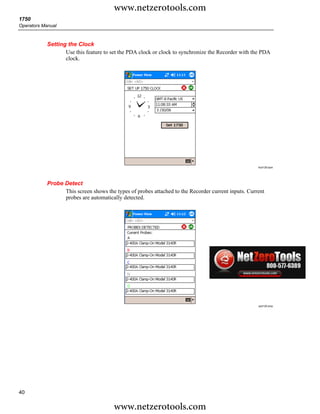
  • 55.
    www.netzerotools.com Power Recorder Setting Up the Recorder default directory My DocumentsFlukePQ, a dialog box opens so that you can navigate to the file. Note If clicking on an annotation marker does not seem to do anything, the Zoom box is probably selected in the graph toolbar, instead of the Select tool. Click the Select tool and then select the annotation. To see overlapping annotations: Sometimes annotations are so close to each other that they actually overlap on the Volts/Amps/Hz reference graph. When this is the case, if you click on overlapping annotations, a menu opens and you can select either Open, to open the annotation now on top, or Select Next Overlapping Annotation, to bring the next one to the top. • To open the annotation now on top, choose Open. • To bring the next annotation to the top, choose Select Next Overlapping Annotation. To then open that annotation, click on it again and choose Open. Note To see overlapping annotations more clearly on the Volts/Amps/Hz reference graph, move the selection cursors so that they just surround the area that contains the overlapping illustrations. The Detail graph adjusts as the cursors move, zooming in to show the area between the selection cursors. You can now see the annotations separately. Using Image or Voice Annotations While you are monitoring data with a Recorder, you may find it helpful to take a picture that relates to the power quality data you are recording, or to record verbal comments as you observe the conditions or review the data being measured. You can then associate the image or recording with the data being recorded by adding annotations that reference them. The PDA includes a microphone for recording notes which are saved as .WAV files, and an optional camera accessory is available on the PDA which will capture images as .jpg files. You can associate both images and audio files with the data being gathered in the Recorder by inserting annotations and specifying the name of a .WAV or .jpg file. After you download data from the Recorder, you can then move the image and audio files to the PC along with the recorded data (.odn) file. Note You can also associate other types of files with the annotation. For example, if you had a .MPG file with a movie, or a .DOC file with associated information. You can enter any file name using this annotation method. Inserting Image or Voice Annotations 1. Set up the Recorder and begin monitoring. 2. Using your PDA-cam (not available in standard PDA supplied) or another camera, take a picture of what you want to capture. 3. Click the Annotate icon to display the Annotate screen. 4. Move the image or audio file to a location that will make it easier to Transfer it to a PC later, when you download and move the recorded data file to your PC. Place the 47 www.netzerotools.com
  • 56.
    www.netzerotools.com 1750 Operators Manual file into the synchronization folder on your PDA, so that it will be automatically transferred into the sync folder on the PC the next time you dock the PDA. Turn off the Recorder The Recorder always has the UPS enabled to allow a 5-minute pass through time on a voltage interruption. When you pack the Recorder for transport, you have the option to shut down the Recorder and disable the UPS before unplugging the power cord. To turn off the Recorder: 1. Select Menu>Tools>1750 Shut down... 2. Confirm the warning message. 3. Wait until the Power LED is solid green. The power cord can be safely unplugged. azd143.bmp Cleaning and Maintenance The Recorder contains no user serviceable parts. Contact an Authorized Fluke Service Center for repair. Periodically wipe the case with a damp cloth and mild detergent. Do not use abrasives or solvents. 48 www.netzerotools.com
  • 57.
    www.netzerotools.com Power Recorder Regulatory Information for Wireless Communication Regulatory Information for Wireless Communication W Caution • Any changes or modifications to the wireless 2.4 GHz radio not expressly approved by Fluke Corporation could void the user's authority to operate the equipment. • The distance between the Recorder and the human body must be ≥20 cm (7.9 inches) during wireless communication. • FCC ID: T68FLK1750 or QOQWT 11 (see rear decal on Fluke 1750 for the appropriate ID). This device complies with Part 15 of the FCC Rules. Operation is subject to the following two conditions: (1) this device may not cause interference, and (2) this device must accept any interference, including interference that may cause undesired operation of the device. Class A digital device: A digital device that is marketed for use in a commercial, industrial or business environment, exclusive of a device which is marketed for use by the general public or is intended to be used in the home. Class B digital device: A digital device that is marketed for use in a residential environment notwithstanding use in commercial, business and industrial environments. Examples of such devices include, but are not limited to, personal computers, calculators, and similar electronic devices that are marketed for use by the general public. The Fluke 1750 Power Recorder (wireless host) has been tested and found to comply with the limits for a Class A digital device, pursuant to Part 15 of the FCC Rules. These limits are designed to provide reasonable protection against harmful interference when the equipment is operated in a commercial environment. This equipment generates, uses, and can radiate radio frequency energy and, if not installed and used in accordance with the instruction manual, may cause harmful interference to radio communications. Operation of this equipment in a residential area is likely to cause harmful interference in which case the user will be required to correct the interference at his own expense. In addition, the internal limited modular radio has been tested and found to comply with the limits for a Class B digital device, pursuant to Part 15 of the FCC Rules. These limits are designed to provide reasonable protection against harmful interference in a residential installation. This equipment generates, uses and can radiate radio frequency energy and, if not installed and used in accordance with the instructions, may cause harmful interference to radio communications. However, there is no guarantee that interference will not occur in a particular installation. If this equipment does cause harmful interference to radio or television reception, which can be determined by turning the equipment off and on, the user is encouraged to try to correct the interference by one or more of the following measures: • Reorient or relocate the receiving antenna. • Increase the separation between the equipment and receiver. • Connect the equipment into an outlet on a circuit different from that to which the receiver is connected. • Consult the dealer or an experienced radio/TV technician for help. The term “IC:” before the radio certification number only signifies that Industry of Canada technical specifications were met. 49 www.netzerotools.com
  • 58.
    www.netzerotools.com 1750 Operators Manual Specifications for the System: Recorder and Power Analyze Software General Specifications Power Quality Measurement Standards Conformance..................................................... IEC 61000-2-4:2002 Class 1, IEC 61000-4-30, IEEE519, IEEE1159, IEEE1459, IEC 61557-12:2008, and EN50160 Clock/Calendar.................................................. Leap years, 24-hour clock Real-time Clock Accuracy................................ Not more than ± 1 s/day Internal Memory Capacity for Data ................. At least 2 GB Maximum Recording Period ............................ At least 31 days Measurement Time Control ............................. Automatic Maximum Number of Events ........................... Limited only by the size of the internal memory. Power Requirements ........................................ 100 to 240 V rms ± 10 %, 47-63 Hz, 40 W Operating Time During Interruptions (internal UPS operation) ..................................... 5 minutes per interruption, 60 minutes total operating time without recharging Dimensions ....................................................... 215 x 310 x 35 mm (8.5 x 12.2 x 3.5 inch) Mass (Weight) ................................................... 6.3 kg (14 lbs) Input Specifications Measurement Types ......................................... One Phase Plus Neutral, One Phase IT No Neutral, One Phase Split Phase, Three Phase Wye, Three Phase Delta, Three Phase IT, Three Phase High Leg, Three Phase Open Leg, 2 Element Delta, 2 ½ Element Wye Input Channels .................................................. Voltage: 5 channels, AC/DC Current: 5 channels Voltage Channels.............................................. Input resistance: 2 MΩ Input capacitance: <20 pF Current Channels.............................................. Self-identifying probes Types available: current clamps, Flexi-CTs Measuring Method ............................................ Simultaneous digital sampling of voltage and current. Digital PLL synchronized sampling, internal frequency reference used during voltage drops. Synchronization and Sampling PLL-Synchronization Source........................... The PLL synchronizes to the A-N/L1-N voltage for wye power types, and to the A-B/L1-L2 voltage for delta power types. All listed power types can be characterized as either wye or delta. PLL Lock Range................................................ 42.5 to 69 Hz Sampling Frequency ........................................ Voltage and current: 256 samples/cycle Inter-harmonics per IEC61000-4-7: 2560 points / 10 cycles (50 Hz), 3072 points/12 cycles (60 Hz) Transient Voltage: 5 MHz A/D Resolution .................................................. Voltage and current: 24 bits Transient voltage: 14 bits Voltage and Current Measurements Voltage Measurement Range........................... AC voltage: 1000 V rms ± 10 % Overrange DC voltage: ± 1000 V + 10 % Overrange Voltage Crest Factor......................................... 3 or less Voltage Input Impedance ................................. 2 MΩ Current Measurement Range........................... Depends on current probe used Current Crest Factor......................................... 4 or less Current Input Characteristics .......................... 2 V rms = full scale, 1 MΩ Input Impedance for ferro CTs, low impedance for Flexi-CTs 50 www.netzerotools.com
  • 59.
    www.netzerotools.com Power Recorder Specifications for the System: Recorder and Power Analyze Software Voltage and Current Measurement Accuracy RMS Voltage Measurement Type ............................................. True rms calculated continuously: every cycle, every 1/2 cycle, and every 10 or 12 cycles at 50 or 60 Hz respectively, as required by IEC 61000-4-30. Measurement Uncertainty................................... AC: ± 0.2 % reading ± 0.1 % full scale above 50 V rms DC: ± 0.5 % reading ± 0.2 % full scale above 50 V dc If the ac component of a dc signal is below 40 V rms, the dc uncertainty specification may have an offset. RMS Current Measurement Type ............................................. True rms calculated continuously: every cycle, every 1/2 cycle, and every 10 or 12 cycles at 50 or 60 Hz respectively, as required by standards Measurement Uncertainty................................... ± (0.1 % full scale + 0.5 % reading + current sensor accuracy, valid for 5 % to 100 % of current sensor range Current Accuracy ................................................ Ferromagnetic Clamps ± (0.1 % full scale + 0.2 % reading + current sensor accuracy), valid for 5 % to 100 % of current sensor range Flexible Current Probes ± (0.1 % full scale + 0.5 % reading + current sensor accuracy), valid for 5 % to 100 % of current sensor range Transient Voltage (Impulse) Measurement Type ............................................. Waveshape sampling, not peak detect Full Scale ............................................................ 8000 V pk Sample Resolution.............................................. 200 nS Measurement Uncertainty................................... ± 5 % reading ± 20 V (test parameters: 1000 V dc, 1000 V rms, 100 kHz) Dip (Sag) and Swell Measurements Voltage Swell (rms swell) Measurement Type ............................................. True rms (one cycle calculation by overlapping each half cycle) (voltage between lines is measured for 3P3W lines and phase voltage is measured for 3P4W lines) Displayed Data ................................................... Amplitude and duration of swell Measurement Accuracy ...................................... Same as rms voltage Voltage Dip (RMS sag) Measurement Type ............................................. True rms (one cycle calculation by overlapping each half cycle) (voltage between lines is measured for 3P3W lines and phase voltage is measured for 3P4W lines) Displayed Data ................................................... Amplitude and duration of dip or interruption Measurement Accuracy ...................................... Same as rms voltage Voltage Dropout (Interruption) Measurement Type ............................................. Same as Voltage Dip Power and PF Measurement Calculated per IEEE1459 for best performance when distortions exist Measurement Type ............................................. True rms calculated continuously: every cycle, and every 10 or 12 cycles at 50 or 60 Hz respectively, as required by standards Measurement Accuracy ...................................... ± 0.2 % reading ± 0.1 % full scale + current sensor accuracy Frequency Measurement Range .......................................... 42.5 to 69 Hz Measurement Source ......................................... Same as PLL synchronization source Measurement Accuracy ...................................... ± 10 mHz (10 to 110 % of range, with sine wave) Reactive Power Accuracy ............................................................. ± 0.2% reading ± 0.1 % full scale + current sensor accuracy 51 www.netzerotools.com
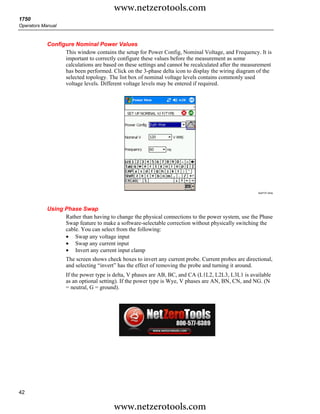
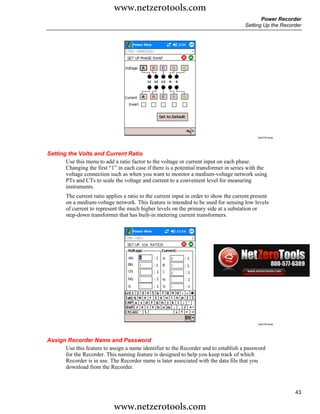
  • 60.
    www.netzerotools.com 1750 Operators Manual Power Factor Measurement Range .......................................... -1.000 (leading) to 0.000 to +1.000 (lagging) Measurement Accuracy ...................................... ± 1 digit from the calculation of each measured value (± 3 digits for total) Displacement Power Factor Measurement Method ......................................... Calculated from the phase difference between voltage fundamental and current fundamental Measurement Range .......................................... -1.000 (leading) to 0.000 to + 1.000 (lagging) Measurement Accuracy ...................................... ± 0.5 % reading ± 2 % full scale ± 1 digit Voltage Unbalance and Phase Sequence Measurement Method ......................................... Positive sequence voltage divided by negative sequence voltage, per IEC 61000-4-30 Harmonic Voltage and Current Analysis Window................................................. rectangular Analysis Order .................................................... 1st to 50th order Measurement Accuracy ...................................... Voltage / Current: 1st to 20th orders: ± 0.5 % reading ± 0.2 % full scale 21st to 50th orders: ± 1 % reading ± 0.3 % full scale (current sensor accuracy must be included for current and power) Measurement Method ......................................... IEC 61000-4-7:2002 Inter-harmonic Voltage and Current (Intermediate Harmonics) Analysis Window................................................. rectangular Analysis Orders .................................................. 0.5 to 49.5th order Measurement Method ......................................... IEC 61000-4-7:2002 Voltage flicker Measurement Method ......................................... as per IEC 61000-4-15:2003: 10 min (Pst), 2 h (Plt) External Interface Specifications LAN Interface Connector ........................................................... RJ-45 Speed and Type ................................................. 10/100 Base-T, auto MDIX Communications Protocol ................................... TCP/IP over Ethernet Wireless Controller Interface Connection.......................................................... wireless (2.4 GHz radio) Speed.................................................................. up to 700 kbit/second Communications Protocol ................................... Bluetooth SPP Environmental and Safety Specifications Operating Environment ....................................... indoors or in covered area outdoors, up to 2000 m altitude Storage Temperature and Humidity.................... -20 °C to 50 °C, 80 % rh max, non-condensing Operating Temperature and Humidity ................ 0 °C to 40 °C, 80 % rh max, non-condensing Maximum Rated Working Voltage Voltage Terminals ............................................... 1100 V rms Voltage Durability................................................ 5550 V rms ac for 1 minute, between voltage input terminals, voltage input terminals and current probes, and voltage input terminals and case (50/60 Hz, 1 mA sense current) Enclosure Protection........................................... IP30 (per EN 60529) Standards Conformance EMC .................................................................... IEC 61326-1:2006 Class A rd IEC 61000-3-2:2005, 3 Edition IEC 61000-3-3:2005, 1.2 Edition AS/NZS 4268:2008 (BT module only) ETSI EN300328 (V1.7.1:2006) nd Safety.................................................................. IEC 61010-1:2001, 2 Edition Voltage input unit: Contamination Level 2 Overvoltage Category 1000 V CAT III, 600 V CAT IV (anticipated overvoltage: 8000 V) 52 www.netzerotools.com