WWW.FLIPPAGEMAKER.COM          FLIPBOOK FOR IPAD


              Realistic book reading experience on iPad
iPad friendly eMagazine Maker

                                                            User Document


About FlipBook for iPad

FlipBook for iPad is a stunning utility to convert
PDF files into iPad friendly iMagazines with
page-flipping effect applied. In the simple but
wonderful flipbook builder, you can see how nice
your pages will be displayed in iPad instantly, and
you will be enabled to customize unique layouts
for your iMagazines, book title, background style
and so on. Using the FlipBook for iPad to create
ebooks, bring more incredible experience for more
and more iPad fans.


 Note:     This    product       is    distributed        on     a     "Try
 before-you-buy" basis. All features described in this
 documentation are enabled. The registered version
 doesn't    insert     a    watermark         in    your       generated
 page-flipping eBooks.


                  Copyright 2012 by FlipPageMaker.com
                                  -1-
iPad friendly eMagazine Maker

                                                                       User Document


Product features
      1. Convert PDF to HTML5 based page-flipping eBooks to publish on iPad.

      2. Import all pages or just a range of pages to convert.

      3. Define quality and size for pages.

      4. Provides many build-in templates.

      5. Preview the output effect instantly.

      6. Add book Logo, Logo URL, book Title and description (will be shown when

          share with others).

      7. Show Share, Thumbnail and Zoom buttons on tool bar.

      8. Set background color and image.

      9. Define book margin.

      10. Output to two different formats: HTML and Zip.

          o HTML allows you to upload to a website to be viewed on iPad (with title,

          keywords and other metadata defined).

          o Zip allows you to send your created iPad friendly ebook to others, for them

          to publish or view on iPad.


Page-flipping eBook features

While reading your eBook on iPad, the book readers will be able to:
   1. Drag the corner to flip a page.
   2. Use button to control page, such as Previous, Next, First, Last etc.
   3. Use thumbnail to navigate.
   4. Click zoom in button to view details on pages.
   5. Share ebook with others through Email, Facebook, Google+, MySpace, etc.

                       Copyright 2012 by FlipPageMaker.com
                                       -2-
iPad friendly eMagazine Maker

                                                                               User Document


Quick Start

1. Launch the application via the desktop shortcut      ;

2. Click the "Import PDF" icon        to enter into Import PDF interface;

3. Click              icon to choose PDF file from your computer;

4. Click              icon to enter into template setting interface;
5. Define parameters for eBooks, such as display settings, Tool Bar settings, and then click

the "Apply Change" icon       ;

6. Click "Convert to Flipping Book" icon     to enter into Output interface;


7. Choose Output Type from HTML and ZIP, here take                     as example;

8. Click              to set Output Folder as "C:flipbook", input File Name as "FlipBook";

9. At last, click           icon to output created page-flipping eBook.


You can open the "flipbook" folder in "C:", there are FlipBook.html, help.html,
mongoose.exe, "files", "javascript" and "style" folders in this output folder, open the
"FlipBook.html" to view your created e book via Web Browser, such as Internet Explorer,
Google Chrome, Firefox, etc.


                          Copyright 2012 by FlipPageMaker.com
                                          -3-
iPad friendly eMagazine Maker

                                                                             User Document

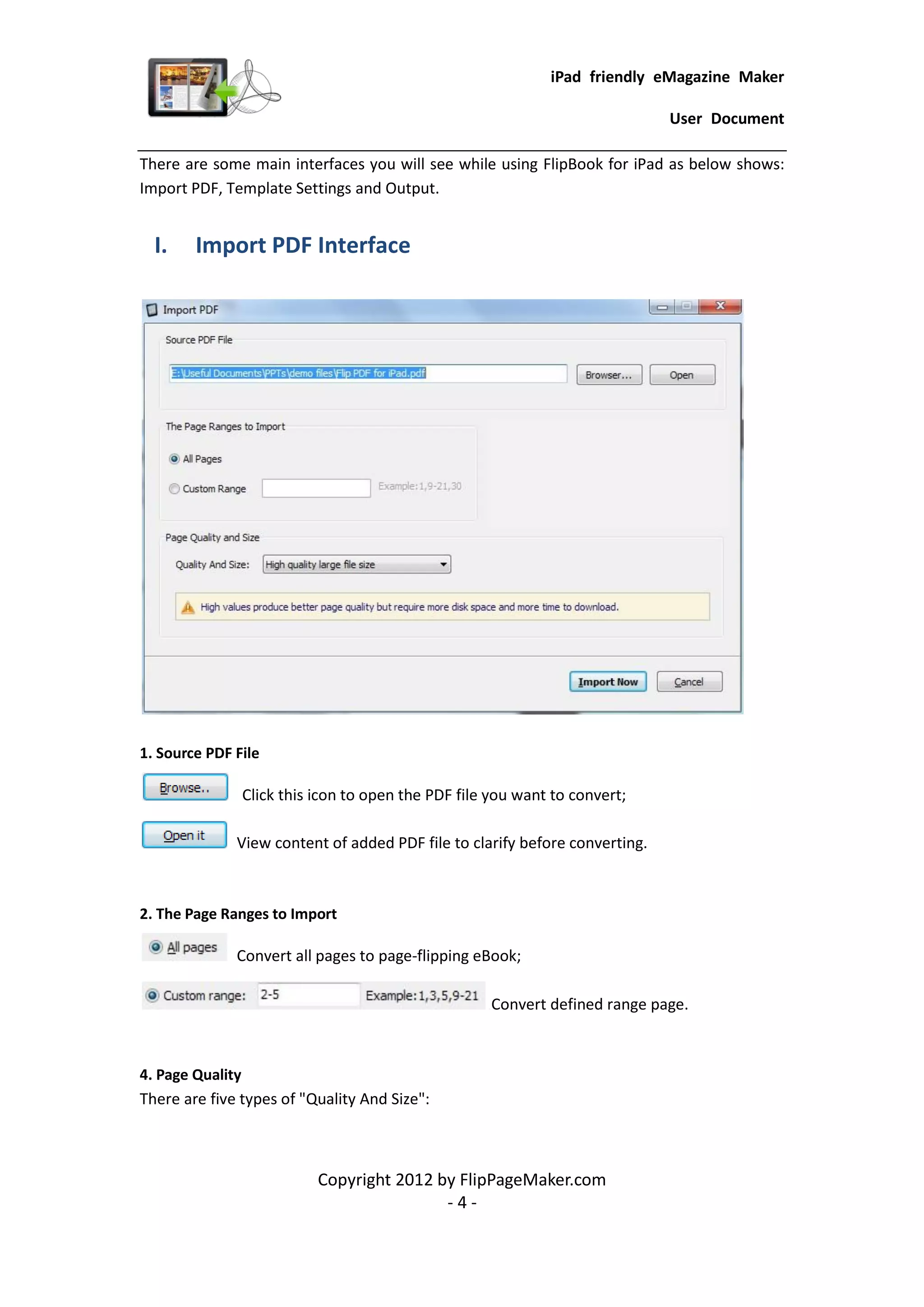
There are some main interfaces you will see while using FlipBook for iPad as below shows:
Import PDF, Template Settings and Output.


  I.    Import PDF Interface


1. Source PDF File

               Click this icon to open the PDF file you want to convert;

              View content of added PDF file to clarify before converting.


2. The Page Ranges to Import

              Convert all pages to page-flipping eBook;

                                                   Convert defined range page.


4. Page Quality
There are five types of "Quality And Size":


                          Copyright 2012 by FlipPageMaker.com
                                          -4-
iPad friendly eMagazine Maker

                                                                             User Document


At last, click                  icon to enter into template setting interface.


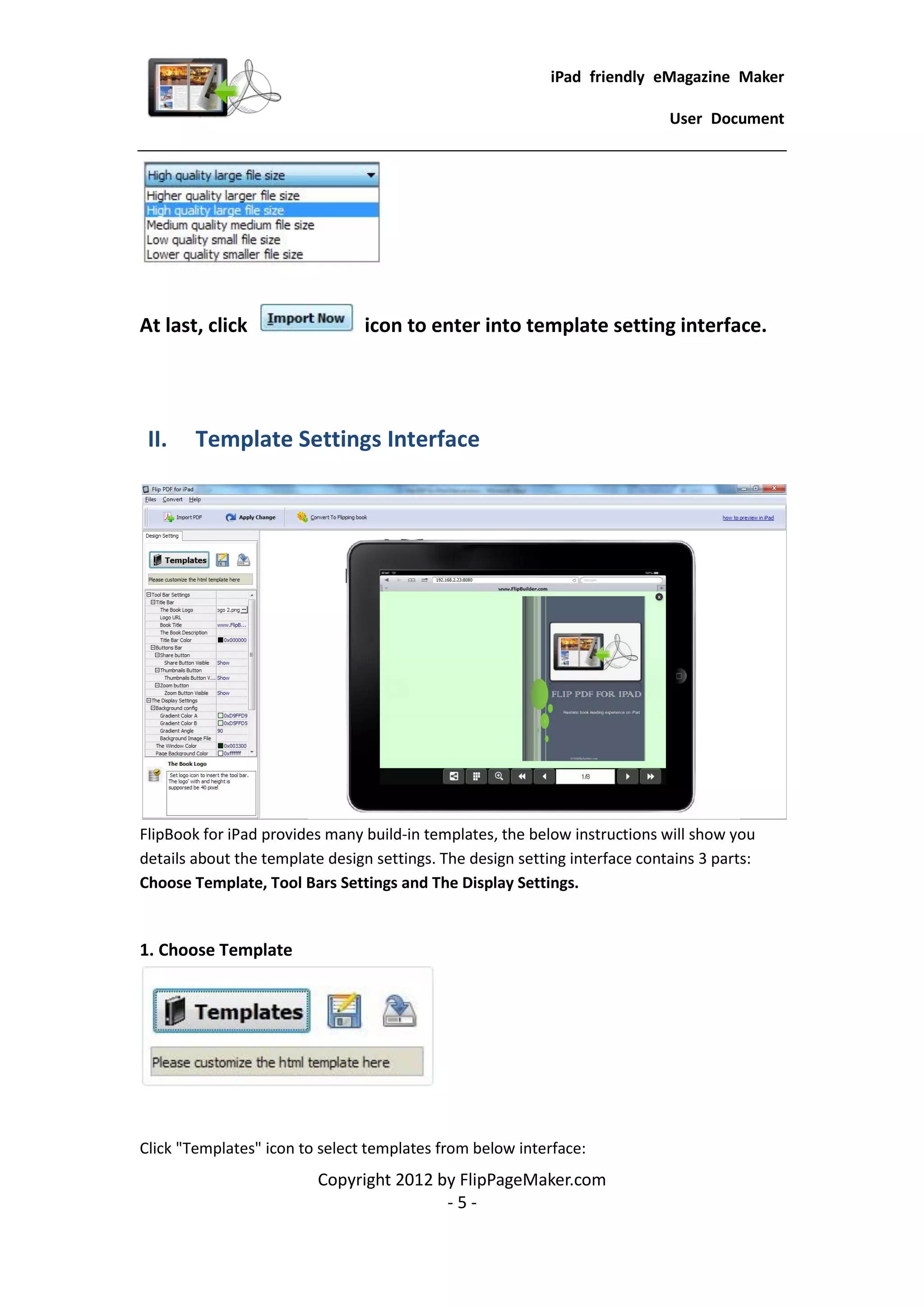
 II.    Template Settings Interface


FlipBook for iPad provides many build-in templates, the below instructions will show you
details about the template design settings. The design setting interface contains 3 parts:
Choose Template, Tool Bars Settings and The Display Settings.


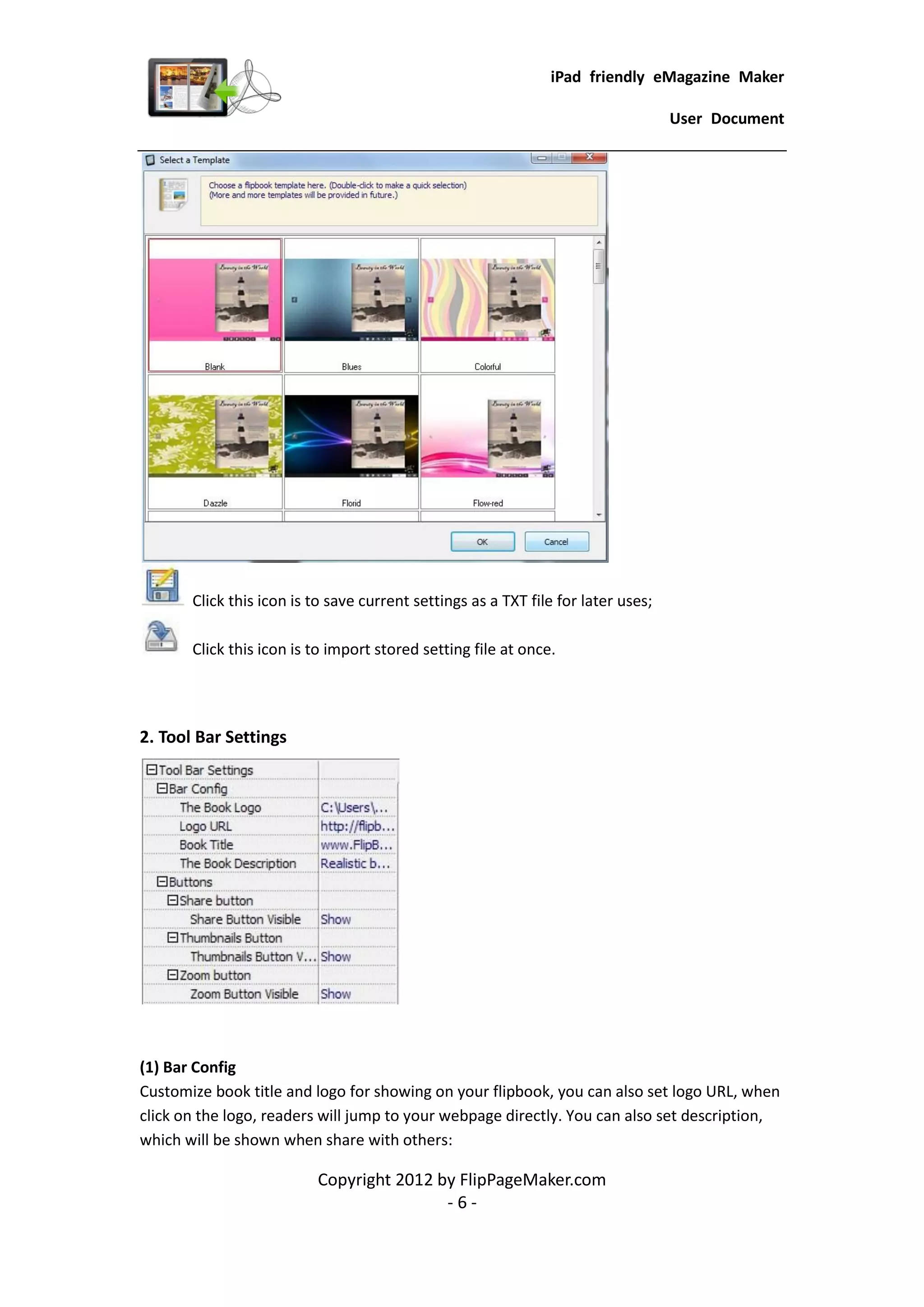
1. Choose Template


Click "Templates" icon to select templates from below interface:
                          Copyright 2012 by FlipPageMaker.com
                                          -5-
iPad friendly eMagazine Maker

                                                                                   User Document


       Click this icon is to save current settings as a TXT file for later uses;

       Click this icon is to import stored setting file at once.


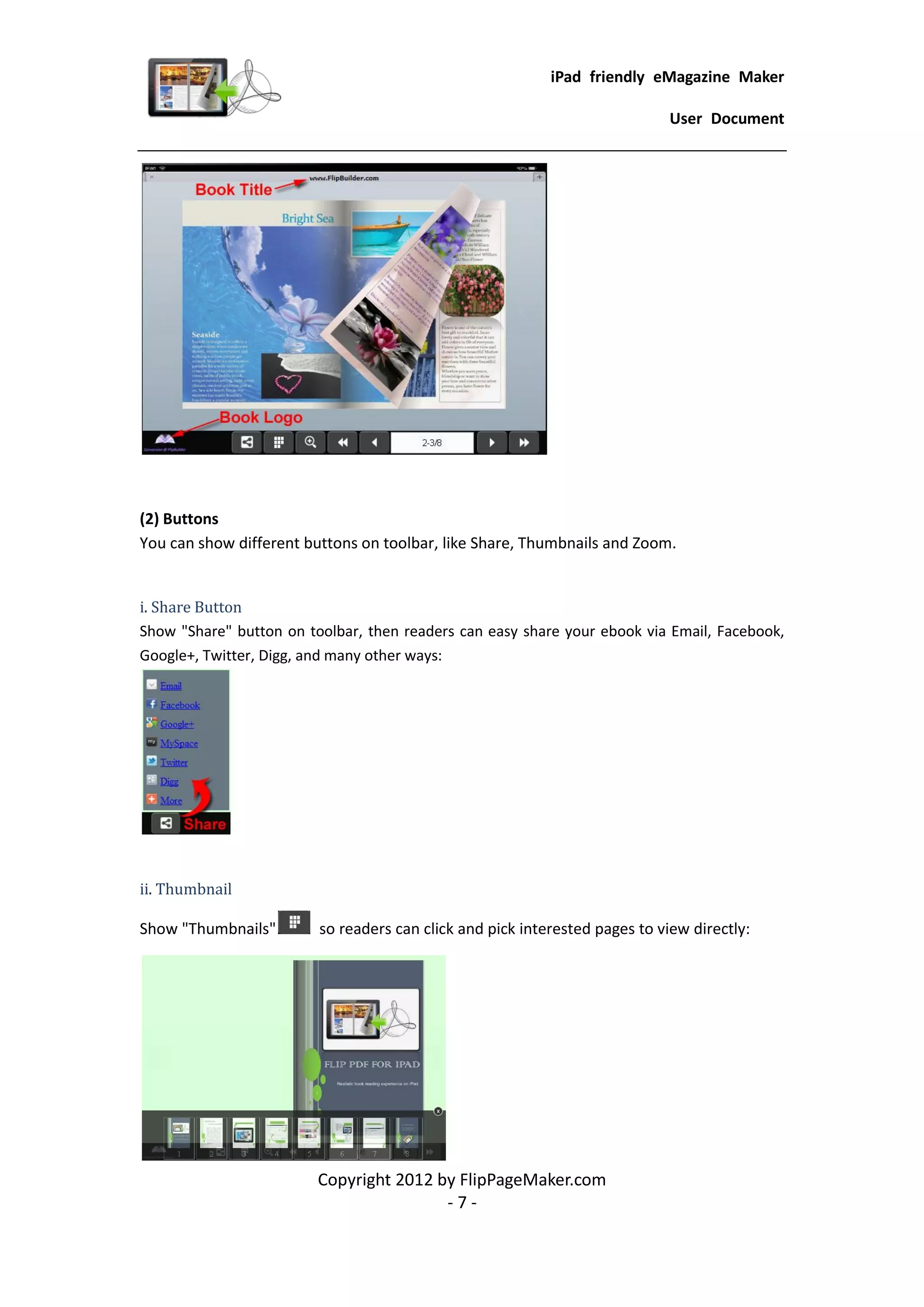
2. Tool Bar Settings


(1) Bar Config
Customize book title and logo for showing on your flipbook, you can also set logo URL, when
click on the logo, readers will jump to your webpage directly. You can also set description,
which will be shown when share with others:

                          Copyright 2012 by FlipPageMaker.com
                                          -6-
iPad friendly eMagazine Maker

                                                                             User Document


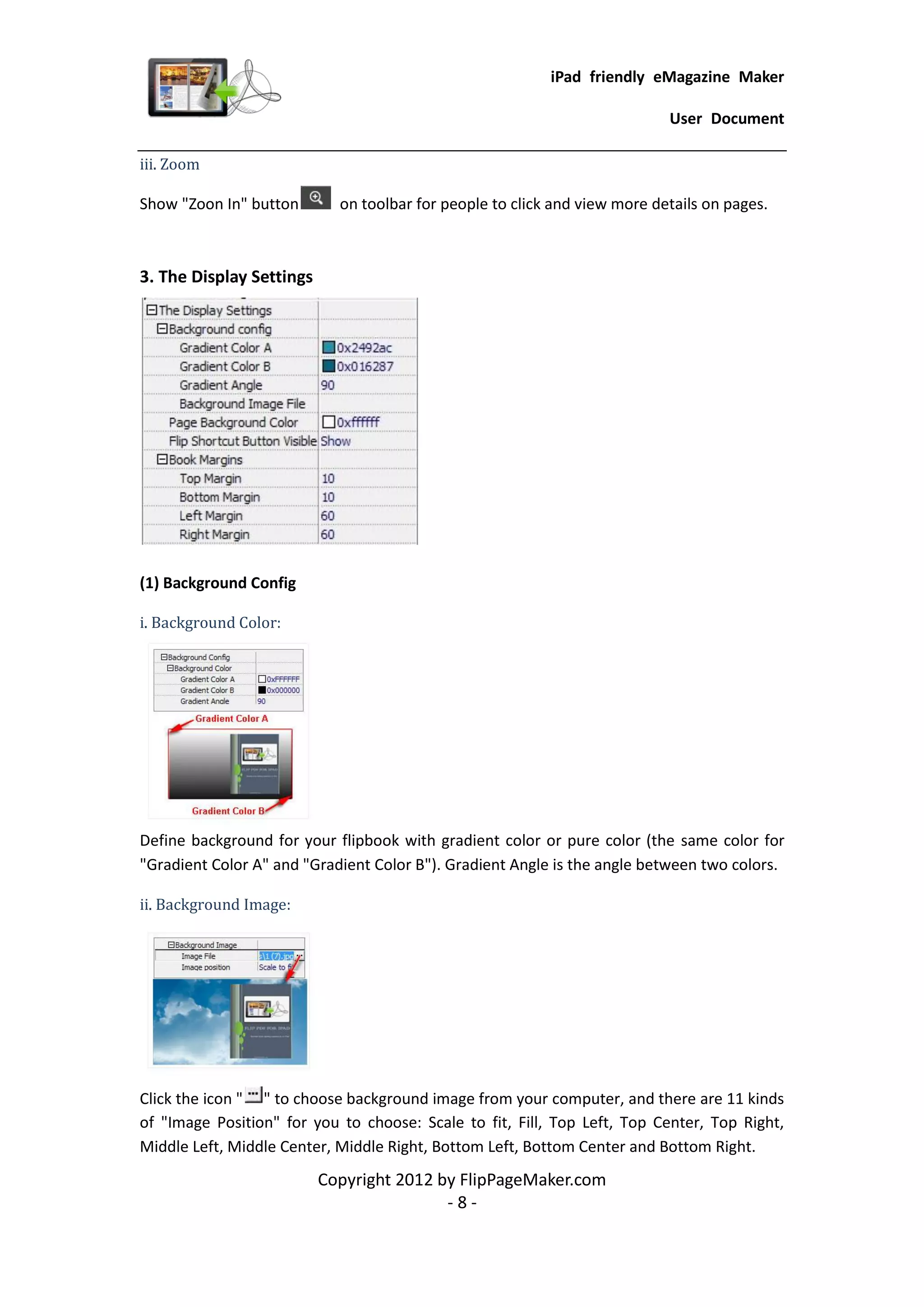
(2) Buttons
You can show different buttons on toolbar, like Share, Thumbnails and Zoom.


i. Share Button
Show "Share" button on toolbar, then readers can easy share your ebook via Email, Facebook,
Google+, Twitter, Digg, and many other ways:


ii. Thumbnail

Show "Thumbnails"        so readers can click and pick interested pages to view directly:


                         Copyright 2012 by FlipPageMaker.com
                                         -7-
iPad friendly eMagazine Maker

                                                                           User Document

iii. Zoom

Show "Zoon In" button       on toolbar for people to click and view more details on pages.


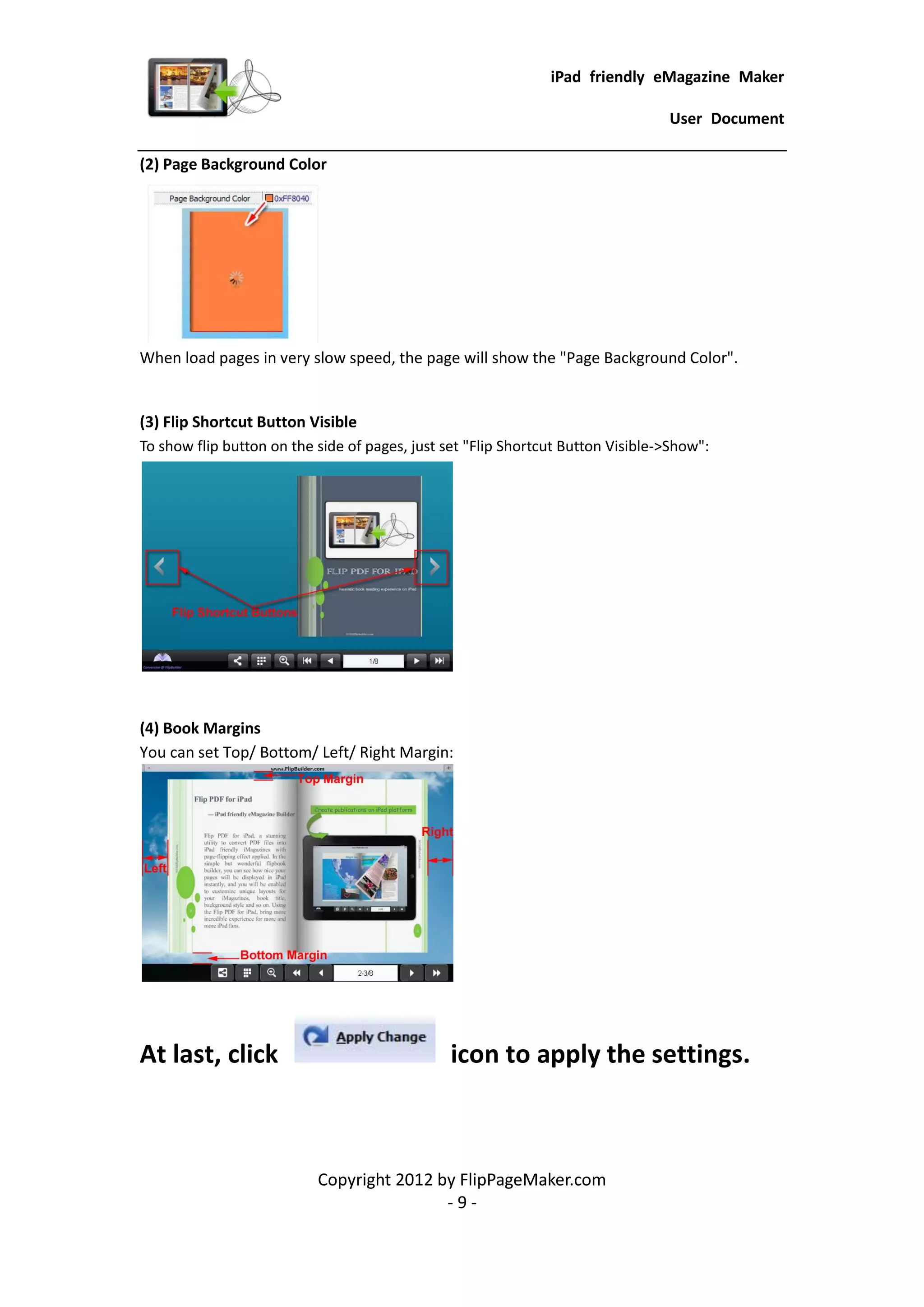
3. The Display Settings


(1) Background Config

i. Background Color:


Define background for your flipbook with gradient color or pure color (the same color for
"Gradient Color A" and "Gradient Color B"). Gradient Angle is the angle between two colors.

ii. Background Image:


Click the icon " " to choose background image from your computer, and there are 11 kinds
of "Image Position" for you to choose: Scale to fit, Fill, Top Left, Top Center, Top Right,
Middle Left, Middle Center, Middle Right, Bottom Left, Bottom Center and Bottom Right.
                          Copyright 2012 by FlipPageMaker.com
                                          -8-
iPad friendly eMagazine Maker

                                                                                 User Document

(2) Page Background Color


When load pages in very slow speed, the page will show the "Page Background Color".


(3) Flip Shortcut Button Visible
To show flip button on the side of pages, just set "Flip Shortcut Button Visible->Show":


(4) Book Margins
You can set Top/ Bottom/ Left/ Right Margin:


At last, click                                  icon to apply the settings.


                           Copyright 2012 by FlipPageMaker.com
                                           -9-
iPad friendly eMagazine Maker

                                                                           User Document


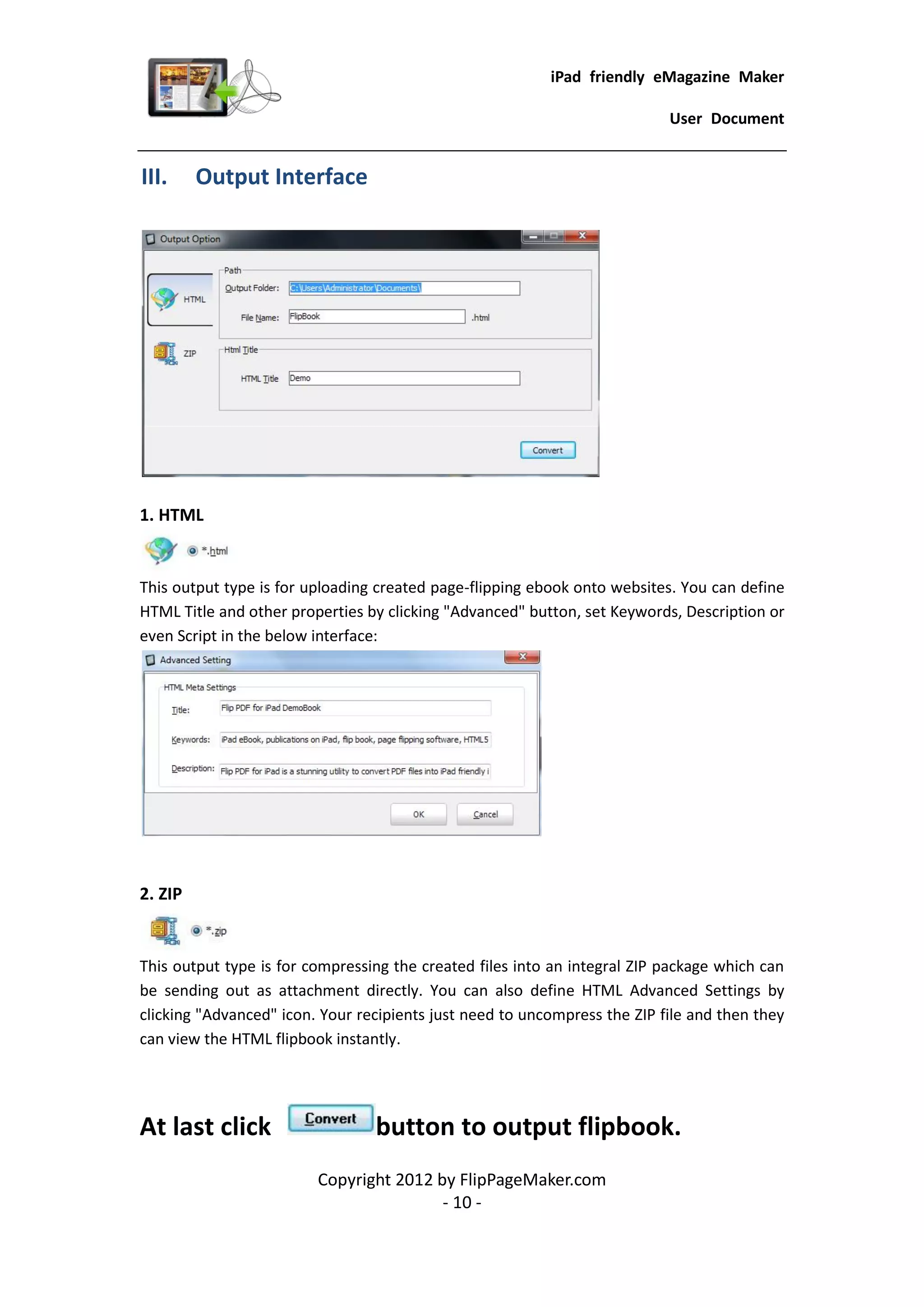
III.     Output Interface


1. HTML


This output type is for uploading created page-flipping ebook onto websites. You can define
HTML Title and other properties by clicking "Advanced" button, set Keywords, Description or
even Script in the below interface:


2. ZIP


This output type is for compressing the created files into an integral ZIP package which can
be sending out as attachment directly. You can also define HTML Advanced Settings by
clicking "Advanced" icon. Your recipients just need to uncompress the ZIP file and then they
can view the HTML flipbook instantly.


At last click                    button to output flipbook.
                         Copyright 2012 by FlipPageMaker.com
                                         - 10 -
iPad friendly eMagazine Maker

                                                                             User Document


License Agreements

All copyrights to FlipBook for iPad (the Software) are exclusively owned by
FlipPageMaker.com. For more information, visit our website at www.FlipPageMaker.com .

Anyone may use this software but all the page-flipping eBooks generated will automatically
have a demo watermark on the first page of them. To remove the limitation you must
register.

Once registered, the user is granted a non-exclusive license to use the Software on one
computer (i.e. a single CPU) at a time. The registered Software may not be rented or leased,
but may be permanently transferred, if the person receiving it agrees to terms of this
license.

The Software unregistered (trial) version may be freely distributed, provided the distribution
package is not modified. No person or company may charge a fee for the distribution of the
Software without written permission from the copyright holder.

THE SOFTWARE IS DISTRIBUTED "AS IS". NO WARRANTY OF ANY KIND IS EXPRESSED OR
IMPLIED. YOU USE AT YOUR OWN RISK. THE AUTHOR WILL NOT BE LIABLE FOR DATA LOSS,
DAMAGES, LOSS OF PROFITS OR ANY OTHER KIND OF LOSS WHILE USING OR MISUSING THIS
SOFTWARE.

You may not use, copy, emulate, clone, rent, lease, sell, modify, decompile, disassemble,
otherwise reverse engineer, or transfer the licensed Software, or any subset of the licensed
Software, except as provided for in this agreement. Any such unauthorized use shall result in
immediate and automatic termination of this license and may result in criminal and/or civil
prosecution.

All rights not expressly granted here are reserved by A-PDF Solution.

Installing and using the Software signifies acceptance of these terms and conditions of the
license.

If you do not agree with the terms of this license you must remove the Software files from
your storage devices and cease to use the product.


                          Copyright 2012 by FlipPageMaker.com
                                          - 11 -
iPad friendly eMagazine Maker

                                                                                User Document


How to Order


Order Online (http://www.FlipPageMaker.com/flipbook-for-ipad/index.html) or Order Toll
Free 1-877-353-7297 (When you order toll free just give the operator the product number of
the product you would like).

How to purchase online?

1. Select a license type above, and click [Buy Now]

2. Select the currency that you want to use. (You can also continue shopping)

3. Fill billing information and select a payment method. (Your information is safe with us)

4. Check the information you filled previously and click "Place Secure Order"

Other Order Ways—With Phone/Mail/Fax/Check:

If you are not comfortable ordering online witha credit card, you are welcome to choose an
offline order option in the payment section of the order process. We accept mail, fax, wire,
and PO (if applicable) ordering options in addition to ordering online. We also provide
phone orders through our 24x7 order desk at 1-877-353-7297, or (952) 646-5331 for
International Callers.

Please note that all of the offline ordering options do have additional fees for processing. To
place an order by mail, fax, wire, and PO (when applicable), use the online form and then
choose one of these payment options found in the Payment Method section of the form.
Once submitted online, the appropriate information will be provided to you in your web
browser to send your payment to us offline.

100% unconditional 30 Day Money Back Guarantee


Want to custom the program or have other questions about purchase?
Contact us at support@FlipPageMaker.com .


                          Copyright 2012 by FlipPageMaker.com
                                          - 12 -
iPad friendly eMagazine Maker

                                                                               User Document


Support
You can easily search or browse our frequently asked questions, and learn tutorials about
products, and get your registration code back. If you don't get a satisfying solution, please
contact support team for help.

1. Frequently Asked Questions
You can find answers to questions about technique issues here:
http://www.FlipPageMaker.com/support/

2. Get lost license code
Click here to look up the order » (http://www.regnow.com/cs/orderStatus)
You can pull up a copy of your order by entering your email address. After you find your
order, you may view its status, view details of your order (including the license key), and
obtain the invoice.

3. Contact Us
If you have other questions or requirements, contact us directly through our support Email:
support@FlipPageMaker.com, we will respond you ASAP.


                          Copyright 2012 by FlipPageMaker.com
                                          - 13 -
iPad friendly eMagazine Maker

                                                User Document


http://FlipPageMaker.com


      Copyright 2012 by FlipPageMaker.com
                      - 14 -

Flip pdf for i pad manual

  • 1.
    WWW.FLIPPAGEMAKER.COM FLIPBOOK FOR IPAD Realistic book reading experience on iPad
  • 2.
    iPad friendly eMagazineMaker User Document About FlipBook for iPad FlipBook for iPad is a stunning utility to convert PDF files into iPad friendly iMagazines with page-flipping effect applied. In the simple but wonderful flipbook builder, you can see how nice your pages will be displayed in iPad instantly, and you will be enabled to customize unique layouts for your iMagazines, book title, background style and so on. Using the FlipBook for iPad to create ebooks, bring more incredible experience for more and more iPad fans. Note: This product is distributed on a "Try before-you-buy" basis. All features described in this documentation are enabled. The registered version doesn't insert a watermark in your generated page-flipping eBooks. Copyright 2012 by FlipPageMaker.com -1-
  • 3.
    iPad friendly eMagazineMaker User Document Product features 1. Convert PDF to HTML5 based page-flipping eBooks to publish on iPad. 2. Import all pages or just a range of pages to convert. 3. Define quality and size for pages. 4. Provides many build-in templates. 5. Preview the output effect instantly. 6. Add book Logo, Logo URL, book Title and description (will be shown when share with others). 7. Show Share, Thumbnail and Zoom buttons on tool bar. 8. Set background color and image. 9. Define book margin. 10. Output to two different formats: HTML and Zip. o HTML allows you to upload to a website to be viewed on iPad (with title, keywords and other metadata defined). o Zip allows you to send your created iPad friendly ebook to others, for them to publish or view on iPad. Page-flipping eBook features While reading your eBook on iPad, the book readers will be able to: 1. Drag the corner to flip a page. 2. Use button to control page, such as Previous, Next, First, Last etc. 3. Use thumbnail to navigate. 4. Click zoom in button to view details on pages. 5. Share ebook with others through Email, Facebook, Google+, MySpace, etc. Copyright 2012 by FlipPageMaker.com -2-
  • 4.
    iPad friendly eMagazineMaker User Document Quick Start 1. Launch the application via the desktop shortcut ; 2. Click the "Import PDF" icon to enter into Import PDF interface; 3. Click icon to choose PDF file from your computer; 4. Click icon to enter into template setting interface; 5. Define parameters for eBooks, such as display settings, Tool Bar settings, and then click the "Apply Change" icon ; 6. Click "Convert to Flipping Book" icon to enter into Output interface; 7. Choose Output Type from HTML and ZIP, here take as example; 8. Click to set Output Folder as "C:flipbook", input File Name as "FlipBook"; 9. At last, click icon to output created page-flipping eBook. You can open the "flipbook" folder in "C:", there are FlipBook.html, help.html, mongoose.exe, "files", "javascript" and "style" folders in this output folder, open the "FlipBook.html" to view your created e book via Web Browser, such as Internet Explorer, Google Chrome, Firefox, etc. Copyright 2012 by FlipPageMaker.com -3-
  • 5.
    iPad friendly eMagazineMaker User Document There are some main interfaces you will see while using FlipBook for iPad as below shows: Import PDF, Template Settings and Output. I. Import PDF Interface 1. Source PDF File Click this icon to open the PDF file you want to convert; View content of added PDF file to clarify before converting. 2. The Page Ranges to Import Convert all pages to page-flipping eBook; Convert defined range page. 4. Page Quality There are five types of "Quality And Size": Copyright 2012 by FlipPageMaker.com -4-
  • 6.
    iPad friendly eMagazineMaker User Document At last, click icon to enter into template setting interface. II. Template Settings Interface FlipBook for iPad provides many build-in templates, the below instructions will show you details about the template design settings. The design setting interface contains 3 parts: Choose Template, Tool Bars Settings and The Display Settings. 1. Choose Template Click "Templates" icon to select templates from below interface: Copyright 2012 by FlipPageMaker.com -5-
  • 7.
    iPad friendly eMagazineMaker User Document Click this icon is to save current settings as a TXT file for later uses; Click this icon is to import stored setting file at once. 2. Tool Bar Settings (1) Bar Config Customize book title and logo for showing on your flipbook, you can also set logo URL, when click on the logo, readers will jump to your webpage directly. You can also set description, which will be shown when share with others: Copyright 2012 by FlipPageMaker.com -6-
  • 8.
    iPad friendly eMagazineMaker User Document (2) Buttons You can show different buttons on toolbar, like Share, Thumbnails and Zoom. i. Share Button Show "Share" button on toolbar, then readers can easy share your ebook via Email, Facebook, Google+, Twitter, Digg, and many other ways: ii. Thumbnail Show "Thumbnails" so readers can click and pick interested pages to view directly: Copyright 2012 by FlipPageMaker.com -7-
  • 9.
    iPad friendly eMagazineMaker User Document iii. Zoom Show "Zoon In" button on toolbar for people to click and view more details on pages. 3. The Display Settings (1) Background Config i. Background Color: Define background for your flipbook with gradient color or pure color (the same color for "Gradient Color A" and "Gradient Color B"). Gradient Angle is the angle between two colors. ii. Background Image: Click the icon " " to choose background image from your computer, and there are 11 kinds of "Image Position" for you to choose: Scale to fit, Fill, Top Left, Top Center, Top Right, Middle Left, Middle Center, Middle Right, Bottom Left, Bottom Center and Bottom Right. Copyright 2012 by FlipPageMaker.com -8-
  • 10.
    iPad friendly eMagazineMaker User Document (2) Page Background Color When load pages in very slow speed, the page will show the "Page Background Color". (3) Flip Shortcut Button Visible To show flip button on the side of pages, just set "Flip Shortcut Button Visible->Show": (4) Book Margins You can set Top/ Bottom/ Left/ Right Margin: At last, click icon to apply the settings. Copyright 2012 by FlipPageMaker.com -9-
  • 11.
    iPad friendly eMagazineMaker User Document III. Output Interface 1. HTML This output type is for uploading created page-flipping ebook onto websites. You can define HTML Title and other properties by clicking "Advanced" button, set Keywords, Description or even Script in the below interface: 2. ZIP This output type is for compressing the created files into an integral ZIP package which can be sending out as attachment directly. You can also define HTML Advanced Settings by clicking "Advanced" icon. Your recipients just need to uncompress the ZIP file and then they can view the HTML flipbook instantly. At last click button to output flipbook. Copyright 2012 by FlipPageMaker.com - 10 -
  • 12.
    iPad friendly eMagazineMaker User Document License Agreements All copyrights to FlipBook for iPad (the Software) are exclusively owned by FlipPageMaker.com. For more information, visit our website at www.FlipPageMaker.com . Anyone may use this software but all the page-flipping eBooks generated will automatically have a demo watermark on the first page of them. To remove the limitation you must register. Once registered, the user is granted a non-exclusive license to use the Software on one computer (i.e. a single CPU) at a time. The registered Software may not be rented or leased, but may be permanently transferred, if the person receiving it agrees to terms of this license. The Software unregistered (trial) version may be freely distributed, provided the distribution package is not modified. No person or company may charge a fee for the distribution of the Software without written permission from the copyright holder. THE SOFTWARE IS DISTRIBUTED "AS IS". NO WARRANTY OF ANY KIND IS EXPRESSED OR IMPLIED. YOU USE AT YOUR OWN RISK. THE AUTHOR WILL NOT BE LIABLE FOR DATA LOSS, DAMAGES, LOSS OF PROFITS OR ANY OTHER KIND OF LOSS WHILE USING OR MISUSING THIS SOFTWARE. You may not use, copy, emulate, clone, rent, lease, sell, modify, decompile, disassemble, otherwise reverse engineer, or transfer the licensed Software, or any subset of the licensed Software, except as provided for in this agreement. Any such unauthorized use shall result in immediate and automatic termination of this license and may result in criminal and/or civil prosecution. All rights not expressly granted here are reserved by A-PDF Solution. Installing and using the Software signifies acceptance of these terms and conditions of the license. If you do not agree with the terms of this license you must remove the Software files from your storage devices and cease to use the product. Copyright 2012 by FlipPageMaker.com - 11 -
  • 13.
    iPad friendly eMagazineMaker User Document How to Order Order Online (http://www.FlipPageMaker.com/flipbook-for-ipad/index.html) or Order Toll Free 1-877-353-7297 (When you order toll free just give the operator the product number of the product you would like). How to purchase online? 1. Select a license type above, and click [Buy Now] 2. Select the currency that you want to use. (You can also continue shopping) 3. Fill billing information and select a payment method. (Your information is safe with us) 4. Check the information you filled previously and click "Place Secure Order" Other Order Ways—With Phone/Mail/Fax/Check: If you are not comfortable ordering online witha credit card, you are welcome to choose an offline order option in the payment section of the order process. We accept mail, fax, wire, and PO (if applicable) ordering options in addition to ordering online. We also provide phone orders through our 24x7 order desk at 1-877-353-7297, or (952) 646-5331 for International Callers. Please note that all of the offline ordering options do have additional fees for processing. To place an order by mail, fax, wire, and PO (when applicable), use the online form and then choose one of these payment options found in the Payment Method section of the form. Once submitted online, the appropriate information will be provided to you in your web browser to send your payment to us offline. 100% unconditional 30 Day Money Back Guarantee Want to custom the program or have other questions about purchase? Contact us at support@FlipPageMaker.com . Copyright 2012 by FlipPageMaker.com - 12 -
  • 14.
    iPad friendly eMagazineMaker User Document Support You can easily search or browse our frequently asked questions, and learn tutorials about products, and get your registration code back. If you don't get a satisfying solution, please contact support team for help. 1. Frequently Asked Questions You can find answers to questions about technique issues here: http://www.FlipPageMaker.com/support/ 2. Get lost license code Click here to look up the order » (http://www.regnow.com/cs/orderStatus) You can pull up a copy of your order by entering your email address. After you find your order, you may view its status, view details of your order (including the license key), and obtain the invoice. 3. Contact Us If you have other questions or requirements, contact us directly through our support Email: support@FlipPageMaker.com, we will respond you ASAP. Copyright 2012 by FlipPageMaker.com - 13 -
  • 15.
    iPad friendly eMagazineMaker User Document http://FlipPageMaker.com Copyright 2012 by FlipPageMaker.com - 14 -