Advanced Searching
Video 3
Created by: Inforum Librarians
Edited by: Kathleen Scheaffer & Victoria McAuley
Design update & Narration by: Victoria McAuley
Template by: Brenna Pladsen
Why Advanced Search?
• Apply limits before you search
• More effective, multi-field searching
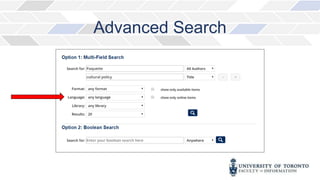
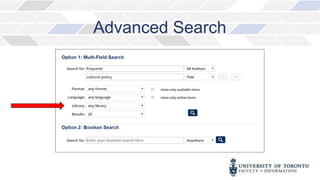
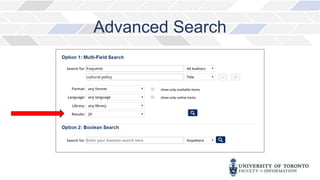
UTL
Homepage
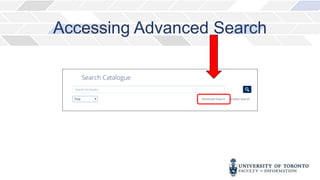
Accessing Advanced Search
Advanced Search
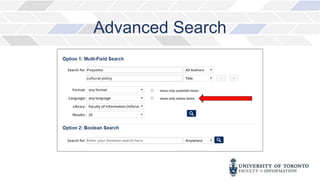
Advanced Search
Advanced Search
Advanced Search
Advanced Search
Advanced Search
Advanced Search
Advanced Search
Advanced Search
Advanced Search Facets
Search Within
Search Within
Search Within
Search Within
Robarts Reference and Research
Services
Librarians at Robarts are here to help! You can reach them…
• At the AskUs desk on the 2nd Floor of Robarts
• By booking a consultation
https://onesearch.library.utoronto.ca/book-consultation
• By emailing rob.ref@utoronto.ca
• By calling 416-978-6215
• By chatting on their website:
https://onesearch.library.utoronto.ca/robarts-reference-and-
research-services
Connect with
the Inforum
Inforum
Faculty of Information (iSchool)
140 St. George Street, 4th & 5th Floors
Toronto, Ontario M5S 3G6
Inforum Website
416-978-7060
help.ischool@utoronto.ca
@ischooltorontoinfoservices
@ischool_infosrv

Finding Resources 3

Editor's Notes

  • #2  Welcome to the Inforum’s Orientation Video Series on finding resources through the University of Toronto Libraries’ Catalogue. The goal of this video is to help you improve your searches by using the advanced search option, as well as making use of the way that your search results are clustered into groups, known as facets.
  • #3  Advanced searching is useful when 1) you want to apply limits before you search and 2) when you want to search more efficiently by doing a multi-field search.
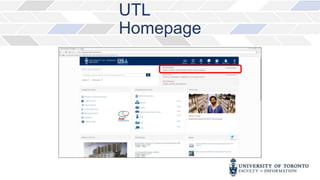
  • #4  To get to the advanced search screen, you can start at the U of T Libraries homepage. Scroll over to the, “Catalogue” tab located on the top right hand of the screen,
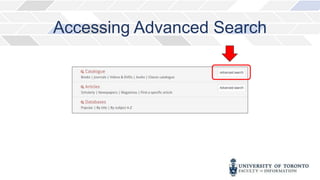
  • #5  and look for the “advanced search” link located at the far right of the search box.
  • #6  You can also find the advanced search link once you’re already in the basic search screen of the catalogue. Click on the word ‘catalogue’ to get to the basic search screen. Look for the “advanced search” link at the bottom right of the search box.
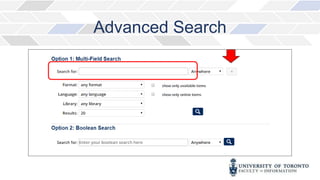
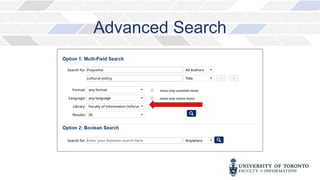
  • #7  Notice that there are many boxes for OPTION 1 – THE MULTIFIELD SEARCH. The top box is for entering your search terms. You can add more boxes by clicking on the PLUS sign.
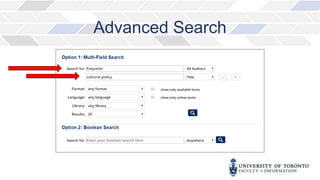
  • #8  Suppose you know a few details about the book you are looking for, like the author’s last name and part of its title, and which library you want to use. In the first box, I will enter, ‘paquette’ and select “all authors” from the drop down menu. In the second search box I’ll enter cultural policy because I know it’s part of the title, but I can’t remember the whole subtitle. I’ll select title from the drop down menu. This is a multi-field search, because I am choosing to search for some words in the author field, and some words in the title field.
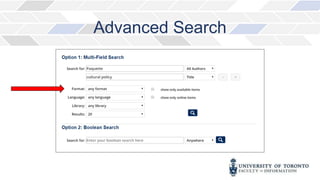
  • #9  Limits are ways to filter your search, so that only results matching the limits are found. Notice that you can limit your search in a number of ways: By FORMAT: You can choose to look for just books, or just for Videos and DVDS.
  • #10 By LANGUAGE: You can pick from numerous languages. If you want English language results, leave it as any language. Picking English would slow down your search, as we have many English language items in the catalogue.
  • #11 By LIBRARY: This lets you choose which library to search for your resources. A very handy technique if you just want to find e-resources, such as e-books and e-journals, is to pick “ONLINE RESOURCES” as your library.
  • #12 And you can limit by RESULTS: You could display up to 100 results at a time.
  • #13 For now, let’s limit our search to just finding books in the Inforum, rather than all the U of T libraries.
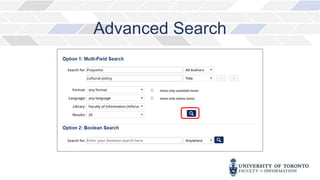
  • #14 From the dropdown menu, select “Faculty of Information (Inforum)” and press the search icon.
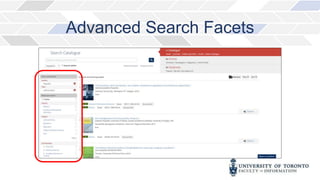
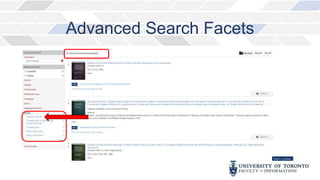
  • #16 So, without knowing all the details about the book, I was able to find the Inforum copy of it by using the features in advanced search. Experiment with multi-field searching and limits to see how you can enhance your search techniques. You can set the field to be ANYWHERE as well as choosing specific fields like author and title in the search that we just did. Even if you don’t use the advanced search option when you start your search, you can narrow down your search results by using the facets that appear on the left hand side of the results screen. Facets group the results found by your search into useful categories such as subject, format, publication year, or author. You can filter your search results by using these facets.
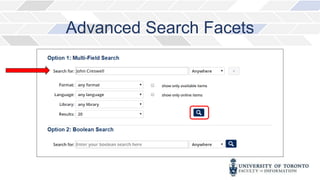
  • #17 In Video 2, we found many hits when we searched for the author John Creswell who writes books on research methodology. I am going to show you how to refine that search, using facets. I am going to start with a basic search for the author John Creswell.
  • #18 We get 57 results. Look down the left-hand side to see “AUTHOR”, and click on it. Notice that there are 3 authors with the same name. Click on John W. Creswell. There are 17 results for this author – this is the one who writes about research methods.
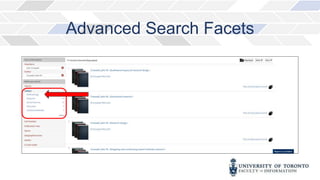
  • #19 Look at the “SUBJECT” facet. Notice that 15 results have the subject tag ‘methodology’. Click on that.
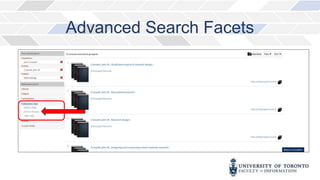
  • #20 Now let’s look at the “PUBLICATION YEAR” facet. Let’s say you only wanted to look at the more recent books by John W. Creswell. Click on 2010 to present to see the 6 most recent titles.
  • #21 So, from an initial result of 57 available books, we used Author, Subject, and Publication facets to find the most recent books on research methodology by John Creswell.
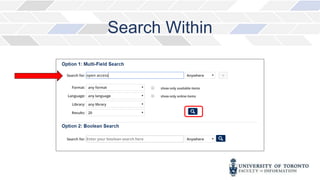
  • #22 The search within feature will help you to narrow down your search if you find you are getting too many results. Let’s start with a very broad search on the topic of “open access”. Do this as an “ANYWHERE” search.
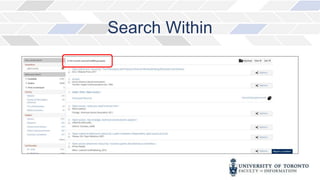
  • #23 I get 21,102 available results.
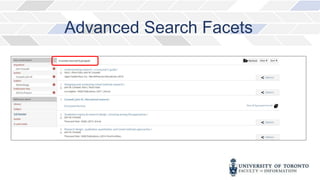
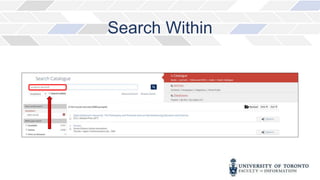
  • #24 To put some context on this very broad search, let’s suppose I want to see things that have to do with open access in academic libraries. I can do this by entering the words, academic libraries and selecting ‘search within’. This will search my result to find those items that also contain the words academic libraries. You can see how useful the ‘search within’ feature can be.
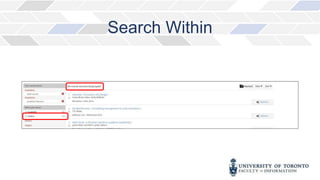
  • #25 Notice in the facets, that 124 of these items are available online. Using the facet that shows you what is online, is very useful when you are researching off campus. To summarize, this video demonstrated how to take advantage of the UTL catalogue’s advanced search options. It also demonstrated how to search within your results, and how to use the post search refinements called facets.
  • #26 The Faculty of Information and Robarts Library have a great team of professionals here to help you with your research and citation questions. For quick reference, you can visit the Inforum, visit our website, or reach us by telephone and email. Robarts has in depth reference help available to University of Toronto students. Their “Ask Us” desks can help with quick reference questions, and librarians are available by consultation, email, telephone, or their website.
  • #27 Connect with the Inforum: Online: https://inforum.library.utoronto.ca Phone: 416.978.7060 Email: help.ischool@utoronto.ca Facebook: iSchool@Toronto Information Services Twitter: @ischool_infosrv This is the end of Finding Resources Video 3. Thank you.