JavaScript
By Sangita M. Jaybhaye
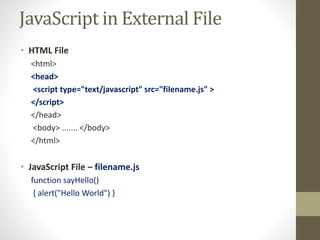
JavaScript in External File
• HTML File
<html>
<head>
<script type="text/javascript" src="filename.js" >
</script>
</head>
<body> ....... </body>
</html>
• JavaScript File – filename.js
function sayHello()
{ alert("Hello World") }
What is Java Script?
• dynamic computer programming
language.
• lightweight and most commonly used as a
part of web pages.
• It is an interpreted programming language
with object-oriented capabilities.
Client-side Java Script
• Client-side JavaScript is the most common form of
the language.
• The script should be included in or referenced by an
HTML document for the code to be interpreted by
the browser.
• For example, you might use JavaScript to check if
the user has entered a valid e-mail address in a
form field.
Advantages of Java Script
•
•
•
• Less server interaction: You can validate user input
before sending the page off to the server. This saves
server traffic, which means less load on your server.
Immediate feedback to the visitors: They don't
have to wait for a page reload to see if they have
forgotten to enter something.
Increased interactivity: You can create interfaces
that react when the user hovers over them with a
mouse or activates them via the keyboard.
Richer interfaces: You can use JavaScript to include
such items as drag-and-drop components and sliders
to give a Rich Interface to your site visitors.
Limitations of JavaScript
• We cannot treat JavaScript as a full-fledged
programming language. It lacks the following
important features:
– Client-side JavaScript does not allow the
reading or writing of files. This has been kept
for security reason.
– JavaScript cannot be used for networking
applications because there is no such
support available.
– JavaScript doesn't have any
multithreading or multiprocessor
capabilities.
Hello World
<html>
<body>
<script language="javascript" type="text/javascript">
document.write ("Hello World!")
</script>
</body>
</html>
White spaces and lines
breaks
• JavaScript ignores spaces, tabs, and newlines that
appear in JavaScript programs.
• You can use spaces, tabs, and newlines freely in your
program and you are free to format and indent your
programs in a neat and consistent way that makes the
code easy to read and understand.
Semicolons are optional
•
• JavaScript, however, allows you to omit this
semicolon if each of your statements are placed on a
separate line.
For example, the following code could be
written without semicolons.
<script language="javascript"
type="text/javascript"> var1 = 10
var2 = 20
</script>
Semicolons are optional
• When formatted in a single line as follows, you
must use semicolons:
<script language="javascript"
type="text/javascript"> var1 = 10; var2 =
20;
</script>
• Note: It is a good programming practice
to use semicolons.
Case sensitivity
• JavaScript is a case-sensitive language. So the
identifiers Time and TIMEwill convey different
meanings in JavaScript.
• NOTE: Care should be taken while writing
variable and function names in JavaScript.
Comments
• JavaScript supports both C-style and C++-style comments.
Thus:
– Any text between a // and the end of a line is treated as a
comment and is ignored by JavaScript.
– Any text between the characters /* and */ is treated as a
comment. This may span multiple lines.
Placement of Java Script
• There is a flexibility given to include JavaScript code
anywhere in an HTML document. However the most
preferred ways to include JavaScript in an HTML file are
as follows:
– Script in <head>...</head> section.
– Script in <body>...</body> section.
– Script in <body>...</body> and <head>...</head>
sections.
– Script in an external file and then include in
<head>...</head> section.
Data Types
•
•
JavaScript allows you to work with three primitive data
types:
– Numbers, e.g., 123, 120.50 etc.
– Strings of text, e.g. "This text string" etc.
– Boolean, e.g. true or false.
1.<script>
2.var x = 10;
3.var y = 20;
4.var z=x+y;
5.document.write(z);
6.</script>
JavaScript Variables
• Variables are declared with the var keyword
E.g
• 4 Ways to Declare a JavaScript Variable:
• Using var
• Using let
• Using const
• Using nothing
• What are Variables?
• Variables are containers for storing data (storing data values).
• In this example, x, y, and z, are variables, declared with the var keyword:var x = 5;
• var y = 6;
• var z = x + y; In this example, x, y, and z, are variables, declared with the let
keyword:
• Example
• let x = 5;
• let y = 6;
• let z = x + y;
Local Variables
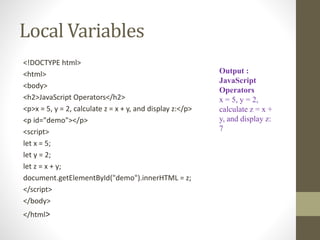
<!DOCTYPE html>
<html>
<body>
<h2>JavaScript Operators</h2>
<p>x = 5, y = 2, calculate z = x + y, and display z:</p>
<p id="demo"></p>
<script>
let x = 5;
let y = 2;
let z = x + y;
document.getElementById("demo").innerHTML = z;
</script>
</body>
</html>
Output :
JavaScript
Operators
x = 5, y = 2,
calculate z = x +
y, and display z:
7
Variables
1.<script>
2.function abc(){
3.var x=10;//local variable
4.}
5.</script>
1.If(10<13){
2.var y=20;//JavaScript local variable
3.}
4.</script>
1.<script>
2.var data=200;//gloabal variable
3.function a(){
4.document.writeln(data);
5.}
6.function b(){
7.document.writeln(data);
8.}
9.a();//calling JavaScript function
10.b();
11.</script>
1.<script>
2.var value=50;//global variable
3.function a(){
4.alert(value);
5.}
6.function b(){
7.alert(value);
8.}
9.</script>
Data Types
JavaScript provides different data types to hold different types of
values. There are two types of data types in JavaScript.
1.Primitive data type
2.Non-primitive (reference) data type
JavaScript is a dynamic type language, means you don't need to
specify type of the variable because it is dynamically used by
JavaScript engine.
Data Type Description
String represents sequence of
characters e.g. "hello"
Number represents numeric values e.g.
100
Boolean represents boolean value either
false or true
Undefined represents undefined value
Null represents null i.e. no value at
JavaScript non-primitive data types
Data Type Description
Object represents instance through
which we can access
members
Array represents group of similar
values
RegExp represents regular expression
Operator
•
•
•
•
•
Arithmetic Operators
Comparison Operators
Logical (or Relational) Operators
Assignment Operators
Conditional (or ternary) Operators
JavaScript Functions
• JavaScript functions are used to
perform operations. We can call
JavaScript function many times to
reuse the code.
• Advantage of JavaScript function
• There are mainly two advantages
• of JavaScript functions.
1.Code reusability: We can call a
function several times so it save
coding.
2.Less coding: It makes our program
compact. We don’t need to write many
lines of code each time to perform a
common task.
1.function functionName([arg1, arg2, ...argN]){
2. //code to be executed
3.}
JavaScript Function Example
1.<script>
2.function msg(){
3.alert("hello! this is message");
4.}
5.</script>
6.<input type="button" onclick="msg()" value="call function
"/>
JavaScript Function
Arguments
1.<script>
2.function getcube(number){
3.alert(number*number*number);
4.}
5.</script>
6.<form>
7.<input type="button" value="click" onclick="getcube(4)"/
>
8.</form>
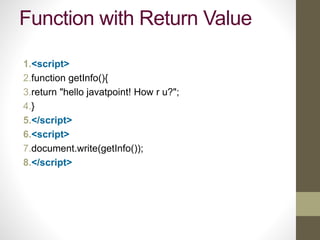
Function with Return Value
1.<script>
2.function getInfo(){
3.return "hello javatpoint! How r u?";
4.}
5.</script>
6.<script>
7.document.write(getInfo());
8.</script>
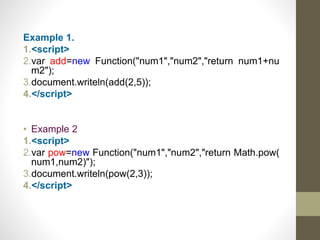
Example 1.
1.<script>
2.var add=new Function("num1","num2","return num1+nu
m2");
3.document.writeln(add(2,5));
4.</script>
• Example 2
1.<script>
2.var pow=new Function("num1","num2","return Math.pow(
num1,num2)");
3.document.writeln(pow(2,3));
4.</script>
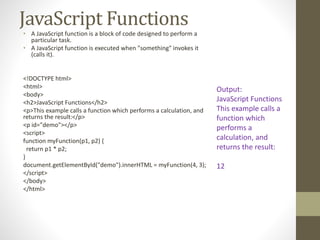
JavaScript Functions
• A JavaScript function is a block of code designed to perform a
particular task.
• A JavaScript function is executed when "something" invokes it
(calls it).
<!DOCTYPE html>
<html>
<body>
<h2>JavaScript Functions</h2>
<p>This example calls a function which performs a calculation, and
returns the result:</p>
<p id="demo"></p>
<script>
function myFunction(p1, p2) {
return p1 * p2;
}
document.getElementById("demo").innerHTML = myFunction(4, 3);
</script>
</body>
</html>
Output:
JavaScript Functions
This example calls a
function which
performs a
calculation, and
returns the result:
12
JavaScript Output
• JavaScript Display Possibilities
• JavaScript can "display" data in different ways:
1. Writing into an HTML element, using innerHTML.
2. Writing into the HTML output using document.write().
3. Writing into an alert box, using window.alert().
4. Writing into the browser console, using console.log().
1.Using innerHTML
• To access an HTML element, JavaScript can use the
document.getElementById(id) method.
• The id attribute defines the HTML element. The innerHTML property
defi nes the HTML content:
• <!DOCTYPE html>
• <html>
• <body>
• <h2>My First Web Page</h2>
• <p>My First Paragraph.</p>
• <p id="demo"></p>
• <script>
• document.getElementById("demo").innerHTML = 5 + 6;
• </script>
• </body>
• </html>
2.Using document.write()
• For testing purposes, it is convenient to use document.write():
• <!DOCTYPE html>
• <html>
• <body>
• <h2>My First Web Page</h2>
• <p>My first paragraph.</p>
• <p>Never call document.write after the document has finished loading.
• It will overwrite the whole document.</p>
• <script>
• document.write(5 + 6);
• </script>
• </body>
• </html>
• Using document.write() after an HTML document is loaded, will delete all
existing HTML:
• <!DOCTYPE html>
• <html>
• <body>
• <h1>My First Web Page</h1>
• <p>My first paragraph.</p>
• <button type="button" onclick="document.write(5 + 6)">Try
it</button>
• </body>
• </html>
• The document.write() method should only
be used for testing.
• <!DOCTYPE html>
• <html>
• <body>
• <h2>My First Web Page</h2>
• <p>My first paragraph.</p>
• <script>
• alert(5 + 6);
• </script>
• </body>
• </html>
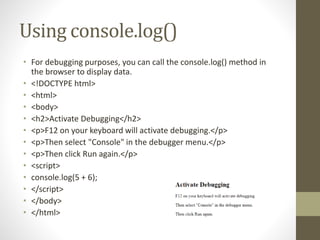
Using console.log()
• For debugging purposes, you can call the console.log() method in
the browser to display data.
• <!DOCTYPE html>
• <html>
• <body>
• <h2>Activate Debugging</h2>
• <p>F12 on your keyboard will activate debugging.</p>
• <p>Then select "Console" in the debugger menu.</p>
• <p>Then click Run again.</p>
• <script>
• console.log(5 + 6);
• </script>
• </body>
• </html>
Standard Popup Boxes
• Alert box with text and [OK] button
• Just a message shown in a dialog box:
• Confirmation box
• Contains text, [OK] button and [Cancel] button:
• Prompt box
• Contains text, input field with default value:
33
alert("Some text here");
confirm("Are you sure?");
prompt ("enter amount", 10);
JavaScript Variables
<script type="text/javascript">
<!--
var name = "Ali";
var money;
money = 2000.50;
//-->
</script>
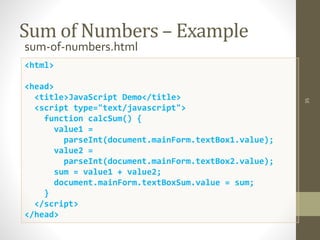
Sum of Numbers – Example
sum-of-numbers.html
35
<html>
<head>
<title>JavaScript Demo</title>
<script type="text/javascript">
function calcSum() {
value1 =
parseInt(document.mainForm.textBox1.value);
value2 =
parseInt(document.mainForm.textBox2.value);
sum = value1 + value2;
document.mainForm.textBoxSum.value = sum;
}
</script>
</head>
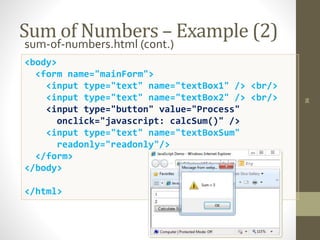
Sum of Numbers – Example (2)
sum-of-numbers.html (cont.)
36
<body>
<form name="mainForm">
<input type="text" name="textBox1" /> <br/>
<input type="text" name="textBox2" /> <br/>
<input type="button" value="Process"
onclick="javascript: calcSum()" />
<input type="text" name="textBoxSum"
readonly="readonly"/>
</form>
</body>
</html>
JavaScript Objects
• A javaScript object is an entity having state and behavior
(properties and method).
• For example: car, pen, bike, chair, glass, keyboard, monitor
etc.
• JavaScript is an object-based language. Everything is an
object in JavaScript.
• JavaScript is template based not class based. Here, we don't
create class to get the object. But, we direct create objects.
• JavaScript Objects
• JavaScript variables are containers for data values.
• This code assigns a simple value (Fiat) to a variable named car:
• let car = "Fiat";
• Objects are variables too. But objects can contain many values.
• This code assigns many values (Fiat, 500, white) to a variable named
car:
• const car = {type:"Fiat", model:"500", color:"white"};
JavaScript Objects
• The values are written as name:value pairs (name and value
separated by a colon).
• It is a common practice to declare objects with the const keyword
• Object Definition
• You define (and create) a JavaScript object with an object literal:
• Example
• const person = {firstName:"John", lastName:"Doe", age:50, eyeColor:"blue"};
• Spaces and line breaks are not important. An object definition can span multiple lines:
• Example
• const person = {
• firstName: "John",
• lastName: "Doe",
• age: 50,
• eyeColor: "blue"
• };
Object Properties
• The name:values pairs in JavaScript objects are called properties:
• Property Property Value
• firstName John
• lastName Doe
• age 50
• eyeColor blue
JavaScript Object by object
literal
1.<script>
2.emp={id:102,name:"Shyam Kumar",salary:40000}
3.document.write(emp.id+" "+emp.name+" "+emp.salary);
4.</script>
By creating instance of Object
1.<script>
2.var emp=new Object();
3.emp.id=101;
4.emp.name=“VIT";
5.emp.salary=50000;
6.document.write(emp.id+" "+emp.name+" "+emp.salary);
7.</script>
By using an Object
constructor
1.<script>
2.function emp(id,name,salary){
3.this.id=id;
4.this.name=name;
5.this.salary=salary;
6.}
7.e=new emp(103,"VIT",30000);
8. document.write(e.id+" "+e.name+" "+e.salary);
9.</script>
Defining method in JavaScript
Object
1.<script>
2.function emp(id,name,salary){
3.this.id=id;
4.this.name=name;
5.this.salary=salary;
6. this.changeSalary=changeSalary;
7.function changeSalary(otherSalary){
8.this.salary=otherSalary;
9.}
10.}
11.e=new emp(103,"Sonoo Jaiswal",30000);
12.document.write(e.id+" "+e.name+" "+e.salary);
13.e.changeSalary(45000);
14.document.write("<br>"+e.id+" "+e.name+" "+e.salary);
15.</script>
JavaScript Arrays
• JavaScript array is an object that represents a collection of similar
type of elements.
• There are 3 ways to construct array in JavaScript
1. By array literal
2. By creating instance of Array directly (using new keyword)
3. By using an Array constructor (using new keyword)
JavaScript array literal
1. <script>
2. var emp=["Sonoo","Vimal","Ratan"];
3. for (i=0;i<emp.length;i++){
4. document.write(emp[i] + "<br/>");
5. }
6. </script>
JavaScript Array directly (new
keyword)
1.<script>
2.var i;
3.var emp = new Array();
4.emp[0] = "Arun";
5.emp[1] = "Varun";
6.emp[2] = "John";
7. for (i=0;i<emp.length;i++){
8.document.write(emp[i] + "<br>");
9.}
10.</script>
JavaScript array constructor (new
keyword)
1.<script>
2.var emp=new Array("Jai","Vijay","Smith");
3.for (i=0;i<emp.length;i++){
4.document.write(emp[i] + "<br>");
5.}
6.</script>
JavaScript Arrays
<!DOCTYPE html>
<html>
<body>
<h2>JavaScript Arrays</h2>
<p id="demo"></p>
<script>
const cars = [“TATA”, "Volvo", "BMW"];
document.getElementById("demo").innerHTML = cars;
</script>
</body>
</html>
Output:
JavaScript Arrays
TATA,Volvo,BMW
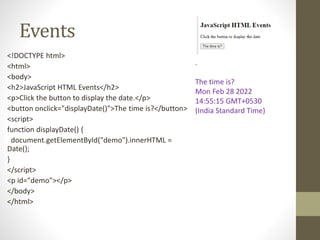
Events
<!DOCTYPE html>
<html>
<body>
<h2>JavaScript HTML Events</h2>
<p>Click the button to display the date.</p>
<button onclick="displayDate()">The time is?</button>
<script>
function displayDate() {
document.getElementById("demo").innerHTML =
Date();
}
</script>
<p id="demo"></p>
</body>
</html>
.
The time is?
Mon Feb 28 2022
14:55:15 GMT+0530
(India Standard Time)
JavaScript Arrays
<!DOCTYPE html>
<html>
<body>
<h2>JavaScript Arrays</h2>
<p>JavaScript array elements are accessed
using numeric indexes (starting from
0).</p>
<p id="demo"></p>
<script>
const cars = ["Saab", "Volvo", "BMW"];
cars[0] = "Opel";
document.getElementById("demo").inner
HTML = cars;
</script>
</body>
</html>
JavaScript Arrays
JavaScript array
elements are
accessed using
numeric indexes
(starting from 0).
Opel,Volvo,BMW
JavaScript Object Properties
• Properties are the most important part of any JavaScript
object.
• JavaScript Properties
• Properties are the values associated with a JavaScript object.
• A JavaScript object is a collection of unordered properties.
• Properties can usually be changed, added, and deleted, but
some are read only.
e.g.
1. person.firstname + " is " + person.age + " years old.";
2. person["firstname"] + " is " + person["age"] + " years old.";
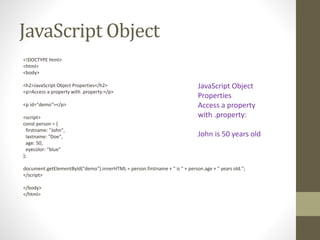
JavaScript Object
<!DOCTYPE html>
<html>
<body>
<h2>JavaScript Object Properties</h2>
<p>Access a property with .property:</p>
<p id="demo"></p>
<script>
const person = {
firstname: "John",
lastname: "Doe",
age: 50,
eyecolor: "blue"
};
document.getElementById("demo").innerHTML = person.firstname + " is " + person.age + " years old.";
</script>
</body>
</html>
JavaScript Object
Properties
Access a property
with .property:
John is 50 years old
Variable Scope
• Global variables :
• Declaring a variable outside the function makes it a global
variable.Variable is accessed everywhere in the document.
• E.g.
• Accessing Object Properties
• You can access object properties in two ways:
1.objectName.propertyName
• or
2. objectName["propertyName"]
Example1
• person.lastName;
Creating an Array
• Using an array literal is the easiest way to create a JavaScript Array.
• Syntax:
• const array_name = [item1, item2, ...];
• It is a common practice to declare arrays with the const keyword.
• Learn more about const with arrays in the chapter: JS Array Const.
• Example
• const cars = ["Saab", "Volvo", "BMW"];
• Spaces and line breaks are not important. A declaration can span
multiple lines:
• Example
• const cars = [
• "Saab",
• "Volvo",
• "BMW"
• ];
Creating an Array
• You can also create an array, and then provide the elements:
Example
const cars = [];
cars[0]= “TATA";
cars[1]= “Audi";
cars[2]= "BMW";
Using the JavaScript Keyword new
The following example also creates an Array, and assigns values
to it:
• Example
• const cars = new Array(“TATA", “Audi", "BMW");
Converting Arrays to Strings
• The JavaScript method toString() converts an array to a string
of (comma separated) array values.
• Example
const fruits = ["Banana", "Orange", "Apple", "Mango"];
document.getElementById("demo").innerHTML = fruits.toString();
Result:
• Banana,Orange,Apple,Mango
JavaScript Array concat()
<!DOCTYPE html>
<html>
<body>
<h1>JavaScript Arrays</h1>
<h2>The concat() Method</h2>
<p>The concat() method concatenates (joins) two or more arrays:</p>
<p id="demo"></p>
<script>
const arr1 = ["A", "B"];
const arr2 = ["C", "D", "E"];
const children = arr1.concat(arr2);
document.getElementById("demo").innerHTML = children;
</script>
</body>
</html>
JavaScript Array concat()
<!DOCTYPE html>
<html>
<body>
<h1>JavaScript Arrays</h1>
<h2>The concat() Method</h2>
<p>The concat() method concatenates (joins) two or more arrays:</p>
<p id="demo"></p>
<script>
const arr1 = ["A", "B"];
const arr2 = ["C", "D", "E"];
const arr3 = ["F"];
const children = arr1.concat(arr2,arr3);
document.getElementById("demo").innerHTML = children;
</script>
</body>
</html>
JavaScript Array length
<!DOCTYPE html>
<html>
<body>
<h1>JavaScript Arrays</h1>
<h2>The length Property</h2>
<p>The length property sets or returns the number of elements in an
array.</p>
<p id="demo"></p>
<script>
const fruits = ["Banana", "Orange", "Apple", "Mango"];
let length = fruits.length;
document.getElementById("demo").innerHTML = length;
</script>
</body>
</html>
join() method
• The join() method also joins all array elements into a string.
• It behaves just like toString(), but in addition you can specify the
separator:
• Example
const fruits = ["Banana", "Orange", "Apple", "Mango"];
document.getElementById("demo").innerHTML = fruits.join(" * ");
• Result:
Banana * Orange * Apple * Mango
Popping and Pushing
• When you work with arrays, it is easy to remove elements and
add new elements.
• This is what popping and pushing is:
• Popping items out of an array, or pushing items into an array.
• JavaScript Array pop()
• The pop() method removes the last element from an array:
• Example
• const fruits = ["Banana", "Orange", "Apple", "Mango"];
• fruits.pop();
pop() method
• The pop() method returns the value that was "popped out":
Example
• const fruits = ["Banana", "Orange", "Apple", "Mango"];
• let fruit = fruits.pop();
JavaScript Sorting Arrays
• Sorting an Array
• The sort() method sorts an array alphabetically:
• Example
• const fruits = ["Banana", "Orange", "Apple", "Mango"];
• fruits.sort();
• Reversing an Array
• The reverse() method reverses the elements in an array.
• You can use it to sort an array in descending order:
• Example
• const fruits = ["Banana", "Orange", "Apple", "Mango"];
• fruits.sort();
• fruits.reverse();
Numeric Sort
By default, the sort() function sorts values as strings.
• This works well for strings ("Apple" comes before "Banana").
• However, if numbers are sorted as strings, "25" is bigger than
"100", because "2" is bigger than "1".
• Because of this, the sort() method will produce incorrect
result when sorting numbers.
• You can fix this by providing a compare function:
• const points = [40, 100, 1, 5, 25, 10];
• points.sort(function(a, b){return a - b});
Reverse an array using JavaScript
1.Using the reverse method
• As the name suggests, this method reverses the order of array
elements by modifying the existing array.
Syntax: array.reverse()
Example:
arr = [1,2,3,4]; arr.reverse();
console.log(arr); //Output: [ 4, 3, 2, 1 ]
2.Using a decrementing For Loop
arr = [1, 2, 3, 4];
arr1 = [];
for (let i = arr.length - 1; i >= 0; i--) {
arr1.push(arr[i]);
}
console.log(arr1);
//Output: [4, 3, 2, 1]
In the above example, we use a decrementing loop to traverse
the array arr from backward and store each element to the new
array arr1. This method does not modify the original array.
3.Using the Unshift() Method
arr = [1, 2, 3, 4];
arr1 = [];
arr.forEach(element => { arr1.unshift(element) });
console.log(arr1);
//Output: [4, 3, 2, 1]
Instead of using a for loop, this method uses forEach() &
unshift() methods. forEach() method performs an operation for
each element of an array and the unshift method adds a new
element to the beginning of an array.
Browser Object Model
• The Browser Object Model (BOM) is used to interact
with the browser.
• The default object of browser is window means you can
call all the functions of window by specifying window or
directly. For example:
• window.alert("hello javatpoint"); or
• alert("hello javatpoint");
What is Validation?
• Validation refers to the process of examining the values
that the user inputs. It plays a crucial role in creating
applications and enhances the user experience. Many
fields, such as mobile numbers, emails, dates, and
passwords, are validated through this process.
• JavaScript makes the validation process faster due to its
faster processing of data than other server-side
validation. Now let’s have a look at the implementation of
the email validation in JavaScript.
Email Validation in
JavaScript
• Email validation is one of the vital parts of authenticating
an HTML form. Email is a subset or a string of ASCII
characters, divided into two parts using @ symbol. Its first part
consists of private information, and the second one contains
the domain name in which an email gets registered.
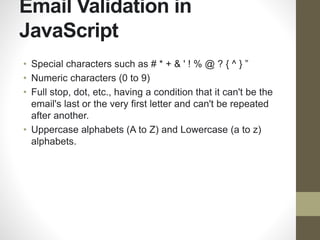
• Special characters such as # * + & ’ ! % @ ? { ^ } ”
• Numeric characters (0 to 9)
• Full stop, dot, etc., having a condition that it can’t be the
email’s last or the very first letter and can’t be repeated after
another.
• Uppercase alphabets (A to Z) and Lowercase (a to z)
alphabets
• The second part includes the following:
• Dots
• Digits
• Hyphens
• Letters
Email Validation in
JavaScript
• Special characters such as # * + & ' ! % @ ? { ^ } ”
• Numeric characters (0 to 9)
• Full stop, dot, etc., having a condition that it can't be the
email's last or the very first letter and can't be repeated
after another.
• Uppercase alphabets (A to Z) and Lowercase (a to z)
alphabets.
HTML Form Validation using JS:
RegularExpression-helpsinpatternmatching
• . : Matches any single character except a new line
• + : Matches the preceding character or repeated character.
• $ : Matches character at the end of the line.
• ^ : Matches the beginning of a line or string.
• - : Range indicator. [a-z, A-Z]
• [0-9] : It matches digital number from 0-9.
• [a-z] : It matches characters from lowercase ‘a’ to lowercase ‘z’.
• [A-Z] : It matches characters from uppercase ‘A’ to lowercase ‘Z’.
• w: Matches a word character and underscore. (a-z, A-Z, 0-9, _).
• W: Matches a non word character (%, #, @, !).
• {M, N} : Donates minimum M and maximum N value.
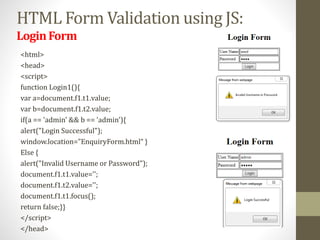
HTML Form Validation using JS:
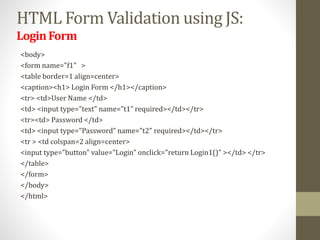
LoginForm
<html>
<head>
<script>
function Login1(){
var a=document.f1.t1.value;
var b=document.f1.t2.value;
if(a == 'admin' && b == 'admin'){
alert("Login Successful");
window.location="EnquiryForm.html“ }
Else {
alert("Invalid Username or Password");
document.f1.t1.value='';
document.f1.t2.value='';
document.f1.t1.focus();
return false;}}
</script>
</head>
HTML Form Validation using JS:
LoginForm
<body>
<form name="f1" >
<table border=1 align=center>
<caption><h1> Login Form </h1></caption>
<tr> <td>User Name </td>
<td> <input type="text" name="t1" required></td></tr>
<tr><td> Password </td>
<td> <input type="Password" name="t2" required></td></tr>
<tr > <td colspan=2 align=center>
<input type="button" value="Login" onclick="return Login1()" ></td> </tr>
</table>
</form>
</body>
</html>
HTML Form Validation using JS:
StudentRegistrationForm(RequiredFieldandacceptingcharactersonlyin
NametextboxanddigitsonlyinPhonetextbox)
<html> <head>
<script>
function validateForm() {
if(document.myForm.name.value.match(/^[A-Za-z]+$/)) { }
else {
alert("Please Characters only");
document.myForm.name.focus();
return false; }
if(document.myForm.phone.value.match(/^[0-9]+$/)) {
message = "<br>NAME:" + document.myForm.name.value;
message += "<br>ADDRESS: " + document.myForm.address.value;
message += "<br>GENDER: " + document.myForm.G.value ;
message += "<br>PHONE: " + document.myForm.phone.value ;
message += "<br>DOB: " + document.myForm.DOB.value ;
message += "<br>EMail-Id: " + document.myForm.email.value ;
document.write(message); }
else {
alert('Please input numeric characters only');
document.myForm.phone.focus();
return false; } }
</script> </head>
HTML Form Validation using JS:
StudentRegistrationForm(RequiredFieldandacceptingcharactersonlyin
NametextboxanddigitsonlyinPhonetextbox)
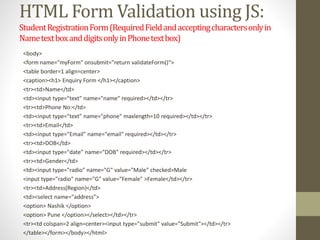
<body>
<form name="myForm" onsubmit="return validateForm()">
<table border=1 align=center>
<caption><h1> Enquiry Form </h1></caption>
<tr><td>Name</td>
<td><input type="text" name="name" required></td></tr>
<tr><td>Phone No:</td>
<td><input type="text" name="phone" maxlength=10 required></td></tr>
<tr><td>Email</td>
<td><input type="Email" name="email" required></td></tr>
<tr><td>DOB</td>
<td><input type="date" name="DOB" required></td></tr>
<tr><td>Gender</td>
<td><input type="radio" name="G" value="Male" checked>Male
<input type="radio" name="G" value="Female" >Female</td></tr>
<tr><td>Address(Region)</td>
<td><select name="address">
<option> Nashik </option>
<option> Pune </option></select></td></tr>
<tr><td colspan=2 align=center><input type="submit" value="Submit"></td></tr>
</table></form></body></html>
• <!DOCTYPE html>
• <html>
• <body>
• <h1>Display a Telephone Input Field</h1>
• <form action="/action_page.php">
• <label for="phone">Enter a phone
number:</label><br><br>
• <input type="tel" id="phone" name="phone"
placeholder="123-45-678" pattern="[0-9]{3}-[0-9]{2}-
[0-9]{3}" required><br><br>
• <small>Format: 123-45-678</small><br><br>
• <input type="submit">
• </form>
• </body>
• </html>
<!DOCTYPE html>
<html>
<head>
<script>
function validateForm() {
let x = document.forms["myForm"]["fname"].value;
if (x == "") {
alert("Name must be filled out");
return false;
}
}
</script>
</head>
<body>
<h2>JavaScript Validation</h2>
<form name="myForm" action="/action_page.php" onsubmit="return validateForm()" method="post">
Name: <input type="text" name="fname">
<input type="submit" value="Submit">
</form>
</body>
</html>
Example of regular expression
1. /^[a-zA-Z0-9._-]+@[a-zA-Z0-9.-]+.[a-zA-Z]{2,6}$/
2. /^[a-zA-Z0-9.!#$%&'*+/=?^_`{|}~-]+@[a-zA-Z0-9-]+(?:.[a-zA-Z0-9-
]+)*$/;
3. ('[a-z0-9]+@[a-z]+.[a-z]{2,3}
Valid and Invalid examples
• Some of the examples of valid email id:
• Own.minesite@myuniverse.org
• Siteowner@up.down.net
• Siteofmine@myuniverse.com
• Some Other Examples of Invalid Email Id
• Owner.me..7080@abcd.com (one on another dots are not
allowed)
• Inownzsite()&@abcd.com (only characters, dash, underscore,
and digits are allowed in the regular expression.)
• Ourwebsiteismne.azbyz.com (here @ symbol is not there)
• yourminewebsite@.com.you (Here top-level domain can’t
begin with a dot)
• @youmenandwe.we.net (here it can’t start with @ symbol)
• Younourmetd345@abcd.b (“.b” is not a valid top-level
domain)email.js
Checkpoints for efficient email validation in
JavaScript code:
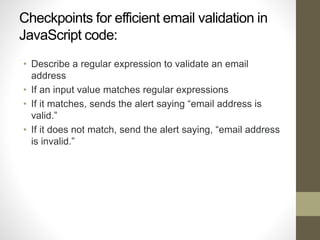
• Describe a regular expression to validate an email
address
• If an input value matches regular expressions
• If it matches, sends the alert saying “email address is
valid.”
• If it does not match, send the alert saying, “email address
is invalid.”
Email validation
• Validating email is a very important point while validating an
HTML form. In this page we have discussed how to validate an
email using JavaScript :
An email is a string (a subset of ASCII characters) separated
into two parts by @ symbol. a "personal_info" and a domain,
that is personal_info@domain. The length of the personal_info
part may be up to 64 characters long and domain name may
be up to 253 characters.
• The personal_info part contains the following ASCII characters.
• Uppercase (A-Z) and lowercase (a-z) English letters.
• Digits (0-9).
• Characters ! # $ % & ' * + - / = ? ^ _ ` { | } ~
• Character . ( period, dot or fullstop) provided that it is not the
first or last character and it will not come one after the other.
• The domain name [for example com, org, net, in, us, info] part
contains letters, digits, hyphens, and dots.
Example of valid email id
• mysite@ourearth.com
• my.ownsite@ourearth.org
• mysite@you.me.net
Example of invalid email id
• mysite.ourearth.com [@ is not present]
mysite@.com.my [ tld (Top Level domain) can not start
with dot "." ]
• @you.me.net [ No character before @ ]
• mysite123@gmail.b [ ".b" is not a valid tld ]
• mysite@.org.org [ tld can not start with dot "." ]
• .mysite@mysite.org [ an email should not be start with "."
]
• mysite()*@gmail.com [ here the regular expression only
allows character, digit, underscore, and dash ]
• mysite..1234@yahoo.com [double dots are not allowed]
JavaScript code to validate
an email id
• function ValidateEmail(mail)
{ if (/^w+([.-]?w+)*@w+([.-
]?w+)*(.w{2,3})+$/.test(myForm.emailAddr.val
ue))
{
return (true)
}
alert("You have entered an invalid email
address!")
return
(false)
}
HTML Code
• <!DOCTYPE html>
• <html lang="en">
• <head>
• <meta charset="utf-8">
• <title>JavaScript form validation - checking email</title>
• <link rel='stylesheet' href='form-style.css' type='text/css' />
• </head>
• <body onload='document.form1.text1.focus()'>
• <div class="mail">
• <h2>Input an email and Submit</h2>
• <form name="form1" action="#">
• <ul>
• <li><input type='text' name='text1'/></li>
• <li>&nbsp;</li>
• <li class="submit"><input type="submit" name="submit" value="Submit"
onclick="ValidateEmail(document.form1.text1)"/></li>
• <li>&nbsp;</li>
• </ul>
• </form>
• </div>
• <script src="email-validation.js"></script>
• </body>
• </html>
JavaScript Code
function ValidateEmail(inputText)
{
var mailformat = /^w+([.-]?w+)*@w+([.-
]?w+)*(.w{2,3})+$/;
if(inputText.value.match(mailformat))
{
alert("Valid email address!");
document.form1.text1.focus(); return true;
}
else
{ alert("You have entered an invalid email
address!");
document.form1.text1.focus(); return false;
}
}
What is Responsive Web Design?
• Responsive Web Design is about using HTML and CSS to automatically
resize, hide, shrink, or enlarge, a website, to make it look good on all
devices (desktops, tablets, and phones):
• <!DOCTYPE html>
• <html>
• <head>
• <meta name="viewport" content="width=device-width, initial-
scale=1.0">
• </head>
• <body>
• <h2>Setting the Viewport</h2>
• <p>This example does not really do anything, other than showing you
how to add the viewport meta element.</p>
• </body>
• </html>
The HTML <video> Element
• How it Works?
• The controls attribute adds video controls, like play, pause,
and volume.
• It is a good idea to always include width and height attributes.
If height and width are not set, the page might flicker while
the video loads.
• The <source> element allows you to specify alternative video
files which the browser may choose from. The browser will
use the first recognized format.
• The text between the <video> and </video> tags will only be
displayed in browsers that do not support the <video>
element.
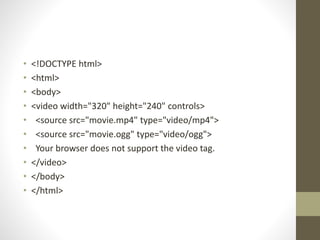
• <!DOCTYPE html>
• <html>
• <body>
• <video width="320" height="240" controls>
• <source src="movie.mp4" type="video/mp4">
• <source src="movie.ogg" type="video/ogg">
• Your browser does not support the video tag.
• </video>
• </body>
• </html>
Create an one College Template with video in Background (The
Web Page must be Responsive and the page contains video in
Background)

Final Java-script.pptx

  • 1.
  • 2.
    JavaScript in ExternalFile • HTML File <html> <head> <script type="text/javascript" src="filename.js" > </script> </head> <body> ....... </body> </html> • JavaScript File – filename.js function sayHello() { alert("Hello World") }
  • 3.
    What is JavaScript? • dynamic computer programming language. • lightweight and most commonly used as a part of web pages. • It is an interpreted programming language with object-oriented capabilities.
  • 4.
    Client-side Java Script •Client-side JavaScript is the most common form of the language. • The script should be included in or referenced by an HTML document for the code to be interpreted by the browser. • For example, you might use JavaScript to check if the user has entered a valid e-mail address in a form field.
  • 5.
    Advantages of JavaScript • • • • Less server interaction: You can validate user input before sending the page off to the server. This saves server traffic, which means less load on your server. Immediate feedback to the visitors: They don't have to wait for a page reload to see if they have forgotten to enter something. Increased interactivity: You can create interfaces that react when the user hovers over them with a mouse or activates them via the keyboard. Richer interfaces: You can use JavaScript to include such items as drag-and-drop components and sliders to give a Rich Interface to your site visitors.
  • 6.
    Limitations of JavaScript •We cannot treat JavaScript as a full-fledged programming language. It lacks the following important features: – Client-side JavaScript does not allow the reading or writing of files. This has been kept for security reason. – JavaScript cannot be used for networking applications because there is no such support available. – JavaScript doesn't have any multithreading or multiprocessor capabilities.
  • 7.
    Hello World <html> <body> <script language="javascript"type="text/javascript"> document.write ("Hello World!") </script> </body> </html>
  • 8.
    White spaces andlines breaks • JavaScript ignores spaces, tabs, and newlines that appear in JavaScript programs. • You can use spaces, tabs, and newlines freely in your program and you are free to format and indent your programs in a neat and consistent way that makes the code easy to read and understand.
  • 9.
    Semicolons are optional • •JavaScript, however, allows you to omit this semicolon if each of your statements are placed on a separate line. For example, the following code could be written without semicolons. <script language="javascript" type="text/javascript"> var1 = 10 var2 = 20 </script>
  • 10.
    Semicolons are optional •When formatted in a single line as follows, you must use semicolons: <script language="javascript" type="text/javascript"> var1 = 10; var2 = 20; </script> • Note: It is a good programming practice to use semicolons.
  • 11.
    Case sensitivity • JavaScriptis a case-sensitive language. So the identifiers Time and TIMEwill convey different meanings in JavaScript. • NOTE: Care should be taken while writing variable and function names in JavaScript.
  • 12.
    Comments • JavaScript supportsboth C-style and C++-style comments. Thus: – Any text between a // and the end of a line is treated as a comment and is ignored by JavaScript. – Any text between the characters /* and */ is treated as a comment. This may span multiple lines.
  • 13.
    Placement of JavaScript • There is a flexibility given to include JavaScript code anywhere in an HTML document. However the most preferred ways to include JavaScript in an HTML file are as follows: – Script in <head>...</head> section. – Script in <body>...</body> section. – Script in <body>...</body> and <head>...</head> sections. – Script in an external file and then include in <head>...</head> section.
  • 14.
    Data Types • • JavaScript allowsyou to work with three primitive data types: – Numbers, e.g., 123, 120.50 etc. – Strings of text, e.g. "This text string" etc. – Boolean, e.g. true or false. 1.<script> 2.var x = 10; 3.var y = 20; 4.var z=x+y; 5.document.write(z); 6.</script>
  • 15.
    JavaScript Variables • Variablesare declared with the var keyword E.g • 4 Ways to Declare a JavaScript Variable: • Using var • Using let • Using const • Using nothing • What are Variables? • Variables are containers for storing data (storing data values). • In this example, x, y, and z, are variables, declared with the var keyword:var x = 5; • var y = 6; • var z = x + y; In this example, x, y, and z, are variables, declared with the let keyword: • Example • let x = 5; • let y = 6; • let z = x + y;
  • 16.
    Local Variables <!DOCTYPE html> <html> <body> <h2>JavaScriptOperators</h2> <p>x = 5, y = 2, calculate z = x + y, and display z:</p> <p id="demo"></p> <script> let x = 5; let y = 2; let z = x + y; document.getElementById("demo").innerHTML = z; </script> </body> </html> Output : JavaScript Operators x = 5, y = 2, calculate z = x + y, and display z: 7
  • 17.
    Variables 1.<script> 2.function abc(){ 3.var x=10;//localvariable 4.} 5.</script> 1.If(10<13){ 2.var y=20;//JavaScript local variable 3.} 4.</script> 1.<script> 2.var data=200;//gloabal variable 3.function a(){ 4.document.writeln(data); 5.} 6.function b(){ 7.document.writeln(data); 8.} 9.a();//calling JavaScript function 10.b(); 11.</script> 1.<script> 2.var value=50;//global variable 3.function a(){ 4.alert(value); 5.} 6.function b(){ 7.alert(value); 8.} 9.</script>
  • 18.
    Data Types JavaScript providesdifferent data types to hold different types of values. There are two types of data types in JavaScript. 1.Primitive data type 2.Non-primitive (reference) data type JavaScript is a dynamic type language, means you don't need to specify type of the variable because it is dynamically used by JavaScript engine. Data Type Description String represents sequence of characters e.g. "hello" Number represents numeric values e.g. 100 Boolean represents boolean value either false or true Undefined represents undefined value Null represents null i.e. no value at
  • 19.
    JavaScript non-primitive datatypes Data Type Description Object represents instance through which we can access members Array represents group of similar values RegExp represents regular expression
  • 20.
    Operator • • • • • Arithmetic Operators Comparison Operators Logical(or Relational) Operators Assignment Operators Conditional (or ternary) Operators
  • 21.
    JavaScript Functions • JavaScriptfunctions are used to perform operations. We can call JavaScript function many times to reuse the code. • Advantage of JavaScript function • There are mainly two advantages • of JavaScript functions. 1.Code reusability: We can call a function several times so it save coding. 2.Less coding: It makes our program compact. We don’t need to write many lines of code each time to perform a common task. 1.function functionName([arg1, arg2, ...argN]){ 2. //code to be executed 3.}
  • 22.
    JavaScript Function Example 1.<script> 2.functionmsg(){ 3.alert("hello! this is message"); 4.} 5.</script> 6.<input type="button" onclick="msg()" value="call function "/>
  • 23.
  • 24.
    Function with ReturnValue 1.<script> 2.function getInfo(){ 3.return "hello javatpoint! How r u?"; 4.} 5.</script> 6.<script> 7.document.write(getInfo()); 8.</script>
  • 25.
    Example 1. 1.<script> 2.var add=newFunction("num1","num2","return num1+nu m2"); 3.document.writeln(add(2,5)); 4.</script> • Example 2 1.<script> 2.var pow=new Function("num1","num2","return Math.pow( num1,num2)"); 3.document.writeln(pow(2,3)); 4.</script>
  • 26.
    JavaScript Functions • AJavaScript function is a block of code designed to perform a particular task. • A JavaScript function is executed when "something" invokes it (calls it). <!DOCTYPE html> <html> <body> <h2>JavaScript Functions</h2> <p>This example calls a function which performs a calculation, and returns the result:</p> <p id="demo"></p> <script> function myFunction(p1, p2) { return p1 * p2; } document.getElementById("demo").innerHTML = myFunction(4, 3); </script> </body> </html> Output: JavaScript Functions This example calls a function which performs a calculation, and returns the result: 12
  • 27.
    JavaScript Output • JavaScriptDisplay Possibilities • JavaScript can "display" data in different ways: 1. Writing into an HTML element, using innerHTML. 2. Writing into the HTML output using document.write(). 3. Writing into an alert box, using window.alert(). 4. Writing into the browser console, using console.log().
  • 28.
    1.Using innerHTML • Toaccess an HTML element, JavaScript can use the document.getElementById(id) method. • The id attribute defines the HTML element. The innerHTML property defi nes the HTML content: • <!DOCTYPE html> • <html> • <body> • <h2>My First Web Page</h2> • <p>My First Paragraph.</p> • <p id="demo"></p> • <script> • document.getElementById("demo").innerHTML = 5 + 6; • </script> • </body> • </html>
  • 29.
    2.Using document.write() • Fortesting purposes, it is convenient to use document.write(): • <!DOCTYPE html> • <html> • <body> • <h2>My First Web Page</h2> • <p>My first paragraph.</p> • <p>Never call document.write after the document has finished loading. • It will overwrite the whole document.</p> • <script> • document.write(5 + 6); • </script> • </body> • </html> • Using document.write() after an HTML document is loaded, will delete all existing HTML:
  • 30.
    • <!DOCTYPE html> •<html> • <body> • <h1>My First Web Page</h1> • <p>My first paragraph.</p> • <button type="button" onclick="document.write(5 + 6)">Try it</button> • </body> • </html> • The document.write() method should only be used for testing.
  • 31.
    • <!DOCTYPE html> •<html> • <body> • <h2>My First Web Page</h2> • <p>My first paragraph.</p> • <script> • alert(5 + 6); • </script> • </body> • </html>
  • 32.
    Using console.log() • Fordebugging purposes, you can call the console.log() method in the browser to display data. • <!DOCTYPE html> • <html> • <body> • <h2>Activate Debugging</h2> • <p>F12 on your keyboard will activate debugging.</p> • <p>Then select "Console" in the debugger menu.</p> • <p>Then click Run again.</p> • <script> • console.log(5 + 6); • </script> • </body> • </html>
  • 33.
    Standard Popup Boxes •Alert box with text and [OK] button • Just a message shown in a dialog box: • Confirmation box • Contains text, [OK] button and [Cancel] button: • Prompt box • Contains text, input field with default value: 33 alert("Some text here"); confirm("Are you sure?"); prompt ("enter amount", 10);
  • 34.
    JavaScript Variables <script type="text/javascript"> <!-- varname = "Ali"; var money; money = 2000.50; //--> </script>
  • 35.
    Sum of Numbers– Example sum-of-numbers.html 35 <html> <head> <title>JavaScript Demo</title> <script type="text/javascript"> function calcSum() { value1 = parseInt(document.mainForm.textBox1.value); value2 = parseInt(document.mainForm.textBox2.value); sum = value1 + value2; document.mainForm.textBoxSum.value = sum; } </script> </head>
  • 36.
    Sum of Numbers– Example (2) sum-of-numbers.html (cont.) 36 <body> <form name="mainForm"> <input type="text" name="textBox1" /> <br/> <input type="text" name="textBox2" /> <br/> <input type="button" value="Process" onclick="javascript: calcSum()" /> <input type="text" name="textBoxSum" readonly="readonly"/> </form> </body> </html>
  • 37.
    JavaScript Objects • AjavaScript object is an entity having state and behavior (properties and method). • For example: car, pen, bike, chair, glass, keyboard, monitor etc. • JavaScript is an object-based language. Everything is an object in JavaScript. • JavaScript is template based not class based. Here, we don't create class to get the object. But, we direct create objects. • JavaScript Objects • JavaScript variables are containers for data values. • This code assigns a simple value (Fiat) to a variable named car: • let car = "Fiat"; • Objects are variables too. But objects can contain many values. • This code assigns many values (Fiat, 500, white) to a variable named car: • const car = {type:"Fiat", model:"500", color:"white"};
  • 38.
    JavaScript Objects • Thevalues are written as name:value pairs (name and value separated by a colon). • It is a common practice to declare objects with the const keyword • Object Definition • You define (and create) a JavaScript object with an object literal: • Example • const person = {firstName:"John", lastName:"Doe", age:50, eyeColor:"blue"}; • Spaces and line breaks are not important. An object definition can span multiple lines: • Example • const person = { • firstName: "John", • lastName: "Doe", • age: 50, • eyeColor: "blue" • };
  • 39.
    Object Properties • Thename:values pairs in JavaScript objects are called properties: • Property Property Value • firstName John • lastName Doe • age 50 • eyeColor blue
  • 40.
    JavaScript Object byobject literal 1.<script> 2.emp={id:102,name:"Shyam Kumar",salary:40000} 3.document.write(emp.id+" "+emp.name+" "+emp.salary); 4.</script>
  • 41.
    By creating instanceof Object 1.<script> 2.var emp=new Object(); 3.emp.id=101; 4.emp.name=“VIT"; 5.emp.salary=50000; 6.document.write(emp.id+" "+emp.name+" "+emp.salary); 7.</script>
  • 42.
    By using anObject constructor 1.<script> 2.function emp(id,name,salary){ 3.this.id=id; 4.this.name=name; 5.this.salary=salary; 6.} 7.e=new emp(103,"VIT",30000); 8. document.write(e.id+" "+e.name+" "+e.salary); 9.</script>
  • 43.
    Defining method inJavaScript Object 1.<script> 2.function emp(id,name,salary){ 3.this.id=id; 4.this.name=name; 5.this.salary=salary; 6. this.changeSalary=changeSalary; 7.function changeSalary(otherSalary){ 8.this.salary=otherSalary; 9.} 10.} 11.e=new emp(103,"Sonoo Jaiswal",30000); 12.document.write(e.id+" "+e.name+" "+e.salary); 13.e.changeSalary(45000); 14.document.write("<br>"+e.id+" "+e.name+" "+e.salary); 15.</script>
  • 44.
    JavaScript Arrays • JavaScriptarray is an object that represents a collection of similar type of elements. • There are 3 ways to construct array in JavaScript 1. By array literal 2. By creating instance of Array directly (using new keyword) 3. By using an Array constructor (using new keyword) JavaScript array literal 1. <script> 2. var emp=["Sonoo","Vimal","Ratan"]; 3. for (i=0;i<emp.length;i++){ 4. document.write(emp[i] + "<br/>"); 5. } 6. </script>
  • 45.
    JavaScript Array directly(new keyword) 1.<script> 2.var i; 3.var emp = new Array(); 4.emp[0] = "Arun"; 5.emp[1] = "Varun"; 6.emp[2] = "John"; 7. for (i=0;i<emp.length;i++){ 8.document.write(emp[i] + "<br>"); 9.} 10.</script>
  • 46.
    JavaScript array constructor(new keyword) 1.<script> 2.var emp=new Array("Jai","Vijay","Smith"); 3.for (i=0;i<emp.length;i++){ 4.document.write(emp[i] + "<br>"); 5.} 6.</script>
  • 47.
    JavaScript Arrays <!DOCTYPE html> <html> <body> <h2>JavaScriptArrays</h2> <p id="demo"></p> <script> const cars = [“TATA”, "Volvo", "BMW"]; document.getElementById("demo").innerHTML = cars; </script> </body> </html> Output: JavaScript Arrays TATA,Volvo,BMW
  • 48.
    Events <!DOCTYPE html> <html> <body> <h2>JavaScript HTMLEvents</h2> <p>Click the button to display the date.</p> <button onclick="displayDate()">The time is?</button> <script> function displayDate() { document.getElementById("demo").innerHTML = Date(); } </script> <p id="demo"></p> </body> </html> . The time is? Mon Feb 28 2022 14:55:15 GMT+0530 (India Standard Time)
  • 49.
    JavaScript Arrays <!DOCTYPE html> <html> <body> <h2>JavaScriptArrays</h2> <p>JavaScript array elements are accessed using numeric indexes (starting from 0).</p> <p id="demo"></p> <script> const cars = ["Saab", "Volvo", "BMW"]; cars[0] = "Opel"; document.getElementById("demo").inner HTML = cars; </script> </body> </html> JavaScript Arrays JavaScript array elements are accessed using numeric indexes (starting from 0). Opel,Volvo,BMW
  • 50.
    JavaScript Object Properties •Properties are the most important part of any JavaScript object. • JavaScript Properties • Properties are the values associated with a JavaScript object. • A JavaScript object is a collection of unordered properties. • Properties can usually be changed, added, and deleted, but some are read only. e.g. 1. person.firstname + " is " + person.age + " years old."; 2. person["firstname"] + " is " + person["age"] + " years old.";
  • 51.
    JavaScript Object <!DOCTYPE html> <html> <body> <h2>JavaScriptObject Properties</h2> <p>Access a property with .property:</p> <p id="demo"></p> <script> const person = { firstname: "John", lastname: "Doe", age: 50, eyecolor: "blue" }; document.getElementById("demo").innerHTML = person.firstname + " is " + person.age + " years old."; </script> </body> </html> JavaScript Object Properties Access a property with .property: John is 50 years old
  • 52.
    Variable Scope • Globalvariables : • Declaring a variable outside the function makes it a global variable.Variable is accessed everywhere in the document. • E.g. • Accessing Object Properties • You can access object properties in two ways: 1.objectName.propertyName • or 2. objectName["propertyName"] Example1 • person.lastName;
  • 53.
    Creating an Array •Using an array literal is the easiest way to create a JavaScript Array. • Syntax: • const array_name = [item1, item2, ...]; • It is a common practice to declare arrays with the const keyword. • Learn more about const with arrays in the chapter: JS Array Const. • Example • const cars = ["Saab", "Volvo", "BMW"]; • Spaces and line breaks are not important. A declaration can span multiple lines: • Example • const cars = [ • "Saab", • "Volvo", • "BMW" • ];
  • 54.
    Creating an Array •You can also create an array, and then provide the elements: Example const cars = []; cars[0]= “TATA"; cars[1]= “Audi"; cars[2]= "BMW"; Using the JavaScript Keyword new The following example also creates an Array, and assigns values to it: • Example • const cars = new Array(“TATA", “Audi", "BMW");
  • 55.
    Converting Arrays toStrings • The JavaScript method toString() converts an array to a string of (comma separated) array values. • Example const fruits = ["Banana", "Orange", "Apple", "Mango"]; document.getElementById("demo").innerHTML = fruits.toString(); Result: • Banana,Orange,Apple,Mango
  • 56.
    JavaScript Array concat() <!DOCTYPEhtml> <html> <body> <h1>JavaScript Arrays</h1> <h2>The concat() Method</h2> <p>The concat() method concatenates (joins) two or more arrays:</p> <p id="demo"></p> <script> const arr1 = ["A", "B"]; const arr2 = ["C", "D", "E"]; const children = arr1.concat(arr2); document.getElementById("demo").innerHTML = children; </script> </body> </html>
  • 57.
    JavaScript Array concat() <!DOCTYPEhtml> <html> <body> <h1>JavaScript Arrays</h1> <h2>The concat() Method</h2> <p>The concat() method concatenates (joins) two or more arrays:</p> <p id="demo"></p> <script> const arr1 = ["A", "B"]; const arr2 = ["C", "D", "E"]; const arr3 = ["F"]; const children = arr1.concat(arr2,arr3); document.getElementById("demo").innerHTML = children; </script> </body> </html>
  • 58.
    JavaScript Array length <!DOCTYPEhtml> <html> <body> <h1>JavaScript Arrays</h1> <h2>The length Property</h2> <p>The length property sets or returns the number of elements in an array.</p> <p id="demo"></p> <script> const fruits = ["Banana", "Orange", "Apple", "Mango"]; let length = fruits.length; document.getElementById("demo").innerHTML = length; </script> </body> </html>
  • 59.
    join() method • Thejoin() method also joins all array elements into a string. • It behaves just like toString(), but in addition you can specify the separator: • Example const fruits = ["Banana", "Orange", "Apple", "Mango"]; document.getElementById("demo").innerHTML = fruits.join(" * "); • Result: Banana * Orange * Apple * Mango
  • 60.
    Popping and Pushing •When you work with arrays, it is easy to remove elements and add new elements. • This is what popping and pushing is: • Popping items out of an array, or pushing items into an array. • JavaScript Array pop() • The pop() method removes the last element from an array: • Example • const fruits = ["Banana", "Orange", "Apple", "Mango"]; • fruits.pop();
  • 61.
    pop() method • Thepop() method returns the value that was "popped out": Example • const fruits = ["Banana", "Orange", "Apple", "Mango"]; • let fruit = fruits.pop();
  • 62.
    JavaScript Sorting Arrays •Sorting an Array • The sort() method sorts an array alphabetically: • Example • const fruits = ["Banana", "Orange", "Apple", "Mango"]; • fruits.sort(); • Reversing an Array • The reverse() method reverses the elements in an array. • You can use it to sort an array in descending order: • Example • const fruits = ["Banana", "Orange", "Apple", "Mango"]; • fruits.sort(); • fruits.reverse();
  • 63.
    Numeric Sort By default,the sort() function sorts values as strings. • This works well for strings ("Apple" comes before "Banana"). • However, if numbers are sorted as strings, "25" is bigger than "100", because "2" is bigger than "1". • Because of this, the sort() method will produce incorrect result when sorting numbers. • You can fix this by providing a compare function: • const points = [40, 100, 1, 5, 25, 10]; • points.sort(function(a, b){return a - b});
  • 64.
    Reverse an arrayusing JavaScript 1.Using the reverse method • As the name suggests, this method reverses the order of array elements by modifying the existing array. Syntax: array.reverse() Example: arr = [1,2,3,4]; arr.reverse(); console.log(arr); //Output: [ 4, 3, 2, 1 ]
  • 65.
    2.Using a decrementingFor Loop arr = [1, 2, 3, 4]; arr1 = []; for (let i = arr.length - 1; i >= 0; i--) { arr1.push(arr[i]); } console.log(arr1); //Output: [4, 3, 2, 1] In the above example, we use a decrementing loop to traverse the array arr from backward and store each element to the new array arr1. This method does not modify the original array.
  • 66.
    3.Using the Unshift()Method arr = [1, 2, 3, 4]; arr1 = []; arr.forEach(element => { arr1.unshift(element) }); console.log(arr1); //Output: [4, 3, 2, 1] Instead of using a for loop, this method uses forEach() & unshift() methods. forEach() method performs an operation for each element of an array and the unshift method adds a new element to the beginning of an array.
  • 67.
    Browser Object Model •The Browser Object Model (BOM) is used to interact with the browser. • The default object of browser is window means you can call all the functions of window by specifying window or directly. For example: • window.alert("hello javatpoint"); or • alert("hello javatpoint");
  • 68.
    What is Validation? •Validation refers to the process of examining the values that the user inputs. It plays a crucial role in creating applications and enhances the user experience. Many fields, such as mobile numbers, emails, dates, and passwords, are validated through this process. • JavaScript makes the validation process faster due to its faster processing of data than other server-side validation. Now let’s have a look at the implementation of the email validation in JavaScript.
  • 69.
    Email Validation in JavaScript •Email validation is one of the vital parts of authenticating an HTML form. Email is a subset or a string of ASCII characters, divided into two parts using @ symbol. Its first part consists of private information, and the second one contains the domain name in which an email gets registered. • Special characters such as # * + & ’ ! % @ ? { ^ } ” • Numeric characters (0 to 9) • Full stop, dot, etc., having a condition that it can’t be the email’s last or the very first letter and can’t be repeated after another. • Uppercase alphabets (A to Z) and Lowercase (a to z) alphabets • The second part includes the following: • Dots • Digits • Hyphens • Letters
  • 70.
    Email Validation in JavaScript •Special characters such as # * + & ' ! % @ ? { ^ } ” • Numeric characters (0 to 9) • Full stop, dot, etc., having a condition that it can't be the email's last or the very first letter and can't be repeated after another. • Uppercase alphabets (A to Z) and Lowercase (a to z) alphabets.
  • 71.
    HTML Form Validationusing JS: RegularExpression-helpsinpatternmatching • . : Matches any single character except a new line • + : Matches the preceding character or repeated character. • $ : Matches character at the end of the line. • ^ : Matches the beginning of a line or string. • - : Range indicator. [a-z, A-Z] • [0-9] : It matches digital number from 0-9. • [a-z] : It matches characters from lowercase ‘a’ to lowercase ‘z’. • [A-Z] : It matches characters from uppercase ‘A’ to lowercase ‘Z’. • w: Matches a word character and underscore. (a-z, A-Z, 0-9, _). • W: Matches a non word character (%, #, @, !). • {M, N} : Donates minimum M and maximum N value.
  • 72.
    HTML Form Validationusing JS: LoginForm <html> <head> <script> function Login1(){ var a=document.f1.t1.value; var b=document.f1.t2.value; if(a == 'admin' && b == 'admin'){ alert("Login Successful"); window.location="EnquiryForm.html“ } Else { alert("Invalid Username or Password"); document.f1.t1.value=''; document.f1.t2.value=''; document.f1.t1.focus(); return false;}} </script> </head>
  • 73.
    HTML Form Validationusing JS: LoginForm <body> <form name="f1" > <table border=1 align=center> <caption><h1> Login Form </h1></caption> <tr> <td>User Name </td> <td> <input type="text" name="t1" required></td></tr> <tr><td> Password </td> <td> <input type="Password" name="t2" required></td></tr> <tr > <td colspan=2 align=center> <input type="button" value="Login" onclick="return Login1()" ></td> </tr> </table> </form> </body> </html>
  • 74.
    HTML Form Validationusing JS: StudentRegistrationForm(RequiredFieldandacceptingcharactersonlyin NametextboxanddigitsonlyinPhonetextbox) <html> <head> <script> function validateForm() { if(document.myForm.name.value.match(/^[A-Za-z]+$/)) { } else { alert("Please Characters only"); document.myForm.name.focus(); return false; } if(document.myForm.phone.value.match(/^[0-9]+$/)) { message = "<br>NAME:" + document.myForm.name.value; message += "<br>ADDRESS: " + document.myForm.address.value; message += "<br>GENDER: " + document.myForm.G.value ; message += "<br>PHONE: " + document.myForm.phone.value ; message += "<br>DOB: " + document.myForm.DOB.value ; message += "<br>EMail-Id: " + document.myForm.email.value ; document.write(message); } else { alert('Please input numeric characters only'); document.myForm.phone.focus(); return false; } } </script> </head>
  • 75.
    HTML Form Validationusing JS: StudentRegistrationForm(RequiredFieldandacceptingcharactersonlyin NametextboxanddigitsonlyinPhonetextbox) <body> <form name="myForm" onsubmit="return validateForm()"> <table border=1 align=center> <caption><h1> Enquiry Form </h1></caption> <tr><td>Name</td> <td><input type="text" name="name" required></td></tr> <tr><td>Phone No:</td> <td><input type="text" name="phone" maxlength=10 required></td></tr> <tr><td>Email</td> <td><input type="Email" name="email" required></td></tr> <tr><td>DOB</td> <td><input type="date" name="DOB" required></td></tr> <tr><td>Gender</td> <td><input type="radio" name="G" value="Male" checked>Male <input type="radio" name="G" value="Female" >Female</td></tr> <tr><td>Address(Region)</td> <td><select name="address"> <option> Nashik </option> <option> Pune </option></select></td></tr> <tr><td colspan=2 align=center><input type="submit" value="Submit"></td></tr> </table></form></body></html>
  • 76.
    • <!DOCTYPE html> •<html> • <body> • <h1>Display a Telephone Input Field</h1> • <form action="/action_page.php"> • <label for="phone">Enter a phone number:</label><br><br> • <input type="tel" id="phone" name="phone" placeholder="123-45-678" pattern="[0-9]{3}-[0-9]{2}- [0-9]{3}" required><br><br> • <small>Format: 123-45-678</small><br><br> • <input type="submit"> • </form> • </body> • </html>
  • 77.
    <!DOCTYPE html> <html> <head> <script> function validateForm(){ let x = document.forms["myForm"]["fname"].value; if (x == "") { alert("Name must be filled out"); return false; } } </script> </head> <body> <h2>JavaScript Validation</h2> <form name="myForm" action="/action_page.php" onsubmit="return validateForm()" method="post"> Name: <input type="text" name="fname"> <input type="submit" value="Submit"> </form> </body> </html>
  • 78.
    Example of regularexpression 1. /^[a-zA-Z0-9._-]+@[a-zA-Z0-9.-]+.[a-zA-Z]{2,6}$/ 2. /^[a-zA-Z0-9.!#$%&'*+/=?^_`{|}~-]+@[a-zA-Z0-9-]+(?:.[a-zA-Z0-9- ]+)*$/; 3. ('[a-z0-9]+@[a-z]+.[a-z]{2,3}
  • 79.
    Valid and Invalidexamples • Some of the examples of valid email id: • Own.minesite@myuniverse.org • Siteowner@up.down.net • Siteofmine@myuniverse.com • Some Other Examples of Invalid Email Id • Owner.me..7080@abcd.com (one on another dots are not allowed) • Inownzsite()&@abcd.com (only characters, dash, underscore, and digits are allowed in the regular expression.) • Ourwebsiteismne.azbyz.com (here @ symbol is not there) • yourminewebsite@.com.you (Here top-level domain can’t begin with a dot) • @youmenandwe.we.net (here it can’t start with @ symbol) • Younourmetd345@abcd.b (“.b” is not a valid top-level domain)email.js
  • 80.
    Checkpoints for efficientemail validation in JavaScript code: • Describe a regular expression to validate an email address • If an input value matches regular expressions • If it matches, sends the alert saying “email address is valid.” • If it does not match, send the alert saying, “email address is invalid.”
  • 81.
    Email validation • Validatingemail is a very important point while validating an HTML form. In this page we have discussed how to validate an email using JavaScript : An email is a string (a subset of ASCII characters) separated into two parts by @ symbol. a "personal_info" and a domain, that is personal_info@domain. The length of the personal_info part may be up to 64 characters long and domain name may be up to 253 characters. • The personal_info part contains the following ASCII characters. • Uppercase (A-Z) and lowercase (a-z) English letters. • Digits (0-9). • Characters ! # $ % & ' * + - / = ? ^ _ ` { | } ~ • Character . ( period, dot or fullstop) provided that it is not the first or last character and it will not come one after the other. • The domain name [for example com, org, net, in, us, info] part contains letters, digits, hyphens, and dots.
  • 82.
    Example of validemail id • mysite@ourearth.com • my.ownsite@ourearth.org • mysite@you.me.net
  • 83.
    Example of invalidemail id • mysite.ourearth.com [@ is not present] mysite@.com.my [ tld (Top Level domain) can not start with dot "." ] • @you.me.net [ No character before @ ] • mysite123@gmail.b [ ".b" is not a valid tld ] • mysite@.org.org [ tld can not start with dot "." ] • .mysite@mysite.org [ an email should not be start with "." ] • mysite()*@gmail.com [ here the regular expression only allows character, digit, underscore, and dash ] • mysite..1234@yahoo.com [double dots are not allowed]
  • 84.
    JavaScript code tovalidate an email id • function ValidateEmail(mail) { if (/^w+([.-]?w+)*@w+([.- ]?w+)*(.w{2,3})+$/.test(myForm.emailAddr.val ue)) { return (true) } alert("You have entered an invalid email address!") return (false) }
  • 86.
    HTML Code • <!DOCTYPEhtml> • <html lang="en"> • <head> • <meta charset="utf-8"> • <title>JavaScript form validation - checking email</title> • <link rel='stylesheet' href='form-style.css' type='text/css' /> • </head> • <body onload='document.form1.text1.focus()'> • <div class="mail"> • <h2>Input an email and Submit</h2> • <form name="form1" action="#"> • <ul> • <li><input type='text' name='text1'/></li> • <li>&nbsp;</li> • <li class="submit"><input type="submit" name="submit" value="Submit" onclick="ValidateEmail(document.form1.text1)"/></li> • <li>&nbsp;</li> • </ul> • </form> • </div> • <script src="email-validation.js"></script> • </body> • </html>
  • 87.
    JavaScript Code function ValidateEmail(inputText) { varmailformat = /^w+([.-]?w+)*@w+([.- ]?w+)*(.w{2,3})+$/; if(inputText.value.match(mailformat)) { alert("Valid email address!"); document.form1.text1.focus(); return true; } else { alert("You have entered an invalid email address!"); document.form1.text1.focus(); return false; } }
  • 89.
    What is ResponsiveWeb Design? • Responsive Web Design is about using HTML and CSS to automatically resize, hide, shrink, or enlarge, a website, to make it look good on all devices (desktops, tablets, and phones): • <!DOCTYPE html> • <html> • <head> • <meta name="viewport" content="width=device-width, initial- scale=1.0"> • </head> • <body> • <h2>Setting the Viewport</h2> • <p>This example does not really do anything, other than showing you how to add the viewport meta element.</p> • </body> • </html>
  • 90.
    The HTML <video>Element • How it Works? • The controls attribute adds video controls, like play, pause, and volume. • It is a good idea to always include width and height attributes. If height and width are not set, the page might flicker while the video loads. • The <source> element allows you to specify alternative video files which the browser may choose from. The browser will use the first recognized format. • The text between the <video> and </video> tags will only be displayed in browsers that do not support the <video> element.
  • 91.
    • <!DOCTYPE html> •<html> • <body> • <video width="320" height="240" controls> • <source src="movie.mp4" type="video/mp4"> • <source src="movie.ogg" type="video/ogg"> • Your browser does not support the video tag. • </video> • </body> • </html>
  • 92.
    Create an oneCollege Template with video in Background (The Web Page must be Responsive and the page contains video in Background)