FILE IO
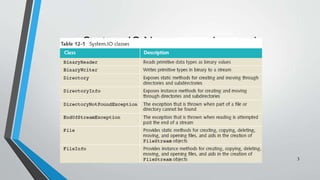
System.IO Namespace
• Provides basic file and directory support classes
• Contains types that enable you to read and write files and data streams
• Many of the types or classes defined as part of the System.IO namespace
are designed around streams
2
System.IO Namespace (continued)
C# Programming: From Problem Analysis to Program Design
3
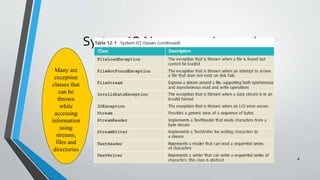
System.IO Namespace (continued)
4
Many are
exception
classes that
can be
thrown
while
accessing
information
using
streams,
files and
directories
5
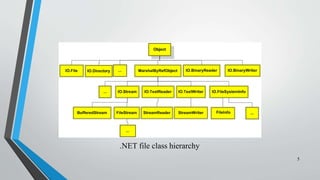
.NET file class hierarchy
File and Directory Classes
• Utility classes allow you to manipulate files and directory
structures
• copying, moving, renaming, creating, opening,
deleting, and appending files
• Expose only static members
• Objects are not instantiated from these classes
• To invoke the method, the method name is
preceded by the class name (as opposed to an
object’s name)
File.Copy(“sourceFile”, “targetFile”); 6
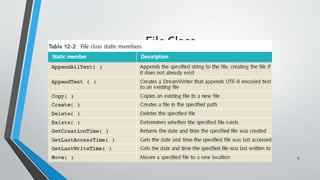
File Class
7
File Class (continued)
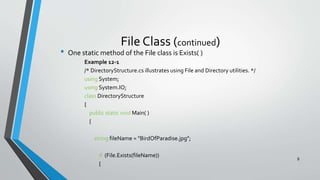
• One static method of the File class is Exists( )
Example 12-1
/* DirectoryStructure.cs illustrates using File and Directory utilities. */
using System;
using System.IO;
class DirectoryStructure
{
public static void Main( )
{
string fileName = "BirdOfParadise.jpg";
if (File.Exists(fileName))
{
8
File Class (continued)
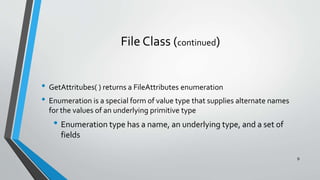
• GetAttritubes( ) returns a FileAttributes enumeration
• Enumeration is a special form of value type that supplies alternate names
for the values of an underlying primitive type
• Enumeration type has a name, an underlying type, and a set of
fields
9
File Class (continued)
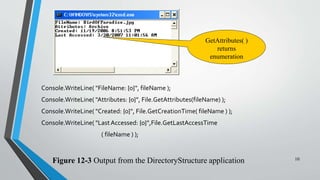
Console.WriteLine( "FileName: {0}", fileName );
Console.WriteLine( "Attributes: {0}", File.GetAttributes(fileName) );
Console.WriteLine( "Created: {0}", File.GetCreationTime( fileName ) );
Console.WriteLine( "LastAccessed: {0}",File.GetLastAccessTime
( fileName ) );
10
Figure 12-3 Output from the DirectoryStructure application
GetAttributes( )
returns
enumeration
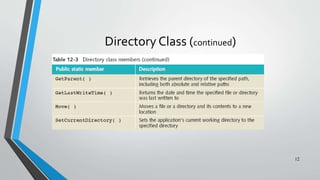
Directory Class
• Static methods for creating and moving through directories and
subdirectories
11
Directory Class (continued)
12
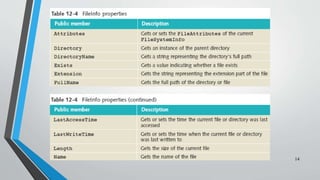
DirectoryInfo and FileInfo Classes
• Add additional functionality beyond File and Directory classes
• Difference – Both have instance methods instead of static
members
• Both have public properties and public constructors
• Neither can be inherited
13
14
DirectoryInfo
• Adds two other key properties, Parent and Root
• Parent gets the parent directory of a specified subdirectory
• Root gets the root portion of a path
• Be careful with paths; they must be well-formed or an exception is
raised
DirectoryInfo dir = new DirectoryInfo(".");
Console.WriteLine("Current Directory: n{0}n",
Directory.GetCurrentDirectory( ));
15
File Streams
• Several abstract classes for dealing with files
• Stream,TextWriter, andTextReader
• Stream classes provide generic methods for dealing with
input/output
• IO.Stream class and its subclasses – byte-level
data
• IO.TextWriter and IO.TextReader – data in a text
(readable) format
• StreamReader and StreamWriter derived classes
of IO.TextWriter and IO.TextReader 16
File Streams (continued)
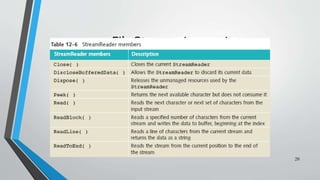
• StreamWriter class for write data to text file
• Includes implementations forWrite( ) andWriteLine( )
• StreamReader class to read or and from text files
• Includes implementations of Read( ) and ReadLine( )
• System.IO namespace
• Using System.IO;
17
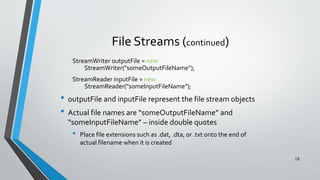
File Streams (continued)
StreamWriter outputFile = new
StreamWriter("someOutputFileName");
StreamReader inputFile = new
StreamReader("someInputFileName");
• outputFile and inputFile represent the file stream objects
• Actual file names are “someOutputFileName” and
“someInputFileName” – inside double quotes
• Place file extensions such as .dat, .dta, or .txt onto the end of
actual filename when it is created
18
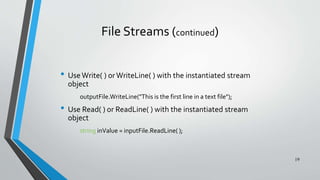
File Streams (continued)
• UseWrite( ) orWriteLine( ) with the instantiated stream
object
outputFile.WriteLine("This is the first line in a text file");
• Use Read( ) or ReadLine( ) with the instantiated stream
object
string inValue = inputFile.ReadLine( );
19
File Streams (continued)
20
C# File IO Operations

C# File IO Operations

  • 1.
  • 2.
    System.IO Namespace • Providesbasic file and directory support classes • Contains types that enable you to read and write files and data streams • Many of the types or classes defined as part of the System.IO namespace are designed around streams 2
  • 3.
    System.IO Namespace (continued) C#Programming: From Problem Analysis to Program Design 3
  • 4.
    System.IO Namespace (continued) 4 Manyare exception classes that can be thrown while accessing information using streams, files and directories
  • 5.
  • 6.
    File and DirectoryClasses • Utility classes allow you to manipulate files and directory structures • copying, moving, renaming, creating, opening, deleting, and appending files • Expose only static members • Objects are not instantiated from these classes • To invoke the method, the method name is preceded by the class name (as opposed to an object’s name) File.Copy(“sourceFile”, “targetFile”); 6
  • 7.
  • 8.
    File Class (continued) •One static method of the File class is Exists( ) Example 12-1 /* DirectoryStructure.cs illustrates using File and Directory utilities. */ using System; using System.IO; class DirectoryStructure { public static void Main( ) { string fileName = "BirdOfParadise.jpg"; if (File.Exists(fileName)) { 8
  • 9.
    File Class (continued) •GetAttritubes( ) returns a FileAttributes enumeration • Enumeration is a special form of value type that supplies alternate names for the values of an underlying primitive type • Enumeration type has a name, an underlying type, and a set of fields 9
  • 10.
    File Class (continued) Console.WriteLine("FileName: {0}", fileName ); Console.WriteLine( "Attributes: {0}", File.GetAttributes(fileName) ); Console.WriteLine( "Created: {0}", File.GetCreationTime( fileName ) ); Console.WriteLine( "LastAccessed: {0}",File.GetLastAccessTime ( fileName ) ); 10 Figure 12-3 Output from the DirectoryStructure application GetAttributes( ) returns enumeration
  • 11.
    Directory Class • Staticmethods for creating and moving through directories and subdirectories 11
  • 12.
  • 13.
    DirectoryInfo and FileInfoClasses • Add additional functionality beyond File and Directory classes • Difference – Both have instance methods instead of static members • Both have public properties and public constructors • Neither can be inherited 13
  • 14.
  • 15.
    DirectoryInfo • Adds twoother key properties, Parent and Root • Parent gets the parent directory of a specified subdirectory • Root gets the root portion of a path • Be careful with paths; they must be well-formed or an exception is raised DirectoryInfo dir = new DirectoryInfo("."); Console.WriteLine("Current Directory: n{0}n", Directory.GetCurrentDirectory( )); 15
  • 16.
    File Streams • Severalabstract classes for dealing with files • Stream,TextWriter, andTextReader • Stream classes provide generic methods for dealing with input/output • IO.Stream class and its subclasses – byte-level data • IO.TextWriter and IO.TextReader – data in a text (readable) format • StreamReader and StreamWriter derived classes of IO.TextWriter and IO.TextReader 16
  • 17.
    File Streams (continued) •StreamWriter class for write data to text file • Includes implementations forWrite( ) andWriteLine( ) • StreamReader class to read or and from text files • Includes implementations of Read( ) and ReadLine( ) • System.IO namespace • Using System.IO; 17
  • 18.
    File Streams (continued) StreamWriteroutputFile = new StreamWriter("someOutputFileName"); StreamReader inputFile = new StreamReader("someInputFileName"); • outputFile and inputFile represent the file stream objects • Actual file names are “someOutputFileName” and “someInputFileName” – inside double quotes • Place file extensions such as .dat, .dta, or .txt onto the end of actual filename when it is created 18
  • 19.
    File Streams (continued) •UseWrite( ) orWriteLine( ) with the instantiated stream object outputFile.WriteLine("This is the first line in a text file"); • Use Read( ) or ReadLine( ) with the instantiated stream object string inValue = inputFile.ReadLine( ); 19
  • 20.