PWCT Features – Framework and Extension
When we program using PWCT, we uses one of the available visual programming languages like
HarbourPWCT, CPWCT, PythonPWCT & SupernovaPWCT. All of these visual programming languages
are developed inside PWCT Environment. PWCT provide us with the designers that we can use to
develop new components. A visual programming language inside PWCT is not more than a collection of
components working together to wrap a text based programming language. We can develop our visual
programming languages on the top of a compiler or interpreter, also we can use a framework to get more
high level results. And we can develop our visual language on the top of a very low level language like
ASM.
Inside PWCT, the visual programming language is a ( Domain Tree + Components )
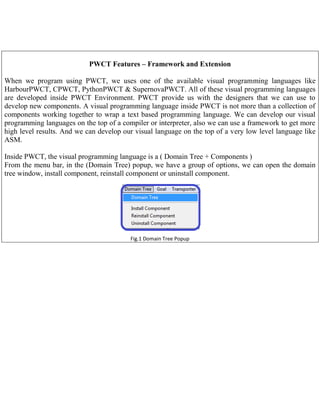
From the menu bar, in the (Domain Tree) popup, we have a group of options, we can open the domain
tree window, install component, reinstall component or uninstall component.

Fig.1 Domain Tree Popup
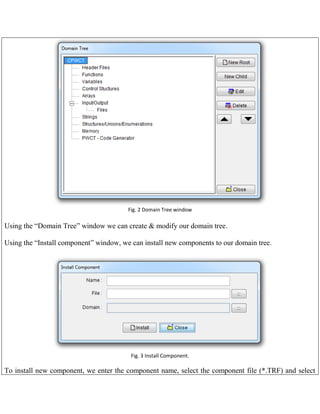
Fig. 2 Domain Tree window

Using the “Domain Tree” window we can create & modify our domain tree.
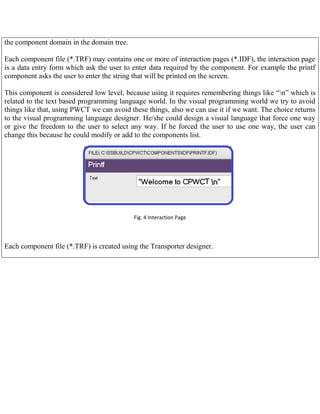
Using the “Install component” window, we can install new components to our domain tree.

Fig. 3 Install Component.

To install new component, we enter the component name, select the component file (*.TRF) and select
the component domain in the domain tree.
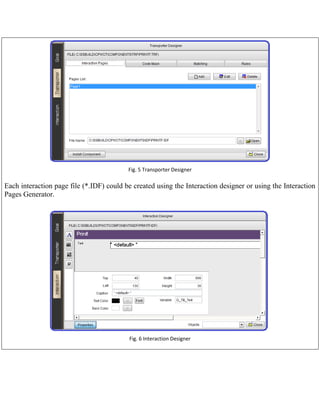
Each component file (*.TRF) may contains one or more of interaction pages (*.IDF), the interaction page
is a data entry form which ask the user to enter data required by the component. For example the printf
component asks the user to enter the string that will be printed on the screen.
This component is considered low level, because using it requires remembering things like “n” which is
related to the text based programming language world. In the visual programming world we try to avoid
things like that, using PWCT we can avoid these things, also we can use it if we want. The choice returns
to the visual programming language designer. He/she could design a visual language that force one way
or give the freedom to the user to select any way. If he forced the user to use one way, the user can
change this because he could modify or add to the components list.

Fig. 4 Interaction Page

Each component file (*.TRF) is created using the Transporter designer.
Fig. 5 Transporter Designer

Each interaction page file (*.IDF) could be created using the Interaction designer or using the Interaction
Pages Generator.

Fig. 6 Interaction Designer
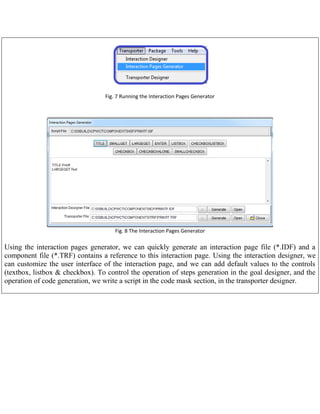
Fig. 7 Running the Interaction Pages Generator

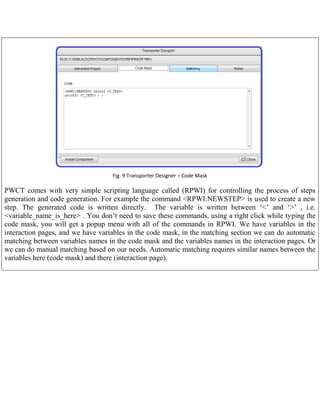
Fig. 8 The Interaction Pages Generator

Using the interaction pages generator, we can quickly generate an interaction page file (*.IDF) and a
component file (*.TRF) contains a reference to this interaction page. Using the interaction designer, we
can customize the user interface of the interaction page, and we can add default values to the controls
(textbox, listbox & checkbox). To control the operation of steps generation in the goal designer, and the
operation of code generation, we write a script in the code mask section, in the transporter designer.
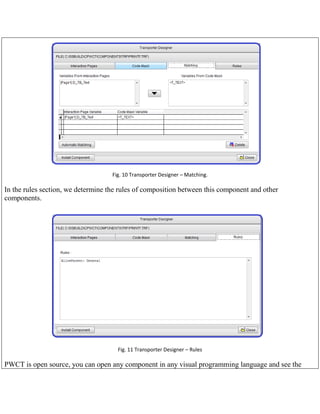
Fig. 9 Transporter Designer – Code Mask

PWCT comes with very simple scripting language called (RPWI) for controlling the process of steps
generation and code generation. For example the command <RPWI:NEWSTEP> is used to create a new
step. The generated code is written directly. The variable is written between „<‟ and „>‟ , i.e.
<variable_name_is_here> . You don‟t need to save these commands, using a right click while typing the
code mask, you will get a popup menu with all of the commands in RPWI. We have variables in the
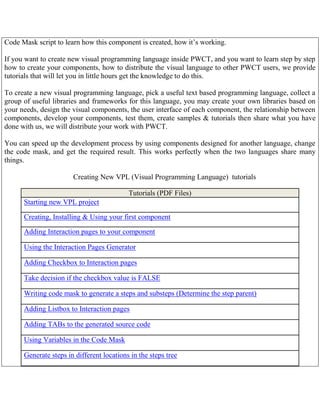
interaction pages, and we have variables in the code mask, in the matching section we can do automatic
matching between variables names in the code mask and the variables names in the interaction pages. Or
we can do manual matching based on our needs. Automatic matching requires similar names between the
variables here (code mask) and there (interaction page).
Fig. 10 Transporter Designer – Matching.

In the rules section, we determine the rules of composition between this component and other
components.

Fig. 11 Transporter Designer – Rules

PWCT is open source, you can open any component in any visual programming language and see the
Code Mask script to learn how this component is created, how it‟s working.
If you want to create new visual programming language inside PWCT, and you want to learn step by step
how to create your components, how to distribute the visual language to other PWCT users, we provide
tutorials that will let you in little hours get the knowledge to do this.
To create a new visual programming language, pick a useful text based programming language, collect a
group of useful libraries and frameworks for this language, you may create your own libraries based on
your needs, design the visual components, the user interface of each component, the relationship between
components, develop your components, test them, create samples & tutorials then share what you have
done with us, we will distribute your work with PWCT.
You can speed up the development process by using components designed for another language, change
the code mask, and get the required result. This works perfectly when the two languages share many
things.
Creating New VPL (Visual Programming Language) tutorials
Tutorials (PDF Files)
Starting new VPL project
Creating, Installing & Using your first component
Adding Interaction pages to your component
Using the Interaction Pages Generator
Adding Checkbox to Interaction pages
Take decision if the checkbox value is FALSE
Writing code mask to generate a steps and substeps (Determine the step parent)
Adding Listbox to Interaction pages
Adding TABs to the generated source code
Using Variables in the Code Mask
Generate steps in different locations in the steps tree
Writing the Code Mask and the Rules inside the Transporter Designer
Rapid components development
Table 1. Creating new VPL tutorials

HOME

Programming Without Coding Technology (PWCT) Features - Framework & Extension

  • 1.
    PWCT Features –Framework and Extension When we program using PWCT, we uses one of the available visual programming languages like HarbourPWCT, CPWCT, PythonPWCT & SupernovaPWCT. All of these visual programming languages are developed inside PWCT Environment. PWCT provide us with the designers that we can use to develop new components. A visual programming language inside PWCT is not more than a collection of components working together to wrap a text based programming language. We can develop our visual programming languages on the top of a compiler or interpreter, also we can use a framework to get more high level results. And we can develop our visual language on the top of a very low level language like ASM. Inside PWCT, the visual programming language is a ( Domain Tree + Components ) From the menu bar, in the (Domain Tree) popup, we have a group of options, we can open the domain tree window, install component, reinstall component or uninstall component. Fig.1 Domain Tree Popup
  • 2.
    Fig. 2 DomainTree window Using the “Domain Tree” window we can create & modify our domain tree. Using the “Install component” window, we can install new components to our domain tree. Fig. 3 Install Component. To install new component, we enter the component name, select the component file (*.TRF) and select
  • 3.
    the component domainin the domain tree. Each component file (*.TRF) may contains one or more of interaction pages (*.IDF), the interaction page is a data entry form which ask the user to enter data required by the component. For example the printf component asks the user to enter the string that will be printed on the screen. This component is considered low level, because using it requires remembering things like “n” which is related to the text based programming language world. In the visual programming world we try to avoid things like that, using PWCT we can avoid these things, also we can use it if we want. The choice returns to the visual programming language designer. He/she could design a visual language that force one way or give the freedom to the user to select any way. If he forced the user to use one way, the user can change this because he could modify or add to the components list. Fig. 4 Interaction Page Each component file (*.TRF) is created using the Transporter designer.
  • 4.
    Fig. 5 TransporterDesigner Each interaction page file (*.IDF) could be created using the Interaction designer or using the Interaction Pages Generator. Fig. 6 Interaction Designer
  • 5.
    Fig. 7 Runningthe Interaction Pages Generator Fig. 8 The Interaction Pages Generator Using the interaction pages generator, we can quickly generate an interaction page file (*.IDF) and a component file (*.TRF) contains a reference to this interaction page. Using the interaction designer, we can customize the user interface of the interaction page, and we can add default values to the controls (textbox, listbox & checkbox). To control the operation of steps generation in the goal designer, and the operation of code generation, we write a script in the code mask section, in the transporter designer.
  • 6.
    Fig. 9 TransporterDesigner – Code Mask PWCT comes with very simple scripting language called (RPWI) for controlling the process of steps generation and code generation. For example the command <RPWI:NEWSTEP> is used to create a new step. The generated code is written directly. The variable is written between „<‟ and „>‟ , i.e. <variable_name_is_here> . You don‟t need to save these commands, using a right click while typing the code mask, you will get a popup menu with all of the commands in RPWI. We have variables in the interaction pages, and we have variables in the code mask, in the matching section we can do automatic matching between variables names in the code mask and the variables names in the interaction pages. Or we can do manual matching based on our needs. Automatic matching requires similar names between the variables here (code mask) and there (interaction page).
  • 7.
    Fig. 10 TransporterDesigner – Matching. In the rules section, we determine the rules of composition between this component and other components. Fig. 11 Transporter Designer – Rules PWCT is open source, you can open any component in any visual programming language and see the
  • 8.
    Code Mask scriptto learn how this component is created, how it‟s working. If you want to create new visual programming language inside PWCT, and you want to learn step by step how to create your components, how to distribute the visual language to other PWCT users, we provide tutorials that will let you in little hours get the knowledge to do this. To create a new visual programming language, pick a useful text based programming language, collect a group of useful libraries and frameworks for this language, you may create your own libraries based on your needs, design the visual components, the user interface of each component, the relationship between components, develop your components, test them, create samples & tutorials then share what you have done with us, we will distribute your work with PWCT. You can speed up the development process by using components designed for another language, change the code mask, and get the required result. This works perfectly when the two languages share many things. Creating New VPL (Visual Programming Language) tutorials Tutorials (PDF Files) Starting new VPL project Creating, Installing & Using your first component Adding Interaction pages to your component Using the Interaction Pages Generator Adding Checkbox to Interaction pages Take decision if the checkbox value is FALSE Writing code mask to generate a steps and substeps (Determine the step parent) Adding Listbox to Interaction pages Adding TABs to the generated source code Using Variables in the Code Mask Generate steps in different locations in the steps tree
  • 9.
    Writing the CodeMask and the Rules inside the Transporter Designer Rapid components development Table 1. Creating new VPL tutorials HOME