FastTrack Schedule 10
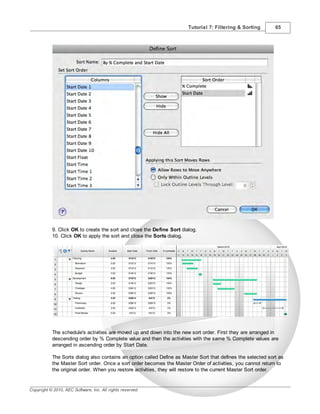
                                  Tutorials


         Copyright © 2010, AEC Software, Inc. All rights reserved.
FastTrack Schedule Tutorials
                                                                    Version 10.0.0

                                                                  by Carol S. Williamson

                                                                       AEC Software, Inc.


With FastTrack Schedule 10, the new version of the award-winning project manager, it’s
easier than ever to plan and manage your projects.

Powerful track ing tools and dynamic status reports k eep team members in sync, costs
under control, and projects on schedule.
FastTrack Schedule 10 Tutorials

Copyright © 2010, AEC Software, Inc. All rights reserved.

All rights reserved. No parts of this work may be reproduced in any form or by any means - graphic, electronic, or
mechanical, including photocopying, recording, taping, or information storage and retrieval systems - without the
written permission of the publisher.

Products that are referred to in this document may be either trademarks and/or registered trademarks of the
respective owners. The publisher and the author make no claim to these trademarks.

While every precaution has been taken in the preparation of this document, the publisher and the author assume no
responsibility for errors or omissions, or for damages resulting from the use of information contained in this
document or from the use of programs and source code that may accompany it. In no event shall the publisher and
the author be liable for any loss of profit or any other commercial damage caused or alleged to have been caused
directly or indirectly by this document.

Prepared April, 2010 in Dulles, Virginia, USA


                                                                                  Publisher
                                                                                 AEC Software, Inc.


                                                                                 Managing Editor
                                                                                 Carol S. Williamson

                                                                                 Technical Editor
                                                                                 Kalvin K. Saccal


                                                                                 Art Designer
                                                                                 The Bigger Design


                                                 Special thanks to:

                                                 All the people who contributed to this document, to all current and
                                                 previous AEC Software family members who inpire and create great
                                                 products, and to all partners and associates of AEC Software.
Contents               5


     Table of Contents

    Chapter 1 Tutorials                                                                                                                                       9

    Chapter 2 Using the Tutorials                                                                                                                             9

    Chapter 3 Printing the Tutorials                                                                                                                        10

    Chapter 4 Tutorial 1: Up and Running                                                                                                                    11
                   1 Up and Running - Intro
                          ................................................................................................................................... 11
                   2 The FastTrack Schedule environment
                          ................................................................................................................................... 11
                   3 Key Tools
                          ................................................................................................................................... 12
                   4 Viewing the schedule
                          ................................................................................................................................... 13
                   5 Creating activities
                          ................................................................................................................................... 14
                   6 Drawing bars
                         ................................................................................................................................... 14
                   7 Typing dates
                          ................................................................................................................................... 15
                   8 Drawing milestones
                         ................................................................................................................................... 16
                   9 Dragging bars
                          ................................................................................................................................... 16
                 10 Changing the schedule date range
                        ................................................................................................................................... 17
                 11 Typing to change dates
                         ................................................................................................................................... 17
                 12 Printing the schedule
                          ................................................................................................................................... 18
                 13 Printing the schedule in Calendar View
                          ................................................................................................................................... 18
                 14 Finishing Tutorial 1
                          ................................................................................................................................... 20

    Chapter 5 Tutorial 2: Laying Out Your Schedule                                                                                                          21
                   1 Laying Out Your Schedule - Intro
                          ................................................................................................................................... 21
                   2 Indenting outline levels
                          ................................................................................................................................... 21
                   3 Collapsing outline levels
                          ................................................................................................................................... 22
                   4 Expanding outline levels
                         ................................................................................................................................... 23
                   5 Viewing a different layout
                          ................................................................................................................................... 23
                   6 Inserting columns
                           ................................................................................................................................... 24
                   7 Formatting columns
                         ................................................................................................................................... 25
                   8 Designing a new layout
                          ................................................................................................................................... 26
                   9 Designing a new layout (cont'd)
                          ................................................................................................................................... 27
                 10 Inserting and formatting timescale rows
                          ................................................................................................................................... 28
                 11 Moving timescale rows
                         ................................................................................................................................... 29
                 12 Resizing the timeline-columns
                         ................................................................................................................................... 30
                 13 Finishing Tutorial 2
                          ................................................................................................................................... 30

     Copyright © 2010, AEC Software, Inc. All rights reserved.


5
6      FastTrack Schedule 10 Tutorials


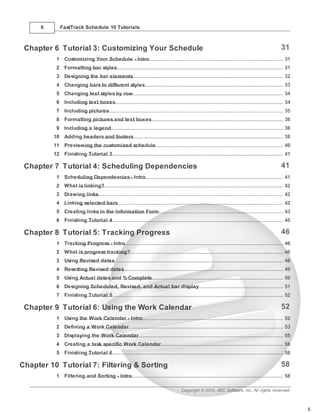
 Chapter 6 Tutorial 3: Customizing Your Schedule                                                                                                   31
           1 Customizing Your Schedule - Intro
                  ................................................................................................................................... 31
           2 Formatting bar styles
                 ................................................................................................................................... 31
           3 Designing the bar elements
                  ................................................................................................................................... 32
           4 Changing bars to different styles
                 ................................................................................................................................... 33
           5 Changing text styles by row
                 ................................................................................................................................... 34
           6 Including text boxes
                  ................................................................................................................................... 34
           7 Including pictures
                  ................................................................................................................................... 35
           8 Formatting pictures and text boxes
                 ................................................................................................................................... 36
           9 Including a legend
                  ................................................................................................................................... 36
          10 Adding headers and footers
                  ................................................................................................................................... 38
          11 Previewing the customized schedule
                  ................................................................................................................................... 40
          12 Finishing Tutorial 3
                   ................................................................................................................................... 41

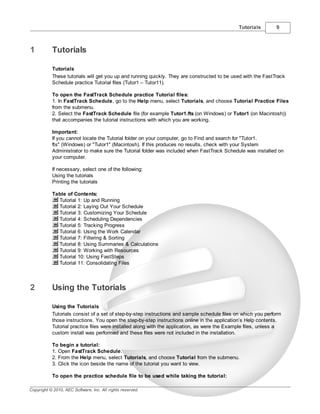
 Chapter 7 Tutorial 4: Scheduling Dependencies                                                                                                     41
           1 Scheduling Dependencies - Intro
                 ................................................................................................................................... 41
           2 What ................................................................................................................................... 42
                   is linking?
           3 Drawing links
                 ................................................................................................................................... 42
           4 Linking selected bars
                  ................................................................................................................................... 42
           5 Creating links in the Information Form
                  ................................................................................................................................... 43
           6 Finishing Tutorial 4
                   ................................................................................................................................... 45

 Chapter 8 Tutorial 5: Tracking Progress                                                                                                           46
           1 Tracking Progress - Intro
                  ................................................................................................................................... 46
           2 What ................................................................................................................................... 46
                   is progress tracking?
           3 Using................................................................................................................................... 48
                   Revised dates
           4 Resetting Revised dates
                  ................................................................................................................................... 49
           5 Using................................................................................................................................... 50
                   Actual dates and % Complete
           6 Designing Scheduled, Revised, and Actual bar display
                  ................................................................................................................................... 51
           7 Finishing Tutorial 5
                   ................................................................................................................................... 52

 Chapter 9 Tutorial 6: Using the Work Calendar                                                                                                     52
           1 Using................................................................................................................................... 52
                   the Work Calendar - Intro
           2 Defining a Work Calendar
                  ................................................................................................................................... 53
           3 Displaying the Work Calendar
                  ................................................................................................................................... 55
           4 Creating a task specific Work Calendar
                  ................................................................................................................................... 56
           5 Finishing Tutorial 6
                   ................................................................................................................................... 58

Chapter 10 Tutorial 7: Filtering & Sorting                                                                                                         58
           1 Filtering and Sorting - Intro
                   ................................................................................................................................... 58

                                                                                       Copyright © 2010, AEC Software, Inc. All rights reserved.


                                                                                                                                                            6
Contents               7


                    2 Applying a filter
                           ................................................................................................................................... 59
                    3 Defining a filter
                           ................................................................................................................................... 59
                    4 Hiding activities
                           ................................................................................................................................... 62
                    5 Restoring filtered activities
                           ................................................................................................................................... 63
                    6 Applying a sort
                           ................................................................................................................................... 63
                    7 Defining a sort
                           ................................................................................................................................... 64
                    8 Restoring sorted activities
                           ................................................................................................................................... 66
                    9 Finishing Tutorial 7
                            ................................................................................................................................... 66

    Chapter 11 Tutorial 8: Using Summaries & Calculations                                                                                                    66
                    1 Using................................................................................................................................... 66
                            Summaries and Calculations - Intro
                    2 Adding a column summary
                           ................................................................................................................................... 67
                    3 Defining a calculation column
                           ................................................................................................................................... 68
                    4 Setting up a calculation
                            ................................................................................................................................... 69
                    5 Defining a summary graph row
                           ................................................................................................................................... 73
                    6 Finishing Tutorial 8
                            ................................................................................................................................... 75

    Chapter 12 Tutorial 9: Working with Resources                                                                                                            75
                    1 Working with Resources - Intro
                          ................................................................................................................................... 75
                    2 Creating a new resource
                           ................................................................................................................................... 75
                    3 Assigning a resource to an activity
                           ................................................................................................................................... 77
                    4 Viewing resource assignments in the Schedule View
                           ................................................................................................................................... 79
                    5 Viewing resource subrows
                           ................................................................................................................................... 81
                    6 Finishing Tutorial 9
                            ................................................................................................................................... 82

    Chapter 13 Tutorial 10: Using FastSteps                                                                                                                  82
                    1 Tutorial 10- Using FastSteps
                           ................................................................................................................................... 82
                    2 What ................................................................................................................................... 82
                            are FastSteps?
                    3 Applying a FastStep
                           ................................................................................................................................... 82
                    4 Creating a basic FastStep
                           ................................................................................................................................... 83
                    5 Creating a basic FastStep (contd)
                           ................................................................................................................................... 85
                    6 Finishing Tutorial 10
                            ................................................................................................................................... 87

    Chapter 14 Tutorial 11: Consolidating Files                                                                                                              87
                    1 Tutorial 11 - Consolidating Files
                           ................................................................................................................................... 87
                    2 Understanding Consolidation
                          ................................................................................................................................... 87
                    3 Defining Consolidation
                           ................................................................................................................................... 88
                    4 Finishing Tutorial 11
                            ................................................................................................................................... 89


      Copyright © 2010, AEC Software, Inc. All rights reserved.


7
8   FastTrack Schedule 10 Tutorials


    Index                                                                                 91


                                      Copyright © 2010, AEC Software, Inc. All rights reserved.


                                                                                                  8
Tutorials       9


1          Tutorials

           Tutorials
           These tutorials will get you up and running quickly. They are constructed to be used with the FastTrack
           Schedule practice Tutorial files (Tutor1 – Tutor11).

           To open the FastTrack Schedule practice Tutorial files:
           1. In FastTrack Schedule, go to the Help menu, select Tutorials, and choose Tutorial Practice Files
           from the submenu.
           2. Select the FastTrack Schedule file (for example Tutor1.fts (on Windows) or Tutor1 (on Macintosh))
           that accompanies the tutorial instructions with which you are working.

           Important:
           If you cannot locate the Tutorial folder on your computer, go to Find and search for "Tutor1.
           fts" (Windows) or "Tutor1" (Macintosh). If this produces no results, check with your System
           Administrator to make sure the Tutorial folder was included when FastTrack Schedule was installed on
           your computer.

           If necessary, select one of the following:
           Using the tutorials
           Printing the tutorials

           Table of Contents:
             Tutorial 1: Up and Running
             Tutorial 2: Laying Out Your Schedule
             Tutorial 3: Customizing Your Schedule
             Tutorial 4: Scheduling Dependencies
             Tutorial 5: Tracking Progress
             Tutorial 6: Using the Work Calendar
             Tutorial 7: Filtering & Sorting
             Tutorial 8: Using Summaries & Calculations
             Tutorial 9: Working with Resources
             Tutorial 10: Using FastSteps
             Tutorial 11: Consolidating Files


2          Using the Tutorials

           Using the Tutorials
           Tutorials consist of a set of step-by-step instructions and sample schedule files on which you perform
           those instructions. You open the step-by-step instructions online in the application’s Help contents.
           Tutorial practice files were installed along with the application, as were the Example files, unless a
           custom install was performed and these files were not included in the installation.

           To begin a tutorial:
           1. Open FastTrack Schedule.
           2. From the Help menu, select Tutorials, and choose Tutorial from the submenu.
           3. Click the icon beside the name of the tutorial you want to view.

           To open the practice schedule file to be used while taking the tutorial:

Copyright © 2010, AEC Software, Inc. All rights reserved.
10      FastTrack Schedule 10 Tutorials


         1. In FastTrack Schedule, go to the Help menu, select Tutorials, and choose Tutorial Practice Files
         from the submenu.
         2. Select the FastTrack Schedule file Tutor1 that accompanies the tutorial instructions with which you
         are working.

         Important:
         If you cannot locate the Tutorial folder on your computer, go to Find and search for "Tutor1". If this
         produces no results, check with your System Administrator to make sure the Tutorial folder was
         included when FastTrack Schedule was installed on your computer.

         To go through the tutorial:
         1. Be sure you have both a FastTrack Schedule window (displaying the appropriate practice schedule)
         and your browser (displaying the appropriate step-by-step instructions) open at the same time. If your
         monitor allows it, position the windows so you can work on the schedule while keeping the step-by-step
         instructions in view.

         See also:
         Printing the tutorials
         Tutorial Contents

3        Printing the Tutorials

         Printing the Tutorials
         If you prefer to follow the instructions from a hard copy print out instead of on your screen, you can print
         the contents of the tutorials.

         To print a tutorial:
         1. Open the FTS10Tutorials.pdf file, which was installed in the same location as the Tutorial practice
         files.
         2. Print the FTS10Tutorials.pdf file.
             -or-
         1. Open the Tutorials.
             This will launch your computer’s default browser.
         2. Use your browser’s Print functionality to print the active page.
             This may mean clicking on the right side of the page to avoid printing the Contents frame.
             You will have to print each tutorial one page at a time.

         Important:
         If you cannot locate the tutorial PDF file on your computer, go to Find and search for "FTS10Tutorials.
         pdf." If this produces no results, check with your System Administrator to make sure the Tutorial PDF
         file was included when FastTrack Schedule was installed on your computer.

         Note:
         The FTS10Tutorials.pdf document is also available in the Downloads section of the AEC Software
         Homepage: http://www.aecsoftware.com

         See also:
         Using the Tutorials
         Tutorial Contents


                                                                    Copyright © 2010, AEC Software, Inc. All rights reserved.
Tutorial 1: Up and Running              11


4          Tutorial 1: Up and Running

4.1        Up and Running - Intro

           Tutorial 1 - Up and Running
           This tutorial shows you the basics of scheduling, from creating activities to printing the schedule and its
           calendar. When you are done, you will know enough about FastTrack Schedule to begin building your
           own schedules.

           To open the practice schedule file to be used while taking this tutorial:
           1. In FastTrack Schedule, go to the Help menu, select Tutorials, and choose Tutorial Practice Files
           from the submenu.
           2. Select the FastTrack Schedule file Tutor1.

           Important:
           If you cannot locate the Tutorial folder on your computer, go to Find and search for "Tutor1". If this
           produces no results, check with your System Administrator to make sure the Tutorial folder was
           included when FastTrack Schedule was installed on your computer.


4.2        The FastTrack Schedule environment
           The FastTrack Schedule environment
           In the Schedule View, the timeline, or timeline graph, is the actual grid of horizontal and vertical lines on
           which activity bars sit. In the Resource View, the timeline is the actual grid of horizontal and vertical
           lines on which assigned activity bars and resource graphs sit. The timeline can represent any range of
           time you determine, in units of hours, days, weeks, months, quarters, and years.

           A timescale contains timescale rows that label the dates and times on the timeline graph. The timescale
           rows can be formatted to display different divisions of the base timeline units. For instance, a schedule
           that is divided into base timeline units of weeks might also have timescale rows that group the timescale
           into months and fiscal quarters.

           Columns – Columns can be placed to the left and right of the timeline graph. There are columns pre-
           defined by FastTrack Schedule or ones that you create yourself.

           Rows – Rows contain activities, data, and activity bars. You can move them up and down, hide and
           show them, sort them into different arrangements, and use them to outline activities.

           Timescale area – Sections of the screen that display the timescale rows. The Schedule and Resource
           View can each contain two different timescale areas: one above the timeline and one below it. You can
           use options in the Define Layout dialog to have the bottom timescale mirror the top timescale.

           Base Timescale Row – The timescale row that displays the base timeline units (the smallest units
           set). You cannot change the units of the base timescale row; they always reflect the base timeline units.

           Width – The width of the divisions in the base timescale row define the width of columns in the timeline.
           Therefore, if the Schedule View timeline is in base units of weeks, changing the width of a column in the
           row that displays weeks changes the width of the timeline graph.

           Action Columns


Copyright © 2010, AEC Software, Inc. All rights reserved.
12      FastTrack Schedule 10 Tutorials


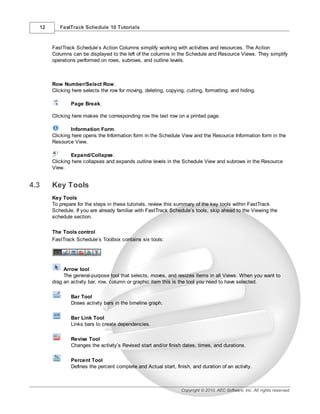
       FastTrack Schedule’s Action Columns simplify working with activities and resources. The Action
       Columns can be displayed to the left of the columns in the Schedule and Resource Views. They simplify
       operations performed on rows, subrows, and outline levels.


       Row Number/Select Row.
       Clicking here selects the row for moving, deleting, copying, cutting, formatting, and hiding.

               Page Break.

       Clicking here makes the corresponding row the last row on a printed page.

               Information Form.
       Clicking here opens the Information form in the Schedule View and the Resource Information form in the
       Resource View.

               Expand/Collapse.
       Clicking here collapses and expands outline levels in the Schedule View and subrows in the Resource
       View.


4.3    Key Tools
       Key Tools
       To prepare for the steps in these tutorials, review this summary of the key tools within FastTrack
       Schedule. If you are already familiar with FastTrack Schedule’s tools, skip ahead to the Viewing the
       schedule section.

       The Tools control
       FastTrack Schedule’s Toolbox contains six tools:


            Arrow tool
            The general-purpose tool that selects, moves, and resizes items in all Views. When you want to
       drag an activity bar, row, column or graphic item this is the tool you need to have selected.

               Bar Tool
               Draws activity bars in the timeline graph.

               Bar Link Tool
               Links bars to create dependencies.

               Revise Tool
               Changes the activity’s Revised start and/or finish dates, times, and durations.

               Percent Tool
               Defines the percent complete and Actual start, finish, and duration of an activity.


                                                                  Copyright © 2010, AEC Software, Inc. All rights reserved.
Tutorial 1: Up and Running            13


                     Text Box Tool
                     Draws and edits text boxes for use as labels and titles.

           Important:
           Unless a tool is double-clicked, the default setting for each tool in the Tools control is to revert back to
           the Arrow tool after use. When double-clicked, a tool is locked down and can be used multiple times. To
           change this tool behavior, from the Editing tab of the Preferences>Application dialog, deselect the
           Double-click to Lock Tools option.

           The Bar Styles tool
           The cells of the Bar Styles list contain the bar styles defined for the schedule.

           You can use the Bar Styles tool to design a new bar style, edit an existing bar style, or change the bar
           style applied to an activity.


           Note:
           When you select a different bar style all new bars will be drawn in that style and, if an activity bar is
           selected in the timeline graph, it changes that bar to the selected bar style.

           The Views tool
           There are three Views in FastTrack Schedule: the Schedule View, Calendar View, and Resource View.
           The Views tool lets you switch from one View to another, instantly.


           The Timeline Range tool
           The Schedule, Resource, and Calendar Views can each show a different span, or range, of dates. The
           Timeline Range tool gives you immediate access to the Start and Finish dates of the timeline in the
           Schedule and Resource Views, and the calendar in the Calendar View.

           The dates you set in the Timeline Range tool affect only the View you are looking at and always
           correspond to the Start and Finish dates displayed in the respective Format Schedule, Resource, or
           Calendar View dialogs.


4.4        Viewing the schedule
           Viewing the schedule
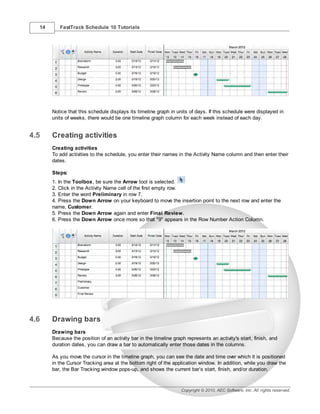
           As you view the Tutorial 1 practice schedule, note that activities are listed in the Activity Name column
           and their scheduled dates are shown in the Start Date and Finish Date columns. The number of duration
           units between the start date and end date is shown in the Duration column. In the timeline, these dates
           are represented graphically as activity bars positioned according to the timeline. This timeline is labeled
           by the timescale rows at the top of the schedule.


Copyright © 2010, AEC Software, Inc. All rights reserved.
14      FastTrack Schedule 10 Tutorials


       Notice that this schedule displays its timeline graph in units of days. If this schedule were displayed in
       units of weeks, there would be one timeline graph column for each week instead of each day.


4.5    Creating activities
       Creating activities
       To add activities to the schedule, you enter their names in the Activity Name column and then enter their
       dates.

       Steps:
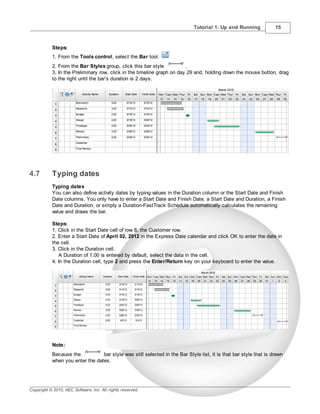
       1. In the Toolbox, be sure the Arrow tool is selected.
       2. Click in the Activity Name cell of the first empty row.
       3. Enter the word Preliminary in row 7.
       4. Press the Down Arrow on your keyboard to move the insertion point to the next row and enter the
       name, Customer.
       5. Press the Down Arrow again and enter Final Review.
       6. Press the Down Arrow once more so that "9" appears in the Row Number Action Column.


4.6    Drawing bars
       Drawing bars
       Because the position of an activity bar in the timeline graph represents an activity's start, finish, and
       duration dates, you can draw a bar to automatically enter those dates in the columns.

       As you move the cursor in the timeline graph, you can see the date and time over which it is positioned
       in the Cursor Tracking area at the bottom right of the application window. In addition, while you draw the
       bar, the Bar Tracking window pops-up, and shows the current bar’s start, finish, and/or duration.


                                                                   Copyright © 2010, AEC Software, Inc. All rights reserved.
Tutorial 1: Up and Running            15


           Steps:
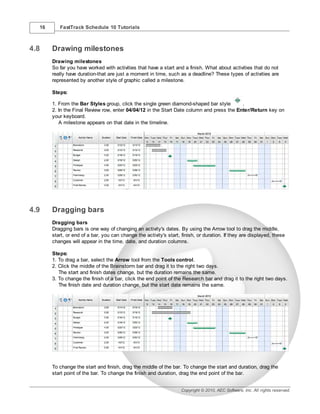
           1. From the Tools control, select the Bar tool.
           2. From the Bar Styles group, click this bar style           .
           3. In the Preliminary row, click in the timeline graph on day 29 and, holding down the mouse button, drag
           to the right until the bar’s duration is 2 days.


4.7        Typing dates
           Typing dates
           You can also define activity dates by typing values in the Duration column or the Start Date and Finish
           Date columns. You only have to enter a Start Date and Finish Date, a Start Date and Duration, a Finish
           Date and Duration, or simply a Duration-FastTrack Schedule automatically calculates the remaining
           value and draws the bar.

           Steps:
           1. Click in the Start Date cell of row 8, the Customer row.
           2. Enter a Start Date of April 02, 2012 in the Express Date calendar and click OK to enter the date in
           the cell.
           3. Click in the Duration cell.
              A Duration of 1.00 is entered by default, select the data in the cell.
           4. In the Duration cell, type 2 and press the Enter/Return key on your keyboard to enter the value.


           Note:
           Because the           bar style was still selected in the Bar Style list, it is that bar style that is drawn
           when you enter the dates.


Copyright © 2010, AEC Software, Inc. All rights reserved.
16      FastTrack Schedule 10 Tutorials


4.8    Drawing milestones
       Drawing milestones
       So far you have worked with activities that have a start and a finish. What about activities that do not
       really have duration-that are just a moment in time, such as a deadline? These types of activities are
       represented by another style of graphic called a milestone.

       Steps:

       1. From the Bar Styles group, click the single green diamond-shaped bar style       .
       2. In the Final Review row, enter 04/04/12 in the Start Date column and press the Enter/Return key on
       your keyboard.
          A milestone appears on that date in the timeline.


4.9    Dragging bars
       Dragging bars
       Dragging bars is one way of changing an activity's dates. By using the Arrow tool to drag the middle,
       start, or end of a bar, you can change the activity's start, finish, or duration. If they are displayed, these
       changes will appear in the time, date, and duration columns.

       Steps:
       1. To drag a bar, select the Arrow tool from the Tools control.
       2. Click the middle of the Brainstorm bar and drag it to the right two days.
          The start and finish dates change, but the duration remains the same.
       3. To change the finish of a bar, click the end point of the Research bar and drag it to the right two days.
          The finish date and duration change, but the start date remains the same.


       To change the start and finish, drag the middle of the bar. To change the start and duration, drag the
       start point of the bar. To change the finish and duration, drag the end point of the bar.


                                                                    Copyright © 2010, AEC Software, Inc. All rights reserved.
Tutorial 1: Up and Running           17


4.10       Changing the schedule date range
           Changing the schedule date range
           Now that you know how to enter and change activity dates, you will also want to view different periods of
           time in the timeline graph. Currently the timeline graph shows you a time range from April 14, 2012 to
           June 19, 2012 with each column representing one day.


           These steps illustrate how to change the schedule's start and finish dates to view a different range of
           time.

           Steps:
           1. From the Timeline Range group, click in the start date box to select the current value and enter
           03/01/2012 in its place.
           2. Click in the finish date box to select the current value and enter 04/30/2012 in its place.
           3. Press the Enter/Return key to apply the new range.


           You can also change the schedule range using the Format Schedule View dialog. You open this dialog
           from the Format menu by choosing View, while in the Schedule View. The Format Schedule View dialog
           lets you change every aspect of a schedule including its: date range, base timeline units, duration units,
           timeline display, column, timescale, work calendar, and gridline display.


4.11       Typing to change dates
           Typing to change dates
           Instead of drawing and then dragging activity bars, you can also change an activity's dates and duration
           by entering new values in its Start Date, Finish Date, or Duration columns. This works for activity bars or
           milestones.

           Steps:
           1. In the Final Review row, select the value in the Start Date cell and enter 04/06/12.
           2. Press the Enter/Return key.
              The milestone moves to the new date.


Copyright © 2010, AEC Software, Inc. All rights reserved.
18      FastTrack Schedule 10 Tutorials


4.12   Printing the schedule
       Printing the schedule
       When you are ready to print your schedule, Print Preview illustrates exactly how the schedule will
       appear when printed.

       Steps:


       1. Click the Print Preview button                 .
       If you are connected to a printer, the Print Preview window opens. Print Preview contains an image of the
       printed page. To the left of the window, there are areas for selecting the different pages of a schedule,
       tools for working with text boxes and pictures, and dynamic stamps you can add to track page numbers,
       current dates and times, and file names.


       2. From the File menu, select Print.
       3. Follow your normal printing procedures.


4.13   Printing the schedule in Calendar View
       Printing the schedule in the Calendar View
       As you have been setting up your schedule, a calendar containing your activities was being created at
       the same time. You can open the Calendar View by selecting Calendar from the View menu or clicking


                                                                Copyright © 2010, AEC Software, Inc. All rights reserved.
Tutorial 1: Up and Running          19


           the Calendar button on the Views control.

           You can use the same steps for changing the schedule range to change the date range shown in your
           calendar.

           When you are ready to print your calendar, Print Preview shows you exactly how the calendar will look
           before you print.

           Steps:
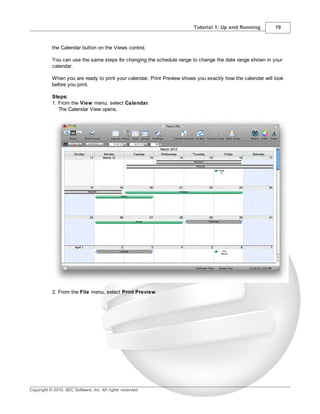
           1. From the View menu, select Calendar.
              The Calendar View opens.


           2. From the File menu, select Print Preview.


Copyright © 2010, AEC Software, Inc. All rights reserved.
20      FastTrack Schedule 10 Tutorials


       3. From the File menu, select Print.
       4. Follow your normal printing procedures.


4.14   Finishing Tutorial 1
       Finishing Tutorial 1
       You are done with Tutorial 1. You now know the very basics of FastTrack Schedule. The next two
       tutorials build on these basics, showing you how to layout and customize your schedule.

       To close the Tutor1 file:
       1. From the View menu, select Schedule.
          The Schedule View opens.
       2. To close the Tutor1 file, from the File menu, select Close.
       3. Click No to close the schedule without saving your changes.

       To start the next tutorial:
       1. Go on to Tutorial 2: Laying Out Your Schedule.
          -or-
          Return to the Tutorial Contents.


                                                               Copyright © 2010, AEC Software, Inc. All rights reserved.
Tutorial 2: Laying Out Your Schedule                21


5          Tutorial 2: Laying Out Your Schedule

5.1        Laying Out Your Schedule - Intro

           Tutorial 2 - Laying Out Your Schedule
           This tutorial shows you how to change the general layout of your schedule by outlining activities and
           working with columns, layouts, and timescales.

           To open the practice schedule file to be used while taking this tutorial:
           1. In FastTrack Schedule, go to the Help menu, select Tutorials, and choose Tutorial Practice Files
           from the submenu.
           2. Select the FastTrack Schedule file Tutor2.

           Important:
           If you cannot locate the Tutorial folder on your computer, go to Find and search for "Tutor2". If this
           produces no results, check with your System Administrator to make sure the Tutorial folder was
           included when FastTrack Schedule was installed on your computer.

5.2        Indenting outline levels
           Indenting outline levels
           You create outline levels by indenting activity names. Indenting an activity makes it a subactivity of the
           level above it.


           Steps:
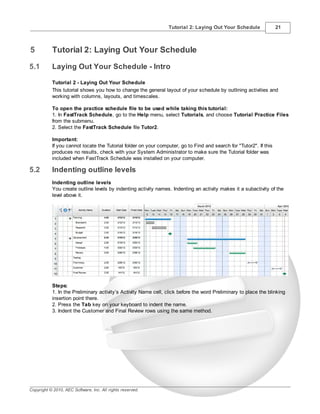
           1. In the Preliminary activity’s Activity Name cell, click before the word Preliminary to place the blinking
           insertion point there.
           2. Press the Tab key on your keyboard to indent the name.
           3. Indent the Customer and Final Review rows using the same method.


Copyright © 2010, AEC Software, Inc. All rights reserved.
22      FastTrack Schedule 10 Tutorials


       Outlining activities helps organize the schedule and provides a way to simplify the schedule by
       collapsing and expanding outline levels. You can also indent activities by clicking the Indent button in
       the Outline Toolbar or choosing Indent from the Outlining submenu of the Schedule menu.


5.3    Collapsing outline levels
       Collapsing outline levels
       When activities are outlined, you can collapse each outline level to hide its subactivities. When an
       outline level is collapsed, the Expand/Collapse triangle points to the right and the activity name is
       followed by an ellipsis. This ellipsis is especially helpful for identifying collapsed outline levels when the
       Expand/Collapse action column is not displayed.

       Collapsed outline levels can also display summary bars-activity bars that extend from the beginning of
       the first collapsed subactivity to the end of the latest collapsed subactivity.

       To collapse an outline level:
       1. In the activity named Development, click the triangular handle in the Expand/Collapse action
       column.


       The subactivities of Development are now rolled-up. Note the summary bar in the Development row.
       Summary bars display by default. Summary bar options are available in the Summary Bar tab of the
       Format Row dialog. You can choose not to display summary bars and choose the style in which you
       would like summary bars to display.


                                                                    Copyright © 2010, AEC Software, Inc. All rights reserved.
Tutorial 2: Laying Out Your Schedule           23


5.4        Expanding outline levels
           Expanding outline levels
           The Expand/Collapse action column acts like a toggle switch, so when outline levels are expanded, the
           triangle handle moves to point downward. Here, you will employ another method to expand the activity
           so that you will know how to expand and collapse your activities even if you choose not to display that
           Action Column.

           To expand an outline level:
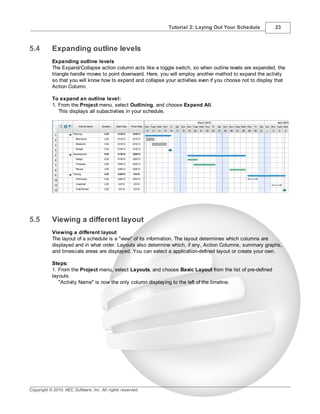
           1. From the Project menu, select Outlining, and choose Expand All.
              This displays all subactivities in your schedule.


5.5        Viewing a different layout
           Viewing a different layout
           The layout of a schedule is a "view" of its information. The layout determines which columns are
           displayed and in what order. Layouts also determine which, if any, Action Columns, summary graphs,
           and timescale areas are displayed. You can select a application-defined layout or create your own.

           Steps:
           1. From the Project menu, select Layouts, and choose Basic Layout from the list of pre-defined
           layouts.
              "Activity Name" is now the only column displaying to the left of the timeline.


Copyright © 2010, AEC Software, Inc. All rights reserved.
24      FastTrack Schedule 10 Tutorials


5.6    Inserting columns
       Inserting columns
       You can insert columns using the Insert Column dialog. All columns are hidden until you choose to
       show them. Here you will insert a column that is currently hidden.

       Steps:
       1. Select the column heading of the Activity Name column.
       2. From the Insert menu, select Column.
          The Insert Column dialog opens.
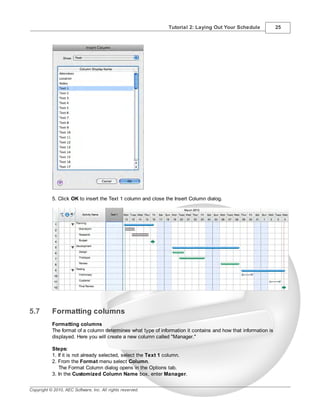
       3. From the Show pop-up list, select Text.
       4. Click to highlight the first item in the Column Display Name table.
       4. Type "t" to cause the list to scroll to and select the item Text 1.


                                                                Copyright © 2010, AEC Software, Inc. All rights reserved.
Tutorial 2: Laying Out Your Schedule              25


           5. Click OK to insert the Text 1 column and close the Insert Column dialog.


5.7        Formatting columns
           Formatting columns
           The format of a column determines what type of information it contains and how that information is
           displayed. Here you will create a new column called "Manager."

           Steps:
           1. If it is not already selected, select the Text 1 column.
           2. From the Format menu select Column.
              The Format Column dialog opens in the Options tab.
           3. In the Customized Column Name box, enter Manager.


Copyright © 2010, AEC Software, Inc. All rights reserved.
26        FastTrack Schedule 10 Tutorials


       4.   Click the Display tab.
       5.   Enter 85 in the Column Width box.
       6.   Click OK to close the Format Column dialog.
       7.   In cells 1, 5, and 9 of the Manager column, enter the manager names listed in the graphic below.


5.8    Designing a new layout
       Designing a new layout
       The Layouts dialog not only lets you apply layouts to a schedule, it also lets you design your own. Here,
       you will create a new layout.

       Steps:


                                                                  Copyright © 2010, AEC Software, Inc. All rights reserved.
Tutorial 2: Laying Out Your Schedule       27


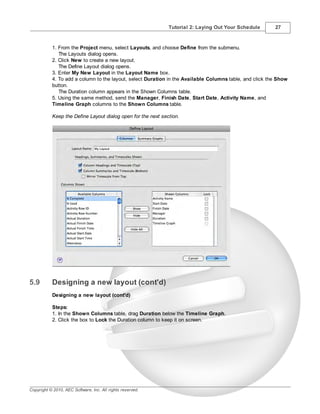
           1. From the Project menu, select Layouts, and choose Define from the submenu.
              The Layouts dialog opens.
           2. Click New to create a new layout.
              The Define Layout dialog opens.
           3. Enter My New Layout in the Layout Name box.
           4. To add a column to the layout, select Duration in the Available Columns table, and click the Show
           button.
              The Duration column appears in the Shown Columns table.
           5. Using the same method, send the Manager, Finish Date, Start Date, Activity Name, and
           Timeline Graph columns to the Shown Columns table.

           Keep the Define Layout dialog open for the next section.


5.9        Designing a new layout (cont'd)
           Designing a new layout (cont'd)

           Steps:
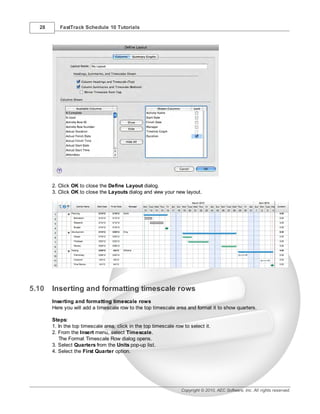
           1. In the Shown Columns table, drag Duration below the Timeline Graph.
           2. Click the box to Lock the Duration column to keep it on screen.


Copyright © 2010, AEC Software, Inc. All rights reserved.
28      FastTrack Schedule 10 Tutorials


       2. Click OK to close the Define Layout dialog.
       3. Click OK to close the Layouts dialog and view your new layout.


5.10   Inserting and formatting timescale rows
       Inserting and formatting timescale rows
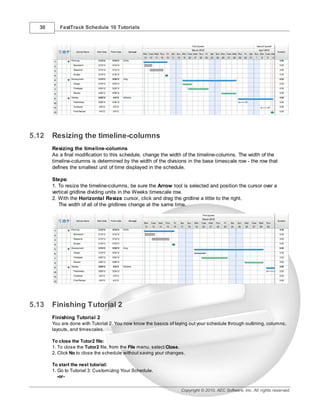
       Here you will add a timescale row to the top timescale area and format it to show quarters.

       Steps:
       1. In the top timescale area, click in the top timescale row to select it.
       2. From the Insert menu, select Timescale.
          The Format Timescale Row dialog opens.
       3. Select Quarters from the Units pop-up list.
       4. Select the First Quarter option.


                                                                   Copyright © 2010, AEC Software, Inc. All rights reserved.
Tutorial 2: Laying Out Your Schedule         29


           5. Click OK to apply your changes and close the Format Timescale Row dialog.


5.11       Moving timescale rows
           Moving timescale rows
           After inserting a timescale row, you can move it anywhere in the timescale area.

           Steps:
           1. Click the Month timescale row to select it.
           2. When the move cursor appears, drag the outline of the Month timescale row all the way under the
           Quarters timescale row.


Copyright © 2010, AEC Software, Inc. All rights reserved.
30      FastTrack Schedule 10 Tutorials


5.12   Resizing the timeline-columns
       Resizing the timeline-columns
       As a final modification to this schedule, change the width of the timeline-columns. The width of the
       timeline-columns is determined by the width of the divisions in the base timescale row - the row that
       defines the smallest unit of time displayed in the schedule.

       Steps:
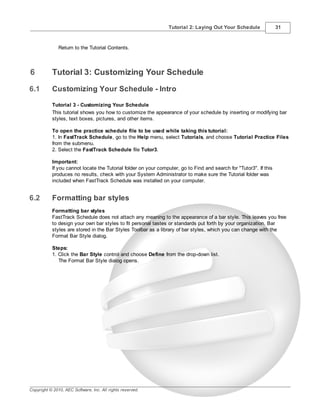
       1. To resize the timeline-columns, be sure the Arrow tool is selected and position the cursor over a
       vertical gridline dividing units in the Weeks timescale row.
       2. With the Horizontal Resize cursor, click and drag the gridline a little to the right.
          The width of all of the gridlines change at the same time.


5.13   Finishing Tutorial 2
       Finishing Tutorial 2
       You are done with Tutorial 2. You now know the basics of laying out your schedule through outlining, columns,
       layouts, and timescales.

       To close the Tutor2 file:
       1. To close the Tutor2 file, from the File menu, select Close.
       2. Click No to close the schedule without saving your changes.

       To start the next tutorial:
       1. Go to Tutorial 3: Customizing Your Schedule.
          -or-

                                                                   Copyright © 2010, AEC Software, Inc. All rights reserved.
Tutorial 2: Laying Out Your Schedule                31


               Return to the Tutorial Contents.


6          Tutorial 3: Customizing Your Schedule
6.1        Customizing Your Schedule - Intro

           Tutorial 3 - Customizing Your Schedule
           This tutorial shows you how to customize the appearance of your schedule by inserting or modifying bar
           styles, text boxes, pictures, and other items.

           To open the practice schedule file to be used while taking this tutorial:
           1. In FastTrack Schedule, go to the Help menu, select Tutorials, and choose Tutorial Practice Files
           from the submenu.
           2. Select the FastTrack Schedule file Tutor3.

           Important:
           If you cannot locate the Tutorial folder on your computer, go to Find and search for "Tutor3". If this
           produces no results, check with your System Administrator to make sure the Tutorial folder was
           included when FastTrack Schedule was installed on your computer.


6.2        Formatting bar styles
           Formatting bar styles
           FastTrack Schedule does not attach any meaning to the appearance of a bar style. This leaves you free
           to design your own bar styles to fit personal tastes or standards put forth by your organization. Bar
           styles are stored in the Bar Styles Toolbar as a library of bar styles, which you can change with the
           Format Bar Style dialog.

           Steps:
           1. Click the Bar Style control and choose Define from the drop-down list.
              The Format Bar Style dialog opens.


Copyright © 2010, AEC Software, Inc. All rights reserved.
32      FastTrack Schedule 10 Tutorials


6.3    Designing the bar elements
       Designing the bar elements
       An activity bar has three components: Scheduled, Revised, and Actual. Each component displays a
       different type of information. In the simplest case, you are just interested in the Scheduled component
       since this is the basic bar.

       To format a bar, you select which of the three components you will design, how to display that
       component, and the appearance of each element (bar, start point, or end point).

       In these steps, you will use the Format Bar Style dialog to select the elements of the Scheduled
       component and to design their appearance.

       Steps:
       1. From the Bar Style list, select this bar style                   .
       2. From the Type drop-down list, select Bar.
       3. To design the scheduled, basic component, select Scheduled from the Component drop-down list.
       4. In the Parts tab, from the Part to Edit drop-down list, select Schedule Start Point.
       5. In the Shape area, select the diamond point style from the drop-down list.
       6. Click the New button to add the now altered bar to the Bar Styles library.
       7. In the Point area, enter 9 in the Size box.
       8. From the Part to Edit drop-down list, select Schedule Bar.

                                                                Copyright © 2010, AEC Software, Inc. All rights reserved.
Tutorial 3: Customizing Your Schedule             33


           9. In the Bar area, select a new pattern.
           10. From the Part to Edit drop-down list, select Schedule End Point.
           11. In the Shape area, select the diamond point style from the drop-down list.
           12. In the Point area, enter 9 in the Size box.


           13. Click OK to create the bar style and close the Format Bar Style dialog.


6.4        Changing bars to different styles
           Changing bars to different styles
           In this section, you will change some existing bars in the schedule to the new style.

           Steps:
           1. In the schedule, select the activity bars in rows 2 and 3 by holding down the Shift key and clicking
           each one.
           2. In the Bars Styles list, click the cell containing the bar style you just created.
              The selected bars adopt the new bar style.


Copyright © 2010, AEC Software, Inc. All rights reserved.
34      FastTrack Schedule 10 Tutorials


6.5    Changing text styles by row
       Changing text styles by row
       Another way to customize your schedule is to use different fonts, sizes, and styles of text.

       Steps:
       1. Hold down the Command + Shift key and click in the three Activity Name cells of the activities in
       outline level 1, Rows 1, 5 and 9.
          These are the Planning, Development, and Testing Activities.
       2. In the Font controls, in the Size box, enter 12.
       3. Click the      button to bold the text.


6.6    Including text boxes
       Including text boxes
       Adding text boxes allows you to label and customize the timeline graph of a schedule. You can add a
       box of text to the timeline graph and then format that box with any font styles.

       Steps:
       1. To add a text box, click the      button to select the Text Box tool from the Tools control.
       2. Click in an empty area of the timeline graph and drag out a box of the desired width.
       3. Enter the text: These deadlines are essential for meeting our goals.
       4. To resize the text box, select the Arrow tool from the Tools control, click the text box, and then drag
       one of its corner handles.
       5. To change the font attributes of the text box, select the text box with the Arrow tool.


                                                                 Copyright © 2010, AEC Software, Inc. All rights reserved.
Tutorial 3: Customizing Your Schedule             35


           6. With the text box still selected, click the Format Selected button                   .
              The Format Item dialog opens.
           7. Click the Font tab.
           8. Click the Italicize button to italicize the text.
              You can also use the Font tools to make your changes.
           9. Click the button that horizontally centers the text.
           10. Click OK to apply your changes and close the Format Item dialog.


6.7        Including pictures
           Including pictures
           In addition to text boxes you can also add pictures. Pictures are graphic items such as clip art that are
           imported into the timeline graph area or Print Preview window.

           Steps:
           1. From the Insert menu, select Picture.
           2. Select Clipboard to include pictures pasted to the Clipboard or File to include a file saved on a disk.
              You can either enter the file name and path or click the Browse button to navigate to the file.
              Sample picture files are installed in the FastTrack Schedule folder in the Applications folder.
           3. Click OK.
           4. To resize the picture, drag one of the eight resize handles.
              You can hold down the Shift key and drag a corner handle to maintain its proportions.
           5. You can drag a picture (or text box) anywhere on screen by selecting the Arrow tool and clicking and
           dragging the item.


Copyright © 2010, AEC Software, Inc. All rights reserved.
36      FastTrack Schedule 10 Tutorials


6.8    Formatting pictures and text boxes
       Formatting pictures and text boxes
       Formatting an item (such as a picture or text box) defines its background, border, and shadow. Here you
       will format a text box by adding a border and shadow.

       Steps:


       1. Click the text box to select it, click the Format Selected button                      .
          The Format Item dialog opens.
       2. Click the Border tab.
       3. In the Line area, enter 2 in the Size box.
       4. In the Shadow area, enter 2 in the Size box.


       5. Click OK to apply your changes and close the Format Item dialog.


6.9    Including a legend
        Including a legend
       A legend creates a key to the bar styles used in the schedule. It lists the bar styles and allows you to
       assign a name, or a label, to each bar style. You can create multiple legends in the Schedule View and
       the Schedule and Resource Print Preview windows. In this case, you will enter a legend in the Schedule
       View.

       Steps:


                                                                Copyright © 2010, AEC Software, Inc. All rights reserved.
Tutorial 3: Customizing Your Schedule               37


           1. From the Insert menu, select Legend.
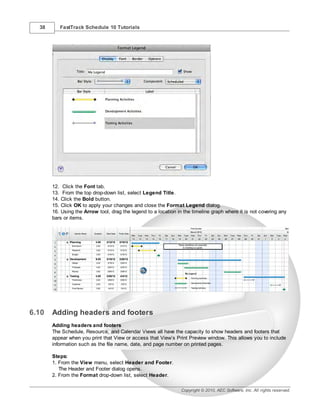
              The Format Legend dialog opens.
           2. In the Title box, enter My Legend.
           3. Click in the first row of the Bar Style column.
           4. From the Bar Style drop-down list, select the bar you custom designed.
              The white-striped bar appears in the table below.
           5. Click in the Label column next to the bar in the table and enter Planning Activities.


           6. Select the second row in the Bar Style column.
           7 From the Bar Style drop-down list, select the blue bar with black endpoints.
           8. Click in the Label column next to the blue bar in the table and enter Development Activities.
           9. Click the third row in the Bar Style column.
           10. From the Bar Style drop-down list, select the green bar with the white endpoints.
           11. Click in the Label column next to the green bar with the white endpoints in the table and enter
           Testing Activities.


Copyright © 2010, AEC Software, Inc. All rights reserved.
38      FastTrack Schedule 10 Tutorials


       12. Click the Font tab.
       13. From the top drop-down list, select Legend Title.
       14. Click the Bold button.
       15. Click OK to apply your changes and close the Format Legend dialog.
       16. Using the Arrow tool, drag the legend to a location in the timeline graph where it is not covering any
       bars or items.


6.10   Adding headers and footers
       Adding headers and footers
       The Schedule, Resource, and Calendar Views all have the capacity to show headers and footers that
       appear when you print that View or access that View’s Print Preview window. This allows you to include
       information such as the file name, date, and page number on printed pages.

       Steps:
       1. From the View menu, select Header and Footer.
          The Header and Footer dialog opens.
       2. From the Format drop-down list, select Header.

                                                                 Copyright © 2010, AEC Software, Inc. All rights reserved.
Tutorial 3: Customizing Your Schedule   39


           3.   Select a cell in the right table.
           4.   From the Insert into Cell drop-down list, select Time (12 Hour).
           5.   Select a cell in the left table.
           6.   Enter the word Draft.


           7. From the Format drop-down list, select Footer.
           8. Select a cell in the middle table.
           9. From the Insert into Cell drop-down list, select File Name.


Copyright © 2010, AEC Software, Inc. All rights reserved.
40      FastTrack Schedule 10 Tutorials


       10. Click OK to apply your changes and close the Header and Footer dialog.


6.11   Previewing the customized schedule
       Previewing the customized schedule
       You are done! You now have a customized schedule with new bar styles, different text styles, text
       boxes, and a picture.

       Steps:
       1. Click the Print Preview button.
          The Print Preview window opens.


                                                               Copyright © 2010, AEC Software, Inc. All rights reserved.
Tutorial 3: Customizing Your Schedule               41


6.12       Finishing Tutorial 3
           Finishing Tutorial 3
           You are done with Tutorial 3. You now know the basics of customizing the appearance of your schedule.

           To close the Tutor3 file:
           1. From the View menu, select Schedule.
              The Schedule View opens.
           2. To close the Tutor3 file, from the File menu, select Close.
           3. Click No to close the schedule without saving your changes.

           To start the next tutorial:
           1. Go to Tutorial 4: Scheduling Dependencies.
              -or-
              Return to the Tutorial Contents.


7          Tutorial 4: Scheduling Dependencies
7.1        Scheduling Dependencies - Intro

           Tutorial 4 - Scheduling Dependencies
           This tutorial shows you the different ways to create dependencies, or links, between activities and
           discusses the effect these links have on bar behavior.

           To open the practice schedule file to be used while taking this tutorial:
           1. In FastTrack Schedule, go to the Help menu, select Tutorials, and choose Tutorial Practice Files
           from the submenu.
           2. Select the FastTrack Schedule file Tutor4.

Copyright © 2010, AEC Software, Inc. All rights reserved.
42      FastTrack Schedule 10 Tutorials


       Important:
       If you cannot locate the Tutorial folder on your computer, go to Find and search for "Tutor4". If this
       produces no results, check with your System Administrator to make sure the Tutorial folder was
       included when FastTrack Schedule was installed on your computer.


7.2    What is linking?
       What is linking?
       Linking two activity bars creates a dependency between activities. When an activity bar is moved, it can
       affect all bars linked to it. Links may be created from the start or end point of one bar to the start or end
       point of a second bar, which is to say that FastTrack Schedule supports Start to Start, Start to Finish,
       Finish to Start and Finish to Finish links.

       Once bars are linked, you can set the Lead or Lag time between activities to determine how much one
       activity may slip before it affects another.


7.3    Drawing links
       Drawing links
       You can use the Link Bars tool to create dependencies between bars.

       Steps:
       1. From the Tools control, select the Link Bar tool.
       2. With the Link cursor showing, click the END POINT of the Brainstorm activity bar and drag to the
       START POINT of the Research activity bar.
       3. To drag the linked bar, select the Arrow tool, and drag the MIDDLE of the Brainstorm activity three
       days to the right.
          You will know you have selected the middle of the activity when you see a cursor with arrows pointing
       in both directions. The Research activity moves when you move the Brainstorm activity. In the Edit
       menu, select Undo to return the bars to their place.


7.4    Linking selected bars
       Linking selected bars
       You can select bars and click the Link button to create dependencies between bars.


                                                                   Copyright © 2010, AEC Software, Inc. All rights reserved.
Tutorial 4: Scheduling Dependencies               43


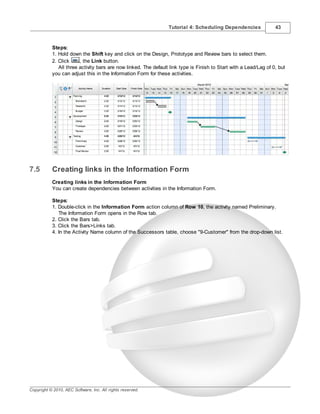
           Steps:
           1. Hold down the Shift key and click on the Design, Prototype and Review bars to select them.
           2. Click     , the Link button.
              All three activity bars are now linked. The default link type is Finish to Start with a Lead/Lag of 0, but
           you can adjust this in the Information Form for these activities.


7.5        Creating links in the Information Form
           Creating links in the Information Form
           You can create dependencies between activities in the Information Form.

           Steps:
           1. Double-click in the Information Form action column of Row 10, the activity named Preliminary.
              The Information Form opens in the Row tab.
           2. Click the Bars tab.
           3. Click the Bars>Links tab.
           4. In the Activity Name column of the Successors table, choose "9-Customer" from the drop-down list.


Copyright © 2010, AEC Software, Inc. All rights reserved.
44      FastTrack Schedule 10 Tutorials


     5. Click OK to close the Information Form and apply your changes.
        The activities Preliminary and Customer are now linked.


     6. Double-click in the Information Form action column of Row 11, the activity named Customer.
         The Information Form opens in the Row tab.
     7. Click the Bars tab.
     8. Click the Bars>Links tab.
     9. In the Activity Name column of the Successors table, choose "10-Final Review" from the drop-down
     list.


                                                            Copyright © 2010, AEC Software, Inc. All rights reserved.
Tutorial 4: Scheduling Dependencies           45


           10. Click OK to close the Information Form and apply your changes.
              The activities Customer and Final Review are now linked.


7.6        Finishing Tutorial 4
           Finishing Tutorial 4
           You are done with Tutorial 4. You now know the basics of scheduling dependencies through linking,
           locking, and chaining.

           To close the Tutor4 file:
           1. To close the Tutor4 file, from the File menu, select Close.
           2. Click No to close the schedule without saving your changes.

           To start the next tutorial:
           1. Go to Tutorial 5: Tracking Progress.


Copyright © 2010, AEC Software, Inc. All rights reserved.
46      FastTrack Schedule 10 Tutorials


           -or-
           Return to the Tutorial Contents.


8        Tutorial 5: Tracking Progress
8.1      Tracking Progress - Intro

         Tutorial 5 - Tracking Progress
         This tutorial shows you how to track the progress of activities by entering their scheduled dates, revised
         dates, and work-in-place with actual dates and % complete.

         To open the practice schedule file to be used while taking this tutorial:
         1. In FastTrack Schedule, go to the Help menu, select Tutorials, and choose Tutorial Practice Files
         from the submenu.
         2. Select the FastTrack Schedule file Tutor5.

         Important:
         If you cannot locate the Tutorial folder on your computer, go to Find and search for "Tutor5". If this
         produces no results, check with your System Administrator to make sure the Tutorial folder was
         included when FastTrack Schedule was installed on your computer.


8.2      What is progress tracking?
         What is progress tracking?
         Thus far in the tutorials you have simply dragged activity bars to a new position in the timeline graph
         when their dates have changed. Some projects, and some companies, call for a way of tracking these
         changes. This is called progress tracking.

         At all times, FastTrack Schedule automatically tracks the progress of activities as three sets of dates:

         · Scheduled – Dates that reflect when your schedule was originally planned, also called the "baseline"
         or "promised" dates.
         · Revised – Dates as they are currently projected, accounting for adjustments since the project began.
         · Actual – Dates as they actually happened, also tracked as a percentage complete, or "work-in-place."

         Each set of dates (or "component") can be displayed within a single bar style and each has its own tool
         for editing that component. The bar styles in this schedule have been formatted to Always Display the
         Revised Element even when the revised dates and times match the scheduled dates and times.

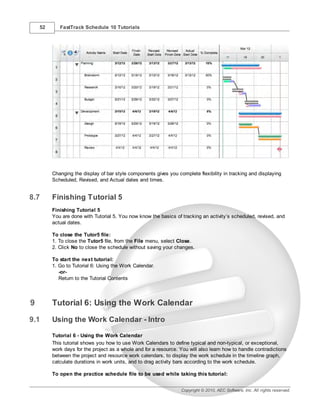
         Example: As an example, the graphic below represents what a schedule would look like when you first
         plan the project. At this stage, the activity bars represent the Scheduled starts and finishes. In this
         example, the Scheduled component is the blank bar, the Revised component is the dotted bar, and the
         Actual component is a black fill in the Revised bar.


                                                                    Copyright © 2010, AEC Software, Inc. All rights reserved.
Tutorial 5: Tracking Progress          47


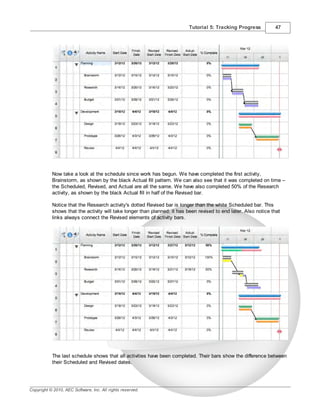
           Now take a look at the schedule since work has begun. We have completed the first activity,
           Brainstorm, as shown by the black Actual fill pattern. We can also see that it was completed on time –
           the Scheduled, Revised, and Actual are all the same. We have also completed 50% of the Research
           activity, as shown by the black Actual fill in half of the Revised bar.

           Notice that the Research activity's dotted Revised bar is longer than the white Scheduled bar. This
           shows that the activity will take longer than planned; it has been revised to end later. Also notice that
           links always connect the Revised elements of activity bars.


           The last schedule shows that all activities have been completed. Their bars show the difference between
           their Scheduled and Revised dates.


Copyright © 2010, AEC Software, Inc. All rights reserved.
48      FastTrack Schedule 10 Tutorials


8.3    Using Revised dates
       Using Revised dates
       While the three components can be displayed in thousands of ways, here they will be displayed as a
       white bar for Scheduled, a gray bar for Revised that is always displayed, and a black fill pattern for
       Actual.

       With the Scheduled dates in place and an understanding of the bar styles used, you are ready to track
       the progress of your activities. Let's say that because of conflicts, the Brainstorming activity cannot
       begin when scheduled. You must revise it to start later, slipping it a few days.

       You can change the Revised dates by typing in the Revised columns, but here you will use the Revised
       tool.

       Steps:
       1. From the Tools control, select the Revise Bar tool.
       2. Position the cursor in the MIDDLE of the Brainstorm activity bar and drag to the right 1 day to
       03/13/12.
       3. Select the Revise Bar tool again and drag the END POINT of the Design activity bar to the right 3
       days to 03/26/12.


                                                                Copyright © 2010, AEC Software, Inc. All rights reserved.
Tutorial 5: Tracking Progress          49


           Notice that the Prototype bar also shows revisions. This is because it is linked to the Brainstorm bar and
           when you change the Revised dates you also revise the dates of the linked bars.


8.4        Resetting Revised dates
           Resetting Revised dates
           If you make a mistake or your revisions no longer apply, you will want to reset the Revised dates back to
           the Scheduled dates. For instance, if it happens that the Prototype activity is not affected by the revised
           slip of the Design activity, you need to return it to the Scheduled dates.

           Steps:
           1. To reset the Revised dates, select the Prototype activity bar with the Arrow tool.
           2. From the Tools menu, select Progress Tracking, and choose Reset Revised from the submenu.
              The Prototype bar returns to its scheduled dates.


Copyright © 2010, AEC Software, Inc. All rights reserved.
50      FastTrack Schedule 10 Tutorials


8.5    Using Actual dates and % Complete
       Using Actual dates and % Complete
       An activity's Actual dates and % Complete are interrelated - they both represent "work-in-place." As an
       activity is worked on, it is first given an Actual Start date, then an increasing % Complete, and when
       completed, an Actual Finish Date and an Actual Duration.

       Steps:
       1. From the Tools control, select the Percent tool.
       2. Position the Bar Percent Complete cursor in the middle of the Brainstorm activity's blue Revised bar
       and click your mouse button.
       3. If the activity's % Complete column does not say 50%, select the value and type 50.
       4. Press the Return/Enter key.


                                                                Copyright © 2010, AEC Software, Inc. All rights reserved.
Tutorial 5: Tracking Progress      51


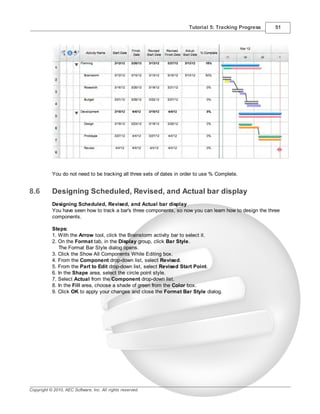
           You do not need to be tracking all three sets of dates in order to use % Complete.


8.6        Designing Scheduled, Revised, and Actual bar display
           Designing Scheduled, Revised, and Actual bar display
           You have seen how to track a bar's three components, so now you can learn how to design the three
           components.

           Steps:
           1. With the Arrow tool, click the Brainstorm activity bar to select it.
           2. On the Format tab, in the Display group, click Bar Style.
              The Format Bar Style dialog opens.
           3. Click the Show All Components While Editing box.
           4. From the Component drop-down list, select Revised.
           5. From the Part to Edit drop-down list, select Revised Start Point.
           6. In the Shape area, select the circle point style.
           7. Select Actual from the Component drop-down list.
           8. In the Fill area, choose a shade of green from the Color box.
           9. Click OK to apply your changes and close the Format Bar Style dialog.


Copyright © 2010, AEC Software, Inc. All rights reserved.
52      FastTrack Schedule 10 Tutorials


         Changing the display of bar style components gives you complete flexibility in tracking and displaying
         Scheduled, Revised, and Actual dates and times.


8.7      Finishing Tutorial 5
         Finishing Tutorial 5
         You are done with Tutorial 5. You now know the basics of tracking an activity’s scheduled, revised, and
         actual dates.

         To close the Tutor5 file:
         1. To close the Tutor5 file, from the File menu, select Close.
         2. Click No to close the schedule without saving your changes.

         To start the next tutorial:
         1. Go to Tutorial 6: Using the Work Calendar.
            -or-
            Return to the Tutorial Contents


9        Tutorial 6: Using the Work Calendar
9.1      Using the Work Calendar - Intro

         Tutorial 6 - Using the Work Calendar
         This tutorial shows you how to use Work Calendars to define typical and non-typical, or exceptional,
         work days for the project as a whole and for a resource. You will also learn how to handle contradictions
         between the project and resource work calendars, to display the work schedule in the timeline graph,
         calculate durations in work units, and to drag activity bars according to the work schedule.

         To open the practice schedule file to be used while taking this tutorial:


                                                                  Copyright © 2010, AEC Software, Inc. All rights reserved.
Tutorial 6: Using the Work Calendar             53


           1. In FastTrack Schedule, go to the Help menu, select Tutorials, and choose Tutorial Practice Files
           from the submenu.
           2. Select the FastTrack Schedule file Tutor6.

           Important:
           If you cannot locate the Tutorial folder on your computer, go to Find and search for "Tutor6". If this
           produces no results, check with your System Administrator to make sure the Tutorial folder was
           included when FastTrack Schedule was installed on your computer.


9.2        Defining a Work Calendar
           Defining a Work Calendar
           In Fast Track Schedule there are three types of work calendars: project, activity and resource. You

           assign just one calendar to the project, but any activity can be assigned a separate calendar and every

           resource has its own work calendar. Each of these calendars is edited in the Work Calendar dialog and

           each of these calendars is completely customizable.


           Work calendars allow you to define typical work days and exceptional days for the project, each

           resource and any activity.


           Work Calendars helps you accurately track the amount of time available for work on activities. Once

           Work Calendars have been defined, you can utilize them in several ways:

           - To display the work schedule in the Schedule View timeline by hiding and/or shading non-work times.
           - To help you schedule activities during work times only.
           - To calculate durations in work units.


           There are four key elements of the Work Calendar: Base Work Days, the [selected] Calendar, Typical

           Days, and Specific Days.


            This                 Does this:

            element:


            Base Work            Determines how durations of work days are calculated. This is

            Day                  only used in calculations. You set this number in the Project


Copyright © 2010, AEC Software, Inc. All rights reserved.
54      FastTrack Schedule 10 Tutorials


                       tab of the Document Preferences dialog.


     [Selected]        Determines the calendar you assign to a project, activity or

     Calendar          resource and from which you may build a custom calendar.

                       Choose from: Standard - 8 hour work days Monday -Friday, 24

                       Hours - 24 hour work days seven days a week, Night Shift - a

                       40 hour work week from 11 PM - 8 AM, and any custom

                       calendars you have created.


     Typical           Allows you to set up a work schedule in which each day of the

     Week Day          week might have different hours, for instance, a Monday might

                       differ from other days.


     Exceptions        Defines the specific days of the year that deviate from the base

                       work day or typical days. Each specific day can have its own

                       set of hours or no hours. For example, you might want to define

                       holidays as specific days. Specific days are listed in the

                       Exceptions table and can be given a descriptive name.


     If you choose to calculate durations in 24-Hour Calendar units, the Work Calendar is no longer being
     used in the schedule.

     In these steps, you will create a new work calendar, define March 16, 2012 as a non-work day, and set
     this new calendar as the Project Work Calendar.

     Steps:
     1. From the Project menu, select Work Calendars.
        The Work Calendars dialog opens.
     2. Click the New button.
     3. In the New Work Calendar dialog, be sure Standard (Project Calendar) is selected in the Copy
     Calendar option, and enter"Product Titan Launch".


                                                               Copyright © 2010, AEC Software, Inc. All rights reserved.
Tutorial 6: Using the Work Calendar            55


           4. Click OK to close the New Work Calendar dialog.
           5. In the Define Specific Days area, select March as the month and 2012 as the year.
           6. Select day 16 in the calendar.
           7. Click the Clear Day button.
              The Work Shift Details table will now contain no start time or finish time.
           8. In the Description field of the Exceptions table, enter "Company Holiday" beside the date 3/16/12.


           9. Click OK to apply your changes and close the Work Calendars dialog.
           10. From the Project menu, select Project Information.
              The Project Information dialog opens.
           11. From the Calendar drop-down list select Product Titan Launch.


           12. Click OK to close the Project Information dialog and save your changes.
              Note that March 16th is now shaded as a non-work day in the timeline.

           Clicking a day in the calendar or Typical Week Day area displays the work hours defined for that day in
           the Work Shift Details table. Here you cleared all of the work hours to make 3/16/12 a non-work day.
           You could, however, define new work hours by entering up to eight shifts, or "periods," of work time.
           Each period must be a continuous period of time.

           In addition to defining the work schedule of specific days (as above), you can also define the work
           schedule for typical days of the week. This allows you to define a different work schedule for each day of
           the week.


9.3        Displaying the Work Calendar
           Displaying the Project Work Calendar
           The appearance of the Project Work Calendar in the timeline graph is defined in the Display tab of the
           Format Schedule View dialog.

           By default, timeline graph shades all days that have no work defined in the project work calendar. In
           addition to the typical Sundays and Saturdays, the specific day that you changed, March 16, 2012, is
           also shaded.

           We will now change the setting from shading non-work days to hiding them.

           Steps:
           1. From the Format menu, select View.
              The Format Schedule View dialog opens in the Display tab.
           2. In the Timeline Columns Display area, select the Hide Continuous Non-Work/Shade Other
           option.
           3. Click OK to apply your changes and close the Format Schedule View dialog.


Copyright © 2010, AEC Software, Inc. All rights reserved.
56      FastTrack Schedule 10 Tutorials


       The timeline graph now hides all typical non-work days that are continuous with the weekend. All other
       specific non-work days, including Friday, March 16, 2012, are shaded when you select this option. If
       every Friday was deemed a non-work day in our Product Titan Launch work calendar, then all Fridays
       would be hidden also.


9.4    Creating a task specific Work Calendar
       Creating a task specific Work Calendar
       Any activity in your schedule can be assigned its own work calendar.

       You will now create a new work calendar for the activity "Prototype". Currently this activity has a Start
       Date and Time of 3/21/12 at 8:00 AM and a Finish Date and Time of 3/23/12 at 5:00 PM.

       Steps:
       1. In Row 7, double-click the bar for the activity Prototype.
          The Information form for that activity opens.


       2. In the Calendar area of the Prototype Information Form, click the New button.
       3. In the Calendar Name option, enter Titan Prototype.
       4. From the Copy Calendar drop-down list, choose 24 Hours.


                                                                   Copyright © 2010, AEC Software, Inc. All rights reserved.
Tutorial 6: Using the Work Calendar            57


           5. Click OK to close the New Calendar dialog.
              Note the new Finish Date and Time.


           6. Click Close to close the Information Form.
              Note that Prototype now has a calendar icon in its Information action column denoting it's use of a
           work calendar different to the specified Project work calendar.


Copyright © 2010, AEC Software, Inc. All rights reserved.
58      FastTrack Schedule 10 Tutorials


          You can see that the Prototype bar is smaller now and that, though the activity still has a duration of "3.00," it
          now has a Start Date and Time of 3/21/12 at 8:00 AM and a Finish Date and Time of 3/22/12 at 8:00 AM.
          Because a work day is still defined in 8 hour increments, the duration calculated in days equaling 3 means that
          that duration represents 3 sets of 8 hours or 24 total hours. Now that Prototype has a 24 hour calendar, it's
          duration still displays in regards to the defined work days, but now all 24 hours can fit into one 24 hour time
          period - thus the new finish time.


9.5       Finishing Tutorial 6
          Finishing Tutorial 6
          You are done with Tutorial 6. You now know the basics of defining and using the work calendar.

          To close the Tutor6 file:
          1. To close the Tutor6 file, from the File menu, select Close.
          2. Click No to close the schedule without saving your changes.

          To start the next tutorial:
          1. Go to Tutorial 7: Filtering and Sorting.
             -or-
             Return to the Tutorial Contents.


10        Tutorial 7: Filtering & Sorting
10.1      Filtering and Sorting - Intro

          Tutorial 7 - Filtering and Sorting
          This tutorial shows you how to use filters and sorts to hide and rearrange rows according to the data
          they contain.

          To open the practice schedule file to be used while taking this tutorial:
          1. In FastTrack Schedule, go to the Help menu, select Tutorials, and choose Tutorial Practice Files
          from the submenu.
          2. Select the FastTrack Schedule file Tutor7.

          Important:

                                                                        Copyright © 2010, AEC Software, Inc. All rights reserved.
Tutorial 7: Filtering & Sorting           59


           If you cannot locate the Tutorial folder on your computer, go to Find and search for "Tutor7". If this
           produces no results, check with your System Administrator to make sure the Tutorial folder was
           included when FastTrack Schedule was installed on your computer.


10.2       Applying a filter
           Applying a filter
           Filtering activities allows you to hide and select rows based on criteria that you define. It is a way of
           searching rows for information. For each schedule, you can define a list of filters that search for data in
           the schedule's activities. Filters are stored in the Filters dialog.

           Steps:
           1. On the toolbar, click Filters, and choose 100% Complete from the drop-down list.


           By default, filters look at the information in the activities that are currently visible and those that are
           hidden. If you wish to create a filter that looks for information that is visible only, deselect the "Expand
           All Prior to Filtering" and the "Restore All Prior to Filtering" options in the Options tab of the Define Filter
           dialog.


10.3       Defining a filter
           Defining a filter
           Filters are defined in the Define Filter dialog. You can think of the filter's criteria as questions the filter
           asks of each activity. Each question has three parts:

      ·    a column in which to search
           · a way of comparing the column data to values
           · a value to look for

           For this filter, you will define criteria that ask the question, "Which activities have in the Manager
           column, a value equal to Smith?"

           Steps:
           1. On the toolbar, click Filters, and choose Define from the drop-down list.
              The Filters dialog opens.
           2. Click New.
              The Define Filter dialog opens.
           3. Enter Smith’s Projects in the Filter Name box.
           4. In the Apply area, select the Column/Value Criteria option.
           5. In the Row Options area, select Matching Rows Only.


Copyright © 2010, AEC Software, Inc. All rights reserved.
60      FastTrack Schedule 10 Tutorials


     6. Click the Column/Value Criteria tab.
     7. To define the column in which to search, in the table, click Select Column in the first Column cell.
     8. When the drop-down list that appears, type an "m" to scroll to Managers, then click to select it.
     9. Click the first Test cell to select it.
     10. From the drop-down list that appears, select the equal sign (=).
     11. Click the first Value cell to select it.
     12. Select Smith from the drop-down list to enter the value against which all activities will be compared.
        If a Value List had not been created for this column a value would have to be typed in.


                                                               Copyright © 2010, AEC Software, Inc. All rights reserved.
Tutorial 7: Filtering & Sorting           61


           13. Click OK to create the filter and close the Define Filter dialog.
           14. In the Filters dialog, click the Select option to highlight the activities that match the criteria.


Copyright © 2010, AEC Software, Inc. All rights reserved.
62      FastTrack Schedule 10 Tutorials


       15. Click OK to apply the filter and close the Filters dialog.


       Because the Restore All Prior to Filtering option is selected by default in the Define Filter dialog, all rows
       are restored from the last filter before the new filter is applied.


10.4   Hiding activities
       Hiding activities
       You can also hide activities without using the Filters dialog by using commands in the Edit menu. Here,
       since activities are already selected from the last filter, you will hide them by choosing Hide Selected.

       Steps:
       1. From the Edit menu, select Hide Selected.


                                                                   Copyright © 2010, AEC Software, Inc. All rights reserved.
Tutorial 7: Filtering & Sorting           63


10.5       Restoring filtered activities
           Restoring filtered activities
           When you are done hiding rows and wish to see all of the activities again, you restore the schedule.

           Steps:
           1. From the Edit menu, select Unhide.


           Restoring does not undo changes you have made to activities. It only shows hidden activities and returns
           them to the Master Sort Order.

           You should be aware that changes you make to the order of activities are not restored. Changes that
           could affect the order of activities include: moving, deleting, inserting, cutting, and pasting rows.


10.6       Applying a sort
           Applying a sort
           Whereas filtering hides rows, sorting rearranges the row order based on information in an activity’s
           columns. Like filtering, sorting is done on visible activities and can be temporary.

           Steps:
           1. On the toolbar, click Sorts, and choose By Duration from the drop-down list.
              This sorts the rows by the values in their Duration column - lowest to highest.


Copyright © 2010, AEC Software, Inc. All rights reserved.
64      FastTrack Schedule 10 Tutorials


10.7   Defining a sort
       Defining a sort
       Sorts are defined in the Define Sort dialog. These steps create a sort that arranges activities in order by
       their % Complete and Start Date.

       Steps:
       1. On the toolbar, click Sorts, and choose Define from the drop-down list.
          The Sorts dialog opens.
       2. Click New.
          The Define Sort dialog opens.
       3. In the Sort Name box, enter By % Complete and Start Date.
       4. In the Columns table, scroll down and select % Complete.
       5. Click the Show button.
       6. To sort the % Complete value in descending order, click the stair-step icon next to the name in the
       Sort Order table to change it from Ascending to Descending order.
       7. In the Columns table, scroll to the top of the table and select Start Date.
       8. Click the Show button.


                                                                  Copyright © 2010, AEC Software, Inc. All rights reserved.
Tutorial 7: Filtering & Sorting        65


           9. Click OK to create the sort and close the Define Sort dialog.
           10. Click OK to apply the sort and close the Sorts dialog.


           The schedule's activities are moved up and down into the new sort order. First they are arranged in
           descending order by % Complete value and then the activities with the same % Complete values are
           arranged in ascending order by Start Date.

           The Sorts dialog also contains an option called Define as Master Sort that defines the selected sort as
           the Master Sort order. Once a sort order becomes the Master Order of activities, you cannot return to
           the original order. When you restore activities, they will restore to the current Master Sort order.


Copyright © 2010, AEC Software, Inc. All rights reserved.
66      FastTrack Schedule 10 Tutorials


10.8      Restoring sorted activities
          Restoring sorted activities
          Like filtering, sorting is temporary if you return to the Master Sort order by restoring the schedule.

          Steps:
          1. From the Project menu, select Restore All.


          This returns the schedule to its Master Sort Order. Remember, restoring does not undo changes you
          have made to activities. It shows hidden activities and returns them to the Master Sort Order.

          You should be aware that changes you make to the order of activities are not restored. Changes that
          could affect the order of activities include: moving, deleting, inserting, cutting, and pasting rows.

10.9      Finishing Tutorial 7
          Finishing Tutorial 7
          You are done with Tutorial 7. You now know the basics of filtering and sorting.

          To close the Tutor7 file:
          1. To close the Tutor7 file, from the File menu, select Close.
          2. Click No to close the schedule without saving your changes.

          To start the next tutorial:
          1. Go to Tutorial 8: Using Summaries and Calculations.
             -or-
              Return to the Tutorial Contents.


11        Tutorial 8: Using Summaries & Calculations
11.1      Using Summaries and Calculations - Intro

          Tutorial 8 - Using Summaries and Calculations
          This tutorial shows you how to use column summaries, summary graphs, and calculation columns.

          To open the practice schedule file to be used while taking this tutorial:


                                                                     Copyright © 2010, AEC Software, Inc. All rights reserved.
Tutorial 8: Using Summaries & Calculations              67


           1. In FastTrack Schedule, go to the Help menu, select Tutorials, and choose Tutorial Practice Files
           from the submenu.
           2. Select the FastTrack Schedule file Tutor8.

           Important:
           If you cannot locate the Tutorial folder on your computer, go to Find and search for "Tutor8". If this
           produces no results, check with your System Administrator to make sure the Tutorial folder was
           included when FastTrack Schedule was installed on your computer.

11.2       Adding a column summary
           Adding a column summary
           Column summaries display the total, average, standard deviation, minimum, and maximum of values
           currently visible in a column.

           Steps:
           1. Double-click the column heading of the Duration column.
              The Format Column dialog opens.
           2. Click the Summaries tab.
           3. Select the Total option.


Copyright © 2010, AEC Software, Inc. All rights reserved.
68      FastTrack Schedule 10 Tutorials


       4. Click OK to apply your changes and close the Format Column dialog.


       This displays the total of all values visible below the Duration column.

       In order to view column summaries, the Column Summaries & Timescale (Bottom) option must be
       selected in the Columns tab of the Define Layout dialog.


11.3   Defining a calculation column
       Defining a calculation column
       You can add columns to your schedule that derive their values from other column. These are called
       calculation columns. Instead of entering values for a calculation column, you set up a statement that
       tells FastTrack Schedule to use operations and functions to calculate the value.

       Steps:
       1. Click the column heading of the Rate Per Day column to select the column.
       2. From the Insert menu, select Column.
          The Insert Column dialog opens.
       3. From the Show drop-down list, select Calculation.
       4. In the Column Display Name table, select Calculation 1.


                                                                  Copyright © 2010, AEC Software, Inc. All rights reserved.
Tutorial 8: Using Summaries & Calculations          69


           5. Click OK to insert the column.
              The Format Calculation dialog opens.

           Keep the Format Calculation dialog open for the next section.


11.4       Setting up a calculation
           Setting up a calculation
           A calculation contains an expression that FastTrack Schedule evaluates to derive a value for each
           activity bar. An expression can contain:

           ·   column names - though they must be defined as part of the bar, not row
           ·   operators - like +, -, *, /
           ·   functions - like Ave() for finding the average; or If() for testing for conditions
           ·   values - like the number 20 or text strings like "Bob"

           Here, you will define a simple calculation that multiplies the Duration of an activity bar by its Rate per


Copyright © 2010, AEC Software, Inc. All rights reserved.
70      FastTrack Schedule 10 Tutorials


     Day. This will represent the cost of the activity bar.

     Steps:
     1. In the Format Calculation dialog, select Duration from the Columns table and double-click it to
     enter it in the calculation.
     2. In the Operators table, double-click the "*" button to insert the multiplication operator.
     3. Use the scroll bar of the Columns table to scroll to Rate per Day.
     4. Double-click Rate per Day to insert it into the calculation.


     5. Click OK to save the calculation and close the Format Calculation dialog and the Insert Column
     dialog.


                                                              Copyright © 2010, AEC Software, Inc. All rights reserved.
Tutorial 8: Using Summaries & Calculations     71


           6. Double-click the Calculation 1 column heading to open the Format Column dialog in the Options tab.
           7. In the Customized Column Name box enter Activity Costs.


           8. Click the Display tab.
           9. Enter 60 in the Column Width box.
           10. In the Number Display section, select the $ option.


Copyright © 2010, AEC Software, Inc. All rights reserved.
72      FastTrack Schedule 10 Tutorials


     11. Click OK to apply your changes and close the Format Column dialog.

     The values which appear in the Cost column display the result of the calculation you just defined:
     Duration * Rate per Day. For instance, the Brainstorm activity bar costs $200 which is the Duration (2
     days) times the Rate ($100 per day).


                                                              Copyright © 2010, AEC Software, Inc. All rights reserved.
Tutorial 8: Using Summaries & Calculations         73


11.5       Defining a summary graph row
           Defining a summary graph row
           Summary graphs are similar to column summaries-they display the total, average, standard deviation,
           minimum, and maximum of values. Instead of summarizing values in a column, however, they
           summarize values in the time periods of the timeline graph. They appear directly beneath the timeline
           graph.

           To define a summary graph row, you must tell it the unit of time to summarize, what data to summarize,
           and what summary operation to perform.

           Steps:
           1. From the Insert menu, select Summary Graph.
              The Format Summary Graph dialog opens.
           2. From the Summary Units drop-down list, select Weeks.
           3. In the table, click the first cell in the Data to Summarize section.
           4. From the drop-down list that appears, select Activity Costs from the bottom.
           5. In the table, click the first cell in the Summary Operation section.
           6. From the drop-down list that appears, select Total.
           7. In the table, click the first cell in the Display As section.
           8. From the options that appear, select Histogram.
           9. Click the Fill Color box and, from the Color dialog, choose a shade of blue and click OK.
           10. In the table, select the Show Labels option.
           11. In the Label Options area at the bottom of the dialog, change the Decimal Places to 0 (zero).
           12. In the Left Label box, enter Weekly Costs.


Copyright © 2010, AEC Software, Inc. All rights reserved.
74      FastTrack Schedule 10 Tutorials


     13. Click OK to apply your changes and close the Format Summary Graph dialog.


     This summary graph row now shows you the total expenditure per week.

     Note:
     You can choose to show or hide a particular summary row in the Summary Graph tab of the Define


                                                           Copyright © 2010, AEC Software, Inc. All rights reserved.
Tutorial 8: Using Summaries & Calculations              75


           Layout dialog.

11.6       Finishing Tutorial 8
           Finishing Tutorial 8
           You are done with Tutorial 8. You now know the basics of defining and using column summaries,
           summary graphs, and calculation columns.

           To close the Tutor8 file:
           1. To close the Tutor8 file, from the File menu, select Close.
           2. Click No to close the schedule without saving your changes.

           To start the next tutorial:
           1. Go to Tutorial 9: Working with Resources.Tutor9WorkWResrces
              -or-
              Return to the Tutorial Contents.


12         Tutorial 9: Working with Resources
12.1       Working with Resources - Intro

           Tutorial 9- Working with Resources
           This tutorial shows you how to create resources, display resources, and assign them to activities.

           To open the practice schedule file to be used while taking this tutorial:
           1. In FastTrack Schedule, go to the Help menu, select Tutorials, and choose Tutorial Practice Files
           from the submenu.
           2. Select the FastTrack Schedule file Tutor9.

           Important:
           If you cannot locate the Tutorial folder on your computer, go to Find and search for "Tutor9". If this
           produces no results, check with your System Administrator to make sure the Tutorial folder was
           included when FastTrack Schedule was installed on your computer.


12.2       Creating a new resource
           Creating a new resource
           Resources are the people or things that help you accomplish the tasks in your project. Every resource
           has a finite amount of time it can be used and effort it can exert. You can define these finite amounts in
           work calendars you can design specifically for each resource. Every resource also has a cost attached
           to it - whether it is a flat fee, a standard rate, an overtime rate, or any combination thereof. Each of these
           elements can be charted and controlled in the Resource View of FastTrack Schedule. You will now
           create a new resource.

           Steps:
           1. From the Views buttons on the toolbar, click the Resource button.
           2. Click in the Row 2 Resource Name column.
           3. Type Jane Phillips and press the Enter/Return key.
           4. Click in the Information Form action column of row 2.
              The Resource Information form opens.


Copyright © 2010, AEC Software, Inc. All rights reserved.
76        FastTrack Schedule 10 Tutorials


     5.   In the Type box, choose Consultant from the choice list.
     6.   In the Per Use Cost box, enter 200.
     7.   In the Standard Rate box, enter 100.
     8.   In the Overtime Rate box, enter 150.


     9. Click the Work Calendar tab.
        Note that a typical workday for Jane Phillips is defined as being 8 hours long and lasting from 8 AM to
     5 PM (with an hour off for lunch), and that no non-typical workdays (such as a half day for a doctor’s
     appointment Jane might have) are, currently, defined.
     10. Click Close to close the Resource Information form.


                                                               Copyright © 2010, AEC Software, Inc. All rights reserved.
Tutorial 9: Working with Resources          77


12.3       Assigning a resource to an activity
           Assigning a resource to an activity
           Assignments link a resource and all its data to a task or tasks in the schedule. The Schedule View and
           the Resource View draw from two different pools of information. Assignments act as a bridge between
           those two pools of information.

           You can create a schedule full of tasks and you can create numerous resources complete with work
           calendars and cost data, but until you actually assign a resource to a task, the Schedule View and the
           Resource View do not interact.

           You will now assign Jane Phillips to work on an activity in the schedule.

           Steps:
           1. From the Views buttons on the toolbar, click the Schedule button.
           2. Double-click the Design bar, located in row 6.
              The Information form opens in the Bars>Tracking tab.
           3. Click the Bars>Assignments tab of the Information form.
           4. In the Resource Name column of the table, select Jane Phillips from the drop-down list.
           5. Click in the % (Effort) column; Jane's rates fill in across the row.
              You know you intend to split Jane's times between this activity and another, so you do not want to
           allocate 100% of her effort to the task "Design."
           6. Select the number 100 in the % Effort column, enter 50, so that the new % Effort is 50.


Copyright © 2010, AEC Software, Inc. All rights reserved.
78      FastTrack Schedule 10 Tutorials


     7. Click Close to assign the resource and close the Information form.


     Because Jane Phillips is the only resource assigned to the task "Design", the bar expanded to have a Duration
     of 4 days so that the bar's total work units of 16 hours could be completed by a single resource working 4
     hours a day. The Start Date changed because the bar had a constraint type of Finish On Or After. If Jane
     Phillips had been assigned at 100% effort the Duration would have remained 2 days because the 16 work
     hours could have been completed in 2 8-hour work days.


                                                                Copyright © 2010, AEC Software, Inc. All rights reserved.
Tutorial 9: Working with Resources            79


12.4       Viewing resource assignments in the Schedule View
           Viewing resource assignments in the Schedule View
           FastTrack Schedule has a column named "Resources Assigned" that will display, in comma delimited
           format, the names of every resource assigned to a given bar. You can also enter a resource directly into
           the Resources Assigned column when it is inserted into your layout.

           You will now add the Resources Assigned data as a label to the bar style in which the activity "Design"
           is displaying.

           Steps:
           1. Click the Design bar in row 6 to select it.
           2. From the Format menu, select Bar Styles.
              The Format Bar Styles dialog opens.
           3. Click the Schedule View Labels tab.
           4. From the Show Label On Part drop-down list, select Schedule End Point.
           5. In the Available Columns table, scroll down until you can see Resources Assigned.
           6. Select Resources Assigned and click Show to send it to the Shown Columns table.
           7. Select Resources Assigned in the Shown Columns table.
              This makes formatting options available.
           8. In the Offsets area, enter -2 in the Vertical box and 10 in the Horizontal box.


Copyright © 2010, AEC Software, Inc. All rights reserved.
80      FastTrack Schedule 10 Tutorials


     9. Click the Format Label button.
        The Format Bar Label dialog opens.
     10. Click the Border tab.
     11. In the Line area, click the Color option and choose black from the color wheel in the Colors dialog.
     12. In the Line area, enter 0.25 in the Size box.


     13. Click OK to save your changes and close the Format Bar Label dialog.
     14. Click OK to close the Format Bar Styles dialog.
        The resource you assigned to this task now displays as a label at the end of the Design bar. Because
     the Prototype bar in row 7 contains the same bar style and has a resource assigned to it, a label
     appears for that bar also.


                                                              Copyright © 2010, AEC Software, Inc. All rights reserved.
Tutorial 9: Working with Resources          81


12.5       Viewing resource subrows
           Viewing resource subrows
           There are three subrows in each row in the Resource View:
           · The Percent Work Usage subrow displays a graph representing a resource’s currently allocated time
           as a percentage of the overall available time for that resource.
           · The Allocated Time Usage subrow displays a graph representing a resource’s currently allocated time
           in respect to the Work Units. The name of this row changes to match the Work Units you have set in
           the Document Preferences dialog. If your Work Units were set to Days, this subrow would be titled Daily
           Work Usage instead of Hourly.
           · The Assignments subrow displays the activity bar or bars to which a resource is assigned. Assignment
           bars display just as they do in the Schedule View. Links, however, do not display.

           Steps:
           1. From the Views buttons on the toolbar, click the Resource button.
              All three subrows of row 2 are collapsed.
           2. Click the Expand All button in the Format toolbar.
              You can now view the Usage graphs and assigned bars for Jane Phillips.


Copyright © 2010, AEC Software, Inc. All rights reserved.
82      FastTrack Schedule 10 Tutorials


12.6      Finishing Tutorial 9
          Finishing Tutorial 9
          You are done with Tutorial 9. You now know the basics of defining and assigning resources.

          To close the Tutor9 file:
          1. To close the Tutor9 file, from the File menu, select Close.
          2. Click No to close the schedule without saving your changes.

          To start the next tutorial:
          1. Go to Tutorial 10: Using FastSteps.
             -or-
             Return to the Tutorial Contents.


13        Tutorial 10: Using FastSteps
13.1      Tutorial 10- Using FastSteps

          Tutorial 10- Using FastSteps
          This tutorial illustrates how to apply and create FastSteps.

          To open the practice schedule file to be used while taking this tutorial:
          1. In FastTrack Schedule, go to the Help menu, select Tutorials, and choose Tutorial Practice Files
          from the submenu.
          2. Select the FastTrack Schedule file Tutor10.

          Important:
          If you cannot locate the Tutorial folder on your computer, go to Find and search for "Tutor10". If this
          produces no results, check with your System Administrator to make sure the Tutorial folder was
          included when FastTrack Schedule was installed on your computer.


13.2      What are FastSteps?
          What are FastSteps?
          FastSteps are a scripting ability, built into FastTrack Schedule. FastSteps allow you to automate
          repetitive management tasks by grouping a series of commands into a single sequence that you can
          then initiate with a mouse click. FastSteps are available in the Schedule, Resource, and Calendar View
          and their Print Preview windows.

          Each member of a project team can have a FastSteps sequence to suit his or her needs. You can
          create different sequences for every version of the schedule you would like to print, thus creating reports.
          There is no limit to the number of uses you can find for this powerful tool.


13.3      Applying a FastStep
          Applying a FastStep
          In the Schedule View, existing FastSteps can be applied directly from the FastSteps submenu of the


                                                                     Copyright © 2010, AEC Software, Inc. All rights reserved.
Tutorial 10: Using FastSteps        83


           Schedule menu.

           Steps:
           1. From the Project menu, select FastSteps, and choose Restore Master Schedule from the
           submenu.
           The View is switched to Schedule View, the Main Layout is applied, the Master Range is applied and all
           hidden rows are restored and returned to the Master Sort order.


13.4       Creating a basic FastStep
           Creating a basic FastStep
           Custom FastSteps are created in the Define FastSteps dialog.

           Steps:
           1. From the Project menu, select FastSteps, and choose Define from the submenu.
              The FastSteps dialog opens.
           2. Click the New button.
              The Define FastSteps dialog opens
           3. Enter My Exports in the FastSteps Name box.
           4. From the Commands table scroll down to Schedule.Export Picture and click Add to send it to the
           FastStep table.
           5. In the FastStep table, click Schedule.Export Picture.
           6. Click the Setup button that appears in the Options area.
           7. In the Export as Picture dialog, select the File option
           8. From the File Type drop-down list, select Portable Network Graph (PNG).
           9. Click Browse.
           10. In the save dialog, navigate to your Desktop.
           11. Enter Schedule View as the filename.


Copyright © 2010, AEC Software, Inc. All rights reserved.
84      FastTrack Schedule 10 Tutorials


     12. Click Save.

     Keep this dialog open for the next section.


                                                   Copyright © 2010, AEC Software, Inc. All rights reserved.
Tutorial 10: Using FastSteps       85


13.5       Creating a basic FastStep (contd)
           Creating a Basic FastStep (cont’d)

           Steps:
           1. Click OK to close the Export as Picture dialog.
           2. In the Commands table, scroll down to Calendar.Export Picture and click Add to send it to the
           FastStep table.
           3. In the FastStep table, click Calendar.Export Picture.
           4. Click the Setup button that appears in the Options area.
           5. In the Export as Picture dialog, select the File option
           6. From the File Type drop-down list, select Portable Network Graph (PNG).
           7. Click Browse.
           8. In the save dialog, navigate to your Desktop.
           9. Enter Calendar View as the filename.
           10. Click Save.
           11. Click OK to close the Export as Picture dialog.


Copyright © 2010, AEC Software, Inc. All rights reserved.
86      FastTrack Schedule 10 Tutorials


     12. Click OK to save the FastStep and close the Define FastSteps dialog.
     13. In the FastSteps dialog, make sure My Exports is selected and click OK.


       The Schedule View and Calendar View files appear on your Desktop.


                                                            Copyright © 2010, AEC Software, Inc. All rights reserved.
Tutorial 10: Using FastSteps            87


13.6       Finishing Tutorial 10
           Finishing Tutorial 10
           You are done with Tutorial 10. You now know the basics of working with FastSteps.

           To close the Tutor10 file:
           1. To close the Tutor10 file, from the File menu, select Close.
           2. Click No to close the schedule without saving your changes.

           To start the next tutorial:
           1. Go to Tutorial 11 - Consolidating Files.
              -or-
              Return to the Tutorial Contents.


14         Tutorial 11: Consolidating Files
14.1       Tutorial 11 - Consolidating Files

           Tutorial 11 - Consolidating Files
           This tutorial shows you how to consolidate separate subordinate files into one master file.

           To open the practice schedule file to be used while taking this tutorial:
           1. In FastTrack Schedule, go to the Help menu, select Tutorials, and choose Tutorial Practice Files
           from the submenu.
           2. Select the FastTrack Schedule file Tutor11.

           Important:
           If you cannot locate the Tutorial folder on your computer, go to Find and search for "Tutor11". If this
           produces no results, check with your System Administrator to make sure the Tutorial folder was
           included when FastTrack Schedule was installed on your computer.


14.2       Understanding Consolidation
           Understanding Consolidation
           You can easily consolidate your FastTrack files into one master file to analyze a big picture view of your
           data. Whether you want to see all the separate components of one larger project, or see every project
           your company is currently working on, Consolidation allows you to do so. Consolidation works across
           platforms so consolidated files can originate from either a Mac or Windows operating system.

           Master file - the file you create by consolidating existing files is called a master file. A master file can
           never be inserted into another file or into itself.
           Subordinate file - a file that is inserted into a master file is called a subordinate files.

           Subordinate files must be accessible, either on the hard drive or by network, and openable. The master
           file’s user must have read access to a file to insert it.

           Important:


Copyright © 2010, AEC Software, Inc. All rights reserved.
88      FastTrack Schedule 10 Tutorials


       Consolidated subordinate files are not live. There are no automatic updates. When data changes in
       a subordinate file the changes do not appear in the master file until you choose to refresh the data from
       that subordinate file. Changes you make to data in the master file must be manually applied to the
       appropriate subordinate files.

       A key to consolidation is the project Work Calendar. All subordinate files must have the same
       project Work Calendar as the master file. If you try to insert a file with a different project Work Calendar
       that file will be ignored and not inserted.

       Changes to data in the master file are for analysis only and do not affect the subordinate file. If you
       decide that you want to apply changes you have made in a master file, you must open the appropriate
       subordinate files and manually make the changes there.

       The following data is consolidated:
       · All columns – except calculation columns
       · Bars and bar styles
       · Pictures, text boxes and legends
       · Links
       · Assignments
       · Pointers

       Any conflict in data between a subordinate and the master file results in that data being excluded from
       consolidation.

       If a column in a subordinate file is formatted to save data Per Bar and the same column in the master file
       is formatted to save data Per Row, that column will not be included in the consolidation.

       Consolidation is data driven, not visual. Formatting related information will not be consolidated.
       Formatting is originally determined by the master file’s preference settings. You can edit Filter, Sort,
       Layout, Range, FastSteps and format settings in the master file, but the changes will not be applied to
       the subordinate file unless you manually apply them.

       Resources do not get deleted from the master file even if future updates of the subordinate file in which
       the resource originated no longer includes that resource.

       You can consolidate subordinate files that have different Resource Work Calendars defined for the same
       resource.

14.3   Defining Consolidation
       Defining Consolidation


       To define the subordinate files to be consolidated:
       1. From the File menu, choose Consolidation and select Define.
          The Define Consolidation dialog opens.
       2. Click Add.
          The Open dialog opens.
       3. Navigate to the folder containing the FastTrack Schedule Tutorial Practice Files.
       4. Select the file Tutor11-C1.fts.
       5. Click Open to close the navigation dialog and add Tutor11-C1.fts to the table in the Define
       Consolidation dialog.
       6. Click Add.
       7. Navigate to the folder containing the FastTrack Schedule Tutorial Practice Files.

                                                                  Copyright © 2010, AEC Software, Inc. All rights reserved.
Tutorial 11: Consolidating Files     89


           8. Select the file Tutor11-C2.fts.
           9. Click Open to close the navigation dialog and add Tutor11-C1.fts to the table in the Define
           Consolidation dialog.


           10. Click Update All to consolidate both files into the master file Tutor11.fts.


           You can update files by going to the File menu, choosing Consolidation and selecting Get Updates.
           If any saved changes have been made to one or more of the consolidated subordinate files, they will then
           display in the open master file.


14.4       Finishing Tutorial 11
           Finishing Tutorial 11
           You are done with Tutorial 11. You now know the basics of consolidating files.


Copyright © 2010, AEC Software, Inc. All rights reserved.
90      FastTrack Schedule 10 Tutorials


     To close the Tutorr11 file:
     1. To close the Tutor11 file, from the File menu, select Close.
     2. Click No to close the schedule without saving your changes.

     Congratulations! You have completed the last tutorial. You should now have a good idea of how to use
     FastTrack Schedule’s basic scheduling operations as well as some of its most powerful features.

     If you want to see examples of how you might you use FastTrack Schedule, open some of the example
     schedules installed with this application. Or, dive right in and start scheduling your own projects. And
     remember, as you continue to use FastTrack Schedule, help is only a click away.


                                                              Copyright © 2010, AEC Software, Inc. All rights reserved.
Index   91


                                                            creating    14, 83, 85

Index                                                          activities   14
                                                               basic FastSteps       83, 85
                                                               new resources       75
                                                            customized schedules       40
-A-                                                            printing    40

 activities    14, 62, 77
     creating
     hiding     62
                  14                                        -D-
 adding      38, 67                                         dates        15
     column summaries           67                               typing      15
     headers and footers         38                         defining       53, 59, 64, 68, 73
 applying     59, 82                                             calculated columns        68
     FastSteps      82                                           filters    59
     filters   59                                                sorts      64
     sorts     63                                                summary graph rows         73
 assigning      77                                               Work Calendar        53
     resources      77                                      Defining Consolidation        88
                                                            dependencies         41
                                                                 scheduling       41
-B-                                                         designing
                                                                 new layouts       26, 27
 bars   14, 16, 33
                                                                 Scheduled bars        51
    changing     33
                                                            different layout      23
    dragging    16
                                                            different styles      33
    drawing    14
                                                            displaying       55
 basic FastStep     83, 85
                                                                 Work Calendar        55
    creating    83, 85
                                                            dragging
                                                                 bars      16
-C-                                                         drawing
                                                                 bars
                                                                           16, 42, 43
                                                                           14
 calculated column      68                                       Hard links      42
     defining    68                                              milestones       16
 calculations     66, 69                                         Soft links     43
 Calendar View       18
 Changing      17, 33, 34
     bars     33                                            -E-
     dates by Typing      17
                                                            elements     32
     schedule date range     17
                                                            expanding
     text styles     34
                                                               outline levels     23
 collapsing     22
     outline levels    22
 column summaries
     adding     67
                          67                                -F-
 columns      25                                            FastSteps
     formatting     25                                         applying   82
     inserting    24                                           defined   82
 complete      50                                           FastTrack Schedule environment       11

Copyright © 2010, AEC Software, Inc. All rights reserved.
92        FastTrack Schedule 10 Tutorials


filtered activities    63
     restoring     63
filters    59                                  -N-
     applying      59
                                               new layout   26, 27
     defining     59
                                                  designing   26, 27
Finishing Tutorial 11      89
                                               new resources    75
footers     38                                    creating   75
formatting       25, 28
     columns       25
     pictures     36
     timescale rows       28
                                               -O-
                                               outline levels 21, 22, 23
                                                   collapsing  22
-H-                                                expanding   23
                                                   indenting  21
hard links     42
    drawing     42
headers
    adding     38
                                               -P-
hiding     62                                  percent complete      50
    activities    62                           pictures
                                                   formatting    36
                                                   including    35
-I-                                            printing    10, 40
                                                   customized schedules           40
including     34, 35, 36                           schedules      18
    legends     36
                                                   Tutorials    10
    pictures     35
                                               progress tracking     46
    text boxes      34
indenting     21
    outline levels
inserting    24
                      21                       -R-
    columns      24                            resetting     49
                                                   Revised dates        49
                                               resizing     30
-L-                                                timescale graph        30
                                               resource assignments          79
legends     36
                                               resource graphs         81
    including  36
                                               resources      75, 77
                                                   assigning       77
-M-                                            restoring     63, 66
                                                   filtered activities    63
milestones     16                                  sorted activities      66
    drawing    16                              revised dates
moving    29                                       resetting      49
    timescale rows      29

                                               -S-
                                               schedule      13, 18, 21, 31, 51

                                                        Copyright © 2010, AEC Software, Inc. All rights reserved.
Index   93


 schedule      13, 18, 21, 31, 51                              Revised dates    48
     dependencies        41                                    Summaries     66
     designing      51                                         tutorials  9
     printing    18                                            Work Calendar     52
     viewing     13
 schedule date range
     changing      17                                       -V-
 Schedule View        79
                                                            viewing     13, 79, 81
 soft links    43                                               different layouts  23
     drawing     43
                                                                resource assignments    79
 sorted activities     66                                       resource graphs    81
     restoring     66
                                                                schedules      13
 sorts     63, 64
     applying     63
     defining
 styles     31
                 64                                         -W-
 summary graph rows                                         Work Calendar   52, 55
     defining    73                                           defining   53
                                                              displaying   55
                                                              using    52
-T-
 text boxes      34, 36
     including     34
 text styles     34
     changing      34
 timescale graph       30
     resizing     30
 timescale rows       28, 29
     formatting     28
     moving      29
 Toolbars     12
 tracking
     progress      46
 Tutorial 11 - Consolidating Files     87
 tutorials    9, 10, 11, 21, 31, 41, 46, 52, 58, 66, 75
     printing    10
     using     9
 typing
     dates     15
     to change dates       17


-U-
 Understanding Consolidation           87
 using   52
     Actual dates   50
     FastSteps    82

Copyright © 2010, AEC Software, Inc. All rights reserved.

FastTrack Schedule 10 Tutorials

  • 1.
    FastTrack Schedule 10 Tutorials Copyright © 2010, AEC Software, Inc. All rights reserved.
  • 3.
    FastTrack Schedule Tutorials Version 10.0.0 by Carol S. Williamson AEC Software, Inc. With FastTrack Schedule 10, the new version of the award-winning project manager, it’s easier than ever to plan and manage your projects. Powerful track ing tools and dynamic status reports k eep team members in sync, costs under control, and projects on schedule.
  • 4.
    FastTrack Schedule 10Tutorials Copyright © 2010, AEC Software, Inc. All rights reserved. All rights reserved. No parts of this work may be reproduced in any form or by any means - graphic, electronic, or mechanical, including photocopying, recording, taping, or information storage and retrieval systems - without the written permission of the publisher. Products that are referred to in this document may be either trademarks and/or registered trademarks of the respective owners. The publisher and the author make no claim to these trademarks. While every precaution has been taken in the preparation of this document, the publisher and the author assume no responsibility for errors or omissions, or for damages resulting from the use of information contained in this document or from the use of programs and source code that may accompany it. In no event shall the publisher and the author be liable for any loss of profit or any other commercial damage caused or alleged to have been caused directly or indirectly by this document. Prepared April, 2010 in Dulles, Virginia, USA Publisher AEC Software, Inc. Managing Editor Carol S. Williamson Technical Editor Kalvin K. Saccal Art Designer The Bigger Design Special thanks to: All the people who contributed to this document, to all current and previous AEC Software family members who inpire and create great products, and to all partners and associates of AEC Software.
  • 5.
    Contents 5 Table of Contents Chapter 1 Tutorials 9 Chapter 2 Using the Tutorials 9 Chapter 3 Printing the Tutorials 10 Chapter 4 Tutorial 1: Up and Running 11 1 Up and Running - Intro ................................................................................................................................... 11 2 The FastTrack Schedule environment ................................................................................................................................... 11 3 Key Tools ................................................................................................................................... 12 4 Viewing the schedule ................................................................................................................................... 13 5 Creating activities ................................................................................................................................... 14 6 Drawing bars ................................................................................................................................... 14 7 Typing dates ................................................................................................................................... 15 8 Drawing milestones ................................................................................................................................... 16 9 Dragging bars ................................................................................................................................... 16 10 Changing the schedule date range ................................................................................................................................... 17 11 Typing to change dates ................................................................................................................................... 17 12 Printing the schedule ................................................................................................................................... 18 13 Printing the schedule in Calendar View ................................................................................................................................... 18 14 Finishing Tutorial 1 ................................................................................................................................... 20 Chapter 5 Tutorial 2: Laying Out Your Schedule 21 1 Laying Out Your Schedule - Intro ................................................................................................................................... 21 2 Indenting outline levels ................................................................................................................................... 21 3 Collapsing outline levels ................................................................................................................................... 22 4 Expanding outline levels ................................................................................................................................... 23 5 Viewing a different layout ................................................................................................................................... 23 6 Inserting columns ................................................................................................................................... 24 7 Formatting columns ................................................................................................................................... 25 8 Designing a new layout ................................................................................................................................... 26 9 Designing a new layout (cont'd) ................................................................................................................................... 27 10 Inserting and formatting timescale rows ................................................................................................................................... 28 11 Moving timescale rows ................................................................................................................................... 29 12 Resizing the timeline-columns ................................................................................................................................... 30 13 Finishing Tutorial 2 ................................................................................................................................... 30 Copyright © 2010, AEC Software, Inc. All rights reserved. 5
  • 6.
    6 FastTrack Schedule 10 Tutorials Chapter 6 Tutorial 3: Customizing Your Schedule 31 1 Customizing Your Schedule - Intro ................................................................................................................................... 31 2 Formatting bar styles ................................................................................................................................... 31 3 Designing the bar elements ................................................................................................................................... 32 4 Changing bars to different styles ................................................................................................................................... 33 5 Changing text styles by row ................................................................................................................................... 34 6 Including text boxes ................................................................................................................................... 34 7 Including pictures ................................................................................................................................... 35 8 Formatting pictures and text boxes ................................................................................................................................... 36 9 Including a legend ................................................................................................................................... 36 10 Adding headers and footers ................................................................................................................................... 38 11 Previewing the customized schedule ................................................................................................................................... 40 12 Finishing Tutorial 3 ................................................................................................................................... 41 Chapter 7 Tutorial 4: Scheduling Dependencies 41 1 Scheduling Dependencies - Intro ................................................................................................................................... 41 2 What ................................................................................................................................... 42 is linking? 3 Drawing links ................................................................................................................................... 42 4 Linking selected bars ................................................................................................................................... 42 5 Creating links in the Information Form ................................................................................................................................... 43 6 Finishing Tutorial 4 ................................................................................................................................... 45 Chapter 8 Tutorial 5: Tracking Progress 46 1 Tracking Progress - Intro ................................................................................................................................... 46 2 What ................................................................................................................................... 46 is progress tracking? 3 Using................................................................................................................................... 48 Revised dates 4 Resetting Revised dates ................................................................................................................................... 49 5 Using................................................................................................................................... 50 Actual dates and % Complete 6 Designing Scheduled, Revised, and Actual bar display ................................................................................................................................... 51 7 Finishing Tutorial 5 ................................................................................................................................... 52 Chapter 9 Tutorial 6: Using the Work Calendar 52 1 Using................................................................................................................................... 52 the Work Calendar - Intro 2 Defining a Work Calendar ................................................................................................................................... 53 3 Displaying the Work Calendar ................................................................................................................................... 55 4 Creating a task specific Work Calendar ................................................................................................................................... 56 5 Finishing Tutorial 6 ................................................................................................................................... 58 Chapter 10 Tutorial 7: Filtering & Sorting 58 1 Filtering and Sorting - Intro ................................................................................................................................... 58 Copyright © 2010, AEC Software, Inc. All rights reserved. 6
  • 7.
    Contents 7 2 Applying a filter ................................................................................................................................... 59 3 Defining a filter ................................................................................................................................... 59 4 Hiding activities ................................................................................................................................... 62 5 Restoring filtered activities ................................................................................................................................... 63 6 Applying a sort ................................................................................................................................... 63 7 Defining a sort ................................................................................................................................... 64 8 Restoring sorted activities ................................................................................................................................... 66 9 Finishing Tutorial 7 ................................................................................................................................... 66 Chapter 11 Tutorial 8: Using Summaries & Calculations 66 1 Using................................................................................................................................... 66 Summaries and Calculations - Intro 2 Adding a column summary ................................................................................................................................... 67 3 Defining a calculation column ................................................................................................................................... 68 4 Setting up a calculation ................................................................................................................................... 69 5 Defining a summary graph row ................................................................................................................................... 73 6 Finishing Tutorial 8 ................................................................................................................................... 75 Chapter 12 Tutorial 9: Working with Resources 75 1 Working with Resources - Intro ................................................................................................................................... 75 2 Creating a new resource ................................................................................................................................... 75 3 Assigning a resource to an activity ................................................................................................................................... 77 4 Viewing resource assignments in the Schedule View ................................................................................................................................... 79 5 Viewing resource subrows ................................................................................................................................... 81 6 Finishing Tutorial 9 ................................................................................................................................... 82 Chapter 13 Tutorial 10: Using FastSteps 82 1 Tutorial 10- Using FastSteps ................................................................................................................................... 82 2 What ................................................................................................................................... 82 are FastSteps? 3 Applying a FastStep ................................................................................................................................... 82 4 Creating a basic FastStep ................................................................................................................................... 83 5 Creating a basic FastStep (contd) ................................................................................................................................... 85 6 Finishing Tutorial 10 ................................................................................................................................... 87 Chapter 14 Tutorial 11: Consolidating Files 87 1 Tutorial 11 - Consolidating Files ................................................................................................................................... 87 2 Understanding Consolidation ................................................................................................................................... 87 3 Defining Consolidation ................................................................................................................................... 88 4 Finishing Tutorial 11 ................................................................................................................................... 89 Copyright © 2010, AEC Software, Inc. All rights reserved. 7
  • 8.
    8 FastTrack Schedule 10 Tutorials Index 91 Copyright © 2010, AEC Software, Inc. All rights reserved. 8
  • 9.
    Tutorials 9 1 Tutorials Tutorials These tutorials will get you up and running quickly. They are constructed to be used with the FastTrack Schedule practice Tutorial files (Tutor1 – Tutor11). To open the FastTrack Schedule practice Tutorial files: 1. In FastTrack Schedule, go to the Help menu, select Tutorials, and choose Tutorial Practice Files from the submenu. 2. Select the FastTrack Schedule file (for example Tutor1.fts (on Windows) or Tutor1 (on Macintosh)) that accompanies the tutorial instructions with which you are working. Important: If you cannot locate the Tutorial folder on your computer, go to Find and search for "Tutor1. fts" (Windows) or "Tutor1" (Macintosh). If this produces no results, check with your System Administrator to make sure the Tutorial folder was included when FastTrack Schedule was installed on your computer. If necessary, select one of the following: Using the tutorials Printing the tutorials Table of Contents: Tutorial 1: Up and Running Tutorial 2: Laying Out Your Schedule Tutorial 3: Customizing Your Schedule Tutorial 4: Scheduling Dependencies Tutorial 5: Tracking Progress Tutorial 6: Using the Work Calendar Tutorial 7: Filtering & Sorting Tutorial 8: Using Summaries & Calculations Tutorial 9: Working with Resources Tutorial 10: Using FastSteps Tutorial 11: Consolidating Files 2 Using the Tutorials Using the Tutorials Tutorials consist of a set of step-by-step instructions and sample schedule files on which you perform those instructions. You open the step-by-step instructions online in the application’s Help contents. Tutorial practice files were installed along with the application, as were the Example files, unless a custom install was performed and these files were not included in the installation. To begin a tutorial: 1. Open FastTrack Schedule. 2. From the Help menu, select Tutorials, and choose Tutorial from the submenu. 3. Click the icon beside the name of the tutorial you want to view. To open the practice schedule file to be used while taking the tutorial: Copyright © 2010, AEC Software, Inc. All rights reserved.
  • 10.
    10 FastTrack Schedule 10 Tutorials 1. In FastTrack Schedule, go to the Help menu, select Tutorials, and choose Tutorial Practice Files from the submenu. 2. Select the FastTrack Schedule file Tutor1 that accompanies the tutorial instructions with which you are working. Important: If you cannot locate the Tutorial folder on your computer, go to Find and search for "Tutor1". If this produces no results, check with your System Administrator to make sure the Tutorial folder was included when FastTrack Schedule was installed on your computer. To go through the tutorial: 1. Be sure you have both a FastTrack Schedule window (displaying the appropriate practice schedule) and your browser (displaying the appropriate step-by-step instructions) open at the same time. If your monitor allows it, position the windows so you can work on the schedule while keeping the step-by-step instructions in view. See also: Printing the tutorials Tutorial Contents 3 Printing the Tutorials Printing the Tutorials If you prefer to follow the instructions from a hard copy print out instead of on your screen, you can print the contents of the tutorials. To print a tutorial: 1. Open the FTS10Tutorials.pdf file, which was installed in the same location as the Tutorial practice files. 2. Print the FTS10Tutorials.pdf file. -or- 1. Open the Tutorials. This will launch your computer’s default browser. 2. Use your browser’s Print functionality to print the active page. This may mean clicking on the right side of the page to avoid printing the Contents frame. You will have to print each tutorial one page at a time. Important: If you cannot locate the tutorial PDF file on your computer, go to Find and search for "FTS10Tutorials. pdf." If this produces no results, check with your System Administrator to make sure the Tutorial PDF file was included when FastTrack Schedule was installed on your computer. Note: The FTS10Tutorials.pdf document is also available in the Downloads section of the AEC Software Homepage: http://www.aecsoftware.com See also: Using the Tutorials Tutorial Contents Copyright © 2010, AEC Software, Inc. All rights reserved.
  • 11.
    Tutorial 1: Upand Running 11 4 Tutorial 1: Up and Running 4.1 Up and Running - Intro Tutorial 1 - Up and Running This tutorial shows you the basics of scheduling, from creating activities to printing the schedule and its calendar. When you are done, you will know enough about FastTrack Schedule to begin building your own schedules. To open the practice schedule file to be used while taking this tutorial: 1. In FastTrack Schedule, go to the Help menu, select Tutorials, and choose Tutorial Practice Files from the submenu. 2. Select the FastTrack Schedule file Tutor1. Important: If you cannot locate the Tutorial folder on your computer, go to Find and search for "Tutor1". If this produces no results, check with your System Administrator to make sure the Tutorial folder was included when FastTrack Schedule was installed on your computer. 4.2 The FastTrack Schedule environment The FastTrack Schedule environment In the Schedule View, the timeline, or timeline graph, is the actual grid of horizontal and vertical lines on which activity bars sit. In the Resource View, the timeline is the actual grid of horizontal and vertical lines on which assigned activity bars and resource graphs sit. The timeline can represent any range of time you determine, in units of hours, days, weeks, months, quarters, and years. A timescale contains timescale rows that label the dates and times on the timeline graph. The timescale rows can be formatted to display different divisions of the base timeline units. For instance, a schedule that is divided into base timeline units of weeks might also have timescale rows that group the timescale into months and fiscal quarters. Columns – Columns can be placed to the left and right of the timeline graph. There are columns pre- defined by FastTrack Schedule or ones that you create yourself. Rows – Rows contain activities, data, and activity bars. You can move them up and down, hide and show them, sort them into different arrangements, and use them to outline activities. Timescale area – Sections of the screen that display the timescale rows. The Schedule and Resource View can each contain two different timescale areas: one above the timeline and one below it. You can use options in the Define Layout dialog to have the bottom timescale mirror the top timescale. Base Timescale Row – The timescale row that displays the base timeline units (the smallest units set). You cannot change the units of the base timescale row; they always reflect the base timeline units. Width – The width of the divisions in the base timescale row define the width of columns in the timeline. Therefore, if the Schedule View timeline is in base units of weeks, changing the width of a column in the row that displays weeks changes the width of the timeline graph. Action Columns Copyright © 2010, AEC Software, Inc. All rights reserved.
  • 12.
    12 FastTrack Schedule 10 Tutorials FastTrack Schedule’s Action Columns simplify working with activities and resources. The Action Columns can be displayed to the left of the columns in the Schedule and Resource Views. They simplify operations performed on rows, subrows, and outline levels. Row Number/Select Row. Clicking here selects the row for moving, deleting, copying, cutting, formatting, and hiding. Page Break. Clicking here makes the corresponding row the last row on a printed page. Information Form. Clicking here opens the Information form in the Schedule View and the Resource Information form in the Resource View. Expand/Collapse. Clicking here collapses and expands outline levels in the Schedule View and subrows in the Resource View. 4.3 Key Tools Key Tools To prepare for the steps in these tutorials, review this summary of the key tools within FastTrack Schedule. If you are already familiar with FastTrack Schedule’s tools, skip ahead to the Viewing the schedule section. The Tools control FastTrack Schedule’s Toolbox contains six tools: Arrow tool The general-purpose tool that selects, moves, and resizes items in all Views. When you want to drag an activity bar, row, column or graphic item this is the tool you need to have selected. Bar Tool Draws activity bars in the timeline graph. Bar Link Tool Links bars to create dependencies. Revise Tool Changes the activity’s Revised start and/or finish dates, times, and durations. Percent Tool Defines the percent complete and Actual start, finish, and duration of an activity. Copyright © 2010, AEC Software, Inc. All rights reserved.
  • 13.
    Tutorial 1: Upand Running 13 Text Box Tool Draws and edits text boxes for use as labels and titles. Important: Unless a tool is double-clicked, the default setting for each tool in the Tools control is to revert back to the Arrow tool after use. When double-clicked, a tool is locked down and can be used multiple times. To change this tool behavior, from the Editing tab of the Preferences>Application dialog, deselect the Double-click to Lock Tools option. The Bar Styles tool The cells of the Bar Styles list contain the bar styles defined for the schedule. You can use the Bar Styles tool to design a new bar style, edit an existing bar style, or change the bar style applied to an activity. Note: When you select a different bar style all new bars will be drawn in that style and, if an activity bar is selected in the timeline graph, it changes that bar to the selected bar style. The Views tool There are three Views in FastTrack Schedule: the Schedule View, Calendar View, and Resource View. The Views tool lets you switch from one View to another, instantly. The Timeline Range tool The Schedule, Resource, and Calendar Views can each show a different span, or range, of dates. The Timeline Range tool gives you immediate access to the Start and Finish dates of the timeline in the Schedule and Resource Views, and the calendar in the Calendar View. The dates you set in the Timeline Range tool affect only the View you are looking at and always correspond to the Start and Finish dates displayed in the respective Format Schedule, Resource, or Calendar View dialogs. 4.4 Viewing the schedule Viewing the schedule As you view the Tutorial 1 practice schedule, note that activities are listed in the Activity Name column and their scheduled dates are shown in the Start Date and Finish Date columns. The number of duration units between the start date and end date is shown in the Duration column. In the timeline, these dates are represented graphically as activity bars positioned according to the timeline. This timeline is labeled by the timescale rows at the top of the schedule. Copyright © 2010, AEC Software, Inc. All rights reserved.
  • 14.
    14 FastTrack Schedule 10 Tutorials Notice that this schedule displays its timeline graph in units of days. If this schedule were displayed in units of weeks, there would be one timeline graph column for each week instead of each day. 4.5 Creating activities Creating activities To add activities to the schedule, you enter their names in the Activity Name column and then enter their dates. Steps: 1. In the Toolbox, be sure the Arrow tool is selected. 2. Click in the Activity Name cell of the first empty row. 3. Enter the word Preliminary in row 7. 4. Press the Down Arrow on your keyboard to move the insertion point to the next row and enter the name, Customer. 5. Press the Down Arrow again and enter Final Review. 6. Press the Down Arrow once more so that "9" appears in the Row Number Action Column. 4.6 Drawing bars Drawing bars Because the position of an activity bar in the timeline graph represents an activity's start, finish, and duration dates, you can draw a bar to automatically enter those dates in the columns. As you move the cursor in the timeline graph, you can see the date and time over which it is positioned in the Cursor Tracking area at the bottom right of the application window. In addition, while you draw the bar, the Bar Tracking window pops-up, and shows the current bar’s start, finish, and/or duration. Copyright © 2010, AEC Software, Inc. All rights reserved.
  • 15.
    Tutorial 1: Upand Running 15 Steps: 1. From the Tools control, select the Bar tool. 2. From the Bar Styles group, click this bar style . 3. In the Preliminary row, click in the timeline graph on day 29 and, holding down the mouse button, drag to the right until the bar’s duration is 2 days. 4.7 Typing dates Typing dates You can also define activity dates by typing values in the Duration column or the Start Date and Finish Date columns. You only have to enter a Start Date and Finish Date, a Start Date and Duration, a Finish Date and Duration, or simply a Duration-FastTrack Schedule automatically calculates the remaining value and draws the bar. Steps: 1. Click in the Start Date cell of row 8, the Customer row. 2. Enter a Start Date of April 02, 2012 in the Express Date calendar and click OK to enter the date in the cell. 3. Click in the Duration cell. A Duration of 1.00 is entered by default, select the data in the cell. 4. In the Duration cell, type 2 and press the Enter/Return key on your keyboard to enter the value. Note: Because the bar style was still selected in the Bar Style list, it is that bar style that is drawn when you enter the dates. Copyright © 2010, AEC Software, Inc. All rights reserved.
  • 16.
    16 FastTrack Schedule 10 Tutorials 4.8 Drawing milestones Drawing milestones So far you have worked with activities that have a start and a finish. What about activities that do not really have duration-that are just a moment in time, such as a deadline? These types of activities are represented by another style of graphic called a milestone. Steps: 1. From the Bar Styles group, click the single green diamond-shaped bar style . 2. In the Final Review row, enter 04/04/12 in the Start Date column and press the Enter/Return key on your keyboard. A milestone appears on that date in the timeline. 4.9 Dragging bars Dragging bars Dragging bars is one way of changing an activity's dates. By using the Arrow tool to drag the middle, start, or end of a bar, you can change the activity's start, finish, or duration. If they are displayed, these changes will appear in the time, date, and duration columns. Steps: 1. To drag a bar, select the Arrow tool from the Tools control. 2. Click the middle of the Brainstorm bar and drag it to the right two days. The start and finish dates change, but the duration remains the same. 3. To change the finish of a bar, click the end point of the Research bar and drag it to the right two days. The finish date and duration change, but the start date remains the same. To change the start and finish, drag the middle of the bar. To change the start and duration, drag the start point of the bar. To change the finish and duration, drag the end point of the bar. Copyright © 2010, AEC Software, Inc. All rights reserved.
  • 17.
    Tutorial 1: Upand Running 17 4.10 Changing the schedule date range Changing the schedule date range Now that you know how to enter and change activity dates, you will also want to view different periods of time in the timeline graph. Currently the timeline graph shows you a time range from April 14, 2012 to June 19, 2012 with each column representing one day. These steps illustrate how to change the schedule's start and finish dates to view a different range of time. Steps: 1. From the Timeline Range group, click in the start date box to select the current value and enter 03/01/2012 in its place. 2. Click in the finish date box to select the current value and enter 04/30/2012 in its place. 3. Press the Enter/Return key to apply the new range. You can also change the schedule range using the Format Schedule View dialog. You open this dialog from the Format menu by choosing View, while in the Schedule View. The Format Schedule View dialog lets you change every aspect of a schedule including its: date range, base timeline units, duration units, timeline display, column, timescale, work calendar, and gridline display. 4.11 Typing to change dates Typing to change dates Instead of drawing and then dragging activity bars, you can also change an activity's dates and duration by entering new values in its Start Date, Finish Date, or Duration columns. This works for activity bars or milestones. Steps: 1. In the Final Review row, select the value in the Start Date cell and enter 04/06/12. 2. Press the Enter/Return key. The milestone moves to the new date. Copyright © 2010, AEC Software, Inc. All rights reserved.
  • 18.
    18 FastTrack Schedule 10 Tutorials 4.12 Printing the schedule Printing the schedule When you are ready to print your schedule, Print Preview illustrates exactly how the schedule will appear when printed. Steps: 1. Click the Print Preview button . If you are connected to a printer, the Print Preview window opens. Print Preview contains an image of the printed page. To the left of the window, there are areas for selecting the different pages of a schedule, tools for working with text boxes and pictures, and dynamic stamps you can add to track page numbers, current dates and times, and file names. 2. From the File menu, select Print. 3. Follow your normal printing procedures. 4.13 Printing the schedule in Calendar View Printing the schedule in the Calendar View As you have been setting up your schedule, a calendar containing your activities was being created at the same time. You can open the Calendar View by selecting Calendar from the View menu or clicking Copyright © 2010, AEC Software, Inc. All rights reserved.
  • 19.
    Tutorial 1: Upand Running 19 the Calendar button on the Views control. You can use the same steps for changing the schedule range to change the date range shown in your calendar. When you are ready to print your calendar, Print Preview shows you exactly how the calendar will look before you print. Steps: 1. From the View menu, select Calendar. The Calendar View opens. 2. From the File menu, select Print Preview. Copyright © 2010, AEC Software, Inc. All rights reserved.
  • 20.
    20 FastTrack Schedule 10 Tutorials 3. From the File menu, select Print. 4. Follow your normal printing procedures. 4.14 Finishing Tutorial 1 Finishing Tutorial 1 You are done with Tutorial 1. You now know the very basics of FastTrack Schedule. The next two tutorials build on these basics, showing you how to layout and customize your schedule. To close the Tutor1 file: 1. From the View menu, select Schedule. The Schedule View opens. 2. To close the Tutor1 file, from the File menu, select Close. 3. Click No to close the schedule without saving your changes. To start the next tutorial: 1. Go on to Tutorial 2: Laying Out Your Schedule. -or- Return to the Tutorial Contents. Copyright © 2010, AEC Software, Inc. All rights reserved.
  • 21.
    Tutorial 2: LayingOut Your Schedule 21 5 Tutorial 2: Laying Out Your Schedule 5.1 Laying Out Your Schedule - Intro Tutorial 2 - Laying Out Your Schedule This tutorial shows you how to change the general layout of your schedule by outlining activities and working with columns, layouts, and timescales. To open the practice schedule file to be used while taking this tutorial: 1. In FastTrack Schedule, go to the Help menu, select Tutorials, and choose Tutorial Practice Files from the submenu. 2. Select the FastTrack Schedule file Tutor2. Important: If you cannot locate the Tutorial folder on your computer, go to Find and search for "Tutor2". If this produces no results, check with your System Administrator to make sure the Tutorial folder was included when FastTrack Schedule was installed on your computer. 5.2 Indenting outline levels Indenting outline levels You create outline levels by indenting activity names. Indenting an activity makes it a subactivity of the level above it. Steps: 1. In the Preliminary activity’s Activity Name cell, click before the word Preliminary to place the blinking insertion point there. 2. Press the Tab key on your keyboard to indent the name. 3. Indent the Customer and Final Review rows using the same method. Copyright © 2010, AEC Software, Inc. All rights reserved.
  • 22.
    22 FastTrack Schedule 10 Tutorials Outlining activities helps organize the schedule and provides a way to simplify the schedule by collapsing and expanding outline levels. You can also indent activities by clicking the Indent button in the Outline Toolbar or choosing Indent from the Outlining submenu of the Schedule menu. 5.3 Collapsing outline levels Collapsing outline levels When activities are outlined, you can collapse each outline level to hide its subactivities. When an outline level is collapsed, the Expand/Collapse triangle points to the right and the activity name is followed by an ellipsis. This ellipsis is especially helpful for identifying collapsed outline levels when the Expand/Collapse action column is not displayed. Collapsed outline levels can also display summary bars-activity bars that extend from the beginning of the first collapsed subactivity to the end of the latest collapsed subactivity. To collapse an outline level: 1. In the activity named Development, click the triangular handle in the Expand/Collapse action column. The subactivities of Development are now rolled-up. Note the summary bar in the Development row. Summary bars display by default. Summary bar options are available in the Summary Bar tab of the Format Row dialog. You can choose not to display summary bars and choose the style in which you would like summary bars to display. Copyright © 2010, AEC Software, Inc. All rights reserved.
  • 23.
    Tutorial 2: LayingOut Your Schedule 23 5.4 Expanding outline levels Expanding outline levels The Expand/Collapse action column acts like a toggle switch, so when outline levels are expanded, the triangle handle moves to point downward. Here, you will employ another method to expand the activity so that you will know how to expand and collapse your activities even if you choose not to display that Action Column. To expand an outline level: 1. From the Project menu, select Outlining, and choose Expand All. This displays all subactivities in your schedule. 5.5 Viewing a different layout Viewing a different layout The layout of a schedule is a "view" of its information. The layout determines which columns are displayed and in what order. Layouts also determine which, if any, Action Columns, summary graphs, and timescale areas are displayed. You can select a application-defined layout or create your own. Steps: 1. From the Project menu, select Layouts, and choose Basic Layout from the list of pre-defined layouts. "Activity Name" is now the only column displaying to the left of the timeline. Copyright © 2010, AEC Software, Inc. All rights reserved.
  • 24.
    24 FastTrack Schedule 10 Tutorials 5.6 Inserting columns Inserting columns You can insert columns using the Insert Column dialog. All columns are hidden until you choose to show them. Here you will insert a column that is currently hidden. Steps: 1. Select the column heading of the Activity Name column. 2. From the Insert menu, select Column. The Insert Column dialog opens. 3. From the Show pop-up list, select Text. 4. Click to highlight the first item in the Column Display Name table. 4. Type "t" to cause the list to scroll to and select the item Text 1. Copyright © 2010, AEC Software, Inc. All rights reserved.
  • 25.
    Tutorial 2: LayingOut Your Schedule 25 5. Click OK to insert the Text 1 column and close the Insert Column dialog. 5.7 Formatting columns Formatting columns The format of a column determines what type of information it contains and how that information is displayed. Here you will create a new column called "Manager." Steps: 1. If it is not already selected, select the Text 1 column. 2. From the Format menu select Column. The Format Column dialog opens in the Options tab. 3. In the Customized Column Name box, enter Manager. Copyright © 2010, AEC Software, Inc. All rights reserved.
  • 26.
    26 FastTrack Schedule 10 Tutorials 4. Click the Display tab. 5. Enter 85 in the Column Width box. 6. Click OK to close the Format Column dialog. 7. In cells 1, 5, and 9 of the Manager column, enter the manager names listed in the graphic below. 5.8 Designing a new layout Designing a new layout The Layouts dialog not only lets you apply layouts to a schedule, it also lets you design your own. Here, you will create a new layout. Steps: Copyright © 2010, AEC Software, Inc. All rights reserved.
  • 27.
    Tutorial 2: LayingOut Your Schedule 27 1. From the Project menu, select Layouts, and choose Define from the submenu. The Layouts dialog opens. 2. Click New to create a new layout. The Define Layout dialog opens. 3. Enter My New Layout in the Layout Name box. 4. To add a column to the layout, select Duration in the Available Columns table, and click the Show button. The Duration column appears in the Shown Columns table. 5. Using the same method, send the Manager, Finish Date, Start Date, Activity Name, and Timeline Graph columns to the Shown Columns table. Keep the Define Layout dialog open for the next section. 5.9 Designing a new layout (cont'd) Designing a new layout (cont'd) Steps: 1. In the Shown Columns table, drag Duration below the Timeline Graph. 2. Click the box to Lock the Duration column to keep it on screen. Copyright © 2010, AEC Software, Inc. All rights reserved.
  • 28.
    28 FastTrack Schedule 10 Tutorials 2. Click OK to close the Define Layout dialog. 3. Click OK to close the Layouts dialog and view your new layout. 5.10 Inserting and formatting timescale rows Inserting and formatting timescale rows Here you will add a timescale row to the top timescale area and format it to show quarters. Steps: 1. In the top timescale area, click in the top timescale row to select it. 2. From the Insert menu, select Timescale. The Format Timescale Row dialog opens. 3. Select Quarters from the Units pop-up list. 4. Select the First Quarter option. Copyright © 2010, AEC Software, Inc. All rights reserved.
  • 29.
    Tutorial 2: LayingOut Your Schedule 29 5. Click OK to apply your changes and close the Format Timescale Row dialog. 5.11 Moving timescale rows Moving timescale rows After inserting a timescale row, you can move it anywhere in the timescale area. Steps: 1. Click the Month timescale row to select it. 2. When the move cursor appears, drag the outline of the Month timescale row all the way under the Quarters timescale row. Copyright © 2010, AEC Software, Inc. All rights reserved.
  • 30.
    30 FastTrack Schedule 10 Tutorials 5.12 Resizing the timeline-columns Resizing the timeline-columns As a final modification to this schedule, change the width of the timeline-columns. The width of the timeline-columns is determined by the width of the divisions in the base timescale row - the row that defines the smallest unit of time displayed in the schedule. Steps: 1. To resize the timeline-columns, be sure the Arrow tool is selected and position the cursor over a vertical gridline dividing units in the Weeks timescale row. 2. With the Horizontal Resize cursor, click and drag the gridline a little to the right. The width of all of the gridlines change at the same time. 5.13 Finishing Tutorial 2 Finishing Tutorial 2 You are done with Tutorial 2. You now know the basics of laying out your schedule through outlining, columns, layouts, and timescales. To close the Tutor2 file: 1. To close the Tutor2 file, from the File menu, select Close. 2. Click No to close the schedule without saving your changes. To start the next tutorial: 1. Go to Tutorial 3: Customizing Your Schedule. -or- Copyright © 2010, AEC Software, Inc. All rights reserved.
  • 31.
    Tutorial 2: LayingOut Your Schedule 31 Return to the Tutorial Contents. 6 Tutorial 3: Customizing Your Schedule 6.1 Customizing Your Schedule - Intro Tutorial 3 - Customizing Your Schedule This tutorial shows you how to customize the appearance of your schedule by inserting or modifying bar styles, text boxes, pictures, and other items. To open the practice schedule file to be used while taking this tutorial: 1. In FastTrack Schedule, go to the Help menu, select Tutorials, and choose Tutorial Practice Files from the submenu. 2. Select the FastTrack Schedule file Tutor3. Important: If you cannot locate the Tutorial folder on your computer, go to Find and search for "Tutor3". If this produces no results, check with your System Administrator to make sure the Tutorial folder was included when FastTrack Schedule was installed on your computer. 6.2 Formatting bar styles Formatting bar styles FastTrack Schedule does not attach any meaning to the appearance of a bar style. This leaves you free to design your own bar styles to fit personal tastes or standards put forth by your organization. Bar styles are stored in the Bar Styles Toolbar as a library of bar styles, which you can change with the Format Bar Style dialog. Steps: 1. Click the Bar Style control and choose Define from the drop-down list. The Format Bar Style dialog opens. Copyright © 2010, AEC Software, Inc. All rights reserved.
  • 32.
    32 FastTrack Schedule 10 Tutorials 6.3 Designing the bar elements Designing the bar elements An activity bar has three components: Scheduled, Revised, and Actual. Each component displays a different type of information. In the simplest case, you are just interested in the Scheduled component since this is the basic bar. To format a bar, you select which of the three components you will design, how to display that component, and the appearance of each element (bar, start point, or end point). In these steps, you will use the Format Bar Style dialog to select the elements of the Scheduled component and to design their appearance. Steps: 1. From the Bar Style list, select this bar style . 2. From the Type drop-down list, select Bar. 3. To design the scheduled, basic component, select Scheduled from the Component drop-down list. 4. In the Parts tab, from the Part to Edit drop-down list, select Schedule Start Point. 5. In the Shape area, select the diamond point style from the drop-down list. 6. Click the New button to add the now altered bar to the Bar Styles library. 7. In the Point area, enter 9 in the Size box. 8. From the Part to Edit drop-down list, select Schedule Bar. Copyright © 2010, AEC Software, Inc. All rights reserved.
  • 33.
    Tutorial 3: CustomizingYour Schedule 33 9. In the Bar area, select a new pattern. 10. From the Part to Edit drop-down list, select Schedule End Point. 11. In the Shape area, select the diamond point style from the drop-down list. 12. In the Point area, enter 9 in the Size box. 13. Click OK to create the bar style and close the Format Bar Style dialog. 6.4 Changing bars to different styles Changing bars to different styles In this section, you will change some existing bars in the schedule to the new style. Steps: 1. In the schedule, select the activity bars in rows 2 and 3 by holding down the Shift key and clicking each one. 2. In the Bars Styles list, click the cell containing the bar style you just created. The selected bars adopt the new bar style. Copyright © 2010, AEC Software, Inc. All rights reserved.
  • 34.
    34 FastTrack Schedule 10 Tutorials 6.5 Changing text styles by row Changing text styles by row Another way to customize your schedule is to use different fonts, sizes, and styles of text. Steps: 1. Hold down the Command + Shift key and click in the three Activity Name cells of the activities in outline level 1, Rows 1, 5 and 9. These are the Planning, Development, and Testing Activities. 2. In the Font controls, in the Size box, enter 12. 3. Click the button to bold the text. 6.6 Including text boxes Including text boxes Adding text boxes allows you to label and customize the timeline graph of a schedule. You can add a box of text to the timeline graph and then format that box with any font styles. Steps: 1. To add a text box, click the button to select the Text Box tool from the Tools control. 2. Click in an empty area of the timeline graph and drag out a box of the desired width. 3. Enter the text: These deadlines are essential for meeting our goals. 4. To resize the text box, select the Arrow tool from the Tools control, click the text box, and then drag one of its corner handles. 5. To change the font attributes of the text box, select the text box with the Arrow tool. Copyright © 2010, AEC Software, Inc. All rights reserved.
  • 35.
    Tutorial 3: CustomizingYour Schedule 35 6. With the text box still selected, click the Format Selected button . The Format Item dialog opens. 7. Click the Font tab. 8. Click the Italicize button to italicize the text. You can also use the Font tools to make your changes. 9. Click the button that horizontally centers the text. 10. Click OK to apply your changes and close the Format Item dialog. 6.7 Including pictures Including pictures In addition to text boxes you can also add pictures. Pictures are graphic items such as clip art that are imported into the timeline graph area or Print Preview window. Steps: 1. From the Insert menu, select Picture. 2. Select Clipboard to include pictures pasted to the Clipboard or File to include a file saved on a disk. You can either enter the file name and path or click the Browse button to navigate to the file. Sample picture files are installed in the FastTrack Schedule folder in the Applications folder. 3. Click OK. 4. To resize the picture, drag one of the eight resize handles. You can hold down the Shift key and drag a corner handle to maintain its proportions. 5. You can drag a picture (or text box) anywhere on screen by selecting the Arrow tool and clicking and dragging the item. Copyright © 2010, AEC Software, Inc. All rights reserved.
  • 36.
    36 FastTrack Schedule 10 Tutorials 6.8 Formatting pictures and text boxes Formatting pictures and text boxes Formatting an item (such as a picture or text box) defines its background, border, and shadow. Here you will format a text box by adding a border and shadow. Steps: 1. Click the text box to select it, click the Format Selected button . The Format Item dialog opens. 2. Click the Border tab. 3. In the Line area, enter 2 in the Size box. 4. In the Shadow area, enter 2 in the Size box. 5. Click OK to apply your changes and close the Format Item dialog. 6.9 Including a legend Including a legend A legend creates a key to the bar styles used in the schedule. It lists the bar styles and allows you to assign a name, or a label, to each bar style. You can create multiple legends in the Schedule View and the Schedule and Resource Print Preview windows. In this case, you will enter a legend in the Schedule View. Steps: Copyright © 2010, AEC Software, Inc. All rights reserved.
  • 37.
    Tutorial 3: CustomizingYour Schedule 37 1. From the Insert menu, select Legend. The Format Legend dialog opens. 2. In the Title box, enter My Legend. 3. Click in the first row of the Bar Style column. 4. From the Bar Style drop-down list, select the bar you custom designed. The white-striped bar appears in the table below. 5. Click in the Label column next to the bar in the table and enter Planning Activities. 6. Select the second row in the Bar Style column. 7 From the Bar Style drop-down list, select the blue bar with black endpoints. 8. Click in the Label column next to the blue bar in the table and enter Development Activities. 9. Click the third row in the Bar Style column. 10. From the Bar Style drop-down list, select the green bar with the white endpoints. 11. Click in the Label column next to the green bar with the white endpoints in the table and enter Testing Activities. Copyright © 2010, AEC Software, Inc. All rights reserved.
  • 38.
    38 FastTrack Schedule 10 Tutorials 12. Click the Font tab. 13. From the top drop-down list, select Legend Title. 14. Click the Bold button. 15. Click OK to apply your changes and close the Format Legend dialog. 16. Using the Arrow tool, drag the legend to a location in the timeline graph where it is not covering any bars or items. 6.10 Adding headers and footers Adding headers and footers The Schedule, Resource, and Calendar Views all have the capacity to show headers and footers that appear when you print that View or access that View’s Print Preview window. This allows you to include information such as the file name, date, and page number on printed pages. Steps: 1. From the View menu, select Header and Footer. The Header and Footer dialog opens. 2. From the Format drop-down list, select Header. Copyright © 2010, AEC Software, Inc. All rights reserved.
  • 39.
    Tutorial 3: CustomizingYour Schedule 39 3. Select a cell in the right table. 4. From the Insert into Cell drop-down list, select Time (12 Hour). 5. Select a cell in the left table. 6. Enter the word Draft. 7. From the Format drop-down list, select Footer. 8. Select a cell in the middle table. 9. From the Insert into Cell drop-down list, select File Name. Copyright © 2010, AEC Software, Inc. All rights reserved.
  • 40.
    40 FastTrack Schedule 10 Tutorials 10. Click OK to apply your changes and close the Header and Footer dialog. 6.11 Previewing the customized schedule Previewing the customized schedule You are done! You now have a customized schedule with new bar styles, different text styles, text boxes, and a picture. Steps: 1. Click the Print Preview button. The Print Preview window opens. Copyright © 2010, AEC Software, Inc. All rights reserved.
  • 41.
    Tutorial 3: CustomizingYour Schedule 41 6.12 Finishing Tutorial 3 Finishing Tutorial 3 You are done with Tutorial 3. You now know the basics of customizing the appearance of your schedule. To close the Tutor3 file: 1. From the View menu, select Schedule. The Schedule View opens. 2. To close the Tutor3 file, from the File menu, select Close. 3. Click No to close the schedule without saving your changes. To start the next tutorial: 1. Go to Tutorial 4: Scheduling Dependencies. -or- Return to the Tutorial Contents. 7 Tutorial 4: Scheduling Dependencies 7.1 Scheduling Dependencies - Intro Tutorial 4 - Scheduling Dependencies This tutorial shows you the different ways to create dependencies, or links, between activities and discusses the effect these links have on bar behavior. To open the practice schedule file to be used while taking this tutorial: 1. In FastTrack Schedule, go to the Help menu, select Tutorials, and choose Tutorial Practice Files from the submenu. 2. Select the FastTrack Schedule file Tutor4. Copyright © 2010, AEC Software, Inc. All rights reserved.
  • 42.
    42 FastTrack Schedule 10 Tutorials Important: If you cannot locate the Tutorial folder on your computer, go to Find and search for "Tutor4". If this produces no results, check with your System Administrator to make sure the Tutorial folder was included when FastTrack Schedule was installed on your computer. 7.2 What is linking? What is linking? Linking two activity bars creates a dependency between activities. When an activity bar is moved, it can affect all bars linked to it. Links may be created from the start or end point of one bar to the start or end point of a second bar, which is to say that FastTrack Schedule supports Start to Start, Start to Finish, Finish to Start and Finish to Finish links. Once bars are linked, you can set the Lead or Lag time between activities to determine how much one activity may slip before it affects another. 7.3 Drawing links Drawing links You can use the Link Bars tool to create dependencies between bars. Steps: 1. From the Tools control, select the Link Bar tool. 2. With the Link cursor showing, click the END POINT of the Brainstorm activity bar and drag to the START POINT of the Research activity bar. 3. To drag the linked bar, select the Arrow tool, and drag the MIDDLE of the Brainstorm activity three days to the right. You will know you have selected the middle of the activity when you see a cursor with arrows pointing in both directions. The Research activity moves when you move the Brainstorm activity. In the Edit menu, select Undo to return the bars to their place. 7.4 Linking selected bars Linking selected bars You can select bars and click the Link button to create dependencies between bars. Copyright © 2010, AEC Software, Inc. All rights reserved.
  • 43.
    Tutorial 4: SchedulingDependencies 43 Steps: 1. Hold down the Shift key and click on the Design, Prototype and Review bars to select them. 2. Click , the Link button. All three activity bars are now linked. The default link type is Finish to Start with a Lead/Lag of 0, but you can adjust this in the Information Form for these activities. 7.5 Creating links in the Information Form Creating links in the Information Form You can create dependencies between activities in the Information Form. Steps: 1. Double-click in the Information Form action column of Row 10, the activity named Preliminary. The Information Form opens in the Row tab. 2. Click the Bars tab. 3. Click the Bars>Links tab. 4. In the Activity Name column of the Successors table, choose "9-Customer" from the drop-down list. Copyright © 2010, AEC Software, Inc. All rights reserved.
  • 44.
    44 FastTrack Schedule 10 Tutorials 5. Click OK to close the Information Form and apply your changes. The activities Preliminary and Customer are now linked. 6. Double-click in the Information Form action column of Row 11, the activity named Customer. The Information Form opens in the Row tab. 7. Click the Bars tab. 8. Click the Bars>Links tab. 9. In the Activity Name column of the Successors table, choose "10-Final Review" from the drop-down list. Copyright © 2010, AEC Software, Inc. All rights reserved.
  • 45.
    Tutorial 4: SchedulingDependencies 45 10. Click OK to close the Information Form and apply your changes. The activities Customer and Final Review are now linked. 7.6 Finishing Tutorial 4 Finishing Tutorial 4 You are done with Tutorial 4. You now know the basics of scheduling dependencies through linking, locking, and chaining. To close the Tutor4 file: 1. To close the Tutor4 file, from the File menu, select Close. 2. Click No to close the schedule without saving your changes. To start the next tutorial: 1. Go to Tutorial 5: Tracking Progress. Copyright © 2010, AEC Software, Inc. All rights reserved.
  • 46.
    46 FastTrack Schedule 10 Tutorials -or- Return to the Tutorial Contents. 8 Tutorial 5: Tracking Progress 8.1 Tracking Progress - Intro Tutorial 5 - Tracking Progress This tutorial shows you how to track the progress of activities by entering their scheduled dates, revised dates, and work-in-place with actual dates and % complete. To open the practice schedule file to be used while taking this tutorial: 1. In FastTrack Schedule, go to the Help menu, select Tutorials, and choose Tutorial Practice Files from the submenu. 2. Select the FastTrack Schedule file Tutor5. Important: If you cannot locate the Tutorial folder on your computer, go to Find and search for "Tutor5". If this produces no results, check with your System Administrator to make sure the Tutorial folder was included when FastTrack Schedule was installed on your computer. 8.2 What is progress tracking? What is progress tracking? Thus far in the tutorials you have simply dragged activity bars to a new position in the timeline graph when their dates have changed. Some projects, and some companies, call for a way of tracking these changes. This is called progress tracking. At all times, FastTrack Schedule automatically tracks the progress of activities as three sets of dates: · Scheduled – Dates that reflect when your schedule was originally planned, also called the "baseline" or "promised" dates. · Revised – Dates as they are currently projected, accounting for adjustments since the project began. · Actual – Dates as they actually happened, also tracked as a percentage complete, or "work-in-place." Each set of dates (or "component") can be displayed within a single bar style and each has its own tool for editing that component. The bar styles in this schedule have been formatted to Always Display the Revised Element even when the revised dates and times match the scheduled dates and times. Example: As an example, the graphic below represents what a schedule would look like when you first plan the project. At this stage, the activity bars represent the Scheduled starts and finishes. In this example, the Scheduled component is the blank bar, the Revised component is the dotted bar, and the Actual component is a black fill in the Revised bar. Copyright © 2010, AEC Software, Inc. All rights reserved.
  • 47.
    Tutorial 5: TrackingProgress 47 Now take a look at the schedule since work has begun. We have completed the first activity, Brainstorm, as shown by the black Actual fill pattern. We can also see that it was completed on time – the Scheduled, Revised, and Actual are all the same. We have also completed 50% of the Research activity, as shown by the black Actual fill in half of the Revised bar. Notice that the Research activity's dotted Revised bar is longer than the white Scheduled bar. This shows that the activity will take longer than planned; it has been revised to end later. Also notice that links always connect the Revised elements of activity bars. The last schedule shows that all activities have been completed. Their bars show the difference between their Scheduled and Revised dates. Copyright © 2010, AEC Software, Inc. All rights reserved.
  • 48.
    48 FastTrack Schedule 10 Tutorials 8.3 Using Revised dates Using Revised dates While the three components can be displayed in thousands of ways, here they will be displayed as a white bar for Scheduled, a gray bar for Revised that is always displayed, and a black fill pattern for Actual. With the Scheduled dates in place and an understanding of the bar styles used, you are ready to track the progress of your activities. Let's say that because of conflicts, the Brainstorming activity cannot begin when scheduled. You must revise it to start later, slipping it a few days. You can change the Revised dates by typing in the Revised columns, but here you will use the Revised tool. Steps: 1. From the Tools control, select the Revise Bar tool. 2. Position the cursor in the MIDDLE of the Brainstorm activity bar and drag to the right 1 day to 03/13/12. 3. Select the Revise Bar tool again and drag the END POINT of the Design activity bar to the right 3 days to 03/26/12. Copyright © 2010, AEC Software, Inc. All rights reserved.
  • 49.
    Tutorial 5: TrackingProgress 49 Notice that the Prototype bar also shows revisions. This is because it is linked to the Brainstorm bar and when you change the Revised dates you also revise the dates of the linked bars. 8.4 Resetting Revised dates Resetting Revised dates If you make a mistake or your revisions no longer apply, you will want to reset the Revised dates back to the Scheduled dates. For instance, if it happens that the Prototype activity is not affected by the revised slip of the Design activity, you need to return it to the Scheduled dates. Steps: 1. To reset the Revised dates, select the Prototype activity bar with the Arrow tool. 2. From the Tools menu, select Progress Tracking, and choose Reset Revised from the submenu. The Prototype bar returns to its scheduled dates. Copyright © 2010, AEC Software, Inc. All rights reserved.
  • 50.
    50 FastTrack Schedule 10 Tutorials 8.5 Using Actual dates and % Complete Using Actual dates and % Complete An activity's Actual dates and % Complete are interrelated - they both represent "work-in-place." As an activity is worked on, it is first given an Actual Start date, then an increasing % Complete, and when completed, an Actual Finish Date and an Actual Duration. Steps: 1. From the Tools control, select the Percent tool. 2. Position the Bar Percent Complete cursor in the middle of the Brainstorm activity's blue Revised bar and click your mouse button. 3. If the activity's % Complete column does not say 50%, select the value and type 50. 4. Press the Return/Enter key. Copyright © 2010, AEC Software, Inc. All rights reserved.
  • 51.
    Tutorial 5: TrackingProgress 51 You do not need to be tracking all three sets of dates in order to use % Complete. 8.6 Designing Scheduled, Revised, and Actual bar display Designing Scheduled, Revised, and Actual bar display You have seen how to track a bar's three components, so now you can learn how to design the three components. Steps: 1. With the Arrow tool, click the Brainstorm activity bar to select it. 2. On the Format tab, in the Display group, click Bar Style. The Format Bar Style dialog opens. 3. Click the Show All Components While Editing box. 4. From the Component drop-down list, select Revised. 5. From the Part to Edit drop-down list, select Revised Start Point. 6. In the Shape area, select the circle point style. 7. Select Actual from the Component drop-down list. 8. In the Fill area, choose a shade of green from the Color box. 9. Click OK to apply your changes and close the Format Bar Style dialog. Copyright © 2010, AEC Software, Inc. All rights reserved.
  • 52.
    52 FastTrack Schedule 10 Tutorials Changing the display of bar style components gives you complete flexibility in tracking and displaying Scheduled, Revised, and Actual dates and times. 8.7 Finishing Tutorial 5 Finishing Tutorial 5 You are done with Tutorial 5. You now know the basics of tracking an activity’s scheduled, revised, and actual dates. To close the Tutor5 file: 1. To close the Tutor5 file, from the File menu, select Close. 2. Click No to close the schedule without saving your changes. To start the next tutorial: 1. Go to Tutorial 6: Using the Work Calendar. -or- Return to the Tutorial Contents 9 Tutorial 6: Using the Work Calendar 9.1 Using the Work Calendar - Intro Tutorial 6 - Using the Work Calendar This tutorial shows you how to use Work Calendars to define typical and non-typical, or exceptional, work days for the project as a whole and for a resource. You will also learn how to handle contradictions between the project and resource work calendars, to display the work schedule in the timeline graph, calculate durations in work units, and to drag activity bars according to the work schedule. To open the practice schedule file to be used while taking this tutorial: Copyright © 2010, AEC Software, Inc. All rights reserved.
  • 53.
    Tutorial 6: Usingthe Work Calendar 53 1. In FastTrack Schedule, go to the Help menu, select Tutorials, and choose Tutorial Practice Files from the submenu. 2. Select the FastTrack Schedule file Tutor6. Important: If you cannot locate the Tutorial folder on your computer, go to Find and search for "Tutor6". If this produces no results, check with your System Administrator to make sure the Tutorial folder was included when FastTrack Schedule was installed on your computer. 9.2 Defining a Work Calendar Defining a Work Calendar In Fast Track Schedule there are three types of work calendars: project, activity and resource. You assign just one calendar to the project, but any activity can be assigned a separate calendar and every resource has its own work calendar. Each of these calendars is edited in the Work Calendar dialog and each of these calendars is completely customizable. Work calendars allow you to define typical work days and exceptional days for the project, each resource and any activity. Work Calendars helps you accurately track the amount of time available for work on activities. Once Work Calendars have been defined, you can utilize them in several ways: - To display the work schedule in the Schedule View timeline by hiding and/or shading non-work times. - To help you schedule activities during work times only. - To calculate durations in work units. There are four key elements of the Work Calendar: Base Work Days, the [selected] Calendar, Typical Days, and Specific Days. This Does this: element: Base Work Determines how durations of work days are calculated. This is Day only used in calculations. You set this number in the Project Copyright © 2010, AEC Software, Inc. All rights reserved.
  • 54.
    54 FastTrack Schedule 10 Tutorials tab of the Document Preferences dialog. [Selected] Determines the calendar you assign to a project, activity or Calendar resource and from which you may build a custom calendar. Choose from: Standard - 8 hour work days Monday -Friday, 24 Hours - 24 hour work days seven days a week, Night Shift - a 40 hour work week from 11 PM - 8 AM, and any custom calendars you have created. Typical Allows you to set up a work schedule in which each day of the Week Day week might have different hours, for instance, a Monday might differ from other days. Exceptions Defines the specific days of the year that deviate from the base work day or typical days. Each specific day can have its own set of hours or no hours. For example, you might want to define holidays as specific days. Specific days are listed in the Exceptions table and can be given a descriptive name. If you choose to calculate durations in 24-Hour Calendar units, the Work Calendar is no longer being used in the schedule. In these steps, you will create a new work calendar, define March 16, 2012 as a non-work day, and set this new calendar as the Project Work Calendar. Steps: 1. From the Project menu, select Work Calendars. The Work Calendars dialog opens. 2. Click the New button. 3. In the New Work Calendar dialog, be sure Standard (Project Calendar) is selected in the Copy Calendar option, and enter"Product Titan Launch". Copyright © 2010, AEC Software, Inc. All rights reserved.
  • 55.
    Tutorial 6: Usingthe Work Calendar 55 4. Click OK to close the New Work Calendar dialog. 5. In the Define Specific Days area, select March as the month and 2012 as the year. 6. Select day 16 in the calendar. 7. Click the Clear Day button. The Work Shift Details table will now contain no start time or finish time. 8. In the Description field of the Exceptions table, enter "Company Holiday" beside the date 3/16/12. 9. Click OK to apply your changes and close the Work Calendars dialog. 10. From the Project menu, select Project Information. The Project Information dialog opens. 11. From the Calendar drop-down list select Product Titan Launch. 12. Click OK to close the Project Information dialog and save your changes. Note that March 16th is now shaded as a non-work day in the timeline. Clicking a day in the calendar or Typical Week Day area displays the work hours defined for that day in the Work Shift Details table. Here you cleared all of the work hours to make 3/16/12 a non-work day. You could, however, define new work hours by entering up to eight shifts, or "periods," of work time. Each period must be a continuous period of time. In addition to defining the work schedule of specific days (as above), you can also define the work schedule for typical days of the week. This allows you to define a different work schedule for each day of the week. 9.3 Displaying the Work Calendar Displaying the Project Work Calendar The appearance of the Project Work Calendar in the timeline graph is defined in the Display tab of the Format Schedule View dialog. By default, timeline graph shades all days that have no work defined in the project work calendar. In addition to the typical Sundays and Saturdays, the specific day that you changed, March 16, 2012, is also shaded. We will now change the setting from shading non-work days to hiding them. Steps: 1. From the Format menu, select View. The Format Schedule View dialog opens in the Display tab. 2. In the Timeline Columns Display area, select the Hide Continuous Non-Work/Shade Other option. 3. Click OK to apply your changes and close the Format Schedule View dialog. Copyright © 2010, AEC Software, Inc. All rights reserved.
  • 56.
    56 FastTrack Schedule 10 Tutorials The timeline graph now hides all typical non-work days that are continuous with the weekend. All other specific non-work days, including Friday, March 16, 2012, are shaded when you select this option. If every Friday was deemed a non-work day in our Product Titan Launch work calendar, then all Fridays would be hidden also. 9.4 Creating a task specific Work Calendar Creating a task specific Work Calendar Any activity in your schedule can be assigned its own work calendar. You will now create a new work calendar for the activity "Prototype". Currently this activity has a Start Date and Time of 3/21/12 at 8:00 AM and a Finish Date and Time of 3/23/12 at 5:00 PM. Steps: 1. In Row 7, double-click the bar for the activity Prototype. The Information form for that activity opens. 2. In the Calendar area of the Prototype Information Form, click the New button. 3. In the Calendar Name option, enter Titan Prototype. 4. From the Copy Calendar drop-down list, choose 24 Hours. Copyright © 2010, AEC Software, Inc. All rights reserved.
  • 57.
    Tutorial 6: Usingthe Work Calendar 57 5. Click OK to close the New Calendar dialog. Note the new Finish Date and Time. 6. Click Close to close the Information Form. Note that Prototype now has a calendar icon in its Information action column denoting it's use of a work calendar different to the specified Project work calendar. Copyright © 2010, AEC Software, Inc. All rights reserved.
  • 58.
    58 FastTrack Schedule 10 Tutorials You can see that the Prototype bar is smaller now and that, though the activity still has a duration of "3.00," it now has a Start Date and Time of 3/21/12 at 8:00 AM and a Finish Date and Time of 3/22/12 at 8:00 AM. Because a work day is still defined in 8 hour increments, the duration calculated in days equaling 3 means that that duration represents 3 sets of 8 hours or 24 total hours. Now that Prototype has a 24 hour calendar, it's duration still displays in regards to the defined work days, but now all 24 hours can fit into one 24 hour time period - thus the new finish time. 9.5 Finishing Tutorial 6 Finishing Tutorial 6 You are done with Tutorial 6. You now know the basics of defining and using the work calendar. To close the Tutor6 file: 1. To close the Tutor6 file, from the File menu, select Close. 2. Click No to close the schedule without saving your changes. To start the next tutorial: 1. Go to Tutorial 7: Filtering and Sorting. -or- Return to the Tutorial Contents. 10 Tutorial 7: Filtering & Sorting 10.1 Filtering and Sorting - Intro Tutorial 7 - Filtering and Sorting This tutorial shows you how to use filters and sorts to hide and rearrange rows according to the data they contain. To open the practice schedule file to be used while taking this tutorial: 1. In FastTrack Schedule, go to the Help menu, select Tutorials, and choose Tutorial Practice Files from the submenu. 2. Select the FastTrack Schedule file Tutor7. Important: Copyright © 2010, AEC Software, Inc. All rights reserved.
  • 59.
    Tutorial 7: Filtering& Sorting 59 If you cannot locate the Tutorial folder on your computer, go to Find and search for "Tutor7". If this produces no results, check with your System Administrator to make sure the Tutorial folder was included when FastTrack Schedule was installed on your computer. 10.2 Applying a filter Applying a filter Filtering activities allows you to hide and select rows based on criteria that you define. It is a way of searching rows for information. For each schedule, you can define a list of filters that search for data in the schedule's activities. Filters are stored in the Filters dialog. Steps: 1. On the toolbar, click Filters, and choose 100% Complete from the drop-down list. By default, filters look at the information in the activities that are currently visible and those that are hidden. If you wish to create a filter that looks for information that is visible only, deselect the "Expand All Prior to Filtering" and the "Restore All Prior to Filtering" options in the Options tab of the Define Filter dialog. 10.3 Defining a filter Defining a filter Filters are defined in the Define Filter dialog. You can think of the filter's criteria as questions the filter asks of each activity. Each question has three parts: · a column in which to search · a way of comparing the column data to values · a value to look for For this filter, you will define criteria that ask the question, "Which activities have in the Manager column, a value equal to Smith?" Steps: 1. On the toolbar, click Filters, and choose Define from the drop-down list. The Filters dialog opens. 2. Click New. The Define Filter dialog opens. 3. Enter Smith’s Projects in the Filter Name box. 4. In the Apply area, select the Column/Value Criteria option. 5. In the Row Options area, select Matching Rows Only. Copyright © 2010, AEC Software, Inc. All rights reserved.
  • 60.
    60 FastTrack Schedule 10 Tutorials 6. Click the Column/Value Criteria tab. 7. To define the column in which to search, in the table, click Select Column in the first Column cell. 8. When the drop-down list that appears, type an "m" to scroll to Managers, then click to select it. 9. Click the first Test cell to select it. 10. From the drop-down list that appears, select the equal sign (=). 11. Click the first Value cell to select it. 12. Select Smith from the drop-down list to enter the value against which all activities will be compared. If a Value List had not been created for this column a value would have to be typed in. Copyright © 2010, AEC Software, Inc. All rights reserved.
  • 61.
    Tutorial 7: Filtering& Sorting 61 13. Click OK to create the filter and close the Define Filter dialog. 14. In the Filters dialog, click the Select option to highlight the activities that match the criteria. Copyright © 2010, AEC Software, Inc. All rights reserved.
  • 62.
    62 FastTrack Schedule 10 Tutorials 15. Click OK to apply the filter and close the Filters dialog. Because the Restore All Prior to Filtering option is selected by default in the Define Filter dialog, all rows are restored from the last filter before the new filter is applied. 10.4 Hiding activities Hiding activities You can also hide activities without using the Filters dialog by using commands in the Edit menu. Here, since activities are already selected from the last filter, you will hide them by choosing Hide Selected. Steps: 1. From the Edit menu, select Hide Selected. Copyright © 2010, AEC Software, Inc. All rights reserved.
  • 63.
    Tutorial 7: Filtering& Sorting 63 10.5 Restoring filtered activities Restoring filtered activities When you are done hiding rows and wish to see all of the activities again, you restore the schedule. Steps: 1. From the Edit menu, select Unhide. Restoring does not undo changes you have made to activities. It only shows hidden activities and returns them to the Master Sort Order. You should be aware that changes you make to the order of activities are not restored. Changes that could affect the order of activities include: moving, deleting, inserting, cutting, and pasting rows. 10.6 Applying a sort Applying a sort Whereas filtering hides rows, sorting rearranges the row order based on information in an activity’s columns. Like filtering, sorting is done on visible activities and can be temporary. Steps: 1. On the toolbar, click Sorts, and choose By Duration from the drop-down list. This sorts the rows by the values in their Duration column - lowest to highest. Copyright © 2010, AEC Software, Inc. All rights reserved.
  • 64.
    64 FastTrack Schedule 10 Tutorials 10.7 Defining a sort Defining a sort Sorts are defined in the Define Sort dialog. These steps create a sort that arranges activities in order by their % Complete and Start Date. Steps: 1. On the toolbar, click Sorts, and choose Define from the drop-down list. The Sorts dialog opens. 2. Click New. The Define Sort dialog opens. 3. In the Sort Name box, enter By % Complete and Start Date. 4. In the Columns table, scroll down and select % Complete. 5. Click the Show button. 6. To sort the % Complete value in descending order, click the stair-step icon next to the name in the Sort Order table to change it from Ascending to Descending order. 7. In the Columns table, scroll to the top of the table and select Start Date. 8. Click the Show button. Copyright © 2010, AEC Software, Inc. All rights reserved.
  • 65.
    Tutorial 7: Filtering& Sorting 65 9. Click OK to create the sort and close the Define Sort dialog. 10. Click OK to apply the sort and close the Sorts dialog. The schedule's activities are moved up and down into the new sort order. First they are arranged in descending order by % Complete value and then the activities with the same % Complete values are arranged in ascending order by Start Date. The Sorts dialog also contains an option called Define as Master Sort that defines the selected sort as the Master Sort order. Once a sort order becomes the Master Order of activities, you cannot return to the original order. When you restore activities, they will restore to the current Master Sort order. Copyright © 2010, AEC Software, Inc. All rights reserved.
  • 66.
    66 FastTrack Schedule 10 Tutorials 10.8 Restoring sorted activities Restoring sorted activities Like filtering, sorting is temporary if you return to the Master Sort order by restoring the schedule. Steps: 1. From the Project menu, select Restore All. This returns the schedule to its Master Sort Order. Remember, restoring does not undo changes you have made to activities. It shows hidden activities and returns them to the Master Sort Order. You should be aware that changes you make to the order of activities are not restored. Changes that could affect the order of activities include: moving, deleting, inserting, cutting, and pasting rows. 10.9 Finishing Tutorial 7 Finishing Tutorial 7 You are done with Tutorial 7. You now know the basics of filtering and sorting. To close the Tutor7 file: 1. To close the Tutor7 file, from the File menu, select Close. 2. Click No to close the schedule without saving your changes. To start the next tutorial: 1. Go to Tutorial 8: Using Summaries and Calculations. -or- Return to the Tutorial Contents. 11 Tutorial 8: Using Summaries & Calculations 11.1 Using Summaries and Calculations - Intro Tutorial 8 - Using Summaries and Calculations This tutorial shows you how to use column summaries, summary graphs, and calculation columns. To open the practice schedule file to be used while taking this tutorial: Copyright © 2010, AEC Software, Inc. All rights reserved.
  • 67.
    Tutorial 8: UsingSummaries & Calculations 67 1. In FastTrack Schedule, go to the Help menu, select Tutorials, and choose Tutorial Practice Files from the submenu. 2. Select the FastTrack Schedule file Tutor8. Important: If you cannot locate the Tutorial folder on your computer, go to Find and search for "Tutor8". If this produces no results, check with your System Administrator to make sure the Tutorial folder was included when FastTrack Schedule was installed on your computer. 11.2 Adding a column summary Adding a column summary Column summaries display the total, average, standard deviation, minimum, and maximum of values currently visible in a column. Steps: 1. Double-click the column heading of the Duration column. The Format Column dialog opens. 2. Click the Summaries tab. 3. Select the Total option. Copyright © 2010, AEC Software, Inc. All rights reserved.
  • 68.
    68 FastTrack Schedule 10 Tutorials 4. Click OK to apply your changes and close the Format Column dialog. This displays the total of all values visible below the Duration column. In order to view column summaries, the Column Summaries & Timescale (Bottom) option must be selected in the Columns tab of the Define Layout dialog. 11.3 Defining a calculation column Defining a calculation column You can add columns to your schedule that derive their values from other column. These are called calculation columns. Instead of entering values for a calculation column, you set up a statement that tells FastTrack Schedule to use operations and functions to calculate the value. Steps: 1. Click the column heading of the Rate Per Day column to select the column. 2. From the Insert menu, select Column. The Insert Column dialog opens. 3. From the Show drop-down list, select Calculation. 4. In the Column Display Name table, select Calculation 1. Copyright © 2010, AEC Software, Inc. All rights reserved.
  • 69.
    Tutorial 8: UsingSummaries & Calculations 69 5. Click OK to insert the column. The Format Calculation dialog opens. Keep the Format Calculation dialog open for the next section. 11.4 Setting up a calculation Setting up a calculation A calculation contains an expression that FastTrack Schedule evaluates to derive a value for each activity bar. An expression can contain: · column names - though they must be defined as part of the bar, not row · operators - like +, -, *, / · functions - like Ave() for finding the average; or If() for testing for conditions · values - like the number 20 or text strings like "Bob" Here, you will define a simple calculation that multiplies the Duration of an activity bar by its Rate per Copyright © 2010, AEC Software, Inc. All rights reserved.
  • 70.
    70 FastTrack Schedule 10 Tutorials Day. This will represent the cost of the activity bar. Steps: 1. In the Format Calculation dialog, select Duration from the Columns table and double-click it to enter it in the calculation. 2. In the Operators table, double-click the "*" button to insert the multiplication operator. 3. Use the scroll bar of the Columns table to scroll to Rate per Day. 4. Double-click Rate per Day to insert it into the calculation. 5. Click OK to save the calculation and close the Format Calculation dialog and the Insert Column dialog. Copyright © 2010, AEC Software, Inc. All rights reserved.
  • 71.
    Tutorial 8: UsingSummaries & Calculations 71 6. Double-click the Calculation 1 column heading to open the Format Column dialog in the Options tab. 7. In the Customized Column Name box enter Activity Costs. 8. Click the Display tab. 9. Enter 60 in the Column Width box. 10. In the Number Display section, select the $ option. Copyright © 2010, AEC Software, Inc. All rights reserved.
  • 72.
    72 FastTrack Schedule 10 Tutorials 11. Click OK to apply your changes and close the Format Column dialog. The values which appear in the Cost column display the result of the calculation you just defined: Duration * Rate per Day. For instance, the Brainstorm activity bar costs $200 which is the Duration (2 days) times the Rate ($100 per day). Copyright © 2010, AEC Software, Inc. All rights reserved.
  • 73.
    Tutorial 8: UsingSummaries & Calculations 73 11.5 Defining a summary graph row Defining a summary graph row Summary graphs are similar to column summaries-they display the total, average, standard deviation, minimum, and maximum of values. Instead of summarizing values in a column, however, they summarize values in the time periods of the timeline graph. They appear directly beneath the timeline graph. To define a summary graph row, you must tell it the unit of time to summarize, what data to summarize, and what summary operation to perform. Steps: 1. From the Insert menu, select Summary Graph. The Format Summary Graph dialog opens. 2. From the Summary Units drop-down list, select Weeks. 3. In the table, click the first cell in the Data to Summarize section. 4. From the drop-down list that appears, select Activity Costs from the bottom. 5. In the table, click the first cell in the Summary Operation section. 6. From the drop-down list that appears, select Total. 7. In the table, click the first cell in the Display As section. 8. From the options that appear, select Histogram. 9. Click the Fill Color box and, from the Color dialog, choose a shade of blue and click OK. 10. In the table, select the Show Labels option. 11. In the Label Options area at the bottom of the dialog, change the Decimal Places to 0 (zero). 12. In the Left Label box, enter Weekly Costs. Copyright © 2010, AEC Software, Inc. All rights reserved.
  • 74.
    74 FastTrack Schedule 10 Tutorials 13. Click OK to apply your changes and close the Format Summary Graph dialog. This summary graph row now shows you the total expenditure per week. Note: You can choose to show or hide a particular summary row in the Summary Graph tab of the Define Copyright © 2010, AEC Software, Inc. All rights reserved.
  • 75.
    Tutorial 8: UsingSummaries & Calculations 75 Layout dialog. 11.6 Finishing Tutorial 8 Finishing Tutorial 8 You are done with Tutorial 8. You now know the basics of defining and using column summaries, summary graphs, and calculation columns. To close the Tutor8 file: 1. To close the Tutor8 file, from the File menu, select Close. 2. Click No to close the schedule without saving your changes. To start the next tutorial: 1. Go to Tutorial 9: Working with Resources.Tutor9WorkWResrces -or- Return to the Tutorial Contents. 12 Tutorial 9: Working with Resources 12.1 Working with Resources - Intro Tutorial 9- Working with Resources This tutorial shows you how to create resources, display resources, and assign them to activities. To open the practice schedule file to be used while taking this tutorial: 1. In FastTrack Schedule, go to the Help menu, select Tutorials, and choose Tutorial Practice Files from the submenu. 2. Select the FastTrack Schedule file Tutor9. Important: If you cannot locate the Tutorial folder on your computer, go to Find and search for "Tutor9". If this produces no results, check with your System Administrator to make sure the Tutorial folder was included when FastTrack Schedule was installed on your computer. 12.2 Creating a new resource Creating a new resource Resources are the people or things that help you accomplish the tasks in your project. Every resource has a finite amount of time it can be used and effort it can exert. You can define these finite amounts in work calendars you can design specifically for each resource. Every resource also has a cost attached to it - whether it is a flat fee, a standard rate, an overtime rate, or any combination thereof. Each of these elements can be charted and controlled in the Resource View of FastTrack Schedule. You will now create a new resource. Steps: 1. From the Views buttons on the toolbar, click the Resource button. 2. Click in the Row 2 Resource Name column. 3. Type Jane Phillips and press the Enter/Return key. 4. Click in the Information Form action column of row 2. The Resource Information form opens. Copyright © 2010, AEC Software, Inc. All rights reserved.
  • 76.
    76 FastTrack Schedule 10 Tutorials 5. In the Type box, choose Consultant from the choice list. 6. In the Per Use Cost box, enter 200. 7. In the Standard Rate box, enter 100. 8. In the Overtime Rate box, enter 150. 9. Click the Work Calendar tab. Note that a typical workday for Jane Phillips is defined as being 8 hours long and lasting from 8 AM to 5 PM (with an hour off for lunch), and that no non-typical workdays (such as a half day for a doctor’s appointment Jane might have) are, currently, defined. 10. Click Close to close the Resource Information form. Copyright © 2010, AEC Software, Inc. All rights reserved.
  • 77.
    Tutorial 9: Workingwith Resources 77 12.3 Assigning a resource to an activity Assigning a resource to an activity Assignments link a resource and all its data to a task or tasks in the schedule. The Schedule View and the Resource View draw from two different pools of information. Assignments act as a bridge between those two pools of information. You can create a schedule full of tasks and you can create numerous resources complete with work calendars and cost data, but until you actually assign a resource to a task, the Schedule View and the Resource View do not interact. You will now assign Jane Phillips to work on an activity in the schedule. Steps: 1. From the Views buttons on the toolbar, click the Schedule button. 2. Double-click the Design bar, located in row 6. The Information form opens in the Bars>Tracking tab. 3. Click the Bars>Assignments tab of the Information form. 4. In the Resource Name column of the table, select Jane Phillips from the drop-down list. 5. Click in the % (Effort) column; Jane's rates fill in across the row. You know you intend to split Jane's times between this activity and another, so you do not want to allocate 100% of her effort to the task "Design." 6. Select the number 100 in the % Effort column, enter 50, so that the new % Effort is 50. Copyright © 2010, AEC Software, Inc. All rights reserved.
  • 78.
    78 FastTrack Schedule 10 Tutorials 7. Click Close to assign the resource and close the Information form. Because Jane Phillips is the only resource assigned to the task "Design", the bar expanded to have a Duration of 4 days so that the bar's total work units of 16 hours could be completed by a single resource working 4 hours a day. The Start Date changed because the bar had a constraint type of Finish On Or After. If Jane Phillips had been assigned at 100% effort the Duration would have remained 2 days because the 16 work hours could have been completed in 2 8-hour work days. Copyright © 2010, AEC Software, Inc. All rights reserved.
  • 79.
    Tutorial 9: Workingwith Resources 79 12.4 Viewing resource assignments in the Schedule View Viewing resource assignments in the Schedule View FastTrack Schedule has a column named "Resources Assigned" that will display, in comma delimited format, the names of every resource assigned to a given bar. You can also enter a resource directly into the Resources Assigned column when it is inserted into your layout. You will now add the Resources Assigned data as a label to the bar style in which the activity "Design" is displaying. Steps: 1. Click the Design bar in row 6 to select it. 2. From the Format menu, select Bar Styles. The Format Bar Styles dialog opens. 3. Click the Schedule View Labels tab. 4. From the Show Label On Part drop-down list, select Schedule End Point. 5. In the Available Columns table, scroll down until you can see Resources Assigned. 6. Select Resources Assigned and click Show to send it to the Shown Columns table. 7. Select Resources Assigned in the Shown Columns table. This makes formatting options available. 8. In the Offsets area, enter -2 in the Vertical box and 10 in the Horizontal box. Copyright © 2010, AEC Software, Inc. All rights reserved.
  • 80.
    80 FastTrack Schedule 10 Tutorials 9. Click the Format Label button. The Format Bar Label dialog opens. 10. Click the Border tab. 11. In the Line area, click the Color option and choose black from the color wheel in the Colors dialog. 12. In the Line area, enter 0.25 in the Size box. 13. Click OK to save your changes and close the Format Bar Label dialog. 14. Click OK to close the Format Bar Styles dialog. The resource you assigned to this task now displays as a label at the end of the Design bar. Because the Prototype bar in row 7 contains the same bar style and has a resource assigned to it, a label appears for that bar also. Copyright © 2010, AEC Software, Inc. All rights reserved.
  • 81.
    Tutorial 9: Workingwith Resources 81 12.5 Viewing resource subrows Viewing resource subrows There are three subrows in each row in the Resource View: · The Percent Work Usage subrow displays a graph representing a resource’s currently allocated time as a percentage of the overall available time for that resource. · The Allocated Time Usage subrow displays a graph representing a resource’s currently allocated time in respect to the Work Units. The name of this row changes to match the Work Units you have set in the Document Preferences dialog. If your Work Units were set to Days, this subrow would be titled Daily Work Usage instead of Hourly. · The Assignments subrow displays the activity bar or bars to which a resource is assigned. Assignment bars display just as they do in the Schedule View. Links, however, do not display. Steps: 1. From the Views buttons on the toolbar, click the Resource button. All three subrows of row 2 are collapsed. 2. Click the Expand All button in the Format toolbar. You can now view the Usage graphs and assigned bars for Jane Phillips. Copyright © 2010, AEC Software, Inc. All rights reserved.
  • 82.
    82 FastTrack Schedule 10 Tutorials 12.6 Finishing Tutorial 9 Finishing Tutorial 9 You are done with Tutorial 9. You now know the basics of defining and assigning resources. To close the Tutor9 file: 1. To close the Tutor9 file, from the File menu, select Close. 2. Click No to close the schedule without saving your changes. To start the next tutorial: 1. Go to Tutorial 10: Using FastSteps. -or- Return to the Tutorial Contents. 13 Tutorial 10: Using FastSteps 13.1 Tutorial 10- Using FastSteps Tutorial 10- Using FastSteps This tutorial illustrates how to apply and create FastSteps. To open the practice schedule file to be used while taking this tutorial: 1. In FastTrack Schedule, go to the Help menu, select Tutorials, and choose Tutorial Practice Files from the submenu. 2. Select the FastTrack Schedule file Tutor10. Important: If you cannot locate the Tutorial folder on your computer, go to Find and search for "Tutor10". If this produces no results, check with your System Administrator to make sure the Tutorial folder was included when FastTrack Schedule was installed on your computer. 13.2 What are FastSteps? What are FastSteps? FastSteps are a scripting ability, built into FastTrack Schedule. FastSteps allow you to automate repetitive management tasks by grouping a series of commands into a single sequence that you can then initiate with a mouse click. FastSteps are available in the Schedule, Resource, and Calendar View and their Print Preview windows. Each member of a project team can have a FastSteps sequence to suit his or her needs. You can create different sequences for every version of the schedule you would like to print, thus creating reports. There is no limit to the number of uses you can find for this powerful tool. 13.3 Applying a FastStep Applying a FastStep In the Schedule View, existing FastSteps can be applied directly from the FastSteps submenu of the Copyright © 2010, AEC Software, Inc. All rights reserved.
  • 83.
    Tutorial 10: UsingFastSteps 83 Schedule menu. Steps: 1. From the Project menu, select FastSteps, and choose Restore Master Schedule from the submenu. The View is switched to Schedule View, the Main Layout is applied, the Master Range is applied and all hidden rows are restored and returned to the Master Sort order. 13.4 Creating a basic FastStep Creating a basic FastStep Custom FastSteps are created in the Define FastSteps dialog. Steps: 1. From the Project menu, select FastSteps, and choose Define from the submenu. The FastSteps dialog opens. 2. Click the New button. The Define FastSteps dialog opens 3. Enter My Exports in the FastSteps Name box. 4. From the Commands table scroll down to Schedule.Export Picture and click Add to send it to the FastStep table. 5. In the FastStep table, click Schedule.Export Picture. 6. Click the Setup button that appears in the Options area. 7. In the Export as Picture dialog, select the File option 8. From the File Type drop-down list, select Portable Network Graph (PNG). 9. Click Browse. 10. In the save dialog, navigate to your Desktop. 11. Enter Schedule View as the filename. Copyright © 2010, AEC Software, Inc. All rights reserved.
  • 84.
    84 FastTrack Schedule 10 Tutorials 12. Click Save. Keep this dialog open for the next section. Copyright © 2010, AEC Software, Inc. All rights reserved.
  • 85.
    Tutorial 10: UsingFastSteps 85 13.5 Creating a basic FastStep (contd) Creating a Basic FastStep (cont’d) Steps: 1. Click OK to close the Export as Picture dialog. 2. In the Commands table, scroll down to Calendar.Export Picture and click Add to send it to the FastStep table. 3. In the FastStep table, click Calendar.Export Picture. 4. Click the Setup button that appears in the Options area. 5. In the Export as Picture dialog, select the File option 6. From the File Type drop-down list, select Portable Network Graph (PNG). 7. Click Browse. 8. In the save dialog, navigate to your Desktop. 9. Enter Calendar View as the filename. 10. Click Save. 11. Click OK to close the Export as Picture dialog. Copyright © 2010, AEC Software, Inc. All rights reserved.
  • 86.
    86 FastTrack Schedule 10 Tutorials 12. Click OK to save the FastStep and close the Define FastSteps dialog. 13. In the FastSteps dialog, make sure My Exports is selected and click OK. The Schedule View and Calendar View files appear on your Desktop. Copyright © 2010, AEC Software, Inc. All rights reserved.
  • 87.
    Tutorial 10: UsingFastSteps 87 13.6 Finishing Tutorial 10 Finishing Tutorial 10 You are done with Tutorial 10. You now know the basics of working with FastSteps. To close the Tutor10 file: 1. To close the Tutor10 file, from the File menu, select Close. 2. Click No to close the schedule without saving your changes. To start the next tutorial: 1. Go to Tutorial 11 - Consolidating Files. -or- Return to the Tutorial Contents. 14 Tutorial 11: Consolidating Files 14.1 Tutorial 11 - Consolidating Files Tutorial 11 - Consolidating Files This tutorial shows you how to consolidate separate subordinate files into one master file. To open the practice schedule file to be used while taking this tutorial: 1. In FastTrack Schedule, go to the Help menu, select Tutorials, and choose Tutorial Practice Files from the submenu. 2. Select the FastTrack Schedule file Tutor11. Important: If you cannot locate the Tutorial folder on your computer, go to Find and search for "Tutor11". If this produces no results, check with your System Administrator to make sure the Tutorial folder was included when FastTrack Schedule was installed on your computer. 14.2 Understanding Consolidation Understanding Consolidation You can easily consolidate your FastTrack files into one master file to analyze a big picture view of your data. Whether you want to see all the separate components of one larger project, or see every project your company is currently working on, Consolidation allows you to do so. Consolidation works across platforms so consolidated files can originate from either a Mac or Windows operating system. Master file - the file you create by consolidating existing files is called a master file. A master file can never be inserted into another file or into itself. Subordinate file - a file that is inserted into a master file is called a subordinate files. Subordinate files must be accessible, either on the hard drive or by network, and openable. The master file’s user must have read access to a file to insert it. Important: Copyright © 2010, AEC Software, Inc. All rights reserved.
  • 88.
    88 FastTrack Schedule 10 Tutorials Consolidated subordinate files are not live. There are no automatic updates. When data changes in a subordinate file the changes do not appear in the master file until you choose to refresh the data from that subordinate file. Changes you make to data in the master file must be manually applied to the appropriate subordinate files. A key to consolidation is the project Work Calendar. All subordinate files must have the same project Work Calendar as the master file. If you try to insert a file with a different project Work Calendar that file will be ignored and not inserted. Changes to data in the master file are for analysis only and do not affect the subordinate file. If you decide that you want to apply changes you have made in a master file, you must open the appropriate subordinate files and manually make the changes there. The following data is consolidated: · All columns – except calculation columns · Bars and bar styles · Pictures, text boxes and legends · Links · Assignments · Pointers Any conflict in data between a subordinate and the master file results in that data being excluded from consolidation. If a column in a subordinate file is formatted to save data Per Bar and the same column in the master file is formatted to save data Per Row, that column will not be included in the consolidation. Consolidation is data driven, not visual. Formatting related information will not be consolidated. Formatting is originally determined by the master file’s preference settings. You can edit Filter, Sort, Layout, Range, FastSteps and format settings in the master file, but the changes will not be applied to the subordinate file unless you manually apply them. Resources do not get deleted from the master file even if future updates of the subordinate file in which the resource originated no longer includes that resource. You can consolidate subordinate files that have different Resource Work Calendars defined for the same resource. 14.3 Defining Consolidation Defining Consolidation To define the subordinate files to be consolidated: 1. From the File menu, choose Consolidation and select Define. The Define Consolidation dialog opens. 2. Click Add. The Open dialog opens. 3. Navigate to the folder containing the FastTrack Schedule Tutorial Practice Files. 4. Select the file Tutor11-C1.fts. 5. Click Open to close the navigation dialog and add Tutor11-C1.fts to the table in the Define Consolidation dialog. 6. Click Add. 7. Navigate to the folder containing the FastTrack Schedule Tutorial Practice Files. Copyright © 2010, AEC Software, Inc. All rights reserved.
  • 89.
    Tutorial 11: ConsolidatingFiles 89 8. Select the file Tutor11-C2.fts. 9. Click Open to close the navigation dialog and add Tutor11-C1.fts to the table in the Define Consolidation dialog. 10. Click Update All to consolidate both files into the master file Tutor11.fts. You can update files by going to the File menu, choosing Consolidation and selecting Get Updates. If any saved changes have been made to one or more of the consolidated subordinate files, they will then display in the open master file. 14.4 Finishing Tutorial 11 Finishing Tutorial 11 You are done with Tutorial 11. You now know the basics of consolidating files. Copyright © 2010, AEC Software, Inc. All rights reserved.
  • 90.
    90 FastTrack Schedule 10 Tutorials To close the Tutorr11 file: 1. To close the Tutor11 file, from the File menu, select Close. 2. Click No to close the schedule without saving your changes. Congratulations! You have completed the last tutorial. You should now have a good idea of how to use FastTrack Schedule’s basic scheduling operations as well as some of its most powerful features. If you want to see examples of how you might you use FastTrack Schedule, open some of the example schedules installed with this application. Or, dive right in and start scheduling your own projects. And remember, as you continue to use FastTrack Schedule, help is only a click away. Copyright © 2010, AEC Software, Inc. All rights reserved.
  • 91.
    Index 91 creating 14, 83, 85 Index activities 14 basic FastSteps 83, 85 new resources 75 customized schedules 40 -A- printing 40 activities 14, 62, 77 creating hiding 62 14 -D- adding 38, 67 dates 15 column summaries 67 typing 15 headers and footers 38 defining 53, 59, 64, 68, 73 applying 59, 82 calculated columns 68 FastSteps 82 filters 59 filters 59 sorts 64 sorts 63 summary graph rows 73 assigning 77 Work Calendar 53 resources 77 Defining Consolidation 88 dependencies 41 scheduling 41 -B- designing new layouts 26, 27 bars 14, 16, 33 Scheduled bars 51 changing 33 different layout 23 dragging 16 different styles 33 drawing 14 displaying 55 basic FastStep 83, 85 Work Calendar 55 creating 83, 85 dragging bars 16 -C- drawing bars 16, 42, 43 14 calculated column 68 Hard links 42 defining 68 milestones 16 calculations 66, 69 Soft links 43 Calendar View 18 Changing 17, 33, 34 bars 33 -E- dates by Typing 17 elements 32 schedule date range 17 expanding text styles 34 outline levels 23 collapsing 22 outline levels 22 column summaries adding 67 67 -F- columns 25 FastSteps formatting 25 applying 82 inserting 24 defined 82 complete 50 FastTrack Schedule environment 11 Copyright © 2010, AEC Software, Inc. All rights reserved.
  • 92.
    92 FastTrack Schedule 10 Tutorials filtered activities 63 restoring 63 filters 59 -N- applying 59 new layout 26, 27 defining 59 designing 26, 27 Finishing Tutorial 11 89 new resources 75 footers 38 creating 75 formatting 25, 28 columns 25 pictures 36 timescale rows 28 -O- outline levels 21, 22, 23 collapsing 22 -H- expanding 23 indenting 21 hard links 42 drawing 42 headers adding 38 -P- hiding 62 percent complete 50 activities 62 pictures formatting 36 including 35 -I- printing 10, 40 customized schedules 40 including 34, 35, 36 schedules 18 legends 36 Tutorials 10 pictures 35 progress tracking 46 text boxes 34 indenting 21 outline levels inserting 24 21 -R- columns 24 resetting 49 Revised dates 49 resizing 30 -L- timescale graph 30 resource assignments 79 legends 36 resource graphs 81 including 36 resources 75, 77 assigning 77 -M- restoring 63, 66 filtered activities 63 milestones 16 sorted activities 66 drawing 16 revised dates moving 29 resetting 49 timescale rows 29 -S- schedule 13, 18, 21, 31, 51 Copyright © 2010, AEC Software, Inc. All rights reserved.
  • 93.
    Index 93 schedule 13, 18, 21, 31, 51 Revised dates 48 dependencies 41 Summaries 66 designing 51 tutorials 9 printing 18 Work Calendar 52 viewing 13 schedule date range changing 17 -V- Schedule View 79 viewing 13, 79, 81 soft links 43 different layouts 23 drawing 43 resource assignments 79 sorted activities 66 resource graphs 81 restoring 66 schedules 13 sorts 63, 64 applying 63 defining styles 31 64 -W- summary graph rows Work Calendar 52, 55 defining 73 defining 53 displaying 55 using 52 -T- text boxes 34, 36 including 34 text styles 34 changing 34 timescale graph 30 resizing 30 timescale rows 28, 29 formatting 28 moving 29 Toolbars 12 tracking progress 46 Tutorial 11 - Consolidating Files 87 tutorials 9, 10, 11, 21, 31, 41, 46, 52, 58, 66, 75 printing 10 using 9 typing dates 15 to change dates 17 -U- Understanding Consolidation 87 using 52 Actual dates 50 FastSteps 82 Copyright © 2010, AEC Software, Inc. All rights reserved.