ROSS BEARD   Marketing


                         COME & SEE
Facebook Ads
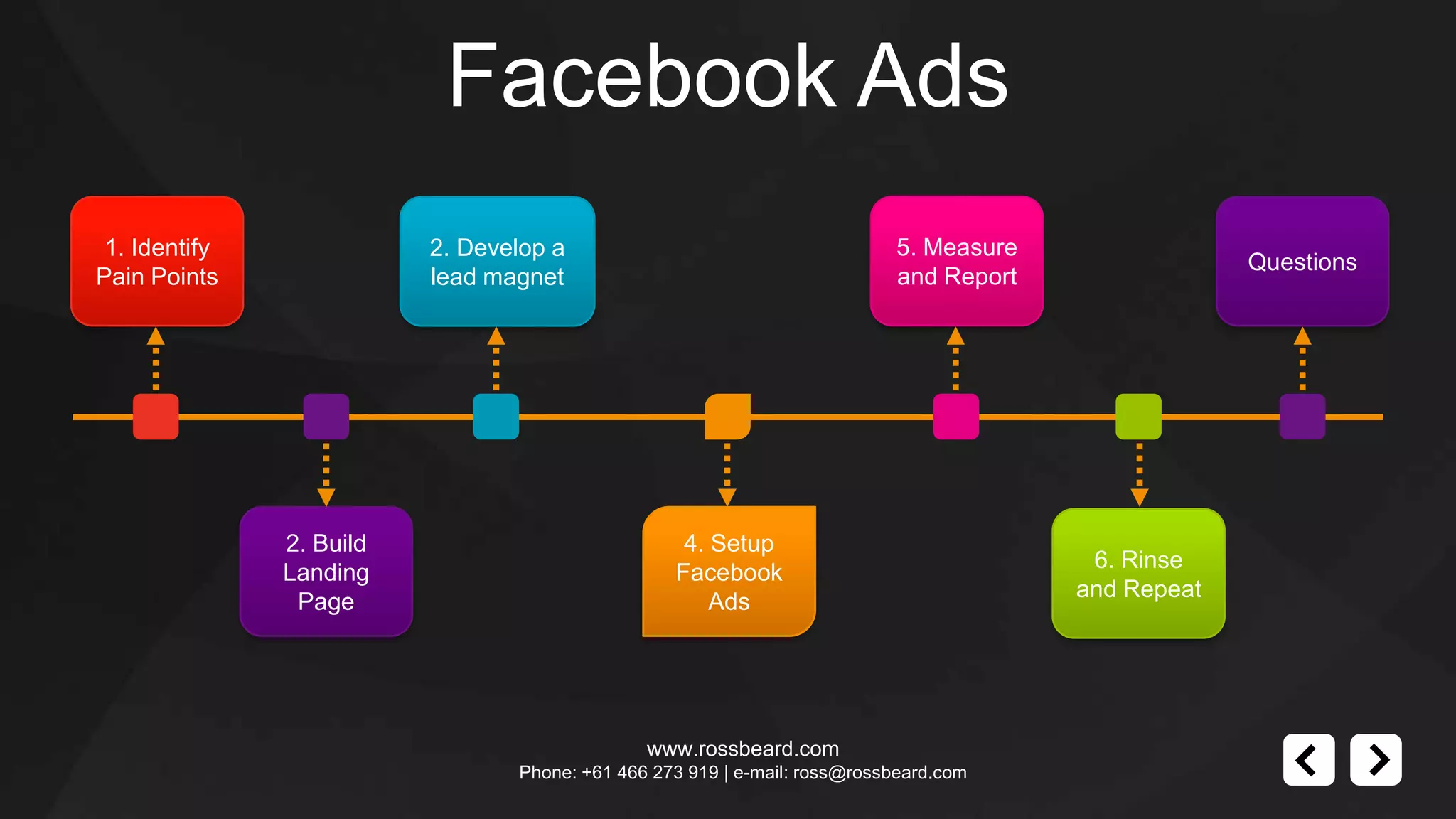
 1. Identify              2. Develop a                                     5. Measure
                                                                                                     Questions
Pain Points               lead magnet                                      and Report


               2. Build                            4. Setup
                                                                                         6. Rinse
               Landing                            Facebook
                                                                                        and Repeat
                Page                                  Ads


                                               www.rossbeard.com
                                 Phone: +61 466 273 919 | e-mail: ross@rossbeard.com
Facebook Ads
                                          Setting up ads
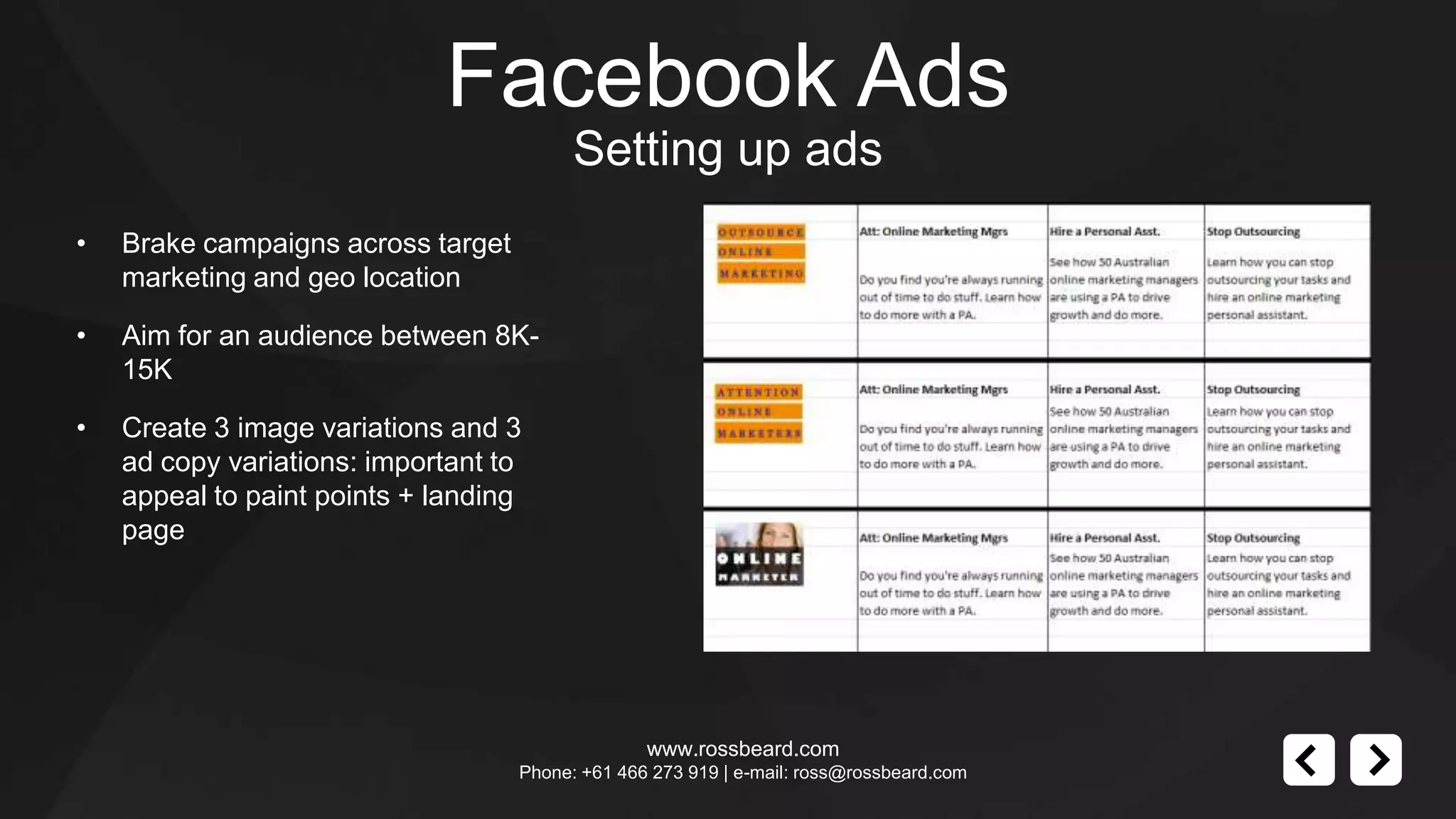
•   Brake campaigns across target
    marketing and geo location

•   Aim for an audience between 8K-
    15K

•   Create 3 image variations and 3
    ad copy variations: important to
    appeal to paint points + landing
    page


                                                  www.rossbeard.com
                                    Phone: +61 466 273 919 | e-mail: ross@rossbeard.com
Facebook Ads
                                Running the campaign
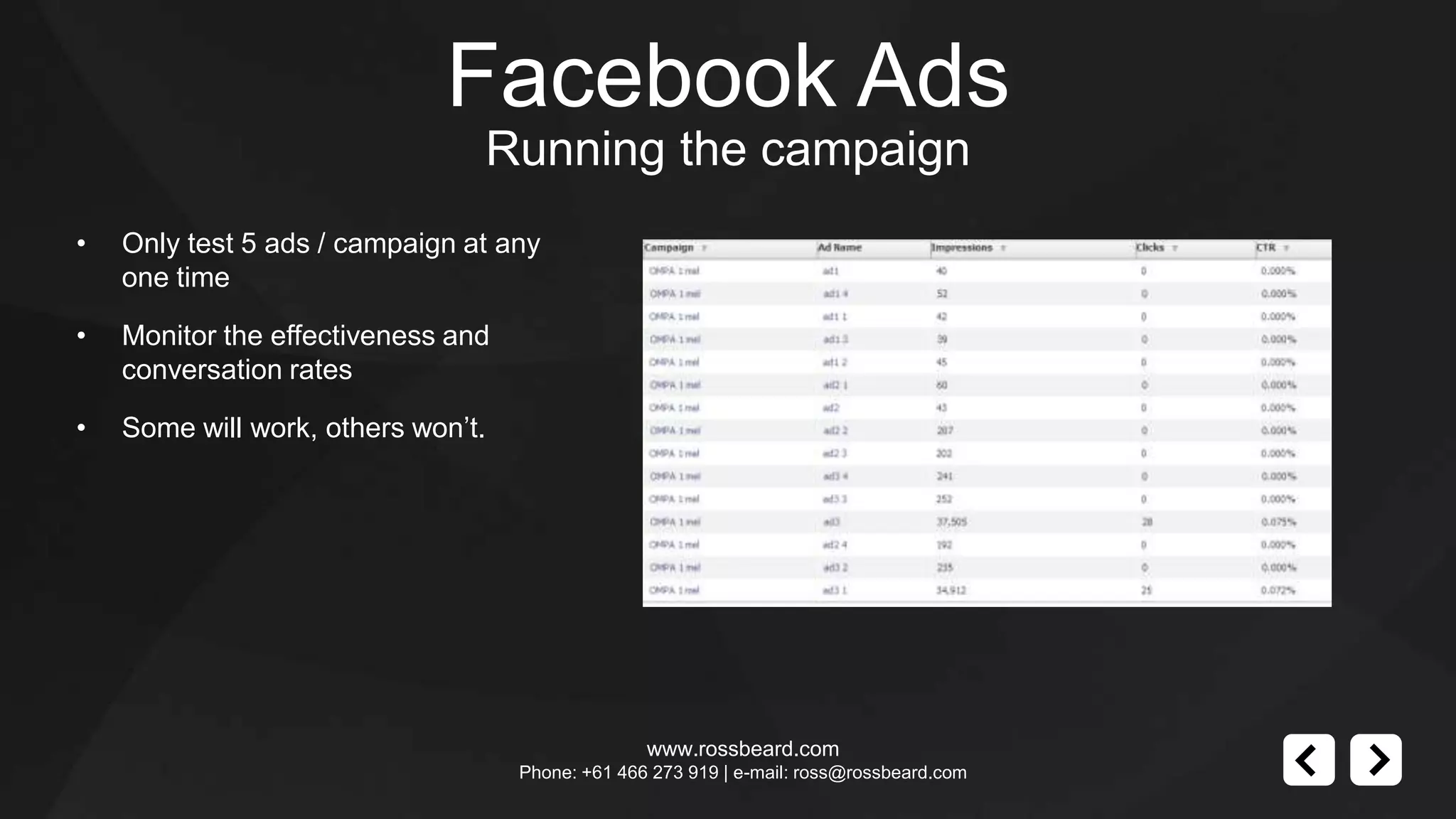
•   Only test 5 ads / campaign at any
    one time

•   Monitor the effectiveness and
    conversation rates

•   Some will work, others won’t.


                                                  www.rossbeard.com
                                    Phone: +61 466 273 919 | e-mail: ross@rossbeard.com
Key points to remember
•   Focus on your target markets pain points

•   Address these pain points on your landing page, offer a solution which forms your product for

    prospect – give something valuable away for free in exchange for contact info

•   Write Facebook ad copy that appeals to those pain points

•   Track, measure and repeat


                                          www.rossbeard.com
                            Phone: +61 466 273 919 | e-mail: ross@rossbeard.com
contact
                                       Ross Beard Marketing

                                       +1(61) 466 273 919

                                       www.rossbeard.com

                                       ross@rossbeard.com

                                       www.twitter.com/rossbeard


              www.rossbeard.com
Phone: +61 466 273 919 | e-mail: ross@rossbeard.com

Facebook Ads Lead Generation

  • 1.
    ROSS BEARD Marketing COME & SEE
  • 2.
    Facebook Ads 1.Identify 2. Develop a 5. Measure Questions Pain Points lead magnet and Report 2. Build 4. Setup 6. Rinse Landing Facebook and Repeat Page Ads www.rossbeard.com Phone: +61 466 273 919 | e-mail: ross@rossbeard.com
  • 3.
    Facebook Ads Setting up ads • Brake campaigns across target marketing and geo location • Aim for an audience between 8K- 15K • Create 3 image variations and 3 ad copy variations: important to appeal to paint points + landing page www.rossbeard.com Phone: +61 466 273 919 | e-mail: ross@rossbeard.com
  • 4.
    Facebook Ads Running the campaign • Only test 5 ads / campaign at any one time • Monitor the effectiveness and conversation rates • Some will work, others won’t. www.rossbeard.com Phone: +61 466 273 919 | e-mail: ross@rossbeard.com
  • 5.
    Key points toremember • Focus on your target markets pain points • Address these pain points on your landing page, offer a solution which forms your product for prospect – give something valuable away for free in exchange for contact info • Write Facebook ad copy that appeals to those pain points • Track, measure and repeat www.rossbeard.com Phone: +61 466 273 919 | e-mail: ross@rossbeard.com
  • 6.
    contact Ross Beard Marketing +1(61) 466 273 919 www.rossbeard.com ross@rossbeard.com www.twitter.com/rossbeard www.rossbeard.com Phone: +61 466 273 919 | e-mail: ross@rossbeard.com

Editor's Notes

  • #2 Hello! Thank you for purchase!These notes will help you to make your unique presentation.Before edit this PowerPoint templateplease make sure required fonts is installed (this presentation useMuseo 300 and 700)Main Title SlideThis Slide use «Title» Layout on Master Slide View. You can change color theme for this slide in the Master Slide. To do this go to Slide Master, select «Background Styles» > Select «Format Background» > Select «Fill Color» > Select Color you need.You can change color of icons easily, to do this, go to Slide Master (in View Tab), select object, then go to Format Tab and select desired color fills in «Shape Slyles».Text shapes are not included in the Master Slide for easy editing.AnimationTitle and subtitle animated on this slide. For these I used «Fade» animation.For other objects I used «Grow & Turn» animation in the Master Slide.
  • #3 Watch Information SlideThis Slide use «Title & SubtitleLayout» on Master Slide View.Slide titles is editable, you can change text.You can change color easily, to do this, select object, then go to Format Tab and select desired color fills in «Shape Slyles».And select «Shape Fill / Shape Outline» on Home Tab to change color without effect.If you need, you can change or copy objects and move it. Change Contact Information and LogoGo to View Tab, then select Slide Master in Master Views. Change your company information and Logo in the bottom area and copy/paste them to other slides.Navigation ButtonIt’s helps you to move slide to next or previous slides.You can found and change the Navigation Buttons on each slide in Master Slide View. AnimationTitle animated in the Master Slide. I used «Fade» animation.For other objects I used also «Fade» animation on this slide.
  • #4 Case One SlideThis Slide use «Internet Image» on Master Slide View. Click Icon to add picture and insert your project preview image.You can change color of icon billet, to do this, select object few times, then go to Format Tab and select desired color fills in «Shape Slyles».Icons are not included in the Master Slide for easy editing. If you want, you can change or copy objects and move it. To replace icons you need to ungroup object and paste new icon.AnimationAll text and Image Placeholder animated in the Master Slide. For these I used «Fade» animation.For other objects I used also «Fade» animation on this slide. Don’t forget grouped objects before add animation effect.
  • #5 Case One SlideThis Slide use «Internet Image» on Master Slide View. Click Icon to add picture and insert your project preview image.You can change color of icon billet, to do this, select object few times, then go to Format Tab and select desired color fills in «Shape Slyles».Icons are not included in the Master Slide for easy editing. If you want, you can change or copy objects and move it. To replace icons you need to ungroup object and paste new icon.AnimationAll text and Image Placeholder animated in the Master Slide. For these I used «Fade» animation.For other objects I used also «Fade» animation on this slide. Don’t forget grouped objects before add animation effect.
  • #6 Contact Us SlideThis Slide use «Contact Layout» on Master Slide View. Click Icon to add picture and insert your map. You can change color of shape outline, to do this select object, then select «Shape Outline» and select color.Icons are not included in the Master SlideAnimationTitle and Image Placeholder animated in the Master Slide. For these I used «Fade» animation.For Text and Icons I used «Fade» animation on this slide.
  • #7 Contact Us SlideThis Slide use «Contact Layout» on Master Slide View. Click Icon to add picture and insert your map. You can change color of shape outline, to do this select object, then select «Shape Outline» and select color.Icons are not included in the Master SlideAnimationTitle and Image Placeholder animated in the Master Slide. For these I used «Fade» animation.For Text and Icons I used «Fade» animation on this slide.