Let's explore Salesforce
Lightning Menu
via a Guided Tour
Install Guideme.io plug-in
• To play the tour visit Guideme.io and install
the chrome plug-in
OR
• Ask your IT administrator to install the
Guideme.IO js file
1. Menu Icon
Menu collapses and expands a list of all icons
along with their names
2. Home Icon
A view of what’s important for you to focus on
today
3. Opportunities Icon
Opportunities are qualified leads that you’ve
converted. When you convert the Lead, you create an
Account and Contact along with the Opportunity
4. Leads Icon
Leads are potential prospects. You haven’t yet
qualified that they are ready to buy or what
product they need
5. Tasks Icon
You can view your whole list of tasks, alongside a
detailed view of any task you select
6. Files Icon
Salesforce Files reinvents file sharing for the enterprise, placing
documents, videos, or presentations into the center of sales,
service, and marketing processes. Files are accessible from
anywhere, and always updated to the most recent version
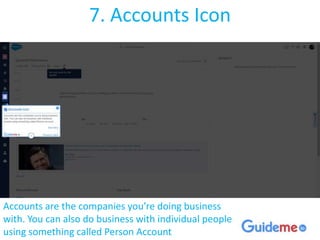
7. Accounts Icon
Accounts are the companies you’re doing business
with. You can also do business with individual people
using something called Person Account
8. Contacts Icon
Contacts are the people who work at an Account
9. Dashboard Icon
Your utility for summarizing and displaying your
Salesforce data in a graphical layout
10. Reports Icon
Your business has questions. Your Salesforce data has
the answers. When you get asked to build a report,
the request typically comes in the form of a question.
11. Feeds Icon
Chatter feeds show you posts and comments you
and other people make, as well as record updates
across your Salesforce organization
12. Groups Icon
A group consists of a set of users. A group can contain individual
users, other groups, or the users in a particular role or territory.
It can also contain the users in a particular role or territory plus
all the users below that role or territory in the hierarchy
13. Calendar Icon
Use Salesforce to schedule meetings and
presentations with colleagues, customers, and
prospects
14. People Icon
The People icon display a list of the users in your
organization
Install Guideme.io plug-in
• To Play the tour visit Guideme.io and install
the chrome plug-in
OR
• Ask your IT administrator to install the
Guideme.IO js file

Explore Salesforce lightning user interface

  • 1.
    Let's explore Salesforce LightningMenu via a Guided Tour
  • 2.
    Install Guideme.io plug-in •To play the tour visit Guideme.io and install the chrome plug-in OR • Ask your IT administrator to install the Guideme.IO js file
  • 3.
    1. Menu Icon Menucollapses and expands a list of all icons along with their names
  • 4.
    2. Home Icon Aview of what’s important for you to focus on today
  • 5.
    3. Opportunities Icon Opportunitiesare qualified leads that you’ve converted. When you convert the Lead, you create an Account and Contact along with the Opportunity
  • 6.
    4. Leads Icon Leadsare potential prospects. You haven’t yet qualified that they are ready to buy or what product they need
  • 7.
    5. Tasks Icon Youcan view your whole list of tasks, alongside a detailed view of any task you select
  • 8.
    6. Files Icon SalesforceFiles reinvents file sharing for the enterprise, placing documents, videos, or presentations into the center of sales, service, and marketing processes. Files are accessible from anywhere, and always updated to the most recent version
  • 9.
    7. Accounts Icon Accountsare the companies you’re doing business with. You can also do business with individual people using something called Person Account
  • 10.
    8. Contacts Icon Contactsare the people who work at an Account
  • 11.
    9. Dashboard Icon Yourutility for summarizing and displaying your Salesforce data in a graphical layout
  • 12.
    10. Reports Icon Yourbusiness has questions. Your Salesforce data has the answers. When you get asked to build a report, the request typically comes in the form of a question.
  • 13.
    11. Feeds Icon Chatterfeeds show you posts and comments you and other people make, as well as record updates across your Salesforce organization
  • 14.
    12. Groups Icon Agroup consists of a set of users. A group can contain individual users, other groups, or the users in a particular role or territory. It can also contain the users in a particular role or territory plus all the users below that role or territory in the hierarchy
  • 15.
    13. Calendar Icon UseSalesforce to schedule meetings and presentations with colleagues, customers, and prospects
  • 16.
    14. People Icon ThePeople icon display a list of the users in your organization
  • 17.
    Install Guideme.io plug-in •To Play the tour visit Guideme.io and install the chrome plug-in OR • Ask your IT administrator to install the Guideme.IO js file