1
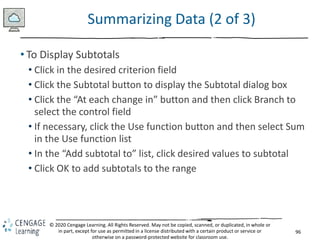
Shelly Cashman: Microsoft Excel 2019
Module 4: Financial Functions, Data Tables, and Amortization
Schedules
© 2020 Cengage Learning. All Rights Reserved. May not be copied, scanned, or duplicated, in whole
or in part, except for use as permitted in a license distributed with a certain product or service or
otherwise on a password-protected website for classroom use.
2
© 2020 Cengage Learning. All Rights Reserved. May not be copied, scanned, or duplicated, in whole or
in part, except for use as permitted in a license distributed with a certain product or service or
otherwise on a password-protected website for classroom use.
Objectives (1 of 2)
• Assign a name to a cell and refer to the cell in a formula
using the assigned name
• Determine the monthly payment of a loan using the financial
function PMT
• Use the financial functions PV (present value) and FV (future
value)
• Create a data table to analyze data in a worksheet
• Create an amortization schedule
• Control the color and thickness of outlines and borders
3
© 2020 Cengage Learning. All Rights Reserved. May not be copied, scanned, or duplicated, in whole or
in part, except for use as permitted in a license distributed with a certain product or service or
otherwise on a password-protected website for classroom use.
Objectives (2 of 2)
• Add a pointer to a data table
• Analyze worksheet data by changing values
• Use names and print sections of a worksheet
• Set print options
• Protect and unprotect cells in a worksheet
• Hide and unhide worksheets and workbooks
• Use the formula checking features of Excel
4
© 2020 Cengage Learning. All Rights Reserved. May not be copied, scanned, or duplicated, in whole or
in part, except for use as permitted in a license distributed with a certain product or service or
otherwise on a password-protected website for classroom use.
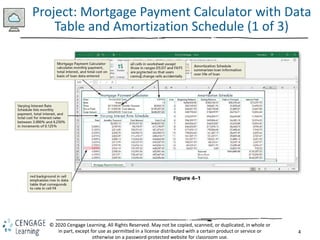
Project: Mortgage Payment Calculator with Data
Table and Amortization Schedule (1 of 3)
5
© 2020 Cengage Learning. All Rights Reserved. May not be copied, scanned, or duplicated, in whole or
in part, except for use as permitted in a license distributed with a certain product or service or
otherwise on a password-protected website for classroom use.
Project—Mortgage Payment Calculator with Data
Table and Amortization Schedule (2 of 3)
• To Apply a Theme to the Worksheet
• Start Excel and create a blank worksheet in the Excel workbook
• Apply a theme to the workbook
• To Enter the Section and Row Title and System Date
• Select a cell and type a section title
• Select a range and then click “Merge & Center.” Click the Cell
Styles button and select a style
• Click Middle Align button to vertically align the text
• Right-click a cell to open the shortcut menu and then click
Format Cells. Click Number tab, click Date in the Category, scroll
down and select a date format, click OK
6
© 2020 Cengage Learning. All Rights Reserved. May not be copied, scanned, or duplicated, in whole or
in part, except for use as permitted in a license distributed with a certain product or service or
otherwise on a password-protected website for classroom use.
Project—Mortgage Payment Calculator with Data
Table and Amortization Schedule (3 of 3)
• To Adjust the Column Widths and Row Height
• Click column heading A and then drag through column B to
select both columns. Position the pointer on the right boundary
of column B and then drag to the left until ScreenTip indicates
desired width
• Click row heading 1 to select it and then drag through row
heading 2 to select both. Position the pointer on the bottom of
row heading 2 and then drag until the ScreenTip indicates the
desired height
• To Change the Sheet Tab Name
• Double-click the Sheet tab and enter a new name
7
© 2020 Cengage Learning. All Rights Reserved. May not be copied, scanned, or duplicated, in whole or
in part, except for use as permitted in a license distributed with a certain product or service or
otherwise on a password-protected website for classroom use.
Creating Cell Names (1 of 8)
• To Format Cells before Entering Values
• Select the desired range and while holding down CTRL, select
the nonadjacent range
• Right-click one of the ranges to display the shortcut menu and
then click Format Cells to display the Format Cells dialog box
• Click the NUMBER tab, select the desired category from the list
• Click OK
8
© 2020 Cengage Learning. All Rights Reserved. May not be copied, scanned, or duplicated, in whole or
in part, except for use as permitted in a license distributed with a certain product or service or
otherwise on a password-protected website for classroom use.
Creating Cell Names (2 of 8)
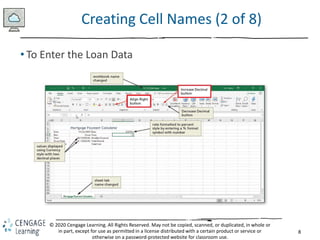
• To Enter the Loan Data
9
© 2020 Cengage Learning. All Rights Reserved. May not be copied, scanned, or duplicated, in whole or
in part, except for use as permitted in a license distributed with a certain product or service or
otherwise on a password-protected website for classroom use.
Creating Cell Names (3 of 8)
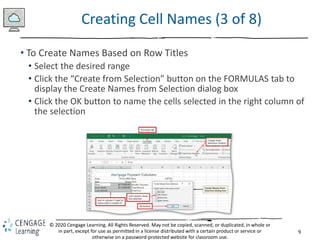
• To Create Names Based on Row Titles
• Select the desired range
• Click the “Create from Selection” button on the FORMULAS tab to
display the Create Names from Selection dialog box
• Click the OK button to name the cells selected in the right column of
the selection
10
© 2020 Cengage Learning. All Rights Reserved. May not be copied, scanned, or duplicated, in whole or
in part, except for use as permitted in a license distributed with a certain product or service or
otherwise on a password-protected website for classroom use.
Creating Cell Names (4 of 8)
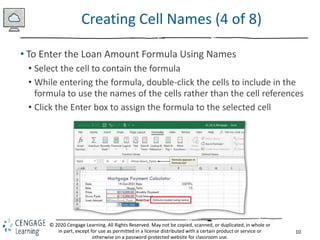
• To Enter the Loan Amount Formula Using Names
• Select the cell to contain the formula
• While entering the formula, double-click the cells to include in the
formula to use the names of the cells rather than the cell references
• Click the Enter box to assign the formula to the selected cell
11
© 2020 Cengage Learning. All Rights Reserved. May not be copied, scanned, or duplicated, in whole or
in part, except for use as permitted in a license distributed with a certain product or service or
otherwise on a password-protected website for classroom use.
Creating Cell Names (5 of 8)
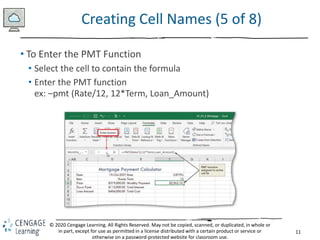
• To Enter the PMT Function
• Select the cell to contain the formula
• Enter the PMT function
ex: –pmt (Rate/12, 12*Term, Loan_Amount)
12
© 2020 Cengage Learning. All Rights Reserved. May not be copied, scanned, or duplicated, in whole or
in part, except for use as permitted in a license distributed with a certain product or service or
otherwise on a password-protected website for classroom use.
Creating Cell Names (6 of 8)
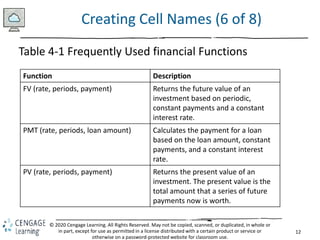
Table 4-1 Frequently Used financial Functions
Function Description
FV (rate, periods, payment) Returns the future value of an
investment based on periodic,
constant payments and a constant
interest rate.
PMT (rate, periods, loan amount) Calculates the payment for a loan
based on the loan amount, constant
payments, and a constant interest
rate.
PV (rate, periods, payment) Returns the present value of an
investment. The present value is the
total amount that a series of future
payments now is worth.
13
© 2020 Cengage Learning. All Rights Reserved. May not be copied, scanned, or duplicated, in whole or
in part, except for use as permitted in a license distributed with a certain product or service or
otherwise on a password-protected website for classroom use.
Creating Cell Names (7 of 8)
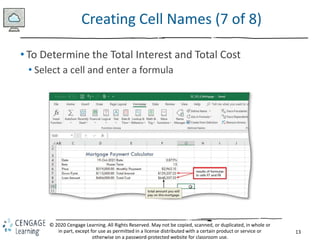
• To Determine the Total Interest and Total Cost
• Select a cell and enter a formula
14
© 2020 Cengage Learning. All Rights Reserved. May not be copied, scanned, or duplicated, in whole or
in part, except for use as permitted in a license distributed with a certain product or service or
otherwise on a password-protected website for classroom use.
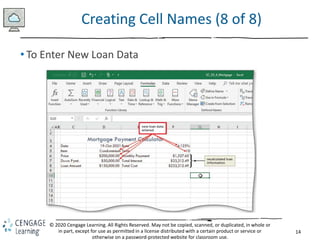
Creating Cell Names (8 of 8)
• To Enter New Loan Data
15
© 2020 Cengage Learning. All Rights Reserved. May not be copied, scanned, or duplicated, in whole or
in part, except for use as permitted in a license distributed with a certain product or service or
otherwise on a password-protected website for classroom use.
Using a Data Table to Analyze Worksheet
Data (1 of 4)
• To Enter the Data Table Title and Column Titles
• Select a cell and type the desired data table section title
• Elect a cell and then click the Format Painter button on the
HOME tab to copy the format of the cell and then click another
cell and apply the copied format
• Position the pointer on the bottom boundary of a row heading
and drag up or down until the ScreenTip indicates the desired
height
16
© 2020 Cengage Learning. All Rights Reserved. May not be copied, scanned, or duplicated, in whole or
in part, except for use as permitted in a license distributed with a certain product or service or
otherwise on a password-protected website for classroom use.
Using a Data Table to Analyze Worksheet
Data (2 of 4)
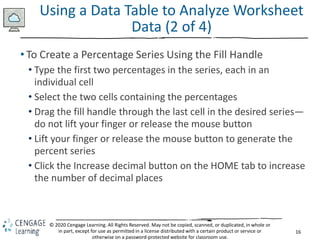
• To Create a Percentage Series Using the Fill Handle
• Type the first two percentages in the series, each in an
individual cell
• Select the two cells containing the percentages
• Drag the fill handle through the last cell in the desired series—
do not lift your finger or release the mouse button
• Lift your finger or release the mouse button to generate the
percent series
• Click the Increase decimal button on the HOME tab to increase
the number of decimal places
17
© 2020 Cengage Learning. All Rights Reserved. May not be copied, scanned, or duplicated, in whole or
in part, except for use as permitted in a license distributed with a certain product or service or
otherwise on a password-protected website for classroom use.
Using a Data Table to Analyze Worksheet
Data (3 of 4)
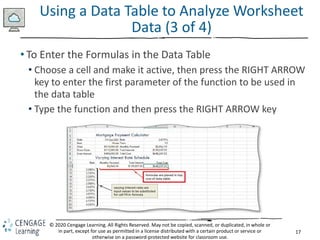
• To Enter the Formulas in the Data Table
• Choose a cell and make it active, then press the RIGHT ARROW
key to enter the first parameter of the function to be used in
the data table
• Type the function and then press the RIGHT ARROW key
18
© 2020 Cengage Learning. All Rights Reserved. May not be copied, scanned, or duplicated, in whole or
in part, except for use as permitted in a license distributed with a certain product or service or
otherwise on a password-protected website for classroom use.
Using a Data Table to Analyze Worksheet
Data (4 of 4)
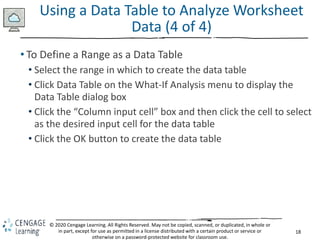
• To Define a Range as a Data Table
• Select the range in which to create the data table
• Click Data Table on the What-If Analysis menu to display the
Data Table dialog box
• Click the “Column input cell” box and then click the cell to select
as the desired input cell for the data table
• Click the OK button to create the data table
19
© 2020 Cengage Learning. All Rights Reserved. May not be copied, scanned, or duplicated, in whole or
in part, except for use as permitted in a license distributed with a certain product or service or
otherwise on a password-protected website for classroom use.
Creating an Amortization Schedule (1 of 12)
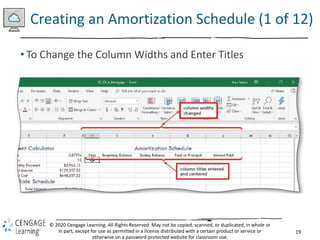
• To Change the Column Widths and Enter Titles
20
© 2020 Cengage Learning. All Rights Reserved. May not be copied, scanned, or duplicated, in whole or
in part, except for use as permitted in a license distributed with a certain product or service or
otherwise on a password-protected website for classroom use.
Creating an Amortization Schedule (2 of 12)
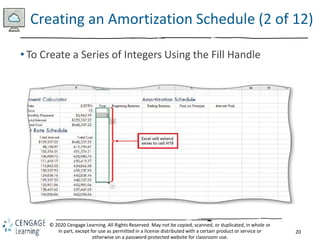
• To Create a Series of Integers Using the Fill Handle
21
© 2020 Cengage Learning. All Rights Reserved. May not be copied, scanned, or duplicated, in whole or
in part, except for use as permitted in a license distributed with a certain product or service or
otherwise on a password-protected website for classroom use.
Creating an Amortization Schedule (3 of 12)
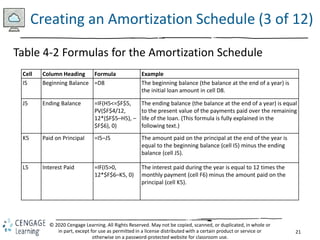
Table 4-2 Formulas for the Amortization Schedule
Cell Column Heading Formula Example
I5 Beginning Balance =D8 The beginning balance (the balance at the end of a year) is
the initial loan amount in cell D8.
J5 Ending Balance =IF(H5<=$F$5,
PV($F$4/12,
12*($F$5–H5), –
$F$6), 0)
The ending balance (the balance at the end of a year) is equal
to the present value of the payments paid over the remaining
life of the loan. (This formula is fully explained in the
following text.)
K5 Paid on Principal =I5–J5 The amount paid on the principal at the end of the year is
equal to the beginning balance (cell I5) minus the ending
balance (cell J5).
L5 Interest Paid =IF(I5>0,
12*$F$6–K5, 0)
The interest paid during the year is equal to 12 times the
monthly payment (cell F6) minus the amount paid on the
principal (cell K5).
22
© 2020 Cengage Learning. All Rights Reserved. May not be copied, scanned, or duplicated, in whole or
in part, except for use as permitted in a license distributed with a certain product or service or
otherwise on a password-protected website for classroom use.
Creating an Amortization Schedule (4 of 12)
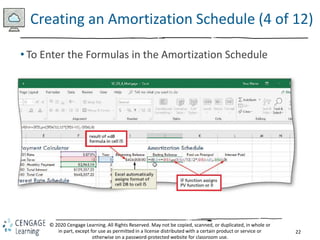
• To Enter the Formulas in the Amortization Schedule
23
© 2020 Cengage Learning. All Rights Reserved. May not be copied, scanned, or duplicated, in whole or
in part, except for use as permitted in a license distributed with a certain product or service or
otherwise on a password-protected website for classroom use.
Creating an Amortization Schedule (5 of 12)
• To Copy the Formulas to Fill the Amortization Schedule
• Select the range of cells to copy and then drag the fill handle
down through the last row to copy the formulas through the
amortization schedule
• Create a reference so that the beginning balance of one year is
equal to the cell that contains the ending balance of the
previous year
• Select the beginning balance and drag the fill handle through
the end of the range
24
© 2020 Cengage Learning. All Rights Reserved. May not be copied, scanned, or duplicated, in whole or
in part, except for use as permitted in a license distributed with a certain product or service or
otherwise on a password-protected website for classroom use.
Creating an Amortization Schedule (6 of 12)
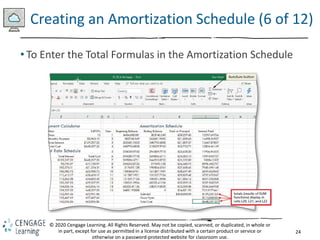
• To Enter the Total Formulas in the Amortization Schedule
25
© 2020 Cengage Learning. All Rights Reserved. May not be copied, scanned, or duplicated, in whole or
in part, except for use as permitted in a license distributed with a certain product or service or
otherwise on a password-protected website for classroom use.
Creating an Amortization Schedule (7 of 12)
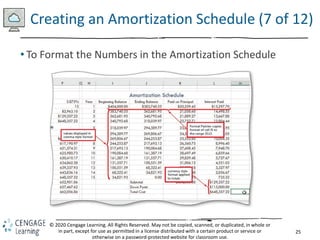
• To Format the Numbers in the Amortization Schedule
26
© 2020 Cengage Learning. All Rights Reserved. May not be copied, scanned, or duplicated, in whole or
in part, except for use as permitted in a license distributed with a certain product or service or
otherwise on a password-protected website for classroom use.
Creating an Amortization Schedule (8 of 12)
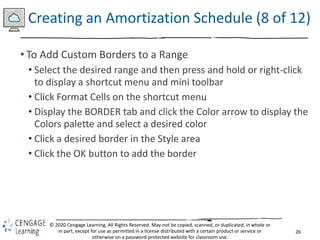
• To Add Custom Borders to a Range
• Select the desired range and then press and hold or right-click
to display a shortcut menu and mini toolbar
• Click Format Cells on the shortcut menu
• Display the BORDER tab and click the Color arrow to display the
Colors palette and select a desired color
• Click a desired border in the Style area
• Click the OK button to add the border
27
© 2020 Cengage Learning. All Rights Reserved. May not be copied, scanned, or duplicated, in whole or
in part, except for use as permitted in a license distributed with a certain product or service or
otherwise on a password-protected website for classroom use.
Creating an Amortization Schedule (9 of 12)
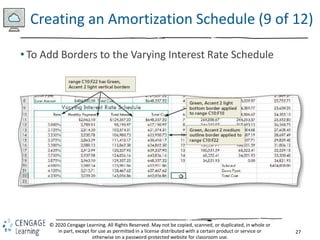
• To Add Borders to the Varying Interest Rate Schedule
28
© 2020 Cengage Learning. All Rights Reserved. May not be copied, scanned, or duplicated, in whole or
in part, except for use as permitted in a license distributed with a certain product or service or
otherwise on a password-protected website for classroom use.
Creating an Amortization Schedule (10 of 12)
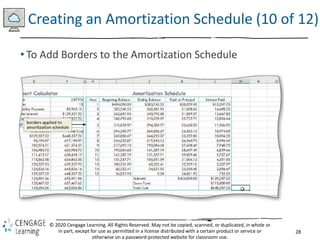
• To Add Borders to the Amortization Schedule
29
© 2020 Cengage Learning. All Rights Reserved. May not be copied, scanned, or duplicated, in whole or
in part, except for use as permitted in a license distributed with a certain product or service or
otherwise on a password-protected website for classroom use.
Creating an Amortization Schedule (11 of 12)
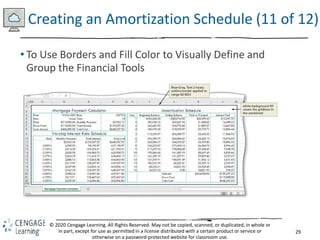
• To Use Borders and Fill Color to Visually Define and
Group the Financial Tools
30
© 2020 Cengage Learning. All Rights Reserved. May not be copied, scanned, or duplicated, in whole or
in part, except for use as permitted in a license distributed with a certain product or service or
otherwise on a password-protected website for classroom use.
Creating an Amortization Schedule (12 of 12)
• To Add a Pointer to the Data Table Using Conditional
Formatting
• Select the desired range and then click the conditional
formatting button on the HOME tab
• Point to “Highlight Cells Rules” to display the submenu
• Click the desired rule
• Click the OK button to apply the conditional formatting rule
31
© 2020 Cengage Learning. All Rights Reserved. May not be copied, scanned, or duplicated, in whole or
in part, except for use as permitted in a license distributed with a certain product or service or
otherwise on a password-protected website for classroom use.
Printing Sections of the Worksheet (1 of 4)
• To Set Up a Worksheet to Print
• Click the Page Setup Dialog Box Launcher on the PAGE LAYOUT
tab to display the Page Setup dialog box
• If necessary, click the PAGE tab to display the Page sheet and
then click Fit to in the Scaling area to set the worksheet to print
on one page
• Click the SHEET tab to display the tab and then click “Black and
white” in the Print area to select the check box
• Click the OK button to close the Page Setup dialog box
32
© 2020 Cengage Learning. All Rights Reserved. May not be copied, scanned, or duplicated, in whole or
in part, except for use as permitted in a license distributed with a certain product or service or
otherwise on a password-protected website for classroom use.
Printing Sections of the Worksheet (2 of 4)
• To Set the Print Area
• Select the range to set as the print area, and then click the Print
Area button on the PAGE LAYOUT tab to display the Print Area
menu
• Click “Set Print Area” on the Print Area menu to set the range of
the worksheet which Excel should print
• To clear the print area, click the Print Area button on the PAGE
LAYOUT tab to display the Print Area menu and then click the
“Clear Print Area” command on the Print Area menu to reset
the print area to the entire worksheet
33
© 2020 Cengage Learning. All Rights Reserved. May not be copied, scanned, or duplicated, in whole or
in part, except for use as permitted in a license distributed with a certain product or service or
otherwise on a password-protected website for classroom use.
Printing Sections of the Worksheet (3 of 4)
• To Name and Print Sections of a Worksheet
• If necessary, select the range to name, and then type the
desired range name as the name of the range to create a range
name
• Press the ENTER key to create a range name
• Select the desired range to print
• Click File on the Ribbon to open the Backstage view and then
click the PRINT tab in the Backstage view to display the Print
gallery
• If necessary, click the “Print Active Sheets” button in the
Settings area and select Print Selection to select the desired
item to print
34
© 2020 Cengage Learning. All Rights Reserved. May not be copied, scanned, or duplicated, in whole or
in part, except for use as permitted in a license distributed with a certain product or service or
otherwise on a password-protected website for classroom use.
Printing Sections of the Worksheet (4 of 4)
• Creating Formulas with Defined Names
• To Define a Name for a Range of Cells
• To Use a Defined Name in a Formula
35
© 2020 Cengage Learning. All Rights Reserved. May not be copied, scanned, or duplicated, in whole or
in part, except for use as permitted in a license distributed with a certain product or service or
otherwise on a password-protected website for classroom use.
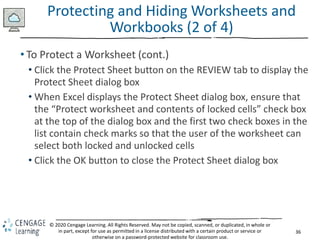
Protecting and Hiding Worksheets and
Workbooks (1 of 4)
• To Protect a Worksheet
• Select the range(s) to unprotect
• Right-click one of the selected ranges to display a shortcut
menu and mini toolbar
• Click Format Cells on the shortcut menu to display the Format
Cells dialog box
• Click the PROTECTION tab and then click Locked to remove the
check mark
• Click the OK button to close the Format Cells dialog box
• Deselect the ranges
36
© 2020 Cengage Learning. All Rights Reserved. May not be copied, scanned, or duplicated, in whole or
in part, except for use as permitted in a license distributed with a certain product or service or
otherwise on a password-protected website for classroom use.
Protecting and Hiding Worksheets and
Workbooks (2 of 4)
• To Protect a Worksheet (cont.)
• Click the Protect Sheet button on the REVIEW tab to display the
Protect Sheet dialog box
• When Excel displays the Protect Sheet dialog box, ensure that
the “Protect worksheet and contents of locked cells” check box
at the top of the dialog box and the first two check boxes in the
list contain check marks so that the user of the worksheet can
select both locked and unlocked cells
• Click the OK button to close the Protect Sheet dialog box
37
© 2020 Cengage Learning. All Rights Reserved. May not be copied, scanned, or duplicated, in whole or
in part, except for use as permitted in a license distributed with a certain product or service or
otherwise on a password-protected website for classroom use.
Protecting and Hiding Worksheets and
Workbooks (3 of 4)
• To Hide and Unhide a Worksheet
• Right-click the sheet tab to hide to display a shortcut menu
• Click Hide on the shortcut menu to hide the sheet
• Right-click any sheet tab to display a shortcut menu
• Click Unhide on the shortcut menu to open the Unhide dialog
box
• When Excel displays the Unhide dialog box, click the sheet to
unhide
• Click the OK button to unhide the hidden sheet
38
© 2020 Cengage Learning. All Rights Reserved. May not be copied, scanned, or duplicated, in whole or
in part, except for use as permitted in a license distributed with a certain product or service or
otherwise on a password-protected website for classroom use.
Protecting and Hiding Worksheets and
Workbooks (4 of 4)
• To Hide and Unhide a Workbook
• Click the Hide Window button on the VIEW tab to hide the
workbook
• Click the Unhide Window button on the VIEW tab to display the
Unhide dialog box
• If necessary, click to select the workbook to unhide
• Click the OK button to unhide the selected hidden workbook
and display the workbook in the same state as it was in when it
was hidden
39
© 2020 Cengage Learning. All Rights Reserved. May not be copied, scanned, or duplicated, in whole or
in part, except for use as permitted in a license distributed with a certain product or service or
otherwise on a password-protected website for classroom use.
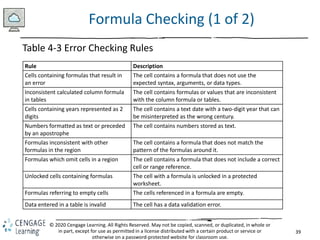
Formula Checking (1 of 2)
Table 4-3 Error Checking Rules
Rule Description
Cells containing formulas that result in
an error
The cell contains a formula that does not use the
expected syntax, arguments, or data types.
Inconsistent calculated column formula
in tables
The cell contains formulas or values that are inconsistent
with the column formula or tables.
Cells containing years represented as 2
digits
The cell contains a text date with a two-digit year that can
be misinterpreted as the wrong century.
Numbers formatted as text or preceded
by an apostrophe
The cell contains numbers stored as text.
Formulas inconsistent with other
formulas in the region
The cell contains a formula that does not match the
pattern of the formulas around it.
Formulas which omit cells in a region The cell contains a formula that does not include a correct
cell or range reference.
Unlocked cells containing formulas The cell with a formula is unlocked in a protected
worksheet.
Formulas referring to empty cells The cells referenced in a formula are empty.
Data entered in a table is invalid The cell has a data validation error.
40
© 2020 Cengage Learning. All Rights Reserved. May not be copied, scanned, or duplicated, in whole or
in part, except for use as permitted in a license distributed with a certain product or service or
otherwise on a password-protected website for classroom use.
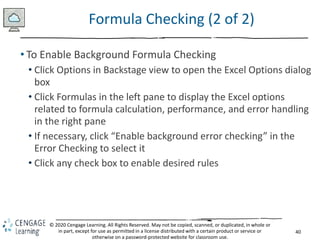
Formula Checking (2 of 2)
• To Enable Background Formula Checking
• Click Options in Backstage view to open the Excel Options dialog
box
• Click Formulas in the left pane to display the Excel options
related to formula calculation, performance, and error handling
in the right pane
• If necessary, click “Enable background error checking” in the
Error Checking to select it
• Click any check box to enable desired rules
41
Shelly Cashman: Microsoft Excel 2019
Module 5: Working with Multiple Worksheets and Workbooks
© 2020 Cengage Learning. All Rights Reserved. May not be copied, scanned, or duplicated, in whole
or in part, except for use as permitted in a license distributed with a certain product or service or
otherwise on a password-protected website for classroom use.
42
© 2020 Cengage Learning. All Rights Reserved. May not be copied, scanned, or duplicated, in whole or
in part, except for use as permitted in a license distributed with a certain product or service or
otherwise on a password-protected website for classroom use.
Objectives (1 of 2)
• Format a consolidated worksheet
• Fill using a linear series
• Use date, time, and rounding functions
• Apply a custom format code
• Create a new cell style
• Copy a worksheet
• Drill to add data to multiple worksheets at the same time
• Select and deselect sheet combinations
43
© 2020 Cengage Learning. All Rights Reserved. May not be copied, scanned, or duplicated, in whole or
in part, except for use as permitted in a license distributed with a certain product or service or
otherwise on a password-protected website for classroom use.
Objectives (2 of 2)
• Enter formulas that use 3-D cell references
• Use the Paste gallery
• Format a 3-D pie chart with an exploded slice and lead lines
• Save individual worksheets as separate workbook files
• View and hide multiple workbooks
• Consolidate data by linking separate workbooks
44
© 2020 Cengage Learning. All Rights Reserved. May not be copied, scanned, or duplicated, in whole or
in part, except for use as permitted in a license distributed with a certain product or service or
otherwise on a password-protected website for classroom use.
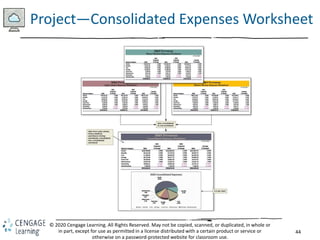
Project—Consolidated Expenses Worksheet
45
© 2020 Cengage Learning. All Rights Reserved. May not be copied, scanned, or duplicated, in whole or
in part, except for use as permitted in a license distributed with a certain product or service or
otherwise on a password-protected website for classroom use.
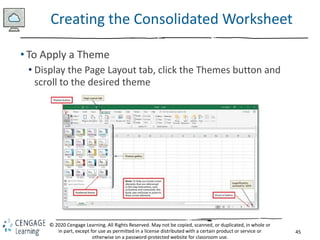
Creating the Consolidated Worksheet
• To Apply a Theme
• Display the Page Layout tab, click the Themes button and
scroll to the desired theme
46
© 2020 Cengage Learning. All Rights Reserved. May not be copied, scanned, or duplicated, in whole or
in part, except for use as permitted in a license distributed with a certain product or service or
otherwise on a password-protected website for classroom use.
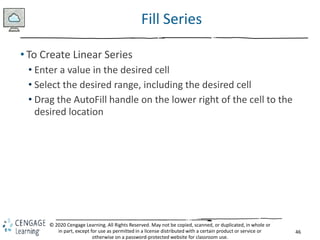
Fill Series
• To Create Linear Series
• Enter a value in the desired cell
• Select the desired range, including the desired cell
• Drag the AutoFill handle on the lower right of the cell to the
desired location
47
© 2020 Cengage Learning. All Rights Reserved. May not be copied, scanned, or duplicated, in whole or
in part, except for use as permitted in a license distributed with a certain product or service or
otherwise on a password-protected website for classroom use.
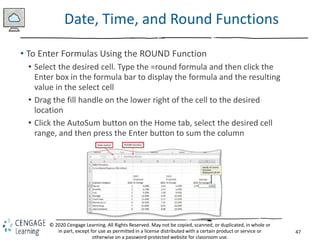
Date, Time, and Round Functions
• To Enter Formulas Using the ROUND Function
• Select the desired cell. Type the =round formula and then click the
Enter box in the formula bar to display the formula and the resulting
value in the select cell
• Drag the fill handle on the lower right of the cell to the desired
location
• Click the AutoSum button on the Home tab, select the desired cell
range, and then press the Enter button to sum the column
48
© 2020 Cengage Learning. All Rights Reserved. May not be copied, scanned, or duplicated, in whole or
in part, except for use as permitted in a license distributed with a certain product or service or
otherwise on a password-protected website for classroom use.
Format Codes (1 of 2)
Table 5-5 Format Symbols in Format Codes
Format Symbol Example of
Symbol in Code
Description
# (number
sign)
###.## Serves as a digit placeholder. If the value in a cell has more digits to the right of the decimal point
than number signs in the format, Excel rounds the number. All digits to the left of the decimal point
are displayed.
0 (zero) 0.00 Works like a number sign (#), except that if the number is less than 1, Excel displays a 0 in the ones
place.
. (period) #0.00 Ensures Excel will display a decimal point in the number. The placement of zeros determines how
many digits appear to the left and right of the decimal point.
% (percent) 0.00% Displays numbers as percentages of 100. Excel multiplies the value of the cell by 100 and displays a
percent sign after the number.
, (comma) #,##0.00 Displays a comma as a thousands separator.
( ) #0.00;(#0.00) Displays parentheses around negative numbers.
$, +, or – $#,##0.00;
($#,##0.00)
Displays a floating sign ($, +, or –).
* (asterisk) $*##0.00 Displays a fixed sign ($, +, or –) to the left, followed by spaces until the first significant digit.
[color] #.##;[Red]#.## Displays the characters in the cell in the designated color. In the example, positive numbers appear
in the default color, and negative numbers appear in red.
” ” (quotation
marks)
$0.00 “Surplus”; $-
0.00 “Shortage”
Displays text along with numbers entered in a cell.
_ (underscore) #,##0.00_) Adds a space. When followed by a parentheses, positive numbers will align correctly with
parenthetical negative numbers.
49
© 2020 Cengage Learning. All Rights Reserved. May not be copied, scanned, or duplicated, in whole or
in part, except for use as permitted in a license distributed with a certain product or service or
otherwise on a password-protected website for classroom use.
Format Codes (2 of 2)
• To Create a Custom Format Code
• Select the range of cells and right-click any of the selected
ranges to display a shortcut menu, and then click Format Cells
to display the Format Cells dialog box
• If necessary, click the Number tab and then click Custom in the
Category list
• Delete the word General in the Type box, and then enter the
desired format code
• Click OK to display the numbers using the custom format code
50
© 2020 Cengage Learning. All Rights Reserved. May not be copied, scanned, or duplicated, in whole or
in part, except for use as permitted in a license distributed with a certain product or service or
otherwise on a password-protected website for classroom use.
Creating a Cell Style (1 of 2)
• To Create a New Cell Style
• Click the Cell Styles button to display the Cell Styles gallery
• Click “New Cell Style” in the Cell Styles gallery to display the
Style dialog box
• Type the desired name for the new style
• Click the Format button to display the Format Cells dialog box
and select desired formats
• Click OK to close the Format Cells dialog box
• Click OK to add create the new style
51
© 2020 Cengage Learning. All Rights Reserved. May not be copied, scanned, or duplicated, in whole or
in part, except for use as permitted in a license distributed with a certain product or service or
otherwise on a password-protected website for classroom use.
Creating a Cell Style (2 of 2)
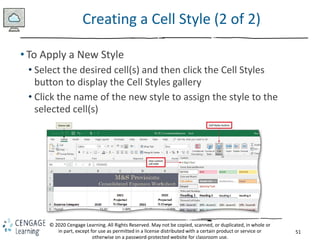
• To Apply a New Style
• Select the desired cell(s) and then click the Cell Styles
button to display the Cell Styles gallery
• Click the name of the new style to assign the style to the
selected cell(s)
52
© 2020 Cengage Learning. All Rights Reserved. May not be copied, scanned, or duplicated, in whole or
in part, except for use as permitted in a license distributed with a certain product or service or
otherwise on a password-protected website for classroom use.
Working with Multiple Worksheets (1 of 3)
• To Add a Worksheet to a Workbook
• Click the New sheet button at the bottom of the window to add
a new worksheet to a workbook
• To Copy and Paste from One Worksheet to Another
• Click the sheet tab for the sheet containing the data to copy
• Click the Select All button to select the entire worksheet and
then click the Copy button to copy the contents of the
worksheet
• Press ENTER to copy the data from the Office Clipboard to the
selected sheet
53
© 2020 Cengage Learning. All Rights Reserved. May not be copied, scanned, or duplicated, in whole or
in part, except for use as permitted in a license distributed with a certain product or service or
otherwise on a password-protected website for classroom use.
Working with Multiple Worksheets (2 of 3)
• To Copy a Worksheet Using a Shortcut Menu
• Right-click the desired sheet tab to display the shortcut menu
• Click “Move or Copy” to display the Move or Copy dialog box
• Click the desired location and then click to place a check mark in
the “Create a copy” check box
• Click OK to add a copy of the worksheet to the workbook
• To Copy a Worksheet Using CTRL
• Select a sheet
• CTRL+drag the selected sheet tab to a location to the right of
the other sheet tabs. Do not release the drag
• Release the drag to create the worksheet copy
54
© 2020 Cengage Learning. All Rights Reserved. May not be copied, scanned, or duplicated, in whole or
in part, except for use as permitted in a license distributed with a certain product or service or
otherwise on a password-protected website for classroom use.
Working with Multiple Worksheets (3 of 3)
• To Drill an Entry through Worksheets
• Right-click Sheet1 and then click “Select All Sheets”
• Type the entry in the desired cell and then press the DOWN
ARROW key to change sample data to the actual value
• Enter the remaining entry changes in the other cells and then
select a blank cell to select the same cell in all of the selected
workbooks
• Right-click the Sheet1 tab and then click Ungroup Sheets
• Click through the sheet tabs in use to verify that all are identical
55
© 2020 Cengage Learning. All Rights Reserved. May not be copied, scanned, or duplicated, in whole or
in part, except for use as permitted in a license distributed with a certain product or service or
otherwise on a password-protected website for classroom use.
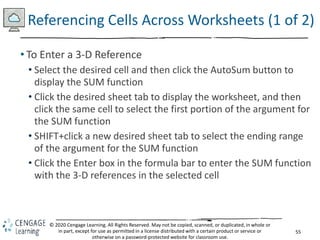
Referencing Cells Across Worksheets (1 of 2)
• To Enter a 3-D Reference
• Select the desired cell and then click the AutoSum button to
display the SUM function
• Click the desired sheet tab to display the worksheet, and then
click the same cell to select the first portion of the argument for
the SUM function
• SHIFT+click a new desired sheet tab to select the ending range
of the argument for the SUM function
• Click the Enter box in the formula bar to enter the SUM function
with the 3-D references in the selected cell
56
© 2020 Cengage Learning. All Rights Reserved. May not be copied, scanned, or duplicated, in whole or
in part, except for use as permitted in a license distributed with a certain product or service or
otherwise on a password-protected website for classroom use.
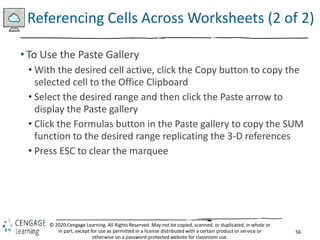
Referencing Cells Across Worksheets (2 of 2)
• To Use the Paste Gallery
• With the desired cell active, click the Copy button to copy the
selected cell to the Office Clipboard
• Select the desired range and then click the Paste arrow to
display the Paste gallery
• Click the Formulas button in the Paste gallery to copy the SUM
function to the desired range replicating the 3-D references
• Press ESC to clear the marquee
57
© 2020 Cengage Learning. All Rights Reserved. May not be copied, scanned, or duplicated, in whole or
in part, except for use as permitted in a license distributed with a certain product or service or
otherwise on a password-protected website for classroom use.
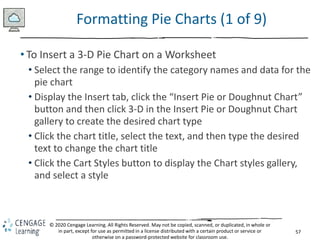
Formatting Pie Charts (1 of 9)
• To Insert a 3-D Pie Chart on a Worksheet
• Select the range to identify the category names and data for the
pie chart
• Display the Insert tab, click the “Insert Pie or Doughnut Chart”
button and then click 3-D in the Insert Pie or Doughnut Chart
gallery to create the desired chart type
• Click the chart title, select the text, and then type the desired
text to change the chart title
• Click the Cart Styles button to display the Chart styles gallery,
and select a style
58
© 2020 Cengage Learning. All Rights Reserved. May not be copied, scanned, or duplicated, in whole or
in part, except for use as permitted in a license distributed with a certain product or service or
otherwise on a password-protected website for classroom use.
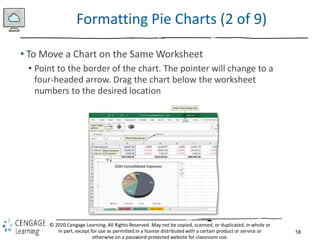
Formatting Pie Charts (2 of 9)
• To Move a Chart on the Same Worksheet
• Point to the border of the chart. The pointer will change to a
four-headed arrow. Drag the chart below the worksheet
numbers to the desired location
59
© 2020 Cengage Learning. All Rights Reserved. May not be copied, scanned, or duplicated, in whole or
in part, except for use as permitted in a license distributed with a certain product or service or
otherwise on a password-protected website for classroom use.
Formatting Pie Charts (3 of 9)
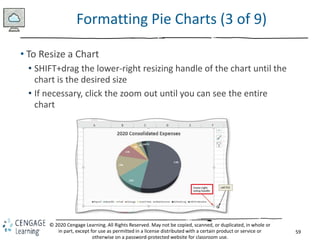
• To Resize a Chart
• SHIFT+drag the lower-right resizing handle of the chart until the
chart is the desired size
• If necessary, click the zoom out until you can see the entire
chart
60
© 2020 Cengage Learning. All Rights Reserved. May not be copied, scanned, or duplicated, in whole or
in part, except for use as permitted in a license distributed with a certain product or service or
otherwise on a password-protected website for classroom use.
Formatting Pie Charts (4 of 9)
• To Explode a Slice
• Click a pie slice twice (do not double-click)
• Right-click the desired slice to display a shortcut menu
• Click “Format Data Point” on the shortcut menu to open the
Format Data Point pane
• Drag the Point Explosion slider to the desired size to set how
far the slice in the 3-D pie chart should be offset from the rest
of the chart
61
© 2020 Cengage Learning. All Rights Reserved. May not be copied, scanned, or duplicated, in whole or
in part, except for use as permitted in a license distributed with a certain product or service or
otherwise on a password-protected website for classroom use.
Formatting Pie Charts (5 of 9)
• To Rotate the 3-D Pie Chart
• Right-click the chart to display a shortcut menu, and then click
“3-D Rotation” on the shortcut menu to open the Format Chart
Area pane
• Click the X Rotation up arrow (Format Chart Area dialog box) to
the desired X rotation to rotate the chart
62
© 2020 Cengage Learning. All Rights Reserved. May not be copied, scanned, or duplicated, in whole or
in part, except for use as permitted in a license distributed with a certain product or service or
otherwise on a password-protected website for classroom use.
Formatting Pie Charts (6 of 9)
• To Format Data Labels
• Click the Chart Elements button to display the Chart Elements gallery. Point
to Data Labels and then click the Data Labels arrow to display the Data
Labels submenu
• Click More Options to display the Format Data Labels pane
• In the Labels Options area, click to display check marks in the desired areas
• Scroll down in the pane and click the Number arrow to display the Number
settings, and then click the Category button and then click Percentages to
choose the number style
• Click Text Options in the Format Data Labels pane to display text options
• Click the Text Fill arrow to display the text fill options, and then select the
desired fill
• Click the Color button arrow to display the text color options, and then
select a color
63
© 2020 Cengage Learning. All Rights Reserved. May not be copied, scanned, or duplicated, in whole or
in part, except for use as permitted in a license distributed with a certain product or service or
otherwise on a password-protected website for classroom use.
Formatting Pie Charts (7 of 9)
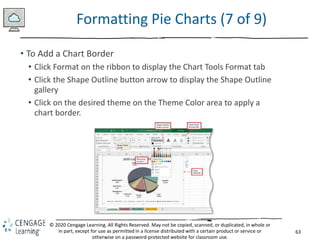
• To Add a Chart Border
• Click Format on the ribbon to display the Chart Tools Format tab
• Click the Shape Outline button arrow to display the Shape Outline
gallery
• Click on the desired theme on the Theme Color area to apply a
chart border.
64
© 2020 Cengage Learning. All Rights Reserved. May not be copied, scanned, or duplicated, in whole or
in part, except for use as permitted in a license distributed with a certain product or service or
otherwise on a password-protected website for classroom use.
Formatting Pie Charts (8 of 9)
• To Change Margins and Center the Printout Horizontally
• Right-click desired sheet tab and click “Select All Sheets” on the
shortcut menu
• Display the PAGE LAYOUT tab and click the Page Setup Dialog
Box Launcher to display the Page Setup dialog box
• When Excel displays the Page Setup dialog box, if necessary,
click the Page tab to select desired orientation and scaling
• Make the Margins tab the active tab to set the top, bottom, left,
and right margins as desired
• Click the Horizontally check box in the “Center on page” area to
center the worksheet on the printed page horizontally
65
© 2020 Cengage Learning. All Rights Reserved. May not be copied, scanned, or duplicated, in whole or
in part, except for use as permitted in a license distributed with a certain product or service or
otherwise on a password-protected website for classroom use.
Formatting Pie Charts (9 of 9)
• To Add a Header
• Click the Page Layout button on the status bar to display the
worksheet in Page Layout view
• Display the Header area. Click a header box to select it as the
area for a header, and then type the desired name
• Enter desired text into the other header areas
• To Add a Footer
• Scroll down to the footer area
• Click the middle footer box to select it and then click the Sheet
Name button
• Enter the desired text into that footer and repeat with the other
footer areas
66
© 2020 Cengage Learning. All Rights Reserved. May not be copied, scanned, or duplicated, in whole or
in part, except for use as permitted in a license distributed with a certain product or service or
otherwise on a password-protected website for classroom use.
Creating Separate Files from Worksheets
• To Create a Separate File from a Worksheet
• Right-click on the desired sheet and then click “Move or Copy”
on the shortcut menu to display the Move or Copy dialog box
• Click the To book button to display the choices
• Click (new book) in the list to create a new workbook
• Click the “Create a copy” check box to ensure it displays a
check mark
• Click OK to create the new workbook
67
© 2020 Cengage Learning. All Rights Reserved. May not be copied, scanned, or duplicated, in whole or
in part, except for use as permitted in a license distributed with a certain product or service or
otherwise on a password-protected website for classroom use.
Consolidating Data by Linking Separate
Workbooks (1 of 4)
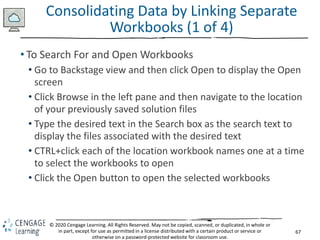
• To Search For and Open Workbooks
• Go to Backstage view and then click Open to display the Open
screen
• Click Browse in the left pane and then navigate to the location
of your previously saved solution files
• Type the desired text in the Search box as the search text to
display the files associated with the desired text
• CTRL+click each of the location workbook names one at a time
to select the workbooks to open
• Click the Open button to open the selected workbooks
68
© 2020 Cengage Learning. All Rights Reserved. May not be copied, scanned, or duplicated, in whole or
in part, except for use as permitted in a license distributed with a certain product or service or
otherwise on a password-protected website for classroom use.
Consolidating Data by Linking Separate
Workbooks (2 of 4)
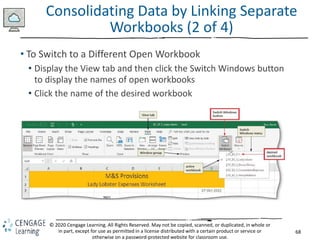
• To Switch to a Different Open Workbook
• Display the View tab and then click the Switch Windows button
to display the names of open workbooks
• Click the name of the desired workbook
69
© 2020 Cengage Learning. All Rights Reserved. May not be copied, scanned, or duplicated, in whole or
in part, except for use as permitted in a license distributed with a certain product or service or
otherwise on a password-protected website for classroom use.
Consolidating Data by Linking Separate
Workbooks (3 of 4)
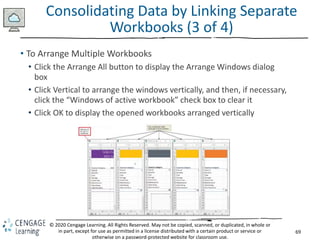
• To Arrange Multiple Workbooks
• Click the Arrange All button to display the Arrange Windows dialog
box
• Click Vertical to arrange the windows vertically, and then, if necessary,
click the “Windows of active workbook” check box to clear it
• Click OK to display the opened workbooks arranged vertically
70
© 2020 Cengage Learning. All Rights Reserved. May not be copied, scanned, or duplicated, in whole or
in part, except for use as permitted in a license distributed with a certain product or service or
otherwise on a password-protected website for classroom use.
Consolidating Data by Linking Separate
Workbooks (4 of 4)
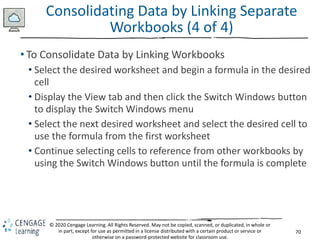
• To Consolidate Data by Linking Workbooks
• Select the desired worksheet and begin a formula in the desired
cell
• Display the View tab and then click the Switch Windows button
to display the Switch Windows menu
• Select the next desired worksheet and select the desired cell to
use the formula from the first worksheet
• Continue selecting cells to reference from other workbooks by
using the Switch Windows button until the formula is complete
71
Shelly Cashman: Microsoft Excel 2019
Module 6: Creating, Sorting, and Querying a Table
© 2020 Cengage Learning. All Rights Reserved. May not be copied, scanned, or duplicated, in whole
or in part, except for use as permitted in a license distributed with a certain product or service or
otherwise on a password-protected website for classroom use.
72
© 2020 Cengage Learning. All Rights Reserved. May not be copied, scanned, or duplicated, in whole or
in part, except for use as permitted in a license distributed with a certain product or service or
otherwise on a password-protected website for classroom use.
Objectives (1 of 2)
• Create and manipulate a table
• Delete duplicate records
• Add calculated columns to a table with structured
references
• Use the VLOOKUP function to look up a value in a table
• Use icon sets with conditional formatting
• Insert a total row
• Sort a table on one field or multiple fields
• Sort, query, and search a table using AutoFilter
73
© 2020 Cengage Learning. All Rights Reserved. May not be copied, scanned, or duplicated, in whole or
in part, except for use as permitted in a license distributed with a certain product or service or
otherwise on a password-protected website for classroom use.
Objectives (2 of 2)
• Remove filters
• Create criteria and extract ranges
• Apply database and statistical functions
• Use the MATCH and INDEX functions to find a value in a
table
• Display automatic subtotals
• Use outline features to group, hide, and unhide data
• Create a treemap chart
74
© 2020 Cengage Learning. All Rights Reserved. May not be copied, scanned, or duplicated, in whole or
in part, except for use as permitted in a license distributed with a certain product or service or
otherwise on a password-protected website for classroom use.
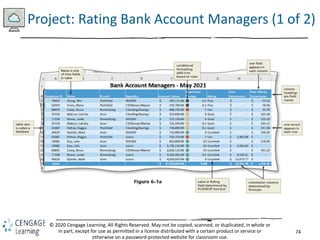
Project: Rating Bank Account Managers (1 of 2)
75
© 2020 Cengage Learning. All Rights Reserved. May not be copied, scanned, or duplicated, in whole or
in part, except for use as permitted in a license distributed with a certain product or service or
otherwise on a password-protected website for classroom use.
Project: Rating Bank Account Managers (2 of 2)
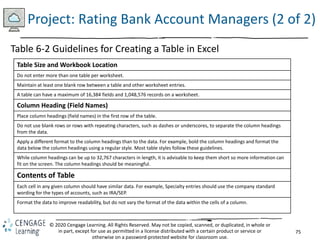
Table 6-2 Guidelines for Creating a Table in Excel
Table Size and Workbook Location
Do not enter more than one table per worksheet.
Maintain at least one blank row between a table and other worksheet entries.
A table can have a maximum of 16,384 fields and 1,048,576 records on a worksheet.
Column Heading (Field Names)
Place column headings (field names) in the first row of the table.
Do not use blank rows or rows with repeating characters, such as dashes or underscores, to separate the column headings
from the data.
Apply a different format to the column headings than to the data. For example, bold the column headings and format the
data below the column headings using a regular style. Most table styles follow these guidelines.
While column headings can be up to 32,767 characters in length, it is advisable to keep them short so more information can
fit on the screen. The column headings should be meaningful.
Contents of Table
Each cell in any given column should have similar data. For example, Specialty entries should use the company standard
wording for the types of accounts, such as IRA/SEP.
Format the data to improve readability, but do not vary the format of the data within the cells of a column.
76
© 2020 Cengage Learning. All Rights Reserved. May not be copied, scanned, or duplicated, in whole or
in part, except for use as permitted in a license distributed with a certain product or service or
otherwise on a password-protected website for classroom use.
Creating a Table (1 of 3)
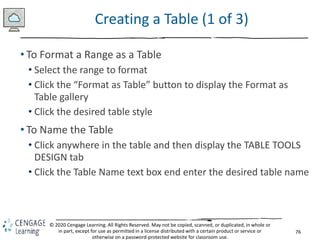
• To Format a Range as a Table
• Select the range to format
• Click the “Format as Table” button to display the Format as
Table gallery
• Click the desired table style
• To Name the Table
• Click anywhere in the table and then display the TABLE TOOLS
DESIGN tab
• Click the Table Name text box end enter the desired table name
77
© 2020 Cengage Learning. All Rights Reserved. May not be copied, scanned, or duplicated, in whole or
in part, except for use as permitted in a license distributed with a certain product or service or
otherwise on a password-protected website for classroom use.
Creating a Table (2 of 3)
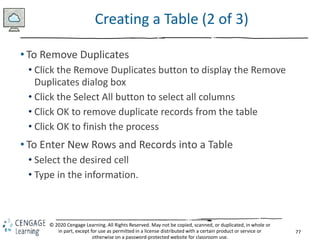
• To Remove Duplicates
• Click the Remove Duplicates button to display the Remove
Duplicates dialog box
• Click the Select All button to select all columns
• Click OK to remove duplicate records from the table
• Click OK to finish the process
• To Enter New Rows and Records into a Table
• Select the desired cell
• Type in the information.
78
© 2020 Cengage Learning. All Rights Reserved. May not be copied, scanned, or duplicated, in whole or
in part, except for use as permitted in a license distributed with a certain product or service or
otherwise on a password-protected website for classroom use.
Creating a Table (3 of 3)
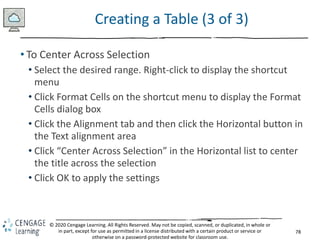
• To Center Across Selection
• Select the desired range. Right-click to display the shortcut
menu
• Click Format Cells on the shortcut menu to display the Format
Cells dialog box
• Click the Alignment tab and then click the Horizontal button in
the Text alignment area
• Click “Center Across Selection” in the Horizontal list to center
the title across the selection
• Click OK to apply the settings
79
© 2020 Cengage Learning. All Rights Reserved. May not be copied, scanned, or duplicated, in whole or
in part, except for use as permitted in a license distributed with a certain product or service or
otherwise on a password-protected website for classroom use.
Using a Lookup Table (1 of 2)
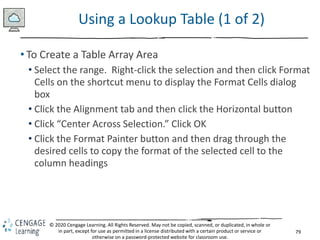
• To Create a Table Array Area
• Select the range. Right-click the selection and then click Format
Cells on the shortcut menu to display the Format Cells dialog
box
• Click the Alignment tab and then click the Horizontal button
• Click “Center Across Selection.” Click OK
• Click the Format Painter button and then drag through the
desired cells to copy the format of the selected cell to the
column headings
80
© 2020 Cengage Learning. All Rights Reserved. May not be copied, scanned, or duplicated, in whole or
in part, except for use as permitted in a license distributed with a certain product or service or
otherwise on a password-protected website for classroom use.
Using a Lookup Table (2 of 2)
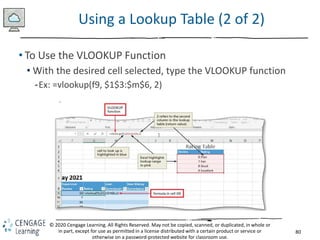
• To Use the VLOOKUP Function
• With the desired cell selected, type the VLOOKUP function
-Ex: =vlookup(f9, $1$3:$m$6, 2)
81
© 2020 Cengage Learning. All Rights Reserved. May not be copied, scanned, or duplicated, in whole or
in part, except for use as permitted in a license distributed with a certain product or service or
otherwise on a password-protected website for classroom use.
Adding Calculated Fields to the Table
• To Create Calculated Fields
• Click the desired cell
• Click the “Accounting Number Format” button so that data in
the selected column is displayed as a dollar amount with two
decimal places
• Double-click Specialty to select the field to use for the IF
function
• Type =IF([Specialty]=“Loans”,[Account Values] * .0025, 0) to
complete the structured reference and then click the Enter
button to create the calculated column
82
© 2020 Cengage Learning. All Rights Reserved. May not be copied, scanned, or duplicated, in whole or
in part, except for use as permitted in a license distributed with a certain product or service or
otherwise on a password-protected website for classroom use.
Conditional Formatting
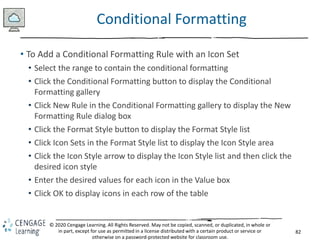
• To Add a Conditional Formatting Rule with an Icon Set
• Select the range to contain the conditional formatting
• Click the Conditional Formatting button to display the Conditional
Formatting gallery
• Click New Rule in the Conditional Formatting gallery to display the New
Formatting Rule dialog box
• Click the Format Style button to display the Format Style list
• Click Icon Sets in the Format Style list to display the Icon Style area
• Click the Icon Style arrow to display the Icon Style list and then click the
desired icon style
• Enter the desired values for each icon in the Value box
• Click OK to display icons in each row of the table
83
© 2020 Cengage Learning. All Rights Reserved. May not be copied, scanned, or duplicated, in whole or
in part, except for use as permitted in a license distributed with a certain product or service or
otherwise on a password-protected website for classroom use.
Working with Tables in Excel
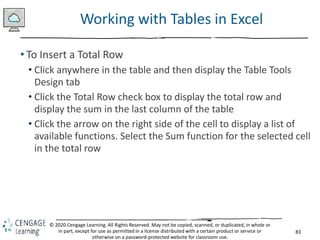
• To Insert a Total Row
• Click anywhere in the table and then display the Table Tools
Design tab
• Click the Total Row check box to display the total row and
display the sum in the last column of the table
• Click the arrow on the right side of the cell to display a list of
available functions. Select the Sum function for the selected cell
in the total row
84
© 2020 Cengage Learning. All Rights Reserved. May not be copied, scanned, or duplicated, in whole or
in part, except for use as permitted in a license distributed with a certain product or service or
otherwise on a password-protected website for classroom use.
Sorting a Table (1 of 2)
• To Sort Ascending
• Click a cell in the column to be sorted, and then click the Sort &
Filter button to display the Sort & Filter menu
• Click “Sort A to Z” to sort the table in ascending order by the
selected field
• To Sort Descending
• Click a cell in the column to be sorted and display the DATA tab
• Click the “Sort Largest to Smallest” button to sort the table in
descending sequence by the selected field
85
© 2020 Cengage Learning. All Rights Reserved. May not be copied, scanned, or duplicated, in whole or
in part, except for use as permitted in a license distributed with a certain product or service or
otherwise on a password-protected website for classroom use.
Sorting a Table (2 of 2)
• To Custom Sort a Table
• With a cell in the table active, click the “Sort & Filter” button on
to display the Sort & Filter menu
• Click Custom Sort on the Sort & Filter menu to display the Sort
dialog box
• Click the “Column Sort by” button to display the field names in
the table
• Click the first field on which to sort to select the first sort level
• Select the desired options for Sort On and Order
• Click the Add Level button to ask a second sort level, and then
repeat the previous two steps
• Click OK to sort the table
86
© 2020 Cengage Learning. All Rights Reserved. May not be copied, scanned, or duplicated, in whole or
in part, except for use as permitted in a license distributed with a certain product or service or
otherwise on a password-protected website for classroom use.
Querying a Table Using AutoFilter (1 of 3)
• To Sort a Table Using AutoFilter
• Click the filter button in the desired column to display the filter
menu
• Click “Sort Smallest to Largest” on the filter menu to sort the
table in ascending sequence by the selected field.
• To Query a Table Using AutoFilter
• Click the filter button to display the filter menu for the desired
column
• Remove the check marks next to the fields you wish to hide
• Click OK to apply the AutoFilter criterion
87
© 2020 Cengage Learning. All Rights Reserved. May not be copied, scanned, or duplicated, in whole or
in part, except for use as permitted in a license distributed with a certain product or service or
otherwise on a password-protected website for classroom use.
Querying a Table Using AutoFilter (2 of 3)
• To Remove Filters
• Display the DATA tab
• Click the Clear button to display all of the records in the table
• To Search a Table Using AutoFilter
• Click the filter button in the desired column to display the filter
menu
• Click the Search box, and then type the desired search string
• Click OK to perform the search
88
© 2020 Cengage Learning. All Rights Reserved. May not be copied, scanned, or duplicated, in whole or
in part, except for use as permitted in a license distributed with a certain product or service or
otherwise on a password-protected website for classroom use.
Querying a Table Using AutoFilter (3 of 3)
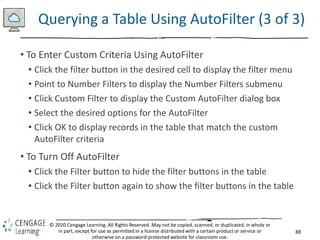
• To Enter Custom Criteria Using AutoFilter
• Click the filter button in the desired cell to display the filter menu
• Point to Number Filters to display the Number Filters submenu
• Click Custom Filter to display the Custom AutoFilter dialog box
• Select the desired options for the AutoFilter
• Click OK to display records in the table that match the custom
AutoFilter criteria
• To Turn Off AutoFilter
• Click the Filter button to hide the filter buttons in the table
• Click the Filter button again to show the filter buttons in the table
89
© 2020 Cengage Learning. All Rights Reserved. May not be copied, scanned, or duplicated, in whole or
in part, except for use as permitted in a license distributed with a certain product or service or
otherwise on a password-protected website for classroom use.
Using Criteria and Extract Ranges (1 of 2)
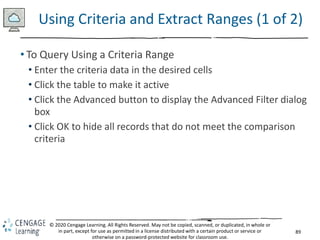
• To Query Using a Criteria Range
• Enter the criteria data in the desired cells
• Click the table to make it active
• Click the Advanced button to display the Advanced Filter dialog
box
• Click OK to hide all records that do not meet the comparison
criteria
90
© 2020 Cengage Learning. All Rights Reserved. May not be copied, scanned, or duplicated, in whole or
in part, except for use as permitted in a license distributed with a certain product or service or
otherwise on a password-protected website for classroom use.
Using Criteria and Extract Ranges (2 of 2)
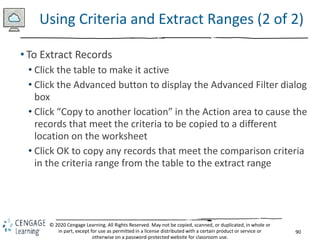
• To Extract Records
• Click the table to make it active
• Click the Advanced button to display the Advanced Filter dialog
box
• Click “Copy to another location” in the Action area to cause the
records that meet the criteria to be copied to a different
location on the worksheet
• Click OK to copy any records that meet the comparison criteria
in the criteria range from the table to the extract range
91
© 2020 Cengage Learning. All Rights Reserved. May not be copied, scanned, or duplicated, in whole or
in part, except for use as permitted in a license distributed with a certain product or service or
otherwise on a password-protected website for classroom use.
Using Database Functions
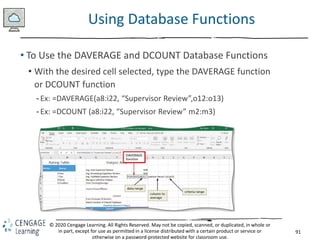
• To Use the DAVERAGE and DCOUNT Database Functions
• With the desired cell selected, type the DAVERAGE function
or DCOUNT function
-Ex: =DAVERAGE(a8:i22, “Supervisor Review”,o12:o13)
-Ex: =DCOUNT (a8:i22, “Supervisor Review” m2:m3)
92
© 2020 Cengage Learning. All Rights Reserved. May not be copied, scanned, or duplicated, in whole or
in part, except for use as permitted in a license distributed with a certain product or service or
otherwise on a password-protected website for classroom use.
Using the Sumif, Countif, Match and Index
Function (1 of 3)
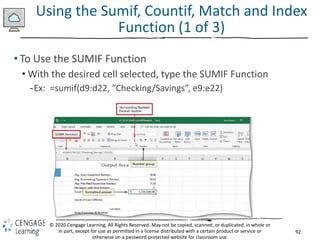
• To Use the SUMIF Function
• With the desired cell selected, type the SUMIF Function
-Ex: =sumif(d9:d22, ”Checking/Savings”, e9:e22)
93
© 2020 Cengage Learning. All Rights Reserved. May not be copied, scanned, or duplicated, in whole or
in part, except for use as permitted in a license distributed with a certain product or service or
otherwise on a password-protected website for classroom use.
Using the Sumif, Countif, Match and Index
Function (2 of 3)
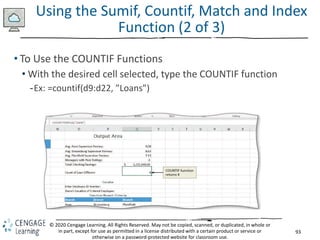
• To Use the COUNTIF Functions
• With the desired cell selected, type the COUNTIF function
-Ex: =countif(d9:d22, ”Loans”)
94
© 2020 Cengage Learning. All Rights Reserved. May not be copied, scanned, or duplicated, in whole or
in part, except for use as permitted in a license distributed with a certain product or service or
otherwise on a password-protected website for classroom use.
Using the SUMIF, Countif, Match and Index
Function (3 of 3)
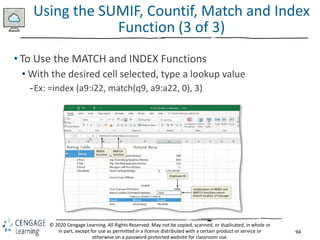
• To Use the MATCH and INDEX Functions
• With the desired cell selected, type a lookup value
-Ex: =index (a9:i22, match(q9, a9:a22, 0), 3)
95
© 2020 Cengage Learning. All Rights Reserved. May not be copied, scanned, or duplicated, in whole or
in part, except for use as permitted in a license distributed with a certain product or service or
otherwise on a password-protected website for classroom use.
Summarizing Data (1 of 3)
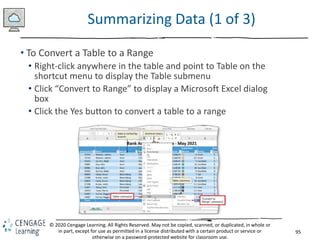
• To Convert a Table to a Range
• Right-click anywhere in the table and point to Table on the
shortcut menu to display the Table submenu
• Click “Convert to Range” to display a Microsoft Excel dialog
box
• Click the Yes button to convert a table to a range
96
© 2020 Cengage Learning. All Rights Reserved. May not be copied, scanned, or duplicated, in whole or
in part, except for use as permitted in a license distributed with a certain product or service or
otherwise on a password-protected website for classroom use.
Summarizing Data (2 of 3)
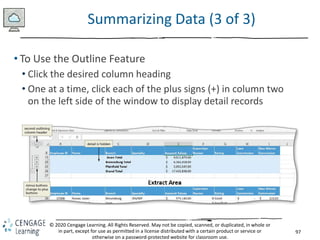
• To Display Subtotals
• Click in the desired criterion field
• Click the Subtotal button to display the Subtotal dialog box
• Click the “At each change in” button and then click Branch to
select the control field
• If necessary, click the Use function button and then select Sum
in the Use function list
• In the “Add subtotal to” list, click desired values to subtotal
• Click OK to add subtotals to the range
97
© 2020 Cengage Learning. All Rights Reserved. May not be copied, scanned, or duplicated, in whole or
in part, except for use as permitted in a license distributed with a certain product or service or
otherwise on a password-protected website for classroom use.
Summarizing Data (3 of 3)
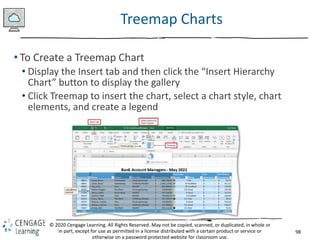
• To Use the Outline Feature
• Click the desired column heading
• One at a time, click each of the plus signs (+) in column two
on the left side of the window to display detail records
98
© 2020 Cengage Learning. All Rights Reserved. May not be copied, scanned, or duplicated, in whole or
in part, except for use as permitted in a license distributed with a certain product or service or
otherwise on a password-protected website for classroom use.
Treemap Charts
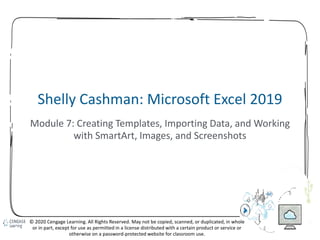
• To Create a Treemap Chart
• Display the Insert tab and then click the “Insert Hierarchy
Chart” button to display the gallery
• Click Treemap to insert the chart, select a chart style, chart
elements, and create a legend
99
Shelly Cashman: Microsoft Excel 2019
Module 7: Creating Templates, Importing Data, and Working
with SmartArt, Images, and Screenshots
© 2020 Cengage Learning. All Rights Reserved. May not be copied, scanned, or duplicated, in whole
or in part, except for use as permitted in a license distributed with a certain product or service or
otherwise on a password-protected website for classroom use.
100
© 2020 Cengage Learning. All Rights Reserved. May not be copied, scanned, or duplicated, in whole or
in part, except for use as permitted in a license distributed with a certain product or service or
otherwise on a password-protected website for classroom use.
Objectives (1 of 2)
• Create and use a template
• Import data from a text file, an Access database, a webpage,
and a Word document
• Use text functions
• Paste values and paste text
• Transpose data while pasting it
• Convert text to columns
• Replicate formulas
• Use the Quick Analysis gallery
101
© 2020 Cengage Learning. All Rights Reserved. May not be copied, scanned, or duplicated, in whole or
in part, except for use as permitted in a license distributed with a certain product or service or
otherwise on a password-protected website for classroom use.
Objectives (2 of 2)
• Find and replace data
• Insert and format a bar chart
• Insert and modify a SmartArt graphic
• Add pictures to a SmartArt graphic
• Apply text effects
• Include a hyperlinked screenshot
• Use ALT text
• Differentiate ways to link and embed
102
© 2020 Cengage Learning. All Rights Reserved. May not be copied, scanned, or duplicated, in whole or
in part, except for use as permitted in a license distributed with a certain product or service or
otherwise on a password-protected website for classroom use.
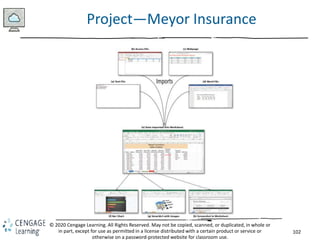
Project—Meyor Insurance
103
© 2020 Cengage Learning. All Rights Reserved. May not be copied, scanned, or duplicated, in whole or
in part, except for use as permitted in a license distributed with a certain product or service or
otherwise on a password-protected website for classroom use.
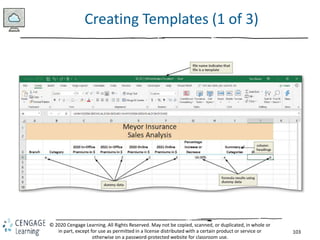
Creating Templates (1 of 3)
104
© 2020 Cengage Learning. All Rights Reserved. May not be copied, scanned, or duplicated, in whole or
in part, except for use as permitted in a license distributed with a certain product or service or
otherwise on a password-protected website for classroom use.
Creating Templates (2 of 3)
• To Save the Template
• Click the Save button to display the Save As screen
• Type the desired file name in the File name box
• Click the “Save as type” arrow and then click Excel Template in
the list to specify that this workbook should be saved as a
template
• Navigate to the desired save location
• Click Save to save the template
105
© 2020 Cengage Learning. All Rights Reserved. May not be copied, scanned, or duplicated, in whole or
in part, except for use as permitted in a license distributed with a certain product or service or
otherwise on a password-protected website for classroom use.
Creating Templates (3 of 3)
• To Open a Template-Based File and Save It as a Workbook
• With Excel active, click File Explorer button on the taskbar to
start the File Explorer app
• Navigate to the location of the file to be opened
• Double-click the template file to open a new file based on the
template
• Click the Save button to display the Save As screen
• Type the file name in the File name box and then navigate to
your storage location
• Click Save to save the file
106
© 2020 Cengage Learning. All Rights Reserved. May not be copied, scanned, or duplicated, in whole or
in part, except for use as permitted in a license distributed with a certain product or service or
otherwise on a password-protected website for classroom use.
Importing Data (1 of 13)
• To Import Data from a Text File
• Click the first cell on the worksheet to contain the imported data
• Click Data on the ribbon to display the Data tab
• Click the “From Text/CSV” button to display the Import Data dialog
box
• If necessary, navigate to the location of the Data files to display the
files
• Double-click the name of the file to display the preview window
• Click the Load arrow, then click Load To to display the Import Data
dialog box
• Click the Exiting worksheet option button to place the data in the
current worksheet rather than on a new sheet
• Click OK to import the data
107
© 2020 Cengage Learning. All Rights Reserved. May not be copied, scanned, or duplicated, in whole or
in part, except for use as permitted in a license distributed with a certain product or service or
otherwise on a password-protected website for classroom use.
Importing Data (2 of 13)
• To Format the CSV Data
• Display the Table Tools Design tab
• Click to remove the check mark in the Banded Rows check box
• Click to remove the check mark in the Header Row check box to
display a Microsoft Excel dialog box
• Click the Yes button to remove the header row
• Delete the desired row
• If needed, adjust the column widths
108
© 2020 Cengage Learning. All Rights Reserved. May not be copied, scanned, or duplicated, in whole or
in part, except for use as permitted in a license distributed with a certain product or service or
otherwise on a password-protected website for classroom use.
Importing Data (3 of 13)
• To Use the Trim Function
• Select the desired cell, type =trim(cell#) and then click Enter
button to trim the spaces from the data in the (cell) and display
it in the desired cell
109
© 2020 Cengage Learning. All Rights Reserved. May not be copied, scanned, or duplicated, in whole or
in part, except for use as permitted in a license distributed with a certain product or service or
otherwise on a password-protected website for classroom use.
Importing Data (4 of 13)
• To Paste Values Only
• With the desired range selected press CTRL+C to copy the data
• Right-click one of the cells to display the shortcut menu
• In the Paste Options area, click the Values icon to paste only the
values
• Click the save button on the Quick Access toolbar to save the
file with the new data
110
© 2020 Cengage Learning. All Rights Reserved. May not be copied, scanned, or duplicated, in whole or
in part, except for use as permitted in a license distributed with a certain product or service or
otherwise on a password-protected website for classroom use.
Importing Data (5 of 13)
• To Import Data from an Access Table
• Click the first cell on the worksheet to contain the imported
data
• Click the Get Data button to display the Get Data menu
• Point to the From Database command to display the submenu
• Click “From Microsoft Access Database” to display the Import
Data dialog box
• Navigate to the location of Data Files
• Double-click the desired file to display the Navigator dialog box
• Click the name of the desired table to display the preview
111
© 2020 Cengage Learning. All Rights Reserved. May not be copied, scanned, or duplicated, in whole or
in part, except for use as permitted in a license distributed with a certain product or service or
otherwise on a password-protected website for classroom use.
Importing Data (6 of 13)
• To Delete a Column Using Power Query
• In the Navigator dialog box, click the Edit button to display the
Power Query Editor window
• Click the desired column heading to delete
• Click the Remove Columns button to remove the column from
the import
• Click the “Close & Load” arrow to display the “Close & Load”
menu
• Click the “Close & Load To” command to close the Power Query
Editor Window and to display the Import Data dialog box
• Click OK to import the data
112
© 2020 Cengage Learning. All Rights Reserved. May not be copied, scanned, or duplicated, in whole or
in part, except for use as permitted in a license distributed with a certain product or service or
otherwise on a password-protected website for classroom use.
Importing Data (7 of 13)
• To Format the Access Data
• Select a cell, click the Banded Rows check box to remove its
check mark
• Click the Header Row check box to remove its check mark.
When Excel displays a dialog box, click the Yes button.
• Delete the desired row
• Click the Save button on the Quick Access toolbar to save the
file
• Close the Queries & Connections pane
113
© 2020 Cengage Learning. All Rights Reserved. May not be copied, scanned, or duplicated, in whole or
in part, except for use as permitted in a license distributed with a certain product or service or
otherwise on a password-protected website for classroom use.
Importing Data (8 of 13)
• To Import Data from a Webpage
• Click the first cell on the worksheet to contain the imported data
• Click the From Web button to display the From Web dialog box
• Type the Web page address in the URL box
• Click OK to display the Navigator dialog box
• Click the table name, then click the Web View tab to look at the data
• Click the Edit button to display the Power Query Editor window
• Make desired selections
• Click the “Close & Load” arrow and then click the “Close & Load To”
command to close the Power Query Editor Window
• When Excel displays the Import Data dialog box, click the Existing worksheet
option button.
• Click OK to import the data
114
© 2020 Cengage Learning. All Rights Reserved. May not be copied, scanned, or duplicated, in whole or
in part, except for use as permitted in a license distributed with a certain product or service or
otherwise on a password-protected website for classroom use.
Importing Data (9 of 13)
115
© 2020 Cengage Learning. All Rights Reserved. May not be copied, scanned, or duplicated, in whole or
in part, except for use as permitted in a license distributed with a certain product or service or
otherwise on a password-protected website for classroom use.
Importing Data (10 of 13)
• To Copy from Word and Paste to Excel
• Open the file from which the data should be copied.
• Select the data and press CTRL+C to copy the contents to the Office
clipboard
• Close Word and make Excel the active window
• Click the desired cell to paste into
• Press CTRL+V to paste the data
116
© 2020 Cengage Learning. All Rights Reserved. May not be copied, scanned, or duplicated, in whole or
in part, except for use as permitted in a license distributed with a certain product or service or
otherwise on a password-protected website for classroom use.
Importing Data (11 of 13)
• To Transpose Columns and Rows
• With the range to be copied selected, press CTRL+C to copy the
selection to the Office Clipboard
• Click a cell to prepare for pasting data into that location
• Click the Paste arrow to display the Paste gallery
• Click the Transpose button in the Paste gallery to transpose and
paste the copied cells
117
© 2020 Cengage Learning. All Rights Reserved. May not be copied, scanned, or duplicated, in whole or
in part, except for use as permitted in a license distributed with a certain product or service or
otherwise on a password-protected website for classroom use.
Importing Data (12 of 13)
• To Convert Text to Columns
• Select the cells to prepare for converting the text to columns
• Display the Data tab
• Click the “Text to Columns” button to display the Convert Text
to Columns Wizard—Step 1 of 3 dialog box
• Click the Fixed width option button
• Click the Next button to accept a fixed width column and to
display the Convert Text to Columns Wizard—Step 2 of 3 dialog
box
• Click the Finish button to close the dialog box and separate the
data
118
© 2020 Cengage Learning. All Rights Reserved. May not be copied, scanned, or duplicated, in whole or
in part, except for use as permitted in a license distributed with a certain product or service or
otherwise on a password-protected website for classroom use.
Importing Data (13 of 13)
• To Replicate Formulas
• Click the formula(s) to replicate
• Drag the fill handle down through the end of the data to
replicate the formula
119
© 2020 Cengage Learning. All Rights Reserved. May not be copied, scanned, or duplicated, in whole or
in part, except for use as permitted in a license distributed with a certain product or service or
otherwise on a password-protected website for classroom use.
Using the Quick Analysis Gallery (1 of 2)
• To Format Using the Quick Analysis Gallery
• With the range you want formatted selected, click the Quick
Analysis button to display the Quick Analysis gallery
• If necessary, click the Formatting tab to display the Quick
Analysis gallery formatting options
• Click the desired settings
• Click a desired cell and type a legend for the formatting
120
© 2020 Cengage Learning. All Rights Reserved. May not be copied, scanned, or duplicated, in whole or
in part, except for use as permitted in a license distributed with a certain product or service or
otherwise on a password-protected website for classroom use.
Using the Quick Analysis Gallery (2 of 2)
• To Total Data
• Click a cell. Type =sum(cell#:cell#) and then click the
ENTER button
• Drag the fill handle to the right to replicate the totals for
remaining columns
121
© 2020 Cengage Learning. All Rights Reserved. May not be copied, scanned, or duplicated, in whole or
in part, except for use as permitted in a license distributed with a certain product or service or
otherwise on a password-protected website for classroom use.
Using the Find and Replace Commands (1 of 2)
• To Find Data
• Click the “Find & Select” button to display the Find & Select
menu
• Click Find to display the Find and Replace dialog box
• Click the Options button to expand the dialog box
• Type desired text in the Find what box to enter the search string
• Click Match case and then click “Match entire cell contents” to
place check marks in those check boxes
• Click the Find Next button
• Continue clicking the Find Next button to find additional
occurrences of the string
122
© 2020 Cengage Learning. All Rights Reserved. May not be copied, scanned, or duplicated, in whole or
in part, except for use as permitted in a license distributed with a certain product or service or
otherwise on a password-protected website for classroom use.
Using the Find and Replace Commands (2 of 2)
• To Find and Replace
• Click the Find & Select button to display the Find & Select menu
• Click Replace on the Find & Select menu to display the Find and
Replace dialog box
• Type desired text in the Find what box, and the desired text in
the Replace with box to specify the text to find and to replace
• If desired, click Match case and then “Match entire cell
contents” to place check marks in those check boxes
• Click the Replace All button to replace the string
• Click OK, click Close, and click Save
123
© 2020 Cengage Learning. All Rights Reserved. May not be copied, scanned, or duplicated, in whole or
in part, except for use as permitted in a license distributed with a certain product or service or
otherwise on a password-protected website for classroom use.
Inserting a Bar Chart (1 of 4)
• To Insert a Chart Using the Quick Analysis Gallery
• Select the data to include in the chart
• Click the Quick Analysis button to display the Quick Analysis
gallery
• Click the Charts tab to display the buttons related to working
with charts in the gallery
• Select a chart
• Click the Move Chart button to display the Move Chart dialog
box
• Click the New sheet option button, and then type the desired
sheet name in the New sheet box
• Click OK to move the chart to the new sheet
124
© 2020 Cengage Learning. All Rights Reserved. May not be copied, scanned, or duplicated, in whole or
in part, except for use as permitted in a license distributed with a certain product or service or
otherwise on a password-protected website for classroom use.
Inserting a Bar Chart (2 of 4)
• To Format the Chart
• Click the desired style button to change the style of the chart
• Right-click any of the data bars on the chart to display the
shortcut menu
• Click “Format Data Series” on the shortcut menu to display the
Format Data Series pane
• Select the different options to make changes to the chart
125
© 2020 Cengage Learning. All Rights Reserved. May not be copied, scanned, or duplicated, in whole or
in part, except for use as permitted in a license distributed with a certain product or service or
otherwise on a password-protected website for classroom use.
Inserting a Bar Chart (3 of 4)
• To Format Axis Options
• Right-click the y-axis and then click Format Axis on the shortcut menu to
display the Format Axis pane
• Repeat for the x-axis
• Click the Axis Options tab to display the sheet and make the desired
selection
126
© 2020 Cengage Learning. All Rights Reserved. May not be copied, scanned, or duplicated, in whole or
in part, except for use as permitted in a license distributed with a certain product or service or
otherwise on a password-protected website for classroom use.
Inserting a Bar Chart (4 of 4)
• To Format the Chart Title
• Click the chart title and select all of the text
• Display the Home tab and change the font size
• Type the desired text and click the Save button
127
© 2020 Cengage Learning. All Rights Reserved. May not be copied, scanned, or duplicated, in whole or
in part, except for use as permitted in a license distributed with a certain product or service or
otherwise on a password-protected website for classroom use.
Working with SmartArt Graphics (1 of 4)
• To Insert a SmartArt Graphic
• Click the “Insert SmartArt Graphic” button to display the Choose
a SmartArt Graphic dialog box
• Click the desired type of SmartArt in the left pane
• Click the desired layout to see a preview of the chart in the
preview area
• Click OK to insert the desired type of SmartArt graphic in the
worksheet
128
© 2020 Cengage Learning. All Rights Reserved. May not be copied, scanned, or duplicated, in whole or
in part, except for use as permitted in a license distributed with a certain product or service or
otherwise on a password-protected website for classroom use.
Working with SmartArt Graphics (2 of 4)
• To Color and Resize the SmartArt Graphic
• Click the Change Colors button to display the Change Colors
gallery
• Click the desired color
• Drag the sizing handles to resize the SmartArt graphic to the
desired size
• To Add Shapes to a SmartArt Graphic
• Click the Add Shape button to add shapes to the SmartArt
graphic
129
© 2020 Cengage Learning. All Rights Reserved. May not be copied, scanned, or duplicated, in whole or
in part, except for use as permitted in a license distributed with a certain product or service or
otherwise on a password-protected website for classroom use.
Working with SmartArt Graphics (3 of 4)
• To Add Text to a SmartArt Graphic
• Click the Text Pane button to display the Text Pane
• Click the first bulleted item in the Text Pane and then type the desired text
• If desired, enter text in the other boxes
130
© 2020 Cengage Learning. All Rights Reserved. May not be copied, scanned, or duplicated, in whole or
in part, except for use as permitted in a license distributed with a certain product or service or
otherwise on a password-protected website for classroom use.
Working with SmartArt Graphics (4 of 4)
• To Add a Style to a SmartArt Graphic
• Click More button to display the SmartArt Style gallery
• Click the desired style to apply the style to the SmartArt
graphic
131
© 2020 Cengage Learning. All Rights Reserved. May not be copied, scanned, or duplicated, in whole or
in part, except for use as permitted in a license distributed with a certain product or service or
otherwise on a password-protected website for classroom use.
Pictures and Icons (1 of 3)
• To Add a Picture to a SmartArt Graphic
• In the Text Pane, click the first Insert Picture icon to display the
Insert Pictures dialog box
• Click the From a File button to display the Insert Picture dialog
box and then browse to the desired file
• Double-click the desired file to place it in the SmartArt graphic
• To Apply Picture Effects
• Click the Picture Effect button and then point to the desired
effect
• Experiment with Sharpen/Soften, Corrections,
Brightness/Contrast, and Artistic Effects
132
© 2020 Cengage Learning. All Rights Reserved. May not be copied, scanned, or duplicated, in whole or
in part, except for use as permitted in a license distributed with a certain product or service or
otherwise on a password-protected website for classroom use.
Pictures and Icons (2 of 3)
• To Insert Icons
• In the Text Pane, click on an Insert Picture icon to display the
Insert Pictures dialog box
• Click From Icons to display the Insert Icons dialog box
• Select the desired icon
• Click Insert to insert the icon
• Click the Graphics Tools Format tab on the ribbon to display the
tab
• Click on a style and a color
• Close the Text Pane
• Click the Save button to save the file
133
© 2020 Cengage Learning. All Rights Reserved. May not be copied, scanned, or duplicated, in whole or
in part, except for use as permitted in a license distributed with a certain product or service or
otherwise on a password-protected website for classroom use.
Pictures and Icons (3 of 3)
• To Format Text Using WordArt Styles
• Display the SmartArt Tools Format tab
• Click the More button to display the WordArt gallery
• Click on a style, close the Text Pane, and save the
workbook
134
© 2020 Cengage Learning. All Rights Reserved. May not be copied, scanned, or duplicated, in whole or
in part, except for use as permitted in a license distributed with a certain product or service or
otherwise on a password-protected website for classroom use.
Text Boxes
• To Draw a Text Box
• Click the Text button to display a gallery with additional buttons
related to inserting text objects
• Click the Text Box button and then move the pointer into the
worksheet
• Drag to crate a text box of desired size
• Type desired text
• Click the Shape Outline arrow and then click desired effect
135
© 2020 Cengage Learning. All Rights Reserved. May not be copied, scanned, or duplicated, in whole or
in part, except for use as permitted in a license distributed with a certain product or service or
otherwise on a password-protected website for classroom use.
Alternative Text
• To Add ALT text
• Right-click the border of the SmartArt graphic to display the
shortcut menu
• Click “Edit Alt Text” to display the Alt Text pane and click in its
text box
• In the text box, type the desired text
• Close the Alt Text pane
• Save the workbook
136
© 2020 Cengage Learning. All Rights Reserved. May not be copied, scanned, or duplicated, in whole or
in part, except for use as permitted in a license distributed with a certain product or service or
otherwise on a password-protected website for classroom use.
Object Linking and Embedding
• Copy and Paste
• Embedded Objects
• To Embed an Object from Another App
• Linked Objects
• To Link an Object from Another App
• To Edit the Link to a File
• To Create a New Object
• To Break an External Link
• To Update a Linked Object from Another App
137
© 2020 Cengage Learning. All Rights Reserved. May not be copied, scanned, or duplicated, in whole or
in part, except for use as permitted in a license distributed with a certain product or service or
otherwise on a password-protected website for classroom use.
Using Screenshots on a Worksheet
• To Insert a Screenshot on a Worksheet
• Display the webpage you wish to insert
• Click the Excel app button on the taskbar to return to Excel
• Display the Insert tab
• Click the “Take a Screenshot” button to display Screenshot
gallery
• Click the live preview corresponding to the webpage you wish
to insert in the worksheet to start the process of inserting a
screenshot
• Click Yes to insert the screen shot with a hyperlink
138
© 2020 Cengage Learning. All Rights Reserved. May not be copied, scanned, or duplicated, in whole or
in part, except for use as permitted in a license distributed with a certain product or service or
otherwise on a password-protected website for classroom use.
Shapes (1 of 2)
• To Create a Shape and Copy It
• Click the Shapes button to display the Shapes gallery
• Select the desired shape
• Move the pointer into the worksheet to the desired location
• Drag the shape to the desired size
• With the shape still selected, press CTRL+C to copy the shape
• Press CTRL+V to paste the copy of the shape into the
spreadsheet
• Move the shape to the desired location
139
© 2020 Cengage Learning. All Rights Reserved. May not be copied, scanned, or duplicated, in whole or
in part, except for use as permitted in a license distributed with a certain product or service or
otherwise on a password-protected website for classroom use.
Shapes (2 of 2)
• Using the Format Painter with Objects
• Click the Format Painter button
• Click the desired shape to apply the formatting. Do not deselect

Excel Modules 4-7 Microsoft Excel Shelly Cashman.pptx

  • 1.
    1 Shelly Cashman: MicrosoftExcel 2019 Module 4: Financial Functions, Data Tables, and Amortization Schedules © 2020 Cengage Learning. All Rights Reserved. May not be copied, scanned, or duplicated, in whole or in part, except for use as permitted in a license distributed with a certain product or service or otherwise on a password-protected website for classroom use.
  • 2.
    2 © 2020 CengageLearning. All Rights Reserved. May not be copied, scanned, or duplicated, in whole or in part, except for use as permitted in a license distributed with a certain product or service or otherwise on a password-protected website for classroom use. Objectives (1 of 2) • Assign a name to a cell and refer to the cell in a formula using the assigned name • Determine the monthly payment of a loan using the financial function PMT • Use the financial functions PV (present value) and FV (future value) • Create a data table to analyze data in a worksheet • Create an amortization schedule • Control the color and thickness of outlines and borders
  • 3.
    3 © 2020 CengageLearning. All Rights Reserved. May not be copied, scanned, or duplicated, in whole or in part, except for use as permitted in a license distributed with a certain product or service or otherwise on a password-protected website for classroom use. Objectives (2 of 2) • Add a pointer to a data table • Analyze worksheet data by changing values • Use names and print sections of a worksheet • Set print options • Protect and unprotect cells in a worksheet • Hide and unhide worksheets and workbooks • Use the formula checking features of Excel
  • 4.
    4 © 2020 CengageLearning. All Rights Reserved. May not be copied, scanned, or duplicated, in whole or in part, except for use as permitted in a license distributed with a certain product or service or otherwise on a password-protected website for classroom use. Project: Mortgage Payment Calculator with Data Table and Amortization Schedule (1 of 3)
  • 5.
    5 © 2020 CengageLearning. All Rights Reserved. May not be copied, scanned, or duplicated, in whole or in part, except for use as permitted in a license distributed with a certain product or service or otherwise on a password-protected website for classroom use. Project—Mortgage Payment Calculator with Data Table and Amortization Schedule (2 of 3) • To Apply a Theme to the Worksheet • Start Excel and create a blank worksheet in the Excel workbook • Apply a theme to the workbook • To Enter the Section and Row Title and System Date • Select a cell and type a section title • Select a range and then click “Merge & Center.” Click the Cell Styles button and select a style • Click Middle Align button to vertically align the text • Right-click a cell to open the shortcut menu and then click Format Cells. Click Number tab, click Date in the Category, scroll down and select a date format, click OK
  • 6.
    6 © 2020 CengageLearning. All Rights Reserved. May not be copied, scanned, or duplicated, in whole or in part, except for use as permitted in a license distributed with a certain product or service or otherwise on a password-protected website for classroom use. Project—Mortgage Payment Calculator with Data Table and Amortization Schedule (3 of 3) • To Adjust the Column Widths and Row Height • Click column heading A and then drag through column B to select both columns. Position the pointer on the right boundary of column B and then drag to the left until ScreenTip indicates desired width • Click row heading 1 to select it and then drag through row heading 2 to select both. Position the pointer on the bottom of row heading 2 and then drag until the ScreenTip indicates the desired height • To Change the Sheet Tab Name • Double-click the Sheet tab and enter a new name
  • 7.
    7 © 2020 CengageLearning. All Rights Reserved. May not be copied, scanned, or duplicated, in whole or in part, except for use as permitted in a license distributed with a certain product or service or otherwise on a password-protected website for classroom use. Creating Cell Names (1 of 8) • To Format Cells before Entering Values • Select the desired range and while holding down CTRL, select the nonadjacent range • Right-click one of the ranges to display the shortcut menu and then click Format Cells to display the Format Cells dialog box • Click the NUMBER tab, select the desired category from the list • Click OK
  • 8.
    8 © 2020 CengageLearning. All Rights Reserved. May not be copied, scanned, or duplicated, in whole or in part, except for use as permitted in a license distributed with a certain product or service or otherwise on a password-protected website for classroom use. Creating Cell Names (2 of 8) • To Enter the Loan Data
  • 9.
    9 © 2020 CengageLearning. All Rights Reserved. May not be copied, scanned, or duplicated, in whole or in part, except for use as permitted in a license distributed with a certain product or service or otherwise on a password-protected website for classroom use. Creating Cell Names (3 of 8) • To Create Names Based on Row Titles • Select the desired range • Click the “Create from Selection” button on the FORMULAS tab to display the Create Names from Selection dialog box • Click the OK button to name the cells selected in the right column of the selection
  • 10.
    10 © 2020 CengageLearning. All Rights Reserved. May not be copied, scanned, or duplicated, in whole or in part, except for use as permitted in a license distributed with a certain product or service or otherwise on a password-protected website for classroom use. Creating Cell Names (4 of 8) • To Enter the Loan Amount Formula Using Names • Select the cell to contain the formula • While entering the formula, double-click the cells to include in the formula to use the names of the cells rather than the cell references • Click the Enter box to assign the formula to the selected cell
  • 11.
    11 © 2020 CengageLearning. All Rights Reserved. May not be copied, scanned, or duplicated, in whole or in part, except for use as permitted in a license distributed with a certain product or service or otherwise on a password-protected website for classroom use. Creating Cell Names (5 of 8) • To Enter the PMT Function • Select the cell to contain the formula • Enter the PMT function ex: –pmt (Rate/12, 12*Term, Loan_Amount)
  • 12.
    12 © 2020 CengageLearning. All Rights Reserved. May not be copied, scanned, or duplicated, in whole or in part, except for use as permitted in a license distributed with a certain product or service or otherwise on a password-protected website for classroom use. Creating Cell Names (6 of 8) Table 4-1 Frequently Used financial Functions Function Description FV (rate, periods, payment) Returns the future value of an investment based on periodic, constant payments and a constant interest rate. PMT (rate, periods, loan amount) Calculates the payment for a loan based on the loan amount, constant payments, and a constant interest rate. PV (rate, periods, payment) Returns the present value of an investment. The present value is the total amount that a series of future payments now is worth.
  • 13.
    13 © 2020 CengageLearning. All Rights Reserved. May not be copied, scanned, or duplicated, in whole or in part, except for use as permitted in a license distributed with a certain product or service or otherwise on a password-protected website for classroom use. Creating Cell Names (7 of 8) • To Determine the Total Interest and Total Cost • Select a cell and enter a formula
  • 14.
    14 © 2020 CengageLearning. All Rights Reserved. May not be copied, scanned, or duplicated, in whole or in part, except for use as permitted in a license distributed with a certain product or service or otherwise on a password-protected website for classroom use. Creating Cell Names (8 of 8) • To Enter New Loan Data
  • 15.
    15 © 2020 CengageLearning. All Rights Reserved. May not be copied, scanned, or duplicated, in whole or in part, except for use as permitted in a license distributed with a certain product or service or otherwise on a password-protected website for classroom use. Using a Data Table to Analyze Worksheet Data (1 of 4) • To Enter the Data Table Title and Column Titles • Select a cell and type the desired data table section title • Elect a cell and then click the Format Painter button on the HOME tab to copy the format of the cell and then click another cell and apply the copied format • Position the pointer on the bottom boundary of a row heading and drag up or down until the ScreenTip indicates the desired height
  • 16.
    16 © 2020 CengageLearning. All Rights Reserved. May not be copied, scanned, or duplicated, in whole or in part, except for use as permitted in a license distributed with a certain product or service or otherwise on a password-protected website for classroom use. Using a Data Table to Analyze Worksheet Data (2 of 4) • To Create a Percentage Series Using the Fill Handle • Type the first two percentages in the series, each in an individual cell • Select the two cells containing the percentages • Drag the fill handle through the last cell in the desired series— do not lift your finger or release the mouse button • Lift your finger or release the mouse button to generate the percent series • Click the Increase decimal button on the HOME tab to increase the number of decimal places
  • 17.
    17 © 2020 CengageLearning. All Rights Reserved. May not be copied, scanned, or duplicated, in whole or in part, except for use as permitted in a license distributed with a certain product or service or otherwise on a password-protected website for classroom use. Using a Data Table to Analyze Worksheet Data (3 of 4) • To Enter the Formulas in the Data Table • Choose a cell and make it active, then press the RIGHT ARROW key to enter the first parameter of the function to be used in the data table • Type the function and then press the RIGHT ARROW key
  • 18.
    18 © 2020 CengageLearning. All Rights Reserved. May not be copied, scanned, or duplicated, in whole or in part, except for use as permitted in a license distributed with a certain product or service or otherwise on a password-protected website for classroom use. Using a Data Table to Analyze Worksheet Data (4 of 4) • To Define a Range as a Data Table • Select the range in which to create the data table • Click Data Table on the What-If Analysis menu to display the Data Table dialog box • Click the “Column input cell” box and then click the cell to select as the desired input cell for the data table • Click the OK button to create the data table
  • 19.
    19 © 2020 CengageLearning. All Rights Reserved. May not be copied, scanned, or duplicated, in whole or in part, except for use as permitted in a license distributed with a certain product or service or otherwise on a password-protected website for classroom use. Creating an Amortization Schedule (1 of 12) • To Change the Column Widths and Enter Titles
  • 20.
    20 © 2020 CengageLearning. All Rights Reserved. May not be copied, scanned, or duplicated, in whole or in part, except for use as permitted in a license distributed with a certain product or service or otherwise on a password-protected website for classroom use. Creating an Amortization Schedule (2 of 12) • To Create a Series of Integers Using the Fill Handle
  • 21.
    21 © 2020 CengageLearning. All Rights Reserved. May not be copied, scanned, or duplicated, in whole or in part, except for use as permitted in a license distributed with a certain product or service or otherwise on a password-protected website for classroom use. Creating an Amortization Schedule (3 of 12) Table 4-2 Formulas for the Amortization Schedule Cell Column Heading Formula Example I5 Beginning Balance =D8 The beginning balance (the balance at the end of a year) is the initial loan amount in cell D8. J5 Ending Balance =IF(H5<=$F$5, PV($F$4/12, 12*($F$5–H5), – $F$6), 0) The ending balance (the balance at the end of a year) is equal to the present value of the payments paid over the remaining life of the loan. (This formula is fully explained in the following text.) K5 Paid on Principal =I5–J5 The amount paid on the principal at the end of the year is equal to the beginning balance (cell I5) minus the ending balance (cell J5). L5 Interest Paid =IF(I5>0, 12*$F$6–K5, 0) The interest paid during the year is equal to 12 times the monthly payment (cell F6) minus the amount paid on the principal (cell K5).
  • 22.
    22 © 2020 CengageLearning. All Rights Reserved. May not be copied, scanned, or duplicated, in whole or in part, except for use as permitted in a license distributed with a certain product or service or otherwise on a password-protected website for classroom use. Creating an Amortization Schedule (4 of 12) • To Enter the Formulas in the Amortization Schedule
  • 23.
    23 © 2020 CengageLearning. All Rights Reserved. May not be copied, scanned, or duplicated, in whole or in part, except for use as permitted in a license distributed with a certain product or service or otherwise on a password-protected website for classroom use. Creating an Amortization Schedule (5 of 12) • To Copy the Formulas to Fill the Amortization Schedule • Select the range of cells to copy and then drag the fill handle down through the last row to copy the formulas through the amortization schedule • Create a reference so that the beginning balance of one year is equal to the cell that contains the ending balance of the previous year • Select the beginning balance and drag the fill handle through the end of the range
  • 24.
    24 © 2020 CengageLearning. All Rights Reserved. May not be copied, scanned, or duplicated, in whole or in part, except for use as permitted in a license distributed with a certain product or service or otherwise on a password-protected website for classroom use. Creating an Amortization Schedule (6 of 12) • To Enter the Total Formulas in the Amortization Schedule
  • 25.
    25 © 2020 CengageLearning. All Rights Reserved. May not be copied, scanned, or duplicated, in whole or in part, except for use as permitted in a license distributed with a certain product or service or otherwise on a password-protected website for classroom use. Creating an Amortization Schedule (7 of 12) • To Format the Numbers in the Amortization Schedule
  • 26.
    26 © 2020 CengageLearning. All Rights Reserved. May not be copied, scanned, or duplicated, in whole or in part, except for use as permitted in a license distributed with a certain product or service or otherwise on a password-protected website for classroom use. Creating an Amortization Schedule (8 of 12) • To Add Custom Borders to a Range • Select the desired range and then press and hold or right-click to display a shortcut menu and mini toolbar • Click Format Cells on the shortcut menu • Display the BORDER tab and click the Color arrow to display the Colors palette and select a desired color • Click a desired border in the Style area • Click the OK button to add the border
  • 27.
    27 © 2020 CengageLearning. All Rights Reserved. May not be copied, scanned, or duplicated, in whole or in part, except for use as permitted in a license distributed with a certain product or service or otherwise on a password-protected website for classroom use. Creating an Amortization Schedule (9 of 12) • To Add Borders to the Varying Interest Rate Schedule
  • 28.
    28 © 2020 CengageLearning. All Rights Reserved. May not be copied, scanned, or duplicated, in whole or in part, except for use as permitted in a license distributed with a certain product or service or otherwise on a password-protected website for classroom use. Creating an Amortization Schedule (10 of 12) • To Add Borders to the Amortization Schedule
  • 29.
    29 © 2020 CengageLearning. All Rights Reserved. May not be copied, scanned, or duplicated, in whole or in part, except for use as permitted in a license distributed with a certain product or service or otherwise on a password-protected website for classroom use. Creating an Amortization Schedule (11 of 12) • To Use Borders and Fill Color to Visually Define and Group the Financial Tools
  • 30.
    30 © 2020 CengageLearning. All Rights Reserved. May not be copied, scanned, or duplicated, in whole or in part, except for use as permitted in a license distributed with a certain product or service or otherwise on a password-protected website for classroom use. Creating an Amortization Schedule (12 of 12) • To Add a Pointer to the Data Table Using Conditional Formatting • Select the desired range and then click the conditional formatting button on the HOME tab • Point to “Highlight Cells Rules” to display the submenu • Click the desired rule • Click the OK button to apply the conditional formatting rule
  • 31.
    31 © 2020 CengageLearning. All Rights Reserved. May not be copied, scanned, or duplicated, in whole or in part, except for use as permitted in a license distributed with a certain product or service or otherwise on a password-protected website for classroom use. Printing Sections of the Worksheet (1 of 4) • To Set Up a Worksheet to Print • Click the Page Setup Dialog Box Launcher on the PAGE LAYOUT tab to display the Page Setup dialog box • If necessary, click the PAGE tab to display the Page sheet and then click Fit to in the Scaling area to set the worksheet to print on one page • Click the SHEET tab to display the tab and then click “Black and white” in the Print area to select the check box • Click the OK button to close the Page Setup dialog box
  • 32.
    32 © 2020 CengageLearning. All Rights Reserved. May not be copied, scanned, or duplicated, in whole or in part, except for use as permitted in a license distributed with a certain product or service or otherwise on a password-protected website for classroom use. Printing Sections of the Worksheet (2 of 4) • To Set the Print Area • Select the range to set as the print area, and then click the Print Area button on the PAGE LAYOUT tab to display the Print Area menu • Click “Set Print Area” on the Print Area menu to set the range of the worksheet which Excel should print • To clear the print area, click the Print Area button on the PAGE LAYOUT tab to display the Print Area menu and then click the “Clear Print Area” command on the Print Area menu to reset the print area to the entire worksheet
  • 33.
    33 © 2020 CengageLearning. All Rights Reserved. May not be copied, scanned, or duplicated, in whole or in part, except for use as permitted in a license distributed with a certain product or service or otherwise on a password-protected website for classroom use. Printing Sections of the Worksheet (3 of 4) • To Name and Print Sections of a Worksheet • If necessary, select the range to name, and then type the desired range name as the name of the range to create a range name • Press the ENTER key to create a range name • Select the desired range to print • Click File on the Ribbon to open the Backstage view and then click the PRINT tab in the Backstage view to display the Print gallery • If necessary, click the “Print Active Sheets” button in the Settings area and select Print Selection to select the desired item to print
  • 34.
    34 © 2020 CengageLearning. All Rights Reserved. May not be copied, scanned, or duplicated, in whole or in part, except for use as permitted in a license distributed with a certain product or service or otherwise on a password-protected website for classroom use. Printing Sections of the Worksheet (4 of 4) • Creating Formulas with Defined Names • To Define a Name for a Range of Cells • To Use a Defined Name in a Formula
  • 35.
    35 © 2020 CengageLearning. All Rights Reserved. May not be copied, scanned, or duplicated, in whole or in part, except for use as permitted in a license distributed with a certain product or service or otherwise on a password-protected website for classroom use. Protecting and Hiding Worksheets and Workbooks (1 of 4) • To Protect a Worksheet • Select the range(s) to unprotect • Right-click one of the selected ranges to display a shortcut menu and mini toolbar • Click Format Cells on the shortcut menu to display the Format Cells dialog box • Click the PROTECTION tab and then click Locked to remove the check mark • Click the OK button to close the Format Cells dialog box • Deselect the ranges
  • 36.
    36 © 2020 CengageLearning. All Rights Reserved. May not be copied, scanned, or duplicated, in whole or in part, except for use as permitted in a license distributed with a certain product or service or otherwise on a password-protected website for classroom use. Protecting and Hiding Worksheets and Workbooks (2 of 4) • To Protect a Worksheet (cont.) • Click the Protect Sheet button on the REVIEW tab to display the Protect Sheet dialog box • When Excel displays the Protect Sheet dialog box, ensure that the “Protect worksheet and contents of locked cells” check box at the top of the dialog box and the first two check boxes in the list contain check marks so that the user of the worksheet can select both locked and unlocked cells • Click the OK button to close the Protect Sheet dialog box
  • 37.
    37 © 2020 CengageLearning. All Rights Reserved. May not be copied, scanned, or duplicated, in whole or in part, except for use as permitted in a license distributed with a certain product or service or otherwise on a password-protected website for classroom use. Protecting and Hiding Worksheets and Workbooks (3 of 4) • To Hide and Unhide a Worksheet • Right-click the sheet tab to hide to display a shortcut menu • Click Hide on the shortcut menu to hide the sheet • Right-click any sheet tab to display a shortcut menu • Click Unhide on the shortcut menu to open the Unhide dialog box • When Excel displays the Unhide dialog box, click the sheet to unhide • Click the OK button to unhide the hidden sheet
  • 38.
    38 © 2020 CengageLearning. All Rights Reserved. May not be copied, scanned, or duplicated, in whole or in part, except for use as permitted in a license distributed with a certain product or service or otherwise on a password-protected website for classroom use. Protecting and Hiding Worksheets and Workbooks (4 of 4) • To Hide and Unhide a Workbook • Click the Hide Window button on the VIEW tab to hide the workbook • Click the Unhide Window button on the VIEW tab to display the Unhide dialog box • If necessary, click to select the workbook to unhide • Click the OK button to unhide the selected hidden workbook and display the workbook in the same state as it was in when it was hidden
  • 39.
    39 © 2020 CengageLearning. All Rights Reserved. May not be copied, scanned, or duplicated, in whole or in part, except for use as permitted in a license distributed with a certain product or service or otherwise on a password-protected website for classroom use. Formula Checking (1 of 2) Table 4-3 Error Checking Rules Rule Description Cells containing formulas that result in an error The cell contains a formula that does not use the expected syntax, arguments, or data types. Inconsistent calculated column formula in tables The cell contains formulas or values that are inconsistent with the column formula or tables. Cells containing years represented as 2 digits The cell contains a text date with a two-digit year that can be misinterpreted as the wrong century. Numbers formatted as text or preceded by an apostrophe The cell contains numbers stored as text. Formulas inconsistent with other formulas in the region The cell contains a formula that does not match the pattern of the formulas around it. Formulas which omit cells in a region The cell contains a formula that does not include a correct cell or range reference. Unlocked cells containing formulas The cell with a formula is unlocked in a protected worksheet. Formulas referring to empty cells The cells referenced in a formula are empty. Data entered in a table is invalid The cell has a data validation error.
  • 40.
    40 © 2020 CengageLearning. All Rights Reserved. May not be copied, scanned, or duplicated, in whole or in part, except for use as permitted in a license distributed with a certain product or service or otherwise on a password-protected website for classroom use. Formula Checking (2 of 2) • To Enable Background Formula Checking • Click Options in Backstage view to open the Excel Options dialog box • Click Formulas in the left pane to display the Excel options related to formula calculation, performance, and error handling in the right pane • If necessary, click “Enable background error checking” in the Error Checking to select it • Click any check box to enable desired rules
  • 41.
    41 Shelly Cashman: MicrosoftExcel 2019 Module 5: Working with Multiple Worksheets and Workbooks © 2020 Cengage Learning. All Rights Reserved. May not be copied, scanned, or duplicated, in whole or in part, except for use as permitted in a license distributed with a certain product or service or otherwise on a password-protected website for classroom use.
  • 42.
    42 © 2020 CengageLearning. All Rights Reserved. May not be copied, scanned, or duplicated, in whole or in part, except for use as permitted in a license distributed with a certain product or service or otherwise on a password-protected website for classroom use. Objectives (1 of 2) • Format a consolidated worksheet • Fill using a linear series • Use date, time, and rounding functions • Apply a custom format code • Create a new cell style • Copy a worksheet • Drill to add data to multiple worksheets at the same time • Select and deselect sheet combinations
  • 43.
    43 © 2020 CengageLearning. All Rights Reserved. May not be copied, scanned, or duplicated, in whole or in part, except for use as permitted in a license distributed with a certain product or service or otherwise on a password-protected website for classroom use. Objectives (2 of 2) • Enter formulas that use 3-D cell references • Use the Paste gallery • Format a 3-D pie chart with an exploded slice and lead lines • Save individual worksheets as separate workbook files • View and hide multiple workbooks • Consolidate data by linking separate workbooks
  • 44.
    44 © 2020 CengageLearning. All Rights Reserved. May not be copied, scanned, or duplicated, in whole or in part, except for use as permitted in a license distributed with a certain product or service or otherwise on a password-protected website for classroom use. Project—Consolidated Expenses Worksheet
  • 45.
    45 © 2020 CengageLearning. All Rights Reserved. May not be copied, scanned, or duplicated, in whole or in part, except for use as permitted in a license distributed with a certain product or service or otherwise on a password-protected website for classroom use. Creating the Consolidated Worksheet • To Apply a Theme • Display the Page Layout tab, click the Themes button and scroll to the desired theme
  • 46.
    46 © 2020 CengageLearning. All Rights Reserved. May not be copied, scanned, or duplicated, in whole or in part, except for use as permitted in a license distributed with a certain product or service or otherwise on a password-protected website for classroom use. Fill Series • To Create Linear Series • Enter a value in the desired cell • Select the desired range, including the desired cell • Drag the AutoFill handle on the lower right of the cell to the desired location
  • 47.
    47 © 2020 CengageLearning. All Rights Reserved. May not be copied, scanned, or duplicated, in whole or in part, except for use as permitted in a license distributed with a certain product or service or otherwise on a password-protected website for classroom use. Date, Time, and Round Functions • To Enter Formulas Using the ROUND Function • Select the desired cell. Type the =round formula and then click the Enter box in the formula bar to display the formula and the resulting value in the select cell • Drag the fill handle on the lower right of the cell to the desired location • Click the AutoSum button on the Home tab, select the desired cell range, and then press the Enter button to sum the column
  • 48.
    48 © 2020 CengageLearning. All Rights Reserved. May not be copied, scanned, or duplicated, in whole or in part, except for use as permitted in a license distributed with a certain product or service or otherwise on a password-protected website for classroom use. Format Codes (1 of 2) Table 5-5 Format Symbols in Format Codes Format Symbol Example of Symbol in Code Description # (number sign) ###.## Serves as a digit placeholder. If the value in a cell has more digits to the right of the decimal point than number signs in the format, Excel rounds the number. All digits to the left of the decimal point are displayed. 0 (zero) 0.00 Works like a number sign (#), except that if the number is less than 1, Excel displays a 0 in the ones place. . (period) #0.00 Ensures Excel will display a decimal point in the number. The placement of zeros determines how many digits appear to the left and right of the decimal point. % (percent) 0.00% Displays numbers as percentages of 100. Excel multiplies the value of the cell by 100 and displays a percent sign after the number. , (comma) #,##0.00 Displays a comma as a thousands separator. ( ) #0.00;(#0.00) Displays parentheses around negative numbers. $, +, or – $#,##0.00; ($#,##0.00) Displays a floating sign ($, +, or –). * (asterisk) $*##0.00 Displays a fixed sign ($, +, or –) to the left, followed by spaces until the first significant digit. [color] #.##;[Red]#.## Displays the characters in the cell in the designated color. In the example, positive numbers appear in the default color, and negative numbers appear in red. ” ” (quotation marks) $0.00 “Surplus”; $- 0.00 “Shortage” Displays text along with numbers entered in a cell. _ (underscore) #,##0.00_) Adds a space. When followed by a parentheses, positive numbers will align correctly with parenthetical negative numbers.
  • 49.
    49 © 2020 CengageLearning. All Rights Reserved. May not be copied, scanned, or duplicated, in whole or in part, except for use as permitted in a license distributed with a certain product or service or otherwise on a password-protected website for classroom use. Format Codes (2 of 2) • To Create a Custom Format Code • Select the range of cells and right-click any of the selected ranges to display a shortcut menu, and then click Format Cells to display the Format Cells dialog box • If necessary, click the Number tab and then click Custom in the Category list • Delete the word General in the Type box, and then enter the desired format code • Click OK to display the numbers using the custom format code
  • 50.
    50 © 2020 CengageLearning. All Rights Reserved. May not be copied, scanned, or duplicated, in whole or in part, except for use as permitted in a license distributed with a certain product or service or otherwise on a password-protected website for classroom use. Creating a Cell Style (1 of 2) • To Create a New Cell Style • Click the Cell Styles button to display the Cell Styles gallery • Click “New Cell Style” in the Cell Styles gallery to display the Style dialog box • Type the desired name for the new style • Click the Format button to display the Format Cells dialog box and select desired formats • Click OK to close the Format Cells dialog box • Click OK to add create the new style
  • 51.
    51 © 2020 CengageLearning. All Rights Reserved. May not be copied, scanned, or duplicated, in whole or in part, except for use as permitted in a license distributed with a certain product or service or otherwise on a password-protected website for classroom use. Creating a Cell Style (2 of 2) • To Apply a New Style • Select the desired cell(s) and then click the Cell Styles button to display the Cell Styles gallery • Click the name of the new style to assign the style to the selected cell(s)
  • 52.
    52 © 2020 CengageLearning. All Rights Reserved. May not be copied, scanned, or duplicated, in whole or in part, except for use as permitted in a license distributed with a certain product or service or otherwise on a password-protected website for classroom use. Working with Multiple Worksheets (1 of 3) • To Add a Worksheet to a Workbook • Click the New sheet button at the bottom of the window to add a new worksheet to a workbook • To Copy and Paste from One Worksheet to Another • Click the sheet tab for the sheet containing the data to copy • Click the Select All button to select the entire worksheet and then click the Copy button to copy the contents of the worksheet • Press ENTER to copy the data from the Office Clipboard to the selected sheet
  • 53.
    53 © 2020 CengageLearning. All Rights Reserved. May not be copied, scanned, or duplicated, in whole or in part, except for use as permitted in a license distributed with a certain product or service or otherwise on a password-protected website for classroom use. Working with Multiple Worksheets (2 of 3) • To Copy a Worksheet Using a Shortcut Menu • Right-click the desired sheet tab to display the shortcut menu • Click “Move or Copy” to display the Move or Copy dialog box • Click the desired location and then click to place a check mark in the “Create a copy” check box • Click OK to add a copy of the worksheet to the workbook • To Copy a Worksheet Using CTRL • Select a sheet • CTRL+drag the selected sheet tab to a location to the right of the other sheet tabs. Do not release the drag • Release the drag to create the worksheet copy
  • 54.
    54 © 2020 CengageLearning. All Rights Reserved. May not be copied, scanned, or duplicated, in whole or in part, except for use as permitted in a license distributed with a certain product or service or otherwise on a password-protected website for classroom use. Working with Multiple Worksheets (3 of 3) • To Drill an Entry through Worksheets • Right-click Sheet1 and then click “Select All Sheets” • Type the entry in the desired cell and then press the DOWN ARROW key to change sample data to the actual value • Enter the remaining entry changes in the other cells and then select a blank cell to select the same cell in all of the selected workbooks • Right-click the Sheet1 tab and then click Ungroup Sheets • Click through the sheet tabs in use to verify that all are identical
  • 55.
    55 © 2020 CengageLearning. All Rights Reserved. May not be copied, scanned, or duplicated, in whole or in part, except for use as permitted in a license distributed with a certain product or service or otherwise on a password-protected website for classroom use. Referencing Cells Across Worksheets (1 of 2) • To Enter a 3-D Reference • Select the desired cell and then click the AutoSum button to display the SUM function • Click the desired sheet tab to display the worksheet, and then click the same cell to select the first portion of the argument for the SUM function • SHIFT+click a new desired sheet tab to select the ending range of the argument for the SUM function • Click the Enter box in the formula bar to enter the SUM function with the 3-D references in the selected cell
  • 56.
    56 © 2020 CengageLearning. All Rights Reserved. May not be copied, scanned, or duplicated, in whole or in part, except for use as permitted in a license distributed with a certain product or service or otherwise on a password-protected website for classroom use. Referencing Cells Across Worksheets (2 of 2) • To Use the Paste Gallery • With the desired cell active, click the Copy button to copy the selected cell to the Office Clipboard • Select the desired range and then click the Paste arrow to display the Paste gallery • Click the Formulas button in the Paste gallery to copy the SUM function to the desired range replicating the 3-D references • Press ESC to clear the marquee
  • 57.
    57 © 2020 CengageLearning. All Rights Reserved. May not be copied, scanned, or duplicated, in whole or in part, except for use as permitted in a license distributed with a certain product or service or otherwise on a password-protected website for classroom use. Formatting Pie Charts (1 of 9) • To Insert a 3-D Pie Chart on a Worksheet • Select the range to identify the category names and data for the pie chart • Display the Insert tab, click the “Insert Pie or Doughnut Chart” button and then click 3-D in the Insert Pie or Doughnut Chart gallery to create the desired chart type • Click the chart title, select the text, and then type the desired text to change the chart title • Click the Cart Styles button to display the Chart styles gallery, and select a style
  • 58.
    58 © 2020 CengageLearning. All Rights Reserved. May not be copied, scanned, or duplicated, in whole or in part, except for use as permitted in a license distributed with a certain product or service or otherwise on a password-protected website for classroom use. Formatting Pie Charts (2 of 9) • To Move a Chart on the Same Worksheet • Point to the border of the chart. The pointer will change to a four-headed arrow. Drag the chart below the worksheet numbers to the desired location
  • 59.
    59 © 2020 CengageLearning. All Rights Reserved. May not be copied, scanned, or duplicated, in whole or in part, except for use as permitted in a license distributed with a certain product or service or otherwise on a password-protected website for classroom use. Formatting Pie Charts (3 of 9) • To Resize a Chart • SHIFT+drag the lower-right resizing handle of the chart until the chart is the desired size • If necessary, click the zoom out until you can see the entire chart
  • 60.
    60 © 2020 CengageLearning. All Rights Reserved. May not be copied, scanned, or duplicated, in whole or in part, except for use as permitted in a license distributed with a certain product or service or otherwise on a password-protected website for classroom use. Formatting Pie Charts (4 of 9) • To Explode a Slice • Click a pie slice twice (do not double-click) • Right-click the desired slice to display a shortcut menu • Click “Format Data Point” on the shortcut menu to open the Format Data Point pane • Drag the Point Explosion slider to the desired size to set how far the slice in the 3-D pie chart should be offset from the rest of the chart
  • 61.
    61 © 2020 CengageLearning. All Rights Reserved. May not be copied, scanned, or duplicated, in whole or in part, except for use as permitted in a license distributed with a certain product or service or otherwise on a password-protected website for classroom use. Formatting Pie Charts (5 of 9) • To Rotate the 3-D Pie Chart • Right-click the chart to display a shortcut menu, and then click “3-D Rotation” on the shortcut menu to open the Format Chart Area pane • Click the X Rotation up arrow (Format Chart Area dialog box) to the desired X rotation to rotate the chart
  • 62.
    62 © 2020 CengageLearning. All Rights Reserved. May not be copied, scanned, or duplicated, in whole or in part, except for use as permitted in a license distributed with a certain product or service or otherwise on a password-protected website for classroom use. Formatting Pie Charts (6 of 9) • To Format Data Labels • Click the Chart Elements button to display the Chart Elements gallery. Point to Data Labels and then click the Data Labels arrow to display the Data Labels submenu • Click More Options to display the Format Data Labels pane • In the Labels Options area, click to display check marks in the desired areas • Scroll down in the pane and click the Number arrow to display the Number settings, and then click the Category button and then click Percentages to choose the number style • Click Text Options in the Format Data Labels pane to display text options • Click the Text Fill arrow to display the text fill options, and then select the desired fill • Click the Color button arrow to display the text color options, and then select a color
  • 63.
    63 © 2020 CengageLearning. All Rights Reserved. May not be copied, scanned, or duplicated, in whole or in part, except for use as permitted in a license distributed with a certain product or service or otherwise on a password-protected website for classroom use. Formatting Pie Charts (7 of 9) • To Add a Chart Border • Click Format on the ribbon to display the Chart Tools Format tab • Click the Shape Outline button arrow to display the Shape Outline gallery • Click on the desired theme on the Theme Color area to apply a chart border.
  • 64.
    64 © 2020 CengageLearning. All Rights Reserved. May not be copied, scanned, or duplicated, in whole or in part, except for use as permitted in a license distributed with a certain product or service or otherwise on a password-protected website for classroom use. Formatting Pie Charts (8 of 9) • To Change Margins and Center the Printout Horizontally • Right-click desired sheet tab and click “Select All Sheets” on the shortcut menu • Display the PAGE LAYOUT tab and click the Page Setup Dialog Box Launcher to display the Page Setup dialog box • When Excel displays the Page Setup dialog box, if necessary, click the Page tab to select desired orientation and scaling • Make the Margins tab the active tab to set the top, bottom, left, and right margins as desired • Click the Horizontally check box in the “Center on page” area to center the worksheet on the printed page horizontally
  • 65.
    65 © 2020 CengageLearning. All Rights Reserved. May not be copied, scanned, or duplicated, in whole or in part, except for use as permitted in a license distributed with a certain product or service or otherwise on a password-protected website for classroom use. Formatting Pie Charts (9 of 9) • To Add a Header • Click the Page Layout button on the status bar to display the worksheet in Page Layout view • Display the Header area. Click a header box to select it as the area for a header, and then type the desired name • Enter desired text into the other header areas • To Add a Footer • Scroll down to the footer area • Click the middle footer box to select it and then click the Sheet Name button • Enter the desired text into that footer and repeat with the other footer areas
  • 66.
    66 © 2020 CengageLearning. All Rights Reserved. May not be copied, scanned, or duplicated, in whole or in part, except for use as permitted in a license distributed with a certain product or service or otherwise on a password-protected website for classroom use. Creating Separate Files from Worksheets • To Create a Separate File from a Worksheet • Right-click on the desired sheet and then click “Move or Copy” on the shortcut menu to display the Move or Copy dialog box • Click the To book button to display the choices • Click (new book) in the list to create a new workbook • Click the “Create a copy” check box to ensure it displays a check mark • Click OK to create the new workbook
  • 67.
    67 © 2020 CengageLearning. All Rights Reserved. May not be copied, scanned, or duplicated, in whole or in part, except for use as permitted in a license distributed with a certain product or service or otherwise on a password-protected website for classroom use. Consolidating Data by Linking Separate Workbooks (1 of 4) • To Search For and Open Workbooks • Go to Backstage view and then click Open to display the Open screen • Click Browse in the left pane and then navigate to the location of your previously saved solution files • Type the desired text in the Search box as the search text to display the files associated with the desired text • CTRL+click each of the location workbook names one at a time to select the workbooks to open • Click the Open button to open the selected workbooks
  • 68.
    68 © 2020 CengageLearning. All Rights Reserved. May not be copied, scanned, or duplicated, in whole or in part, except for use as permitted in a license distributed with a certain product or service or otherwise on a password-protected website for classroom use. Consolidating Data by Linking Separate Workbooks (2 of 4) • To Switch to a Different Open Workbook • Display the View tab and then click the Switch Windows button to display the names of open workbooks • Click the name of the desired workbook
  • 69.
    69 © 2020 CengageLearning. All Rights Reserved. May not be copied, scanned, or duplicated, in whole or in part, except for use as permitted in a license distributed with a certain product or service or otherwise on a password-protected website for classroom use. Consolidating Data by Linking Separate Workbooks (3 of 4) • To Arrange Multiple Workbooks • Click the Arrange All button to display the Arrange Windows dialog box • Click Vertical to arrange the windows vertically, and then, if necessary, click the “Windows of active workbook” check box to clear it • Click OK to display the opened workbooks arranged vertically
  • 70.
    70 © 2020 CengageLearning. All Rights Reserved. May not be copied, scanned, or duplicated, in whole or in part, except for use as permitted in a license distributed with a certain product or service or otherwise on a password-protected website for classroom use. Consolidating Data by Linking Separate Workbooks (4 of 4) • To Consolidate Data by Linking Workbooks • Select the desired worksheet and begin a formula in the desired cell • Display the View tab and then click the Switch Windows button to display the Switch Windows menu • Select the next desired worksheet and select the desired cell to use the formula from the first worksheet • Continue selecting cells to reference from other workbooks by using the Switch Windows button until the formula is complete
  • 71.
    71 Shelly Cashman: MicrosoftExcel 2019 Module 6: Creating, Sorting, and Querying a Table © 2020 Cengage Learning. All Rights Reserved. May not be copied, scanned, or duplicated, in whole or in part, except for use as permitted in a license distributed with a certain product or service or otherwise on a password-protected website for classroom use.
  • 72.
    72 © 2020 CengageLearning. All Rights Reserved. May not be copied, scanned, or duplicated, in whole or in part, except for use as permitted in a license distributed with a certain product or service or otherwise on a password-protected website for classroom use. Objectives (1 of 2) • Create and manipulate a table • Delete duplicate records • Add calculated columns to a table with structured references • Use the VLOOKUP function to look up a value in a table • Use icon sets with conditional formatting • Insert a total row • Sort a table on one field or multiple fields • Sort, query, and search a table using AutoFilter
  • 73.
    73 © 2020 CengageLearning. All Rights Reserved. May not be copied, scanned, or duplicated, in whole or in part, except for use as permitted in a license distributed with a certain product or service or otherwise on a password-protected website for classroom use. Objectives (2 of 2) • Remove filters • Create criteria and extract ranges • Apply database and statistical functions • Use the MATCH and INDEX functions to find a value in a table • Display automatic subtotals • Use outline features to group, hide, and unhide data • Create a treemap chart
  • 74.
    74 © 2020 CengageLearning. All Rights Reserved. May not be copied, scanned, or duplicated, in whole or in part, except for use as permitted in a license distributed with a certain product or service or otherwise on a password-protected website for classroom use. Project: Rating Bank Account Managers (1 of 2)
  • 75.
    75 © 2020 CengageLearning. All Rights Reserved. May not be copied, scanned, or duplicated, in whole or in part, except for use as permitted in a license distributed with a certain product or service or otherwise on a password-protected website for classroom use. Project: Rating Bank Account Managers (2 of 2) Table 6-2 Guidelines for Creating a Table in Excel Table Size and Workbook Location Do not enter more than one table per worksheet. Maintain at least one blank row between a table and other worksheet entries. A table can have a maximum of 16,384 fields and 1,048,576 records on a worksheet. Column Heading (Field Names) Place column headings (field names) in the first row of the table. Do not use blank rows or rows with repeating characters, such as dashes or underscores, to separate the column headings from the data. Apply a different format to the column headings than to the data. For example, bold the column headings and format the data below the column headings using a regular style. Most table styles follow these guidelines. While column headings can be up to 32,767 characters in length, it is advisable to keep them short so more information can fit on the screen. The column headings should be meaningful. Contents of Table Each cell in any given column should have similar data. For example, Specialty entries should use the company standard wording for the types of accounts, such as IRA/SEP. Format the data to improve readability, but do not vary the format of the data within the cells of a column.
  • 76.
    76 © 2020 CengageLearning. All Rights Reserved. May not be copied, scanned, or duplicated, in whole or in part, except for use as permitted in a license distributed with a certain product or service or otherwise on a password-protected website for classroom use. Creating a Table (1 of 3) • To Format a Range as a Table • Select the range to format • Click the “Format as Table” button to display the Format as Table gallery • Click the desired table style • To Name the Table • Click anywhere in the table and then display the TABLE TOOLS DESIGN tab • Click the Table Name text box end enter the desired table name
  • 77.
    77 © 2020 CengageLearning. All Rights Reserved. May not be copied, scanned, or duplicated, in whole or in part, except for use as permitted in a license distributed with a certain product or service or otherwise on a password-protected website for classroom use. Creating a Table (2 of 3) • To Remove Duplicates • Click the Remove Duplicates button to display the Remove Duplicates dialog box • Click the Select All button to select all columns • Click OK to remove duplicate records from the table • Click OK to finish the process • To Enter New Rows and Records into a Table • Select the desired cell • Type in the information.
  • 78.
    78 © 2020 CengageLearning. All Rights Reserved. May not be copied, scanned, or duplicated, in whole or in part, except for use as permitted in a license distributed with a certain product or service or otherwise on a password-protected website for classroom use. Creating a Table (3 of 3) • To Center Across Selection • Select the desired range. Right-click to display the shortcut menu • Click Format Cells on the shortcut menu to display the Format Cells dialog box • Click the Alignment tab and then click the Horizontal button in the Text alignment area • Click “Center Across Selection” in the Horizontal list to center the title across the selection • Click OK to apply the settings
  • 79.
    79 © 2020 CengageLearning. All Rights Reserved. May not be copied, scanned, or duplicated, in whole or in part, except for use as permitted in a license distributed with a certain product or service or otherwise on a password-protected website for classroom use. Using a Lookup Table (1 of 2) • To Create a Table Array Area • Select the range. Right-click the selection and then click Format Cells on the shortcut menu to display the Format Cells dialog box • Click the Alignment tab and then click the Horizontal button • Click “Center Across Selection.” Click OK • Click the Format Painter button and then drag through the desired cells to copy the format of the selected cell to the column headings
  • 80.
    80 © 2020 CengageLearning. All Rights Reserved. May not be copied, scanned, or duplicated, in whole or in part, except for use as permitted in a license distributed with a certain product or service or otherwise on a password-protected website for classroom use. Using a Lookup Table (2 of 2) • To Use the VLOOKUP Function • With the desired cell selected, type the VLOOKUP function -Ex: =vlookup(f9, $1$3:$m$6, 2)
  • 81.
    81 © 2020 CengageLearning. All Rights Reserved. May not be copied, scanned, or duplicated, in whole or in part, except for use as permitted in a license distributed with a certain product or service or otherwise on a password-protected website for classroom use. Adding Calculated Fields to the Table • To Create Calculated Fields • Click the desired cell • Click the “Accounting Number Format” button so that data in the selected column is displayed as a dollar amount with two decimal places • Double-click Specialty to select the field to use for the IF function • Type =IF([Specialty]=“Loans”,[Account Values] * .0025, 0) to complete the structured reference and then click the Enter button to create the calculated column
  • 82.
    82 © 2020 CengageLearning. All Rights Reserved. May not be copied, scanned, or duplicated, in whole or in part, except for use as permitted in a license distributed with a certain product or service or otherwise on a password-protected website for classroom use. Conditional Formatting • To Add a Conditional Formatting Rule with an Icon Set • Select the range to contain the conditional formatting • Click the Conditional Formatting button to display the Conditional Formatting gallery • Click New Rule in the Conditional Formatting gallery to display the New Formatting Rule dialog box • Click the Format Style button to display the Format Style list • Click Icon Sets in the Format Style list to display the Icon Style area • Click the Icon Style arrow to display the Icon Style list and then click the desired icon style • Enter the desired values for each icon in the Value box • Click OK to display icons in each row of the table
  • 83.
    83 © 2020 CengageLearning. All Rights Reserved. May not be copied, scanned, or duplicated, in whole or in part, except for use as permitted in a license distributed with a certain product or service or otherwise on a password-protected website for classroom use. Working with Tables in Excel • To Insert a Total Row • Click anywhere in the table and then display the Table Tools Design tab • Click the Total Row check box to display the total row and display the sum in the last column of the table • Click the arrow on the right side of the cell to display a list of available functions. Select the Sum function for the selected cell in the total row
  • 84.
    84 © 2020 CengageLearning. All Rights Reserved. May not be copied, scanned, or duplicated, in whole or in part, except for use as permitted in a license distributed with a certain product or service or otherwise on a password-protected website for classroom use. Sorting a Table (1 of 2) • To Sort Ascending • Click a cell in the column to be sorted, and then click the Sort & Filter button to display the Sort & Filter menu • Click “Sort A to Z” to sort the table in ascending order by the selected field • To Sort Descending • Click a cell in the column to be sorted and display the DATA tab • Click the “Sort Largest to Smallest” button to sort the table in descending sequence by the selected field
  • 85.
    85 © 2020 CengageLearning. All Rights Reserved. May not be copied, scanned, or duplicated, in whole or in part, except for use as permitted in a license distributed with a certain product or service or otherwise on a password-protected website for classroom use. Sorting a Table (2 of 2) • To Custom Sort a Table • With a cell in the table active, click the “Sort & Filter” button on to display the Sort & Filter menu • Click Custom Sort on the Sort & Filter menu to display the Sort dialog box • Click the “Column Sort by” button to display the field names in the table • Click the first field on which to sort to select the first sort level • Select the desired options for Sort On and Order • Click the Add Level button to ask a second sort level, and then repeat the previous two steps • Click OK to sort the table
  • 86.
    86 © 2020 CengageLearning. All Rights Reserved. May not be copied, scanned, or duplicated, in whole or in part, except for use as permitted in a license distributed with a certain product or service or otherwise on a password-protected website for classroom use. Querying a Table Using AutoFilter (1 of 3) • To Sort a Table Using AutoFilter • Click the filter button in the desired column to display the filter menu • Click “Sort Smallest to Largest” on the filter menu to sort the table in ascending sequence by the selected field. • To Query a Table Using AutoFilter • Click the filter button to display the filter menu for the desired column • Remove the check marks next to the fields you wish to hide • Click OK to apply the AutoFilter criterion
  • 87.
    87 © 2020 CengageLearning. All Rights Reserved. May not be copied, scanned, or duplicated, in whole or in part, except for use as permitted in a license distributed with a certain product or service or otherwise on a password-protected website for classroom use. Querying a Table Using AutoFilter (2 of 3) • To Remove Filters • Display the DATA tab • Click the Clear button to display all of the records in the table • To Search a Table Using AutoFilter • Click the filter button in the desired column to display the filter menu • Click the Search box, and then type the desired search string • Click OK to perform the search
  • 88.
    88 © 2020 CengageLearning. All Rights Reserved. May not be copied, scanned, or duplicated, in whole or in part, except for use as permitted in a license distributed with a certain product or service or otherwise on a password-protected website for classroom use. Querying a Table Using AutoFilter (3 of 3) • To Enter Custom Criteria Using AutoFilter • Click the filter button in the desired cell to display the filter menu • Point to Number Filters to display the Number Filters submenu • Click Custom Filter to display the Custom AutoFilter dialog box • Select the desired options for the AutoFilter • Click OK to display records in the table that match the custom AutoFilter criteria • To Turn Off AutoFilter • Click the Filter button to hide the filter buttons in the table • Click the Filter button again to show the filter buttons in the table
  • 89.
    89 © 2020 CengageLearning. All Rights Reserved. May not be copied, scanned, or duplicated, in whole or in part, except for use as permitted in a license distributed with a certain product or service or otherwise on a password-protected website for classroom use. Using Criteria and Extract Ranges (1 of 2) • To Query Using a Criteria Range • Enter the criteria data in the desired cells • Click the table to make it active • Click the Advanced button to display the Advanced Filter dialog box • Click OK to hide all records that do not meet the comparison criteria
  • 90.
    90 © 2020 CengageLearning. All Rights Reserved. May not be copied, scanned, or duplicated, in whole or in part, except for use as permitted in a license distributed with a certain product or service or otherwise on a password-protected website for classroom use. Using Criteria and Extract Ranges (2 of 2) • To Extract Records • Click the table to make it active • Click the Advanced button to display the Advanced Filter dialog box • Click “Copy to another location” in the Action area to cause the records that meet the criteria to be copied to a different location on the worksheet • Click OK to copy any records that meet the comparison criteria in the criteria range from the table to the extract range
  • 91.
    91 © 2020 CengageLearning. All Rights Reserved. May not be copied, scanned, or duplicated, in whole or in part, except for use as permitted in a license distributed with a certain product or service or otherwise on a password-protected website for classroom use. Using Database Functions • To Use the DAVERAGE and DCOUNT Database Functions • With the desired cell selected, type the DAVERAGE function or DCOUNT function -Ex: =DAVERAGE(a8:i22, “Supervisor Review”,o12:o13) -Ex: =DCOUNT (a8:i22, “Supervisor Review” m2:m3)
  • 92.
    92 © 2020 CengageLearning. All Rights Reserved. May not be copied, scanned, or duplicated, in whole or in part, except for use as permitted in a license distributed with a certain product or service or otherwise on a password-protected website for classroom use. Using the Sumif, Countif, Match and Index Function (1 of 3) • To Use the SUMIF Function • With the desired cell selected, type the SUMIF Function -Ex: =sumif(d9:d22, ”Checking/Savings”, e9:e22)
  • 93.
    93 © 2020 CengageLearning. All Rights Reserved. May not be copied, scanned, or duplicated, in whole or in part, except for use as permitted in a license distributed with a certain product or service or otherwise on a password-protected website for classroom use. Using the Sumif, Countif, Match and Index Function (2 of 3) • To Use the COUNTIF Functions • With the desired cell selected, type the COUNTIF function -Ex: =countif(d9:d22, ”Loans”)
  • 94.
    94 © 2020 CengageLearning. All Rights Reserved. May not be copied, scanned, or duplicated, in whole or in part, except for use as permitted in a license distributed with a certain product or service or otherwise on a password-protected website for classroom use. Using the SUMIF, Countif, Match and Index Function (3 of 3) • To Use the MATCH and INDEX Functions • With the desired cell selected, type a lookup value -Ex: =index (a9:i22, match(q9, a9:a22, 0), 3)
  • 95.
    95 © 2020 CengageLearning. All Rights Reserved. May not be copied, scanned, or duplicated, in whole or in part, except for use as permitted in a license distributed with a certain product or service or otherwise on a password-protected website for classroom use. Summarizing Data (1 of 3) • To Convert a Table to a Range • Right-click anywhere in the table and point to Table on the shortcut menu to display the Table submenu • Click “Convert to Range” to display a Microsoft Excel dialog box • Click the Yes button to convert a table to a range
  • 96.
    96 © 2020 CengageLearning. All Rights Reserved. May not be copied, scanned, or duplicated, in whole or in part, except for use as permitted in a license distributed with a certain product or service or otherwise on a password-protected website for classroom use. Summarizing Data (2 of 3) • To Display Subtotals • Click in the desired criterion field • Click the Subtotal button to display the Subtotal dialog box • Click the “At each change in” button and then click Branch to select the control field • If necessary, click the Use function button and then select Sum in the Use function list • In the “Add subtotal to” list, click desired values to subtotal • Click OK to add subtotals to the range
  • 97.
    97 © 2020 CengageLearning. All Rights Reserved. May not be copied, scanned, or duplicated, in whole or in part, except for use as permitted in a license distributed with a certain product or service or otherwise on a password-protected website for classroom use. Summarizing Data (3 of 3) • To Use the Outline Feature • Click the desired column heading • One at a time, click each of the plus signs (+) in column two on the left side of the window to display detail records
  • 98.
    98 © 2020 CengageLearning. All Rights Reserved. May not be copied, scanned, or duplicated, in whole or in part, except for use as permitted in a license distributed with a certain product or service or otherwise on a password-protected website for classroom use. Treemap Charts • To Create a Treemap Chart • Display the Insert tab and then click the “Insert Hierarchy Chart” button to display the gallery • Click Treemap to insert the chart, select a chart style, chart elements, and create a legend
  • 99.
    99 Shelly Cashman: MicrosoftExcel 2019 Module 7: Creating Templates, Importing Data, and Working with SmartArt, Images, and Screenshots © 2020 Cengage Learning. All Rights Reserved. May not be copied, scanned, or duplicated, in whole or in part, except for use as permitted in a license distributed with a certain product or service or otherwise on a password-protected website for classroom use.
  • 100.
    100 © 2020 CengageLearning. All Rights Reserved. May not be copied, scanned, or duplicated, in whole or in part, except for use as permitted in a license distributed with a certain product or service or otherwise on a password-protected website for classroom use. Objectives (1 of 2) • Create and use a template • Import data from a text file, an Access database, a webpage, and a Word document • Use text functions • Paste values and paste text • Transpose data while pasting it • Convert text to columns • Replicate formulas • Use the Quick Analysis gallery
  • 101.
    101 © 2020 CengageLearning. All Rights Reserved. May not be copied, scanned, or duplicated, in whole or in part, except for use as permitted in a license distributed with a certain product or service or otherwise on a password-protected website for classroom use. Objectives (2 of 2) • Find and replace data • Insert and format a bar chart • Insert and modify a SmartArt graphic • Add pictures to a SmartArt graphic • Apply text effects • Include a hyperlinked screenshot • Use ALT text • Differentiate ways to link and embed
  • 102.
    102 © 2020 CengageLearning. All Rights Reserved. May not be copied, scanned, or duplicated, in whole or in part, except for use as permitted in a license distributed with a certain product or service or otherwise on a password-protected website for classroom use. Project—Meyor Insurance
  • 103.
    103 © 2020 CengageLearning. All Rights Reserved. May not be copied, scanned, or duplicated, in whole or in part, except for use as permitted in a license distributed with a certain product or service or otherwise on a password-protected website for classroom use. Creating Templates (1 of 3)
  • 104.
    104 © 2020 CengageLearning. All Rights Reserved. May not be copied, scanned, or duplicated, in whole or in part, except for use as permitted in a license distributed with a certain product or service or otherwise on a password-protected website for classroom use. Creating Templates (2 of 3) • To Save the Template • Click the Save button to display the Save As screen • Type the desired file name in the File name box • Click the “Save as type” arrow and then click Excel Template in the list to specify that this workbook should be saved as a template • Navigate to the desired save location • Click Save to save the template
  • 105.
    105 © 2020 CengageLearning. All Rights Reserved. May not be copied, scanned, or duplicated, in whole or in part, except for use as permitted in a license distributed with a certain product or service or otherwise on a password-protected website for classroom use. Creating Templates (3 of 3) • To Open a Template-Based File and Save It as a Workbook • With Excel active, click File Explorer button on the taskbar to start the File Explorer app • Navigate to the location of the file to be opened • Double-click the template file to open a new file based on the template • Click the Save button to display the Save As screen • Type the file name in the File name box and then navigate to your storage location • Click Save to save the file
  • 106.
    106 © 2020 CengageLearning. All Rights Reserved. May not be copied, scanned, or duplicated, in whole or in part, except for use as permitted in a license distributed with a certain product or service or otherwise on a password-protected website for classroom use. Importing Data (1 of 13) • To Import Data from a Text File • Click the first cell on the worksheet to contain the imported data • Click Data on the ribbon to display the Data tab • Click the “From Text/CSV” button to display the Import Data dialog box • If necessary, navigate to the location of the Data files to display the files • Double-click the name of the file to display the preview window • Click the Load arrow, then click Load To to display the Import Data dialog box • Click the Exiting worksheet option button to place the data in the current worksheet rather than on a new sheet • Click OK to import the data
  • 107.
    107 © 2020 CengageLearning. All Rights Reserved. May not be copied, scanned, or duplicated, in whole or in part, except for use as permitted in a license distributed with a certain product or service or otherwise on a password-protected website for classroom use. Importing Data (2 of 13) • To Format the CSV Data • Display the Table Tools Design tab • Click to remove the check mark in the Banded Rows check box • Click to remove the check mark in the Header Row check box to display a Microsoft Excel dialog box • Click the Yes button to remove the header row • Delete the desired row • If needed, adjust the column widths
  • 108.
    108 © 2020 CengageLearning. All Rights Reserved. May not be copied, scanned, or duplicated, in whole or in part, except for use as permitted in a license distributed with a certain product or service or otherwise on a password-protected website for classroom use. Importing Data (3 of 13) • To Use the Trim Function • Select the desired cell, type =trim(cell#) and then click Enter button to trim the spaces from the data in the (cell) and display it in the desired cell
  • 109.
    109 © 2020 CengageLearning. All Rights Reserved. May not be copied, scanned, or duplicated, in whole or in part, except for use as permitted in a license distributed with a certain product or service or otherwise on a password-protected website for classroom use. Importing Data (4 of 13) • To Paste Values Only • With the desired range selected press CTRL+C to copy the data • Right-click one of the cells to display the shortcut menu • In the Paste Options area, click the Values icon to paste only the values • Click the save button on the Quick Access toolbar to save the file with the new data
  • 110.
    110 © 2020 CengageLearning. All Rights Reserved. May not be copied, scanned, or duplicated, in whole or in part, except for use as permitted in a license distributed with a certain product or service or otherwise on a password-protected website for classroom use. Importing Data (5 of 13) • To Import Data from an Access Table • Click the first cell on the worksheet to contain the imported data • Click the Get Data button to display the Get Data menu • Point to the From Database command to display the submenu • Click “From Microsoft Access Database” to display the Import Data dialog box • Navigate to the location of Data Files • Double-click the desired file to display the Navigator dialog box • Click the name of the desired table to display the preview
  • 111.
    111 © 2020 CengageLearning. All Rights Reserved. May not be copied, scanned, or duplicated, in whole or in part, except for use as permitted in a license distributed with a certain product or service or otherwise on a password-protected website for classroom use. Importing Data (6 of 13) • To Delete a Column Using Power Query • In the Navigator dialog box, click the Edit button to display the Power Query Editor window • Click the desired column heading to delete • Click the Remove Columns button to remove the column from the import • Click the “Close & Load” arrow to display the “Close & Load” menu • Click the “Close & Load To” command to close the Power Query Editor Window and to display the Import Data dialog box • Click OK to import the data
  • 112.
    112 © 2020 CengageLearning. All Rights Reserved. May not be copied, scanned, or duplicated, in whole or in part, except for use as permitted in a license distributed with a certain product or service or otherwise on a password-protected website for classroom use. Importing Data (7 of 13) • To Format the Access Data • Select a cell, click the Banded Rows check box to remove its check mark • Click the Header Row check box to remove its check mark. When Excel displays a dialog box, click the Yes button. • Delete the desired row • Click the Save button on the Quick Access toolbar to save the file • Close the Queries & Connections pane
  • 113.
    113 © 2020 CengageLearning. All Rights Reserved. May not be copied, scanned, or duplicated, in whole or in part, except for use as permitted in a license distributed with a certain product or service or otherwise on a password-protected website for classroom use. Importing Data (8 of 13) • To Import Data from a Webpage • Click the first cell on the worksheet to contain the imported data • Click the From Web button to display the From Web dialog box • Type the Web page address in the URL box • Click OK to display the Navigator dialog box • Click the table name, then click the Web View tab to look at the data • Click the Edit button to display the Power Query Editor window • Make desired selections • Click the “Close & Load” arrow and then click the “Close & Load To” command to close the Power Query Editor Window • When Excel displays the Import Data dialog box, click the Existing worksheet option button. • Click OK to import the data
  • 114.
    114 © 2020 CengageLearning. All Rights Reserved. May not be copied, scanned, or duplicated, in whole or in part, except for use as permitted in a license distributed with a certain product or service or otherwise on a password-protected website for classroom use. Importing Data (9 of 13)
  • 115.
    115 © 2020 CengageLearning. All Rights Reserved. May not be copied, scanned, or duplicated, in whole or in part, except for use as permitted in a license distributed with a certain product or service or otherwise on a password-protected website for classroom use. Importing Data (10 of 13) • To Copy from Word and Paste to Excel • Open the file from which the data should be copied. • Select the data and press CTRL+C to copy the contents to the Office clipboard • Close Word and make Excel the active window • Click the desired cell to paste into • Press CTRL+V to paste the data
  • 116.
    116 © 2020 CengageLearning. All Rights Reserved. May not be copied, scanned, or duplicated, in whole or in part, except for use as permitted in a license distributed with a certain product or service or otherwise on a password-protected website for classroom use. Importing Data (11 of 13) • To Transpose Columns and Rows • With the range to be copied selected, press CTRL+C to copy the selection to the Office Clipboard • Click a cell to prepare for pasting data into that location • Click the Paste arrow to display the Paste gallery • Click the Transpose button in the Paste gallery to transpose and paste the copied cells
  • 117.
    117 © 2020 CengageLearning. All Rights Reserved. May not be copied, scanned, or duplicated, in whole or in part, except for use as permitted in a license distributed with a certain product or service or otherwise on a password-protected website for classroom use. Importing Data (12 of 13) • To Convert Text to Columns • Select the cells to prepare for converting the text to columns • Display the Data tab • Click the “Text to Columns” button to display the Convert Text to Columns Wizard—Step 1 of 3 dialog box • Click the Fixed width option button • Click the Next button to accept a fixed width column and to display the Convert Text to Columns Wizard—Step 2 of 3 dialog box • Click the Finish button to close the dialog box and separate the data
  • 118.
    118 © 2020 CengageLearning. All Rights Reserved. May not be copied, scanned, or duplicated, in whole or in part, except for use as permitted in a license distributed with a certain product or service or otherwise on a password-protected website for classroom use. Importing Data (13 of 13) • To Replicate Formulas • Click the formula(s) to replicate • Drag the fill handle down through the end of the data to replicate the formula
  • 119.
    119 © 2020 CengageLearning. All Rights Reserved. May not be copied, scanned, or duplicated, in whole or in part, except for use as permitted in a license distributed with a certain product or service or otherwise on a password-protected website for classroom use. Using the Quick Analysis Gallery (1 of 2) • To Format Using the Quick Analysis Gallery • With the range you want formatted selected, click the Quick Analysis button to display the Quick Analysis gallery • If necessary, click the Formatting tab to display the Quick Analysis gallery formatting options • Click the desired settings • Click a desired cell and type a legend for the formatting
  • 120.
    120 © 2020 CengageLearning. All Rights Reserved. May not be copied, scanned, or duplicated, in whole or in part, except for use as permitted in a license distributed with a certain product or service or otherwise on a password-protected website for classroom use. Using the Quick Analysis Gallery (2 of 2) • To Total Data • Click a cell. Type =sum(cell#:cell#) and then click the ENTER button • Drag the fill handle to the right to replicate the totals for remaining columns
  • 121.
    121 © 2020 CengageLearning. All Rights Reserved. May not be copied, scanned, or duplicated, in whole or in part, except for use as permitted in a license distributed with a certain product or service or otherwise on a password-protected website for classroom use. Using the Find and Replace Commands (1 of 2) • To Find Data • Click the “Find & Select” button to display the Find & Select menu • Click Find to display the Find and Replace dialog box • Click the Options button to expand the dialog box • Type desired text in the Find what box to enter the search string • Click Match case and then click “Match entire cell contents” to place check marks in those check boxes • Click the Find Next button • Continue clicking the Find Next button to find additional occurrences of the string
  • 122.
    122 © 2020 CengageLearning. All Rights Reserved. May not be copied, scanned, or duplicated, in whole or in part, except for use as permitted in a license distributed with a certain product or service or otherwise on a password-protected website for classroom use. Using the Find and Replace Commands (2 of 2) • To Find and Replace • Click the Find & Select button to display the Find & Select menu • Click Replace on the Find & Select menu to display the Find and Replace dialog box • Type desired text in the Find what box, and the desired text in the Replace with box to specify the text to find and to replace • If desired, click Match case and then “Match entire cell contents” to place check marks in those check boxes • Click the Replace All button to replace the string • Click OK, click Close, and click Save
  • 123.
    123 © 2020 CengageLearning. All Rights Reserved. May not be copied, scanned, or duplicated, in whole or in part, except for use as permitted in a license distributed with a certain product or service or otherwise on a password-protected website for classroom use. Inserting a Bar Chart (1 of 4) • To Insert a Chart Using the Quick Analysis Gallery • Select the data to include in the chart • Click the Quick Analysis button to display the Quick Analysis gallery • Click the Charts tab to display the buttons related to working with charts in the gallery • Select a chart • Click the Move Chart button to display the Move Chart dialog box • Click the New sheet option button, and then type the desired sheet name in the New sheet box • Click OK to move the chart to the new sheet
  • 124.
    124 © 2020 CengageLearning. All Rights Reserved. May not be copied, scanned, or duplicated, in whole or in part, except for use as permitted in a license distributed with a certain product or service or otherwise on a password-protected website for classroom use. Inserting a Bar Chart (2 of 4) • To Format the Chart • Click the desired style button to change the style of the chart • Right-click any of the data bars on the chart to display the shortcut menu • Click “Format Data Series” on the shortcut menu to display the Format Data Series pane • Select the different options to make changes to the chart
  • 125.
    125 © 2020 CengageLearning. All Rights Reserved. May not be copied, scanned, or duplicated, in whole or in part, except for use as permitted in a license distributed with a certain product or service or otherwise on a password-protected website for classroom use. Inserting a Bar Chart (3 of 4) • To Format Axis Options • Right-click the y-axis and then click Format Axis on the shortcut menu to display the Format Axis pane • Repeat for the x-axis • Click the Axis Options tab to display the sheet and make the desired selection
  • 126.
    126 © 2020 CengageLearning. All Rights Reserved. May not be copied, scanned, or duplicated, in whole or in part, except for use as permitted in a license distributed with a certain product or service or otherwise on a password-protected website for classroom use. Inserting a Bar Chart (4 of 4) • To Format the Chart Title • Click the chart title and select all of the text • Display the Home tab and change the font size • Type the desired text and click the Save button
  • 127.
    127 © 2020 CengageLearning. All Rights Reserved. May not be copied, scanned, or duplicated, in whole or in part, except for use as permitted in a license distributed with a certain product or service or otherwise on a password-protected website for classroom use. Working with SmartArt Graphics (1 of 4) • To Insert a SmartArt Graphic • Click the “Insert SmartArt Graphic” button to display the Choose a SmartArt Graphic dialog box • Click the desired type of SmartArt in the left pane • Click the desired layout to see a preview of the chart in the preview area • Click OK to insert the desired type of SmartArt graphic in the worksheet
  • 128.
    128 © 2020 CengageLearning. All Rights Reserved. May not be copied, scanned, or duplicated, in whole or in part, except for use as permitted in a license distributed with a certain product or service or otherwise on a password-protected website for classroom use. Working with SmartArt Graphics (2 of 4) • To Color and Resize the SmartArt Graphic • Click the Change Colors button to display the Change Colors gallery • Click the desired color • Drag the sizing handles to resize the SmartArt graphic to the desired size • To Add Shapes to a SmartArt Graphic • Click the Add Shape button to add shapes to the SmartArt graphic
  • 129.
    129 © 2020 CengageLearning. All Rights Reserved. May not be copied, scanned, or duplicated, in whole or in part, except for use as permitted in a license distributed with a certain product or service or otherwise on a password-protected website for classroom use. Working with SmartArt Graphics (3 of 4) • To Add Text to a SmartArt Graphic • Click the Text Pane button to display the Text Pane • Click the first bulleted item in the Text Pane and then type the desired text • If desired, enter text in the other boxes
  • 130.
    130 © 2020 CengageLearning. All Rights Reserved. May not be copied, scanned, or duplicated, in whole or in part, except for use as permitted in a license distributed with a certain product or service or otherwise on a password-protected website for classroom use. Working with SmartArt Graphics (4 of 4) • To Add a Style to a SmartArt Graphic • Click More button to display the SmartArt Style gallery • Click the desired style to apply the style to the SmartArt graphic
  • 131.
    131 © 2020 CengageLearning. All Rights Reserved. May not be copied, scanned, or duplicated, in whole or in part, except for use as permitted in a license distributed with a certain product or service or otherwise on a password-protected website for classroom use. Pictures and Icons (1 of 3) • To Add a Picture to a SmartArt Graphic • In the Text Pane, click the first Insert Picture icon to display the Insert Pictures dialog box • Click the From a File button to display the Insert Picture dialog box and then browse to the desired file • Double-click the desired file to place it in the SmartArt graphic • To Apply Picture Effects • Click the Picture Effect button and then point to the desired effect • Experiment with Sharpen/Soften, Corrections, Brightness/Contrast, and Artistic Effects
  • 132.
    132 © 2020 CengageLearning. All Rights Reserved. May not be copied, scanned, or duplicated, in whole or in part, except for use as permitted in a license distributed with a certain product or service or otherwise on a password-protected website for classroom use. Pictures and Icons (2 of 3) • To Insert Icons • In the Text Pane, click on an Insert Picture icon to display the Insert Pictures dialog box • Click From Icons to display the Insert Icons dialog box • Select the desired icon • Click Insert to insert the icon • Click the Graphics Tools Format tab on the ribbon to display the tab • Click on a style and a color • Close the Text Pane • Click the Save button to save the file
  • 133.
    133 © 2020 CengageLearning. All Rights Reserved. May not be copied, scanned, or duplicated, in whole or in part, except for use as permitted in a license distributed with a certain product or service or otherwise on a password-protected website for classroom use. Pictures and Icons (3 of 3) • To Format Text Using WordArt Styles • Display the SmartArt Tools Format tab • Click the More button to display the WordArt gallery • Click on a style, close the Text Pane, and save the workbook
  • 134.
    134 © 2020 CengageLearning. All Rights Reserved. May not be copied, scanned, or duplicated, in whole or in part, except for use as permitted in a license distributed with a certain product or service or otherwise on a password-protected website for classroom use. Text Boxes • To Draw a Text Box • Click the Text button to display a gallery with additional buttons related to inserting text objects • Click the Text Box button and then move the pointer into the worksheet • Drag to crate a text box of desired size • Type desired text • Click the Shape Outline arrow and then click desired effect
  • 135.
    135 © 2020 CengageLearning. All Rights Reserved. May not be copied, scanned, or duplicated, in whole or in part, except for use as permitted in a license distributed with a certain product or service or otherwise on a password-protected website for classroom use. Alternative Text • To Add ALT text • Right-click the border of the SmartArt graphic to display the shortcut menu • Click “Edit Alt Text” to display the Alt Text pane and click in its text box • In the text box, type the desired text • Close the Alt Text pane • Save the workbook
  • 136.
    136 © 2020 CengageLearning. All Rights Reserved. May not be copied, scanned, or duplicated, in whole or in part, except for use as permitted in a license distributed with a certain product or service or otherwise on a password-protected website for classroom use. Object Linking and Embedding • Copy and Paste • Embedded Objects • To Embed an Object from Another App • Linked Objects • To Link an Object from Another App • To Edit the Link to a File • To Create a New Object • To Break an External Link • To Update a Linked Object from Another App
  • 137.
    137 © 2020 CengageLearning. All Rights Reserved. May not be copied, scanned, or duplicated, in whole or in part, except for use as permitted in a license distributed with a certain product or service or otherwise on a password-protected website for classroom use. Using Screenshots on a Worksheet • To Insert a Screenshot on a Worksheet • Display the webpage you wish to insert • Click the Excel app button on the taskbar to return to Excel • Display the Insert tab • Click the “Take a Screenshot” button to display Screenshot gallery • Click the live preview corresponding to the webpage you wish to insert in the worksheet to start the process of inserting a screenshot • Click Yes to insert the screen shot with a hyperlink
  • 138.
    138 © 2020 CengageLearning. All Rights Reserved. May not be copied, scanned, or duplicated, in whole or in part, except for use as permitted in a license distributed with a certain product or service or otherwise on a password-protected website for classroom use. Shapes (1 of 2) • To Create a Shape and Copy It • Click the Shapes button to display the Shapes gallery • Select the desired shape • Move the pointer into the worksheet to the desired location • Drag the shape to the desired size • With the shape still selected, press CTRL+C to copy the shape • Press CTRL+V to paste the copy of the shape into the spreadsheet • Move the shape to the desired location
  • 139.
    139 © 2020 CengageLearning. All Rights Reserved. May not be copied, scanned, or duplicated, in whole or in part, except for use as permitted in a license distributed with a certain product or service or otherwise on a password-protected website for classroom use. Shapes (2 of 2) • Using the Format Painter with Objects • Click the Format Painter button • Click the desired shape to apply the formatting. Do not deselect

Editor's Notes

  • #5 Figure 4-1: Excel worksheet using proper design guidelines
  • #9 Figure 4-5: display of Increase Decimal button and Align Right button
  • #10 Figure 4-6: display of Formulas tab with “Create from Selection” button
  • #11 Figure 4-9: display of formula created using names
  • #12 Figure 4-12: display of Enter button with PMT function assigned to active cell F6
  • #13 Table 4-1: Frequently Used Financial Functions
  • #14 Figure 4-13: display of results of formulas in cells F7 and F8
  • #15 Figure 4-14: display of new loan data entered
  • #18 Figure 4-19: display of formulas as they are placed in rows of data table
  • #20 Figure 4-24: display of column widths changed and column titles entered and centered
  • #21 Figure 4-25: display of range selected for fill series to complete
  • #22 Table 4-2: Formulas for the Amortization Schedule
  • #23 Figure 4-26: display of =IF(H5<=$F$5, PV($F$4/12, 12*($F$5-H5), -$F$6), 0)
  • #25 Figure 4-33: display total formulas and AutoSum button
  • #26 Figure 4-34: display total Format Painter copied into format of cells and values displayed in style format
  • #28 Figure 4-39: display of borders added to a varying interest rate schedule
  • #29 Figure 4-40: display of borders added to an amortization schedule
  • #30 Figure 4-41: display of borders and fill color to define and group financial tools
  • #40 Table 4-3: Error Checking Rules
  • #45 Figure 5-1: Display of consolidated worksheet.
  • #46 Figure 5-3: Display of Page Layout tab with Themes button.
  • #48 Figure 5-15: Display of ROUND function with Enter button and result of round function displayed in cell G5.
  • #49 Table 5-5: Format Symbols in Format Codes.
  • #52 Figure 5-29: Display of Home tab, Cell Styles button, and new custom cell style.
  • #59 Figure 5-47: Display of Design tab, Chart Styles gallery, Chart Styles group, and chart moved to new location.
  • #60 Figure 5-48: Display of pie chart resized.
  • #64 Figure 5-57: Display of Chart Tools Format tab with Shape Outline button arrow, color selected, and chart selected.
  • #69 Figure 5-66: Display of View tab with Switch Windows button and desired workbook.
  • #70 Figure 5-69: Display of four workbooks tiled vertically in Excel window.
  • #75 Figure 6-1a: display of worksheet using the proper guidelines
  • #76 Table 6-2: Guidelines for Creating a Table in Excel
  • #80 Figure 6-18: display of VLOOKUP function
  • #81 Figure 6-18: display of VLOOKUP function
  • #92 Figure 6-61: display of DAVERAGE function
  • #93 Figure 6-63: display of SUMIF function
  • #94 Figure 6-64: display of COUNTIF function
  • #95 Figure 6-65: display of INDEX and MATCH function
  • #96 Figure 6-66: display of Table command and “Convert to Range” command
  • #98 Figure 6-69: display of second outlining column header
  • #99 Figure 6-71: display of Insert tab, “Insert Hierarchy Chart” button and Treemap
  • #103 Figure 7-1: Display of completed sales analysis workbook. (a) Provides the requested data in a plain text format. (b) Provides the requested data in a Microsoft Access table. (c) Provides the requested data in a webpage. (d) Provides the requested data in a Microsoft Word document. (e) Excel provides the tools necessary to import and manipulate the data from these sources into a single worksheet. (f) Using the data from the worksheet, create a bar chart to summarize total sales by category. (g) SmartArt graphics that include images. (h) A hyperlinked screenshot to support your work.
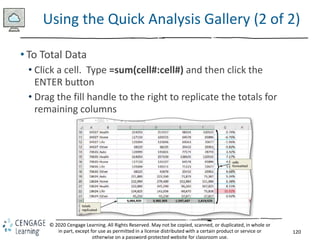
  • #104 Figure 7-4: Display of a template.
  • #109 Figure 7-19: Display of TRIM function trims spaces around text selected in cell B5 and placing in cell B11.
  • #115 Figure 7-30: Display of From Web dialog box.
  • #116 Figure 7-37: Display of imported data.
  • #119 Figure 7-44: Display of fill handle and formula replicated through cell G24.
  • #121 Figure 7-50: Display of cells formatted and totals replicated.
  • #126 Figure 7-68: Display of x-axis, Axis Options tab, and Maximum box.
  • #127 Figure 7-72: Display of new chart title.
  • #130 Figure 7-79: Display of Text pane with new text entered.
  • #131 Figure 7-81: Display of SmartArt Tools Design tab and “Bird’s Eye Scene” SmartArt style.
  • #134 Figure 7-95: Display of SmartArt Tools Format tab with WordArt gallery.
  • #140 Figure 7-118: Display of Home tab with Format Painter button.