




| Visually Enrich Google Maps Information using Layers
Visually Enrich Google
Maps Information using
Layers
| Visually Enrich Google Maps Information using Layers| Visually Enrich Google Maps Information using Layers
Pedro
Coelho
Team Leader | OutSystems MVP | Truewind
@
in
pedro.coelho@truewindglobal.com
/pmscoelho
| Visually Enrich Google Maps Information using Layers| Visually Enrich Google Maps Information using Layers
The challenge
| Visually Enrich Google Maps Information using Layers
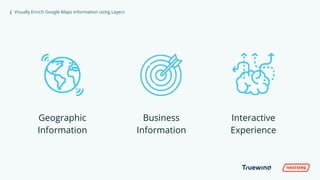
Geographic
Information
Business
Information
Interactive
Experience
| Visually Enrich Google Maps Information using Layers| Visually Enrich Google Maps Information using Layers
Introducing KML
| Visually Enrich Google Maps Information using Layers
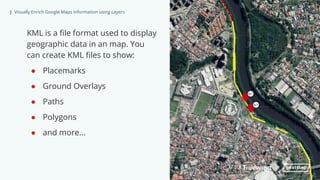
KML is a file format used to display
geographic data in an map. You
can create KML files to show:
● Placemarks
● Ground Overlays
● Paths
● Polygons
● and more...
| Visually Enrich Google Maps Information using Layers
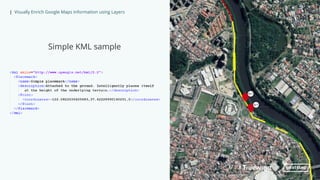
Simple KML sample
| Visually Enrich Google Maps Information using Layers| Visually Enrich Google Maps Information using Layers
KML + OutSystems
| Visually Enrich Google Maps Information using Layers
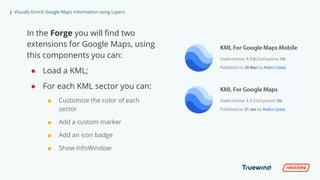
In the Forge you will find two
extensions for Google Maps, using
this components you can:
● Load a KML;
● For each KML sector you can:
■ Customize the color of each
sector
■ Add a custom marker
■ Add an icon badge
■ Show InfoWindow
| Visually Enrich Google Maps Information using Layers
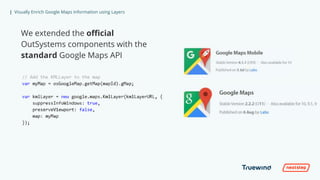
We extended the official
OutSystems components with the
standard Google Maps API
| Visually Enrich Google Maps Information using Layers| Visually Enrich Google Maps Information using Layers
Show me the code!
| Visually Enrich Google Maps Information using Layers| Visually Enrich Google Maps Information using Layers
In the real world
| Visually Enrich Google Maps Information using Layers
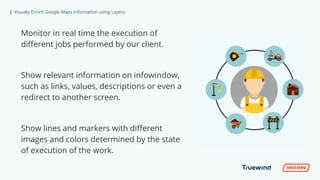
Monitor in real time the execution of
different jobs performed by our client.
Show relevant information on infowindow,
such as links, values, descriptions or even a
redirect to another screen.
Show lines and markers with different
images and colors determined by the state
of execution of the work.
| Visually Enrich Google Maps Information using Layers| Visually Enrich Google Maps Information using Layers
| Visually Enrich Google Maps Information using Layers| Visually Enrich Google Maps Information using Layers
| Visually Enrich Google Maps Information using Layers| Visually Enrich Google Maps Information using Layers
| Visually Enrich Google Maps Information using Layers| Visually Enrich Google Maps Information using Layers
| Visually Enrich Google Maps Information using Layers
Thank You!
@ inpedro.coelho@truewindglobal.co
m
/pmscoelho

Enrich Visually Google Map Information With Layers

  • 1.
    | Visually EnrichGoogle Maps Information using Layers Visually Enrich Google Maps Information using Layers
  • 2.
    | Visually EnrichGoogle Maps Information using Layers| Visually Enrich Google Maps Information using Layers Pedro Coelho Team Leader | OutSystems MVP | Truewind @ in pedro.coelho@truewindglobal.com /pmscoelho
  • 3.
    | Visually EnrichGoogle Maps Information using Layers| Visually Enrich Google Maps Information using Layers The challenge
  • 4.
    | Visually EnrichGoogle Maps Information using Layers Geographic Information Business Information Interactive Experience
  • 5.
    | Visually EnrichGoogle Maps Information using Layers| Visually Enrich Google Maps Information using Layers Introducing KML
  • 6.
    | Visually EnrichGoogle Maps Information using Layers KML is a file format used to display geographic data in an map. You can create KML files to show: ● Placemarks ● Ground Overlays ● Paths ● Polygons ● and more...
  • 7.
    | Visually EnrichGoogle Maps Information using Layers Simple KML sample
  • 8.
    | Visually EnrichGoogle Maps Information using Layers| Visually Enrich Google Maps Information using Layers KML + OutSystems
  • 9.
    | Visually EnrichGoogle Maps Information using Layers In the Forge you will find two extensions for Google Maps, using this components you can: ● Load a KML; ● For each KML sector you can: ■ Customize the color of each sector ■ Add a custom marker ■ Add an icon badge ■ Show InfoWindow
  • 10.
    | Visually EnrichGoogle Maps Information using Layers We extended the official OutSystems components with the standard Google Maps API
  • 11.
    | Visually EnrichGoogle Maps Information using Layers| Visually Enrich Google Maps Information using Layers Show me the code!
  • 12.
    | Visually EnrichGoogle Maps Information using Layers| Visually Enrich Google Maps Information using Layers In the real world
  • 13.
    | Visually EnrichGoogle Maps Information using Layers Monitor in real time the execution of different jobs performed by our client. Show relevant information on infowindow, such as links, values, descriptions or even a redirect to another screen. Show lines and markers with different images and colors determined by the state of execution of the work.
  • 14.
    | Visually EnrichGoogle Maps Information using Layers| Visually Enrich Google Maps Information using Layers
  • 15.
    | Visually EnrichGoogle Maps Information using Layers| Visually Enrich Google Maps Information using Layers
  • 16.
    | Visually EnrichGoogle Maps Information using Layers| Visually Enrich Google Maps Information using Layers
  • 17.
    | Visually EnrichGoogle Maps Information using Layers| Visually Enrich Google Maps Information using Layers
  • 18.
    | Visually EnrichGoogle Maps Information using Layers Thank You! @ inpedro.coelho@truewindglobal.co m /pmscoelho

Editor's Notes

  • #2 Hello everyone, In this session I will be talking about how you can use google maps layers to create rich interactive experiences based on geographic information
  • #4 So, let me start with the challenge that started it all
  • #5 We started working with some clients that had rich geographic information, but that informations was mostly static. The main challenge was to be able to mash up this geographic information with up to date business data residing in OutSystems applications. Also it was important to create interactive experiences that would allow the users to interact with the mashed up information and be able to get even more insights and also act upon it.
  • #6 The solution was to take advantage one of the most common formats to share geographic information in the Web, KML. So, what is KML?
  • #7 For those who might not know, KML is a XML based file format used to display geographic data. You can create KML files to pinpoint locations, add image overlays, and expose rich data in new ways. It’s important to refer that KML is an international standard widely used in geographic information systems. Most tools like ArcGis allow to export the data to KML.
  • #8 Just for you to have an idea, this is how placemark is represented in a KML file, just the typical XML elements and attributes, pretty straightforward
  • #9 Now you might be asking: How can I take advantage of KML in OutSystems?
  • #10 We have built 2 components, one for Web and other for Mobile, and they are both available in the OutSystems Forge. These components will give you a set of actions to enable you to load KML layers into a Google Map and also interact with the layers’ sections, such as: Customize the colors of the sectors Add custom markers Add icon badges Show a InfoWindow We’re still working on a sample application, but it will be available soon.
  • #11 All of this was done on top of the official OutSystems Google Maps components as an add-on, and using the standard Google Maps API code. This means several things: you can easily start using KML Layers in an already built application that uses the OutSystems Google Maps components the components are reliable and suitable for enterprise applications the components are future proof
  • #12 Enough with the talk! This is a technical session so let's see how you can use this To setup the component all you need to do is add the kmlforgooglemaps weblock to your screen that already has a google maps show that you just need to add the weblock to your screen But let me show you the most important thing, how can we mashup the KML layer geographic data with our own application data In the projects we have been doing, the client already had the base geographic information needed created in ArcGis. So, all we needed to do was to have some IDs in the elements of the KML that we could also use in our own application data to connect both show the data model of the placemark with the placemark_id show the excel file that contains the bootstraped data, this will be your application data show the KML source and how the ids or names match, this will be given to you by your client How do we load this on a map show the load kml screen action
  • #13 I bet all of this sounds great to you… but what you would really like would be to see this cool features in a real application, right?
  • #14 Ok, here it goes: We have helped a client in the area of civil engineering by designing and delivering an application to manage the entire project lifecycle. These were large scale engineering projects such as water and sanitation that, as you can imagine, occur in a wide geographical area. Several features of the application rely on geographical information, such as displaying the entire project in a map, and showing the several project sections execution status. For instance, you can see all the construction sections of an entire sewer system, and for each section, see contextual business information. In the next slides we will show you some examples of an application, even though we had to remove some of the context and the real data, it will enable you to get an idea of what can be achieved.
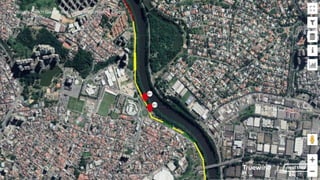
  • #15 Keep in mind that the original KML only has the sections mapped all in one color, everything else you see is done in our app by querying our database and manipulating the layer. In this image you can see the several section of a construction project. The different colors represent the current state of each section. You can also see 2 markers that indicate actions are needed for those specific sections.
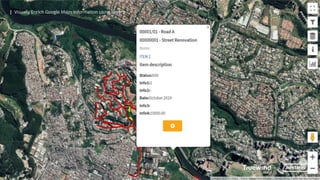
  • #16 In this example you can see the use of an InfoWindow that shows an iframe to an OutSystems page. When a user clicks a sections he will be able to see some information like the street name, the type of construction, used items, state of the construction and other important information.
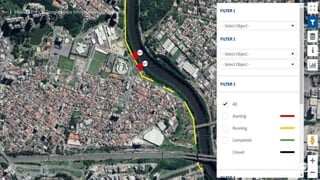
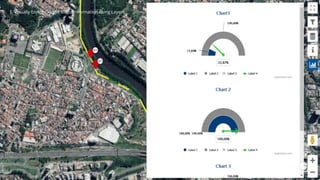
  • #17 Here you can see the filters the user can apply to the KML layer. The buttons and the filters are actualy OutSystems widgets put on top the map using CSS to give an integrated user experience. Technicly the filters will do a query to the application database, and with the returned result the layer API will be called to show or hide the relevant section.
  • #18 In this last image image we also used the same technic of the previous example to show some information about the layer that is being shown. In this case we present some chats with evolution of the entire construction project. You have a lot of options you can explore.
  • #19 I hope that you learned something useful with this session. If you have any questions reach out to me during the conference or drop me an email and I will gladly answer you.