Enhancing
Your Minitab
Assignments
www.tutorhelpdesk.com
Helpful Tips for Creating Multi-Variable Graphs
and Plots
Introduction
Statistics is central to all quantitative decision making
and for the student learning statistics, Minitab is handy
tool for performing sophisticated data analysis. Minitab
comes with robust functionalities especially analyzing
and visualizing data using multi-variable plots an
graphs. Being familiar with these smart techniques
enhancesquality of any Minitab assignment, as well as
helps students demonstrate and present insights in a
meaningful and accurate way.
This ppt provides helpful tips and hints on how to
create multi-variable graph and plots in Minitab with
hands-on examples using a popular data set. By the
end, you will be able to understand the visualization
capabilities of Minitab and make compelling
presentation of your data.
www.tutorhelpdesk.com
Why Multi-Variable Graphs Matter ?
Large datasets comprises of multiple variables. To examine the relationship among multiple
variables simultaneously, multi variable plotting functionality in Minitab becomes handy.
Deeper insights: Multi-variable plots provide
deeper insights into how factors or variables
interact with each other. It provides a better
way of identifying the relationship among
variables as compared to univariate or
bivariate plots.
Data clarity: The idea behind such plots is to
present information in a manner that simplifies
interpreting complex relationships.
Enhanced decision-making: multi-variable
plots provides a holistic view of the data
demonstrating multiple dimensions. Such plots
facilitates enhanced decision making.
www.tutorhelpdesk.com
Hands-On Example:
Exploring a Dataset
with Multi-Variable
Graphs
Now, let’s get into practical steps
to create these graphs using
Minitab.
www.tutorhelpdesk.com
Step 1: Load the Dataset in Minitab
For this example, we’ll use a commonly used dataset: Cars93 which can be
used in many statistical tools such as Minitab. This dataset provides data
about 93 car models using several attributes like price, fuel efficiency in
terms of MPG, size of the engine, and its horse power. This dataset perfectly
suits our needs to generate different types of multi-variable graphs and to
understand the correlation between different variables.
To begin, load the Cars93 dataset in Minitab. You can either import
it directly if you have the dataset or use any dataset containing
numerical variables for a similar analysis.
1. Open Minitab.
2. Go to File > Open and select the dataset.
3. The data will appear in the Minitab worksheet.
www.tutorhelpdesk.com
Step 2: Creating a Scatterplot Matrix
To create a scatterplot matrix:
1. In Minitab, go to Graph > Matrix Plot.
2. Select the Simple Matrix option.
3. In the variables box, select the
following variables: Price, MPG (City),
MPG (Highway), and Horsepower.
4. Click OK.
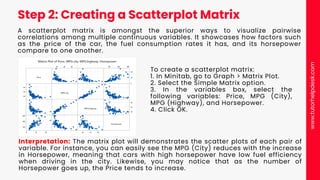
A scatterplot matrix is amongst the superior ways to visualize pairwise
correlations among multiple continuous variables. It showcases how factors such
as the price of the car, the fuel consumption rates it has, and its horsepower
compare to one another.
Interpretation: The matrix plot will demonstrates the scatter plots of each pair of
variable. For instance, you can easily see the MPG (City) reduces with the increase
in Horsepower, meaning that cars with high horsepower have low fuel efficiency
when driving in the city. Likewise, you may notice that as the number of
Horsepower goes up, the Price tends to increase.
www.tutorhelpdesk.com
Step 3: Creating an Interaction Plot
To create an interaction plot:
1. Go to Stat > ANOVA > Interaction Plot.
2. Select MPG (City) as the response
variable.
3. For factors, select Horsepower and
Engine Size.
4. Click OK.
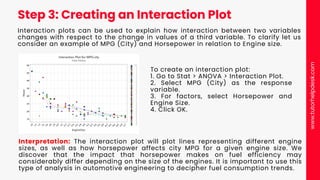
Interaction plots can be used to explain how interaction between two variables
changes with respect to the change in values of a third variable. To clarify let us
consider an example of MPG (City) and Horsepower in relation to Engine size.
Interpretation: The interaction plot will plot lines representing different engine
sizes, as well as how horsepower affects city MPG for a given engine size. We
discover that the impact that horsepower makes on fuel efficiency may
considerably differ depending on the size of the engines. It is important to use this
type of analysis in automotive engineering to decipher fuel consumption trends.
www.tutorhelpdesk.com
Step 4: Creating a 3D Surface Plot
To create a 3D surface plot:
1. Go to Graph > 3D Surface Plot > Simple.
2. Select Price as the Z variable (the variable
you want to plot on the vertical axis).
3. Select Horsepower and MPG (Highway) as
the X and Y variables.
4. Click OK.
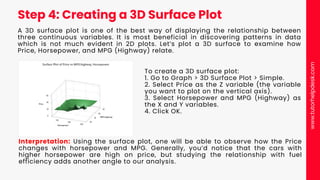
A 3D surface plot is one of the best way of displaying the relationship between
three continuous variables. It is most beneficial in discovering patterns in data
which is not much evident in 2D plots. Let’s plot a 3D surface to examine how
Price, Horsepower, and MPG (Highway) relate.
Interpretation: Using the surface plot, one will be able to observe how the Price
changes with horsepower and MPG. Generally, you’d notice that the cars with
higher horsepower are high on price, but studying the relationship with fuel
efficiency adds another angle to our analysis.
www.tutorhelpdesk.com
Step 5: Customizing Graphs for Better Clarity
Minitab is equipped with customization functionalities to make insightful graphs
for conducting a deeper and multi-dimensional analysis. Some tips to enhance
the presentation of your multi-variable graphs include:
• Changing the graph scale: Adjust the axes to focus on specific data ranges by
right-clicking on the graph and selecting Edit X Scale or Edit Y Scale.
• Adding labels: You can add informative labels to points or lines on the graph.
Go to Editor > Add and select labels like Data Labels or Text.
• Changing graph type: For certain datasets, you might want to switch from
scatter plots to line graphs or from surface plots to contour plots, depending
on how you want to present your analysis.
www.tutorhelpdesk.com
Why Hire Minitab
Assignment Help from
Tutor Help Desk?
www.tutorhelpdesk.com
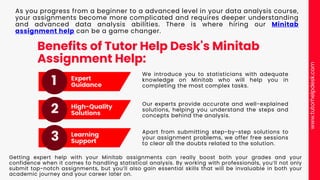
Benefits of Tutor Help Desk's Minitab
Assignment Help:
We introduce you to statisticians with adequate
knowledge on Minitab who will help you in
completing the most complex tasks.
Expert
Guidance
High-Quality
Solutions
Learning
Support
1
3
2
As you progress from a beginner to a advanced level in your data analysis course,
your assignments become more complicated and requires deeper understanding
and advanced data analysis abilities. There is where hiring our Minitab
assignment help can be a game changer.
Our experts provide accurate and well-explained
solutions, helping you understand the steps and
concepts behind the analysis.
Apart from submitting step-by-step solutions to
your assignment problems, we offer free sessions
to clear all the doubts related to the solution.
Getting expert help with your Minitab assignments can really boost both your grades and your
confidence when it comes to handling statistical analysis. By working with professionals, you’ll not only
submit top-notch assignments, but you’ll also gain essential skills that will be invaluable in both your
academic journey and your career later on.
www.tutorhelpdesk.com
Conclusion
2019 2024
Mastering multi-variable graphs and plots in
Minitab can really take your statistical work to
the next level. These tools can help you spot
relationships in your data that you might
otherwise miss, allowing you to present your
findings in a clear and compelling way. So
why not start practicing today? You’ll be
amazed at how quickly your analysis skills
can improve!
www.tutorhelpdesk.com
Helpful Resources for Mastering Minitab
1. "Learning Statistics with Minitab" by John G.
Kemeny: This comprehensive textbook provides
in-depth examples of statistical analysis using
Minitab, from basic descriptive statistics to
advanced regression models.
2. "Minitab Manual for Elementary Statistics" by
Neil Weiss: Designed for students, this manual
offers easy-to-follow guides for completing
various types of statistical tests and plots in
Minitab.
3. Minitab's Official Documentation and Help
Center: The Minitab website provides a wealth
of tutorials, user guides, and troubleshooting
tips to help students navigate the software’s
features.
80%
60%
30%
www.tutorhelpdesk.com
THANK YOU
homework@tutorhelpdesk.com
+1-6178070926
www.tutorhelpdesk.com
40%
40%

Enhancing Your Minitab Assignments- Helpful Tips for Creating Multi-Variable Graphs and Plots.pdf

  • 1.
  • 2.
    Introduction Statistics is centralto all quantitative decision making and for the student learning statistics, Minitab is handy tool for performing sophisticated data analysis. Minitab comes with robust functionalities especially analyzing and visualizing data using multi-variable plots an graphs. Being familiar with these smart techniques enhancesquality of any Minitab assignment, as well as helps students demonstrate and present insights in a meaningful and accurate way. This ppt provides helpful tips and hints on how to create multi-variable graph and plots in Minitab with hands-on examples using a popular data set. By the end, you will be able to understand the visualization capabilities of Minitab and make compelling presentation of your data. www.tutorhelpdesk.com
  • 3.
    Why Multi-Variable GraphsMatter ? Large datasets comprises of multiple variables. To examine the relationship among multiple variables simultaneously, multi variable plotting functionality in Minitab becomes handy. Deeper insights: Multi-variable plots provide deeper insights into how factors or variables interact with each other. It provides a better way of identifying the relationship among variables as compared to univariate or bivariate plots. Data clarity: The idea behind such plots is to present information in a manner that simplifies interpreting complex relationships. Enhanced decision-making: multi-variable plots provides a holistic view of the data demonstrating multiple dimensions. Such plots facilitates enhanced decision making. www.tutorhelpdesk.com
  • 4.
    Hands-On Example: Exploring aDataset with Multi-Variable Graphs Now, let’s get into practical steps to create these graphs using Minitab. www.tutorhelpdesk.com
  • 5.
    Step 1: Loadthe Dataset in Minitab For this example, we’ll use a commonly used dataset: Cars93 which can be used in many statistical tools such as Minitab. This dataset provides data about 93 car models using several attributes like price, fuel efficiency in terms of MPG, size of the engine, and its horse power. This dataset perfectly suits our needs to generate different types of multi-variable graphs and to understand the correlation between different variables. To begin, load the Cars93 dataset in Minitab. You can either import it directly if you have the dataset or use any dataset containing numerical variables for a similar analysis. 1. Open Minitab. 2. Go to File > Open and select the dataset. 3. The data will appear in the Minitab worksheet. www.tutorhelpdesk.com
  • 6.
    Step 2: Creatinga Scatterplot Matrix To create a scatterplot matrix: 1. In Minitab, go to Graph > Matrix Plot. 2. Select the Simple Matrix option. 3. In the variables box, select the following variables: Price, MPG (City), MPG (Highway), and Horsepower. 4. Click OK. A scatterplot matrix is amongst the superior ways to visualize pairwise correlations among multiple continuous variables. It showcases how factors such as the price of the car, the fuel consumption rates it has, and its horsepower compare to one another. Interpretation: The matrix plot will demonstrates the scatter plots of each pair of variable. For instance, you can easily see the MPG (City) reduces with the increase in Horsepower, meaning that cars with high horsepower have low fuel efficiency when driving in the city. Likewise, you may notice that as the number of Horsepower goes up, the Price tends to increase. www.tutorhelpdesk.com
  • 7.
    Step 3: Creatingan Interaction Plot To create an interaction plot: 1. Go to Stat > ANOVA > Interaction Plot. 2. Select MPG (City) as the response variable. 3. For factors, select Horsepower and Engine Size. 4. Click OK. Interaction plots can be used to explain how interaction between two variables changes with respect to the change in values of a third variable. To clarify let us consider an example of MPG (City) and Horsepower in relation to Engine size. Interpretation: The interaction plot will plot lines representing different engine sizes, as well as how horsepower affects city MPG for a given engine size. We discover that the impact that horsepower makes on fuel efficiency may considerably differ depending on the size of the engines. It is important to use this type of analysis in automotive engineering to decipher fuel consumption trends. www.tutorhelpdesk.com
  • 8.
    Step 4: Creatinga 3D Surface Plot To create a 3D surface plot: 1. Go to Graph > 3D Surface Plot > Simple. 2. Select Price as the Z variable (the variable you want to plot on the vertical axis). 3. Select Horsepower and MPG (Highway) as the X and Y variables. 4. Click OK. A 3D surface plot is one of the best way of displaying the relationship between three continuous variables. It is most beneficial in discovering patterns in data which is not much evident in 2D plots. Let’s plot a 3D surface to examine how Price, Horsepower, and MPG (Highway) relate. Interpretation: Using the surface plot, one will be able to observe how the Price changes with horsepower and MPG. Generally, you’d notice that the cars with higher horsepower are high on price, but studying the relationship with fuel efficiency adds another angle to our analysis. www.tutorhelpdesk.com
  • 9.
    Step 5: CustomizingGraphs for Better Clarity Minitab is equipped with customization functionalities to make insightful graphs for conducting a deeper and multi-dimensional analysis. Some tips to enhance the presentation of your multi-variable graphs include: • Changing the graph scale: Adjust the axes to focus on specific data ranges by right-clicking on the graph and selecting Edit X Scale or Edit Y Scale. • Adding labels: You can add informative labels to points or lines on the graph. Go to Editor > Add and select labels like Data Labels or Text. • Changing graph type: For certain datasets, you might want to switch from scatter plots to line graphs or from surface plots to contour plots, depending on how you want to present your analysis. www.tutorhelpdesk.com
  • 10.
    Why Hire Minitab AssignmentHelp from Tutor Help Desk? www.tutorhelpdesk.com
  • 11.
    Benefits of TutorHelp Desk's Minitab Assignment Help: We introduce you to statisticians with adequate knowledge on Minitab who will help you in completing the most complex tasks. Expert Guidance High-Quality Solutions Learning Support 1 3 2 As you progress from a beginner to a advanced level in your data analysis course, your assignments become more complicated and requires deeper understanding and advanced data analysis abilities. There is where hiring our Minitab assignment help can be a game changer. Our experts provide accurate and well-explained solutions, helping you understand the steps and concepts behind the analysis. Apart from submitting step-by-step solutions to your assignment problems, we offer free sessions to clear all the doubts related to the solution. Getting expert help with your Minitab assignments can really boost both your grades and your confidence when it comes to handling statistical analysis. By working with professionals, you’ll not only submit top-notch assignments, but you’ll also gain essential skills that will be invaluable in both your academic journey and your career later on. www.tutorhelpdesk.com
  • 12.
    Conclusion 2019 2024 Mastering multi-variablegraphs and plots in Minitab can really take your statistical work to the next level. These tools can help you spot relationships in your data that you might otherwise miss, allowing you to present your findings in a clear and compelling way. So why not start practicing today? You’ll be amazed at how quickly your analysis skills can improve! www.tutorhelpdesk.com
  • 13.
    Helpful Resources forMastering Minitab 1. "Learning Statistics with Minitab" by John G. Kemeny: This comprehensive textbook provides in-depth examples of statistical analysis using Minitab, from basic descriptive statistics to advanced regression models. 2. "Minitab Manual for Elementary Statistics" by Neil Weiss: Designed for students, this manual offers easy-to-follow guides for completing various types of statistical tests and plots in Minitab. 3. Minitab's Official Documentation and Help Center: The Minitab website provides a wealth of tutorials, user guides, and troubleshooting tips to help students navigate the software’s features. 80% 60% 30% www.tutorhelpdesk.com
  • 14.