Enhance Your Quotations by Sections, Notes, and Subtotals in Odoo Sales
A sales quotation in Odoo is a formal offer provided to a potential customer detailing the products or services, prices, terms, and conditions of a sale. In Odoo 17 sales, we can create reusable quotations to kickstart a business lead.
Introduction
Enterprise
A sales quotationin Odoo is a formal offer provided to a potential
customer detailing the products or services, prices, terms, and conditions
of a sale.
In Odoo 17 sales, we can create reusable quotations to kickstart a
business lead.
Quotations in Odoo provide a structured and efficient way to present
offers to customers, ensuring clarity, professionalism, and better
management of the sales process. So, it is very vital to handle these
quotations so that it must be very simple to understand yet so powerful to
hold many detailed informations. For that, Odoo simplifies the process of
generating quotations for customers by enabling the users to specify
product data, sections, and notes.
3.
Enterprise
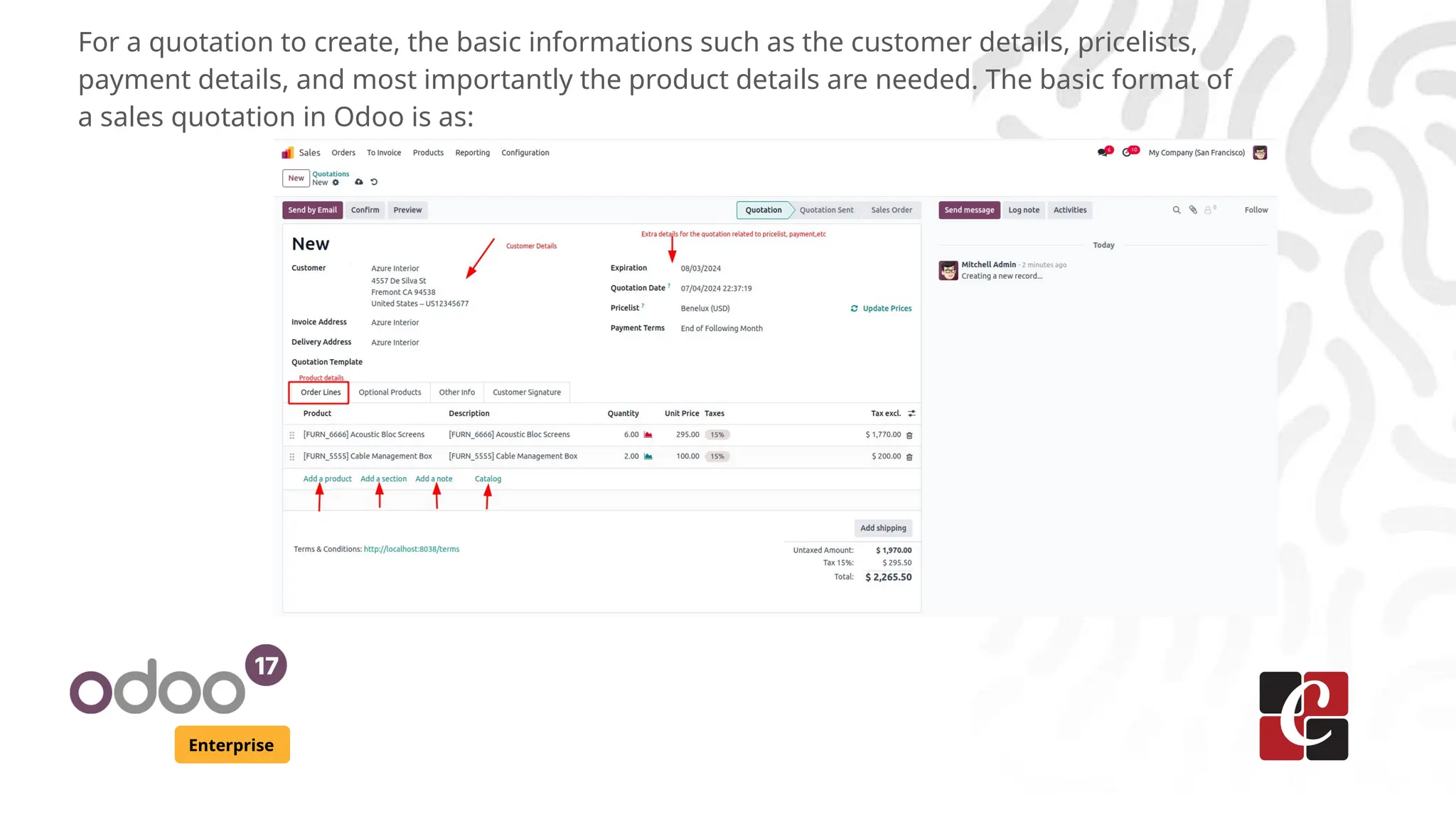
For a quotationto create, the basic informations such as the customer details, pricelists,
payment details, and most importantly the product details are needed. The basic format of
a sales quotation in Odoo is as:
4.
Enterprise
Here, under thefirst tab Order Lines, the products are selected using the
marked button ‘Add a product’. In the earlier image, we have selected the
products Acoustic Bloc Screens and Cable Management Box from the
inventory using that button. Besides that, we can see the buttons named ‘Add
a section’ and ‘Add a note’.
Adding Sections
Suppose we want to categorise the added products as different types, we can
use sections concept. For example, if we have added the furniture products
like Chairs or tables and food items like burger or sandwich under same sale
order, we can add section for them for the easy organization of the product
information.
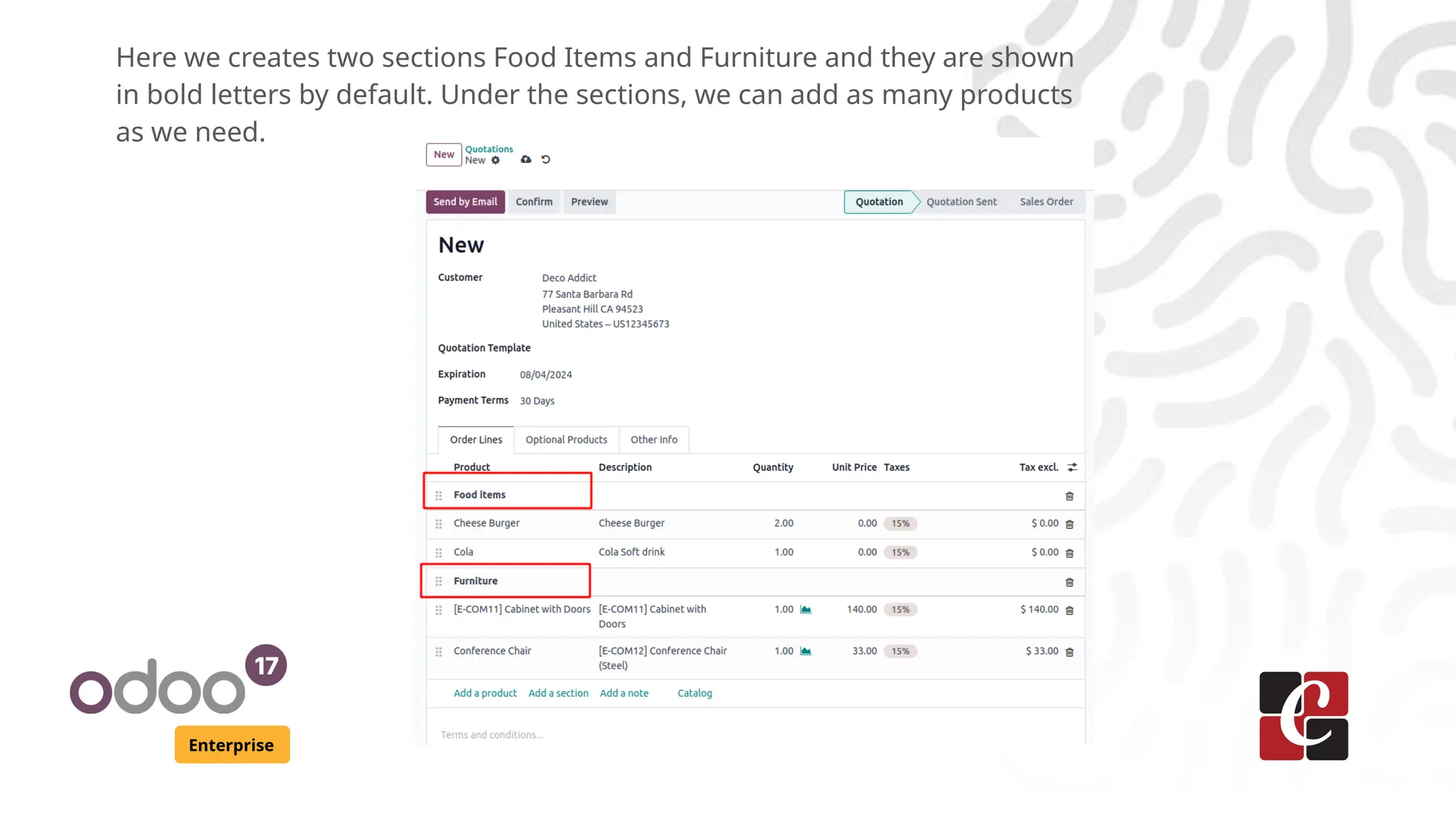
To use this, let’s create a new sale quotation and while adding the products,
click on the early mentioned button Add a section. Give a name for the
section and see what happens
5.
Enterprise
Here we createstwo sections Food Items and Furniture and they are shown
in bold letters by default. Under the sections, we can add as many products
as we need.
6.
Enterprise
Adding Notes
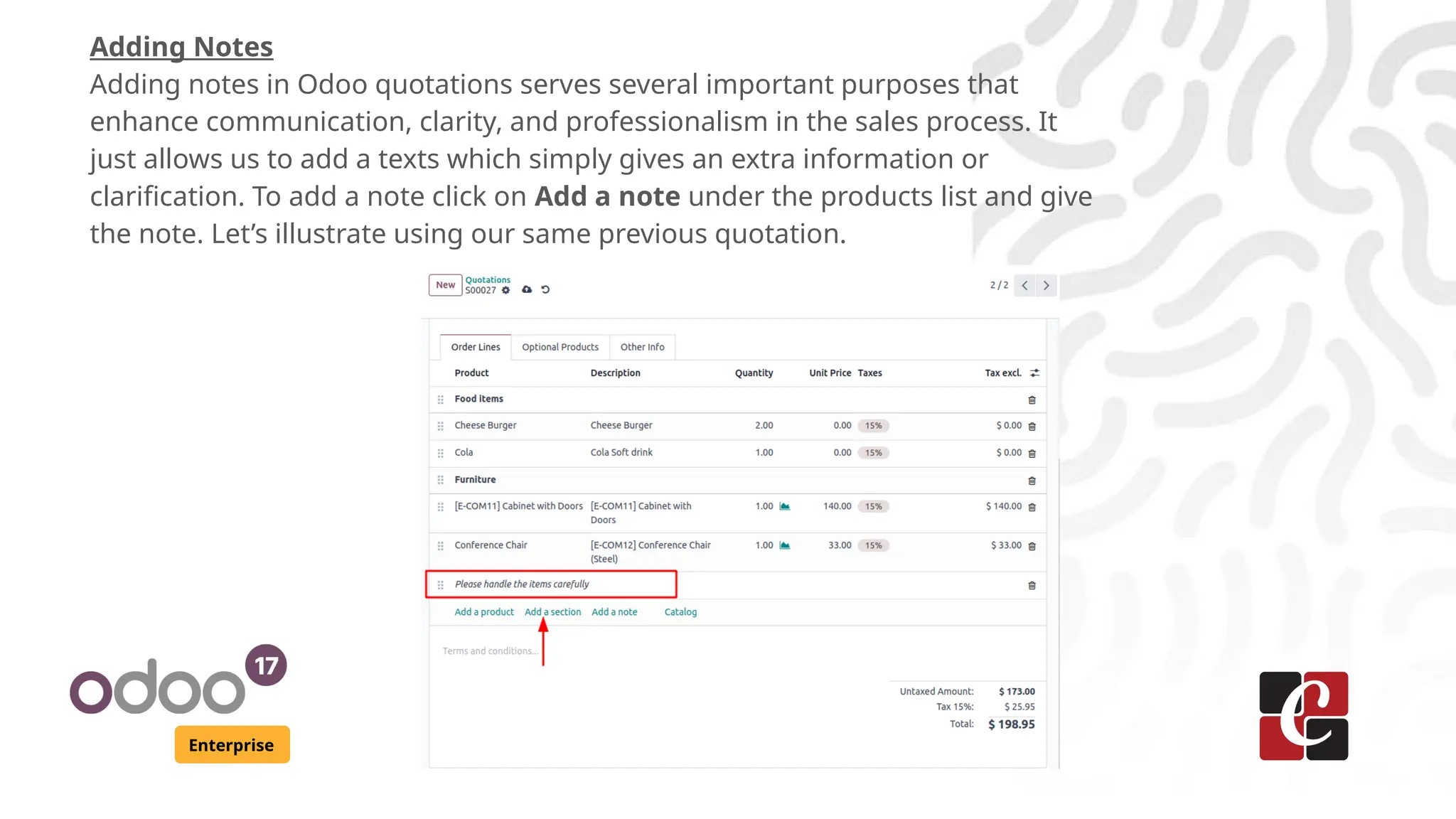
Adding notesin Odoo quotations serves several important purposes that
enhance communication, clarity, and professionalism in the sales process. It
just allows us to add a texts which simply gives an extra information or
clarification. To add a note click on Add a note under the products list and give
the note. Let’s illustrate using our same previous quotation.
7.
Enterprise
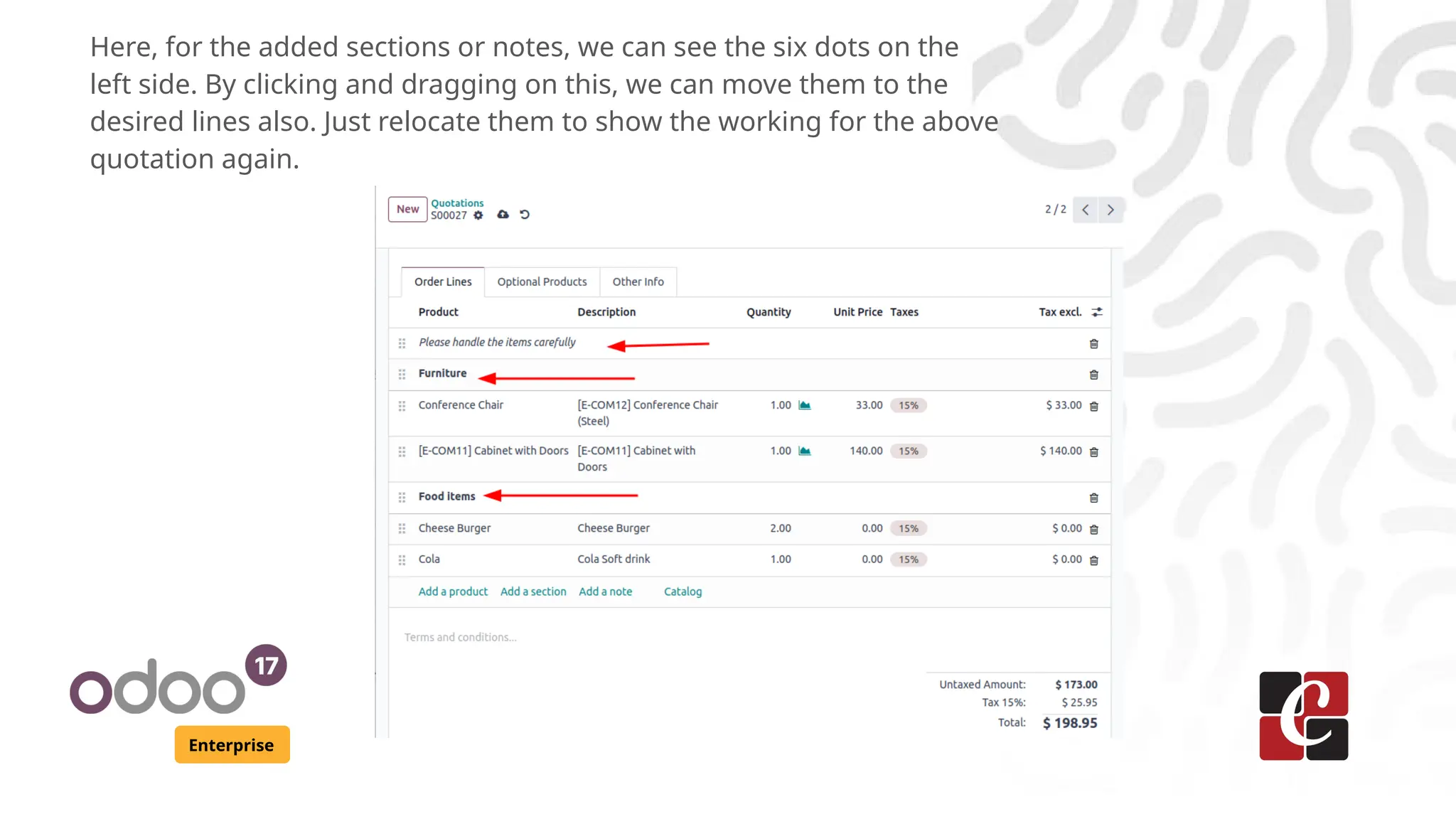
Here, for theadded sections or notes, we can see the six dots on the
left side. By clicking and dragging on this, we can move them to the
desired lines also. Just relocate them to show the working for the above
quotation again.
8.
Enterprise
Adding Subtotals
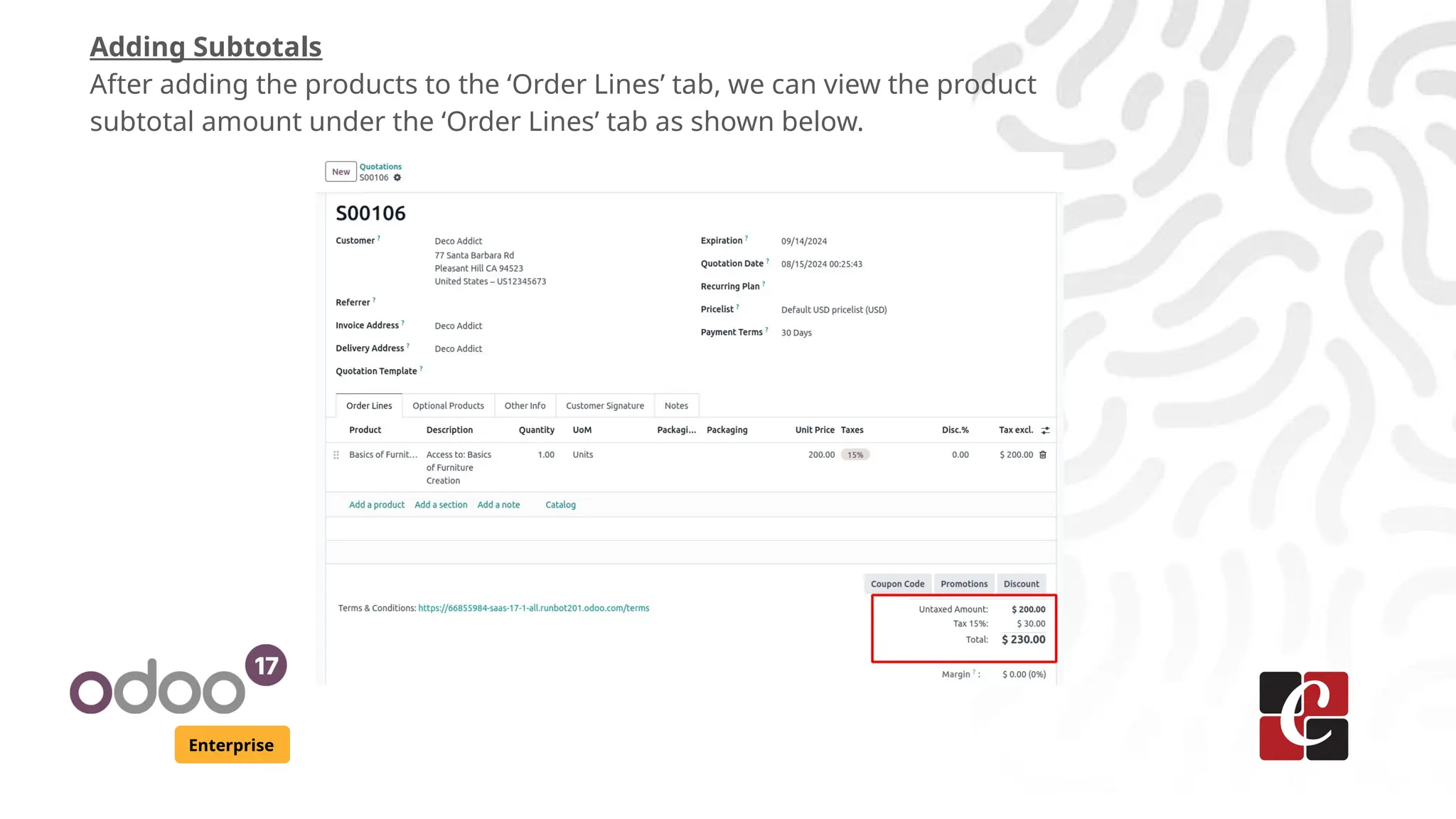
After addingthe products to the ‘Order Lines’ tab, we can view the product
subtotal amount under the ‘Order Lines’ tab as shown below.
9.
Enterprise
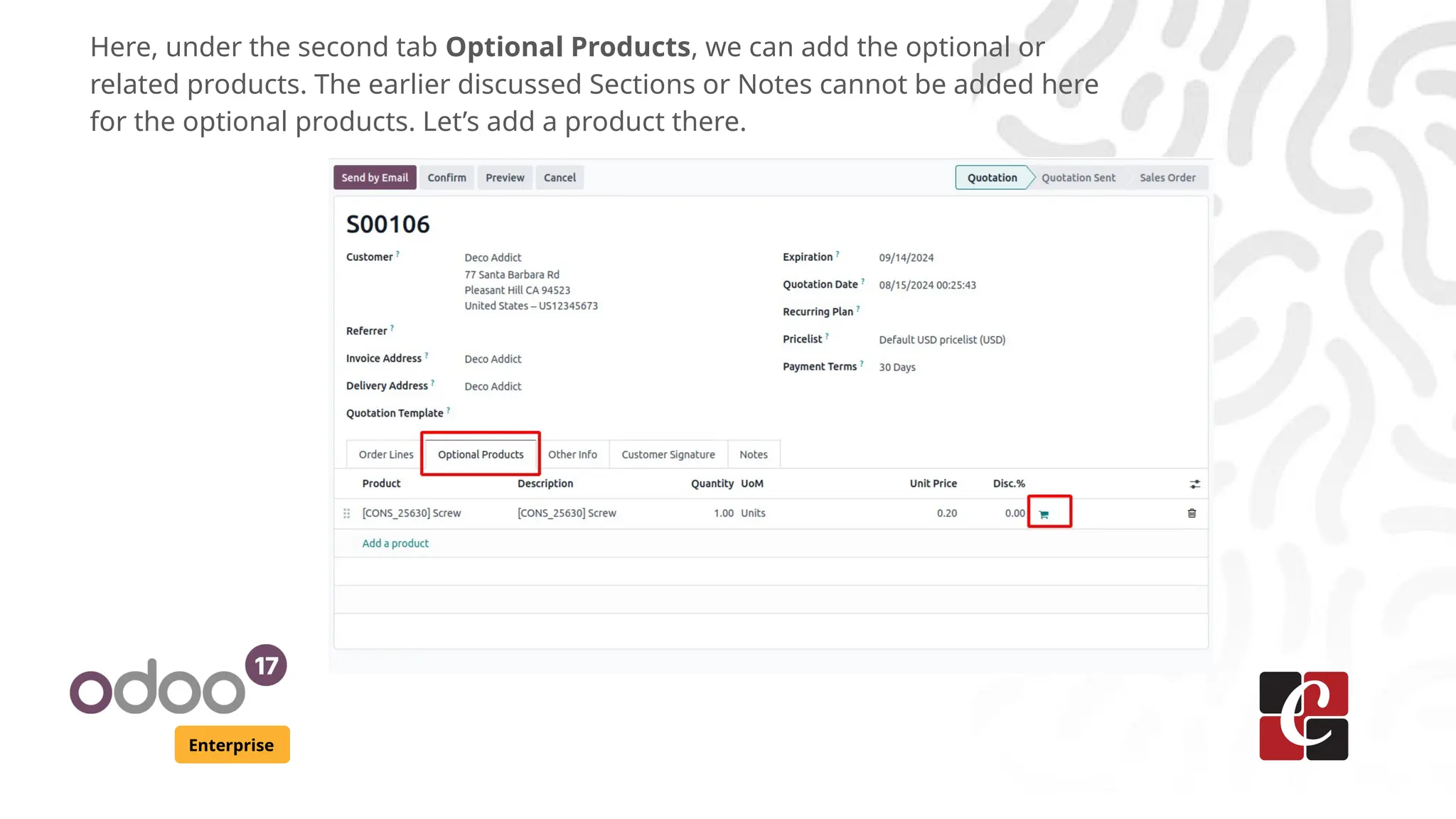
Here, under thesecond tab Optional Products, we can add the optional or
related products. The earlier discussed Sections or Notes cannot be added here
for the optional products. Let’s add a product there.
10.
Enterprise
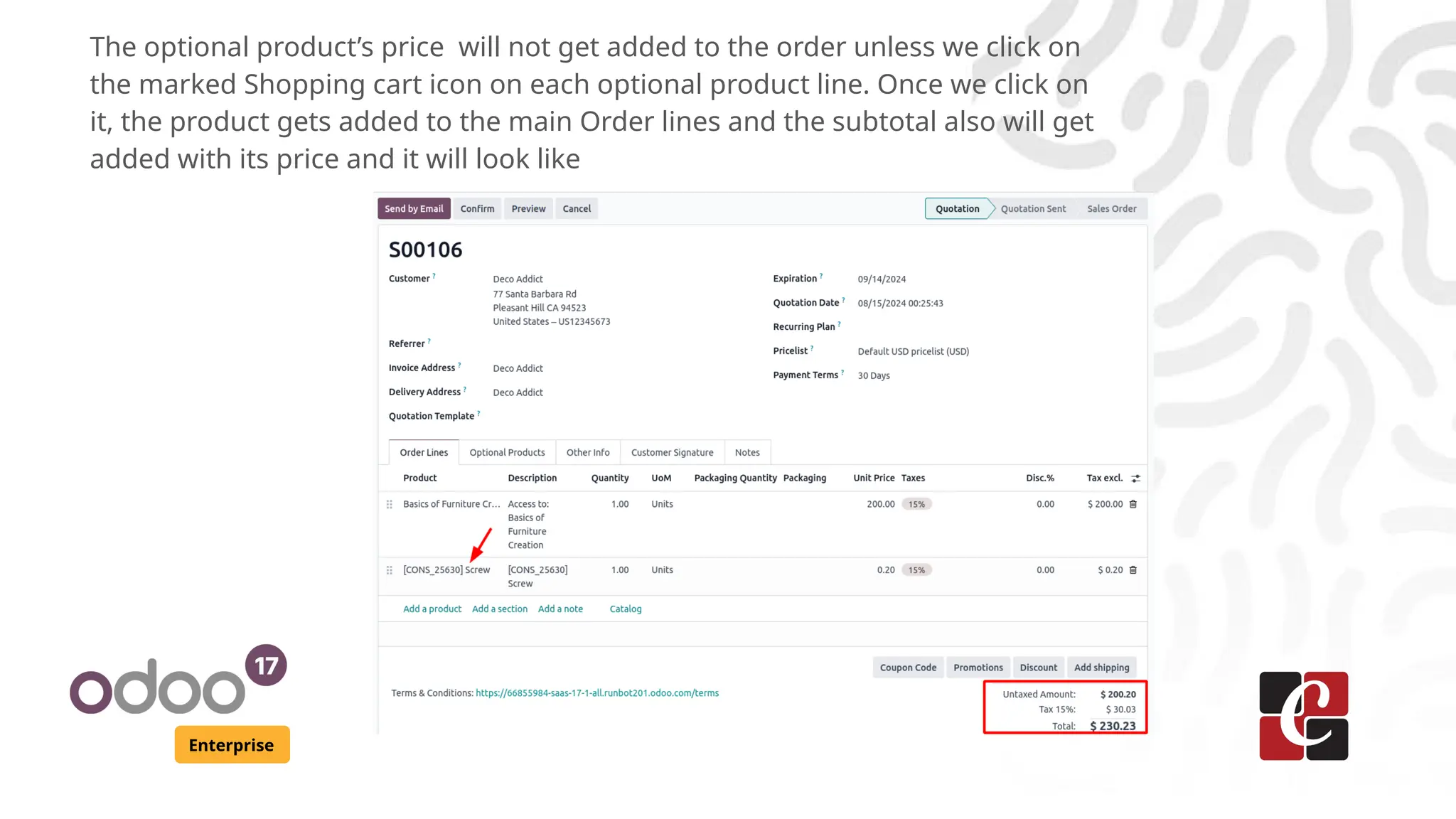
The optional product’sprice will not get added to the order unless we click on
the marked Shopping cart icon on each optional product line. Once we click on
it, the product gets added to the main Order lines and the subtotal also will get
added with its price and it will look like
11.
Enterprise
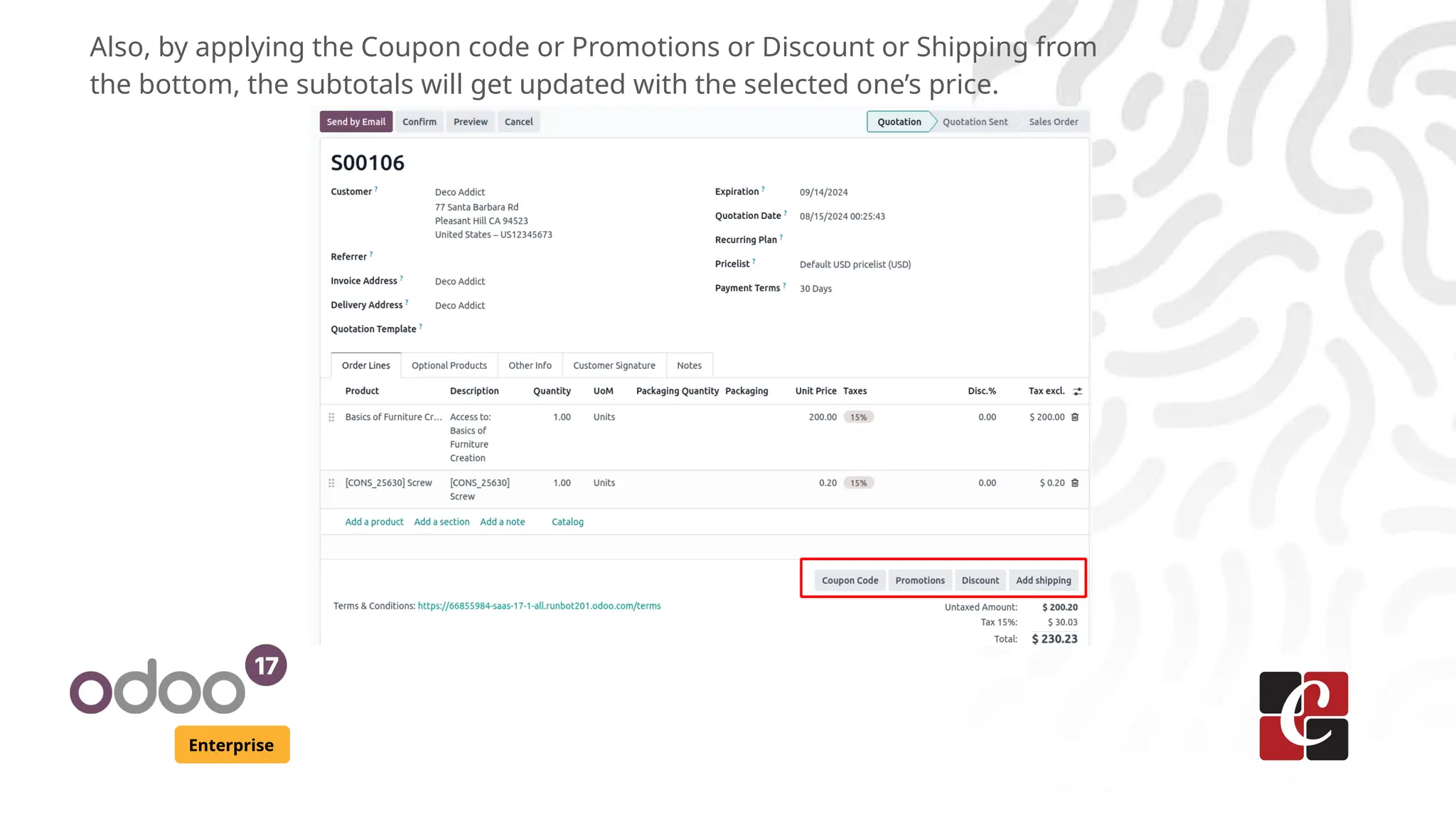
Also, by applyingthe Coupon code or Promotions or Discount or Shipping from
the bottom, the subtotals will get updated with the selected one’s price.
12.
Enterprise
These are thecapabilities the Odoo 17 Sales Module provides to manage
quotes and make them more flexible for all users, depending on their
specific requirements.
13.
For More Info.
Checkour company website for related blogs
and Odoo book.
Check our YouTube channel for
functional and technical videos in Odoo.
Enterprise
www.cybrosys.com