New Widget to Record Invoice
Line Description Odoo 18
Enterprise
Enterprise
Introduction
As we know, Odoo launches every new version with a wide variety of
changes both functional and technical so far. Likewise, in Odoo 18 also,
there are a lot of new features which can fulfill the needs of the users
adequately. In this slide, we are going to discuss a new feature added to
Odoo 18’s Invoice line description. A description is nothing but an extra
note that can be given for anything. Odoo usually provides a way to add
description and notes for some pages like in Sale Order in a new
notebook page named ‘Notes’. Rather than that, here we are discussing
about a widget which is used for it.
Enterprise
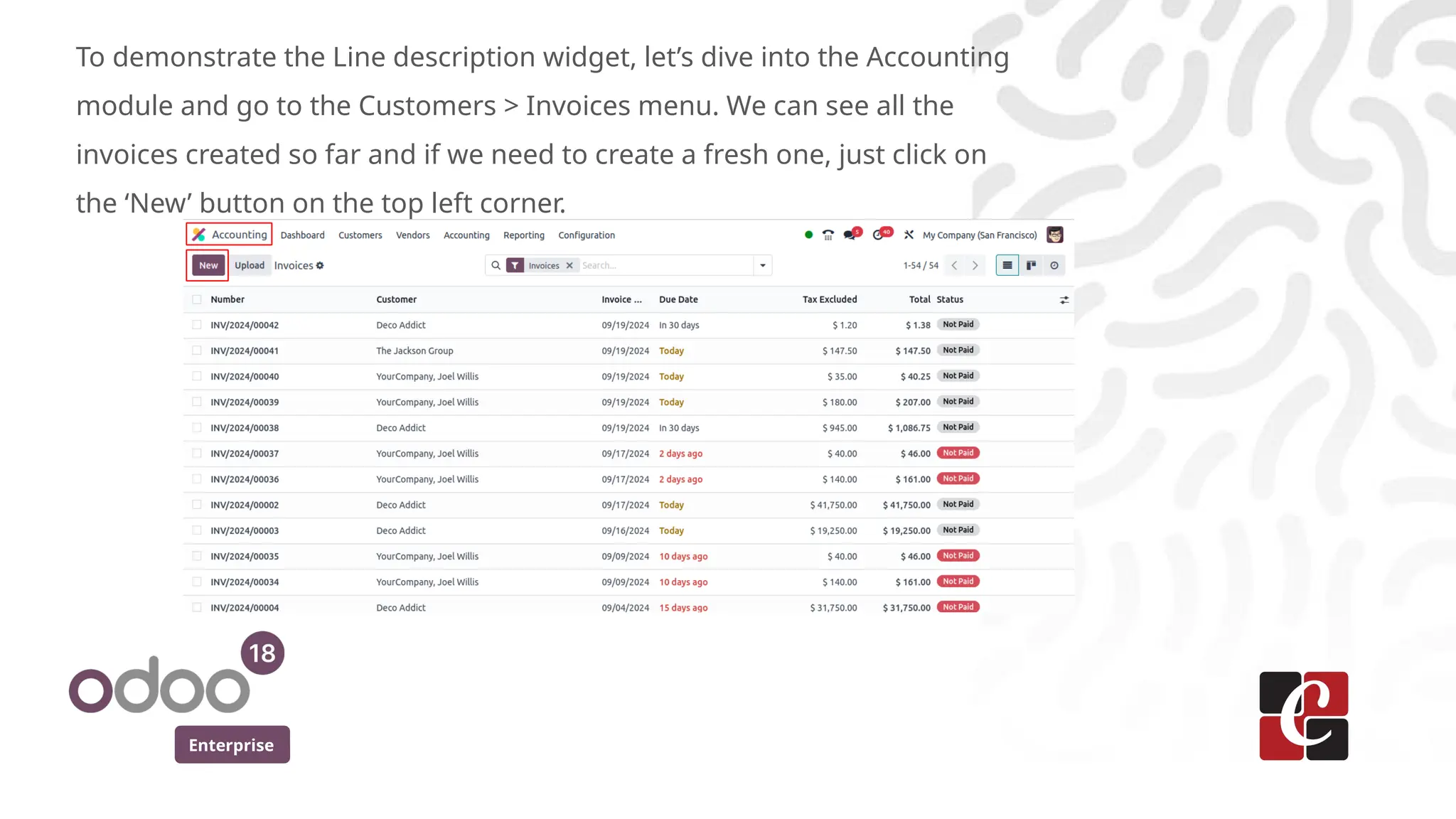
To demonstrate the Line description widget, let’s dive into the Accounting
module and go to the Customers > Invoices menu. We can see all the
invoices created so far and if we need to create a fresh one, just click on
the ‘New’ button on the top left corner.
Enterprise
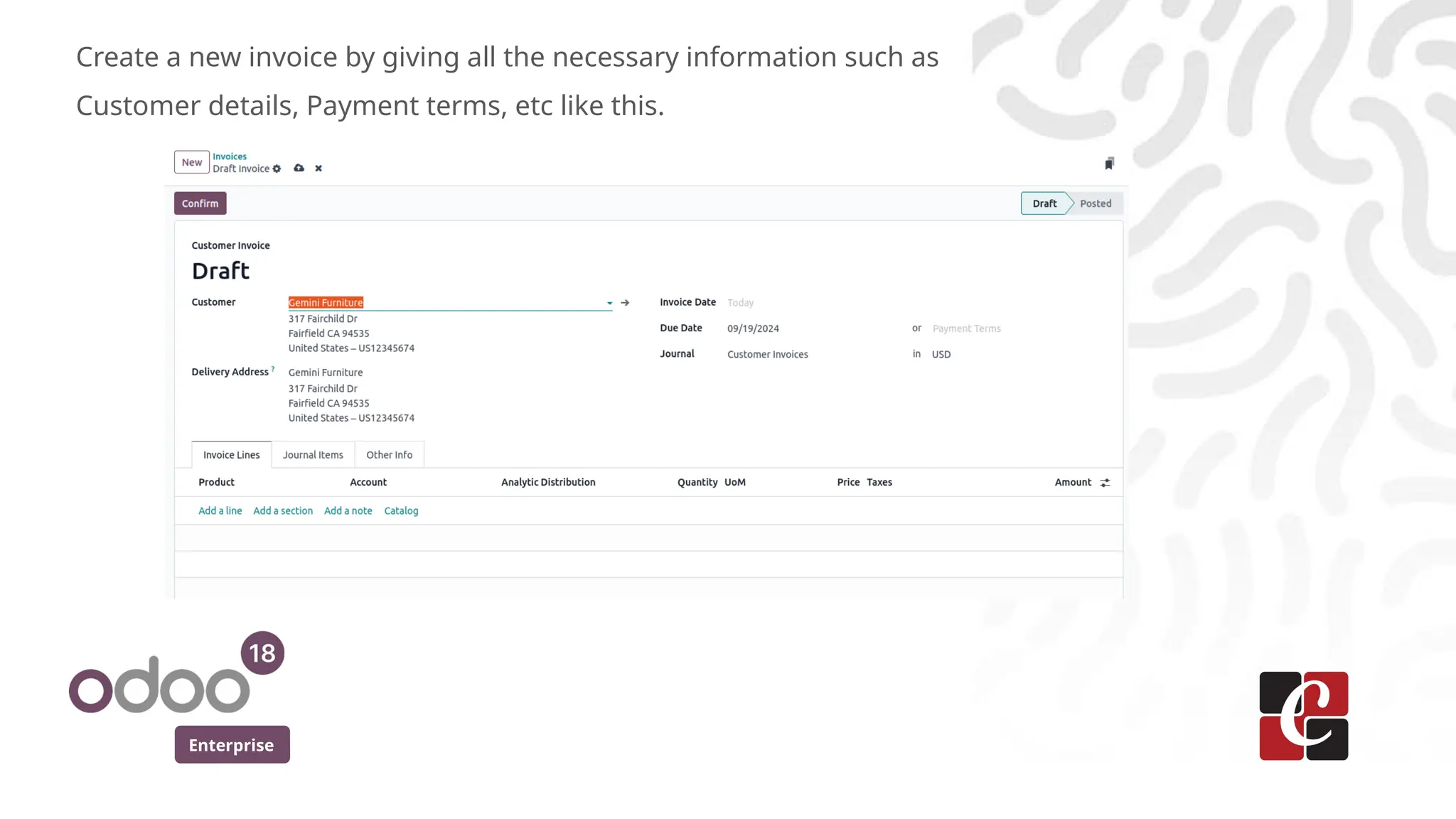
Create a new invoice by giving all the necessary information such as
Customer details, Payment terms, etc like this.
Enterprise
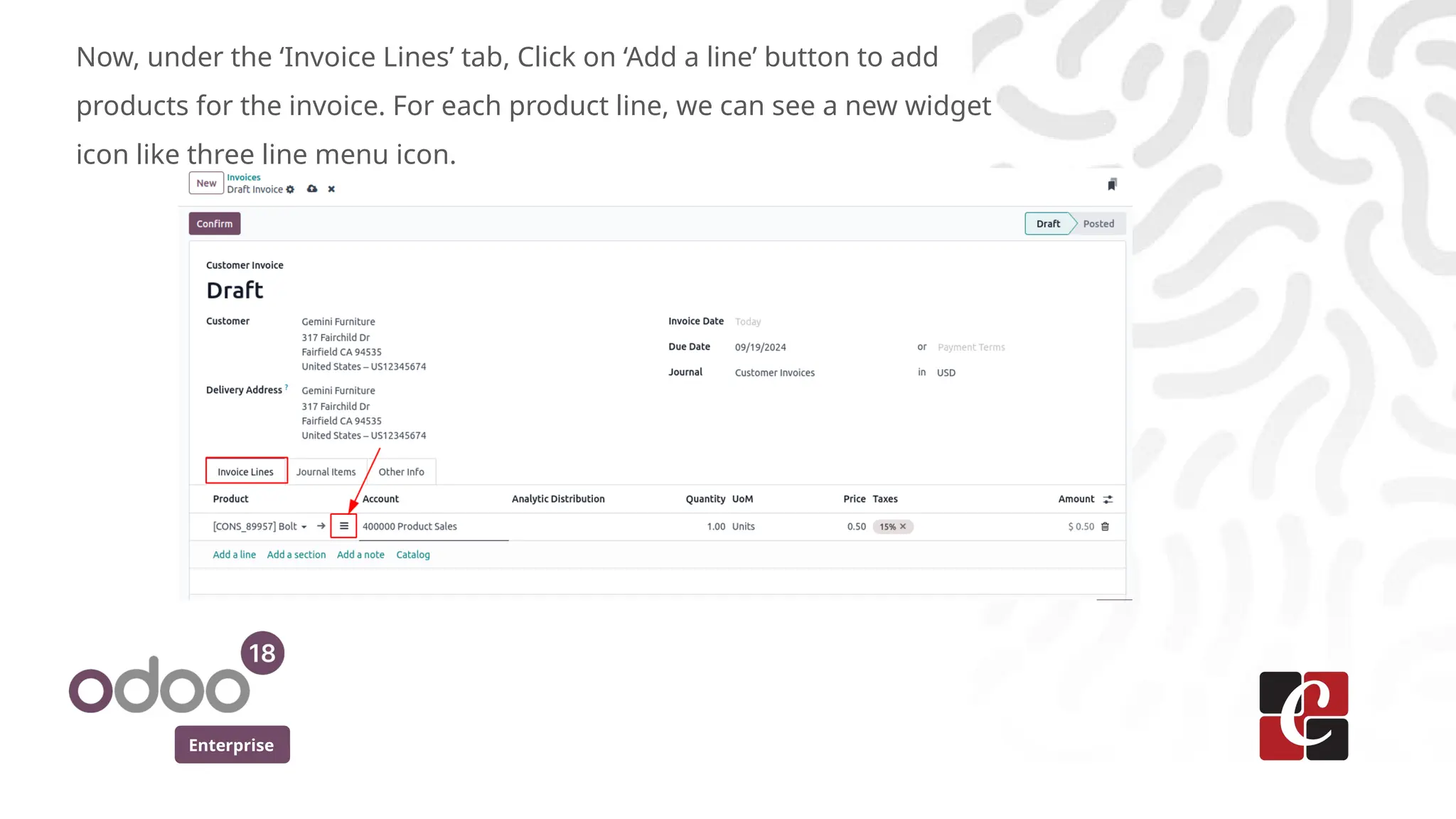
Now, under the ‘Invoice Lines’ tab, Click on ‘Add a line’ button to add
products for the invoice. For each product line, we can see a new widget
icon like three line menu icon.
Enterprise
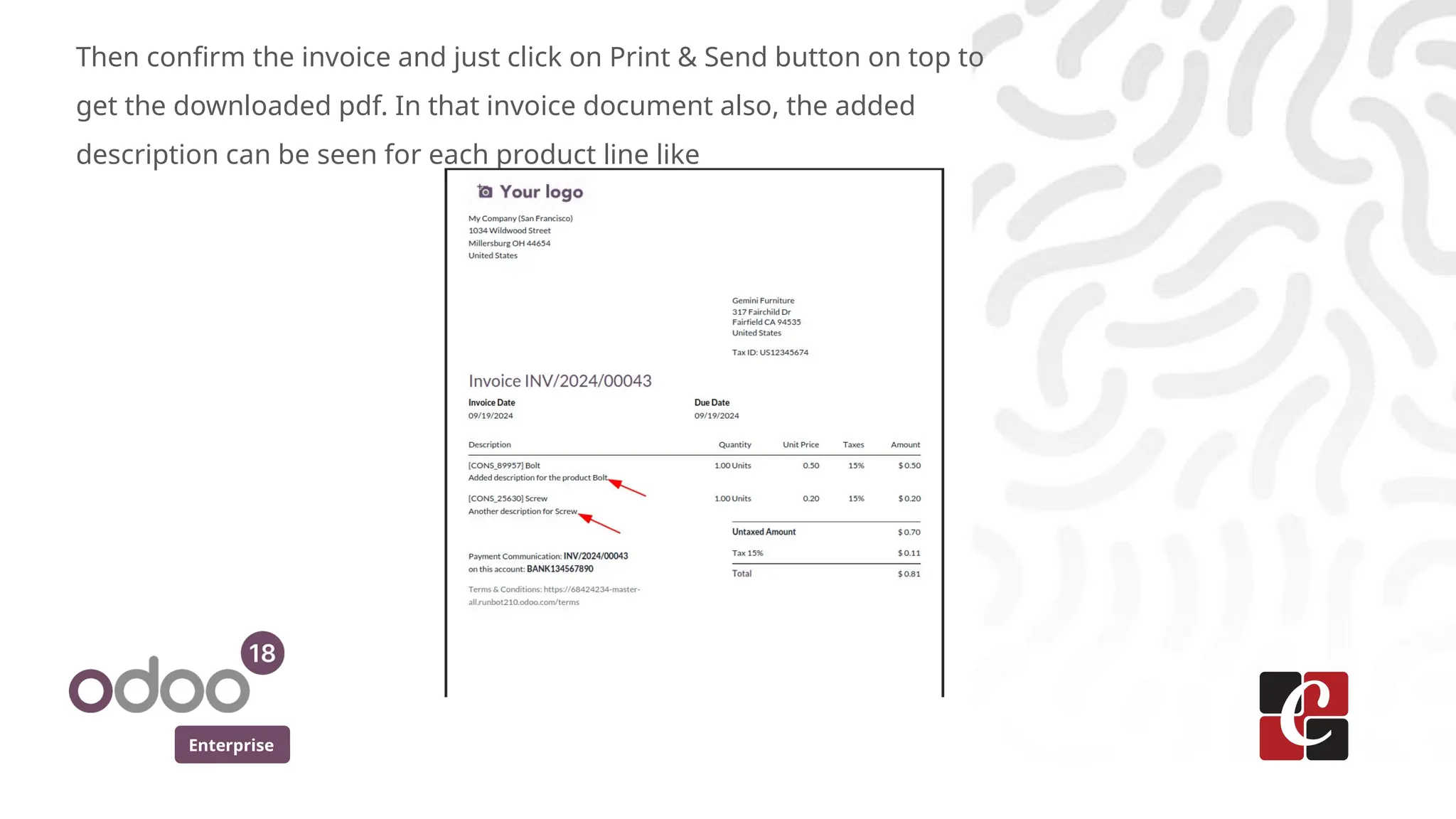
Then confirm the invoice and just click on Print & Send button on top to
get the downloaded pdf. In that invoice document also, the added
description can be seen for each product line like
For More Info.
Check our company website for related blogs
and Odoo book.
Check our YouTube channel for
functional and technical videos in Odoo.
Enterprise
www.cybrosys.com

New Widget to Record Invoice Line Description Odoo 18

  • 1.
    New Widget toRecord Invoice Line Description Odoo 18 Enterprise
  • 2.
    Enterprise Introduction As we know,Odoo launches every new version with a wide variety of changes both functional and technical so far. Likewise, in Odoo 18 also, there are a lot of new features which can fulfill the needs of the users adequately. In this slide, we are going to discuss a new feature added to Odoo 18’s Invoice line description. A description is nothing but an extra note that can be given for anything. Odoo usually provides a way to add description and notes for some pages like in Sale Order in a new notebook page named ‘Notes’. Rather than that, here we are discussing about a widget which is used for it.
  • 3.
    Enterprise To demonstrate theLine description widget, let’s dive into the Accounting module and go to the Customers > Invoices menu. We can see all the invoices created so far and if we need to create a fresh one, just click on the ‘New’ button on the top left corner.
  • 4.
    Enterprise Create a newinvoice by giving all the necessary information such as Customer details, Payment terms, etc like this.
  • 5.
    Enterprise Now, under the‘Invoice Lines’ tab, Click on ‘Add a line’ button to add products for the invoice. For each product line, we can see a new widget icon like three line menu icon.
  • 6.
    Enterprise Then confirm theinvoice and just click on Print & Send button on top to get the downloaded pdf. In that invoice document also, the added description can be seen for each product line like
  • 7.
    For More Info. Checkour company website for related blogs and Odoo book. Check our YouTube channel for functional and technical videos in Odoo. Enterprise www.cybrosys.com