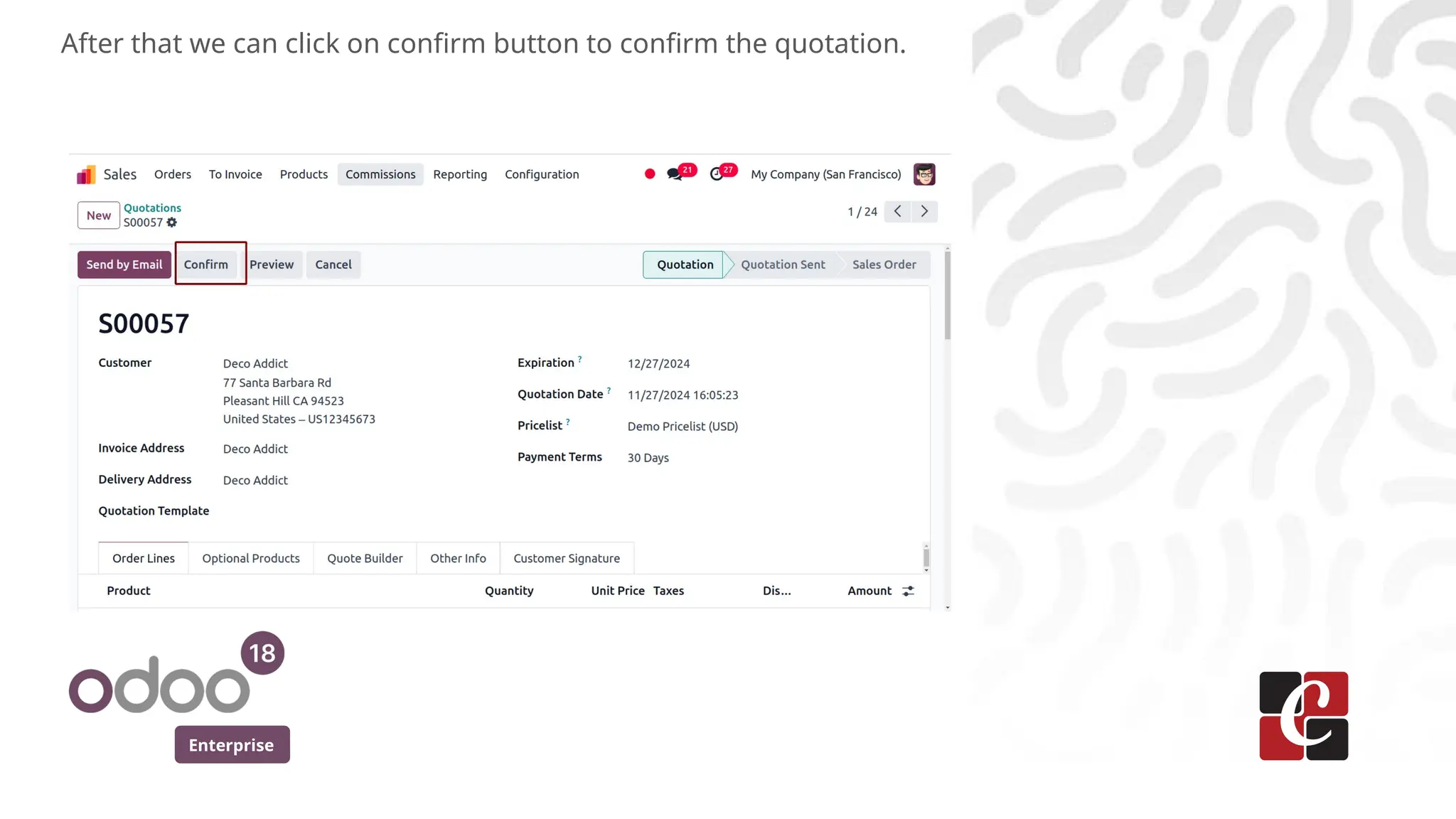
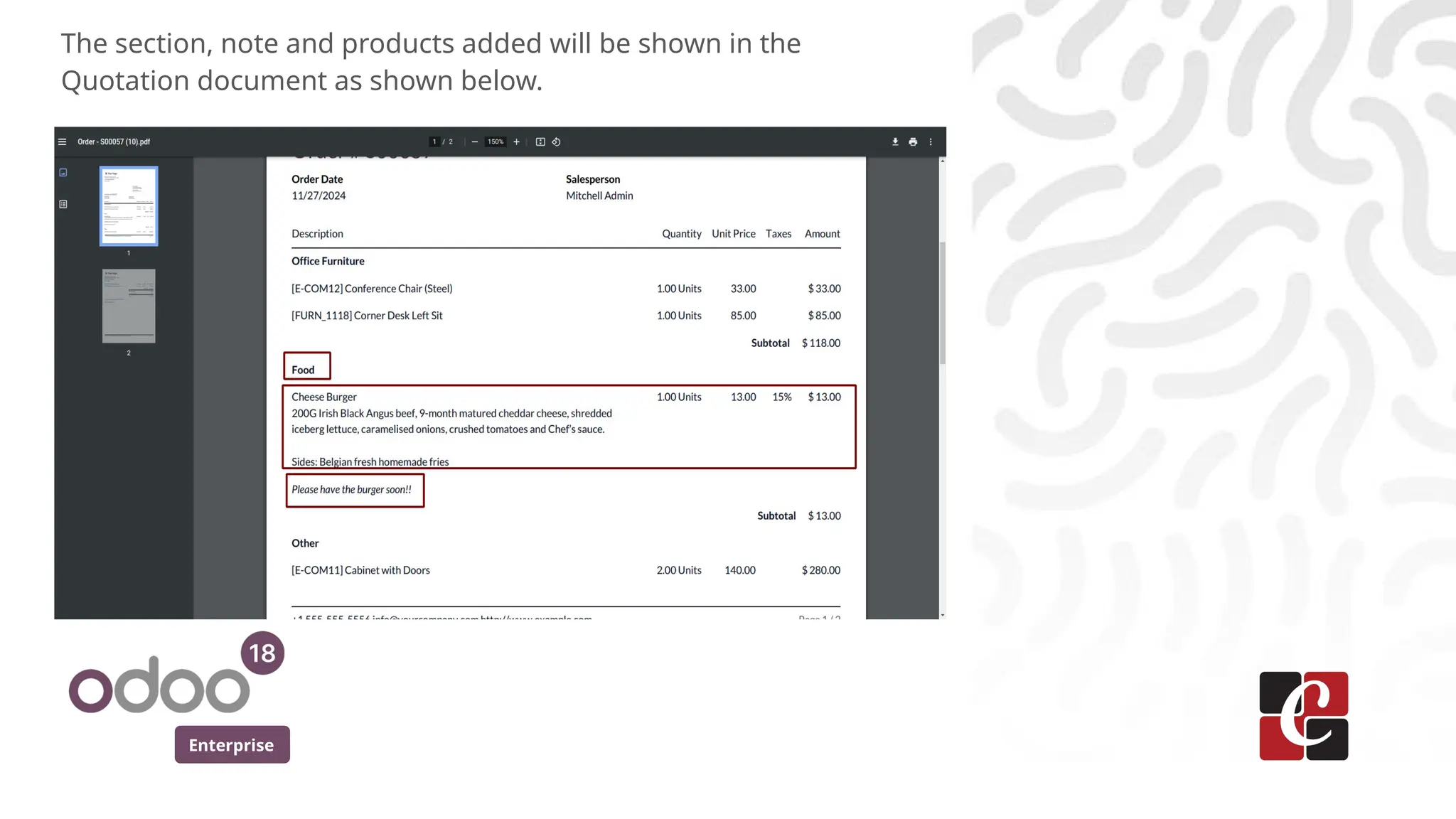
In this slide, we’ll discuss how to add notes, sections, and catalogs in Odoo 18. You can add detailed notes to records for better context and tracking. Custom sections can be created to organize and categorize information effectively.
How to AddNotes, Sections & Catalog in
Odoo 18
Enterprise
2.
Enterprise
Introduction
In this slide,we’ll discuss how to add notes, sections, and
catalogs in Odoo 18. You can add detailed notes to records for
better context and tracking. Custom sections can be created to
organize and categorize information effectively. Additionally, the
catalog feature can be leveraged for efficient management of
products and services.
3.
Enterprise
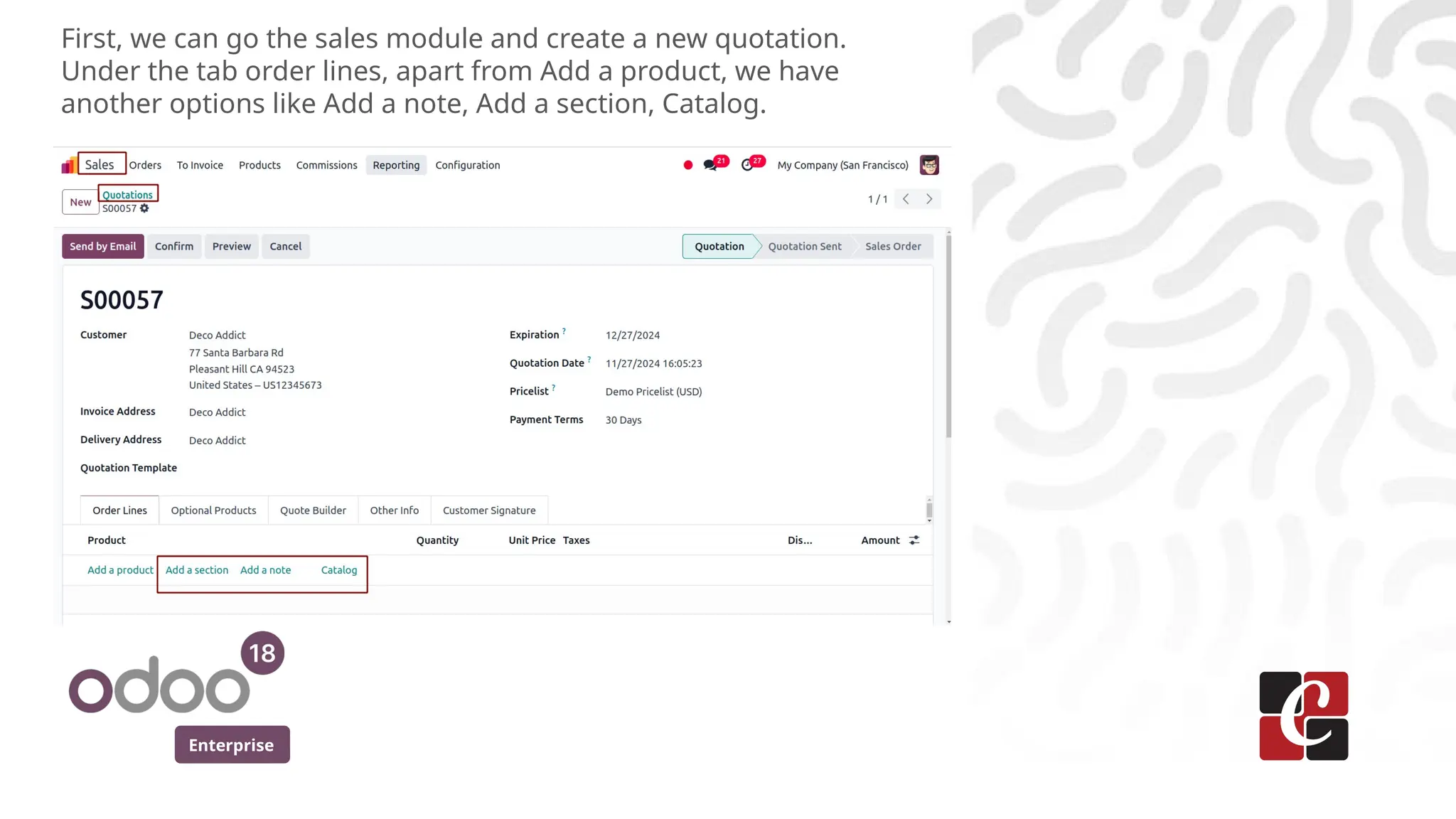
First, we cango the sales module and create a new quotation.
Under the tab order lines, apart from Add a product, we have
another options like Add a note, Add a section, Catalog.
4.
Enterprise
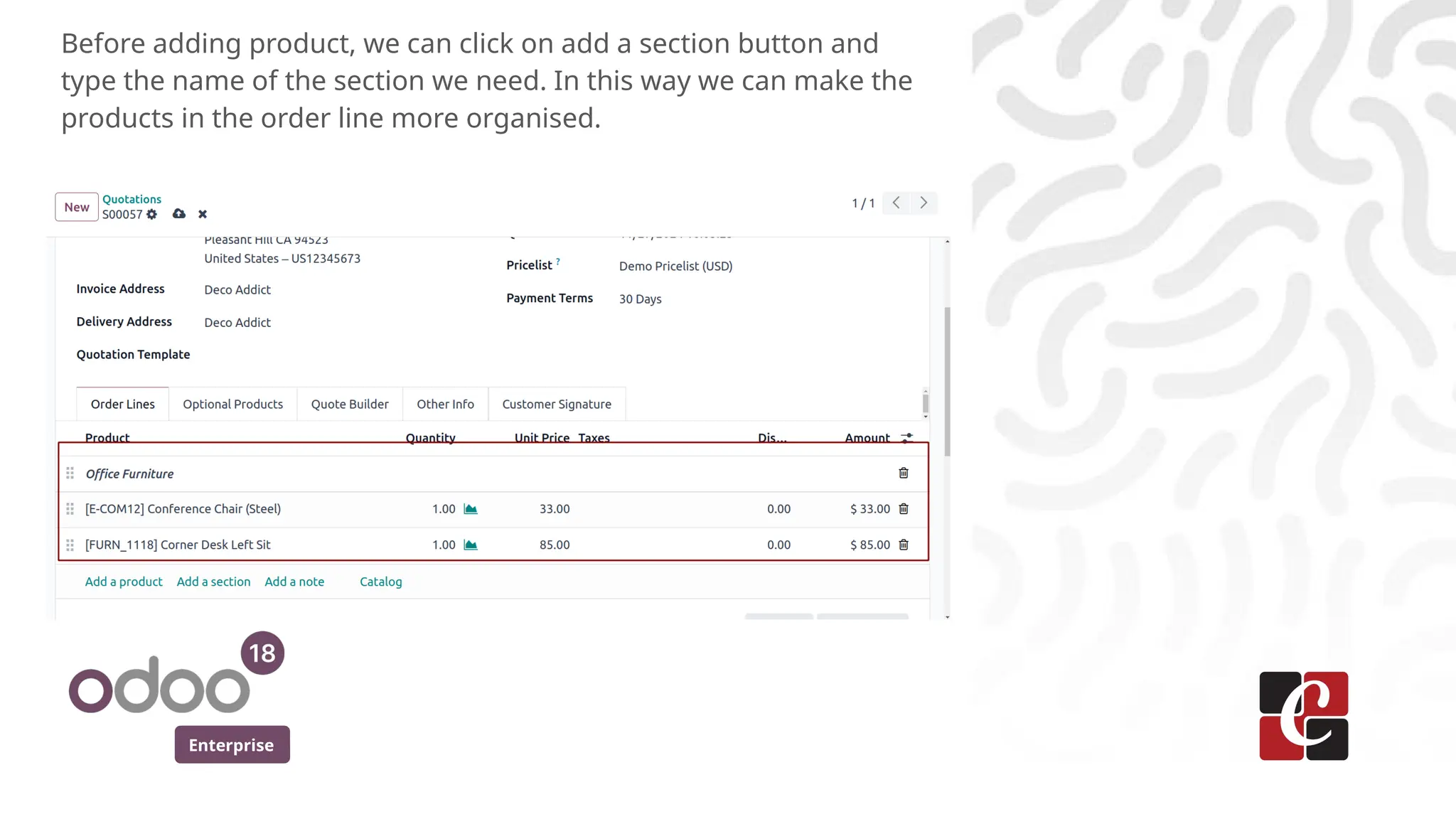
Before adding product,we can click on add a section button and
type the name of the section we need. In this way we can make the
products in the order line more organised.
5.
Enterprise
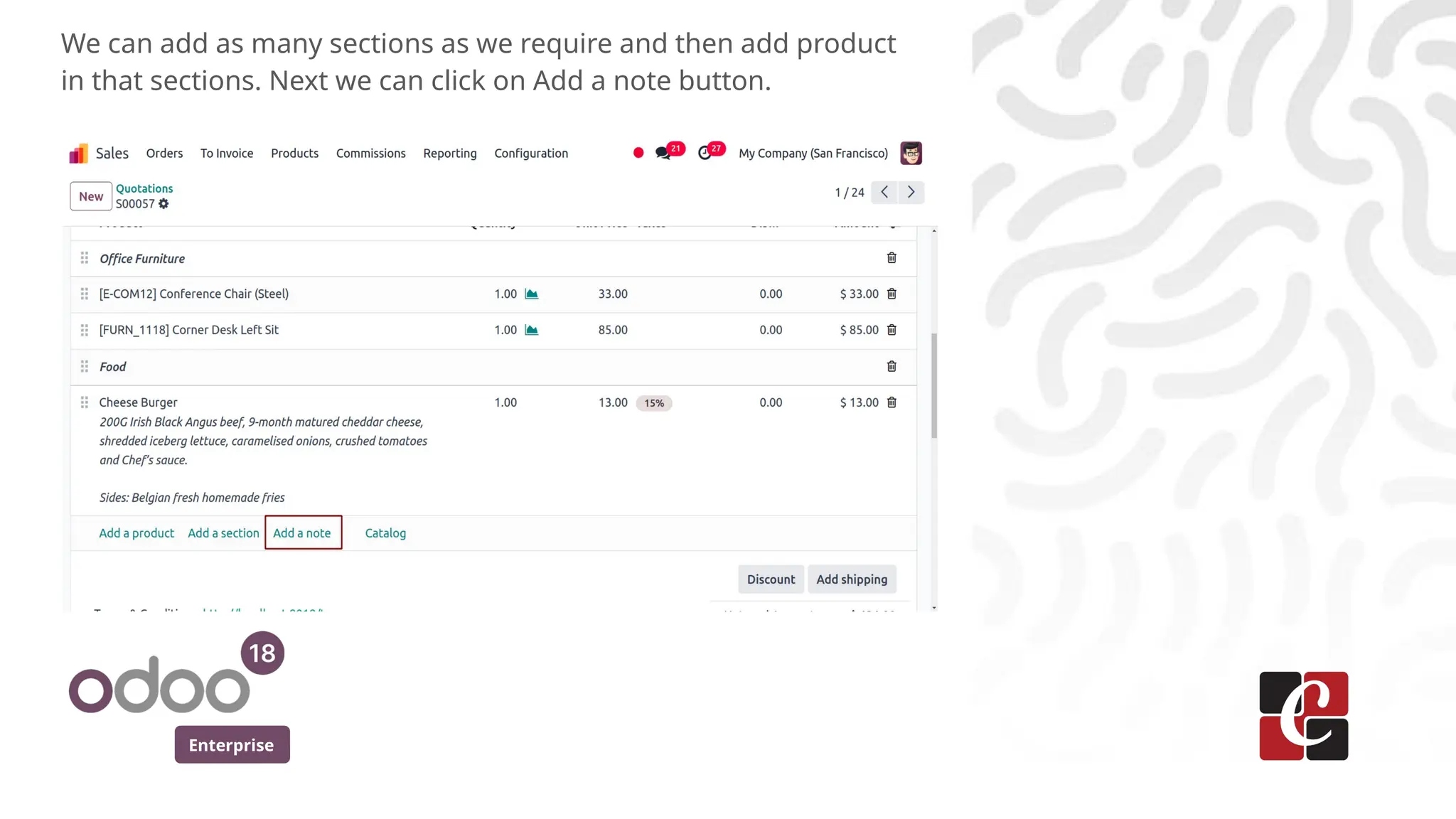
We can addas many sections as we require and then add product
in that sections. Next we can click on Add a note button.
6.
Enterprise
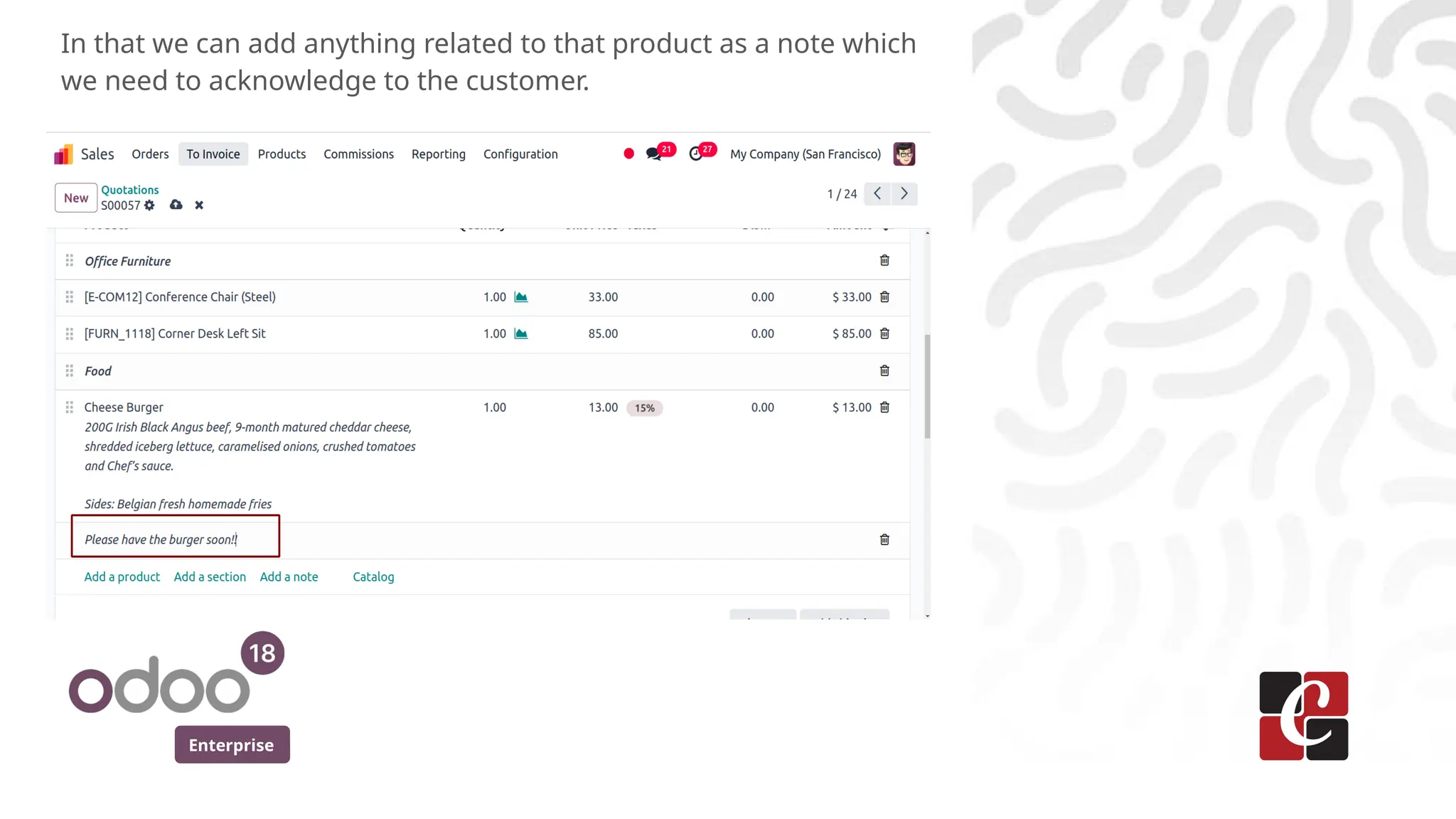
In that wecan add anything related to that product as a note which
we need to acknowledge to the customer.
7.
Enterprise
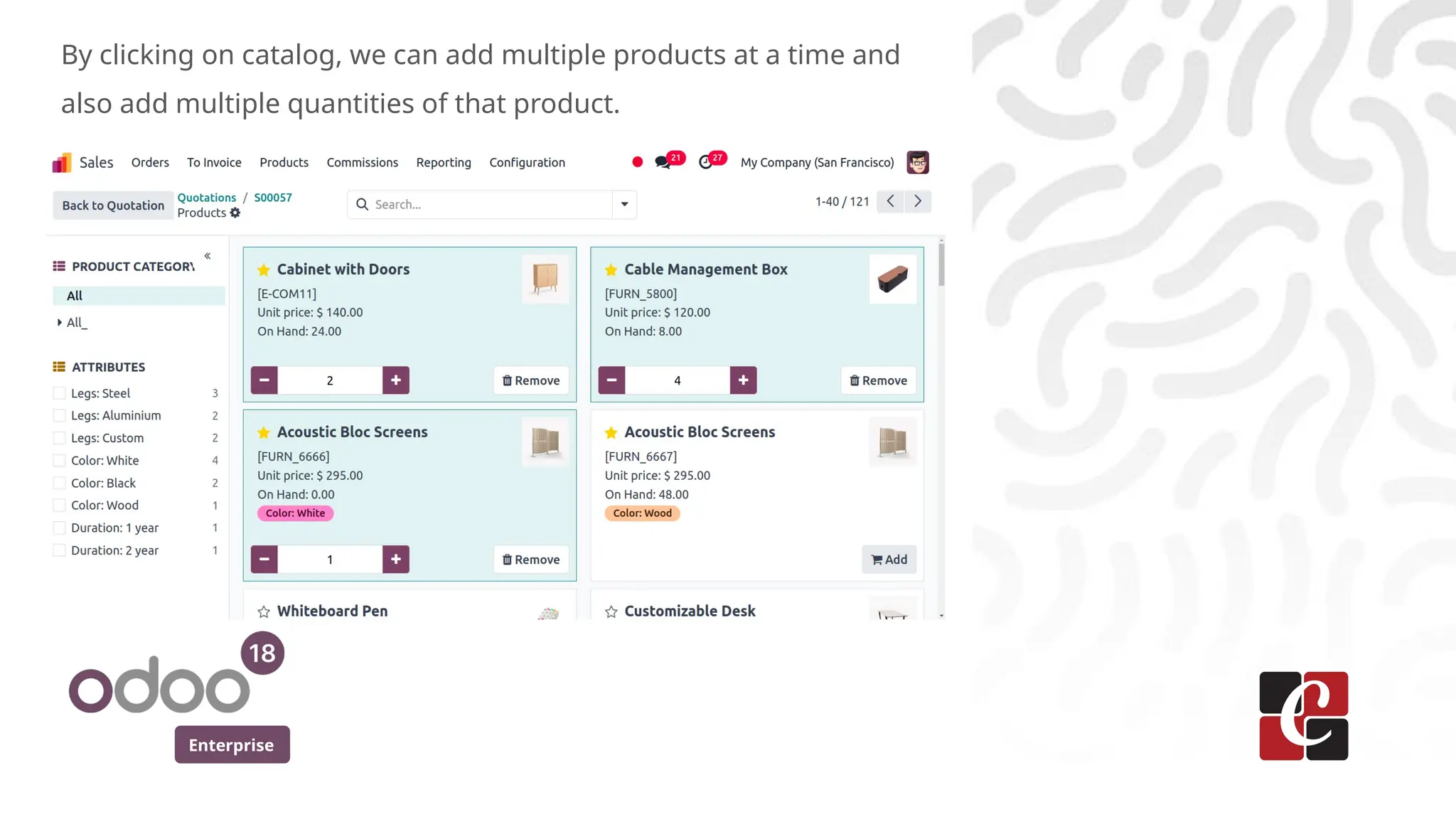
By clicking oncatalog, we can add multiple products at a time and
also add multiple quantities of that product.
8.
Enterprise
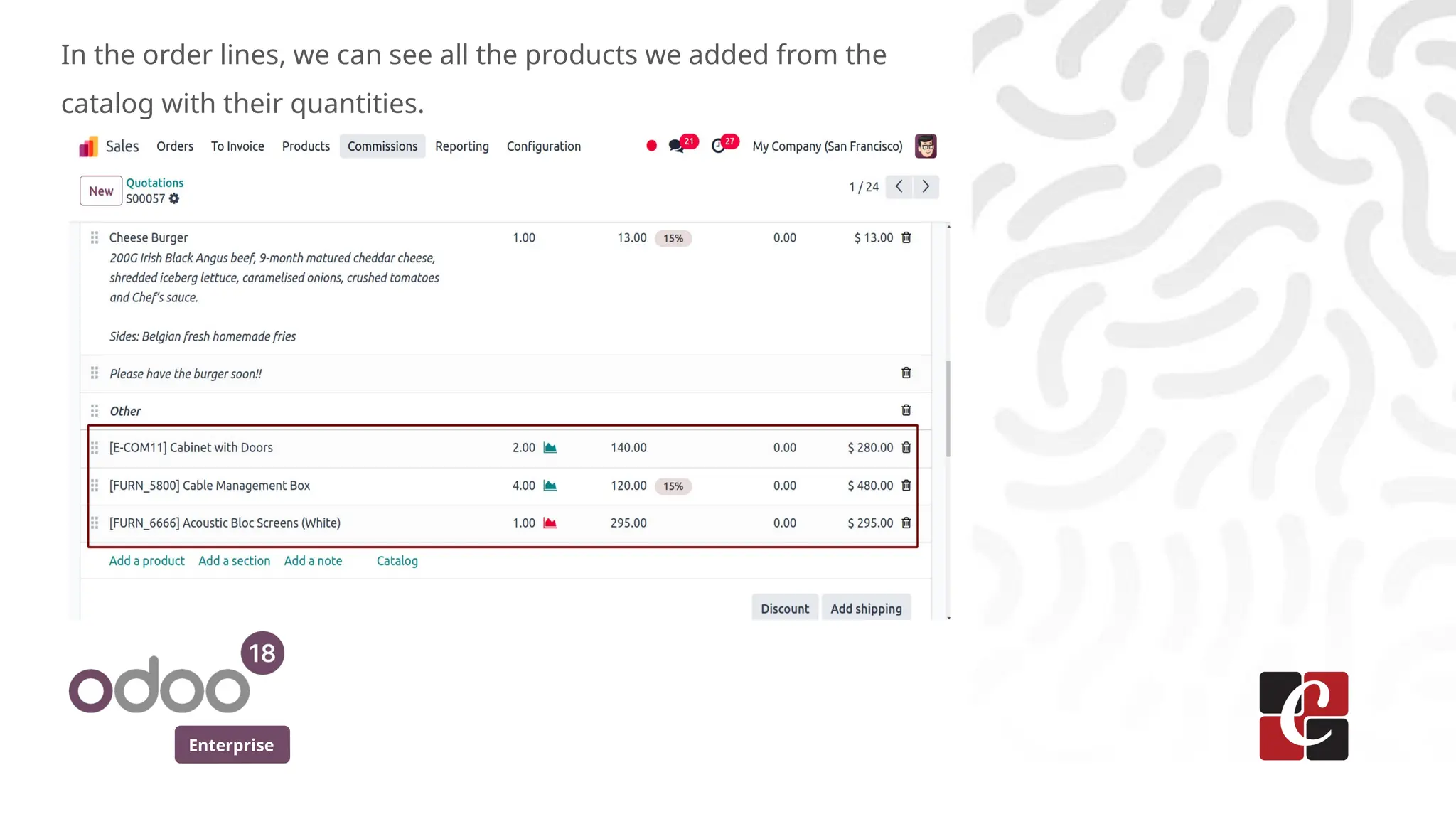
In the orderlines, we can see all the products we added from the
catalog with their quantities.
For More Info.
Checkour company website for related blogs
and Odoo book.
Check our YouTube channel for
functional and technical videos in Odoo.
Enterprise
www.cybrosys.com