iv BRIEF CONTENTS
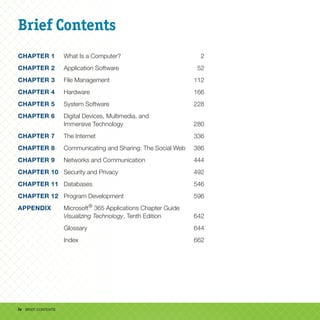
Brief Contents
CHAPTER 1 What Is a Computer? 2
CHAPTER 2 Application Software 52
CHAPTER 3 File Management 112
CHAPTER 4 Hardware 166
CHAPTER 5 System Software 228
CHAPTER 6 Digital Devices, Multimedia, and
Immersive Technology 280
CHAPTER 7 The Internet 336
CHAPTER 8 Communicating and Sharing: The Social Web 386
CHAPTER 9 Networks and Communication 444
CHAPTER 10 Security and Privacy 492
CHAPTER 11 Databases 546
CHAPTER 12 Program Development 596
APPENDIX Microsoft®
365 Applications Chapter Guide
Visualizing Technology, Tenth Edition 642
Glossary 644
Index 662
2
2
Rawpixel.com/Shutterstock
What Is a Computer?
Rawpixel.com/Shutterstock
1
CHAPTER
3 3
INTRO
Tech Challenges
Work–Life Balance
Have you noticed that it often feels
like we are always at work—even
when we are not? Balancing your
professional and personal life can
be tricky, but it’s vital. Modern
technology has made it difficult for
some people to unplug from work
and maintain a healthy work–life
balance. But technology is not the
only cause of this phenomenon. A
culture of instant gratification and
always on connectivity has resulted
in a society where we expect
responses to our texts, emails, and
calls—at all times.
Objectives
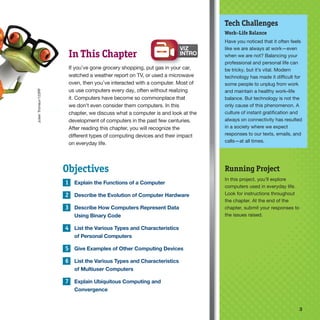
1 Explain the Functions of a Computer
2 Describe the Evolution of Computer Hardware
3 Describe How Computers Represent Data
Using Binary Code
4 List the Various Types and Characteristics
of Personal Computers
5 Give Examples of Other Computing Devices
6 List the Various Types and Characteristics
of Multiuser Computers
7 Explain Ubiquitous Computing and
Convergence
In This Chapter
If you’ve gone grocery shopping, put gas in your car,
watched a weather report on TV, or used a microwave
oven, then you’ve interacted with a computer. Most of
us use computers every day, often without realizing
it. Computers have become so commonplace that
we don’t even consider them computers. In this
chapter, we discuss what a computer is and look at the
development of computers in the past few centuries.
After reading this chapter, you will recognize the
different types of computing devices and their impact
on everyday life.
Running Project
In this project, you’ll explore
computers used in everyday life.
Look for instructions throughout
the chapter. At the end of the
chapter, submit your responses to
the issues raised.
Julien
Tromeur/123RF
4 CHAPTER 1
WhatDoesaComputerDo?
Explain the Functions of a Computer
A computer is a programmable machine that converts raw data into useful information.
Raw data includes numbers, words, pictures, or sounds that represent facts about people,
events, things, or ideas. A toaster can never be anything more than a toaster—it has one
function—but a computer can be a calculator, a media center, a communications center, a
classroom, and much more. The ability to change its programming distinguishes a computer
from any other machine.
Objective
1
Tero
Vesalainen/Shutterstock
Objective 1 5
Necessity Is the Mother of Invention
The original computers were people, not machines. The technical
and scientific advancements of the Industrial Revolution at the end
of the 19th century led to a growing need for this type of calculated
information and the development of the first mechanical computers.
In the late 19th and early 20th centuries, Harvard University hired
women as computers to compare star positions. These women are
credited with many astronomical discoveries. In the 1930s, NASA hired
hundreds of women as computers. The book and movie Hidden Figures
tell the story of these women and their contributions to the Mercury
space program. Dorothy Vaughan was the first African American
manager at NASA and taught herself and many other computers to
program the new IBM systems in FORTRAN. Mary Jackson became
one of the first black female aeronautical engineers. In 2020, NASA
named its headquarters in Washington, DC, for Mary Jackson.
Mathematician Katherine Johnson worked on projects from Alan Shepard’s May 1961 mission Freedom 7 to the Space Shuttle and
missions to Mars. The Katherine G. Johnson Computational Research Facility at the Langley Research Center is named in her honor.
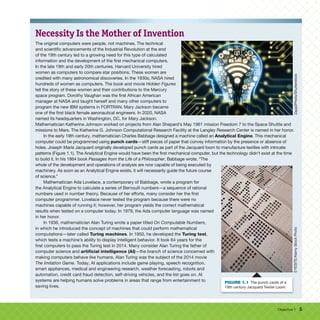
In the early 19th century, mathematician Charles Babbage designed a machine called an Analytical Engine. This mechanical
computer could be programmed using punch cards—stiff pieces of paper that convey information by the presence or absence of
holes. Joseph Marie Jacquard originally developed punch cards as part of the Jacquard loom to manufacture textiles with intricate
patterns (Figure 1.1). The Analytical Engine would have been the first mechanical computer, but the technology didn’t exist at the time
to build it. In his 1864 book Passages from the Life of a Philosopher, Babbage wrote, “The
whole of the development and operations of analysis are now capable of being executed by
machinery. As soon as an Analytical Engine exists, it will necessarily guide the future course
of science.”
Mathematician Ada Lovelace, a contemporary of Babbage, wrote a program for
the Analytical Engine to calculate a series of Bernoulli numbers—a sequence of rational
numbers used in number theory. Because of her efforts, many consider her the first
computer programmer. Lovelace never tested the program because there were no
machines capable of running it; however, her program yields the correct mathematical
results when tested on a computer today. In 1979, the Ada computer language was named
in her honor.
In 1936, mathematician Alan Turing wrote a paper titled On Computable Numbers,
in which he introduced the concept of machines that could perform mathematical
computations—later called Turing machines. In 1950, he developed the Turing test,
which tests a machine’s ability to display intelligent behavior. It took 64 years for the
first computers to pass the Turing test in 2014. Many consider Alan Turing the father of
computer science and artificial intelligence (AI)—the branch of science concerned with
making computers behave like humans. Alan Turing was the subject of the 2014 movie
The Imitation Game. Today, AI applications include game playing, speech recognition,
smart appliances, medical and engineering research, weather forecasting, robots and
automation, credit card fraud detection, self-driving vehicles, and the list goes on. AI
systems are helping humans solve problems in areas that range from entertainment to
saving lives.
Zapp2Photo/Shutterstock
FIGURE 1.1 The punch cards of a
19th century Jacquard Textile Loom.
EYESITE/Alamy
Stock
Photo
6 CHAPTER 1
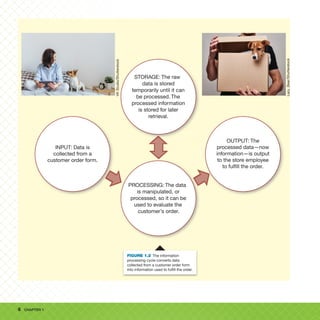
STORAGE: The raw
data is stored
temporarily until it can
be processed. The
processed information
is stored for later
retrieval.
PROCESSING: The data
is manipulated, or
processed, so it can be
used to evaluate the
customer’s order.
OUTPUT: The
processed data—now
information—is output
to the store employee
to fulfill the order.
INPUT: Data is
collected from a
customer order form.
VK
Studio/Shutterstock
FIGURE 1.2 The information
processing cycle converts data
collected from a customer order form
into information used to fulfill the order.
Lazy_Bear/Shutterstock
Objective 1 7
The Information
Processing Cycle
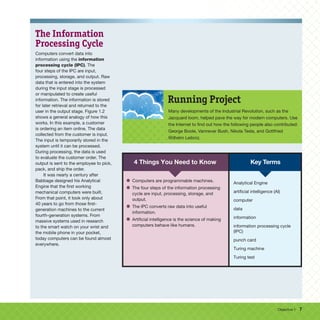
Computers convert data into
information using the information
processing cycle (IPC). The
four steps of the IPC are input,
processing, storage, and output. Raw
data that is entered into the system
during the input stage is processed
or manipulated to create useful
information. The information is stored
for later retrieval and returned to the
user in the output stage. Figure 1.2
shows a general analogy of how this
works. In this example, a customer
is ordering an item online. The data
collected from the customer is input.
The input is temporarily stored in the
system until it can be processed.
During processing, the data is used
to evaluate the customer order. The
output is sent to the employee to pick,
pack, and ship the order.
It was nearly a century after
Babbage designed his Analytical
Engine that the first working
mechanical computers were built.
From that point, it took only about
40 years to go from those first-
generation machines to the current
fourth-generation systems. From
massive systems used in research
to the smart watch on your wrist and
the mobile phone in your pocket,
today computers can be found almost
everywhere.
Many developments of the Industrial Revolution, such as the
Jacquard loom, helped pave the way for modern computers. Use
the Internet to find out how the following people also contributed:
George Boole, Vannevar Bush, Nikola Tesla, and Gottfried
Wilhelm Leibniz.
Running Project
Key Terms
4 Things You Need to Know
• Computers are programmable machines.
• The four steps of the information processing
cycle are input, processing, storage, and
output.
• The IPC converts raw data into useful
information.
• Artificial intelligence is the science of making
computers behave like humans.
Analytical Engine
artificial intelligence (AI)
computer
data
information
information processing cycle
(IPC)
punch card
Turing machine
Turing test
8 CHAPTER 1
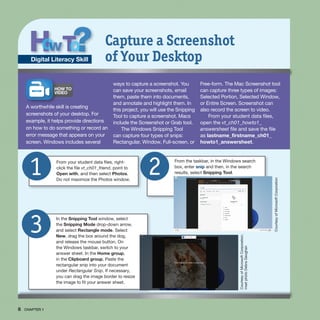
From the taskbar, in the Windows search
box, enter snip and then, in the search
results, select Snipping Tool.
2
From your student data files, right-
click the file vt_ch01_friend, point to
Open with, and then select Photos.
Do not maximize the Photos window.
1
HOW TO
VIDEO
A worthwhile skill is creating
screenshots of your desktop. For
example, it helps provide directions
on how to do something or record an
error message that appears on your
screen. Windows includes several
ways to capture a screenshot. You
can save your screenshots, email
them, paste them into documents,
and annotate and highlight them. In
this project, you will use the Snipping
Tool to capture a screenshot. Macs
include the Screenshot or Grab tool.
The Windows Snipping Tool
can capture four types of snips:
Rectangular, Window, Full-screen, or
Free-form. The Mac Screenshot tool
can capture three types of images:
Selected Portion, Selected Window,
or Entire Screen. Screenshot can
also record the screen to video.
From your student data files,
open the vt_ch01_howto1_
answersheet file and save the file
as lastname_firstname_ch01_
howto1_answersheet.
Capture a Screenshot
of Your Desktop
Digital Literacy Skill
In the Snipping Tool window, select
the Snipping Mode drop-down arrow,
and select Rectangle mode. Select
New, drag the box around the dog,
and release the mouse button. On
the Windows taskbar, switch to your
answer sheet. In the Home group,
in the Clipboard group, Paste the
rectangular snip into your document
under Rectangular Snip. If necessary,
you can drag the image border to resize
the image to fit your answer sheet.
3 Courtesy
of
Microsoft
Corporation;
inset
photo
Debra
Geoghan
Courtesy
of
Microsoft
Corporation
How To 9
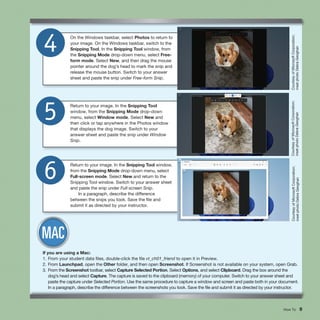
On the Windows taskbar, select Photos to return to
your image. On the Windows taskbar, switch to the
Snipping Tool. In the Snipping Tool window, from
the Snipping Mode drop-down menu, select Free-
form mode. Select New, and then drag the mouse
pointer around the dog’s head to mark the snip and
release the mouse button. Switch to your answer
sheet and paste the snip under Free-form Snip.
4
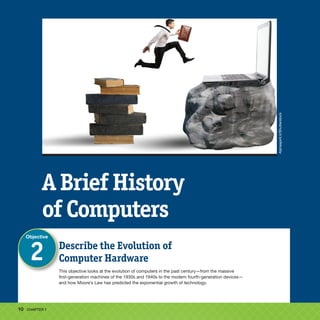
Return to your image. In the Snipping Tool
window, from the Snipping Mode drop-down
menu, select Window mode. Select New and
then click or tap anywhere in the Photos window
that displays the dog image. Switch to your
answer sheet and paste the snip under Window
Snip.
5
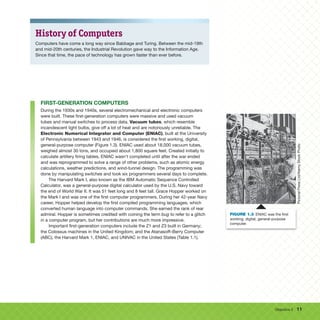
Return to your image. In the Snipping Tool window,
from the Snipping Mode drop-down menu, select
Full-screen mode. Select New and return to the
Snipping Tool window. Switch to your answer sheet
and paste the snip under Full-screen Snip.
In a paragraph, describe the difference
between the snips you took. Save the file and
submit it as directed by your instructor.
6
Courtesy
of
Microsoft
Corporation;
inset
photo
Debra
Geoghan
Courtesy
of
Microsoft
Corporation;
inset
photo
Debra
Geoghan
Courtesy
of
Microsoft
Corporation;
inset
photo
Debra
Geoghan
If you are using a Mac:
1. From your student data files, double-click the file vt_ch01_friend to open it in Preview.
2. From Launchpad, open the Other folder, and then open Screenshot. If Screenshot is not available on your system, open Grab.
3. From the Screenshot toolbar, select Capture Selected Portion. Select Options, and select Clipboard. Drag the box around the
dog’s head and select Capture. The capture is saved to the clipboard (memory) of your computer. Switch to your answer sheet and
paste the capture under Selected Portion. Use the same procedure to capture a window and screen and paste both in your document.
In a paragraph, describe the difference between the screenshots you took. Save the file and submit it as directed by your instructor.
10 CHAPTER 1
Describe the Evolution of
Computer Hardware
This objective looks at the evolution of computers in the past century—from the massive
first-generation machines of the 1930s and 1940s to the modern fourth-generation devices—
and how Moore’s Law has predicted the exponential growth of technology.
Objective
2
A Brief History
of Computers
Alphaspirit.it
/Shutterstock
Objective 2 11
History of Computers
Computers have come a long way since Babbage and Turing. Between the mid-19th
and mid-20th centuries, the Industrial Revolution gave way to the Information Age.
Since that time, the pace of technology has grown faster than ever before.
FIRST-GENERATION COMPUTERS
During the 1930s and 1940s, several electromechanical and electronic computers
were built. These first-generation computers were massive and used vacuum
tubes and manual switches to process data. Vacuum tubes, which resemble
incandescent light bulbs, give off a lot of heat and are notoriously unreliable. The
Electronic Numerical Integrator and Computer (ENIAC), built at the University
of Pennsylvania between 1943 and 1946, is considered the first working, digital,
general-purpose computer (Figure 1.3). ENIAC used about 18,000 vacuum tubes,
weighed almost 30 tons, and occupied about 1,800 square feet. Created initially to
calculate artillery firing tables, ENIAC wasn’t completed until after the war ended
and was reprogrammed to solve a range of other problems, such as atomic energy
calculations, weather predictions, and wind-tunnel design. The programming was
done by manipulating switches and took six programmers several days to complete.
The Harvard Mark I, also known as the IBM Automatic Sequence Controlled
Calculator, was a general-purpose digital calculator used by the U.S. Navy toward
the end of World War II. It was 51 feet long and 8 feet tall. Grace Hopper worked on
the Mark I and was one of the first computer programmers. During her 42-year Navy
career, Hopper helped develop the first compiled programming languages, which
converted human language into computer commands. She earned the rank of rear
admiral. Hopper is sometimes credited with coining the term bug to refer to a glitch
in a computer program, but her contributions are much more impressive.
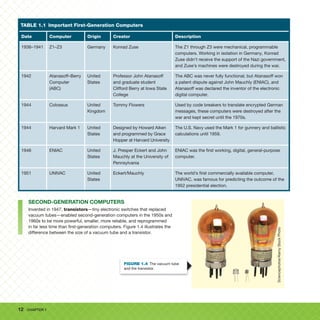
Important first-generation computers include the Z1 and Z3 built in Germany;
the Colossus machines in the United Kingdom; and the Atanasoff–Berry Computer
(ABC), the Harvard Mark 1, ENIAC, and UNIVAC in the United States (Table 1.1).
Pictorial
Press
Ltd/Alamy
Stock
Photo
Pictorial
Press
Ltd/Alamy
Stock
Photo
FIGURE 1.3 ENIAC was the first
working, digital, general-purpose
computer.
12 CHAPTER 1
TABLE 1.1 Important First-Generation Computers
Date Computer Origin Creator Description
1936–1941 Z1–Z3 Germany Konrad Zuse The Z1 through Z3 were mechanical, programmable
computers. Working in isolation in Germany, Konrad
Zuse didn’t receive the support of the Nazi government,
and Zuse’s machines were destroyed during the war.
1942 Atanasoff–Berry
Computer
(ABC)
United
States
Professor John Atanasoff
and graduate student
Clifford Berry at Iowa State
College
The ABC was never fully functional, but Atanasoff won
a patent dispute against John Mauchly (ENIAC), and
Atanasoff was declared the inventor of the electronic
digital computer.
1944 Colossus United
Kingdom
Tommy Flowers Used by code breakers to translate encrypted German
messages, these computers were destroyed after the
war and kept secret until the 1970s.
1944 Harvard Mark 1 United
States
Designed by Howard Aiken
and programmed by Grace
Hopper at Harvard University
The U.S. Navy used the Mark 1 for gunnery and ballistic
calculations until 1959.
1946 ENIAC United
States
J. Presper Eckert and John
Mauchly at the University of
Pennsylvania
ENIAC was the first working, digital, general-purpose
computer.
1951 UNIVAC United
States
Eckert/Mauchly The world’s first commercially available computer,
UNIVAC, was famous for predicting the outcome of the
1952 presidential election.
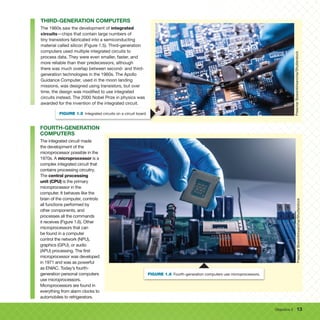
SECOND-GENERATION COMPUTERS
Invented in 1947, transistors—tiny electronic switches that replaced
vacuum tubes—enabled second-generation computers in the 1950s and
1960s to be more powerful, smaller, more reliable, and reprogrammed
in far less time than first-generation computers. Figure 1.4 illustrates the
difference between the size of a vacuum tube and a transistor.
Sciencephotos/Alamy
Stock
Photo
FIGURE 1.4 The vacuum tube
and the transistor.
Objective 2 13
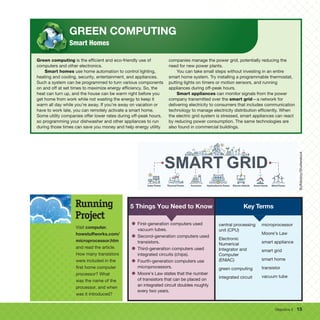
THIRD-GENERATION COMPUTERS
The 1960s saw the development of integrated
circuits—chips that contain large numbers of
tiny transistors fabricated into a semiconducting
material called silicon (Figure 1.5). Third-generation
computers used multiple integrated circuits to
process data. They were even smaller, faster, and
more reliable than their predecessors, although
there was much overlap between second- and third-
generation technologies in the 1960s. The Apollo
Guidance Computer, used in the moon landing
missions, was designed using transistors, but over
time, the design was modified to use integrated
circuits instead. The 2000 Nobel Prize in physics was
awarded for the invention of the integrated circuit.
Preechar
Bowonkitwanchai/Shutterstock
FIGURE 1.5 Integrated circuits on a circuit board.
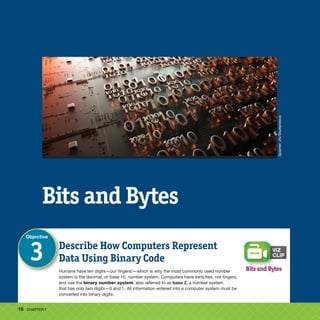
FOURTH-GENERATION
COMPUTERS
The integrated circuit made
the development of the
microprocessor possible in the
1970s. A microprocessor is a
complex integrated circuit that
contains processing circuitry.
The central processing
unit (CPU) is the primary
microprocessor in the
computer. It behaves like the
brain of the computer, controls
all functions performed by
other components, and
processes all the commands
it receives (Figure 1.6). Other
microprocessors that can
be found in a computer
control the network (NPU),
graphics (GPU), or audio
(APU) processing. The first
microprocessor was developed
in 1971 and was as powerful
as ENIAC. Today’s fourth-
generation personal computers
use microprocessors.
Microprocessors are found in
everything from alarm clocks to
automobiles to refrigerators. Preechar
Bowonkitwanchai/Shutterstock
FIGURE 1.6 Fourth-generation computers use microprocessors.
14 CHAPTER 1
Moore’s Law
In 1965, Intel co-founder Gordon Moore observed that the
number of transistors that could be placed on an integrated
circuit had doubled roughly every two years. This observation,
known as Moore’s Law, predicted that this exponential growth
would continue. The law was never intended to be a true
measure but rather an illustration of the pace of technological
advancement. The increase in the capabilities of integrated
circuits directly affects the processing speed and storage
capacity of modern electronic devices. Advanced chips today
have nearly 50 billion transistors! Because of new technologies,
such as building 3D silicon processors or using carbon
nanotubes in place of silicon (Figure 1.7), this pace has held
for roughly 50 years. Still, most experts agree that this pace is
no longer attainable. The pace has been slowing for the past
decade. Most enhancements today come from chip design
(architecture) and software, not by increasing the number of
transistors on the chips.
Moore stated in a 1996 article, “More than anything,
once something like this gets established, it becomes more
or less a self-fulfilling prophecy. The Semiconductor Industry
Association puts out a technology road map, which continues
this [generational improvement] every three years. Everyone
in the industry recognizes that if you don’t stay on essentially
that curve they will fall behind. So it sort of drives itself.” Thus,
Moore’s Law became a technology plan that guides the industry.
Over the past several decades, the end of Moore’s Law has
been predicted. Each time, new technological advances have
kept it going, but as new ideas and technologies have emerged,
sticking to Moore’s Law has become increasingly less practical
or important. Moore himself admits that exponential growth
can’t continue forever.
Computers have gone from being massive, unreliable, and
costly machines to being an integral part of almost everything
we do in less than a century. As technology has improved, the
size and costs have dropped as the speed, power, and reliability
have grown. Today, the chip inside your cell phone has more
processing power than the first microprocessor developed in
1971. Technology that was science fiction just a few decades
ago is now commonplace.
Moore, Gordon E. 1996. “Some Personal Perspectives on Research in the Semiconductor
Industry,” in Rosenbloom, Richard S., and William J. Spencer (Eds.), Engines of Innovation
(Boston: Harvard Business School Press), pp. 165–174.
ogwen/Shutterstock
FIGURE 1.7 Carbon nanotubes
may someday replace silicon in
integrated circuits.
Objective 2 15
GREEN COMPUTING
Smart Homes
Green computing is the efficient and eco-friendly use of
computers and other electronics.
Smart homes use home automation to control lighting,
heating and cooling, security, entertainment, and appliances.
Such a system can be programmed to turn various components
on and off at set times to maximize energy efficiency. So, the
heat can turn up, and the house can be warm right before you
get home from work while not wasting the energy to keep it
warm all day while you’re away. If you’re away on vacation or
have to work late, you can remotely activate a smart home.
Some utility companies offer lower rates during off-peak hours,
so programming your dishwasher and other appliances to run
during those times can save you money and help energy utility
companies manage the power grid, potentially reducing the
need for new power plants.
You can take small steps without investing in an entire
smart home system. Try installing a programmable thermostat,
putting lights on timers or motion sensors, and running
appliances during off-peak hours.
Smart appliances can monitor signals from the power
company transmitted over the smart grid—a network for
delivering electricity to consumers that includes communication
technology to manage electricity distribution efficiently. When
the electric grid system is stressed, smart appliances can react
by reducing power consumption. The same technologies are
also found in commercial buildings.
Visit computer.
howstuffworks.com/
microprocessor.htm
and read the article.
How many transistors
were included in the
first home computer
processor? What
was the name of the
processor, and when
was it introduced?
Running
Project
Key Terms
5 Things You Need to Know
• First-generation computers used
vacuum tubes.
• Second-generation computers used
transistors.
• Third-generation computers used
integrated circuits (chips).
• Fourth-generation computers use
microprocessors.
• Moore’s Law states that the number
of transistors that can be placed on
an integrated circuit doubles roughly
every two years.
central processing
unit (CPU)
Electronic
Numerical
Integrator and
Computer
(ENIAC)
green computing
integrated circuit
microprocessor
Moore’s Law
smart appliance
smart grid
smart home
transistor
vacuum tube
Buffaloboy/Shutterstock
16 CHAPTER 1
Bits and Bytes
Describe How Computers Represent
Data Using Binary Code
Humans have ten digits—our fingers!—which is why the most commonly used number
system is the decimal, or base 10, number system. Computers have switches, not fingers,
and use the binary number system, also referred to as base 2, a number system
that has only two digits—0 and 1. All information entered into a computer system must be
converted into binary digits.
Objective
3
Bits and Bytes
Spainter_vfx/Shutterstock
Objective 3 17
Binary Code
Computers do not speak English, Spanish, Chinese, or any
other human language, so how does a computer interpret what
a human enters? When you press the A key on a typewriter,
you get an A on the page. Computers only understand 0s and
1s, so when you press the A key on a computer keyboard,
it must somehow be converted to 0s and 1s. Digital data is
represented using a binary code. A binary code represents
digital data as a series of 0s and 1s that a computer can
understand.
Binary code works like a bank of light switches. If there
is only a single light switch in a room, there are two possible
states: The light can either be on or off. This code works in
situations with only two possibilities, such as yes/no or coffee/
tea, but it fails when there are more than two choices, such as
vanilla/chocolate/strawberry. Adding another switch—or bit—
increases the possible combinations by a factor of two, which
equals four possibilities. A third switch, or bit, gives us eight
possibilities, and so on (Table 1.2). A bit, short for binary digit,
is the smallest unit of digital data. Eight bits equal a byte, which
gives us 256 possibilities. A byte represents a single character
in modern computer systems. For example, when you press the
A key, the binary code 01000001 (65 in decimal) is sent to the
computer.
American Standard Code for Information Interchange
(ASCII) was developed in the 1960s using a 7-bit system
that represented 128 characters. It included English alphabet
symbols in both uppercase and lowercase, numbers 0 through
9, punctuation, and special characters. It was later expanded
to an 8-bit extended set with 256 characters, but ASCII needed
to be adapted for other languages, and many extended sets
were developed. The most common extended ASCII set is
Unicode. Unicode is the standard on the Internet and includes
codes for most of the world’s written languages, mathematical
systems, and special characters. It has codes for about 100,000
characters. The first 256 characters are the same in both ASCII
and Unicode; however, the last rows in Table 1.3 include Latin,
Greek, and Cyrillic symbols, which are represented only in
Unicode.
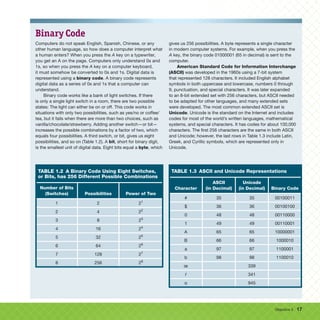
TABLE 1.2 A Binary Code Using Eight Switches,
or Bits, has 256 Different Possible Combinations
Number of Bits
(Switches) Possibilities Power of Two
1 2 21
2 4 22
3 8 23
4 16 24
5 32 25
6 64 26
7 128 27
8 256 28
TABLE 1.3 ASCII and Unicode Representations
Character
ASCII
(in Decimal)
Unicode
(in Decimal) Binary Code
# 35 35 00100011
$ 36 36 00100100
0 48 48 00110000
1 49 49 00110001
A 65 65 10000001
B 66 66 1000010
a 97 97 1100001
b 98 98 1100010
Ĺ“ 339
Ĺ• 341
α 945
18 CHAPTER 1
Quantum Computing
Unlike current computers that use bits having only two states, quantum
computers use the quantum properties of superposition and entanglement to
create multiple states using qubits, or quantum bits—the basic units of quantum
information. This exponentially increases the processing power over current
computers. Superposition can be visualized as a spinning coin—it is neither heads
nor tails—until it stops spinning. Billions of dollars have been invested in the
development of quantum computers. There are several working models, but we are
still years away from functional quantum computers. Quantum computers will help
us solve problems that even our most advanced supercomputers do not have the
computing power to solve. They will simulate chemical
reactions and financial markets, improve weather
forecasting and AI advances, break encryption, develop
new drugs, and help find cures. The possibilities are
endless—if they work. The current quantum computers
are highly sensitive and prone to errors, essential to help
develop better quantum computers but not really useful
for anything else.
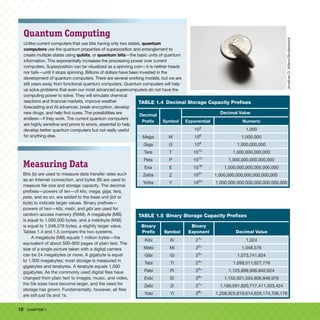
Measuring Data
Bits (b) are used to measure data transfer rates such
as an Internet connection, and bytes (B) are used to
measure file size and storage capacity. The decimal
prefixes—powers of ten—of kilo, mega, giga, tera,
peta, and so on, are added to the base unit (bit or
byte) to indicate larger values. Binary prefixes—
powers of two—kibi, mebi, and gibi are used for
random-access memory (RAM). A megabyte (MB)
is equal to 1,000,000 bytes, and a mebibyte (MiB)
is equal to 1,048,576 bytes, a slightly larger value.
Tables 1.4 and 1.5 compare the two systems.
A megabyte (MB) equals 1 million bytes—the
equivalent of about 500–800 pages of plain text. The
size of a single picture taken with a digital camera
can be 24 megabytes or more. A gigabyte is equal
to 1,000 megabytes; most storage is measured in
gigabytes and terabytes. A terabyte equals 1,000
gigabytes. As the commonly used digital files have
changed from plain text to images, music, and video,
the file sizes have become larger, and the need for
storage has grown. Fundamentally, however, all files
are still just 0s and 1s.
Jonathan
D.
Wilson/Shutterstock
TABLE 1.4 Decimal Storage Capacity Prefixes
Decimal
Prefix Symbol
Decimal Value
Exponential Numeric
103
1,000
Mega M 106
1,000,000
Giga G 109
1,000,000,000
Tera T 1012
1,000,000,000,000
Peta P 1015
1,000,000,000,000,000
Exa E 1018
1,000,000,000,000,000,000
Zetta Z 1021
1,000,000,000,000,000,000,000
Yotta Y 1024
1,000,000,000,000,000,000,000,000
TABLE 1.5 Binary Storage Capacity Prefixes
Binary
Prefix Symbol
Binary
Exponent Decimal Value
Kibi Ki 21
° 1,024
Mebi Mi 22
° 1,048,576
Gibi Gi 23
° 1,073,741,824
Tebi Ti 24
° 1,099,511,627,776
Pebi Pi 25
° 1,125,899,906,842,624
Exbi Ei 26
° 1,152,921,504,606,846,976
Zebi Zi 27
° 1,180,591,620,717,411,303,424
Yobi Yi 28
° 1,208,925,819,614,629,174,706,176
Objective 3 19
CAREER
SPOTLIGHT
BIOINFORMATICS Computers have become integral
to almost every career. Nowhere is this more evident
than in the field of biology. Bioinformatics is the
application of information technology to the area
of biology. Scientists use computers to analyze
data, predict how molecules behave, and maintain
and search massive information databases. The
rapid growth of biological information over the
past few decades has created a demand for new
technologies and people who know how to use them.
This field requires at least a four-year degree. If you
have a keen interest in science and technology,
bioinformatics might be a good career choice for you.
Use the Internet to research the usage of decimal and binary
prefixes discussed in this chapter. Describe two instances when
binary prefixes are more commonly used.
Running Project
Key Terms
4 Things You Need to Know
• Computers use the binary (base 2) number
system.
• ASCII and Unicode are binary code character
sets.
• A bit is the smallest unit of digital information.
• A byte is equal to 8 bits and represents one
character.
American Standard Code for
Information Interchange (ASCII)
binary code
binary (base 2) number system
bioinformatics
bit
byte
quantum bit (qubit)
quantum computer
Unicode
Angellodeco/Shutterstock
20 CHAPTER 1
What Is a
Computer?
List the Various Types and
Characteristics of Personal Computers
Objective
4
Let’s Get Personal
A personal computer (PC) is a small microprocessor-based computer used by one person
at a time. A personal computer can be a notebook, a mobile device, or a desktop. Today,
personal computer usually refers to a computer running a Windows operating system;
however, Mac computers and those running Linux operating systems are also personal
computers.
F8
studio/Shutterstock
Technology
Mini Sim
Objective 4 21
Desktop Computers
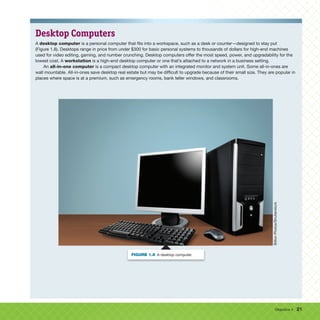
A desktop computer is a personal computer that fits into a workspace, such as a desk or counter—designed to stay put
(Figure 1.8). Desktops range in price from under $300 for basic personal systems to thousands of dollars for high-end machines
used for video editing, gaming, and number crunching. Desktop computers offer the most speed, power, and upgradability for the
lowest cost. A workstation is a high-end desktop computer or one that’s attached to a network in a business setting.
An all-in-one computer is a compact desktop computer with an integrated monitor and system unit. Some all-in-ones are
wall mountable. All-in-ones save desktop real estate but may be difficult to upgrade because of their small size. They are popular in
places where space is at a premium, such as emergency rooms, bank teller windows, and classrooms.
Billion
Photos/Shutterstock
FIGURE 1.8 A desktop computer.
22 CHAPTER 1
Notebook Computers
Notebook or laptop computers are portable personal
computers. Notebook computers can rival desktops in power
and storage capacity—but can cost significantly more than a
comparable desktop system. Notebooks have become more
affordable and thus more popular despite the higher cost.
By 2021, notebooks outsold desktops more than two to one.
Modern notebook computers have built-in wireless networking
capabilities, webcams, and bright widescreen displays and
can easily handle most ordinary computing tasks. High-end
notebooks with large screens and powerful processors are
referred to as desktop replacements because many individuals
now purchase this type of system instead of a traditional
desktop computer.
A convertible notebook computer has a screen that can
swivel to fold into what resembles a notepad or tablet. These
computers include a touch screen, or a digital pen called a
stylus that enables you to write directly on the screen, making
them useful for taking notes or drawing diagrams and making
information such as sales catalogs portable. A two-in-one
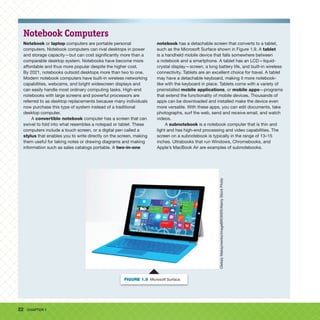
notebook has a detachable screen that converts to a tablet,
such as the Microsoft Surface shown in Figure 1.9. A tablet
is a handheld mobile device that falls somewhere between
a notebook and a smartphone. A tablet has an LCD—liquid-
crystal display—screen, a long battery life, and built-in wireless
connectivity. Tablets are an excellent choice for travel. A tablet
may have a detachable keyboard, making it more notebook-
like with the keyboard in place. Tablets come with a variety of
preinstalled mobile applications, or mobile apps—programs
that extend the functionality of mobile devices. Thousands of
apps can be downloaded and installed make the device even
more versatile. With these apps, you can edit documents, take
photographs, surf the web, send and receive email, and watch
videos.
A subnotebook is a notebook computer that is thin and
light and has high-end processing and video capabilities. The
screen on a subnotebook is typically in the range of 13–15
inches. Ultrabooks that run Windows, Chromebooks, and
Apple’s MacBook Air are examples of subnotebooks.
Oleksiy
Maksymenko/imageBROKER/Alamy
Stock
Photo
FIGURE 1.9 Microsoft Surface.
Objective 4 23
Mac, PC, or Something Else?
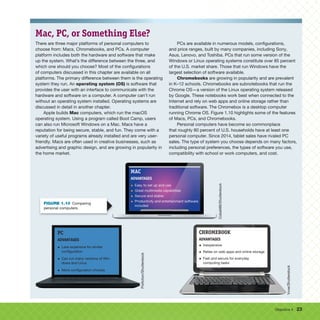
There are three major platforms of personal computers to
choose from: Macs, Chromebooks, and PCs. A computer
platform includes both the hardware and software that make
up the system. What’s the difference between the three, and
which one should you choose? Most of the configurations
of computers discussed in this chapter are available on all
platforms. The primary difference between them is the operating
system they run. An operating system (OS) is software that
provides the user with an interface to communicate with the
hardware and software on a computer. A computer can’t run
without an operating system installed. Operating systems are
discussed in detail in another chapter.
Apple builds Mac computers, which run the macOS
operating system. Using a program called Boot Camp, users
can also run Microsoft Windows on a Mac. Macs have a
reputation for being secure, stable, and fun. They come with a
variety of useful programs already installed and are very user-
friendly. Macs are often used in creative businesses, such as
advertising and graphic design, and are growing in popularity in
the home market.
PCs are available in numerous models, configurations,
and price ranges, built by many companies, including Sony,
Asus, Lenovo, and Toshiba. PCs that run some version of the
Windows or Linux operating systems constitute over 85 percent
of the U.S. market share. Those that run Windows have the
largest selection of software available.
Chromebooks are growing in popularity and are prevalent
in K–12 schools. Chromebooks are subnotebooks that run the
Chrome OS—a version of the Linux operating system released
by Google. These notebooks work best when connected to the
Internet and rely on web apps and online storage rather than
traditional software. The Chromebox is a desktop computer
running Chrome OS. Figure 1.10 highlights some of the features
of Macs, PCs, and Chromebooks.
Personal computers have become so commonplace
that roughly 80 percent of U.S. households have at least one
personal computer. Since 2014, tablet sales have rivaled PC
sales. The type of system you choose depends on many factors,
including personal preferences, the types of software you use,
compatibility with school or work computers, and cost.
Cobalt88/Shutterstock
PC
ADVANTAGES
• Less expensive for similar
configuration
• Can run many versions of Win-
dows and Linux
• More configuration choices
Pixfiction/Shutterstock
CHROMEBOOK
ADVANTAGES
• Inexpensive
• Relies on web apps and online storage
• Fast and secure for everyday
computing tasks
Vvoe/Shutterstock
FIGURE 1.10 Comparing
personal computers.
24 CHAPTER 1
Ergonomics
An improperly set up workspace can affect
your health, comfort, and productivity.
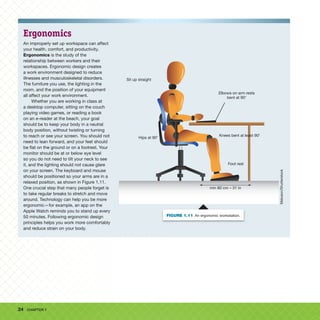
Ergonomics is the study of the
relationship between workers and their
workspaces. Ergonomic design creates
a work environment designed to reduce
illnesses and musculoskeletal disorders.
The furniture you use, the lighting in the
room, and the position of your equipment
all affect your work environment.
Whether you are working in class at
a desktop computer, sitting on the couch
playing video games, or reading a book
on an e-reader at the beach, your goal
should be to keep your body in a neutral
body position, without twisting or turning
to reach or see your screen. You should not
need to lean forward, and your feet should
be flat on the ground or on a footrest. Your
monitor should be at or below eye level
so you do not need to tilt your neck to see
it, and the lighting should not cause glare
on your screen. The keyboard and mouse
should be positioned so your arms are in a
relaxed position, as shown in Figure 1.11.
One crucial step that many people forget is
to take regular breaks to stretch and move
around. Technology can help you be more
ergonomic—for example, an app on the
Apple Watch reminds you to stand up every
50 minutes. Following ergonomic design
principles helps you work more comfortably
and reduce strain on your body.
Sit up straight
Elbows on arm rests
bent at 908
Hips at 908
Foot rest
Knees bent at least 908
min 80 cm – 31 in
Maluson/Shutterstock
FIGURE 1.11 An ergonomic workstation.
Objective 4 25
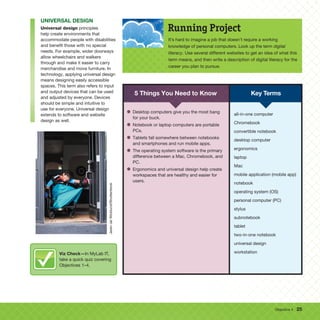
UNIVERSAL DESIGN
Universal design principles
help create environments that
accommodate people with disabilities
and benefit those with no special
needs. For example, wider doorways
allow wheelchairs and walkers
through and make it easier to carry
merchandise and move furniture. In
technology, applying universal design
means designing easily accessible
spaces. This term also refers to input
and output devices that can be used
and adjusted by everyone. Devices
should be simple and intuitive to
use for everyone. Universal design
extends to software and website
design as well.
It’s hard to imagine a job that doesn’t require a working
knowledge of personal computers. Look up the term digital
literacy. Use several different websites to get an idea of what this
term means, and then write a description of digital literacy for the
career you plan to pursue.
Running Project
Key Terms
5 Things You Need to Know
• Desktop computers give you the most bang
for your buck.
• Notebook or laptop computers are portable
PCs.
• Tablets fall somewhere between notebooks
and smartphones and run mobile apps.
• The operating system software is the primary
difference between a Mac, Chromebook, and
PC.
• Ergonomics and universal design help create
workspaces that are healthy and easier for
users.
all-in-one computer
Chromebook
convertible notebook
desktop computer
ergonomics
laptop
Mac
mobile application (mobile app)
notebook
operating system (OS)
personal computer (PC)
stylus
subnotebook
tablet
two-in-one notebook
universal design
workstation
Jaren
Jai
Wicklund/Shutterstock
Viz Check—In MyLab IT,
take a quick quiz covering
Objectives 1–4.
26 CHAPTER 1
HOW TO
VIDEO
Ergonomics
Computer programs and services on the web receive continuous updates and
improvements, so the steps to complete this web-based activity may differ from
those shown. You can often look at the screens and the information presented to
determine how to complete the activity.
The Occupational Safety and Health Administration
(OSHA) website has a computer workstation checklist.
In this activity, you will use the checklist to evaluate your
workspace at home or school. From your student data
files, open the vt_ch01_howto2_answersheet file and save
it as lastname_firstname_ch01_howto2_answersheet.
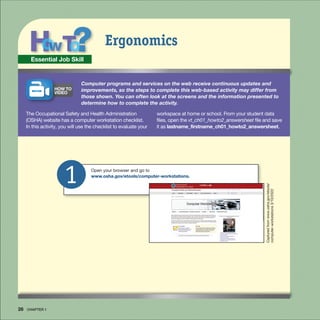
1 Open your browser and go to
www.osha.gov/etools/computer-workstations.
Captured
from
www.osha.gov/etools/
computer-workstations
3/10/2022
Essential Job Skill
How To 27
When you have finished, print the checklist using the Microsoft Print to PDF
or Microsoft XPS Document Writer option. If you are using Safari on a Mac,
save the checklist as a PDF file. Save the file as lastname_firstname_ch01_
howto2_checklist. Submit both the answer sheet and checklist files as
directed by your instructor.
4
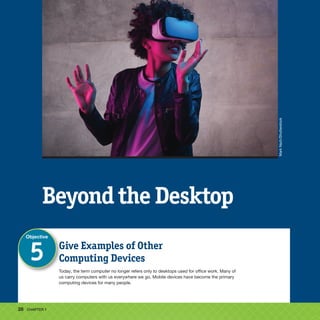
3 Select Checklists and select Evaluation.
Complete the checklist to evaluate your
workspace. For each “no” response,
select the appropriate link to read
the information on how to correct the
problem. How did your workstation fare?
What are some areas for improvement?
How could you improve your score?
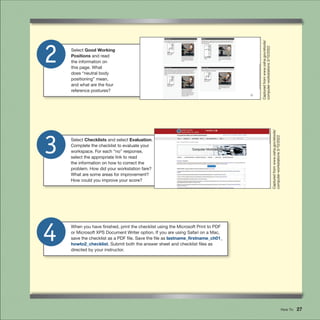
2 Select Good Working
Positions and read
the information on
this page. What
does “neutral body
positioning” mean,
and what are the four
reference postures?
Captured
from
www.osha.gov/etools/
computer-workstations
3/10/2022
Captured
from
www.osha.gov/etools/
computer-workstations
3/10/2022
28 CHAPTER 1
Beyond the Desktop
Give Examples of Other
Computing Devices
Today, the term computer no longer refers only to desktops used for office work. Many of
us carry computers with us everywhere we go. Mobile devices have become the primary
computing devices for many people.
Objective
5
Mark
Nazh/Shutterstock
Objective 5 29
Mobile Devices
Mobile devices are portable, handheld computers used for business and entertainment,
and come in many different shapes and sizes—from tablets and smartphones to fitness
monitors that you wear on your wrist. Some of these devices serve specialized functions,
such as GPS navigation, while others, such as smartphones, are more general-purpose
devices. Mobile devices are the fastest-growing segment of personal computers.
SMARTPHONES AND TABLETS
Mobile devices such as smartphones and tablets combine features such as Internet and email access, digital cameras, GPS and
mapping tools, and access to thousands of mobile apps. Mobile devices are useful when carrying a regular notebook computer
isn’t practical.
Basic mobile phones are limited to making phone calls and perhaps texting and taking photos. Smartphones are small
computers that combine a cellular phone with such features as Internet and email access, a digital camera, mapping tools, and the
ability to edit documents. You can download additional mobile applications, or mobile apps, to extend their capabilities, making
them true convergence devices. The cellular networks offered by major carriers provide data transfer speeds that rival home
connections. This improved connection speed enables you to check email, watch TV, video chat, and play online games almost
anywhere. Your cellular plan may include separate charges for voice and data. Employing apps that use your data connection can
quickly use up the amount of data in your plan, leading to reduced speed or extra cost. Apps can also decrease the battery life of
your device. Many mobile phones use a subscriber identity module (SIM) card that identifies the phone and includes account
information and cellular carrier. Cellular-enabled tablets use the same network as your smartphone to access the Internet. You need
to purchase a data plan from your mobile carrier to use this feature.
WEARABLES AND GPS
Computers that are worn on the body are known as wearables. These hands-free computers are used for fitness tracking and health
monitoring, communications, military operations, and entertainment. A smart watch is a general-purpose wearable computer (Figure 1.12).
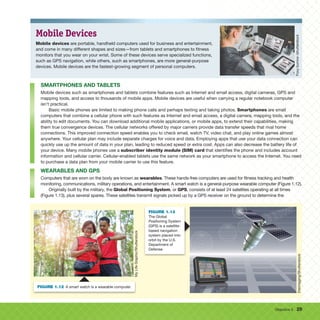
Originally built by the military, the Global Positioning System, or GPS, consists of at least 24 satellites operating at all times
(Figure 1.13), plus several spares. These satellites transmit signals picked up by a GPS receiver on the ground to determine the
Foxy
burrow
/shutterstock
My
Life
Graphic/Shutterstock
My
Life
Graphic/Shutterstock
FIGURE 1.12 A smart watch is a wearable computer.
Eteimaging/Shutterstock
FIGURE 1.13
The Global
Positioning System
(GPS) is a satellite-
based navigation
system placed into
orbit by the U.S.
Department of
Defense.
30 CHAPTER 1
receiver’s current location, time, and velocity through the triangulation of the signals. Since the mid-1990s, GPS devices have been
available for civilian use. There are scientific applications for GPS technology, such as surveying, map making, self-navigating robots,
and clock synchronization. Automobiles, airplanes, and boats employ GPS for navigation and tracking. Many mobile apps use GPS for
navigation, location services, and just plain fun. For example, some apps use your location to determine what information to display,
such as discounts, local weather, or nearby restaurant recommendations.
GPS is a U.S.-based system. Other global navigation satellite systems (GNSS) include Russia’s Global Navigation Satellite System
(GLONASS), China’s BeiDou Navigation Satellite System (BDS), and the European Union’s Galileo. Japan’s Quasi-Zenith Satellite
System (QZSS) and the Indian Regional Navigation Satellite System (IRNSS) are smaller systems. Together these systems provide global
coverage, and yet there are still places on earth where GPS is inaccessible. The Defense Advanced Research Projects Agency (DARPA) is
working on a new positioning system that won’t use satellites at all.
A video game system is a computer designed primarily to play
games. The first arcade video games were released in the early
1970s, and video game systems for the home soon followed.
Magnavox released its Odyssey game console in 1972, and Atari
released a home version of Pong for the 1975 holiday season.
Sold exclusively through Sears, Pong was the hottest gift of
the year. For many people, video game systems were the first
computers in their homes. You can play a simple game of Almost
Pong at lessmilk.com
Competitive video game playing, or esports, is a
multibillion-dollar industry. Teams and individuals play for
millions of dollars. Millions of fans watch live streams of matches
on YouTube and Twitch. Championship matches air on ESPN’s
various platforms. The National Association of Collegiate Esports
(NACE) has over 170 member schools.
Game consoles such as Microsoft Xbox and Sony
PlayStation systems have high-end processing and graphics
capabilities. These consoles can play movies and music,
enable online gameplay, and browse the Internet. They have
built-in solid-state drives for quick startup and storage. Players
interact with video games using a game controller. In 2016,
PlayStation VR was the first virtual-reality headset released for
a game console. New consoles are released every year or two,
and each update brings improved hardware and a better gaming
experience.
Handheld video games enable you to take your games
wherever you go. The popularity of smartphones and tablets
has reduced this market dramatically. The Nintendo Switch is a
hybrid system that allows you to connect the handheld system
to a dock that turns it into a console system. During the COVID-
19 pandemic in 2020, Switch sales surged as people looked for
things to do when under stay-at-home orders.
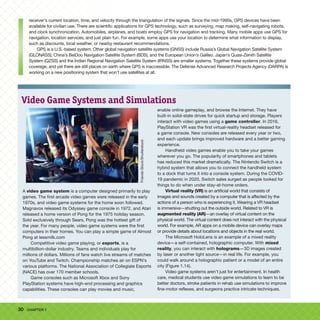
Virtual reality (VR) is an artificial world that consists of
images and sounds created by a computer that is affected by the
actions of a person who is experiencing it. Wearing a VR headset
is immersive—shutting out the outside world. Related to VR is
augmented reality (AR)—an overlay of virtual content on the
physical world. The virtual content does not interact with the physical
world. For example, AR apps on a mobile device can overlay maps
or provide details about locations and objects in the real world.
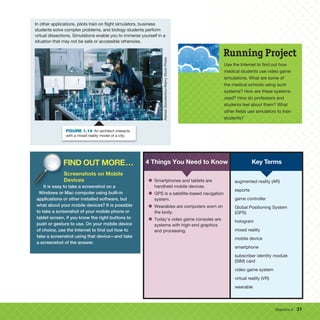
The Microsoft HoloLens is an example of a mixed reality
device—a self-contained, holographic computer. With mixed
reality, you can interact with holograms—3D images created
by laser or another light source—in real life. For example, you
could walk around a holographic patient or a model of an entire
city (Figure 1.14).
Video game systems aren’t just for entertainment. In health
care, medical students use video game simulations to learn to be
better doctors, stroke patients in rehab use simulations to improve
fine-motor reflexes, and surgeons practice intricate techniques.
Video Game Systems and Simulations
Friends
Stock/Shutterstock
Objective 5 31
In other applications, pilots train on flight simulators, business
students solve complex problems, and biology students perform
virtual dissections. Simulations enable you to immerse yourself in a
situation that may not be safe or accessible otherwise.
Aleksei
Gorodenkov/Alamy
Stock
Photo
FIGURE 1.14 An architect interacts
with a mixed reality model of a city.
Use the Internet to find out how
medical students use video game
simulations. What are some of
the medical schools using such
systems? How are these systems
used? How do professors and
students feel about them? What
other fields use simulators to train
students?
Running Project
4 Things You Need to Know
• Smartphones and tablets are
handheld mobile devices.
• GPS is a satellite-based navigation
system.
• Wearables are computers worn on
the body.
• Today’s video game consoles are
systems with high-end graphics
and processing.
augmented reality (AR)
esports
game controller
Global Positioning System
(GPS)
hologram
mixed reality
mobile device
smartphone
subscriber identity module
(SIM) card
video game system
virtual reality (VR)
wearable
Key Terms
FIND OUT MORE...
Screenshots on Mobile
Devices
It is easy to take a screenshot on a
Windows or Mac computer using built-in
applications or other installed software, but
what about your mobile devices? It is possible
to take a screenshot of your mobile phone or
tablet screen, if you know the right buttons to
push or gesture to use. On your mobile device
of choice, use the Internet to find out how to
take a screenshot using that device—and take
a screenshot of the answer.
FIND OUT MORE...
Screenshots on Mobile
Devices
It is easy to take a screenshot on a
FIND OUT MORE...
It is easy to take a screenshot on a

eBook Visualizing Technology 10e Debra Geoghan.pdf

  • 2.
    iv BRIEF CONTENTS BriefContents CHAPTER 1 What Is a Computer? 2 CHAPTER 2 Application Software 52 CHAPTER 3 File Management 112 CHAPTER 4 Hardware 166 CHAPTER 5 System Software 228 CHAPTER 6 Digital Devices, Multimedia, and Immersive Technology 280 CHAPTER 7 The Internet 336 CHAPTER 8 Communicating and Sharing: The Social Web 386 CHAPTER 9 Networks and Communication 444 CHAPTER 10 Security and Privacy 492 CHAPTER 11 Databases 546 CHAPTER 12 Program Development 596 APPENDIX Microsoft® 365 Applications Chapter Guide Visualizing Technology, Tenth Edition 642 Glossary 644 Index 662
  • 3.
    2 2 Rawpixel.com/Shutterstock What Is aComputer? Rawpixel.com/Shutterstock 1 CHAPTER
  • 4.
    3 3 INTRO Tech Challenges Work–LifeBalance Have you noticed that it often feels like we are always at work—even when we are not? Balancing your professional and personal life can be tricky, but it’s vital. Modern technology has made it difficult for some people to unplug from work and maintain a healthy work–life balance. But technology is not the only cause of this phenomenon. A culture of instant gratification and always on connectivity has resulted in a society where we expect responses to our texts, emails, and calls—at all times. Objectives 1 Explain the Functions of a Computer 2 Describe the Evolution of Computer Hardware 3 Describe How Computers Represent Data Using Binary Code 4 List the Various Types and Characteristics of Personal Computers 5 Give Examples of Other Computing Devices 6 List the Various Types and Characteristics of Multiuser Computers 7 Explain Ubiquitous Computing and Convergence In This Chapter If you’ve gone grocery shopping, put gas in your car, watched a weather report on TV, or used a microwave oven, then you’ve interacted with a computer. Most of us use computers every day, often without realizing it. Computers have become so commonplace that we don’t even consider them computers. In this chapter, we discuss what a computer is and look at the development of computers in the past few centuries. After reading this chapter, you will recognize the different types of computing devices and their impact on everyday life. Running Project In this project, you’ll explore computers used in everyday life. Look for instructions throughout the chapter. At the end of the chapter, submit your responses to the issues raised. Julien Tromeur/123RF
  • 5.
    4 CHAPTER 1 WhatDoesaComputerDo? Explainthe Functions of a Computer A computer is a programmable machine that converts raw data into useful information. Raw data includes numbers, words, pictures, or sounds that represent facts about people, events, things, or ideas. A toaster can never be anything more than a toaster—it has one function—but a computer can be a calculator, a media center, a communications center, a classroom, and much more. The ability to change its programming distinguishes a computer from any other machine. Objective 1 Tero Vesalainen/Shutterstock
  • 6.
    Objective 1 5 NecessityIs the Mother of Invention The original computers were people, not machines. The technical and scientific advancements of the Industrial Revolution at the end of the 19th century led to a growing need for this type of calculated information and the development of the first mechanical computers. In the late 19th and early 20th centuries, Harvard University hired women as computers to compare star positions. These women are credited with many astronomical discoveries. In the 1930s, NASA hired hundreds of women as computers. The book and movie Hidden Figures tell the story of these women and their contributions to the Mercury space program. Dorothy Vaughan was the first African American manager at NASA and taught herself and many other computers to program the new IBM systems in FORTRAN. Mary Jackson became one of the first black female aeronautical engineers. In 2020, NASA named its headquarters in Washington, DC, for Mary Jackson. Mathematician Katherine Johnson worked on projects from Alan Shepard’s May 1961 mission Freedom 7 to the Space Shuttle and missions to Mars. The Katherine G. Johnson Computational Research Facility at the Langley Research Center is named in her honor. In the early 19th century, mathematician Charles Babbage designed a machine called an Analytical Engine. This mechanical computer could be programmed using punch cards—stiff pieces of paper that convey information by the presence or absence of holes. Joseph Marie Jacquard originally developed punch cards as part of the Jacquard loom to manufacture textiles with intricate patterns (Figure 1.1). The Analytical Engine would have been the first mechanical computer, but the technology didn’t exist at the time to build it. In his 1864 book Passages from the Life of a Philosopher, Babbage wrote, “The whole of the development and operations of analysis are now capable of being executed by machinery. As soon as an Analytical Engine exists, it will necessarily guide the future course of science.” Mathematician Ada Lovelace, a contemporary of Babbage, wrote a program for the Analytical Engine to calculate a series of Bernoulli numbers—a sequence of rational numbers used in number theory. Because of her efforts, many consider her the first computer programmer. Lovelace never tested the program because there were no machines capable of running it; however, her program yields the correct mathematical results when tested on a computer today. In 1979, the Ada computer language was named in her honor. In 1936, mathematician Alan Turing wrote a paper titled On Computable Numbers, in which he introduced the concept of machines that could perform mathematical computations—later called Turing machines. In 1950, he developed the Turing test, which tests a machine’s ability to display intelligent behavior. It took 64 years for the first computers to pass the Turing test in 2014. Many consider Alan Turing the father of computer science and artificial intelligence (AI)—the branch of science concerned with making computers behave like humans. Alan Turing was the subject of the 2014 movie The Imitation Game. Today, AI applications include game playing, speech recognition, smart appliances, medical and engineering research, weather forecasting, robots and automation, credit card fraud detection, self-driving vehicles, and the list goes on. AI systems are helping humans solve problems in areas that range from entertainment to saving lives. Zapp2Photo/Shutterstock FIGURE 1.1 The punch cards of a 19th century Jacquard Textile Loom. EYESITE/Alamy Stock Photo
  • 7.
    6 CHAPTER 1 STORAGE:The raw data is stored temporarily until it can be processed. The processed information is stored for later retrieval. PROCESSING: The data is manipulated, or processed, so it can be used to evaluate the customer’s order. OUTPUT: The processed data—now information—is output to the store employee to fulfill the order. INPUT: Data is collected from a customer order form. VK Studio/Shutterstock FIGURE 1.2 The information processing cycle converts data collected from a customer order form into information used to fulfill the order. Lazy_Bear/Shutterstock
  • 8.
    Objective 1 7 TheInformation Processing Cycle Computers convert data into information using the information processing cycle (IPC). The four steps of the IPC are input, processing, storage, and output. Raw data that is entered into the system during the input stage is processed or manipulated to create useful information. The information is stored for later retrieval and returned to the user in the output stage. Figure 1.2 shows a general analogy of how this works. In this example, a customer is ordering an item online. The data collected from the customer is input. The input is temporarily stored in the system until it can be processed. During processing, the data is used to evaluate the customer order. The output is sent to the employee to pick, pack, and ship the order. It was nearly a century after Babbage designed his Analytical Engine that the first working mechanical computers were built. From that point, it took only about 40 years to go from those first- generation machines to the current fourth-generation systems. From massive systems used in research to the smart watch on your wrist and the mobile phone in your pocket, today computers can be found almost everywhere. Many developments of the Industrial Revolution, such as the Jacquard loom, helped pave the way for modern computers. Use the Internet to find out how the following people also contributed: George Boole, Vannevar Bush, Nikola Tesla, and Gottfried Wilhelm Leibniz. Running Project Key Terms 4 Things You Need to Know • Computers are programmable machines. • The four steps of the information processing cycle are input, processing, storage, and output. • The IPC converts raw data into useful information. • Artificial intelligence is the science of making computers behave like humans. Analytical Engine artificial intelligence (AI) computer data information information processing cycle (IPC) punch card Turing machine Turing test
  • 9.
    8 CHAPTER 1 Fromthe taskbar, in the Windows search box, enter snip and then, in the search results, select Snipping Tool. 2 From your student data files, right- click the file vt_ch01_friend, point to Open with, and then select Photos. Do not maximize the Photos window. 1 HOW TO VIDEO A worthwhile skill is creating screenshots of your desktop. For example, it helps provide directions on how to do something or record an error message that appears on your screen. Windows includes several ways to capture a screenshot. You can save your screenshots, email them, paste them into documents, and annotate and highlight them. In this project, you will use the Snipping Tool to capture a screenshot. Macs include the Screenshot or Grab tool. The Windows Snipping Tool can capture four types of snips: Rectangular, Window, Full-screen, or Free-form. The Mac Screenshot tool can capture three types of images: Selected Portion, Selected Window, or Entire Screen. Screenshot can also record the screen to video. From your student data files, open the vt_ch01_howto1_ answersheet file and save the file as lastname_firstname_ch01_ howto1_answersheet. Capture a Screenshot of Your Desktop Digital Literacy Skill In the Snipping Tool window, select the Snipping Mode drop-down arrow, and select Rectangle mode. Select New, drag the box around the dog, and release the mouse button. On the Windows taskbar, switch to your answer sheet. In the Home group, in the Clipboard group, Paste the rectangular snip into your document under Rectangular Snip. If necessary, you can drag the image border to resize the image to fit your answer sheet. 3 Courtesy of Microsoft Corporation; inset photo Debra Geoghan Courtesy of Microsoft Corporation
  • 10.
    How To 9 Onthe Windows taskbar, select Photos to return to your image. On the Windows taskbar, switch to the Snipping Tool. In the Snipping Tool window, from the Snipping Mode drop-down menu, select Free- form mode. Select New, and then drag the mouse pointer around the dog’s head to mark the snip and release the mouse button. Switch to your answer sheet and paste the snip under Free-form Snip. 4 Return to your image. In the Snipping Tool window, from the Snipping Mode drop-down menu, select Window mode. Select New and then click or tap anywhere in the Photos window that displays the dog image. Switch to your answer sheet and paste the snip under Window Snip. 5 Return to your image. In the Snipping Tool window, from the Snipping Mode drop-down menu, select Full-screen mode. Select New and return to the Snipping Tool window. Switch to your answer sheet and paste the snip under Full-screen Snip. In a paragraph, describe the difference between the snips you took. Save the file and submit it as directed by your instructor. 6 Courtesy of Microsoft Corporation; inset photo Debra Geoghan Courtesy of Microsoft Corporation; inset photo Debra Geoghan Courtesy of Microsoft Corporation; inset photo Debra Geoghan If you are using a Mac: 1. From your student data files, double-click the file vt_ch01_friend to open it in Preview. 2. From Launchpad, open the Other folder, and then open Screenshot. If Screenshot is not available on your system, open Grab. 3. From the Screenshot toolbar, select Capture Selected Portion. Select Options, and select Clipboard. Drag the box around the dog’s head and select Capture. The capture is saved to the clipboard (memory) of your computer. Switch to your answer sheet and paste the capture under Selected Portion. Use the same procedure to capture a window and screen and paste both in your document. In a paragraph, describe the difference between the screenshots you took. Save the file and submit it as directed by your instructor.
  • 11.
    10 CHAPTER 1 Describethe Evolution of Computer Hardware This objective looks at the evolution of computers in the past century—from the massive first-generation machines of the 1930s and 1940s to the modern fourth-generation devices— and how Moore’s Law has predicted the exponential growth of technology. Objective 2 A Brief History of Computers Alphaspirit.it /Shutterstock
  • 12.
    Objective 2 11 Historyof Computers Computers have come a long way since Babbage and Turing. Between the mid-19th and mid-20th centuries, the Industrial Revolution gave way to the Information Age. Since that time, the pace of technology has grown faster than ever before. FIRST-GENERATION COMPUTERS During the 1930s and 1940s, several electromechanical and electronic computers were built. These first-generation computers were massive and used vacuum tubes and manual switches to process data. Vacuum tubes, which resemble incandescent light bulbs, give off a lot of heat and are notoriously unreliable. The Electronic Numerical Integrator and Computer (ENIAC), built at the University of Pennsylvania between 1943 and 1946, is considered the first working, digital, general-purpose computer (Figure 1.3). ENIAC used about 18,000 vacuum tubes, weighed almost 30 tons, and occupied about 1,800 square feet. Created initially to calculate artillery firing tables, ENIAC wasn’t completed until after the war ended and was reprogrammed to solve a range of other problems, such as atomic energy calculations, weather predictions, and wind-tunnel design. The programming was done by manipulating switches and took six programmers several days to complete. The Harvard Mark I, also known as the IBM Automatic Sequence Controlled Calculator, was a general-purpose digital calculator used by the U.S. Navy toward the end of World War II. It was 51 feet long and 8 feet tall. Grace Hopper worked on the Mark I and was one of the first computer programmers. During her 42-year Navy career, Hopper helped develop the first compiled programming languages, which converted human language into computer commands. She earned the rank of rear admiral. Hopper is sometimes credited with coining the term bug to refer to a glitch in a computer program, but her contributions are much more impressive. Important first-generation computers include the Z1 and Z3 built in Germany; the Colossus machines in the United Kingdom; and the Atanasoff–Berry Computer (ABC), the Harvard Mark 1, ENIAC, and UNIVAC in the United States (Table 1.1). Pictorial Press Ltd/Alamy Stock Photo Pictorial Press Ltd/Alamy Stock Photo FIGURE 1.3 ENIAC was the first working, digital, general-purpose computer.
  • 13.
    12 CHAPTER 1 TABLE1.1 Important First-Generation Computers Date Computer Origin Creator Description 1936–1941 Z1–Z3 Germany Konrad Zuse The Z1 through Z3 were mechanical, programmable computers. Working in isolation in Germany, Konrad Zuse didn’t receive the support of the Nazi government, and Zuse’s machines were destroyed during the war. 1942 Atanasoff–Berry Computer (ABC) United States Professor John Atanasoff and graduate student Clifford Berry at Iowa State College The ABC was never fully functional, but Atanasoff won a patent dispute against John Mauchly (ENIAC), and Atanasoff was declared the inventor of the electronic digital computer. 1944 Colossus United Kingdom Tommy Flowers Used by code breakers to translate encrypted German messages, these computers were destroyed after the war and kept secret until the 1970s. 1944 Harvard Mark 1 United States Designed by Howard Aiken and programmed by Grace Hopper at Harvard University The U.S. Navy used the Mark 1 for gunnery and ballistic calculations until 1959. 1946 ENIAC United States J. Presper Eckert and John Mauchly at the University of Pennsylvania ENIAC was the first working, digital, general-purpose computer. 1951 UNIVAC United States Eckert/Mauchly The world’s first commercially available computer, UNIVAC, was famous for predicting the outcome of the 1952 presidential election. SECOND-GENERATION COMPUTERS Invented in 1947, transistors—tiny electronic switches that replaced vacuum tubes—enabled second-generation computers in the 1950s and 1960s to be more powerful, smaller, more reliable, and reprogrammed in far less time than first-generation computers. Figure 1.4 illustrates the difference between the size of a vacuum tube and a transistor. Sciencephotos/Alamy Stock Photo FIGURE 1.4 The vacuum tube and the transistor.
  • 14.
    Objective 2 13 THIRD-GENERATIONCOMPUTERS The 1960s saw the development of integrated circuits—chips that contain large numbers of tiny transistors fabricated into a semiconducting material called silicon (Figure 1.5). Third-generation computers used multiple integrated circuits to process data. They were even smaller, faster, and more reliable than their predecessors, although there was much overlap between second- and third- generation technologies in the 1960s. The Apollo Guidance Computer, used in the moon landing missions, was designed using transistors, but over time, the design was modified to use integrated circuits instead. The 2000 Nobel Prize in physics was awarded for the invention of the integrated circuit. Preechar Bowonkitwanchai/Shutterstock FIGURE 1.5 Integrated circuits on a circuit board. FOURTH-GENERATION COMPUTERS The integrated circuit made the development of the microprocessor possible in the 1970s. A microprocessor is a complex integrated circuit that contains processing circuitry. The central processing unit (CPU) is the primary microprocessor in the computer. It behaves like the brain of the computer, controls all functions performed by other components, and processes all the commands it receives (Figure 1.6). Other microprocessors that can be found in a computer control the network (NPU), graphics (GPU), or audio (APU) processing. The first microprocessor was developed in 1971 and was as powerful as ENIAC. Today’s fourth- generation personal computers use microprocessors. Microprocessors are found in everything from alarm clocks to automobiles to refrigerators. Preechar Bowonkitwanchai/Shutterstock FIGURE 1.6 Fourth-generation computers use microprocessors.
  • 15.
    14 CHAPTER 1 Moore’sLaw In 1965, Intel co-founder Gordon Moore observed that the number of transistors that could be placed on an integrated circuit had doubled roughly every two years. This observation, known as Moore’s Law, predicted that this exponential growth would continue. The law was never intended to be a true measure but rather an illustration of the pace of technological advancement. The increase in the capabilities of integrated circuits directly affects the processing speed and storage capacity of modern electronic devices. Advanced chips today have nearly 50 billion transistors! Because of new technologies, such as building 3D silicon processors or using carbon nanotubes in place of silicon (Figure 1.7), this pace has held for roughly 50 years. Still, most experts agree that this pace is no longer attainable. The pace has been slowing for the past decade. Most enhancements today come from chip design (architecture) and software, not by increasing the number of transistors on the chips. Moore stated in a 1996 article, “More than anything, once something like this gets established, it becomes more or less a self-fulfilling prophecy. The Semiconductor Industry Association puts out a technology road map, which continues this [generational improvement] every three years. Everyone in the industry recognizes that if you don’t stay on essentially that curve they will fall behind. So it sort of drives itself.” Thus, Moore’s Law became a technology plan that guides the industry. Over the past several decades, the end of Moore’s Law has been predicted. Each time, new technological advances have kept it going, but as new ideas and technologies have emerged, sticking to Moore’s Law has become increasingly less practical or important. Moore himself admits that exponential growth can’t continue forever. Computers have gone from being massive, unreliable, and costly machines to being an integral part of almost everything we do in less than a century. As technology has improved, the size and costs have dropped as the speed, power, and reliability have grown. Today, the chip inside your cell phone has more processing power than the first microprocessor developed in 1971. Technology that was science fiction just a few decades ago is now commonplace. Moore, Gordon E. 1996. “Some Personal Perspectives on Research in the Semiconductor Industry,” in Rosenbloom, Richard S., and William J. Spencer (Eds.), Engines of Innovation (Boston: Harvard Business School Press), pp. 165–174. ogwen/Shutterstock FIGURE 1.7 Carbon nanotubes may someday replace silicon in integrated circuits.
  • 16.
    Objective 2 15 GREENCOMPUTING Smart Homes Green computing is the efficient and eco-friendly use of computers and other electronics. Smart homes use home automation to control lighting, heating and cooling, security, entertainment, and appliances. Such a system can be programmed to turn various components on and off at set times to maximize energy efficiency. So, the heat can turn up, and the house can be warm right before you get home from work while not wasting the energy to keep it warm all day while you’re away. If you’re away on vacation or have to work late, you can remotely activate a smart home. Some utility companies offer lower rates during off-peak hours, so programming your dishwasher and other appliances to run during those times can save you money and help energy utility companies manage the power grid, potentially reducing the need for new power plants. You can take small steps without investing in an entire smart home system. Try installing a programmable thermostat, putting lights on timers or motion sensors, and running appliances during off-peak hours. Smart appliances can monitor signals from the power company transmitted over the smart grid—a network for delivering electricity to consumers that includes communication technology to manage electricity distribution efficiently. When the electric grid system is stressed, smart appliances can react by reducing power consumption. The same technologies are also found in commercial buildings. Visit computer. howstuffworks.com/ microprocessor.htm and read the article. How many transistors were included in the first home computer processor? What was the name of the processor, and when was it introduced? Running Project Key Terms 5 Things You Need to Know • First-generation computers used vacuum tubes. • Second-generation computers used transistors. • Third-generation computers used integrated circuits (chips). • Fourth-generation computers use microprocessors. • Moore’s Law states that the number of transistors that can be placed on an integrated circuit doubles roughly every two years. central processing unit (CPU) Electronic Numerical Integrator and Computer (ENIAC) green computing integrated circuit microprocessor Moore’s Law smart appliance smart grid smart home transistor vacuum tube Buffaloboy/Shutterstock
  • 17.
    16 CHAPTER 1 Bitsand Bytes Describe How Computers Represent Data Using Binary Code Humans have ten digits—our fingers!—which is why the most commonly used number system is the decimal, or base 10, number system. Computers have switches, not fingers, and use the binary number system, also referred to as base 2, a number system that has only two digits—0 and 1. All information entered into a computer system must be converted into binary digits. Objective 3 Bits and Bytes Spainter_vfx/Shutterstock
  • 18.
    Objective 3 17 BinaryCode Computers do not speak English, Spanish, Chinese, or any other human language, so how does a computer interpret what a human enters? When you press the A key on a typewriter, you get an A on the page. Computers only understand 0s and 1s, so when you press the A key on a computer keyboard, it must somehow be converted to 0s and 1s. Digital data is represented using a binary code. A binary code represents digital data as a series of 0s and 1s that a computer can understand. Binary code works like a bank of light switches. If there is only a single light switch in a room, there are two possible states: The light can either be on or off. This code works in situations with only two possibilities, such as yes/no or coffee/ tea, but it fails when there are more than two choices, such as vanilla/chocolate/strawberry. Adding another switch—or bit— increases the possible combinations by a factor of two, which equals four possibilities. A third switch, or bit, gives us eight possibilities, and so on (Table 1.2). A bit, short for binary digit, is the smallest unit of digital data. Eight bits equal a byte, which gives us 256 possibilities. A byte represents a single character in modern computer systems. For example, when you press the A key, the binary code 01000001 (65 in decimal) is sent to the computer. American Standard Code for Information Interchange (ASCII) was developed in the 1960s using a 7-bit system that represented 128 characters. It included English alphabet symbols in both uppercase and lowercase, numbers 0 through 9, punctuation, and special characters. It was later expanded to an 8-bit extended set with 256 characters, but ASCII needed to be adapted for other languages, and many extended sets were developed. The most common extended ASCII set is Unicode. Unicode is the standard on the Internet and includes codes for most of the world’s written languages, mathematical systems, and special characters. It has codes for about 100,000 characters. The first 256 characters are the same in both ASCII and Unicode; however, the last rows in Table 1.3 include Latin, Greek, and Cyrillic symbols, which are represented only in Unicode. TABLE 1.2 A Binary Code Using Eight Switches, or Bits, has 256 Different Possible Combinations Number of Bits (Switches) Possibilities Power of Two 1 2 21 2 4 22 3 8 23 4 16 24 5 32 25 6 64 26 7 128 27 8 256 28 TABLE 1.3 ASCII and Unicode Representations Character ASCII (in Decimal) Unicode (in Decimal) Binary Code # 35 35 00100011 $ 36 36 00100100 0 48 48 00110000 1 49 49 00110001 A 65 65 10000001 B 66 66 1000010 a 97 97 1100001 b 98 98 1100010 œ 339 ŕ 341 α 945
  • 19.
    18 CHAPTER 1 QuantumComputing Unlike current computers that use bits having only two states, quantum computers use the quantum properties of superposition and entanglement to create multiple states using qubits, or quantum bits—the basic units of quantum information. This exponentially increases the processing power over current computers. Superposition can be visualized as a spinning coin—it is neither heads nor tails—until it stops spinning. Billions of dollars have been invested in the development of quantum computers. There are several working models, but we are still years away from functional quantum computers. Quantum computers will help us solve problems that even our most advanced supercomputers do not have the computing power to solve. They will simulate chemical reactions and financial markets, improve weather forecasting and AI advances, break encryption, develop new drugs, and help find cures. The possibilities are endless—if they work. The current quantum computers are highly sensitive and prone to errors, essential to help develop better quantum computers but not really useful for anything else. Measuring Data Bits (b) are used to measure data transfer rates such as an Internet connection, and bytes (B) are used to measure file size and storage capacity. The decimal prefixes—powers of ten—of kilo, mega, giga, tera, peta, and so on, are added to the base unit (bit or byte) to indicate larger values. Binary prefixes— powers of two—kibi, mebi, and gibi are used for random-access memory (RAM). A megabyte (MB) is equal to 1,000,000 bytes, and a mebibyte (MiB) is equal to 1,048,576 bytes, a slightly larger value. Tables 1.4 and 1.5 compare the two systems. A megabyte (MB) equals 1 million bytes—the equivalent of about 500–800 pages of plain text. The size of a single picture taken with a digital camera can be 24 megabytes or more. A gigabyte is equal to 1,000 megabytes; most storage is measured in gigabytes and terabytes. A terabyte equals 1,000 gigabytes. As the commonly used digital files have changed from plain text to images, music, and video, the file sizes have become larger, and the need for storage has grown. Fundamentally, however, all files are still just 0s and 1s. Jonathan D. Wilson/Shutterstock TABLE 1.4 Decimal Storage Capacity Prefixes Decimal Prefix Symbol Decimal Value Exponential Numeric 103 1,000 Mega M 106 1,000,000 Giga G 109 1,000,000,000 Tera T 1012 1,000,000,000,000 Peta P 1015 1,000,000,000,000,000 Exa E 1018 1,000,000,000,000,000,000 Zetta Z 1021 1,000,000,000,000,000,000,000 Yotta Y 1024 1,000,000,000,000,000,000,000,000 TABLE 1.5 Binary Storage Capacity Prefixes Binary Prefix Symbol Binary Exponent Decimal Value Kibi Ki 21 ° 1,024 Mebi Mi 22 ° 1,048,576 Gibi Gi 23 ° 1,073,741,824 Tebi Ti 24 ° 1,099,511,627,776 Pebi Pi 25 ° 1,125,899,906,842,624 Exbi Ei 26 ° 1,152,921,504,606,846,976 Zebi Zi 27 ° 1,180,591,620,717,411,303,424 Yobi Yi 28 ° 1,208,925,819,614,629,174,706,176
  • 20.
    Objective 3 19 CAREER SPOTLIGHT BIOINFORMATICSComputers have become integral to almost every career. Nowhere is this more evident than in the field of biology. Bioinformatics is the application of information technology to the area of biology. Scientists use computers to analyze data, predict how molecules behave, and maintain and search massive information databases. The rapid growth of biological information over the past few decades has created a demand for new technologies and people who know how to use them. This field requires at least a four-year degree. If you have a keen interest in science and technology, bioinformatics might be a good career choice for you. Use the Internet to research the usage of decimal and binary prefixes discussed in this chapter. Describe two instances when binary prefixes are more commonly used. Running Project Key Terms 4 Things You Need to Know • Computers use the binary (base 2) number system. • ASCII and Unicode are binary code character sets. • A bit is the smallest unit of digital information. • A byte is equal to 8 bits and represents one character. American Standard Code for Information Interchange (ASCII) binary code binary (base 2) number system bioinformatics bit byte quantum bit (qubit) quantum computer Unicode Angellodeco/Shutterstock
  • 21.
    20 CHAPTER 1 WhatIs a Computer? List the Various Types and Characteristics of Personal Computers Objective 4 Let’s Get Personal A personal computer (PC) is a small microprocessor-based computer used by one person at a time. A personal computer can be a notebook, a mobile device, or a desktop. Today, personal computer usually refers to a computer running a Windows operating system; however, Mac computers and those running Linux operating systems are also personal computers. F8 studio/Shutterstock Technology Mini Sim
  • 22.
    Objective 4 21 DesktopComputers A desktop computer is a personal computer that fits into a workspace, such as a desk or counter—designed to stay put (Figure 1.8). Desktops range in price from under $300 for basic personal systems to thousands of dollars for high-end machines used for video editing, gaming, and number crunching. Desktop computers offer the most speed, power, and upgradability for the lowest cost. A workstation is a high-end desktop computer or one that’s attached to a network in a business setting. An all-in-one computer is a compact desktop computer with an integrated monitor and system unit. Some all-in-ones are wall mountable. All-in-ones save desktop real estate but may be difficult to upgrade because of their small size. They are popular in places where space is at a premium, such as emergency rooms, bank teller windows, and classrooms. Billion Photos/Shutterstock FIGURE 1.8 A desktop computer.
  • 23.
    22 CHAPTER 1 NotebookComputers Notebook or laptop computers are portable personal computers. Notebook computers can rival desktops in power and storage capacity—but can cost significantly more than a comparable desktop system. Notebooks have become more affordable and thus more popular despite the higher cost. By 2021, notebooks outsold desktops more than two to one. Modern notebook computers have built-in wireless networking capabilities, webcams, and bright widescreen displays and can easily handle most ordinary computing tasks. High-end notebooks with large screens and powerful processors are referred to as desktop replacements because many individuals now purchase this type of system instead of a traditional desktop computer. A convertible notebook computer has a screen that can swivel to fold into what resembles a notepad or tablet. These computers include a touch screen, or a digital pen called a stylus that enables you to write directly on the screen, making them useful for taking notes or drawing diagrams and making information such as sales catalogs portable. A two-in-one notebook has a detachable screen that converts to a tablet, such as the Microsoft Surface shown in Figure 1.9. A tablet is a handheld mobile device that falls somewhere between a notebook and a smartphone. A tablet has an LCD—liquid- crystal display—screen, a long battery life, and built-in wireless connectivity. Tablets are an excellent choice for travel. A tablet may have a detachable keyboard, making it more notebook- like with the keyboard in place. Tablets come with a variety of preinstalled mobile applications, or mobile apps—programs that extend the functionality of mobile devices. Thousands of apps can be downloaded and installed make the device even more versatile. With these apps, you can edit documents, take photographs, surf the web, send and receive email, and watch videos. A subnotebook is a notebook computer that is thin and light and has high-end processing and video capabilities. The screen on a subnotebook is typically in the range of 13–15 inches. Ultrabooks that run Windows, Chromebooks, and Apple’s MacBook Air are examples of subnotebooks. Oleksiy Maksymenko/imageBROKER/Alamy Stock Photo FIGURE 1.9 Microsoft Surface.
  • 24.
    Objective 4 23 Mac,PC, or Something Else? There are three major platforms of personal computers to choose from: Macs, Chromebooks, and PCs. A computer platform includes both the hardware and software that make up the system. What’s the difference between the three, and which one should you choose? Most of the configurations of computers discussed in this chapter are available on all platforms. The primary difference between them is the operating system they run. An operating system (OS) is software that provides the user with an interface to communicate with the hardware and software on a computer. A computer can’t run without an operating system installed. Operating systems are discussed in detail in another chapter. Apple builds Mac computers, which run the macOS operating system. Using a program called Boot Camp, users can also run Microsoft Windows on a Mac. Macs have a reputation for being secure, stable, and fun. They come with a variety of useful programs already installed and are very user- friendly. Macs are often used in creative businesses, such as advertising and graphic design, and are growing in popularity in the home market. PCs are available in numerous models, configurations, and price ranges, built by many companies, including Sony, Asus, Lenovo, and Toshiba. PCs that run some version of the Windows or Linux operating systems constitute over 85 percent of the U.S. market share. Those that run Windows have the largest selection of software available. Chromebooks are growing in popularity and are prevalent in K–12 schools. Chromebooks are subnotebooks that run the Chrome OS—a version of the Linux operating system released by Google. These notebooks work best when connected to the Internet and rely on web apps and online storage rather than traditional software. The Chromebox is a desktop computer running Chrome OS. Figure 1.10 highlights some of the features of Macs, PCs, and Chromebooks. Personal computers have become so commonplace that roughly 80 percent of U.S. households have at least one personal computer. Since 2014, tablet sales have rivaled PC sales. The type of system you choose depends on many factors, including personal preferences, the types of software you use, compatibility with school or work computers, and cost. Cobalt88/Shutterstock PC ADVANTAGES • Less expensive for similar configuration • Can run many versions of Win- dows and Linux • More configuration choices Pixfiction/Shutterstock CHROMEBOOK ADVANTAGES • Inexpensive • Relies on web apps and online storage • Fast and secure for everyday computing tasks Vvoe/Shutterstock FIGURE 1.10 Comparing personal computers.
  • 25.
    24 CHAPTER 1 Ergonomics Animproperly set up workspace can affect your health, comfort, and productivity. Ergonomics is the study of the relationship between workers and their workspaces. Ergonomic design creates a work environment designed to reduce illnesses and musculoskeletal disorders. The furniture you use, the lighting in the room, and the position of your equipment all affect your work environment. Whether you are working in class at a desktop computer, sitting on the couch playing video games, or reading a book on an e-reader at the beach, your goal should be to keep your body in a neutral body position, without twisting or turning to reach or see your screen. You should not need to lean forward, and your feet should be flat on the ground or on a footrest. Your monitor should be at or below eye level so you do not need to tilt your neck to see it, and the lighting should not cause glare on your screen. The keyboard and mouse should be positioned so your arms are in a relaxed position, as shown in Figure 1.11. One crucial step that many people forget is to take regular breaks to stretch and move around. Technology can help you be more ergonomic—for example, an app on the Apple Watch reminds you to stand up every 50 minutes. Following ergonomic design principles helps you work more comfortably and reduce strain on your body. Sit up straight Elbows on arm rests bent at 908 Hips at 908 Foot rest Knees bent at least 908 min 80 cm – 31 in Maluson/Shutterstock FIGURE 1.11 An ergonomic workstation.
  • 26.
    Objective 4 25 UNIVERSALDESIGN Universal design principles help create environments that accommodate people with disabilities and benefit those with no special needs. For example, wider doorways allow wheelchairs and walkers through and make it easier to carry merchandise and move furniture. In technology, applying universal design means designing easily accessible spaces. This term also refers to input and output devices that can be used and adjusted by everyone. Devices should be simple and intuitive to use for everyone. Universal design extends to software and website design as well. It’s hard to imagine a job that doesn’t require a working knowledge of personal computers. Look up the term digital literacy. Use several different websites to get an idea of what this term means, and then write a description of digital literacy for the career you plan to pursue. Running Project Key Terms 5 Things You Need to Know • Desktop computers give you the most bang for your buck. • Notebook or laptop computers are portable PCs. • Tablets fall somewhere between notebooks and smartphones and run mobile apps. • The operating system software is the primary difference between a Mac, Chromebook, and PC. • Ergonomics and universal design help create workspaces that are healthy and easier for users. all-in-one computer Chromebook convertible notebook desktop computer ergonomics laptop Mac mobile application (mobile app) notebook operating system (OS) personal computer (PC) stylus subnotebook tablet two-in-one notebook universal design workstation Jaren Jai Wicklund/Shutterstock Viz Check—In MyLab IT, take a quick quiz covering Objectives 1–4.
  • 27.
    26 CHAPTER 1 HOWTO VIDEO Ergonomics Computer programs and services on the web receive continuous updates and improvements, so the steps to complete this web-based activity may differ from those shown. You can often look at the screens and the information presented to determine how to complete the activity. The Occupational Safety and Health Administration (OSHA) website has a computer workstation checklist. In this activity, you will use the checklist to evaluate your workspace at home or school. From your student data files, open the vt_ch01_howto2_answersheet file and save it as lastname_firstname_ch01_howto2_answersheet. 1 Open your browser and go to www.osha.gov/etools/computer-workstations. Captured from www.osha.gov/etools/ computer-workstations 3/10/2022 Essential Job Skill
  • 28.
    How To 27 Whenyou have finished, print the checklist using the Microsoft Print to PDF or Microsoft XPS Document Writer option. If you are using Safari on a Mac, save the checklist as a PDF file. Save the file as lastname_firstname_ch01_ howto2_checklist. Submit both the answer sheet and checklist files as directed by your instructor. 4 3 Select Checklists and select Evaluation. Complete the checklist to evaluate your workspace. For each “no” response, select the appropriate link to read the information on how to correct the problem. How did your workstation fare? What are some areas for improvement? How could you improve your score? 2 Select Good Working Positions and read the information on this page. What does “neutral body positioning” mean, and what are the four reference postures? Captured from www.osha.gov/etools/ computer-workstations 3/10/2022 Captured from www.osha.gov/etools/ computer-workstations 3/10/2022
  • 29.
    28 CHAPTER 1 Beyondthe Desktop Give Examples of Other Computing Devices Today, the term computer no longer refers only to desktops used for office work. Many of us carry computers with us everywhere we go. Mobile devices have become the primary computing devices for many people. Objective 5 Mark Nazh/Shutterstock
  • 30.
    Objective 5 29 MobileDevices Mobile devices are portable, handheld computers used for business and entertainment, and come in many different shapes and sizes—from tablets and smartphones to fitness monitors that you wear on your wrist. Some of these devices serve specialized functions, such as GPS navigation, while others, such as smartphones, are more general-purpose devices. Mobile devices are the fastest-growing segment of personal computers. SMARTPHONES AND TABLETS Mobile devices such as smartphones and tablets combine features such as Internet and email access, digital cameras, GPS and mapping tools, and access to thousands of mobile apps. Mobile devices are useful when carrying a regular notebook computer isn’t practical. Basic mobile phones are limited to making phone calls and perhaps texting and taking photos. Smartphones are small computers that combine a cellular phone with such features as Internet and email access, a digital camera, mapping tools, and the ability to edit documents. You can download additional mobile applications, or mobile apps, to extend their capabilities, making them true convergence devices. The cellular networks offered by major carriers provide data transfer speeds that rival home connections. This improved connection speed enables you to check email, watch TV, video chat, and play online games almost anywhere. Your cellular plan may include separate charges for voice and data. Employing apps that use your data connection can quickly use up the amount of data in your plan, leading to reduced speed or extra cost. Apps can also decrease the battery life of your device. Many mobile phones use a subscriber identity module (SIM) card that identifies the phone and includes account information and cellular carrier. Cellular-enabled tablets use the same network as your smartphone to access the Internet. You need to purchase a data plan from your mobile carrier to use this feature. WEARABLES AND GPS Computers that are worn on the body are known as wearables. These hands-free computers are used for fitness tracking and health monitoring, communications, military operations, and entertainment. A smart watch is a general-purpose wearable computer (Figure 1.12). Originally built by the military, the Global Positioning System, or GPS, consists of at least 24 satellites operating at all times (Figure 1.13), plus several spares. These satellites transmit signals picked up by a GPS receiver on the ground to determine the Foxy burrow /shutterstock My Life Graphic/Shutterstock My Life Graphic/Shutterstock FIGURE 1.12 A smart watch is a wearable computer. Eteimaging/Shutterstock FIGURE 1.13 The Global Positioning System (GPS) is a satellite- based navigation system placed into orbit by the U.S. Department of Defense.
  • 31.
    30 CHAPTER 1 receiver’scurrent location, time, and velocity through the triangulation of the signals. Since the mid-1990s, GPS devices have been available for civilian use. There are scientific applications for GPS technology, such as surveying, map making, self-navigating robots, and clock synchronization. Automobiles, airplanes, and boats employ GPS for navigation and tracking. Many mobile apps use GPS for navigation, location services, and just plain fun. For example, some apps use your location to determine what information to display, such as discounts, local weather, or nearby restaurant recommendations. GPS is a U.S.-based system. Other global navigation satellite systems (GNSS) include Russia’s Global Navigation Satellite System (GLONASS), China’s BeiDou Navigation Satellite System (BDS), and the European Union’s Galileo. Japan’s Quasi-Zenith Satellite System (QZSS) and the Indian Regional Navigation Satellite System (IRNSS) are smaller systems. Together these systems provide global coverage, and yet there are still places on earth where GPS is inaccessible. The Defense Advanced Research Projects Agency (DARPA) is working on a new positioning system that won’t use satellites at all. A video game system is a computer designed primarily to play games. The first arcade video games were released in the early 1970s, and video game systems for the home soon followed. Magnavox released its Odyssey game console in 1972, and Atari released a home version of Pong for the 1975 holiday season. Sold exclusively through Sears, Pong was the hottest gift of the year. For many people, video game systems were the first computers in their homes. You can play a simple game of Almost Pong at lessmilk.com Competitive video game playing, or esports, is a multibillion-dollar industry. Teams and individuals play for millions of dollars. Millions of fans watch live streams of matches on YouTube and Twitch. Championship matches air on ESPN’s various platforms. The National Association of Collegiate Esports (NACE) has over 170 member schools. Game consoles such as Microsoft Xbox and Sony PlayStation systems have high-end processing and graphics capabilities. These consoles can play movies and music, enable online gameplay, and browse the Internet. They have built-in solid-state drives for quick startup and storage. Players interact with video games using a game controller. In 2016, PlayStation VR was the first virtual-reality headset released for a game console. New consoles are released every year or two, and each update brings improved hardware and a better gaming experience. Handheld video games enable you to take your games wherever you go. The popularity of smartphones and tablets has reduced this market dramatically. The Nintendo Switch is a hybrid system that allows you to connect the handheld system to a dock that turns it into a console system. During the COVID- 19 pandemic in 2020, Switch sales surged as people looked for things to do when under stay-at-home orders. Virtual reality (VR) is an artificial world that consists of images and sounds created by a computer that is affected by the actions of a person who is experiencing it. Wearing a VR headset is immersive—shutting out the outside world. Related to VR is augmented reality (AR)—an overlay of virtual content on the physical world. The virtual content does not interact with the physical world. For example, AR apps on a mobile device can overlay maps or provide details about locations and objects in the real world. The Microsoft HoloLens is an example of a mixed reality device—a self-contained, holographic computer. With mixed reality, you can interact with holograms—3D images created by laser or another light source—in real life. For example, you could walk around a holographic patient or a model of an entire city (Figure 1.14). Video game systems aren’t just for entertainment. In health care, medical students use video game simulations to learn to be better doctors, stroke patients in rehab use simulations to improve fine-motor reflexes, and surgeons practice intricate techniques. Video Game Systems and Simulations Friends Stock/Shutterstock
  • 32.
    Objective 5 31 Inother applications, pilots train on flight simulators, business students solve complex problems, and biology students perform virtual dissections. Simulations enable you to immerse yourself in a situation that may not be safe or accessible otherwise. Aleksei Gorodenkov/Alamy Stock Photo FIGURE 1.14 An architect interacts with a mixed reality model of a city. Use the Internet to find out how medical students use video game simulations. What are some of the medical schools using such systems? How are these systems used? How do professors and students feel about them? What other fields use simulators to train students? Running Project 4 Things You Need to Know • Smartphones and tablets are handheld mobile devices. • GPS is a satellite-based navigation system. • Wearables are computers worn on the body. • Today’s video game consoles are systems with high-end graphics and processing. augmented reality (AR) esports game controller Global Positioning System (GPS) hologram mixed reality mobile device smartphone subscriber identity module (SIM) card video game system virtual reality (VR) wearable Key Terms FIND OUT MORE... Screenshots on Mobile Devices It is easy to take a screenshot on a Windows or Mac computer using built-in applications or other installed software, but what about your mobile devices? It is possible to take a screenshot of your mobile phone or tablet screen, if you know the right buttons to push or gesture to use. On your mobile device of choice, use the Internet to find out how to take a screenshot using that device—and take a screenshot of the answer. FIND OUT MORE... Screenshots on Mobile Devices It is easy to take a screenshot on a FIND OUT MORE... It is easy to take a screenshot on a