BLENDER BASICS – UNWRAP - TUTORIAL
Assoc. Prof. Dr. Eng. Tihomir Dovramadjiev
Technical University of Varna
MTF, Department Industrial Design
tihomir.dovramadjiev@tu-varna.bg
DOI: 10.13140/RG.2.2.12126.69441
https://www.researchgate.net/publication/327288200_BLENDER_BASICS_-
_UNWRAP_-_TUTORIAL
2018 DrTAD 2
About Blender software
Blender is the free and open source 3D creation suite. It supports the
entirety of the 3D pipeline—modeling, rigging, animation, simulation,
rendering, compositing and motion tracking, even video editing and
game creation.
●https://www.blender.org/
●Modern accessible application of the system Blender in 3D design
practice.
https://www.researchgate.net/publication/312033613_Modern_accessibl
e_application_of_the_system_Blender_in_3D_design_practice
2018 DrTAD 3
PIXABAY
Using Images and Videos
●Images and Videos on Pixabay are released under Creative Commons CC0. To the
extent possible under law, uploaders of Pixabay have waived their copyright and related
or neighboring rights to these Images and Videos. You are free to adapt and use them for
commercial purposes without attributing the original author or source. Although not
required, a link back to Pixabay is appreciated.
●Please be aware:
a) Imagery depicting identifiable persons, logos, brands, etc. may be subject to additional
copyrights, property rights, privacy rights, trademarks etc. and may require the consent of
a third party or the license of these rights - particularly for commercial applications.
b) Images and Videos may not be used in a way that shows identifiable persons in a
disgraceful light, or to imply endorsement of products and services by depicted persons,
brands, and organisations - unless permission was granted.
●https://pixabay.com/bg/service/terms/#usage
●
2018 DrTAD 4
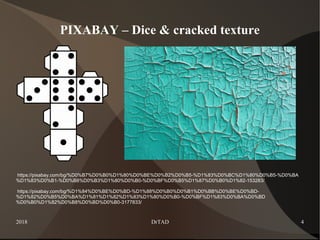
PIXABAY – Dice & cracked texture
https://pixabay.com/bg/%D0%B7%D0%B0%D1%80%D0%BE%D0%B2%D0%B5-%D1%83%D0%BC%D1%80%D0%B5-%D0%BA
%D1%83%D0%B1-%D0%B8%D0%B3%D1%80%D0%B0-%D0%BF%D0%B5%D1%87%D0%B0%D1%82-153283/
https://pixabay.com/bg/%D1%84%D0%BE%D0%BD-%D1%88%D0%B0%D0%B1%D0%BB%D0%BE%D0%BD-
%D1%82%D0%B5%D0%BA%D1%81%D1%82%D1%83%D1%80%D0%B0-%D0%BF%D1%83%D0%BA%D0%BD
%D0%B0%D1%82%D0%B8%D0%BD%D0%B0-3177833/
2018 DrTAD 5
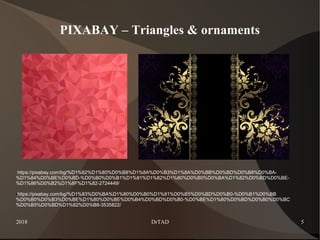
PIXABAY – Triangles & ornaments
https://pixabay.com/bg/%D1%82%D1%80%D0%B8%D1%8A%D0%B3%D1%8A%D0%BB%D0%BD%D0%B8%D0%BA-
%D1%84%D0%BE%D0%BD-%D0%B0%D0%B1%D1%81%D1%82%D1%80%D0%B0%D0%BA%D1%82%D0%BD%D0%BE-
%D1%86%D0%B2%D1%8F%D1%82-2724449/
●https://pixabay.com/bg/%D1%83%D0%BA%D1%80%D0%B0%D1%81%D0%B5%D0%BD%D0%B0-%D0%B1%D0%BB
%D0%B0%D0%B3%D0%BE%D1%80%D0%BE%D0%B4%D0%BD%D0%B0-%D0%BE%D1%80%D0%BD%D0%B0%D0%BC
%D0%B5%D0%BD%D1%82%D0%B8-3535822/
2018 DrTAD 6
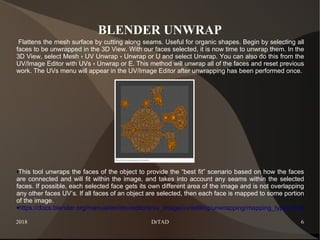
BLENDER UNWRAP
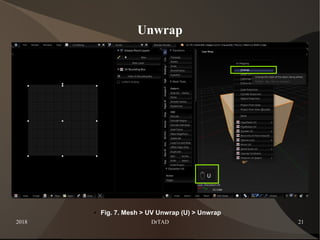
Flattens the mesh surface by cutting along seams. Useful for organic shapes. Begin by selecting all
faces to be unwrapped in the 3D View. With our faces selected, it is now time to unwrap them. In the
3D View, select Mesh UV Unwrap Unwrap or U and select Unwrap. You can also do this from the‣ ‣
UV/Image Editor with UVs Unwrap or E. This method will unwrap all of the faces and reset previous‣
work. The UVs menu will appear in the UV/Image Editor after unwrapping has been performed once.
●This tool unwraps the faces of the object to provide the “best fit” scenario based on how the faces
are connected and will fit within the image, and takes into account any seams within the selected
faces. If possible, each selected face gets its own different area of the image and is not overlapping
any other faces UV’s. If all faces of an object are selected, then each face is mapped to some portion
of the image.
●https://docs.blender.org/manual/en/dev/editors/uv_image/uv/editing/unwrapping/mapping_types.html
2018 DrTAD 7
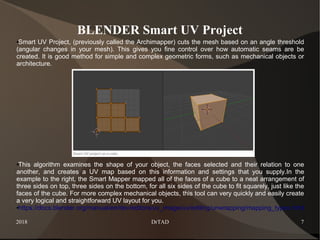
BLENDER Smart UV Project
●Smart UV Project, (previously called the Archimapper) cuts the mesh based on an angle threshold
(angular changes in your mesh). This gives you fine control over how automatic seams are be
created. It is good method for simple and complex geometric forms, such as mechanical objects or
architecture.
●This algorithm examines the shape of your object, the faces selected and their relation to one
another, and creates a UV map based on this information and settings that you supply.In the
example to the right, the Smart Mapper mapped all of the faces of a cube to a neat arrangement of
three sides on top, three sides on the bottom, for all six sides of the cube to fit squarely, just like the
faces of the cube. For more complex mechanical objects, this tool can very quickly and easily create
a very logical and straightforward UV layout for you.
●https://docs.blender.org/manual/en/dev/editors/uv_image/uv/editing/unwrapping/mapping_types.html
2018 DrTAD 8
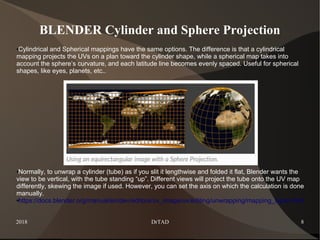
BLENDER Cylinder and Sphere Projection
●Cylindrical and Spherical mappings have the same options. The difference is that a cylindrical
mapping projects the UVs on a plan toward the cylinder shape, while a spherical map takes into
account the sphere’s curvature, and each latitude line becomes evenly spaced. Useful for spherical
shapes, like eyes, planets, etc..
●Normally, to unwrap a cylinder (tube) as if you slit it lengthwise and folded it flat, Blender wants the
view to be vertical, with the tube standing “up”. Different views will project the tube onto the UV map
differently, skewing the image if used. However, you can set the axis on which the calculation is done
manually.
●https://docs.blender.org/manual/en/dev/editors/uv_image/uv/editing/unwrapping/mapping_types.html
2018 DrTAD 9
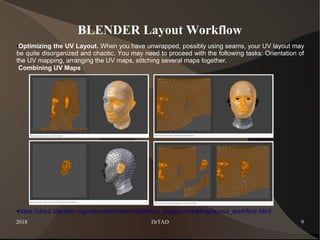
BLENDER Layout Workflow
●Optimizing the UV Layout. When you have unwrapped, possibly using seams, your UV layout may
be quite disorganized and chaotic. You may need to proceed with the following tasks: Orientation of
the UV mapping, arranging the UV maps, stitching several maps together.
Combining UV Maps
●https://docs.blender.org/manual/en/dev/editors/uv_image/uv/editing/layout_workflow.html
2018 DrTAD 10
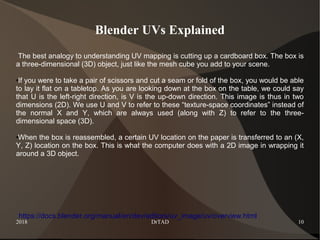
Blender UVs Explained
The best analogy to understanding UV mapping is cutting up a cardboard box. The box is
a three-dimensional (3D) object, just like the mesh cube you add to your scene.
●If you were to take a pair of scissors and cut a seam or fold of the box, you would be able
to lay it flat on a tabletop. As you are looking down at the box on the table, we could say
that U is the left-right direction, is V is the up-down direction. This image is thus in two
dimensions (2D). We use U and V to refer to these “texture-space coordinates” instead of
the normal X and Y, which are always used (along with Z) to refer to the three-
dimensional space (3D).
●When the box is reassembled, a certain UV location on the paper is transferred to an (X,
Y, Z) location on the box. This is what the computer does with a 2D image in wrapping it
around a 3D object.
https://docs.blender.org/manual/en/dev/editors/uv_image/uv/overview.html
2018 DrTAD 11
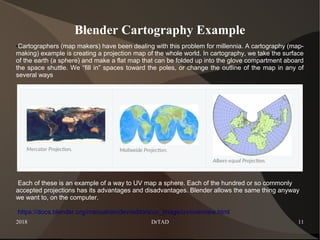
Blender Cartography Example
●Cartographers (map makers) have been dealing with this problem for millennia. A cartography (map-
making) example is creating a projection map of the whole world. In cartography, we take the surface
of the earth (a sphere) and make a flat map that can be folded up into the glove compartment aboard
the space shuttle. We “fill in” spaces toward the poles, or change the outline of the map in any of
several ways
Each of these is an example of a way to UV map a sphere. Each of the hundred or so commonly
accepted projections has its advantages and disadvantages. Blender allows the same thing anyway
we want to, on the computer.
https://docs.blender.org/manual/en/dev/editors/uv_image/uv/overview.html
2018 DrTAD 12
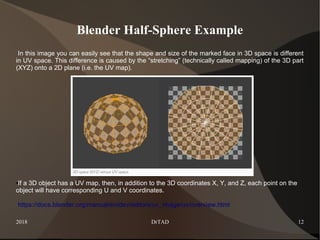
Blender Half-Sphere Example
In this image you can easily see that the shape and size of the marked face in 3D space is different
in UV space. This difference is caused by the “stretching” (technically called mapping) of the 3D part
(XYZ) onto a 2D plane (i.e. the UV map).
●If a 3D object has a UV map, then, in addition to the 3D coordinates X, Y, and Z, each point on the
object will have corresponding U and V coordinates.
https://docs.blender.org/manual/en/dev/editors/uv_image/uv/overview.html
2018 DrTAD 13
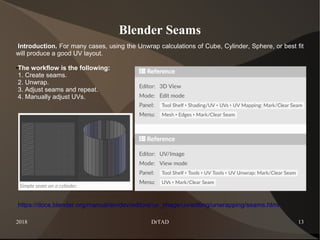
Blender Seams
Introduction. For many cases, using the Unwrap calculations of Cube, Cylinder, Sphere, or best fit
will produce a good UV layout.
●The workflow is the following:
1. Create seams.
2. Unwrap.
3. Adjust seams and repeat.
4. Manually adjust UVs.
https://docs.blender.org/manual/en/dev/editors/uv_image/uv/editing/unwrapping/seams.html
2018 DrTAD 14
The Tutorial
/Blender 2.79/
2018 DrTAD 15
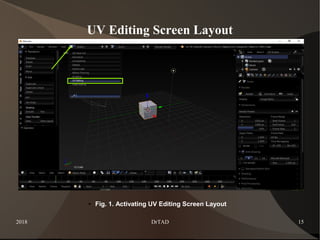
UV Editing Screen Layout
● Fig. 1. Activating UV Editing Screen Layout
2018 DrTAD 16
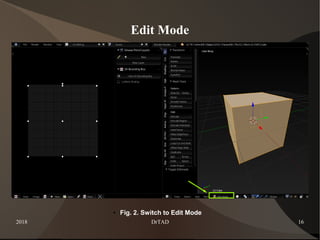
Edit Mode
● Fig. 2. Switch to Edit Mode
2018 DrTAD 17
Mesh Edges
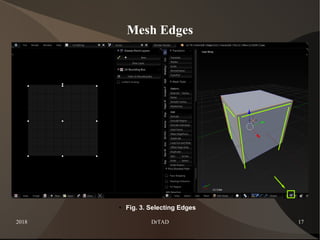
● Fig. 3. Selecting Edges
2018 DrTAD 18
Mesh Edges
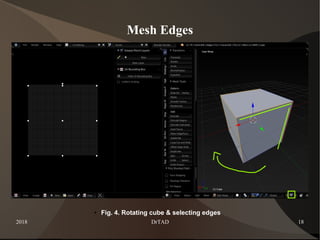
● Fig. 4. Rotating cube & selecting edges
2018 DrTAD 19
Mark Seam
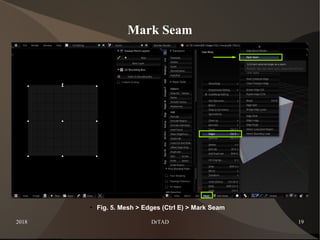
● Fig. 5. Mesh > Edges (Ctrl E) > Mark Seam
2018 DrTAD 20
Mark Seam
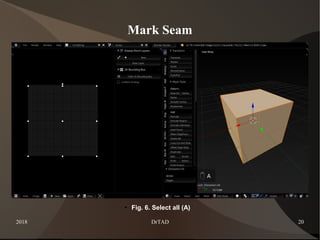
● Fig. 6. Select all (A)
2018 DrTAD 21
Unwrap
● Fig. 7. Mesh > UV Unwrap (U) > Unwrap
2018 DrTAD 22
Unwrap
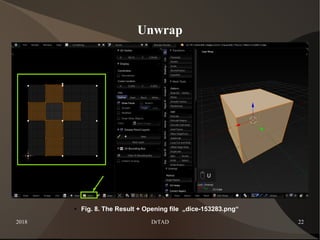
● Fig. 8. The Result + Opening file „dice-153283.png“
2018 DrTAD 23
Unwrap
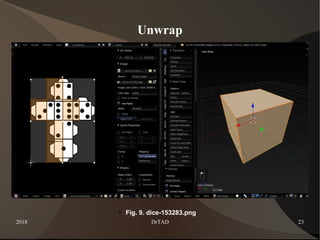
● Fig. 9. dice-153283.png
2018 DrTAD 24
Unwap – Position & Proportions
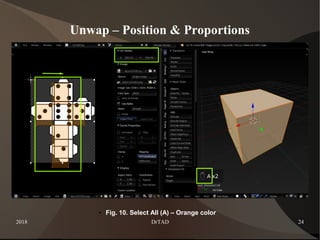
● Fig. 10. Select All (A) – Orange color
2018 DrTAD 25
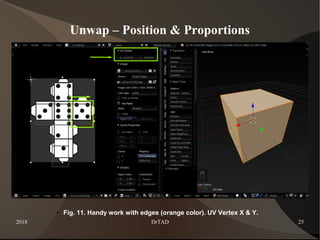
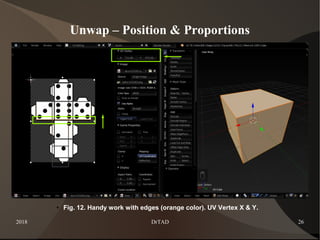
Unwap – Position & Proportions
● Fig. 11. Handy work with edges (orange color). UV Vertex X & Y.
2018 DrTAD 26
Unwap – Position & Proportions
● Fig. 12. Handy work with edges (orange color). UV Vertex X & Y.
2018 DrTAD 27
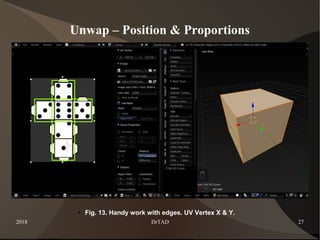
Unwap – Position & Proportions
● Fig. 13. Handy work with edges. UV Vertex X & Y.
2018 DrTAD 28
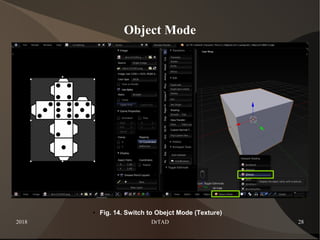
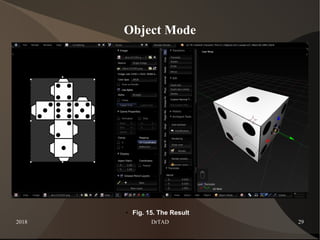
Object Mode
● Fig. 14. Switch to Obejct Mode (Texture)
2018 DrTAD 29
Object Mode
● Fig. 15. The Result
2018 DrTAD 30
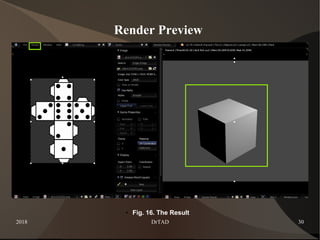
Render Preview
● Fig. 16. The Result
2018 DrTAD 31
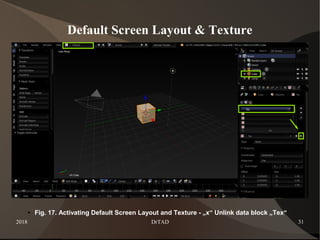
Default Screen Layout & Texture
● Fig. 17. Activating Default Screen Layout and Texture - „x“ Unlink data block „Tex“
2018 DrTAD 32
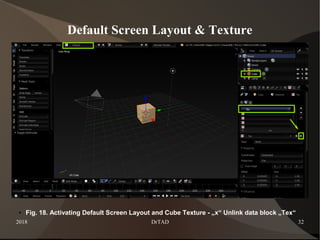
Default Screen Layout & Texture
● Fig. 18. Activating Default Screen Layout and Cube Texture - „x“ Unlink data block „Tex“
2018 DrTAD 33
Default Screen Layout & Texture
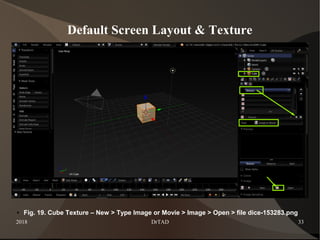
● Fig. 19. Cube Texture – New > Type Image or Movie > Image > Open > file dice-153283.png
2018 DrTAD 34
Default Screen Layout & Texture
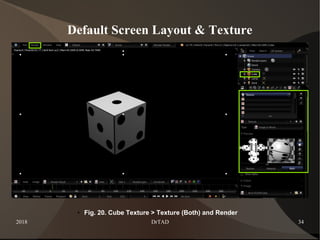
● Fig. 20. Cube Texture > Texture (Both) and Render
2018 DrTAD 35
Result - 1
2018 DrTAD 36
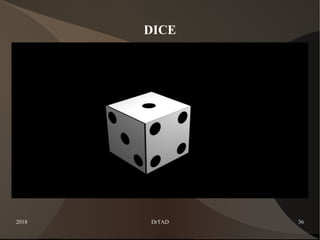
DICE
2018 DrTAD 37
Result - 2
2018 DrTAD 38
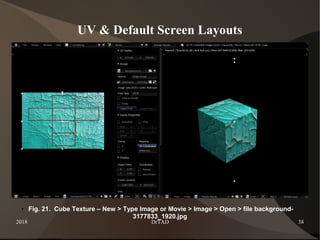
UV & Default Screen Layouts
● Fig. 21. Cube Texture – New > Type Image or Movie > Image > Open > file background-
3177833_1920.jpg
2018 DrTAD 39
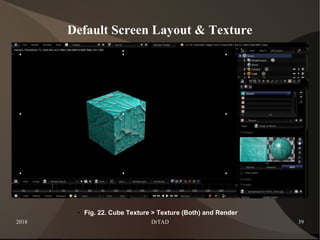
Default Screen Layout & Texture
● Fig. 22. Cube Texture > Texture (Both) and Render
2018 DrTAD 40
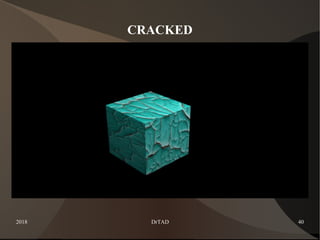
CRACKED
2018 DrTAD 41
Result - 3
2018 DrTAD 42
UV & Default Screen Layouts
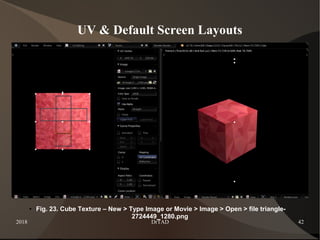
● Fig. 23. Cube Texture – New > Type Image or Movie > Image > Open > file triangle-
2724449_1280.png
2018 DrTAD 43
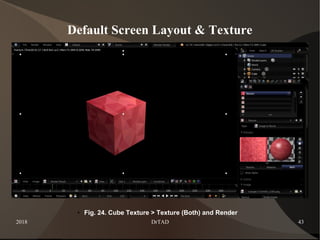
Default Screen Layout & Texture
● Fig. 24. Cube Texture > Texture (Both) and Render
2018 DrTAD 44
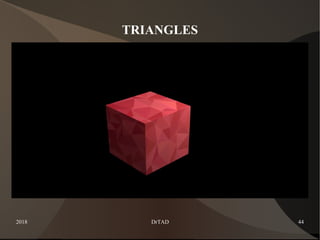
TRIANGLES
2018 DrTAD 45
Result - 4
2018 DrTAD 46
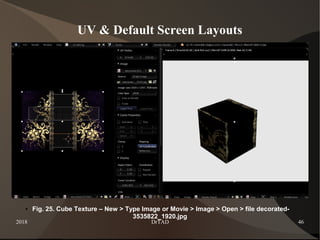
UV & Default Screen Layouts
● Fig. 25. Cube Texture – New > Type Image or Movie > Image > Open > file decorated-
3535822_1920.jpg
2018 DrTAD 47
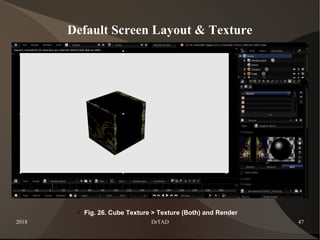
Default Screen Layout & Texture
● Fig. 26. Cube Texture > Texture (Both) and Render
2018 DrTAD 48
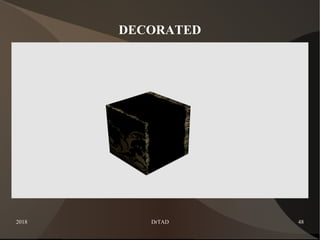
DECORATED
2018 DrTAD 49
References
Blender Software
https://www.blender.org/
Modern accessible application of the system Blender in 3D design practice.
https://www.researchgate.net/publication/312033613_Modern_accessible_application_of_the_syste
m_Blender_in_3D_design_practice
Creative Commons license
●https://en.wikipedia.org/wiki/Creative_Commons_license
●PIXABAY. Free - CC0 Creative Commons.
https://pixabay.com/bg/service/terms/#usage
Blender Unwrap
https://docs.blender.org/manual/en/dev/editors/uv_image/uv/editing/unwrapping/mapping_types.html
Blender Seams
https://docs.blender.org/manual/en/dev/editors/uv_image/uv/editing/unwrapping/seams.html
Blender Layout Workflow
https://docs.blender.org/manual/en/dev/editors/uv_image/uv/editing/layout_workflow.html
Blender UVs Explained
https://docs.blender.org/manual/en/dev/editors/uv_image/uv/overview.html

DrTAD Blender Basics. Example 12. UNWRAP - Tutorial

  • 1.
    BLENDER BASICS –UNWRAP - TUTORIAL Assoc. Prof. Dr. Eng. Tihomir Dovramadjiev Technical University of Varna MTF, Department Industrial Design tihomir.dovramadjiev@tu-varna.bg DOI: 10.13140/RG.2.2.12126.69441 https://www.researchgate.net/publication/327288200_BLENDER_BASICS_- _UNWRAP_-_TUTORIAL
  • 2.
    2018 DrTAD 2 AboutBlender software Blender is the free and open source 3D creation suite. It supports the entirety of the 3D pipeline—modeling, rigging, animation, simulation, rendering, compositing and motion tracking, even video editing and game creation. ●https://www.blender.org/ ●Modern accessible application of the system Blender in 3D design practice. https://www.researchgate.net/publication/312033613_Modern_accessibl e_application_of_the_system_Blender_in_3D_design_practice
  • 3.
    2018 DrTAD 3 PIXABAY UsingImages and Videos ●Images and Videos on Pixabay are released under Creative Commons CC0. To the extent possible under law, uploaders of Pixabay have waived their copyright and related or neighboring rights to these Images and Videos. You are free to adapt and use them for commercial purposes without attributing the original author or source. Although not required, a link back to Pixabay is appreciated. ●Please be aware: a) Imagery depicting identifiable persons, logos, brands, etc. may be subject to additional copyrights, property rights, privacy rights, trademarks etc. and may require the consent of a third party or the license of these rights - particularly for commercial applications. b) Images and Videos may not be used in a way that shows identifiable persons in a disgraceful light, or to imply endorsement of products and services by depicted persons, brands, and organisations - unless permission was granted. ●https://pixabay.com/bg/service/terms/#usage ●
  • 4.
    2018 DrTAD 4 PIXABAY– Dice & cracked texture https://pixabay.com/bg/%D0%B7%D0%B0%D1%80%D0%BE%D0%B2%D0%B5-%D1%83%D0%BC%D1%80%D0%B5-%D0%BA %D1%83%D0%B1-%D0%B8%D0%B3%D1%80%D0%B0-%D0%BF%D0%B5%D1%87%D0%B0%D1%82-153283/ https://pixabay.com/bg/%D1%84%D0%BE%D0%BD-%D1%88%D0%B0%D0%B1%D0%BB%D0%BE%D0%BD- %D1%82%D0%B5%D0%BA%D1%81%D1%82%D1%83%D1%80%D0%B0-%D0%BF%D1%83%D0%BA%D0%BD %D0%B0%D1%82%D0%B8%D0%BD%D0%B0-3177833/
  • 5.
    2018 DrTAD 5 PIXABAY– Triangles & ornaments https://pixabay.com/bg/%D1%82%D1%80%D0%B8%D1%8A%D0%B3%D1%8A%D0%BB%D0%BD%D0%B8%D0%BA- %D1%84%D0%BE%D0%BD-%D0%B0%D0%B1%D1%81%D1%82%D1%80%D0%B0%D0%BA%D1%82%D0%BD%D0%BE- %D1%86%D0%B2%D1%8F%D1%82-2724449/ ●https://pixabay.com/bg/%D1%83%D0%BA%D1%80%D0%B0%D1%81%D0%B5%D0%BD%D0%B0-%D0%B1%D0%BB %D0%B0%D0%B3%D0%BE%D1%80%D0%BE%D0%B4%D0%BD%D0%B0-%D0%BE%D1%80%D0%BD%D0%B0%D0%BC %D0%B5%D0%BD%D1%82%D0%B8-3535822/
  • 6.
    2018 DrTAD 6 BLENDERUNWRAP Flattens the mesh surface by cutting along seams. Useful for organic shapes. Begin by selecting all faces to be unwrapped in the 3D View. With our faces selected, it is now time to unwrap them. In the 3D View, select Mesh UV Unwrap Unwrap or U and select Unwrap. You can also do this from the‣ ‣ UV/Image Editor with UVs Unwrap or E. This method will unwrap all of the faces and reset previous‣ work. The UVs menu will appear in the UV/Image Editor after unwrapping has been performed once. ●This tool unwraps the faces of the object to provide the “best fit” scenario based on how the faces are connected and will fit within the image, and takes into account any seams within the selected faces. If possible, each selected face gets its own different area of the image and is not overlapping any other faces UV’s. If all faces of an object are selected, then each face is mapped to some portion of the image. ●https://docs.blender.org/manual/en/dev/editors/uv_image/uv/editing/unwrapping/mapping_types.html
  • 7.
    2018 DrTAD 7 BLENDERSmart UV Project ●Smart UV Project, (previously called the Archimapper) cuts the mesh based on an angle threshold (angular changes in your mesh). This gives you fine control over how automatic seams are be created. It is good method for simple and complex geometric forms, such as mechanical objects or architecture. ●This algorithm examines the shape of your object, the faces selected and their relation to one another, and creates a UV map based on this information and settings that you supply.In the example to the right, the Smart Mapper mapped all of the faces of a cube to a neat arrangement of three sides on top, three sides on the bottom, for all six sides of the cube to fit squarely, just like the faces of the cube. For more complex mechanical objects, this tool can very quickly and easily create a very logical and straightforward UV layout for you. ●https://docs.blender.org/manual/en/dev/editors/uv_image/uv/editing/unwrapping/mapping_types.html
  • 8.
    2018 DrTAD 8 BLENDERCylinder and Sphere Projection ●Cylindrical and Spherical mappings have the same options. The difference is that a cylindrical mapping projects the UVs on a plan toward the cylinder shape, while a spherical map takes into account the sphere’s curvature, and each latitude line becomes evenly spaced. Useful for spherical shapes, like eyes, planets, etc.. ●Normally, to unwrap a cylinder (tube) as if you slit it lengthwise and folded it flat, Blender wants the view to be vertical, with the tube standing “up”. Different views will project the tube onto the UV map differently, skewing the image if used. However, you can set the axis on which the calculation is done manually. ●https://docs.blender.org/manual/en/dev/editors/uv_image/uv/editing/unwrapping/mapping_types.html
  • 9.
    2018 DrTAD 9 BLENDERLayout Workflow ●Optimizing the UV Layout. When you have unwrapped, possibly using seams, your UV layout may be quite disorganized and chaotic. You may need to proceed with the following tasks: Orientation of the UV mapping, arranging the UV maps, stitching several maps together. Combining UV Maps ●https://docs.blender.org/manual/en/dev/editors/uv_image/uv/editing/layout_workflow.html
  • 10.
    2018 DrTAD 10 BlenderUVs Explained The best analogy to understanding UV mapping is cutting up a cardboard box. The box is a three-dimensional (3D) object, just like the mesh cube you add to your scene. ●If you were to take a pair of scissors and cut a seam or fold of the box, you would be able to lay it flat on a tabletop. As you are looking down at the box on the table, we could say that U is the left-right direction, is V is the up-down direction. This image is thus in two dimensions (2D). We use U and V to refer to these “texture-space coordinates” instead of the normal X and Y, which are always used (along with Z) to refer to the three- dimensional space (3D). ●When the box is reassembled, a certain UV location on the paper is transferred to an (X, Y, Z) location on the box. This is what the computer does with a 2D image in wrapping it around a 3D object. https://docs.blender.org/manual/en/dev/editors/uv_image/uv/overview.html
  • 11.
    2018 DrTAD 11 BlenderCartography Example ●Cartographers (map makers) have been dealing with this problem for millennia. A cartography (map- making) example is creating a projection map of the whole world. In cartography, we take the surface of the earth (a sphere) and make a flat map that can be folded up into the glove compartment aboard the space shuttle. We “fill in” spaces toward the poles, or change the outline of the map in any of several ways Each of these is an example of a way to UV map a sphere. Each of the hundred or so commonly accepted projections has its advantages and disadvantages. Blender allows the same thing anyway we want to, on the computer. https://docs.blender.org/manual/en/dev/editors/uv_image/uv/overview.html
  • 12.
    2018 DrTAD 12 BlenderHalf-Sphere Example In this image you can easily see that the shape and size of the marked face in 3D space is different in UV space. This difference is caused by the “stretching” (technically called mapping) of the 3D part (XYZ) onto a 2D plane (i.e. the UV map). ●If a 3D object has a UV map, then, in addition to the 3D coordinates X, Y, and Z, each point on the object will have corresponding U and V coordinates. https://docs.blender.org/manual/en/dev/editors/uv_image/uv/overview.html
  • 13.
    2018 DrTAD 13 BlenderSeams Introduction. For many cases, using the Unwrap calculations of Cube, Cylinder, Sphere, or best fit will produce a good UV layout. ●The workflow is the following: 1. Create seams. 2. Unwrap. 3. Adjust seams and repeat. 4. Manually adjust UVs. https://docs.blender.org/manual/en/dev/editors/uv_image/uv/editing/unwrapping/seams.html
  • 14.
    2018 DrTAD 14 TheTutorial /Blender 2.79/
  • 15.
    2018 DrTAD 15 UVEditing Screen Layout ● Fig. 1. Activating UV Editing Screen Layout
  • 16.
    2018 DrTAD 16 EditMode ● Fig. 2. Switch to Edit Mode
  • 17.
    2018 DrTAD 17 MeshEdges ● Fig. 3. Selecting Edges
  • 18.
    2018 DrTAD 18 MeshEdges ● Fig. 4. Rotating cube & selecting edges
  • 19.
    2018 DrTAD 19 MarkSeam ● Fig. 5. Mesh > Edges (Ctrl E) > Mark Seam
  • 20.
    2018 DrTAD 20 MarkSeam ● Fig. 6. Select all (A)
  • 21.
    2018 DrTAD 21 Unwrap ●Fig. 7. Mesh > UV Unwrap (U) > Unwrap
  • 22.
    2018 DrTAD 22 Unwrap ●Fig. 8. The Result + Opening file „dice-153283.png“
  • 23.
    2018 DrTAD 23 Unwrap ●Fig. 9. dice-153283.png
  • 24.
    2018 DrTAD 24 Unwap– Position & Proportions ● Fig. 10. Select All (A) – Orange color
  • 25.
    2018 DrTAD 25 Unwap– Position & Proportions ● Fig. 11. Handy work with edges (orange color). UV Vertex X & Y.
  • 26.
    2018 DrTAD 26 Unwap– Position & Proportions ● Fig. 12. Handy work with edges (orange color). UV Vertex X & Y.
  • 27.
    2018 DrTAD 27 Unwap– Position & Proportions ● Fig. 13. Handy work with edges. UV Vertex X & Y.
  • 28.
    2018 DrTAD 28 ObjectMode ● Fig. 14. Switch to Obejct Mode (Texture)
  • 29.
    2018 DrTAD 29 ObjectMode ● Fig. 15. The Result
  • 30.
    2018 DrTAD 30 RenderPreview ● Fig. 16. The Result
  • 31.
    2018 DrTAD 31 DefaultScreen Layout & Texture ● Fig. 17. Activating Default Screen Layout and Texture - „x“ Unlink data block „Tex“
  • 32.
    2018 DrTAD 32 DefaultScreen Layout & Texture ● Fig. 18. Activating Default Screen Layout and Cube Texture - „x“ Unlink data block „Tex“
  • 33.
    2018 DrTAD 33 DefaultScreen Layout & Texture ● Fig. 19. Cube Texture – New > Type Image or Movie > Image > Open > file dice-153283.png
  • 34.
    2018 DrTAD 34 DefaultScreen Layout & Texture ● Fig. 20. Cube Texture > Texture (Both) and Render
  • 35.
  • 36.
  • 37.
  • 38.
    2018 DrTAD 38 UV& Default Screen Layouts ● Fig. 21. Cube Texture – New > Type Image or Movie > Image > Open > file background- 3177833_1920.jpg
  • 39.
    2018 DrTAD 39 DefaultScreen Layout & Texture ● Fig. 22. Cube Texture > Texture (Both) and Render
  • 40.
  • 41.
  • 42.
    2018 DrTAD 42 UV& Default Screen Layouts ● Fig. 23. Cube Texture – New > Type Image or Movie > Image > Open > file triangle- 2724449_1280.png
  • 43.
    2018 DrTAD 43 DefaultScreen Layout & Texture ● Fig. 24. Cube Texture > Texture (Both) and Render
  • 44.
  • 45.
  • 46.
    2018 DrTAD 46 UV& Default Screen Layouts ● Fig. 25. Cube Texture – New > Type Image or Movie > Image > Open > file decorated- 3535822_1920.jpg
  • 47.
    2018 DrTAD 47 DefaultScreen Layout & Texture ● Fig. 26. Cube Texture > Texture (Both) and Render
  • 48.
  • 49.
    2018 DrTAD 49 References BlenderSoftware https://www.blender.org/ Modern accessible application of the system Blender in 3D design practice. https://www.researchgate.net/publication/312033613_Modern_accessible_application_of_the_syste m_Blender_in_3D_design_practice Creative Commons license ●https://en.wikipedia.org/wiki/Creative_Commons_license ●PIXABAY. Free - CC0 Creative Commons. https://pixabay.com/bg/service/terms/#usage Blender Unwrap https://docs.blender.org/manual/en/dev/editors/uv_image/uv/editing/unwrapping/mapping_types.html Blender Seams https://docs.blender.org/manual/en/dev/editors/uv_image/uv/editing/unwrapping/seams.html Blender Layout Workflow https://docs.blender.org/manual/en/dev/editors/uv_image/uv/editing/layout_workflow.html Blender UVs Explained https://docs.blender.org/manual/en/dev/editors/uv_image/uv/overview.html