Blackboard 9
Look at your list of enrollments and find the course
                     you want content copied from.
Now that you are in
your past course, go
to Control Panel, then
Packages and Utilities
to Course Copy.
Once this option is
chosen, you will be able
to browse for your
Destination course ID.
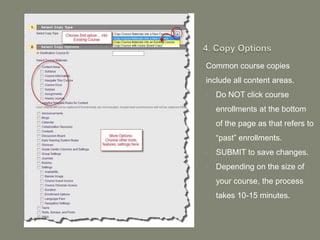
Common course copies
include all content areas.
•   Do NOT click course
    enrollments at the bottom
    of the page as that refers to
    “past” enrollments.
•   SUBMIT to save changes.
•   Depending on the size of
    your course, the process
    takes 10-15 minutes.
Matt Long longm@ecu.edu 252-328-9074
                                                                 Cindy Bowers bowersc@ecu.edu 252-328-9167
                                                                  Allen Dennis dennisa@ecu.edu 252-328-2841
                                                                       Or, send a note to ecublackboard.ecu.edu

FAQs
   Why is it recommended I do my own course copy?
    •   Answer: You are in control. You have options and selections for which copy to copy. The timeframe is
        shorter, rather than being on the course copy/collapse waiting list for Blackboard Support.
   Does it take long to do my own course copy?
    •   Answer: No- less than 1-2 minutes to choose the courses, and choose the content to copy.
   How long before I see the content in my course?
    •   Answer: Approximately 15 minutes, depending on the volume of content in the past course.
   What if I want to start over because I copied from the wrong course or I don’t like
    what I see?
    •   Answer: That’s easy. Control Panel > Packages and Utilities > Bulk Delete. It will give you a clean, new
        shell.
   Should I repeat the copy process if I do not see my content after 15 minutes?
    •   Answer: No, give it more time. If multiple users are doing course copies (e.g., the beginning of a semester),
        the copy process might take longer. You will have double the content if you repeat the process.
   Why would I want to do a course collapse?
    •   Answer: If you teach multiple sections of a course, you may want your sections “merged” or collapsed.

Do it yourself course copy

  • 1.
  • 2.
    Look at yourlist of enrollments and find the course you want content copied from.
  • 3.
    Now that youare in your past course, go to Control Panel, then Packages and Utilities to Course Copy.
  • 4.
    Once this optionis chosen, you will be able to browse for your Destination course ID.
  • 5.
    Common course copies includeall content areas. • Do NOT click course enrollments at the bottom of the page as that refers to “past” enrollments. • SUBMIT to save changes. • Depending on the size of your course, the process takes 10-15 minutes.
  • 6.
    Matt Long longm@ecu.edu252-328-9074 Cindy Bowers bowersc@ecu.edu 252-328-9167 Allen Dennis dennisa@ecu.edu 252-328-2841 Or, send a note to ecublackboard.ecu.edu FAQs  Why is it recommended I do my own course copy? • Answer: You are in control. You have options and selections for which copy to copy. The timeframe is shorter, rather than being on the course copy/collapse waiting list for Blackboard Support.  Does it take long to do my own course copy? • Answer: No- less than 1-2 minutes to choose the courses, and choose the content to copy.  How long before I see the content in my course? • Answer: Approximately 15 minutes, depending on the volume of content in the past course.  What if I want to start over because I copied from the wrong course or I don’t like what I see? • Answer: That’s easy. Control Panel > Packages and Utilities > Bulk Delete. It will give you a clean, new shell.  Should I repeat the copy process if I do not see my content after 15 minutes? • Answer: No, give it more time. If multiple users are doing course copies (e.g., the beginning of a semester), the copy process might take longer. You will have double the content if you repeat the process.  Why would I want to do a course collapse? • Answer: If you teach multiple sections of a course, you may want your sections “merged” or collapsed.