Objec&ve	102.03		10%	
Compare	and	contrast	digital	graphics	tools	and	their	uses.
Panels in PhotoShop Workspace
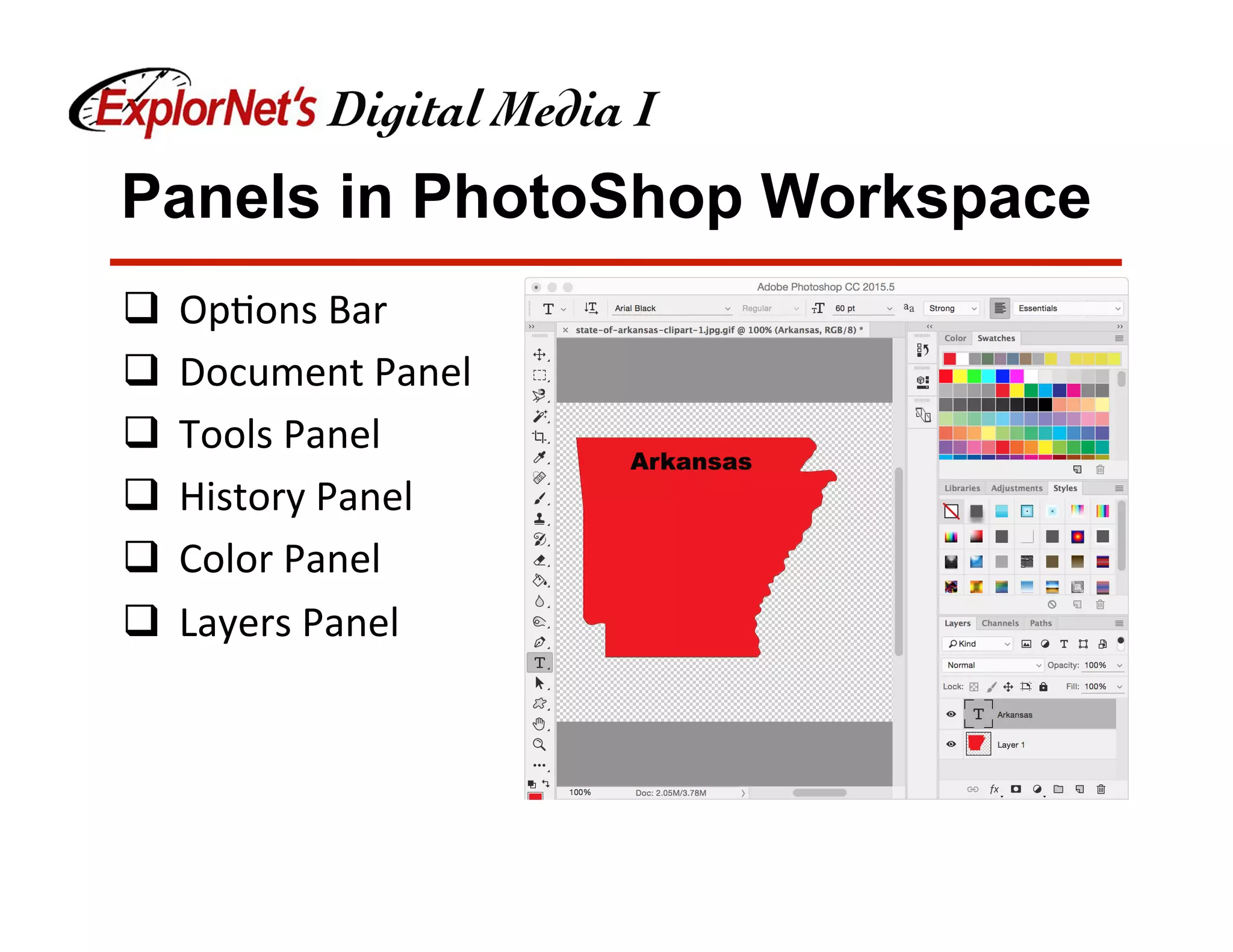
q  Op&ons	Bar	
q  Document	Panel	
q  Tools	Panel	
q  History	Panel	
q  Color	Panel	
q  Layers	Panel
Customize Workspace
q  Your	PhotoShop	workspace	can	be	changed	to	best	
meet	your	needs	as	a	video	editor.	
☐  Change	document	views	
☐  Rearrange/resize	windows	and	panels	
☐  Add	or	remove	tools	on	toolbar	
☐  Create	and	save	custom	workspace	
q  These	same	techniques	can	be	used	to	customize	
other	Adobe	soNware.
Options Bar
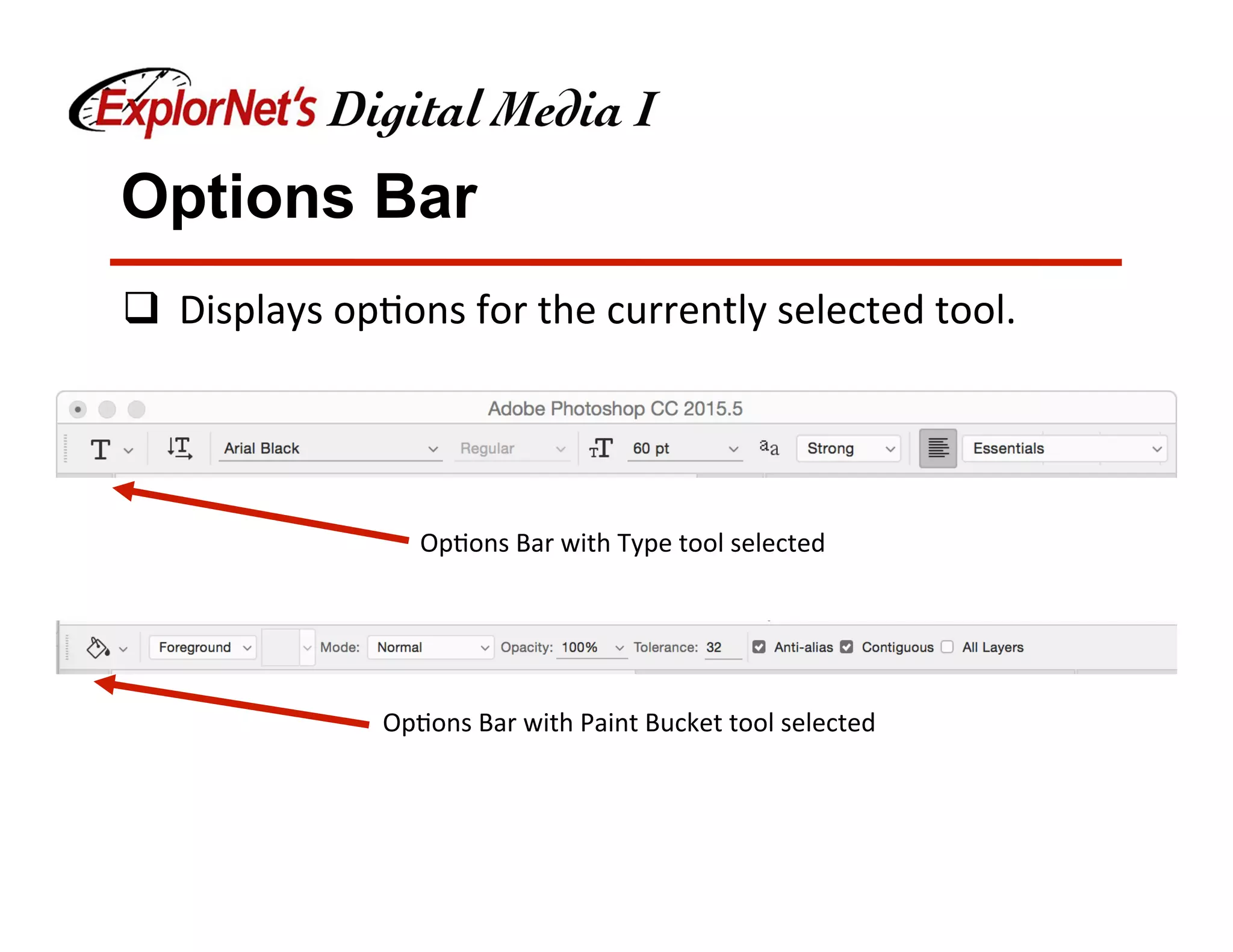
q  Displays	op&ons	for	the	currently	selected	tool.	
Op&ons	Bar	with	Type	tool	selected	
Op&ons	Bar	with	Paint	Bucket	tool	selected
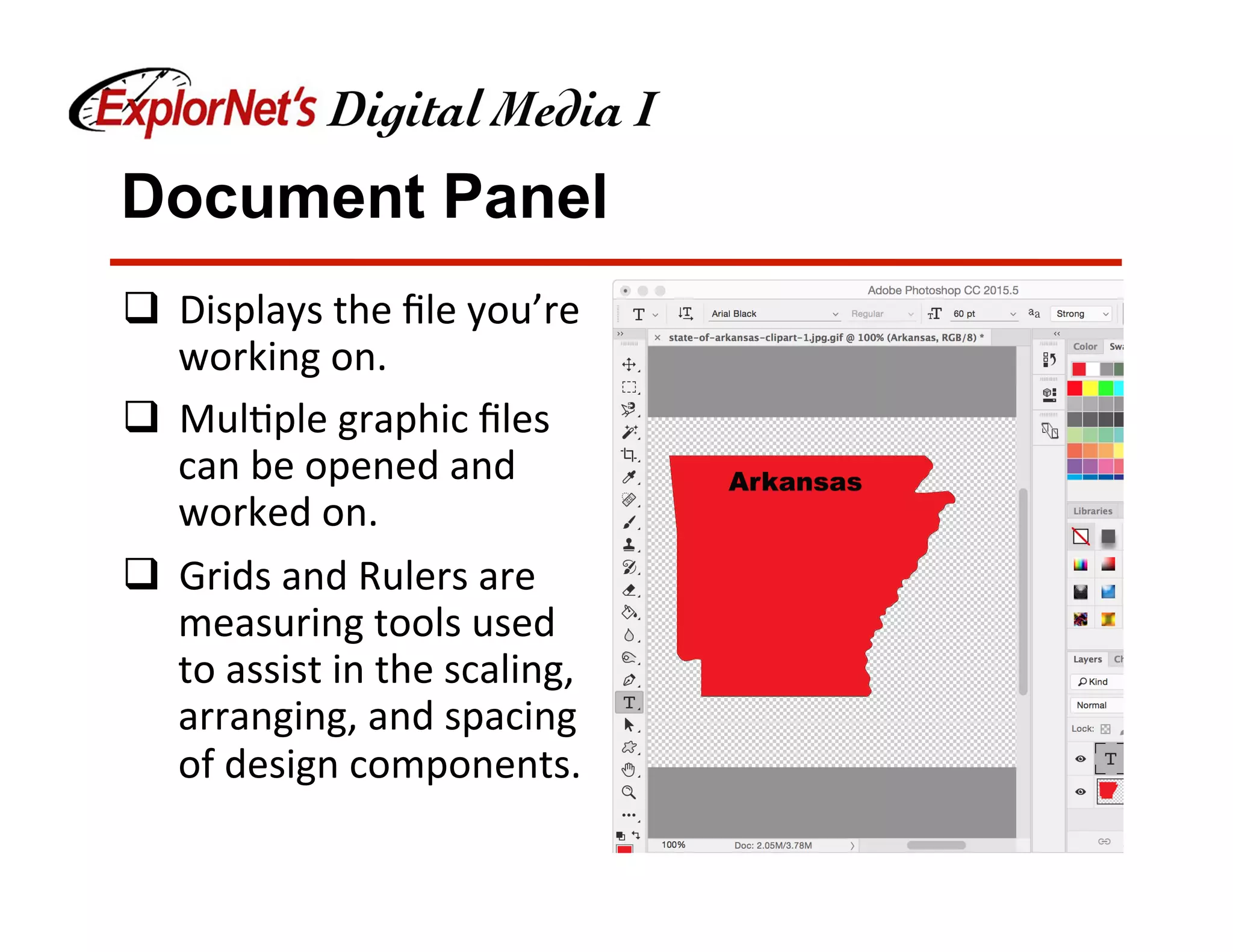
Document Panel
q  Displays	the	file	you’re	
working	on.	
q  Mul&ple	graphic	files	
can	be	opened	and	
worked	on.	
q  Grids	and	Rulers	are	
measuring	tools	used	
to	assist	in	the	scaling,	
arranging,	and	spacing	
of	design	components.
Non-Printing Design Elements
q  Rulers	help	you	accurately	place	and	measure	
objects	in	an	document.		
q  Grid	appears	behind	your	artwork	and	helps	you	
align	items	on	the	canvas.	
q  Guides	help	you	align	text	and	graphic	objects.	You	
can	create	straight	ver&cal	or	horizontal	ruler	
guides.	
q  Smart	Guides	are	temporary	snap-to	guides	that	
appear	when	you	move	objects.	They	help	you	align,	
edit,	and	transform	objects	rela&ve	to	other	objects.
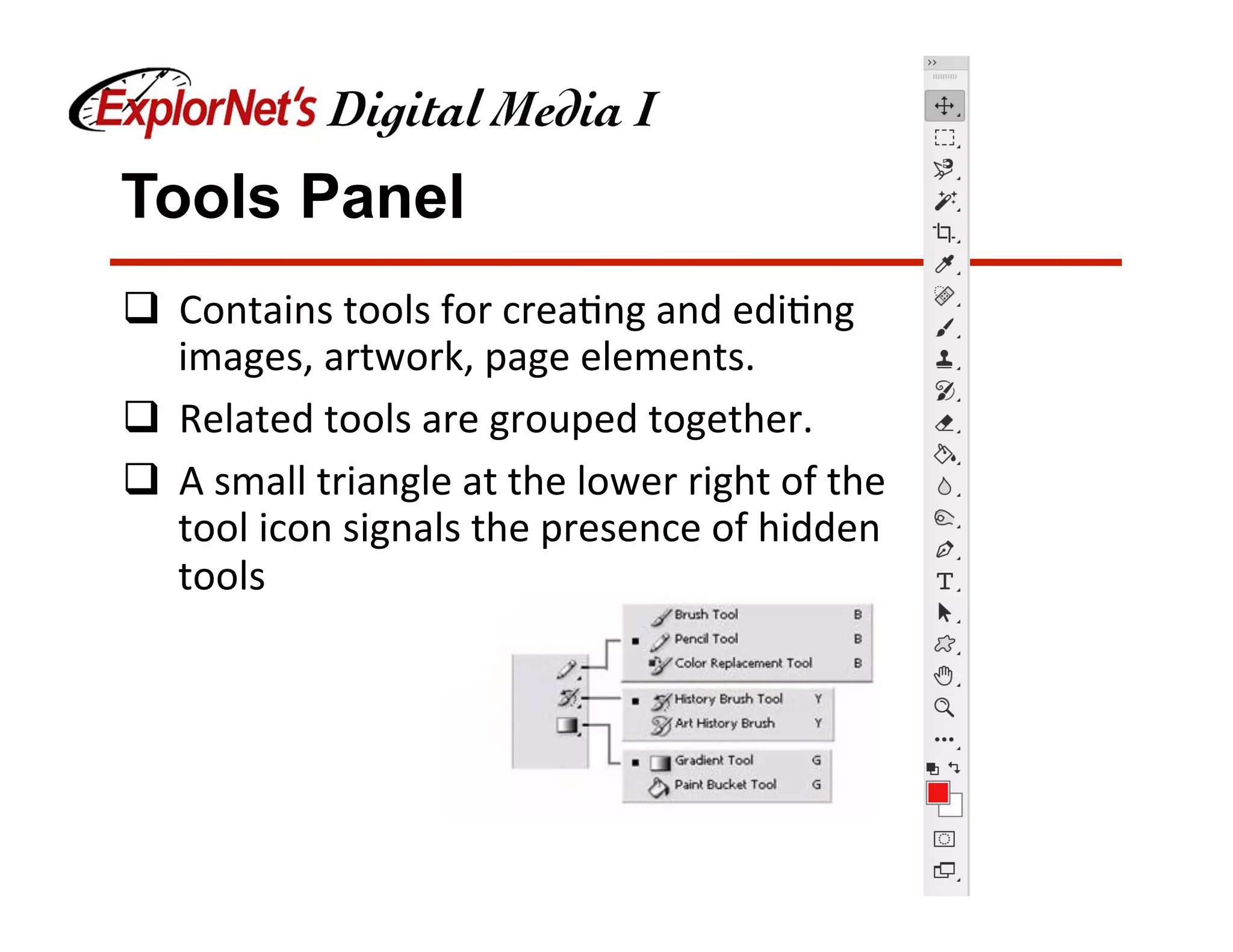
Tools Panel
q  Contains	tools	for	crea&ng	and	edi&ng	
images,	artwork,	page	elements.	
q  Related	tools	are	grouped	together.	
q  A	small	triangle	at	the	lower	right	of	the	
tool	icon	signals	the	presence	of	hidden	
tools
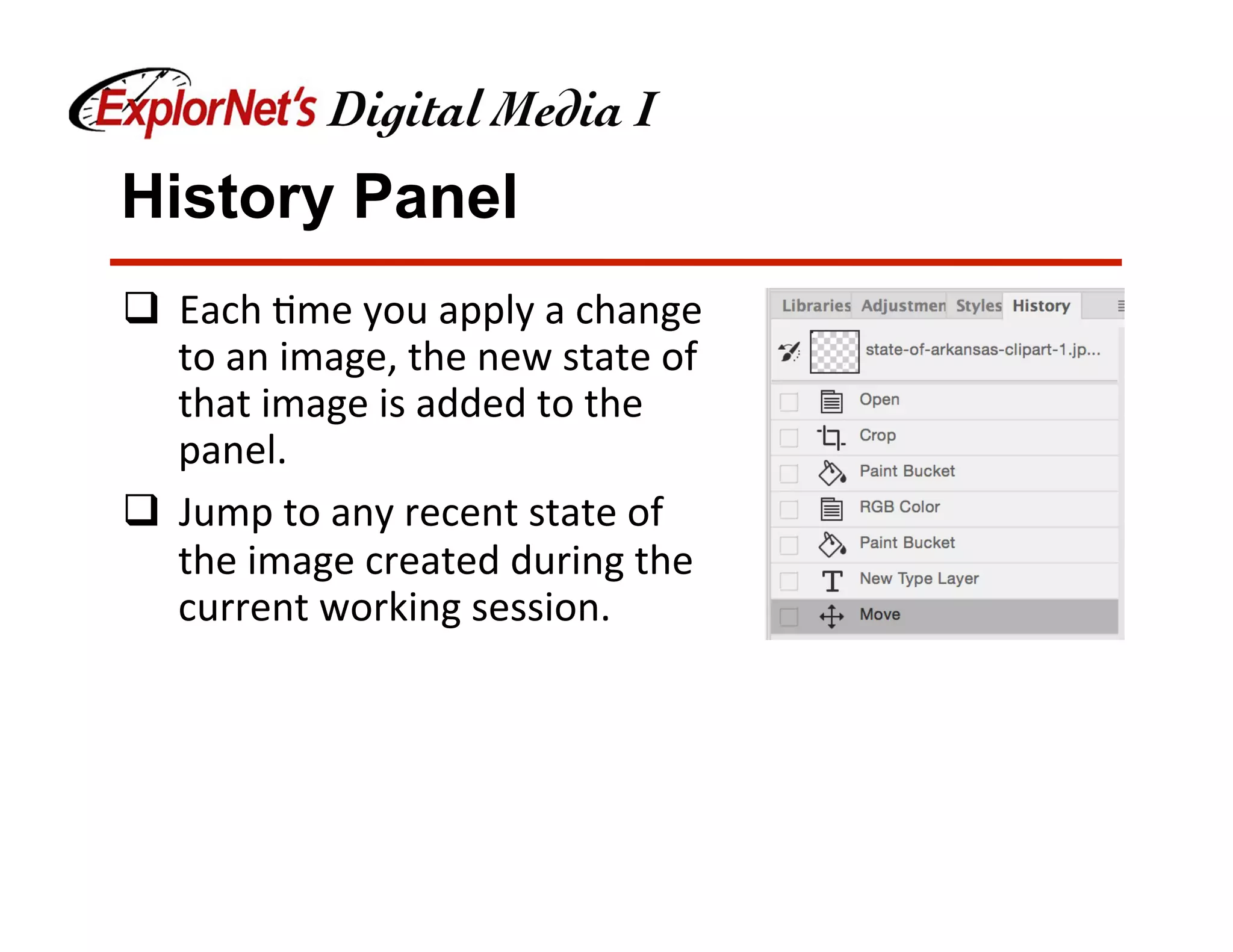
History Panel
q  Each	&me	you	apply	a	change	
to	an	image,	the	new	state	of	
that	image	is	added	to	the	
panel.	
q  Jump	to	any	recent	state	of	
the	image	created	during	the	
current	working	session.
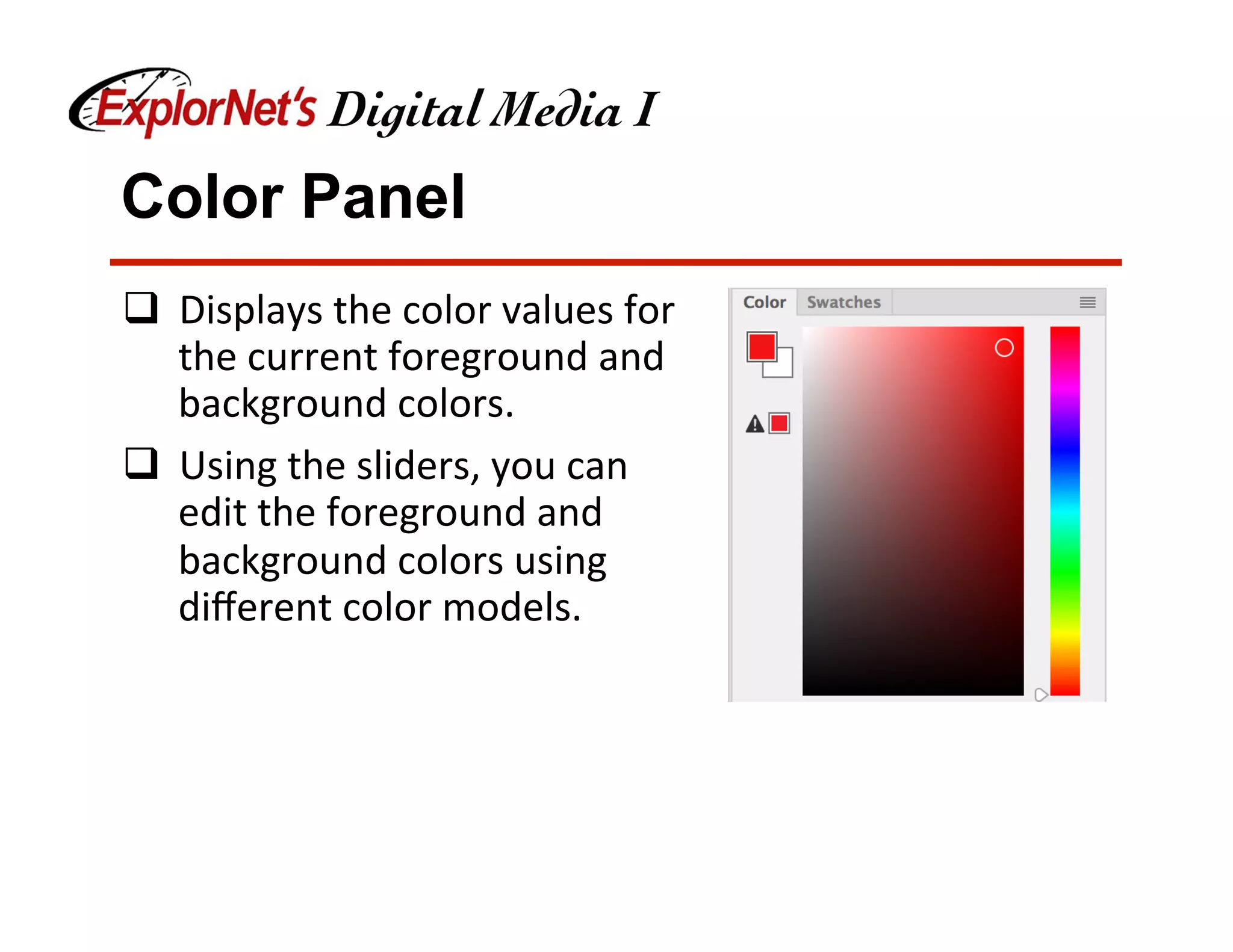
Color Panel
q  Displays	the	color	values	for	
the	current	foreground	and	
background	colors.	
q  Using	the	sliders,	you	can	
edit	the	foreground	and	
background	colors	using	
different	color	models.
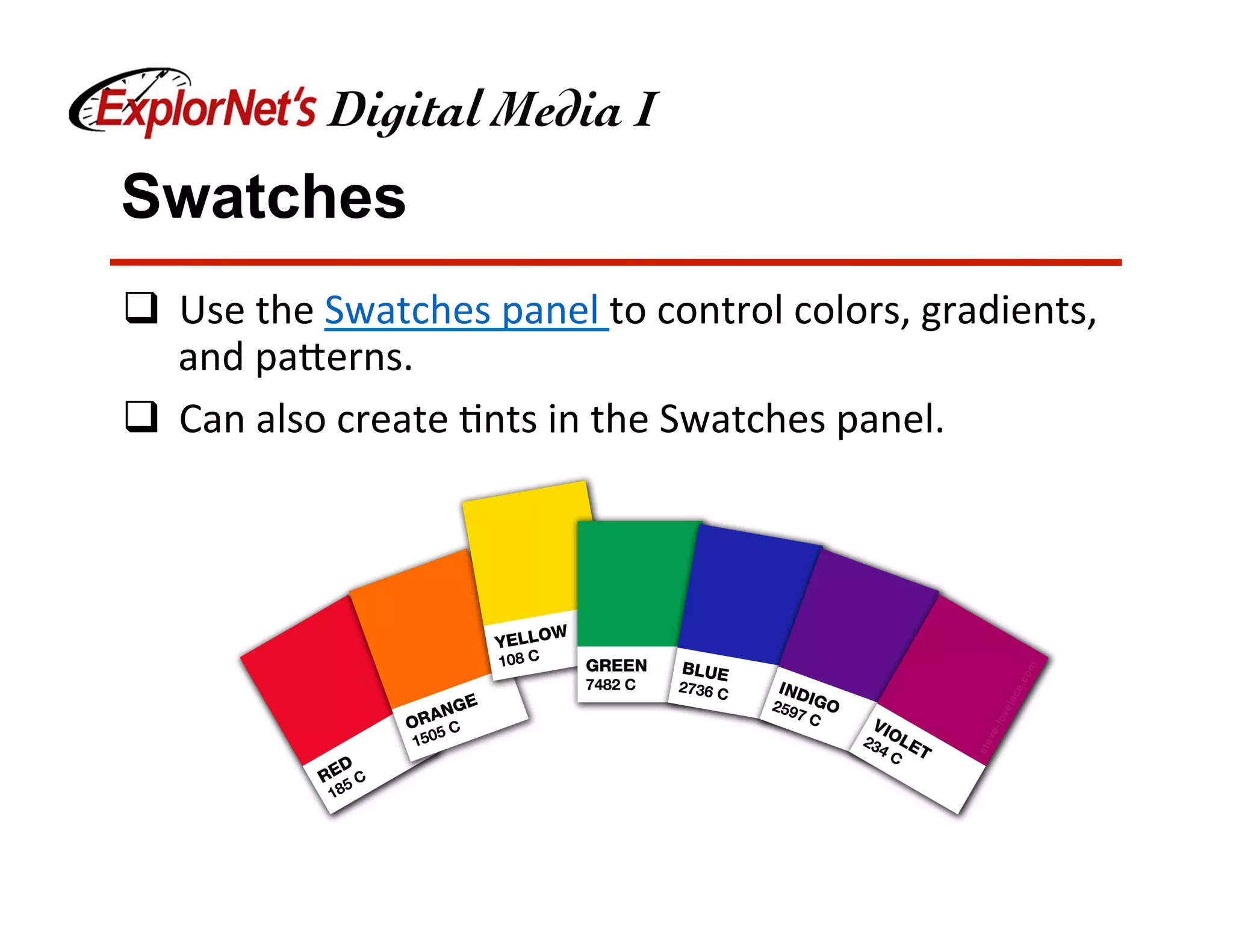
Swatches
q  Use	the	Swatches	panel	to	control	colors,	gradients,	
and	pa[erns.	
q  Can	also	create	&nts	in	the	Swatches	panel.
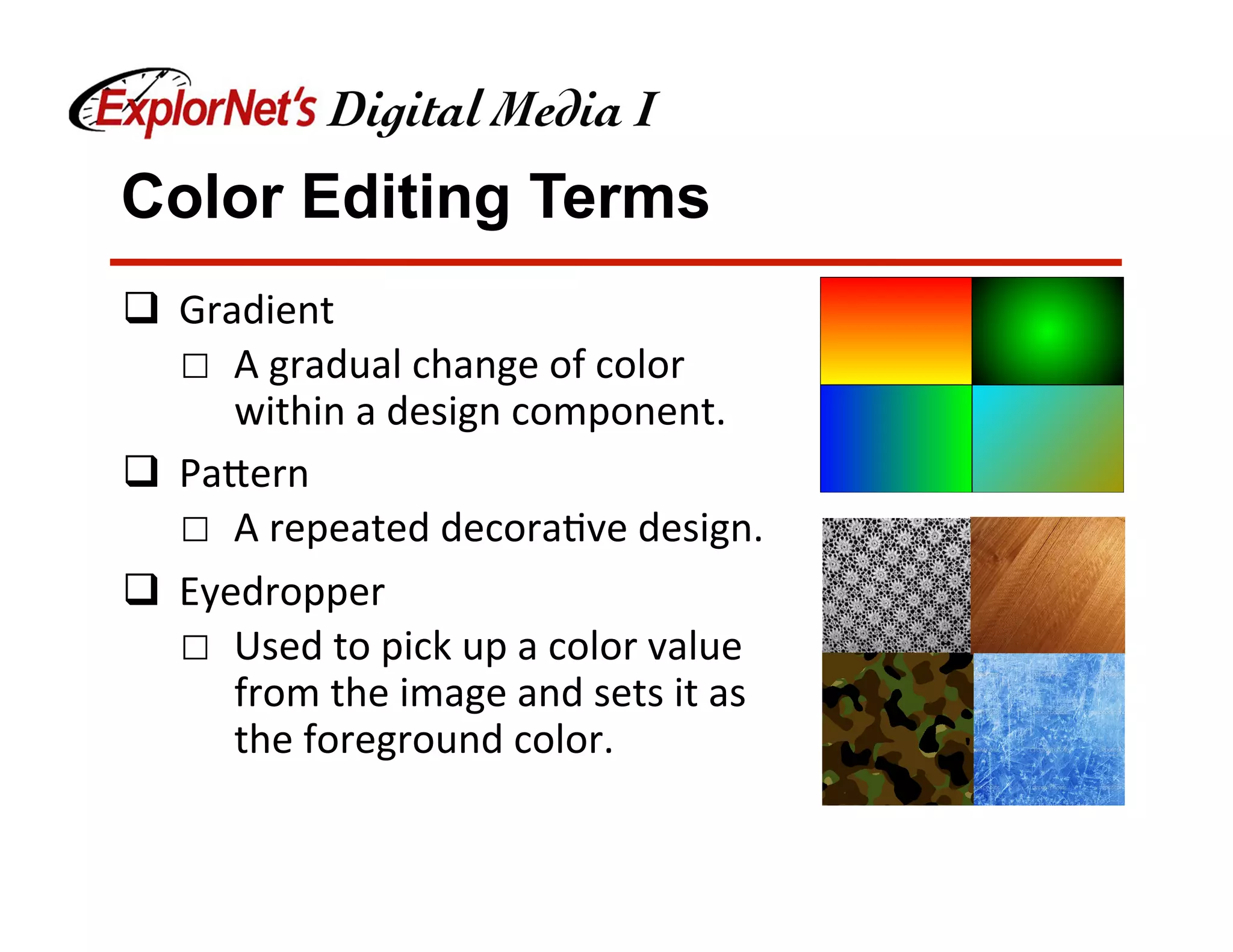
Color Editing Terms
q  Gradient	
☐  A	gradual	change	of	color	
within	a	design	component.	
q  Pa[ern	
☐  A	repeated	decora&ve	design.	
q  Eyedropper	
☐  Used	to	pick	up	a	color	value	
from	the	image	and	sets	it	as	
the	foreground	color.
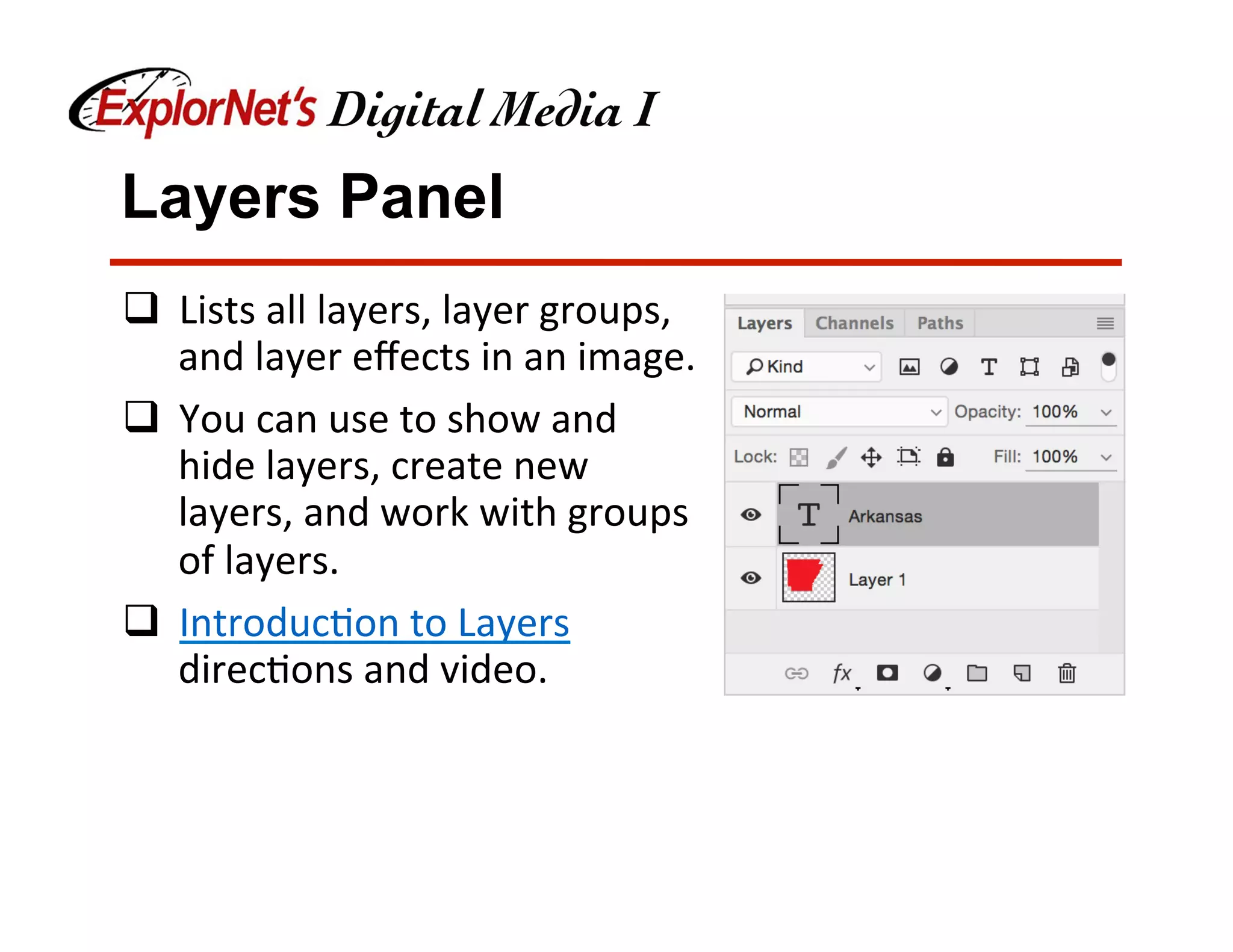
Layers Panel
q  Lists	all	layers,	layer	groups,	
and	layer	effects	in	an	image.		
q  You	can	use	to	show	and	
hide	layers,	create	new	
layers,	and	work	with	groups	
of	layers.	
q  Introduc&on	to	Layers	
direc&ons	and	video.
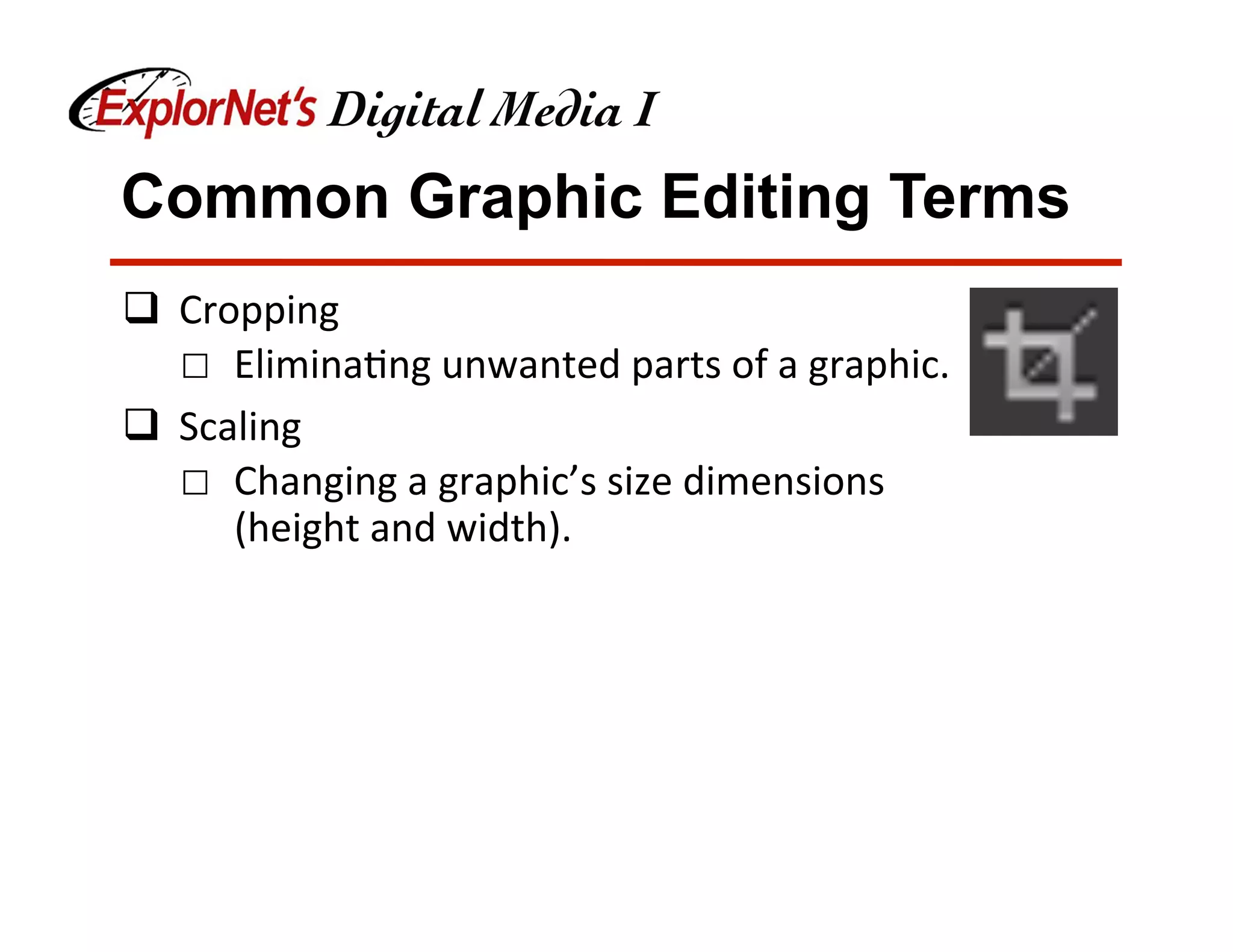
Stacking Order
q  Layering	-	separa&ng	components	of	a	design	
individually	or	into	groups	in	order	to	make	
adjustments	specific	to	the	layer.	
q  The	stacking	order	can	be	changed	by	moving	the	
layer	in	the	Layers	Panel.	
q  Or	by	using	Arrange	and:	
☐  Send	to	Back	
☐  Send	Backward	
☐  Send	to	Front	
☐  Send	Forward
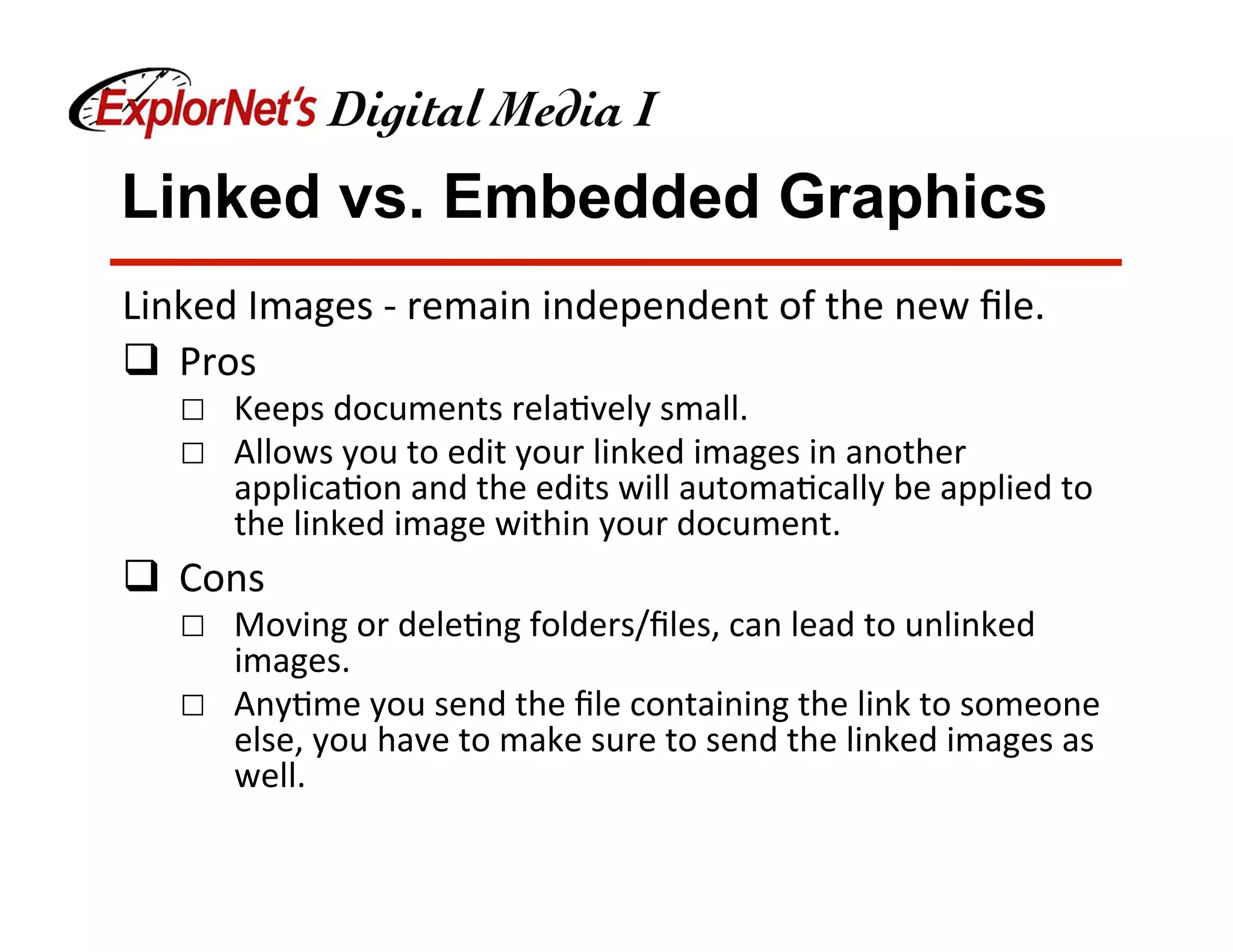
Common Graphic Editing Terms
q  Cropping	
☐  Elimina&ng	unwanted	parts	of	a	graphic.	
q  Scaling	
☐  Changing	a	graphic’s	size	dimensions	
(height	and	width).
Linked vs. Embedded Graphics
Linked	Images	-	remain	independent	of	the	new	file.	
q  Pros	
☐  Keeps	documents	rela&vely	small.	
☐  Allows	you	to	edit	your	linked	images	in	another	
applica&on	and	the	edits	will	automa&cally	be	applied	to	
the	linked	image	within	your	document.	
q  Cons	
☐  Moving	or	dele&ng	folders/files,	can	lead	to	unlinked	
images.	
☐  Any&me	you	send	the	file	containing	the	link	to	someone	
else,	you	have	to	make	sure	to	send	the	linked	images	as	
well.
Linked vs. Embedded Graphics
Embedded	Images	-	Are	actually	contained	within	the	
new	document	at	full	resolu&on.	
q  Pros	
☐  Self	sufficient	document	–	You	do	not	have	to	
worry	about	images	unlinking.	
q  Cons	
☐  Can	result	in	large	document	sizes.		
☐  Have	to	reimport	images	aNer	edi&ng	them	in	
outside	applica&ons.
PhotoShop Photo Manipulation
q  Destruc&ve	Edi&ng	
☐  Changes	the	original	photo	in	a	way	that	cannot	
be	reversed	aNer	saving	and	closing;	i.e.	
cropping,	dele&ng	a	selec&on.	
q  Non-Destruc&ve	Edi&ng	
☐  Makes	changes	to	the	original	photo	that	can	
always	be	reversed;	i.e.	masking.
PhotoShop Photo Manipulation
q  Retouching	
☐  Removing	unwanted	elements	and/or	
blemishes	from	a	photo	to	enhance	
the	visual	quality.	
q  Adjus&ng	Levels	
☐  Changing	highlights,	shadows,	and	
mid-tones	of	a	photo.	
q  Exposure	
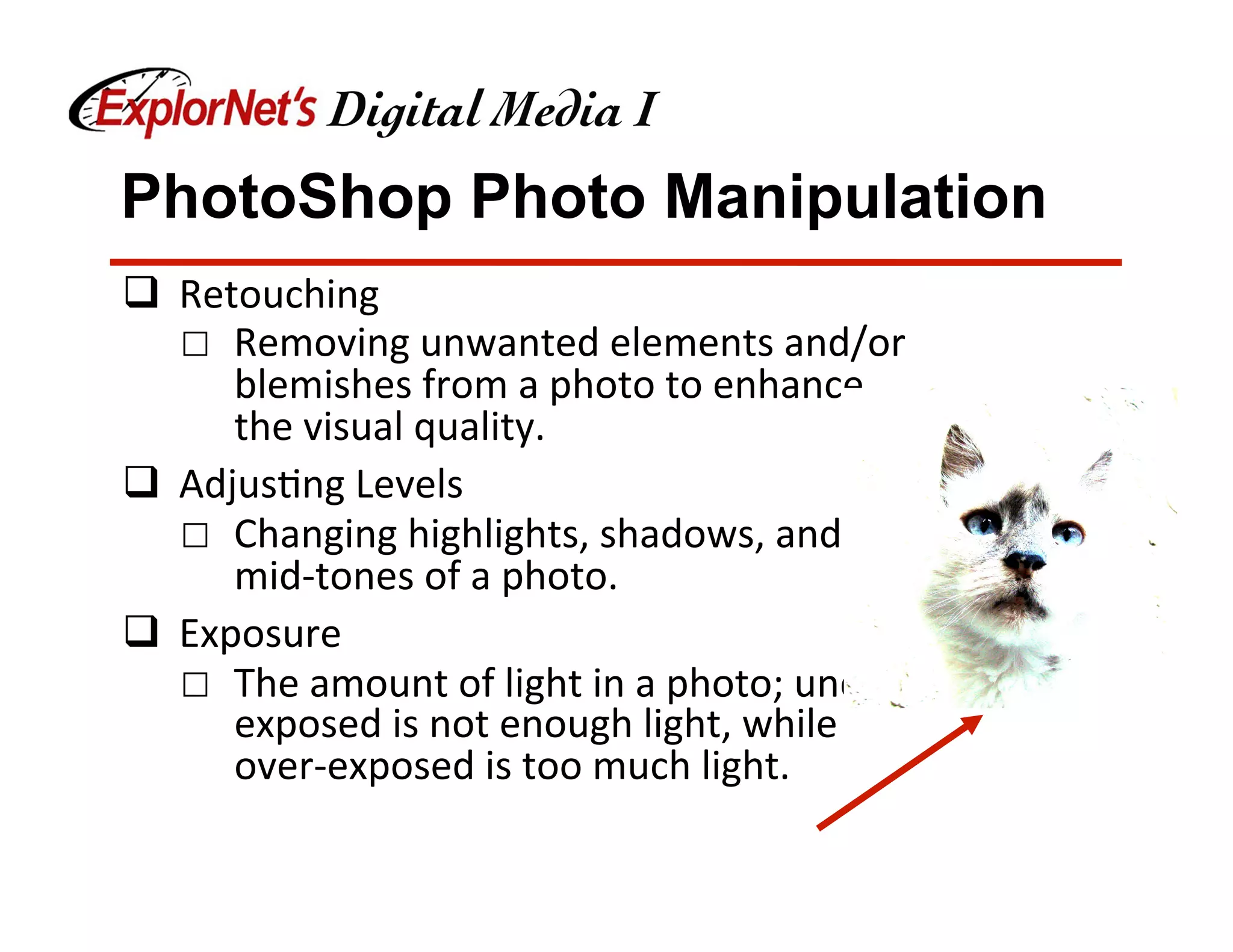
☐  The	amount	of	light	in	a	photo;	under-
exposed	is	not	enough	light,	while	
over-exposed	is	too	much	light.
PhotoShop Photo Manipulation
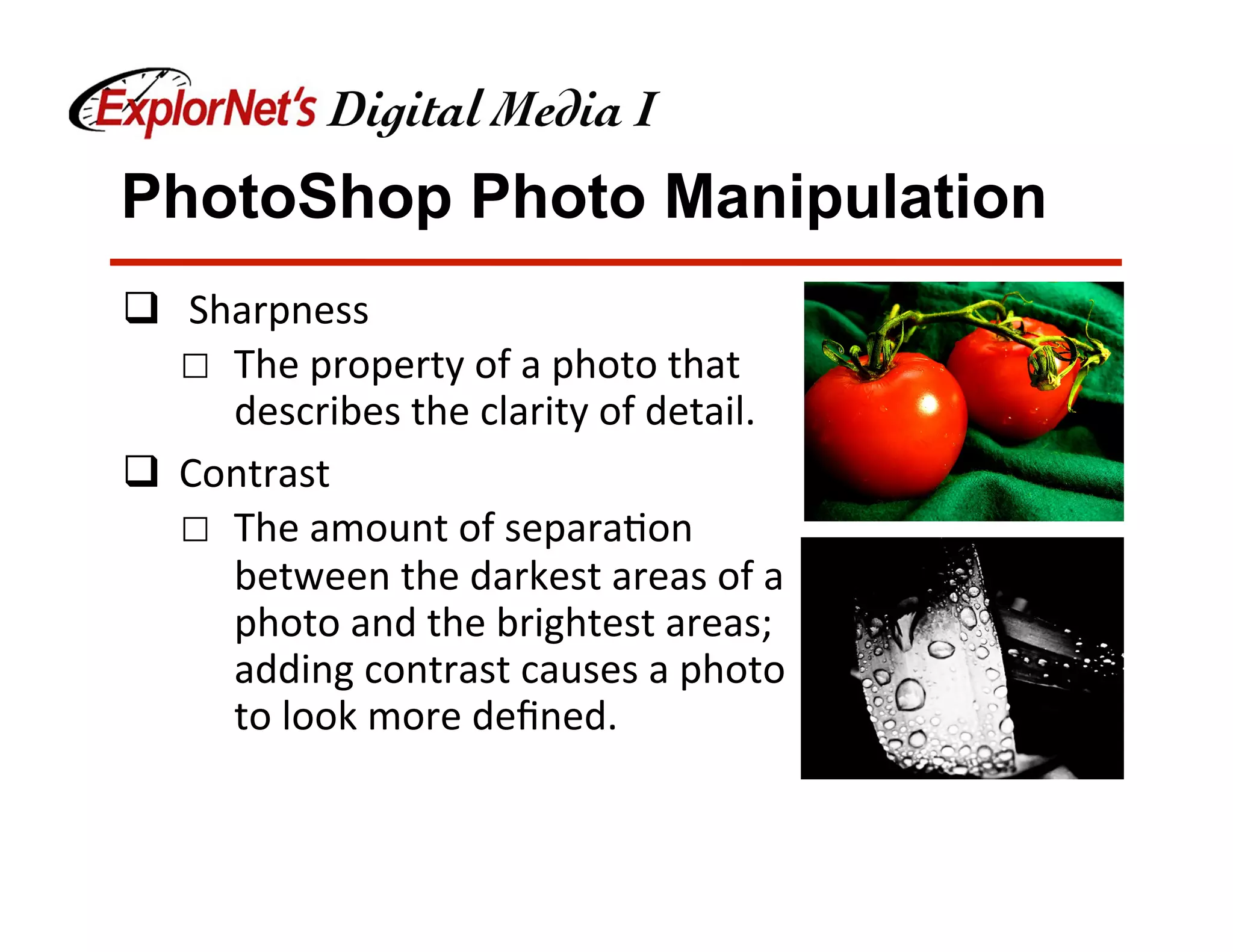
q  	Sharpness	
☐  The	property	of	a	photo	that	
describes	the	clarity	of	detail.	
q  Contrast	
☐  The	amount	of	separa&on	
between	the	darkest	areas	of	a	
photo	and	the	brightest	areas;	
adding	contrast	causes	a	photo	
to	look	more	defined.
PhotoShop Photo Manipulation
q  Smart	Object	
☐  Preserve	an	image’s	source	content	with	all	its	
original	characteris&cs,	enabling	you	to	perform	
nondestruc&ve	edi&ng	to	the	layer.	
☐  Graphics	can	be	embedded	as	Smart	Objects	or	
converted.	
q  Color	Correc&on	
☐  Adjus&ng	the	color	values	of	a	graphic	to	make	
them	appear	more	realis&c	or	to	meet	the	
desired	effect	(ex:	red	eye	correc&on	or	changing	
&nt).
PhotoShop Photo Manipulation
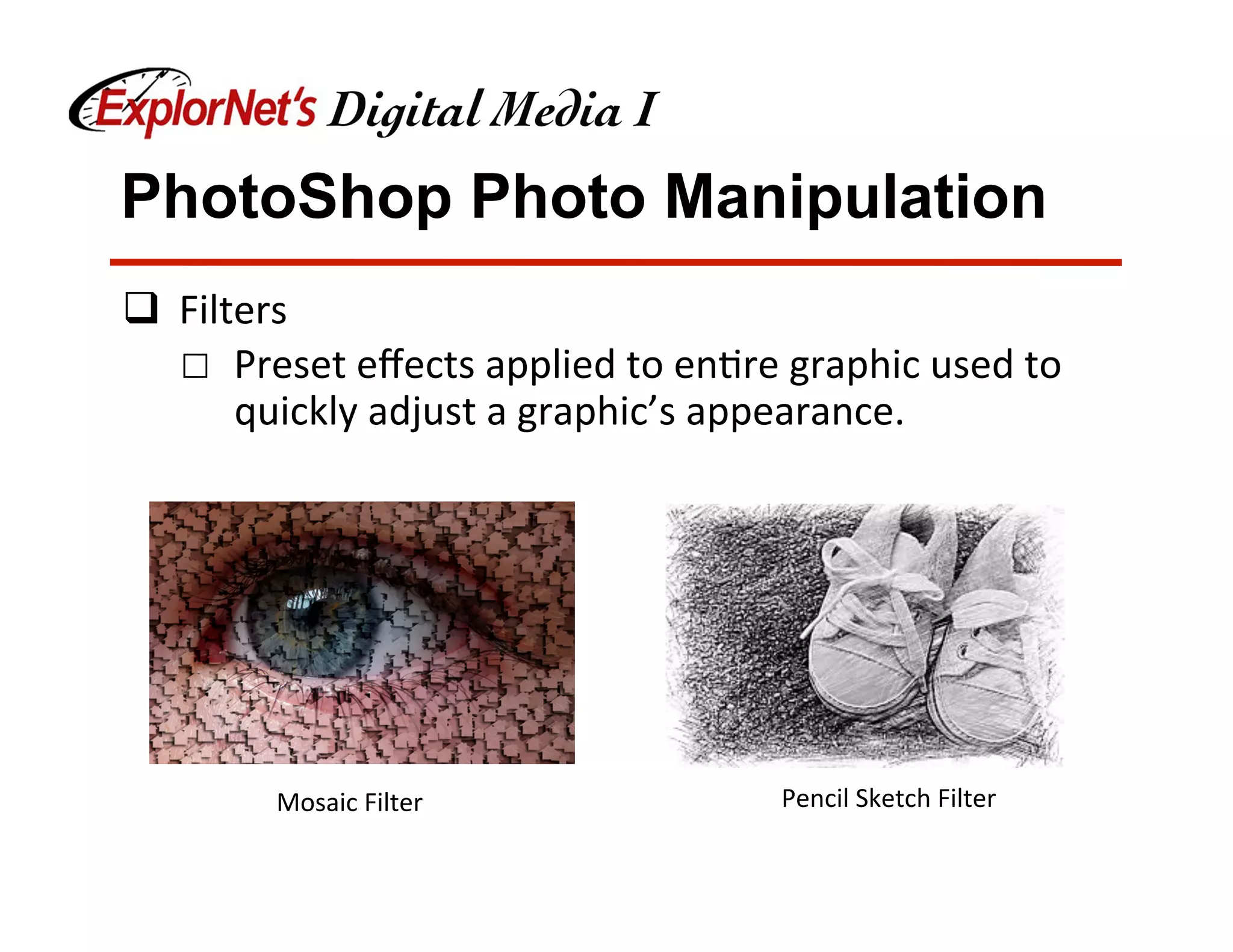
q  Filters	
☐  Preset	effects	applied	to	en&re	graphic	used	to	
quickly	adjust	a	graphic’s	appearance.	
Mosaic	Filter	 Pencil	Sketch	Filter
PhotoShop Photo Manipulation
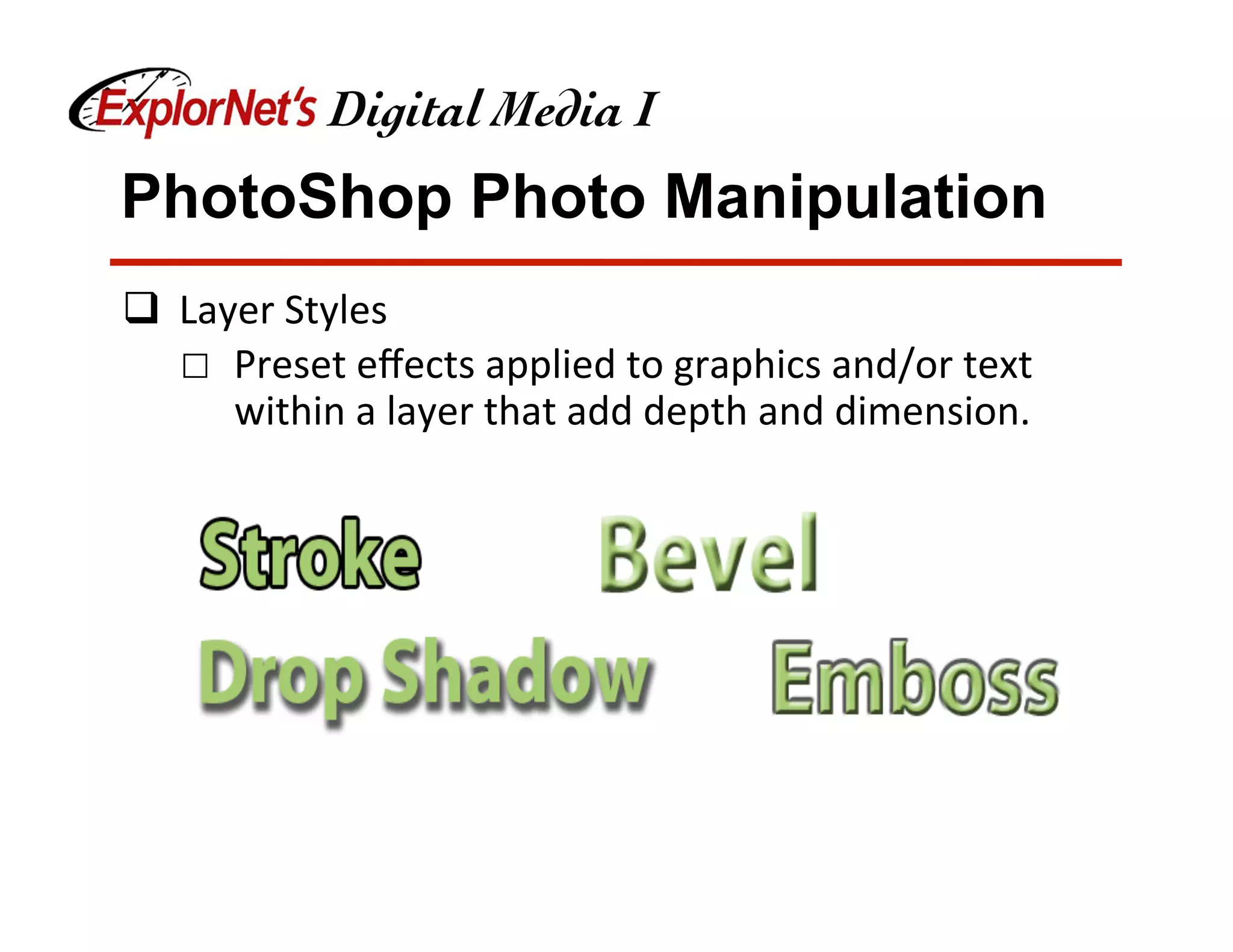
q  Layer	Styles	
☐  Preset	effects	applied	to	graphics	and/or	text	
within	a	layer	that	add	depth	and	dimension.

Digital graphic tools and their use