Developing Websites 1
• Introduction to Web Development
• Web Development Tools
• Website Coding Technologies
• Basic Websites with HTML
• Webpage Structure
• Webpage Components
• Webpage Design Guidelines
• Publishing a Website
2
Developing Websites 1
• Readings
• Focus On: Web Development (all)
Vermaat et al. (2018). Discovering Computers 2018: Digital
Technology, Data, and Devices. CENGAGE Learning.
3
Developing Websites 1
• Introduction to Web Development
• Web Development Tools
• Website Coding Technologies
• Basic Websites with HTML
• Webpage Structure
• Webpage Components
• Webpage Design Guidelines
• Publishing a Website
4
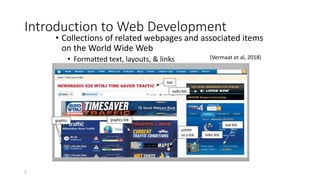
Introduction to Web Development
• Collections of related webpages and associated items
on the World Wide Web
• Formatted text, layouts, & links
• Graphics, audio, & video
5
(Vermaat et al, 2018)
Introduction to Web Development
6
https://www.mockplus.com/
• Frontend:
building everything a user
can see on the screen
• Backend:
server-side architecture,
and database management
Introduction to Web Development
• Simplified steps:
• Developed with tools
• Hosted on web servers
• Transmitted via the Internet (or an Intranet)
• Requested & viewed via web browsers/apps
7
(Vermaat et al, 2018)
Developing Websites 1
• Introduction to Websites
• Web Development Tools
• Website Coding Technologies
• Basic Websites with HTML
• Webpage Structure
• Webpage Components
• Webpage Design Guidelines
• Publishing a Website
8
Web Development Tools (frontend)
• Text Editors
• Notepad++
• TextWrangler (for MacOS)
• Sublime (windows, MacOS, Linux)
• Integrated Development Environments (IDEs)
• Netbeans
• Visual Studio Code
• Web Authoring Tools
• Dreamweaver
• Photoshop
• Content Management Systems
• Web publishing for large sites (e.g. Wordpress)
9
Web Development Tools (frontend)
10 (Vermaat et al, 2018)
Web Development Tools (frontend)
• Code Validators
• W3C (validator.w3.org)
• Ensures
• Code syntax is correct
• Corresponding start &
end tags in order
11
Developing Websites 1
• Introduction to Websites
• Web Development Tools
• Website Coding Technologies
• Basic Websites with HTML
• Webpage Structure
• Webpage Components
• Webpage Design Guidelines
• Publishing a Website
12
Website Coding Technologies
• Hypertext Markup Language (HTML)
• Uses a set of codes called tags to format documents for
display in a browser
• Cascading Style Sheets (CSS)
• Contains specifications for the fonts, colours, layout, and
placement of HTML elements
• JavaScript
• Programming language for programs that a browser can
run make a website more dynamic
13
https://sweetcode.io/
Website Coding Technologies
14 https://html-css-js.com/
Developing Websites 1
• Introduction to Websites
• Web Development Tools
• Website Coding Technologies
• Basic Websites with HTML
• Webpage Structure
• Webpage Components
• Webpage Design Guidelines
• Publishing a Website
15
Basic Websites with HTML
16 (Vermaat et al, 2018)
HTML History
HTML is an evolving language.
• HTML 1.0 (1993) - a way to electronically connect documents via
hyperlinks
• HTML 2.0 (1995) - developed by Internet Engineering Task Force RFC
to include stylized text , tables and many other core HTML features.
• HTML 3.0 (abandoned) - the browsers were awfully slow in
implementing any of the new improvements, only adding in a few
and leaving out the rest.
• HTML 3.2 (1997) – developed by W3C and included browser specific
features.
• HTML 4.01 (1999) - a large evolution of the HTML standards.
Support for HTML’s new supporting presentational language,
cascading stylesheets (CSS).
• HTML 5 (2014) - designed for the web, both now and in the future,
plenty of new elements, attributes and abilities to get excited about.
17
Developing Websites 1
• Introduction to Websites
• Web Development Tools
• Website Coding Technologies
• Basic Websites with HTML
• Webpage Structure
• Webpage Components
• Webpage Design Guidelines
• Publishing a Website
18
Webpage Structure
• HTML is built on the Document Object Model [DOM]
• A web page consists of elements that indicate to the
browser the structure of the web page.
19
https://www.coursera.org
Webpage Structure
• A webpage’s source code contains text marked up
with HTML tags that instruct a browser how to display
that content
• Three parts of a well-formed document
• Doctype: Version of HTML that you will be using
• Head: Meta data
• Body: Displayable content
20
Webpage Structure
• Doctype
• HTML5: <!DOCTYPE html>
• <!DOCTYPE html PUBLIC "-//W3C//DTD XTML 4.01 Transitional//EN"
“http://www.w3.org/TR/xhtml1/DTD/xhtml1-transitional.dtd”>
(Previous versions dictated backwards compatibility)
• Head
• Additional information used by the browser
• Meta data – language, font
• Supporting files – JavaScript, Styling, Add-ons
• Other than title, meta data is not displayed
• Body
• Bulk of your page
• Important to write well-formatted (tree-like) code
• Most of the content is displayed by the browser, but there may be
some meta data too
21
Developing Websites 1
• Introduction to Websites
• Web Development Tools
• Website Coding Technologies
• Basic Websites with HTML
• Webpage Structure
• Webpage Components
• Webpage Design Guidelines
• Publishing a Website
22
Webpage Components
• Each tag is enclosed by < > symbols.
• Most elements are two-sided, they have opening and closing tags
A / is used to indicate the closing tag.
• Some tags are one-sided (empty tags).
• e.g. <br /> and <hr />.
• A tag may include attributes that modify the behaviour of the element.
23
Webpage Components
• Headings
• Paragraphs
• <p>Write each paragraph within tags.</p>
• New lines in code are ignored (force with <br/>)
24
(Vermaat et al, 2018)
Webpage Components
• Format tags
• <strong>Bold</strong>
• <em>Italic</em> (emphasis)
• Preformatted tag
• The text enclosed in the pre element usually preserves
spaces and line breaks. The text renders in a fixed-pitch
font.
• Whereas when using the paragraph element (<p> ... </p>)
multiple white space characters (spaces, tabs or end-of-
lines) are reduced to a single space.
• Example:
25
Webpage Components
• Lists
• Unordered list: produces an indented, bulleted list.
• Ordered list: produces an indented list items in order, usually 1, 2, 3 etc
• Definition list: produces an indented list with terms and their
definitions.
26 (Vermaat et al, 2018)
Webpage Components
• Nested Lists
• Nested lists are lists within lists
• The outer list is not closed off until the inner list is
complete
• Different types of listed can be nested. e.g. unordered list
inside ordered list
27
Webpage Components
Tables
• Tables can contain anything you can put into an HTML document e.g. text, graphics, videos, and even
nested tables.
• Some tables can be used to simulate multicolumn layouts
• Caption Element (caption)
• A caption gives a brief summary of the tables contents.
<caption> caption-text </caption>
• Table Header Cell (th element)
• Used for column or row headings if desired
<th> cell-content </th>
• Row Element (tr)
• The row may contain <th> and <td> cell elements.
<tr> ... </tr>
• Table Data Cell (td element)
• Table Data cell
<td> cell-content </td>
28
Webpage Components
Tables (Cont.)
• Example 1:
29
Webpage Components
Tables (Cont.)
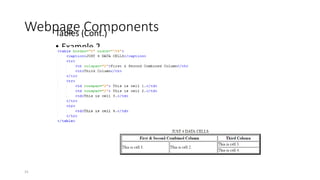
• colspan & rowspan
• Data cell attribute:
the cell spans a number of columns & rows
<td colspan="2"> ...</td>
<td rowspan="3"> ...</td>
• Border Attribute:
• Attribute value is in pixels (units are not required) e.g. border="1". The default is 1.
• Width Attribute :
• Specify the width of the table in pixels (width="200") or as a percentage of the browser width
(width="75%")
• If no width is specified, the table is as wide as necessary for its contents (limited by page size, margins
etc).
30
Webpage Components
Tables (Cont.)
• Example 2
31
Webpage Components
• Images
• The <img> tag inserts an image into the document's normal
text flow.
• Commonly used file formats are: JPG, PNG, GIF
• The image element has no closing tag.
• Images are displayed within some other elements such as
a paragraph <p>, list element <li>or table data cell <td>.
Example:
32
Webpage Components
Image Attributes
• Src (compulsory):
• The URI/filename of image file. e.g.
• src="buster.jpg"
src="http://www.somewhere.com/smiley.gif"
• alt (compulsory):
• Alternative descriptive text for the image.
• width & height (recommended ):
• The width and height of the image are specified in pixels or as a percentage.
• width = n image width in pixels e.g. width="500“
• height = n image height in pixels e.g. height="350“
• width= n% height= n% where n is the width given as a percentage of the available browser
window width e.g. width=80%
33
Webpage Components
• Hyperlinks - Anchor Tag
• Hyperlinks are made using the anchor tag pair, <a> and </a>.
• The href (hypertext reference/link) attribute specifies the URI
(Uniform Resource Identifiers) of the page (or mail address etc).
An anchor must be within another element such as <p> ... </p>
or <h1> ... </h1>
• Use forward slashes (/) to specify directories (folders) NOT
backslashes ().
• Spaces in file or folder names are not recommended as some
browsers may have trouble with them
34
Webpage Components
• Hyperlinks - Anchor Tag (Cont.)
Examples:
1.
Would be displayed as:
2.
Would be displayed as:
35
Webpage Components
• Format tags
• <strong>Bold</strong>
• <em>Italic</em> (emphasis)
• Horizontal rule (separator line)
• <hr/>
• Comments
• <!-- my comments -->
• Special characters
• Used for coding
36
Webpage Components
• Styles (early look at CSS – next week)
• Color (256 bit)
• <p style="color:red">red</p> (named)
• <p style="color:#000080">blue</p> (RGB hex)
• <p style="color:rgb(0,128,0)">green</p> (RGB dec)
Hexadecimal: 16 base numbers (0-9, A-F)
• Dec 0-255 ≡ Hex 00-FF
37
Developing Websites 1
• Introduction to Websites
• Web Development Tools
• Website Coding Technologies
• Basic Websites with HTML
• Webpage Structure
• Webpage Components
• Webpage Design Guidelines
• Publishing a Website
38
Webpage Design Guidelines
• Appeal & clarity
• Aesthetic design & communicates well
• Balance & density
• Appropriate sizing & use of space
• Consistency (across & within pages)
• Layout, color scheme, text size & fonts
• Navigation & links
39
Webpage Design Guidelines
40
Developing Websites 1
• Introduction to Websites
• Web Development Tools
• Website Coding Technologies
• Basic Websites with HTML
• Webpage Structure
• Webpage Components
• Webpage Design Guidelines
• Publishing a Website
41
Publishing a Website
• Make webpages available via a web server
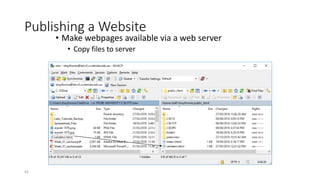
• Copy files to server
• Location mapped to the URL (public_html directory)
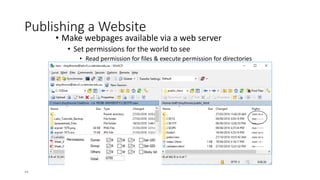
• Set permissions for the world to see
• Read permission for files & execute permission for directories
• Open the URL in a web browser
42
Publishing a Website
• Make webpages available via a web server
• Copy files to server
43
Publishing a Website
• Make webpages available via a web server
• Set permissions for the world to see
• Read permission for files & execute permission for directories
44
Publishing a Website
• Make webpages available via a web server
• Open the URL in a web browser
45

Developing Website.pptx

  • 1.
  • 2.
    Developing Websites 1 •Introduction to Web Development • Web Development Tools • Website Coding Technologies • Basic Websites with HTML • Webpage Structure • Webpage Components • Webpage Design Guidelines • Publishing a Website 2
  • 3.
    Developing Websites 1 •Readings • Focus On: Web Development (all) Vermaat et al. (2018). Discovering Computers 2018: Digital Technology, Data, and Devices. CENGAGE Learning. 3
  • 4.
    Developing Websites 1 •Introduction to Web Development • Web Development Tools • Website Coding Technologies • Basic Websites with HTML • Webpage Structure • Webpage Components • Webpage Design Guidelines • Publishing a Website 4
  • 5.
    Introduction to WebDevelopment • Collections of related webpages and associated items on the World Wide Web • Formatted text, layouts, & links • Graphics, audio, & video 5 (Vermaat et al, 2018)
  • 6.
    Introduction to WebDevelopment 6 https://www.mockplus.com/ • Frontend: building everything a user can see on the screen • Backend: server-side architecture, and database management
  • 7.
    Introduction to WebDevelopment • Simplified steps: • Developed with tools • Hosted on web servers • Transmitted via the Internet (or an Intranet) • Requested & viewed via web browsers/apps 7 (Vermaat et al, 2018)
  • 8.
    Developing Websites 1 •Introduction to Websites • Web Development Tools • Website Coding Technologies • Basic Websites with HTML • Webpage Structure • Webpage Components • Webpage Design Guidelines • Publishing a Website 8
  • 9.
    Web Development Tools(frontend) • Text Editors • Notepad++ • TextWrangler (for MacOS) • Sublime (windows, MacOS, Linux) • Integrated Development Environments (IDEs) • Netbeans • Visual Studio Code • Web Authoring Tools • Dreamweaver • Photoshop • Content Management Systems • Web publishing for large sites (e.g. Wordpress) 9
  • 10.
    Web Development Tools(frontend) 10 (Vermaat et al, 2018)
  • 11.
    Web Development Tools(frontend) • Code Validators • W3C (validator.w3.org) • Ensures • Code syntax is correct • Corresponding start & end tags in order 11
  • 12.
    Developing Websites 1 •Introduction to Websites • Web Development Tools • Website Coding Technologies • Basic Websites with HTML • Webpage Structure • Webpage Components • Webpage Design Guidelines • Publishing a Website 12
  • 13.
    Website Coding Technologies •Hypertext Markup Language (HTML) • Uses a set of codes called tags to format documents for display in a browser • Cascading Style Sheets (CSS) • Contains specifications for the fonts, colours, layout, and placement of HTML elements • JavaScript • Programming language for programs that a browser can run make a website more dynamic 13 https://sweetcode.io/
  • 14.
    Website Coding Technologies 14https://html-css-js.com/
  • 15.
    Developing Websites 1 •Introduction to Websites • Web Development Tools • Website Coding Technologies • Basic Websites with HTML • Webpage Structure • Webpage Components • Webpage Design Guidelines • Publishing a Website 15
  • 16.
    Basic Websites withHTML 16 (Vermaat et al, 2018)
  • 17.
    HTML History HTML isan evolving language. • HTML 1.0 (1993) - a way to electronically connect documents via hyperlinks • HTML 2.0 (1995) - developed by Internet Engineering Task Force RFC to include stylized text , tables and many other core HTML features. • HTML 3.0 (abandoned) - the browsers were awfully slow in implementing any of the new improvements, only adding in a few and leaving out the rest. • HTML 3.2 (1997) – developed by W3C and included browser specific features. • HTML 4.01 (1999) - a large evolution of the HTML standards. Support for HTML’s new supporting presentational language, cascading stylesheets (CSS). • HTML 5 (2014) - designed for the web, both now and in the future, plenty of new elements, attributes and abilities to get excited about. 17
  • 18.
    Developing Websites 1 •Introduction to Websites • Web Development Tools • Website Coding Technologies • Basic Websites with HTML • Webpage Structure • Webpage Components • Webpage Design Guidelines • Publishing a Website 18
  • 19.
    Webpage Structure • HTMLis built on the Document Object Model [DOM] • A web page consists of elements that indicate to the browser the structure of the web page. 19 https://www.coursera.org
  • 20.
    Webpage Structure • Awebpage’s source code contains text marked up with HTML tags that instruct a browser how to display that content • Three parts of a well-formed document • Doctype: Version of HTML that you will be using • Head: Meta data • Body: Displayable content 20
  • 21.
    Webpage Structure • Doctype •HTML5: <!DOCTYPE html> • <!DOCTYPE html PUBLIC "-//W3C//DTD XTML 4.01 Transitional//EN" “http://www.w3.org/TR/xhtml1/DTD/xhtml1-transitional.dtd”> (Previous versions dictated backwards compatibility) • Head • Additional information used by the browser • Meta data – language, font • Supporting files – JavaScript, Styling, Add-ons • Other than title, meta data is not displayed • Body • Bulk of your page • Important to write well-formatted (tree-like) code • Most of the content is displayed by the browser, but there may be some meta data too 21
  • 22.
    Developing Websites 1 •Introduction to Websites • Web Development Tools • Website Coding Technologies • Basic Websites with HTML • Webpage Structure • Webpage Components • Webpage Design Guidelines • Publishing a Website 22
  • 23.
    Webpage Components • Eachtag is enclosed by < > symbols. • Most elements are two-sided, they have opening and closing tags A / is used to indicate the closing tag. • Some tags are one-sided (empty tags). • e.g. <br /> and <hr />. • A tag may include attributes that modify the behaviour of the element. 23
  • 24.
    Webpage Components • Headings •Paragraphs • <p>Write each paragraph within tags.</p> • New lines in code are ignored (force with <br/>) 24 (Vermaat et al, 2018)
  • 25.
    Webpage Components • Formattags • <strong>Bold</strong> • <em>Italic</em> (emphasis) • Preformatted tag • The text enclosed in the pre element usually preserves spaces and line breaks. The text renders in a fixed-pitch font. • Whereas when using the paragraph element (<p> ... </p>) multiple white space characters (spaces, tabs or end-of- lines) are reduced to a single space. • Example: 25
  • 26.
    Webpage Components • Lists •Unordered list: produces an indented, bulleted list. • Ordered list: produces an indented list items in order, usually 1, 2, 3 etc • Definition list: produces an indented list with terms and their definitions. 26 (Vermaat et al, 2018)
  • 27.
    Webpage Components • NestedLists • Nested lists are lists within lists • The outer list is not closed off until the inner list is complete • Different types of listed can be nested. e.g. unordered list inside ordered list 27
  • 28.
    Webpage Components Tables • Tablescan contain anything you can put into an HTML document e.g. text, graphics, videos, and even nested tables. • Some tables can be used to simulate multicolumn layouts • Caption Element (caption) • A caption gives a brief summary of the tables contents. <caption> caption-text </caption> • Table Header Cell (th element) • Used for column or row headings if desired <th> cell-content </th> • Row Element (tr) • The row may contain <th> and <td> cell elements. <tr> ... </tr> • Table Data Cell (td element) • Table Data cell <td> cell-content </td> 28
  • 29.
  • 30.
    Webpage Components Tables (Cont.) •colspan & rowspan • Data cell attribute: the cell spans a number of columns & rows <td colspan="2"> ...</td> <td rowspan="3"> ...</td> • Border Attribute: • Attribute value is in pixels (units are not required) e.g. border="1". The default is 1. • Width Attribute : • Specify the width of the table in pixels (width="200") or as a percentage of the browser width (width="75%") • If no width is specified, the table is as wide as necessary for its contents (limited by page size, margins etc). 30
  • 31.
  • 32.
    Webpage Components • Images •The <img> tag inserts an image into the document's normal text flow. • Commonly used file formats are: JPG, PNG, GIF • The image element has no closing tag. • Images are displayed within some other elements such as a paragraph <p>, list element <li>or table data cell <td>. Example: 32
  • 33.
    Webpage Components Image Attributes •Src (compulsory): • The URI/filename of image file. e.g. • src="buster.jpg" src="http://www.somewhere.com/smiley.gif" • alt (compulsory): • Alternative descriptive text for the image. • width & height (recommended ): • The width and height of the image are specified in pixels or as a percentage. • width = n image width in pixels e.g. width="500“ • height = n image height in pixels e.g. height="350“ • width= n% height= n% where n is the width given as a percentage of the available browser window width e.g. width=80% 33
  • 34.
    Webpage Components • Hyperlinks- Anchor Tag • Hyperlinks are made using the anchor tag pair, <a> and </a>. • The href (hypertext reference/link) attribute specifies the URI (Uniform Resource Identifiers) of the page (or mail address etc). An anchor must be within another element such as <p> ... </p> or <h1> ... </h1> • Use forward slashes (/) to specify directories (folders) NOT backslashes (). • Spaces in file or folder names are not recommended as some browsers may have trouble with them 34
  • 35.
    Webpage Components • Hyperlinks- Anchor Tag (Cont.) Examples: 1. Would be displayed as: 2. Would be displayed as: 35
  • 36.
    Webpage Components • Formattags • <strong>Bold</strong> • <em>Italic</em> (emphasis) • Horizontal rule (separator line) • <hr/> • Comments • <!-- my comments --> • Special characters • Used for coding 36
  • 37.
    Webpage Components • Styles(early look at CSS – next week) • Color (256 bit) • <p style="color:red">red</p> (named) • <p style="color:#000080">blue</p> (RGB hex) • <p style="color:rgb(0,128,0)">green</p> (RGB dec) Hexadecimal: 16 base numbers (0-9, A-F) • Dec 0-255 ≡ Hex 00-FF 37
  • 38.
    Developing Websites 1 •Introduction to Websites • Web Development Tools • Website Coding Technologies • Basic Websites with HTML • Webpage Structure • Webpage Components • Webpage Design Guidelines • Publishing a Website 38
  • 39.
    Webpage Design Guidelines •Appeal & clarity • Aesthetic design & communicates well • Balance & density • Appropriate sizing & use of space • Consistency (across & within pages) • Layout, color scheme, text size & fonts • Navigation & links 39
  • 40.
  • 41.
    Developing Websites 1 •Introduction to Websites • Web Development Tools • Website Coding Technologies • Basic Websites with HTML • Webpage Structure • Webpage Components • Webpage Design Guidelines • Publishing a Website 41
  • 42.
    Publishing a Website •Make webpages available via a web server • Copy files to server • Location mapped to the URL (public_html directory) • Set permissions for the world to see • Read permission for files & execute permission for directories • Open the URL in a web browser 42
  • 43.
    Publishing a Website •Make webpages available via a web server • Copy files to server 43
  • 44.
    Publishing a Website •Make webpages available via a web server • Set permissions for the world to see • Read permission for files & execute permission for directories 44
  • 45.
    Publishing a Website •Make webpages available via a web server • Open the URL in a web browser 45

Editor's Notes

  • #24 The HTML <br> element produces a line break in text (carriage-return). It is useful for writing a poem or an address, where the division of lines is significant. The <hr> tag in HTML stands for horizontal rule and is used to insert a horizontal rule or a thematic break in an HTML page to divide or separate document sections.