By Demi and Ellie
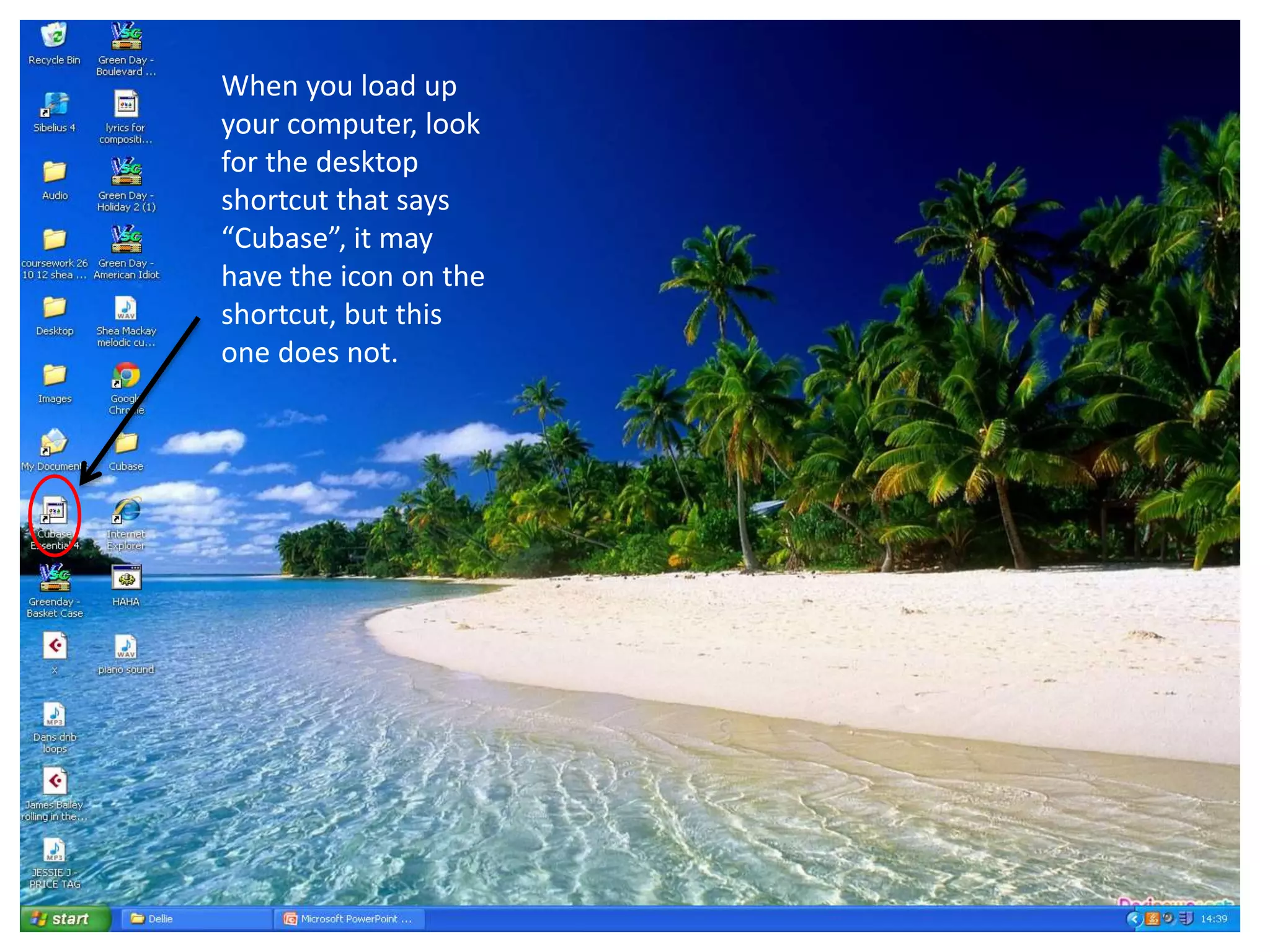
When you load up
your computer, look
for the desktop
shortcut that says
“Cubase”, it may
have the icon on the
shortcut, but this
one does not.
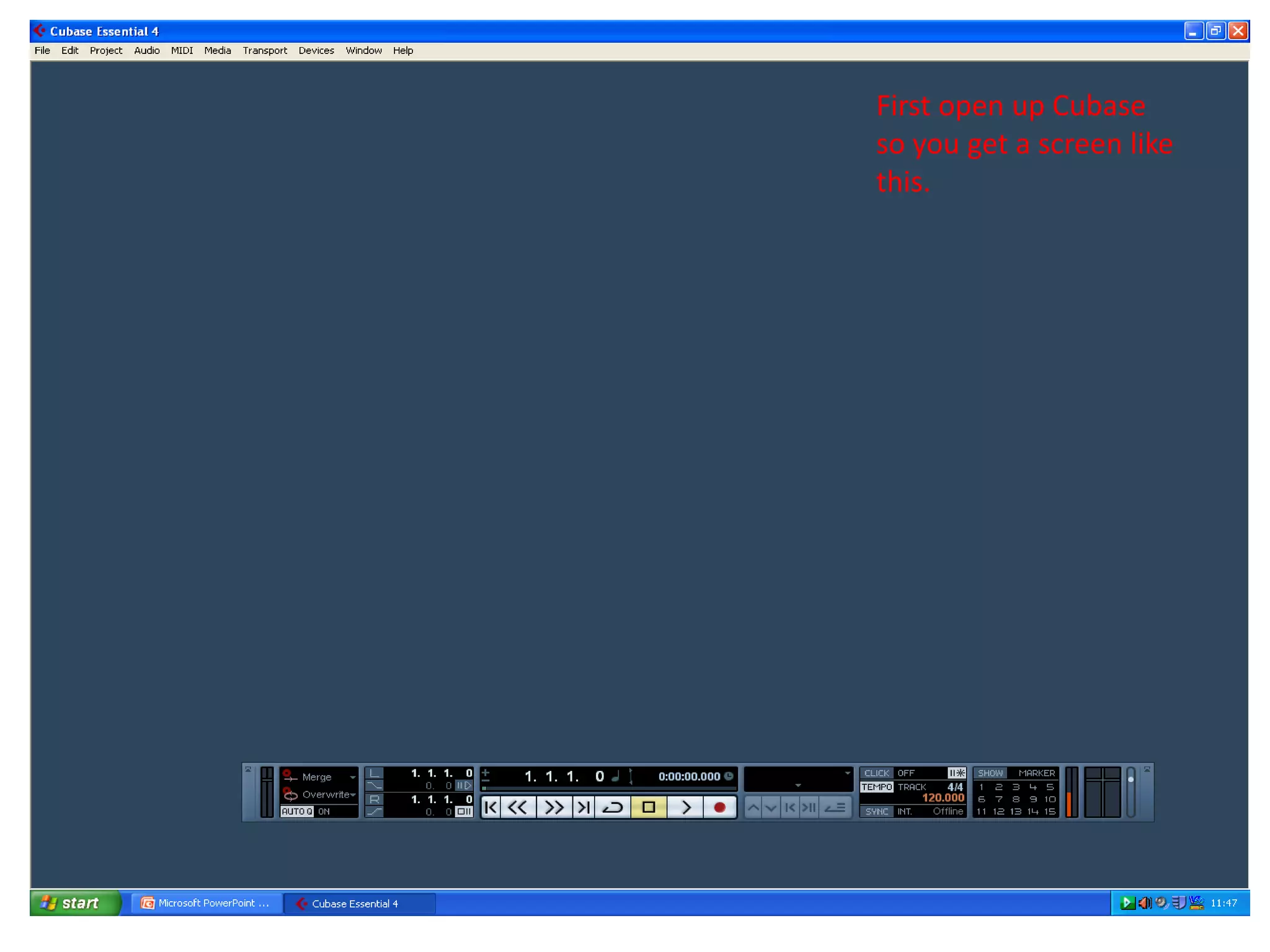
First open up Cubase
so you get a screen like
this.
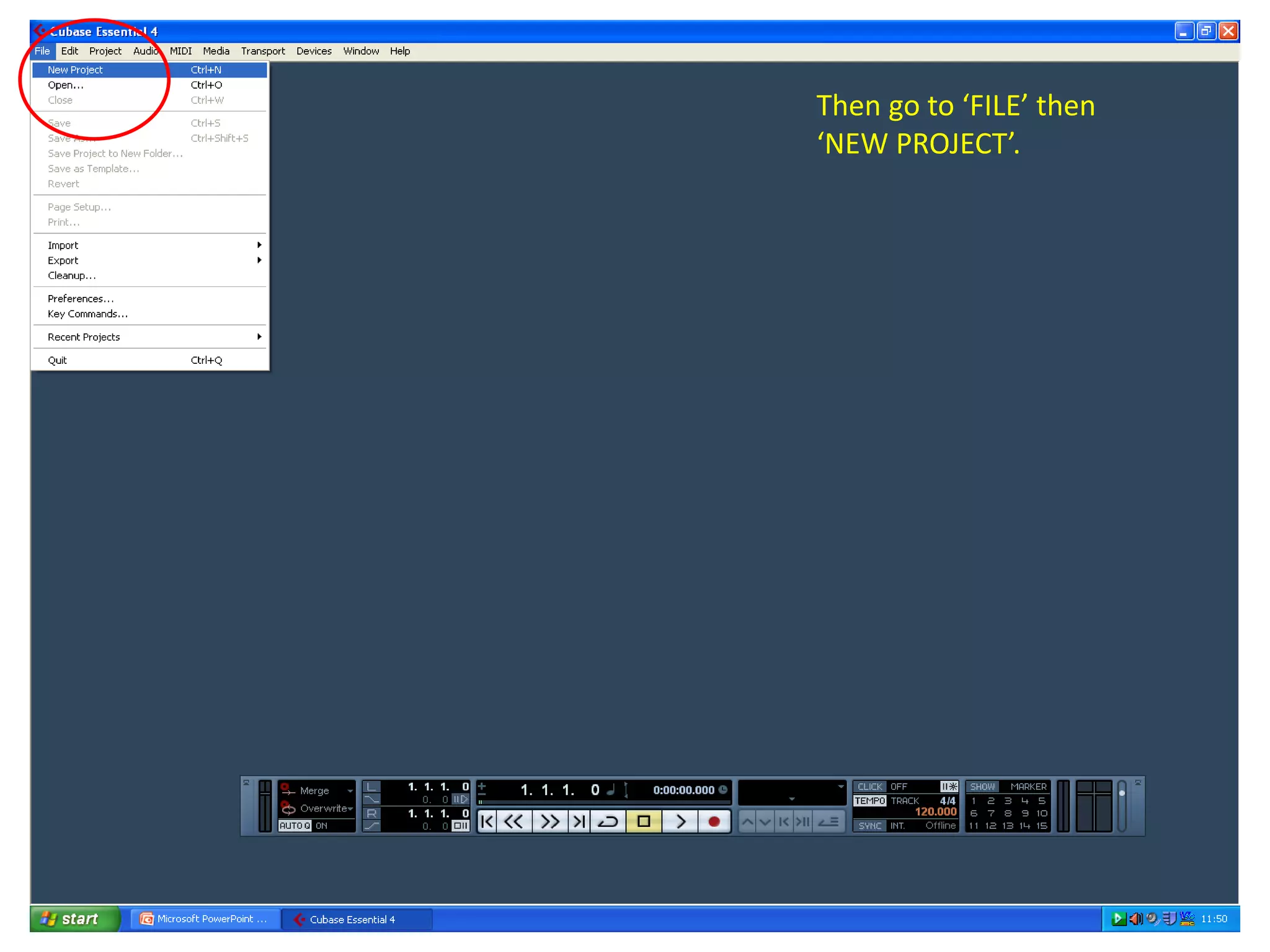
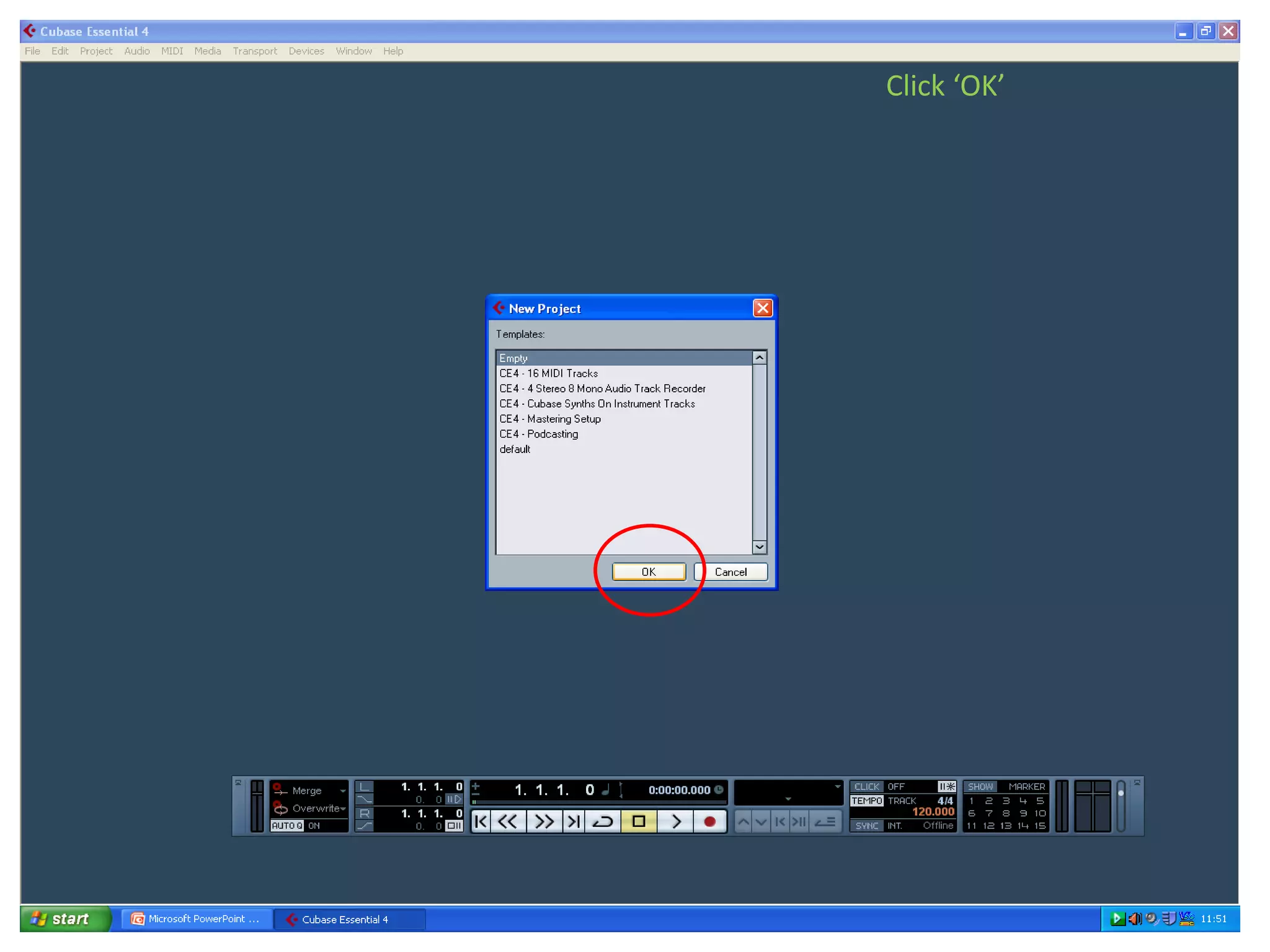
Then go to ‘FILE’ then
‘NEW PROJECT’.
Click ‘OK’
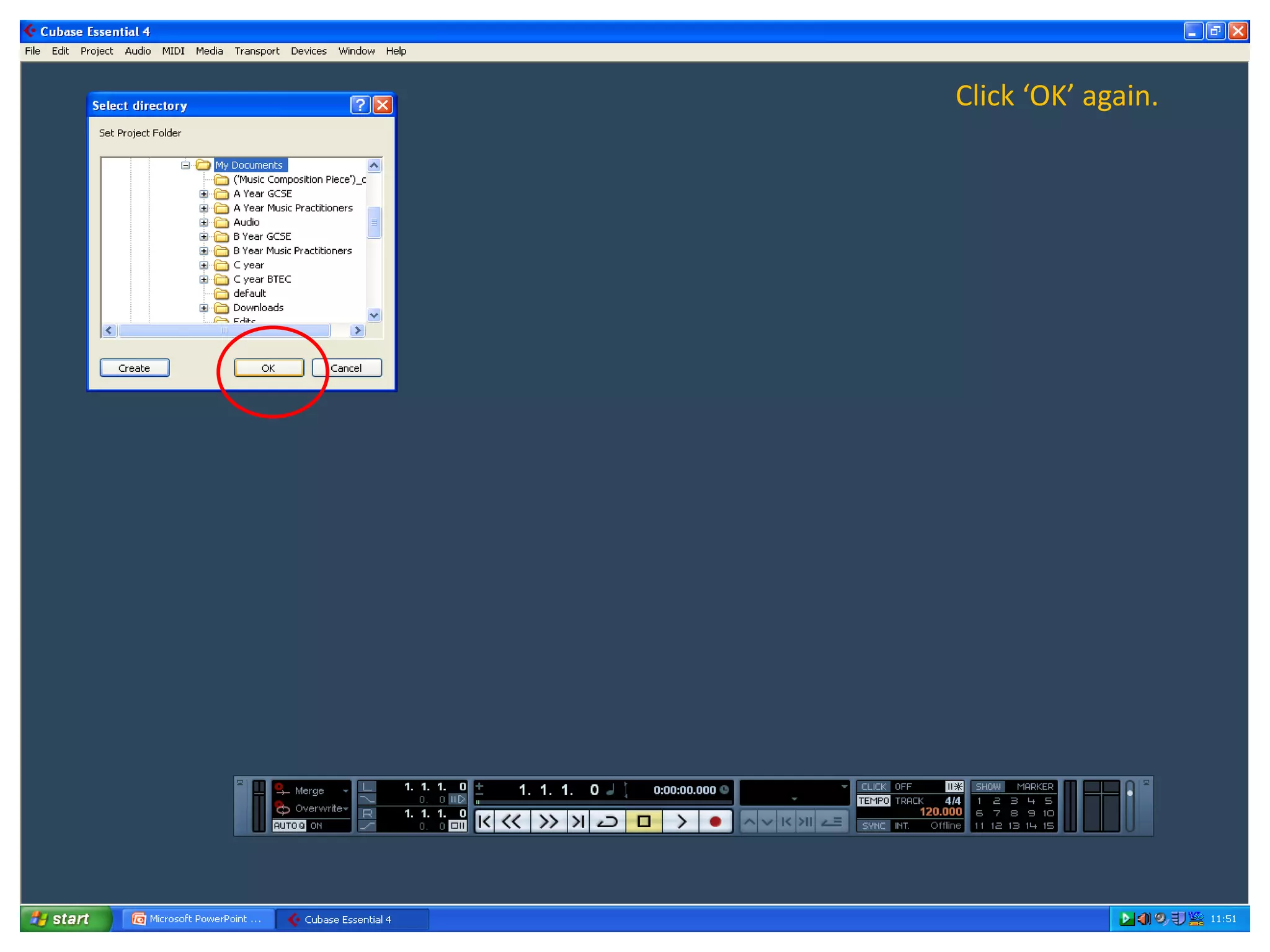
Click ‘OK’ again.
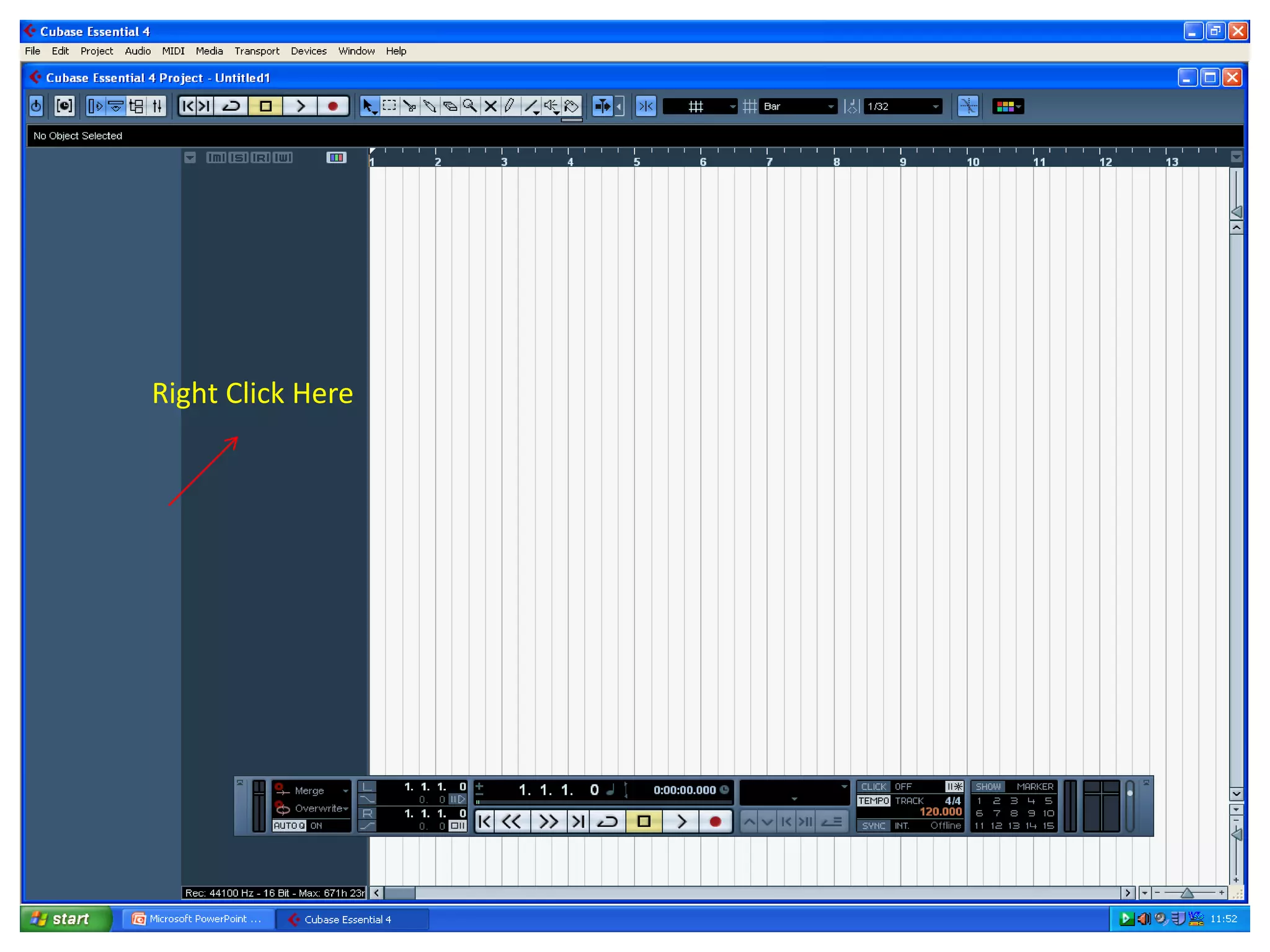
Right Click Here
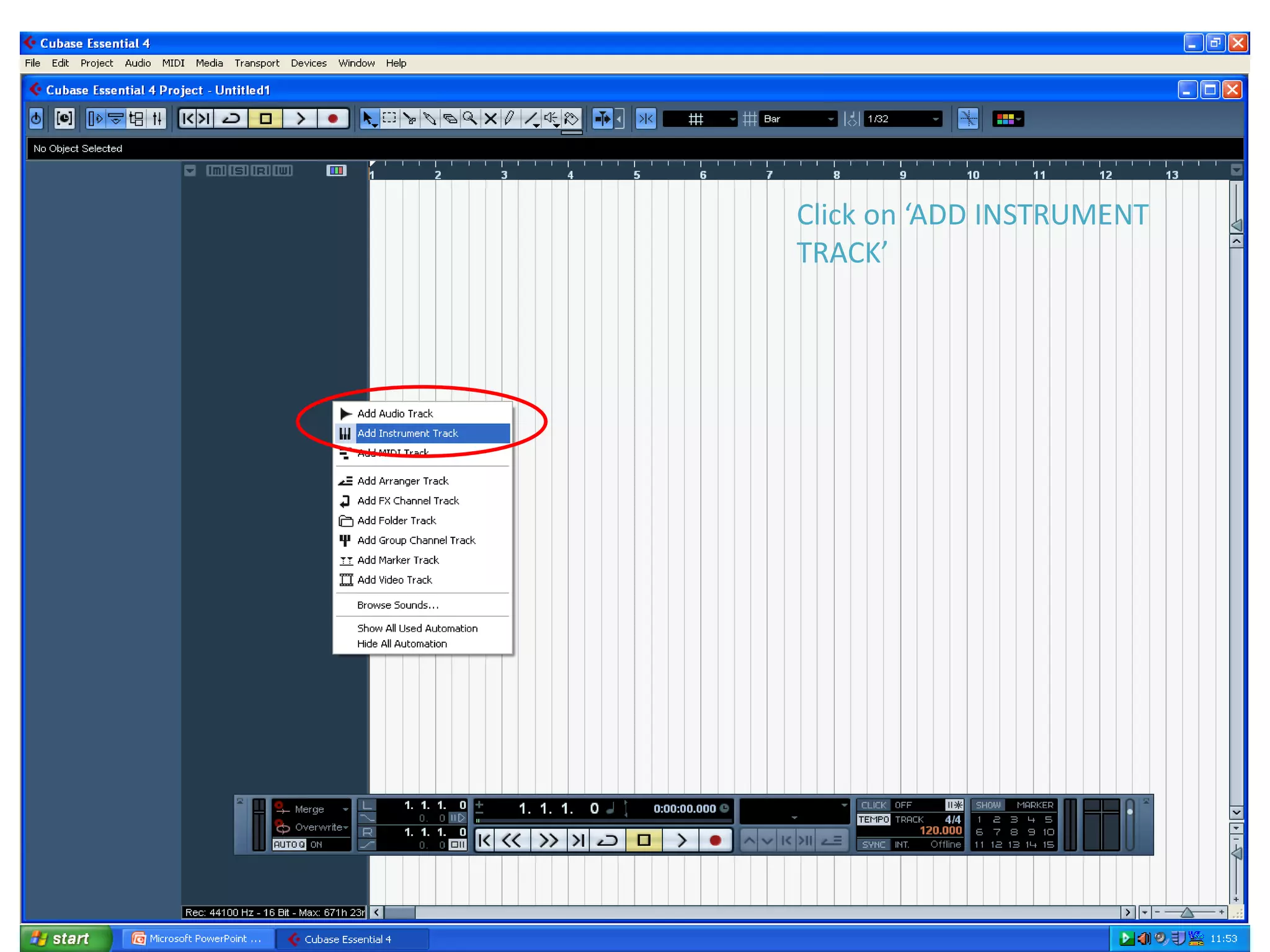
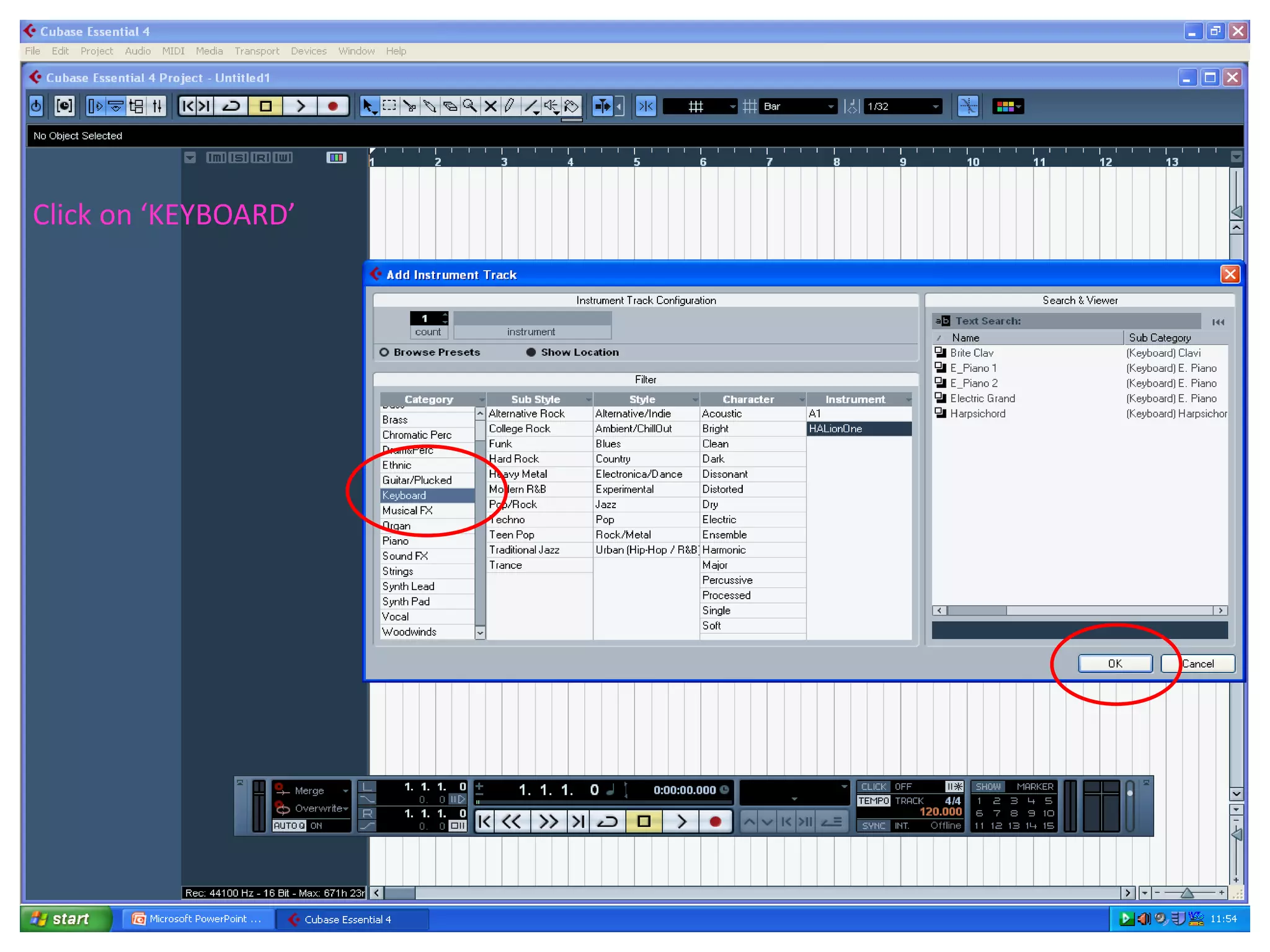
Click on ‘ADD INSTRUMENT
TRACK’
Click on ‘KEYBOARD’
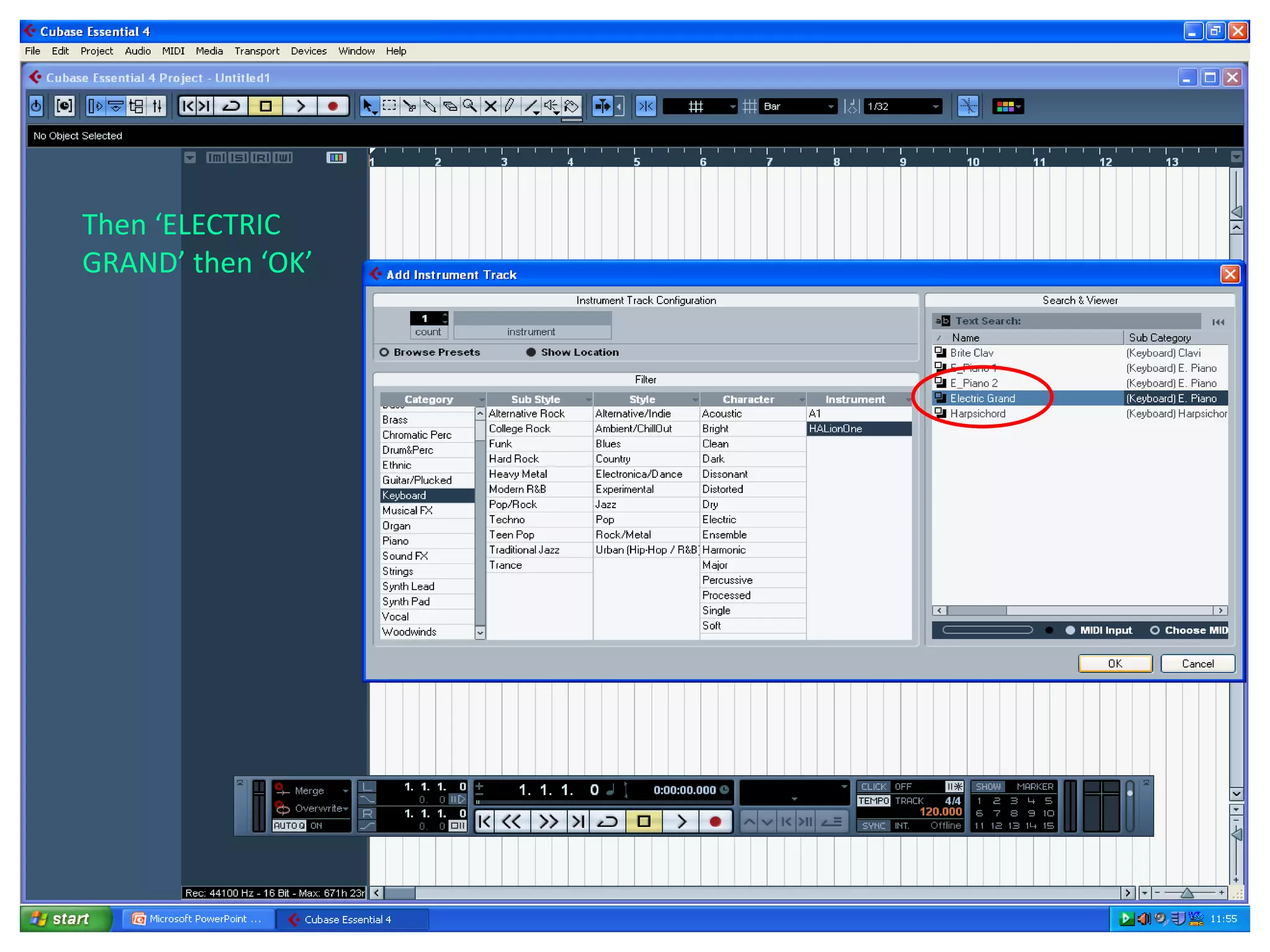
Then ‘ELECTRIC
GRAND’ then ‘OK’
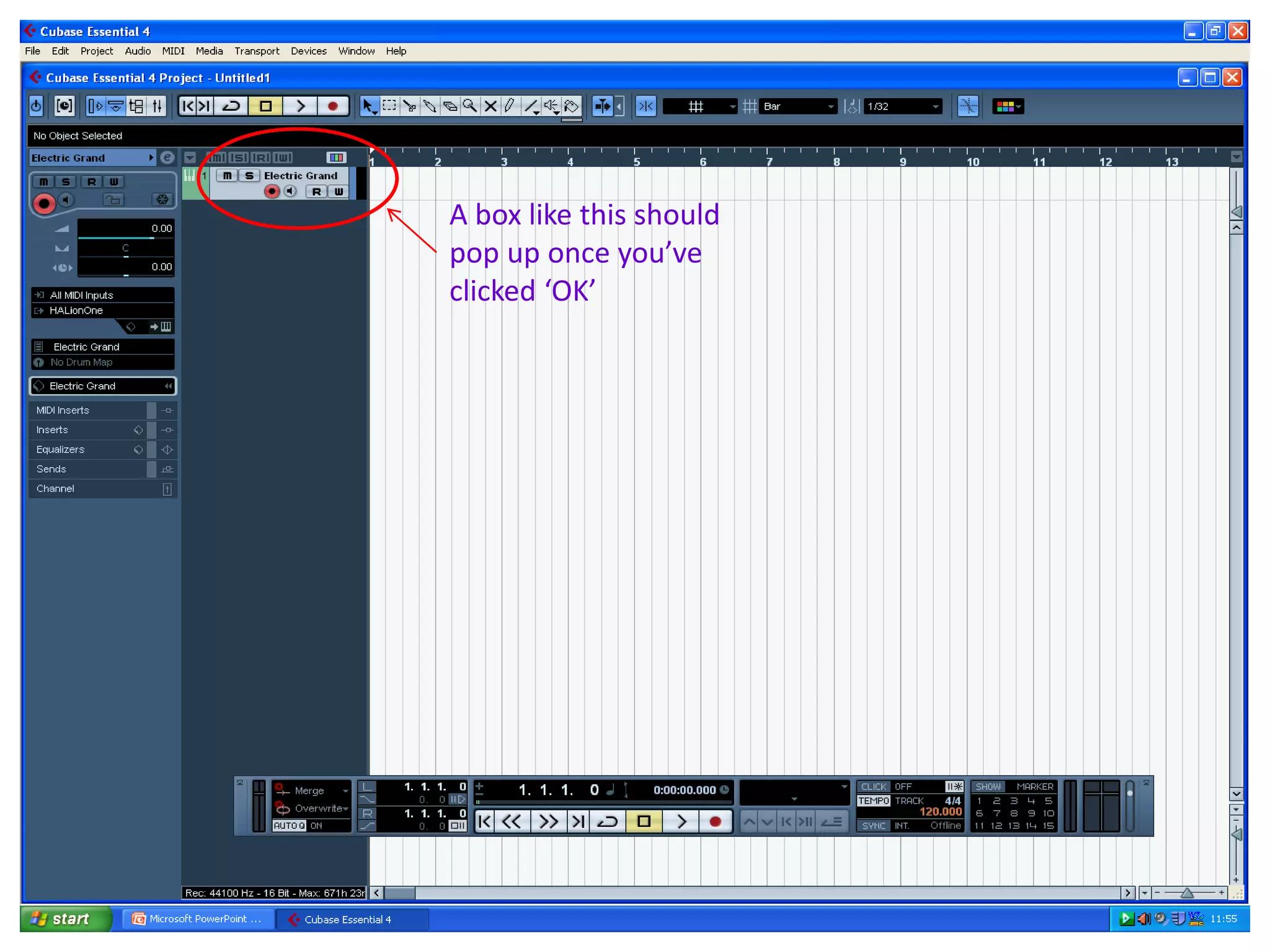
A box like this should
pop up once you’ve
clicked ‘OK’
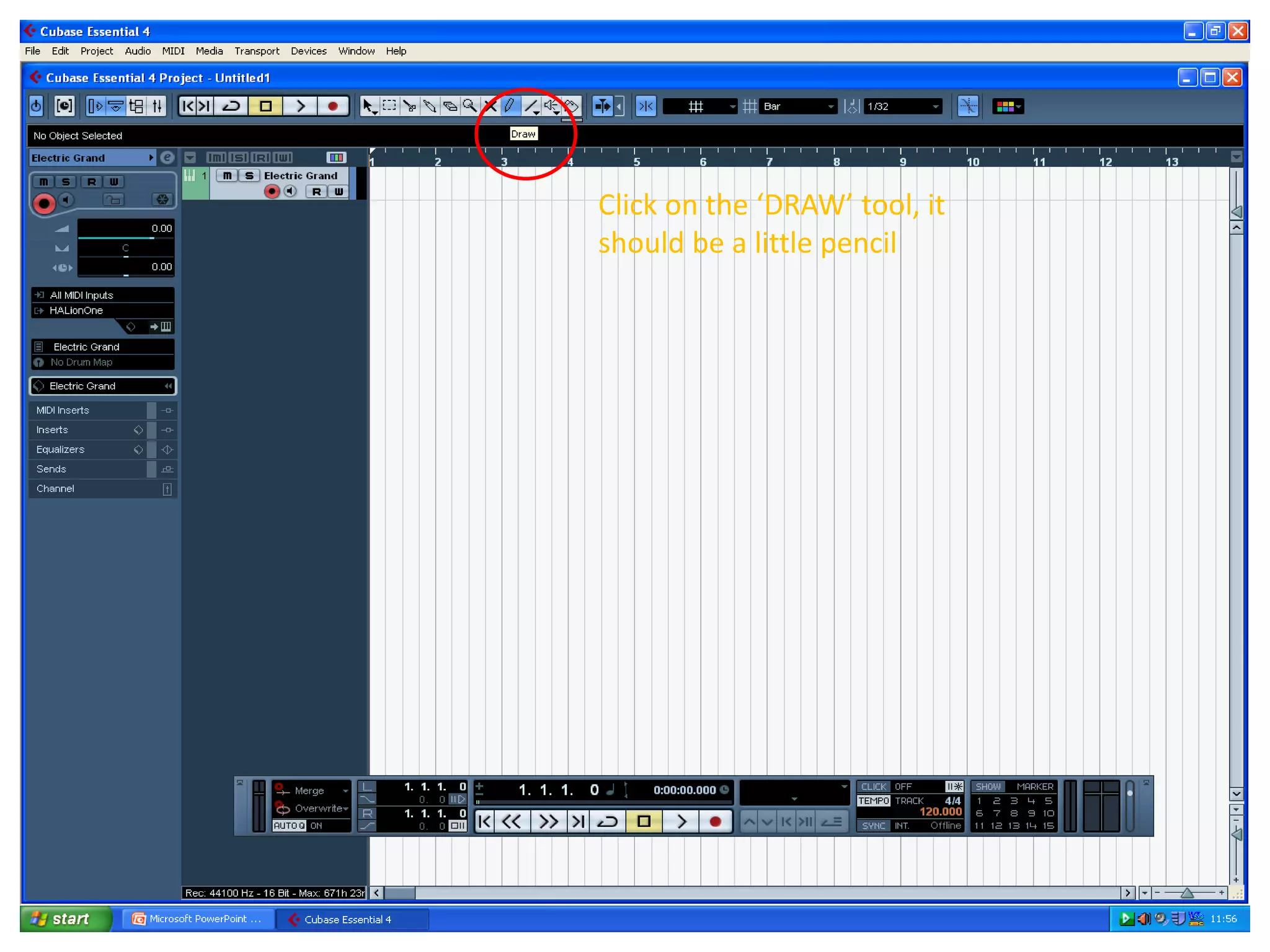
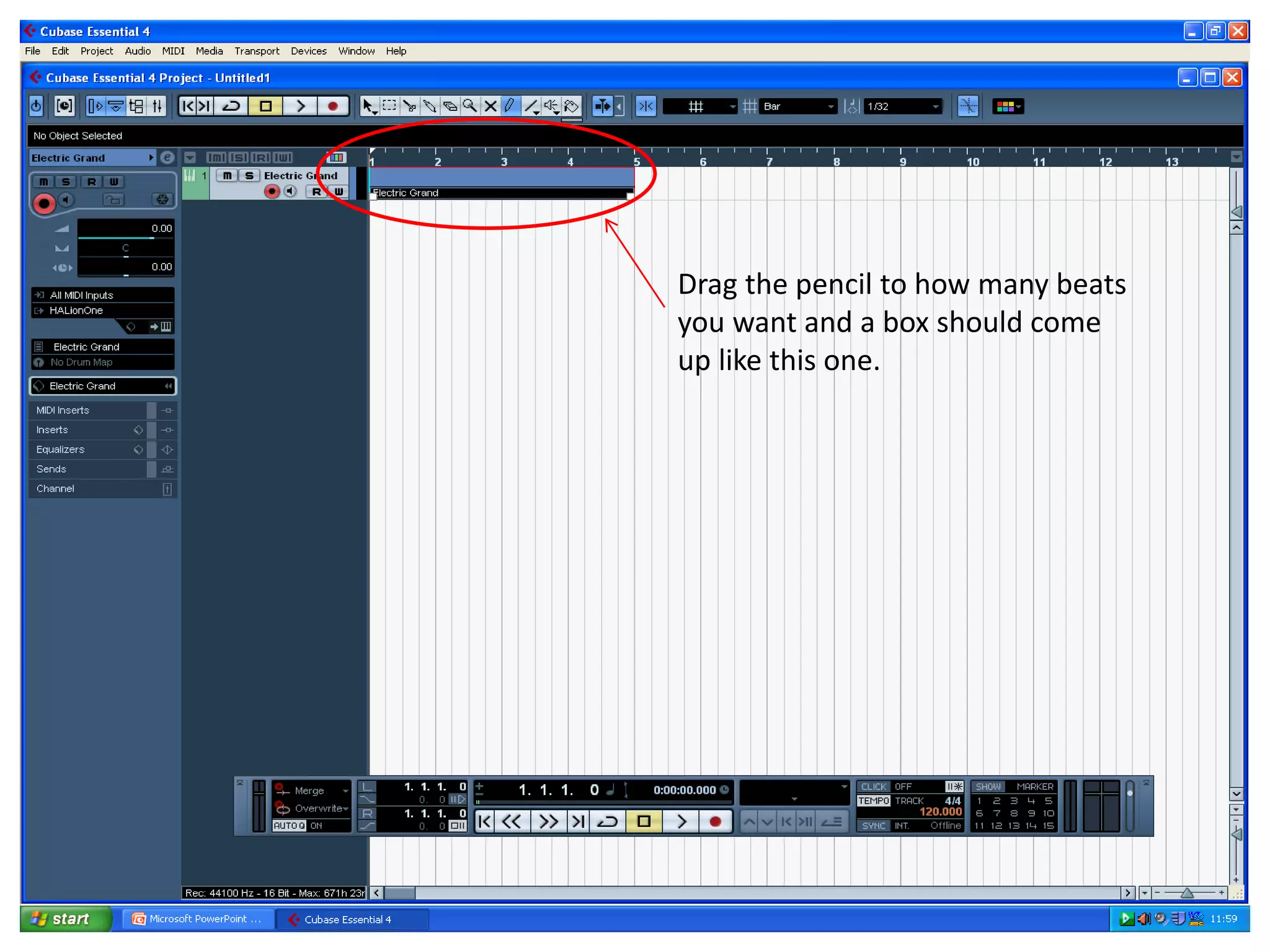
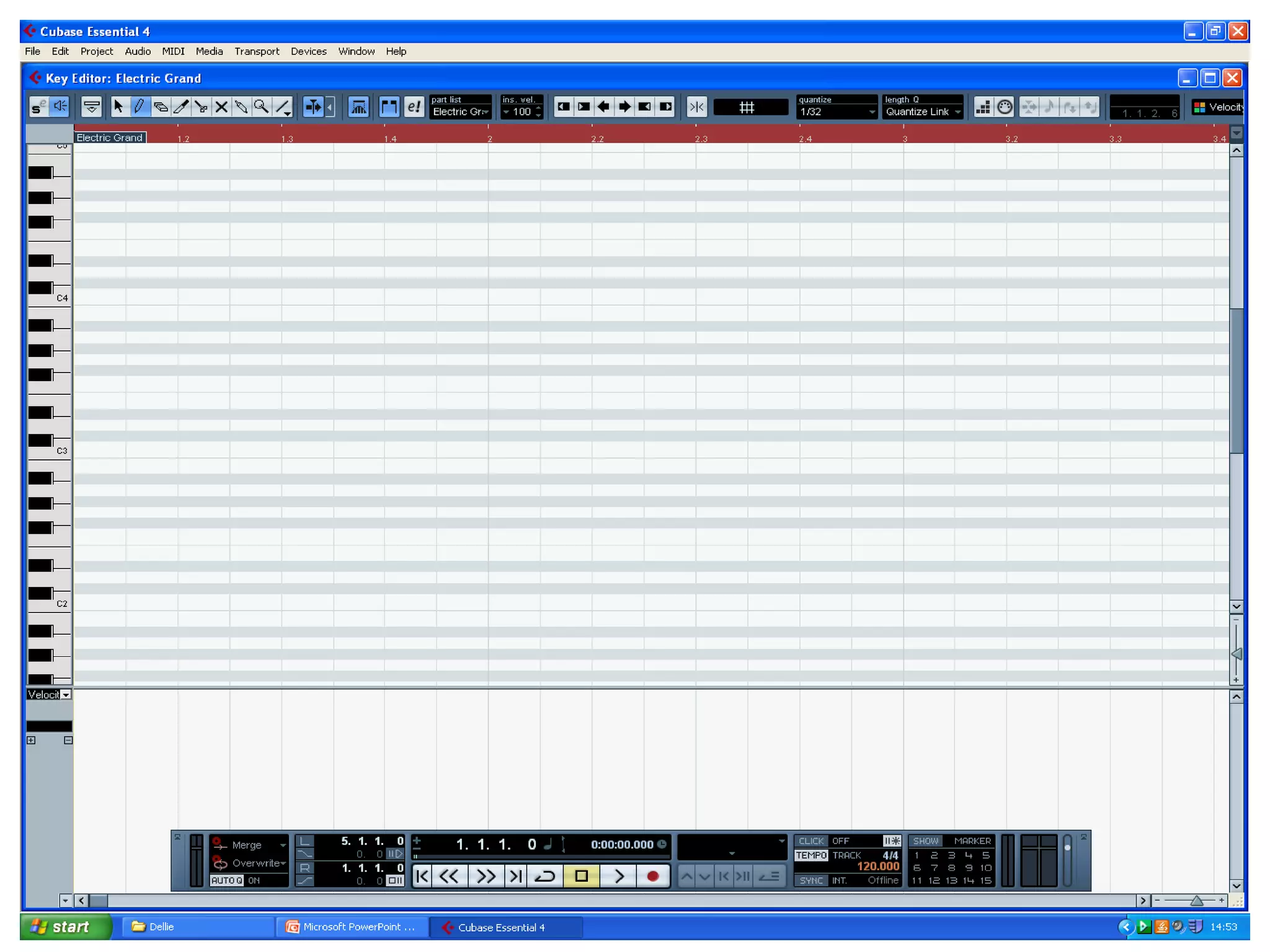
Click on the ‘DRAW’ tool, it
should be a little pencil
Drag the pencil to how many beats
you want and a box should come
up like this one.
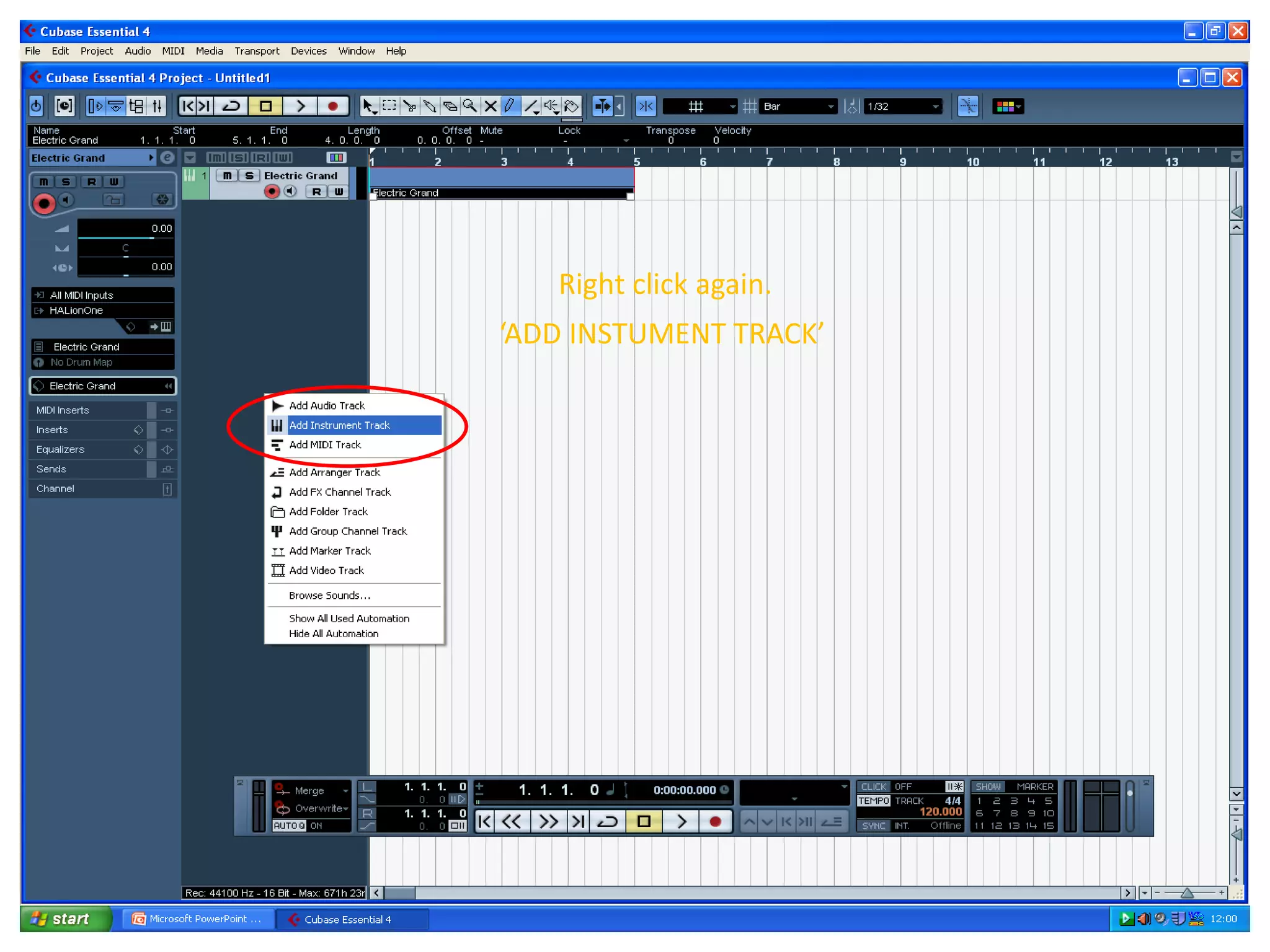
Right click again.
‘ADD INSTUMENT TRACK’
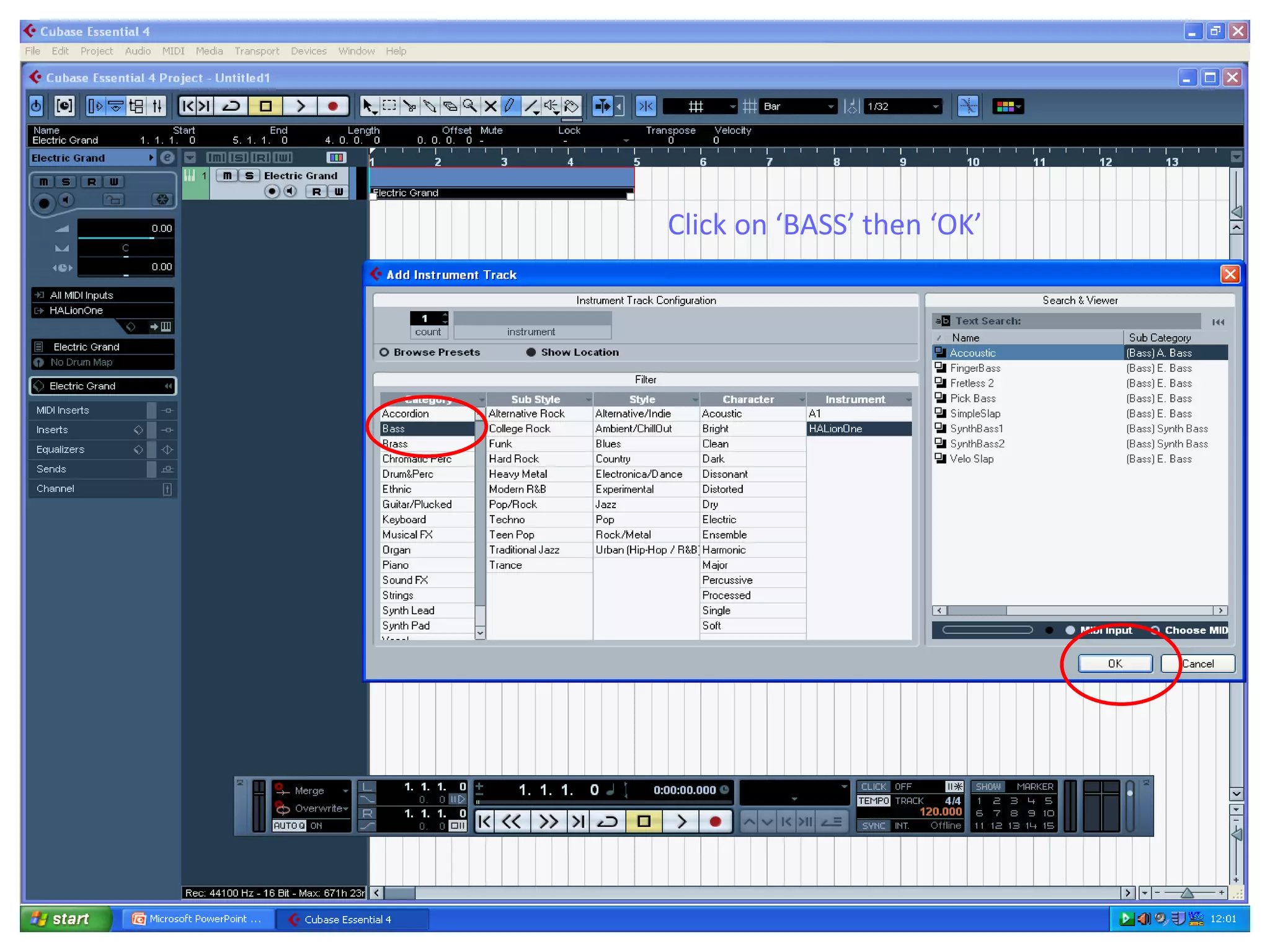
Click on ‘BASS’ then ‘OK’
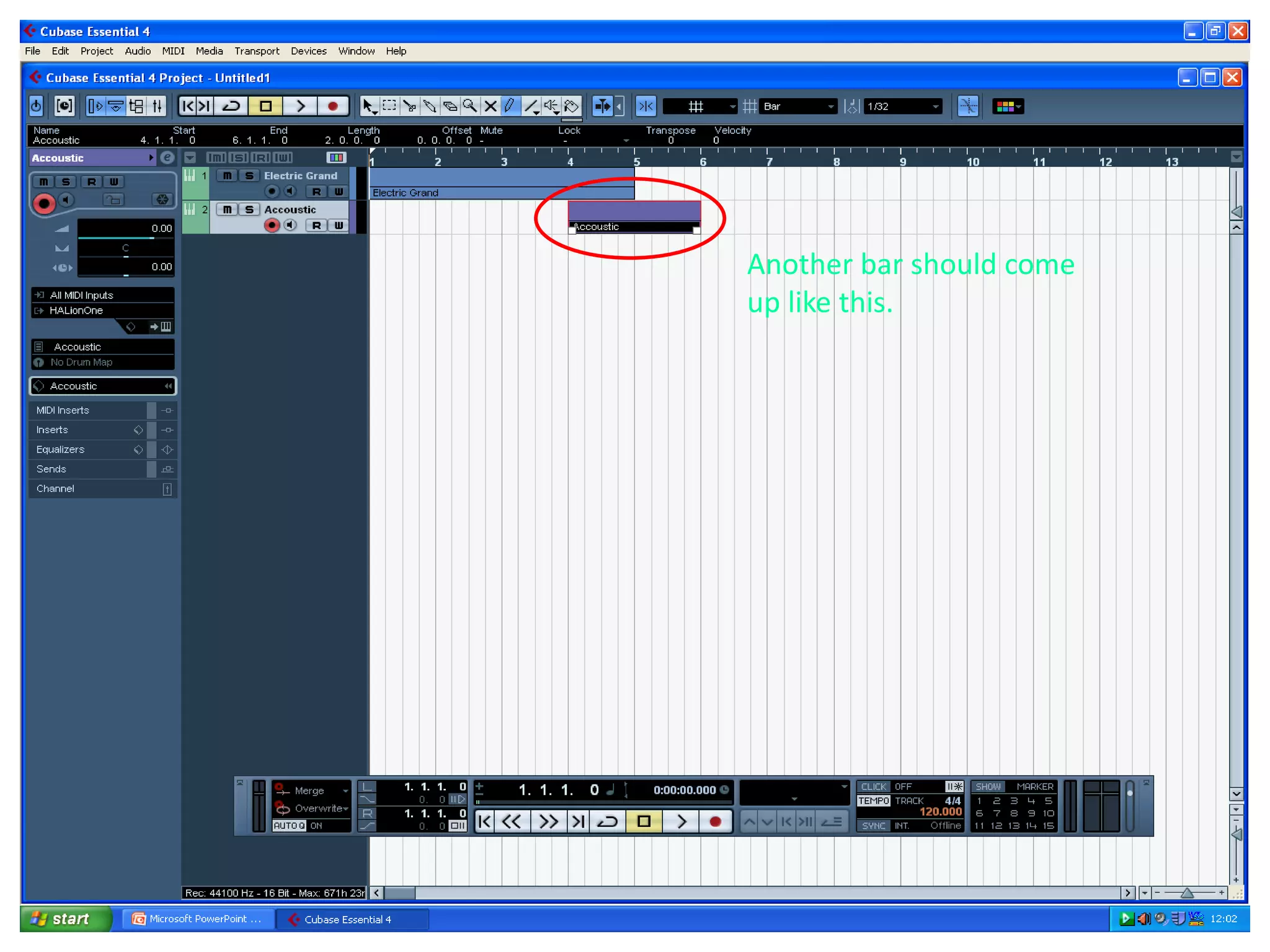
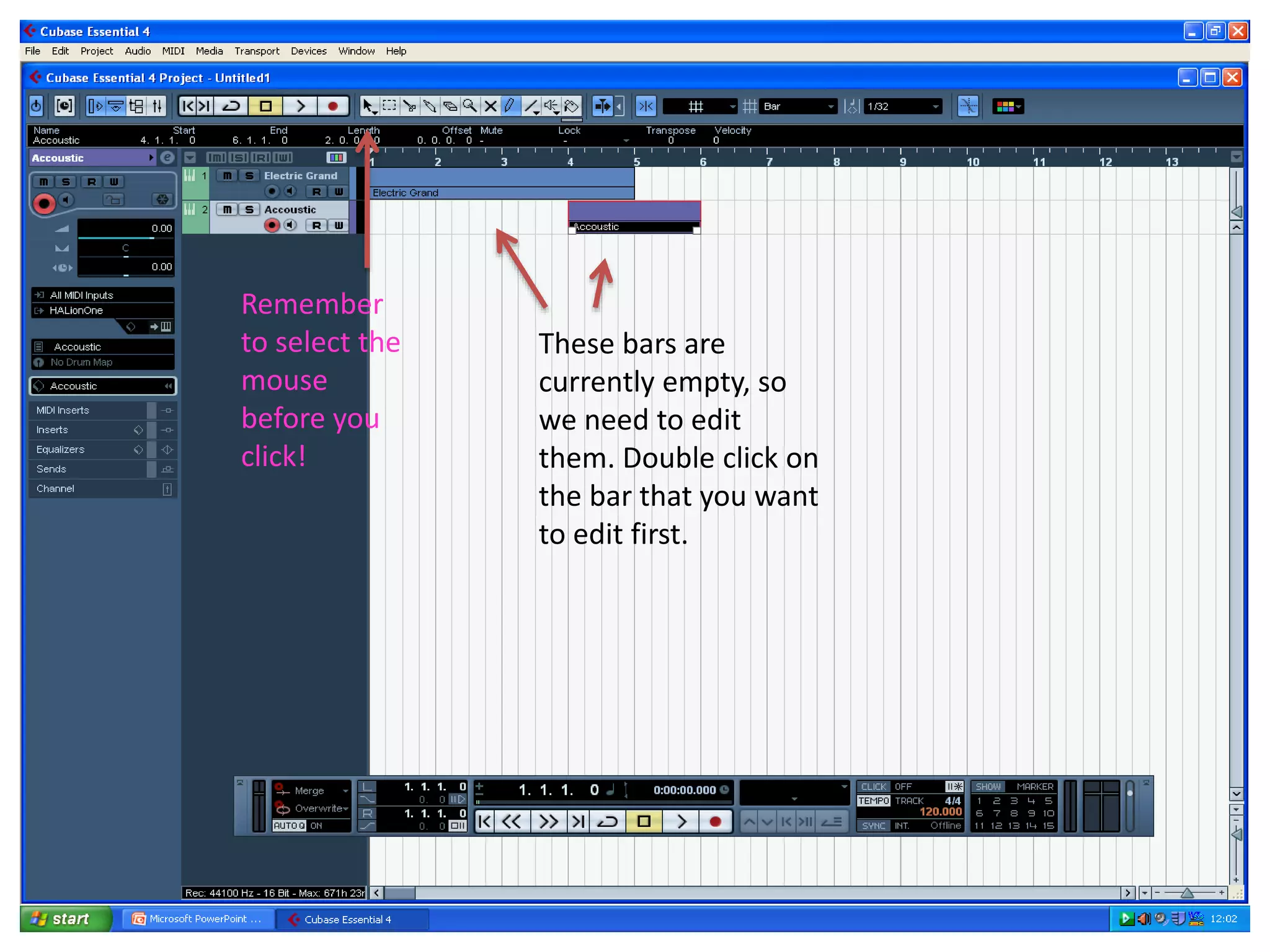
Another bar should come
up like this.
These bars are
currently empty, so
we need to edit
them. Double click on
the bar that you want
to edit first.
Remember
to select the
mouse
before you
click!
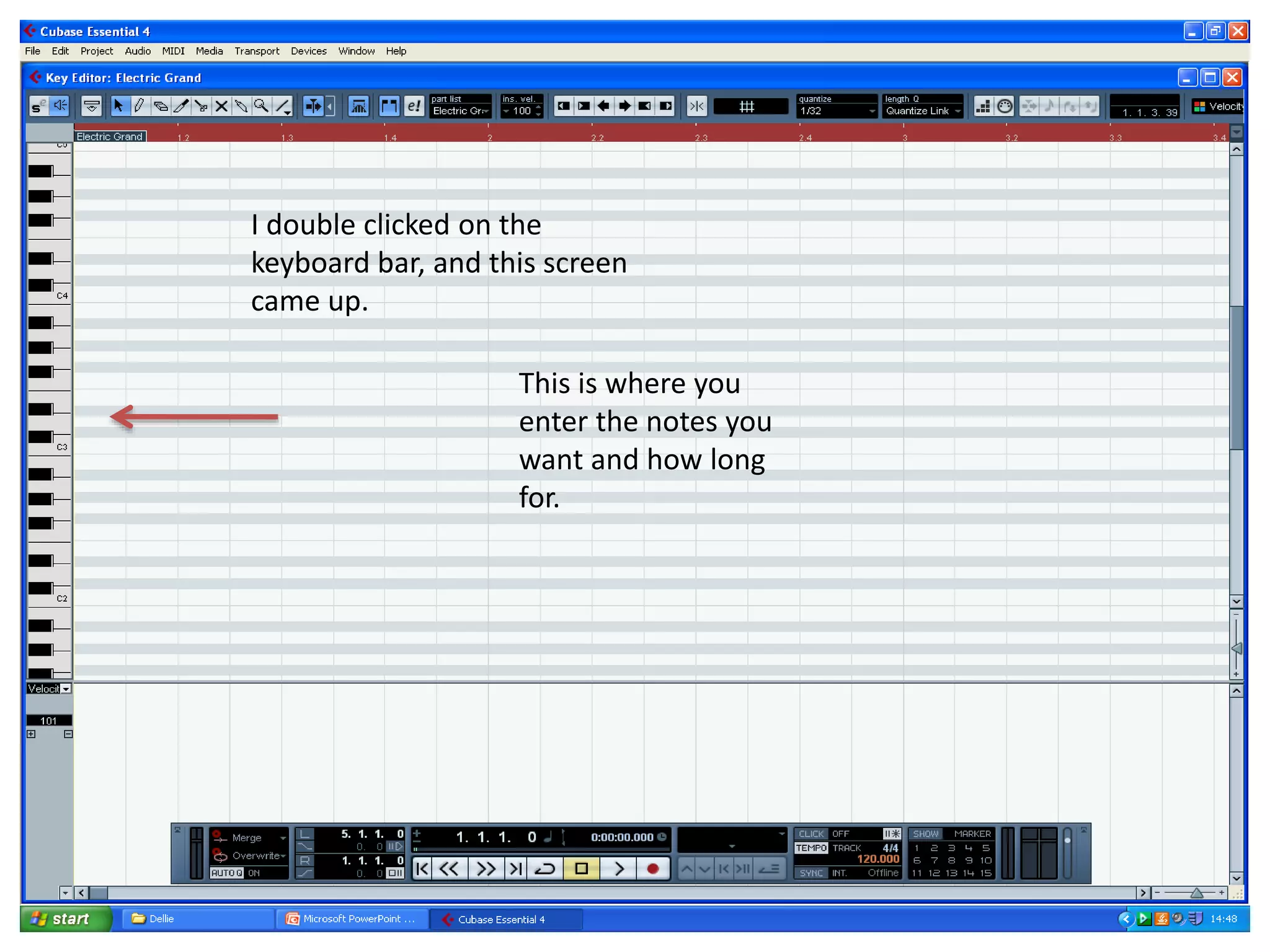
I double clicked on the
keyboard bar, and this screen
came up.
This is where you
enter the notes you
want and how long
for.
Demi Cubase Presentation

Demi Cubase Presentation