
DEFORMTM
3D Version 6.1 (sp1)
Installation Notes
(Windows 2000,XP and Vista Operating systems on PC)
10-10-2007
2545 Farmers Drive, Suite 200
Columbus, Ohio, 43235
Tel (614) 451-8330
Fax (614) 451-8325
Email support@deform.com
!!! Important Change in password location from previous versions !!!
The DEFORM password should now be placed in the C:Program FilesDEFORM
License Manager 2.1 directory. If the password is placed in the DEFORM3DV6_1
directory the program will give a security violation.
IMPORTANT NOTE FOR LICENSE MANAGER USERS (CLIENT-SIDE):
With Windows XP Service Pack 2 there is a built-in firewall that affects any programs that attempt
to communicate across the network. This affects users of the DEFORM License Manager since
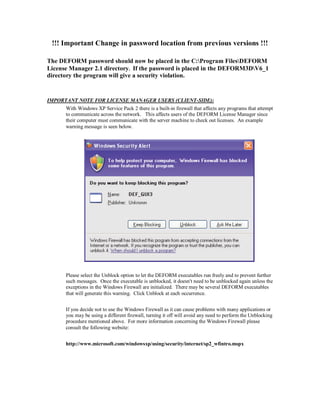
their computer must communicate with the server machine to check out licenses. An example
warning message is seen below.
Please select the Unblock option to let the DEFORM executables run freely and to prevent further
such messages. Once the executable is unblocked, it doesn't need to be unblocked again unless the
exceptions in the Windows Firewall are initialized. There may be several DEFORM executables
that will generate this warning. Click Unblock at each occurrence.
If you decide not to use the Windows Firewall as it can cause problems with many applications or
you may be using a different firewall, turning it off will avoid any need to perform the Unblocking
procedure mentioned above. For more information concerning the Windows Firewall please
consult the following website:
http://www.microsoft.com/windowsxp/using/security/internet/sp2_wfintro.mspx
INTRODUCTION
The following pages describe the installation steps that need to be performed in order to use
DEFORM-3D. These steps include: ensuring the proper amount of memory, installing the
Security Key device, installing the DEFORM-3D program files and troubleshooting, should you
run into problems.
INSTALLATION REQUIREMENTS
Operating system: Windows 2000 or Windows XP or Windows Vista
Hard drive space required: 900 MB.
INSTALLING THE SECURITY KEY DEVICE
 
This Security Key allows the DEFORM-3D system to be highly portable while still
allowing only one system to be operable at any time. The actual software can be installed
on as many computers as you like, but each DEFORM system will be inoperable without
the Security Key. The security key can be for either the parallel port or the USB port.
 
Locate the 25-pin parallel port on the back of your PC or in the case of a USB key, find
the USB port.
 
Plug the Security Key directly into this port in the case of the parallel port key. Install the
USB key after the installation for the USB key.
 
If an existing printer is also plugged into this port it must be plugged into the end of the
Security Key for the parallel port key.
WARNING
 
The Security Key keeps track of the date on your PC. Make sure the date is correct
before initially running DEFORM-3D. Changing the date backwards or forwards may
make the DEFORM-3D system inoperable.
INSTALLING DEFORM™™™™ -3D IN WINDOWS
 
DEFORM-3D comes on one CD with an automatic installation program. Installation can
be done by following a few simple steps:
Important:_Before beginning to install DEFORM-3D in Windows, it is necessary for the user be logged in
as the Administrator.
 
Start up Windows (Log in as the Administrator or with Administrator privileges).
 
Insert the CD in the appropriate drive.
 
The installation program should start automatically unless this version has been already
installed. If it does not start automatically, simply start an Explorer window, go to the CD
ROM drive and double-click the Setup.exe file.
 
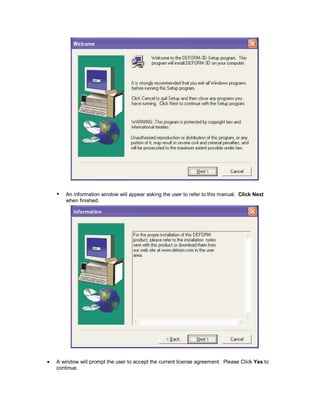
The Welcome window comes up. Click Next.
 
An information window will appear asking the user to refer to this manual. Click Next
when finished.
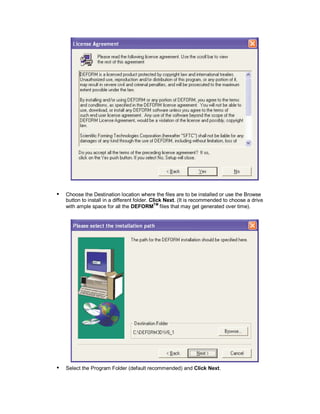
• A window will prompt the user to accept the current license agreement. Please Click Yes to
continue.
 
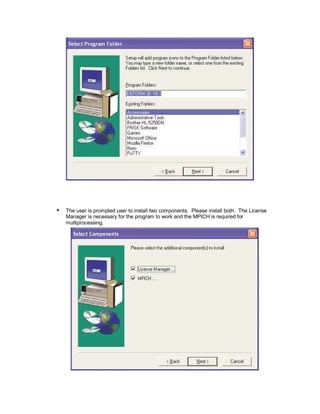
Choose the Destination location where the files are to be installed or use the Browse
button to install in a different folder. Click Next. (It is recommended to choose a drive
with ample space for all the DEFORMTM
files that may get generated over time).
 
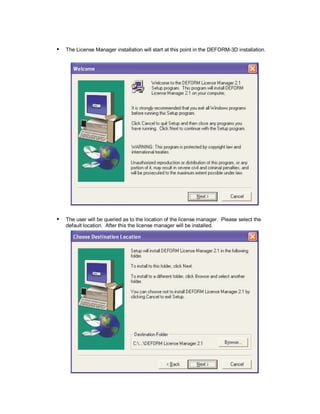
Select the Program Folder (default recommended) and Click Next.
 
The user is prompted user to install two components. Please install both. The License
Manager is necessary for the program to work and the MPICH is required for
multiprocessing.
 
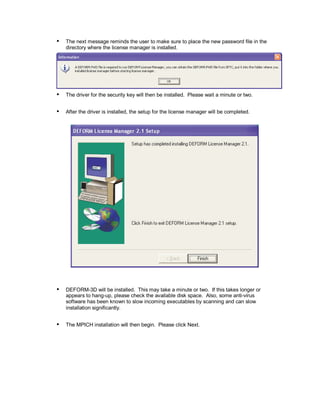
The License Manager installation will start at this point in the DEFORM-3D installation.
 
The user will be queried as to the location of the license manager. Please select the
default location. After this the license manager will be installed.
 
The next message reminds the user to make sure to place the new password file in the
directory where the license manager is installed.
 
The driver for the security key will then be installed. Please wait a minute or two.
 
After the driver is installed, the setup for the license manager will be completed.
 
DEFORM-3D will be installed. This may take a minute or two. If this takes longer or
appears to hang-up, please check the available disk space. Also, some anti-virus
software has been known to slow incoming executables by scanning and can slow
installation significantly.
 
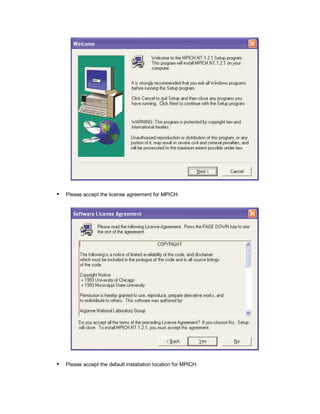
The MPICH installation will then begin. Please click Next.
 
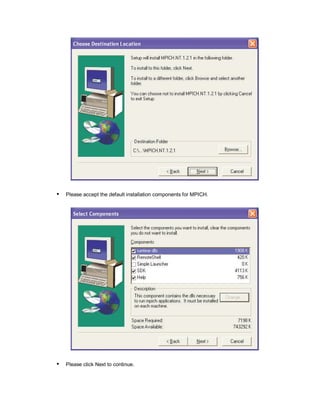
Please accept the license agreement for MPICH.
 
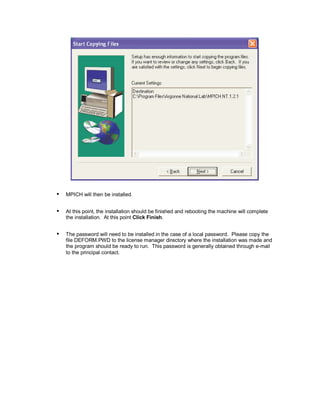
Please accept the default installation location for MPICH.
 
Please accept the default installation components for MPICH.
 
Please click Next to continue.
 
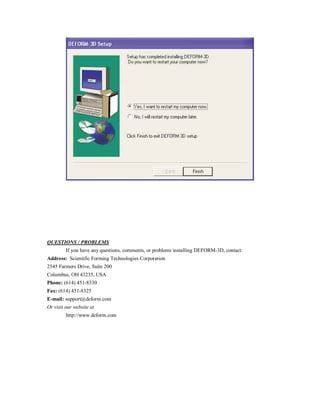
MPICH will then be installed.
 
At this point, the installation should be finished and rebooting the machine will complete
the installation. At this point Click Finish.
 
The password will need to be installed in the case of a local password. Please copy the
file DEFORM.PWD to the license manager directory where the installation was made and
the program should be ready to run. This password is generally obtained through e-mail
to the principal contact.
QUESTIONS / PROBLEMS
If you have any questions, comments, or problems installing DEFORM-3D, contact:
Address: Scientific Forming Technologies Corporation
2545 Farmers Drive, Suite 200
Columbus, OH 43235, USA
Phone: (614) 451-8330
Fax: (614) 451-8325
E-mail: support@deform.com
Or visit our website at
http://www.deform.com

Deform 3 d_v61_pc_installation_notes

  • 1.
    DEFORMTM 3D Version 6.1(sp1) Installation Notes (Windows 2000,XP and Vista Operating systems on PC) 10-10-2007 2545 Farmers Drive, Suite 200 Columbus, Ohio, 43235 Tel (614) 451-8330 Fax (614) 451-8325 Email support@deform.com
  • 2.
    !!! Important Changein password location from previous versions !!! The DEFORM password should now be placed in the C:Program FilesDEFORM License Manager 2.1 directory. If the password is placed in the DEFORM3DV6_1 directory the program will give a security violation. IMPORTANT NOTE FOR LICENSE MANAGER USERS (CLIENT-SIDE): With Windows XP Service Pack 2 there is a built-in firewall that affects any programs that attempt to communicate across the network. This affects users of the DEFORM License Manager since their computer must communicate with the server machine to check out licenses. An example warning message is seen below. Please select the Unblock option to let the DEFORM executables run freely and to prevent further such messages. Once the executable is unblocked, it doesn't need to be unblocked again unless the exceptions in the Windows Firewall are initialized. There may be several DEFORM executables that will generate this warning. Click Unblock at each occurrence. If you decide not to use the Windows Firewall as it can cause problems with many applications or you may be using a different firewall, turning it off will avoid any need to perform the Unblocking procedure mentioned above. For more information concerning the Windows Firewall please consult the following website: http://www.microsoft.com/windowsxp/using/security/internet/sp2_wfintro.mspx
  • 3.
    INTRODUCTION The following pagesdescribe the installation steps that need to be performed in order to use DEFORM-3D. These steps include: ensuring the proper amount of memory, installing the Security Key device, installing the DEFORM-3D program files and troubleshooting, should you run into problems. INSTALLATION REQUIREMENTS Operating system: Windows 2000 or Windows XP or Windows Vista Hard drive space required: 900 MB. INSTALLING THE SECURITY KEY DEVICE   This Security Key allows the DEFORM-3D system to be highly portable while still allowing only one system to be operable at any time. The actual software can be installed on as many computers as you like, but each DEFORM system will be inoperable without the Security Key. The security key can be for either the parallel port or the USB port.   Locate the 25-pin parallel port on the back of your PC or in the case of a USB key, find the USB port.   Plug the Security Key directly into this port in the case of the parallel port key. Install the USB key after the installation for the USB key.   If an existing printer is also plugged into this port it must be plugged into the end of the Security Key for the parallel port key. WARNING   The Security Key keeps track of the date on your PC. Make sure the date is correct before initially running DEFORM-3D. Changing the date backwards or forwards may make the DEFORM-3D system inoperable. INSTALLING DEFORM™™™™ -3D IN WINDOWS   DEFORM-3D comes on one CD with an automatic installation program. Installation can be done by following a few simple steps: Important:_Before beginning to install DEFORM-3D in Windows, it is necessary for the user be logged in as the Administrator.   Start up Windows (Log in as the Administrator or with Administrator privileges).   Insert the CD in the appropriate drive.   The installation program should start automatically unless this version has been already installed. If it does not start automatically, simply start an Explorer window, go to the CD ROM drive and double-click the Setup.exe file.   The Welcome window comes up. Click Next.
  • 4.
      An information windowwill appear asking the user to refer to this manual. Click Next when finished. • A window will prompt the user to accept the current license agreement. Please Click Yes to continue.
  • 5.
      Choose the Destinationlocation where the files are to be installed or use the Browse button to install in a different folder. Click Next. (It is recommended to choose a drive with ample space for all the DEFORMTM files that may get generated over time).   Select the Program Folder (default recommended) and Click Next.
  • 6.
      The user isprompted user to install two components. Please install both. The License Manager is necessary for the program to work and the MPICH is required for multiprocessing.
  • 7.
      The License Managerinstallation will start at this point in the DEFORM-3D installation.   The user will be queried as to the location of the license manager. Please select the default location. After this the license manager will be installed.
  • 8.
      The next messagereminds the user to make sure to place the new password file in the directory where the license manager is installed.   The driver for the security key will then be installed. Please wait a minute or two.   After the driver is installed, the setup for the license manager will be completed.   DEFORM-3D will be installed. This may take a minute or two. If this takes longer or appears to hang-up, please check the available disk space. Also, some anti-virus software has been known to slow incoming executables by scanning and can slow installation significantly.   The MPICH installation will then begin. Please click Next.
  • 9.
      Please accept thelicense agreement for MPICH.   Please accept the default installation location for MPICH.
  • 10.
      Please accept thedefault installation components for MPICH.   Please click Next to continue.
  • 11.
      MPICH will thenbe installed.   At this point, the installation should be finished and rebooting the machine will complete the installation. At this point Click Finish.   The password will need to be installed in the case of a local password. Please copy the file DEFORM.PWD to the license manager directory where the installation was made and the program should be ready to run. This password is generally obtained through e-mail to the principal contact.
  • 12.
    QUESTIONS / PROBLEMS Ifyou have any questions, comments, or problems installing DEFORM-3D, contact: Address: Scientific Forming Technologies Corporation 2545 Farmers Drive, Suite 200 Columbus, OH 43235, USA Phone: (614) 451-8330 Fax: (614) 451-8325 E-mail: support@deform.com Or visit our website at http://www.deform.com