>_ Things Lab 
VirtualBox 
...and the standard installation for 
Things Lab meetings
Virtualization 
● Running multiple operating systems simultaneously 
● Easier software installations 
● Testing and disaster recovery. 
● Easy to make Snapshot 
● Infrastructure consolidation
Why Virtualbox? 
● Multi-platform (binaries for Win, OSX and Linux) 
● Open Source (Base packages under GNU GPL V2) 
● Great hardware support 
● Guest multiprocessing (up to 32 virtual CPUs) 
● USB device support 
● Multiscreen resolutions 
● Built-in iSCSI support 
● PXE Network boot 
● Multigeneration branched snapshots 
● Virtual Machine groups 
● Remote machine display
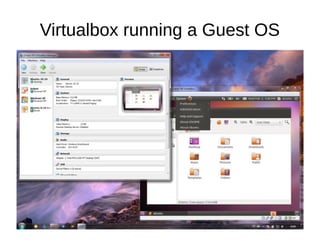
Virtualbox running a Guest OS
Why Raspberry Pi image? 
●Multi platform 
● Light (few resources needed) 
● Standard installation 
● Linux based 
●Open Source 
● Runs on SBC hardware like Raspberry Pi and 
Olimex Lime
Download the image 
http://www.ediy.com.my/Downloads/Raspberry 
%20Pi/RaspberryPi.VirtualBox.zip 
Unzip and open with a torrent client
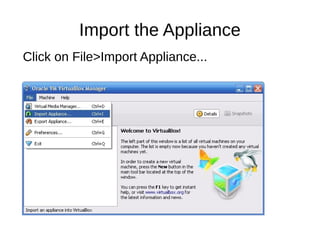
Import the Appliance 
Click on File>Import Appliance...
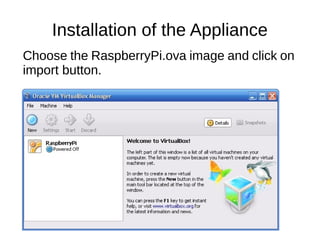
Installation of the Appliance 
Choose the RaspberryPi.ova image and click on 
import button.
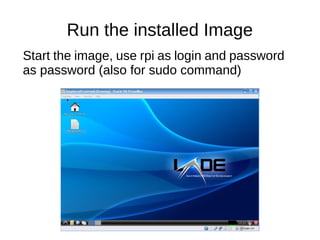
Run the installed Image 
Start the image, use rpi as login and password 
as password (also for sudo command)
First instructions 
The standard syntax is: 
sudo command [parameters] [| more] 
Update the image to the last packages 
sudo apt-get update 
Search for the MySQL Daemon (Server) 
sudo apt-cache search mysql-server | more 
Install a Daemon (Server) 
sudo apt-get install package-name
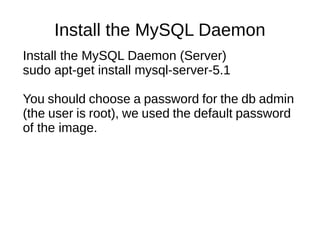
Install the MySQL Daemon 
Install the MySQL Daemon (Server) 
sudo apt-get install mysql-server-5.1 
You should choose a password for the db admin 
(the user is root), we used the default password 
of the image.
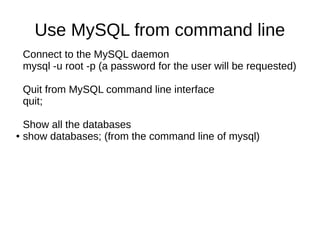
Use MySQL from command line 
Connect to the MySQL daemon 
mysql -u root -p (a password for the user will be requested) 
Quit from MySQL command line interface 
quit; 
Show all the databases 
● show databases; (from the command line of mysql)
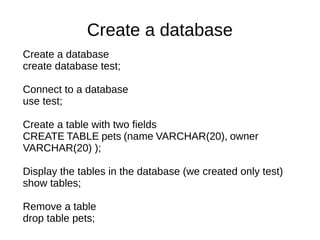
Create a database 
Create a database 
create database test; 
Connect to a database 
use test; 
Create a table with two fields 
CREATE TABLE pets (name VARCHAR(20), owner 
VARCHAR(20) ); 
Display the tables in the database (we created only test) 
show tables; 
Remove a table 
drop table pets;
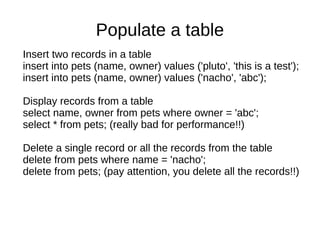
Populate a table 
Insert two records in a table 
insert into pets (name, owner) values ('pluto', 'this is a test'); 
insert into pets (name, owner) values ('nacho', 'abc'); 
Display records from a table 
select name, owner from pets where owner = 'abc'; 
select * from pets; (really bad for performance!!) 
Delete a single record or all the records from the table 
delete from pets where name = 'nacho'; 
delete from pets; (pay attention, you delete all the records!!)

Databases and MySQL

  • 1.
    >_ Things Lab VirtualBox ...and the standard installation for Things Lab meetings
  • 2.
    Virtualization ● Runningmultiple operating systems simultaneously ● Easier software installations ● Testing and disaster recovery. ● Easy to make Snapshot ● Infrastructure consolidation
  • 3.
    Why Virtualbox? ●Multi-platform (binaries for Win, OSX and Linux) ● Open Source (Base packages under GNU GPL V2) ● Great hardware support ● Guest multiprocessing (up to 32 virtual CPUs) ● USB device support ● Multiscreen resolutions ● Built-in iSCSI support ● PXE Network boot ● Multigeneration branched snapshots ● Virtual Machine groups ● Remote machine display
  • 4.
  • 5.
    Why Raspberry Piimage? ●Multi platform ● Light (few resources needed) ● Standard installation ● Linux based ●Open Source ● Runs on SBC hardware like Raspberry Pi and Olimex Lime
  • 6.
    Download the image http://www.ediy.com.my/Downloads/Raspberry %20Pi/RaspberryPi.VirtualBox.zip Unzip and open with a torrent client
  • 7.
    Import the Appliance Click on File>Import Appliance...
  • 8.
    Installation of theAppliance Choose the RaspberryPi.ova image and click on import button.
  • 9.
    Run the installedImage Start the image, use rpi as login and password as password (also for sudo command)
  • 10.
    First instructions Thestandard syntax is: sudo command [parameters] [| more] Update the image to the last packages sudo apt-get update Search for the MySQL Daemon (Server) sudo apt-cache search mysql-server | more Install a Daemon (Server) sudo apt-get install package-name
  • 11.
    Install the MySQLDaemon Install the MySQL Daemon (Server) sudo apt-get install mysql-server-5.1 You should choose a password for the db admin (the user is root), we used the default password of the image.
  • 12.
    Use MySQL fromcommand line Connect to the MySQL daemon mysql -u root -p (a password for the user will be requested) Quit from MySQL command line interface quit; Show all the databases ● show databases; (from the command line of mysql)
  • 13.
    Create a database Create a database create database test; Connect to a database use test; Create a table with two fields CREATE TABLE pets (name VARCHAR(20), owner VARCHAR(20) ); Display the tables in the database (we created only test) show tables; Remove a table drop table pets;
  • 14.
    Populate a table Insert two records in a table insert into pets (name, owner) values ('pluto', 'this is a test'); insert into pets (name, owner) values ('nacho', 'abc'); Display records from a table select name, owner from pets where owner = 'abc'; select * from pets; (really bad for performance!!) Delete a single record or all the records from the table delete from pets where name = 'nacho'; delete from pets; (pay attention, you delete all the records!!)