CSS - Text
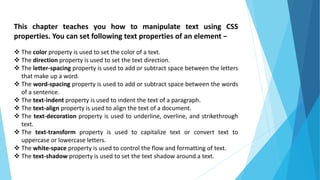
This chapter teaches you how to manipulate text using CSS
properties. You can set following text properties of an element −
 The color property is used to set the color of a text.
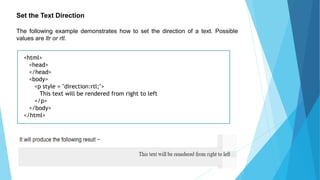
 The direction property is used to set the text direction.
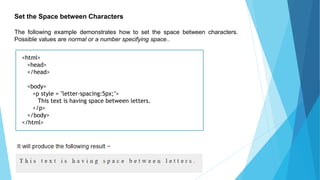
 The letter-spacing property is used to add or subtract space between the letters
that make up a word.
 The word-spacing property is used to add or subtract space between the words
of a sentence.
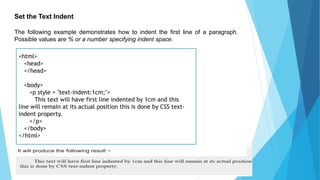
 The text-indent property is used to indent the text of a paragraph.
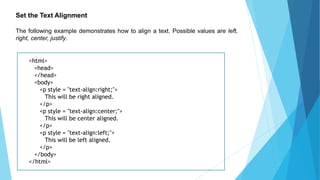
 The text-align property is used to align the text of a document.
 The text-decoration property is used to underline, overline, and strikethrough
text.
 The text-transform property is used to capitalize text or convert text to
uppercase or lowercase letters.
 The white-space property is used to control the flow and formatting of text.
 The text-shadow property is used to set the text shadow around a text.
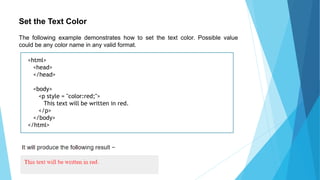
Set the Text Color
The following example demonstrates how to set the text color. Possible value
could be any color name in any valid format.
<html>
<head>
</head>
<body>
<p style = "color:red;">
This text will be written in red.
</p>
</body>
</html>
Set the Text Direction
The following example demonstrates how to set the direction of a text. Possible
values are ltr or rtl.
<html>
<head>
</head>
<body>
<p style = "direction:rtl;">
This text will be rendered from right to left
</p>
</body>
</html>
Set the Space between Characters
The following example demonstrates how to set the space between characters.
Possible values are normal or a number specifying space..
<html>
<head>
</head>
<body>
<p style = "letter-spacing:5px;">
This text is having space between letters.
</p>
</body>
</html>
Set the Space between Words
The following example demonstrates how to set the space between words. Possible
values are normal or a number specifying space.
<html>
<head>
</head>
<body>
<p style = "word-spacing:5px;">
This text is having space between words.
</p>
</body>
</html>
Set the Text Indent
The following example demonstrates how to indent the first line of a paragraph.
Possible values are % or a number specifying indent space.
<html>
<head>
</head>
<body>
<p style = "text-indent:1cm;">
This text will have first line indented by 1cm and this
line will remain at its actual position this is done by CSS text-
indent property.
</p>
</body>
</html>
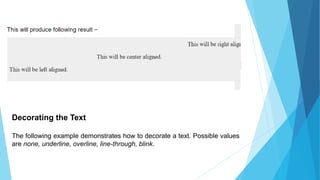
Set the Text Alignment
The following example demonstrates how to align a text. Possible values are left,
right, center, justify.
<html>
<head>
</head>
<body>
<p style = "text-align:right;">
This will be right aligned.
</p>
<p style = "text-align:center;">
This will be center aligned.
</p>
<p style = "text-align:left;">
This will be left aligned.
</p>
</body>
</html>
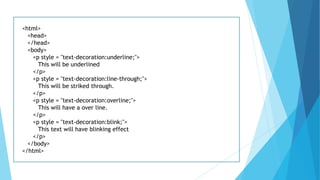
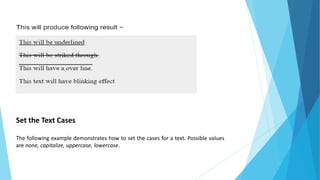
Decorating the Text
The following example demonstrates how to decorate a text. Possible values
are none, underline, overline, line-through, blink.
<html>
<head>
</head>
<body>
<p style = "text-decoration:underline;">
This will be underlined
</p>
<p style = "text-decoration:line-through;">
This will be striked through.
</p>
<p style = "text-decoration:overline;">
This will have a over line.
</p>
<p style = "text-decoration:blink;">
This text will have blinking effect
</p>
</body>
</html>
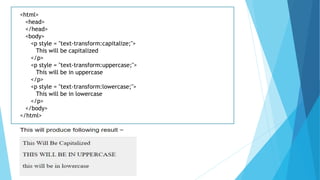
Set the Text Cases
The following example demonstrates how to set the cases for a text. Possible values
are none, capitalize, uppercase, lowercase.
<html>
<head>
</head>
<body>
<p style = "text-transform:capitalize;">
This will be capitalized
</p>
<p style = "text-transform:uppercase;">
This will be in uppercase
</p>
<p style = "text-transform:lowercase;">
This will be in lowercase
</p>
</body>
</html>
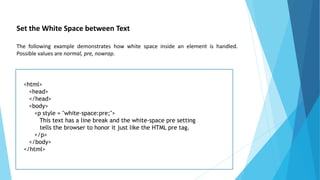
Set the White Space between Text
The following example demonstrates how white space inside an element is handled.
Possible values are normal, pre, nowrap.
<html>
<head>
</head>
<body>
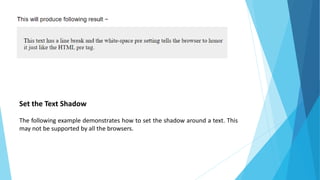
<p style = "white-space:pre;">
This text has a line break and the white-space pre setting
tells the browser to honor it just like the HTML pre tag.
</p>
</body>
</html>
Set the Text Shadow
The following example demonstrates how to set the shadow around a text. This
may not be supported by all the browsers.
<html>
<head>
</head>
<body>
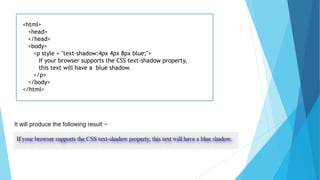
<p style = "text-shadow:4px 4px 8px blue;">
If your browser supports the CSS text-shadow property,
this text will have a blue shadow.
</p>
</body>
</html>

Css text

  • 1.
  • 2.
    This chapter teachesyou how to manipulate text using CSS properties. You can set following text properties of an element −  The color property is used to set the color of a text.  The direction property is used to set the text direction.  The letter-spacing property is used to add or subtract space between the letters that make up a word.  The word-spacing property is used to add or subtract space between the words of a sentence.  The text-indent property is used to indent the text of a paragraph.  The text-align property is used to align the text of a document.  The text-decoration property is used to underline, overline, and strikethrough text.  The text-transform property is used to capitalize text or convert text to uppercase or lowercase letters.  The white-space property is used to control the flow and formatting of text.  The text-shadow property is used to set the text shadow around a text.
  • 3.
    Set the TextColor The following example demonstrates how to set the text color. Possible value could be any color name in any valid format. <html> <head> </head> <body> <p style = "color:red;"> This text will be written in red. </p> </body> </html>
  • 4.
    Set the TextDirection The following example demonstrates how to set the direction of a text. Possible values are ltr or rtl. <html> <head> </head> <body> <p style = "direction:rtl;"> This text will be rendered from right to left </p> </body> </html>
  • 5.
    Set the Spacebetween Characters The following example demonstrates how to set the space between characters. Possible values are normal or a number specifying space.. <html> <head> </head> <body> <p style = "letter-spacing:5px;"> This text is having space between letters. </p> </body> </html>
  • 6.
    Set the Spacebetween Words The following example demonstrates how to set the space between words. Possible values are normal or a number specifying space. <html> <head> </head> <body> <p style = "word-spacing:5px;"> This text is having space between words. </p> </body> </html>
  • 7.
    Set the TextIndent The following example demonstrates how to indent the first line of a paragraph. Possible values are % or a number specifying indent space. <html> <head> </head> <body> <p style = "text-indent:1cm;"> This text will have first line indented by 1cm and this line will remain at its actual position this is done by CSS text- indent property. </p> </body> </html>
  • 8.
    Set the TextAlignment The following example demonstrates how to align a text. Possible values are left, right, center, justify. <html> <head> </head> <body> <p style = "text-align:right;"> This will be right aligned. </p> <p style = "text-align:center;"> This will be center aligned. </p> <p style = "text-align:left;"> This will be left aligned. </p> </body> </html>
  • 9.
    Decorating the Text Thefollowing example demonstrates how to decorate a text. Possible values are none, underline, overline, line-through, blink.
  • 10.
    <html> <head> </head> <body> <p style ="text-decoration:underline;"> This will be underlined </p> <p style = "text-decoration:line-through;"> This will be striked through. </p> <p style = "text-decoration:overline;"> This will have a over line. </p> <p style = "text-decoration:blink;"> This text will have blinking effect </p> </body> </html>
  • 11.
    Set the TextCases The following example demonstrates how to set the cases for a text. Possible values are none, capitalize, uppercase, lowercase.
  • 12.
    <html> <head> </head> <body> <p style ="text-transform:capitalize;"> This will be capitalized </p> <p style = "text-transform:uppercase;"> This will be in uppercase </p> <p style = "text-transform:lowercase;"> This will be in lowercase </p> </body> </html>
  • 13.
    Set the WhiteSpace between Text The following example demonstrates how white space inside an element is handled. Possible values are normal, pre, nowrap. <html> <head> </head> <body> <p style = "white-space:pre;"> This text has a line break and the white-space pre setting tells the browser to honor it just like the HTML pre tag. </p> </body> </html>
  • 14.
    Set the TextShadow The following example demonstrates how to set the shadow around a text. This may not be supported by all the browsers.
  • 15.
    <html> <head> </head> <body> <p style ="text-shadow:4px 4px 8px blue;"> If your browser supports the CSS text-shadow property, this text will have a blue shadow. </p> </body> </html>