WordPress Media
ADD ,INSERT AND DELETE
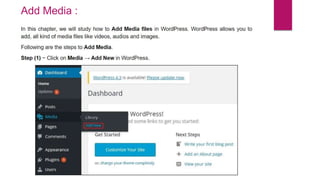
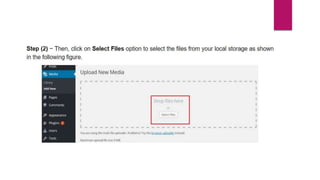
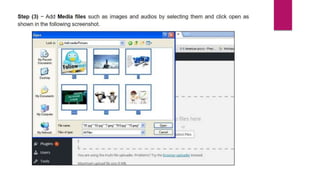
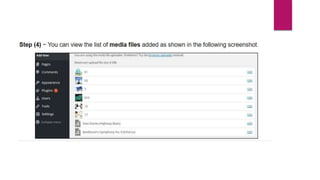
Add Media :
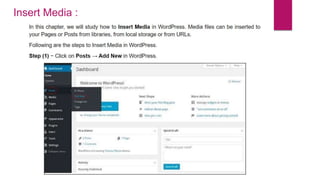
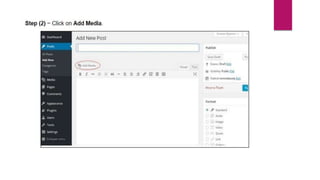
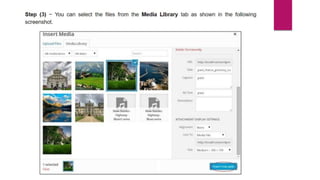
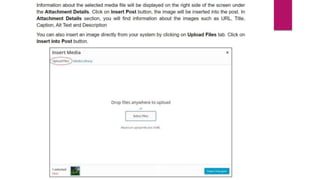
Insert Media :
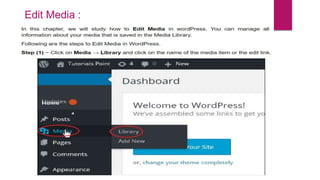
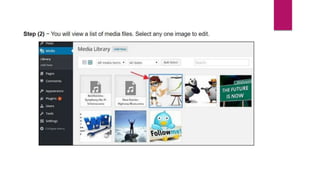
Edit Media :
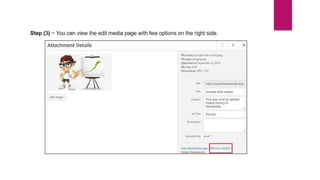
•URL − You can read only a link from media file.
•Title − This displays the name of the media. Title is often shown in galleries and
attachment pages, if themes or plugins are designed to display it.
•Permalink − Permalink is the URL of the media attachment page. This is also a link
to view the attachment page.
•Edit image button − This allows you to edit the image position, such as rotate
counter-clockwise, rotate clockwise, scale, crop, flip vertically, and flip horizontally.
•Caption − A brief explanation of the media.
•Alternate Text − The alt text for the image, which is used to describe media. Used
for availability.
•Description − An explanation of your media file.
•Delete Permanently − Delete your media file permanently.
Word press media(add,insert,delete)

Word press media(add,insert,delete)

  • 1.
  • 2.
  • 6.
  • 10.
  • 13.
    •URL − Youcan read only a link from media file. •Title − This displays the name of the media. Title is often shown in galleries and attachment pages, if themes or plugins are designed to display it. •Permalink − Permalink is the URL of the media attachment page. This is also a link to view the attachment page. •Edit image button − This allows you to edit the image position, such as rotate counter-clockwise, rotate clockwise, scale, crop, flip vertically, and flip horizontally. •Caption − A brief explanation of the media. •Alternate Text − The alt text for the image, which is used to describe media. Used for availability. •Description − An explanation of your media file. •Delete Permanently − Delete your media file permanently.