Heuristic Evaluation
(golden rules of user
interface design)
2
Golden Rules of Interface Design
 1. Consistency
 2. Accelerator keys
 3. Feedback
 4. Directness
 5. Simplicity
 6. Forgiveness
 7. User Control
 8. Minimal Memory Load
3
1. Strive for consistency
Most frequently violated
Many forms of consistency
– Sequence of actions
– Identical terminology
– color, layout, fonts
Exceptions
– Echoing password
4
Consistency
Make appearance consistent
Make a company’s image consistent
Simplify appearance and behavior
Simplify development effort
5
Windows guidelines: general guidelines
 Use consistency
– Easy to Understand and use
 Use arrangement and flow
– Upper left corner
 Use alignment
– Left alignment
 Use grouping
– Show relationships
 Use emphasis
– Focus, location, grouping, hierarchy, enabling/disabling, size,
color, font attributes
6
Windows guidelines: general guidelines..
 Use visual clues
– Sizing to indicate similarity and difference
 Use white space
– “breathing room”
 Watch for vanity
– Avoid using logos, names anywhere
 Watch sizing
– Independent resolution
 Use resource templates
– Predefined grids
7
2. Enable frequent users to use shortcuts
Reduce number and increase pace of interaction
Abbreviations, special keys, hidden commands,
macros
Short response time and fast display rates
8
3. Offer informative feedback
Feedback for every user action
Varies from modest to substantial
Visual presentation
9
4. Design dialogs to yield closure
Group Sequence of actions
– Beginning, middle, end
Provides sense of control, satisfaction
10
5. Offer error preventions and simple error
handling
Do not allow possibility of serious errors
If errors are made
– Detect
– Offer instructions for recovery
– Leave the system state unchanged or provide
instructions to restore the state
Ex. Oh Dear, problem! This error should never,
ever happen!
11
Guidelines: error messages
Avoid error numbers
Avoid blaming the user
Avoid hostile language
Use plain English in the text
Avoid trying to be funny or clever in message text
Allow users to suppress non-critical text
12
Error messages
ERROR!: You failed to set the correct File path
The file c:MyFile.doc could not be found
13
6. Permit easy reversal of actions
Removes anxiety
Encourages exploration of unfamiliar options
Units of reversibility
– Single actions
– Data-entry task
– Complete task
14
7. Support internal locus of control
Sense of control
Avoid
– Surprising system actions
– Tedious data entry sequence
– Inability or difficulty in obtaining information
– Inability to produce desired action
Users initiators of action
15
8. Reduce short-term memory load
Limits of STM: 7(+-)2
Keeps displays simple,
consolidate multiple page displays
Reduce window motion frequency
Training for codes, mnemonics, action sequences
16
Guidelines: Information Display
Helps in promoting consistency
Recording practical experience
Empirical studies
Rules of thumb
17
Guidelines for data display
Organize displays consistently
Support efficient assimilation by user
Minimize memory load
Keep display compatible with entry (WYSIWYG)
Provide format flexibility
18
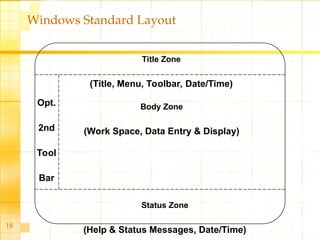
Windows Standard Layout
Title Zone
(Title, Menu, Toolbar, Date/Time)
Body Zone
(Work Space, Data Entry & Display)
Status Zone
(Help & Status Messages, Date/Time)
Opt.
2nd
Tool
Bar
19
Getting user’s attention
Intensity: use two levels only
Marking: Underline, enclose in box, point to with
an arrow, or use an indicator such as an asterisk,
bullet, dash, or an X
Size: use up to four sizes
Choice of fonts: use up to three fonts
Inverse video: use inverse coloring
20
Getting user’s attention…
Blinking: use blinking display
Color: use four standard colors, additional
colors for occasional use
Color blinking: changes in color
Audio: soft tones for regular positive
feedback, harsh sounds for emergency
21
Guidelines: data entry
Fewer input, greater productivity fewer chances
to occur errors
use of mouse, few keystrokes etc
selection from list eliminates memorization,
structured decision making, typographic errors
avoid redundant data entry
deactivate commands that are inappropriate

cs51HCI444new-goldenrules-principles.ppt

  • 1.
    Heuristic Evaluation (golden rulesof user interface design)
  • 2.
    2 Golden Rules ofInterface Design  1. Consistency  2. Accelerator keys  3. Feedback  4. Directness  5. Simplicity  6. Forgiveness  7. User Control  8. Minimal Memory Load
  • 3.
    3 1. Strive forconsistency Most frequently violated Many forms of consistency – Sequence of actions – Identical terminology – color, layout, fonts Exceptions – Echoing password
  • 4.
    4 Consistency Make appearance consistent Makea company’s image consistent Simplify appearance and behavior Simplify development effort
  • 5.
    5 Windows guidelines: generalguidelines  Use consistency – Easy to Understand and use  Use arrangement and flow – Upper left corner  Use alignment – Left alignment  Use grouping – Show relationships  Use emphasis – Focus, location, grouping, hierarchy, enabling/disabling, size, color, font attributes
  • 6.
    6 Windows guidelines: generalguidelines..  Use visual clues – Sizing to indicate similarity and difference  Use white space – “breathing room”  Watch for vanity – Avoid using logos, names anywhere  Watch sizing – Independent resolution  Use resource templates – Predefined grids
  • 7.
    7 2. Enable frequentusers to use shortcuts Reduce number and increase pace of interaction Abbreviations, special keys, hidden commands, macros Short response time and fast display rates
  • 8.
    8 3. Offer informativefeedback Feedback for every user action Varies from modest to substantial Visual presentation
  • 9.
    9 4. Design dialogsto yield closure Group Sequence of actions – Beginning, middle, end Provides sense of control, satisfaction
  • 10.
    10 5. Offer errorpreventions and simple error handling Do not allow possibility of serious errors If errors are made – Detect – Offer instructions for recovery – Leave the system state unchanged or provide instructions to restore the state Ex. Oh Dear, problem! This error should never, ever happen!
  • 11.
    11 Guidelines: error messages Avoiderror numbers Avoid blaming the user Avoid hostile language Use plain English in the text Avoid trying to be funny or clever in message text Allow users to suppress non-critical text
  • 12.
    12 Error messages ERROR!: Youfailed to set the correct File path The file c:MyFile.doc could not be found
  • 13.
    13 6. Permit easyreversal of actions Removes anxiety Encourages exploration of unfamiliar options Units of reversibility – Single actions – Data-entry task – Complete task
  • 14.
    14 7. Support internallocus of control Sense of control Avoid – Surprising system actions – Tedious data entry sequence – Inability or difficulty in obtaining information – Inability to produce desired action Users initiators of action
  • 15.
    15 8. Reduce short-termmemory load Limits of STM: 7(+-)2 Keeps displays simple, consolidate multiple page displays Reduce window motion frequency Training for codes, mnemonics, action sequences
  • 16.
    16 Guidelines: Information Display Helpsin promoting consistency Recording practical experience Empirical studies Rules of thumb
  • 17.
    17 Guidelines for datadisplay Organize displays consistently Support efficient assimilation by user Minimize memory load Keep display compatible with entry (WYSIWYG) Provide format flexibility
  • 18.
    18 Windows Standard Layout TitleZone (Title, Menu, Toolbar, Date/Time) Body Zone (Work Space, Data Entry & Display) Status Zone (Help & Status Messages, Date/Time) Opt. 2nd Tool Bar
  • 19.
    19 Getting user’s attention Intensity:use two levels only Marking: Underline, enclose in box, point to with an arrow, or use an indicator such as an asterisk, bullet, dash, or an X Size: use up to four sizes Choice of fonts: use up to three fonts Inverse video: use inverse coloring
  • 20.
    20 Getting user’s attention… Blinking:use blinking display Color: use four standard colors, additional colors for occasional use Color blinking: changes in color Audio: soft tones for regular positive feedback, harsh sounds for emergency
  • 21.
    21 Guidelines: data entry Fewerinput, greater productivity fewer chances to occur errors use of mouse, few keystrokes etc selection from list eliminates memorization, structured decision making, typographic errors avoid redundant data entry deactivate commands that are inappropriate