CRON….
An experiencedLinux sys admin knows the importance
of running the routine maintenance jobs in the
background automatically.
Linux Cron utility is an effective way to schedule a
routine background job at a specific time and/or day on
an on-going basis.
The Linux utilities cron and at are related commands.
The cron utility allows you to schedule a repetitive task to
take place at any regular interval desired, and the at
command lets you specify a one-time action to take place
at some desired time
3.
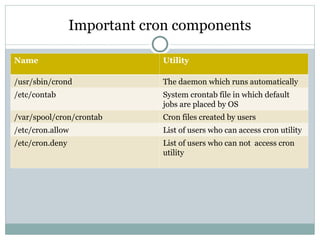
Important cron components
NameUtility
/usr/sbin/crond The daemon which runs automatically
/etc/contab System crontab file in which default
jobs are placed by OS
/var/spool/cron/crontab Cron files created by users
/etc/cron.allow List of users who can access cron utility
/etc/cron.deny List of users who can not access cron
utility
4.
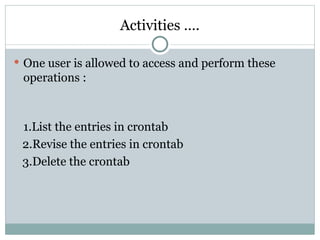
Activities ….
Oneuser is allowed to access and perform these
operations :
1.List the entries in crontab
2.Revise the entries in crontab
3.Delete the crontab
5.
Listing and deleting
To view your current crontab file, use the -l (for ``list'') option:
$ crontab –l
To view crontab entries of other Linux users, login to root and use -
u {username} -l as shown below.
# crontab -u Akash -l
To delete your file,
$crontab -d
If you are superuser, you can delete any user's crontab file with:
# crontab -d username
where username is the user's login name.
@yearly /home/ramesh/annual-maintenance
*/10 * * * * /home/ramesh/check-disk-space
6.
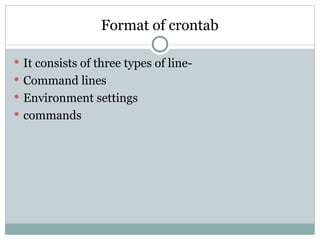
Format of crontab
It consists of three types of line-
Command lines
Environment settings
commands
7.
Environment settings
Those lineshave the following form:name=value
Common environment variables are
SHELL=/bin/bash
LOGNAME=abh
HOME=/home/abh
MAILTO=abhishek.bhattacharya@iemcal.com
All the lines which are started with # are called
comment.
8.
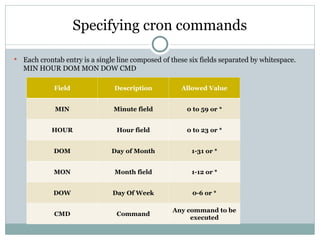
Specifying cron commands
Each crontab entry is a single line composed of these six fields separated by whitespace.
MIN HOUR DOM MON DOW CMD
Field Description Allowed Value
MIN Minute field 0 to 59 or *
HOUR Hour field 0 to 23 or *
DOM Day of Month 1-31 or *
MON Month field 1-12 or *
DOW Day Of Week 0-6 or *
CMD Command
Any command to be
executed
9.
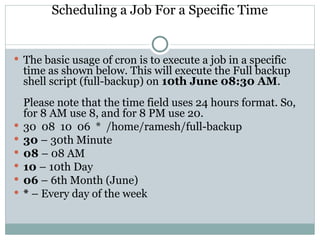
Scheduling a JobFor a Specific Time
The basic usage of cron is to execute a job in a specific
time as shown below. This will execute the Full backup
shell script (full-backup) on 10th June 08:30 AM.
Please note that the time field uses 24 hours format. So,
for 8 AM use 8, and for 8 PM use 20.
30 08 10 06 * /home/ramesh/full-backup
30 – 30th Minute
08 – 08 AM
10 – 10th Day
06 – 6th Month (June)
* – Every day of the week
10.
Schedule a JobFor More Than One Instance (e.g. Twice a Day)
The following script take a incremental backup twice a
day every day.
00 11,16 * * * /home/ramesh/bin/backup
00 – 0th Minute (Top of the hour)
11,16 – 11 AM and 4 PM
* – Every day
* – Every month
* – Every day of the week
11.
Schedule a Jobfor Specific Range of Time (e.g. Only on Weekdays)
This example checks the status of the database
everyday (including weekends) during the working
hours 9 a.m – 6 p.m
00 09-18 * * * /home/ramesh/bin/backup
00 – 0th Minute (Top of the hour)
09-18 – 9 am, 10 am,11 am, 12 am, 1 pm, 2 pm, 3
pm, 4 pm, 5 pm, 6 pm
* – Every day
* – Every month
* – Every day of the week
12.
Cron Job everyweekday during working hours
This example checks the status of the database every
weekday (i.e excluding Sat and Sun) during the
working hours 9 a.m – 6 p.m.
00 09-18 * * 1-5 /home/ramesh/binbackup
00 – 0th Minute (Top of the hour)
09-18 – 9 am, 10 am,11 am, 12 am, 1 pm, 2 pm, 3
pm, 4 pm, 5 pm, 6 pm
* – Every day
* – Every month
1-5 -Mon, Tue, Wed, Thu and Fri (Every Weekday)
13.
Schedule a BackgroundCron Job For Every 10 Minutes, every 2 hours.
Use the following, if you want to check the disk space every
10 minutes.
*/10 * * * * /home/ramesh/check-disk-space
It executes the specified command check-disk-space every
10 minutes through out the year.
* 0-10/2 * * * /home/ramesh/check-disk-space
It executes the specified command check-disk-space every 2
hours between midnight to 10 AM(Midnight,2 AM,4AM,6
AM,8AM ,10 AM) through out the year.
14.
Another form
Thereare special cases in which instead of the above
5 fields you can use @ followed by a keyword — such
as reboot, midnight, yearly, hourly.
Table: Cron special keywords and its meaning
Keyword Equivalent
@yearly 0 0 1 1 *
@daily 0 0 * * *
@hourly 0 * * * *
@reboot Run at startup.
15.
Example
If youwant a job to be executed on the first minute
of every year, then you can use the@yearly cron
keyword as shown below.
This will execute the system annual maintenance
using annual-maintenance shell script at 00:00 on
Jan 1st for every year.
@yearly /home/ramesh/red-hat/bin/annual-
maintenance
16.
Anacron:Desktop job schedular
Cron assumes that system is continuously powered
on.So normally cron jobs are seldom executed. Who
will keep the machine on 2 AM in night?
But if anacon is installed in the system then it will
execute any jobs skipped during the time system was
powered off.
It is not like normal cron because it does not run
continuously as adaemon.It must be executed as a
part of start up script.It should be placed in
/etc/rc.d/init.d directory.
17.
Contd
Anacron doesnot gurantee that time at which a job is
run.
To start anacron mannually
$anacron –s
The configuration file of anacron is /etc/anacrontab
18.
The at command
Use at when you want to execute a command or multiple commands
once at some future time.In Linux, the at command requires that
the atrun command be started in root's crontab file. Many Linux
distributions ship with at enabled, but some do not. To enable the at
utility on your system, become superuser and edit root's crontab
file:
$ su root
Password:
# crontab -e
and add the following line:* * * * * directory/atrun
where directory is the location where the atrun executable is stored.
On my system that's /usr/lib, so the entry is:* * * * * /usr/lib/atrun
This causes atrun to be executed every minute
19.
Example
To demonstratethe at command, let's have it print ``hello'' on your current
terminal window after a few minutes. First, get the time and your current
terminal device:
$ date
Tue Oct 3 15:33:37 PDT 2012
$ tty
/dev/ttyp2
Now run the at command. Specify a time in the command line, press
Return, and then enter the command, followed by another Return and a
Control-D:
$ at 15:35
echo "hello" > /dev/ttyp2
^D
Job c00ceb20b.00 will be executed using /bin/sh
N.B :The at command takes input up to the end-of-file character (press
Control-D while at the beginning of a line). It reports the job number and
informs you that it will use /bin/sh to execute the command. In two
minutes, hello should appear on the display of /dev/ttyp2. Note that you
can enter a series of commands, one per line.
20.
Example
One wayto tell at to do something is to use the
relative form of timing, specifying a time relative
to now. If you want your computer to beep at you in
25 minutes, enter:
$ at now + 25 minutes
echo ^G > /dev/ttyp4
^D
Job c00ceb7fb.00 will be executed using /bin/sh
21.
Example
You musttell at your tty location or it won't send
output to your terminal window. If you prefer, you
can receive mail:
$ at 4:55pm Friday
echo '5 p.m. meeting with U' | mail abh
^D
Job c00ceb7fb.01 will be executed using /bin/sh
22.
Listing pending job
To get a list of your pending at jobs, enter:
$ atq
If you are superuser, atq shows you the pending at
jobs of all users.
To delete a job, enter:
$ atrm job_number where job_number is the job
number returned by atq.
The superuser can also remove other user's jobs.